

Page 1

I
LAVA MOBILE PHONE
Lava A52
User Manual
Page 2

II
©2015. All rights are reserved. No part of this document may be reproduced
without permission.
While all efforts have been made to ensure the accuracy of all the contents in this
manual, we assume no liability for errors or omissions or statements of any kind in
this manual, whether such errors or omissions or statements resulting from
negligence, accidents, or any other cause. The contents of this manual are subjected
to change without notice.
Protect our environment! We strive to produce products in compliance with global
environmental standards. Please consult your local authorities for proper disposal.
Note: User Manual is just to guide the users about the functionality of the phone. It
is not a certificate of technology. Some functions may vary due to modifications
and upgrade of software, or due to print mistake.
Page 3

III
Content
1. Welcome ................................ ................................................... 1
1.1. Exciting feature ................................................................ 2
1.2. For your safety ................................................................. 3
2. Phone Layout ........................................................................... 4
2.1. Key and Parts ................................................................... 4
2.2. Standby Screen & Icons ................................................... 4
3. Getting Stared .......................................................................... 5
3.1. Inserting the SIM card ...................................................... 5
3.2. Inserting the Micro SD card ............................................. 6
3.3. Unlock the phone ............................................................. 6
3.4. Using the Touch screen .................................................... 6
3.5. Charging the Battery ........................................................ 7
4. Basic Function ......................................................................... 7
4.1. Make Calls ....................................................................... 7
4.2. Answer Calls .................................................................... 8
4.3. Phone ............................................................................... 8
4.4. Contacts ........................................................................... 8
4.5. Messages .......................................................................... 8
4.6. Email ............................................................................... 8
4.7. Calculator ......................................................................... 8
Page 4

IV
4.8. Calendar ........................................................................... 8
4.9. Clock ............................................................................... 8
4.10. Camera ........................................................................... 8
4.11. FM Radio ....................................................................... 9
4.12 Play Music ...................................................................... 9
4.13. Sound Recorder .............................................................. 9
4.14. Gallery ........................................................................... 9
4.15. File Manager ................................................................ 10
4.16. Backup and restore ....................................................... 10
4.17. Settings ........................................................................ 10
5. Frequently Asked Questions and Troubleshooting .............. 12
6. Safety Information and Notices ............................................ 13
6.1. Emergency call ............................................................... 13
6.2. For your safety ............................................................... 14
7. Service Center Info .................. Error! Bookmark not defined.17
Page 5

1
1. Welcome
Congratulations on your purchase of the LAVA mobile phone. Your phone provides
many functions which are practical for daily use, such as a hands‐free loudspeaker,
camera, MP3 player, internet and much more. You can read the manual to
understand how to use Lava A52 Mobile phone and experience the well‐
established functions and simple operational methods. Please use the original
accessory in order to achieve the best use of effects. Use of non-original
components may lead to damage caused to the machinery, in which case Lava shall
not be responsible. Lava Warranty Certificate enclosed at the end.
LAVA support and contact Information
Check www.lavamobiles.com web site for additional Information, downloads, and
services related to your LAVA product.
To check for the nearest LAVA service center location for Maintenance services,
you can visit link:www.lavamobiles.com/support
Customer Care number
No: 1860 200 7500
Available from Monday to Sunday, between 10:00AM to 7:00PM
“It i s advisable to charge battery to 100% before start of using phone for better
battery life”
Page 6

2
1.1. Exciting feature
Android Lollipop 5.1
4.0 inch screen
1.3GHz Dual-Core Processor
4GB ROM + 512MB RAM
Dual SIM
Multimedia player
2MP Rear camera with LED Flash
Wi-Fi
Battery 1200mAh
Page 7
3
1.2. For your safety
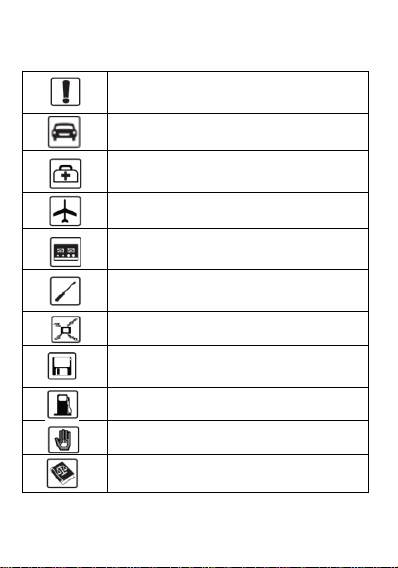
Do not switch your phone on when the use of wireless
devices is prohibited or when the wireless device may
cause interference or danger.
Do not use your phone while driving.
Follow relevant rules or regulations in hospitals and health
care facilities. Switch your phone off near medical devices.
Switch your phone off in an aircraft. The radio signal from
it may cause interference in signals of the aircraft.
Switch your phone off near high‐precision electronic
devices. It may affect the performance of these devices.
Do not attempt to disassemble your phone or its
accessories. Only qualified personnel may service or repair
the phone.
Do not place your phone and its accessories in containers
with strong electromagnetic field.
Do not place magnetic storage media near your phone.
Radiation from the phone may erase the information stored
on them.
Do not put your phone in a high‐temperature place or use
it in a place with flammable gas such as a petrol pumps.
Keep your phone and its accessories away from children.
Do not allow children to use your phone without guidance.
Respect others' privacy and legal rights when using your
phone.
Read this simple guideline. Avoiding them may be dangerous or illegal. Read the
complete user manual for further information.
Page 8
4
2. Phone Layout
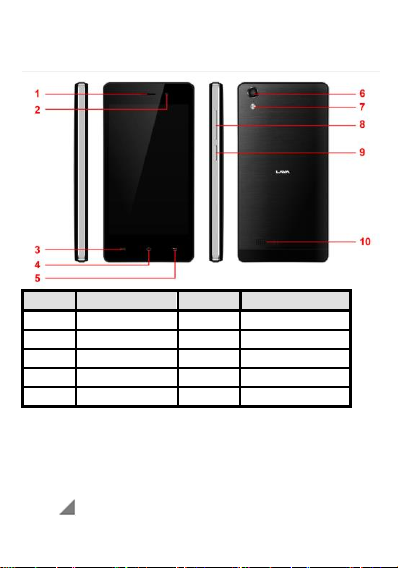
Label
Key
Label
Key
1
Receiver
6
Rear camera
2
Front camera
7
Rear flash light
3
Menu Key
8
Volume Key
4
Home Key
9
Power Key/Lock key
5
Back key
10
Speaker
Status Icon
Description
Signal indicator for SIM
2.1. Key and Parts
2.2. Standby Screen & Icons
This phone provides multiple Standby screens. Through the instruction and various
icons on the screen, you can have the operating information needed.
Page 9
5
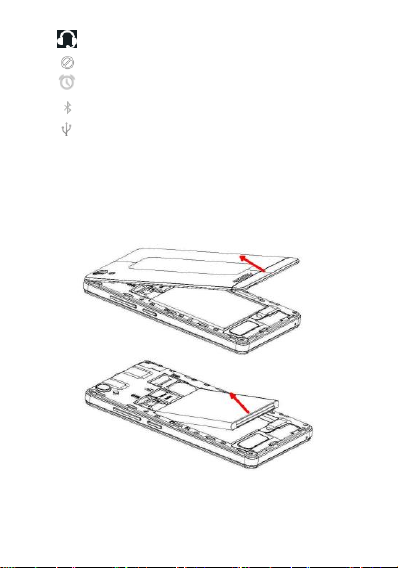
Using headset
Mute
Alarm
Bluetooth on
Modem connecting
3. Getting Stared
Please read the safety instructions in the "Safety Information and Notices" section
before start of using the Phone.
3.1. Inserting the SIM card
Lava A52 is a dual SIM mobile phone allowing you to use the facility of two
networks. To insert SIM card(s):
Switch off the mobile phone and remove the rear cover.
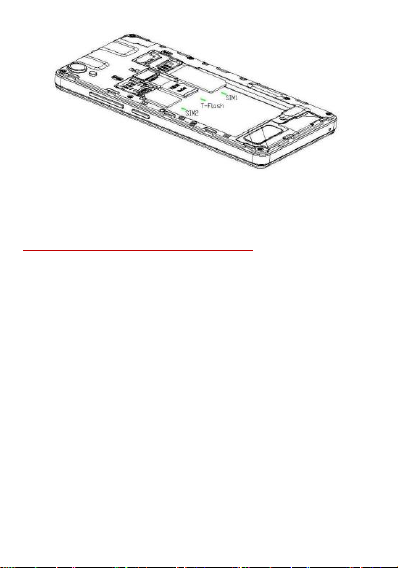
Make sure that the clipped corner of the SIM card is facing the correct direction
and the metallic contacts are facing downwards. Slide the SIM card into the card
slot.
Page 10
6
Replace the rear cover of the mobile phone.
3.2. Inserting Micro SD card
Gently slide the micro SD card into the slot marked for SD Card(Slot marked in
the center of both SIM).
Warning:Do not remove SD card in power ON state.
3.3. Unlock the phone
You can keep Swipe, Voice Unlock, PIN, and Password and can keep pattern to
unlock your phone.
To unlock the screen:
Press the power key to wake up the phone.
Slide on the screen.
You may be required to unlock your phone based on the unlock method in settings.
To set the unlock method:
On the main menu, touch Settings > Security.
Touch Screen lock.
Choose the type of lock as you desired. You can set your screen lock on the basis of
Swipe, PIN, and Password, Knock Code, Pattern or None.
3.4. Using the Touch screen
You can use the touch screen by following ways:
Touch: Acts on items on the screen, such as application and settings icons, to
type letters and symbols using the on screen keypad, or to press on screen
buttons.
Touch and hold: Touch and hold an item on the screen until an action occurs.
Drags: Touch and hold an item and move your finger on display screen until
you reach the target position.
Swipe or slide: Quickly slide your finger across the surface of the screen. For
Page 11

7
example, slide the screen up or down to scroll a list.
Double-tap: Quickly twice on a webpage, map, or other screen to zoom. For
example, double-tap a section of a webpage, map, or other screen of webpage in
Browser to zoom that section to fit the width of the screen. You can also
double-tap to control zoom, in Maps, and in other applications.
Pinch: In some applications (such as Browser, and Gallery ) you can zoom in
and out by placing two fingers on the screen at once and pinching them together
( to zoom out ) or spreading them apart ( to zoom in).
Rotate the screen: On most screens, the orientation of the screen changes as
you rotate it. You can turn this feature on and off from notification panel.
3.5. Charging the Battery
To charge the battery, plug in the charger connector at the top of your phone (USB
interface) and then plug the other line end into an AC power socket.
The battery icon indicates the charging state.
4. Basic Function
4.1. Make Calls
When the network provider is valid, touch the phone icon appears on the standby
screen, you can call out or answer calls. The indicator on the upper right part shall
show the signal strength.
Quality of connection will be greatly influenced by obstructions. So movement in a
small range may effectively improve the quality of connection.
Make Domestic Calls
Use virtual keyboard to enter phone numbers and then press Dial icon to call.
Call Extension Phone
Type in as follows to call extension phone:
Area code > switchboard number > Add 2-sec pause > extension phone number>
call
Make International Calls
Type in as follows to call international phone:
+ > country code > complete destination number > dialing icon.
Make Listed Calls
Listed phone numbers can be called out by typing the phone number and then
pressing the dial key.
Emergency Calls
You can call for emergency service as long as you are in the network coverage. If
your network provider doesn't provide roaming service in this area, there will be
"Emergency Calls only" on the lock screen.
Page 12

8
4.2. Answer Calls
Drag the icon towards right to answer an incoming call.
4.3. Phone
Touch the phone icon on the home screen to dial the desired number.
4.4. Contacts
Touch the Contacts icon on the home screen, you can check all the contacts, search
for contacts or add new contact.
When adding a new contact, you can type the name, address, phone number etc.
4.5. Messages
Touch the Messages icon on the home screen, you can create a new message and
send to your required contact. Input phone number or select the number from
contacts. When tap the content, you can add picture, video, audio etc attachments.
4.6. Email
The handset provides the email function. You can use the email conveniently. You
need to input the email account, address and password.
4.7. Calculator
The handset is facilitated with a calculator with basic functions. You can carry out
the operation for plus, minus, multiply, and divide by pressing the screen. You can
use some functions in the advanced panel.
4.8. Calendar
Enter the calendar menu and there will appear a calendar on the screen with the
current date marked out by background frame with a special color. Press the touch
screen to browse date and the calendar information on the screen shall be
correspondingly updated.
4.9. Clock
Enter the clock application, the handset provide the Alarm, Clock, Timer and
Stopwatch for you. You can press alarm icon and press Add alarm to add a new
alarm. Use the clock to know the time of city you set. In this menu you also can use
timer and stopwatch.
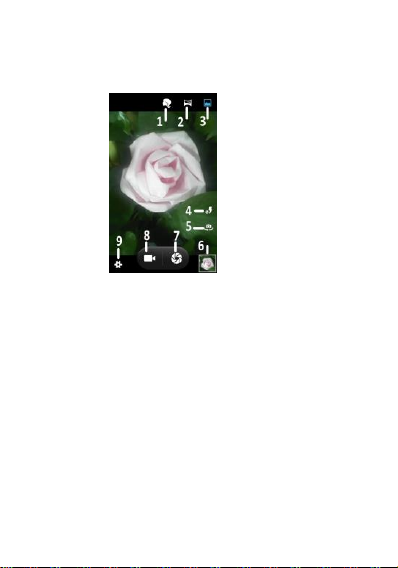
4.10. Camera
Under viewing condition, press the top icons to do the following operations.
1——Beauty mode
2——Panorama mode
Page 13
9
3——Normal Mode
4——Change the mode of flash light: auto mode, off mode, on mode.
5—— Switch the camera between front and back.
6——Thumbnail icon shows the currently captured picture or video
7——Press the Capture icon to take a picture.
8—— Video mode
9—— Setting icon
4.11. FM Radio
Make sure the headset, which is used as the antenna, is plugged in before using the
FM radio.
4.12 play Music
Use the Play Music to play music files. The songs saved in your phone can be
played using the Play Music of the device.
4.13. Sound Recorder
Sound Recorder is simple voice recording application. You can press Recording
icon to start Audio recording.
4.14. Gallery
Gallery Application will show all images and videos present in Phone memory and
SD card memory.
The Gallery also allows you to view pictures and videos you have captured.
With photos, you can access the edit functions, set an image as a contact photo or
wallpaper and can share the image.
There are three different views in which you can display your media content. Touch
Page 14

10
a picture/video to view the media
4.15. File Manager
File Manager – Manage your files like you do on your desktop or laptop. You can
manage file, including Download, Music, and Received File. Tap to create a new
folder or select folders to copy, move and delete.
4.16. Backup and restore
Backup and restore is used to backup and restore your file..
4.17. Settings
General
The handset can connect to a variety of networks and devices, including Wi -Fi,
Bluetooth devices, such as headsets. You can also transfer files to/from your PC
through the USB cable.
To Transfer data between Phone and PC
Drag down the the notification panel, you can select different connecting modes.
The mode has Media device(MTP), Camera(PTP), Charge only and Built-in
CD-ROM.
Connect to Wi-Fi Networks
To browse the Internet via Wi-Fi:
Go to settings> Wi-Fi > turn it ON, select the WIFI connection listed under Wi-Fi
networks with which you want to connect> Enter the password.
Note: Make sure that Wi-Fi network with which you want to connect your device
is in the network range and is in active mode.
Pair With Bluetooth Devices
Go to Settings > Bluetooth.
If Bluetooth is off, check Bluetooth to turn it on. Your phone scans and displays the
Bluetooth devices in range.
If your phone stops scanning before you make the other device discoverable, touch
Refresh.
If the pairing of both the devices is successful, then you can transfer and receive the
required files.
Connect to Internet on your PC via Phone
You can browse the Internet on your PC using your mobile phone. This can be done
in 2 ways:
To access both the options make sure your phone has an active data plan and
mobile data is “ON”.
USB Tethering:
Connect your mobile phone to your PC via the USB cable.
Go to Settings> More> Tethering & portable hotspot > USB tethering.
Page 15

11
Your PC will then read the necessary drivers of your phone and you can then
access internet on your PC.
Wi-Fi Hotspot:
Go to Settings> More >Tethering & portable hotspot> Turn ON Wi-Fi Hotspot.
Once the device Wi-Fi Hotspot is active you can see a white icon denoting
wireless network on the notification pane.
Sound & notification
In this menu, you can set Notification, Interruptions and Sound enhancement.
Storage
Include the SD card storage, available storage; insert SD card (If a SD card has
already been inserted, then this option will become "Unmount SD card "), Erase SD
card and all available storage in the internal storage space.
Battery manager
The menu can show the battery details. You can choose Power saver mode and
Super power saver mode.
Apps
Include downloaded apps, running apps and all of the apps in the smartphone.
Location
Go to Settings > Personal >Location. Locate your position through tools like
wireless network.
Security
Go to Settings > Personal > Security. Change the settings of Screen lock, SIM card
lock, Passwords visible, Device administrators and Trusted Credentials.
Language & input
Go to Settings > Personal > Language & input. Include Language, Keyboard
&Input methods, Spell checker and so on.
Accounts
Go to Settings > Accounts > Add account. Manage the accounts for Facebook,
Email, Google, and so on.
Date & time
Go to Settings > System > Date & time. Include Automatic date & time, Automatic
time zone, Set date, set time and so on.
Printing
Go to Settings > System > Printing. Connect printer to print the required document.
About phone
Go to Settings> About phone.This Includes System software updates, Status, Legal
information, Model number, Android version, Baseband version, Kernel version,
Build number and Custom build version.
Through Software Update you can download and install the latest Software for your
device.
More
By using the More menu you can turn ON/OFF the airplane mode,Set the Default
Page 16
12
SMS apps and etc
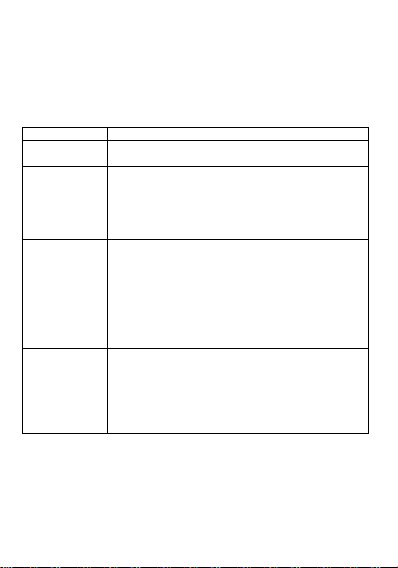
Questions
Cause and Solution
Unable to turn
on phone
Press the power on key for over 1 second.
Check if battery is appropriately charged
Unable to
connect to
network
Weak signal. Please Try and move to a location with strong
signal and try connecting to the network again;
Please ensure that you are not beyond the network
coverage of service providers;
Please ensure you have a valid SIM card. Please contact
your network provider for further information
Display
information
while turning
on
Check if the SIM card (insert the SIM card) is installed
correctly
Handset lock password: If the handset lock is activated,
you have to input handset password before using.
Input PIN: Inputting PIN while turning on each time is
activated, you have to input the PIN code.
Input PUK code: Having input wrong PIN code for 3 times
straight will lock the SIM card. You need to input the PUK
code provided by your network provider.
Poor quality of
calling
Please check if the sound volume is tuned improperly
In an area with poor receiving condition, example:
basement, the signal might be weak. Try reaching a
location with stronger signal reception and call again.
While using the mobile phone in the peak period of
communication, like commute time, you may be unable to
call because of line congestion.
Sound
In this menu you can set Volumes, Call ringtone & vibrate and set the system sound.
Display
In this menu you can set the wallpaper in your phone and set the display such as
brightness level, sleep time.
5. Frequently Asked Questions and Troubleshooting
Page 17
13
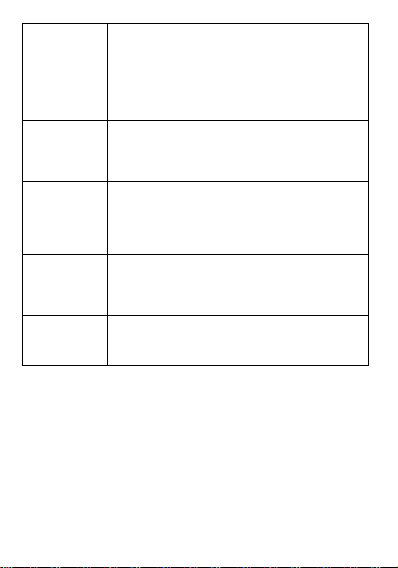
Standby
duration
Shortened
The standby duration is relative to the system setting of
network. While the mobile phone is in an area with poor
signal strength and cannot receive the signal, the handset
will continuously search for a base station. This will
significantly reduce battery charge. It is recommended that
you turn off your mobile in area with no signal reception to
save battery.
Need replacing the battery. Please change a new battery.
SIM Card
Error
Dirt on the metal surface of an SIM card. Use clean cloth to
wipe the metal touch point on an SIM card.
The SIM card is not installed.
The SIM card is damaged. Please contact your network
service provider.
Unable to dial
Please confirm if you pressed the dial key after dialing.
Please confirm if calling is forbidden because of default
settings.
Please confirm if the SIM is valid.
Please confirm if the call barring is set.
Please confirm if the fixed dial function is set.
Callers unable
to contact you
Please confirm if the mobile phone is on and connected
with the network.
Please confirm if calling is forbidden because of defaulting.
Please confirm if the SIM card is valid.
Please confirm if the call barring is set.
Unable to
charge handset
Poor contact. Please check if the plug is connected well.
Please confirm if the environment temperature is within the
range of 0ºC ~40ºC while charging.
The battery or charger is damaged. You need to replace it.
Note: If the above instructions cannot help you solve problems, please note:
Mobile phone model and serial number
Specific content of warranty
Clear statement of problems
Then contact your local dealer or a LAVA authorized service center in your area.
6. Safety Information and Notices
6.1. Emergency call
If any emergency arises, dial emergency call number for emergency help.
Note:
Due to the nature of cellular networking, the success of emergency call is not
guaranteed.
Page 18

14
6.2. For your safety
Switch off the phone in hospitals and aircraft. Obey any restrictions. Wireless
devices can affect the medical treatment and cause interference in aircraft.
Some medical devices such as hearing aids and pacemaker may be sensitive to
external radio frequency emissions. Consult the device manufacturers or your
doctor before using the phone around the medical devices.
Pay special attention to the ring tone volume and vibration settings if you have a
heart problem.
In areas with potentially explosive atmosphere, such as gas stations, fuel or
chemical transfer or storage facilities, obey all signs and instructions.
Your phone will emit radio frequency even in the standby mode. Turn off your
phone when so instructed.
Always obey all the local laws and regulations. Do not use your phone while
driving. Use Hands-free operation, if available, and give full attention to driving
and to the road. Pull off the road and park before making or answering a call if
driving conditions so require.
If your phone is lost or stolen, notify your service provider immediately to stop
the SIM card from being used.
To prevent your phone from misuse, lock your SIM card or phone, and change
passwords when necessary.
When you leave your vehicle, take the phone with you or place it in the glove
compartment to avoid theft.
Keep the phone, battery or charger out of reach of children.
Notes on phone usage
Your phone will give off electromagnetic waves. Do not place it near storage
medium such as floppy disk.
Using the phone near television, land phone, radio and office automatic
devices may cause interference and affect the function of the mobile phone.
Keep the phone dry; all kinds of liquid can erode electronic circuit.
Keep the phone away from extreme temperatures.
Keep the phone away from fire or a lighted cigarette.
Do not paint the phone.
Do not drop the phone or violently crush or shake the phone.
Do not keep the phone near magcards and other object with magnetism. The
phone’s magnetism may clear the information stored on floppy disk,
pre-paid phone card and credit card.
Keep the phone away from hot places where the temperature may exceed
60C, such as dashboard, windowsill, or areas exposed to direct sunlight.
Do not disassemble or modify your phone. This can damage the phone,
cause leakage and break the internal circuit.
Use only damp cloth or non-static cloth to clean your phone.
Page 19

15
Do not use alcohol, thinner, benzene or other chemicals or abrasive cleaner
to clean your phone.
The phone will become warm under normal use and while in battery
charging.
Do not leave the phone with battery uninstalled for a long period of time.
This may cause data loss.
The metal parts of the phone may irritate your skin depending on your
health condition.
Do not put the phone in the back pocket. Sitting on it may damage the phone.
Do not put the phone at the bottom of a bag. You may crush it.
When the vibrate mode is on, place the phone carefully to prevent it from
being dropped from a height or being moved to a heat source due to the
vibrating.
Do not press the touch screen with needles, pen point or other sharp objects;
it can damage the LCD and violate the terms and conditions of the warranty.
Notes on battery usage
Keep metal objects (such as coins or key rings) away from the battery to
avoid short circuit.
Do not remove the battery without turning off the phone.
Do not hold the battery in your mouth. The liquid of the battery can be toxic.
Embedded battery shall be replaced by authorized dealers. Use only
batteries approved by the phone manufacturer; otherwise, it may cause
explosion.
Damage resulting from using un-authorized batteries and chargers will not
be covered by the warranty.
Avoid contact with any leaked liquid of the battery. If it touches your skin,
wash your skin with fresh water and go to the hospital immediately.
Certification Information (SAR)
Your phone is designed not to exceed the limits of emission of radio waves
recommended by international guidelines. These guidelines include safety
margins designed to assure the protection of all persons, regardless of age
and health.
SAR (specific absorption rate) is the unit of body-absorbed RF quantity
when the phone is in use. SAR value is ascertained according to the highest
RF level generated during laboratory tests.
The true SAR level during phone usage will be far lower than this level.
The SAR value of the phone may change depending on factors such as how
close you are to a network tower, use of accessories and other
enhancements.
The highest SAR value of the device is less than 1.6W/Kg averaged over 1
Page 20

16
gm of human tissue.
The SAR value may differ depending on national reporting, testing
requirements and the network band.
SAR Recommendations
Use a wireless hands-free system (headphone, headset) with a low power
Bluetooth emitter.
Please keep your calls short and use SMS whenever more convenient. This
advice applies especially to children, adolescents and pregnant women.
Prefer to use your cell phone when the signal quality is good.
Maintain a preferable distance of 15 mm from the device.
Safety precautions:
Use cell phone when the signal quality is good
People having active medical implants should preferably keep the cell phone
at least 15cm away from the implant
Use a wireless hands-free system ( Headphone, headset) with a low power
Bluetooth emitter
Make sure the cell phone has a low SAR
Keep your calls short or send a text message (SMS) instead. This advice
applies especially to children, adolescents and pregnant women.
E-waste Disposal Mechanism
'E-waste' means waste electrical and electronic equipment (WEEE). In other words
E-waste is a popular, informal name for electronic products nearing the end of their
"useful life". For more details about e-waste please refer e-waste rules, 2011
www.moef.nic.in
Do’s and Don’ts for disposal e-waste
Do’s:
Ensure that an Authorized Person repairs your Lava products
Call Our Local Authorized Collection Centers to Dispose Lava products
Always drop your used electronic products, batteries or any accessories
thereof after the end of their life at nearest Authorized Collection Point or
Collection Center.
Separate the packaging material according to responsible waste disposal
options and sorting for recycling.
Always remove the battery from the product, when you do not intend to use
the product anymore it in future.
Don’ts:
Do not Dismantle your Lava Product on your own
Do not give your e-waste to Scrap Dealer/ Rag Pickers.
Do not dispose-off the e-waste in landfills
Page 21

17
Never dump E-waste in garbage bins.
Do not dispose of your product at municipal waste bins or rooms.
Do not throw used batteries into household waste.
Consequences of improper handling and disposal of E-Waste
Improper disposal of waste prevents natural resources from being re-used.
Some waste contains hazardous chemicals and if not disposed of properly
may release toxins into the soil and water, and also releases greenhouse
gases into the environment
If e-waste is not properly disposed of, it can be a threat to health and
well-being of humans and animals and it also has adverse effect on the
environment.
Placing of batteries or devices on or in heating devices, such as microwave,
ovens, stoves, or radiators and improper disposal of batteries may lead to
explosion.
If the battery terminals are in contact with metal objects, it may cause a fire.
For more details on how to dispose of your Lava products at the end of life, Please
refer the list of our Services Centers on Pan basis on our website
www.lavamobiles.com or please view this link for the details of Service Centers
http://www.lavamobiles.com/support-services.
7. Service Center Info
Service Center number: 1860-200-7500
Timings: Monday to Sunday, 10:00 AM to 7 PM
Page 22

18
LAVA WARRANTY CERTIFICATE
Limited warranty:
LAVA international Ltd. (LAVA) provides limited warranty for your mobile phone
and original accessories delivered with your mobile phone (hereinafter referred to
as “product”)
The warranty period for the transceiver is one (1) year and for battery, charger and
headset is six (6) months from the date of purchase.
LAVA Warranty
Subject to the conditions of this Limited Warranty, LAVA warrants a product to be
free from defects in design, material and workmanship at the time of its original
purchase by you, and for a subsequent period of one (1) year for transceiver and six
(6) months for battery & charger.
You shall have the coverage or benefits under this warranty in the event that any of
the following conditions are applicable:
The product has been subjected to abnormal use or conditions, improper
storage, exposure to excessive moisture or dampness, exposure to
excessive temperature, unauthorized modification, unauthorized repair
(including but not limited to use of unauthorized spare parts in
repairs),abuse, accidents, Acts of God, spills of food or liquids, improper
installation
You have not notified Lava of the defect in the product during the
applicable warranty period.
The product serial no. code or the accessories date code has been
removed, defaced or altered.
The product has been used with or connected to an accessory (i) Not
supplied by Lava or its affiliates, (ii) Not fit for use with the product or
(iii) Used otherwise than in manner intended.
The seals of the product’s battery enclosure have been broken or shown
evidence of tempering or the product’s battery has been used in
equipment other than that for which it has been specified usable by
LAVA.
All plastic surfaces and all other externally exposed part that is scratched
or damaged due to normal use.
Page 23

19
To get maximum of your new product, we recommend you to:
Read the guidelines for safe and efficient use as mentioned in the
manual.
Read the terms and conditions of your Lava warranty in the manual.
Keep your original receipt; you will need it for warranty services if asked
to produce.
Present this Lava Warranty Certificate along with original proof of
purchase whenever you require any warranty services.
In case Lava product needs service, please visit the nearest Lava service centers
given in the service guide. Please visit our Website www.lavamobiles.com for
updated list of Authorized Service Centers near to your location.
Important note: for your warranty to be valid, all information on the warranty
certificate has to be completed including the stamp from the authorized
distributor/retailer.
All warranty information, product features and specifications are subject to
change without notice.
IMEI No. ……………………………………………………….
Dealers Stamp ……………………………………………………….
Date of purchase ………………………………………………………..
Model No. ……………………………………………………….
 Loading...