

Page 1
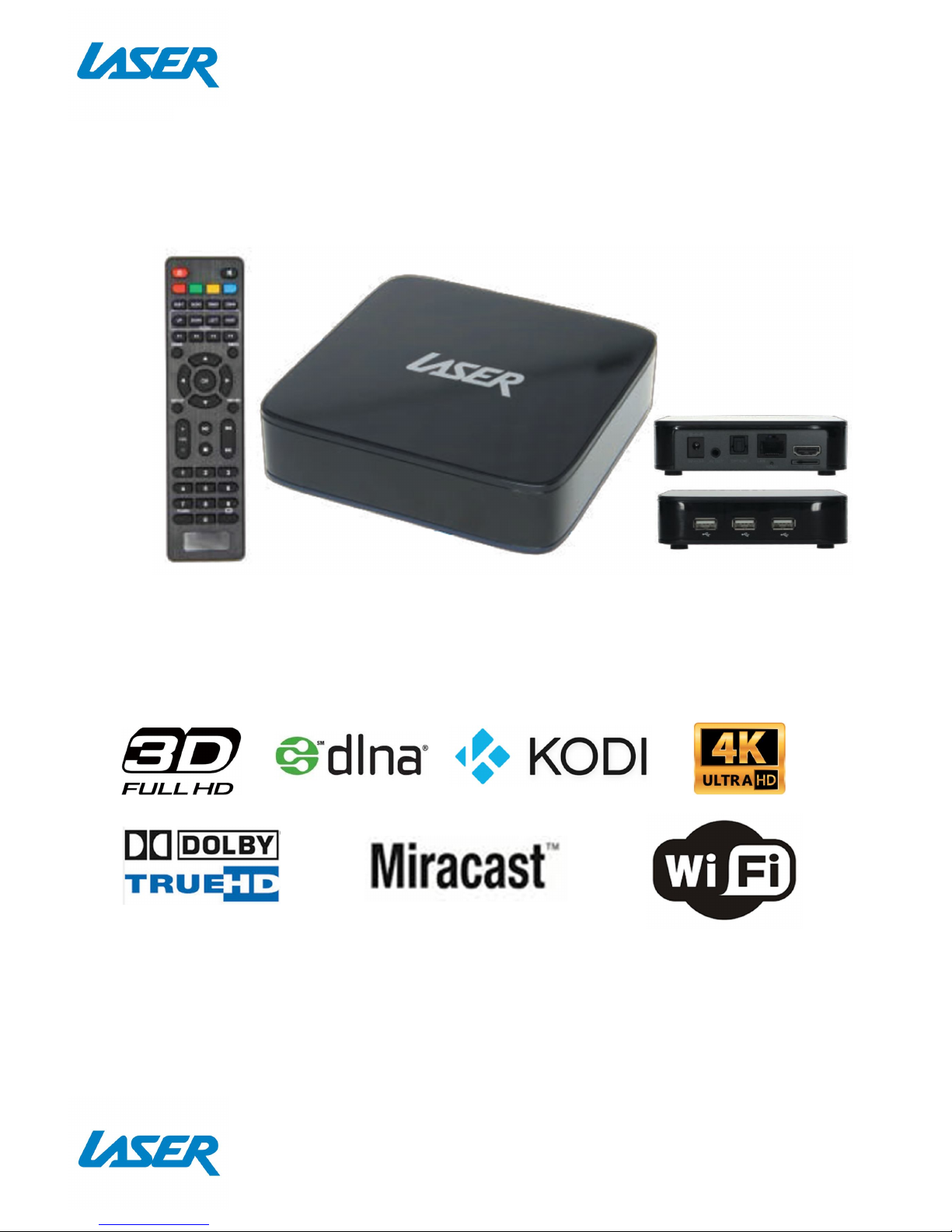
QUICK USER MANUAL MMC-S30
1
4K SMART MEDIA PLAYER
Page 2

QUICK USER MANUAL MMC-S30
2
Index
The Remote control 3
The Player Outputs 4
Connecting to TV 5
Connection to Internet 6
The home Screen 9
The apps Center 10
Smart Apps 11
Settings 12
Feature Overview 13
Specifications 15
FAQ 15
IMPORTANT SAFETY INSTRUCTIONS AND PRECAUTIONS
- Read all instructions carefully before use.
- Retain manuals for future reference.
- Use this product only in the manner described.
- Only use a water-dampened soft-cloth to clean the surface of this product.
- The following will damage this product: any liquid such as water or moisture, extreme
heat; cold; humidity, dusty or sandy environments.
- Only place this device on stable surfaces and ensure that any attached cables are
secure and will not cause the device to fall.
- If charging is required, it is recommended to thoroughly charge electronic devices for
the first time overnight. Subsequent charges can be as needed. During charging, or
extended use, the product may become warm.
- There are no user serviceable parts in this product.
- Un-authorized attempts to dismantle or repair this product will void product warranty
- Using this device near other electronic devices may cause interference.
Page 3
QUICK USER MANUAL MMC-S30
3
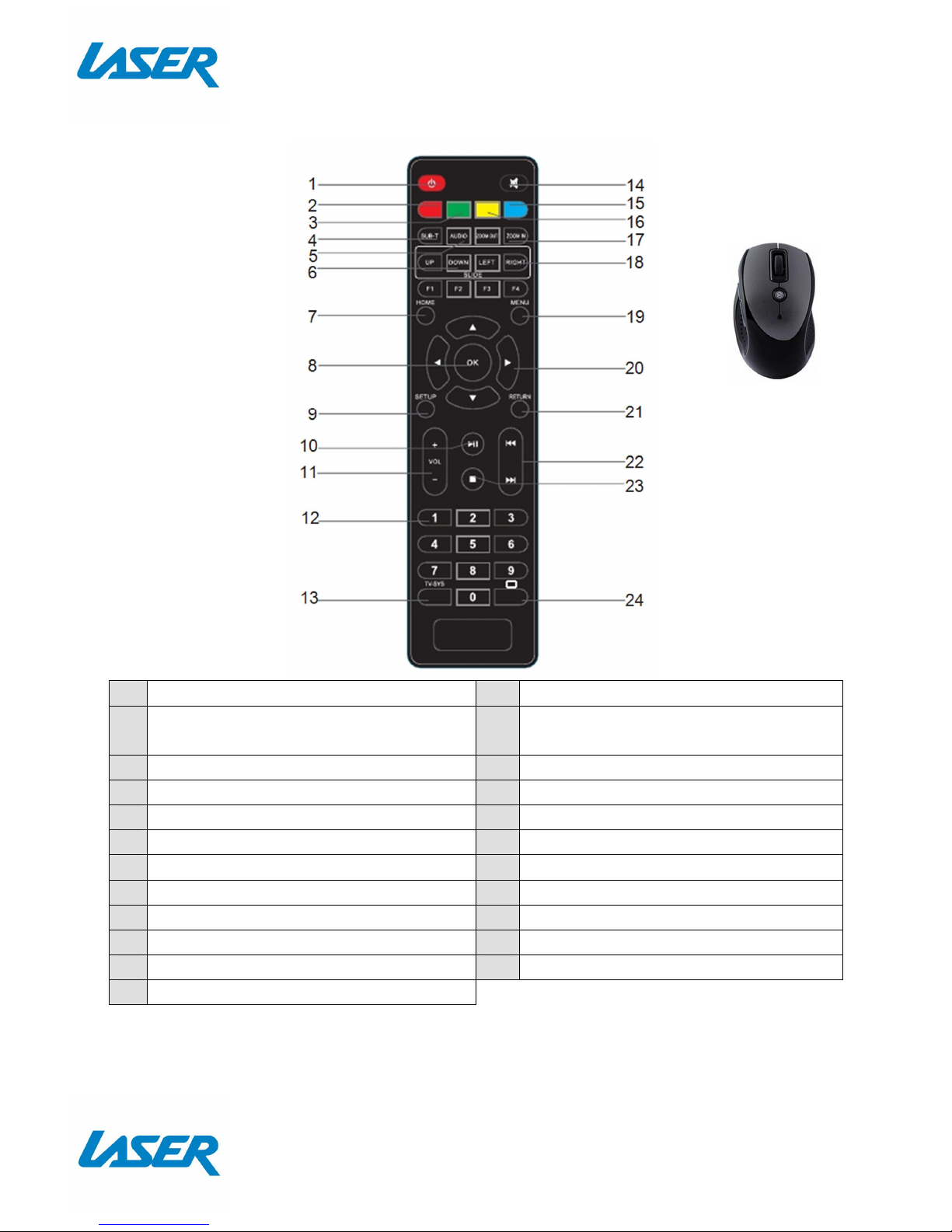
THE REMOTE CONTROL
1 Power On / Off 13 Resolution change (shortcut)
2
(Red button)
Switch to the cursor mode
14 Mute/Un-mute sound
3 (Green button) Multi-function 15 (Blue button) Multi-function
4 Sub-title 16 (Yellow button) Multi-function
5 Audio 17 Zoom In / Out
6 Slide up and down 18 Slide left and right
7 Home 19 Menu
8 OK 20 Move cursor left, right, up or down
9 Setup 21 Return (back a screen)
10
Play / Pause 22 Next / previous file
11
Volume Up / Down 23 Stop
12
Numeric buttons
Note. Some
subscription based
Apps may require a
mouse or keyboard
for setup and
operation.
(This mouse is not
included with this
product)
Page 4
QUICK USER MANUAL MMC-S30
4
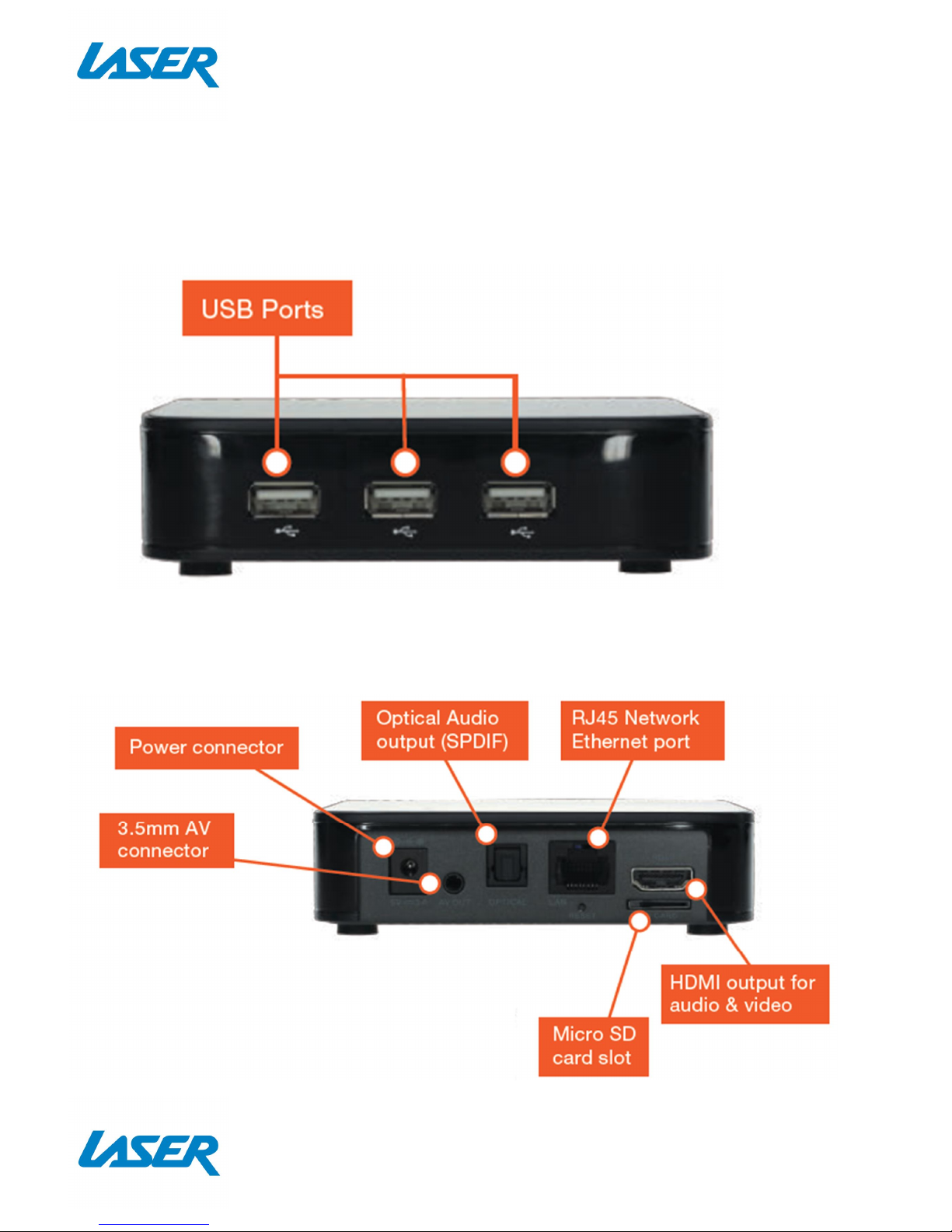
THE PLAYER OUTPUTS
SIDE PANEL
REAR PANEL
Page 5
QUICK USER MANUAL MMC-S30
5
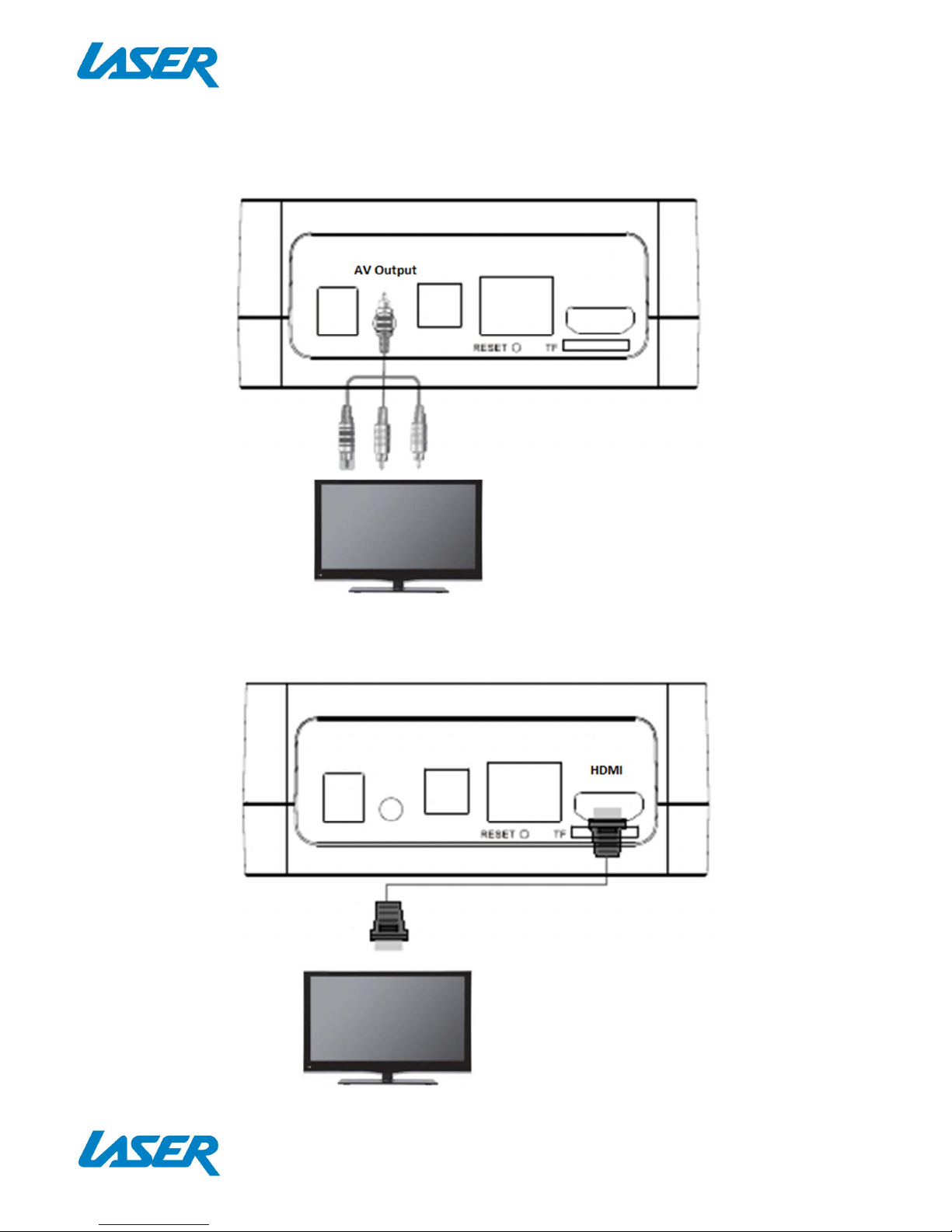
CONNECTING TO TV
GOOD – via RCA Cables
BEST – via HDMI Cable
Note: RCA A/V Cable not supplied
Note: HDMI A/V Cable not supplied
Page 6
QUICK USER MANUAL MMC-S30
6
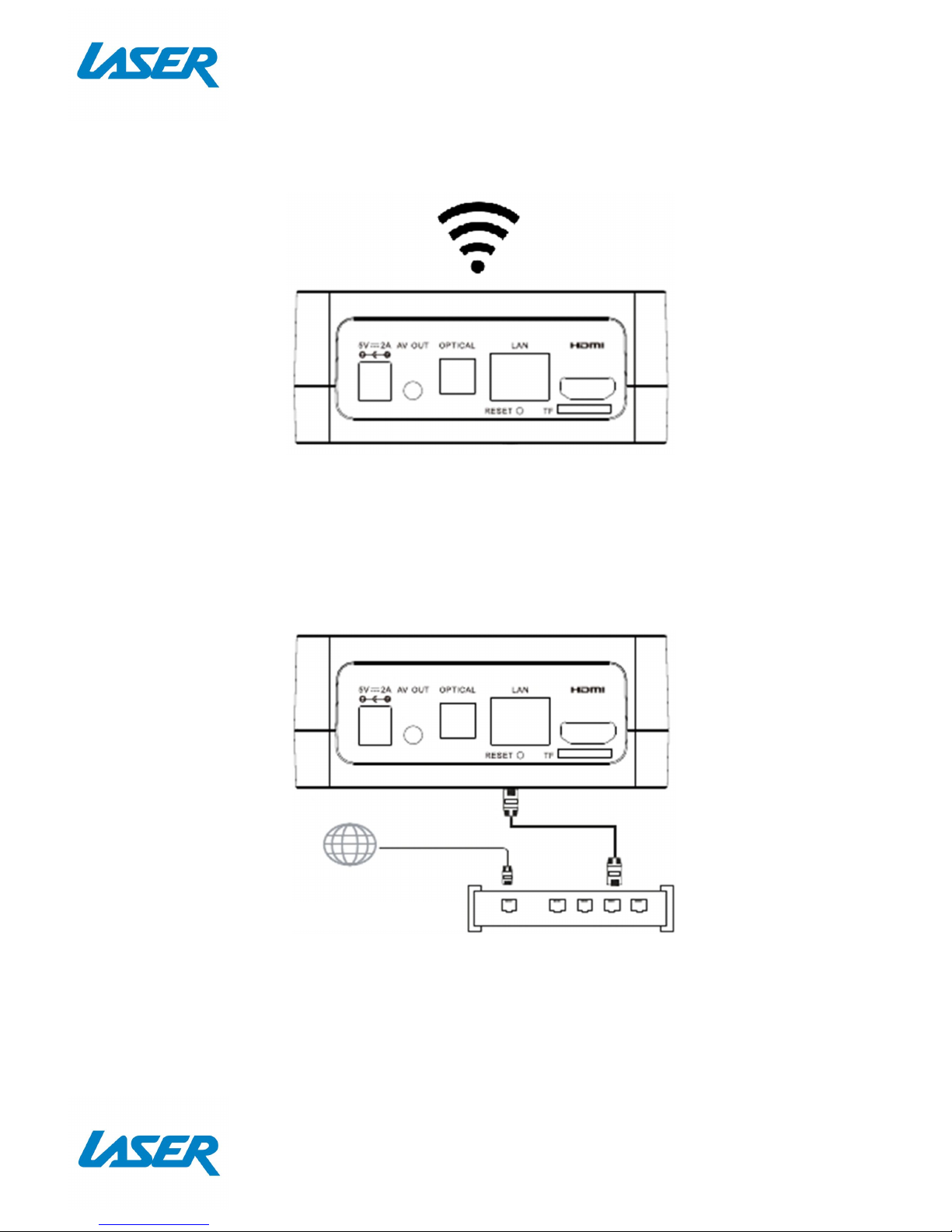
CONNECTION TO INTERNET
GOOD – Wi-Fi
BEST – Direct Connection (to a Modem/Router)
Note: An Ethernet cable internet connection is recommended for streaming HD and FHD
video.
WIRELESS MODEM
Note: Network cables not supplied
Page 7
QUICK USER MANUAL MMC-S30
7
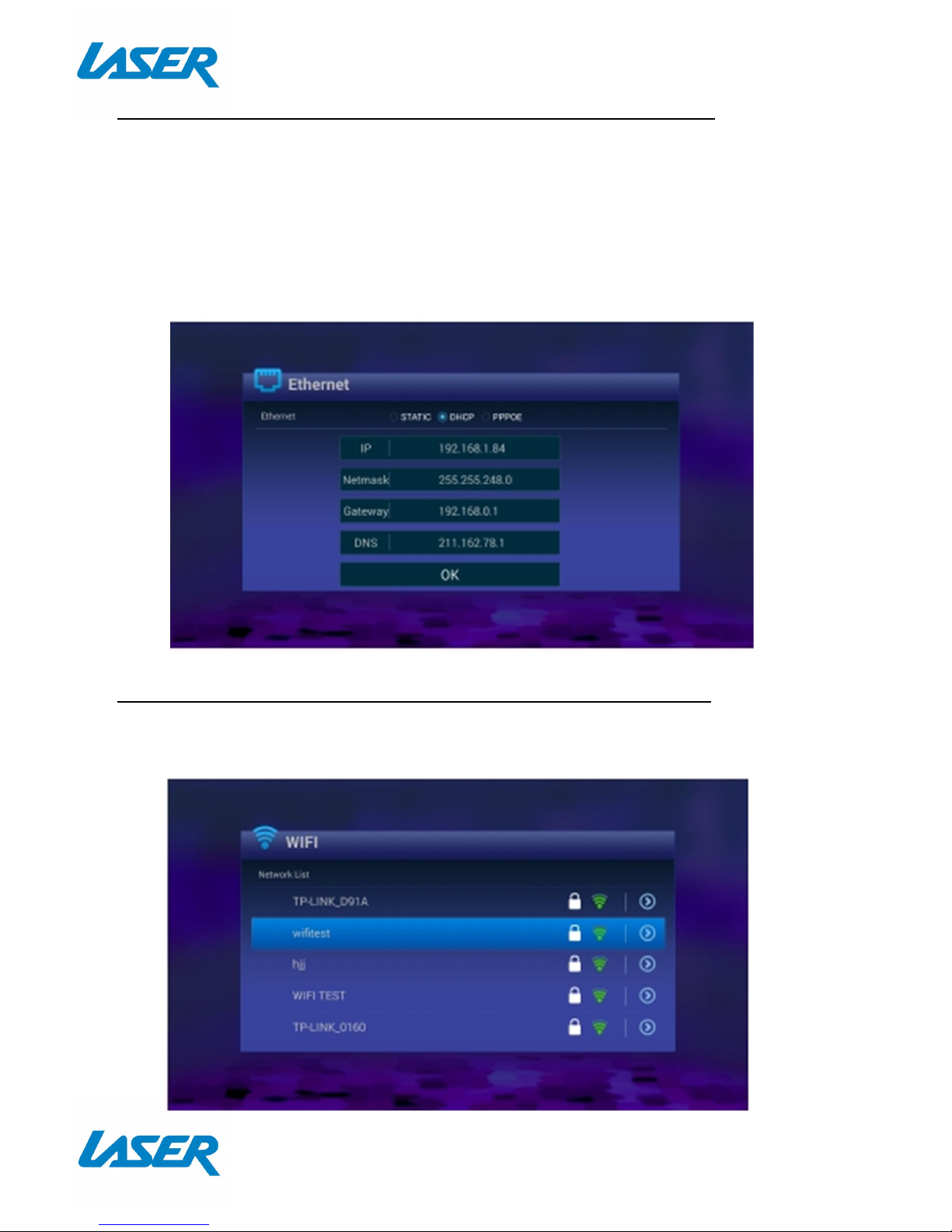
Cable connection to the internet using a Modem/Router
- Connect the network cable to the Media Player and your Modem/Router.
- In most cases your Modem/Router will automatically assign network settings to your
media player and display the screen below. Then click OK. If not, you may have to:
-Turn on and login into your Modem/Router to ensure an IP address can be
automatically assigned to your Media Player (DHCP (Dynamic Host Configuration
Protocol must be enabled)
- After connection has been successful the below screen will be displayed, showing IP,
Netmask, Gateway and DNS. Then click OK.
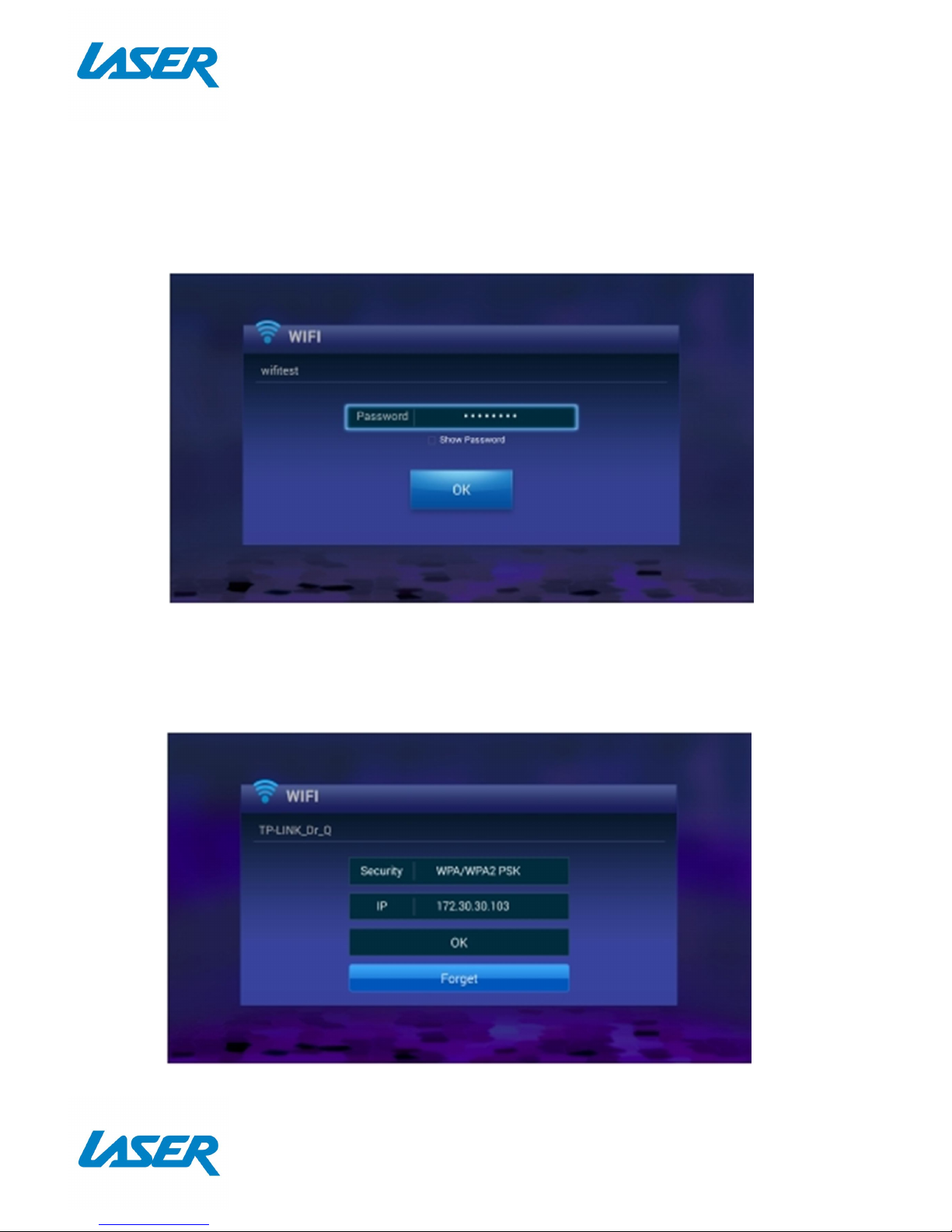
Wi-Fi connection to the internet using a Modem/Router
- Go into the "Settings" at the home screen, select "Wi-Fi" option.
- A list of available Wi-Fi connections will be displayed. See the example screen below.
Note: The Ethernet cable musts be unplugged.
Page 8
QUICK USER MANUAL MMC-S30
8
Note: If the wireless network is not encrypted, you can connect to it directly. If the
network is encrypted, select the Wi-Fi name to pop up the window for password, press
OK on the remote control and call out the soft keypad on the screen, enter the password,
select “Next” on the keypad or press the Return key on the remote control to hide the
keypad, and then select “Connect” to connect to it. (Note: to hide the keypad on the TV
box, press the Return key on the remote control.)
- To forget a WIFI connection, select it and press the Right button on the remote control.
Then the interface shows up as below picture. Choose Forget button to forget this WIFI
information.
Page 9
QUICK USER MANUAL MMC-S30
9
APP OVERVIEW
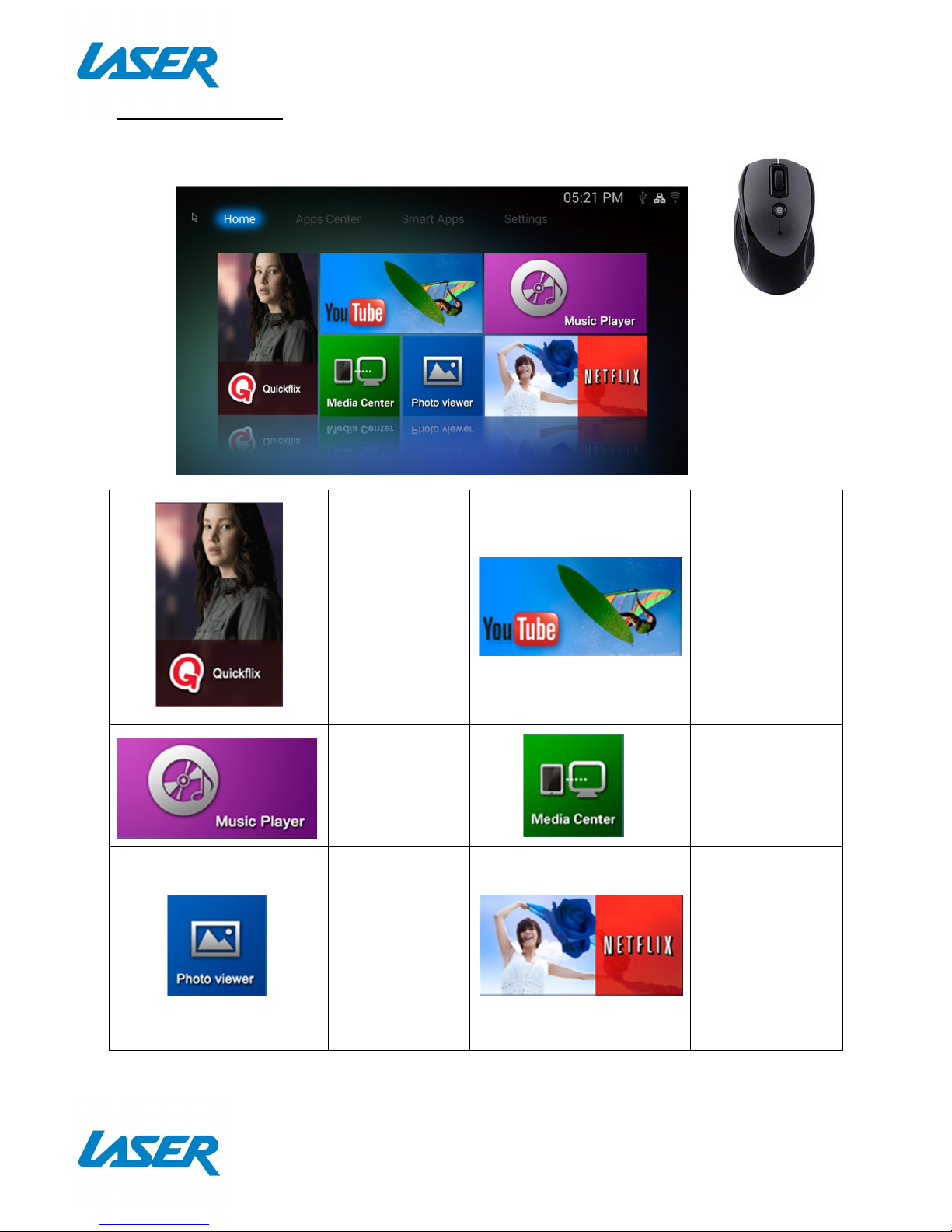
The Home screen
Quickflix
Stream Movies
and TV for a
Monthly price.
(Account is
required)
YouTube Stream
Youtube Videos
Music Player
Play Music
through the
device
Media Center
Connect to
DLNA Server to
play Media
Photo Viewer
View photos
on the device
Netflix Stream
Movies and TV
for a Monthly
price.(Account is
required)
Please note: A mouse
may be required for
use with this app
Note. Quickflix,
Netflix, Skype and
other subscription
based Apps may
require a mouse or
keyboard for setup
and operation.
Page 10
QUICK USER MANUAL MMC-S30
10
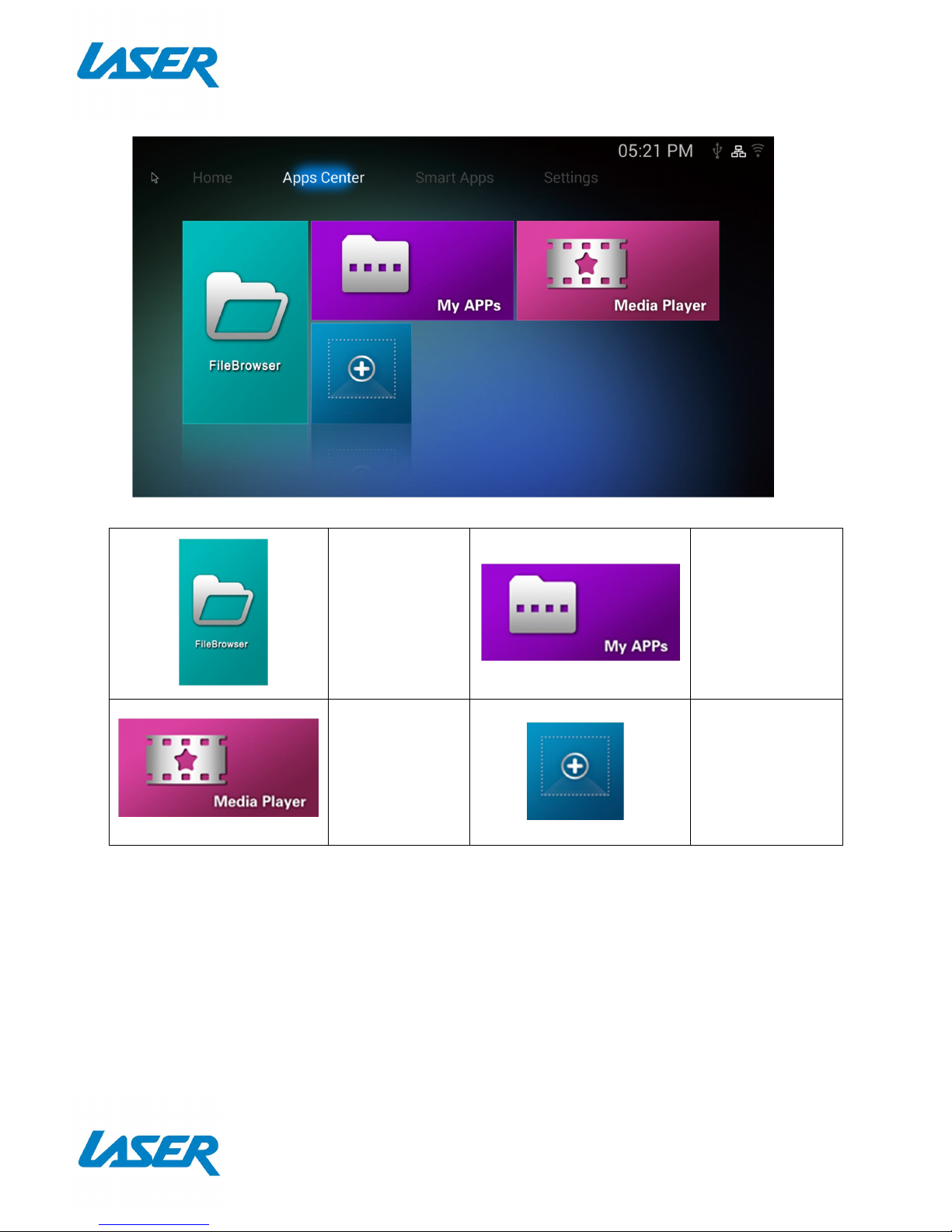
The Apps Center
FileBrowser
Browse your
files
My APPs View
app the installed
apps
Media Player
Play Media
through the
device
+ Add apps to
the Apps Center
screen
Page 11
QUICK USER MANUAL MMC-S30
11
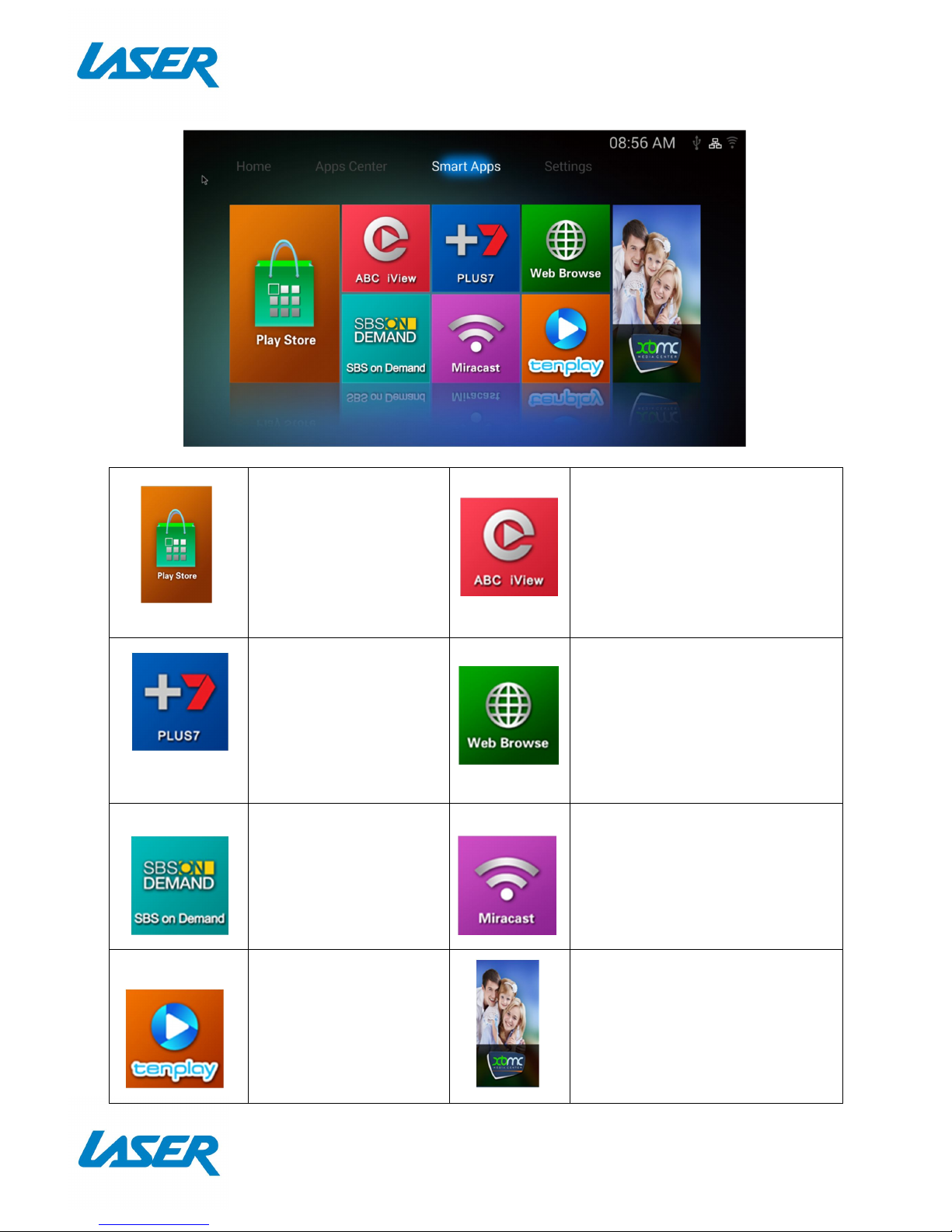
Smart Apps
Play Store
Access the Google Play
Store. Purchase and
Download apps,
music, movies and
more
ABC iView
Let’s you catch up on the best
of ABC TV
Please note: A mouse may be required
for use with this app
Plus7 Let’s you catch
up on the best of
Seven TV
Please note: A mouse may be
required for use with this app
Web Browse
Browse the Web
SBS on Demand
let’s you catch up on
the best of SBS TV
Please note: A mouse
may be required for
use with this app
Miracast
Wirelessly display that allows
you to Mirror your Smartphone
or tablet
Tenplay
let’s you catch up on
the best of Ten TV
Please note: A mouse
may be required for
use with this app
XBMC (Kodi)
is a free and open
-
source
media player software. It allows users to
play and view most videos, music, such
as podcasts from the internet, and all
common digital media files from local
and network storage media. For more
information please visit:
kodi.wiki/view/Quick_start_guide
Page 12
QUICK USER MANUAL MMC-S30
12
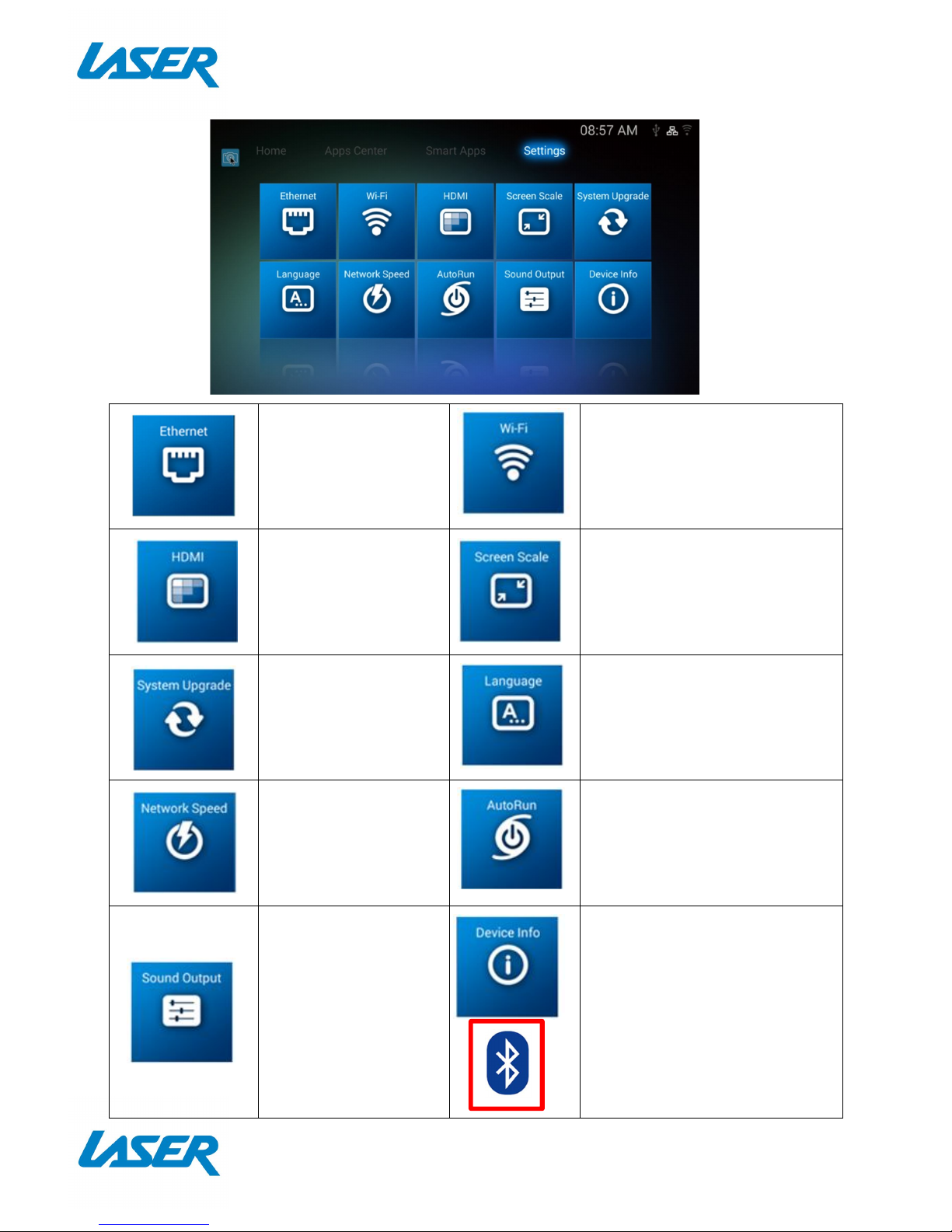
Settings
Ethernet
Check the Ethernet
Settings and IP
information
Wi-Fi
Setup a Wi-Fi connection
HDMI
Change the screen
resolution
Screen Scale
Adjust the screen scale to fit
on screen properly
System Upgrade
Upgrade the System
either via Storage or
OTA (Over the Air)
Language
Change Language
Network Speed
Check the current
Network Speed
AutoRun
Allow apps to auto run
Sound Output
Change the sound
output
Device Info
View the device information.
Note. Use the ADVANCED
button under “Device Info” to
turn on Bluetooth if required.
This button will take you to
the Android Settings page.
Page 13
QUICK USER MANUAL MMC-S30
13
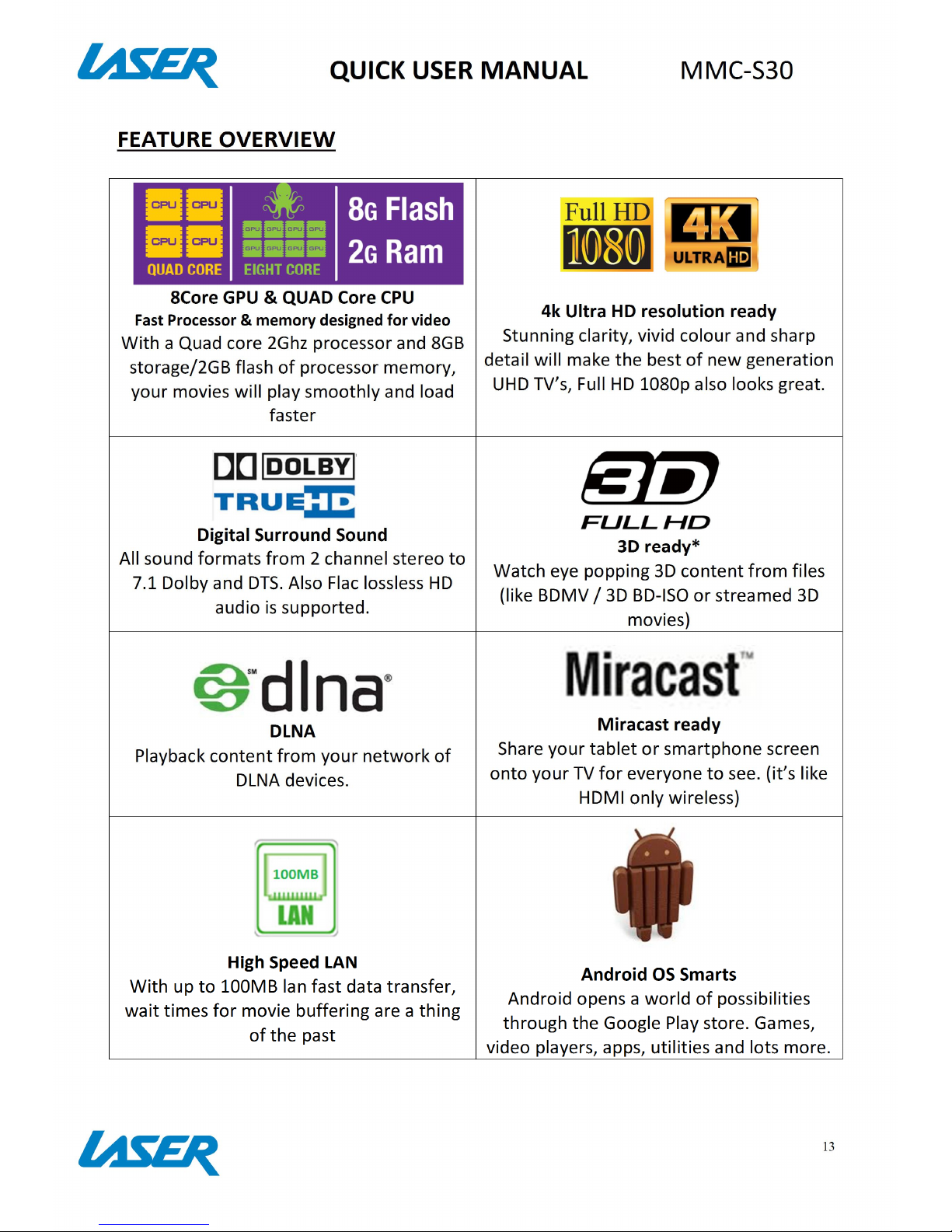
FEATURE OVERVIEW
8Core GPU & QUAD Core CPU
Fast Processor & memory designed for video
With a Quad core 2Ghz processor and 8GB
storage/2GB flash of processor memory,
your movies will play smoothly and load
faster
4k Ultra HD resolution ready
Stunning clarity, vivid colour and sharp
detail will make the best of new generation
UHD TV’s, Full HD 1080p also looks great.
Digital Surround Sound
All sound formats from 2 channel stereo to
7.1 Dolby and DTS. Also Flac lossless HD
audio is supported.
3D ready*
Watch eye popping 3D content from files
(like BDMV / 3D BD-ISO or streamed 3D
movies)
DLNA
Playback content from your network of
DLNA devices.
Miracast ready
Share your tablet or smartphone screen
onto your TV for everyone to see. (it’s like
HDMI only wireless)
High Speed LAN
With up to 100MB lan fast data transfer,
wait times for movie buffering are a thing
of the past
Android OS Smarts
Android opens a world of possibilities
through the Google Play store. Games,
video players, apps, utilities and lots more.
Page 14
QUICK USER MANUAL MMC-S30
14
USB Ports & Micro SD input
Connect USB flash drives, hard drives or
input devices like mice, keyboards or web
cams or read content from a Micro SD
card.
HDMI or Analogue AV output
Connect to older TV’s via Composite video
and L/R stereo (cable included) or connect
to new TV’s with HDMI for the ultimate in
sound and vision.
Wireless Connectivity
Wifi and Bluetooth on board means that
you can connect to wireless networks or
connect wireless products to the media
player
Play it all -Multi source, Multi Format
ready
Whether it’s 4K movies from Netflix®,
Youtube® videos online or movies/music
from your home network or USB storage
drive, with KODI and other media players
file playback is assured*
Note: Although this android Media Player can support all the above features, you must
have the correct hardware and compatible video files. For example, if you would like to
playback a 3D movie you must have a 3D TV and a 3D movie file first, in order for this
feature to work correctly.
Page 15
QUICK USER MANUAL MMC-S30
15
FAQ
Some apps I downloaded are not working
properly. Why?
They may have not installed correctly.
Please uninstall the apps and reinstall
them again.
Some apps not working properly with the
remote. Why?
Some apps are not designed to be used
with a remote. I Suggest using a mouse
instead.
My remote control is not working. Why? Make sure the batteries are installed
correctly. Try a different set of batteries.
Please note: Some apps will not work
correctly with a remote. A mouse may be
required for use.
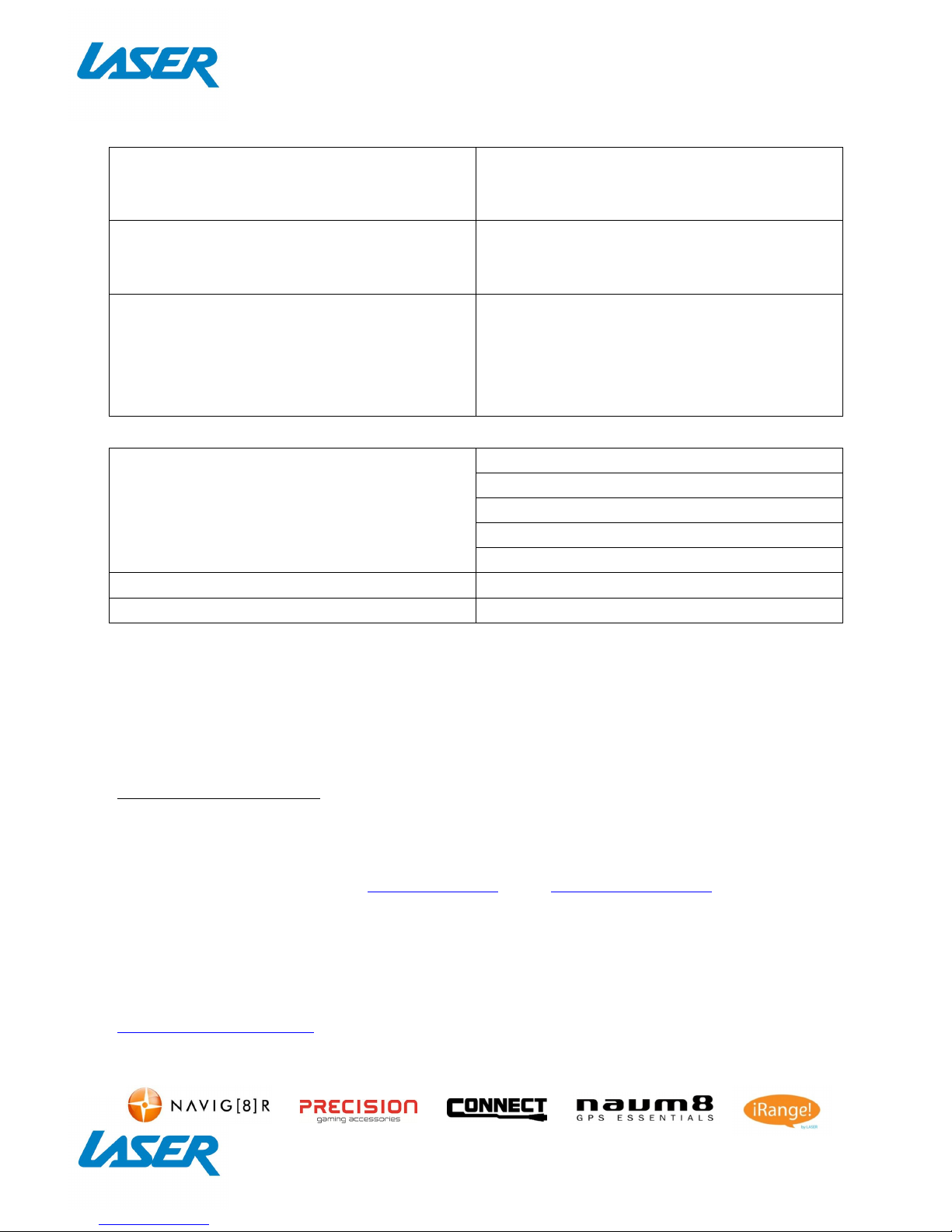
SPECIFICATIONS
Interface
Composite AV Out (Jack to RCA)
HDMI
USB x 3
LAN
Micro SD Card
Power Supply 5V 2A
Dimensions 109 x 109 x 45mm
Warranty Against Defects
Laser Corporation Pty Ltd (“Laser”) warrants your new product to be free from defects in materials and workmanship for 36 months, from
the date of purchase, provided that the product is used in accordance with accompanying recommendations or instructions where
provided. The benefit of this warranty is in addition to your rights under the Australian Consumer Law and to other rights and remedies of
the consumer under a law in relation to the goods or services to which the warranty relates.
Through a network of retailers and resellers, Laser will provide you with your choice of a repair, exchange (where possible) or refund
(within Dead on Arrival period) for this product if it becomes defective within the warranty period.
This warranty will no longer apply where the defect is a result of alteration, accident, misuse, abuse, normal wear and tear, neglect or
improper storage. Please retain your receipt as proof of purchase
How to make a product warranty claim:
Step 1: Find your receipt which proves the date of purchase. Where the date of purchase cannot be verified, your place of purchase or
Laser will make an assessment based on the date of manufacture, the condition of the Laser Product and the type of defect.
Step 2a): Contact your place of purchase. They will assess the nature of the fault and repair, replace or fund the product as per their store
refund or warranty policy.
Step 2b): If your place of purchase cannot be contacted, then you can contact Laser. Customer Service with details of your defective
Laser Product: Phone: (02) 9870 3355; or Email: [email protected] or online www.laserco.com.au/warranty (click on “Consumers
(End Users)”). Our business address is at 1/6-8 Byfield Street, North Ryde, NSW 2113
Step 3: Laser will issue you with a Return Authorisation (RA) number within 48 hours. When requested, send us the defective Product
and a copy of your receipt. Laser will cover the cost of the return delivery.
Step 4: Wait for us to contact you. Once we have received your defective Laser Product for inspection, we will inform you of our
assessment of your claim within 7 days. When we contact you, we will firstly let you know whether you have a valid claim under this
Warranty, and if so, we will inform you whether your defective Laser Product will be replaced or repaired, together with the number of
days you can expect to wait to receive your replaced or repaired Laser Product.
Step 5: For further details on warranty cover and returns, please check Terms and Conditions for Warranty Returns section on
http://www.laserco.com.au/warranty
Our goods come with guarantees that cannot be excluded under the Australian Consumer Law. You are entitled to a replacement or
refund for a major failure and compensation for any other reasonably foreseeable loss or damage. You are also entitled to have the
goods repaired or replaced if the goods fail to be of acceptable quality and the failure does not amount to a major failure.
 Loading...