

Page 1
BL620-US DONGLE
Embedded Wireless Solutions Support Center:
http://ews-support.lairdtech.com
www.lairdtech.com/wireless
1
Americas: +1-800-492-2320
Europe: +44-1628-858-940
Hong Kong: +852 2923 0610
GETTING STARTED
Quick Start Guide v1.2
INTRODUCTION
The goal of this document is to explain how to install the BL620-US dongle for use on your PC.
REQUIREMENTS
The following equipment and utilities are required:
BL620-US Dongle
Windows PC (Windows 7 or newer)
UwTerminal (Windows) – free download from www.lairdtech.com
The BL620-US dongle has a Segger J-Link chip on board; when you connect the dongle to your computer, it
searches for the relevant driver which can be obtained from http://www.segger.com/jlink-software.html. You need
the serial number printed on the underside of your dongle next to the text SEGGER # to be able to download the
driver from the Segger website.
INSTALLATION
1. Connect the dongle to your PC.
2. With the J-Link driver installed, wait until Windows finishes installing device driver software.
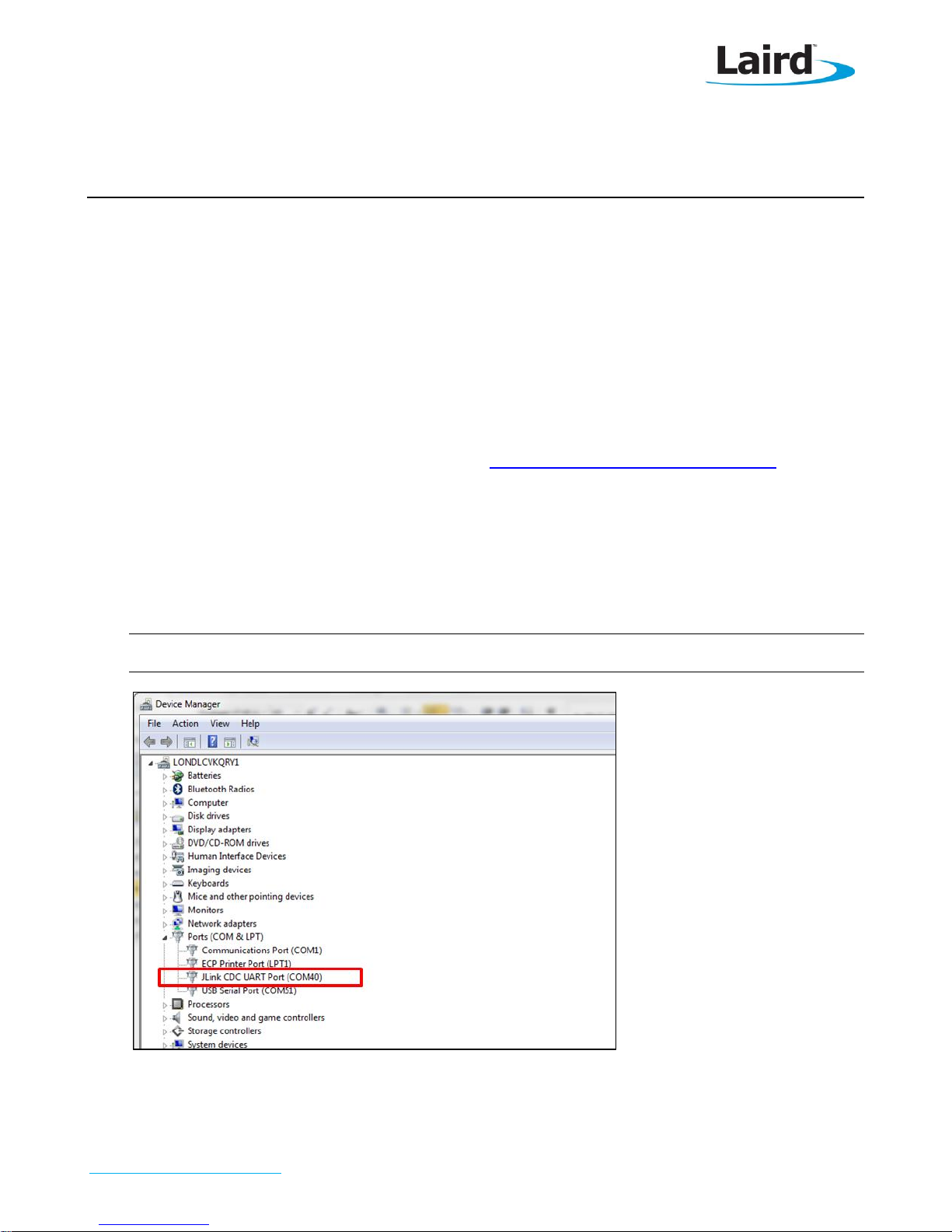
3. Check that the device is listed in the Device Manager. See Figure 1.
Note: The JLink UART port number varies on different computers.
Figure 1: BL620-US as shown in Device Manager
Page 2
BL620-US Dongle
Embedded Wireless Solutions Support Center:
http://ews-support.lairdtech.com
www.lairdtech.com/wireless
2
Americas: +1-800-492-2320
Europe: +44-1628-858-940
Hong Kong: +852 2923 0610
Quick Start Guide
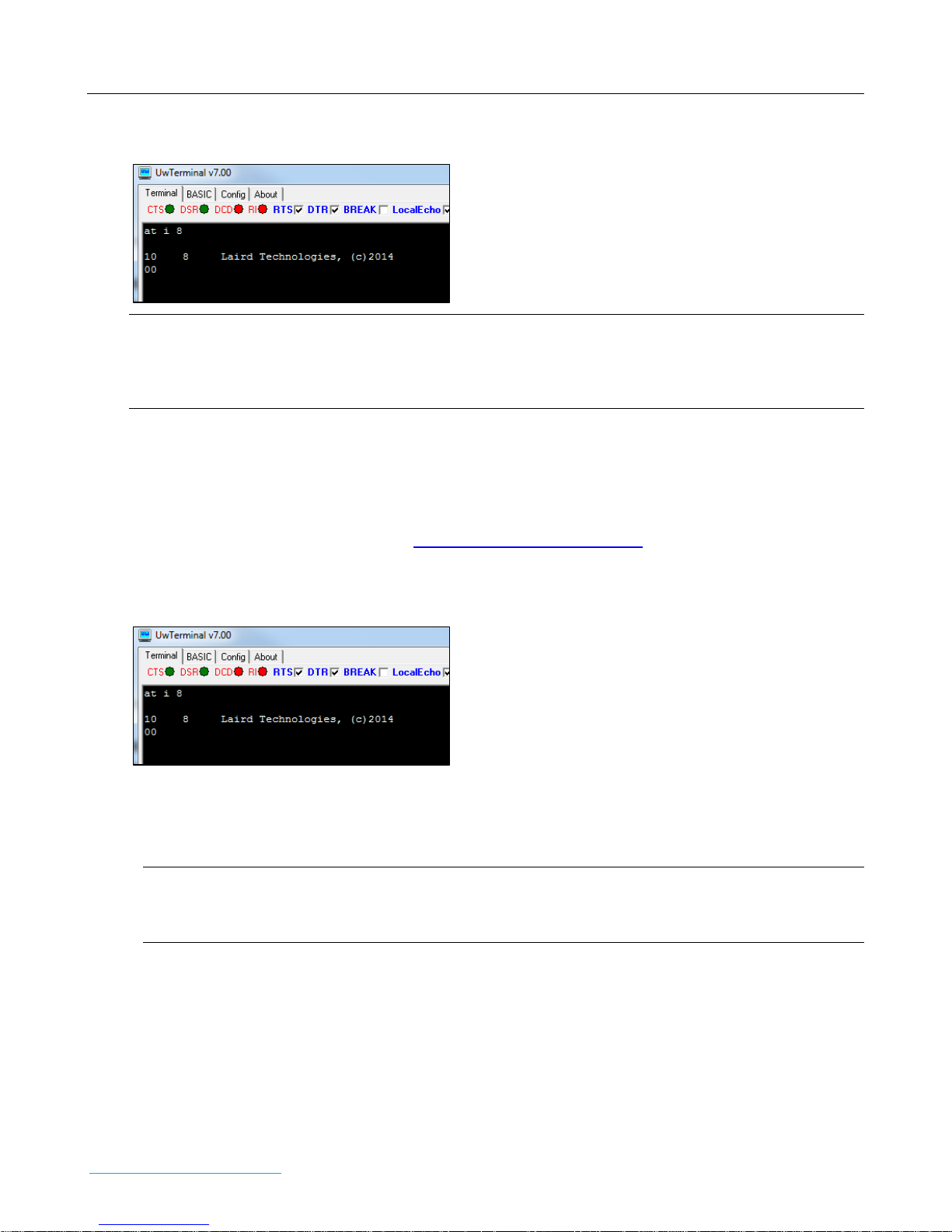
4. Open UwTerminal and type “at i 8” and Enter to confirm you can communicate with the dongle on the right
com port.
Note: The default baud rate on the BL620 is 9600 bps.
Note: When using the BL620-US dongle, in UwTerminal the CTS pin is always de-asserted. The underlying
firmware in the Segger interface chip locally handles the CTS/RTS hardware handshaking.
FIRMWARE UPGRADE
The BL620-US is already preloaded with firmware. When new firmware becomes available, customers can upgrade
the firmware over the USB interface. The procedure is quite straightforward. Be aware that all
applications and settings are cleared after the upgrade.
smart
Basic
The firmware package can be downloaded from https://laird-ews-support.desk.com, and login credential will be
required. Customers should visit the website to submit the request.
1. Connect the dongle to your PC.
2. Send at i 8 to ensure the correct com port is opened.
3. The upgrade package is provided as a zip file so decompress it into a new folder of your choice. The form of
the file name is: BL620_R2_Firmware_&_Samples_smartBASIC_Apps_vW_X_Y_Z-rN where W,X,Y,Z is the
version number of the firmware and –rN is an optional suffix that is present if the zip file has new content
apart from the firmware image (such as corrections in the user guide or other documentation.
Note: Do not decompress into an existing folder, as there is potential for confusion with regards to
firmware upgrade files. We recommend you decompress the zip file into a folder with the same
name as the zip filename.
4. In the decompressed folder, launch _DownloadFirmware_vA_B_C_D.bat (either double-click it or launch it
from a command prompt console window). Upgrade process will start immediately.
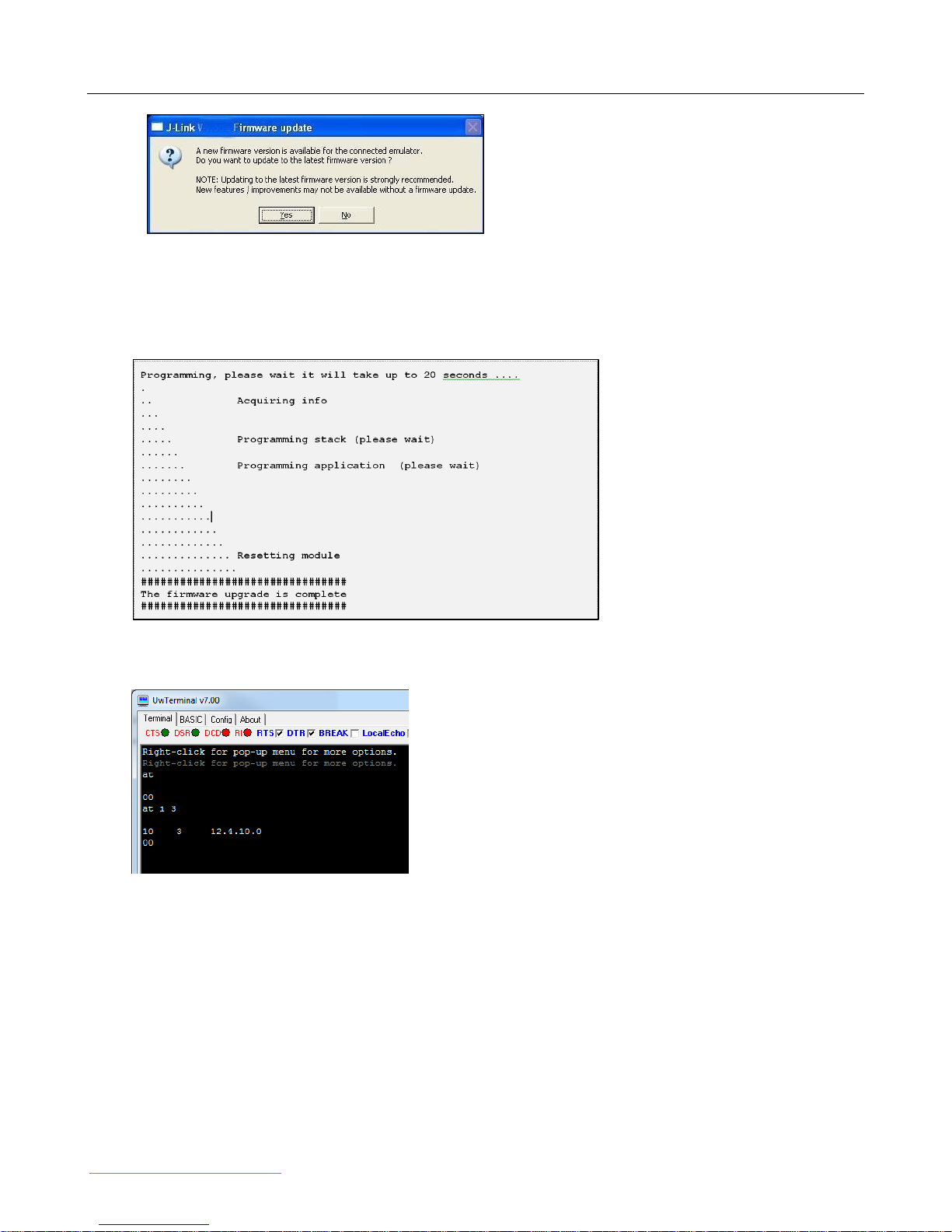
5. If the J-Link firmware is outdated, the following dialog box displays (Figure 4):
Page 3
BL620-US Dongle
Embedded Wireless Solutions Support Center:
http://ews-support.lairdtech.com
www.lairdtech.com/wireless
3
Americas: +1-800-492-2320
Europe: +44-1628-858-940
Hong Kong: +852 2923 0610
Quick Start Guide
Figure 4: J-Link firmware update dialog
6. Click Yes to update the J-Link firmware.
The BL620-US firmware upgrade process resumes automatically and displays a command prompt box.
7. When the upgrade is finished, the console window displays the following:
8. Press any key to proceed.
9. Send at i 3 to confirm the firmware has been upgraded.
Page 4
BL620-US Dongle
Embedded Wireless Solutions Support Center:
http://ews-support.lairdtech.com
www.lairdtech.com/wireless
4
Americas: +1-800-492-2320
Europe: +44-1628-858-940
Hong Kong: +852 2923 0610
Revision
Date
Description
Approved By
1.0
12 Sept. 2014
Initial Release
Jonathan Kaye
1.1
20 Sept. 2014
Minor Edits
Jonathan Kaye
1.2
14 Oct. 2014
Minor edits
Jonathan Kaye
Quick Start Guide
UART BREAK NOT AVAILABLE (BL620-US ONLY)
If you are familiar with using Laird’s BL600 module then you may be familiar with sending a uart_break to force the
module to reset.
Unfortunately, the Segger interface chip which is providing the virtual serial port emulation is not capable of
asserting a BREAK to the module. The only way to reset the device is to send an ATZ command if you are in
command mode OR to invoke the reset() function from a
smart
BASIC application.
If you are using the
reset is to send the
then submit the ATZ command to reset it.
cmd
sample app to interact with peripherals and if it is running, an additional way to achieve a
stop
command. This aborts the application and the BL620 is placed in command mode. You can
FURTHER INFORMATION
Further information relating to firmware and the use of UWTerminal is available from the Laird website at
http://www.lairdtech.com/Products/Embedded-Wireless-Solutions/Bluetooth-Radio-Modules/BL600-Series
REVISION HISTORY
 Loading...