

Page 1

LaCie 2big Dock Thunderbolt 3 User Manual
Click here to access an up-to-date onl ine version
of this document. You will also find the most recent content as well as expandable illu strations, easier
navigation, and search capability.
Model:
Page 2

. . . . . . . . . . . . . . . . . . . . . . . . . . . . . . . . . . . . . . . . . . . . . . . . . . . . . . . . . . . . . . . . . . . . . . . . . . . . . . . . . . . . . . . . . . . . . . . . . . . . . . . . . . . . . . . . . . . . . . . . . . . . . . . . . . . . . . . . . . . . . . . . . . . . . . . . . . . . . . . . . . . . . . . . . . . . . . . . . . . . . . . . . . . . . . . . . . . . . . . . . . . . . . . . . . . . . . . . . . . . . . . . . . . . . . . . . . . . . . . . . . . . . . . . . . . . . . . . . . . . . . . . . . . . . . . . . . . . . . . .
. . . . . . . . . . . . . . . . . . . . . . . . . . . . . . . . . . . . . . . . . . . . . . . . . . . . . . . . . . . . . . . . . . . . . . . . . . . . . . . . . . . . . . . . . . . . . . . . . . . . . . . . . . . . . . . . . . . . . . . . . . . . . . . . . . . . . . . . . . . . . . . . . . . . . . . . . . . . . . . . . . . . . . . . . . . . . . . . . . . . . . . . . . . . . . . . . . . . . . . . . . . . . . . . . . . . . . . . . . . . . . . . . . . . . . . . . . . . . . . . . . . . . . . . . . . . . . . . . . . . . . . . . . . . . . . . . . . . . . . .
. . . . . . . . . . . . . . . . . . . . . . . . . . . . . . . . . . . . . . . . . . . . . . . . . . . . . . . . . . . . . . . . . . . . . . . . . . . . . . . . . . . . . . . . . . . . . . . . . . . . . . . . . . . . . . . . . . . . . . . . . . . . . . . . . . . . . . . . . . . . . . . . . . . . . . . . . . . . . . . . . . . . . . . . . . . . . . . . . . . . . . . . . . . . . . . . . . . . . . . . . . . . . . . . . . . . . . . . . . . . . . . . . . . . . . . . . . . . . . . . . . . . . . . . . . . . . . . . . . . . . . . . . . . . . . . . . . . . . . . .
. . . . . . . . . . . . . . . . . . . . . . . . . . . . . . . . . . . . . . . . . . . . . . . . . . . . . . . . . . . . . . . . . . . . . . . . . . . . . . . . . . . . . . . . . . . . . . . . . . . . . . . . . . . . . . . . . . . . . . . . . . . . . . . . . . . . . . . . . . . . . . . . . . . . . . . . . . . . . . . . . . . . . . . . . . . . . . . . . . . . . . . . . . . . . . . . . . . . . . . . . . . . . . . . . . . . . . . . . . . . . . . . . . . . . . . . . . . . . . . . . . . . . . . . . . . . . . . . . . . . . . . . . . . . . . . . . . . . . . . .
. . . . . . . . . . . . . . . . . . . . . . . . . . . . . . . . . . . . . . . . . . . . . . . . . . . . . . . . . . . . . . . . . . . . . . . . . . . . . . . . . . . . . . . . . . . . . . . . . . . . . . . . . . . . . . . . . . . . . . . . . . . . . . . . . . . . . . . . . . . . . . . . . . . . . . . . . . . . . . . . . . . . . . . . . . . . . . . . . . . . . . . . . . . . . . . . . . . . . . . . . . . . . . . . . . . . . . . . . . . . . . . . . . . . . . . . . . . . . . . . . . . . . . . . . . . . . . . . . . . . . . . . . . . . . . . . . . . . . . . .
. . . . . . . . . . . . . . . . . . . . . . . . . . . . . . . . . . . . . . . . . . . . . . . . . . . . . . . . . . . . . . . . . . . . . . . . . . . . . . . . . . . . . . . . . . . . . . . . . . . . . . . . . . . . . . . . . . . . . . . . . . . . . . . . . . . . . . . . . . . . . . . . . . . . . . . . . . . . . . . . . . . . . . . . . . . . . . . . . . . . . . . . . . . . . . . . . . . . . . . . . . . . . . . . . . . . . . . . . . . . . . . . . . . . . . . . . . . . . . . . . . . . . . . . . . . . . . . . . . . . . . . . . . . . . . . . . . . . . . . .
. . . . . . . . . . . . . . . . . . . . . . . . . . . . . . . . . . . . . . . . . . . . . . . . . . . . . . . . . . . . . . . . . . . . . . . . . . . . . . . . . . . . . . . . . . . . . . . . . . . . . . . . . . . . . . . . . . . . . . . . . . . . . . . . . . . . . . . . . . . . . . . . . . . . . . . . . . . . . . . . . . . . . . . . . . . . . . . . . . . . . . . . . . . . . . . . . . . . . . . . . . . . . . . . . . . . . . . . . . . . . . . . . . . . . . . . . . . . . . . . . . . . . . . . . . . . . . . . . . . . . . . . . . . . . . . . . . . . . . . .
. . . . . . . . . . . . . . . . . . . . . . . . . . . . . . . . . . . . . . . . . . . . . . . . . . . . . . . . . . . . . . . . . . . . . . . . . . . . . . . . . . . . . . . . . . . . . . . . . . . . . . . . . . . . . . . . . . . . . . . . . . . . . . . . . . . . . . . . . . . . . . . . . . . . . . . . . . . . . . . . . . . . . . . . . . . . . . . . . . . . . . . . . . . . . . . . . . . . . . . . . . . . . . . . . . . . . . . . . . . . . . . . . . . . . . . . . . . . . . . . . . . . . . . . . . . . . . . . . . . . . . . . . . . . . . . . . . . . . . . .
. . . . . . . . . . . . . . . . . . . . . . . . . . . . . . . . . . . . . . . . . . . . . . . . . . . . . . . . . . . . . . . . . . . . . . . . . . . . . . . . . . . . . . . . . . . . . . . . . . . . . . . . . . . . . . . . . . . . . . . . . . . . . . . . . . . . . . . . . . . . . . . . . . . . . . . . . . . . . . . . . . . . . . . . . . . . . . . . . . . . . . . . . . . . . . . . . . . . . . . . . . . . . . . . . . . . . . . . . . . . . . . . . . . . . . . . . . . . . . . . . . . . . . . . . . . . . . . . . . . . . . . . . . . . . . . . . . . . . . . .
. . . . . . . . . . . . . . . . . . . . . . . . . . . . . . . . . . . . . . . . . . . . . . . . . . . . . . . . . . . . . . . . . . . . . . . . . . . . . . . . . . . . . . . . . . . . . . . . . . . . . . . . . . . . . . . . . . . . . . . . . . . . . . . . . . . . . . . . . . . . . . . . . . . . . . . . . . . . . . . . . . . . . . . . . . . . . . . . . . . . . . . . . . . . . . . . . . . . . . . . . . . . . . . . . . . . . . . . . . . . . . . . . . . . . . . . . . . . . . . . . . . . . . . . . . . . . . . . . . . . . . . . . . . . . . . . . . . . . . . .
. . . . . . . . . . . . . . . . . . . . . . . . . . . . . . . . . . . . . . . . . . . . . . . . . . . . . . . . . . . . . . . . . . . . . . . . . . . . . . . . . . . . . . . . . . . . . . . . . . . . . . . . . . . . . . . . . . . . . . . . . . . . . . . . . . . . . . . . . . . . . . . . . . . . . . . . . . . . . . . . . . . . . . . . . . . . . . . . . . . . . . . . . . . . . . . . . . . . . . . . . . . . . . . . . . . . . . . . . . . . . . . . . . . . . . . . . . . . . . . . . . . . . . . . . . . . . . . . . . . . . . . . . . . . . . . . . . . . . . . .
. . . . . . . . . . . . . . . . . . . . . . . . . . . . . . . . . . . . . . . . . . . . . . . . . . . . . . . . . . . . . . . . . . . . . . . . . . . . . . . . . . . . . . . . . . . . . . . . . . . . . . . . . . . . . . . . . . . . . . . . . . . . . . . . . . . . . . . . . . . . . . . . . . . . . . . . . . . . . . . . . . . . . . . . . . . . . . . . . . . . . . . . . . . . . . . . . . . . . . . . . . . . . . . . . . . . . . . . . . . . . . . . . . . . . . . . . . . . . . . . . . . . . . . . . . . . . . . . . . . . . . . . . . . . . . . . . . . . . . . .
. . . . . . . . . . . . . . . . . . . . . . . . . . . . . . . . . . . . . . . . . . . . . . . . . . . . . . . . . . . . . . . . . . . . . . . . . . . . . . . . . . . . . . . . . . . . . . . . . . . . . . . . . . . . . . . . . . . . . . . . . . . . . . . . . . . . . . . . . . . . . . . . . . . . . . . . . . . . . . . . . . . . . . . . . . . . . . . . . . . . . . . . . . . . . . . . . . . . . . . . . . . . . . . . . . . . . . . . . . . . . . . . . . . . . . . . . . . . . . . . . . . . . . . . . . . . . . . . . . . . . . . . . . . . . . . . . . . . . . . .
. . . . . . . . . . . . . . . . . . . . . . . . . . . . . . . . . . . . . . . . . . . . . . . . . . . . . . . . . . . . . . . . . . . . . . . . . . . . . . . . . . . . . . . . . . . . . . . . . . . . . . . . . . . . . . . . . . . . . . . . . . . . . . . . . . . . . . . . . . . . . . . . . . . . . . . . . . . . . . . . . . . . . . . . . . . . . . . . . . . . . . . . . . . . . . . . . . . . . . . . . . . . . . . . . . . . . . . . . . . . . . . . . . . . . . . . . . . . . . . . . . . . . . . . . . . . . . . . . . . . . . . . . . . . . . . . . . . . . . . .
. . . . . . . . . . . . . . . . . . . . . . . . . . . . . . . . . . . . . . . . . . . . . . . . . . . . . . . . . . . . . . . . . . . . . . . . . . . . . . . . . . . . . . . . . . . . . . . . . . . . . . . . . . . . . . . . . . . . . . . . . . . . . . . . . . . . . . . . . . . . . . . . . . . . . . . . . . . . . . . . . . . . . . . . . . . . . . . . . . . . . . . . . . . . . . . . . . . . . . . . . . . . . . . . . . . . . . . . . . . . . . . . . . . . . . . . . . . . . . . . . . . . . . . . . . . . . . . . . . . . . . . . . . . . . . . . . . . . . . . .
. . . . . . . . . . . . . . . . . . . . . . . . . . . . . . . . . . . . . . . . . . . . . . . . . . . . . . . . . . . . . . . . . . . . . . . . . . . . . . . . . . . . . . . . . . . . . . . . . . . . . . . . . . . . . . . . . . . . . . . . . . . . . . . . . . . . . . . . . . . . . . . . . . . . . . . . . . . . . . . . . . . . . . . . . . . . . . . . . . . . . . . . . . . . . . . . . . . . . . . . . . . . . . . . . . . . . . . . . . . . . . . . . . . . . . . . . . . . . . . . . . . . . . . . . . . . . . . . . . . . . . . . . . . . . . . . . . . . . . . .
. . . . . . . . . . . . . . . . . . . . . . . . . . . . . . . . . . . . . . . . . . . . . . . . . . . . . . . . . . . . . . . . . . . . . . . . . . . . . . . . . . . . . . . . . . . . . . . . . . . . . . . . . . . . . . . . . . . . . . . . . . . . . . . . . . . . . . . . . . . . . . . . . . . . . . . . . . . . . . . . . . . . . . . . . . . . . . . . . . . . . . . . . . . . . . . . . . . . . . . . . . . . . . . . . . . . . . . . . . . . . . . . . . . . . . . . . . . . . . . . . . . . . . . . . . . . . . . . . . . . . . . . . . . . . . . . . . . . . . . .
. . . . . . . . . . . . . . . . . . . . . . . . . . . . . . . . . . . . . . . . . . . . . . . . . . . . . . . . . . . . . . . . . . . . . . . . . . . . . . . . . . . . . . . . . . . . . . . . . . . . . . . . . . . . . . . . . . . . . . . . . . . . . . . . . . . . . . . . . . . . . . . . . . . . . . . . . . . . . . . . . . . . . . . . . . . . . . . . . . . . . . . . . . . . . . . . . . . . . . . . . . . . . . . . . . . . . . . . . . . . . . . . . . . . . . . . . . . . . . . . . . . . . . . . . . . . . . . . . . . . . . . . . . . . . . . . . . . . . . . .
. . . . . . . . . . . . . . . . . . . . . . . . . . . . . . . . . . . . . . . . . . . . . . . . . . . . . . . . . . . . . . . . . . . . . . . . . . . . . . . . . . . . . . . . . . . . . . . . . . . . . . . . . . . . . . . . . . . . . . . . . . . . . . . . . . . . . . . . . . . . . . . . . . . . . . . . . . . . . . . . . . . . . . . . . . . . . . . . . . . . . . . . . . . . . . . . . . . . . . . . . . . . . . . . . . . . . . . . . . . . . . . . . . . . . . . . . . . . . . . . . . . . . . . . . . . . . . . . . . . . . . . . . . . . . . . . . . . . . . . .
. . . . . . . . . . . . . . . . . . . . . . . . . . . . . . . . . . . . . . . . . . . . . . . . . . . . . . . . . . . . . . . . . . . . . . . . . . . . . . . . . . . . . . . . . . . . . . . . . . . . . . . . . . . . . . . . . . . . . . . . . . . . . . . . . . . . . . . . . . . . . . . . . . . . . . . . . . . . . . . . . . . . . . . . . . . . . . . . . . . . . . . . . . . . . . . . . . . . . . . . . . . . . . . . . . . . . . . . . . . . . . . . . . . . . . . . . . . . . . . . . . . . . . . . . . . . . . . . . . . . . . . . . . . . . . . . . . . . . . . .
. . . . . . . . . . . . . . . . . . . . . . . . . . . . . . . . . . . . . . . . . . . . . . . . . . . . . . . . . . . . . . . . . . . . . . . . . . . . . . . . . . . . . . . . . . . . . . . . . . . . . . . . . . . . . . . . . . . . . . . . . . . . . . . . . . . . . . . . . . . . . . . . . . . . . . . . . . . . . . . . . . . . . . . . . . . . . . . . . . . . . . . . . . . . . . . . . . . . . . . . . . . . . . . . . . . . . . . . . . . . . . . . . . . . . . . . . . . . . . . . . . . . . . . . . . . . . . . . . . . . . . . . . . . . . . . . . . . . . . . .
. . . . . . . . . . . . . . . . . . . . . . . . . . . . . . . . . . . . . . . . . . . . . . . . . . . . . . . . . . . . . . . . . . . . . . . . . . . . . . . . . . . . . . . . . . . . . . . . . . . . . . . . . . . . . . . . . . . . . . . . . . . . . . . . . . . . . . . . . . . . . . . . . . . . . . . . . . . . . . . . . . . . . . . . . . . . . . . . . . . . . . . . . . . . . . . . . . . . . . . . . . . . . . . . . . . . . . . . . . . . . . . . . . . . . . . . . . . . . . . . . . . . . . . . . . . . . . . . . . . . . . . . . . . . . . . . . . . . . . . .
. . . . . . . . . . . . . . . . . . . . . . . . . . . . . . . . . . . . . . . . . . . . . . . . . . . . . . . . . . . . . . . . . . . . . . . . . . . . . . . . . . . . . . . . . . . . . . . . . . . . . . . . . . . . . . . . . . . . . . . . . . . . . . . . . . . . . . . . . . . . . . . . . . . . . . . . . . . . . . . . . . . . . . . . . . . . . . . . . . . . . . . . . . . . . . . . . . . . . . . . . . . . . . . . . . . . . . . . . . . . . . . . . . . . . . . . . . . . . . . . . . . . . . . . . . . . . . . . . . . . . . . . . . . . . . . . . . . . . . . .
. . . . . . . . . . . . . . . . . . . . . . . . . . . . . . . . . . . . . . . . . . . . . . . . . . . . . . . . . . . . . . . . . . . . . . . . . . . . . . . . . . . . . . . . . . . . . . . . . . . . . . . . . . . . . . . . . . . . . . . . . . . . . . . . . . . . . . . . . . . . . . . . . . . . . . . . . . . . . . . . . . . . . . . . . . . . . . . . . . . . . . . . . . . . . . . . . . . . . . . . . . . . . . . . . . . . . . . . . . . . . . . . . . . . . . . . . . . . . . . . . . . . . . . . . . . . . . . . . . . . . . . . . . . . . . . . . . . . . . . .
Content sContent s
1 Regulatory Compliance
FCC Declaration of Conformance
FCC Class A Information
FCC Caution
Important Note: FCC Radiation Exposure Statem ent
Industry Canada
Important Note for mobile device use
Note Importante pour l'utilisation de dispositifs mobiles
Europe – EU Declaration of Conform ity
Power source
2 Introduction
Box content
Software
Minim um computer system requirem ents
Computer hardware requirements
3 Features
Connection
Docking
Expansion
Thunderbolt 3
4 System Overview
Storage management
Specifications
Views
. . . . . . . . . . . . . . . . . . . . . . . . . . . . . . . . . . . . . . . . . . . . . . . . . . . . . . . . . . . . . . . . . . . . . . . . . . . . . . . . . . . . . . . . . . . . . . . . . . . . . . . . . . . . . . . . . . . . . . . . . . . . . . . . . . . . . . . . . . . . . . . . . . . . . . . . . . . . . . . . . . . . . . . . . . . . . . . . . . . . . . . . . . . . . . . . . . . . . . . . . . . . . . . . . . . . . . . . . . . . . . . . . . . . . . . . . . . . . . . . . . . . . . . . . . . . . . . . . . . . . . . . . . . . . . . . . . . . . . . .RAID Manage ment
. . . . . . . . . . . . . . . . . . . . . . . . . . . . . . . . . . . . . . . . . . . . . . . . . . . . . . . . . . . . . . . . . . . . . . . . . . . . . . . . . . . . . . . . . . . . . . . . . . . . . . . . . . . . . . . . . . . . . . . . . . . . . . . . . . . . . . . . . . . . . . . . . . . . . . . . . . . . . . . . . . . . . . . . . . . . . . . . . . . . . . . . . . . . . . . . . . . . . . . . . . . . . . . . . . . . . . . . . . . . . . . . . . . . . . . . . . . . . . . . . . . . . . . . . . . . . . . . . . . . . . . . . . . . . . . . . . . . . . . .Backup
. . . . . . . . . . . . . . . . . . . . . . . . . . . . . . . . . . . . . . . . . . . . . . . . . . . . . . . . . . . . . . . . . . . . . . . . . . . . . . . . . . . . . . . . . . . . . . . . . . . . . . . . . . . . . . . . . . . . . . . . . . . . . . . . . . . . . . . . . . . . . . . . . . . . . . . . . . . . . . . . . . . . . . . . . . . . . . . . . . . . . . . . . . . . . . . . . . . . . . . . . . . . . . . . . . . . . . . . . . . . . . . . . . . . . . . . . . . . . . . . . . . . . . . . . . . . . . . . . . . . . . . . . . . . . . . . . . . . . . . .Thunder bolt 3
. . . . . . . . . . . . . . . . . . . . . . . . . . . . . . . . . . . . . . . . . . . . . . . . . . . . . . . . . . . . . . . . . . . . . . . . . . . . . . . . . . . . . . . . . . . . . . . . . . . . . . . . . . . . . . . . . . . . . . . . . . . . . . . . . . . . . . . . . . . . . . . . . . . . . . . . . . . . . . . . . . . . . . . . . . . . . . . . . . . . . . . . . . . . . . . . . . . . . . . . . . . . . . . . . . . . . . . . . . . . . . . . . . . . . . . . . . . . . . . . . . . . . . . . . . . . . . . . . . . . . . . . . . . . . . . . . . . . . . . .USB 3.1
. . . . . . . . . . . . . . . . . . . . . . . . . . . . . . . . . . . . . . . . . . . . . . . . . . . . . . . . . . . . . . . . . . . . . . . . . . . . . . . . . . . . . . . . . . . . . . . . . . . . . . . . . . . . . . . . . . . . . . . . . . . . . . . . . . . . . . . . . . . . . . . . . . . . . . . . . . . . . . . . . . . . . . . . . . . . . . . . . . . . . . . . . . . . . . . . . . . . . . . . . . . . . . . . . . . . . . . . . . . . . . . . . . . . . . . . . . . . . . . . . . . . . . . . . . . . . . . . . . . . . . . . . . . . . . . . . . . . . . . .Minimum free disk space
. . . . . . . . . . . . . . . . . . . . . . . . . . . . . . . . . . . . . . . . . . . . . . . . . . . . . . . . . . . . . . . . . . . . . . . . . . . . . . . . . . . . . . . . . . . . . . . . . . . . . . . . . . . . . . . . . . . . . . . . . . . . . . . . . . . . . . . . . . . . . . . . . . . . . . . . . . . . . . . . . . . . . . . . . . . . . . . . . . . . . . . . . . . . . . . . . . . . . . . . . . . . . . . . . . . . . . . . . . . . . . . . . . . . . . . . . . . . . . . . . . . . . . . . . . . . . . . . . . . . . . . . . . . . . . . . . . . . . . . .Thunder bolt 3 features and support
. . . . . . . . . . . . . . . . . . . . . . . . . . . . . . . . . . . . . . . . . . . . . . . . . . . . . . . . . . . . . . . . . . . . . . . . . . . . . . . . . . . . . . . . . . . . . . . . . . . . . . . . . . . . . . . . . . . . . . . . . . . . . . . . . . . . . . . . . . . . . . . . . . . . . . . . . . . . . . . . . . . . . . . . . . . . . . . . . . . . . . . . . . . . . . . . . . . . . . . . . . . . . . . . . . . . . . . . . . . . . . . . . . . . . . . . . . . . . . . . . . . . . . . . . . . . . . . . . . . . . . . . . . . . . . . . . . . . . . . .Enclo s ure dimens ions
. . . . . . . . . . . . . . . . . . . . . . . . . . . . . . . . . . . . . . . . . . . . . . . . . . . . . . . . . . . . . . . . . . . . . . . . . . . . . . . . . . . . . . . . . . . . . . . . . . . . . . . . . . . . . . . . . . . . . . . . . . . . . . . . . . . . . . . . . . . . . . . . . . . . . . . . . . . . . . . . . . . . . . . . . . . . . . . . . . . . . . . . . . . . . . . . . . . . . . . . . . . . . . . . . . . . . . . . . . . . . . . . . . . . . . . . . . . . . . . . . . . . . . . . . . . . . . . . . . . . . . . . . . . . . . . . . . . . . . . .Enclo s ure weight
. . . . . . . . . . . . . . . . . . . . . . . . . . . . . . . . . . . . . . . . . . . . . . . . . . . . . . . . . . . . . . . . . . . . . . . . . . . . . . . . . . . . . . . . . . . . . . . . . . . . . . . . . . . . . . . . . . . . . . . . . . . . . . . . . . . . . . . . . . . . . . . . . . . . . . . . . . . . . . . . . . . . . . . . . . . . . . . . . . . . . . . . . . . . . . . . . . . . . . . . . . . . . . . . . . . . . . . . . . . . . . . . . . . . . . . . . . . . . . . . . . . . . . . . . . . . . . . . . . . . . . . . . . . . . . . . . . . . . . . .Temperature range s
. . . . . . . . . . . . . . . . . . . . . . . . . . . . . . . . . . . . . . . . . . . . . . . . . . . . . . . . . . . . . . . . . . . . . . . . . . . . . . . . . . . . . . . . . . . . . . . . . . . . . . . . . . . . . . . . . . . . . . . . . . . . . . . . . . . . . . . . . . . . . . . . . . . . . . . . . . . . . . . . . . . . . . . . . . . . . . . . . . . . . . . . . . . . . . . . . . . . . . . . . . . . . . . . . . . . . . . . . . . . . . . . . . . . . . . . . . . . . . . . . . . . . . . . . . . . . . . . . . . . . . . . . . . . . . . . . . . . . . . .Humidity
. . . . . . . . . . . . . . . . . . . . . . . . . . . . . . . . . . . . . . . . . . . . . . . . . . . . . . . . . . . . . . . . . . . . . . . . . . . . . . . . . . . . . . . . . . . . . . . . . . . . . . . . . . . . . . . . . . . . . . . . . . . . . . . . . . . . . . . . . . . . . . . . . . . . . . . . . . . . . . . . . . . . . . . . . . . . . . . . . . . . . . . . . . . . . . . . . . . . . . . . . . . . . . . . . . . . . . . . . . . . . . . . . . . . . . . . . . . . . . . . . . . . . . . . . . . . . . . . . . . . . . . . . . . . . . . . . . . . . . . .Electrical
. . . . . . . . . . . . . . . . . . . . . . . . . . . . . . . . . . . . . . . . . . . . . . . . . . . . . . . . . . . . . . . . . . . . . . . . . . . . . . . . . . . . . . . . . . . . . . . . . . . . . . . . . . . . . . . . . . . . . . . . . . . . . . . . . . . . . . . . . . . . . . . . . . . . . . . . . . . . . . . . . . . . . . . . . . . . . . . . . . . . . . . . . . . . . . . . . . . . . . . . . . . . . . . . . . . . . . . . . . . . . . . . . . . . . . . . . . . . . . . . . . . . . . . . . . . . . . . . . . . . . . . . . . . . . . . . . . . . . . . .Front view
. . . . . . . . . . . . . . . . . . . . . . . . . . . . . . . . . . . . . . . . . . . . . . . . . . . . . . . . . . . . . . . . . . . . . . . . . . . . . . . . . . . . . . . . . . . . . . . . . . . . . . . . . . . . . . . . . . . . . . . . . . . . . . . . . . . . . . . . . . . . . . . . . . . . . . . . . . . . . . . . . . . . . . . . . . . . . . . . . . . . . . . . . . . . . . . . . . . . . . . . . . . . . . . . . . . . . . . . . . . . . . . . . . . . . . . . . . . . . . . . . . . . . . . . . . . . . . . . . . . . . . . . . . . . . . . . . . . . . . . .Rear panel vie w
6
6
6
6
6
7
7
7
7
9
10
10
10
10
10
11
11
11
11
11
12
12
12
12
12
13
14
14
14
14
14
14
14
15
15
15
15
Page 3

. . . . . . . . . . . . . . . . . . . . . . . . . . . . . . . . . . . . . . . . . . . . . . . . . . . . . . . . . . . . . . . . . . . . . . . . . . . . . . . . . . . . . . . . . . . . . . . . . . . . . . . . . . . . . . . . . . . . . . . . . . . . . . . . . . . . . . . . . . . . . . . . . . . . . . . . . . . . . . . . . . . . . . . . . . . . . . . . . . . . . . . . . . . . . . . . . . . . . . . . . . . . . . . . . . . . . . . . . . . . . . . . . . . . . . . . . . . . . . . . . . . . . . . . . . . . . . . . . . . . . . . . . . . . . . . . . . . . . . . .
. . . . . . . . . . . . . . . . . . . . . . . . . . . . . . . . . . . . . . . . . . . . . . . . . . . . . . . . . . . . . . . . . . . . . . . . . . . . . . . . . . . . . . . . . . . . . . . . . . . . . . . . . . . . . . . . . . . . . . . . . . . . . . . . . . . . . . . . . . . . . . . . . . . . . . . . . . . . . . . . . . . . . . . . . . . . . . . . . . . . . . . . . . . . . . . . . . . . . . . . . . . . . . . . . . . . . . . . . . . . . . . . . . . . . . . . . . . . . . . . . . . . . . . . . . . . . . . . . . . . . . . . . . . . . . . . . . . . . . . .
. . . . . . . . . . . . . . . . . . . . . . . . . . . . . . . . . . . . . . . . . . . . . . . . . . . . . . . . . . . . . . . . . . . . . . . . . . . . . . . . . . . . . . . . . . . . . . . . . . . . . . . . . . . . . . . . . . . . . . . . . . . . . . . . . . . . . . . . . . . . . . . . . . . . . . . . . . . . . . . . . . . . . . . . . . . . . . . . . . . . . . . . . . . . . . . . . . . . . . . . . . . . . . . . . . . . . . . . . . . . . . . . . . . . . . . . . . . . . . . . . . . . . . . . . . . . . . . . . . . . . . . . . . . . . . . . . . . . . . . .
. . . . . . . . . . . . . . . . . . . . . . . . . . . . . . . . . . . . . . . . . . . . . . . . . . . . . . . . . . . . . . . . . . . . . . . . . . . . . . . . . . . . . . . . . . . . . . . . . . . . . . . . . . . . . . . . . . . . . . . . . . . . . . . . . . . . . . . . . . . . . . . . . . . . . . . . . . . . . . . . . . . . . . . . . . . . . . . . . . . . . . . . . . . . . . . . . . . . . . . . . . . . . . . . . . . . . . . . . . . . . . . . . . . . . . . . . . . . . . . . . . . . . . . . . . . . . . . . . . . . . . . . . . . . . . . . . . . . . . . .
. . . . . . . . . . . . . . . . . . . . . . . . . . . . . . . . . . . . . . . . . . . . . . . . . . . . . . . . . . . . . . . . . . . . . . . . . . . . . . . . . . . . . . . . . . . . . . . . . . . . . . . . . . . . . . . . . . . . . . . . . . . . . . . . . . . . . . . . . . . . . . . . . . . . . . . . . . . . . . . . . . . . . . . . . . . . . . . . . . . . . . . . . . . . . . . . . . . . . . . . . . . . . . . . . . . . . . . . . . . . . . . . . . . . . . . . . . . . . . . . . . . . . . . . . . . . . . . . . . . . . . . . . . . . . . . . . . . . . . . .
. . . . . . . . . . . . . . . . . . . . . . . . . . . . . . . . . . . . . . . . . . . . . . . . . . . . . . . . . . . . . . . . . . . . . . . . . . . . . . . . . . . . . . . . . . . . . . . . . . . . . . . . . . . . . . . . . . . . . . . . . . . . . . . . . . . . . . . . . . . . . . . . . . . . . . . . . . . . . . . . . . . . . . . . . . . . . . . . . . . . . . . . . . . . . . . . . . . . . . . . . . . . . . . . . . . . . . . . . . . . . . . . . . . . . . . . . . . . . . . . . . . . . . . . . . . . . . . . . . . . . . . . . . . . . . . . . . . . . . . .
. . . . . . . . . . . . . . . . . . . . . . . . . . . . . . . . . . . . . . . . . . . . . . . . . . . . . . . . . . . . . . . . . . . . . . . . . . . . . . . . . . . . . . . . . . . . . . . . . . . . . . . . . . . . . . . . . . . . . . . . . . . . . . . . . . . . . . . . . . . . . . . . . . . . . . . . . . . . . . . . . . . . . . . . . . . . . . . . . . . . . . . . . . . . . . . . . . . . . . . . . . . . . . . . . . . . . . . . . . . . . . . . . . . . . . . . . . . . . . . . . . . . . . . . . . . . . . . . . . . . . . . . . . . . . . . . . . . . . . . .
. . . . . . . . . . . . . . . . . . . . . . . . . . . . . . . . . . . . . . . . . . . . . . . . . . . . . . . . . . . . . . . . . . . . . . . . . . . . . . . . . . . . . . . . . . . . . . . . . . . . . . . . . . . . . . . . . . . . . . . . . . . . . . . . . . . . . . . . . . . . . . . . . . . . . . . . . . . . . . . . . . . . . . . . . . . . . . . . . . . . . . . . . . . . . . . . . . . . . . . . . . . . . . . . . . . . . . . . . . . . . . . . . . . . . . . . . . . . . . . . . . . . . . . . . . . . . . . . . . . . . . . . . . . . . . . . . . . . . . . .
. . . . . . . . . . . . . . . . . . . . . . . . . . . . . . . . . . . . . . . . . . . . . . . . . . . . . . . . . . . . . . . . . . . . . . . . . . . . . . . . . . . . . . . . . . . . . . . . . . . . . . . . . . . . . . . . . . . . . . . . . . . . . . . . . . . . . . . . . . . . . . . . . . . . . . . . . . . . . . . . . . . . . . . . . . . . . . . . . . . . . . . . . . . . . . . . . . . . . . . . . . . . . . . . . . . . . . . . . . . . . . . . . . . . . . . . . . . . . . . . . . . . . . . . . . . . . . . . . . . . . . . . . . . . . . . . . . . . . . . .
. . . . . . . . . . . . . . . . . . . . . . . . . . . . . . . . . . . . . . . . . . . . . . . . . . . . . . . . . . . . . . . . . . . . . . . . . . . . . . . . . . . . . . . . . . . . . . . . . . . . . . . . . . . . . . . . . . . . . . . . . . . . . . . . . . . . . . . . . . . . . . . . . . . . . . . . . . . . . . . . . . . . . . . . . . . . . . . . . . . . . . . . . . . . . . . . . . . . . . . . . . . . . . . . . . . . . . . . . . . . . . . . . . . . . . . . . . . . . . . . . . . . . . . . . . . . . . . . . . . . . . . . . . . . . . . . . . . . . . . .
. . . . . . . . . . . . . . . . . . . . . . . . . . . . . . . . . . . . . . . . . . . . . . . . . . . . . . . . . . . . . . . . . . . . . . . . . . . . . . . . . . . . . . . . . . . . . . . . . . . . . . . . . . . . . . . . . . . . . . . . . . . . . . . . . . . . . . . . . . . . . . . . . . . . . . . . . . . . . . . . . . . . . . . . . . . . . . . . . . . . . . . . . . . . . . . . . . . . . . . . . . . . . . . . . . . . . . . . . . . . . . . . . . . . . . . . . . . . . . . . . . . . . . . . . . . . . . . . . . . . . . . . . . . . . . . . . . . . . . . .
. . . . . . . . . . . . . . . . . . . . . . . . . . . . . . . . . . . . . . . . . . . . . . . . . . . . . . . . . . . . . . . . . . . . . . . . . . . . . . . . . . . . . . . . . . . . . . . . . . . . . . . . . . . . . . . . . . . . . . . . . . . . . . . . . . . . . . . . . . . . . . . . . . . . . . . . . . . . . . . . . . . . . . . . . . . . . . . . . . . . . . . . . . . . . . . . . . . . . . . . . . . . . . . . . . . . . . . . . . . . . . . . . . . . . . . . . . . . . . . . . . . . . . . . . . . . . . . . . . . . . . . . . . . . . . . . . . . . . . . .
. . . . . . . . . . . . . . . . . . . . . . . . . . . . . . . . . . . . . . . . . . . . . . . . . . . . . . . . . . . . . . . . . . . . . . . . . . . . . . . . . . . . . . . . . . . . . . . . . . . . . . . . . . . . . . . . . . . . . . . . . . . . . . . . . . . . . . . . . . . . . . . . . . . . . . . . . . . . . . . . . . . . . . . . . . . . . . . . . . . . . . . . . . . . . . . . . . . . . . . . . . . . . . . . . . . . . . . . . . . . . . . . . . . . . . . . . . . . . . . . . . . . . . . . . . . . . . . . . . . . . . . . . . . . . . . . . . . . . . . .
. . . . . . . . . . . . . . . . . . . . . . . . . . . . . . . . . . . . . . . . . . . . . . . . . . . . . . . . . . . . . . . . . . . . . . . . . . . . . . . . . . . . . . . . . . . . . . . . . . . . . . . . . . . . . . . . . . . . . . . . . . . . . . . . . . . . . . . . . . . . . . . . . . . . . . . . . . . . . . . . . . . . . . . . . . . . . . . . . . . . . . . . . . . . . . . . . . . . . . . . . . . . . . . . . . . . . . . . . . . . . . . . . . . . . . . . . . . . . . . . . . . . . . . . . . . . . . . . . . . . . . . . . . . . . . . . . . . . . . . .
. . . . . . . . . . . . . . . . . . . . . . . . . . . . . . . . . . . . . . . . . . . . . . . . . . . . . . . . . . . . . . . . . . . . . . . . . . . . . . . . . . . . . . . . . . . . . . . . . . . . . . . . . . . . . . . . . . . . . . . . . . . . . . . . . . . . . . . . . . . . . . . . . . . . . . . . . . . . . . . . . . . . . . . . . . . . . . . . . . . . . . . . . . . . . . . . . . . . . . . . . . . . . . . . . . . . . . . . . . . . . . . . . . . . . . . . . . . . . . . . . . . . . . . . . . . . . . . . . . . . . . . . . . . . . . . . . . . . . . . .
. . . . . . . . . . . . . . . . . . . . . . . . . . . . . . . . . . . . . . . . . . . . . . . . . . . . . . . . . . . . . . . . . . . . . . . . . . . . . . . . . . . . . . . . . . . . . . . . . . . . . . . . . . . . . . . . . . . . . . . . . . . . . . . . . . . . . . . . . . . . . . . . . . . . . . . . . . . . . . . . . . . . . . . . . . . . . . . . . . . . . . . . . . . . . . . . . . . . . . . . . . . . . . . . . . . . . . . . . . . . . . . . . . . . . . . . . . . . . . . . . . . . . . . . . . . . . . . . . . . . . . . . . . . . . . . . . . . . . . . .
. . . . . . . . . . . . . . . . . . . . . . . . . . . . . . . . . . . . . . . . . . . . . . . . . . . . . . . . . . . . . . . . . . . . . . . . . . . . . . . . . . . . . . . . . . . . . . . . . . . . . . . . . . . . . . . . . . . . . . . . . . . . . . . . . . . . . . . . . . . . . . . . . . . . . . . . . . . . . . . . . . . . . . . . . . . . . . . . . . . . . . . . . . . . . . . . . . . . . . . . . . . . . . . . . . . . . . . . . . . . . . . . . . . . . . . . . . . . . . . . . . . . . . . . . . . . . . . . . . . . . . . . . . . . . . . . . . . . . . . .
. . . . . . . . . . . . . . . . . . . . . . . . . . . . . . . . . . . . . . . . . . . . . . . . . . . . . . . . . . . . . . . . . . . . . . . . . . . . . . . . . . . . . . . . . . . . . . . . . . . . . . . . . . . . . . . . . . . . . . . . . . . . . . . . . . . . . . . . . . . . . . . . . . . . . . . . . . . . . . . . . . . . . . . . . . . . . . . . . . . . . . . . . . . . . . . . . . . . . . . . . . . . . . . . . . . . . . . . . . . . . . . . . . . . . . . . . . . . . . . . . . . . . . . . . . . . . . . . . . . . . . . . . . . . . . . . . . . . . . . .
. . . . . . . . . . . . . . . . . . . . . . . . . . . . . . . . . . . . . . . . . . . . . . . . . . . . . . . . . . . . . . . . . . . . . . . . . . . . . . . . . . . . . . . . . . . . . . . . . . . . . . . . . . . . . . . . . . . . . . . . . . . . . . . . . . . . . . . . . . . . . . . . . . . . . . . . . . . . . . . . . . . . . . . . . . . . . . . . . . . . . . . . . . . . . . . . . . . . . . . . . . . . . . . . . . . . . . . . . . . . . . . . . . . . . . . . . . . . . . . . . . . . . . . . . . . . . . . . . . . . . . . . . . . . . . . . . . . . . . . .
. . . . . . . . . . . . . . . . . . . . . . . . . . . . . . . . . . . . . . . . . . . . . . . . . . . . . . . . . . . . . . . . . . . . . . . . . . . . . . . . . . . . . . . . . . . . . . . . . . . . . . . . . . . . . . . . . . . . . . . . . . . . . . . . . . . . . . . . . . . . . . . . . . . . . . . . . . . . . . . . . . . . . . . . . . . . . . . . . . . . . . . . . . . . . . . . . . . . . . . . . . . . . . . . . . . . . . . . . . . . . . . . . . . . . . . . . . . . . . . . . . . . . . . . . . . . . . . . . . . . . . . . . . . . . . . . . . . . . . . .
. . . . . . . . . . . . . . . . . . . . . . . . . . . . . . . . . . . . . . . . . . . . . . . . . . . . . . . . . . . . . . . . . . . . . . . . . . . . . . . . . . . . . . . . . . . . . . . . . . . . . . . . . . . . . . . . . . . . . . . . . . . . . . . . . . . . . . . . . . . . . . . . . . . . . . . . . . . . . . . . . . . . . . . . . . . . . . . . . . . . . . . . . . . . . . . . . . . . . . . . . . . . . . . . . . . . . . . . . . . . . . . . . . . . . . . . . . . . . . . . . . . . . . . . . . . . . . . . . . . . . . . . . . . . . . . . . . . . . . . .
. . . . . . . . . . . . . . . . . . . . . . . . . . . . . . . . . . . . . . . . . . . . . . . . . . . . . . . . . . . . . . . . . . . . . . . . . . . . . . . . . . . . . . . . . . . . . . . . . . . . . . . . . . . . . . . . . . . . . . . . . . . . . . . . . . . . . . . . . . . . . . . . . . . . . . . . . . . . . . . . . . . . . . . . . . . . . . . . . . . . . . . . . . . . . . . . . . . . . . . . . . . . . . . . . . . . . . . . . . . . . . . . . . . . . . . . . . . . . . . . . . . . . . . . . . . . . . . . . . . . . . . . . . . . . . . . . . . . . . . .
. . . . . . . . . . . . . . . . . . . . . . . . . . . . . . . . . . . . . . . . . . . . . . . . . . . . . . . . . . . . . . . . . . . . . . . . . . . . . . . . . . . . . . . . . . . . . . . . . . . . . . . . . . . . . . . . . . . . . . . . . . . . . . . . . . . . . . . . . . . . . . . . . . . . . . . . . . . . . . . . . . . . . . . . . . . . . . . . . . . . . . . . . . . . . . . . . . . . . . . . . . . . . . . . . . . . . . . . . . . . . . . . . . . . . . . . . . . . . . . . . . . . . . . . . . . . . . . . . . . . . . . . . . . . . . . . . . . . . . . .
. . . . . . . . . . . . . . . . . . . . . . . . . . . . . . . . . . . . . . . . . . . . . . . . . . . . . . . . . . . . . . . . . . . . . . . . . . . . . . . . . . . . . . . . . . . . . . . . . . . . . . . . . . . . . . . . . . . . . . . . . . . . . . . . . . . . . . . . . . . . . . . . . . . . . . . . . . . . . . . . . . . . . . . . . . . . . . . . . . . . . . . . . . . . . . . . . . . . . . . . . . . . . . . . . . . . . . . . . . . . . . . . . . . . . . . . . . . . . . . . . . . . . . . . . . . . . . . . . . . . . . . . . . . . . . . . . . . . . . . .
. . . . . . . . . . . . . . . . . . . . . . . . . . . . . . . . . . . . . . . . . . . . . . . . . . . . . . . . . . . . . . . . . . . . . . . . . . . . . . . . . . . . . . . . . . . . . . . . . . . . . . . . . . . . . . . . . . . . . . . . . . . . . . . . . . . . . . . . . . . . . . . . . . . . . . . . . . . . . . . . . . . . . . . . . . . . . . . . . . . . . . . . . . . . . . . . . . . . . . . . . . . . . . . . . . . . . . . . . . . . . . . . . . . . . . . . . . . . . . . . . . . . . . . . . . . . . . . . . . . . . . . . . . . . . . . . . . . . . . . .
5 System LEDs
LED locations
LED behavior
6 Cables
USB-C
Thunderbolt 3 (USB-C) cable
USB 3.1 (USB-C)–to–USB Type A cable
7 Connect your LaCie 2big Dock Thunderbolt 3
Windows and Thunderbolt 3
Step 1 - Download and install LaCie RAID Manager
Step 2 – Connect LaCie 2big Dock to your computer
Step 3 - Power connection
Storage form at
8 Operation
Power on
Power off
Power-saving m ode
Short push
Long push
Removing the Thunderbolt cable during operation
Quiet operation and heat managem ent
Position and stacking
9 Docking Features
USH-II Secure Digital Extended Capacity (SDXC) Memory Card Reader
CompactFlash (CF) Revision 6.0 Type I (UDMA 7) Mem ory Card Reader
. . . . . . . . . . . . . . . . . . . . . . . . . . . . . . . . . . . . . . . . . . . . . . . . . . . . . . . . . . . . . . . . . . . . . . . . . . . . . . . . . . . . . . . . . . . . . . . . . . . . . . . . . . . . . . . . . . . . . . . . . . . . . . . . . . . . . . . . . . . . . . . . . . . . . . . . . . . . . . . . . . . . . . . . . . . . . . . . . . . . . . . . . . . . . . . . . . . . . . . . . . . . . . . . . . . . . . . . . . . . . . . . . . . . . . . . . . . . . . . . . . . . . . . . . . . . . . . . . . . . . . . . . . . . . . . . . . . . . . . .USB-C protocols
. . . . . . . . . . . . . . . . . . . . . . . . . . . . . . . . . . . . . . . . . . . . . . . . . . . . . . . . . . . . . . . . . . . . . . . . . . . . . . . . . . . . . . . . . . . . . . . . . . . . . . . . . . . . . . . . . . . . . . . . . . . . . . . . . . . . . . . . . . . . . . . . . . . . . . . . . . . . . . . . . . . . . . . . . . . . . . . . . . . . . . . . . . . . . . . . . . . . . . . . . . . . . . . . . . . . . . . . . . . . . . . . . . . . . . . . . . . . . . . . . . . . . . . . . . . . . . . . . . . . . . . . . . . . . . . . . . . . . . . .Easy to co nnect
. . . . . . . . . . . . . . . . . . . . . . . . . . . . . . . . . . . . . . . . . . . . . . . . . . . . . . . . . . . . . . . . . . . . . . . . . . . . . . . . . . . . . . . . . . . . . . . . . . . . . . . . . . . . . . . . . . . . . . . . . . . . . . . . . . . . . . . . . . . . . . . . . . . . . . . . . . . . . . . . . . . . . . . . . . . . . . . . . . . . . . . . . . . . . . . . . . . . . . . . . . . . . . . . . . . . . . . . . . . . . . . . . . . . . . . . . . . . . . . . . . . . . . . . . . . . . . . . . . . . . . . . . . . . . . . . . . . . . . . .Thunder bolt 3 connectio n
. . . . . . . . . . . . . . . . . . . . . . . . . . . . . . . . . . . . . . . . . . . . . . . . . . . . . . . . . . . . . . . . . . . . . . . . . . . . . . . . . . . . . . . . . . . . . . . . . . . . . . . . . . . . . . . . . . . . . . . . . . . . . . . . . . . . . . . . . . . . . . . . . . . . . . . . . . . . . . . . . . . . . . . . . . . . . . . . . . . . . . . . . . . . . . . . . . . . . . . . . . . . . . . . . . . . . . . . . . . . . . . . . . . . . . . . . . . . . . . . . . . . . . . . . . . . . . . . . . . . . . . . . . . . . . . . . . . . . . . .USB 3.1 Ge n 1 or 2 co nnection
. . . . . . . . . . . . . . . . . . . . . . . . . . . . . . . . . . . . . . . . . . . . . . . . . . . . . . . . . . . . . . . . . . . . . . . . . . . . . . . . . . . . . . . . . . . . . . . . . . . . . . . . . . . . . . . . . . . . . . . . . . . . . . . . . . . . . . . . . . . . . . . . . . . . . . . . . . . . . . . . . . . . . . . . . . . . . . . . . . . . . . . . . . . . . . . . . . . . . . . . . . . . . . . . . . . . . . . . . . . . . . . . . . . . . . . . . . . . . . . . . . . . . . . . . . . . . . . . . . . . . . . . . . . . . . . . . . . . . . . .PC or Mac with a USB-C port
. . . . . . . . . . . . . . . . . . . . . . . . . . . . . . . . . . . . . . . . . . . . . . . . . . . . . . . . . . . . . . . . . . . . . . . . . . . . . . . . . . . . . . . . . . . . . . . . . . . . . . . . . . . . . . . . . . . . . . . . . . . . . . . . . . . . . . . . . . . . . . . . . . . . . . . . . . . . . . . . . . . . . . . . . . . . . . . . . . . . . . . . . . . . . . . . . . . . . . . . . . . . . . . . . . . . . . . . . . . . . . . . . . . . . . . . . . . . . . . . . . . . . . . . . . . . . . . . . . . . . . . . . . . . . . . . . . . . . . . .PC or Mac with a USB 3.0 or USB 2.0 port (Type A)
. . . . . . . . . . . . . . . . . . . . . . . . . . . . . . . . . . . . . . . . . . . . . . . . . . . . . . . . . . . . . . . . . . . . . . . . . . . . . . . . . . . . . . . . . . . . . . . . . . . . . . . . . . . . . . . . . . . . . . . . . . . . . . . . . . . . . . . . . . . . . . . . . . . . . . . . . . . . . . . . . . . . . . . . . . . . . . . . . . . . . . . . . . . . . . . . . . . . . . . . . . . . . . . . . . . . . . . . . . . . . . . . . . . . . . . . . . . . . . . . . . . . . . . . . . . . . . . . . . . . . . . . . . . . . . . . . . . . . . . .Windo ws
. . . . . . . . . . . . . . . . . . . . . . . . . . . . . . . . . . . . . . . . . . . . . . . . . . . . . . . . . . . . . . . . . . . . . . . . . . . . . . . . . . . . . . . . . . . . . . . . . . . . . . . . . . . . . . . . . . . . . . . . . . . . . . . . . . . . . . . . . . . . . . . . . . . . . . . . . . . . . . . . . . . . . . . . . . . . . . . . . . . . . . . . . . . . . . . . . . . . . . . . . . . . . . . . . . . . . . . . . . . . . . . . . . . . . . . . . . . . . . . . . . . . . . . . . . . . . . . . . . . . . . . . . . . . . . . . . . . . . . . .Po wer-s aving mode: daisy chain
. . . . . . . . . . . . . . . . . . . . . . . . . . . . . . . . . . . . . . . . . . . . . . . . . . . . . . . . . . . . . . . . . . . . . . . . . . . . . . . . . . . . . . . . . . . . . . . . . . . . . . . . . . . . . . . . . . . . . . . . . . . . . . . . . . . . . . . . . . . . . . . . . . . . . . . . . . . . . . . . . . . . . . . . . . . . . . . . . . . . . . . . . . . . . . . . . . . . . . . . . . . . . . . . . . . . . . . . . . . . . . . . . . . . . . . . . . . . . . . . . . . . . . . . . . . . . . . . . . . . . . . . . . . . . . . . . . . . . . . .Po wer-s aving mode: USB 3.0 hub
. . . . . . . . . . . . . . . . . . . . . . . . . . . . . . . . . . . . . . . . . . . . . . . . . . . . . . . . . . . . . . . . . . . . . . . . . . . . . . . . . . . . . . . . . . . . . . . . . . . . . . . . . . . . . . . . . . . . . . . . . . . . . . . . . . . . . . . . . . . . . . . . . . . . . . . . . . . . . . . . . . . . . . . . . . . . . . . . . . . . . . . . . . . . . . . . . . . . . . . . . . . . . . . . . . . . . . . . . . . . . . . . . . . . . . . . . . . . . . . . . . . . . . . . . . . . . . . . . . . . . . . . . . . . . . . . . . . . . . . .Po wer-s aving mode: managed by the PC/Mac
. . . . . . . . . . . . . . . . . . . . . . . . . . . . . . . . . . . . . . . . . . . . . . . . . . . . . . . . . . . . . . . . . . . . . . . . . . . . . . . . . . . . . . . . . . . . . . . . . . . . . . . . . . . . . . . . . . . . . . . . . . . . . . . . . . . . . . . . . . . . . . . . . . . . . . . . . . . . . . . . . . . . . . . . . . . . . . . . . . . . . . . . . . . . . . . . . . . . . . . . . . . . . . . . . . . . . . . . . . . . . . . . . . . . . . . . . . . . . . . . . . . . . . . . . . . . . . . . . . . . . . . . . . . . . . . . . . . . . . . .Receiving power
. . . . . . . . . . . . . . . . . . . . . . . . . . . . . . . . . . . . . . . . . . . . . . . . . . . . . . . . . . . . . . . . . . . . . . . . . . . . . . . . . . . . . . . . . . . . . . . . . . . . . . . . . . . . . . . . . . . . . . . . . . . . . . . . . . . . . . . . . . . . . . . . . . . . . . . . . . . . . . . . . . . . . . . . . . . . . . . . . . . . . . . . . . . . . . . . . . . . . . . . . . . . . . . . . . . . . . . . . . . . . . . . . . . . . . . . . . . . . . . . . . . . . . . . . . . . . . . . . . . . . . . . . . . . . . . . . . . . . . . .Sho rt pus h and RAID synchr o nization/initializatio n
. . . . . . . . . . . . . . . . . . . . . . . . . . . . . . . . . . . . . . . . . . . . . . . . . . . . . . . . . . . . . . . . . . . . . . . . . . . . . . . . . . . . . . . . . . . . . . . . . . . . . . . . . . . . . . . . . . . . . . . . . . . . . . . . . . . . . . . . . . . . . . . . . . . . . . . . . . . . . . . . . . . . . . . . . . . . . . . . . . . . . . . . . . . . . . . . . . . . . . . . . . . . . . . . . . . . . . . . . . . . . . . . . . . . . . . . . . . . . . . . . . . . . . . . . . . . . . . . . . . . . . . . . . . . . . . . . . . . . . . .Reading an SD memo ry car d
. . . . . . . . . . . . . . . . . . . . . . . . . . . . . . . . . . . . . . . . . . . . . . . . . . . . . . . . . . . . . . . . . . . . . . . . . . . . . . . . . . . . . . . . . . . . . . . . . . . . . . . . . . . . . . . . . . . . . . . . . . . . . . . . . . . . . . . . . . . . . . . . . . . . . . . . . . . . . . . . . . . . . . . . . . . . . . . . . . . . . . . . . . . . . . . . . . . . . . . . . . . . . . . . . . . . . . . . . . . . . . . . . . . . . . . . . . . . . . . . . . . . . . . . . . . . . . . . . . . . . . . . . . . . . . . . . . . . . . . .Removing an SD memor y card
18
18
18
20
20
20
21
21
21
23
23
23
23
24
24
24
25
25
26
26
27
27
27
27
28
28
28
28
29
29
29
29
29
30
31
31
31
31
32
Page 4

. . . . . . . . . . . . . . . . . . . . . . . . . . . . . . . . . . . . . . . . . . . . . . . . . . . . . . . . . . . . . . . . . . . . . . . . . . . . . . . . . . . . . . . . . . . . . . . . . . . . . . . . . . . . . . . . . . . . . . . . . . . . . . . . . . . . . . . . . . . . . . . . . . . . . . . . . . . . . . . . . . . . . . . . . . . . . . . . . . . . . . . . . . . . . . . . . . . . . . . . . . . . . . . . . . . . . . . . . . . . . . . . . . . . . . . . . . . . . . . . . . . . . . . . . . . . . . . . . . . . . . . . . . . . . . . . . . . . . . . .
. . . . . . . . . . . . . . . . . . . . . . . . . . . . . . . . . . . . . . . . . . . . . . . . . . . . . . . . . . . . . . . . . . . . . . . . . . . . . . . . . . . . . . . . . . . . . . . . . . . . . . . . . . . . . . . . . . . . . . . . . . . . . . . . . . . . . . . . . . . . . . . . . . . . . . . . . . . . . . . . . . . . . . . . . . . . . . . . . . . . . . . . . . . . . . . . . . . . . . . . . . . . . . . . . . . . . . . . . . . . . . . . . . . . . . . . . . . . . . . . . . . . . . . . . . . . . . . . . . . . . . . . . . . . . . . . . . . . . . . .
. . . . . . . . . . . . . . . . . . . . . . . . . . . . . . . . . . . . . . . . . . . . . . . . . . . . . . . . . . . . . . . . . . . . . . . . . . . . . . . . . . . . . . . . . . . . . . . . . . . . . . . . . . . . . . . . . . . . . . . . . . . . . . . . . . . . . . . . . . . . . . . . . . . . . . . . . . . . . . . . . . . . . . . . . . . . . . . . . . . . . . . . . . . . . . . . . . . . . . . . . . . . . . . . . . . . . . . . . . . . . . . . . . . . . . . . . . . . . . . . . . . . . . . . . . . . . . . . . . . . . . . . . . . . . . . . . . . . . . . .
. . . . . . . . . . . . . . . . . . . . . . . . . . . . . . . . . . . . . . . . . . . . . . . . . . . . . . . . . . . . . . . . . . . . . . . . . . . . . . . . . . . . . . . . . . . . . . . . . . . . . . . . . . . . . . . . . . . . . . . . . . . . . . . . . . . . . . . . . . . . . . . . . . . . . . . . . . . . . . . . . . . . . . . . . . . . . . . . . . . . . . . . . . . . . . . . . . . . . . . . . . . . . . . . . . . . . . . . . . . . . . . . . . . . . . . . . . . . . . . . . . . . . . . . . . . . . . . . . . . . . . . . . . . . . . . . . . . . . . . .
. . . . . . . . . . . . . . . . . . . . . . . . . . . . . . . . . . . . . . . . . . . . . . . . . . . . . . . . . . . . . . . . . . . . . . . . . . . . . . . . . . . . . . . . . . . . . . . . . . . . . . . . . . . . . . . . . . . . . . . . . . . . . . . . . . . . . . . . . . . . . . . . . . . . . . . . . . . . . . . . . . . . . . . . . . . . . . . . . . . . . . . . . . . . . . . . . . . . . . . . . . . . . . . . . . . . . . . . . . . . . . . . . . . . . . . . . . . . . . . . . . . . . . . . . . . . . . . . . . . . . . . . . . . . . . . . . . . . . . . .
. . . . . . . . . . . . . . . . . . . . . . . . . . . . . . . . . . . . . . . . . . . . . . . . . . . . . . . . . . . . . . . . . . . . . . . . . . . . . . . . . . . . . . . . . . . . . . . . . . . . . . . . . . . . . . . . . . . . . . . . . . . . . . . . . . . . . . . . . . . . . . . . . . . . . . . . . . . . . . . . . . . . . . . . . . . . . . . . . . . . . . . . . . . . . . . . . . . . . . . . . . . . . . . . . . . . . . . . . . . . . . . . . . . . . . . . . . . . . . . . . . . . . . . . . . . . . . . . . . . . . . . . . . . . . . . . . . . . . . . .
. . . . . . . . . . . . . . . . . . . . . . . . . . . . . . . . . . . . . . . . . . . . . . . . . . . . . . . . . . . . . . . . . . . . . . . . . . . . . . . . . . . . . . . . . . . . . . . . . . . . . . . . . . . . . . . . . . . . . . . . . . . . . . . . . . . . . . . . . . . . . . . . . . . . . . . . . . . . . . . . . . . . . . . . . . . . . . . . . . . . . . . . . . . . . . . . . . . . . . . . . . . . . . . . . . . . . . . . . . . . . . . . . . . . . . . . . . . . . . . . . . . . . . . . . . . . . . . . . . . . . . . . . . . . . . . . . . . . . . . .
. . . . . . . . . . . . . . . . . . . . . . . . . . . . . . . . . . . . . . . . . . . . . . . . . . . . . . . . . . . . . . . . . . . . . . . . . . . . . . . . . . . . . . . . . . . . . . . . . . . . . . . . . . . . . . . . . . . . . . . . . . . . . . . . . . . . . . . . . . . . . . . . . . . . . . . . . . . . . . . . . . . . . . . . . . . . . . . . . . . . . . . . . . . . . . . . . . . . . . . . . . . . . . . . . . . . . . . . . . . . . . . . . . . . . . . . . . . . . . . . . . . . . . . . . . . . . . . . . . . . . . . . . . . . . . . . . . . . . . . .
. . . . . . . . . . . . . . . . . . . . . . . . . . . . . . . . . . . . . . . . . . . . . . . . . . . . . . . . . . . . . . . . . . . . . . . . . . . . . . . . . . . . . . . . . . . . . . . . . . . . . . . . . . . . . . . . . . . . . . . . . . . . . . . . . . . . . . . . . . . . . . . . . . . . . . . . . . . . . . . . . . . . . . . . . . . . . . . . . . . . . . . . . . . . . . . . . . . . . . . . . . . . . . . . . . . . . . . . . . . . . . . . . . . . . . . . . . . . . . . . . . . . . . . . . . . . . . . . . . . . . . . . . . . . . . . . . . . . . . . .
. . . . . . . . . . . . . . . . . . . . . . . . . . . . . . . . . . . . . . . . . . . . . . . . . . . . . . . . . . . . . . . . . . . . . . . . . . . . . . . . . . . . . . . . . . . . . . . . . . . . . . . . . . . . . . . . . . . . . . . . . . . . . . . . . . . . . . . . . . . . . . . . . . . . . . . . . . . . . . . . . . . . . . . . . . . . . . . . . . . . . . . . . . . . . . . . . . . . . . . . . . . . . . . . . . . . . . . . . . . . . . . . . . . . . . . . . . . . . . . . . . . . . . . . . . . . . . . . . . . . . . . . . . . . . . . . . . . . . . . .
. . . . . . . . . . . . . . . . . . . . . . . . . . . . . . . . . . . . . . . . . . . . . . . . . . . . . . . . . . . . . . . . . . . . . . . . . . . . . . . . . . . . . . . . . . . . . . . . . . . . . . . . . . . . . . . . . . . . . . . . . . . . . . . . . . . . . . . . . . . . . . . . . . . . . . . . . . . . . . . . . . . . . . . . . . . . . . . . . . . . . . . . . . . . . . . . . . . . . . . . . . . . . . . . . . . . . . . . . . . . . . . . . . . . . . . . . . . . . . . . . . . . . . . . . . . . . . . . . . . . . . . . . . . . . . . . . . . . . . . .
. . . . . . . . . . . . . . . . . . . . . . . . . . . . . . . . . . . . . . . . . . . . . . . . . . . . . . . . . . . . . . . . . . . . . . . . . . . . . . . . . . . . . . . . . . . . . . . . . . . . . . . . . . . . . . . . . . . . . . . . . . . . . . . . . . . . . . . . . . . . . . . . . . . . . . . . . . . . . . . . . . . . . . . . . . . . . . . . . . . . . . . . . . . . . . . . . . . . . . . . . . . . . . . . . . . . . . . . . . . . . . . . . . . . . . . . . . . . . . . . . . . . . . . . . . . . . . . . . . . . . . . . . . . . . . . . . . . . . . . .
. . . . . . . . . . . . . . . . . . . . . . . . . . . . . . . . . . . . . . . . . . . . . . . . . . . . . . . . . . . . . . . . . . . . . . . . . . . . . . . . . . . . . . . . . . . . . . . . . . . . . . . . . . . . . . . . . . . . . . . . . . . . . . . . . . . . . . . . . . . . . . . . . . . . . . . . . . . . . . . . . . . . . . . . . . . . . . . . . . . . . . . . . . . . . . . . . . . . . . . . . . . . . . . . . . . . . . . . . . . . . . . . . . . . . . . . . . . . . . . . . . . . . . . . . . . . . . . . . . . . . . . . . . . . . . . . . . . . . . . .
. . . . . . . . . . . . . . . . . . . . . . . . . . . . . . . . . . . . . . . . . . . . . . . . . . . . . . . . . . . . . . . . . . . . . . . . . . . . . . . . . . . . . . . . . . . . . . . . . . . . . . . . . . . . . . . . . . . . . . . . . . . . . . . . . . . . . . . . . . . . . . . . . . . . . . . . . . . . . . . . . . . . . . . . . . . . . . . . . . . . . . . . . . . . . . . . . . . . . . . . . . . . . . . . . . . . . . . . . . . . . . . . . . . . . . . . . . . . . . . . . . . . . . . . . . . . . . . . . . . . . . . . . . . . . . . . . . . . . . . .
. . . . . . . . . . . . . . . . . . . . . . . . . . . . . . . . . . . . . . . . . . . . . . . . . . . . . . . . . . . . . . . . . . . . . . . . . . . . . . . . . . . . . . . . . . . . . . . . . . . . . . . . . . . . . . . . . . . . . . . . . . . . . . . . . . . . . . . . . . . . . . . . . . . . . . . . . . . . . . . . . . . . . . . . . . . . . . . . . . . . . . . . . . . . . . . . . . . . . . . . . . . . . . . . . . . . . . . . . . . . . . . . . . . . . . . . . . . . . . . . . . . . . . . . . . . . . . . . . . . . . . . . . . . . . . . . . . . . . . . .
. . . . . . . . . . . . . . . . . . . . . . . . . . . . . . . . . . . . . . . . . . . . . . . . . . . . . . . . . . . . . . . . . . . . . . . . . . . . . . . . . . . . . . . . . . . . . . . . . . . . . . . . . . . . . . . . . . . . . . . . . . . . . . . . . . . . . . . . . . . . . . . . . . . . . . . . . . . . . . . . . . . . . . . . . . . . . . . . . . . . . . . . . . . . . . . . . . . . . . . . . . . . . . . . . . . . . . . . . . . . . . . . . . . . . . . . . . . . . . . . . . . . . . . . . . . . . . . . . . . . . . . . . . . . . . . . . . . . . . . .
USB 3.0 Hub
10 Expansion Port
DisplayPort 1.2
11 Daisy Chain and Power Delivery
Daisy chain Thunderbolt 3 devices
How to daisy chain
Power delivery
12 Manage RAID
Sign in to LaCie RAID Manager
LaCie RAID Manager Navigation
Device
Overview
Array
Device settings
App settings
Notifications
. . . . . . . . . . . . . . . . . . . . . . . . . . . . . . . . . . . . . . . . . . . . . . . . . . . . . . . . . . . . . . . . . . . . . . . . . . . . . . . . . . . . . . . . . . . . . . . . . . . . . . . . . . . . . . . . . . . . . . . . . . . . . . . . . . . . . . . . . . . . . . . . . . . . . . . . . . . . . . . . . . . . . . . . . . . . . . . . . . . . . . . . . . . . . . . . . . . . . . . . . . . . . . . . . . . . . . . . . . . . . . . . . . . . . . . . . . . . . . . . . . . . . . . . . . . . . . . . . . . . . . . . . . . . . . . . . . . . . . . .Reading a CF memor y card
. . . . . . . . . . . . . . . . . . . . . . . . . . . . . . . . . . . . . . . . . . . . . . . . . . . . . . . . . . . . . . . . . . . . . . . . . . . . . . . . . . . . . . . . . . . . . . . . . . . . . . . . . . . . . . . . . . . . . . . . . . . . . . . . . . . . . . . . . . . . . . . . . . . . . . . . . . . . . . . . . . . . . . . . . . . . . . . . . . . . . . . . . . . . . . . . . . . . . . . . . . . . . . . . . . . . . . . . . . . . . . . . . . . . . . . . . . . . . . . . . . . . . . . . . . . . . . . . . . . . . . . . . . . . . . . . . . . . . . . .Removing a CF memor y card
. . . . . . . . . . . . . . . . . . . . . . . . . . . . . . . . . . . . . . . . . . . . . . . . . . . . . . . . . . . . . . . . . . . . . . . . . . . . . . . . . . . . . . . . . . . . . . . . . . . . . . . . . . . . . . . . . . . . . . . . . . . . . . . . . . . . . . . . . . . . . . . . . . . . . . . . . . . . . . . . . . . . . . . . . . . . . . . . . . . . . . . . . . . . . . . . . . . . . . . . . . . . . . . . . . . . . . . . . . . . . . . . . . . . . . . . . . . . . . . . . . . . . . . . . . . . . . . . . . . . . . . . . . . . . . . . . . . . . . . .Connecting a device to the USB 3.0 hub
. . . . . . . . . . . . . . . . . . . . . . . . . . . . . . . . . . . . . . . . . . . . . . . . . . . . . . . . . . . . . . . . . . . . . . . . . . . . . . . . . . . . . . . . . . . . . . . . . . . . . . . . . . . . . . . . . . . . . . . . . . . . . . . . . . . . . . . . . . . . . . . . . . . . . . . . . . . . . . . . . . . . . . . . . . . . . . . . . . . . . . . . . . . . . . . . . . . . . . . . . . . . . . . . . . . . . . . . . . . . . . . . . . . . . . . . . . . . . . . . . . . . . . . . . . . . . . . . . . . . . . . . . . . . . . . . . . . . . . . .Disco nnecting a device fro m the USB 3.0 hub
. . . . . . . . . . . . . . . . . . . . . . . . . . . . . . . . . . . . . . . . . . . . . . . . . . . . . . . . . . . . . . . . . . . . . . . . . . . . . . . . . . . . . . . . . . . . . . . . . . . . . . . . . . . . . . . . . . . . . . . . . . . . . . . . . . . . . . . . . . . . . . . . . . . . . . . . . . . . . . . . . . . . . . . . . . . . . . . . . . . . . . . . . . . . . . . . . . . . . . . . . . . . . . . . . . . . . . . . . . . . . . . . . . . . . . . . . . . . . . . . . . . . . . . . . . . . . . . . . . . . . . . . . . . . . . . . . . . . . . . .Connecting the DisplayPo rt
. . . . . . . . . . . . . . . . . . . . . . . . . . . . . . . . . . . . . . . . . . . . . . . . . . . . . . . . . . . . . . . . . . . . . . . . . . . . . . . . . . . . . . . . . . . . . . . . . . . . . . . . . . . . . . . . . . . . . . . . . . . . . . . . . . . . . . . . . . . . . . . . . . . . . . . . . . . . . . . . . . . . . . . . . . . . . . . . . . . . . . . . . . . . . . . . . . . . . . . . . . . . . . . . . . . . . . . . . . . . . . . . . . . . . . . . . . . . . . . . . . . . . . . . . . . . . . . . . . . . . . . . . . . . . . . . . . . . . . . .Disco nnecting the DisplayPor t
. . . . . . . . . . . . . . . . . . . . . . . . . . . . . . . . . . . . . . . . . . . . . . . . . . . . . . . . . . . . . . . . . . . . . . . . . . . . . . . . . . . . . . . . . . . . . . . . . . . . . . . . . . . . . . . . . . . . . . . . . . . . . . . . . . . . . . . . . . . . . . . . . . . . . . . . . . . . . . . . . . . . . . . . . . . . . . . . . . . . . . . . . . . . . . . . . . . . . . . . . . . . . . . . . . . . . . . . . . . . . . . . . . . . . . . . . . . . . . . . . . . . . . . . . . . . . . . . . . . . . . . . . . . . . . . . . . . . . . . .Dais y chain: po we r-s aving mode
. . . . . . . . . . . . . . . . . . . . . . . . . . . . . . . . . . . . . . . . . . . . . . . . . . . . . . . . . . . . . . . . . . . . . . . . . . . . . . . . . . . . . . . . . . . . . . . . . . . . . . . . . . . . . . . . . . . . . . . . . . . . . . . . . . . . . . . . . . . . . . . . . . . . . . . . . . . . . . . . . . . . . . . . . . . . . . . . . . . . . . . . . . . . . . . . . . . . . . . . . . . . . . . . . . . . . . . . . . . . . . . . . . . . . . . . . . . . . . . . . . . . . . . . . . . . . . . . . . . . . . . . . . . . . . . . . . . . . . . .Administrato r users
. . . . . . . . . . . . . . . . . . . . . . . . . . . . . . . . . . . . . . . . . . . . . . . . . . . . . . . . . . . . . . . . . . . . . . . . . . . . . . . . . . . . . . . . . . . . . . . . . . . . . . . . . . . . . . . . . . . . . . . . . . . . . . . . . . . . . . . . . . . . . . . . . . . . . . . . . . . . . . . . . . . . . . . . . . . . . . . . . . . . . . . . . . . . . . . . . . . . . . . . . . . . . . . . . . . . . . . . . . . . . . . . . . . . . . . . . . . . . . . . . . . . . . . . . . . . . . . . . . . . . . . . . . . . . . . . . . . . . . . .Standard users
. . . . . . . . . . . . . . . . . . . . . . . . . . . . . . . . . . . . . . . . . . . . . . . . . . . . . . . . . . . . . . . . . . . . . . . . . . . . . . . . . . . . . . . . . . . . . . . . . . . . . . . . . . . . . . . . . . . . . . . . . . . . . . . . . . . . . . . . . . . . . . . . . . . . . . . . . . . . . . . . . . . . . . . . . . . . . . . . . . . . . . . . . . . . . . . . . . . . . . . . . . . . . . . . . . . . . . . . . . . . . . . . . . . . . . . . . . . . . . . . . . . . . . . . . . . . . . . . . . . . . . . . . . . . . . . . . . . . . . . .Scan for ne w de vices
. . . . . . . . . . . . . . . . . . . . . . . . . . . . . . . . . . . . . . . . . . . . . . . . . . . . . . . . . . . . . . . . . . . . . . . . . . . . . . . . . . . . . . . . . . . . . . . . . . . . . . . . . . . . . . . . . . . . . . . . . . . . . . . . . . . . . . . . . . . . . . . . . . . . . . . . . . . . . . . . . . . . . . . . . . . . . . . . . . . . . . . . . . . . . . . . . . . . . . . . . . . . . . . . . . . . . . . . . . . . . . . . . . . . . . . . . . . . . . . . . . . . . . . . . . . . . . . . . . . . . . . . . . . . . . . . . . . . . . . .View array details
. . . . . . . . . . . . . . . . . . . . . . . . . . . . . . . . . . . . . . . . . . . . . . . . . . . . . . . . . . . . . . . . . . . . . . . . . . . . . . . . . . . . . . . . . . . . . . . . . . . . . . . . . . . . . . . . . . . . . . . . . . . . . . . . . . . . . . . . . . . . . . . . . . . . . . . . . . . . . . . . . . . . . . . . . . . . . . . . . . . . . . . . . . . . . . . . . . . . . . . . . . . . . . . . . . . . . . . . . . . . . . . . . . . . . . . . . . . . . . . . . . . . . . . . . . . . . . . . . . . . . . . . . . . . . . . . . . . . . . . .Delete an array
. . . . . . . . . . . . . . . . . . . . . . . . . . . . . . . . . . . . . . . . . . . . . . . . . . . . . . . . . . . . . . . . . . . . . . . . . . . . . . . . . . . . . . . . . . . . . . . . . . . . . . . . . . . . . . . . . . . . . . . . . . . . . . . . . . . . . . . . . . . . . . . . . . . . . . . . . . . . . . . . . . . . . . . . . . . . . . . . . . . . . . . . . . . . . . . . . . . . . . . . . . . . . . . . . . . . . . . . . . . . . . . . . . . . . . . . . . . . . . . . . . . . . . . . . . . . . . . . . . . . . . . . . . . . . . . . . . . . . . . .Cre ate an arr ay
. . . . . . . . . . . . . . . . . . . . . . . . . . . . . . . . . . . . . . . . . . . . . . . . . . . . . . . . . . . . . . . . . . . . . . . . . . . . . . . . . . . . . . . . . . . . . . . . . . . . . . . . . . . . . . . . . . . . . . . . . . . . . . . . . . . . . . . . . . . . . . . . . . . . . . . . . . . . . . . . . . . . . . . . . . . . . . . . . . . . . . . . . . . . . . . . . . . . . . . . . . . . . . . . . . . . . . . . . . . . . . . . . . . . . . . . . . . . . . . . . . . . . . . . . . . . . . . . . . . . . . . . . . . . . . . . . . . . . . . .Res can for de vices
. . . . . . . . . . . . . . . . . . . . . . . . . . . . . . . . . . . . . . . . . . . . . . . . . . . . . . . . . . . . . . . . . . . . . . . . . . . . . . . . . . . . . . . . . . . . . . . . . . . . . . . . . . . . . . . . . . . . . . . . . . . . . . . . . . . . . . . . . . . . . . . . . . . . . . . . . . . . . . . . . . . . . . . . . . . . . . . . . . . . . . . . . . . . . . . . . . . . . . . . . . . . . . . . . . . . . . . . . . . . . . . . . . . . . . . . . . . . . . . . . . . . . . . . . . . . . . . . . . . . . . . . . . . . . . . . . . . . . . . .View array details
. . . . . . . . . . . . . . . . . . . . . . . . . . . . . . . . . . . . . . . . . . . . . . . . . . . . . . . . . . . . . . . . . . . . . . . . . . . . . . . . . . . . . . . . . . . . . . . . . . . . . . . . . . . . . . . . . . . . . . . . . . . . . . . . . . . . . . . . . . . . . . . . . . . . . . . . . . . . . . . . . . . . . . . . . . . . . . . . . . . . . . . . . . . . . . . . . . . . . . . . . . . . . . . . . . . . . . . . . . . . . . . . . . . . . . . . . . . . . . . . . . . . . . . . . . . . . . . . . . . . . . . . . . . . . . . . . . . . . . . .Manage ar ray
. . . . . . . . . . . . . . . . . . . . . . . . . . . . . . . . . . . . . . . . . . . . . . . . . . . . . . . . . . . . . . . . . . . . . . . . . . . . . . . . . . . . . . . . . . . . . . . . . . . . . . . . . . . . . . . . . . . . . . . . . . . . . . . . . . . . . . . . . . . . . . . . . . . . . . . . . . . . . . . . . . . . . . . . . . . . . . . . . . . . . . . . . . . . . . . . . . . . . . . . . . . . . . . . . . . . . . . . . . . . . . . . . . . . . . . . . . . . . . . . . . . . . . . . . . . . . . . . . . . . . . . . . . . . . . . . . . . . . . . .Delete array
. . . . . . . . . . . . . . . . . . . . . . . . . . . . . . . . . . . . . . . . . . . . . . . . . . . . . . . . . . . . . . . . . . . . . . . . . . . . . . . . . . . . . . . . . . . . . . . . . . . . . . . . . . . . . . . . . . . . . . . . . . . . . . . . . . . . . . . . . . . . . . . . . . . . . . . . . . . . . . . . . . . . . . . . . . . . . . . . . . . . . . . . . . . . . . . . . . . . . . . . . . . . . . . . . . . . . . . . . . . . . . . . . . . . . . . . . . . . . . . . . . . . . . . . . . . . . . . . . . . . . . . . . . . . . . . . . . . . . . . .View dis k details
. . . . . . . . . . . . . . . . . . . . . . . . . . . . . . . . . . . . . . . . . . . . . . . . . . . . . . . . . . . . . . . . . . . . . . . . . . . . . . . . . . . . . . . . . . . . . . . . . . . . . . . . . . . . . . . . . . . . . . . . . . . . . . . . . . . . . . . . . . . . . . . . . . . . . . . . . . . . . . . . . . . . . . . . . . . . . . . . . . . . . . . . . . . . . . . . . . . . . . . . . . . . . . . . . . . . . . . . . . . . . . . . . . . . . . . . . . . . . . . . . . . . . . . . . . . . . . . . . . . . . . . . . . . . . . . . . . . . . . . .Change device name
. . . . . . . . . . . . . . . . . . . . . . . . . . . . . . . . . . . . . . . . . . . . . . . . . . . . . . . . . . . . . . . . . . . . . . . . . . . . . . . . . . . . . . . . . . . . . . . . . . . . . . . . . . . . . . . . . . . . . . . . . . . . . . . . . . . . . . . . . . . . . . . . . . . . . . . . . . . . . . . . . . . . . . . . . . . . . . . . . . . . . . . . . . . . . . . . . . . . . . . . . . . . . . . . . . . . . . . . . . . . . . . . . . . . . . . . . . . . . . . . . . . . . . . . . . . . . . . . . . . . . . . . . . . . . . . . . . . . . . . .Regis ter your de vice
. . . . . . . . . . . . . . . . . . . . . . . . . . . . . . . . . . . . . . . . . . . . . . . . . . . . . . . . . . . . . . . . . . . . . . . . . . . . . . . . . . . . . . . . . . . . . . . . . . . . . . . . . . . . . . . . . . . . . . . . . . . . . . . . . . . . . . . . . . . . . . . . . . . . . . . . . . . . . . . . . . . . . . . . . . . . . . . . . . . . . . . . . . . . . . . . . . . . . . . . . . . . . . . . . . . . . . . . . . . . . . . . . . . . . . . . . . . . . . . . . . . . . . . . . . . . . . . . . . . . . . . . . . . . . . . . . . . . . . . .View device details
. . . . . . . . . . . . . . . . . . . . . . . . . . . . . . . . . . . . . . . . . . . . . . . . . . . . . . . . . . . . . . . . . . . . . . . . . . . . . . . . . . . . . . . . . . . . . . . . . . . . . . . . . . . . . . . . . . . . . . . . . . . . . . . . . . . . . . . . . . . . . . . . . . . . . . . . . . . . . . . . . . . . . . . . . . . . . . . . . . . . . . . . . . . . . . . . . . . . . . . . . . . . . . . . . . . . . . . . . . . . . . . . . . . . . . . . . . . . . . . . . . . . . . . . . . . . . . . . . . . . . . . . . . . . . . . . . . . . . . . .Change language se ttings
. . . . . . . . . . . . . . . . . . . . . . . . . . . . . . . . . . . . . . . . . . . . . . . . . . . . . . . . . . . . . . . . . . . . . . . . . . . . . . . . . . . . . . . . . . . . . . . . . . . . . . . . . . . . . . . . . . . . . . . . . . . . . . . . . . . . . . . . . . . . . . . . . . . . . . . . . . . . . . . . . . . . . . . . . . . . . . . . . . . . . . . . . . . . . . . . . . . . . . . . . . . . . . . . . . . . . . . . . . . . . . . . . . . . . . . . . . . . . . . . . . . . . . . . . . . . . . . . . . . . . . . . . . . . . . . . . . . . . . . .Change autos tart setting
. . . . . . . . . . . . . . . . . . . . . . . . . . . . . . . . . . . . . . . . . . . . . . . . . . . . . . . . . . . . . . . . . . . . . . . . . . . . . . . . . . . . . . . . . . . . . . . . . . . . . . . . . . . . . . . . . . . . . . . . . . . . . . . . . . . . . . . . . . . . . . . . . . . . . . . . . . . . . . . . . . . . . . . . . . . . . . . . . . . . . . . . . . . . . . . . . . . . . . . . . . . . . . . . . . . . . . . . . . . . . . . . . . . . . . . . . . . . . . . . . . . . . . . . . . . . . . . . . . . . . . . . . . . . . . . . . . . . . . . .Download lo g
. . . . . . . . . . . . . . . . . . . . . . . . . . . . . . . . . . . . . . . . . . . . . . . . . . . . . . . . . . . . . . . . . . . . . . . . . . . . . . . . . . . . . . . . . . . . . . . . . . . . . . . . . . . . . . . . . . . . . . . . . . . . . . . . . . . . . . . . . . . . . . . . . . . . . . . . . . . . . . . . . . . . . . . . . . . . . . . . . . . . . . . . . . . . . . . . . . . . . . . . . . . . . . . . . . . . . . . . . . . . . . . . . . . . . . . . . . . . . . . . . . . . . . . . . . . . . . . . . . . . . . . . . . . . . . . . . . . . . . . .Clear no tificatio n entries
32
32
32
32
33
34
34
34
35
36
36
36
37
37
38
38
38
38
38
39
40
40
40
40
41
42
43
43
43
43
43
44
44
45
45
45
45
45
45
46
46
Page 5

. . . . . . . . . . . . . . . . . . . . . . . . . . . . . . . . . . . . . . . . . . . . . . . . . . . . . . . . . . . . . . . . . . . . . . . . . . . . . . . . . . . . . . . . . . . . . . . . . . . . . . . . . . . . . . . . . . . . . . . . . . . . . . . . . . . . . . . . . . . . . . . . . . . . . . . . . . . . . . . . . . . . . . . . . . . . . . . . . . . . . . . . . . . . . . . . . . . . . . . . . . . . . . . . . . . . . . . . . . . . . . . . . . . . . . . . . . . . . . . . . . . . . . . . . . . . . . . . . . . . . . . . . . . . . . . . . . . . . . . .
. . . . . . . . . . . . . . . . . . . . . . . . . . . . . . . . . . . . . . . . . . . . . . . . . . . . . . . . . . . . . . . . . . . . . . . . . . . . . . . . . . . . . . . . . . . . . . . . . . . . . . . . . . . . . . . . . . . . . . . . . . . . . . . . . . . . . . . . . . . . . . . . . . . . . . . . . . . . . . . . . . . . . . . . . . . . . . . . . . . . . . . . . . . . . . . . . . . . . . . . . . . . . . . . . . . . . . . . . . . . . . . . . . . . . . . . . . . . . . . . . . . . . . . . . . . . . . . . . . . . . . . . . . . . . . . . . . . . . . . .
. . . . . . . . . . . . . . . . . . . . . . . . . . . . . . . . . . . . . . . . . . . . . . . . . . . . . . . . . . . . . . . . . . . . . . . . . . . . . . . . . . . . . . . . . . . . . . . . . . . . . . . . . . . . . . . . . . . . . . . . . . . . . . . . . . . . . . . . . . . . . . . . . . . . . . . . . . . . . . . . . . . . . . . . . . . . . . . . . . . . . . . . . . . . . . . . . . . . . . . . . . . . . . . . . . . . . . . . . . . . . . . . . . . . . . . . . . . . . . . . . . . . . . . . . . . . . . . . . . . . . . . . . . . . . . . . . . . . . . . .
. . . . . . . . . . . . . . . . . . . . . . . . . . . . . . . . . . . . . . . . . . . . . . . . . . . . . . . . . . . . . . . . . . . . . . . . . . . . . . . . . . . . . . . . . . . . . . . . . . . . . . . . . . . . . . . . . . . . . . . . . . . . . . . . . . . . . . . . . . . . . . . . . . . . . . . . . . . . . . . . . . . . . . . . . . . . . . . . . . . . . . . . . . . . . . . . . . . . . . . . . . . . . . . . . . . . . . . . . . . . . . . . . . . . . . . . . . . . . . . . . . . . . . . . . . . . . . . . . . . . . . . . . . . . . . . . . . . . . . . .
. . . . . . . . . . . . . . . . . . . . . . . . . . . . . . . . . . . . . . . . . . . . . . . . . . . . . . . . . . . . . . . . . . . . . . . . . . . . . . . . . . . . . . . . . . . . . . . . . . . . . . . . . . . . . . . . . . . . . . . . . . . . . . . . . . . . . . . . . . . . . . . . . . . . . . . . . . . . . . . . . . . . . . . . . . . . . . . . . . . . . . . . . . . . . . . . . . . . . . . . . . . . . . . . . . . . . . . . . . . . . . . . . . . . . . . . . . . . . . . . . . . . . . . . . . . . . . . . . . . . . . . . . . . . . . . . . . . . . . . .
. . . . . . . . . . . . . . . . . . . . . . . . . . . . . . . . . . . . . . . . . . . . . . . . . . . . . . . . . . . . . . . . . . . . . . . . . . . . . . . . . . . . . . . . . . . . . . . . . . . . . . . . . . . . . . . . . . . . . . . . . . . . . . . . . . . . . . . . . . . . . . . . . . . . . . . . . . . . . . . . . . . . . . . . . . . . . . . . . . . . . . . . . . . . . . . . . . . . . . . . . . . . . . . . . . . . . . . . . . . . . . . . . . . . . . . . . . . . . . . . . . . . . . . . . . . . . . . . . . . . . . . . . . . . . . . . . . . . . . . .
. . . . . . . . . . . . . . . . . . . . . . . . . . . . . . . . . . . . . . . . . . . . . . . . . . . . . . . . . . . . . . . . . . . . . . . . . . . . . . . . . . . . . . . . . . . . . . . . . . . . . . . . . . . . . . . . . . . . . . . . . . . . . . . . . . . . . . . . . . . . . . . . . . . . . . . . . . . . . . . . . . . . . . . . . . . . . . . . . . . . . . . . . . . . . . . . . . . . . . . . . . . . . . . . . . . . . . . . . . . . . . . . . . . . . . . . . . . . . . . . . . . . . . . . . . . . . . . . . . . . . . . . . . . . . . . . . . . . . . . .
. . . . . . . . . . . . . . . . . . . . . . . . . . . . . . . . . . . . . . . . . . . . . . . . . . . . . . . . . . . . . . . . . . . . . . . . . . . . . . . . . . . . . . . . . . . . . . . . . . . . . . . . . . . . . . . . . . . . . . . . . . . . . . . . . . . . . . . . . . . . . . . . . . . . . . . . . . . . . . . . . . . . . . . . . . . . . . . . . . . . . . . . . . . . . . . . . . . . . . . . . . . . . . . . . . . . . . . . . . . . . . . . . . . . . . . . . . . . . . . . . . . . . . . . . . . . . . . . . . . . . . . . . . . . . . . . . . . . . . . .
. . . . . . . . . . . . . . . . . . . . . . . . . . . . . . . . . . . . . . . . . . . . . . . . . . . . . . . . . . . . . . . . . . . . . . . . . . . . . . . . . . . . . . . . . . . . . . . . . . . . . . . . . . . . . . . . . . . . . . . . . . . . . . . . . . . . . . . . . . . . . . . . . . . . . . . . . . . . . . . . . . . . . . . . . . . . . . . . . . . . . . . . . . . . . . . . . . . . . . . . . . . . . . . . . . . . . . . . . . . . . . . . . . . . . . . . . . . . . . . . . . . . . . . . . . . . . . . . . . . . . . . . . . . . . . . . . . . . . . . .
. . . . . . . . . . . . . . . . . . . . . . . . . . . . . . . . . . . . . . . . . . . . . . . . . . . . . . . . . . . . . . . . . . . . . . . . . . . . . . . . . . . . . . . . . . . . . . . . . . . . . . . . . . . . . . . . . . . . . . . . . . . . . . . . . . . . . . . . . . . . . . . . . . . . . . . . . . . . . . . . . . . . . . . . . . . . . . . . . . . . . . . . . . . . . . . . . . . . . . . . . . . . . . . . . . . . . . . . . . . . . . . . . . . . . . . . . . . . . . . . . . . . . . . . . . . . . . . . . . . . . . . . . . . . . . . . . . . . . . . .
. . . . . . . . . . . . . . . . . . . . . . . . . . . . . . . . . . . . . . . . . . . . . . . . . . . . . . . . . . . . . . . . . . . . . . . . . . . . . . . . . . . . . . . . . . . . . . . . . . . . . . . . . . . . . . . . . . . . . . . . . . . . . . . . . . . . . . . . . . . . . . . . . . . . . . . . . . . . . . . . . . . . . . . . . . . . . . . . . . . . . . . . . . . . . . . . . . . . . . . . . . . . . . . . . . . . . . . . . . . . . . . . . . . . . . . . . . . . . . . . . . . . . . . . . . . . . . . . . . . . . . . . . . . . . . . . . . . . . . . .
. . . . . . . . . . . . . . . . . . . . . . . . . . . . . . . . . . . . . . . . . . . . . . . . . . . . . . . . . . . . . . . . . . . . . . . . . . . . . . . . . . . . . . . . . . . . . . . . . . . . . . . . . . . . . . . . . . . . . . . . . . . . . . . . . . . . . . . . . . . . . . . . . . . . . . . . . . . . . . . . . . . . . . . . . . . . . . . . . . . . . . . . . . . . . . . . . . . . . . . . . . . . . . . . . . . . . . . . . . . . . . . . . . . . . . . . . . . . . . . . . . . . . . . . . . . . . . . . . . . . . . . . . . . . . . . . . . . . . . . .
. . . . . . . . . . . . . . . . . . . . . . . . . . . . . . . . . . . . . . . . . . . . . . . . . . . . . . . . . . . . . . . . . . . . . . . . . . . . . . . . . . . . . . . . . . . . . . . . . . . . . . . . . . . . . . . . . . . . . . . . . . . . . . . . . . . . . . . . . . . . . . . . . . . . . . . . . . . . . . . . . . . . . . . . . . . . . . . . . . . . . . . . . . . . . . . . . . . . . . . . . . . . . . . . . . . . . . . . . . . . . . . . . . . . . . . . . . . . . . . . . . . . . . . . . . . . . . . . . . . . . . . . . . . . . . . . . . . . . . . .
Updates
Recent notifications
13 Hard Drive Maintenance
Precautions
Replacing a hard drive
LaCie 2big Dock enclosure: non-serviceable components
14 Formatting and Partitioning
About file system formats
Formatting instructions
15 Frequently Asked Questions
All users
Mac
Windows
. . . . . . . . . . . . . . . . . . . . . . . . . . . . . . . . . . . . . . . . . . . . . . . . . . . . . . . . . . . . . . . . . . . . . . . . . . . . . . . . . . . . . . . . . . . . . . . . . . . . . . . . . . . . . . . . . . . . . . . . . . . . . . . . . . . . . . . . . . . . . . . . . . . . . . . . . . . . . . . . . . . . . . . . . . . . . . . . . . . . . . . . . . . . . . . . . . . . . . . . . . . . . . . . . . . . . . . . . . . . . . . . . . . . . . . . . . . . . . . . . . . . . . . . . . . . . . . . . . . . . . . . . . . . . . . . . . . . . . . .Email settings
. . . . . . . . . . . . . . . . . . . . . . . . . . . . . . . . . . . . . . . . . . . . . . . . . . . . . . . . . . . . . . . . . . . . . . . . . . . . . . . . . . . . . . . . . . . . . . . . . . . . . . . . . . . . . . . . . . . . . . . . . . . . . . . . . . . . . . . . . . . . . . . . . . . . . . . . . . . . . . . . . . . . . . . . . . . . . . . . . . . . . . . . . . . . . . . . . . . . . . . . . . . . . . . . . . . . . . . . . . . . . . . . . . . . . . . . . . . . . . . . . . . . . . . . . . . . . . . . . . . . . . . . . . . . . . . . . . . . . . . .Custom se rver
. . . . . . . . . . . . . . . . . . . . . . . . . . . . . . . . . . . . . . . . . . . . . . . . . . . . . . . . . . . . . . . . . . . . . . . . . . . . . . . . . . . . . . . . . . . . . . . . . . . . . . . . . . . . . . . . . . . . . . . . . . . . . . . . . . . . . . . . . . . . . . . . . . . . . . . . . . . . . . . . . . . . . . . . . . . . . . . . . . . . . . . . . . . . . . . . . . . . . . . . . . . . . . . . . . . . . . . . . . . . . . . . . . . . . . . . . . . . . . . . . . . . . . . . . . . . . . . . . . . . . . . . . . . . . . . . . . . . . . . .Check fo r updates
. . . . . . . . . . . . . . . . . . . . . . . . . . . . . . . . . . . . . . . . . . . . . . . . . . . . . . . . . . . . . . . . . . . . . . . . . . . . . . . . . . . . . . . . . . . . . . . . . . . . . . . . . . . . . . . . . . . . . . . . . . . . . . . . . . . . . . . . . . . . . . . . . . . . . . . . . . . . . . . . . . . . . . . . . . . . . . . . . . . . . . . . . . . . . . . . . . . . . . . . . . . . . . . . . . . . . . . . . . . . . . . . . . . . . . . . . . . . . . . . . . . . . . . . . . . . . . . . . . . . . . . . . . . . . . . . . . . . . . . .Use sys tem proxy settings
. . . . . . . . . . . . . . . . . . . . . . . . . . . . . . . . . . . . . . . . . . . . . . . . . . . . . . . . . . . . . . . . . . . . . . . . . . . . . . . . . . . . . . . . . . . . . . . . . . . . . . . . . . . . . . . . . . . . . . . . . . . . . . . . . . . . . . . . . . . . . . . . . . . . . . . . . . . . . . . . . . . . . . . . . . . . . . . . . . . . . . . . . . . . . . . . . . . . . . . . . . . . . . . . . . . . . . . . . . . . . . . . . . . . . . . . . . . . . . . . . . . . . . . . . . . . . . . . . . . . . . . . . . . . . . . . . . . . . . . .Mac
. . . . . . . . . . . . . . . . . . . . . . . . . . . . . . . . . . . . . . . . . . . . . . . . . . . . . . . . . . . . . . . . . . . . . . . . . . . . . . . . . . . . . . . . . . . . . . . . . . . . . . . . . . . . . . . . . . . . . . . . . . . . . . . . . . . . . . . . . . . . . . . . . . . . . . . . . . . . . . . . . . . . . . . . . . . . . . . . . . . . . . . . . . . . . . . . . . . . . . . . . . . . . . . . . . . . . . . . . . . . . . . . . . . . . . . . . . . . . . . . . . . . . . . . . . . . . . . . . . . . . . . . . . . . . . . . . . . . . . . .OS X versio n 10.11 o r later
. . . . . . . . . . . . . . . . . . . . . . . . . . . . . . . . . . . . . . . . . . . . . . . . . . . . . . . . . . . . . . . . . . . . . . . . . . . . . . . . . . . . . . . . . . . . . . . . . . . . . . . . . . . . . . . . . . . . . . . . . . . . . . . . . . . . . . . . . . . . . . . . . . . . . . . . . . . . . . . . . . . . . . . . . . . . . . . . . . . . . . . . . . . . . . . . . . . . . . . . . . . . . . . . . . . . . . . . . . . . . . . . . . . . . . . . . . . . . . . . . . . . . . . . . . . . . . . . . . . . . . . . . . . . . . . . . . . . . . . .OS X versio n 10.9 to 10.10
. . . . . . . . . . . . . . . . . . . . . . . . . . . . . . . . . . . . . . . . . . . . . . . . . . . . . . . . . . . . . . . . . . . . . . . . . . . . . . . . . . . . . . . . . . . . . . . . . . . . . . . . . . . . . . . . . . . . . . . . . . . . . . . . . . . . . . . . . . . . . . . . . . . . . . . . . . . . . . . . . . . . . . . . . . . . . . . . . . . . . . . . . . . . . . . . . . . . . . . . . . . . . . . . . . . . . . . . . . . . . . . . . . . . . . . . . . . . . . . . . . . . . . . . . . . . . . . . . . . . . . . . . . . . . . . . . . . . . . . .Windo ws
. . . . . . . . . . . . . . . . . . . . . . . . . . . . . . . . . . . . . . . . . . . . . . . . . . . . . . . . . . . . . . . . . . . . . . . . . . . . . . . . . . . . . . . . . . . . . . . . . . . . . . . . . . . . . . . . . . . . . . . . . . . . . . . . . . . . . . . . . . . . . . . . . . . . . . . . . . . . . . . . . . . . . . . . . . . . . . . . . . . . . . . . . . . . . . . . . . . . . . . . . . . . . . . . . . . . . . . . . . . . . . . . . . . . . . . . . . . . . . . . . . . . . . . . . . . . . . . . . . . . . . . . . . . . . . . . . . . . . . . .Problem: My file transfers are too slo w.
. . . . . . . . . . . . . . . . . . . . . . . . . . . . . . . . . . . . . . . . . . . . . . . . . . . . . . . . . . . . . . . . . . . . . . . . . . . . . . . . . . . . . . . . . . . . . . . . . . . . . . . . . . . . . . . . . . . . . . . . . . . . . . . . . . . . . . . . . . . . . . . . . . . . . . . . . . . . . . . . . . . . . . . . . . . . . . . . . . . . . . . . . . . . . . . . . . . . . . . . . . . . . . . . . . . . . . . . . . . . . . . . . . . . . . . . . . . . . . . . . . . . . . . . . . . . . . . . . . . . . . . . . . . . . . . . . . . . . . . .
Problem: I co nnected LaCie 2big Do ck to my computer but it do es no t po wer on and I canno t see the device in LaCie RAID
Manager .
. . . . . . . . . . . . . . . . . . . . . . . . . . . . . . . . . . . . . . . . . . . . . . . . . . . . . . . . . . . . . . . . . . . . . . . . . . . . . . . . . . . . . . . . . . . . . . . . . . . . . . . . . . . . . . . . . . . . . . . . . . . . . . . . . . . . . . . . . . . . . . . . . . . . . . . . . . . . . . . . . . . . . . . . . . . . . . . . . . . . . . . . . . . . . . . . . . . . . . . . . . . . . . . . . . . . . . . . . . . . . . . . . . . . . . . . . . . . . . . . . . . . . . . . . . . . . . . . . . . . . . . . . . . . . . . . . . . . . . . .Problem: I want to change the RAID level.
. . . . . . . . . . . . . . . . . . . . . . . . . . . . . . . . . . . . . . . . . . . . . . . . . . . . . . . . . . . . . . . . . . . . . . . . . . . . . . . . . . . . . . . . . . . . . . . . . . . . . . . . . . . . . . . . . . . . . . . . . . . . . . . . . . . . . . . . . . . . . . . . . . . . . . . . . . . . . . . . . . . . . . . . . . . . . . . . . . . . . . . . . . . . . . . . . . . . . . . . . . . . . . . . . . . . . . . . . . . . . . . . . . . . . . . . . . . . . . . . . . . . . . . . . . . . . . . . . . . . . . . . . . . . . . . . . . . . . . . .Problem: I dis connected my computer fro m the LaCie 2big Do ck during RAID synchronizatio n or initialization.
. . . . . . . . . . . . . . . . . . . . . . . . . . . . . . . . . . . . . . . . . . . . . . . . . . . . . . . . . . . . . . . . . . . . . . . . . . . . . . . . . . . . . . . . . . . . . . . . . . . . . . . . . . . . . . . . . . . . . . . . . . . . . . . . . . . . . . . . . . . . . . . . . . . . . . . . . . . . . . . . . . . . . . . . . . . . . . . . . . . . . . . . . . . . . . . . . . . . . . . . . . . . . . . . . . . . . . . . . . . . . . . . . . . . . . . . . . . . . . . . . . . . . . . . . . . . . . . . . . . . . . . . . . . . . . . . . . . . . . . .Problem: I have a USB-C har d drive that I want to add to the Thunderbo lt 3 daisy chain.
. . . . . . . . . . . . . . . . . . . . . . . . . . . . . . . . . . . . . . . . . . . . . . . . . . . . . . . . . . . . . . . . . . . . . . . . . . . . . . . . . . . . . . . . . . . . . . . . . . . . . . . . . . . . . . . . . . . . . . . . . . . . . . . . . . . . . . . . . . . . . . . . . . . . . . . . . . . . . . . . . . . . . . . . . . . . . . . . . . . . . . . . . . . . . . . . . . . . . . . . . . . . . . . . . . . . . . . . . . . . . . . . . . . . . . . . . . . . . . . . . . . . . . . . . . . . . . . . . . . . . . . . . . . . . . . . . . . . . . . .Problem: I must password pr o tect and/o r encrypt my hard drive.
. . . . . . . . . . . . . . . . . . . . . . . . . . . . . . . . . . . . . . . . . . . . . . . . . . . . . . . . . . . . . . . . . . . . . . . . . . . . . . . . . . . . . . . . . . . . . . . . . . . . . . . . . . . . . . . . . . . . . . . . . . . . . . . . . . . . . . . . . . . . . . . . . . . . . . . . . . . . . . . . . . . . . . . . . . . . . . . . . . . . . . . . . . . . . . . . . . . . . . . . . . . . . . . . . . . . . . . . . . . . . . . . . . . . . . . . . . . . . . . . . . . . . . . . . . . . . . . . . . . . . . . . . . . . . . . . . . . . . . . .Problem: I'm re ceiving file tr ansfer erro r messages.
. . . . . . . . . . . . . . . . . . . . . . . . . . . . . . . . . . . . . . . . . . . . . . . . . . . . . . . . . . . . . . . . . . . . . . . . . . . . . . . . . . . . . . . . . . . . . . . . . . . . . . . . . . . . . . . . . . . . . . . . . . . . . . . . . . . . . . . . . . . . . . . . . . . . . . . . . . . . . . . . . . . . . . . . . . . . . . . . . . . . . . . . . . . . . . . . . . . . . . . . . . . . . . . . . . . . . . . . . . . . . . . . . . . . . . . . . . . . . . . . . . . . . . . . . . . . . . . . . . . . . . . . . . . . . . . . . . . . . . . .Problem: DisplayPort to HDMI display do e s no t wo rk.
. . . . . . . . . . . . . . . . . . . . . . . . . . . . . . . . . . . . . . . . . . . . . . . . . . . . . . . . . . . . . . . . . . . . . . . . . . . . . . . . . . . . . . . . . . . . . . . . . . . . . . . . . . . . . . . . . . . . . . . . . . . . . . . . . . . . . . . . . . . . . . . . . . . . . . . . . . . . . . . . . . . . . . . . . . . . . . . . . . . . . . . . . . . . . . . . . . . . . . . . . . . . . . . . . . . . . . . . . . . . . . . . . . . . . . . . . . . . . . . . . . . . . . . . . . . . . . . . . . . . . . . . . . . . . . . . . . . . . . . .Problem: The dr ive ico n do es no t appe ar o n my desktop.
. . . . . . . . . . . . . . . . . . . . . . . . . . . . . . . . . . . . . . . . . . . . . . . . . . . . . . . . . . . . . . . . . . . . . . . . . . . . . . . . . . . . . . . . . . . . . . . . . . . . . . . . . . . . . . . . . . . . . . . . . . . . . . . . . . . . . . . . . . . . . . . . . . . . . . . . . . . . . . . . . . . . . . . . . . . . . . . . . . . . . . . . . . . . . . . . . . . . . . . . . . . . . . . . . . . . . . . . . . . . . . . . . . . . . . . . . . . . . . . . . . . . . . . . . . . . . . . . . . . . . . . . . . . . . . . . . . . . . . . .Problem: The dr ive ico n do esn't appear in Co mputer .
46
46
47
47
47
48
49
49
49
53
54
54
55
55
55
55
55
57
57
57
57
58
58
58
58
59
59
59
59
60
60
Page 6

Regulatory Compliance
FCC Declaraon of Conformance
This device complies with Part 15 of the FCC Rules. Operation is subject to the following two conditions: (1)
this device may not cause harmful interference, and (2) this device must accept any interference received,
including interference that may cause undesired operation.
FCC Class A Informaon
This equipment has been tested and found to comply with the limits for a Class A digital device, pursuant to
Part 15 of the FCC Rules. These limits are designed to provide reasonable protection against harmful
interference in a residential installation. This equipment generates, uses and can radiate radio frequency
energy and, if not installed and used in accordance with the instructions, may cause harmful interference to
radio communications. However, there is no guarantee that interference will not occur in a particular
installation.
If this equipment does cause harmful interference to radio or television reception, which can be determined
by turning the equipment off and on, the user is encouraged to try to correct the interference by one of the
following measures:
Reorient or relocate the receiving antenna.
Increase the separation between the equipment and receiver.
Connect the equipment into an outlet on a circuit different from that to which the receiver is connected.
Consult the dealer or an experienced radio/TV technician for help.
This device complies with Part 15 of the FCC Rules. Operation is subject to the following two conditions: (1)
This device may not cause harmful interference, and (2) this device must accept any interference received,
including interference that may cause undesired operation.
FCC Cauon
Any changes or modifications not expressly approved by the party responsible for compliance could void
the user's authority to operate this equipment.
Important Note: FCC Radiaon Exposure Statement
This equipment complies with FCC radiation exposure limits set forth for an uncontrolled environment. This
equipment should be installed and operated with minimum distance 20cm between the radiator and your
body. This transmitter must not be co-located or operating in conjunction with any other antenna or
6LaCie 2big Dock Thunderbo lt 3
8/9/17
Page 7

transmitter. The availability of some specific channels and/or operational frequency bands are country
dependent and are firmware programmed at the factory to match the intended destination. The firmware
setting is not accessible by the end user.
Industry Canada
This device complies with RSS-210 of the Industry Canada Rules. Operation is subject to the following two
conditions: (1) This device may not cause harmful interference, and (2) this device must accept any
interference received, including interference that may cause undesired operation.
Ce dispositif est conforme à la norme CNR-210 d'Industrie Canada applicable aux appareils radio exempts
de licence. Son fonctionnement est sujet aux deux conditions suivantes: (1) le dispositif ne doit pas
produire de brouillage préjudiciable, et (2) ce dispositif doit accepter tout brouillage reçu, y compris un
brouillage susceptible de provoquer un fonctionnement indésirable.
Important Note for mobile device use
Radiation Exposure Statement: This equipment complies with IC radiation exposure limits set forth for an
uncontrolled environment. This equipment should be installed and operated with minimum distance 20cm
between the radiator & your body.
Note Importante pour l'ulisaon de disposifs
mobiles
Déclaration d'exposition aux radiations:
Cet équipement est conforme aux limites d'exposition aux rayonnements IC établies pour un
environnement non contrôlé. Cet équipement doit être installé et utilisé avec un minimum de 20 cm de
distance entre la source de rayonnement et votre corps.
Europe – EU Declaraon of Conformity
This device complies with the essential requirements of the EMC Directive 2004/108/EC. The following test
methods have been applied in order to prove presumption of conformity with the essential requirements
of the EMC Directive 2004/108/EC:
EN 60950-1:2006/AC:2011: Information technology equipment - Safety - Part 1: General requirements
EN 55022: 2010/AC:2011: Information technology equipment - Radio disturbance characteristics
Limits and methods of measurement
EN 55024: 2010: Information technology equipment - Immunity characteristics - Limits and methods of
measurement
7LaCie 2big Dock Thunderbo lt 3
8/9/17
Page 8

Česky
[Czech]
LaCie tímto prohlašuje, že tento direct attached storage device je ve shodě se základními
požadavky a dalšími příslušnými ustanoveními směrnice 2004/5/ES.
Dansk
[Danish]
Undertegnede LaCie erklærer herved, at følgende udstyr direct attached storage device
overholder de væsentlige krav og øvrige relevante krav i direktiv 2004/5/EF.
Deutsch
[German]
Hiermit erklärt LaCie, dass sich das Gerät direct attached storage device in
Übereinstimmung mit den grundlegenden Anforderungen und den übrigen einschlägigen
Bestimmungen der Richtlinie 2004/5/EG befindet.
Eesti
[Estonian]
Käesolevaga kinnitab LaCie seadme direct attached storage device vastavust direktiivi
2004/5/EÜ põhinõuetele ja nimetatud direktiivist tulenevatele teistele asjakohastele
sätetele.
English Hereby, LaCie, declares that this direct attached storage device is in compliance with the
essential requirements and other relevant provisions of Directive 2004/5/EC.
Español
[Spanish]
Por medio de la presente LaCie declara que el direct attached storage device cumple con
los requisitos esenciales y cualesquiera otras disposiciones aplicables o exigibles de la
Directiva 2004/5/CE.
Ελληνική
[Greek]
ΜΕ ΤΗΝ ΠΑΡΟΥΣ LaCieΔΗΛΩΝΕΙ direct attached storage device ΣΥΜΜΟΡΦΩΝΕΤΑΙ
ΠΡΟΣ ΤΙΣ ΟΥΣΙΩΔΕΙΣ ΑΠΑΙΤΗΣΕΙΣ ΚΑΙ ΤΙΣ ΛΟΙΠΕΣ ΣΧΕΤΙΚΕΣ ΔΙΑΤΑΞΕΙΣ ΤΗΣ ΟΔΗΓΙΑΣ
2004/5/ΕΚ.
Français
[French]
Par la présente LaCie déclare que l'appareil direct attached storage device est conforme
aux exigences essentielles et aux autres dispositions pertinentes de la directive
2004/5/CE.
Italiano
[Italian]
Con la presente LaCie dichiara che questo direct attached storage device è conforme ai
requisiti essenziali ed alle altre disposizioni pertinenti stabilite dalla direttiva 2004/5/CE.
Latviski
[Latvian]
Ar šo LaCie deklarē, ka direct attached storage device atbilst Direktīvas 2004/104/EK
būtiskajām prasībām un citiem ar to saistītajiem noteikumiem.
Lietuvių
[Lithuanian]
Šiuo LaCie deklaruoja, kad šis direct attached storage device atitinka esminius reikalavimus
ir kitas 2004/104/EB Direktyvos nuostatas.
Nederlands
[Dutch]
Hierbij verklaart LaCie dat het toestel direct attached storage device in overeenstemming
is met de essentiële eisen en de andere relevante bepalingen van richtlijn 2004/104/EG.
Malti
[Maltese]
Hawnhekk, LaCie, jiddikjara li dan direct attached storage device jikkonforma mal-ħtiġijiet
essenzjali u ma provvedimenti oħrajn relevanti li hemm fid-Dirrettiva 2004/104/EC.
Magyar
[Hungarian]
Alulírott, LaCie nyilatkozom, hogy a direct attached storage device megfelel a vonatkozó
alapvetõ követelményeknek és az 2004/104/EC irányelv egyéb elõírásainak.
Polski
[Polish]
Niniejszym LaCie oświadcza, że direct attached storage device jest zgodny z zasadniczymi
wymogami oraz pozostałymi stosownymi postanowieniami Dyrektywy 2004/104/EC.
Português
[Portuguese]
LaCie declara que este direct attached storage device está conforme com os requisitos
essenciais e outras disposições da Directiva 2004/104/CE.
8LaCie 2big Dock Thunderbo lt 3
8/9/17
Page 9

Slovensko
[Slovenian]
LaCie izjavlja, da je at direct attached storage device v skladu z bistvenimi zahtevami in
ostalimi relevantnimi določili direktive 2004/104/ES.
Slovensky
[Slovak]
LaCie týmto vyhlasuje, že direct attached storage device spĺňa základné požiadavky a
všetky príslušné ustanovenia Smernice 2004/104/ES.
Suomi
[Finnish]
LaCie vakuuttaa täten että direct attached storage device tyyppinen laite on direktiivin
2004/104/EY oleellisten vaatimusten ja sitä koskevien direktiivin muiden ehtojen
mukainen.
Svenska
[Swedish]
Härmed intygar LaCie att denna direct attached storage device står I överensstämmelse
med de väsentliga egenskapskrav och övriga relevanta bestämmelser som framgår av
direktiv 2004/104/EG.
Power source
Caution: Use the product with the provided power cable only.
Note: To protect your data, always follow the safe removal procedures for your operating
system when disconnecting your product.
9LaCie 2big Dock Thunderbo lt 3
8/9/17
Page 10

Introducon
The LaCie 2big Dock delivers everything you expect from LaCie products—high capacity, lighting-fast
speeds, and enterprise-class drives. Port by port, slot by slot, the LaCie 2big Dock is a powerful docking
station that gives back to you everything that modern laptops took away. The result: a creative space that’s
entirely streamlined.
This manual provides details on configuring and managing your LaCie 2big Dock Thunderbolt 3. For common
questions and answers about your device, please see Frequently Asked Questions.
You can get the latest tips regarding your product and updated technical information at LaCie customer
support.
Box content
LaCie 2big Dock Thunderbolt 3
External power supply
Thunderbolt 3 cable (compatible with Thunderbolt 3, USB 3.1 Gen 1, and USB 3.1 Gen 2 ports)
USB 3.1 (USB-C) to USB 3.0/USB 2.0 adapter cable (compatible with Type A ports)
Quick Install Guide
Soware
RAID Management
LaCie RAID Manager manages the storage for your LaCie storage device and provides important firmware
updates and notifications. Download and install LaCie RAID Manager before connecting the LaCie storage
device to your computer. The process automatically installs an important driver that allows LaCie RAID
Manager to detect the device and manage RAID arrays. For details and download links, go to
www.lacie.com/support/lrm.
Backup
Mac users—Intego Backup Manager Pro is a comprehensive backup solution for macOS, protecting you from
data loss by systematically making copies of your documents, applications, and system files. Click here for
Important info: Save your packaging. In the event that the hard drive enclosure should need to
be repaired or serviced, it must be returned in its original packaging.
10LaCie 2big Dock Thunderbo lt 3
8/9/17
Page 11

details and download links.
PC users—Genie Backup Manager Pro is the ideal backup solution for small and medium businesses that want
to back up and recover their entire system. Click here for details and download links.
Minimum computer system requirements
The minimum operating system for your computer differs based upon the port you are using. Choose your
port and connect your LaCie device to a computer that meets the following minimum system requirements.
Thunderbolt 3
macOS® 10.12 or later
Windows 10 or later
USB 3.1
macOS 10.9 or later
Windows 8.1 or later
Computer hardware requirements
You can connect your LaCie device to a computer that supports one of the following interfaces:
Thunderbolt 3 Transfer rates can reach up to 40Gb/s
SuperSpeed USB 3.1 Gen 2 Transfer rates can reach up to 10Gb/s
SuperSpeed USB 3.1 Gen 1 Transfer rates can reach up to 5Gb/s
SuperSpeed USB 3.0 Transfer rates can reach up to 5Gb/s
Hi-Speed USB 2.0 Transfer rates can reach up to 480 Mb/s
Minimum free disk space
600MB recommended
11LaCie 2big Dock Thunderbo lt 3
8/9/17
Page 12

Features
The LaCie 2big Dock Thunderbolt 3 provides high-end performance with USB-C and dual Thunderbolt 3
connection ports, powerful docking features to quickly access and import files from other devices, and a
DisplayPort expansion port for video output.
Connecon
Dual Thunderbolt 3 connection ports—Each port provides transfer rates up to 40Gb/s bidirectional and
15W of power to a connected device. You can use the Thunderbolt 3 ports to daisy chain up to five
additional LaCie 2big Dock devices or other Thunderbolt 3 storage solutions.
USB 3.1 connection port—Provides universal compatibility with USB-C and USB 3.0 computers and
27W of power to a connected device.
See Connect your LaCie 2big Dock Thunderbolt 3 for details on connecting your device, and Daisy Chain and
Power Delivery for details on daisy chaining multiple storage solutions.
Docking
SDXC UHS-II and CompactFlash Revision 6 .0 Type I card slots—Directly ingest files from memory cards.
Quickly import photos into Adobe® Lightroom® and Premiere Pro®.
USB 3.0 hub—Delivers 5W of power to connected phones and other devices. Use the hub to transfer
files from digital cameras and other drives.
See Docking Features for details on memory card slots and the USB 3.0 hub.
Expansion
DisplayPort 1.2 expansion port—Connect to high-resolution up to 5K.
See Expansion Port for details on the DisplayPort 1.2 expansion port.
Thunderbolt 3
12LaCie 2big Dock Thunderbo lt 3
8/9/17
Page 13
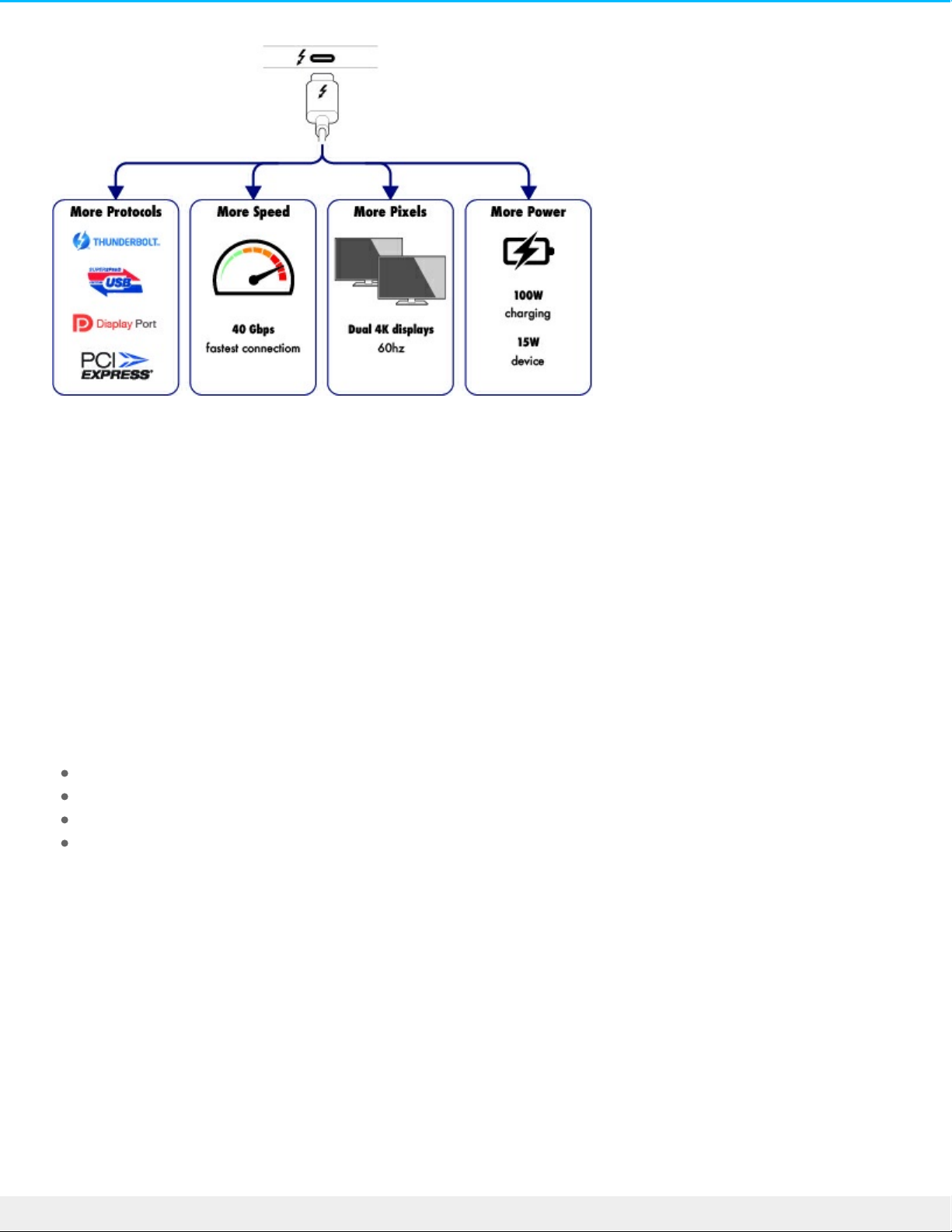
Thunderbolt 3 features and support
Thunderbolt 3 technology provides the fastest data and high-end video transfers over a single, versatile
connector. While previous generations of Thunderbolt technology offered impressive transfer rates up to
20Gb/s bidirectional, Thunderbolt 3 doubles the potential up to 40Gb/s bidirectional when connected to
other Thunderbolt 3 devices. In addition, Thunderbolt 3 gives priority to the video stream, apportioning the
required bandwidth for playback. This is a critical advantage when working with high-end video and 3D
graphics.
Thunderbolt 3 uses a USB-C connector specially labeled with a Thunderbolt icon. Since Thunderbolt 3 is
protocol agnostic, it supports connections from the following interfaces:
USB 2.0, USB 3.0 and USB 3.1
DisplayPort 1.1 and 1.2a
Thunderbolt 20Gb/s and Thunderbolt 40Gb/s
Ethernet (with adapter)
Non-Thunderbolt 3 devices that feature USB-C ports can be connected to the Thunderbolt 3 port to
terminate a daisy chain.
13LaCie 2big Dock Thunderbo lt 3
8/9/17
Page 14

System Overview
Storage management
LaCie 2big Dock storage is managed by the LaCie RAID Manager software utility. See Manage RAID for more
information.
Specificaons
Enclosure dimensions
Side Dimensions (mm / in)
Width 118 / 4.6
Height 93.3 / 3.7
Length 217 / 8.5
Enclosure weight
Weight (kg / lbs)
2.9 / 6.4
Temperature ranges
Ambient environment Temperature range
Standard (operating) +5ºC to +40ºC
Storage (non-operating) -20ºC to +60ºC
Humidity
Environment Humidity range
Standard (operating) 10% to 60% non-condensing
Storage (non-operating) 5% to 85% non-condensing
14LaCie 2big Dock Thunderbo lt 3
8/9/17
Page 15
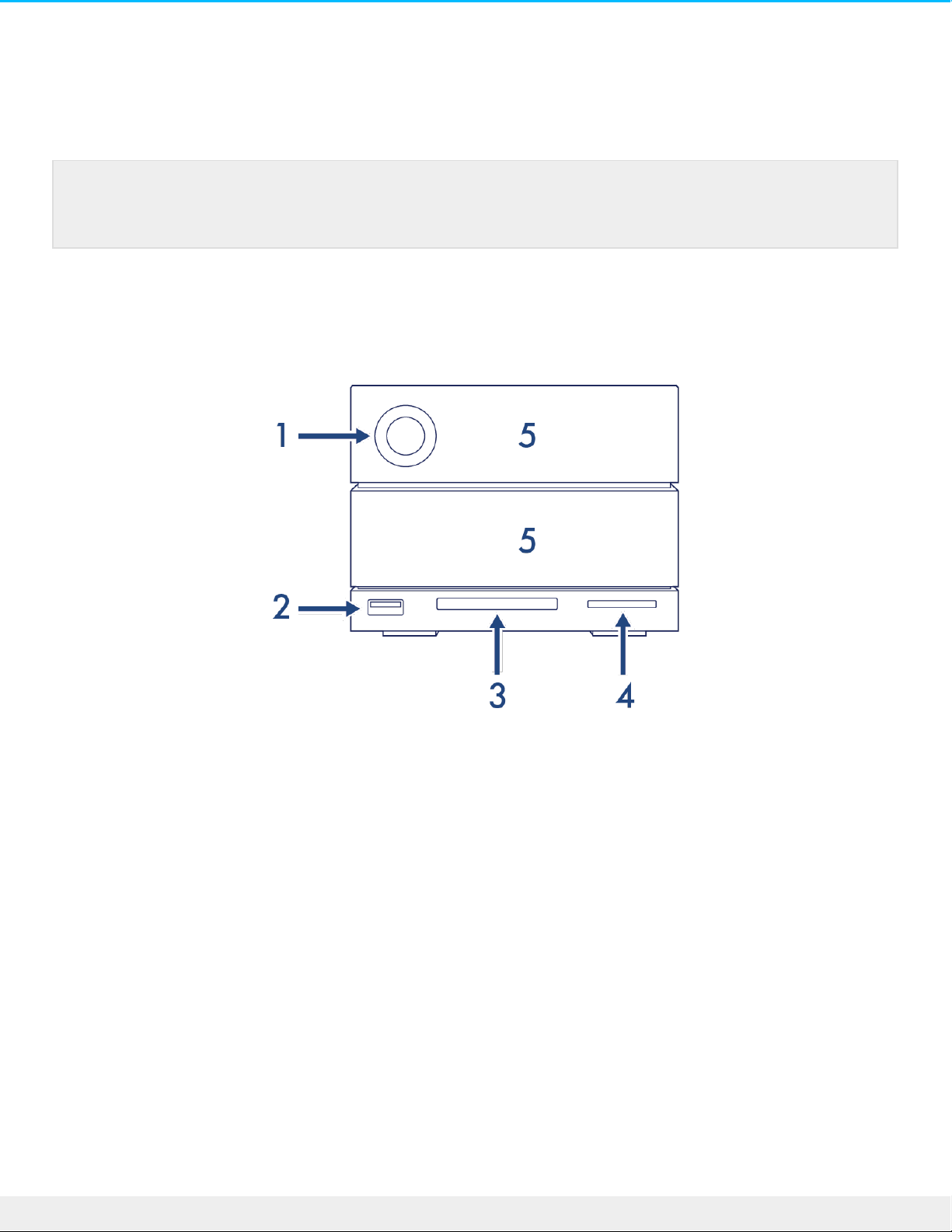
Electrical
Power supply: 100-240VAC; 50/60Hz; 60W
Views
Front view
1. Status LED—The LED indicates that the device is powered on and provides status signals. See
Operation.
2. USB 3.0 Hub—Use the hub to charge devices like mobile phones (5W power output). Connect shuttle
drives, digital cameras, and other devices to transfer files. See Docking Features.
3. CompactFlash (CF) Slot—Use this slot to read CF memory cards. See Docking Features.
4. Secure Digital (SD) Slot—Use this slot to read SD memory cards. See Docking Features.
5. Swappable hard drive trays—Hard drive trays can be removed to replace failed hard drives. The LaCie
2big Dock hard drives are hot-swappable. See Hard Drive Maintenance.
Rear panel view
Note on the power supply: Use the included power cable with the LaCie 2big Dock Thunderbolt
3.
15LaCie 2big Dock Thunderbo lt 3
8/9/17
Page 16
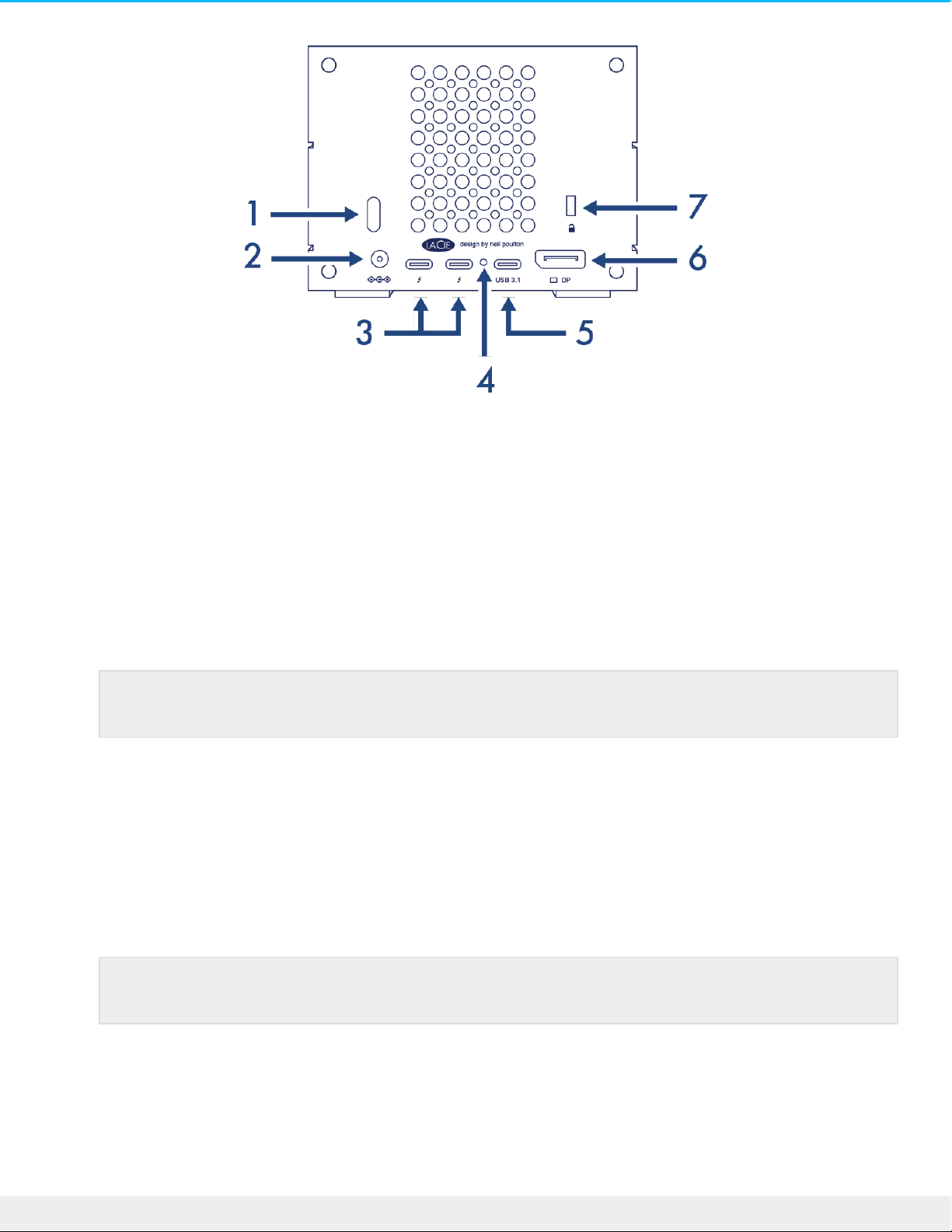
1. Power button—Use this button to power the device off and on. The button is also used confirm key
actions during RAID configuration. See Operation.
2. Power input—Use this port to connect the power cable. Only use the power cable included with your
LaCie 2big Dock Thunderbolt 3. Attaching third-party or other LaCie power cables with incorrect voltage
can damage the device. See Operation.
3. Thunderbolt 3 ports—Use the included Thunderbolt 3 cable to connect to a Thunderbolt 3 port on your
computer or other Thunderbolt 3 devices. Since the ports on the LaCie device are not preconfigured
with specific roles, you can use either port as the host (connected to a computer) or as part of a daisy
chain (connected to other compatible devices). See Connect your LaCie 2big Dock Thunderbolt 3 and
Daisy Chain and Power Delivery.
4. Firmware update button—Updates to the USB firmware are posted on the support page to enhance your
product. Only press this button when following instructions to update the USB firmware. Use a thin rigid
wire (such as the end of a paperclip) to push the button within the enclosed space.
5. USB 3.1 port—Use the included Thunderbolt 3 cable to connect the 2big Dock’s USB 3.1 port to your
computer’s USB 3.1 (USB-C) port. Alternatively, you can use the included USB 3.1 to Type A adapter to
connect the 2big Dock to your computer’s USB 3.0/USB 2.0 (USB Type A) port. Transfer rates vary by the
connection type. See Connect your LaCie 2big Dock Thunderbolt 3.
6. DisplayPort—Use this port to send the video signal from your computer to a monitor. You can connect a
display to the DisplayPort when using the Thunderbolt 3 or USB 3.1 ports. See Expansion Port.
7. Kensington™ lock port—Use this port to physically lock the 2big Dock to a desk or rack.
Note: The Thunderbolt 3 and USB 3.1 ports cannot be used at the same time.
Note: The Thunderbolt 3 and USB 3.1 ports cannot be used at the same time.
16LaCie 2big Dock Thunderbo lt 3
8/9/17
Page 17

Important info regarding the ports: The LaCie 2big Dock can be connected to a computer using
one of the Thunderbolt 3 ports or the USB 3.1 port. Connect the device to only one computer
using a single cable—do not use the Thunderbolt 3 and USB 3.1 ports at the same time. Do not
do any of the following:
Connect both Thunderbolt 3 ports to a single computer.
Connect a Thunderbolt 3 port to one computer and the other Thunderbolt 3 port to another
computer.
Connect both a Thunderbolt 3 port and the USB 3.1 port to a single computer.
Connect a Thunderbolt 3 port to one computer and the USB 3.1 port to another computer or
device.
17LaCie 2big Dock Thunderbo lt 3
8/9/17
Page 18
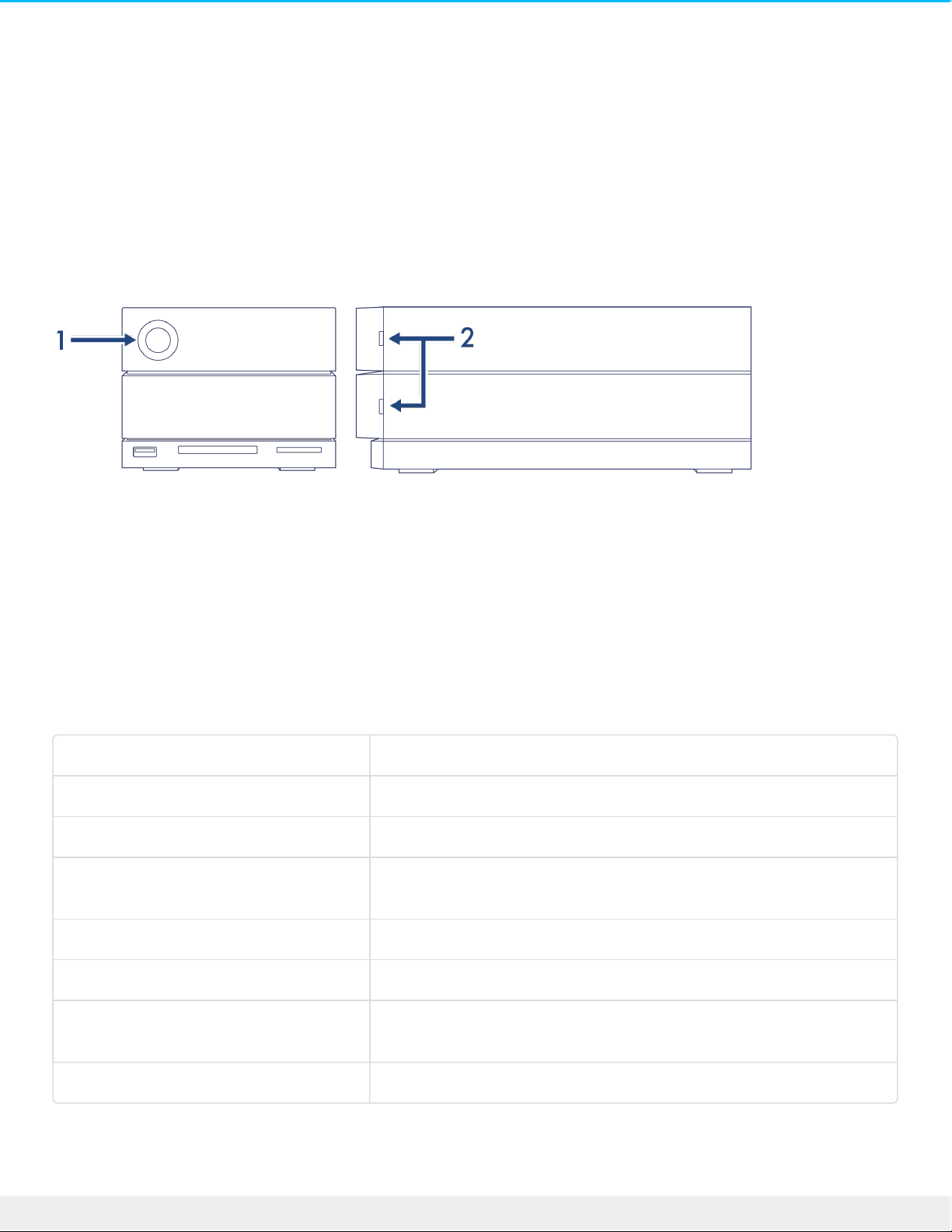
System LEDs
The LaCie 2big Dock Thunderbolt 3 LEDs provide information on the system status.
LED locaons
1. Front—System status
2. Side—Hard drive status
LED behavior
The list of colors below helps you identify the general status of your LaCie 2big Dock.
Color State
Solid blue Ready
Blinking blue Activity
Slow blinking blue
(10 second interval)
Power-saving
Fast blinking blue Startup and shutdown
Blinking red and blue RAID initialization or synchronization
Blinking red
(1 second interval)
Temperature warning or fan failure
Solid red Temperature critical or fan absent
18LaCie 2big Dock Thunderbo lt 3
8/9/17
Page 19

Technical note regarding power-saving mode and Windows: The device can be placed into
power-saving mode on PC’s running Windows 8 or higher. However, it is possible that the LED
will remain off rather than flash blue every 10 seconds.
19LaCie 2big Dock Thunderbo lt 3
8/9/17
Page 20
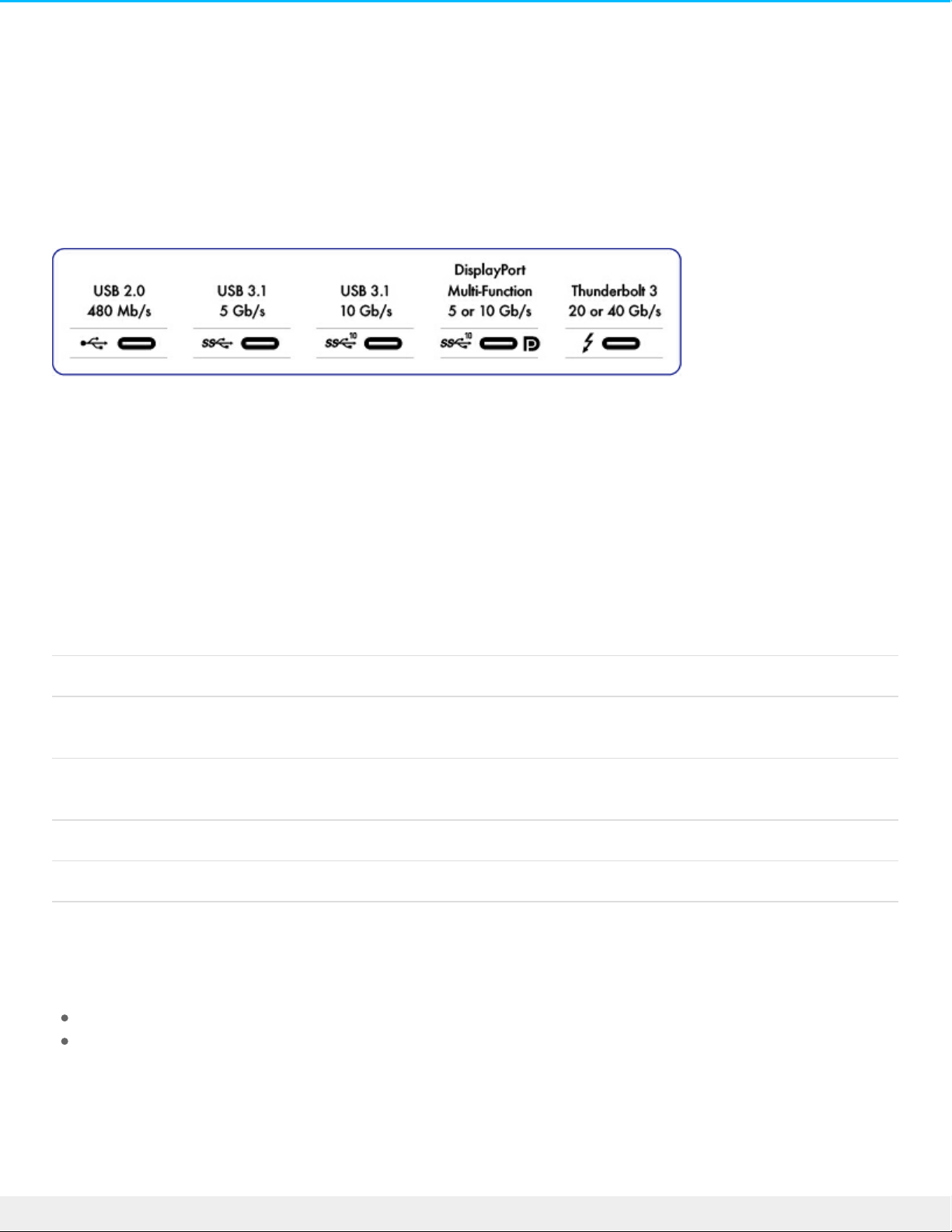
Cables
USB-C
USB-C protocols
USB is a serial input/output technology for connecting peripheral devices to a computer. USB-C is the latest
implementation of this standard and it provides convenient connection, higher bandwidth, and all-new
power management features. USB-C ports that have the Thunderbolt icon support Thunderbolt 3 devices.
USB-C supports many protocols:
Thunderbolt 3 Transfer rates can reach up to 40Gb/s
SuperSpeed USB 3.1 Gen2Transfer rates can reach up to 10Gb/s
SuperSpeed USB 3.1 Gen1Transfer rates can reach up to 5Gb/s
SuperSpeed USB 3.0 Transfer rates can reach up to 5Gb/s
Hi-Speed USB 2.0 Transfer rates can reach up to 480 Mb/s
DisplayPort Up to 8K with compatible devices and backwards compatible to VGA and
DVI
The USB-C ports on LaCie 2big Dock are:
Thunderbolt 3 (2 ports)
USB 3.1 Gen 2 (1 port)
Thunderbolt 3 includes support for DisplayPort up to 5K. You can connect LaCie 2big Dock to any USB-C or
USB Type A port but transfer rates vary. See below for more details.
20LaCie 2big Dock Thunderbo lt 3
8/9/17
Page 21
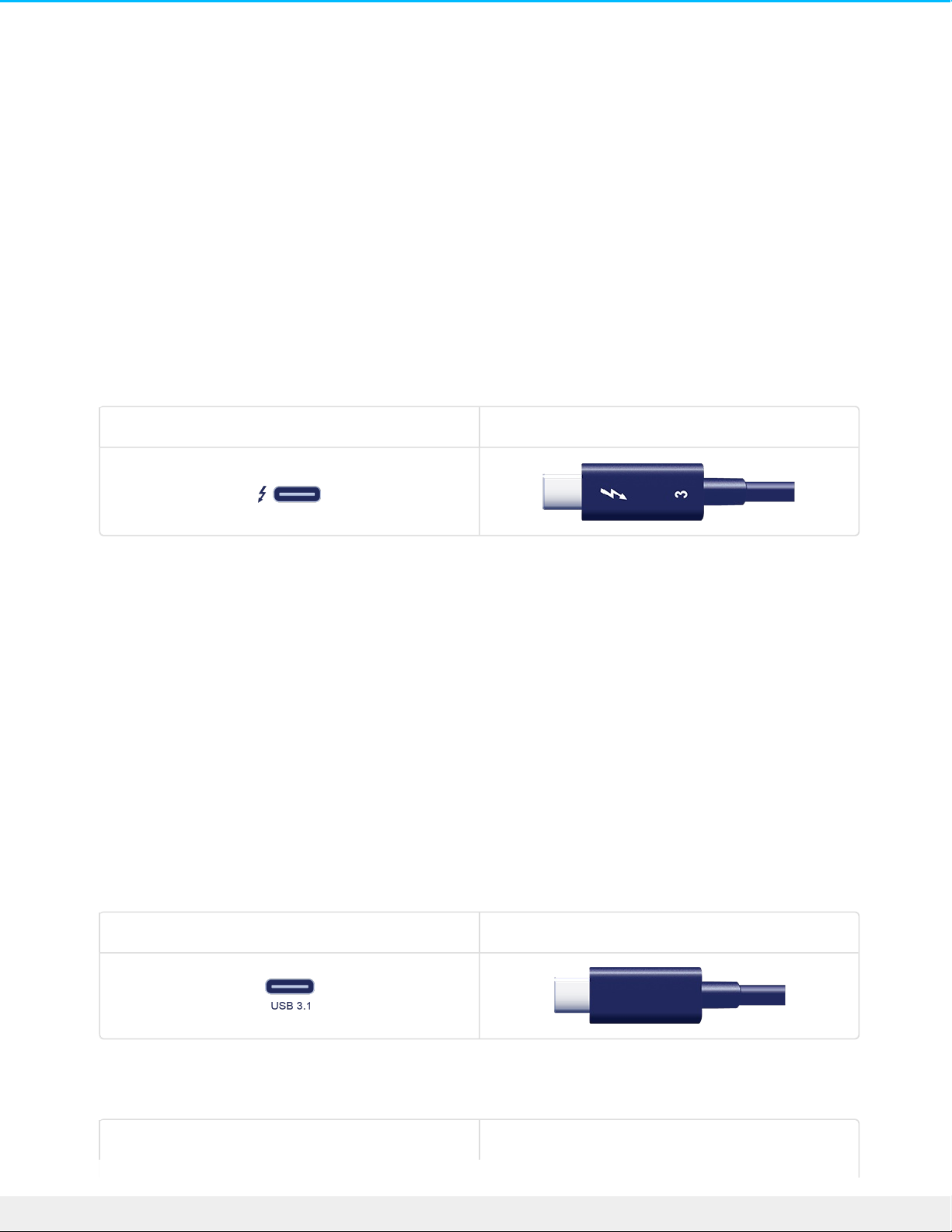
Easy to connect
Connecting your product is easy since the USB-C cable is identical on both ends. In addition, the USB-C
ports on your LaCie hard drive enclosure and computer are conveniently rounded to accept the cable end in
any orientation.
Thunderbolt 3 (USB-C) cable
Thunderbolt 3 can attain up to 40Gb/s as opposed to Thunderbolt 2's 20Gb/s.
Use the included Thunderbolt 3 (USB-C) cable to ensure maximum data transfer performance when used
with compatible Thunderbolt 3 ports.
Connector face (Thunderbolt 3) Cable end (Thunderbolt 3)
The Thunderbolt 3 cable can also be used to connect the USB 3.1 (USB-C Gen 2) port on the LaCie 2big Dock
to a USB 3.1 (USB-C Gen 2) port on your computer. USB 3.1 Gen 2 can attain up to 10Gb/s as opposed to
USB 3.0 at 5Gb/s and USB 2.0 at 480Mb/s.
USB 3.1 (USB-C)–to–USB Type A cable
Use the USB 3.1 (USB-C)–to–USB Type A cable for compatibility with computers that do not have a USB-C
port. The USB-C end is connected to the LaCie device and the Type A end is connected to the computer’s
USB 3.0 or USB 2.0 Type A port.
Hard drive performance is limited to USB 3.0 transfer rates when connected to a USB 3.0 port and USB 2.0
transfer rates when connected to a USB 2.0 port.
Connector face (USB-C to 2big Dock) Cable end (USB-C to 2big Dock)
Connector face (USB-C to computer) Cable end (USB-C to computer)
21LaCie 2big Dock Thunderbo lt 3
8/9/17
Page 22

Caution: Due to poor construction, many third-party USB-C cables can cause irreparable harm to
devices such as your computer and LaCie device. LaCie is not responsible for damage to your
LaCie 2big Dock Thunderbolt 3 caused by third-party cables.
22LaCie 2big Dock Thunderbo lt 3
8/9/17
Page 23

Connect your LaCie 2big Dock
Thunderbolt 3
Windows and Thunderbolt 3
Your LaCie Thunderbolt 3 storage device is certified for use with Windows PCs that have a Thunderbolt 3
port. However, you may experience connectivity issues between the storage device and the Thunderbolt 3
port on a Windows PC. Therefore, before setting up your LaCie Thunderbolt 3 storage device, please visit
your PC manufacturer’s website to update your Windows PC to the latest versions of:
BIOS
Thunderbolt 3 firmware
Thunderbolt 3 driver
Also, make certain that your PC has the most recent version of Windows 10.
For questions regarding your PC, please contact the PC manufacturer. You can also review the following
website for additional information: https://thunderbolttechnology.net/updates. This issue pertains to the
Thunderbolt 3 port and does not affect USB ports.
Step 1 - Download and install LaCie RAID Manager
LaCie RAID Manager manages the storage for your LaCie storage device and provides important firmware
updates and notifications. Download and install LaCie RAID Manager before connecting the LaCie storage
device to your computer. The process automatically installs a driver that allows LaCie RAID Manager to
detect the device and manage RAID arrays.
1. On the computer that will connect to the LaCie storage device, go to www.lacie.com/support/lrm.
2. Download LaCie RAID Manager for Mac or Windows.
3. Launch the Installer.
4. Follow the on-screen instructions to complete the installation.
Step 2 – Connect LaCie 2big Dock to your computer
Connect your device to your computer using Thunderbolt 3 or USB.
Important info regarding the ports: The LaCie 2big Dock can be connected to a computer using
the USB 3.1 port or the Thunderbolt 3 port. However, do not connect both ports to a single
computer at the same time, or connect each port to separate computers.
23LaCie 2big Dock Thunderbo lt 3
8/9/17
Page 24
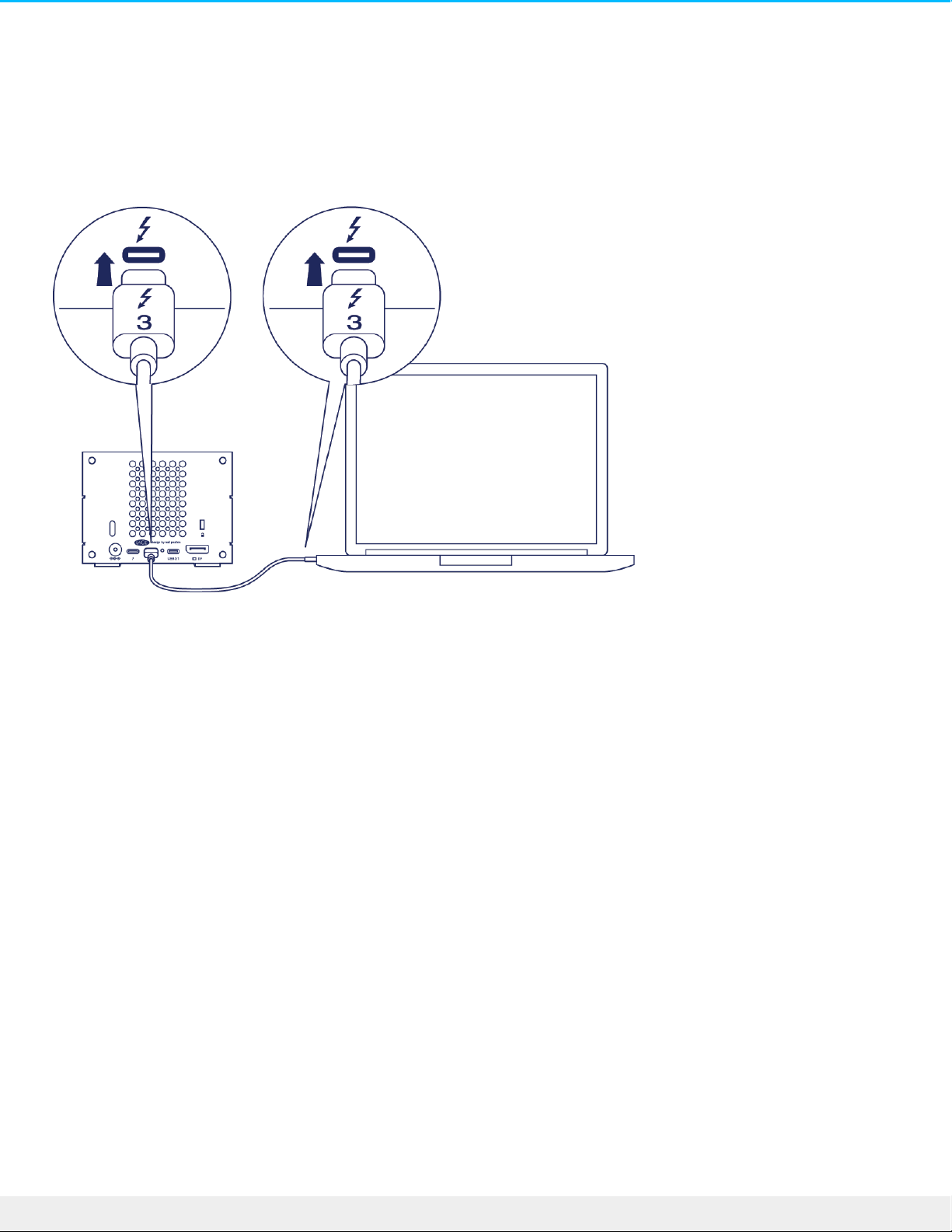
Thunderbolt 3 connecon
Connect the included Thunderbolt 3 cable to:
1. 2big Dock
2. PC or Mac
USB 3.1 Gen 1 or 2 connecon
PC or Mac with a USB-C port
The Thunderbolt 3 cable can be used to connect the USB 3.1 (USB-C) port on the LaCie 2big Dock to a USB
3.1 (USB-C) port on your computer.
Connect the included Thunderbolt 3 cable to:
1. 2big Dock. Make certain to use the correct port with the text .
2. PC or Mac. Connect to a USB-C port with the USB 3.1 Gen 1 or USB 3.1 Gen 2 icon.
24LaCie 2big Dock Thunderbo lt 3
8/9/17
Page 25
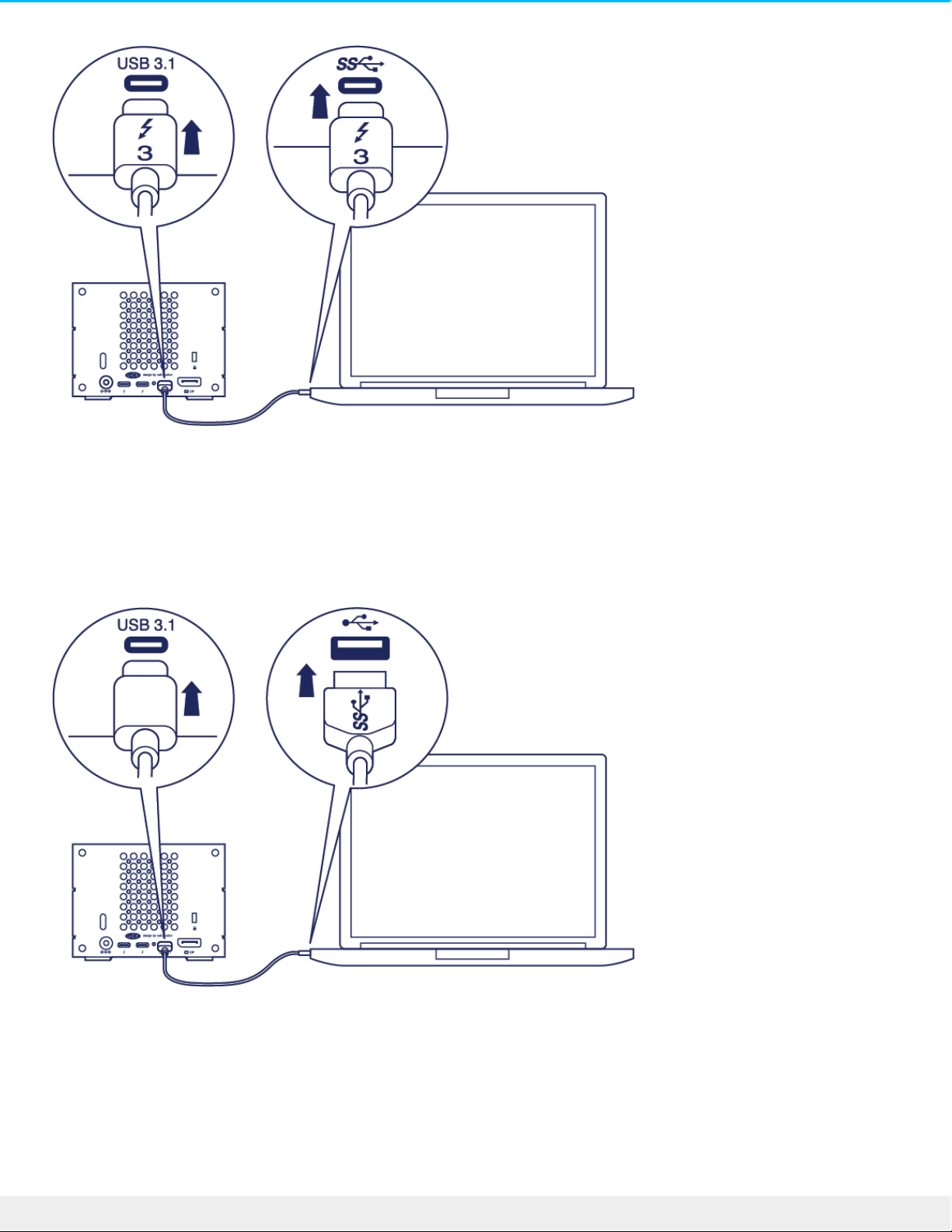
PC or Mac with a USB 3.0 or USB 2.0 port (Type A)
Connect the included USB 3.1 (USB-C) to USB 3.0/USB 2.0 adapter cable (compatible with Type-A ports) to:
1. 2big Dock (USB-C end)
2. PC or Mac (USB Type-A end)
Step 3 - Power connecon
Only use the power cable provided with your device. Attaching third-party or other LaCie power cables can
damage your device.
25LaCie 2big Dock Thunderbo lt 3
8/9/17
Page 26
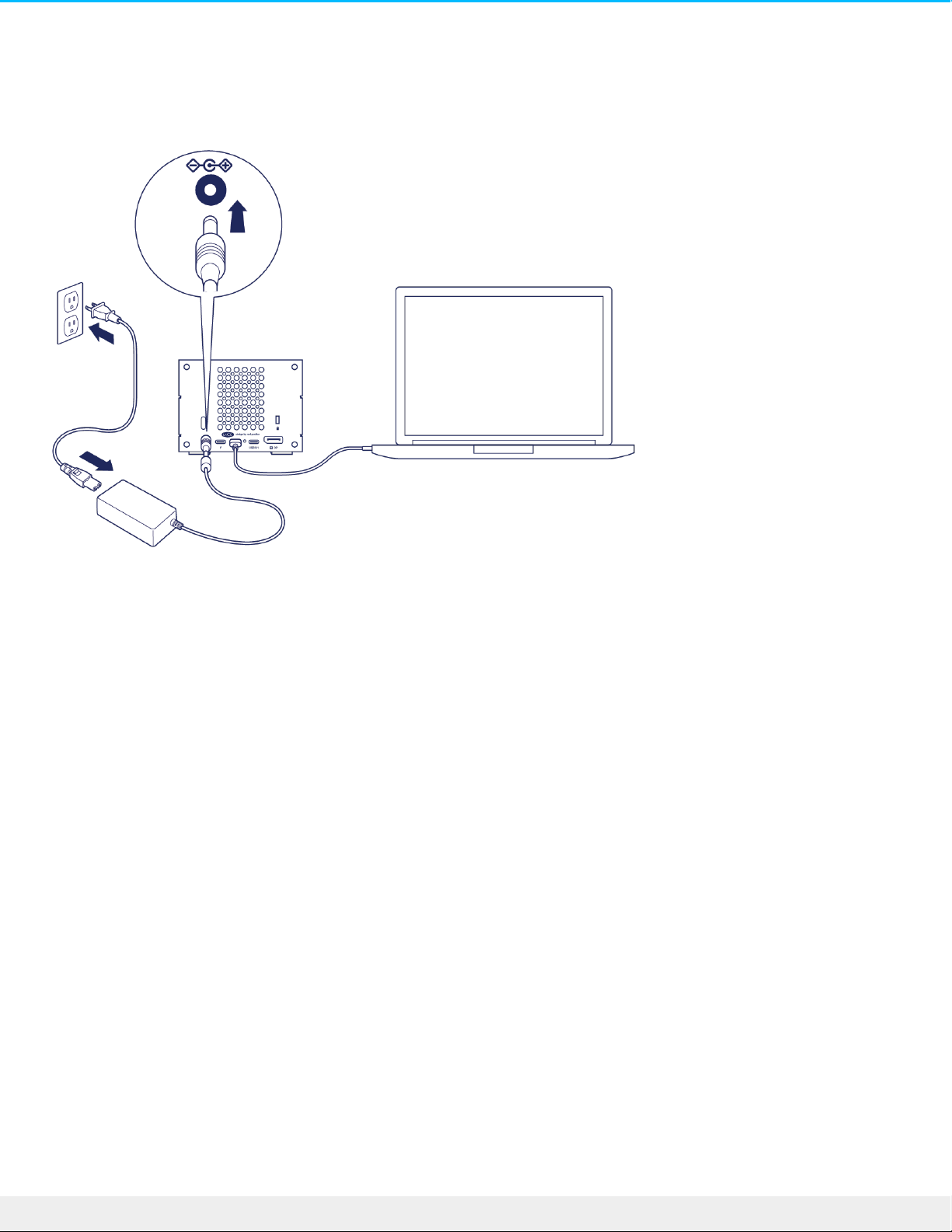
Connect the included power cable in the order listed below.
1. 2big Dock power input.
2. A live power outlet.
Storage format
Your LaCie device is formatted as HFS+ for Mac. Also, the dual disks are configured for optimal performance
using RAID 0. You can change the configuration to RAID 1, which protects data in case one disk fails. Use
LaCie RAID Manager to make changes to the RAID.
To learn more about RAID levels and how to use LaCie RAID Manager, see Manage RAID.
Windows
When first connecting the device, the disks must be configured and formatted since Windows does not
support HFS+. You must use LaCie RAID Manager to delete the current RAID array and create a new one.
Once you’ve created the new array, you will need to partition and format it. See Formatting and Partitioning
for details.
26LaCie 2big Dock Thunderbo lt 3
8/9/17
Page 27

Operaon
LaCie 2big Dock is ready to be powered on when:
It is connected to a computer that supports Thunderbolt 3 or USB.
It is plugged into a live power outlet.
The LEDs blink blue while the disks spin up.
Power on
In most instances, the LaCie 2big Dock powers on automatically when connected to a computer and an
active power source. However, the power button can be used to power on the device if the following two
conditions are met:
The device was powered off using a long press.
The device remains connected to the computer’s USB port and an active power source.
To power on the LaCie 2big Dock, push the power button for one second.
Power off
Follow the steps below to turn the device off:
1. Make certain that the device’s volumes are not being accessed.
2. Eject the device’s volumes from your computer’s operating system. Once the volumes have been
properly ejected, the device enters power-saving mode.
3. Disconnect the device from your computer.
Power-saving mode
Your LaCie 2big Dock can conserve energy by entering power-saving mode. The hard drives within the
enclosure spin down to reduce power consumption when the 2big Dock is in power-saving mode. Powersaving mode can extend the life of the hard drives by sparing them from working during extended periods
of inactivity. The device can be put into power-saving mode using the power button:
1. Make certain that the device’s volumes are not being accessed.
Caution: Do not operate LaCie 2big Dock Thunderbolt 3 until the ambient temperature is within
the specified temperature range (see System Overview). If the hard drives have been recently
installed, make sure they have time to acclimatize to the ambient temperature before operating
them.
27LaCie 2big Dock Thunderbo lt 3
8/9/17
Page 28

2. Eject the volumes from your computer’s operating system.
3. Apply a short press to the power button. A short press lasts no longer than 1 second.
To wake up the device, apply another short press.
Power-saving mode: daisy chain
You can daisy chain Thunderbolt 3 technology devices when the LaCie 2big Dock is in power-saving mode.
Though the hard drive spins down when the device enters power-saving mode, the Thunderbolt signal
remains constant—daisy-chained devices continue data operations without interruption. See Daisy Chain
and Power Delivery for details.
Power-saving mode: USB 3.0 hub
When the LaCie 2big Dock is in power-saving mode, you can continue to browse and manage devices
connected to the USB 3.0 hub. The connected devices continue to receive power from the 2big Dock.
Power-saving mode: managed by the PC/Mac
You can initiate power-saving mode on your computer by performing one of the following:
Place the host computer into sleep mode.
Mac: Go to System Preferences > Energy Saver to enable sleep mode for hard drives.
Windows: Go to Control Panel > Hardware > Power Options > Choose a power plan > Change advanced
power settings. Click on Hard disk and Turn off the hard disk after. Choose the time to spin down USB
hard drives.
To exit power-saving mode:
Entering power-saving mode Exiting power-saving mode
The host computer placed the product into
power-saving mode due to inactivity.
Access the device’s volume on the host computer.
For example, copy files to its volume.
The computer is in sleep mode. Wake up the computer.
Receiving power
The LaCie 2big Dock powers on automatically when it is:
Connected directly to a computer via the Thunderbolt 3 or USB-C port. The computer must be powered
Note on ejecting the volume and power-saving mode: The device enters power-saving mode
when its volumes are ejected. To access the device’s volumes, unplug the cable from the back
of the device and reconnect it.
28LaCie 2big Dock Thunderbo lt 3
8/9/17
Page 29

Connected directly to a computer via the Thunderbolt 3 or USB-C port. The computer must be powered
on.
Connected to a live power source via the included power supply.
Short push
A short push is a manual depression on the power button that lasts no longer than one second. When the
product is operating, a short push spins down the hard drives within the enclosure and initiates powersaving mode. The Thunderbolt 3 ports remain active and are available for daisy chaining. For example, a
display that is daisy chained with the device is still available to the computer following a short push.
Short push and RAID synchronizaon/inializaon
Applying a short push during RAID synchronization or initialization spins down the hard drives. The RAID
synchronization/initialization continues the next time you spin the hard drives up via a short push.
Long push
A long push is a manual depression on the button that lasts more than four seconds. When the product is
operating, a long push will cut the power to the LaCie 2big Dock, forcing it to shut down immediately. A long
push is not recommended for general use as it may result in data loss.
Removing the Thunderbolt cable during operaon
Removing the cable during operation can result in lost data. If the cable is removed while the system is
synchronizing or initializing the RAID, the synchronization/initialization continues but connection to the
computer and your data is lost.
Quiet operaon and heat management
To reduce noise during operation, the LaCie 2big Dock uses a Noctua® cooling fan to pull heat away from
the internal components. In addition to being exceptionally quiet, the Noctua cooling fan is temperature
controlled, which guarantees optimal heat management by adjusting the rotational speed for the
Important info regarding the ports: The LaCie 2big Dock can be connected to a computer using
the USB 3.1 port or the Thunderbolt 3 port. However, do not connect both ports to a single
computer at the same time, or connect each port to separate computers.
Important info: Always eject the LaCie 2big Dock volumes from your computer before applying
a short push.
29LaCie 2big Dock Thunderbo lt 3
8/9/17
Page 30

environment. Additionally, the enclosure's metal casing dissipates heat from the hard drives, keeping them
safe and prolonging their life. Since LaCie's unique design draws heat away from the internal hard drives, the
external casing may be warm to the touch after extended use.
Posion and stacking
Always make certain to place LaCie 2big Dock on a flat, even surface designed to support the heat output
and airflow of a professional hard disk enclosure. For proper heat dissipation, LaCie 2big Dock is designed to
stand on its rubber feet, situated on the bottom of the enclosure. DO NOT place the enclosure on its side
when it is powered on.
DO NOT stack multiple enclosures on top of each other. Stacking two or more enclosures poses a severe
risk that the devices will fall. Also, DO NOT stack other hard drives, enclosures or equipment on top of the
device.
The warranty for your device is voided if you:
Stack device enclosures.
Stack other hard drives, enclosures or equipment on top of the device.
Important info: The wide exhaust chamber on the rear of LaCie 2big Dock allows for enhanced
airflow. Make sure that it is not obstructed and that there is a natural airflow across the casing.
30LaCie 2big Dock Thunderbo lt 3
8/9/17
Page 31
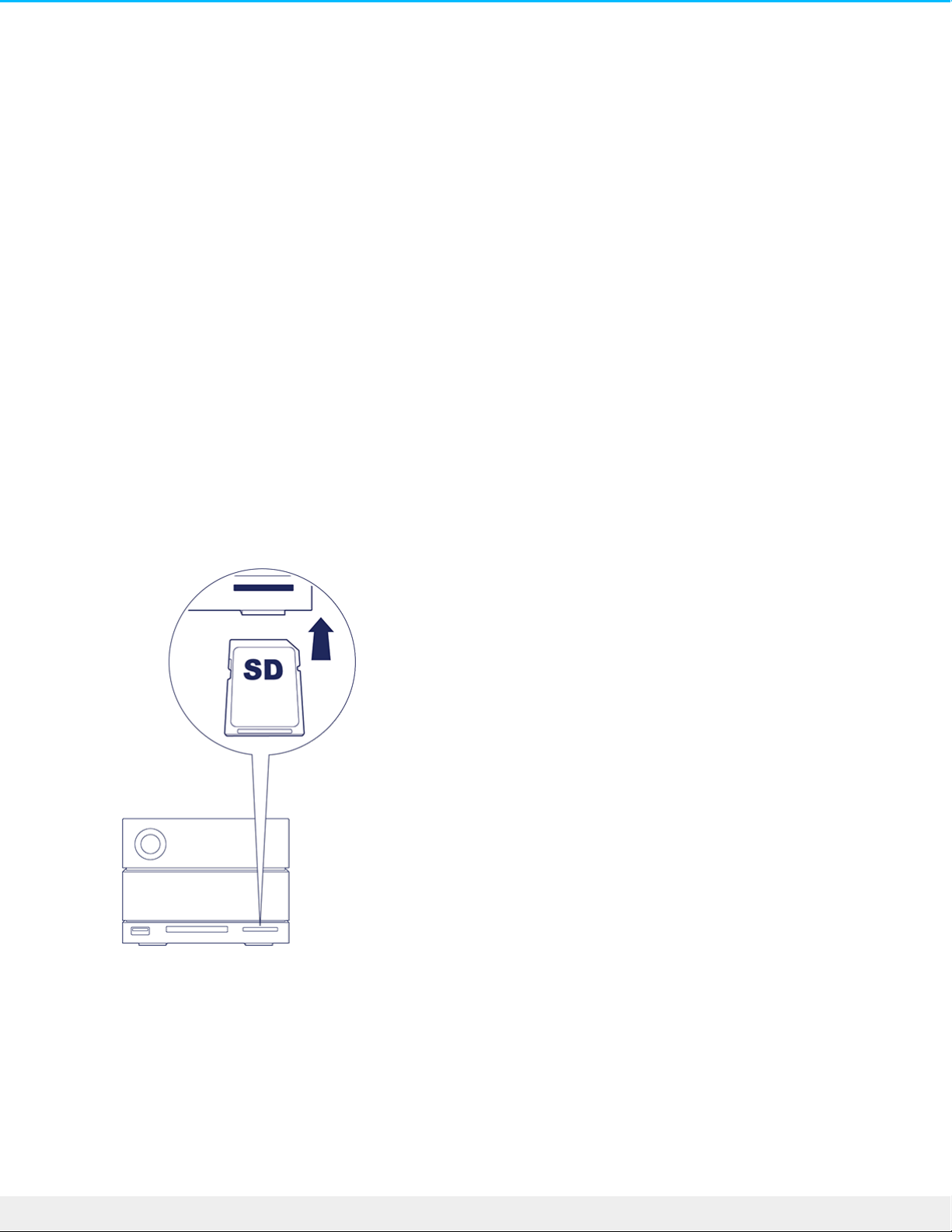
Docking Features
The LaCie 2big Dock provides you with convenient means of managing your creative digital content. Insert
SD and CompactFlash cards to transfer files for safe storage. Connect smartphones, cameras, and other
devices to the USB 3.0 hub to access content.
USH-II Secure Digital Extended Capacity (SDXC)
Memory Card Reader
Reading an SD memory card
1. Hold your SD, SDHC, or SDXC memory card upright with the label on top (pins on bottom).
2. Insert the card into the SD slot on the front of the device as far as it will go (you may hear an audible
‘click’), and then release. The card is now locked in the slot.
3. Open a Finder or Explorer window to browse and manage the contents of the SD card.
Removing an SD memory card
1. Make sure that the SD memory card is not being accessed.
2. Using a Finder or Explorer window, eject the SD card volume.
3. Push the card into the SD slot on the front of the device as far as it will go (you may hear an audible
‘click’), and then release. The card is ejected.
4. Remove the card from the slot.
31LaCie 2big Dock Thunderbo lt 3
8/9/17
Page 32
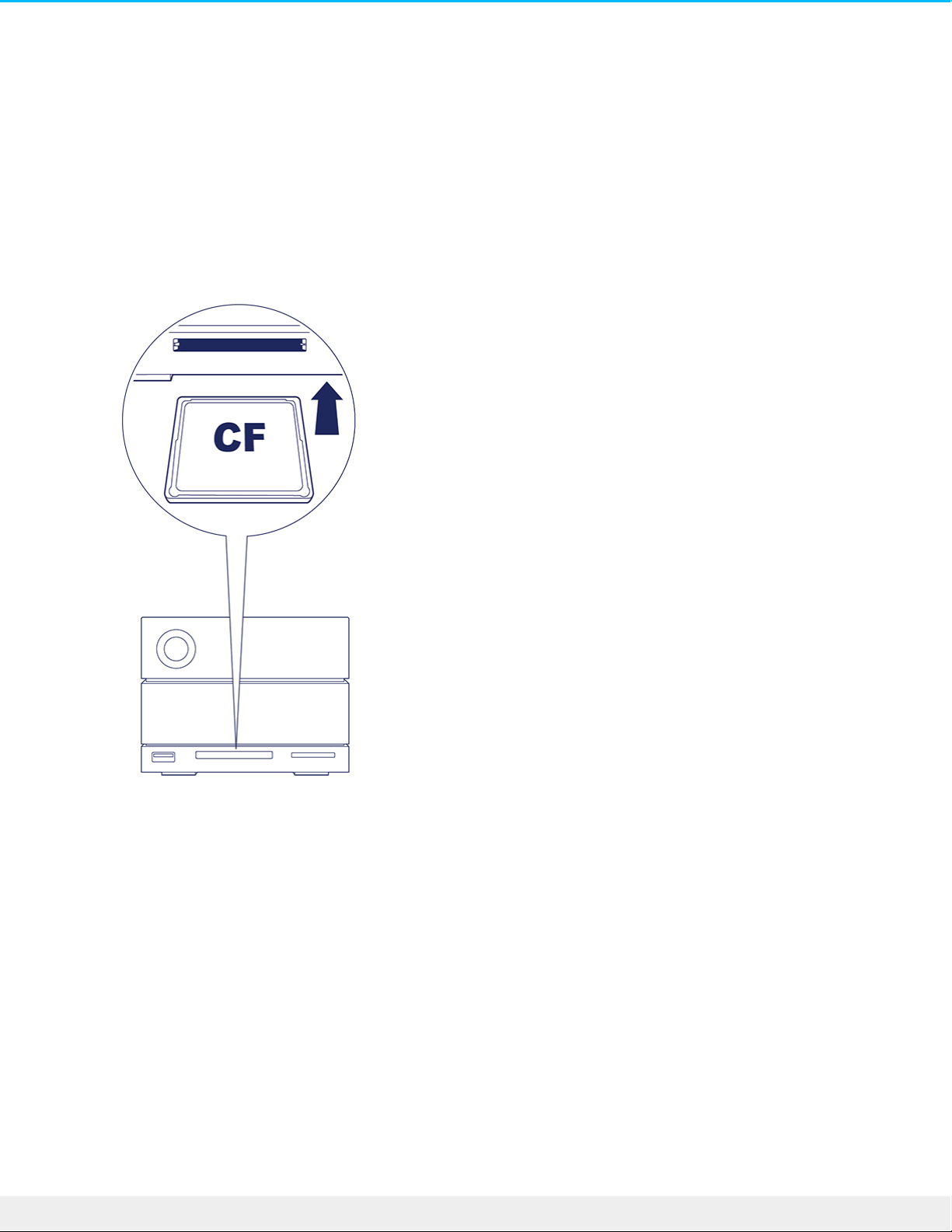
CompactFlash (CF) Revision 6.0 Type I (UDMA 7)
Memory Card Reader
Reading a CF memory card
1. Hold your CompactFlash memory card upright with the label on top.
2. Insert the card into the CF slot on the front of the device and gently push it in until it’s seated in the slot.
3. Open a Finder or Explorer window to browse and manage the contents of the CF card.
Removing a CF memory card
1. Make sure that the CF memory card is not being accessed.
2. Using a Finder or Explorer window, eject the CF card volume.
3. Remove the card from the slot.
USB 3.0 Hub
The USB 3.0 hub delivers 5W of power to connected phones and other devices. Use the hub to transfer
files from digital cameras and other drives.
Connecng a device to the USB 3.0 hub
32LaCie 2big Dock Thunderbo lt 3
8/9/17
Page 33
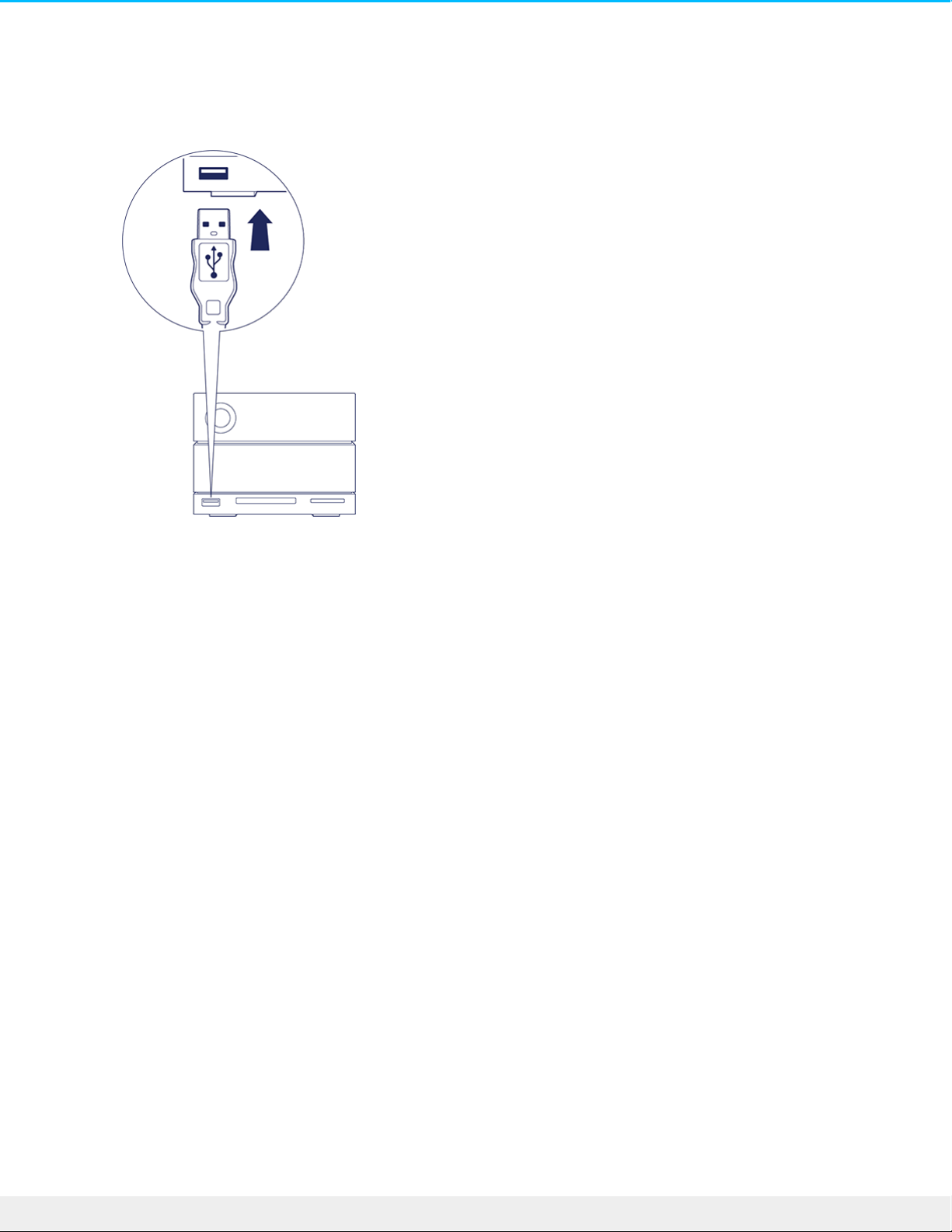
1. Hold the USB 3.0 end of the cable upright.
2. Insert the cable end into the USB 3.0 port on the front of the device.
3. Open a Finder or Explorer window to browse and manage the contents of the device.
Disconnecng a device from the USB 3.0 hub
1. Make sure that the device is not being accessed.
2. Using a Finder or Explorer window, eject the device volume.
3. Remove the USB 3.0 end of the cable from the port.
33LaCie 2big Dock Thunderbo lt 3
8/9/17
Page 34
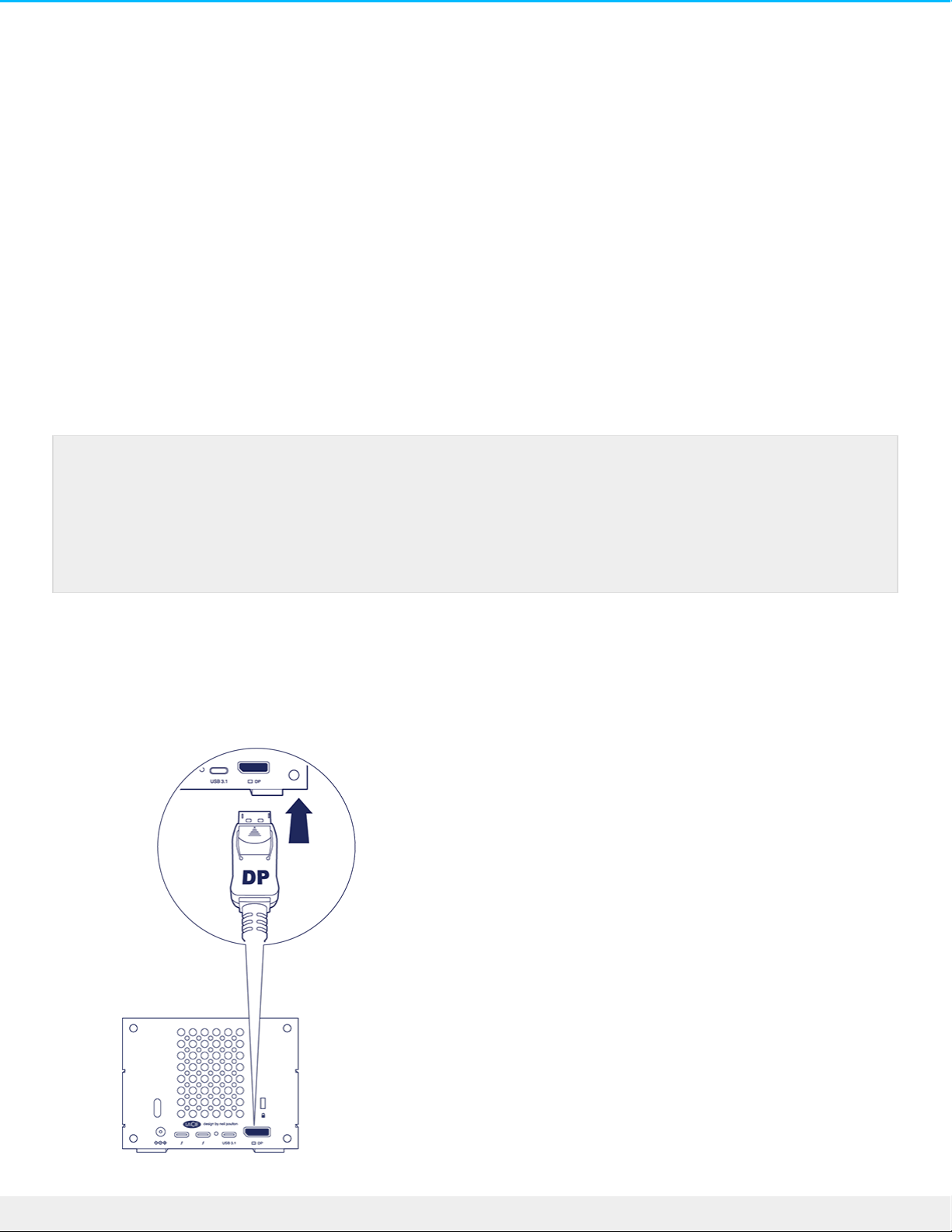
Expansion Port
DisplayPort 1.2
DisplayPort is a digital display interface used to connect a video source to a display device (for example, a
computer monitor) as well as other forms of digital data. DisplayPort is backwards compatible with VGA, DVI
and HDMI audio/video interfaces through the use of an adapter (not included).
The 2big Dock passes the signal through the Thunderbolt 3 or USB 3.1 connection to the DisplayPort 1.2
expansion port.
Connecng the DisplayPort
1. Insert the DP 1.2 end of the cable or adapter into the port on the back of the LaCie 2big Dock until it
clicks into place. The cable/adapter is now locked into the DP 1.2 port.
Note on DisplayPort 1.2 and HDMI adapters: The DisplayPort 1.2 on your LaCie 2big Dock does
not support DP++ to HDMI adapters. If you do not have a DP 1.2 to HDMI adapter but still want
to connect to an HDMI display, it’s recommended that you daisy chain your LaCie 2big Dock to
the display using a USB-C to HDMI adapter (not included). This configuration is only possible if
the LaCie 2big Dock is connected to your computer via a Thunderbolt cable.
34LaCie 2big Dock Thunderbo lt 3
8/9/17
Page 35
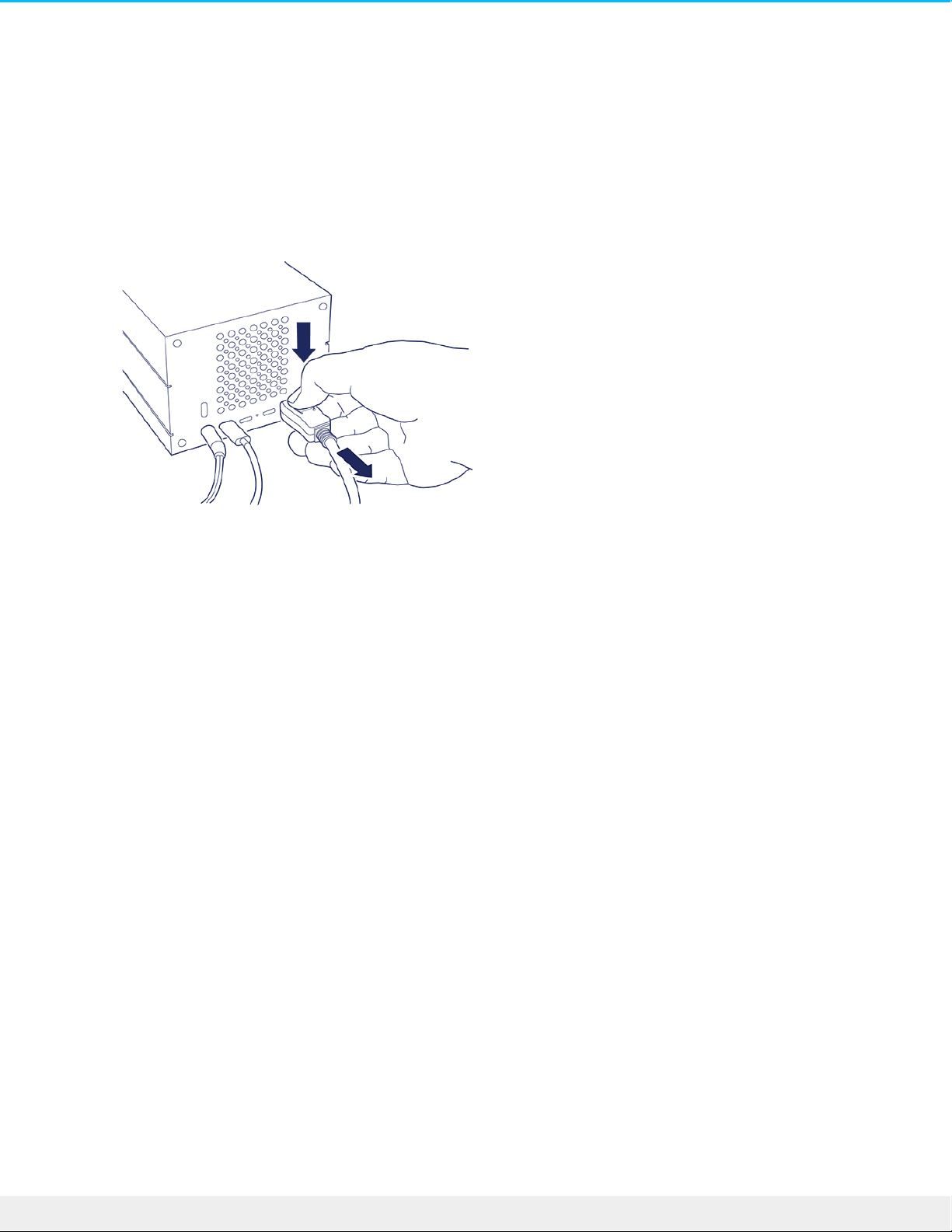
2. Connect the VGA, DVI or HDMI adapter to your configured audio/video display.
Disconnecng the DisplayPort
1. Grasp the DP 1.2 end of the cable or adapter that’s connected to your LaCie 2big Dock.
2. Hold down the release tab with your thumb, and then pull back to remove the cable from the port.
35LaCie 2big Dock Thunderbo lt 3
8/9/17
Page 36

Daisy Chain and Power Delivery
Use the two Thunderbolt 3 ports on the LaCie 2big Dock for:
Direct connection to a computer that is compatible with Thunderbolt 3 technology.
Daisy chaining with devices and displays that are compatible with Thunderbolt 3 technology.
Daisy chain Thunderbolt 3 devices
Thunderbolt 3 is an update of Thunderbolt 2 technology. While Thunderbolt 2 technology continues to
provide impressive transfer rates up to 20Gb/s bi-directional, Thunderbolt 3 offers improved performance
with a potential transfer rate of up to 40Gb/s bidirectional. Thunderbolt 3 technology also gives you greater
flexibility when using video and data, assigning greater throughput to the stream that carries the heavier load.
You must have a computer that supports Thunderbolt 3 to take advantage of the updates in performance and
the intelligent sharing of bandwidth.
Similar to Thunderbolt 2 technology, a single Thunderbolt 3 daisy chain can have up to seven devices,
including the computer. For example, you can daisy chain five LaCie 2big Dock enclosures on the same line
with a display.
How to daisy chain
Connect the cable to one of the interface ports on the back of LaCie 2big Dock and to your computer. The
additional port on your device can be used to daisy chain compatible Thunderbolt 3 peripherals, such as
hard drives and monitors. If you have another Thunderbolt 3 storage device, make certain to connect it to
the daisy chain before adding compatible displays or USB 3.1 (USB-C) devices. See below for an example of
the order of devices in a Thunderbolt 3 daisy chain.
1. Computer with a Thunderbolt 3 port
2. LaCie 2big Dock Thunderbolt 3 (Thunderbolt 3 ports)
3. LaCie d2 Thunderbolt 3 (Thunderbolt 3 ports)
4. LaCie Bolt 3 (Thunderbolt 3 ports)
5. LaCie Porsche Desktop (USB 3.1 (USB-C) port)
USB 3.1 (USB-C) devices can terminate a Thunderbolt 3 daisy chain and should always be the last device. It
must be connected to the secondary Thunderbolt 3 port on the preceding device. (The USB 3.1 device will
not be recognized if connected to the preceding device’s USB-C port.)
Note on the USB 3.1 (USB-C) port: USB 3.1 does not support daisy chaining devices. Therefore,
a USB 3.1 (USB-C) port on your computer cannot be used to daisy chain devices.
36LaCie 2big Dock Thunderbo lt 3
8/9/17
Page 37

Daisy chain: power-saving mode
You can daisy chain Thunderbolt 3 devices even when the LaCie 2big Dock hard drives are spun down.
Power-saving mode is initiated by applying a short push on the power button (see Operation). The status
LED blinks slowly, indicating that the device is in power-saving mode.
Power delivery
You can connect compatible devices that support charging via USB-C to the Thunderbolt 3 ports or the USB
3.1 port. A Thunderbolt 3 port on LaCie 2big Dock outputs up to 15W of power, while the USB 3.1 port
provides up to 27W of power. The LaCie 2big Dock must receive power via its power cable in order to
deliver power to compatible devices.
Important cable info: When connecting your enclosure to a computer or compatible devices,
use cables specifically constructed to support Thunderbolt 3.
Important info: To reach Thunderbolt 3 transfer rates up to 40Gb/s bidirectional, LaCie 2big
Dock Thunderbolt 3 must be connected to a computer that supports Thunderbolt 3 technology.
Note: The power delivered may not be sufficient to charge a laptop.
Important info: LaCie is not responsible for devices that experience harm, damage, or
malfunction when connected to LaCie 2big Dock.
37LaCie 2big Dock Thunderbo lt 3
8/9/17
Page 38

Manage RAID
Your LaCie 2big Dock can be configured as RAID 0 or RAID 1. Each RAID level has its own advantages:
RAID level Capacity Protection Speed Factory default
RAID 0 100% None Excellent Yes
RAID 1 50% Excellent Good No
RAID 0—Data is not duplicated on both hard drives in RAID 0. This results in faster transfers and more
storage, since the full capacity of both drives can be used to store unique data. However, RAID 0 lacks a very
important feature: data protection. If a hard drive fails, all data in the array is lost.
RAID 1—RAID 1 provides greater safety since data is duplicated on each disk in the array. If a single disk fails,
the data remains available on the other disk. However, this comes at a cost—since the same data is written
to each drive, copying data takes longer and overall storage capacity is reduced by 50%. RAID 1 is a good
choice when safety is more important than speed or disk space.
Sign in to LaCie RAID Manager
Administrator users
Users with administrator privileges for the computer can launch LaCie RAID Manager without signing into the
application.
Standard users
A standard (unprivileged) user launching LaCie RAID Manager is prompted to sign in with administrator
credentials. An administrator should launch the application to prepare the device for a standard user.
LaCie RAID Manager Navigaon
LaCie RAID Manager’s intuitive interface helps you manage your device’s storage.
38LaCie 2big Dock Thunderbo lt 3
8/9/17
Page 39
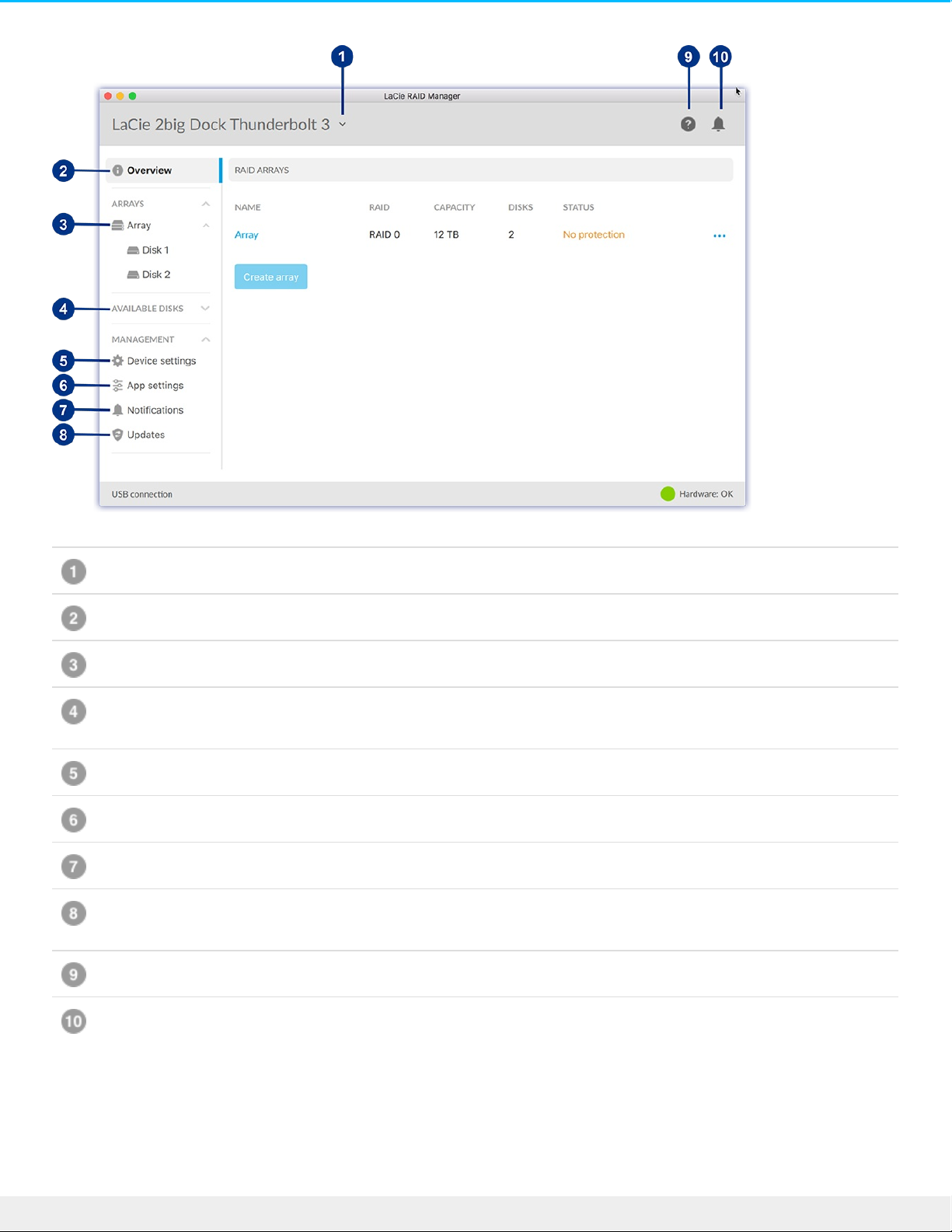
Device - Select a connected device.
Overview - Create or delete an array, and view information on your current RAID configuration.
Array - View and manage your array and disks.
Available Disks - When no array is currently configured, the LaCie 2big Dock’s disks are listed here as
available for RAID configuration.
Device settings - Register your device and change device settings.
App settings - Change LaCie RAID Manager app settings.
Notifications - View device events, download the event log, and set up email alerts.
Updates - Check for updates to LaCie RAID Manager and your device firmware (internet connection
required).
Info - Go to the LaCie RAID Manager support page (internet connection required).
Recent notifications - View a list of recent device operations and events.
Device
If your computer is connected to multiple compatible devices, click the arrow and select the device you
want to manage.
39LaCie 2big Dock Thunderbo lt 3
8/9/17
Page 40
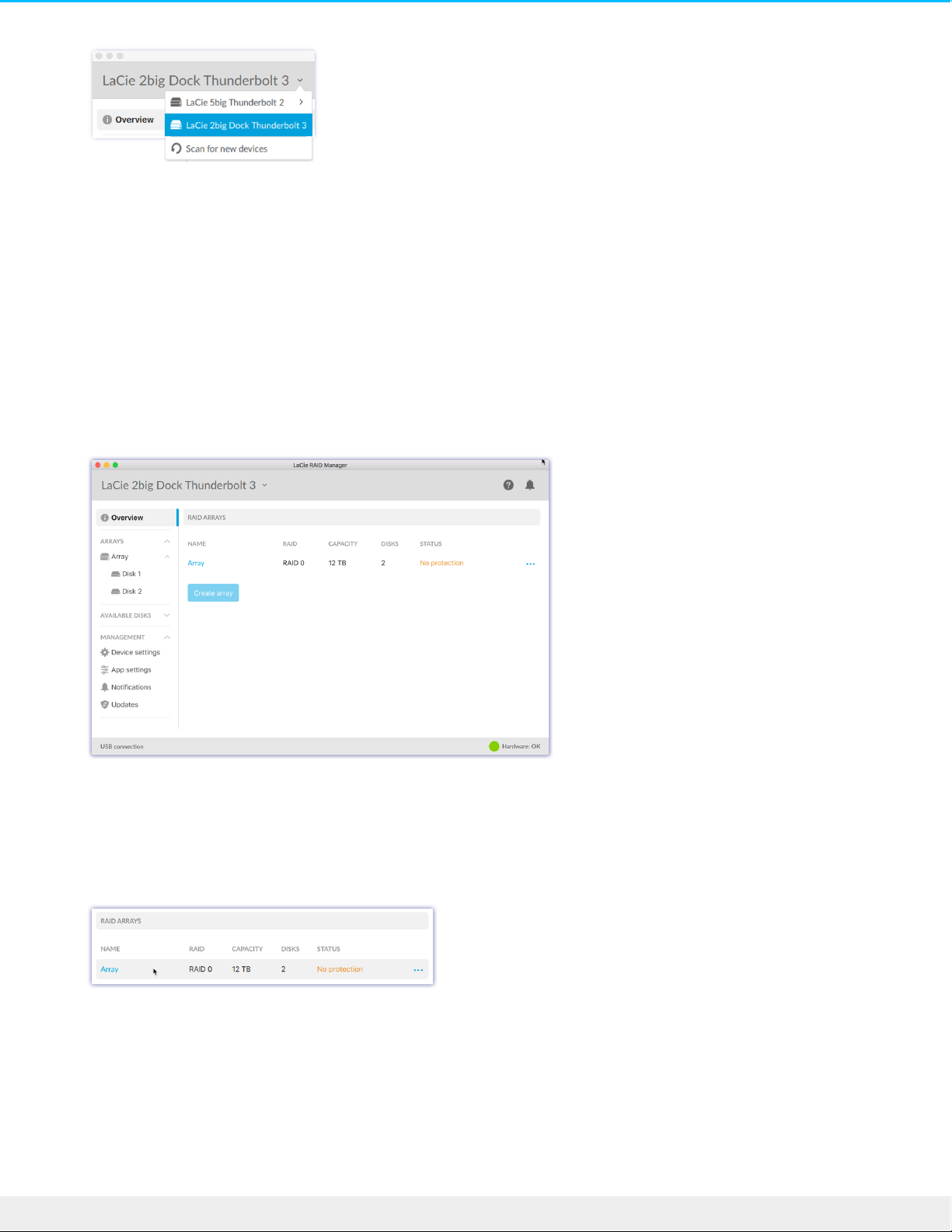
Scan for new devices
Allow LaCie RAID Manager to scan for new devices connected to your computer.
Overview
When a compatible device with an array is connected to your computer, the Overview screen provides a
summary of information about your RAID array.
View array details
Double click on a listed array to view and manage the array.
Delete an array
To delete an array:
1. Click on the More icon and select Delete to delete the array and all of its data.
40LaCie 2big Dock Thunderbo lt 3
8/9/17
Page 41
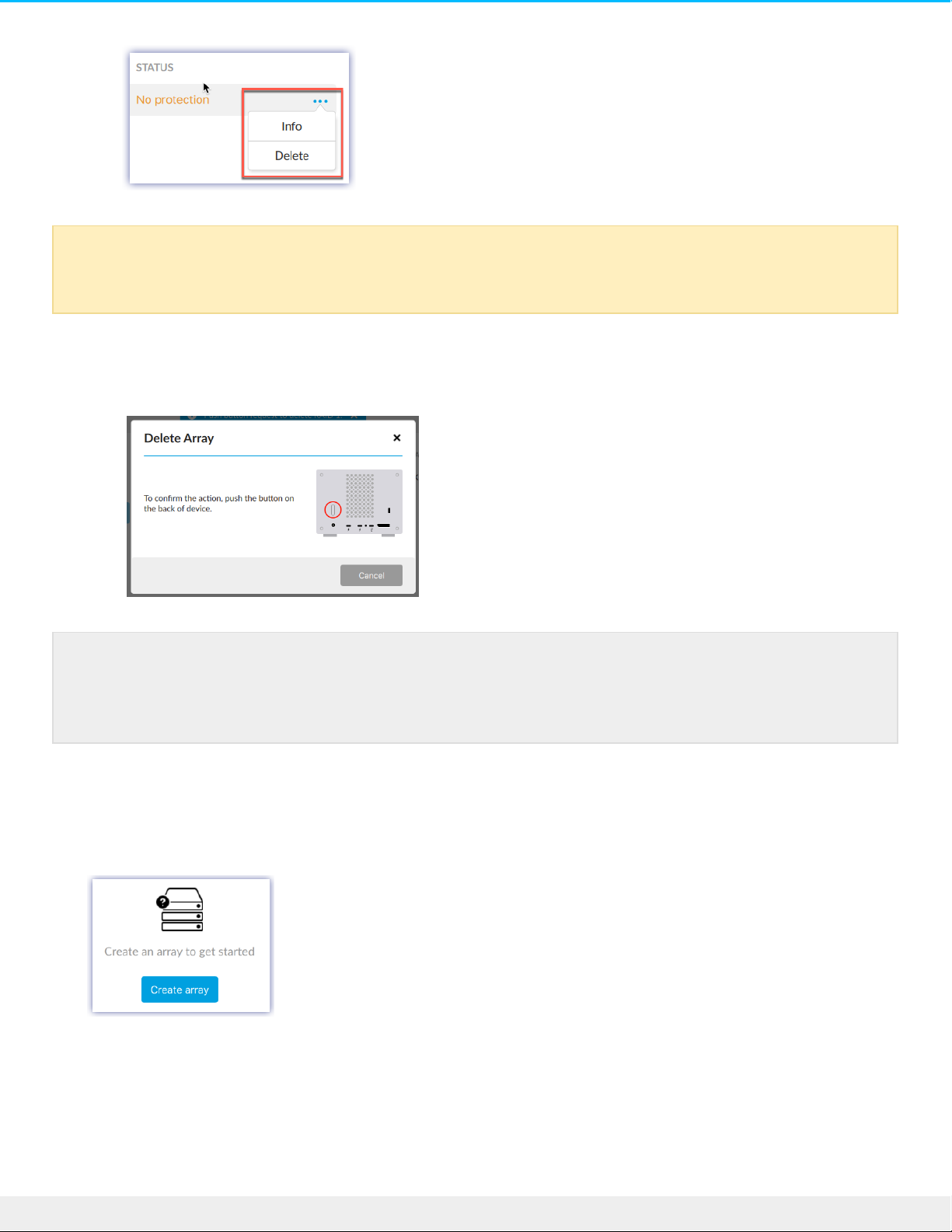
2. At the prompt, confirm that you want to delete the array by pushing the power button on the back of the
device.
Create an array
If a compatible device with no array is detected, you’re prompted to create an array.
To create an array:
1. Click Create array.
2. Choose the RAID level you want to create and click Next.
Warning: The data cannot be recovered from the LaCie storage device once the array has been
deleted.
Note: The deletion process may take up to several minutes to complete. Do not disconnect or
power off the device while LaCie RAID Manager deletes the array. The Create array button on
the Overview screen will not be enabled until the deletion process is complete.
41LaCie 2big Dock Thunderbo lt 3
8/9/17
Page 42
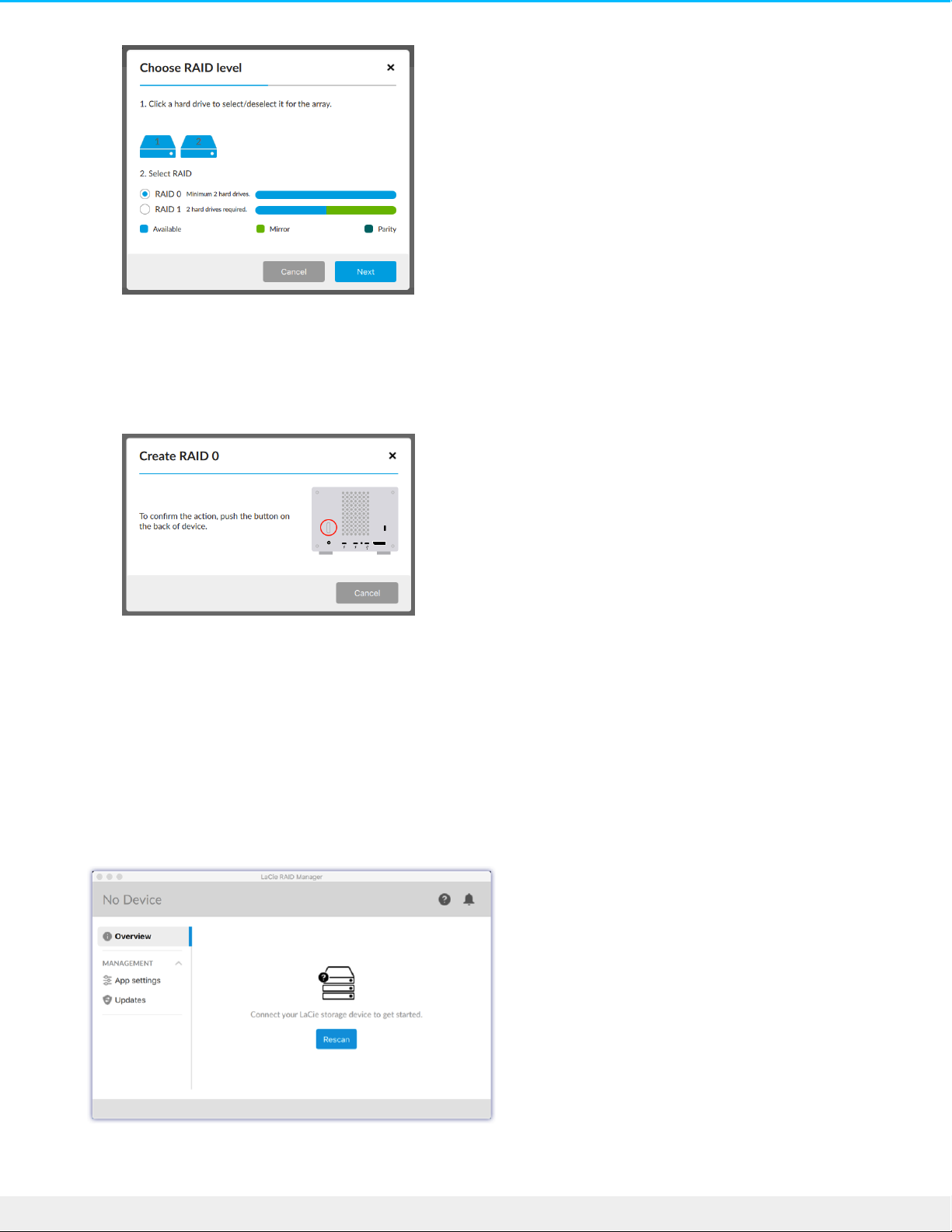
3. Review the summary and click Finish.
4. Confirm that you want to create the array by pushing the power button on the back of the device.
After creating an array, your operating system prompts you to initialize and format it. Follow the instructions
to format the array and use it with your computer. For more information about hard drive formats, see
Formatting and Partitioning.
Rescan for devices
If no compatible device is detected, the Overview screen prompts you to connect a LaCie storage device.
42LaCie 2big Dock Thunderbo lt 3
8/9/17
Page 43
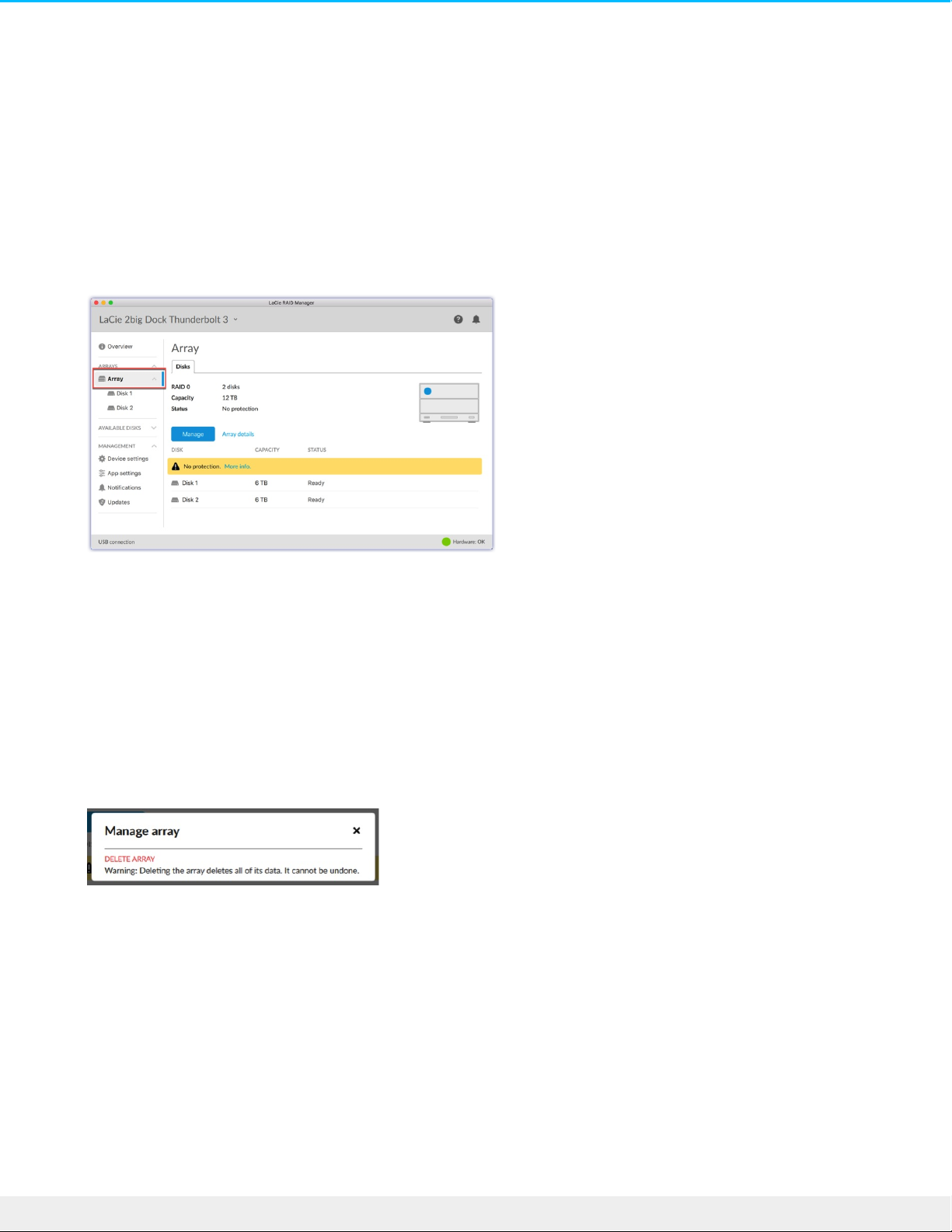
1. Make sure your device is connected to your computer and to a power source.
2. Verify that the device is not in power-saving mode (the LED light should be solid blue).
3. Click Rescan.
Array
Click on the Array icon to view information and options related to the array.
View array details
Click Array details to view information on your current array.
Manage array
Click Manage to see available management actions:
Delete array
You can initiate the array deletion process from this menu. See Delete an array above for a description of
the process.
View disk details
Click on a Disk icon to view disk details.
43LaCie 2big Dock Thunderbo lt 3
8/9/17
Page 44
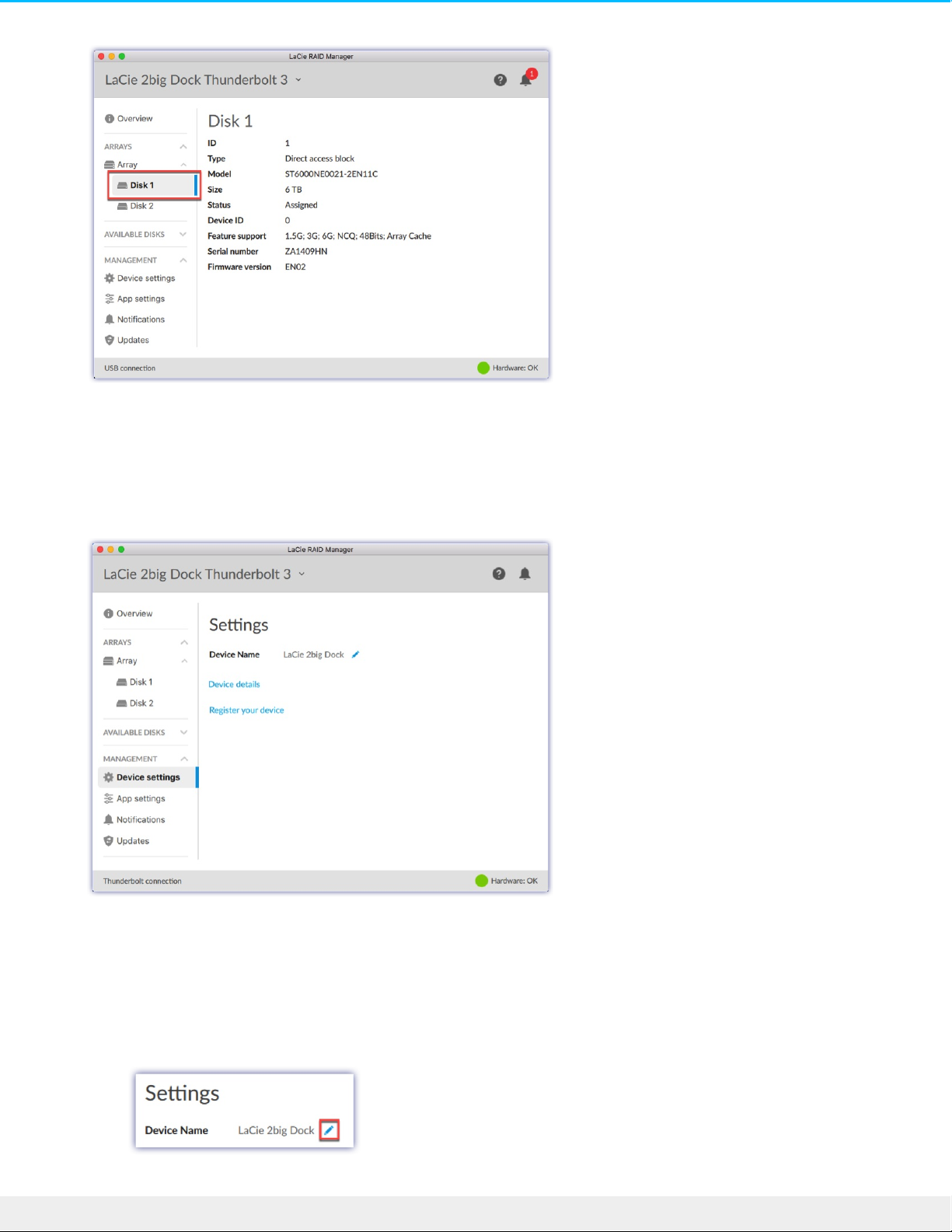
Device sengs
Click Device settings to change settings for your LaCie 2big Dock.
Change device name
To change the name of your device:
1. Click on the Edit icon to change the name of the device.
44LaCie 2big Dock Thunderbo lt 3
8/9/17
Page 45
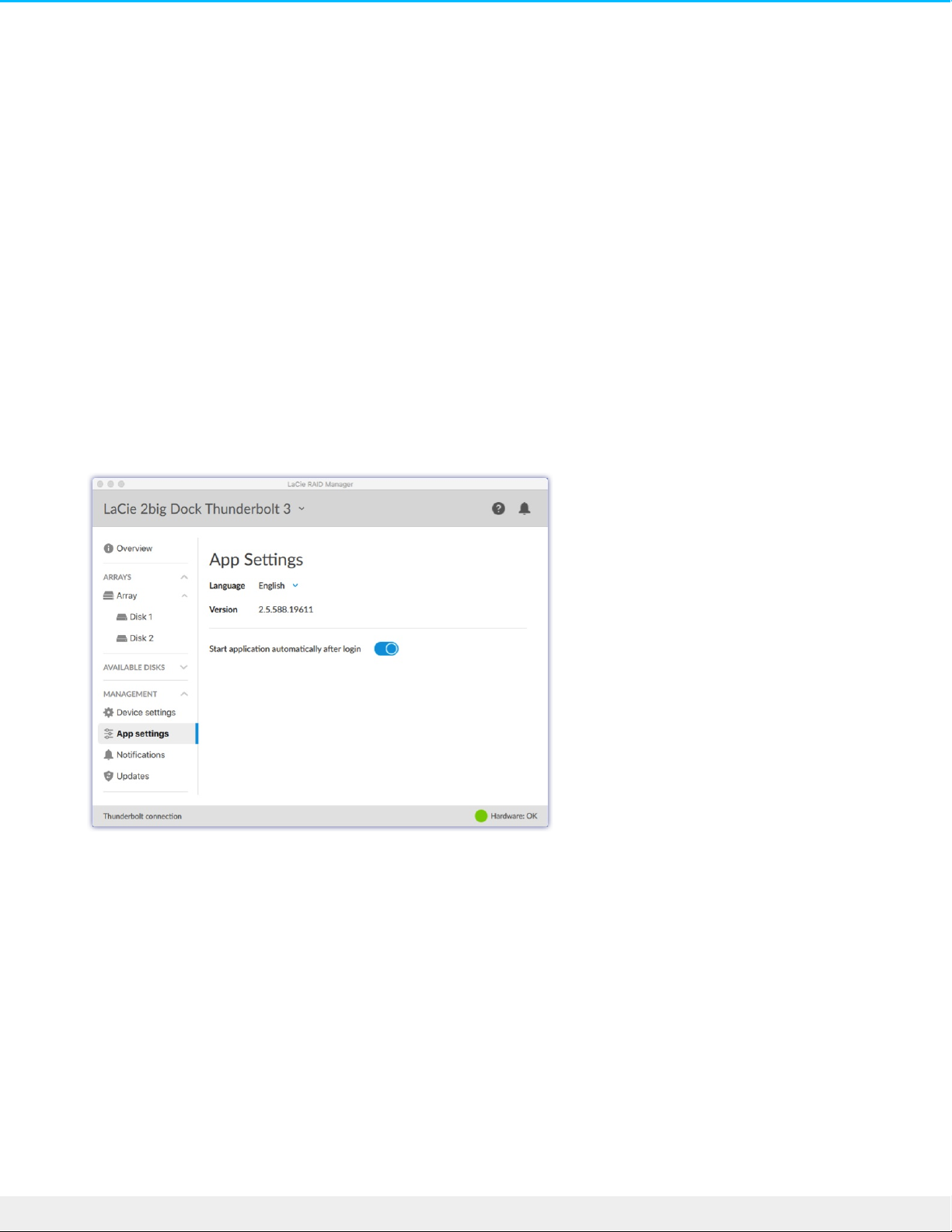
2. Enter a new name in the edit field (up to 19 characters in length).
3. Press Enter.
Register your device
Click Register your device to go to the LaCie Product Registration page. Internet connection required.
View device details
Click Device details to see information related to your hardware.
App sengs
Click App settings to change LaCie RAID Manager settings.
Change language sengs
Click on the arrow to select a different language for LaCie RAID Manager.
Change autostart seng
When enabled (default setting), LaCie RAID Manager starts automatically after you sign in to your computer.
Click the toggle to change the autostart setting.
Noficaons
45LaCie 2big Dock Thunderbo lt 3
8/9/17
Page 46
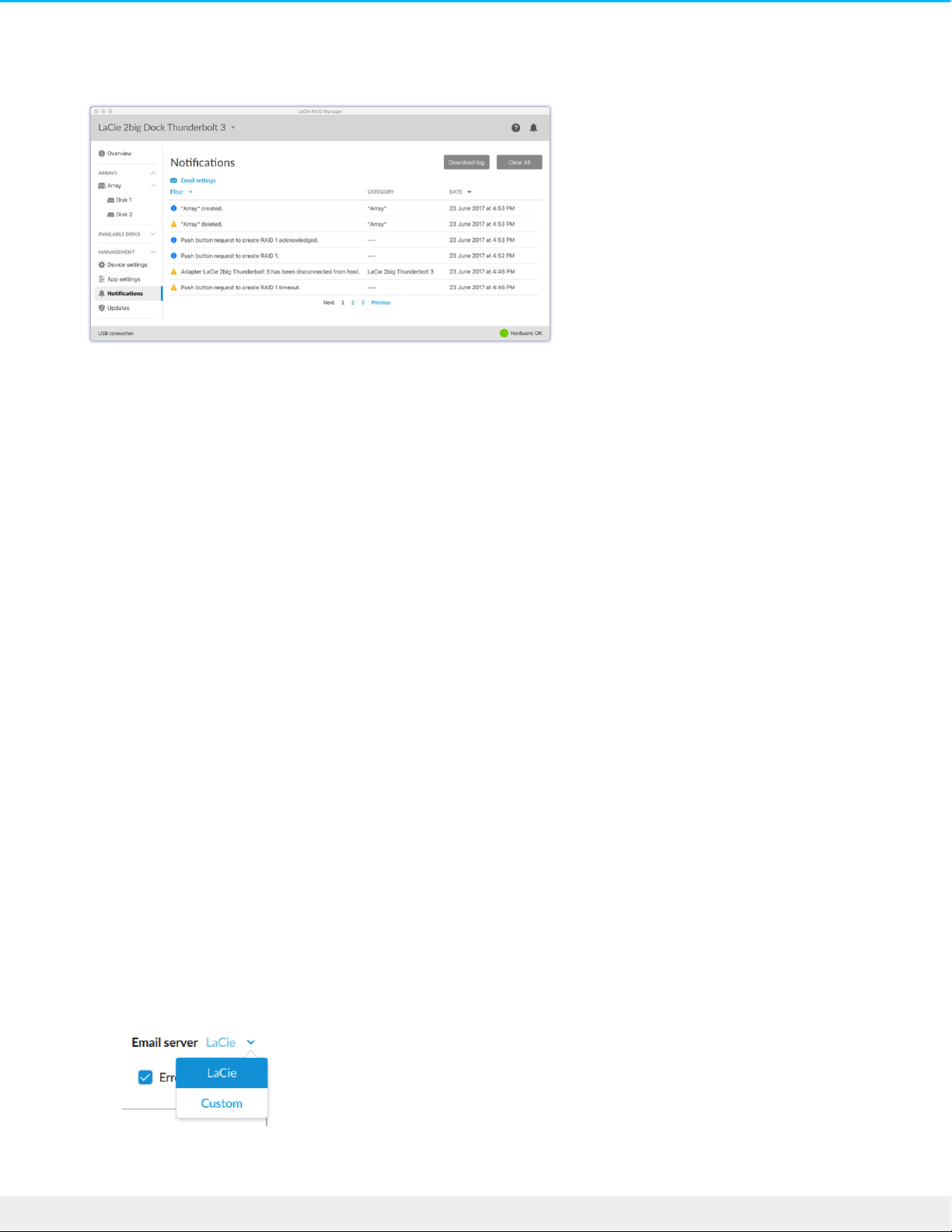
Click Notifications to view device events, download the event log, and set up email alerts.
Download log
Click Download log to save a .log file to your computer containing a list of events related to your device.
Clear noficaon entries
Click Clear All to clear the list of notifications.
Email sengs
LaCie RAID Manager can send you email updates on the health and status of your device. Make certain that
your computer has internet access and that LaCie RAID Manager remains open in order to send the email
notifications.
1. Click Email settings.
2. Enter your email address.
3. Select the types of content you want notifications for.
4. Click Save.
Custom server
By default, emails are sent from LaCie’s server. However, you can configure email notifications to be routed
through a custom server.
1. Click Email settings.
2. Click the arrow next to Email server and choose Custom.
3. Complete all fields.
46LaCie 2big Dock Thunderbo lt 3
8/9/17
Page 47
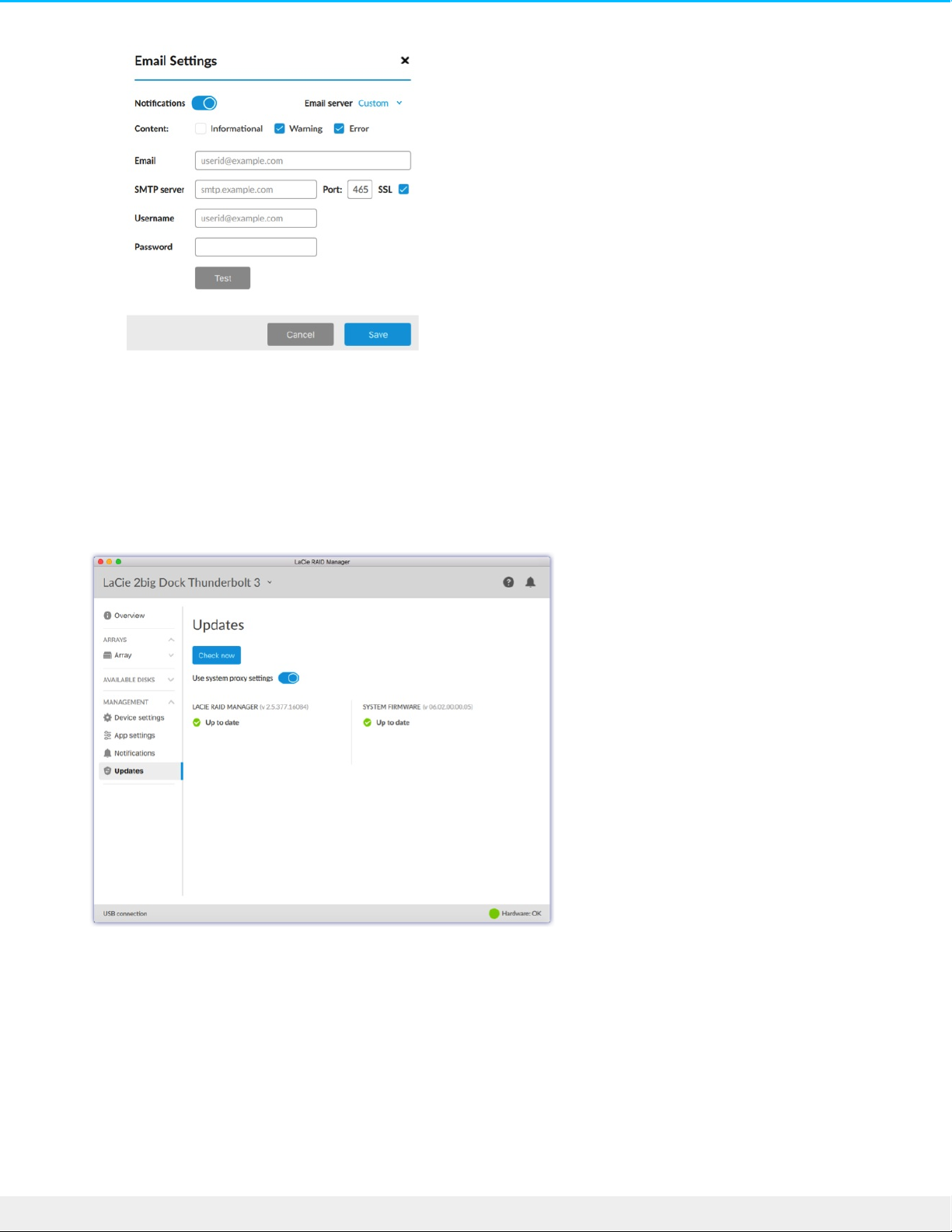
4. Click Save.
Updates
Click Updates to view your current version of firmware and LaCie RAID Manager.
Check for updates
To check for updates, click Check now. Your computer must have access to the internet to check for
updates.
Use system proxy sengs
LaCie RAID Manager searches for updates using your PC or Mac's internet connection. If your computer uses
47LaCie 2big Dock Thunderbo lt 3
8/9/17
Page 48
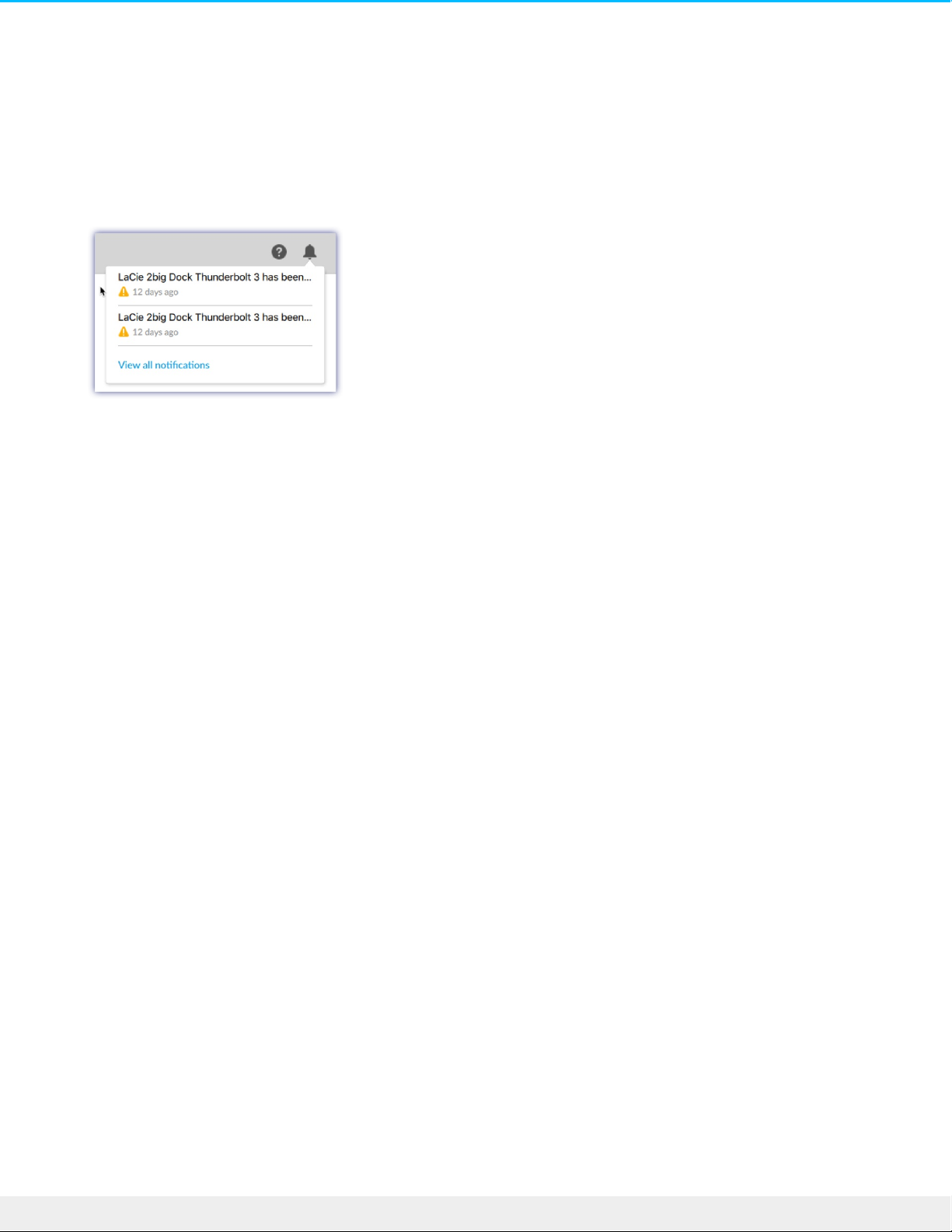
a proxy server for internet connection, make certain to enable Use system proxy settings.
Recent noficaons
Click the Bell icon to view a list of recent events.
Click View all notifications to go to the Notifications screen.
48LaCie 2big Dock Thunderbo lt 3
8/9/17
Page 49

Hard Drive Maintenance
Precauons
“Hot-swapping” means that you can remove and replace hard drives while the enclosure is powered on.
During operation, the hard drives should remain in their slots for optimal air flow. Airflow and fan
performance are regulated by temperature.
Observe all conventional ESD precautions when handling hard drives.
Replacing a hard drive
If a failed hard drive is under warranty, make certain to contact LaCie support to receive a replacement disk.
When adding new hard drives or replacing hard drives that are not under warranty, it’s recommended that
you select an HDD optimized for use with your 2big Dock. Click here for a list of model numbers that are
compatible with LaCie Direct Attached Storage devices in the big family.
It’s not necessary to power down the device to replace a single hard drive.
1. Locate the hard drive you want to replace and place your index finger on the small hole on the right side
of its disk tray.
Important info: Replace a faulty hard drive with a hard drive of equal or greater capacity.
Important info: When handling hard drives, make sure that they are placed and stored on a
cushioned surface.
49LaCie 2big Dock Thunderbo lt 3
8/9/17
Page 50
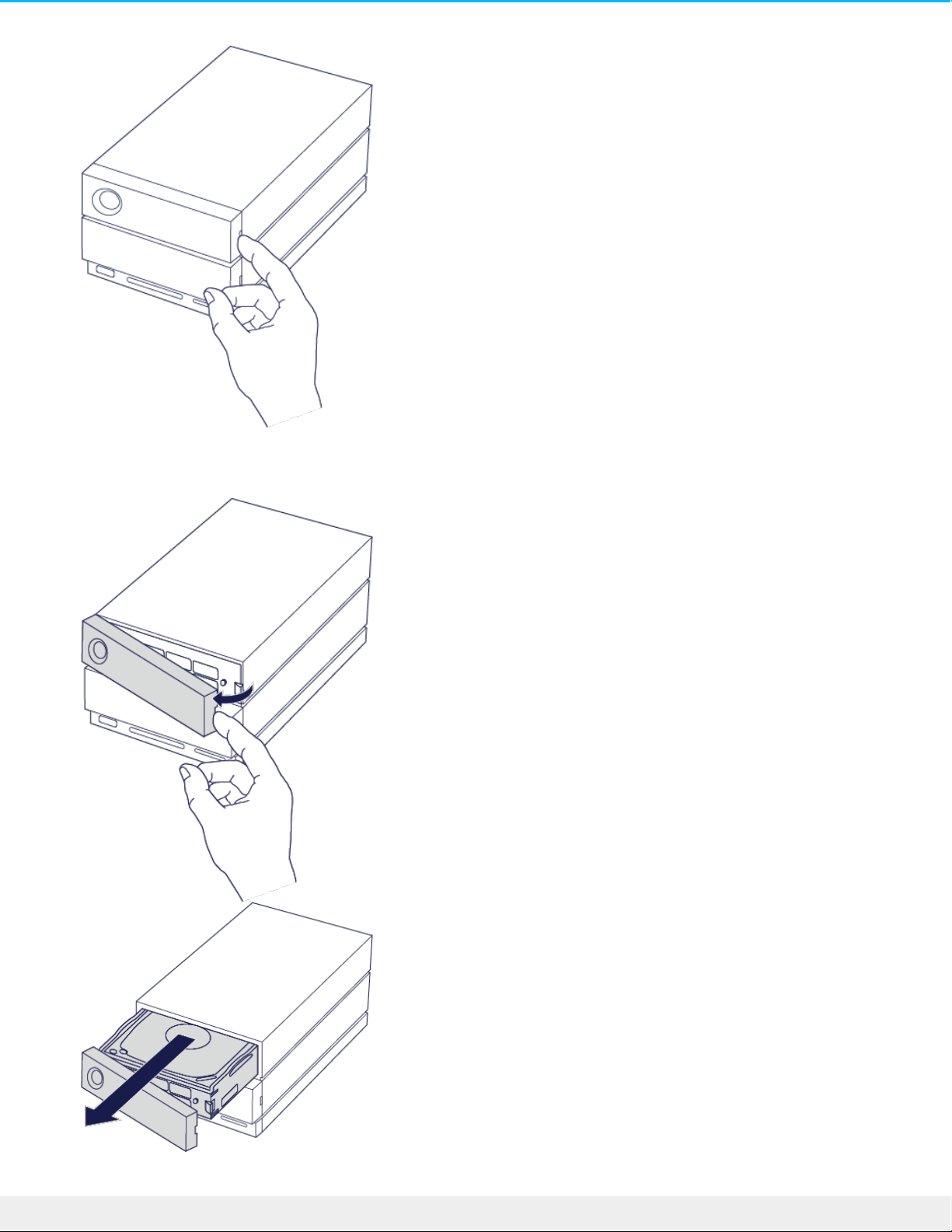
2. Gently pull your index finger away from the enclosure and maintain a firm grip as it unlocks the hard drive
from the SATA connector. Once it is loose, hold the hard drive with both hands as you remove it from
the slot.
3. If you are replacing a failed hard drive with a full disk tray, skip to Step 4. Continue here if you are
50LaCie 2big Dock Thunderbo lt 3
8/9/17
Page 51
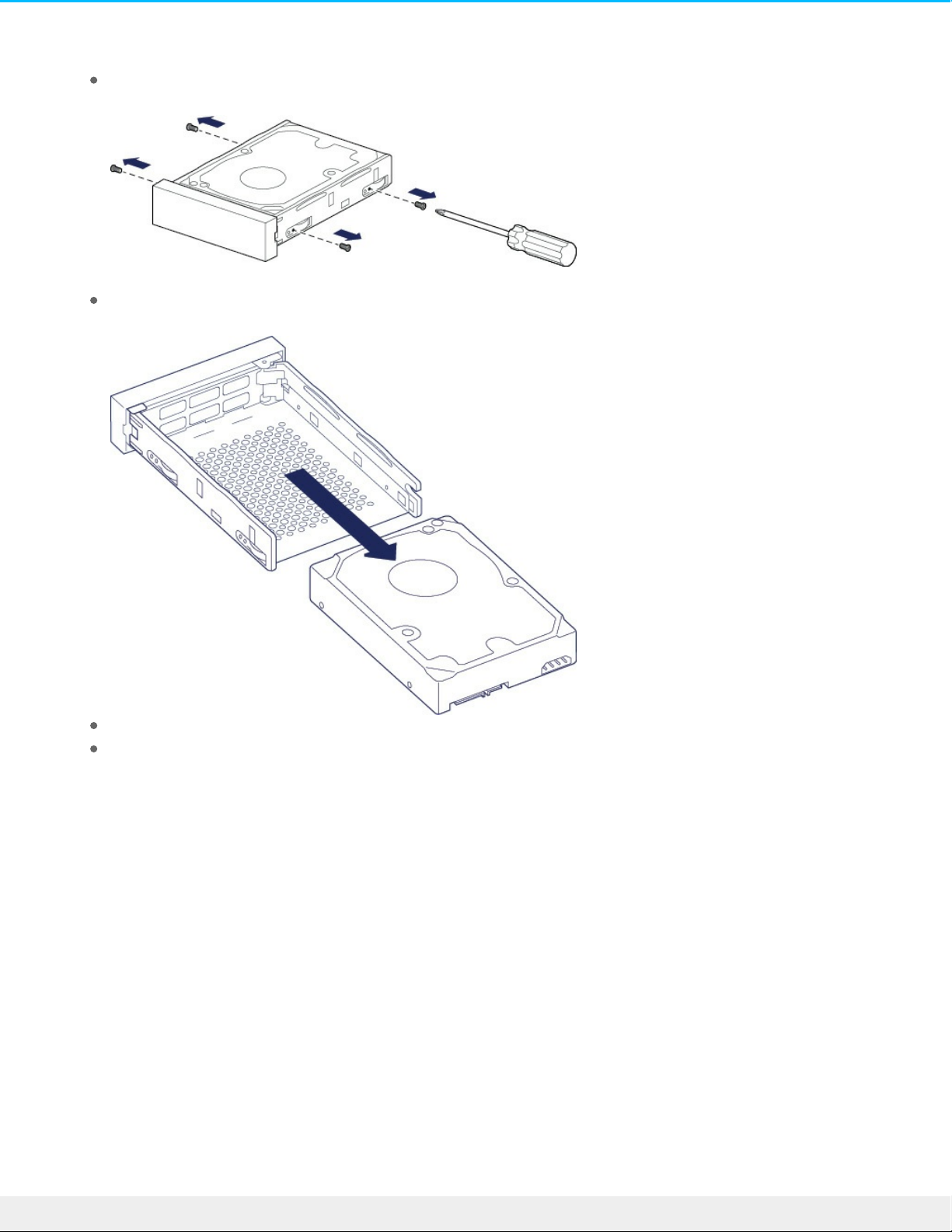
replacing the hard drive using the same disk tray.
Using a Phillips head screwdriver, carefully unfasten all four screws from their four slots.
Gently slide the disk out of the tray.
Place the empty disk tray onto a flat work area with the handle on the bottom left.
Many disks have a label on one side and the printed circuit board on the opposite side. With its label
side facing up, gently place the hard disk within the disk tray. Keep the SATA connector facing to the
right. The four screw slots should align with the disk’s four screw holes.
51LaCie 2big Dock Thunderbo lt 3
8/9/17
Page 52
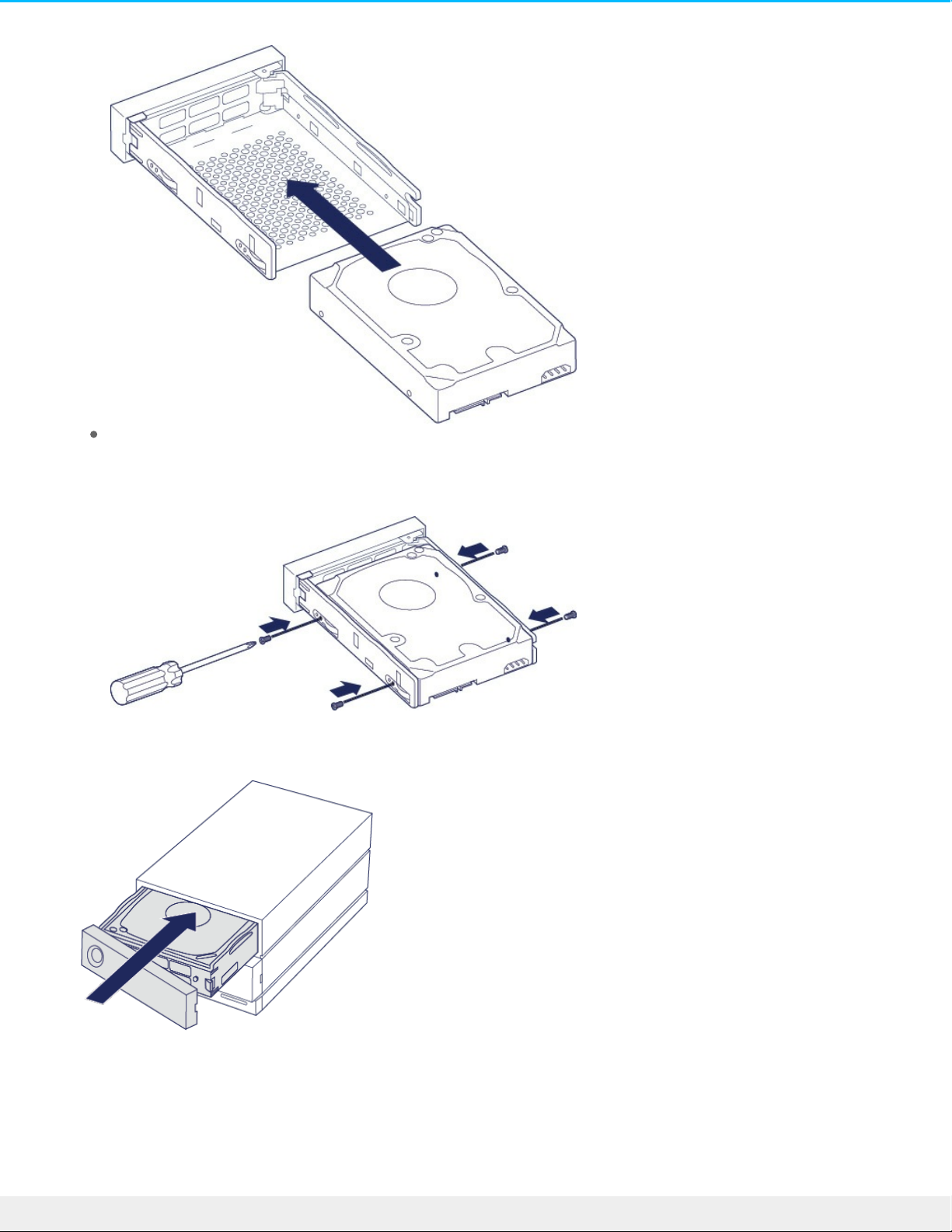
Using a Phillips head screwdriver, carefully fasten all four screws into their four slots. Do not force the
screws into the slots. Forcing the screws too tight into the slots can make it difficult to remove them
later and strip the screws' teeth.
4. Carefully insert the full disk tray into the empty disk slot. Gently push the disk tray handle until you feel it
snap into place.
52LaCie 2big Dock Thunderbo lt 3
8/9/17
Page 53
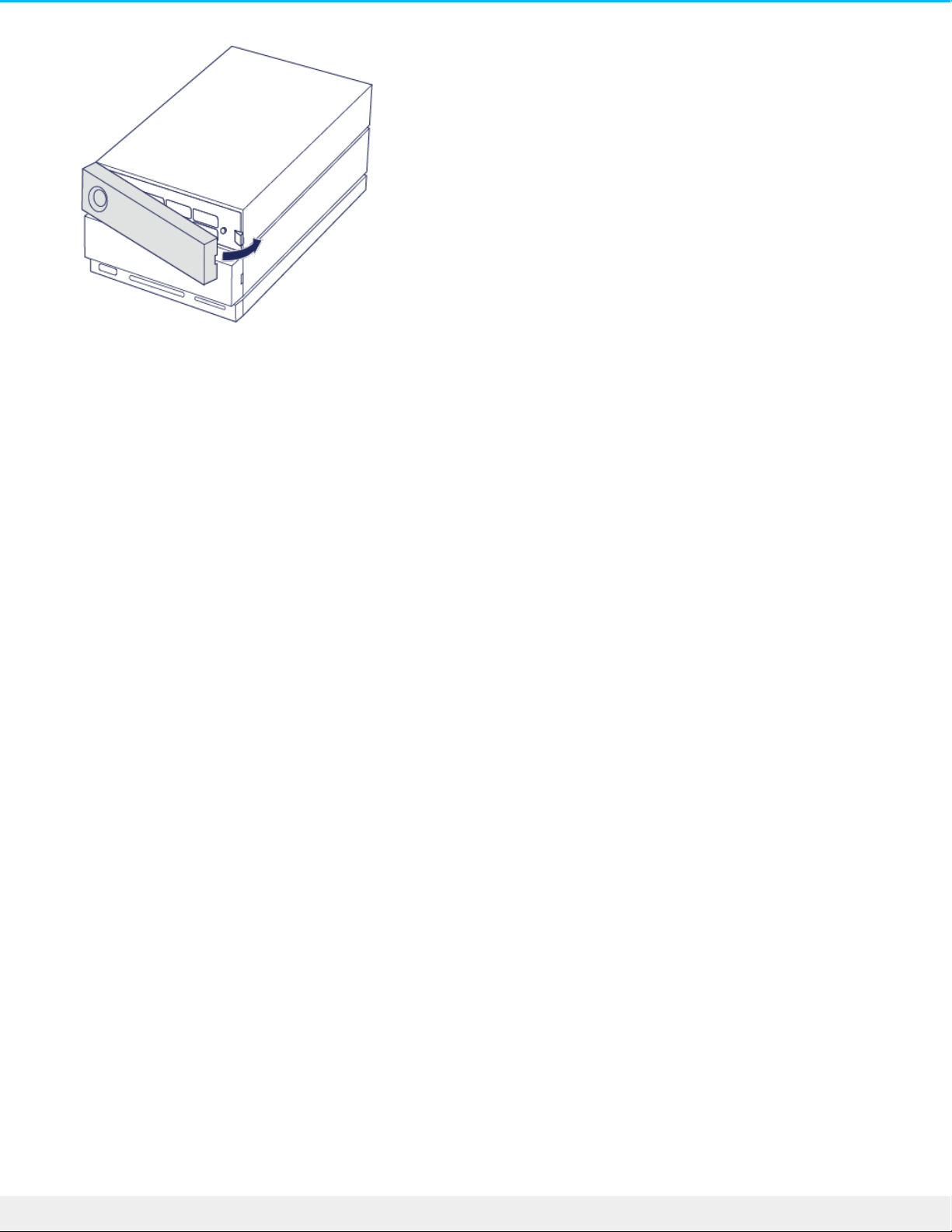
See Manage RAID for instructions on how to manage the RAID configuration.
When replacing hard drives that are members of an active RAID array, the hard drive LEDs blink red and blue
indicating that the RAID is synchronizing data. You can continue to use the LaCie 2big Dock storage but
performance is reduced until the synchronization is complete.
LaCie 2big Dock enclosure: non-serviceable
components
The components inside the chassis are NOT hot-swappable and are NOT serviceable at any location outside
of LaCie-approved service centers. Removing the cover voids your product’s warranty. Additionally,
removing, replacing or changing any part in the enclosure or, performing any action that involves the
components in the enclosure, voids the product’s warranty. If you are experiencing hardware errors or
failure, contact LaCie support for assistance.
53LaCie 2big Dock Thunderbo lt 3
8/9/17
Page 54

Formang and Paroning
When you format the drive, you’re instructing your computer’s operating system to erase data on the disks,
check the disks for errors, and prepare the disks to receive new data. You might decide to format the drive
in order to change file system formats (see below) and make the drive compatible with your PC or Mac
operating system.
About file system formats
NTFS: Since it is the native file system for Windows, volumes created in NTFS are read and write enabled
for computers running Windows. Mac OS can read NTFS volumes but cannot natively write to them.
Mac OS Extended (HFS+): The native hard drive file system for Mac. Windows cannot natively read or write
to HFS+ (journaled) hard drives.
exFAT: Generally compatible with Mac and Windows. exFAT is not a journaled file system which means it
can be more susceptible to data corruption when errors occur or the drive is not disconnected properly
from the computer.
FAT32: Compatible with Mac and Windows. However, FAT32 is a legacy file system designed for low
capacity hard drives and it is not recommended for modern hard drives or operating systems. A FAT32
partition can reach up to 32GB when formatted on a Windows PC.
How to choose the file system format
Use NTFS if:
…the storage device is connected to Windows PCs.
Use HFS+ if:
Note to Mac users: Your LaCie device is shipped factory formatted as HFS+ for Mac. The dual
disks are configured for optimal performance using RAID 0.
Note to Windows users: When first connecting the device, the disks must be configured and
formatted since Windows does not support HFS+. You must use LaCie RAID Manager to delete
the current RAID array and create a new one. To learn more about using LaCie RAID Manager with
your 2big Dock, see Manage RAID. Once you’ve created the new array, you will need to partition
and format it.
Caution: Formatting erases everything on the storage device. LaCie strongly recommends that
you back up all data on your storage device before initiating the formatting process. LaCie is not
responsible for any data lost due to formatting, partitioning, or using a LaCie storage device.
54LaCie 2big Dock Thunderbo lt 3
8/9/17
Page 55

…the storage device is connected to Macs.
You can use exFAT if:
…the storage device is shared between Mac and Windows computers.
Use FAT32 if:
…the storage device is connected to older Windows and Mac computers. FAT32 is not recommended for
modern operating systems and computers.
Formang instrucons
The steps below help you format and partition a storage device.
Mac
OS X version 10.11 or later
1. Open the Finder and go to Applications > Utilities > Disk Utility.
2. In the sidebar to the left, select your LaCie 2big Dock drive.
3. Select Erase.
4. A dialog box opens. Enter a name for the drive. This will be the name displayed when the drive mounts.
5. For Format, select OS X Extended (Journaled).
6. For Scheme, select GUID Partition Map.
7. Click Erase.
8. Disk Utility will format the drive. When it’s finished, click Done.
OS X version 10.9 to 10.10
1. Open the Finder and go to Applications > Utilities > Disk Utility.
2. In the sidebar to the left, select the LaCie 2big Dock drive that shows the capacity.
3. In the Disk Utility window, select the Partition tab.
4. Under Partition Layout, select 1 partition.
5. Enter a name for the drive. This will be the name displayed when the drive mounts.
6. For Format, select OS X Extended (Journaled).
7. Click on Options. Select GUID Partition Map, and then click OK.
8. Click Apply.
9. A dialog appears advising you that this is a data destructive process and any data currently on the drive
will be deleted.
10. Select Partition to complete the formatting process.
Windows
1. Make sure the storage device is connected to and mounted on the computer.
Note: Refer to your operating system's documentation for more information on formatting and
partitioning storage devices.
55LaCie 2big Dock Thunderbo lt 3
8/9/17
Page 56

2. Go to Search and then type diskmgmt.msc. In the search results, double click Disk Management.
3. From the list of storage devices in the middle of the Disk Management window, locate your LaCie
device.
4. The partition must be available to format. If it is currently formatted, right click on the partion and then
choose Delete.
5. To create a new partition, right click on the volume and select New Simple Volume. Follow the on-screen
instructions when the New Simple Volume Wizard appears.
56LaCie 2big Dock Thunderbo lt 3
8/9/17
Page 57

Frequently Asked Quesons
For help setting up and using your LaCie hard drive, review the frequently asked questions below. For
additional support resources, go to LaCie customer support.
All users
Problem: My file transfers are too slow.
Thunderbolt 3/USB
Q: Are both ends of the cable firmly attached?
A: Review troubleshooting tips for cable connections below:
Check both ends of the cable and make sure they are fully seated in their respective ports.
Try safely ejecting LaCie 2big Dock from your computer and then disconnect the cable. Wait 10 seconds
and then reconnect LaCie 2big Dock to the computer.
Q: Are there other Thunderbolt 3 or USB devices connected to the same port or hub?
A: Disconnect other devices and see if the drive's performance improves.
Thunderbolt 3
Q: Is the device connected to a Thunderbolt 3 USB-C port on your computer or hub?
A: Connect LaCie 2big Dock to a USB-C port on your computer that supports Thunderbolt 3 devices. The
lightning bolt icon that represents Thunderbolt 3 support should appear next to the USB-C port.
Q: Does your computer or operating system support Thunderbolt 3?
A: Consult your computer and operating system documentation for Thunderbolt 3 compatibility information.
USB
Q: Is the device connected to Hi-Speed USB 2.0 on your computer or hub?
A: If your hard drive is connected to a USB 2.0 port, the slower performance is normal. LaCie 2big Dock USB
performance is significantly better when it is connected to a USB 3.1 port or a SuperSpeed USB 3.0 port.
Otherwise, LaCie 2big Dock operates at slower USB transfer rates.
Problem: I connected LaCie 2big Dock to my computer but it does not power on
and I cannot see the device in LaCie RAID Manager.
57LaCie 2big Dock Thunderbo lt 3
8/9/17
Page 58

Q: Which cable and ports are connecting LaCie 2big Dock to the computer?
A: Make certain that the correct ports are connected by the correct cable. If you’re connecting using
Thunderbolt 3, make sure that one end of your Thunderbolt 3 cable is connected to one of the Thunderbolt
3 ports on LaCie 2big Dock, and the other end of the cable is connected to a Thunderbolt 3 port on your
computer. A Thunderbolt 3 port is a USB-C port with a Thunderbolt icon next to it.
If your computer does not have a Thunderbolt 3 port, connect the USB 3.1 port on LaCie 2big Dock to a USB
3.1 port on your computer (using the Thunderbolt 3 cable). Please note that it is not possible to access the
storage when connecting the Thunderbolt 3 port on LaCie 2big Dock to a USB-C port on a computer that
does not support Thunderbolt 3. While it is possible to connect LaCie 2big Dock's USB 3.1 port to a
Thunderbolt 3 port on a computer, the benefits offered by Thunderbolt 3 are lost. Such a connection only
allows for using a single array at transfer rates up to 10Gb/s rather than Thunderbolt 3's potential of multiple
arrays and transfer rates up to 40Gb/s.
If you see the storage using the USB connection but the Thunderbolt connection does not appear to work,
confirm that LaCie RAID Manager is installed on your computer. The installer for LaCie RAID Manager includes
an important driver that allows the computer to recognize the storage with Thunderbolt connections. The
installer can be downloaded at LaCie RAID Manager.
Problem: I want to change the RAID level.
Q: How do I change the RAID level?
A: You can manage the storage for LaCie 2big Dock using LaCie RAID Manager. To download the installer, go
to LaCie RAID Manager. For instructions how to use the application, see Manage RAID.
Problem: I disconnected my computer from the LaCie 2big Dock during RAID
synchronizaon or inializaon.
Q: Can I disconnect my computer during RAID synchronization or initialization?
A: Yes. Synchronization and initialization continue uninterrupted when the computer disconnects from LaCie
2big Dock. Similarly, LaCie 2big Dock can be placed into power-saving mode or powered off during
synchronization and initialization. Provided the same hard drives are in the enclosure, the operation
continues once the device is powered on. For more information, see Operation.
Problem: I have a USB-C hard drive that I want to add to the Thunderbolt 3 daisy
chain.
Q: Can I attach my USB-C hard drive to a Thunderbolt 3 daisy chain?
A: Yes. Make certain to add the USB-C hard drive to the end of a Thunderbolt 3 daisy chain since USB
devices do not include a second port to continue the chain. Please note that USB-C devices do not become
Thunderbolt 3 devices when added to a Thunderbolt 3 daisy chain. The USB-C device can only provide
performance within its potential. For example, a USB 3.1 Gen 1 hard drive added to the end of a
Thunderbolt 3 daisy chain can reach up to 5Gb/s while a USB 3.1 Gen 2 hard drive can reach up to 10Gb/s.
Problem: I must password protect and/or encrypt my hard drive.
58LaCie 2big Dock Thunderbo lt 3
8/9/17
Page 59

Q: Can I attach my USB-C hard drive to a Thunderbolt 3 daisy chain?
A: Yes, it is possible to protect the hard drive or individual folders and files with a password. There are
many third-party solutions for password protection. However, LaCie cannot guarantee them since we do not
test third-party applications.
Some versions of Windows have a built-in utility called Bitlocker that can protect hard drives with a
password. For more information about Bitlocker, consult Microsoft's support documentation.
Q: Can I encrypt my hard drive?
A: Yes, the hard drive can be encrypted. There are many third-party solutions for encryption. However,
LaCie cannot guarantee them since we do not test third-party applications.
Some versions of Windows have a built-in utility called Bitlocker that can encrypt hard drives. For more
information about Bitlocker, consult Microsoft's support documentation
Problem: I'm receiving file transfer error messages.
Q: Did you get an "Error -50" message while copying to a FAT32 volume?
A: When copying files or folders from a computer to a FAT32 volume, certain characters in the names cannot
be copied. These characters include, but are not limited to: ? < > / \ :
Check your files and folders to ensure that these characters are not in the names.
If this is a recurring problem or you cannot find files with incompatible characters, consider reformatting the
drive to NTFS (Windows users) or HFS+ (Mac users). See Formatting and Partitioning.
Problem: DisplayPort to HDMI display does not work.
Q: Why does my HDMI display not work correctly when connected to the DisplayPort expansion port?
A: The DisplayPort 1.2 on your LaCie 2big Dock does not support DP++ to HDMI adapters. If you do not
have a DP 1.2 to HDMI adapter but still want to connect to an HDMI display, it’s recommended that you daisy
chain your LaCie 2big Dock to the display using a USB-C to HDMI adapter (not included). This configuration is
only possible if the LaCie 2big Dock is connected to your computer via a Thunderbolt cable.
Mac
Problem: The drive icon does not appear on my desktop.
Q: Is your Finder configured to hide hard drives on the desktop?
A: Go to Finder and then check Preferences > General tab > Show these items on the desktop. Confirm that
Hard Disks is selected.
Q: Is your drive mounting in the operating system?
A: Open Disk Utility at Go > Utilities > Disk Utility. If the drive is listed in the left-hand column, check your
59LaCie 2big Dock Thunderbo lt 3
8/9/17
Page 60

Finder preferences to see why it is not displayed on the desktop (review the question above).
Q: Does your computer's configuration meet the minimum system requirements for use with this drive?
A: Refer to the product packaging for the list of supported operating systems.
Q: Did you follow the correct installation steps for your operating system?
A: Review the installation steps in Connect your LaCie 2big Dock Thunderbolt 3.
Windows
Problem: The drive icon doesn't appear in Computer.
Q: Is the drive listed in Device Manager?
A: All drives appear in at least one place in Device Manager.
Go to Search and enter Device Manager to launch it. Look in the Disk Drives section and, if necessary, click
the plus sign to view the full list of devices. If you're uncertain that your drive is listed, safely unplug it and
then reconnect it. The entry that changes is your LaCie hard drive.
Q: Is your drive listed next to an unusual icon?
A: Windows Device Manager usually provides information about failures with peripherals. While the Device
Manager can assist with troubleshooting most problems, it may not display the exact cause or provide a
precise solution.
An unusual icon next to the hard drive can reveal a problem. For example, an exclamation point, question
mark, or X instead of the normal icon based on the type of device could indicate a problem. Right click on
the icon and then choose Properties. The General tab provides a potential reason why the device is not
working as expected.
60LaCie 2big Dock Thunderbo lt 3
8/9/17
 Loading...