

Page 1
How To Use This Manual
page i
LaCie DVD Dual Drive
User’s Manual
How to Use This Manual
In the toolbar:
On the page:
Click on the text within the Contents page to jump to information on that topic.
Click on any red text to automatically jump to more information about that topic.
Printing:
While optimized for onscreen viewing, the pages of this manual are formatted for printing on 8 1/2” x 11” and A4 sized
paper, giving you the option to print the entire manual or just a specific page or section.
To Exit:
From the Menu bar at the top of your screen, select: File > Quit.
Previous Page / Next Page
Go to Previous View / Go to Next View
Go to Contents Page / Go to Precautions Page
Page 2
Foreword
1
LaCie DVD Dual Drive
User’s Manual
Copyrights
Copyright © 2003 LaCie. All rights reserved. No part of this publication may be reproduced, stored in a retrieval system, or
transmitted in any form or by any means, electronic, mechanical, photocopying, recording or otherwise, without the prior
written consent of LaCie.
Trademarks
Apple, Mac, Macintosh and FireWire are registered trademarks of Apple Computer, Inc. Sony and iLink are registered
trademarks of Sony Electronics. Microsoft, Windows, Windows 98 SE, Windows Millennium Edition, Windows 2000 and
Windows XP are registered trademarks of Microsoft Corporation. All trademarks mentioned in this manual are the property
of their respective owners.
Changes
The material in this document is for information only and is subject to change without notice. While reasonable efforts have
been made in the preparation of this document to assure its accuracy, LaCie assumes no liability resulting from errors or
omissions in this document, or from the use of the information contained herein. LaCie reserves the right to make changes or
revisions in the product design or the product manual without reservation and without obligation to notify any person of such
revisions and changes.
FCC Statement
Warning! Changes or modifications to this unit not expressly approved by the party responsible for compliance could
void the user’s authority to operate the equipment.
NOTE: This equipment has been tested and found to comply with the limits for a
Class A digital device, pursuant to Part 15 of the FCC Rules. These limits are
designed to provide reasonable protection against harmful interference when the
equipment is operated in a commercial environment. This equipment generates, uses
and can radiate radio frequency energy and, if not installed and used in accordance
with the instruction manual, may cause harmful interference to radio communications.
Operation of this equipment in a residential area is likely to cause harmful
interference in which case the user will be required to correct the interference at their
own expense.
NOTE: This equipment has been tested and found to comply with the limits for a Class B digital device, pursuant to Part 15 of
the FCC Rules. These limits are designed to provide reasonable protection against harmful interference in a residential
installation. This equipment generates, uses and can radiate radio frequency energy and, if not installed and used in
accordance with the instructions, may cause harmful interference to radio communications. However, there is no guarantee
that interference will not occur in a particular installation. If this equipment does cause harmful interference to radio or
television reception, which can be determined by turning the equipment off and on, the user is encouraged to try to correct
Tested To Comply
With FCC standards
FOR HOME OR OFFICE USE
LaCie DVD Dual Drive 300680
300679
Page 3

Foreword
page 2
LaCie DVD Dual Drive
User’s Manual
the interference by one or more of the following measures:
• Reorient or relocate the receiving antenna;
• Increase the separation between the equipment and receiver;
• Connect the equipment into an outlet on a circuit different from that to which the receiver is connected;
• Consult the dealer or an experienced radio/TV technician for help.
Canada Compliance Statement
This Class A digital apparatus meets all requirements of the Canadian Interference-Causing Equipment Regulations.
Manufacturer’s Declaration for CE Certification
We, the LaCie Group SA, solemnly declare that this product conforms to the following European standards:
Class B EN60950, EN55022, EN50082-1, EN61000-3-2
With reference to the following conditions:
73/23/EEC Low Voltage directive
89/336/EEC EMC Directive
Laser Products
This equipment is certified to comply with DHHS Rule 21 CFR Chapter I, subchapter J in effect as of date of manufacture. This
equipment is classified as a Class I Laser product and no hazardous laser radiation is emitted outside the drive.
Page 4

Precautions
page 3
LaCie DVD Dual Drive
User’s Manual
Health, Safety and General Use Precautions
The drive you have just purchased includes a laser diode device, which classifies it as a "Laser Class I" product. This laser is
not dangerous for the user under normal operating conditions. However, we strongly advise you not to place any reflective
objects in the disc loading system, due to the risk of exposure to laser emissions that may be reflected by such objects.
Always follow the basic precautions listed below to use your LaCie drive safely and correctly. Respecting these guidelines will
help to avoid the possibility of personal injury to yourself or others, as well as to prevent damage to your device and other
computer equipment. These precautions include, but are not limited to, the following:
Health and Safety Precautions:
Read this User's Manual carefully, and follow the correct procedure when setting up the device.
• Do not look inside or place your hand over the open DVD/CD media tray. Never look directly or indirectly (with a mirror)
at the laser diode, even when the device is not in operation. If you expose your eyes or skin to the laser inside you drive, you
risk damage or loss of your vision or other personal injury.
• Do not open your drive or attempt to disassemble or modify it. Never insert any metallic object into the drive to avoid any
risk of electrical shock, fire, short-circuiting or dangerous emissions. Your drive contains no user-serviceable parts. If it
appears to be malfunctioning, have it inspected by qualified LaCie service staff.
• Never expose your device to rain or use it near water or in damp or wet conditions. Never place containers on it
containing liquids that may spill into its openings. Doing so increases the risk of electrical shock, short-circuiting, fire or
personal injury.
• Make sure that the computer and drive are electrically grounded. If the devices are not grounded, there is an increased risk
of electrical shock.
• Do not listen to audio with headphones at an excessive volume for prolonged periods of time. Doing so increases the risk of
hearing damage or loss.
• Before listening to music with your drive, set the volume control to minimum. Sudden bursts of sound at loud volumes can
cause immediate hearing damage or loss.
General Use Precautions:
• Do not expose the drive to temperatures outside the range of 5° C to 45° C (41° F to 104° F). Doing so may damage the
drive or disfigure its casing. Avoid placing your drive near a source of heat or exposing it to sunlight (even through a
window). Inversely, placing your drive in an environment that is too cold or humid may damage the unit.
• Always unplug the drive from the electrical outlet if there is a risk of lightning or if it will not be used for an extended period
of time. Otherwise, there is an increased risk of electrical shock, short-circuiting or fire.
• Use only the power supply shipped with the device.
• Do not place heavy objects on top of the drive or use excessive force on its buttons, connectors and tray. Doing so increases
the risk of damage to the device.
Page 5

Precautions
page 4
LaCie DVD Dual Drive
User’s Manual
• Always place your drive in a horizontal position before using it. Otherwise, it may fall, causing damage to the device and
/ or corruption or loss of data.
• Always remove the disc from the disc tray before transporting your drive. Otherwise, written data may be destroyed or the
drive's internal components may be damaged.
• Never use excessive force on the disc loading system; discs should be inserted effortlessly into your drive. If you detect a
problem, consult the T
roubleshooting section.
• Protect your drive from excessive exposure to dust during use or storage. Dust can build up inside the device, increasing the
risk of damage or malfunction.
• Never use benzene, paint thinners, detergent or other chemical products to clean the outside of the drive. Such products will
disfigure and discolor the front panel and casing. Instead, use a soft, dry cloth to wipe the device.
Page 6

Table of Contents
page 5
LaCie DVD Dual Drive
User’s Manual
Health, Safety and General Use Precautions 3
1. Introduction 7
1.1 Icons Used In This Manual 7
1.2 What Is USB? 8
1.3 What Is FireWire? 8
1.4 LaCie DVD Utilities Software 9
2. Getting To Know Your LaCie DVD Dual Drive 10
2.1 Minimum System Requirements 10
2.2 Supported CD/DVD Formats 11
2.3 RPC and DVD-Video 11
2.4 LaCie DVD Dual Drive - Views 12
2.4.1. Front View 12
2.4.2. Rear View 13
2.4.3. Side View 13
2.5 USB 2.0 Cables and Connectors 14
2.6 FireWire Cables and Connectors 14
3. Setting Up Your LaCie DVD Dual Drive 15
3.1 Connecting the Power Supply 15
3.2 Installing Your LaCie DVD Dual Drive 15
3.2.1 Mac Users 16
3.2.1.1 FireWire Installation 16
3.2.1.2 USB 2.0 Installation 16
3.2.2 Windows Users 17
3.2.2.1 USB 2.0 Installation 17
3.2.2.2 FireWire Installation 18
3.3 Installing Multiple USB Peripherals 18
3.4 Installing Multiple FireWire Peripherals 18
3.5 Disconnecting Your LaCie DVD Dual Drive 18
3.5.1 Mac Users 19
3.5.2 Windows Users 19
3.6 Switching Between USB 2.0 & FireWire 19
Page 7

Table of Contents
page 6
LaCie DVD Dual Drive
User’s Manual
4. Using Your LaCie DVD Dual Drive 20
4.1 Inserting DVD and CD Media 20
4.2 Ejecting Media 20
4.2.1 Mac Users 20
4.2.2 Windows Users 20
4.3 Emergency Ejection of Media 20
4.4 Read Mode 21
4.4.1 Mac Users 21
4.4.2 Windows Users 21
4.5 Write Mode 21
5. Technical Information 22
5.1 Power Autoswitching 22
5.2 Power Save 22
5.3 User Advice When Using USB 2.0 & FireWire 22
5.3.1 USB 2.0 Host Bus Adapters and Performance 22
5.3.2 Data Transfers 22
5.4 USB 2.0 vs. FireWire 24
5.5 User Advice on MPEG-II Decoders 25
6. Troubleshooting 26
7. Contacting Customer Service 31
7.1 Warranty 32
8. Appendix 1 – USB Questions and Answers 33
9. Appendix 2 – FireWire Questions and Answers 35
10. Glossary 37
Page 8

Introduction
page 7
LaCie DVD Dual Drive
User’s Manual
1. Introduction
Congratulations on the purchase of your new LaCie DVD Dual Drive. Thanks to its support of CD-ROM, CD-R, CD-RW, DVDROM, DVD+R, DVD+RW, DVD-R, and DVD-RW media, this stylish, high-performance external drive will allow you to quickly
and easily record audio, video and data on either DVD+R/RW discs, DVD-R/RW general use discs or CD-R/RW media. For
even greater flexibility, your LaCie external drive is also cross-platform, which enables you to use it on both Macs and PCs.
The LaCie DVD Dual Drive was designed to allow you to use your desk-space efficiently. Engineered to be rack mountable,
you can quickly and easily integrate the LaCie drive into your standard 19-inch computer equipment racks, using the LaCie
rackmount kit (sold separately).
With all it can do for you, we’re confident that your LaCie DVD Dual Drive will quickly become an important tool in your dayto-day business and personal computing.
This manual will help you to:
• Install your new device properly
• Get your drive up and running
• Quickly learn how to operate it
1.1. Icons Used In This Manual
Italicized paragraphs feature an icon describing the type of information being given.
Precautions
Always follow the basic precautions to use your LaCie DVD Dual Drive safely and correctly. Respecting these guidelines will
help to avoid the possibility of personal injury to yourself or others, as well as to prevent damage to your device and other
computer equipment. For a complete list of precautions, please see chapter Health, Safety and General Use Precautions of this
manual.
A few words about copyright laws…
Your new LaCie drive opens up a whole world of possibilities for copying data and audio onto disc. Please be responsible in
your use of this technology. Before copying anything onto DVD or CD media, make sure you are not violating any copyright
laws. Most software companies allow licensed owners to make one (1) backup or archive copy of their software. Check your
software's license agreement for specific details.
Warranty
LaCie and its suppliers accept no liability for any loss of data during the use of this device, or for any of the problems caused
as a result. As a precaution, it is recommended that the CD-R, CD-RW, DVD-R, DVD-RW, DVD+R and DVD+RW media be
tested after they have been written to. Under no circumstances do LaCie or its suppliers guarantee the reliability of the DVD or
CD media used in this drive.
Important Note Technical Information or News Warning! (This icon indicates potential hazard)
Page 9
Introduction
page 8
LaCie DVD Dual Drive
User’s Manual
Manual Updates
LaCie is constantly striving to give you the most up-to-date, comprehensive User’s Manuals available on the market. It is our
goal to provide you with a friendly, easy-to-use format that will help you quickly install and utilize the many functions of your
new device.
If your manual does not reflect the configurations of the product that you purchased, please check our Web site for the most
current version available.
1.2. What Is USB?
USB 2.0
USB Icons
These icons will help you easily identify the USB interfaces.
They appear on USB cables and next to the USB port
connectors on certain computers.
1.3. What Is FireWire?
FireWire/IEEE 1394
FireWire Icons
These icons will help you easily identify the FireWire interface.
They appear on FireWire cables and next to the FireWire port
connectors on certain computers.
The new USB 2.0 standard provides higher bandwidth for
high-speed peripherals such as external hard drives, highspeed scanners and CD-RW drives. USB 2.0 delivers transfer
rates up to 480Mb/s, while conveniently maintaining
backward compatibility with USB 1.1 devices.
USB 2.0 can still be used to connect lower-speed USB 1.1
ports and devices like digital cameras, scanners, modems,
keyboards, mice, joysticks and printers. In the USB 2.0 system,
existing USB peripherals do not have to be upgraded, and
lower-speed devices will not require additional performance,
instead operating as USB 1.1 devices.
FireWire is Apple's implementation of IEEE 1394, and is
capable of transferring large amounts of data between
computers and peripherals at a high rate of speed. The
FireWire standard defines 100, 200 and 400Mb/s devices
and can support multiple speeds on a single bus.
With FireWire, there is no need for terminators, device IDs,
screws, or complex setup, and the standard supports free-form
daisy chaining for peer-to-peer implementations. A fast, crossplatform serial bus, FireWire is ideal for use with multimedia
peripherals and high-speed devices such as digital video
cameras and hard drives.
USB 1.1 icon
USB 2.0 icon
FireWire Icon
DV Icon
iLink Icon
Page 10

Introduction
page 9
LaCie DVD Dual Drive
User’s Manual
1.4. LaCie DVD Utilities
The LaCie DVD Utilities software enables Windows and Mac users to write to CD and DVD media for backup, storage or
audio and video applications. Users need to install this software on their computer before using their LaCie drive to record to
DVD+R/RW, DVD-R/RW and CD-R/RW media. Please refer to the LaCie DVD Dual Drive Software Guide on the LaCie DVD
Utilities CD-ROM for further explanations of the software capabilities and installation steps.
Page 11

Getting To Know Your LaCie Drive
page 10
LaCie DVD Dual Drive
User’s Manual
2. Getting to Know Your LaCie DVD Dual Drive
What can your LaCie DVD Dual Drive do?
• Create professional quality DVDs.
• Master your own audio, video or data CD-R/RWs, DVD+R/RWs and DVD-R/RWs.
• Backup important home and business data.
2.1. Minimum System Requirements
Hardware requirements:
System requirements:
Additional Requirements for DVD Playback
and Pre-mastering:
Additional Requirements for DV
Capturing and DVD Authoring:
• Mac or PC with USB 2.0 or 1.1 interface
Important Note: Apple does not include native USB 2.0 ports. In order to achieve USB 2.0
speeds, Mac users will need to install a USB 2.0 PCI card.
Or:
• Mac or PC equipped with FireWire/IEEE 1394/iLink interface card* (SBP-2 compatible).
• Mac OS 9.1(Apple FireWire support 2.2 and greater) and 10.1.2 or later
• Windows 98 SE (Second Edition), Windows Me (Millennium Edition), Windows 2000, or
Windows XP
• Mac G3 processor; 64MB RAM minimum
• Intel Pentium II/350MHz compatible processor or greater; 64MB RAM minimum
• Mac OS 9.2.2 or Mac OS 10.2 or later
• Windows 2000, or Windows XP
• Mac G4 processor; 256MB RAM
• 1.2GHz processor or greater; 256MB RAM
*Note: If you have a 4-pin connector on your FireWire interface card, you will need to
purchase a 4-to-6 pin FireWire cable.
• Video Card supporting DirectDraw Standard
• Audio Card supporting 44.1KHz or 48KHz sampling rate
• Monitor Resolution of 1024 x 768, 24-bit color
• Microsoft DirectShow 6.4 or greater
• Intel Pentium II/600Mhz processor or greater for video capture
• Intel Pentium II/400Mhz processor or greater for video authoring
• 128MB RAM minimum (256MB is recommended)
• Monitor Resolution of 1024 x 768, 16-bit color
• 5GB of free space for temporary caching of 4.7GB of DVD-Video
• 10GB or greater (20GB is suggested) Hard Drive for storing video and audio files
Minimum:
Recommended:
Page 12

Getting To Know Your LaCie Drive
page 11
LaCie DVD Dual Drive
User’s Manual
2.2. Supported DVD/CD Formats
Your LaCie drive is compatible with most popular DVD and CD formats:
Format Type of Disc Record Read
DVD DVD+R X X
DVD+RW X X
DVD-R 4.7GB for General use (Ver. 2.0) X X
DVD-ROM -- X
DVD-R 3.95GB, 4.7GB for Authoring -- X
DVD-R (General use only for write) X X
DVD-RW (General use only for write) X X
DVD-ROM (single and dual layer) -- X
DVD (single and dual layer) 80 mm disc -- X
CD CD-R X X
CD-RW (supports AM2) X X
CD-ROM -- X
CD-ROM XA Mode2 (form 1, form 2) -- X
CD-Extra -- X
2.3. RPC and DVD-Video
Nearly all commercially-available DVD discs feature a Region Protection Code (RPC). In order to watch DVD-Video discs, the
RPC needs to match the setting on the DVD player. By default, all LaCie DVD-Video-compatible drives are set to the RPC zone
of the country in which it was purchased. This RPC setting may be changed using your hardware or software MPEG-II
decoder (please refer to the documentation supplied with your decoder for more information). DVD-Video discs that do not
feature RPC II encoding may be played on all DVD players set to Zone 1.
The worldwide RPC zones are:
Zone 1 USA and Canada
Zone 2 Europe, Japan, the Middle East and South Africa
Zone 3 Southeast Asia (including Hong Kong)
Zone 4 Australia, New Zealand, Central and South America
Zone 5 Northwest Asia, North Africa
Zone 6 China
When you insert a DVD-Video disc into your drive for the first time, the hardware or software MPEG-II decoder will detect if
Page 13
Getting To Know Your LaCie Drive
page 12
LaCie DVD Dual Drive
User’s Manual
the setting of your drive is the same as on the DVD-Video. If not, a message will appear on your screen and you will be
asked to change the RPC setting of your drive.
Important Note: You can only change the RPC of your drive four times. The RPC setting is copied into an internal
component in the drive. This chip makes an average of the first five readings and sets the drive to the most read
zone. After this, it will not be possible to change or reset the RPC of the drive.
Example: You change the RPC Zone to play a Zone 1 DVD-Video, and then you change to a Zone 2 DVD-Video.
You switch back and forth between the zones a total of five times, twice in Zone 1 and three times in Zone 2. Your
drive will then be set on Zone 2, without the possibility to reset the drive later on in order to view DVD-Video discs
from Zone 1.
2.4. LaCie DVD Dual Drive – Views
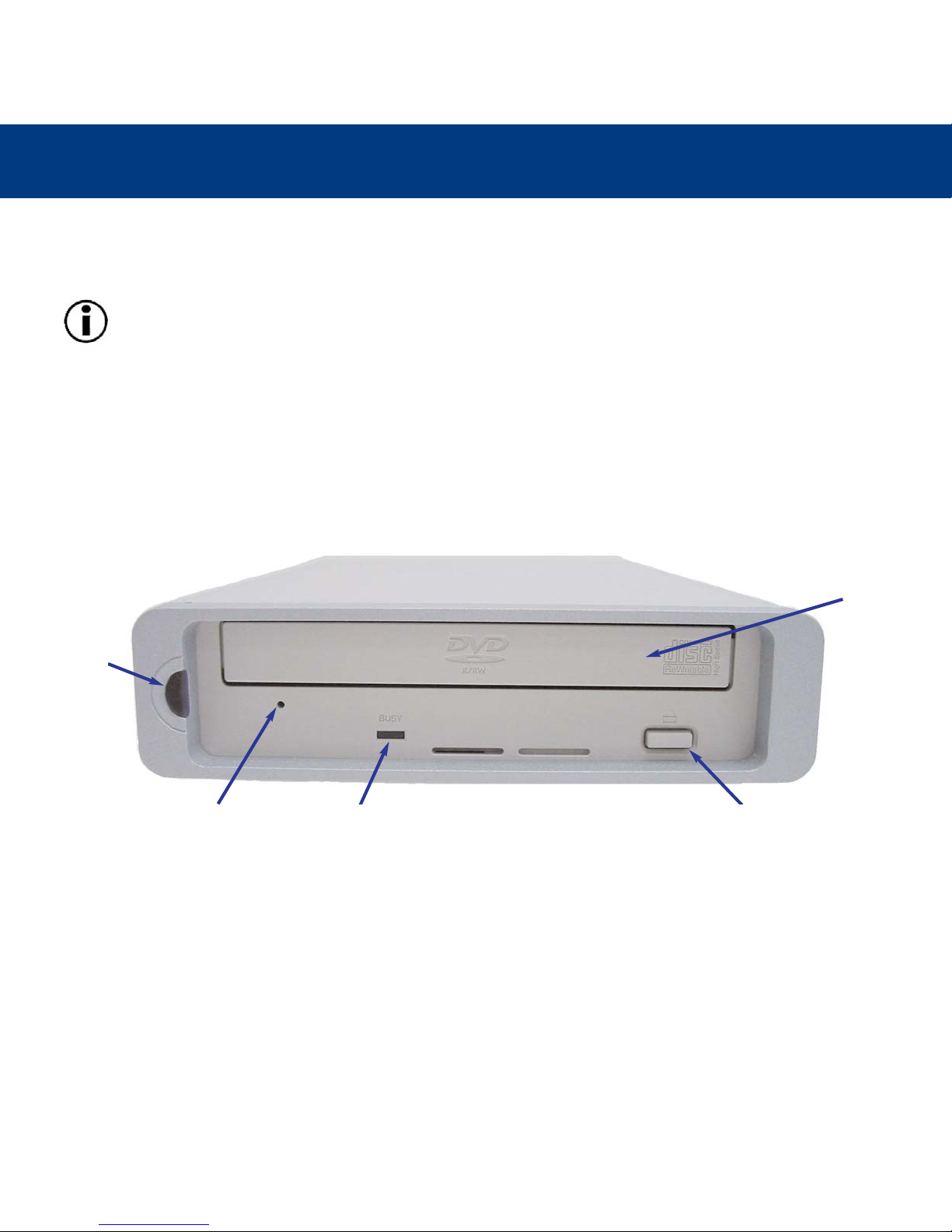
1 – On/Off Button / Power LED – Use this button to turn your drive on and off. The Power LED lights up when the drive is
turned on.
2 – Media Tray – Open the tray by pressing the load/eject button, then place a CD/DVD into the tray with the label facing
up. Close the tray by pushing the load/eject button or pushing the front part of the tray.
3 – Load/Eject Button – Push this button to open the disc tray.
4 – Emergency Eject Hole – Insert a straightened paper clip (or similar object) and push to eject the tray if the load/eject
button does not work. In normal operation, the eject button should always be used to unload the tray. If you must use the
emergency eject hole, make sure the drive’s power is turned off and wait until disc rotation has stopped.
5 – Disc LED – Lights when a disc is loaded into the drive, and lights in different patterns during operation.
1
4
5
3
2
2.4.1. Front View
Page 14
Getting To Know Your LaCie Drive
page 13
LaCie DVD Dual Drive
User’s Manual
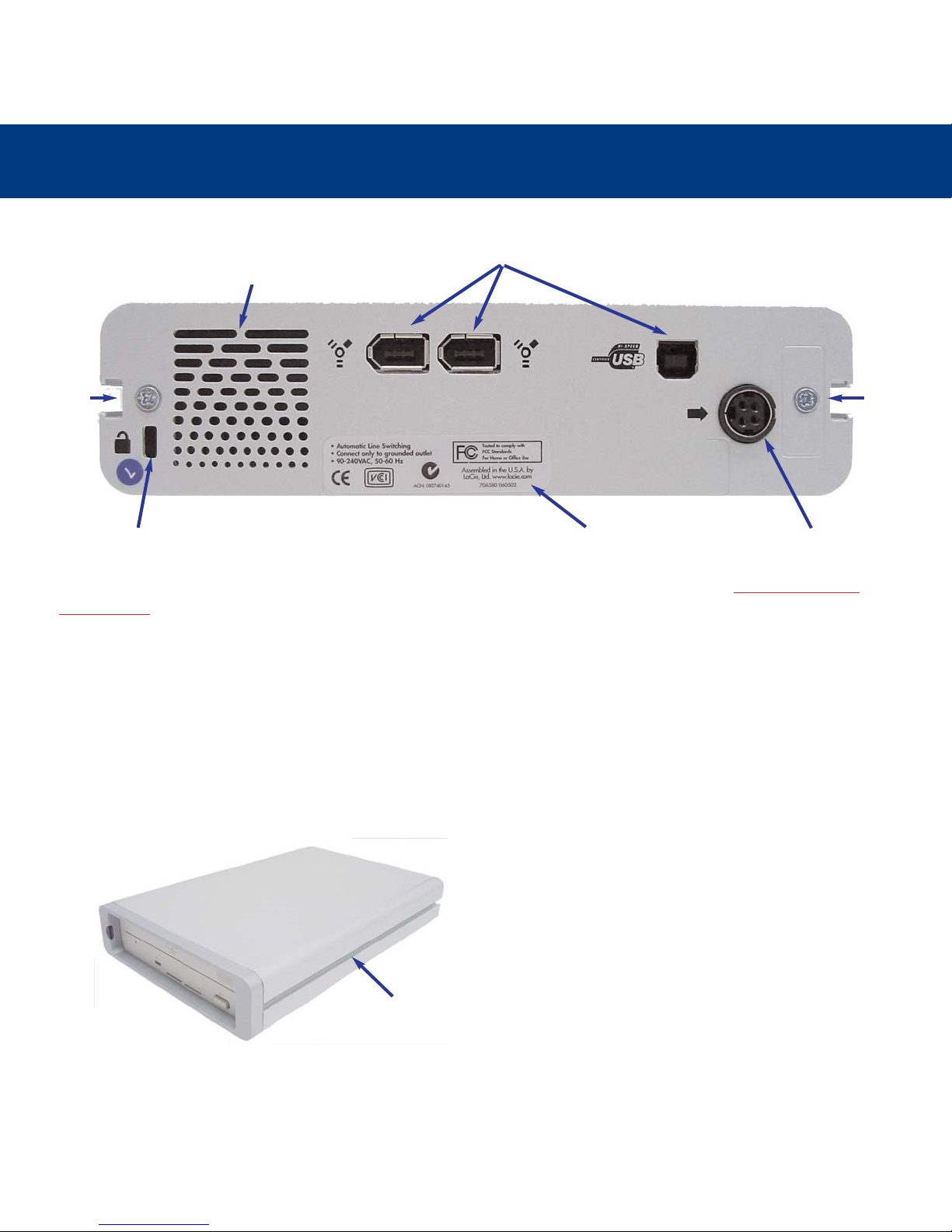
1 – Power Supply Connector – This is where you plug in the AC adapter supplied with the drive. See 3.1 Connecting the
Power Supply for details on connecting the adapter.
2 – USB and FireWire Connectors – This is where you plug in the USB 2.0 cable or FireWire cable furnished with your drive.
3 – Ventilation Outlet – Helps to keep your drive cool during operation. Be sure not to block this opening when using your
drive.
4 – Lock Slot – This slot is used to connect an anti-theft system for maximum protection, such as the LaCie Security Lock. Refer
to your anti-theft system documentation for details on how to connect the lock.
5 – Rackmount Grooves – For mounting your drive with the rackmount kit (sold separately).
6 – Serial Number Sticker – This is where you will find your LaCie drive's serial number. Write down the serial number and
keep it in a safe place, because you will need to provide the number in the event you have to call LaCie Technical Support for
any reason in regard to the drive’s performance. The serial number would also come in handy if your drive is lost or stolen.
1 – Rackmount Grooves – For mounting your drive with the
rackmount kit (sold separately).
2.4.2. Back View
5
4 6 1
5
2
3
2.4.3. Side View
1
Page 15
Getting To Know Your LaCie Drive
page 14
LaCie DVD Dual Drive
User’s Manual
2.5. USB Cables and Connectors
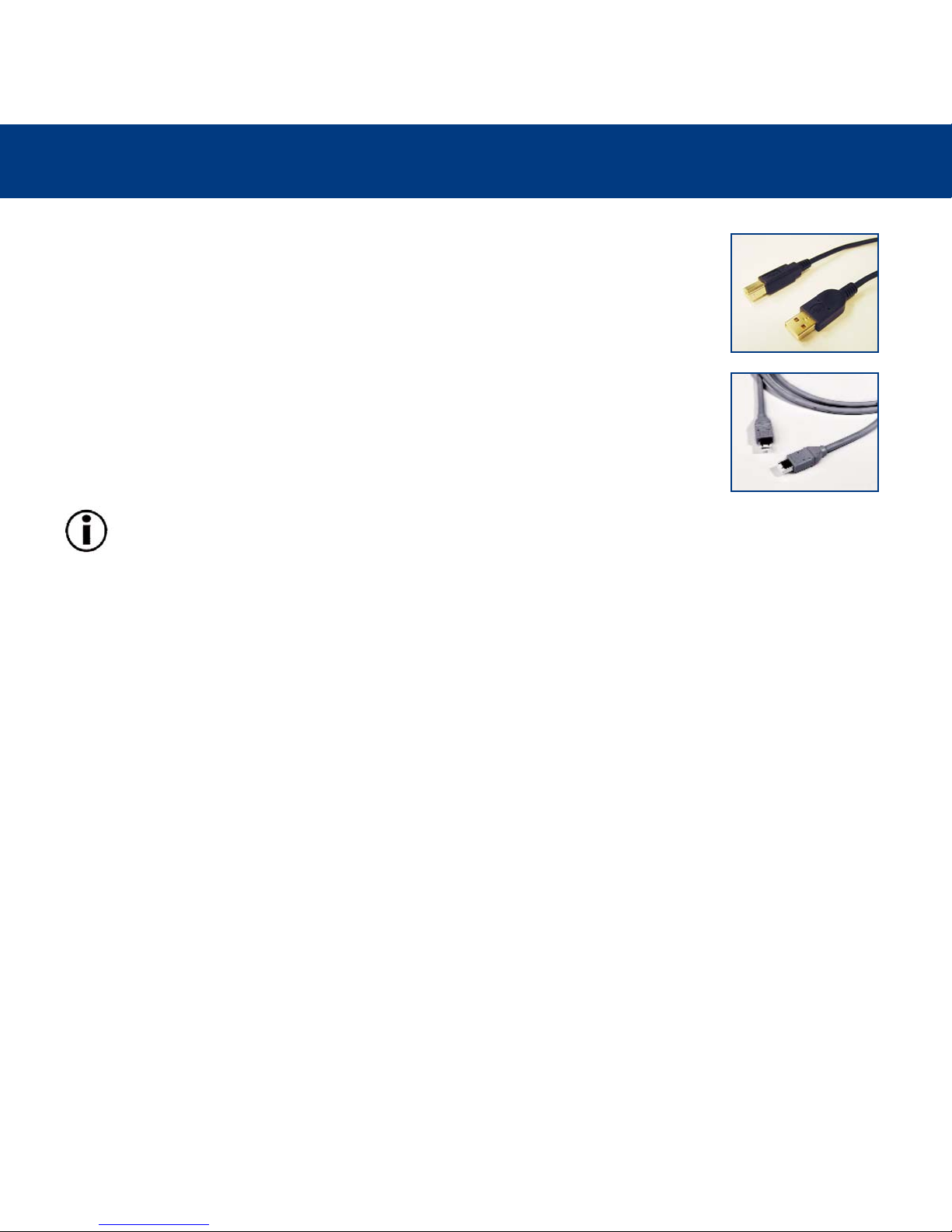
Your LaCie drive is shipped with a USB 2.0-certified USB cable, to ensure maximum data transfer
performance when connected to a USB 2.0 port. The cable will also work when connected to a USB
1.1 port, but drive performance will be limited to USB 1.1 transfer rates.
2.6. FireWire Cables and Connectors
There are three types of FireWire cables on the market: 6-to-4-pin, 6-to-6-pin and 4-to-4-pin. LaCie
FireWire peripherals are supplied with a 6-to-6 pin FireWire cable. Most FireWire-equipped laptop
computers feature 4-pin FireWire connectors, so to connect your LaCie drive to a laptop, you will
need to purchase a 4-to-6-pin cable.
Important Note: If the cable supplied with your LaCie drive does not meet your requirements, please contact your
computer supply specialist.
Page 16

Setting Up Your LaCie Drive
page 15
LaCie DVD Dual Drive
User’s Manual
3. Setting Up Your LaCie DVD Dual Drive
3.1. Connecting the Power Supply
To operate the drive, you must use the AC adapter supplied with it.
Warning! Use only the AC adapter supplied with your LaCie drive. Using any other power cable may cause damage
to the device and void your warranty.
Important Note: You may use your LaCie drive when in a foreign country, thanks to its autoswitching 100-240 Volt
power supply. To be able to use this feature, you may need to purchase an appropriate adapter or cord. Consult
LaCie Technical Support for assistance in choosing the right adapter. LaCie accepts no responsibility for any damage
to the drive resulting from the use of an inappropriate adapter. Using an adapter other than one authorized by LaCie
will void your warranty.
Connecting the AC Adapter to the Drive
1) Insert the round, four-pin metallic plug of the AC cable into the power input located at the rear of the drive.
2) Connect the wall-side plug to a power socket. Your drive should now turn on automatically when you connect it to a
USB/FireWire port on your computer.
Disconnecting the AC Adapter From the Drive
If you have inserted a CD or DVD into the drive, you must first eject the media before disconnecting the power supply.
1) Turn the drive off.
2) Hold the drive steady with one hand, then remove the plug from the connector.
Warning! Always remove the AC adapter before transporting your LaCie drive. Failure to remove the adapter may
result in damage to your drive and will void your warranty.
3.2. Installing Your LaCie DVD Dual Drive
Warning! Do not connect the USB and FireWire interfaces on your LaCie drive at the same time. Doing so may
damage your drive and will void your warranty. Using one interface makes it unnecessary to simultaneously use the
other interface. Choose to connect either the USB or FireWire cable.
Page 17

Setting Up Your LaCie Drive
page 16
LaCie DVD Dual Drive
User’s Manual
3.2.1. Mac Users
3.2.1.1. FireWire Installation
Important Note: Apple is constantly providing update support for drive mechanisms within OS 10.x. In order to
ensure that you have the latest support, be sure to upgrade to the latest version of OS 10. To access the latest
updates and upgrades, pull down the Apple Menu and click on System Preferences. In the section titled System, click
on Software Update and then click Update Now. Your computer will then automatically connect via the Internet to
access the latest updates from Apple.
1) Power on your computer.
2) Follow the steps in 3.1. Connecting the Power Supply
.
3) Connect the FireWire cable from your LaCie drive to a FireWire port on your computer.
4) Insert a disc in your LaCie drive. It will mount onto your Macintosh desktop, showing it is ready for use.
Important Note: You will find important information about the compatibility of LaCie drives with Apple’s iTunes and
Disc Burner at www
.apple.com.
3.2.1.2. USB 2.0 Installation
Important Note: Apple is constantly providing update support for drive mechanisms within OS 10.x. In order to
ensure that you have the latest support, be sure to upgrade to the latest version of OS 10. To access the latest
updates and upgrades, pull down the Apple Menu and click on System Preferences. In the section titled System, click
on Software Update and then click Update Now. Your computer will then automatically connect via the Internet to
access the latest updates from Apple.
1) Power on your computer.
2) Follow the steps in 3.1. Connecting the Power Supply
.
3) Connect the USB cable from your LaCie DVD Dual Drive to a USB 2.0* port on your computer.
4) Insert a disc in your LaCie drive. It will mount onto your Macintosh desktop, showing it is ready for use.
*Currently, Apple does not provide native USB 2.0 ports. To achieve USB 2.0 speeds, your drive must be connected to a USB
2.0 host port. If it is connected to a USB 1.1 port, your drive will operate at USB 1.1 speeds. For more details, see 5.3.1 USB
2.0 Host Bus Adapters and Performance.
Important Note: You will find important information about the compatibility of LaCie CD-RW and DVD-/+RW drives
with Apple’s iTunes and Disc Burner at www
.apple.com.
Page 18

Setting Up Your LaCie Drive
page 17
LaCie DVD Dual Drive
User’s Manual
3.2.2. Windows Users
3.2.2.1. USB 2.0 Installation
Important Note: Windows 98SE Users! Before connecting the drive to your computer, the USB 2.0 driver must be
installed:
A) Insert the LaCie CD Utilities CD-ROM in your computer’s internal CD/DVD-ROM drive.
B) Double-click on My Computer on the Windows desktop.
C) Right-click the LaCie Utilities CD, then click on Explore.
D) Double-click the USB 2.0 Drivers Install folder.
E) Double-click on the LaCie_USB_Driver_Install.exe icon. The LaCie USB2 Storage Driver screen will appear. Click
on Next.
F) Installation will finish automatically.
1) Turn on your computer. Wait until startup has completed.
2) Follow the steps in 3.1. Connecting the Power Supply
.
3) Connect the USB cable from your LaCie DVD Dual Drive to a USB 2.0* port on your computer.
4) Windows will detect the new device and load Microsoft's native driver for the LaCie drive. If this driver was not installed
during the initial installation of Windows, you may be asked to insert your Windows installation CD-ROM in your computer’s
internal CD/DVD-ROM drive. After Windows is done, you may be asked to restart your computer.
5) On the Windows desktop, open My Computer. Windows will have assigned a drive letter and icon for your drive.
6) Put a CD in the drive to test the drive. If the CD mounts (if its name is visible), you are ready to install the LaCie DVD
Utilities for Windows, which enables you to record onto DVD-R/RW, DVD+R/RW and CD-R/RW media.
*To achieve USB 2.0 speeds, your drive must be connected to a USB 2.0 host port. If it is connected to a USB 1.1 port, your
drive will operate at USB 1.1 speeds. For more details, see 5.3.1 USB 2.0 Host Bus Adapters and Per
formance.
Page 19

Setting Up Your LaCie Drive
page 18
LaCie DVD Dual Drive
User’s Manual
3.2.2.2. FireWire Installation
1) Turn on your computer. Wait until startup has completed.
2) Follow the steps in 3.1. Connecting the Power Supply
.
3) Connect the FireWire cable to your LaCie drive, and the other end to an available FireWire port on your computer. Make
sure that the Power LED lights, indicating that the drive is powered up.
4) Windows will detect the new device and load Microsoft's native driver for the LaCie drive. If this driver was not installed
during the initial installation of Windows, you may be asked to insert your Windows installation CD-ROM in your computer’s
internal CD/DVD-ROM drive. After Windows is done, you may be asked to restart your computer.
5) On the Windows desktop, open My Computer. Windows will have assigned a drive letter and icon for your drive.
6) Put a CD or DVD in the drive to test the drive. If the CD or DVD mounts (if its name is visible), it is ready for use.
3.3. Installing Multiple USB Peripherals
Technically, you can connect up to 127 individual USB peripherals at one time. However, you probably will not use more than
6 to 8 peripherals on your USB system. Most computers only have two USB ports, so you would need a hub to connect more
than two peripheral drives. The hub regenerates the signals, generally providing between 4 to 7 connections. To add even
more drives, connect a new hub to a connector of the original hub, creating a new series of peripherals, etc. But the hub
slows down the transfer rate by lengthening the path of the signal. To optimize performance, connect your drive directly to
one of the built-in ports in your computer.
3.4. Installing Multiple FireWire Peripherals
FireWire allows for the connection of up to 63 devices on the bus, with a maximum of 16 devices on one branch. FireWire
devices can be connected on a chain and do not necessarily need a hub. Simply connect the first peripheral to a FireWire
port on your computer. Connect the second peripheral to the other FireWire port on the first drive etc., using the cables
provided with your drives.
3.5. Disconnecting Your LaCie DVD Dual Drive
USB and FireWire external devices feature “plug & play” connection. This means that your drive can be connected and
disconnected while the computer is running. To prevent failures, it is important you follow these steps when disconnecting your
U&I device.
Warning! Do not disconnect the USB or FireWire cable when the drive is reading or writing to a disc. Disconnecting
while the drive is operating could cause the destruction of data or damage the drive itself. Make sure that your drive
is not reading or writing and that the activity LED is off before disconnecting the USB or FireWire cable.
Page 20

Setting Up Your LaCie Drive
page 19
LaCie DVD Dual Drive
User’s Manual
3.5.1. Mac Users
You must unmount the drive before disconnecting it or powering it down. Drag the DVD drive icon to the trash. The drive can
now be disconnected.
3.5.2. Windows Users
Important Note: Windows 98 SE Users: If you have installed the Windows Storage Supplement Update, you will
have to unmount the drive before disconnecting it or powering it down. If you have not installed the update, simply
disconnect the drive when it is not active. No unmounting is required.
1) From the System Tray (located in the lower right-hand side of your screen), click on the Eject icon (a small green arrow
over a hardware image).
2) A message will appear, detailing the devices that the Eject icon controls, i.e. “Safely remove…” Click on this prompt.
3) You will then be given the following message: “Safe to Remove Hardware” (or similar). It is now safe to disconnect the
device.
3.6. Switching Between USB2.0 and FireWire Connections
Both USB 2.0 and FireWire are “hot-pluggable,” meaning that you can connect a drive to a USB or FireWire port on your
computer even when the computer is running. However, there are important steps to follow for your drive to function properly.
When changing from a USB 2.0 connection to a FireWire connection (and vice versa), follow these steps:
1) Follow the steps in section 3.5 Disconnecting Y
our LaCie DVD Rewritable Drive to unmount the drive.
2) Disconnect the USB or FireWire cable.
3) Power down your drive and physically disconnect the power cable from the drive.
4) Reconnect the power cable and turn the drive’s power back on.
5) Connect either the USB or FireWire cable.
After switching between interfaces, you may need to quit the application that you were using to access the drive and then
reboot the program. The drive should then be visible and accessible.
Page 21

Using Your LaCie Drive
page 20
LaCie DVD Dual Drive
User’s Manual
4. Using Your LaCie DVD Dual Drive
4.1. Inserting DVD and CD Media
To insert a disc, push the load/eject button on your LaCie DVD Dual Drive. When the disc tray opens, put the DVD/CD media
into the tray with the label side facing up. Make sure the DVD/CD is correctly placed in the center of the disc tray. Gently
push in the disc tray or push the load/eject button to close it.
4.2. Ejecting Media
Warning! Do not attempt to open the drive's media tray or remove the DVD/CD while the unit is in use and being
accessed by the computer. You may injure yourself, and damage the drive and/or your computer system.
Warning! Do not transport the drive with the tray open or with a DVD/CD inside it. Doing so may damage the drive
and/or data stored on the disc, and will void your warranty.
4.2.1. Mac Users
Drag the DVD/CD icon on the desktop to the Trash. The LaCie DVD Dual Drive's tray will then open. Remove the DVD/CD.
Gently push in the disc tray or push the load/eject button to close it.
4.2.2. Windows Users
After you have finished using the DVD drive and the computer is no longer accessing it, push the load/eject button. When the
disc tray is fully open, remove the DVD/CD. After removing the disc, gently push in the disc tray or push on the load/eject
button to close it.
You can also go into My Computer and right click the DVD/CD drive icon. In the drop-down menu that follows, select the
Eject option. The disc tray will open, then you can access your media.
4.3. Emergency Ejection of Media
Warning! Make sure the DVD drive is off and the power unplugged before attempting the emergency ejection
procedure.
In the event that a DVD/CD cannot be ejected with the load/eject button and the software is not controlling the drive, use the
emergency eject operation to open the disc tray. First, switch off your computer and the DVD drive and unplug the drive's
power.
Page 22

Using Your LaCie Drive
page 21
LaCie DVD Dual Drive
User’s Manual
On the front of the drive is the Emergency Eject Hole. Insert a small metal poker, such as an unbent paper clip, into the
Emergency Eject Hole until the poker presses against the manual eject mechanism. You will feel the mechanism eject the disc
tray. Only use this method when the load/eject button is not working.
4.4. Read Mode
4.4.1. Mac Users
The DVD/CD volume will appear as an icon on the Desktop. Click on the icon to have access to the contents of the CD.
Important Note: At the time of publication, Apple does not support DVD-Video playback over external, third-party
DVD drives.
Important Note: In order to playback DVD-Video discs, your DVD drive must be connected to your computer via
either the FireWire or USB 2.0 ports. The transfer rate of USB 1.1 does not allow for proper DVD-Video playback.
4.4.2. Windows Users
The DVD/CD volume will appear in My Computer. Click on My Computer to view the contents of the CD and to have access
to the folders and files on it.
You can also gain access to the files and folders contained on the disc by going into Windows Explorer and clicking on the
CD/DVD-ROM drive icon.
Important Note: In order to playback DVD-Video discs, your DVD drive must be connected to your computer via
either the FireWire or USB 2.0 ports. The transfer rate of USB 1.1 does not allow for proper DVD-Video playback.
4.5. Write Mode
Please refer to the individual software programs user’s guide for information on how to best use your DVD drive in write
mode.
Page 23

Technical Information
page 22
LaCie DVD Dual Drive
User’s Manual
5. Technical Information
The following technical information relates to your LaCie DVD Dual Drive and gives some practical advice:
5.1. Power Autoswitching
Your LaCie DVD Dual Drive comes with an autoswitching power supply. This means that if the drive is connected to a
USB/FireWire connector on your computer, when you turn off the computer, the LaCie drive will turn off automatically.
Likewise, when you turn on your computer, your LaCie drive will turn on automatically.
5.2. Power Save
The LaCie DVD Dual Drive manages power consumption. If the system’s power save feature supports it, the drive will spin
down during the power save mode. After the system comes of out of power save, the drive will take a few seconds to spin up
to full power before it can be accessed.
5.3. User Advice When Using USB 2.0 or FireWire
5.3.1. USB 2.0 Host Bus Adapters and Performance
To utilize the newly-enhanced USB 2.0 performances, your computer must be equipped with a USB 2.0 host bus adapter card
(sold separately, such as the LaCie USB 2.0 PCI Card, or integrated by your PC manufacturer) and the appropriate drivers.
These host bus adapter cards, which include one or more USB ports, are shipped with special USB 2.0 drivers that enable the
computer to control the card. These drivers must be installed in order for USB 2.0 devices connected to the port to work at
their correct speeds. For installation instructions, please refer to the documentation that comes with the host adapter card.
LaCie supplies only the appropriate USB 2.0 drivers for its peripherals and does not provide drivers for third-party host
adapter cards. To obtain the right drivers for your host adapter card, visit your card manufacturer’s Internet site.
5.3.2. Data Transfers
During data transfers, it’s best to wait before launching other applications on the same USB or FireWire port. Anomalies may
arise with computers that have USB or FireWire controllers that do not conform to OHCI (Open Host Controller Interface)
standards. In any other configurations, we cannot ensure 100% correct operation. Due to this, you may encounter hanging
problems. If this happens, proceed as follows:
1) Make sure that the USB or FireWire cable is connected tightly and securely on both ends of the cable, from the drive to the
computer. If you are using a USB or FireWire cable other than the one supplied with your LaCie drive, check that your USB or
FireWire cable is properly certified. The cable that is provided with your LaCie drive is USB or FireWire certified.
Page 24

Technical Information
page 23
LaCie DVD Dual Drive
User’s Manual
2) Check that the power supply and ground are seated properly.
3) Disconnect your computer’s USB or FireWire cable. Wait 30 seconds and reconnect it.
4) Check the Windows 98 SE version installed on your computer. Supported versions of Windows 98 SE are 4.10.2222A
and above. To check the version number, you need to execute the program Systems.
5) To proceed, launch the following command from the Windows Task Bar: Start > Settings > Control Panel > System.
If your drive is still not recognized or if you encounter any difficulties, check the type of USB or FireWire controller available
in your computer. You can access it from the Ta sk Bar of Windows. Proceed as follows:
1) Double click on Start:
a- Double click on Settings
b- Double click on Control Panel
c- Double click on System
2) Go to Peripheral manager and double click on either USB Bus Controller or IEEE 1394 Bus Controller.
3) The USB or FireWire controller type appears on the second line.
4) Double click on this line and note the information which follows in order to communicate it to LaCie Technical Support:
• Peripheral type
• Manufacturer
• Equipment version
• Peripheral state
Important Note: Windows 98 SE Users: Microsoft has released an IEEE 1394 Storage Supplement update to
enhance compatibility and help alleviate lock-ups. Check Microsoft’s Web site, suppor
t.microsoft.com, for more
information.
Page 25

Technical Information
page 24
LaCie DVD Dual Drive
User’s Manual
5.4. USB 2.0 vs. FireWire
Trying to decide which interface to use, USB 2.0 or FireWire, can be a complicated decision. Your decision should be based
on the following:
Computer With USB 2.0 and FireWire Ports
Computer With USB 1.1 and FireWire Ports
Computer With Only USB1.1 Ports
Another alternative is to purchase a FireWire or USB 2.0 host adapter card that you would install into a PCI or PCMCIA slot
on your computer, thereby allowing your computer to take advantage of the performances that FireWire and USB 2.0 have to
offer.
If your computer is equipped with both USB 2.0 and FireWire ports, drive
performance will be relatively similar. The theoretical transfer rates are
480Mb/s for USB 2.0 and 400Mb/s for FireWire. Realistically, the two are
extremely close to each other in terms of performance and speed.
The main reason for choosing one over the other should be hinged on the
existing devices you are already using. For instance, if you are already using
both of your USB 2.0 ports on your computer, you would use the FireWire port
to connect your drive, and vice versa. Avoiding hubs (for USB topology) and
daisy-chains (for FireWire topology) will help improve performance because
your drive will be connected directly to your computer.
If your computer is equipped with a USB 1.1 port and a FireWire port, you will
get noticeably better performance by using the FireWire connection. Even
though your LaCie drive comes with a USB 2.0 cable and interface, by
connecting through the USB 1.1 port, the drive will be limited to USB 1.1
speeds and performance.
If your computer is only equipped with a USB 1.1 port, your decision is fairly
simple: connect via the USB cable provided with your drive. USB 2.0 is
backward compatible and can be used in USB 1.1 ports. Again, you will be
limited to USB 1.1 speeds and performance.
Page 26

Technical Information
page 25
LaCie DVD Dual Drive
User’s Manual
5.5. User Advice on MPEG-II Decoders
All DVD-Video material is compressed using MPEG-II compression. DVD-Video, with full-motion video and multi-channel
sound (multi-lingual soundtracks, surround sound, etc.), is a data-hungry application. Without compression, you would only
be able to fit a 5-minute movie onto a 4.5GB disc. MPEG-II compression allows you to fit a full-length feature film, plus bonus
material, on just one disc.
In order to play DVD-Video discs using your LaCie DVD Dual Drive, you need to have an appropriate MPEG-II decoder. You
have two options:
1) Install the MPEG-II decoder software if your PC is equipped with a processor that is 400MHz or faster. The decoder
software will give you smoother images when playing DVD-Video discs using your drive (as with any application, the more
RAM you have, the better playback performance will be).
2) Purchase and install a PCI MPEG-II decoder card if your PC is equipped with a processor that is 400MHz or slower. The
decoder card should help you obtain better performance during playback with your LaCie drive.
Page 27

Troubleshooting
page 26
LaCie DVD Dual Drive
User’s Manual
6. Troubleshooting
In the event that your LaCie DVD Dual Drive is not working correctly, please refer to the following checklist to find out where
the problem is coming from. If you have gone through all of the points on the checklist and your drive is still not working
correctly, please have a look at the FAQs that are regularly published on our Web site – www
.lacie.com. One of these FAQs
may provide an answer to your specific question. You can also visit the drivers pages, where the most recent software updates
will be available.
If you need further assistance, please contact LaCie Technical Support (see 7. Contacting Customer Ser
vice for details).
The Problem
The drive is not recognized.
Questions to Ask
Does an icon for the drive appear on the
computer? (On a Mac a CD/DVD-ROM
must be inserted in the drive)
Is the drive powered up?
Are both ends of the USB/FireWire
cable connected and properly seated?
Are you using Mac OS?
Possible Solutions
Check for an icon on the Desktop (on a
Mac) or in My Computer (on a PC).
Check the drive's power cable. Make
sure the Power LED is on.
Check both ends of the USB/FireWire
cable. Disconnect them, wait 10
seconds, and reconnect them. If the drive
is still not recognized, restart your
computer and try again.
You may need to disable some Mac OS
Authoring Support extensions for Toast
to be able to control the drive. Use the
Extensions Manager to disable the
following extensions:
• Authoring Support v1.1.2 or newer,
• Disc Burner Extension v1.0.2 or newer,
• FireWire Authoring Support v1.1.2 or
newer,
• USB Authoring Support v1.1.2 or
newer.
The check box next to the extension
should be disabled (unchecked).
Page 28

Troubleshooting
page 27
LaCie DVD Dual Drive
User’s Manual
The Problem
The drive is not recognized.
Questions to Ask
Is there a conflict with other device
drivers or extensions?
Are the USB/FireWire drivers installed
correctly and enabled?
Possible Solutions
Contact LaCie Technical Support.
Windows 98 SE & Me Users: Go to
Start > Settings > Control Panel >
System > Device Manager > USB
Controller or IEEE 1394 Controller >
click on the plus sign next to the
controller icon, and you should see your
device listed.
Windows 2000 Users: Go to Start >
Settings > Control Panel > System >
Hardware tab > Device Manager button
> USB Controller or IEEE 1394
Controller > click on the plus sign next to
the controller icon, and you should see
your device listed.
Windows XP Users: Go to Start >
Control Panel > Performance and
Maintenance > System > Hardware tab
> Device Manager button > USB
Controller or IEEE 1394 Controller >
click on the plus sign next to the
controller icon, and you should see your
device listed.
If you cannot see the device, recheck the
cables and try the other troubleshooting
solutions listed here.
Mac Users: Open Apple System Profiler
and click on the Devices and Volumes
tab. If your device is not listed, recheck
the cables and try the other
troubleshooting solutions listed here.
Page 29

Troubleshooting
page 28
LaCie DVD Dual Drive
User’s Manual
The Problem
The drive's media tray will not open.
The drive automatically ejects a CD or
DVD when you try to record on it.
The drive is not writing to CD, DVDR/DVD-RW media correctly.
Questions to Ask
Is the drive being accessed for read or
write operations?
Is the drive turned on?
Are you using a Macintosh?
Has a running software program locked
the eject function?
Is the CD/DVD already full?
Does the LaCie drive support the format
of the CD/DVD you have inserted?
Is the CD/DVD media damaged?
Has Toast Lite (Mac) or Easy CD Creator
(PC) been installed correctly?
Is the CD-R/CD-RW media bad or
scratched?
Are you using the right type of DVDR/DVD-RW media?
Possible Solutions
Check to see if the drive's read/write
activity LED is blinking.
Make sure the Power LED is on.
Drag the Disc icon onto the Trash icon.
The disc will eject automatically.
To check, disconnect the interface and
power cables of the drive, reconnect
only the power cable, and press the eject
button.
Verify the contents of the CD/DVD and
try recording on a blank one.
Check 2.2 Suppor
ted DVD/CD Formats
for the formats supported by your drive.
Carefully inspect the disc. If in doubt, try
another CD/DVD disc.
Reinstall Toast Lite or Easy CD Creator.
Check your CD-R/CD-RW media and
try writing to a different disc.
Make sure that you are using DVDR/DVD-RW General use media. DVDR/DVD-RW Authoring media cannot be
written to using your LaCie drive.
Page 30

Troubleshooting
page 29
LaCie DVD Dual Drive
User’s Manual
The Problem
The drive is not writing to CD, DVDR/DVD-RW media correctly.
The drive automatically ejects a
DVD/CD when you insert it.
DVD-Video playback will not work on
a Mac.
DVD-Video playback will not work in
Windows.
Questions to Ask
Has buffer underrun occurred (has
something interrupted the stream of data
to the recorder)?
Does the drive support the format of the
DVD/CD you have inserted?
Is the DVD/CD media damaged?
Have you installed the appropriate
MPEG-II decoder software?
Do you have a Pentium II 350 MHz (or
equivalent) processor or greater?
Possible Solutions
• Disable all other software programs
that are running during the CD recording session.
• Disconnect the network, if you are
using one. On a Mac, deactivate File
Sharing.
• Check to see that your hard drive is
fast enough.
• If recording from CD or DVD-ROM to
CD, make sure that the speed of the
source device is high enough to provide
a sufficient data stream to the LaCie
drive. Reduce the write speed of the
LaCie drive using the appropriate menu
in Toast Lite or Easy CD Creator.
Check 2.2 Suppor
ted DVD/CD Formats
for the formats supported by your drive.
Try another DVD/CD disc.
This is normal. For legal reasons, your
LaCie DVD Drive cannot currently be
used for DVD-Video playback on a Mac.
Check that WinDVD has been installed
correctly.
Check your processor (Start > Settings >
Control Panel > System > General tab.)
If your processor does not meet the minimum requirements, you may need to
purchase an MPEG-II decoder card.
Consult your computer supply specialist
for details.
Page 31

Troubleshooting
page 30
LaCie DVD Dual Drive
User’s Manual
The Problem
DVD-Video playback will not work in
Windows.
DVD playback is not as smooth as it
should be.
Questions to Ask
Has the LaCie drive been set as the
default DVD drive in WinDVD?
Are you running other software
programs simultaneously?
If using Windows, do you have a
Pentium II 350 MHz (or equivalent)
processor or greater?
Are you running other software
programs simultaneously?
Possible Solutions
See the LaCie DVD Dual Drive Software
Guide, as well as the WinDVD online
help.
Check to see if other programs are
running. If so, close them. Depending on
your computer’s configuration, playback
may be possible only if the DVD player
software is the only program running.
Check your processor (Start > Settings >
Control Panel > System > General tab.)
If your processor does not meet the
minimum requirements, you may need to
purchase an MPEG-II decoder card.
Consult your computer supply specialist
for details.
Check to see if other programs are
running. If so, close them. Playback may
become smoother when only the DVD
player software is running.
Page 32

Contacting Customer Support
page 31
LaCie DVD Dual Drive
User’s Manual
7. Contacting Customer Support
Before You Contact Technical Support
1) Read the manuals and review the Troubleshooting section.
2) Try to isolate the problem. If possible, make the drive the only external device on the CPU, and make sure that all of the
cables are correctly and firmly attached.
If you have asked yourself all of the pertinent questions in the troubleshooting checklist, and you still can't get your LaCie drive
to work properly, contact us via the provided Web link. Before contacting us, make sure that you are in front of your
computer and that you have the following information on hand:
1) Your LaCie drive's serial number
2) Computer brand and model
3) Operating system and version (Mac OS or Windows)
4) Amount of memory installed
5) Names of CD or DVD drives installed on your computer
6) Names of any other devices installed on your computer
LaCie Technical Support
LaCie Australia
Contact Us At:
http://www.lacie.com/au/contact/
LaCie Denmark
Contact Us At:
http://www.lacie.com/dk/contact/
LaCie Germany
Contact Us At:
http://www.lacie.com/de/contact/
LaCie Netherlands
Contact Us At:
http://www.lacie.com/nl/contact/
LaCie Sweden
Contact Us At:
http://www.lacie.com/se/contact/
LaCie USA
Contact Us At:
http://www.lacie.com/contact/
LaCie Belgium
Contact Us At:
http://www.lacie.com/be/contact/
LaCie Finland
Contact Us At:
http://www.lacie.com/fi/contact
LaCie Italy
Contact Us At:
http://www.lacie.com/it/contact/
LaCie Norway
Contact Us At:
http://www.lacie.com/no/contact/
LaCie Switzerland
Contact Us At:
http://www.lacie.com/chfr/contact
LaCie Grand Export
Contact Us At:
http://www.lacie.com/intl/contact/
LaCie Canada
Contact Us At (English):
http://www.lacie.com/caen/contact/
LaCie France
Contact Us At:
http://www.lacie.com/fr/contact/
LaCie Japan
Contact Us At:
http://www.lacie.co.jp
LaCie Spain
Contact Us At:
http://www.lacie.com/es/support/request
LaCie United Kingdom & Ireland
Contact Us At:
http://www.lacie.com/uk/support/request
Page 33

Warranty
page 32
LaCie DVD Dual Drive
User’s Manual
7.1. Warranty
LaCie warrants your drive against any defect in material and workmanship, under normal use, for the period designated on
your warranty certificate. In the event this product is found to be defective within the warranty period, LaCie will, at its option,
repair or replace the defective drive.
This warranty is void if:
• The drive was operated/stored in abnormal use or maintenance conditions;
• The drive is repaired, modified or altered, unless such repair, modification or alteration is expressly authorized in writing by
LaCie;
• The drive was subjected to abuse, neglect, lightning strike, electrical fault, improper packaging or accident;
• The drive was installed improperly;
• The serial number of the drive is defaced or missing;
• The broken part is a replacement part such as a pickup tray, etc.
• The tamper seal on the drive casing is broken.
LaCie will not, under any circumstances, be liable for direct, special or consequential damages such as, but not limited to,
damage or loss of property or equipment, loss of profits or revenues, cost of replacement goods, or expense or inconvenience
caused by service interruptions.
Under no circumstances will any person be entitled to any sum greater than the purchase price paid for the drive.
To obtain warranty service, call LaCie Technical Support. You may be asked to furnish proof of purchase to confirm that the
drive is still under warranty.
All drives returned to LaCie must be securely packaged in their original box and shipped with postage prepaid.
Register online for free technical support:
www.lacie.com/register.htm
Page 34

Appendix 1
page 33
LaCie DVD Dual Drive
User’s Manual
8. Appendix 1 – USB 2.0 Questions & Answers
What are the benefits of the USB interfaces?
The USB 1.1 and 2.0 interfaces provide many of the same benefits, particularly:
• They are based on serial bus technology.
• Cross-platform capabilities: you can use your USB peripherals on both Mac and Windows platforms.
• “Plug and Play” capability: this incredibly convenient function eliminates any need to turn off or restart the computer when
connecting a new peripheral. Just plug it in and off you go.
• Automatic configuration: your new device is automatically recognized and installed by your operating system, which makes
setting up and using your peripherals a snap.
• The ability to connect several peripherals on the same bus: with USB ports on your computer, you can connect up to 127
peripherals using hubs.
• No need for peripheral addresses or terminators, easy-to-install cables and other features.
What is the difference between USB 1.1 and USB 2.0?
The main difference is speed. USB 1.1, the original version of the interface, is capable of throughput up to 12Mb/s. USB 2.0
supports data speeds up to 480 Mb/s, making it 40 times faster than its predecessor. This increased bandwidth translates into
higher performance in demanding applications requiring high transfer rates.
What are the ideal uses for USB 1.1?
USB 1.1 is ideal for more traditional connections such as keyboards, mice, joysticks and scanners. With its 12Mb/s speed, it
can also be used for more advanced applications such as games and audio software, as well as storage on hard disks, CDRW, and other drives. USB 2.0 devices will have far superior performance in these more demanding applications, however.
What are the ideal applications of USB 2.0?
Except low-end devices, such as mice and keyboards, virtually any hardware will benefit from the extra bandwidth provided
by USB 2.0. PC video conferencing applications will be further enhanced by the usability of USB 2.0 digital video cameras.
The new breed of USB 2.0 video capture adapters will enable professionals and consumers alike to record the highest video
quality possible. USB 2.0 scanners will raise the performance bar by offering speeds that match SCSI and FireWire scanners,
at a more affordable price. And USB 2.0 storage devices, such as CD-RW, DVD-RAM and DVD-R/RW, and removable
cartridge drives, will also benefit from the new I/O performance.
Will USB 1.1 devices run faster when connected to a USB 2.0 bus?
Unfortunately, no. The USB 2.0 specification is specifically written to allow developers to design higher speed peripherals that
can take advantage of the extra bandwidth. USB 1.1 devices, though, will still operate at 12Mb/s at full-speed and 1.5Mb/s
at low-speed on a USB 2.0 bus. Even though USB 1.1 devices won’t run any faster, they can work alongside USB 2.0 devices
on the same bus. However, if you plug in a USB 2.0 device to a USB 1.1 bus, the speed of the USB 2.0 device will decrease
to 12Mb/s.
Page 35

Appendix 1
page 34
LaCie DVD Dual Drive
User’s Manual
What is a USB hub? Will USB 2.0 devices work on USB 1.1 hubs and vice versa?
You can connect up to 127 devices to a single USB bus. For more than two devices, you must make new connections using a
peripheral called a "hub.” A hub, which you hook up directly to a USB connector on your computer, usually has 4 or 7 output
connections enabling you to connect the same number of peripherals. One of the hub's main functions is to regenerate signals
that lose part of their strength as they are transmitted via the USB cable. By connecting yet another hub to a connector on the
existing hub, you can then plug in a new set of peripherals and so on, up to a maximum of 127.
You can use your USB 2.0 devices with USB 1.1 hubs, but the peripherals will be limited to USB 1.1 performance levels. In
the near future, USB 2.0 repeaters will be available, able to communicate in three modes: high-speed (480Mb/s), full-speed
(12Mb/s), and low-speed (1.5Mb/s). As USB 2.0 is backward compatible, you will be able to connect USB 1.1 devices to
USB 2.0 hubs; however, the USB 1.1 devices will still maintain their normal performance levels (i.e. 12 Mb/s).
In practice, users who desire enhanced USB 2.0 throughput will need to connect their USB 2.0 hardware on both ends of a
2.0 hub to achieve the “high-speed” mode. On one end, a USB 2.0 compliant host controller resides on the host PC to
manage the enumeration process and power management. On the other end, USB 2.0 hardware must be connected directly
to the root hub or through a USB 2.0 hub.
Some hubs have no power supply and others are self-powered. When you choose a hub, opt for the self-powered variety, as
they have their own AC adapter. The most powerful hubs provide 0.5A of power to each port.
If you buy a hub, make sure that it supports per-port switching. This function prevents the entire chain of peripherals from
freezing up if one of them is not working properly or is down.
Important Note: Avoid using USB connectors found on certain peripherals such as keyboards. These are passive (or
pass-through) connectors that lead to power loss and unstable operation.
Important Note: Only use USB cables shorter than 5 meters (approximately 15 feet). Using longer cables cause the
peripherals to malfunction due to excessive reduction in electrical signal strength.
You will find additional information at the following Internet address: http://www
.lacie.com/usb
Page 36

Appendix 2
page 35
LaCie DVD Dual Drive
User’s Manual
9. Appendix 2 – FireWire Questions & Answers
What does IEEE 1394 mean?
"1394" is an abbreviation of IEEE 1394, the name given to this high-performance serial bus. IEEE (the Institute of Electrical
and Electronic Engineers) is the name of the engineering corps that developed this standard. It just so happens that this is the
1394th standard produced by the IEEE.
What is the relationship between IEEE 1394, FireWire, iLink, and DV?
These four names all refer to the same interface.
• IEEE 1394 is the name of the standard, as used in the computer industry.
• FireWire is the brand name used by Apple to designate the implementation of the IEEE 1394 standard in its products.
• iLink is an initiative from Sony to create a brand name based on the IEEE 1394 standard. With iLink, Sony has given IEEE
1394 technology a user-friendly, easily-recognizable face, both for consumer electronics and the computer industry as a
whole.
• DV is the logo used by video camcorders for the IEEE 1394 port. DV means “Digital Video.”
What can the FireWire interface be used for?
With its high data transfer rates, the FireWire interface is great for consumer electronics and video peripherals. It is actually a
point-to-point type interface. This means, for instance, that you can link one camcorder to another to make a copy without
having to resort to a computer – a FireWire peripheral can in fact transmit data to another peripheral without going through
a computer (host control). This lets several computers share a given peripheral. Camcorders incorporating a FireWire
interface enable you to capture digital video images and transfer them to your computer affordably.
Can I link my FireWire Hard Drive and CD-RW drives together?
At this time, you can daisy chain up to 63 FireWire peripherals on the same bus, with a maximum of 16 peripherals on one
branch. Just connect the first device to a FireWire port on your computer, and link the second FireWire connector of this
peripheral to a port on the next peripheral, and so on, using the FireWire cables provided. Unlike USB topology, there is no
need for hubs.
Remember that when two or more peripherals are linked in a daisy chain, you must use the external power supply provided
with the devices, as the FireWire bus alone will not be capable of providing the power required for all of the peripherals.
FireWire sounds great, but my computer is not equipped with it. What can I do?
Nearly all of the newer Macintosh computers, and some PCs, are equipped with FireWire buses. The standard is becoming
increasingly common at the time of printing. If your computer is not equipped, it may be possible, depending on your
configuration, to add a FireWire PCI or PCMCIA card enabling you to connect your LaCie peripheral. Contact a computer
supply specialist for details.
Page 37

Appendix 2
page 36
LaCie DVD Dual Drive
User’s Manual
What about FireWire and asynchronous and isochronous data transfer?
The FireWire standard can handle two types of data transfer: asynchronous and isochronous. For traditional memorymapped computer applications, which involve loading and storage, asynchronous transfer is quite appropriate and suitable.
FireWire also handles isochronous data transfer. Isochronous transfer guarantees data transfer at a predetermined speed,
which is crucial for multimedia applications. This guarantee of uninterrupted transfer and on demand accessibility of timecritical data allows users to save on the cost of the large buffers that are normally required for such applications.
You will find additional information at the following Internet address: http://www
.lacie.com/firewire
Page 38

Glossary
page 37
LaCie DVD Dual Drive
User’s Manual
10. Glossary
Authoring – Creation, combination and setup of various files for a DVD-Video, DVD-ROM or audio disc. This includes audio,
video, graphics and text files.
Backup – (1) The act of creating at least one additional copy of data onto a different (and safe) storage device from where it
can be retrieved at a later time if needed. (2) A copy of a file, directory, or volume on a separate storage device from the
original, for the purposes of retrieval in case the original is erased, damaged, or destroyed.
Bit – The smallest measure of computerized data, either a 1 or a 0. Eight bits equal one byte, or one character.
Block – A very small section of the storage media comprised of one or more sectors. A block is the smallest amount of space
allocated on a drive for data storage. By default, a sector of data consists of 512 bytes.
Buffer – RAM cache that is faster than the data that is being delivered. Buffers are used so data may be stored and delivered
to the receiving item as it is needed.
Buffer Underrun – A condition when the drive’s buffer runs out of data while the CD-R or CD-RW media is still being written.
The recording of a CD is a system-intensive process, and the recorder needs a constant stream of data. A buffer underrun
occurs when the stream to the recorder is not fast enough to keep the recorder’s buffer full, causing the recording to abort.
Bus – Electronic links that enable data to flow between the processor, RAM and extension cables (peripherals).
Byte – A sequence of adjacent binary digits, or bits, considered as a unit, 8 bits in length. There are 8 bits in 1 byte. See also
MB (Megabyte) or GB (Gigabyte).
Cache, -ing – This is an area of electronic storage (usually RAM) set aside to store frequently used data from electromechanical storage (hard drives, floppy disks, CD/DVD-ROM, tape cartridges, etc.) Therefore, storing frequently used data in
RAM can enhance your system’s overall response to disk-intensive operations significantly.
CD-R (Compact Disc Recordable) – Recordable optical disc that has up to 700MB of storage capacity.
CD-ROM (Compact Disc Read Only Memory) – Small optical disc made of plastic that cannot be erased or written to.
CD-RW (Compact Disc ReWritable) – Rewritable optical disc that has up to 700MB of storage capacity and which
theoretically can be rewritten 1,000 times.
Page 39

Glossary
page 38
LaCie DVD Dual Drive
User’s Manual
CD-XA (CD-Extended Architecture) – A format developed by Philips and Sony that is intended to store computer data, video
and audio tracks on the same CD-ROM.
Configuration – When talking about a PC, configuration is understood to be the sum of the internal and external components
of the system, including memory, disk drives, the keyboard, the video subsystem and other peripherals, such as the mouse,
modem or printer. The configuration also implies software: the operating system and various device managers (drivers), as
well as hardware settings and options set by the user via configuration files.
Controller – This is a component or an electronic card (referred to in this case as a "controller card") that enables a computer
to communicate with or manage certain peripherals. The controller manages the operation of the peripheral associated with
it, and links the PC bus to the peripheral via a ribbon cable inside the PC. An external controller is an expansion card which
fills one of the free slots inside your PC and which enables a peripheral (CD-ROM drive, scanner or printer, for instance) to be
connected to the computer.
Cross-platform – Term that refers to a device that is able to be operated by both Mac and Windows operating systems.
Data Stream – The flow of data that accomplishes a task, usually related to moving data from storage to computer RAM or
between storage devices.
Digital – Discrete information that can be broken down to zero or one bits.
Disc at Once (DAO) – CD authoring process in which the entire CD is recorded in one session, and data cannot be added
after the recording is finished. This mode allows for the most control of the recording process for audio CDs because the gap
between tracks can be set and the maximum capacity of the CD can be utilized.
Driver (peripheral manager) – A software component that enables the computer system to communicate with a peripheral.
Most peripherals will not operate correctly – if at all – if the appropriate drivers are not installed on the system.
File System – Links the physical map of a disc to its logical structure. Thanks to the file system, users and computers can easily
display path, directories and files recorded onto the disc.
Firmware – Permanent or semi-permanent instructions and data programmed directly into the circuitry of a programmable
read-only memory or an electronically-erasable, programmable read-only memory chip. Used for controlling the operation of
the computer or tape drive. Distinct from the software, which is stored in random access memory and can be altered.
Folder – A list created on a disk to store files. Creating folders and sub-folders enables you to organize the storage of your
files in a logical, hierarchical manner so that you can find and manage them more easily.
Page 40

Glossary
page 39
LaCie DVD Dual Drive
User’s Manual
Format, -ting, -ted – This is a process where a device is prepared to record data. In this process, the hard disk writes special
information onto its own recording surfaces into areas (blocks) that are ready to accept user data. Since this operation causes
all current user data stored on the hard disk to be lost, this is an infrequent operation that usually only happens at the factory
that created the hard disk. It is unusual for something to happen to a hard disk that requires the end-user to initially perform
this operation.
GB (GigaByte) – This value is normally associated with data storage capacity. Basically, it means a thousand million or a
billion bytes. In fact, it equals 1,073,741,824 bytes (or 1,024 x 1,024 x 1,024).
Hardware – Physical components of a computer system, including the computer itself and peripherals such as printers,
modems, mice, etc.
Host Bus Adapter (HBA) – A printed circuit board that installs in a standard microcomputer and an interface between the
device controller and the computer. Also called a controller.
Hot-plug, -gable – The ability to plug in a cable or connector while the computer and peripheral are powered-on without
danger of system errors. Both FireWire and USB interfaces are hot-pluggable, while SCSI is not.
Hub – A device which links several peripherals together onto the same bus. Active hubs, which regenerate and retransmit
signals down the cable, require a power supply. Passive hubs only interconnect various components.
Initialize, -ed, Initialization – After a hard drive (or other storage device) is formatted and partitioned, some special data
needs to be written to it that helps the Mac and Windows create files and save data. The process is called initialization. This
process, like formatting, causes all user data on the storage device to be lost.
Interface – The protocol data transmitters, data receivers, logic and wiring that link one piece of computer equipment to
another, such as a hard drive to an adapter or an adapter to a system bus. Protocol means a set of rules for operating the
physical interface, such as: do not read or write before the drive is ready.
I/O (Input/Output) – Refers to an operation, program or device whose purpose is to enter data into or to extract data from a
computer.
Kb (Kilobit) – Equivalent to 1,000 bits.
Kb/s – Kilobits per second. 480Kb/s is equal to 60KB/s.
KB (KiloByte) – Basically, this means 1,000 bytes, but it is actually 1,024 bytes.
Page 41

Glossary
page 40
LaCie DVD Dual Drive
User’s Manual
KB/s – Kilobytes per second. A means of measuring throughput.
Mb (Megabit) – Equivalent to 1,000,000 bits.
Mb/s – Megabits per second. A means of measuring throughput. 480Mb/s is equal to 60MB/s.
MB (Megabyte) – Basically means one million bytes, but is actually 1,024 Kilobytes or 1,024 x 1,024 bytes, which equals
1,048,576 bytes.
MB/s – Megabytes per second. A means of measuring throughput.
Media – The material or device used to store information in a storage subsystem, such as a tape cartridge, CD, DVD or disk
drive.
Multisession – CD authoring process where data is added incrementally to a CD in more than one recording session. This
mode uses TAO, allowing you to add data during several sessions. With this mode, though, every time a session is added,
nearly 15MB of information is used to create information about the session.
Operating System (OS) – Software that controls the assignment and use of hardware resources such as memory, processor
time, disk space and peripherals. An operating system is the basis on which software (applications) run. Windows, Mac OS
and UNIX are among the most common.
Overwrite – To write data on top of existing data thus erasing the original data.
Packet Writing (PW) – CD authoring process that is very useful for data backup, but cannot be used to write audio CDs.
Buffer underrun is impossible in this mode, because the data is written in “packets” of a few KB.
Partition, -ing – After formatting, the hard drive is not yet ready to store files. It must be divided into sections that will contain
special information required for a Mac or PC to operate and other sections that will contain the files. This process of dividing
up the hard drive is called partitioning. A partition is just one section of the hard drive that will contain either special data put
there by Silverlining or other files and data.
Peripheral – A generic term applied to printers, scanners, mice, keyboards, serial ports, graphics cords, disk drives and other
computer subsystems. This type of peripheral often relies on its own control software, known as a peripheral driver.
Plug & Play – Term used to refer to the ability of a device that can be connected and/or disconnected while the computer is
running.
Page 42

Glossary
page 41
LaCie DVD Dual Drive
User’s Manual
Port, hardware – A connection component (SCSI port, for example) that enables a microprocessor to communicate with a
compatible peripheral.
Port, software – A memory address that identifies the physical circuit used to transfer information between a microprocessor
and a peripheral.
RAM (Random Access Memory) – Generally referred to as a computer’s “memory.” An integrated circuit memory chip that
allows information to be stored and retrieved by a microprocessor or controller. The information can be stored or accessed in
any order, and all storage locations are equally accessible.
Seek Time – The amount of time (in thousandths of a second, or milliseconds) that it takes a hard drive’s read/write head to
move to a specific location n the disk. Average seek, then, is the average of a large number of random samplings all over the
disk. Seek time is CPU independent, meaning that seek time is the same for a disk drive, whether it is attached to a computer
or not.
Session at Once (SAO) – CD authoring process which is similar to DAO, where all of the information is written to in one
session, but SAO allows for the ability to begin another session and record at a later time. This mode allows for greater
control of the recording process than MiS, PW or TAO, and more disc space can be utilized because there is no need for
gaps between tracks.
Software – In a nutshell, software is a set of instructions for the computer. A set of instructions to perform a particular task is
called a program. There are two main types of software: system software (an operating system such as Mac OS or Windows)
which controls the operation of the computer and application software (programs such as Word or Excel) which enable users
to perform tasks such as word processing, spreadsheet creation, graphics, etc.
Storage – In computers, any equipment in which information may be kept. PCs generally use disk units and other external
storage media (diskettes, CD-ROMs, magnetic disks, etc.) for permanent storage of information.
Track at Once (TAO) – CD authoring process where data is added one track at a time, and the data can be added at a later
time. The CD being written to, though, can only be read in the CD recorder until the disc is finalized (meaning that no more
data can be added). There is also a gap of 2 seconds added between tracks, which will be heard as noise in some audio
players.
Transfer Rate – The rate at which the drive sends and receives data from the controller. Transfer rates for reading data from
the disk drive may not be the same as the transfer rate for writing data to the disk drive. Transfer rates are CPU dependent,
meaning that regardless of how great a transfer rate your drive is capable of, the actual transfer rate can only be as fast as
the slowest of your hard drive and computer.
Page 43

Glossary
page 42
LaCie DVD Dual Drive
User’s Manual
UDF – The Universal Disc Format developed by the Optical Storage Technology Association (OSTA), is a single file system for
interchange of information in the computer arena. This file system was designed to be able to handle files from all other
common file systems (computers).
Volume – A desktop mountable storage area, may be a partition of a hard drive, a removable disk or a cartridge. Typically
measured in Megabytes or Gigabytes.
Utility – Software designed to perform maintenance tasks on the system or its components. Examples include backup
programs, programs to retrieve files and data on disk, programs for preparing (or formatting) a disk or and resource editors.
 Loading...