

Page 1
4BIG RACK OFFICE USER MANUAL
CLICK HERE TO ACCESS UP-TO-DATE ONLINE VERSION
of this document for the most recent content as well as for features such as expandable
illustrations, easier navigation, and search capability.
LaCie 1
Page 2
INTRODUCTION
WHAT IS IN THIS MANUAL
Congratulations on your purchase of a LaCie 4big Rack
Office. This user manual gives you step-by-step
instructions on installation, hardware maintenance, and
troubleshooting. If you encounter problems, check
Getting Help.
Please refer to Warranty Information before performing any hardware repairs or maintenance that is not
described in this manual.
WHO SHOULD USE THIS GUIDE
This user guide assumes that you have a working knowledge of storage application products. If you do not have
these skills, or are not confident with the instructions in this guide, do not proceed with the installation.
BOX CONTENT
LaCie 4big Rack Office
■
Ethernet cable
■
Power supply cable
■
DVD with software
■
Quick Install Guide
■
Important info: Please save your packaging. In the event that the product should need to be repaired or
serviced, it must be returned in its original packaging.
LaCie 2
Page 3

MINIMUM SYSTEM REQUIREMENTS
Important Info: Your storage needs to be connected to a DHCP server to allow proper automatic remote
server setup.
Client Types
Windows XP, Windows Vista™, Windows 7
■
Mac OS X 10.5.x and later (through SMB)
■
Linux 2.4 (through SMB)
■
Important info:
Your LaCie product's performance can be affected by such external forces as network activity, hardware,
distance, and setup.
For optimal performance, use Gigabit Ethernet equipment.
LaCie 3
Page 4

SAFETY GUIDELINES
Important Info: Do-it-yourself repairs not covered in this manual will invalidate the warranty.
SAFE HANDLING
The system must not be run without all units in place. In order to comply with applicable safety, emission and
thermal requirements, no covers should be removed and all bays must be populated.
Permanently unplug the unit if you think that it has become damaged in any way.
Shut down and unplug the unit before moving it.
Caution: If this equipment is used in a manner not specified by LaCie, the protection provided by the
equipment may be impaired.
SAFETY
The 4big Rack Office unit must only be operated from a power supply input voltage range of 100 to 240 VAC, 50
to 60 Hz.
Make sure that the socket outlets are located near the equipment and are easily accessible.
Before removal/replacement of the power supply, disconnect supply power for complete isolation.
ENVIRONMENT
A safe electrical ground connection must be provided to the power cord. Check the grounding of the enclosure
before applying power.
Provide a suitable power source with electrical overload protection to meet the requirements laid down in the
technical specification.
Never expose your device to rain, or use it near water, or in damp or wet conditions. Never place objects
containing liquids on the enclosure, as they may spill into its openings. Doing so increases the risk of electrical
shock, short-circuiting, fire, or personal injury.
Always unplug the device from the electrical outlet if there is a risk of lightning or if it will be unused for an
extended period of time. Otherwise, there is an increased risk of electrical shock, short-circuiting, or fire.
Hot surfaces (heatsinks) are exposed when the enclosure top cover is removed. Disconnect power and allow the
enclosure to cool before working inside the system.
Rotating fan blades are exposed when the enclosure top cover is removed.
When pulled out from the rack, the enclosure must not be used as a shelf to support any other object.
Caution: Do not remove covers from the PSU: there is a danger of electric shock inside. If the PSU fails
during the warranty period, return the entire chassis to LaCie.
LaCie 4
Page 5

RACK SYSTEM SAFETY PRECAUTIONS
The rack cabinet must be capable of supporting the total weight of the installed enclosure(s) and the design
should incorporate stabilizing features suitable to prevent the cabinet from tipping or being pushed over during
installation or in normal use.
When loading a rack cabinet with the units, fill from the bottom up and empty it from the top down.
Caution: To avoid danger of the cabinet toppling over, under no circumstances should more than one
enclosure be drawn out of the cabinet at any one time.
The cabinet design should take into consideration the maximum operating ambient temperature for the unit,
which is 35°C.
The cabinet should have a safe electrical distribution system. It must provide overcurrent protection for the unit
and must not be overloaded by the total number of units installed in the rack. When addressing these concerns,
consider the electrical power consumption rating shown on the product.
The electrical distribution system must provide a reliable ground for each unit and for the cabinet.
The power Supply Unit has a ground leakage current of 3.5mA. The design of the electrical distribution system
must take into consideration the total ground leakage current from all the power supplies in all the units.
When configured, the cabinet must meet the safety requirements of IEC 60950-1 2nd edition.
RACK INSTALLATION PRE-REQUISITES
The 4big Rack Office enclosure is designed for installation into an industry standard 19 inch rack cabinet subject
to the following requirements:
There must be a minimum depth of 430mm (16.9 inches) from rack posts to maximum extremity of enclosure
■
(excluding rear cabling).
The rack must be able to support enclosures weighing up to 9.5kg (21lb).
■
There must be a minimum gap of 25mm (1 inch) between the rack cover and front of the enclosure
■
There must be a minimum gap of 50mm (2 inches) between the rear of the enclosure and the rear of the rack
■
in order to maintain the correct air flow around the enclosure.
Use in a fully enclosed rack installation is not recommended.
■
The rack design should take into consideration the maximum operating ambient temperature for the unit,
■
which is 35°C.
The system must be operated with low pressure rear exhaust installation. The back pressure created by rack
■
doors and obstacles must not exceed 5 pascals (0.5mm water gauge).
The top cover on the enclosure provides access to the RAM, hard drives, and riser card slot in the motherboard.
Caution: Operation of the enclosure system with ANY modules missing will disrupt the airflow and the
system will not receive sufficient cooling. It is ESSENTIAL that all drives and other components are installed
before operating the unit.
Caution: The top cover should be removed only when the unit has been turned off and allowed to cool down.
Potential hazards include rotating fans and hot surfaces.
LaCie 5
Page 6

Upon replacement, the cover MUST be secured by screwing tight the appropriate screws at the rear with a
screwdriver (this is to prevent users/operators from accessing service areas).
EQUIPMENT HANDLING PRECAUTIONS
Observe all conventional ESD precautions when handling 4big Rack Office internal components. Avoid contact
with backplane components, module components, etc.
Drives are fragile and must be handled with care during removal/replacement.
DATA SECURITY
Important Info: Any loss, corruption, or destruction of data while using a LaCie drive or drive system is the
sole responsibility of the user, and under no circumstances will LaCie be held liable for the recovery or
restoration of this data. To help prevent the loss of your data, LaCie highly recommends that you keep TWO
copies of your data; one copy on your external hard disks or hard disk system, for instance, and a second
copy either on your internal hard disk, another external hard disk, or some other form of removable storage
media.
Important Info: 1GB = 1,000,000,000 bytes. 1TB = 1,000,000,000,000 bytes. Once formatted, the actual
available storage capacity varies depending upon the operating environment (typically 10-15% less).
LaCie 6
Page 7
SYSTEM OVERVIEW
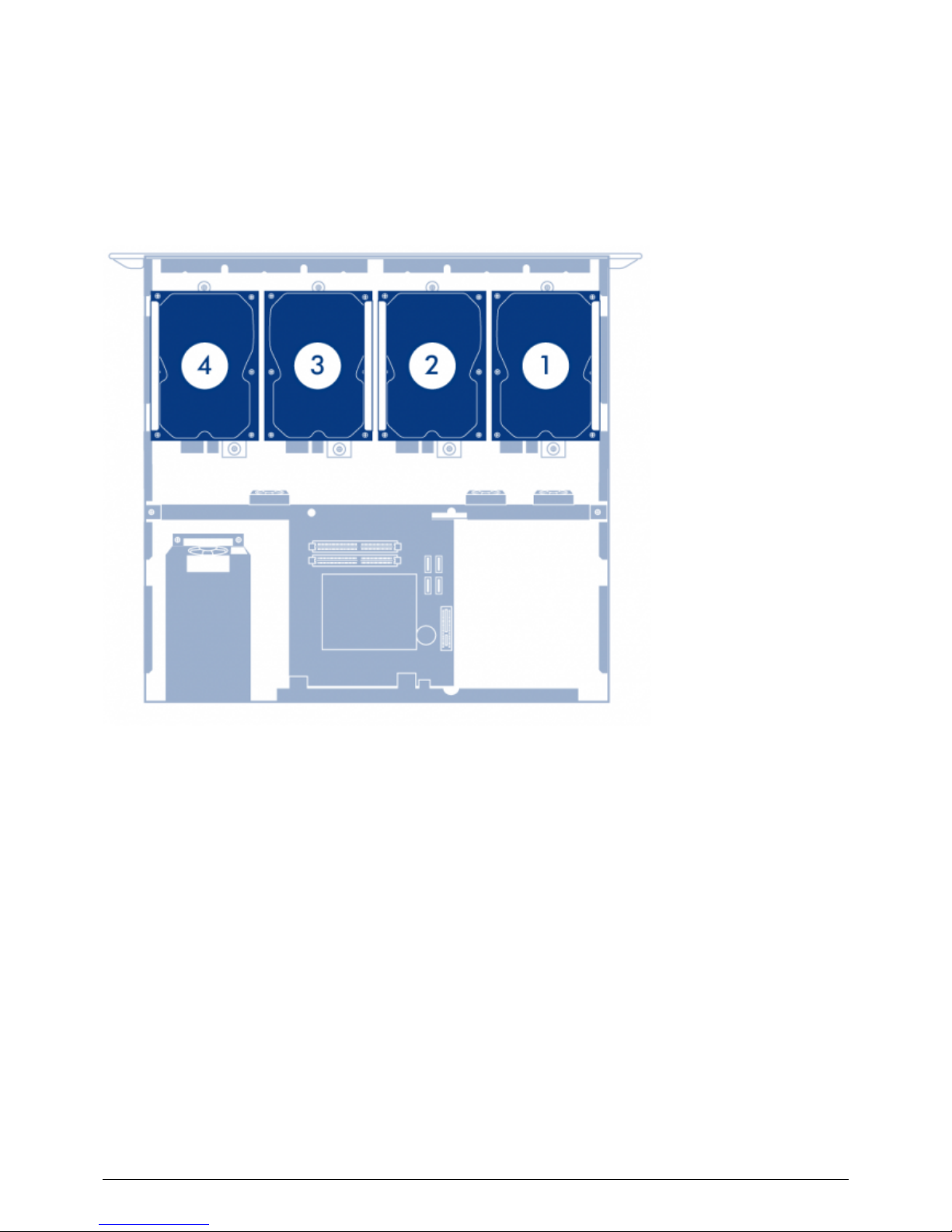
The 4big Rack Office is a 1U sized disk drive enclosure, housing up to four 3.5-inch form factor 3.0 Gb/s SATA
(up to 7200 rpm) drives. Each individual disk drive is swappable and field replaceable, with drive numbers
labeled on the casing, the cables, and the drives themselves.
Drive 01.
Drive 12.
Drive 2 (contains the operating system)3.
Drive 34.
LaCie 7
Page 8
FRONT PANEL VIEW
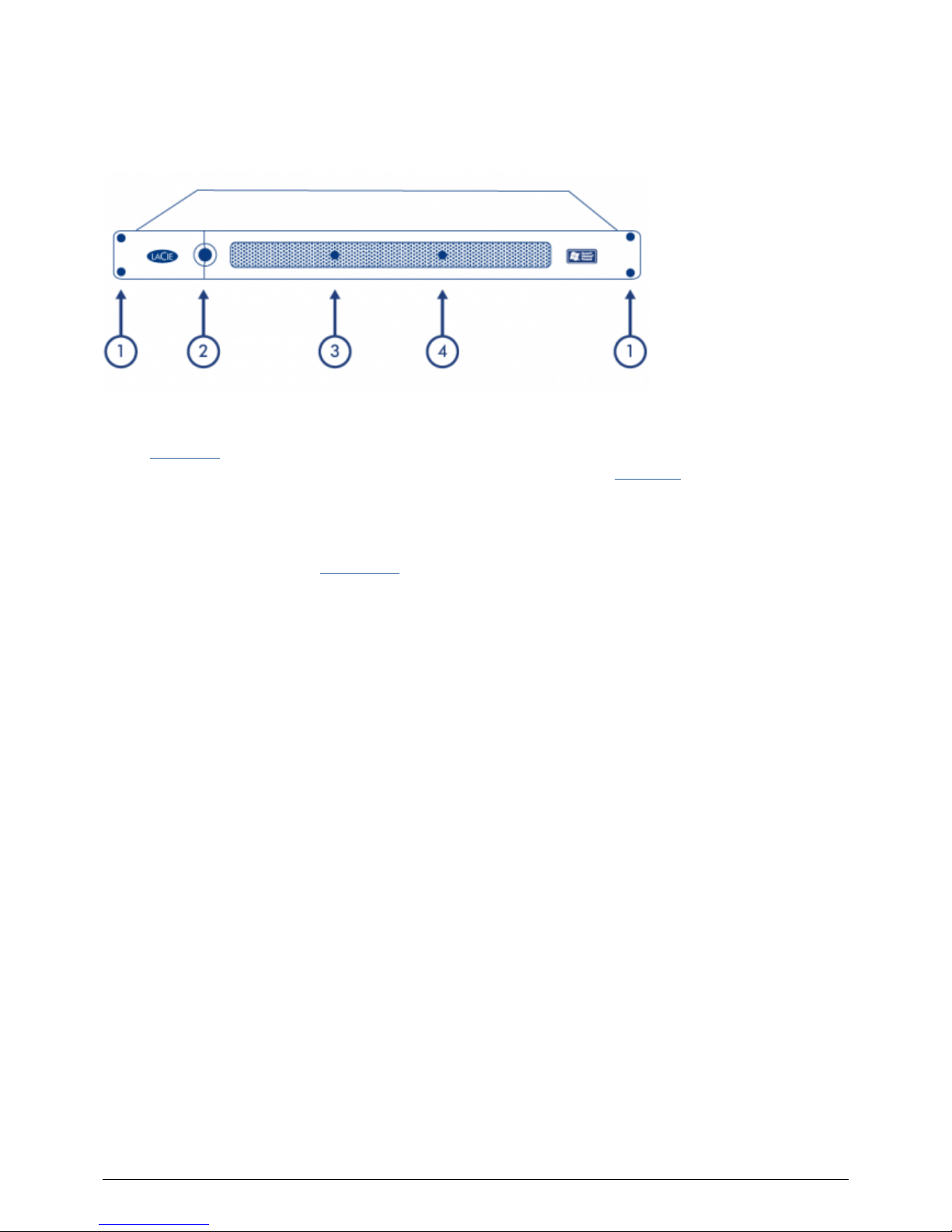
Rackmount Brackets: Attaches your LaCie 4big Rack Office in standard, 19” computer equipment racks.1.
See Setting Up.
Power Button and Power LED: Used to turn the system on and off (see Operation). When turned on, the2.
button will illuminate to indicate that the product is turned on.
Ready LED: Indicates that the system is ready to serve files.3.
H. Disk LED: Indicates when the disks are being accessed.4.
For details on LED Behavior, see System LED.
LaCie 8
Page 9
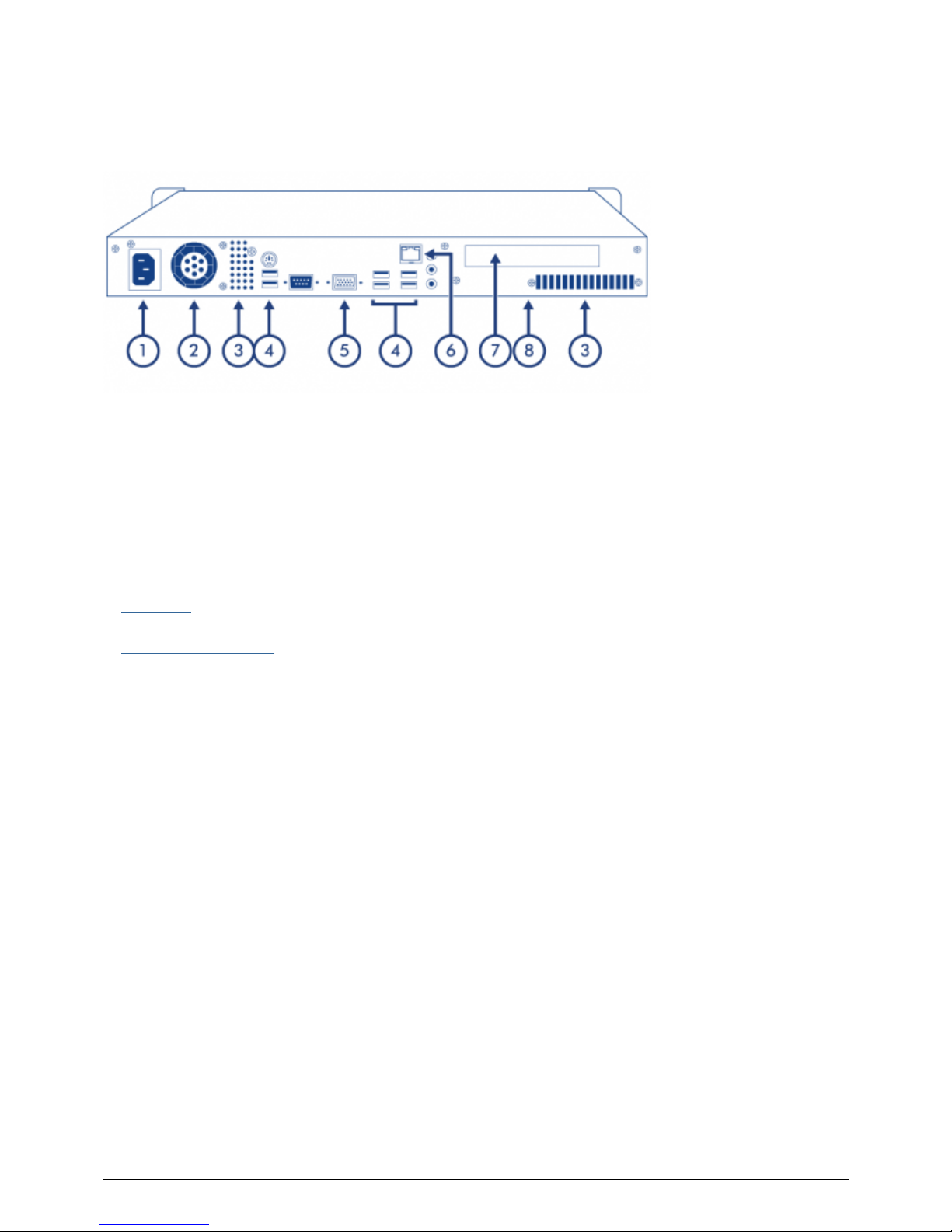
REAR PANEL VIEW
Power Input: Where you plug in the AC adapter supplied with the drive. See Setting Up.1.
Ventilation: Helps to keep your 4big's power supply unit cool during operation. Be sure not to block this fan2.
when using the product.
Fan Output: Allow warm air to escape, keeping the internal components from overheating. Do not block3.
them.
Hi-Speed USB 2.0 Ports: Can be used to attach additional hard drives or any other USB devices.4.
VGA Video Port: Can be used to connect a monitor.5.
Gigabit Ethernet Port: Used to connect the Ethernet cable (included with your product). See section6.
Setting Up.
PCIe Card Bracket: This panel covers the opening in the chassis that accommodates a PCIe card. See7.
Hardware Maintenance for details.
Serial Number Sticker (under the chassis): This is where you will find your LaCie 4big Rack Office's serial8.
number. Write down the serial number and keep it in a safe place, because you will need to provide the
number in the event you have to call LaCie Technical Support for any reason in regard to the product's
performance. The serial number would also come in handy if your product is lost or stolen.
LaCie 9
Page 10
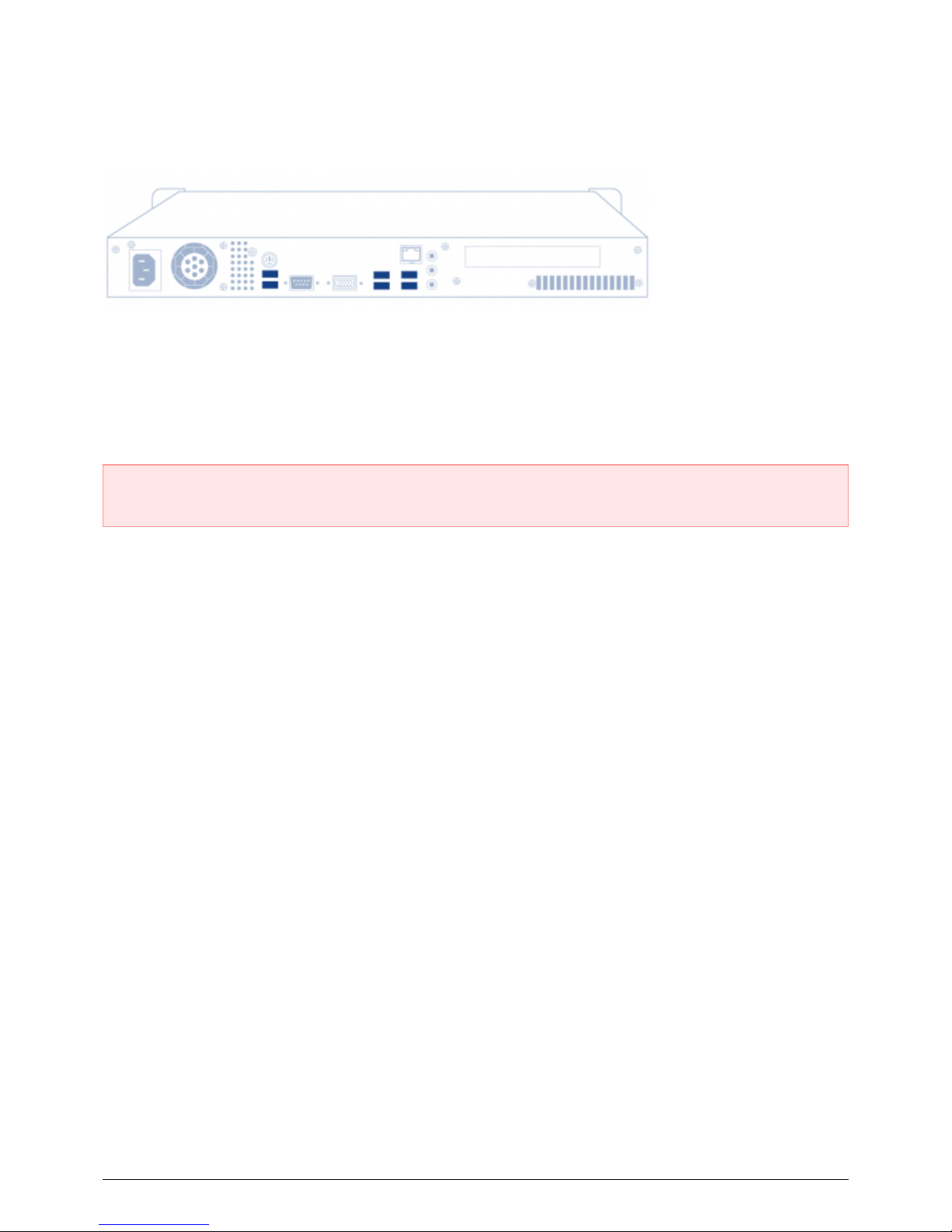
USB PORTS
The 4big Rack Office has six USB 2.0 ports, which lets you connect external hard drives or any other USB
devices, keyboard, and a mouse.
You can connect any USB keyboard, mouse, or USB 2.0 mass storage device, as long as it is formatted in one of
the following file systems: NTFS, FAT32, FAT16, EXFAT, MBR, and GPT. Storage devices with a format not listed
here will not be recognized by the 4big. No capacity limitations apply.
Important Info: The 4big's power supply provides enough power to drive up to three bus-powered USB
storage devices. Connecting more than three risks overloading the power supply unit.
LaCie 10
Page 11
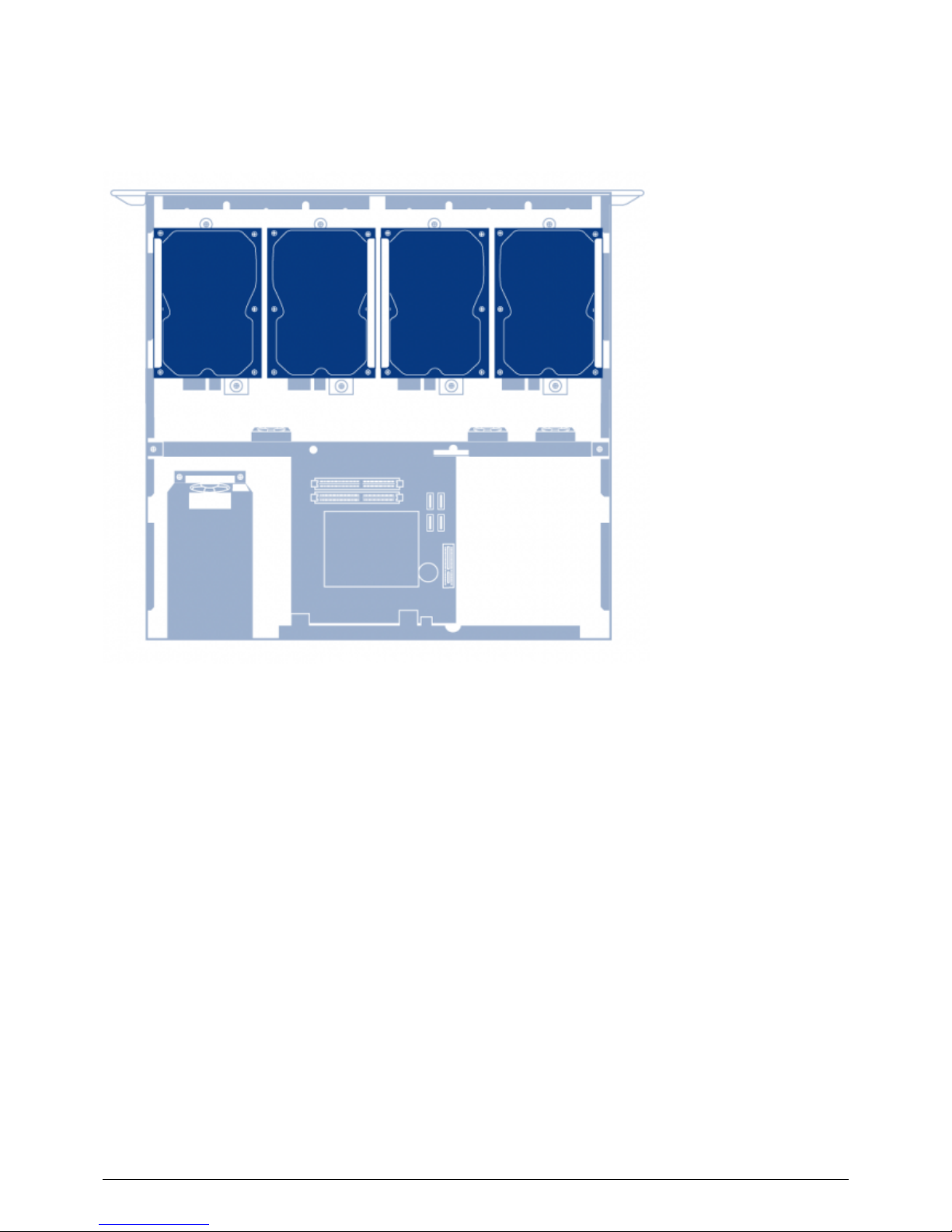
DRIVE FRAMES
The 4big contains two drive frames, each housing two 3.5-inch form factor disk drives. The frame has mounting
locations for SATA drives. The drive frame provides thermal conduction, radio frequency, and electro-magnetic
induction protection and affords the drive physical protection.
LaCie 11
Page 12
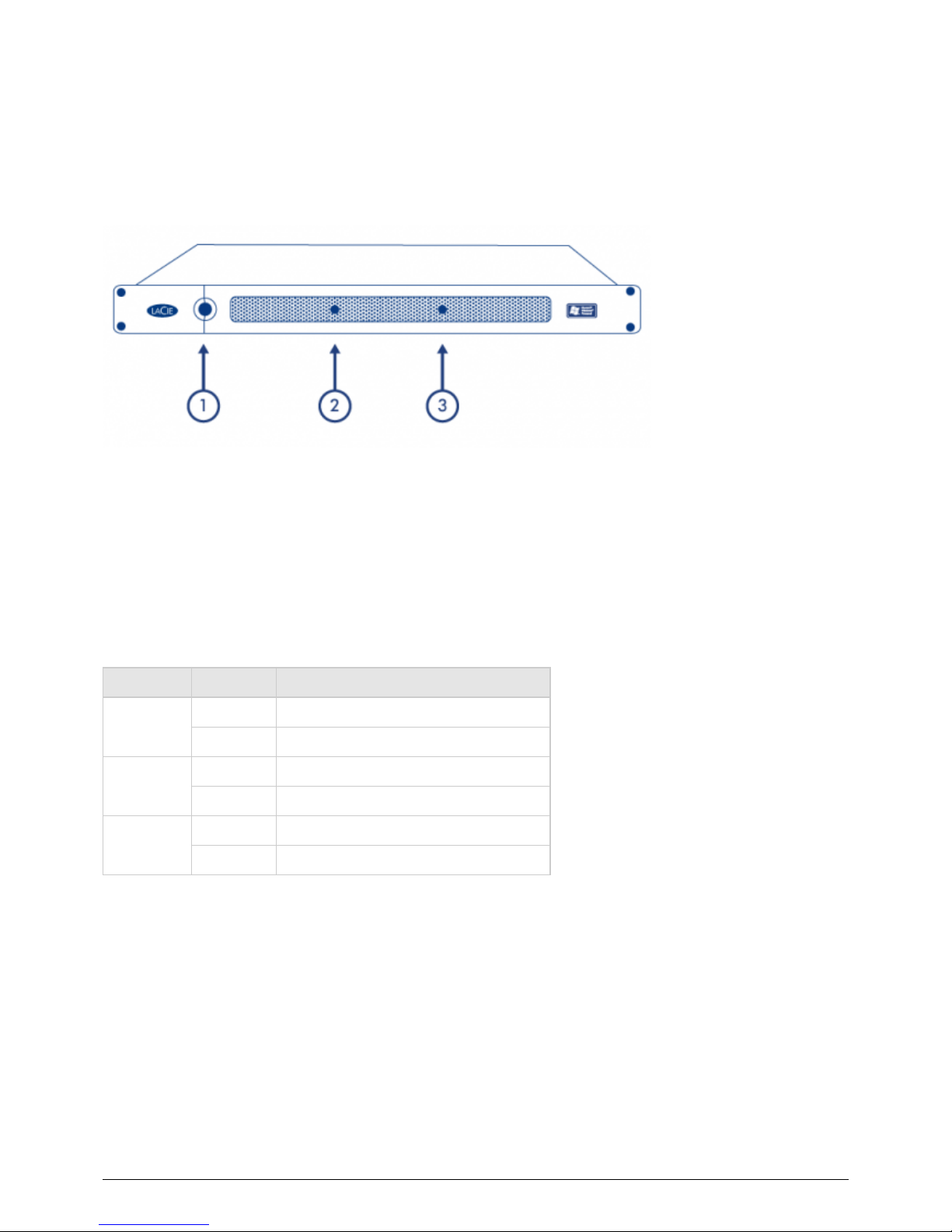
SYSTEM LED
The 4big Rack Office features three LEDs that provide information on system status. The following illustration
indicates where the LEDs are located on the chassis.
Power LED1.
Ready LED2.
H. Disk LED3.
BEHAVIOR
The following table describes LED behavior.
LED LED State Indication
Power LED
On Product is turned on.
Off Product is turned off.
Ready LED
On Operating system has booted correctly.
Off Operating system has not booted.
H. Disk LED
Blinking At least one drive is being accessed.
Off No drives are being accessed.
LaCie 12
Page 13

SETTING UP
STEP 1 - INSTALLATION
Desktop Installation
If you do not want to install the LaCie 4big Rack Office into a rack, you can place it on a tabletop. Protective
rubber feet on the bottom of the chassis prevent desktop scratching and provide airflow. In addition, removable
rubber sleeves included to cover the rack connectors when the chassis is not installed in a rack.
Important Info: The LaCie 4big Rack has been designed to support a maximum of 25kg when used in a
desktop configuration.
Rack Installation
The LaCie 4big Rack Office fits easily into standard 19” computer equipment rack.
Remove the rubber sleeves from the rack connectors.1.
LaCie 13
Page 14
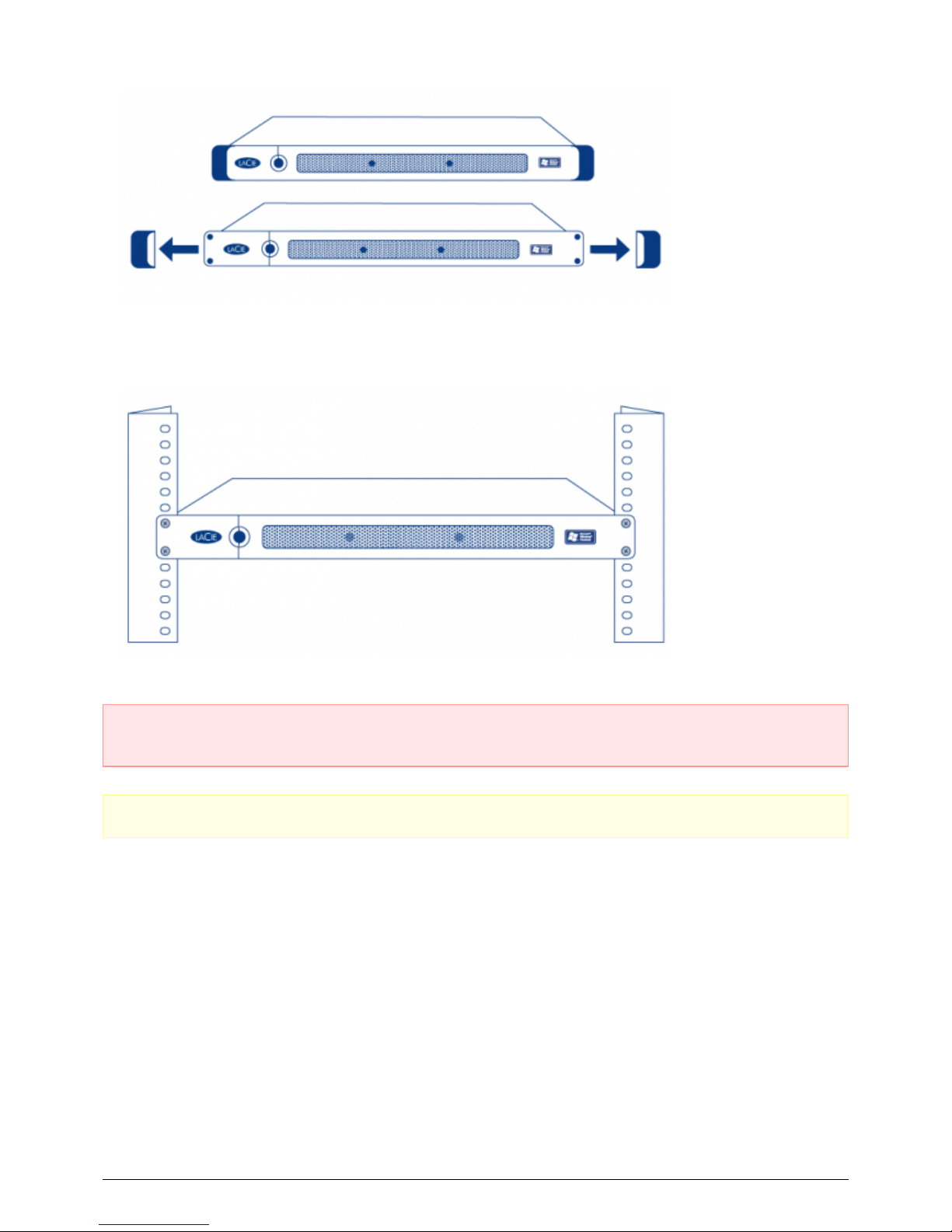
Carefully slide the LaCie 4big Rack Office into a shelf space in the cabinet. Use your cabinet's screws to2.
secure the device in place.
Important Info: Please refer to your equipment cabinet’s documentation for specific details about device
weight and installation instructions.
Caution: Once you have mounted the LaCie 4big Rack Office, do not set heavy objects on top of the unit.
LaCie 14
Page 15
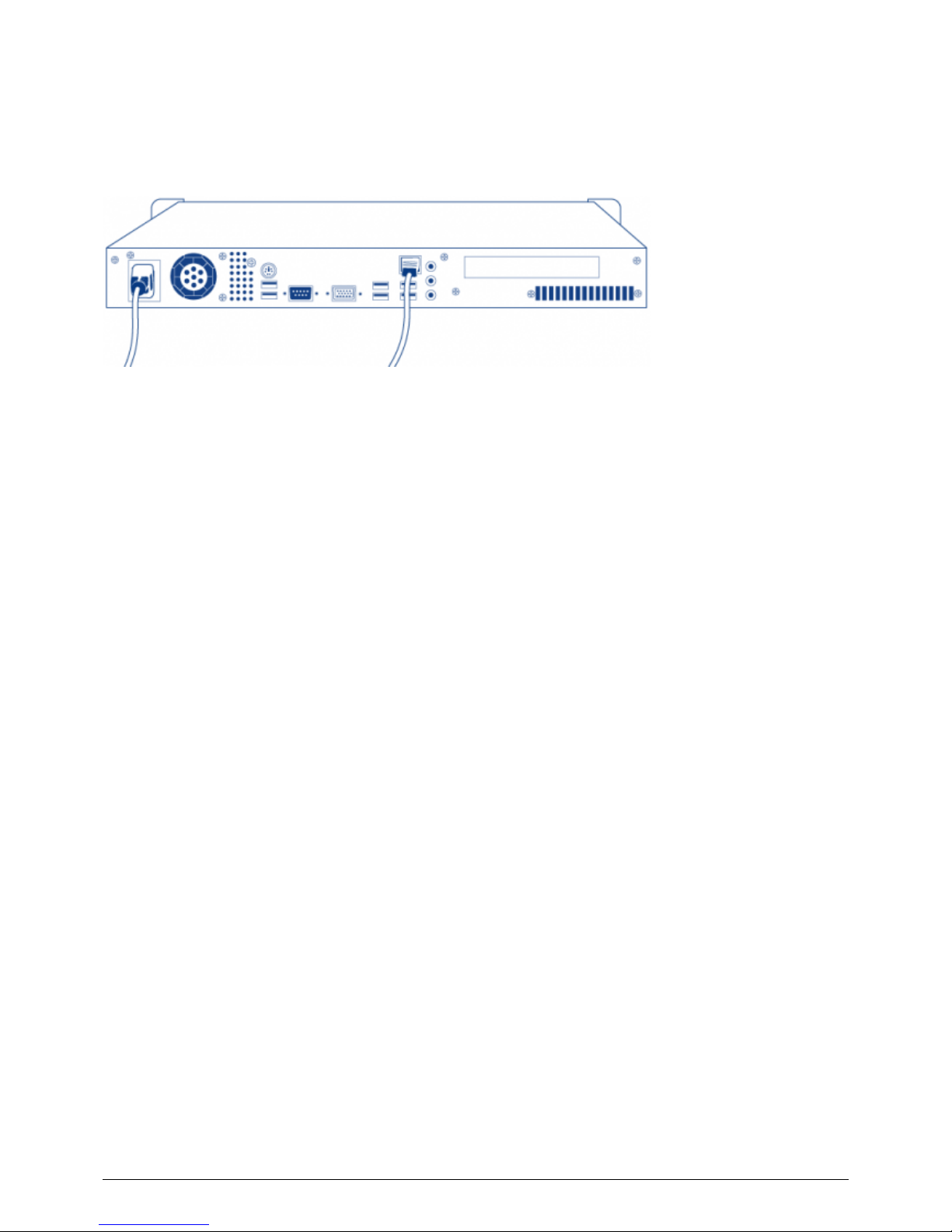
STEP 2 - NETWORK CONNECTION
The LaCie 4big Rack Office is compatible with either 10BaseT, 100BaseTX, and Gigabit Ethernet..
Connect the included AC power cord to your LaCie 4big Rack Office, and then plug the other end to an AC1.
wall outlet.
Connect the included Ethernet cable to the rear of the 4big and to a router/switch.2.
LaCie 15
Page 16
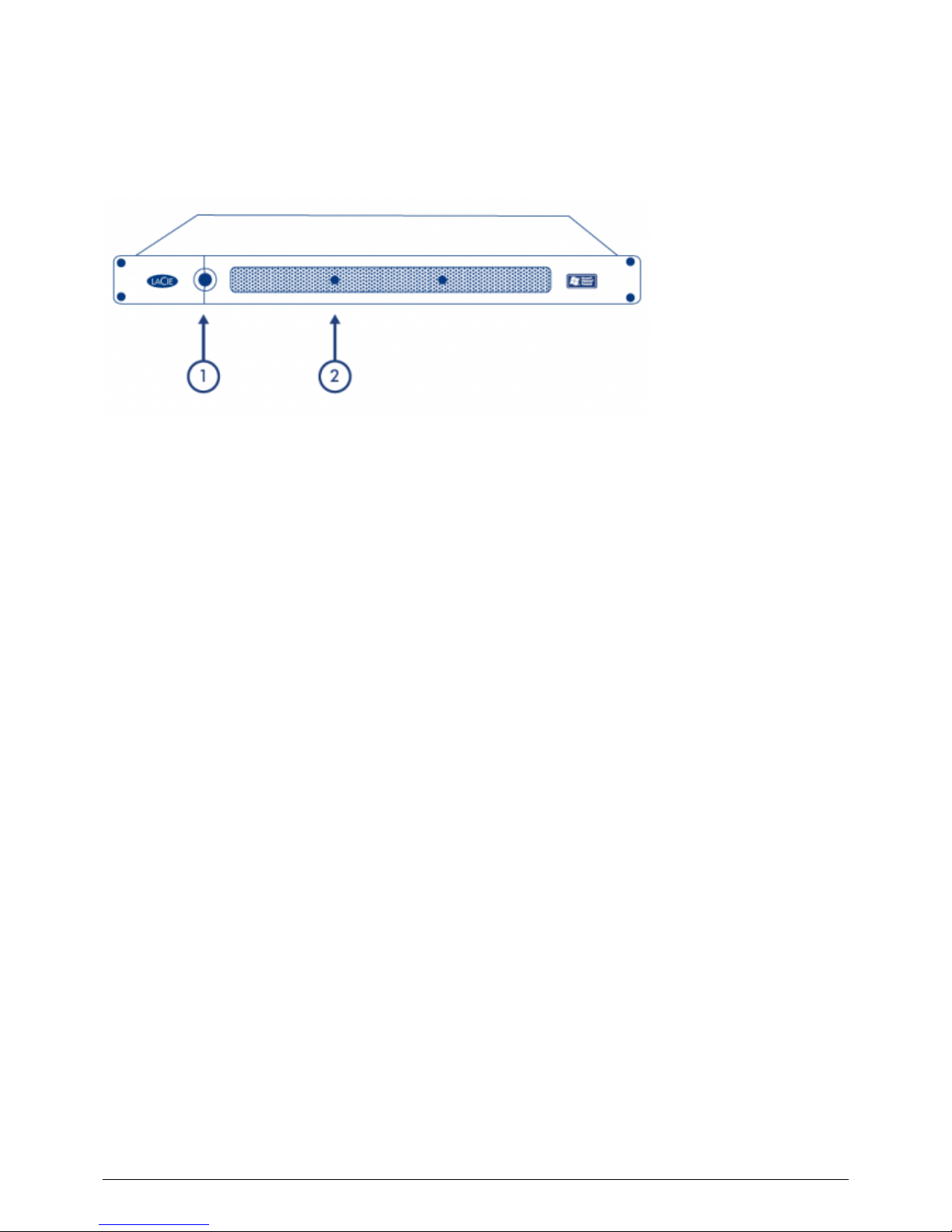
STEP 3 - POWER ON
Press the power button on the front of the product (1) and wait for the LaCie 4big Rack Office to start up.
Once the Ready light (2) is on and stays lit, the LaCie 4big Rack Office will be ready to use.
LaCie 16
Page 17
OPERATION
POWERING ON THE PRODUCT
Caution: Do not operate the product until the ambient temperature is within the specified operating range.
If the drives have been recently installed make sure they have had time to acclimatize before operating
them.
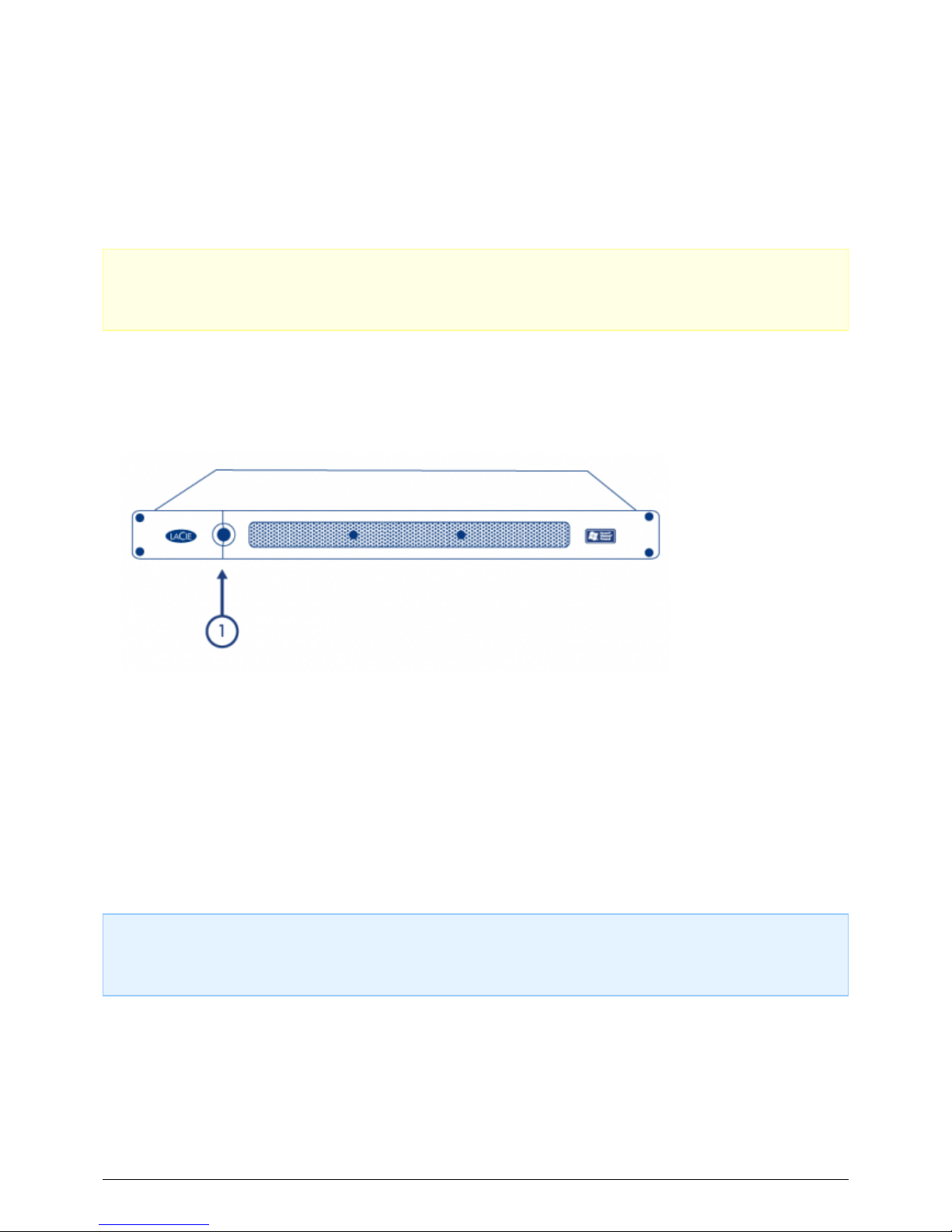
Before powering on the product, make sure that all the modules are firmly seated in their bays. Note that all1.
drive slots must be filled in order for the product to receive sufficient cooling.
Connect the power supply to a powered outlet and to the product.2.
Press the product's on/off button.3.
The Power LED on the front panel will turn blue when the product's power button is pressed (and the disk4.
drives should spin).
POWERING OFF THE PRODUCT
Shut down any applications that are running on the server.1.
Use the client dashboard or the server operating system to turn the server off.2.
The power LED will turn off once the system has shut down.3.
Note: When the the product is operating, a short push of the on/off button will start the normal shutdown
process of the operating system. A long push (more than four seconds), will force shutdown. This is not
recommended as it may result in data loss.
LaCie 17
Page 18
SOFTWARE
The 4big Rack Office is preinstalled with 64-bit Windows Server OS. Via the OS, it is possible to create MBR (2TB
max.) or GPT (256TB max.) partitions. To configure and use your storage, LaCie recommends using the
dedicated dashboard application. Remote desktop connection is available for advanced users only, but keep in
mind that some actions may interfere with dashboard behavior.
Important Note on Shared Folders: Following the DVD setup, LaCie highly recommends that you review
and follow the instructions for moving default Shared Folders from the Windows system partition to a data
partition with greater capacity. See Shared Folders for more information.
For help with other software-related tasks, please refer to the following technical briefs:
Technical Brief Description
Getting Started An introduction to the operating system, including how to perform elementary tasks.
RAID
Information on default RAID configuration, as well as how to build and rebuild a RAID array
on a Windows-based LaCie professional server.
Shared Folders
How to create SMB or NFS Shared Folders on your Windows-based LaCie professional
server so that users and groups on the network may access data.
Backup
How to configure your Windows-based LaCie professional server to back up (and restore
files from) workstations on your network.
Wuala Integration
Getting started with Wuala, LaCie's Secure Cloud Storage, to sync, back up, and
collaborate.
LaCie 18
Page 19
HARDWARE MAINTENANCE
Please refer to Warranty Information before performing any hardware repairs or maintenance that is not
described in this manual.
PRECAUTIONS
Prior to performing any hardware maintenance, power off the product and disconnect the power from the
■
power supply, by either the power button or by physically removing the power source.
During operation, all provided hardware (including the four drives in their frames) must be in place for the air
■
to flow correctly around the product.
Observe all conventional ESD precautions when handling 4big Rack Office modules. Avoid contact with
■
backplane components and module connectors, etc.
Whenever replacing a drive, never leave an empty bay – obtain a replacement before removing the problem
■
drive. Never run the 4big with less than four hard drives installed.
The top cover should be removed only when the unit has been turned off and allowed to cool down. Potential
■
hazards include rotating fans and hot surfaces.
REMOVING THE TOP PANEL
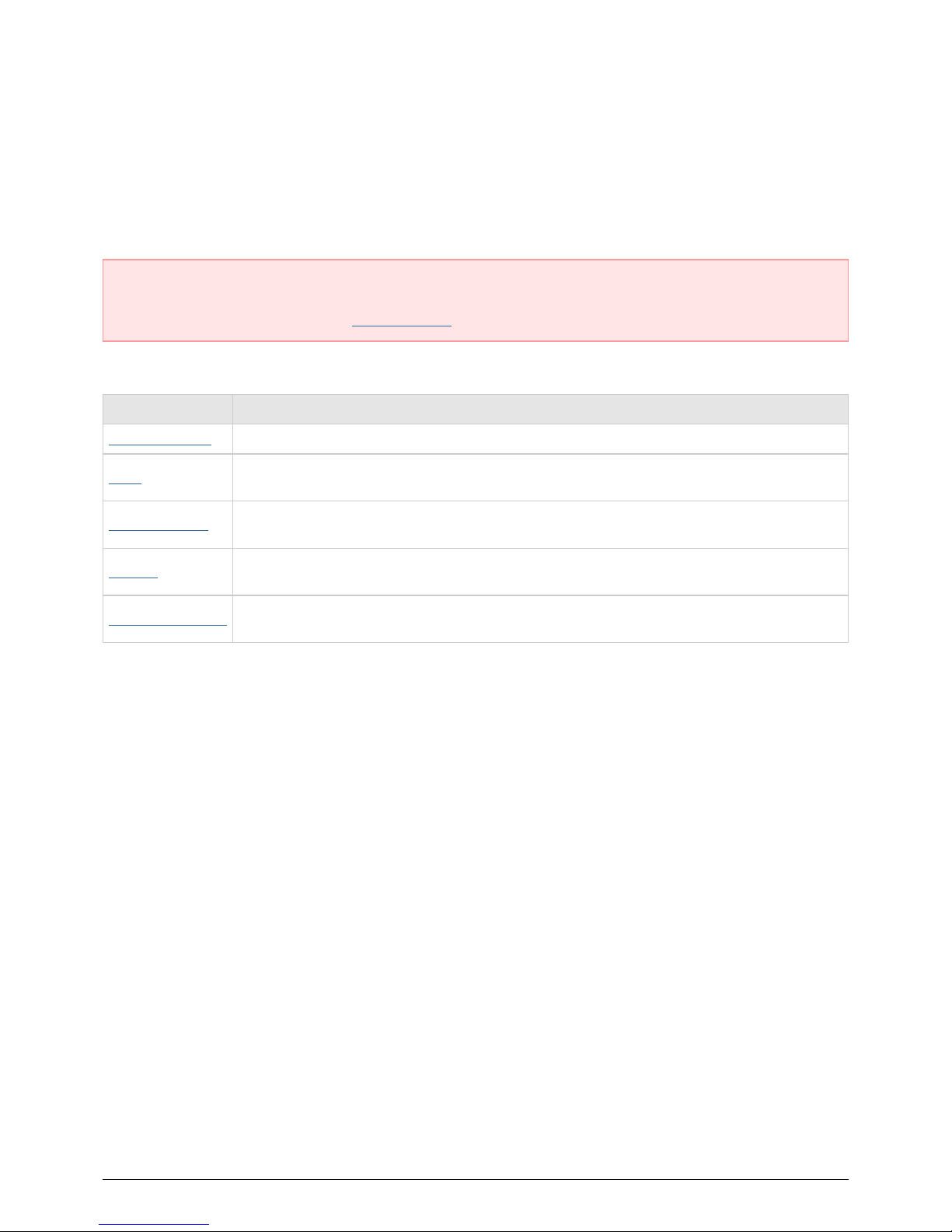
Power down, unplug the power supply, then wait for components to completely cool.1.
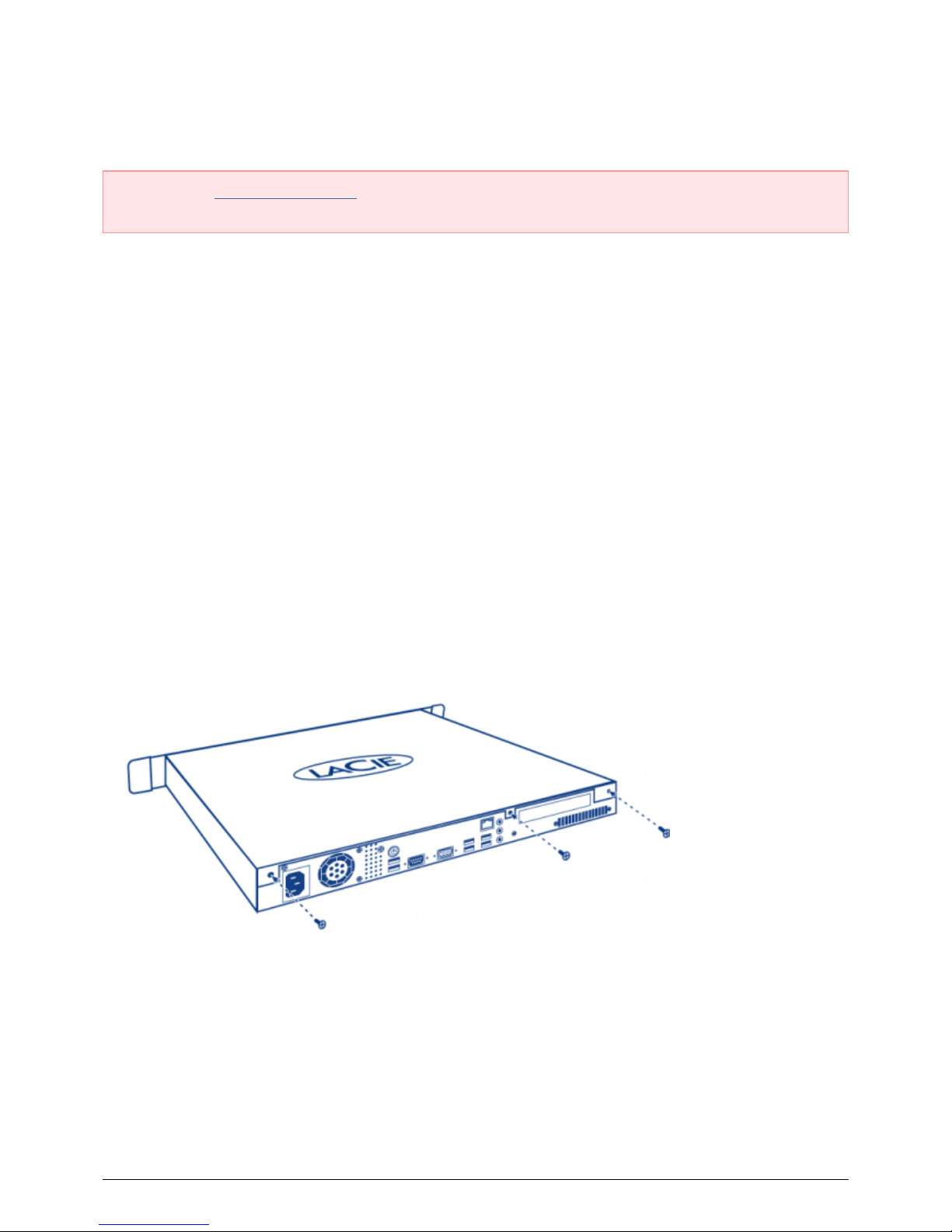
Release the product's top cover by unscrewing the three screws at the rear.2.
To remove the cover, slide and lift at the same time.3.
LaCie 19
Page 20
REPLACING A DRIVE
Important Info:
Replace a faulty drive with a drive of equal capacity. Adding a drive with greater capacity is supported but
LaCie cannot guarantee that the additional storage will be available.
When handling drives, make sure that they are placed (and stored) on a cushioned surface.
When the 4big is powered on, all drive slots must be filled to ensure sufficient cooling.
Compatible Drives
Important Info: LaCie has certified the following drive models for this product. In order to avoid potential
problems, LaCie recommends using only drives included in this table.
Refer here for a list.
LaCie 20
Page 21
Replacement Steps
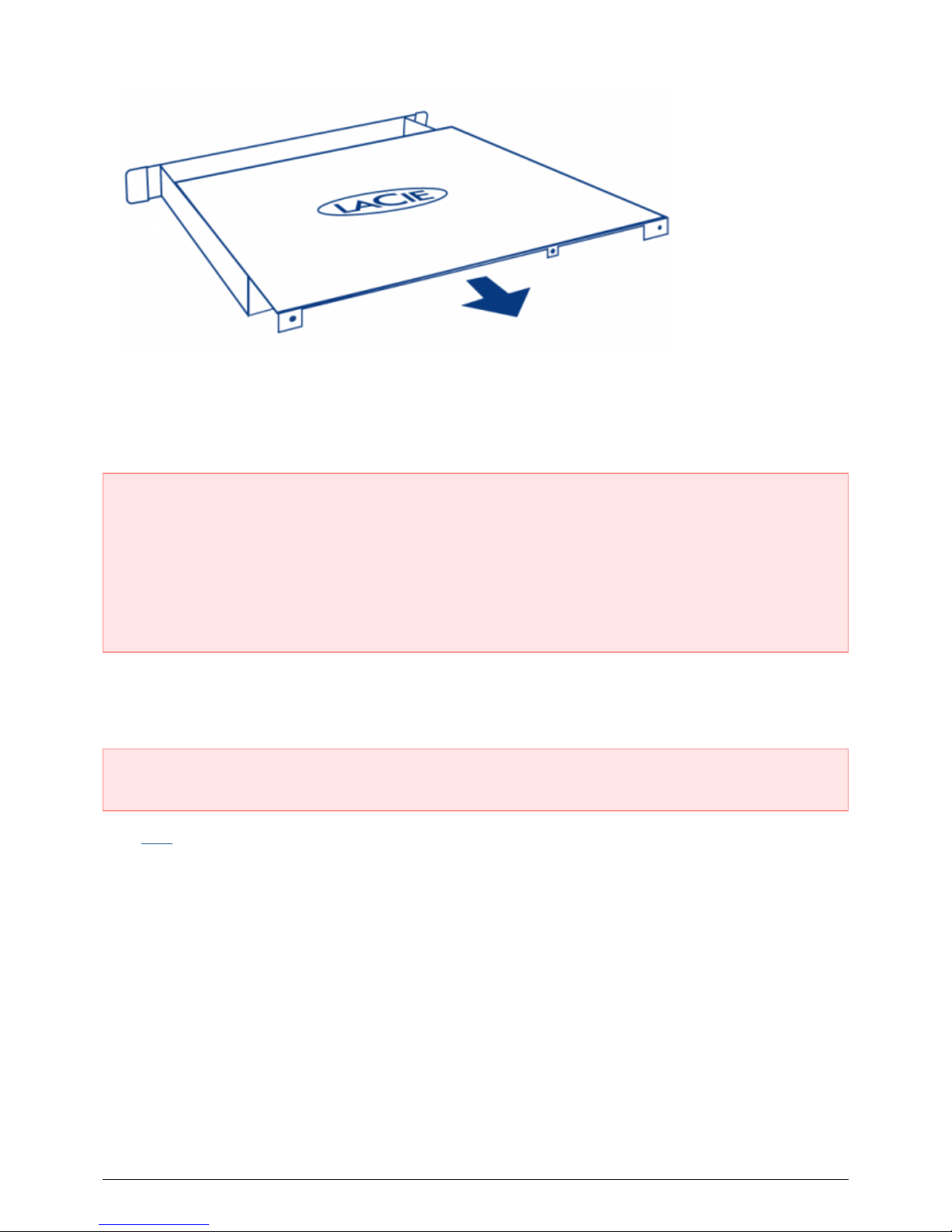
Power down the system, unplug the power supply, and remove the top panel as described above.1.
Disconnect the SATA and power cables from the two drives of the drive frame.2.
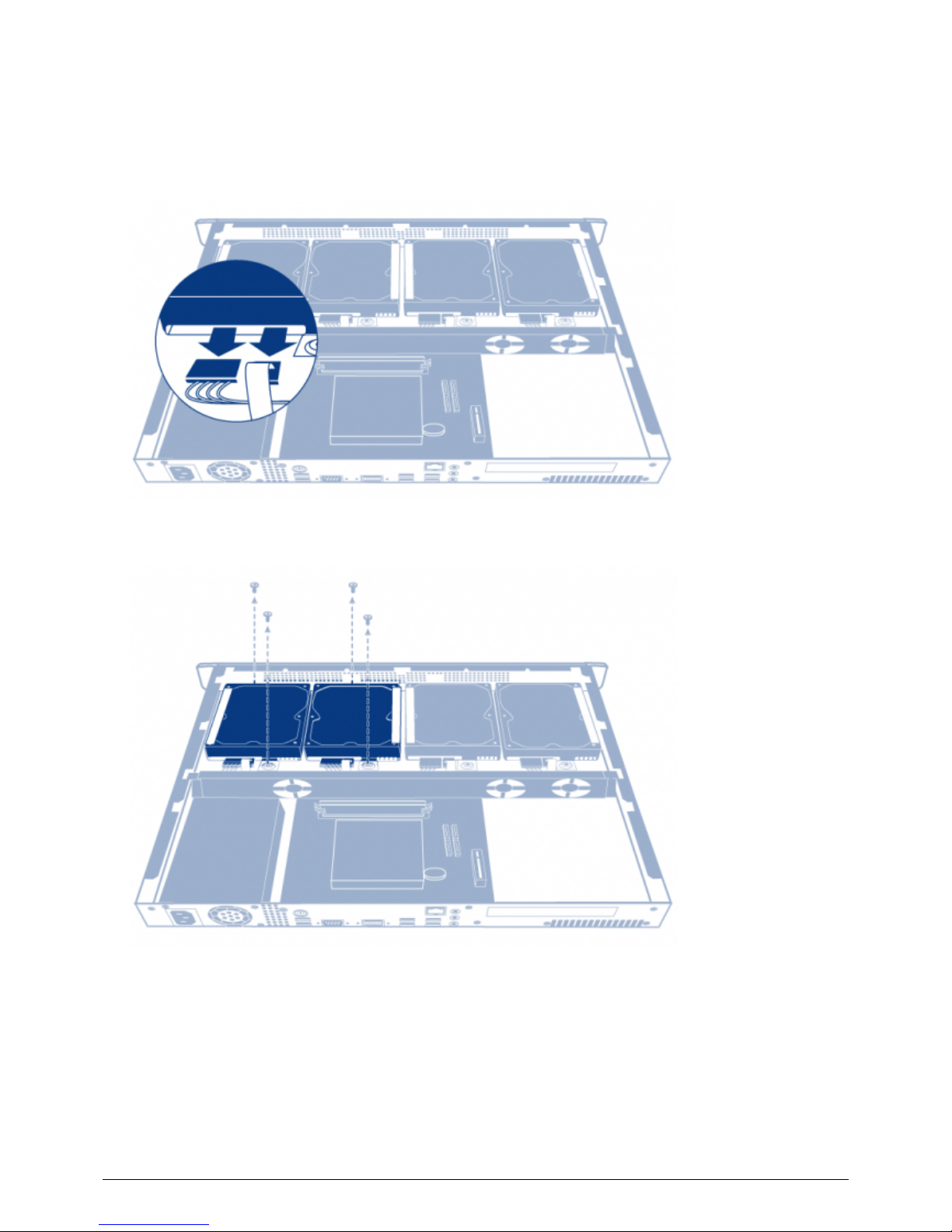
Unscrew the four screws securing the drive frame to the chassis.3.
Lift the drive frame out of the chassis.4.
LaCie 21
Page 22
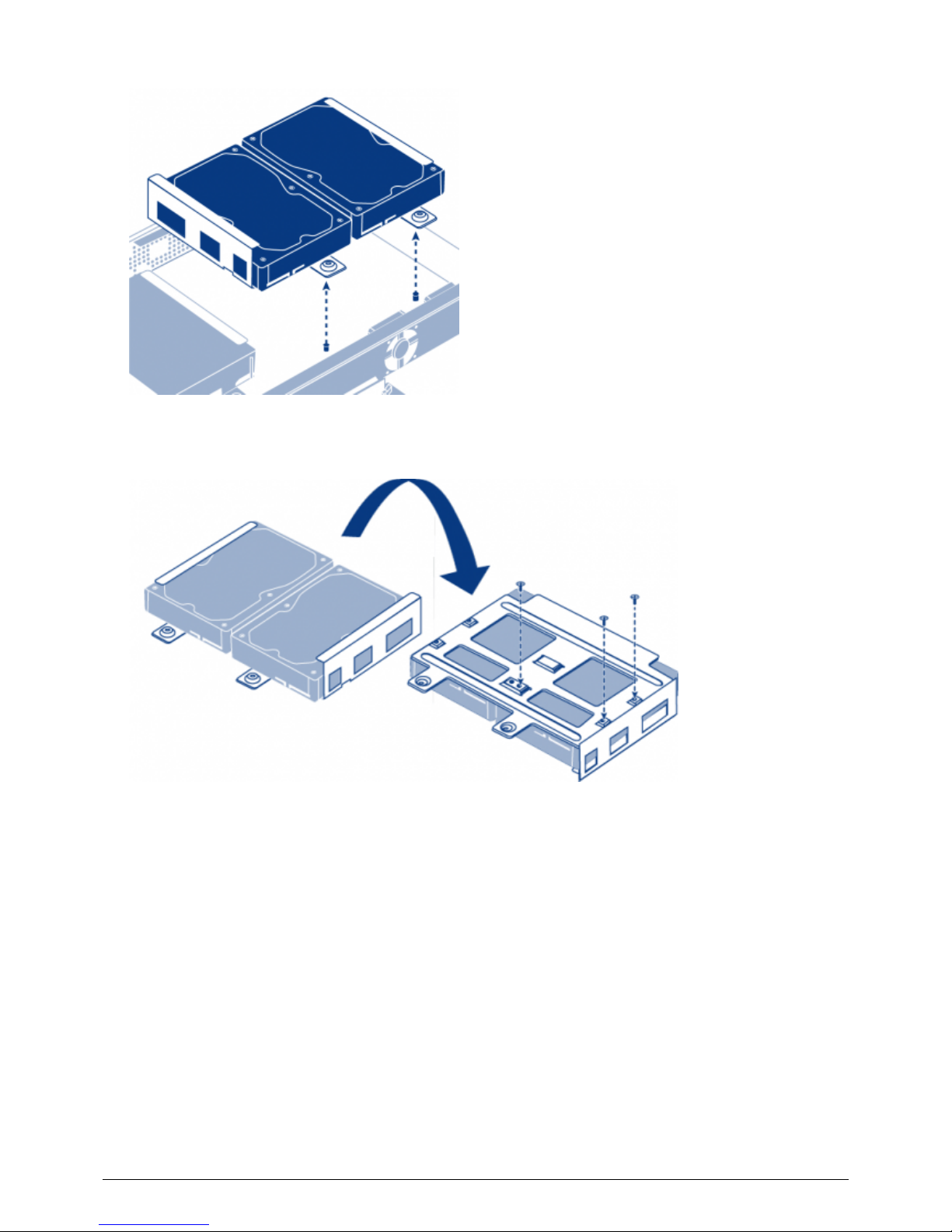
Turn the drive frame over. While supporting the drive with one hand, remove the three screws securing the5.
drive to the drive frame.
Turn the drive frame over again, then slide the hard drive out from the hard drive frame, and slide a new6.
one in. Make sure that the large printed label on the hard drive is pointing up.
LaCie 22
Page 23
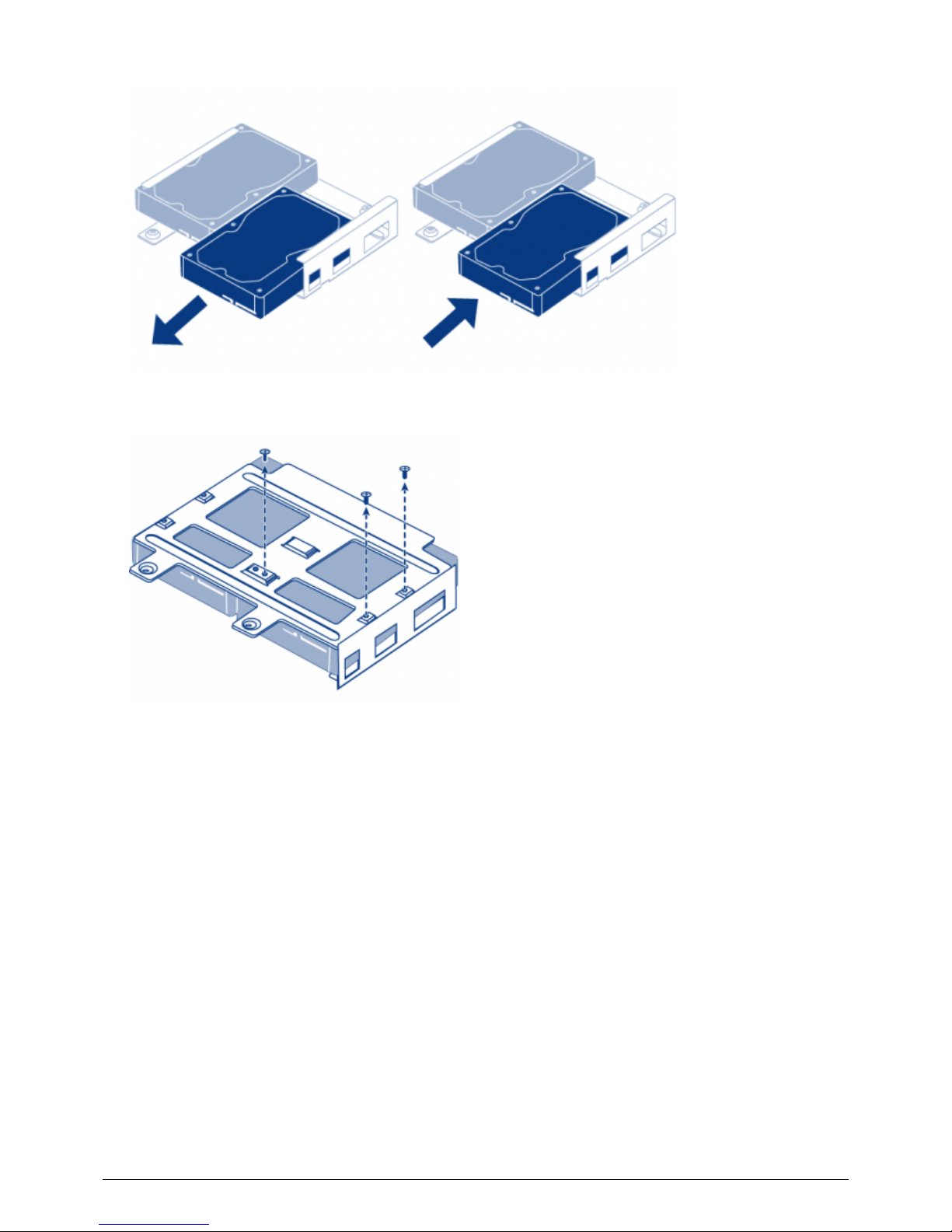
Screw in the three screws attaching the drive to the drive frame.7.
Screw in the four screws securing the drive frame to the chassis.8.
LaCie 23
Page 24
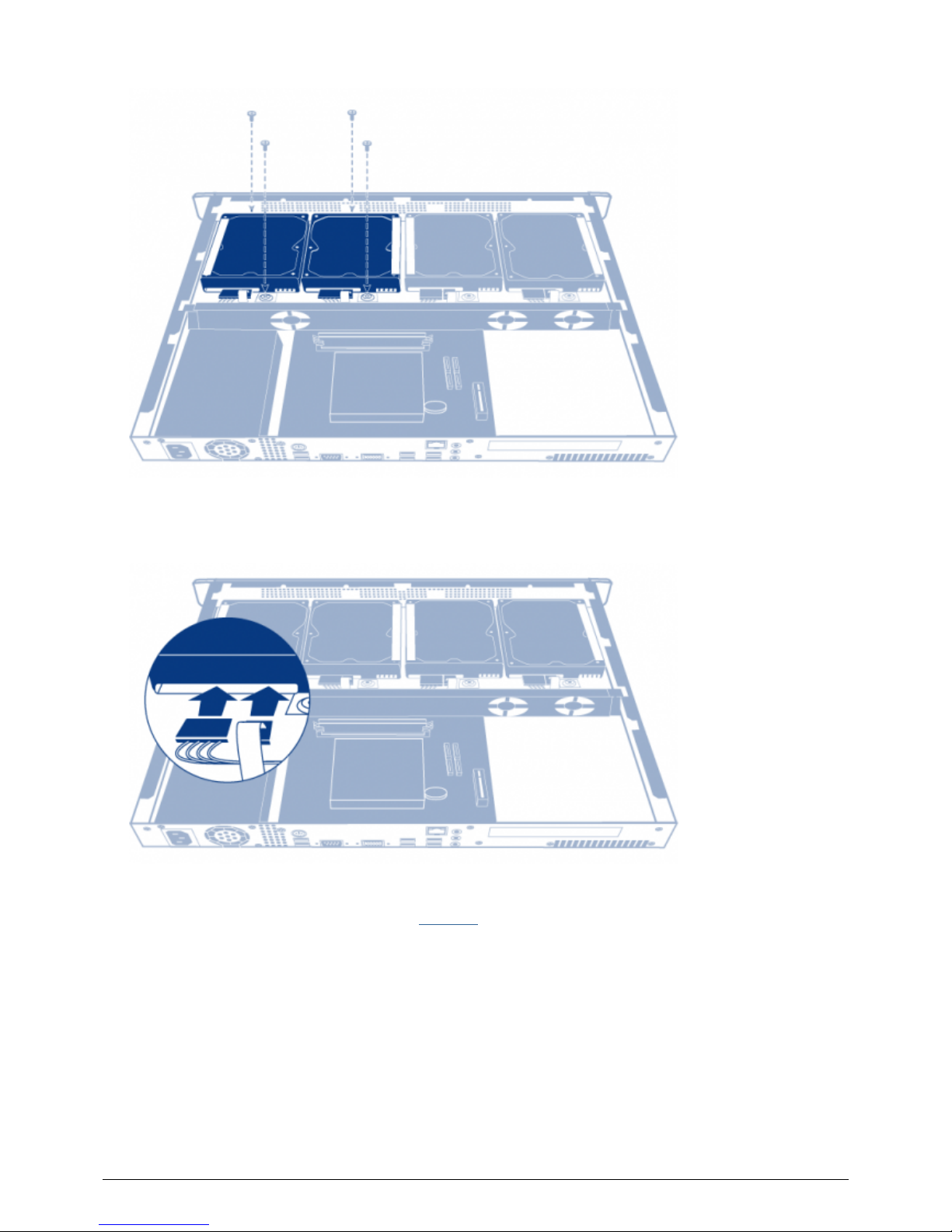
Reconnect the SATA and power cables. Be careful to ensure that the numbers correspond to the correct disk9.
number (from 0-3). The cables and disks are numbered to make this easier.
Slide the product's top panel back in place and secure it by screwing the three screws at the rear.10.
Rebuild the RAID array. For details, refer to Software.11.
LaCie 24
Page 25

GETTING HELP
If you are having issues with your product, first consult the troubleshooting topics below. If the problem persists,
refer to Warranty Information to understand your warranty rights and responsibilities.
Note: LaCie is dedicated to providing high quality products that enrich the lives of our customers. To help
LaCie offer the best customer support, we encourage you to create an account and register your product at
www.lacie.com/us/mystuff/login.htm? logout&rtn=mystuff. You can give us important feedback as well as
receive updated information on your LaCie device.
TROUBLESHOOTING TOPICS
The 4big Rack Office won't turn on.
Q: Can you confirm that the 4big Rack Office is receiving power?
A: Make sure the power cord is properly connected, then push the power button until the power LED turns ON.
Q: Have you connected a USB storage device?
A: The 4big Rack Office may be attempting to boot from it. Unplug the device and retry to reboot the system.
Q: Has one of the drives storing the operating system failed?
A: Check Technical Brief: RAID for details.
Q: Does the motherboard battery need to be replaced?
A: A non-functioning motherboard battery could prevent the system from booting. The best way to verify that
this is the problem is to connect a monitor, mouse, and keyboard to the 4big, and reboot. If the display reads
“CMOS Checksum Error”, the motherboard battery is probably the cause of the problem. Contact LaCie support
for confirmation and help.
Q: Is my power supply unit malfunctioning?
A: Connect a monitor, mouse, and keyboard, and turn your product on. If you don't see anything on the monitor,
that means that the problem may result from the 4big's internal power supply unit (PSU). Contact LaCie support
for confirmation, then return your product for PSU replacement.
The 4big Rack Office turns off when I connect a USB device.
Q: Have you connected more than three bus-powered USB devices or is one of your devices drawing an inordinate amount of
power?
A: Connect no more than three bus-powered USB devices and/or make sure that none of the devices is drawing
an inordinate amount of power.
Q: Did the product turn off as soon as the USB device and the 4big's USB port came into contact?
A: The USB device may have caused a short circuit. Unplug any USB devices you have connected since the
failure and reboot the product.
The 4big Rack Office is unresponsive.
Q: Have you tried to restart the system manually?
A: Shut down and restart the 4big Rack Office manually by pushing and immediately releasing the front button.
If nothing happens after a few minutes, then force the 4big Rack Office to turn off by pressing and holding the
front button for more than four seconds, then release it. Once off, restart the product by pushing and
immediately releasing the front button. Note that this is not recommended as it may result in data loss.
The 4big Rack Office is overheating.
Q: Is the ambient temperature too high? Is the air output blocked? Are one or several of the fans malfunctioning?
A: If the ambient temperature is below 95˚F/35˚C and the fan output is cleared, you may have one or several
LaCie 25
Page 26

malfunctioning fans. Contact LaCie support for confirmation, then send your product to LaCie for fan repair.
The 4big Rack Office encounters frequent system failures.
Q: Have you set up a backup of your server onto a direct-attached storage (DAS) device?
A: You can perform a Server Recovery following the procedure explained in the technical brief. This brief also
explains how to create a backup of your server. Note that even if you did not set up a backup onto a DAS, you
can always reset your 4big Rack Office to factory settings using to the recovery DVD provided.
My backup is taking a long time.
Q: Is this the first backup?
A: The first backup includes all of your data and could take up to several hours depending on how much data is
stored on your computer. Subsequent backups will only include modified files (incremental backup) and should
dramatically reduce the backup time.
I'm receiving a security certificate error in my browser when I access the web admin.
Q: Are you accessing web admin from a computer where Windows Connector is not installed?
A. If Windows Connector is not installed on you computer, you can connect to the web admin, but you will
receive an invalid security certificate warning.
Where can I check my software version and how can I proceed for updates?
A. Navigate to Help > About. If your unit is connected to the Internet, you will receive a notification with a
corresponding web link in the dashboard alert bar. Please refer to the appropriate Technical Brief.
Why do I receive the message “Can only partially assess the heath of this computer”?
Q: Have you installed the latest Windows updates on your computer?
A. To ensure you can properly monitor the status of your computer, the latest Windows components must be
installed on your Windows OS. Make sure your OS is up to date as well as optional software updates available
from Microsoft.
LaCie 26
Page 27

WARRANTY INFORMATION
Please read this page carefully in order to understand your warranty rights and responsibilities.
If your product's warranty is still valid and you wish to receive support, please contact LaCie technical1.
support. In order to do this, you must first create an account here.
LaCie discourages customers from performing repairs to the product that are not explained in this manual.2.
Please contact LaCie technical support before performing hardware repairs.3.
Please save your packaging. If LaCie technical asks you to send the product for servicing, it must be returned4.
in its original packaging.
If LaCie technical asks you to send the product for servicing, first remove the drives and any post-factory5.
components (RAM, riser card, PCIe card, etc.) you have installed. Note that if you send drives with the chassis,
they will be reformatted and all data erased unless data recovery is a part of the service rendered.
Note: It's possible to purchase a warranty upgrade for this product. Upgrades entitle you to a warranty
extension up to five years and other benefits such as Advanced Care Option or data recovery. Refer to
www.lacie.com/warranties for details.
LaCie offers first-rate service and support through our generous three-tiered warranty policy. Our 1-, 2- and
3-year policies include comprehensive, complimentary web-based resources, expert in-house technical support,
and worldwide repair and/or replacement coverage. To benefit from this warranty, please contact LaCie Support
at www.lacie.com/us/support/index.htm where you can find online support and contact information. You may
also contact representatives at the original point of purchase who will be able to help guide you. Warranties
vary depending on the product:
1-Year Limited Warranty - Accessories*
■
2-Year Limited Warranty - Personal storage (USB flash keys, hard drives and optical products), speakers, hubs*
■
3-Year Limited Warranty - Professional storage (DAS, NAS, rackmounted solutions and optical products) and
■
professional monitors
5-Year Limited Warranty - Enterprise class storage*
■
3-Year LaCie Advance Care Option (sold separately)* *
■
For a detailed list of product warranties, go to products/warranty.htm.
A LaCie limited warranty is included with all protection plans. Please read the terms and conditions below.
LACIE LIMITED WARRANTY POLICY
LaCie (“LaCie”) warrants, to the original purchaser, that this equipment shall be free of defects in materials and
workmanship for a period of one (1), two (2), three (3), or five (5) years, depending on the model, from LaCie's
date of original shipment when the equipment is used normally and is properly serviced when needed. If you
discover a defect covered by the warranty set forth above, your sole and exclusive remedy will be for LaCie, in
its sole discretion to (i) repair or replace the product at no charge to you; or, if a repaired unit or replacement
product is not available, (ii) to refund the current market value of your product. You acknowledge and agree
that replacement product, at the sole option of LaCie, may be a new product or a remanufactured product. In
order to receive the remedy set forth above, you must return the product during the warranty period and
include with each returned product (i) a copy of your original purchase invoice to verify your warranty; (ii) a
Return Material Authorization number; (iii) your name, address and telephone number; (iv) a copy of the bill of
sale bearing the appropriate LaCie serial numbers as proof of date of original retail purchase; and (v) a
description of the problem. The customer must pay all transportation costs for a returned product. The product
will need to be returned to LaCie within the country of original retail purchase. This warranty applies only to
LaCie 27
Page 28

hardware products; LaCie software, media, and manuals are licensed and warranted pursuant to separate
written agreement. This warranty does not apply if the product has been misused or has been damaged by
accident, abuse, misuse, or misapplication; if it has been modified without permission of LaCie; or if any LaCie
serial number has been removed or defaced. If a customer has purchased a LaCie Advance Care Option (ACO)
to go with this equipment, the ACO shall be valid for three (3) years from activation.
EXCEPT FOR THE LIMITED WARRANTY SET FORTH ABOVE, ALL PRODUCTS ARE SOLD “AS IS” AND LACIE
EXPRESSLY DISCLAIMS ALL WARRANTIES OF ANY KIND, WHETHER EXPRESS, IMPLIED OR STATUTORY,
INCLUDING THE IMPLIED WARRANTIES OF MERCHANTABILITY, NONINFRINGEMENT AND FITNESS FOR A
PARTICULAR PURPOSE. WITHOUT FURTHER LIMITING THE GENERALITY OF THE FOREGOING, DOES NOT
WARRANT (1) THE PERFORMANCE OR RESULTS OBTAINED FROM USING THIS PRODUCT, (2) THAT THE PRODUCT
IS APPROPRIATE FOR THE CUSTOMER'S PURPOSES, (3) THE MANUAL IS ERROR FREE, OR (4) THAT NO DATA WILL
BE LOST WHILE USING THE PRODUCT. THE ENTIRE RISK AS TO THE RESULTS AND PERFORMANCE IS ASSUMED
BY THE CUSTOMER. THE WARRANTY AND REMEDIES SET FORTH ABOVE ARE EXCLUSIVE AND IN LIEU OF ALL
OTHERS, ORAL OR WRITTEN, EXPRESS OR IMPLIED.
LaCie 28
Page 29

EXCLUSIONS AND LIMITATIONS
This Limited Warranty applies only to hardware products manufactured by or for LaCie that can be identified by
the “LaCie” trademark, trade name, or logo affixed to them. The Limited Warranty does not apply to any
non-LaCie hardware products or any software, even if packaged or sold with LaCie hardware. Manufacturers,
suppliers, or publishers, other than LaCie, may provide their own warranties to the end user purchaser, but
LaCie, in so far as permitted by law, provides their products “as is”. Software distributed by LaCie with or
without the LaCie brand name (including, but not limited to system software) is not covered under this Limited
Warranty. Refer to the licensing agreement accompanying the software for details of your rights with respect to
its use.
LaCie does not warrant that the operation of the product will be uninterrupted or error-free. LaCie is not
responsible for damage arising from failure to follow instructions relating to the product's use. This warranty
does not apply: (a) to consumable parts, unless damage has occurred due to a defect in materials or
workmanship; (b) to cosmetic damage, including but not limited to scratches, dents and broken plastic on ports;
© to damage caused by use with non-LaCie products; (d) to damage caused by accident, abuse, misuse, flood,
fire, earthquake or other external causes; (e) to damage caused by operating the product outside the permitted
or intended uses described by LaCie; (f) to damage caused by service (including upgrades and expansions)
performed by anyone who is not a representative of LaCie or a LaCie Authorized Service Provider; (g) to a
product or part that has been modified to alter functionality or capability without the written permission of LaCie;
or (h) if any LaCie serial number on the product has been removed or defaced.
No LaCie dealer, agent, or employee is authorized to make any modification, extension, or addition to this
warranty.
Any loss, corruption or destruction of data while using a LaCie drive is the sole responsibility of the user, and
under no circumstances will LaCie be held liable for the recovery or restoration of this data. To help prevent the
loss of your data, LaCie highly recommends that you keep TWO copies of your data; one copy on your external
hard disk, for instance, and a second copy either on your internal hard disk, another external hard disk or some
other form of removable storage media. LaCie offers a complete line of CD and DVD drives. If you would like
more information on backup, please refer to our website.
LACIE IS NOT RESPONSIBLE FOR SPECIAL, INCIDENTAL, OR CONSEQUENTIAL DAMAGES RESULTING FROM ANY
BREACH OF WARRANTY, OR UNDER ANY LEGAL THEORY, INCLUDING LOST PROFITS, DOWNTIME, GOODWILL,
DAMAGE TO OR REPLACEMENT OF EQUIPMENT AND PROPERTY, AND ANY COSTS OF RECOVERING,
REPROGRAMMING, OR REPRODUCING ANY PROGRAM OR DATA STORED IN OR USED WITH LACIE PRODUCTS
EVEN IF IT HAS BEEN ADVISED OF THE POSSIBILITY OF SUCH DAMAGES.
Some states do not allow the exclusion or limitation of implied warranties or liability for incidental or
consequential damages, so the above limitation or exclusion may not apply to you. This warranty gives you
specific legal rights, and you may have other rights, which vary from state to state.
Your opening of your package, your use of the product, or your return of the enclosed Registration Card
acknowledges that you have read and agree to the terms of this Agreement. You further agree that it is the
complete and exclusive state of the agreement between us and supersedes any proposal or prior agreement,
oral or written, and any other communications between us relating to the subject matter of this Agreement.
Read carefully all information related to warranty and precautions of use of your new LaCie product in the user's
manual. For products purchased in the United States, you may contact LaCie at 22985 NW Evergreen Parkway,
Hillsboro, Oregon 97124. Email: [email protected]. Website: www.lacie.com. Customer service: 503-844-4503.
LaCie 29
Page 30

SERVICE DOA
On rare occasions, a newly purchased LaCie product may be delivered in non-working order. We are working to
avoid these issues, but unfortunately, these situations may arise from time to time. Within the 15 calendar days
of purchase, should you experience an issue with your new LaCie product, we ask you to return the product to
the place where it was originally bought. You will be required to give a proof of purchase.
ADVANCE CARE OPTION
All products with a 3-year warranty can benefit from the LaCie Advance Care Option. This option can be
purchased separately online within 30 days of the purchase date of your LaCie product and you will be asked to
provide us with your proof of purchase. The Advance Care Option does not extend the original warranty period.
Under this warranty, LaCie will swap out a product without it needing to be returned first for minimal
interruption of your workflow. LaCie will replace part of the product or all of it, depending on our screening
process. You might receive a reconditioned product in non-retail packaging. LaCie will cover all freight costs.
The product's Serial Number must be submitted on the LaCie website first. To secure the Advance Care Option,
your credit card number must be submitted as well. Should the product not be returned within 21 calendar days
of the replacement product's shipment date, you will be charged for the full value of a new comparable product.
LaCie can only provide this optional warranty in countries where there is a local LaCie office.* *
CUSTOMER WARNING
Please be sure to back up your data before returning your drive to LaCie for repair. LaCie cannot under any
circumstances guarantee the integrity of data remaining on a returned drive. We make no provisions for data
recovery and cannot be held liable for any data loss on drives or media returned to LaCie.
All products returned to LaCie must be securely packaged in their original box and shipped with postage prepaid,
except for Products registered under the Advance Care Option.
LaCie 30
Page 31

NOTE TO AUSTRALIAN CUSTOMERS
Our goods come with guarantees that cannot be excluded under the Australian Consumer Law. You are entitled
to a replacement or refund for a major failure and for compensation for any other reasonably foreseeable loss or
damage. You are also entitled to have the goods repaired or replaced if the goods fail to be of acceptable
quality and the failure does not amount to a major failure.
Contact us:
LaCie Australia, 458 Gardeners Road Alexandria, NSW 2015 AUSTRALIA.
Phone: 02 8063 3711
Email: [email protected]
For fast technical support, create a support ticket after registering your product at www.lacie.com/au/register.
* The Advance Care Option is offered as an option depending on the geographic zone, limited to the following
zones: Continental USA, Canada, UK, Ireland, Norway, Sweden, Finland, Denmark, Germany, Austria, Switzerland,
Netherlands, Belgium, France, Spain, Italy and Australia.
* *The Advance Care Option is offered as an option depending on the geographic zone, limited to the following
zones: Continental USA, Canada, UK, Ireland, Norway, Sweden, Finland, Denmark, Germany, Austria, Switzerland,
Netherlands, Belgium, France, Spain, Italy and Australia.
LaCie 31
Page 32

LEGAL INFO
COPYRIGHTS
Copyright © 2012 LaCie. All rights reserved. No part of this publication may be reproduced, stored in a retrieval
system, or transmitted in any form or by any means, electronic, mechanical, photocopying, recording or
otherwise, without the prior written consent of LaCie.
CHANGES
The material in this document is for information only and subject to change without notice. While reasonable
efforts have been made in the preparation of this document to assure its accuracy, LaCie assumes no liability
resulting from errors or omissions in this document, or from the use of the information contained herein. LaCie
reserves the right to make changes or revisions in the product design or the product manual without reservation
and without obligation to notify any person of such revisions and changes.
FEDERAL COMMUNICATION COMMISSION INTERFERENCE STATEMENT
This equipment has been tested and found to comply with the limits for a Class B digital device, pursuant to Part
15 of the FCC Rules. These limits are designed to provide reasonable protection against harmful interference in
a residential installation. This equipment generates, uses and can radiate radio frequency energy and, if not
installed and used in accordance with the instructions, may cause harmful interference to radio communications.
However, there is no guarantee that interference will not occur in a particular installation. If this equipment does
cause harmful interference to radio or television reception, which can be determined by turning the equipment
off and on, the user is encouraged to try to correct the interference by one of the following measures:
Reorient or relocate the receiving antenna.1.
Increase the separation between the equipment and receiver.2.
Connect the equipment into an outlet on a circuit different from that to which the receiver is connected.3.
Consult the dealer or an experienced radio/TV technician for help.4.
FCC Caution: Any changes or modifications not expressly approved by the party responsible for compliance
could void the user's authority to operate this equipment.
This device complies with Part 15 of the FCC Rules. Operation is subject to the following two conditions: (1) This
device may not cause harmful interference, and (2) this device must accept any interference received, including
interference that may cause undesired operation.
Important info: FCC Radiation Exposure Statement: This equipment complies with FCC radiation
exposure limits set forth for an uncontrolled environment. This equipment should be installed and operated
with minimum distance 20 cm between the radiator & your body.
This transmitter must not be co-located or operating in conjunction with any other antenna or transmitter.
The availability of some specific channels and/or operational frequency bands are country dependent and are
firmware programmed at the factory to match the intended destination. The firmware setting is not accessible
by the end user.
LaCie 32
Page 33

WEEE
This symbol on the product or on its packaging indicates that this product must not be disposed of
with your other household waste. Instead, it is your responsibility to dispose of your waste
equipment by handing it over to a designed collection point for the recycling of waste electrical and
electronic equipment. The separate collection and recycling of your waste equipment at the time of
disposal will help to conserve natural resources and ensure that it is recycled in a manner that
protects human health and the environment. For more information about where you can drop off your waste
equipment for recycling, please contact your local city office, your household waste disposal service, or the shop
where you purchased the product.
TRADEMARKS
Apple, Mac, Time Machine, and Macintosh are registered trademarks of Apple Computer, Inc. Microsoft,
Windows XP, Windows Vista, and Windows 7 are registered trademarks of Microsoft Corporation. Other
trademarks mentioned in this manual are the property of their respective owners.
CANADA COMPLIANCE STATEMENT
This Class A digital apparatus meets all requirements of the Canadian Interference-Causing Equipment
Regulations.
JAPAN COMPLIANCE STATEMENT
This is a Class A product based on the standard of the Voluntary Control Council for Interference from
Information Technology Equipment (VCCI). If this is used near a radio/TV receiver, it may cause radio
interference. Install the equipment according to the manual.
MANUFACTURER'S DECLARATION FOR CE CERTIFICATION
We, LaCie, solemnly declare that this product conforms to the following European standards:
Electromagnetic Compatibility Directive (2004/108/EC); Low-Voltage Directive: 2006/95/EC
LaCie 33
 Loading...