

Page 1

LaCie Skwarim Table of Contents
User Manual page 1
Table of Contents
1. Unpacking Your LaCie SKWARIM ........................................................................... 4
1.1. Minimum System Requirements ................................................................................................. 4
2. Getting Connected ................................................................................................. 5
2.1. Windows 98 SE and Windows Me Users Only: Silverlining 98 and USB 2.0 Driver Installation ....... 6
2.2. Mac OS 9.x Users Only: Silverlining Pro Installation ................................................................... 7
2.3. Connect the Integrated USB 2.0* Cable to Your Computer .......................................................... 8
2.4. Launching LaCie Setup Assistant ................................................................................................ 9
3. Using Your LaCie SKWARIM ................................................................................ 10
3.1. Formatting And Partitioning Your LaCie Drive .......................................................................... 11
4. Helpful Information ............................................................................................. 15
4.1. Advice For Optimizing USB 2.0 Connections ........................................................................... 15
4.2. File System Formats ............................................................................................................... 17
5. Troubleshooting .................................................................................................. 20
6. Contacting Customer Support .............................................................................. 24
6.1. LaCie Technical Support Contacts ............................................................................................ 25
7. Warranty ............................................................................................................. 26
Page 2
LaCie Skwarim Forward
User Manual page 2
Copyright
Copyright © 2008 LaCie. All rights reserved. No part of this publication may be
reproduced, stored in a retrieval system, or
transmitted in any form or by any means,
electronic, mechanical, photocopying, recording or otherwise, without the prior written consent of LaCie.
Trademarks
Apple, Mac and Macintosh are registered
trademarks of Apple Computer, Inc. Microsoft, Windows 98, Windows 98 SE, Windows 2000, Windows Millennium Edition
and Windows XP are registered trademarks
of Microsoft Corporation. Other trademarks mentioned in this manual are the
property of their respective owners.
Changes
The material in this document is for information only and subject to change without
notice. While reasonable efforts have been
made in the preparation of this document
to assure its accuracy, LaCie assumes no
liability resulting from errors or omissions
in this document, or from the use of the information contained herein. LaCie reserves
the right to make changes or revisions in
the product design or the product manual
without reservation and without obligation
to notify any person of such revisions and
changes.
FCC Statement:
LaCie SKWARIM
Tested to comply with FCC
standards for home or office
use
CAUTION: Modifications not authorized
by the manufacturer may void the user’s
authority to operate this device.
NOTE: This equipment has been tested and
found to comply with the limits for LaCie
SKWARIM a Class A digital device, pursuant to Part 15 of the FCC Rules. These limits are Tested To Comply
designed to provide reasonable protection
against harmful interference when the
With FCC standards
equipment is operated in a commercial
environment. This equipment generates,
uses, and can radiate radio frequency energy and, if not installed and used in FOR
HOME OR OFFICE USE
accordance with the instruction manual,
may cause harmful interference to radio
communications. Operation of this equipment in a residential area is likely to cause
harmful interference in which case the user
will be required to correct the interference
at his own expense.
NOTE: This equipment has been tested
and found to comply with the limits for a
Class B digital device, pursuant to Part 15
of the FCC Rules. These limits are designed
to provide reasonable protection against
harmful interference in a residential installation. This equipment generates, uses and
can radiate radio frequency energy and, if
not installed and used in accor dance with
the instructions, may cause harmful inter-
ference to radio communications. However, there is no guarantee that
interference will not occur in a particular
installation. If this equipment does cause
harmful interference to radio or television reception, which can be determined
by turning the equipment off and on, the
user is encouraged to try and correct the
interference by one or more of the following measures:
✦ Reorient or relocate the receiving an-
tenna.
✦ Increase the separation between the
equipment and receiver.
✦ Connect the equipment into an out-
let on a circuit different from that to
which the receiver is connected.
✦ Consult the dealer or an experienced
radio/TV technician for help.
Canada Compliance Statement
This Class A digital apparatus meets all
requirements of the Canadian InterferenceCausing Equipment Regulations.
Manufacturer’s Declaration for CE Certification
We hereby certify that this device is in
compliance with both the EMC Directive
(89/336/EEC) and the Low Voltage Directive (73/23/EEC) issued by the Commission of the European Community.
Compliance with these directives implies
conformity to the following European
Norms: Class B EN60950, EN55022,
EN50082-1, EN61000-3-2 With reference
to the following conditions: 73/23/EEC
Low Voltage Directive 89/336/EEC EMC
Directive
Page 3

LaCie Skwarim Forward
User Manual page 3
Precautions
✦ Only qualified persons are autho-
rized to carry out maintenance on
this device.
✦ Read this User’s Guide carefully, and
follow the correct procedure when
setting up the device.
✦ Do not open your hard drive or at-
tempt to disassemble or modify it.
Never insert any metallic object into
the drive to avoid any risk of electrical
shock, fire, short-circuiting or dangerous emissions. Your hard drive
contains no user-serviceable parts.
If it appears to be malfunctioning,
have it inspected by a qualified LaCie
Technical Support representative.
✦ Never expose your device to rain, or
use it near water, or in damp or wet
conditions. Never place objects containing liquids on the drive, as they
may spill into its openings. Doing so
increases the risk of electrical shock,
short-circuiting, fire or personal injury.
General Use
Precautions
✦ Do not expose the hard drive to tem-
peratures outside the range of 5¡ C
to 35¡ C (41¡ F to 95¡ F) in operating mode. Doing so may damage the drive or disfigure its casing.
Avoid placing your drive near a heat
source or exposing it to sunlight (even
through a window). Placing your
drive in an environment that is too
cold or humid may damage the unit.
✦ Do not use the hard drive near other
electrical appliances such as televisions, radios or speakers.
✦ Do not place the drive near sources
of magnetic interference, such as
computer displays, televisions or
speakers. Magnetic interference can
affect the operation and stability of
your hard drive.
✦ Do not place heavy objects on top of
the drive or use excessive force on it.
✦ Never use excessive force on your
drive. If you detect a problem, consult the Troubleshooting section in
this manual.
✦ Protect your hard drive from exces-
sive exposure to dust during use or
storage. Dust can build up inside the
device, increasing the risk of damage
or malfunction.
✦ Never use benzene, paint thinners,
detergent or other chemical products
to clean the outside of the drive. Such
products will disfigure and discolor
the casing. Instead, use a soft, dry
cloth to wipe the device.
CAUTION: The drive’s warranty may be
void as a result of the failure to respect the
precautions listed above.
This symbol on the product
or on its packaging indicates
that this product must not be
disposed of with you other
household waste. Instead, it is
your responsibility to dispose of your waste
equipment by handing it over to a de signed
collection point for the recycling of waste
electrical and electronic equipment. The
separate collection and recycling of your
waste equipment at the time of disposal will
help to conserve natural resources and ensure that it is recycled in a manner that protects human health and the environment.
For more information about where you can
drop off your waste equipment for recycling, please contact your local city office,
your household waste disposal service or
the shop where you purchased the product.
Page 4
LaCie Skwarim Unpacking Your LaCie SKWARIM
User Manual page 4
1. Unpacking Your LaCie
SKWARIM
The LaCie SKWARIM lets you take your office files, photos, songs
and video everywhere you go. The SKWARIM fits in the palm of
your hand and delivers speed and convenience in its compact, rugged de sign. The LaCie SKWARIM offers plug and play performance*
without the need for an interface cable or a cumbersome powersupply.
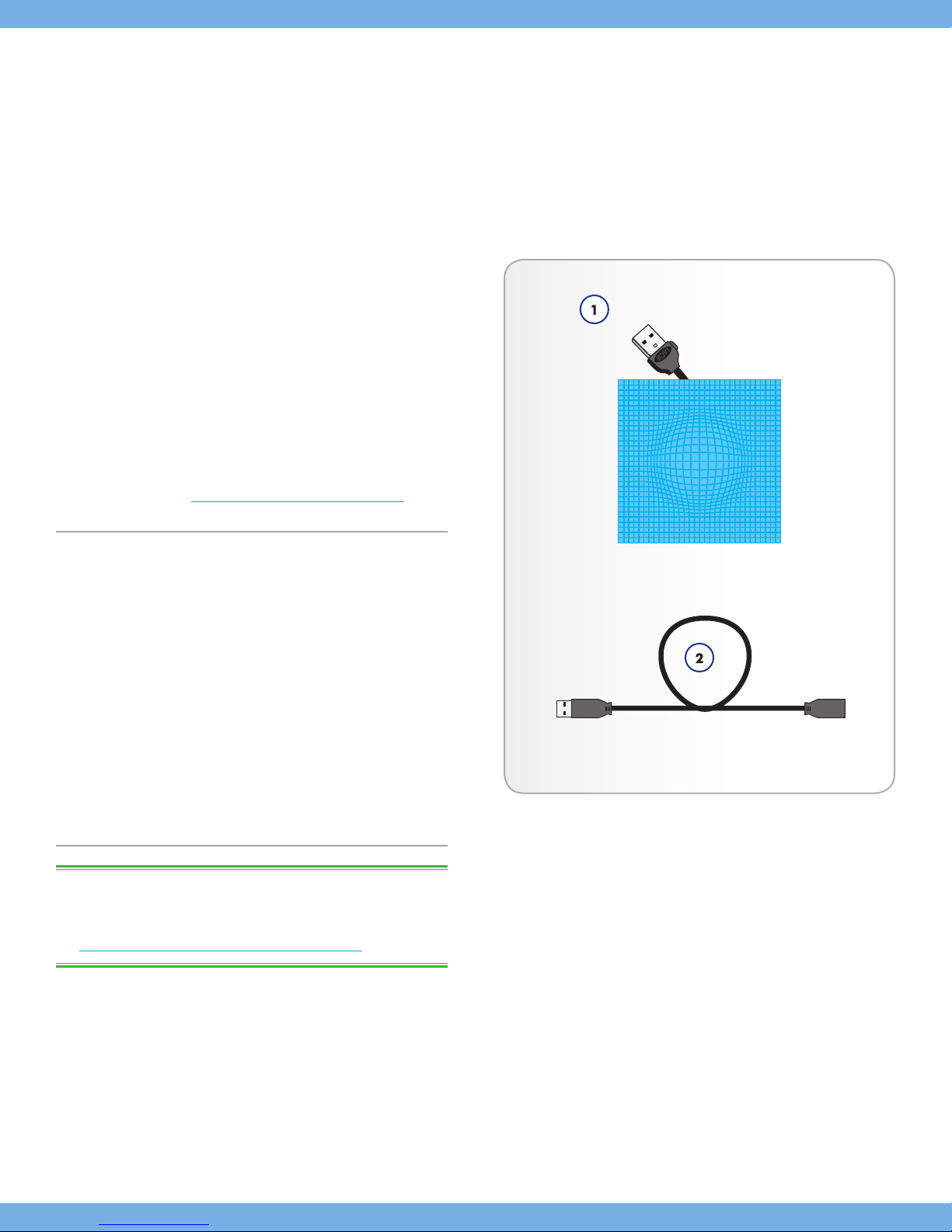
1. LaCie SKWARIM with integrated Hi-Speed USB 2.0 cable
2. USB Extension Cable
LaCie Utilities and user manual are located on the drive and will
appear once the LaCie Setup Assistance has been installed. For
details, refer to section 2.4. Launching LaCie Setup Assistant.
1.1. Minimum System Requirements
System Requirements for USB 2.0:
✦ Windows 98 SE, Windows 2000, Windows Me and Windows
XP
✦ Mac OS 9.2 (Apple USB support 1.3.5 and greater) and Mac
OS X
Hardware Requirements for USB 2.0:
✦ Computer with USB 2.0 or 1.1 interface*
✦ G3 processor or Intel Pentium II 350MHz-compatible proces-
sor or greater
✦ Minimum 32MB RAM
TECHNICAL NOTE: *To achieve USB 2.0 speeds, your drive must
be connected to a USB 2.0 host port. If it is connected to a USB 1.1
port, your drive will operate at USB 1.1 speeds. For more details,
see 4.1. Advice For Optimizing USB 2.0 Connections.
*No driver needed for Windows 2000, Windows XP, Mac OS 9.2 and Mac
OS X
Page 5

LaCie Skwarim Getting Connected
User Manual page 5
2. Getting Connected
The SKWARIM is plug & play for Windows 2000, Windows XP and
Mac OS X. If you’re using one of these operating systems, move
to ahead to 2.3. Connect the Integrated USB 2.0* Cable to Your
Computer.
Windows 98 SE and Windows Me Users: You should install the
included driver software and Silverlining 98. Refer to the following
installation steps.
Mac OS 9.x Users: You should install the included Silverlining Pro
software. Refer to the following in stallation steps.
Once you’ve gotten the drive connected to your computer, move on
to section 3. Using Your LaCie SKWARIM for important information
on how to format and utilize your drive.
Page 6
LaCie Skwarim Getting Connected
User Manual page 6
2.1. Windows 98 SE and Windows
Me Users Only: Silverlining 98
and USB 2.0 Driver Installation
To use your new LaCie drive, first install the necessary driver software
and then Silverlining 98. Follow the steps below to install the necessary drivers and software to configure your drive. Then move on to
the USB 2.0 installation steps.
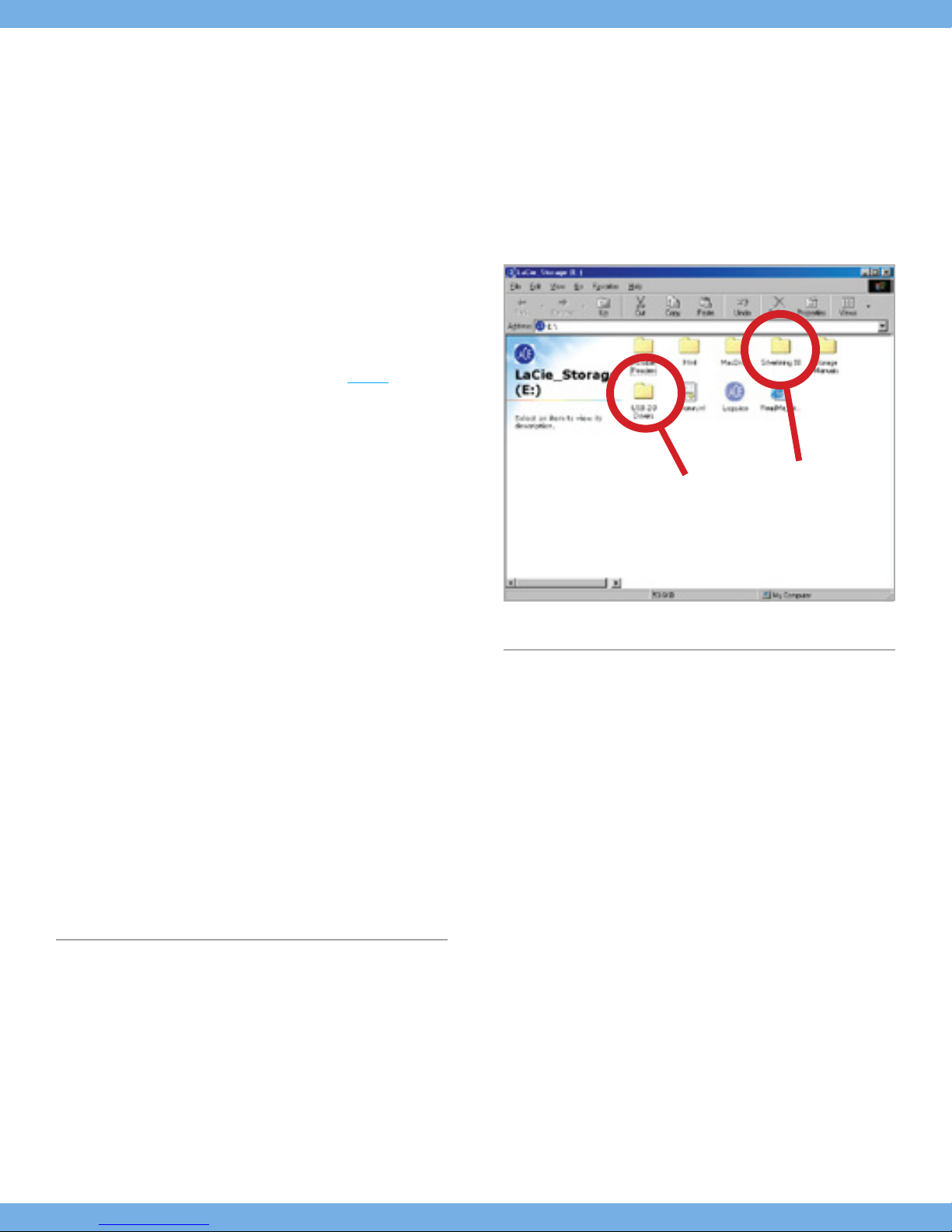
Step 1) Insert the LaCie Storage Utilities
puter’s internal CD/DVD drive and open the disc (Fig. 01).
1. Double-click the USB 2.0 Drivers Install folder.
2. Double-click on the LaCie_USB_Driver_Install.exe icon.
The LaCie USB2 Storage Driver screen will appear. Click
on Next.
3. Installation will finish automatically.
Step 2)
Re-open the LaCie Storage Utilities CD-ROM.
1. Double-click the Silverlining 98 folder.
2. Double-click the Silverlining98_Install.EXE icon.
3. Silverlining 98 will then initialize the install screen. The “Welcome” screen will appear. Click Next.
4. The “Destination Location” screen will appear. To alter the
location where the software is installed on your system, click
the Browse button. If you do not want to change the location,
do not click on the Browse button, and allow the software to
be installed in its default location. Click Next to continue.
5. Next is the “Start Installation” screen. Click Next.
CD-ROM in your com-
Step 1
Step 2
Fig. 01
6. The software installation will begin, and you will see the installation screens.
7. Finally, you will see the “Silverlining 98 has been installed correctly” screen. Click Finish to complete the installation.
Page 7
LaCie Skwarim Getting Connected
User Manual page 7
2.2. Mac OS 9.x Users Only:
Silverlining Pro Installation
Before connecting the power supply and USB 2.0 cable to your
drive, you will need to install Silverlining Pro, which will help you
manage your drive. Follow the steps below to install the necessary
drivers and software to configure your drive. Then move on to the
power supply and USB 2.0 cable installation steps.
1. Insert the LaCie Storage Utilities CD-ROM in your comput-
er’s internal CD/DVD drive.
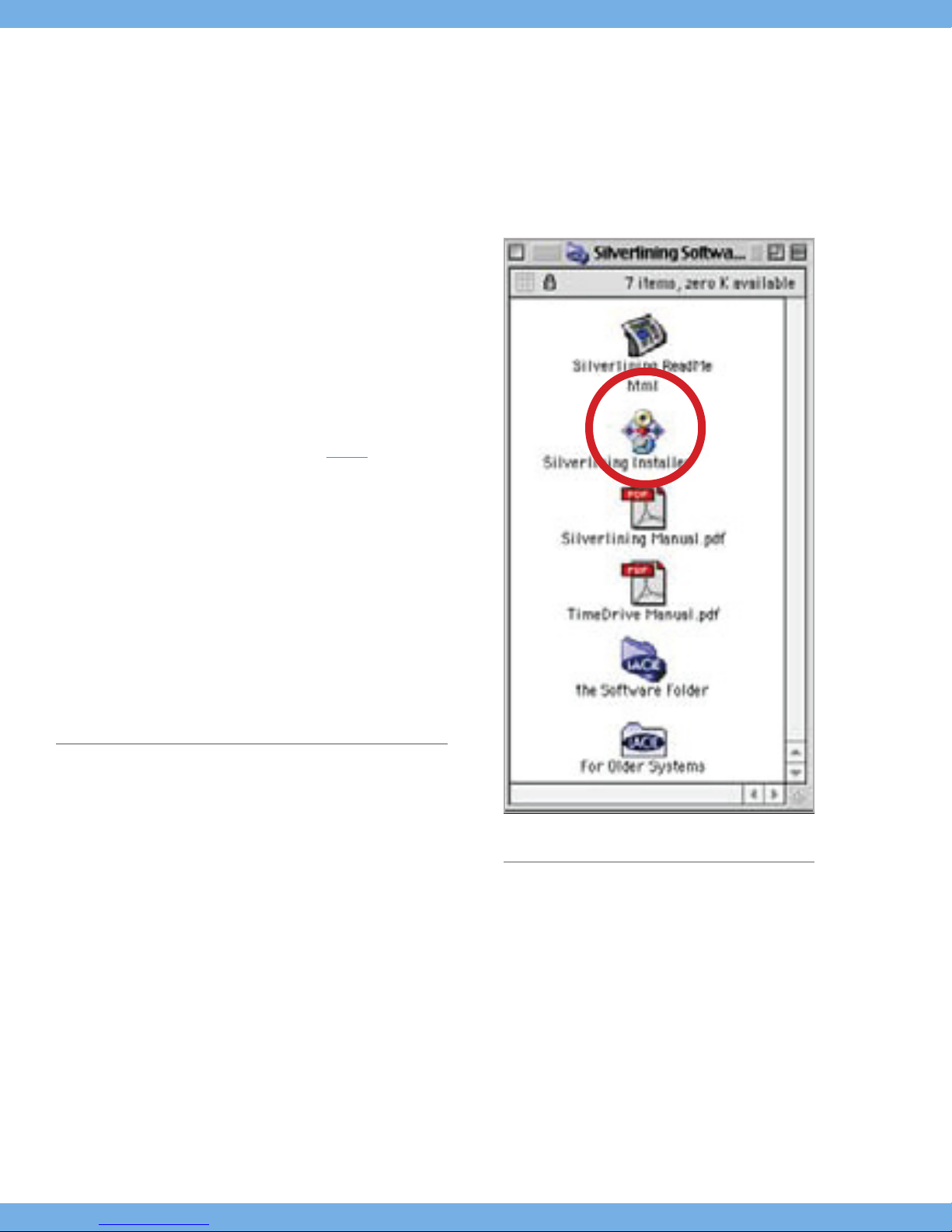
2. Open the CD icon and double-click on the Silverlining Soft-
ware folder.
3. Click on the Silverlining Installer icon (Fig. 02).
4. The Silverlining Utilities screen appears. Click on Continue.
5. The “Silverlining Read Me” screen appears. Read the follow-
ing information and click on Continue.
6. The “License Agreement” screen appears. Click on Agree.
7. The “Installation” screen appears. Choose either Easy Install,
Custom Install or Uninstall
upper left-hand side of the “Installation” screen. Once you’ve
made your choice, click on Install.
8. A message appears to confirm that the installation was successful. Now move onto Step 1.
from the pull-down menu in the
Fig. 02
Page 8
LaCie Skwarim Getting Connected
User Manual page 8
2.3. Connect the Integrated USB 2.0*
Cable to Your Computer
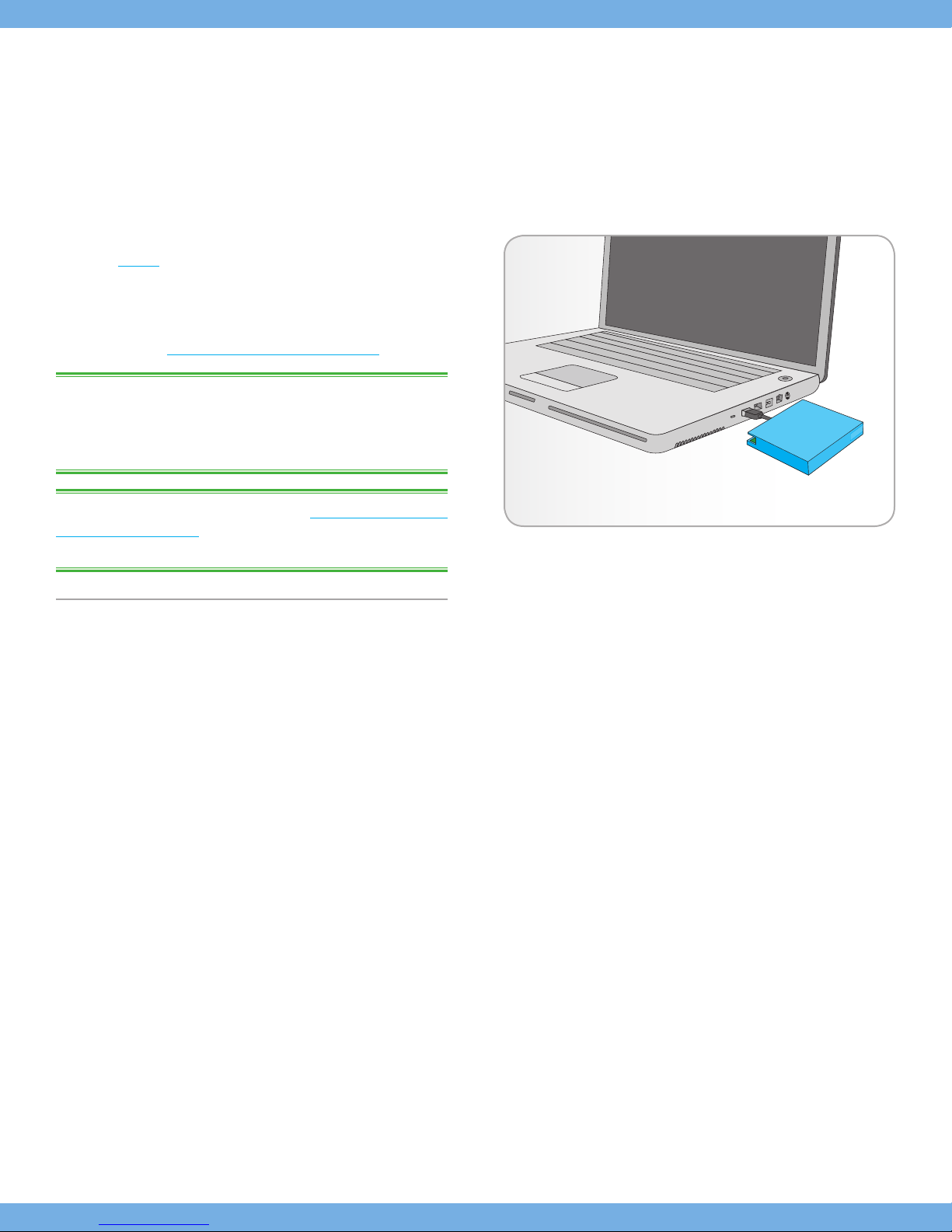
Unfold and connect the integrated Hi-Speed USB 2.0 cable to your
computer (Fig. 03). After a few seconds, your LaCie drive will mount
on your computer. You also may use the included USB extension
cable by connecting the integrated USB 2.0 cable to it and then
connecting the extension cable to your computer.
Proceed to section 2.4. Launching LaCie Setup Assistant.
TECHNICAL NOTE: The LaCie SKWARIM is plug & play for Win-
dows 2000, Windows XP and Mac OS X. Windows 98SE and Windows Me users should install the included driver software and Silverlining 98.
Fig. 03
TECHNICAL NOTE: Please refer to section 4.1. Advice For Optimiz-
ing USB 2.0 Connections for important information on disconnecting
USB 2.0 devices and ensuring optimum performance.
* To achieve USB 2.0 speeds, your drive must be connected to a USB 2.0
host port. If it is connected to a USB 1.1 port, your drive will operate at USB
1.1 speeds. For more details, see 4.1 Advice for Optimizing USB 2.0 Con-
nections.
Page 9

LaCie Skwarim Getting Connected
User Manual page 9
2.4. Launching LaCie Setup Assistant
Before using your drive, LaCie Setup Assistant software must be
launched to format your drive.
The Setup Assistant will:
✦ Optimize your drive according to your needs
✦ Copy the manual and utilities from your drive onto your com-
puter
It is highly advised to copy the user manual and utilities onto
your computer’s internal hard drive or other medium.
To launch LaCie Setup Assistant:
Windows users: double click on the LaCie drive icon in “My Com-
puter” and then double click the LaCie Setup Assistant icon.
Mac users: double click on the “LaCie Setup Assistant” icon ap-
pear on your desktop and then double click the LaCie Setup Assistant icon.
The LaCie Setup Assistant will guide you through the process of optimizing your LaCie hard drive for your needs.
IMPORTANT INFO: If you do not launch LaCie Setup Assistant or
if you quit LaCie Setup Assistant after the formatting has begun, your
drive will not be ready to use and will require manual formatting.
The user manual and utilities will not be available on your drive and
will have to be downloaded from the LaCie website: www.lacie.com
TECHNICAL NOTE: The LaCie Setup Assistant does not prevent you
from using your computer’s native disk utility program to format or
partition your LaCie drive. Simply follow the Setup Assistant through
completion, then use your computer’s native disk utility (Disk Management for Windows or Disk Utility for Mac) to reformat your drive. See
section 3.1. Formatting And Partitioning Your LaCie Drive for more
information.
Page 10

LaCie Skwarim Using Your LaCie Skwarim
User Manual page 10
3. Using Your LaCie
SKWARIM
Once you’ve connected your drive and it is recognized by your operating system (i.e. Windows 98SE, Me, 2000, XP or Mac OS 9.x
or 10.x), you are ready to format and partition the drive. In order to
store information on a hard drive, it must have a file system and be
divided into sections that will con tain the data that you wish to store.
This process is called formatting.
In order to utilize a hard disk drive, it has to be formatted first. Formatting a disk consists of the following: the operating system erases
all of the bookkeeping information on the disk, tests the disk to make
sure that all of the sectors are reliable, marks bad sectors (i.e., those
that are scratched) and cre ates internal address tables that it later
uses to locate information. Once formatted, the actual available
storage capacity varies, depending on operating environment, and
is generally about 10% less than the non-formatted capacity.
IMPORTANT NOTE: The LaCie SKWARIM is preformatted in FAT
32, so if you want to use another file system, you will need to re-format the drive. The following information will help you decide which
file system format to use.
After you’ve formatted the drive, you have will the opportunity to
divide the hard drive into sections, called Partitions. A partition is
a section of the hard drive’s storage capacity that is created to contain files and data. For instance, you could create three partitions
on your drive: one partition for your word documents, one for your
spreadsheets and one for your multi-media files.
File System Formats
There are essentially three different file system formats: FAT
32, NTFS, and Mac OS Extended (HFS+).
Use FAT 32 if:
you will be using your drive between both Windows and
Mac OS 9.x or 10.x; or sharing the drive between Windows
98 SE, Me, 2000 or XP
Use NTFS if:
you will be using the drive only under Windows 2000 or
Windows XP; performance will be gener ally greater when
compared to FAT 32
Use HFS+ if:
you will be using the drive on Macs only; performance will
be generally greater when compared to FAT 32
For more information, please refer to section 4.2. File Sys-
tem Formats.
Page 11
LaCie Skwarim Using Your LaCie Skwarim
User Manual page 11
3.1. Formatting And Partitioning
Your LaCie Drive
Once you have set-up your LaCie drive, you can reformat or partition it to suit your needs.
3.1.1. Windows Users
✦ Windows 98 SE and Me – Install and use LaCie Silverlining
98, which is included with your drive.
✦ Windows 2000 and XP – Use the Disk Management Utility,
which is native to the operating system.
For instructions on installing and using Silverlining 98, please refer
to the Silverlining manual, located on your LaCie Stor age Utilities
CD, in PDF format.
Formatting And Partitioning Using Windows 2000 And
Windows XP
The process of formatting and partitioning a drive on a computer
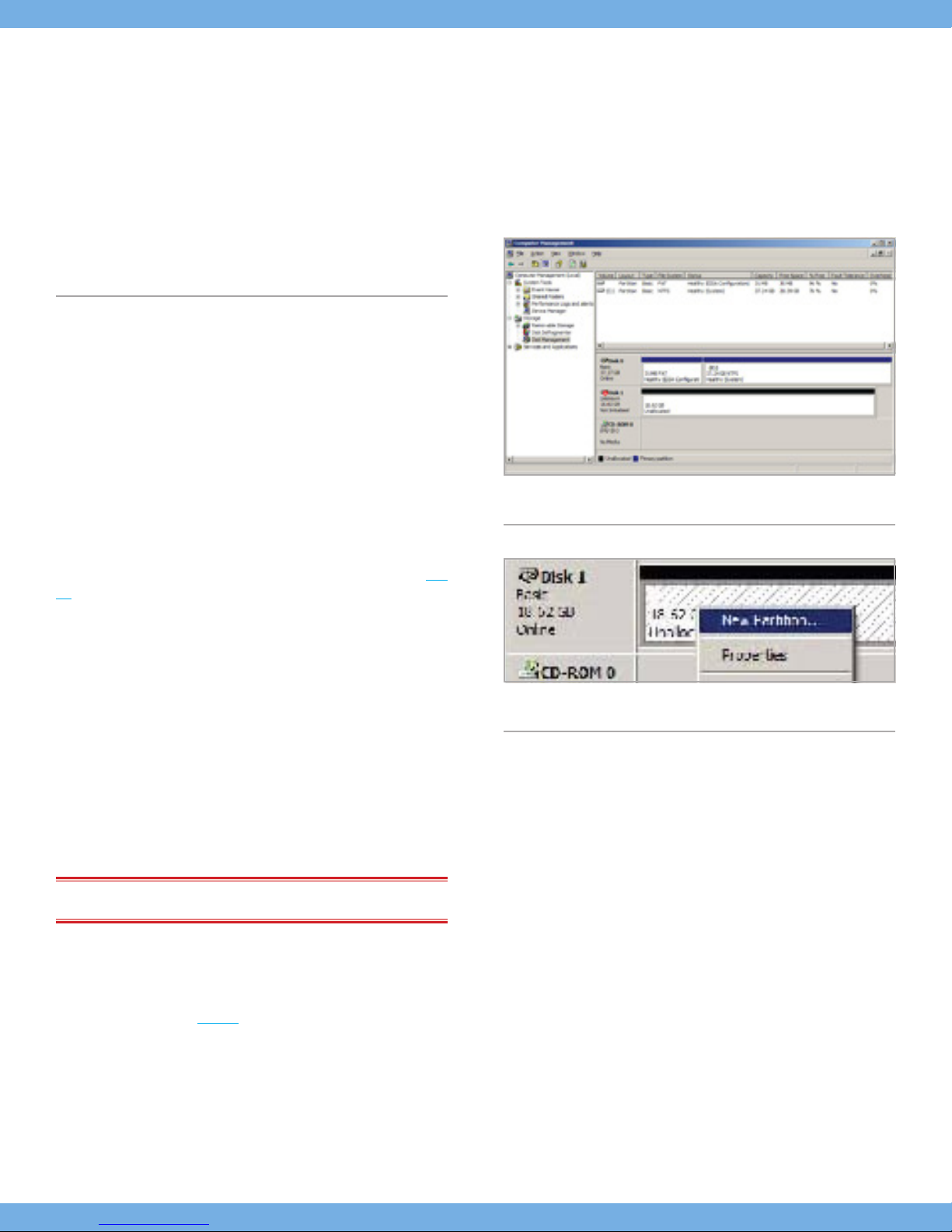
running Windows 2000 or Windows XP consists of two steps (Fig.
04): (1) installing a signature on the drive, and (2) partitioning/for-
matting the drive. These steps will erase anything that is on the disk.
1. Connect the drive to the computer via the USB 2.0 port. Rightclick My Computer and click Manage.
2. From the Computer Management window, se lect Disk Management (located below the Storage group).
3. If this is the first time the drive is being formatted, Windows
2000 will launch the Write Signature Wizard (Write Initialize
Wizard in Windows XP). Click Next.
4. Windows will list the new drive(s) attached. If you are formatting a single drive, only one drive should be visible. Select the
checkbox next to the drive and click Next.
IMPORTANT NOTE: Check the “quick format” box.
5. Click Finish to exit the Wizard.
Fig. 04
Fig. 05
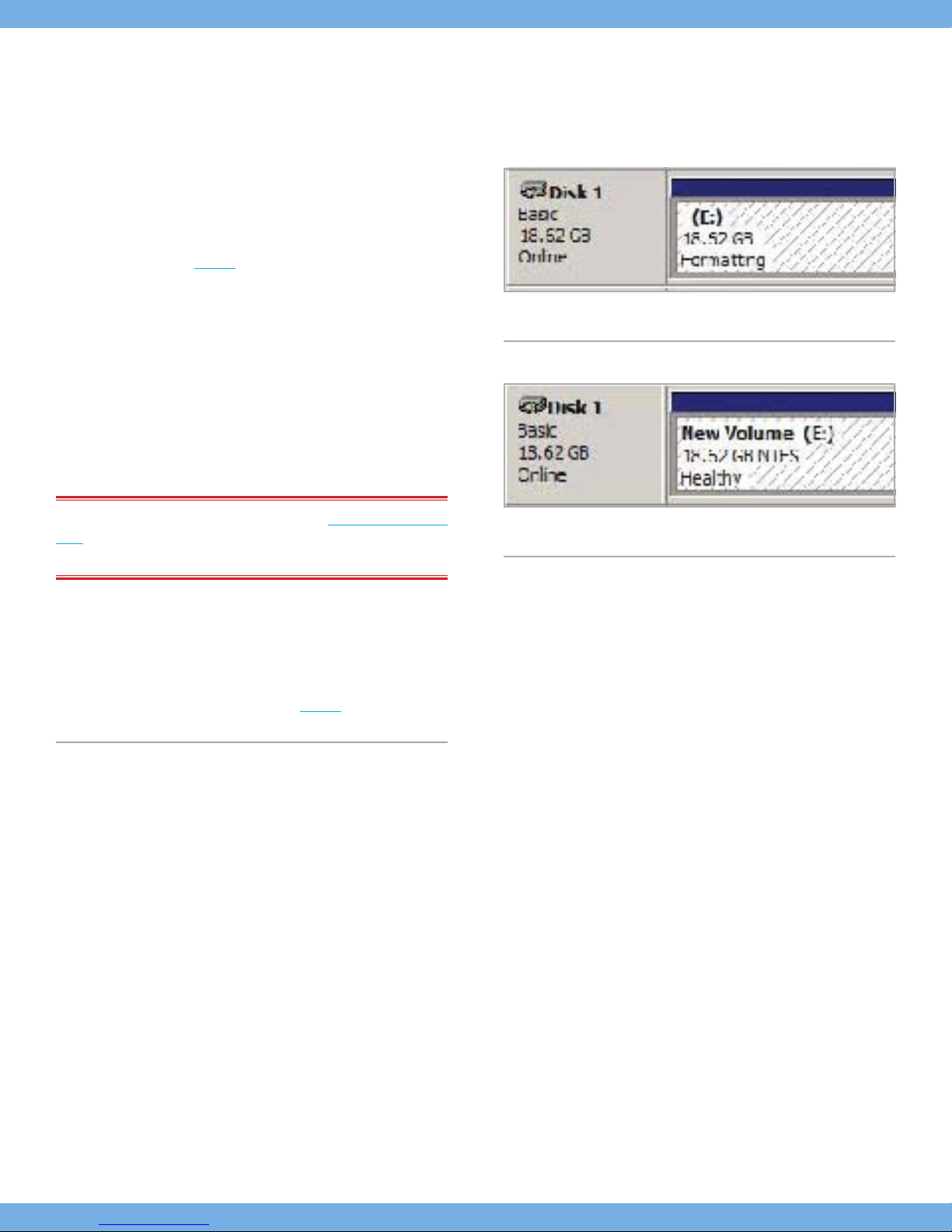
6. Now, with the disk management window open, a new drive
will be vis ible. Right-click on the available space and select
Create Partition...(Fig. 05).
7. This will bring up the Create Partition Wizard. Click Next.
8. Select Primary Partition. Click Next.
Page 12
LaCie Skwarim Using Your LaCie Skwarim
User Manual page 12
9. Here you must specify partition size. It is recommended that
you leave the partition set to the maximum available size, unless you want multiple partitions on the same drive. Click Next.
10. Select Assign drive letter and select the desired letter for the
drive. Click Next (Fig. 06).
11. Select Format this partition… and then select a file system:
FAT32 is a file system that is compatible with Windows 98 SE, Win-
dows Me, Windows 2000 and Windows XP; however, it has limitations. In Windows 2000 and Windows XP, you will not be able to
create a partition greater than 32GB.
NTFS is a newer file system that is compatible only with Windows
NT, Windows 2000 and Windows XP. It has fewer limita tions than
FAT 32 and will enable a partition to be created that is larger than
32GB.
IMPORTANT NOTE: Please refer to section 4.2. File System For-
mats
, for a more detailed discussion on the differences be tween the
two systems.
12. Click Next.
13. Click Finish.
14. Disk Management will create the partition and begin formatting the drive. Once completed, close Disk Management and
your new drive will be ready to use (Fig. 07).
Fig. 06
Fig. 07
Page 13
LaCie Skwarim Using Your LaCie Skwarim
User Manual page 13
3.1.2. Mac Users
✦ Mac OS 9.x – Install and use LaCie Silverlining Pro, which is
included with your drive.
✦ Mac OS 10.x – Use the Apple Disk Utility application, which is
native to the operating system.
For instructions on installing and using Silverlining Pro, please refer
to the Silverlining manual, located on your LaCie Storage Utilities
CD, in PDF format.
Formatting And Partitioning Using Mac OS 10.x
CAUTION: Following these steps will erase anything that is on the
hard drive. Therefore, if you have information that you want to protect or continue to use, backup this information before performing
these steps.
1. Connect the drive to the computer via the USB 2.0 port. Once
the drive mounts onto the desktop, go to the Menu Bar, and
open Go. From the Go menu, click on Applications.
2. In the Applications menu, open the Utilities folder, and then
double-click Disc Utility from the Utilities folder.
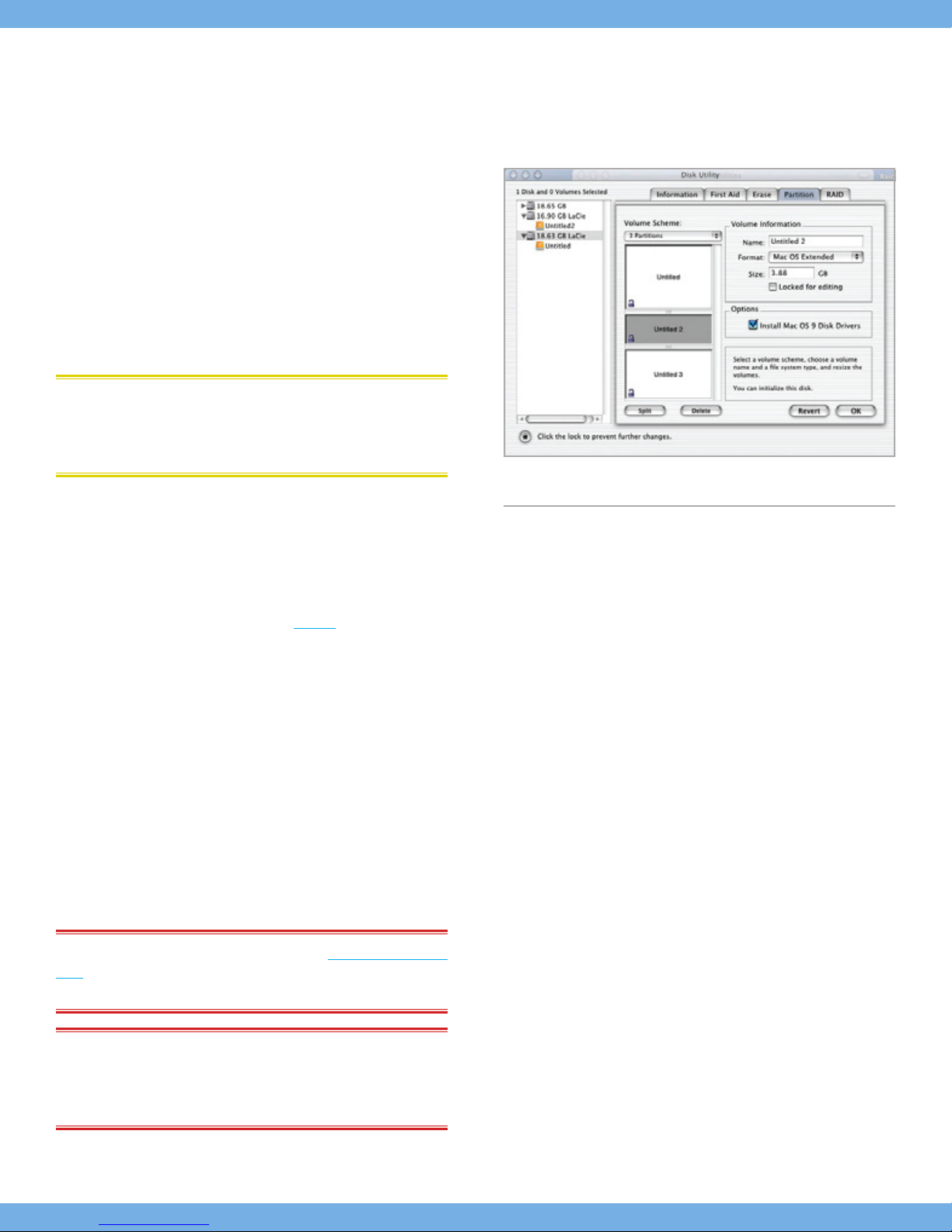
3. The Disc Utility window will open (Fig. 08). In the left side of
the window will be a list of the available hard disk drives. You
should see a volume that represents your internal hard drive,
and one that reads LaCie.
4. Select the LaCie drive, and then click on the Partition tab.
5. From the Volume Scheme: button, choose the number of partitions you want to divide the drive into by clicking on the pull
down menu starting with Current (Mac OS 10.x gives you the
option of dividing the drive into at most 8 partitions). You can
customize the size of the partitions by using the slide bar between the partitions in the Volume Scheme: area.
6. In the Volume Information section, create a name for each
partition, choose the volume format (Mac OS Extended, Mac
OS Standard or UNIX File System) and the volume size.
Fig. 08
IMPORTANT NOTE: Please refer to section 4.2. File System For-
mats
, for a more detailed discussion on the differences be tween the
two systems.
IMPORTANT NOTE: Apple recommends that unless you have a
specific reason to use the UNIX File System (UFS), you should use the
Mac OS Extended format since it provides a more familiar experience to Macintosh users.
Page 14

LaCie Skwarim Using Your LaCie Skwarim
User Manual page 14
7. In the Options section, click the Install Mac OS 9 Disk Drivers
box if you plan on sharing the drive between the Mac OS 9.x
and Mac OS 10.x.
8. Once you have finalized the volume format, number of partitions, size and options, click OK. The following message will
appear: “Warning! Saving the new volume will erase all existing volumes. This can NOT be undone. Are you sure you want
to do that?” Click Partition to continue.
9. Mac OS 10.x will automatically setup the disk with the partitions and volume format you selected, and your new drive will
be available for use.
Page 15

LaCie Skwarim Helpful Information
User Manual page 15
4. Helpful Information
4.1. Advice For Optimizing USB 2.0
Connections
The following technical information relates to your LaCie Drive and
gives some practical advice:
4.1.1. What is USB 2.0?
The new USB 2.0 standard provides higher bandwidth for highspeed peripherals such as external hard drives, high-speed scanners
and CD-RW drives. USB 2.0 delivers transfer rates up to 480Mbits/s,
while conveniently maintaining backward compatibility with USB 1.1
devices.
USB 2.0 can still be used to connect lower-speed USB 1.1 ports and
devices like digital cameras, scanners, modems, keyboards, mice,
joysticks and printers. In the USB 2.0 system, existing USB peripherals do not have to be upgraded, and lower-speed devices will
not require additional performance, instead operating as USB 1.1
devices.
4.1.2. USB Cables and Connectors
Your LaCie drive is shipped with a USB 2.0-certified USB cable, to
ensure maximum data transfer performance when con nected to a
USB 2.0 port. The cable will also work when connected to a USB 1.1
port, but drive performance will be limited to USB 1.1 transfer rates.
There are also different types of USB connections, such as the minicable and device end. Make sure that you have the cor rect type of
connection on computer. Consult LaCie Customer Support or your
LaCie reseller for more information.
4.1.3. USB 2.0 Host Bus Adapters and
Performance
To utilize the newly-enhanced USB 2.0 performances, your computer must be equipped with a USB 2.0 host bus adapter card (sold
separately, such as the LaCie USB 2.0 PCI Card, or integrated by
your PC manufacturer) and the appropriate drivers. These host bus
adapter cards, which include one or more USB ports, are shipped
with special USB 2.0 drivers that enable the computer to control the
card. These drivers must be installed in order for USB 2.0 devices
connected to the port to work at their correct speeds. For installation
Page 16
LaCie Skwarim Helpful Information
User Manual page 16
instructions, please refer to the documentation that comes with the
host adapter card.
LaCie supplies only the appropriate USB 2.0 drivers for its peripherals and does not provide drivers for third-party host adapter cards.
To obtain the right drivers for your host adapter card, visit your card
manufacturer’s Internet site.
4.1.4. Disconnecting USB 2.0 Devices
USB 2.0 external devices feature “plug & play” connection. This
means that your drive can be connected and disconnected while the
computer is running. To prevent failures, it is important you follow
these steps when disconnecting your USB 2.0 device.
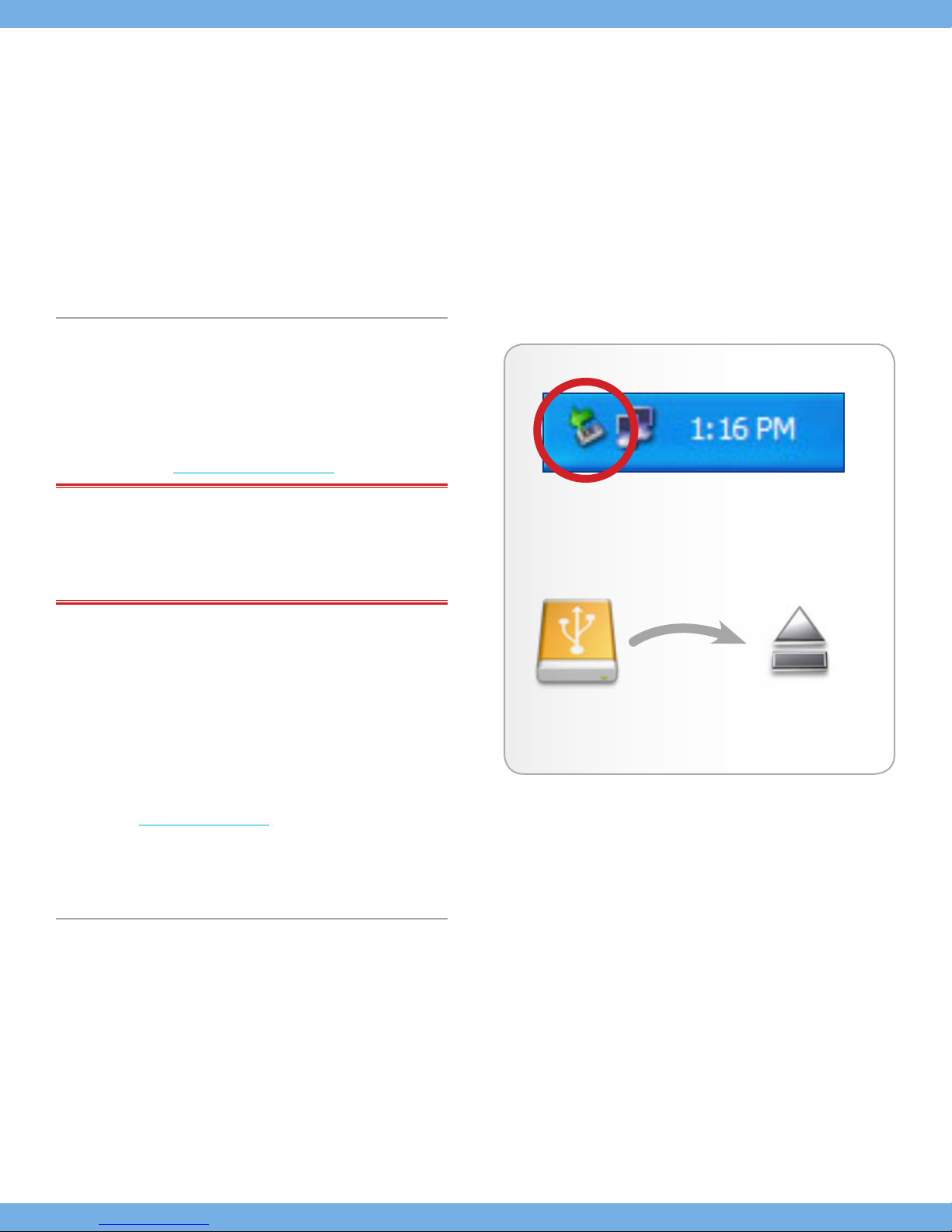
Windows Users (Fig. 09 – Windows Users)
IMPORTANT NOTE: Windows 98 SE Users: If you have installed
the Windows Storage Supplement Update, you will have to unmount
the drive before disconnecting it or powering it down. If you have not
installed the update, simply disconnect the drive when it is not active.
No unmounting is required.
1. From the System Tray (located in the lower right-hand side of
your screen), click on the Eject icon (a small green arrow over
a hardware image).
2. A message will appear, detailing the devices that the Eject
icon controls, i.e. “Safely re move…” Click on this prompt.
3. You will then be given the following message: “Safe to Remove Hardware” (or similar). It is now safe to disconnect the
device.
Mac Users (Fig. 10 – Mac Users)
You must unmount the hard drive system before disconnecting it.
1) Drag the hard drive icon to the trash. 2) The drive can now be
disconnected.
Fig. 09 – Windows Users
Fig. 10 – Mac Users
Page 17

LaCie Skwarim Helpful Information
User Manual page 17
4.1.5. Data Transfers
Data transfers are the flow of data that accomplishes a task, usually related to moving data from storage to computer RAM or between storage devices. During data transfers, it’s best to wait before
launching other applications on the same USB 2.0 port. Anomalies
may arise with computers that have USB 2.0 controllers* that do not
conform to OHCI (Open Host Controller Interface) standards. In
any other configurations, we cannot ensure 100% correct operation.
Due to this, you may encounter hanging problems. If this happens,
proceed as follows:
1. Make sure that the USB 2.0 cable is connected tightly and
securely to the computer.
2. Disconnect the USB 2.0 cable. Wait 30 seconds. Reconnect.
CAUTION: Do not connect USB 2.0 cables so that they form a ring
of devices. There is no need for terminators on USB 2.0 devices, so
the unused USB 2.0 connectors should be left empty.
*TECH NOTE:
card (referred to in this case as a “controller card”) that enables a
computer to communicate with or manage certain peripherals. An
external controller is an expansion card which fills one of the free slots
(i.e. PCI or PCMCIA) inside your PC and which enables a peripheral
(i.e. CD-R/RW drive, Hard Drive, scanner or printer) to be connected
to the computer. If your computer is not equipped with a USB 2.0 controller card, you can purchase an external controller through LaCie.
Contact your LaCie reseller or LaCie Technical Support (6. Contacting Customer Support) for more information.
Controller - This is a component or an electronic
4.2. File System Formats
4.2.1. Windows Users
There are basically two file system formats for Windows: FAT 32 and
NTFS. The following information will hopefully make choosing one
or the other a little easier.
FAT 32: FAT is an acronym for File Allocation Table, which dates
back to the beginnings of DOS programming. Originally, FAT was
only 16 bits, but after the second release of Windows 95 it was
upgraded to 32 bits, hence the name FAT 32. In theory, FAT 32
volume sizes can range from less than 1MB all the way to 2TB. It
is the native file system of Windows 98 and Windows Me, and is
supported by Windows 2000 and XP. When FAT 32 is used with
Windows 2000 and XP, though, volume size is limited to 32GB (by
Page 18

LaCie Skwarim Helpful Information
User Manual page 18
the Windows partition utility, i.e. Disk Manager), and the individual
file size is limited to 4GB.
NTFS: This acronym stands for New Technology Filing System, and
it is the native file system for Windows NT, Windows 2000 and XP.
NTFS offers several features that are not available with FAT 32; i.e.
file compression, encryption, permissions, and auditing, as well as
the ability to mirror drives and RAID 5 capabilities. The minimum
supported volume size for NTFS is 10MB, with a maximum of 2TB,
with no limit to file size. Volumes created in NTFS can only be directly accessed (not through shares) by Windows NT, Windows 2000
and XP, without resorting to help from third-party products.
Guidelines for Choosing FAT 32 Or NTFS
Use FAT 32 if:
✦ You want to access your data on any Operating System -FAT
32 is compatible with Windows 98 SE, Me, 2000, XP, NT,
Mac OS 9.x and Mac OS 10.x.
✦ You will be dual booting with an Operating System other than
Windows NT or Windows 2000.
✦ You may need the ability to dual boot down the line. Once
you have converted a volume from FAT 32 to NTFS, there is
no going back. You can convert from FAT 32 to NTFS, but not
the other way around.
Use NTFS if:
✦ You want to optimize drive performance under Windows 2000
or XP.
✦ You want to encrypt files, assign permissions to files, or want
to audit files for access.
✦ You will be formatting partitions larger than 32GB.
✦ You need to store individual files that are larger than 4GB.
Page 19

LaCie Skwarim Helpful Information
User Manual page 19
4.2.2. Mac Users
IMPORTANT NOTE: If you will be sharing the drive between Macs
and Windows operating environ ments, you will want to leave the
drive formatted in FAT 32.
Mac OS 10.x Users: You have the option of formatting the drive in
one of four formats: Mac OS Standard (HFS), Mac OS Extended
(HFS+), MS-DOS File System and UNIX File System (UFS).
HFS - Mac OS Standard: Mac OS Standard refers to the file sys-
tem used by Mac OS 8.0 and earlier. This is no longer a modern
file system specification, and Mac OS Extended is more efficient.
Only use this file system if you are creating a volume smaller than
32MB, using a Mac with a 680X0 processor, or you are creating a
file structure that will be need to be used by Macs using Mac OS
8.0 or earlier.
HFS+ - Mac OS Extended: Mac OS Extended refers to the file
system used by Mac OS 8.1 and later. HFS+ represents an optimization of the older HFS file system by using hard disk space more
efficiently. Building off of HFS, they increased the number of blocks
from 65,536 to 4.29 billion. With HFS+, you are no longer limited
by block size.
MS-DOS File System: This is the Microsoft file system, more typi-
cally known as FAT 32. This is the file system to use if you are going
to be using your LaCie drive between Macs and Windows operating
systems.
UNIX File System: This is the file system based on UNIX, and is
preferable for users developing UNIX-based applications within Mac
OS 10.x. Unless you have a specific reason to use the UNIX File System, you should instead format your drive using Mac OS Extended
(HFS+), because it provides Mac users with a more familiar operating experience.
Page 20

LaCie Skwarim Troubleshooting
User Manual page 20
5. Troubleshooting
In the event that your LaCie Mobile Drive is not working correctly,
please refer to the following checklist to find out where the problem
is coming from. If you have gone through all of the points on the
checklist and your drive is still not working cor rectly, please have
a look at the FAQs that are regularly published on our Web site –
www.lacie.com. One of these FAQs may provide an answer to your
specific question. You can also visit the drivers pages, where the
most recent software updates will be available.
If you need further assistance, please contact your LaCie reseller
or LaCie Technical Support (see 6. Contacting Customer Support).
Manual Updates
LaCie is constantly striving to give you the most up-to-date, comprehensive User’s Manuals available on the market. It is our goal
to provide you with a friendly, easy-to-use format that will help you
quickly install and utilize the many functions of your new device. If
your manual does not reflect the configurations of the product that
you purchased, please check our Web site for the most current version available.
Page 21
LaCie Skwarim Troubleshooting
User Manual page 21
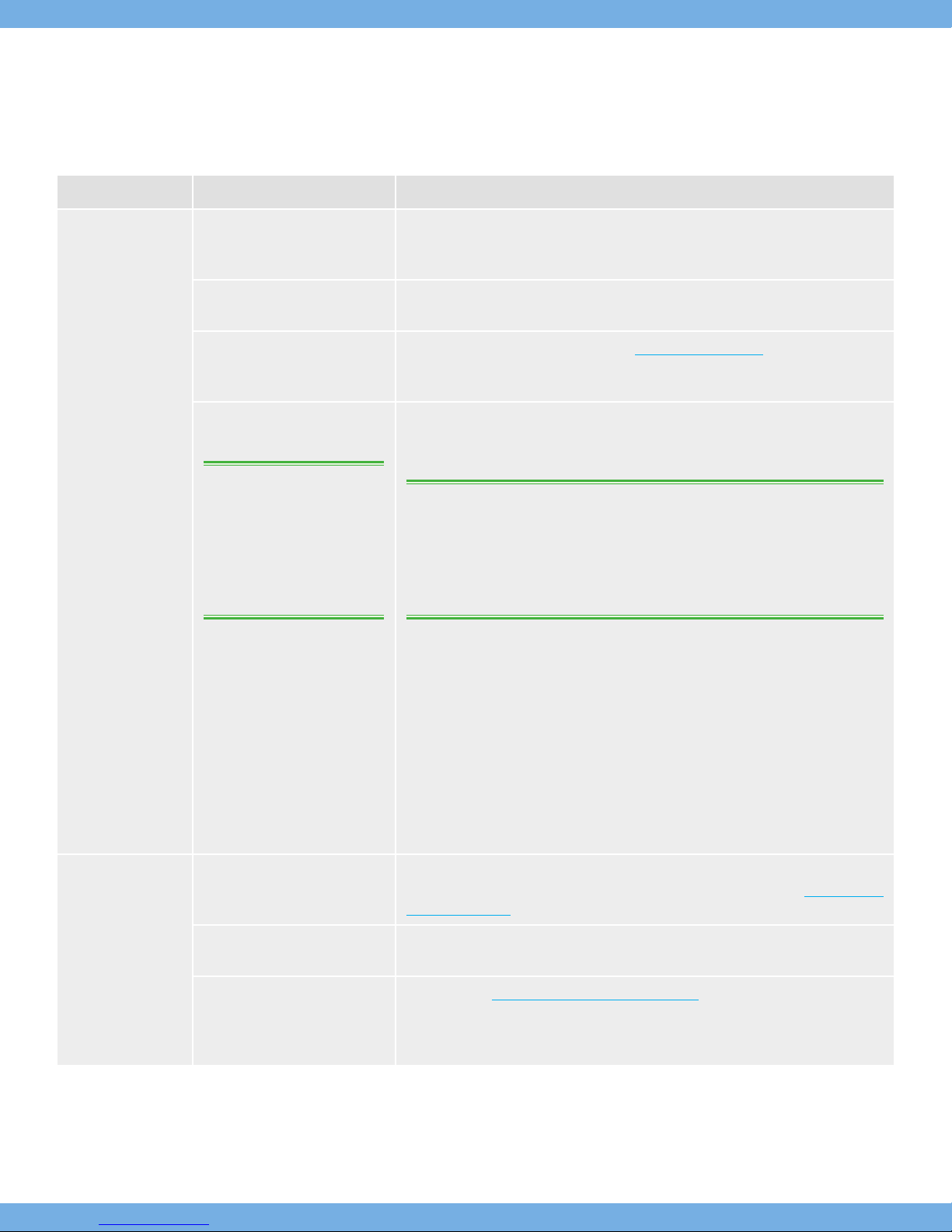
Problem Questions to Ask Possible Solutions
The drive is not
recognized.
Is the drive’s power on? Check to make sure that the USB 2.0 cable is correctly attached and firmly seated
in the computer’s USB port. Disconnect it, wait 10 seconds, and reconnect it. If the
drive is still not recognized, restart your computer and try again.
Does an icon for the drive appear on the computer?
Are all of the cables connected
secure ly and correctly?
Are the USB drivers installed
correctly and enabled?
TECH NOTE: Windows Users:
Microsoft consistently posts updated drivers and support fixes
for their operating systems. Go
to Microsoft’s Web site, support.microsoft.com, for more
information.
Check for an icon on the Desktop (on a Mac) or in My Computer (on a PC).
Make sure that all the steps in section 2. Getting Connected have been fol lowed
correctly. Examine the connec tion carefully to ensure that the cable is inserted in the
correct orientation and in the correct location.
Mac Users: Open Apple System Profiler and click on the Devices and Volumes
tab. If your device is not listed, recheck the cables and try the other troubleshooting
solutions listed here.
TECH NOTE: Mac Users: Apple is constantly providing updated support for drive
mechanisms within OS 10.x. To ensure that you have the latest support, upgrade to
the latest version of OS 10.x. To access the latest updates an upgrades, pull down
the Apple Menu and click on System Preferences. In the section titled System, click on
Software Update and then click Update Now. Your computer will then automatically
connect via the Internet to access the latest updates from Apple.
Windows 98 SE & Me Users: Go to Start > Settings > Control Panel > System
> Device Manager > USB Controller > click on the plus sign next to the controller
icon, and you should see your device listed.
The drive is not recognized.
Is there a conflict with other device drivers or extensions?
Is the file system supported by
your Operating System?
Does your computer’s configuration meet the minimum system requirements for use with
this drive?
Windows 2000 Users: Go to Start > Settings > Control Panel > System > Hard-
ware tab > Device Manager button > USB Controller > click on the plus sign next
to the controller icon, and you should see your device listed.
Windows XP Users: Go to Start > Control Panel > Performance and Mainte-
nance > System > Hardware tab > Device Manager button > USB Controller >
click on the plus sign next to the controller icon, and you should see your device
listed.
If you cannot see the device, recheck the cables and try the other troubleshooting
solutions listed here. Consult LaCie Technical Support. See section 6. Contacting
Customer Support for more details.
Check the documentation for your Operating System.
Check section 1.1. Minimum System Requirements.
Page 22

LaCie Skwarim Troubleshooting
User Manual page 22
The drive is not recognized.
Error messages under Mac OS 10.x.
The drive is working slowly.
The USB 2.0 drive
is not running noticeably faster than
a USB 1.1 drive.
Was the drive originally formatted as a removable disk?
Did you get an Error –50 message while copying to a FAT 32
volume?
Did you get an error message
telling you that the drive has
been disconnected when coming out of sleep mode?
Are other USB devices connected to the same port?
Is the drive connected to a USB
1.1 port on your computer, or
to a USB 1.1 hub?
Is the drive connected to a USB
2.0 port on your computer?
If the drive is configured as a removable drive under Windows 98SE or Windows
Me, the removable setting will need to be re-checked each time that the drive is
taken to a new system. To do this, go to the Device Manager and click on the
Drives Settings tab.
When copying files or folders from Mac OS 10.x to a FAT 32 volume, certain
characters cannot be copied. These characters include, but are not limited to: ?
< > / \ :
Check your files and folders to ensure that these types of characters are not being
used.
Simply ignore this message. The drive will remount to the desktop. LaCie drives
conserve power by spinning down when you set your computer to sleep mode, and
when the computer is “woken” from sleep, it does not give the drive enough time
to spin-up from its sleep mode.
Disconnect any other USB devices and see if performance improves.
If so, it is normal that the drive runs at USB 1.1 speeds. A USB 2.0 device can only
run at USB 2.0 speeds when connected to a USB 2.0 port or hub and controlled by
the appropriate USB 2.0 drivers.
Check to see that the USB 2.0 drivers for your Host USB 2.0 port and for your USB
2.0 device have been correctly installed (see the 4.1.1. What is USB 2.0? section
for a more detailed discussion). If in doubt, uninstall the driver and then reinstall it.
Does your computer or operating system support USB 2.0?
See the 4.1.1. What is USB 2.0? section for a more detailed discussion.
Page 23

LaCie Skwarim Troubleshooting
User Manual page 23
TECHNICAL NOTE: Technically, you can connect up to 127 de-
vices to a single USB bus. For more than two devices, you must make
new connections using a peripheral called a “hub.” A hub, which you
hook up directly to a USB connector on your computer, usually has 4
or 7 output connections enabling you to connect the same number of
peripherals. One of the hub’s main functions is to regenerate signals
that lose part of their strength as they are transmitted via the USB
cable. By connect ing yet another hub to a connector on the existing
hub, you can then plug in a new set of peripherals and so on, up to
a maximum of 127.
You can use your USB 2.0 devices with USB 1.1 hubs, but the peripherals will be limited to USB 1.1 performance levels. As USB 2.0 is
backwards compatible, you will be able to connect USB 1.1 devices
to USB 2.0 hubs; however, the USB 1.1 devices will still maintain their
normal performance levels (i.e. 12 Mb/s).
In practice, users who desire enhanced USB 2.0 throughput will
need to connect their USB 2.0 hardware on both ends of a 2.0 hub
to achieve the “high-speed” mode. On one end, a USB 2.0 compliant host controller resides on the host PC to man age the enumeration process and power management. On the other end, USB 2.0
hardware must be connected directly to the root hub or through a
USB 2.0 hub.
Some hubs have no power supply and others are self-powered. When
you choose a hub, opt for the self-powered variety, as they have their
own AC adapter. The most powerful hubs provide 0.5A of power to
each port. If you buy a hub, make sure that it supports per-port switching. This function prevents the entire chain of peripherals from freezing
up if one of them is not working properly or is down.
IMPORTANT NOTE: Avoid using USB connectors found on cer-
tain peripherals such as keyboards. These are passive (or passthrough) connectors that lead to power loss and unstable operation.
IMPORTANT NOTE: Only use USB cables shorter than 5 meters
(approximately 15 feet). Using longer cables cause the peripherals to malfunction due to excessive reduction in electrical signal
strength.
Page 24

LaCie Skwarim Contacting Customer Support
User Manual page 24
6. Contacting Customer Support
Before You Contact Technical Support
1. Read the manuals and review the Troubleshooting section.
2. Try to isolate the problem. If possible, make the drive the only
external device on the CPU, and make sure that all of the
cables are correctly and firmly attached.
If you have asked yourself all of the pertinent questions in the troubleshooting checklist, and you still can’t get your LaCie drive to work
properly, contact us via the provided Web link. Before contacting us,
make sure that you are in front of your computer and that you have
the following information on hand:
✦ Your LaCie drive’s serial number
✦ Operating system(Mac OS or Windows) and version
✦ Computer brand and model
✦ Names of CD or DVD drives installed on your computer
✦ Amount of memory installed
✦ Names of any other devices installed on your computer
Page 25
LaCie Skwarim Contacting Customer Support
User Manual page 25
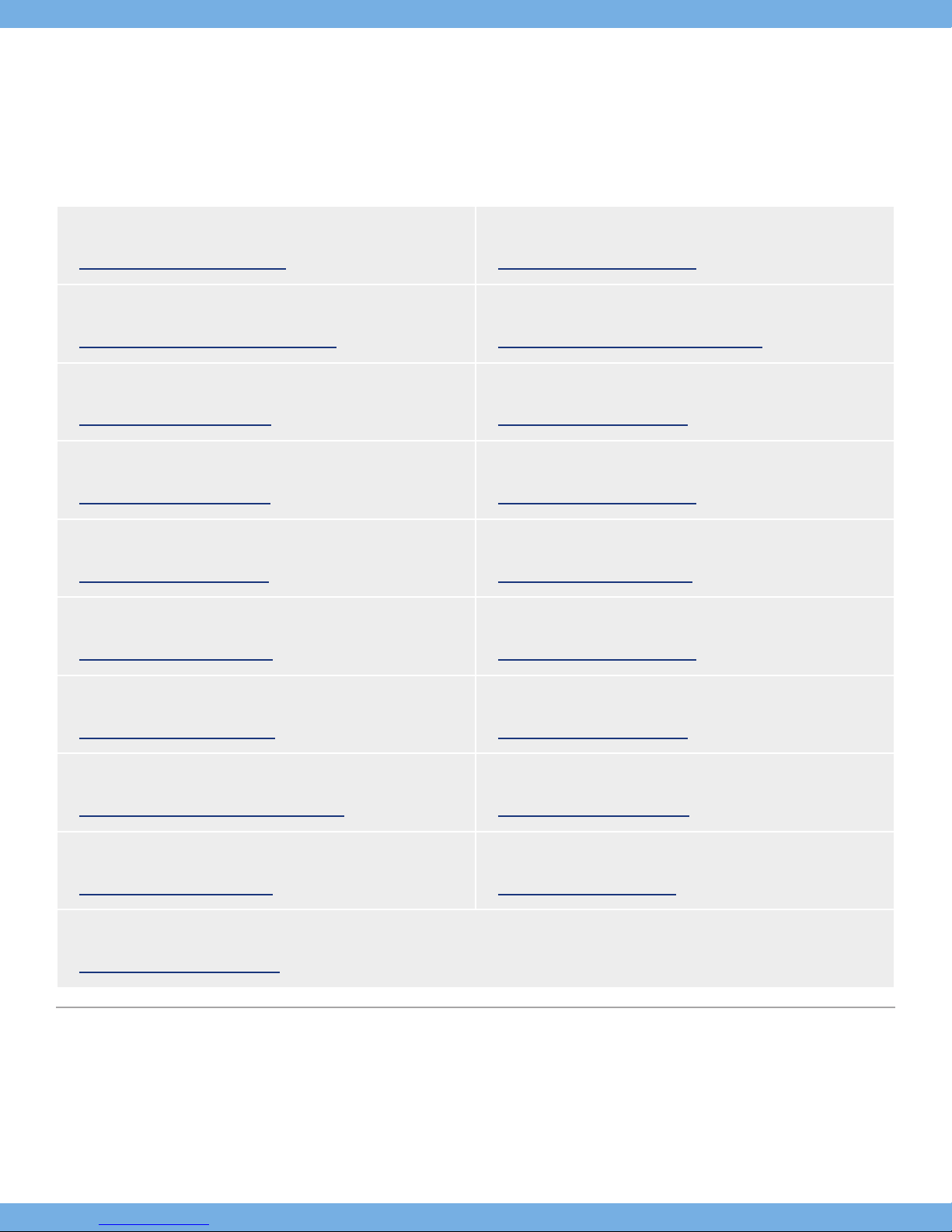
6.1. LaCie Technical Support Contacts
LaCie Asia, Singapore, and Hong Kong
Contact us at:
http://www.lacie.com/asia/contact/
LaCie Belgium
Contact us at:
http://www.lacie.com/be/contact/ (Français)
LaCie Denmark
Contact us at:
http://www.lacie.com/dk/contact
LaCie France
Contact us at:
http://www.lacie.com/fr/contact/
LaCie Italy
Contact us at:
http://www.lacie.com/it/contact/
LaCie Netherlands
Contact us at:
http://www.lacie.com/nl/contact/
LaCie Australia
Contact us at:
http://www.lacie.com/au/contact/
LaCie Canada
Contact us at:
http://www.lacie.com/caen/contact/ (English)
LaCie Finland
Contact us at:
http://www.lacie.com/fi/contact/
LaCie Germany
Contact us at:
http://www.lacie.com/de/contact/
LaCie Japan
Contact us at:
http://www.lacie.com/jp/contact/
LaCie Norway
Contact us at:
http://www.lacie.com/no/contact/
LaCie Spain
Contact us at:
http://www.lacie.com/es/contact/
LaCie Switzerland
Contact us at:
http://www.lacie.com/chfr/contact/ (Français)
LaCie Ireland
Contact us at:
http://www.lacie.com/ie/contact/
LaCie International
Contact us at:
http://www.lacie.com/intl/contact/
LaCie Sweden
Contact us at:
http://www.lacie.com/se/contact
LaCie United Kingdom
Contact us at:
http://www.lacie.com/uk/contact
LaCie USA
Contact us at:
http://www.lacie.com/contact/
Page 26

LaCie Skwarim Warranty
User Manual page 26
7. Warranty
LaCie warrants your drive against any defect in material and workmanship, under normal use, for the period designated on your warranty certificate. In the event this product is found to be defective
within the warranty period, LaCie will, at its option, repair or replace
the defective drive.
This warranty is void if:
✦ The drive was operated/stored in abnormal use or mainte-
nance conditions;
✦ The drive is repaired, modified or altered, unless such repair,
modification or alteration is expressly authorized in writing by
LaCie;
✦ The drive was subjected to abuse, neglect, lightning strike,
electrical fault, improper packaging or accident;
✦ The drive was installed improperly;
✦ The serial number of the drive is defaced or missing;
✦ The broken part is a replacement part such as a pickup tray,
etc.
✦ The tamper seal on the drive casing is broken.
LaCie and its suppliers accept no liability for any loss of data during
the use of this device, or for any of the problems caused as a result.
LaCie will not, under any circumstances, be liable for direct, special
or consequential damages such as, but not limited to, damage or
loss of property or equipment, loss of profits or revenues, cost of
replacement goods, or expense or inconve nience caused by service
interruptions.
Any loss, corruption or destruction of data while using a LaCie drive
is the sole responsibility of the user, and under no cir cumstances will
LaCie be held liable for the recovery or restoration of this data. Under no circumstances will any person be entitled to any sum greater
than the purchase price paid for the drive.
To obtain warranty service, call LaCie Technical Support. You will
be asked to provide your LaCie product’s serial number, and you
may be asked to furnish proof of purchase to confirm that the drive
is still under warranty.
All drives returned to LaCie must be securely packaged in their original box and shipped with postage prepaid.
IMPORTANT INFO: Register online for free technical support:
www.lacie.com/register
 Loading...