

Page 1

Instruction Manual for
Torbal AG and AGN Series Balances
101 Witmer Road, Suite 700 • Horsham, PA 19044 • Phone 1-800-521-0754 • Fax 215-442-9202
www.labrepco.com • sales@labrepco.com
Page 2

Table of Contents
…….
…...
……………………….……….
…………………….
…………………………
………….
.………….
………………..
…….………………………………….………..
………….………………………………..
……………………….………………….………
…………………………….……….
………………………….………….
……………………………….………….
………………………………………………….
………………………………………………...
…………………………...
………………
……………………………………
SQC Process Control………………………………….……………………………...
………………………………………
8.2.
…………………………………..…..
8.3.
………………………………………………...
……………………………………………...
………………………………………………….
…………………………………………………
……………………………………………….………….
…………………………..
…………………………………………….…………
……......………………………….…………
…………………..………….
……………………………..………
………………………………………….
…………………………………………….
Calibration……………………………………………………………………….………
………………………….
…………………………………
Weighing…………………………………………………………………………………
……………………………………………
Cautionary Notes and Precautions…………………………………………………….
1.
Important Handling Cautions and Warnings……………………………..…………
1.1
Specifications………………………………………………...
2.
Keys, Display Indicators and Abbreviations……………………………
3.
Parts Descriptions…………………………………………………..
4.
Unpacking Balance and Getting Started…………………………………………...
5.
External Keyboard Connection (optional)………………………………………...
6.
7. Functions, Descriptions and Definitions…………………………………….
Main Menu…………..……………………..
8.
Mode Setup……………………………………
8.1.
8.1.1.
8.1.2.
8.1.3.
8.1.4.
8.1.5.
8.1.6.
8.1.7.
8.1.8.
8.1.9.
Weighing………………………….
Parts Counting…………………………………
Check Counting………..………………………
Percent Weighing……...………………….
Totalizing………………………….
Compounding………………………
Check Weighing…………………………………………
Animal and Dynamic Weighing………………….…………………..
Display Hold…………………………………….
8.1.10.
8.1.11.
Tare Setup……………………………………
.
Units of Measure……………...…………………...
Configurations…………………………...
8.3.1.
8.3.2.
8.3.3.
8.3.4.
8.3.5.
8.3.6.
8.3.7.
8.3.8.
8.3.9.
Auto-Zero………………………………………………………………………….. 32
Print……………………………………
8.3.2.1
8.3.2.2
GLP……..…………………..
Print Details……….…………..
Filter……………………….
Power Save and LCD Contrast…………………………...
RS232………………………..
USB Configuration….………………...
8.3.6.1
PC Connection via USB…………………..……...
Time and Date Adjustment…………………….
Reset and Default Restore………………...
Erasing the Database……………………
8.4.
8.4.1.
Using Functions and Modes………………………………..
9.
Auto Calibration Setting and Adjustment…………………
9.1.
9.1.1.
Taring……………………………………
3
4
5
7
8
10
12
13
14
14
15
16
18
19
21
22
23
25
27
28
30
31
32
33
33
34
34
35
36
36
37
38
39
39
40
41
42
42
42
- 1 -
Page 3

9.1.2.
……………………………………………..
……………………………………..…….………….
………………………………………………………...…………..
.……
Counting Parts which Have Been Previously Stored in the Scale’s Database……
Manual………………………………………………………………….…………..
Check Counting……………………………………………………………………………
……………………..….
…………………………………………………….
………………………………………………………………
Percent Weighing for the First Time…………………………………………….
……….…………..
…………………………………………….……………
…………
………………………………..……………….………….
……………………………………….………….
………………………………………………………..
………………….…………..
………………….
………
…………………………………..…………………
………………………………….……………………………
9.2.
9.2.1.
Clearing a Tare………………………...
Parts Counting……………………
Automatic………
9.2.1.1
Counting Parts for the First time…………..………………………………
9.2.1.2
9.2.2.
9.3.
9.3.1.
9.4.
9.4.1.
Storing a Limit Set into the Scale’s Database……………...
Percent Weighing…...……………….
Automatic…………….
9.4.1.1
9.4.1.2
9.4.2.
Totalizing…………………………………………………………………….
9.5.
Compounding……………..
9.6.
Check Weighing……………………
9.7.
9.7.1.
Animal and Dynamic Weighing…...…………….……………………………………. 63
9.8.
Display Hold…………………..
9.9.
SQC Process Control……………………………………..
9.10.
9.10.1.
Using the Scale’s Alphabet for Data Entry………………………………………………… 67
10.
Connecting and Using a Barcode Scanner with the Scale’s Database……………………... 68
11.
Connecting the Scanner………………………………………………………………...68
11.1.
Assigning Barcodes to Samples or Limit Sets………………………..
11.2.
Recalling a Previously Stored Sample or a Limit Set from the Database………
11.3.
Technical Information……………………………………………………………………… 69
12.
Common Error and Troubleshoots…………………….……...……………………………. 70
13.
Maintenance…………………………..
14.
Accessories…………………
15.
Replacement Parts……………………………………………….…………………………. 72
16.
Limited Warranty…………….….…………………………………….…………………… 72
17.
Percent Weighing with Stored Reference Weights…………
Manual…………………..
Storing a Limit Set into the Scale’s Database…….…………………….…………. 62
Storing a Limit Set into the Scale’s Database…………………………..…….…… 66
43
44
44
44
46
48
49
52
52
52
52
55
56
57
59
61
64
65
68
68
71
71
- 2 -
Page 4

Chapter 1: Cautionary Notes
The TORBAL Precision scale is a sensitive and a delicate instrument. Always handle your scale with care.
The correct location and proper environment makes an important contribution to the accuracy of the weighing
results of TORBAL precision scales.
The optimum location for your scale:
• Stable, vibration-free base as horizontal as possible
• Away from direct sunlight
• Not exposed to high temperature variations
• Away from direct drafts
• The best location is on a stable bench away from direct drafts, doors, windows, radiators and air
conditioner vents.
CAUTION:
WARNING:
• The scale is designed for indoor use only..
• Do not operate the scale in hazardous areas or conditions.
• Do not use the scale in locations subject to high humidity or dust levels.
• Do not connect cables in ways other than those mentioned in this manual.
• Be sure to set the scale on a firm, stable, horizontal surface.
• Never stand on or lean on this product. Equipment may fall or collapse,
causing breakage and possible injury.
• Before moving the product, unplug it and unplug all cables connected to it.
• When storing, transporting or returning the scale for service, always use the
original packaging.
• Never attempt to repair, disassemble or modify the scale yourself. Tampering
with the scale may result in injury and cause more damage to the equipment.
• Be sure to use the specified power source.
• Do not allow foreign matter to fall into the scale.
• If water or other liquid spills into the scale, do not continue to use it. Unplug
the power cord immediately and contact technical support.
- 3 -
Page 5
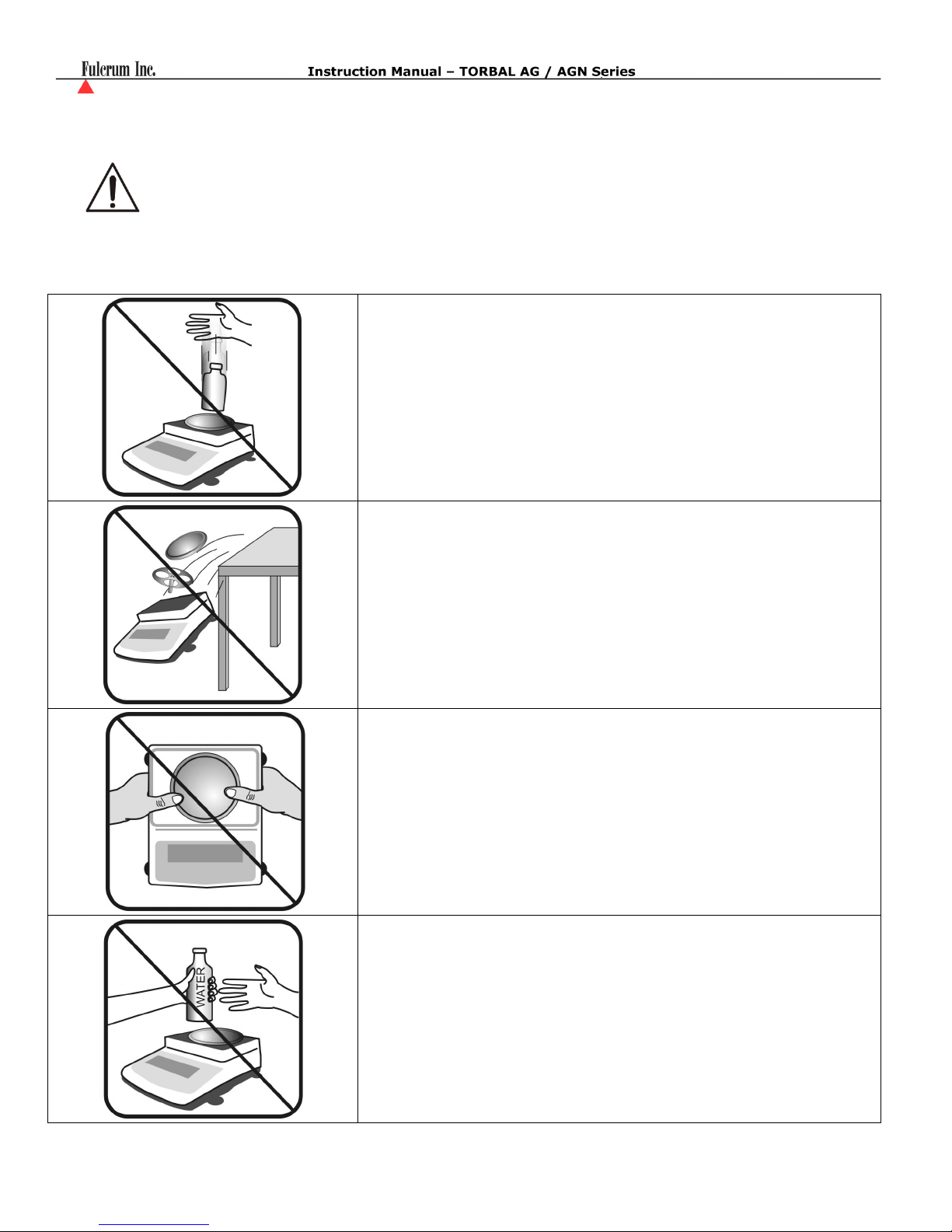
1.1. Important handling Cautions and Warnings
Always handle your scale with care. Damage caused by improper handling is
not covered under the scale’s warranty.
Never drop or throw any articles
onto the scale’s pan or onto any
other parts of the unit!
DO NOT let the scale fall or drop
from its tabletop surface!
When moving the scale do not
press or apply force onto the
scales pan!
DO NOT pass or handle liquids
directly over the scale to avoid
spillage and liquid damage!
- 4 -
Page 6
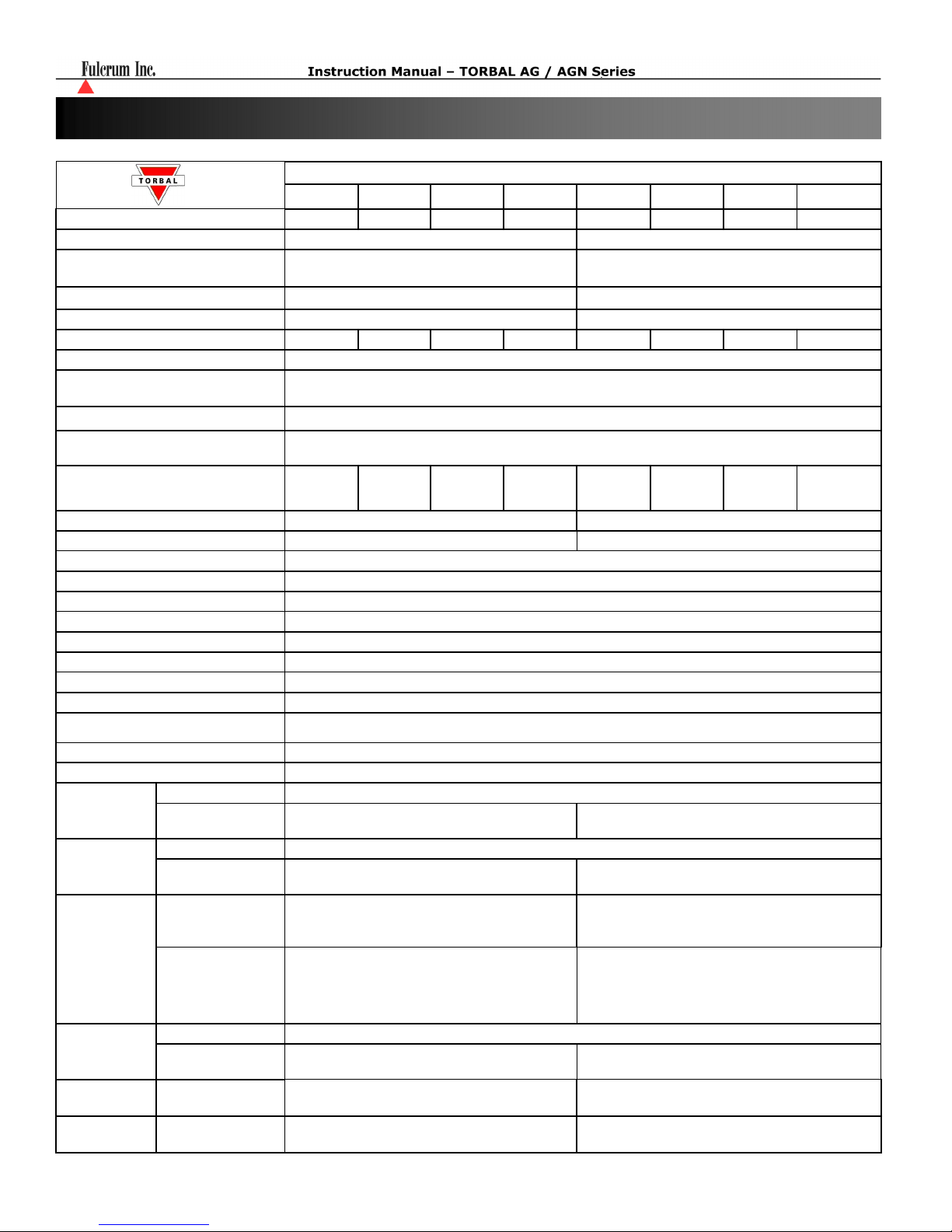
Chapter 2: Specifications
Capacity
Readability (d)
Repeatability (Standard
Divination)
Linearity
Stabilization time (typical)
Tare Range
Accuracy Class
Automatic Internal
Calibration
Time Configuration
Temperature
Configuration
Automatic Calibration
Adjustment Masses (g)
Pan Dimension
Draft Shield
Scale Dimension
Operating Temperature
PS2 Port
RS232 Port
USB
Power Supply
Display Type
Display Size
Application Modes
Weighing Units
Scale’s Net Weight (lb/kg)
Parts
Counting
Check
Counting
Percent
Weighing
Animal
Weighing
Totalizing
Display
Hold
Sample Size
Min Piece
Weigh
Sample Size
Min Piece
Weigh
Min
Reference
Weight
% Resolution
Displayed
(Reference
Weight)
Tiny Intervals
Modes (Min
Weight)
Modes (Min
Weight)
Modes (Min
Weight)
Model
AG100 AG200
100g 200g
Approx. 3 sec Approx. 3 sec
-100g -200g
20,50, 100
Weighing, Parts Counting, Animal Weighing, Check Weighing, Display Hold, Percent Weighing, Totalizing, Check
Manual, Auto (10mg), Semi-Auto (10mg) Manual, Auto (100mg), Semi-Auto (100mg)
Manual, Auto (10mg), Semi-Auto (10mg) Manual, Auto (100mg), Semi-Auto (100mg)
Manual, Auto (10mg), Semi-Auto (10mg) Manual, Auto (100mg), Semi-Auto (100mg)
50, 100,
200
Counting, Compounding, Statistics, SQC Quality Control, 512 KB Library Bank
Grams, Milligrams, Kilograms, Carats, Pounds, Newton, Grains, Ounces Troy, Pennyweight
0.1% (100mg to 7g), 0.01% (7g to 70g)
0.001% (>70g)
AG300 AG500 AG1000 AG2000 AG3000 AG4000
300g 500g 1000g 2000g 3000g 4000g
0.001g
0.001g
+/-0.002g
100, 200,
120 mm
Optional
30mg
30mg
100mg
-300 -500 -1000 -2000 -3000 -4000
I
YES
1h, 2,h, 3h, 4h, 5h, 6h
0.5°C, 1.0°C, 1.5°C, 2.0°C
300
Input: 120VAC 60Hz 15W Output: 12VDC 500mA
100, 200,
500
216 x 345 x 90 mm
1 through 100 or any
1 through 100 or any
3sec., 5sec., 10sec., 15sec.
200, 500,
1000
+15°C to +30°C
Standard
Bidirectional
Standard
Graphical LCD
30mm x 100mm
5kg/11lbs
500, 100,
0.1% (1g to 70g), 0.01% (70g to 700g)
0.01g
0.01g
+/-0.02g
1000,
2000
165 mm x 165 mm
Not Required
0.001% (>700g)
2000,
3000
300mg
300mg
1 g
1000, 2000,
4000
- 5 -
Page 7
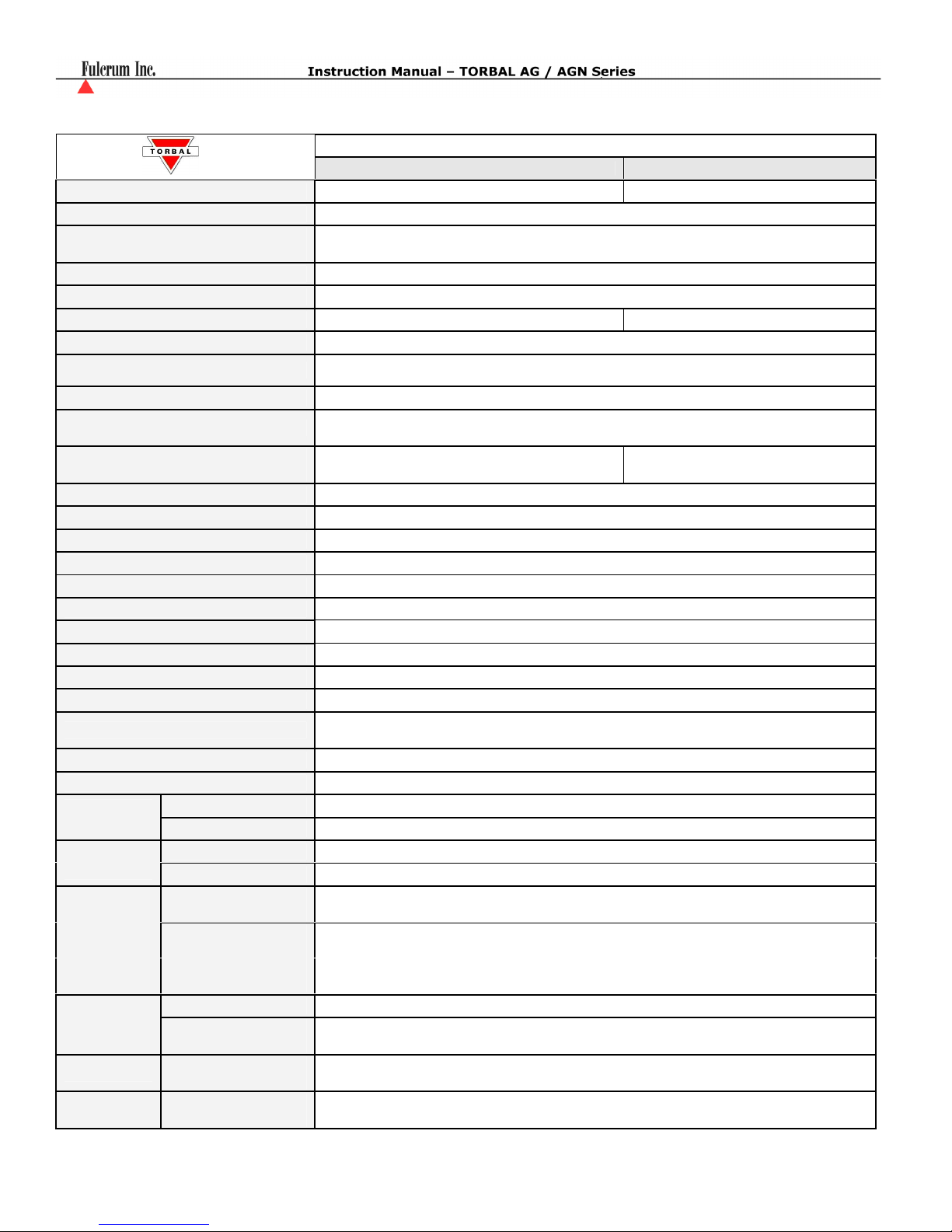
Capacity
Readability (d)
Repeatability (Standard
Divination)
Linearity
Stabilization time (typical)
Tare Range
Accuracy Class
Automatic Internal Calibration
Time Configuration
Temperature Configuration
Automatic Calibration
Adjustment Masses (g)
Pan Dimension
Draft Shield
Scale Dimension
Operating Temperature
PS2 Port
RS232 Port
USB
Power Supply
Display Type
Display Size
Application Modes
Weighing Units
Scale’s Net Weight (lb/kg)
Parts
Counting
Check
Counting
Sample Size
Min Piece Weigh
Sample Size
Min Piece Weigh
Min Reference
Weight
Percent
Weighing
% Resolution
Displayed
(Reference
Weight)
Animal
Weighing
Totalizing
Display
Hold
Tiny Intervals
Modes (Min
Weight)
Modes (Min
Weight)
Modes (Min
Weight)
Model
AGN100 AGN200
100g 200g
0.0001g
0.0001g
+/-0.0002g
Approx. 3 sec
-100g -200g
I
YES
1h, 2,h, 3h, 4h, 5h, 6h
0.5°C, 1.0°C, 1.5°C, 2.0°C
20,50, 100 50, 100, 200
120 mm
Optional
216 x 345 x 90 mm
+15°C to +30°C
Standard
Bidirectional
Standard
Input: 120VAC 60Hz 15W Output: 12VDC 500mA
Seven Segment LCD
30mm x 100mm
Weighing, Parts Counting, Animal Weighing, Check Weighing, Display Hold, Percent Weighing,
Totalizing, Check Counting, Compounding, Statistics, SQC Quality Control, 512 KB Library Bank
Grams, Milligrams, Kilograms, Carats, Pounds, Newton, Grains, Ounces Troy, Pennyweight
6kg/14lbs
1 through 100 or any
3e (30mg)
1 through 100 or any
3e (30mg)
1e (1mg)
0.1% (100mg to 7g), 0.01% (7g to 70g), 0.001% (>70g)
3sec., 5sec., 10sec., 15sec. or any
Manual, Auto 1e (1mg), Semi-Auto 1e (1mg)
Manual, Auto 1e (1mg), Semi-Auto 1e (1mg)
Manual, Auto 1e (1mg), Semi-Auto 1e (1mg)
- 6 -
Page 8

Chapter 3: Keys, Display Indicators and Abbreviations
Key Primary Function
0
MENU
CLR
▲▼◄►
▼
F1
F2
F3
F4
F5
Display Indicator
Zero – used to zero the scale (Legal for Trade models only) N/A
Enter – used to accept and confirm commands N/A
Menu – used to access the main menu Number “9” key
Clear – used to clear and cancel operation N/A
Navigation Keys – used to navigate through the menus and functions N/A
Function Key – used access database and secondary function Number “0” key
Data Transfer – used to print data or transfer data to a PC via the RS232
Calibration Key - used to initialize internal calibration Number “8” key
Power On and Power Off -
Tare – used to tare the weighing pan N/A
communication port
Function Key Number “1” key
Function Key Number “2” key
Function Key Number “3” key
Function Key Number “4” key
Function Key Number “5” key
Description
Secondary
Function
Number “7” key
AUT
OFF
Diff.
SPL / SAPL
LOCK
PCS
CHKC
PERC
TOT
COMP
CHKW
ANL
HLD
SQC
Stability Indicator - The weighing result has stabilized and an accurate reading may be taken.
Zero - The scale is maintaining a “center of zero” condition. (Legal for Trade models only)
AZSM (Automatic Zero Setting Mechanism) is enabled. Always enabled in Legal for Trade models.
Power Off - The scale is turned OFF and in standby mode.
Difference
Sample or Samples
Display Locked
Parts Counting
Check Counting
Percent Weighing
Totalizing
Compounding
Check Weighing
Animal Weighing
Display Hold
SQC Process control
- 7 -
Page 9
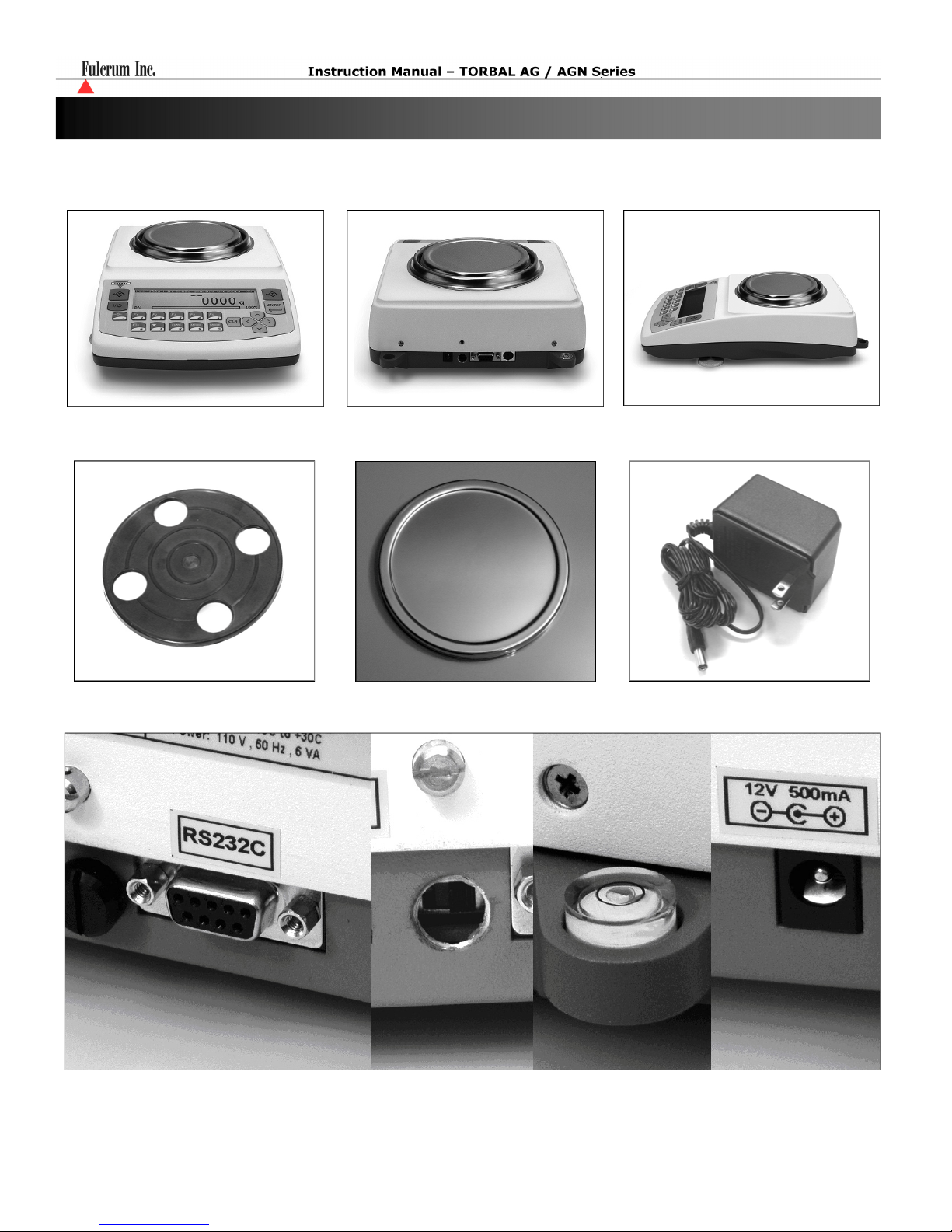
Chapter 4: Parts Description
AG Models:
Front View Rear View Side View
Pan Base Pan AC Adapter
RS232 Serial Port Service Switch Level Indicator AC Adapter Socket
- 8 -
Page 10
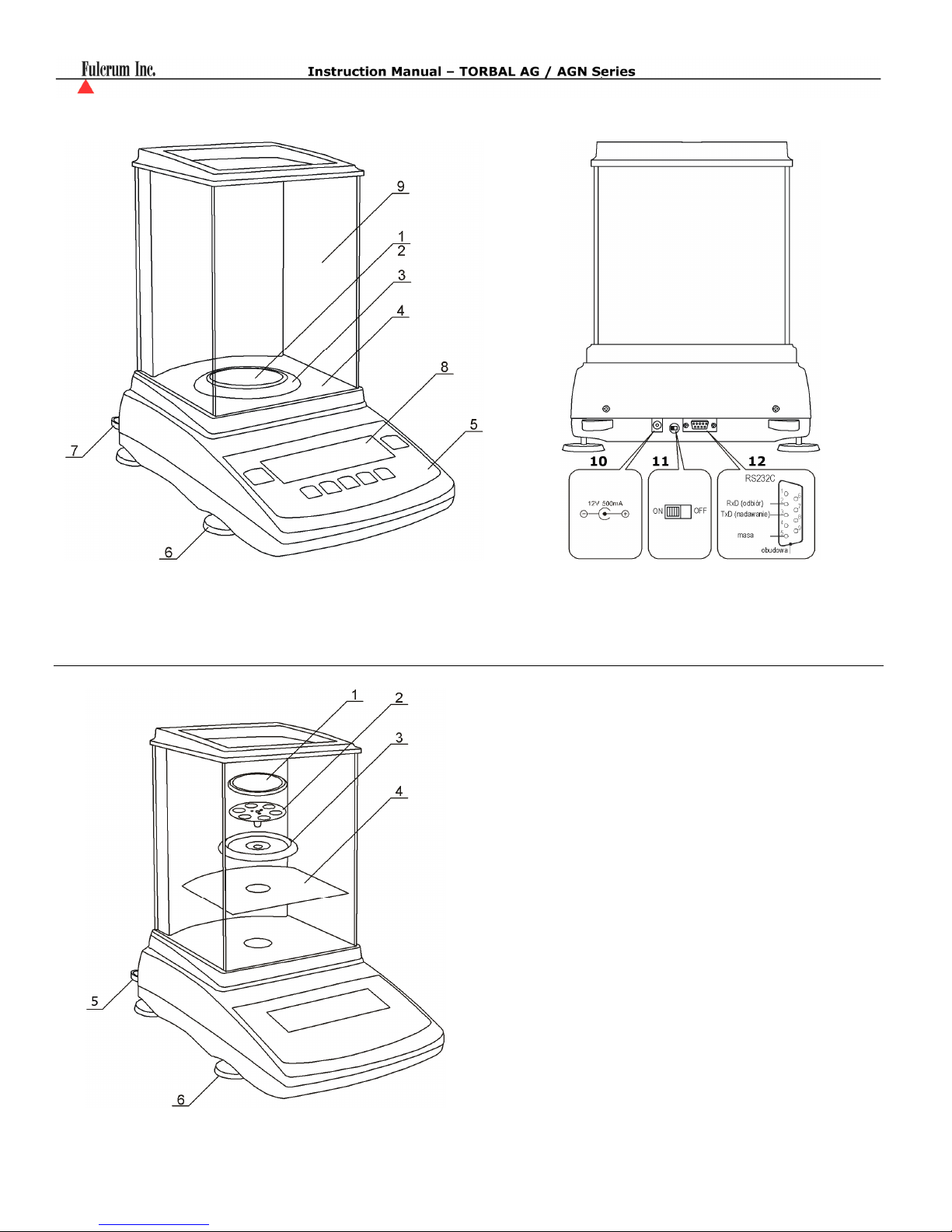
AGN Models:
1 - Pan, 2 - Pan Base, 3 - Draft Ring, 4 - Weighing Chamber Base, 5 – Keypad, 6 - Adjustable Legs,
7 - Level Indicator, 8 - LCD Display, 9 - Weighing Chamber, 10 - AC Adapter Socket,
11 – Service Switch, 12 - RS232 Serial Port
1 - Pan, 2 - Pan Base, 3 - Draft Ring,
4 - Chamber Base, 5 - Level Indicator,
6 - Adjustable Legs
- 9 -
Page 11

Chapter 5: Unpacking the Balance and Getting Started
1. Carefully remove the scale, pan, and all of its components out of the
packaging and place them on a stable base where the scale will not
be affected by any mechanical vibrations or air movements.
2. AG Modes: After removing the pan base and the pan from their packaging, carefully install the pan
base onto the scale by seating it on the pan support located in the middle of the scale. Once the pan
base has been installed, carefully place the pan on the base as shown below.
AGN Models:
After removing the chamber base (4), draft
ring (3), pan base (2), and the pan (1) from
their packaging, carefully install the chamber
base (4) on the case of the balance as shown
below. Once the chamber base is in place,
install the draft ring (3). Once components 4
and 3 are in place install the pan base onto the
scale by placing it on the pan support located
in the middle of the scale. Once the pan base
has been installed, carefully place the pan on
the base as shown.
- 10 -
Page 12
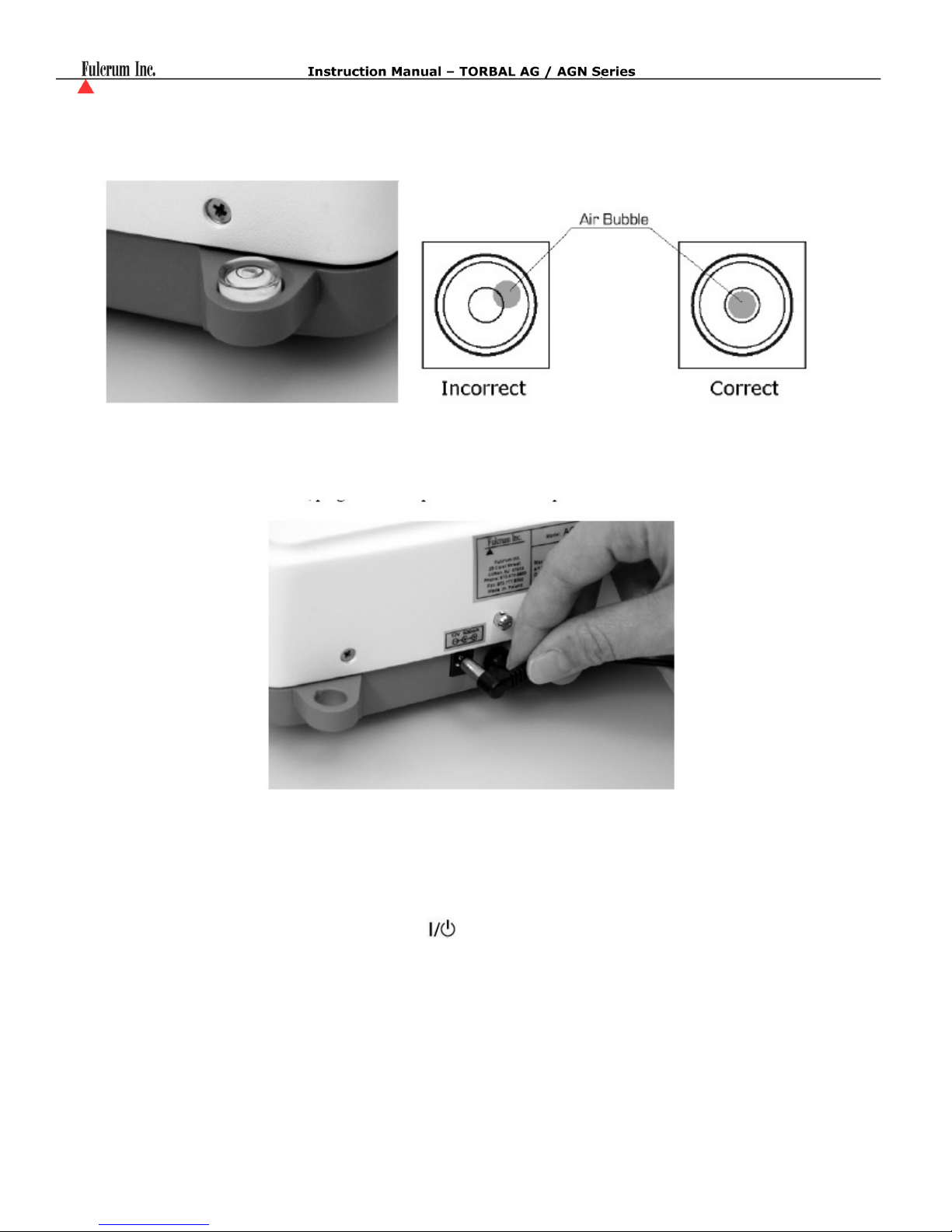
3. Once the pan has been installed, level the scale by adjusting the rear feet until the level indicator
shows the “air bubble” is in the center position of the sight glass. The level indicator is located in the
rear left side of the scale.
4. After leveling the scale, you may plug the AC adaptor to the AC adaptor socket located in the rear of
the scale.
5. When the AC adapter is plugged into the wall outlet, the scale will turn “ON” automatically, initialize
itself, perform automatic internal calibration and enter weighing mode.
6. To put the scale into standby mode, leave the AC adaptor plugged into both the scale and the wall
outlet and press the Power “OFF” button ( ). The “OFF” indicator will light up in the upper left
corner of the display signaling the scale is in standby mode.
- 11 -
Page 13
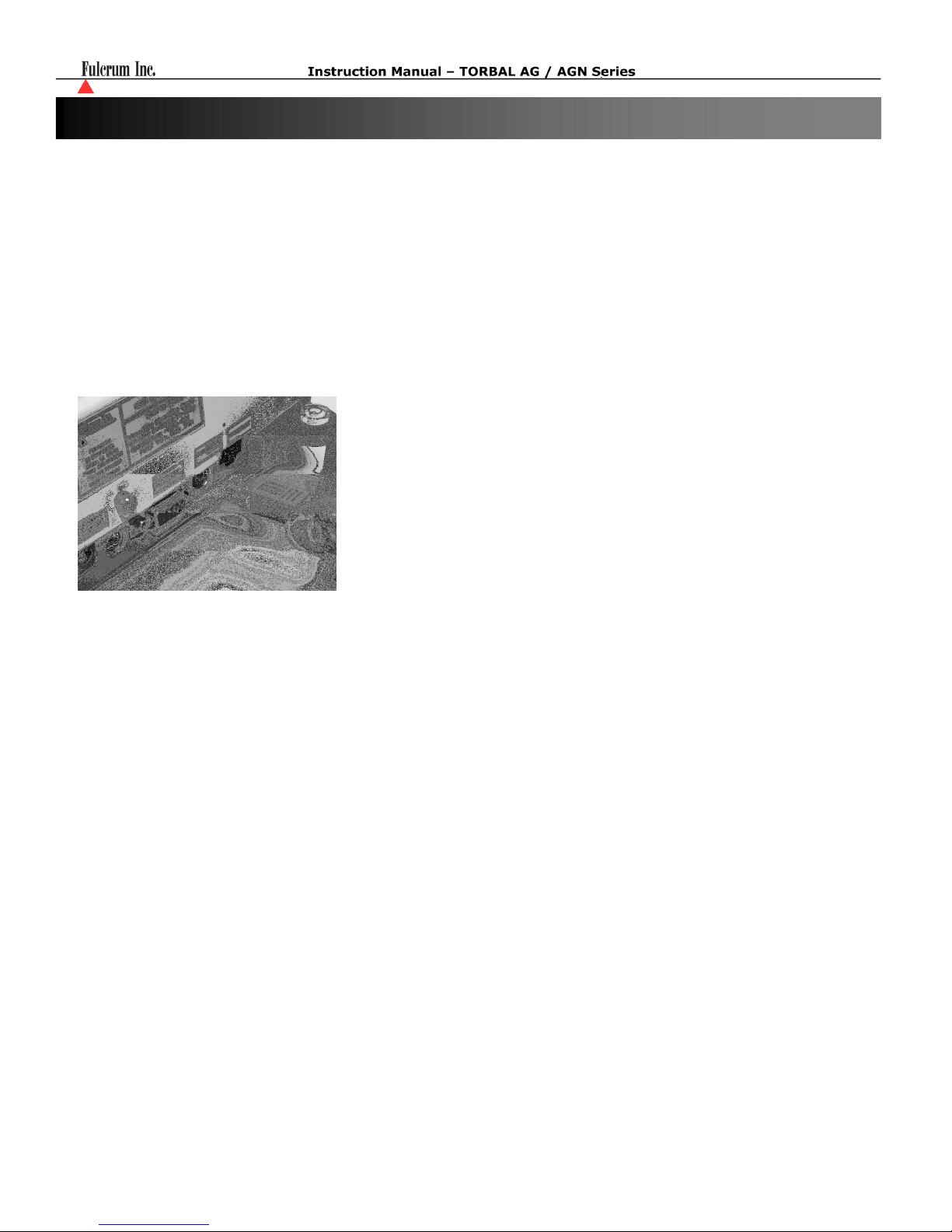
Chapter 6: External Keyboard Connection (Optional)
Any PC external keyboard can be connected to the scale via the PS2. An external keyboard allows you to
input data quickly and easily. To connect a PC keyboard to the scale, follow the steps below.
1. Clear the pan and turn the scale off.
2. Locate the keyboard connection port at the rear of the scale, marked “keyboard.”
3. Insert the keyboard connector into the scale’s port.
4. Turn the scale on.
Note: Some keyboard keys remain disabled and do not work with the scale (i.e. function keys, Shift, Control
etc…). Do not use the number keypad located to the right of your keys. To key in numbers always use the
number keys in the upper row of the keyboard.
- 12 -
Page 14
Chapter 7: Functions, Descriptions and Definitions
o Parts Counting is used to count parts or pieces of articles based on their average piece weight.
o Check Counting is used to verify whether a parts counting result falls within specified threshold
limits.
o Percent weighing is used to establish the relative weight of an unknown, compared to that of a stored
reference weight and expressed as a percent.
o Totalizing is used for summation of sequential weighing results of items or articles.
o Compounding is used for weighing and summing individual ingredients such as powers or liquids
during recipe making or mixing compounds.
o Check weighing is used to check whether a weight of an object falls within specified threshold limits.
o Animal and dynamic weighing is used to weigh animals or objects which are in motion while on the
pan.
o Display hold is used to lock and retain a weighing result on the display until cleared.
o Statistical quality control (SQC) is used to establish a trend analysis and statistical data of samples in
relation specified threshold limits.
- 13 -
Page 15

Chapter 8: Main Menu
Main Menu is used to configure the scale and it’s weighing modes. Before entering the menu complete
and clear active functions by pressing the CLR key.
1. To enter the Main Menu press the MENU key. Once the MENU key is pressed the menu options will
be displayed.
8.1. Mode Setup
Torbal AG and AGN Scales can operate in ten application modes: Weighing, Parts Counting, Check
Counting, Percent Weighing, Totalizing, Compounding, Check Weighing, Animal Weighing, Display
Hold, and SQC Process Control. Before an application mode can be used it must be enabled and
configured. To use an application mode a quick key (Function keys F1 through F5) should be assigned
(recommended). Quick keys allow quick toggling between functions. By factory default the scale is in the
weighing mode. To enable other application modes follow the steps below.
1. From the Main Menu select “Mode Setup” and press the ENTER key. A list of available
applications and modes will be displayed.
- 14 -
Page 16
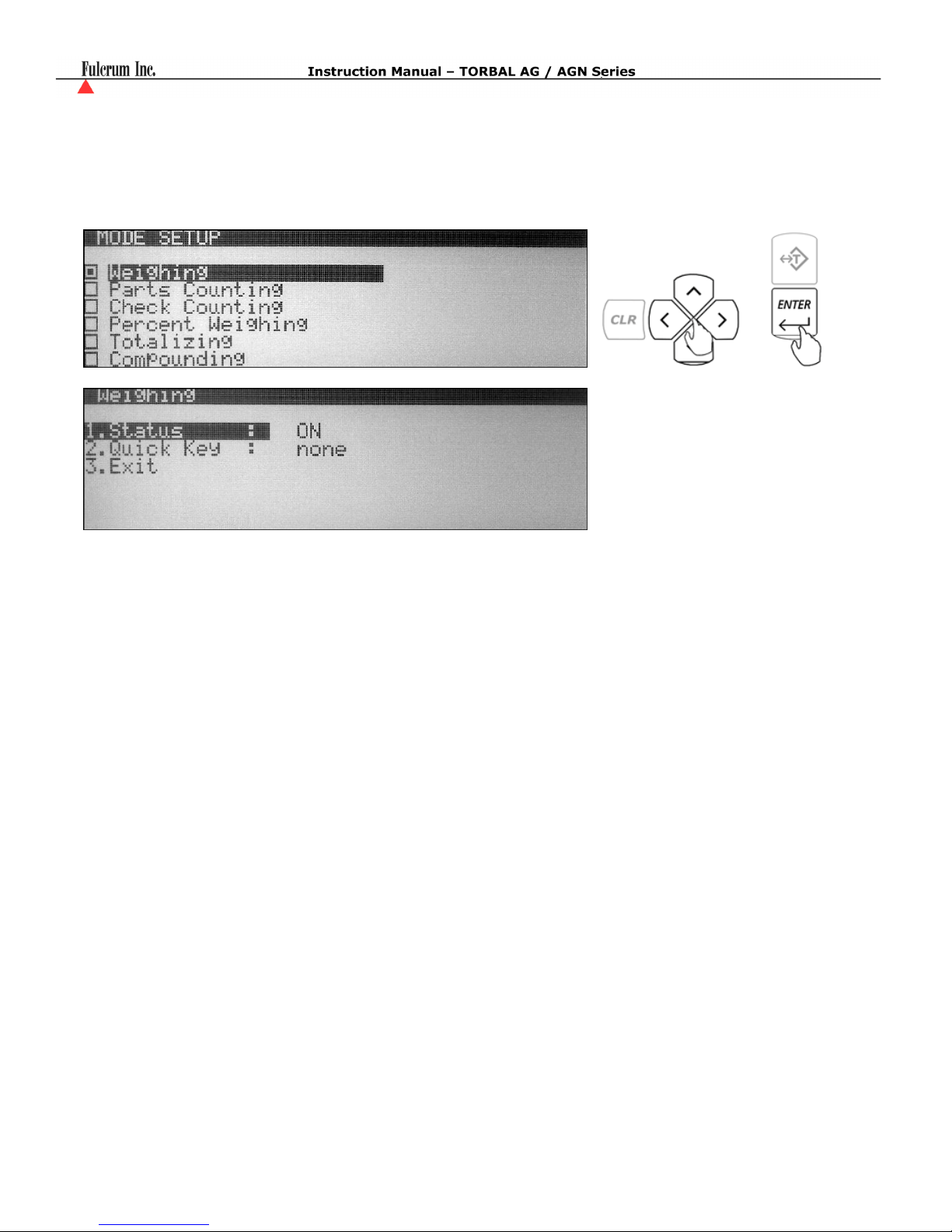
8.1.1. Weighing
1. To configure the Weighing Function use the navigation keys to select “Weighing” in “Mode Setup”
and press ENTER. The status and available weighing options will be displayed. If the function is
currently in use the status will be set to “ON”.
2. To assign a “Quick Key” use the navigation keys to select “Quick Key” and press the ENTER key.
Use the navigation keys to select a desired quick key (F1 through F5). Once the desired key is selected
press the ENTER key to accept the selection.
If the key is not available (used by a different function) a warning message will be displayed
“Warning Quick Key Already In Use!” To override the key press ENTER. To abort and select a
different function key press the CLR key.
3. To exit the Weighing set up select “Exit” and press the ENTER key.
- 15 -
Page 17
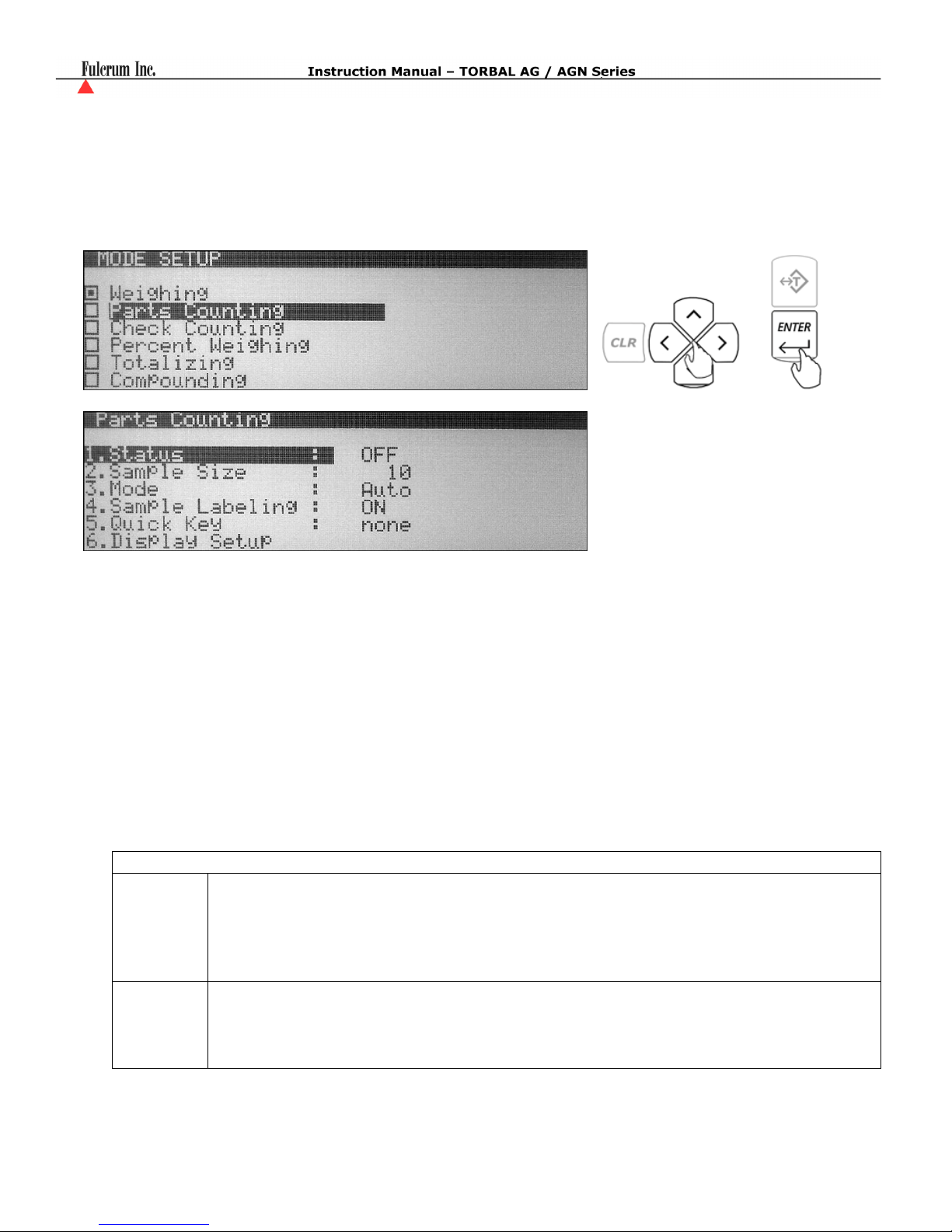
8.1.2. Parts Counting
1. To configure the Parts Counting Function use the navigation keys to select “Parts Counting” in
“Mode Setup” and press ENTER. The status and available parts counting options will be displayed. If
the function is currently in use the status will be set to “ON”.
2. To assign a default “Sample Size” that will be used in calculating the average piece weight use the
navigation keys to select “Sample Size” and press ENTER. To select a preset “Sample Size” use the
navigation keys to toggle until a desired sample size is displayed (1, 5, 10, 20, 50, 100, 200, 500). To
assign a custom “Sample Size” use the number keys on the scale’s keypad to key in a desired value.
Once the desired “Sample Size” is selected or entered, press the ENTER key to set and confirm the
selection.
3. To select an operating mode use the navigation keys to select “Mode” and press ENTER. By default
parts counting is set to “Auto” (Automatic). To operate parts counting in “Manual” use the navigation
keys to select “Manual” and press ENTER.
Parts Counting Operating Modes
When set to automatic the balance allows you to create a database of samples and
Automatic
average piece weights. Each sample can be labeled with a unique name or an alpha
numeric code and stored in the scale’s internal memory along with its average piece
weight. This eliminates the need for establishing a new average piece weight every time
a part is counted.
When using parts counting in manual, the database feature is disabled and samples size,
Manual
as well as, average piece weight is not stored in the scale’s memory. The sample size
must be manually counted and an average piece weight must be established every time
part counting is performed.
- 16 -
Page 18
4. To enable sample labeling use the navigation keys to select “Sample Labeling” and press the ENTER
key. Use the navigation keys once again to enable or disable sample labeling. Once a desired selection
is made press the ENTER key.
“Sample Labeling” applies to the “Automatic Mode” only. It allows the user to assign a unique name
to a sample which is then stored in the scales database. When set to “OFF” the scale will not assign or
display names of the samples.
5. To assign a “Quick Key” use the navigation keys to select “Quick Key” and press the ENTER key.
Use the navigation keys to select a desired quick key (F1 through F5). Once the desired key is selected
press the ENTER key to accept the selection.
If the key is not available (used by a different function) a warning message will be displayed
“Warning Quick Key Already In Use!” To override the key press ENTER. To abort and select a
different function key press the CLR key.
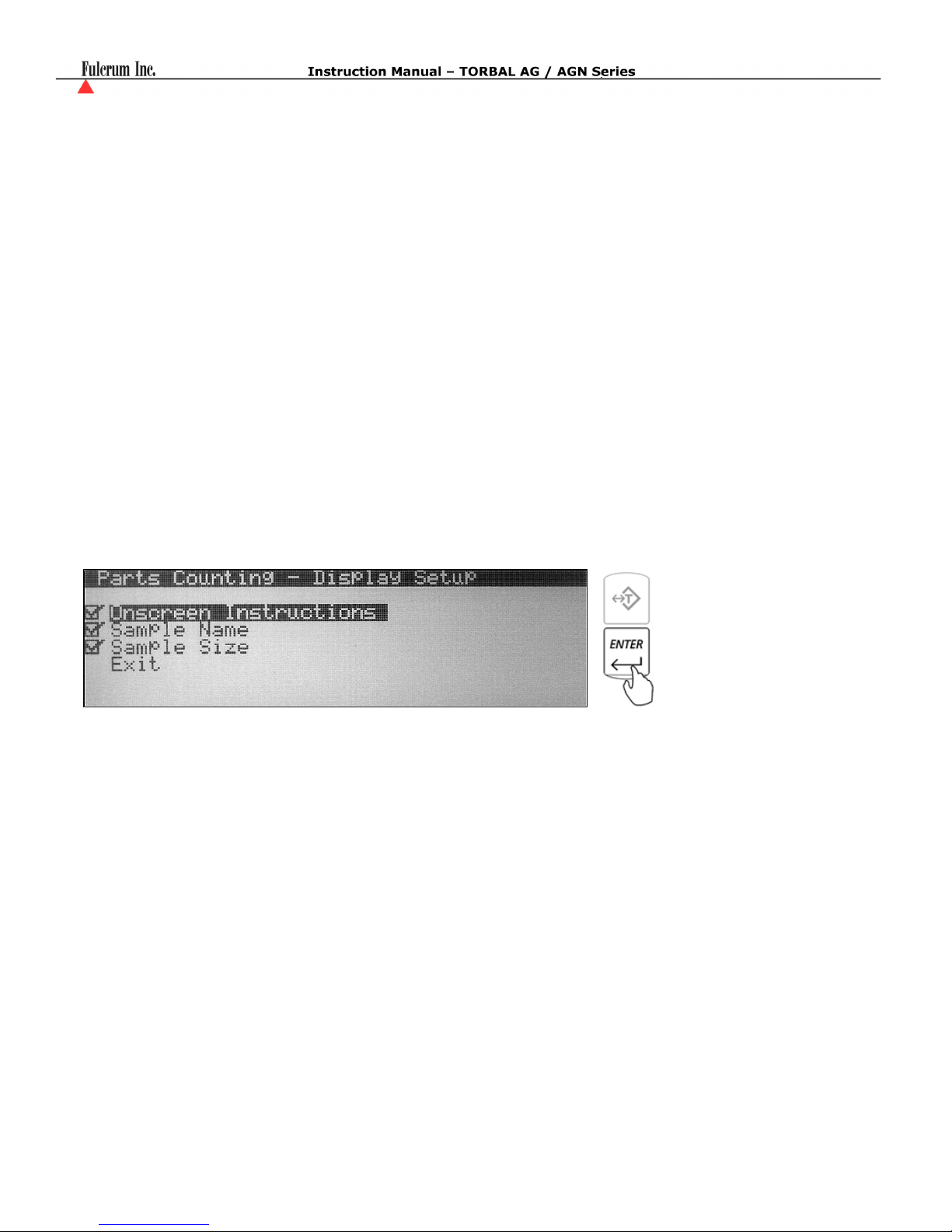
6. To configure the scale’s display during parts counting use the navigation keys to select “Display
Setup” and press the ENTER key. To disable information from displaying during the function use the
navigation keys to highlight the desired selection and press the ENTER key to remove the check mark.
Once the check mark has been removed the information will not display while performing parts
counting.
7. To exit Parts Counting set up use the navigation keys to select “Exit” and press ENTER.
- 17 -
Page 19
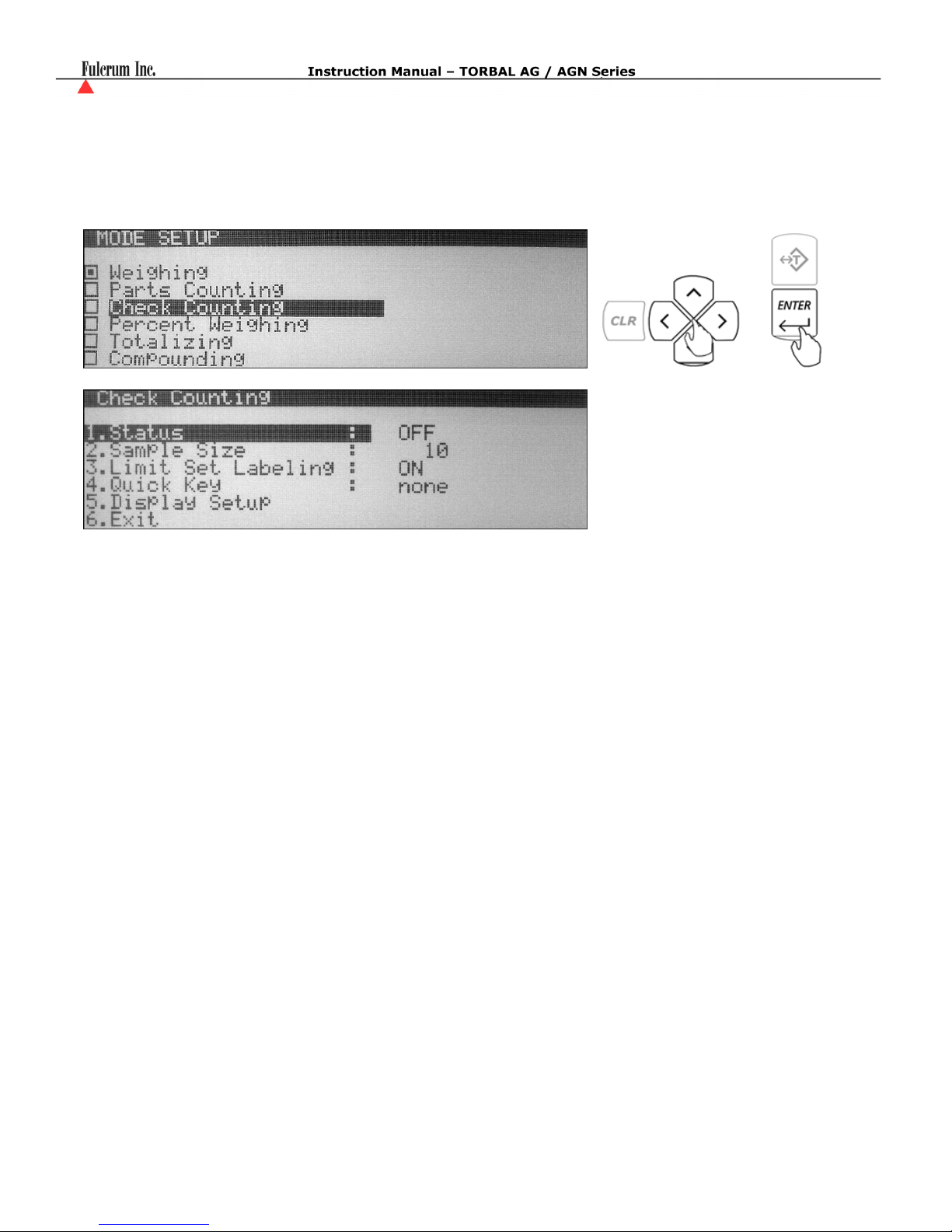
8.1.3. Check Counting
1. To configure the Check Counting Function, use the navigation keys to select “Check Counting” in
“Mode Setup” and press ENTER. The status and available Check Counting options will be displayed.
If the function is currently in use the status will be set to “ON”.
2. To assign a default “Sample Size” that will be used in calculating the average piece weight use the
navigation keys to select “Sample Size” and press ENTER. To select a preset “Sample Size” use the
navigation keys to toggle until a desired sample size is displayed (1, 5, 10, 20, 50, 100, 200, 500). To
assign a custom “Sample Size” use the number keys on the scale’s keypad to key in a desired value.
Once the desired “Sample Size” is selected or entered press, the ENTER key to set and confirm the
selection.
3. To enable Limit Set Labeling use the navigation keys to select “Limit Set Labeling” and press the
ENTER key. Use the navigation keys once again to enable or disable Limit Set labeling. Once a
desired selection is made press the ENTER key.
“Limit Set Labeling” allows the user to assign a unique name to a Limit Set which is then stored in the
scales database. When set to “OFF” the scale will not assign or display names of the Limit Set.
4. To assign a “Quick Key” use the navigation keys to select “Quick Key” and press the ENTER key.
Use the navigation keys to select a desired quick key (F1 through F5). Once the desired key is selected
press the ENTER key to accept the selection.
If the key is not available (used by a different function) a warning message will be displayed
“Warning Quick Key Already In Use!” To override the key press ENTER. To abort and select a
different function key press the CLR key.
- 18 -
Page 20
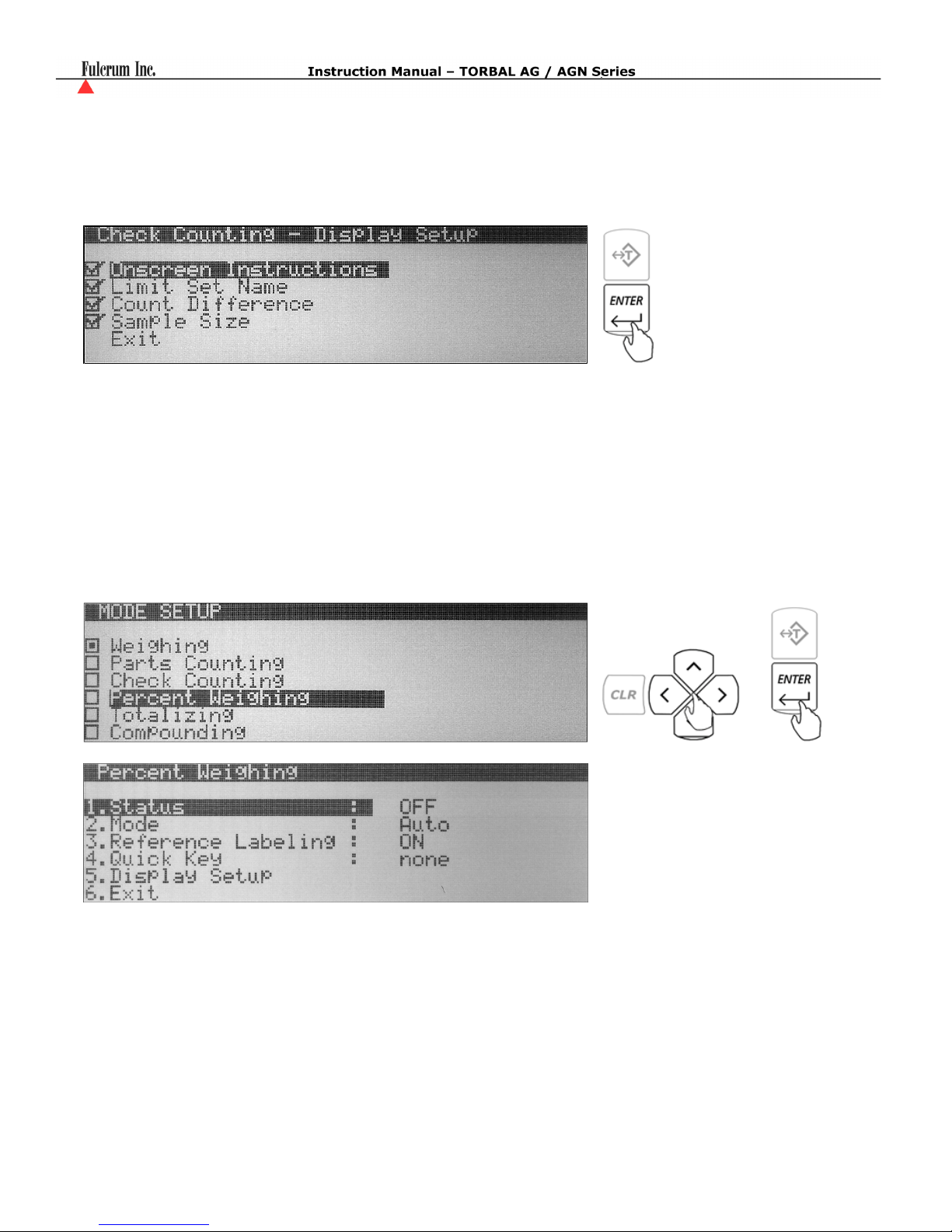
5. To configure the scale’s display during check counting use the navigation keys to select “Display
Setup” and press the ENTER key. To disable information from displaying during the function use the
navigation keys to highlight the desired selection and press the ENTER key to remove the check mark.
Once the check mark has been removed the information will not display while performing check
counting.
6. To exit Check Counting set up use the navigation keys to select “Exit” and press ENTER.
8.1.4. Percent Weighing
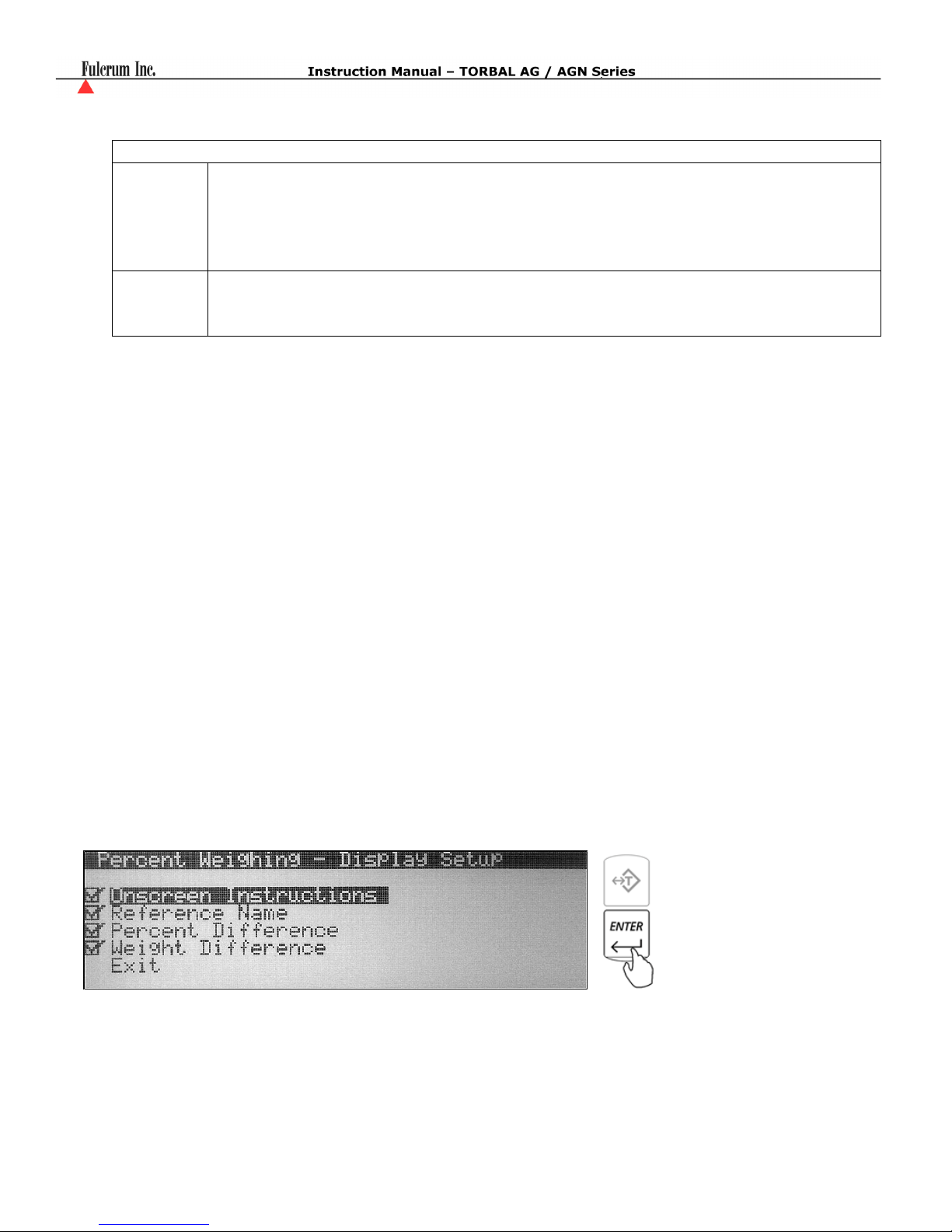
1. To configure the Percent Weighing Function, use the navigation keys to select “Percent Weighing” in
“Mode Setup” and press ENTER. The status and available Percent Weighing options will be
displayed. If the function is currently in use the status will be set to “ON”.
2. To select an operating mode use the navigation keys to select “Mode” and press ENTER. By default
Percent Weighing is set to “Auto” (Automatic). To operate Percent Weighing in manual use the
navigation keys to select “Manual” and press ENTER.
- 19 -
Page 21
Percent Weighing Operating Modes
When set to automatic the balance allows you to create a database of reference weights.
Automatic
Each reference weight can be labeled with a unique name or an alpha numeric code and
stored in the scale’s internal memory along with its weight representing 100%. This
eliminates the need for establishing a new reference weights every time percent
weighing is performed.
When using Percent Weighing in manual the database feature is disabled and reference
Manual
weights are not stored in the scale’s memory. A reference weight equaling 100% must
be established every time Percent Weighing is performed.
3. To enable Reference Weight Labeling use the navigation keys to select “Reference Labeling” and
press the ENTER key. Use the navigation keys once again to enable or disable reference weight
labeling. Once a desired selection is made press the ENTER key.
“Reference Labeling” applies to the “Automatic Mode” only. It allows the user to assign a unique
name to a sample which is then stored in the scales database. When set to “OFF” the scale will not
assign or display names of the reference weights.
4. To assign a “Quick Key” use the navigation keys to select “Quick Key” and press the ENTER key.
Use the navigation keys to select a desired quick key (F1 through F5). Once the desired key is selected
press the ENTER key to accept the selection.
If the key is not available (used by a different function) a warning message will be displayed
“Warning Quick Key Already In Use!” To override the key press ENTER. To abort and select a
different function key press the CLR key.
5. To configure the scale’s display during percent weighing use the navigation keys to select “Display
Setup” and press the ENTER key. To disable information from displaying during the function use the
navigation keys to highlight the desired selection and press the ENTER key to remove the check mark.
Once the check mark has been removed the information will not display while performing Percent
weighing.
6. To exit Percent Weighing set up use the navigation keys to select “Exit” and press ENTER.
- 20 -
Page 22

8.1.5. Totalizing
1. To configure the Totalizing Function, use the navigation keys to select “Totalizing” in “Mode Setup”
and press ENTER. The status and available Totalizing options will be displayed. If the function is
currently in use the status will be set to “ON”.
2. To select an operating mode use the navigation keys to select “MODE” and press ENTER. By default
Totalizing is set to “Auto” (Automatic). To operate Totalizing in manual use the navigation keys to
select “Manual” and press ENTER.
Totalizing Operating Modes
Automatic Totalizing and Adding :
Automatic
When set to Automatic, the scale will automatically
add the first stable weight reading to the total.
Manual Totalizing and Adding : Manual When set to Manual each weigh has to be manually
added to the total by pressing a designated key.
3. To assign a “Quick Key” use the navigation keys to select “Quick Key” and press the ENTER key.
Use the navigation keys to select a desired quick key (F1 through F5). Once the desired key is selected
press the ENTER key to accept the selection.
If the key is not available (used by a different function) a warning message will be displayed
“Warning Quick Key Already In Use!” To override the key press ENTER. To abort and select a
different function key press the CLR key.
- 21 -
Page 23

4. To configure the scale’s display during totalizing use the navigation keys to select “Display Setup”
and press the ENTER key. To disable information from displaying during the function use the
navigation keys to highlight the desired selection and press the ENTER key to remove the check mark.
Once the check mark has been removed the information will not display while performing totalizing.
5. To exit Totalizing set up use the navigation keys to select “Exit” and press ENTER.
8.1.6. Compounding
1. To configure the Compounding Function, use the navigation keys to select “Compounding” in “Mode
Setup” and press ENTER. The status and available Totalizing options will be displayed. If the function
is currently in use the status will be set to “ON”.
2. To enable Ingredient Labeling use the navigation keys to select “Ingredient Labeling” and press the
ENTER key. Use the navigation keys once again to enable or disable ingredient labeling. Once a
desired selection is made press the ENTER key.
3. To enable the Filling Gauge use the navigation keys to select “Filling Gauge” and press the ENTER
key. Use the navigation keys once again to enable or disable the filling gauge feature. Once the desired
selection is made press the ENTER key.
4. To enable or disable the Remaining to Fill feature use the navigation keys to select the ”Remaining to
Fill” and press the ENTER key. Use the navigation keys once again to enable or disable the remaining
to fill feature. One the desired selection is made press the ENTER key.
- 22 -
Page 24

5. To assign a “Quick Key” use the navigation keys to select “Quick Key” and press the ENTER key.
Use the navigation keys to select a desired quick key (F1 through F5). Once the desired key is selected
press the ENTER key to accept the selection.
If the key is not available (used by a different function) a warning message will be displayed
“Warning Quick Key Already In Use!” To override the key press ENTER. To abort and select a
different function key press the CLR key.
6. To configure the scale’s display during compounding use the navigation keys to select “Display
Setup” and press the ENTER key. To disable information from displaying during the function use the
navigation keys to highlight the desired selection and press the ENTER key to remove the check mark.
Once the check mark has been removed the information will not display while performing
compounding.
7. To exit Compounding set-up use the navigation keys to select “Exit” and press ENTER.
8.1.7. Check Weighing
1. To configure the Check Weighing Function, use the navigation keys to select “Check Weighing” in
“Mode Setup” and press ENTER. The status and available Check Weighing options will be displayed.
If the function is currently in use the status will be set to “ON”.
- 23 -
Page 25

2. To enable Limit Set Labeling use the navigation keys to select “Limit Set Labeling” and press the
ENTER key. Use the navigation keys once again to enable or disable Limit Set labeling. Once a
desired selection is made press the ENTER key.
“Limit Set Labeling” allows the user to assign a unique name to a Limit Set which is then stored in the
scales database. When set to “OFF” the scale will not assign or display names of the Limit Set.
3. To assign a “Quick Key” use the navigation keys to select “Quick Key” and press the ENTER key.
Use the navigation keys to select a desired quick key (F1 through F5). Once the desired key is selected
press the ENTER key to accept the selection.
If the key is not available (used by a different function) a warning message will be displayed “Warning
Quick Key Already In Use!” To override the key press ENTER. To abort and select a different
function key press the CLR key.
4. To configure the scale’s display during check weighing use the navigation keys to select “Display
Setup” and press the ENTER key. To disable information from displaying during the function use the
navigation keys to highlight the desired selection and press the ENTER key to remove the check mark.
Once the check mark has been removed the information will not display while performing check
weighing.
5. To exit Check Weighing set-up use the navigation keys to select “Exit” and press ENTER.
- 24 -
Page 26

8.1.8. Animal and Dynamic Weighing
1. To configure the Animal and Dynamic Weighing Function, use the navigation keys to select “Animal
Weighing” in “Mode Setup” and press ENTER. The status and available Animal Weighing options
will be displayed. If the function is currently in use the status will be set to “ON”.
2. To select an operating mode use the navigation keys to select “Mode” and press ENTER. By default
Animal Weighing is set to “Auto” (Automatic). To operate Animal Weighing in Semi-Automatic or
Manual use the navigation keys to select a desired operating mode and press ENTER.
nimal Weighing Operating Modes
A
When set to Automatic, the scale will
automatically begin the animal weighing
process. Once the animal is removed from
the weighing pan, the scale will
automatically tare and prepare for the next
Automatic
Weighing Initialization : Automatic
Result Clearing : Automatic
Tare : Automatic
weighing.
When set to Automatic, the scale will
automatically begin the animal weighing
Semi- Automatic
Weighing Initialization : Automatic
Result Clearing : Manual
Tare : Manual
process. Once the animal is removed from
the weighing pan, the result remains
displayed until it is manually cleared. The
scale must be manually tared before the next
weighing.
When set to Manual, the animal weighing
process must be manually initialized. Once
the animal has been weighed and the pan
cleared the result must be manually cleared.
The scale must be manually tared before the
Manual
Weighing Initialization : Manual
Result Clearing : Manual
Tare : Manual
next weighing.
- 25 -
Page 27

3. To assign a default weighing time that will be used in calculating the weight dynamically, use the
navigation keys to select “Time” and press ENTER. To select a “Preset Time” use the navigation
keys to toggle until a desired Time is displayed (3sec., 5sec., 10sec., 15sec.). To assign a custom time
use the number keys on the scale’s keypad to key in a desired value. Once the desired time is selected
or entered, press the ENTER key to set and confirm the selection.
4. To assign a Quick Key to use the navigation keys to select “Quick Key” and press the ENTER key.
Use the navigation keys to select a desired quick key (F1 through F5). Once the desired key is selected
press the ENTER key to accept the selection.
If the key is not available (used by a different function) a warning message will be displayed
“Warning Quick Key Already In Use!” To override the key press ENTER. To abort and select a
different function key press the CLR key.
5. To configure the scale’s display during Animal Weighing use the navigation keys to select “Display
Setup” and press the ENTER key. To disable information from displaying during the function use the
navigation keys to highlight the desired selection and press the ENTER key to remove the check mark.
Once the check mark has been removed the information will not display while performing animal
weighing.
6. To exit Animal Weighing set-up use the navigation keys to select “Exit” and press ENTER.
- 26 -
Page 28

8.1.9. Display Hold
1. To configure the Display Hold Function, use the navigation keys to select “Display Hold” in “Mode
Setup” and press ENTER. The status and available Display Hold options will be displayed. If the
function is currently in use the status will be set to “ON”.
2. To select an operating mode use the navigation keys to select “Mode” and press ENTER. By default
Display Hold is set to “Auto” (Automatic). To operate Display Hold in Semi-Automatic or Manual
use the navigation keys to select a desired operating mode and press ENTER.
Display Hold Operating Modes
When set to Automatic, the scale will
automatically lock and hold the first stable
Automatic
Semi- Automatic
Manual
Weighing Initialization : Automatic
Result Clearing : Automatic
Tare : Automatic
Weighing Initialization : Automatic
Result Clearing : Manual
Tare : Manual
Weighing Initialization : Manual
Result Clearing : Manual
Tare : Manual
weight reading on the display. When the
weight is removed the scale will
automatically clear the result. Once the result
is cleared the scale will automatically tare and
prepare for next weighing.
When set to Semi-Automatic, the scale will
automatically lock and hold the first stable
weight reading on the display. When the
weight is removed it must be manually
cleared. Before starting the next weighing the
scale must be manually tared.
When set to Manually, the first stable weight
reading on the display must be locked
manually. When the weight is removed it
must be manually cleared. Before starting the
next weighing the scale must be manually
tared.
- 27 -
Page 29

3. To assign a “Quick Key” use the navigation keys to select “Quick Key” and press the ENTER key.
Use the navigation keys to select a desired quick key (F1 through F5). Once the desired key is selected
press the ENTER key to accept the selection.
If the key is not available (used by a different function) a warning message will be displayed
“Warning Quick Key Already In Use!” To override the key press ENTER. To abort and select a
different function key press the CLR key.
4. To configure the scale’s display during display hold use the navigation keys to select “Display Setup”
and press the ENTER key. To disable information from displaying during the function use the
navigation keys to highlight the desired selection and press the ENTER key to remove the check mark.
Once the check mark has been removed the information will not display while performing display
hold.
5. To exit Display Hold set-up use the navigation keys to select “Exit” and press ENTER.
8.1.10. SQC Process Control
1. To configure the SQC Process Control Function, use the navigation keys to select “SQC Process
Control” in “Mode Setup” and press ENTER. The status and available check weighing options will be
displayed. If the function is currently in use the status will be set to “ON”.
- 28 -
Page 30

2. To enable Limit Set Labeling use the navigation keys to select “Limit Set Labeling” and press the
ENTER key. Use the navigation keys once again to enable or disable limit set labeling. Once a desired
selection is made press the ENTER key.
“Limit Set Labeling” allows the user to assign a unique name to a Limit Set which is then stored in the
scales database. When set to “OFF” the scale will not assign or display names of the Limit Set.
3. To assign a “Quick Key” use the navigation keys to select “Quick Key” and press the ENTER key.
Use the navigation keys to select a desired quick key (F1 through F5). Once the desired key is selected
press the ENTER key to accept the selection.
If the key is not available (used by a different function) a warning message will be displayed
“Warning Quick Key Already In Use!” To override the key press ENTER. To abort and select a
different function key press the CLR key.
4. To configure the scale’s display during SQC Process Control use the navigation keys to select
“Display Setup” and press the ENTER key. To disable information from displaying during the
function use the navigation keys to highlight the desired selection and press the ENTER key to remove
the check mark. Once the check mark has been removed the information will not display while
performing SQC Process Control.
5. To exit SQC Process Control set-up use the navigation keys to select “Exit” and press ENTER.
- 29 -
Page 31

8.1.11. Tare Setup
Depending on the application, as well as the function in use, the need to tare before weighing may not be
required. By default tare is enabled and most functions require that a tare is performed. If the application
does not require a tare before weighing, taring may be turned OFF or set to AUTO. To perform tare set-up
follow the steps below.
1. Use the navigation keys to select “Tare Setup” in “Mode Setup” and press ENTER. The status of tare
will be displayed.
2. To enable, disable, or set tare to auto, select “Tare Mode” and press the ENTER key.
3. Use the navigation keys to make the desired selection and press the ENTER key to accept.
Tare Setup Operating Modes
On:
Auto:
Off:
When turned on most weighing function require that a tare is performed
When set to Automatic most function prompt to perform a tare although the tare is
performed automatically as soon as the weight of the container stabilizes.
When set to Off the function never prompts to perform a tare although a tare maybe
performed by pressing the “T” Key.
- 30 -
Page 32

8.2. Units of Measure
Torbal AG and AGN Scales can operate in ten different units of measure: grams (g), milligrams (mg),
kilograms (kg), pounds (lb), ounce (oz), ounce-troy (ozt), carrots (ct), penny weight (pwt), and grains (gn).
By factory default the scale is set to weigh in grams (g). To select a different unit of measure follow the
steps below:
1. From the Main Menu select “Units” and press the ENTER key. A list of available units of measure
will be displayed. A check mark is displayed next to the unit of measure currently in use.
2. Use the navigation keys to select a desired unit of measure. Once the selection is made press the
ENTER key to set and confirm the new unit of measure. The scale will automatically return to the
weighing mode with the new unit selected.
- 31 -
Page 33

8.3. Configurations
The Configuration Menu allows you to configure scale’s general settings and parameters.
1. From the Main Menu select “Configuration” and press the ENTER key. The configuration options
will be displayed.
2. Use the navigation keys to select a desired option and press the ENTER key.
8.3.1. Auto-Zero
All AG/N Scales are equipped with AZSM, the “Auto Zero Setting Mechanism.” AZSM automatically
maintains a center of zero between +/- 0.1d and 5.0d. To configure, enable, or disable AZSM follow the
steps below. (Configuration is not available on Legal for Trade Models where AZSM is always on and set
to 0.5d)
1. From the Configuration Menu select “Auto-Zero” and press the ENTER key.
2. To enable or disable Auto-Zero, select “Status” and press the ENTER key.
- 32 -
Page 34

3. Use the navigation keys to set Auto Zero to “ON” or “OFF.”
4. Once desired selection has been made press the ENTER key.
5. To configure the Auto Zero correction parameter select “Correction” and press the ENTER key.
6. Use the scale’s numeric keys to key in the Auto-Zero correction value (from 0.1d to 5.0d). Once the
value has been entered, press ENTER to accept.
8.3.2. Print
To configure, GLP printing parameters as well as printing details select “Print” from the
Configuration Menu and press the ENTER key.
8.3.2.1. GLP
To configure, enable, or disable GLP data follow the steps below.
1. From the Configuration Menu select “Print” and press the ENTER key.
2. To enable and configure GLP data use the navigation keys to select GLP and press the ENTER key.
3. To enable desired GLP parameters use the navigation keys to make a selection and press the ENTER
key to place or remove a check mark in order to enable or disable the parameter.
- 33 -
Page 35

4. To key in parameter data such as “unit id, user name, and project number”, make the desired selection
and press the right navigation key.
5. Once the right navigation key is pressed, use the scale’s alphabet or an external keyboard to key in the
required data. Press ENTER to accept and save.
8.3.2.2. P
rint Details
To configure Print Set Up follow the steps below.
1. Select “Print Details” from the Print Menu and press the ENTER key.
2. To enable or disable a desired printing detail use the navigation keys to make a desired selection and
press the ENTER key to place or remove a check-mark in order to enable or disable the desired detail.
8.3.3. Filter
The filtering function allows the user to perform weighing in an environment where the scale may be exposed to
drafts, frequent air movements, or vibrations. Lower Modes compensate for small disturbance and high modes
compensate large disturbances. To select an appropriate filtering mode follow the steps below:
1. From the Configuration Menu select “Filter” and press the ENTER key.
2. Use the navigation keys to select “Status” and press the ENTER key.
3. Use the navigation keys to select a desired Mode and press the ENTER key to save the setting.
- 34 -
Page 36

8.3.4. Power Save and LCD Contrast
1. From the Configuration Menu select “Power Save” and press the ENTER key.
2. To change the contrast of your LCD display, select “Contrast” and press the ENTER key.
3. Using the left and right arrow navigation keys to adjust the contrast of your display. Once the
contrast is at a desired level press the ENTER key to save the setting.
4. To turn off the back light of the LCD display, select “Back Light” and press the ENTER key.
5. Using the left
and right arrow navigation keys select “OFF”. Once the back light is turned off press
the ENTER key to save the setting.
- 35 -
Page 37

8.3.5. RS232
1. From the Configuration Menu select RS-232C and press the ENTER key.
2. To configure the RS232 Port use the navigation keys to select a desired parameter and press the
ENTER key.
3. Use the navigation keys to make the desired selection and press the ENTER key to save the setting.
8.3.6. U
SB Configuration
1. From the Configuration Menu select USB and press the ENTER key.
2. To configure the USB Port use the navigation keys to select a desired parameter and press the
ENTER key.
3. Use the navigation keys to make the desired selection and press the ENTER key to save the
setting.
- 36 -
Page 38

8.3.6.1. PC Connection via USB
Once the USB port has been configured, connect the scale to the PC with a Standard A/B USB cable
and follow the “Found New Hardware” configuration wizard as described below.
1. Allow Windows to connect to Windows Update in order to search for software. Select “Yes, this time
only” and click “Next”. Once driver “FT232R USB UART” has been found, select “Install the
software automatically (Recommended)” and click “Next.
- 37 -
Page 39

2. Windows will begin installation of the driver, when completed click “Finish”.
3. Once installation of the driver has been completed the scale is ready to communicate with the PC via
the USB port.
8.3.7. Time and Date Adjustment
1. From the Configuration Menu select “Time and Date Adjustment” and press ENTER key.
2. To adjust the time use the navigation keys to select “Time” and press ENTER.
3. Use the yellow keys to enter the current time.
4. The time is entered in segments: Hours, Minutes, and Seconds. After entering a segment press the
ENTER key to move to the next segment.
- 38 -
Page 40

5. To change between AM and PM use the down arrow key and press the ENTER key.
6. To change the date select “Date” and press ENTER.
7. Use the yellow number keys to enter the current date. The date is entered in segments: Day, Month
and Year 00/00/0000. After entering a segment press the ENTER key to move to the next segment.
8.3.8. Reset and Default Restore
1. From the Configuration Menu select “Reset” and press the ENTER key.
2. Command “Restore Default Settings? NO/YES” will be displayed.
3. To restore default configuration settings use the arrow keys to select “YES” and press ENTER. The
scale will restore default configuration settings and return to the Main Menu.
8.3.9. Erasing the Database
1. From the Configuration Menu select “Erase Database” and press the ENTER key.
2. The scale will display a warning indicating that all data will be erased. To confirm the erasure of the
entire database using the navigation keys select “YES”, and press ENTER. To abort select “NO”.
- 39 -
Page 41

3. The scale will now display second warning indicating that all data will be permanently lost. To abort
using the navigation key select “NO”, or select “YES” to proceed and press ENTER.
WARNING: Proceeding will result in formatting and erasing the entire memory bank. All data will be
permanently lost.
4. After proceeding with memory erasure the scale will begin to delete and format the entire database.
This process lasts up to 45 seconds as the memory is formatted.
8.4. Calibration
The scale will automatically calibrate itself at start up. Calibration should be also performed periodically
or whenever the scale is moved or relocated. To initiate internal calibration at anytime follow the steps
below.
1. Make sure the pan is free from any weight and press the calibration key (8).
2. The scale will display a command indicating to confirm internal calibration.
3. In order to confirm internal calibration and proceed, press the calibration key again. The scale will
begin internal calibration.
Calibration can last 30 to 50 seconds, when finished the scale will automatically return to the weighing
mode.
- 40 -
Page 42

8.4.1. Auto Calibration Setting and Adjustment
1. From Main Menu select “Calibration” and press the ENTER key. Available calibration options will
be displayed.
2. To adjust the internal calibration mass value with an external calibration weight that has a traceable
class certification select “External Calibration” and press the ENTER key.
3. After pressing the ENTER key follow the prompts displayed on the LCD screen.
4. To use a calibration weight that is smaller than the scale’s capacity select external load and press
ENTER, then use the navigation keys to select the desired load.
5. To disable automatic internal calibration use the navigation keys to select “Status” and press the
ENTER key. Use the navigation keys once again to enable or disable automatic internal calibration.
Once the desired selection is made press the ENTER key.
When disabled calibration will not initiate automatically, it can be performed only by initiating
internal calibration with a calibration key.
6. Internal calibration can be configured to calibrate automatically with change of temperature. To set a
calibration temperature intervals use the navigation keys to select “Temperature” and press the
ENTER key. Use the navigation keys once again to select a desired temperature interval (none, 0.5C,
1C, 1.5C, 2.0C).
When set to none, automatic internal calibration will not initiate due to change in temperature.
7. Internal calibration can be also configured to calibrate automatically with change of time. To set a
calibration time interval use the navigation keys to select “Time” and press the ENTER key. Use the
navigation keys once again to select a desired time interval (none, 1h, 2h, 3h, 4h, 5h, 6h).
8. To exit the Calibration Menu, use the navigation keys to select “Exit” and press ENTER.
- 41 -
Page 43

Chapter 9: Using Functions and Modes
9.1. Weighing
1. To begin weighing, press the power button ( ) to turn the scale ON. The scale will go through its
initialization procedure and automatically enter “Weighing Mode”. The scale is ready to begin
weighing as soon as the stabilization (
2. When weighing, always place the mass in the middle of the pan. The weighed result may be taken
when the stabilization indicator appears on the display.
) indicator appears on the display.
9.1.1. Taring
1. If a container is used for weighing, it may be tared. In taring the container, the scale subtracts the
weight of the container from the gross weight to obtain the net weight.
2. To tare the weighing container, place it in the middle of the pan. The container’s weight will be shown
on the display.
- 42 -
Page 44

3. Once the stabilization indicator appears on the display, the container is ready to be tared. To tare the
container, press the “T” button. The display will show a dotted line which indicates the scale has
begun the taring process.
4. When finished taring, the balance will return to “Weighing Mode”. The display will indicate
0.000(0)g.
9.1.2. Clearing a Tare
1. To clear the tare, remove the tared object along with the NET weight from the pan. The scale will then
display a negative result.
2. To clear the tare, press the “T” button.
3. The display will show dashed lines indicating the tare is clearing.
4. When finished clearing the tare, the scale will return to Weighing Mode.
- 43 -
Page 45

9.2. Parts Counting
9.2.1. Automatic
9.2.1.1. Counting parts for the first time
1. Press the FUNCTION key to access the average piece weight database.
2. Use the navigation keys to select an “Empty Slot” into which the average piece weight will be saved.
3. Press the right navigation key to begin counting and average piece weight calculation.
4. If required, place a container on the pan and press the “T” key to tare.
5. After tarring the container the scale will display “Sample On” indicating to weigh the sample.
Manually count out the sample size which was selected in mode set-up and place it in the container
located on the pan.
The required sample size is also indicated in the upper left corner of the display (the SPL value).
- 44 -
Page 46

6. The weight of the sample will be displayed as it is placed on the pan.
7. Once the weight of the sample stabilizes and the stability indicator appears on the display press the
ENTER key to confirm the sample weight.
8. If sample labeling has been enabled, “Sample Name” will be displayed indicating you should key in
the name of the sample. To key in the name of the sample you may use the scale’s alphabet (see
chapter 10) or use an external keyboard (see chapter 6). Once the name has been entered press the
ENTER key to accept the sample name.
- 45 -
Page 47

9. The scale will store the sample in the internal memory and the display will indicate the count. At any
time add the remaining pieces to perform parts counting.
10. Once an accurate piece count has been taken the container and its content may be removed from the
scale. To begin a new parts counting transaction press the CLR key.
9.2.1.2. Counting parts which have been previously stored in the scale’s database
1. If required, place a container on the pan and press the “T” key to tare.
- 46 -
Page 48

2. After tarring the container press the FUNCTION key to access the average piece weight database.
3. Use the navigation keys to select a desired average piece weight and press the ENTER key to confirm
your selection.
4. “FILL” will appear on the display indicating to begin counting. At any time during the “FILL”
command place the pieces into the container.
5. Once an accurate piece count has been taken the container and its content may be removed from the
scale. To begin a new parts counting transaction press the CLR key.
- 47 -
Page 49

9.2.2. Manual
1. If required, place a container on the pan and press the “T” key to tare.
2. After tarring the container the scale will display “Sample On” indicating to weigh the sample.
Manually count out the sample size which was selected in mode set-up and place it in the container
located on the pan.
The required sample size is also indicated in the upper left corner of the display (the SPL value).
3. The weight of the sample will be displayed as it is placed on the pan.
4. Once the weight of the sample stabilizes and the stability indicator appears on the display press the
ENTER key to confirm the sample weight.
- 48 -
Page 50

5. Display will indicate the count. At any time add the remaining pieces to perform parts counting.
6. Once an accurate piece count has been taken the container and its content may be removed from the
scale. To begin a new parts counting transaction press the CLR key.
9.3. Check Counting
1. Press the FUNCTION key to access the limit set database.
2. Use the navigation keys to select a “Desired Limit Set” and press the ENTER key to confirm your
selection.
- 49 -
Page 51

3. If required, place a container on the pan and press the “T” key to tare.
4. After tarring the container the scale will display “Sample On” indicating to weigh the sample.
Manually count out the sample size which was selected in mode set up and place it in the container
located on the pan.
The required sample size is also indicated in the upper left corner of the display (the SPL value).
5. The weight of the sample will be displayed as it is placed on the pan.
6. Once the weight of the sample stabilizes and the stability indicator appears on the display press the
ENTER key to confirm the sample weight.
- 50 -
Page 52

7. The display will indicate the numeric value of the sample. At any time add the remaining pieces to
perform check counting.
8. As check counting is performed the display will indicate the actual count. If the count is less than the
lower limit, the scale will display an “UNDER” command. If the count falls within the range, the
“ACCEPT” command will be displayed. If the count exceeds the upper limit, the “OVER” command
will be displayed.
The value indicating the difference between the actual count and the target point is displayed in the
left upper corner of the display.
9. To begin a new check counting transaction, remove container and its content from the pan and press
the CLR key.
- 51 -
Page 53

9.3.1. Storing a limit set into the scale’s database
1. Press the FUNCTION key to access the limit set database.
2. Use the navigation keys to select an “Empty Slot” into which the limit set will be saved.
3. Press the right navigation key. Available limit set fields will be displayed.
4. Use the navigation keys to select a desired field. Once the field is selected press the ENTER key and
assign the desired criteria.
5. After assigning the limit set, select “Exit” and press the ENTER key to accept and save the set.
9.4. Percent Weighing
9.4.1. Automatic
9.4.1.1. Percent weighing for the first time.
1. Press the FUNCTION key to access the reference weight database.
2. Use the navigation keys to select an “Empty Slot” in which the reference weight will be saved.
3. Press the right navigation key to store the reference weight and begin percent weighing.
- 52 -
Page 54

4. If required, place a container on the pan and press the “T” key to tare.
5. After tarring the container the scale will display “Sample On” indicating to weigh the reference
weight.
6. The weight of the reference weight will be displayed as it is placed on the pan.
7. Once the weight of the reference weight stabilizes and the stability indicator appears on the display
press the ENTER Key to confirm the reference weight.
- 53 -
Page 55

8. If reference labeling has been enabled, “Reference Name” will be displayed indicating you should key
in the name of the reference. To key in the name of the reference weight you may use the scale’s
alphabet (see chapter 10) or use an external keyboard (see chapter 6). Once the name has been
entered, press the “ENTER” key to accept the reference name.
9. Once the reference weight has been accepted and named the scale will store the reference in the scale’s
database and display “100%”.
10. To perform percent weighing remove the reference weight and place an object on the pan. The scale
will express the weight of the object as a percentage of the stored reference weight.
- 54 -
Page 56

9.4.1.2. Percent weighing with stored reference weights
1. If required, place a container on the pan and press the “T” key to tare.
2. After tarring the container press the FUNCTION key to access the reference weight database.
3. Use the navigation keys to select a desired reference weight and press the ENTER Key to confirm
your selection.
4. The scale will display “0.000%” and the name as well as the reference weight will appear in the upper
left corner of the display.
5. At any time place the object on the pan. The scale will express the weight of the object as a percentage
of the selected reference weight.
- 55 -
Page 57

9.4.2. Manual
1. If required, place a container on the pan and press the “T” key to tare.
2. After tarring the container the scale will display “Sample On” indicating to weigh the reference
weight.
3. The weight of the reference weight will be displayed as it is placed on the pan.
4. Once the weight of the reference weight stabilizes and the stability indicator appears on the display
press the ENTER key to confirm the reference weight.
- 56 -
Page 58

5. Once the reference weight has been accepted the scale will display “100%”.
6. To perform percent weighing remove the reference weight and place an object on the pan. The scale
will express the weight of the object as a percentage of the reference weight.
9.5. Totalizing
1. If required, place a container on the pan and press “T” key to tare.
- 57 -
Page 59

2. After performing a tare place the first object on the pan.
Automatic: When set to “Automatic” the weight of the object will be added automatically. Once the
weight stabilizes, command “ITEM 00X” will appear on the display signaling that the weight has been
added to the grand total.
Note: In the automatic mode the minimum weighing mass must be equal to or greater than 10d. To see
this limit expressed in grams see specifications.
Manual: When set to “Manual” the weight of the object must be added manually. Once the weight
stabilizes and the stability indicator appears on the display press the ENTER key to add the weight to the
grand total. Upon pressing ENTER command “ITEM 00X” will appear on the display signaling that the
weight has been added to the grand total.
3. Once the weight has been added to the total you can remove the object from the pan and perform a tare
if necessary.
4. Steps one through three can be repeated to add more weighing results to the grand total.
5. To view an itemized (Total Report) press the FUNCTION key.
6. To print the report press F1. To clear and cancel Totalizing press F3. To continue Totalizing press F5.
7. To cancel and start a new totalizing transaction presses the CLR key.
Caution: Pressing F3 will cancel and clear all items and totals.
- 58 -
Page 60

9.6. Compounding
1. If required, place a container on the pan and press “T” key to tare.
2. If Ingredient Labeling has been enabled, the scale will indicate to name the ingredient. To key in the
ingredient name you may use the scale’s alphabet (Chapter 10) or an external keyboard (Chapter 6).
3. If the Remaining to Fill Feature is enabled, the scale will indicate to key in the weight of the ingredient
to be weighed. Using the scale’s keypad to key in the weight of the ingredient and press ENTER key.
- 59 -
Page 61

4. Once the information has been entered, the scale will indicate that you can begin adding the
ingredient. Add the ingredient until the desired weight is displayed and the stability indicator appears
on the display.
5. Once a desired weight is displayed press ENTER key to store the ingredient in the scale’s memory.
6. Once the ingredient has been entered into the scale’s memory, the scale is ready for the next
ingredient. Repeat Steps 1 through 5 for each ingredient.
The ingredients are retained in the scale’s memory until the recipe has either been completed or
cleared (CLR). An ingredient can be removed from the pan; the scale can be tared if necessary before
the next ingredient is added.
7. To view the recipe total, or to print and save recipes press the FUNCTION key.
- 60 -
Page 62

9.7. Check Weighing
1. Press the FUNCTION key to access the limit set database.
2. Use the navigation keys to select a “Desired Limit” set and press the ENTER key to confirm your
selection.
3. If required, place a container on the pan and press the “T” key to tare.
4. Place the object on the pan to check whether the weight of the object falls within the desired
designated range. If the weight is less than the lower limit, the scale will display an “UNDER”
command. If the weight falls within the range, the “ACCEPT” command will be displayed. If the
weight exceeds the upper limit, the “OVER” commands will be displayed.
The value (expressed in percent) indicating the difference between the actual weight and the target
point is displayed in the left upper corner of the display.
- 61 -
Page 63

9.7.1. Storing a limit set into the scale’s database
1. Press the FUNCTION key to access the limit set database.
2. Use the navigation keys to select an “Empty Slot” into which the limit set will be saved.
3. Press the right navigation key. Available limit set fields will be displayed.
4. Use the navigation keys to select a desired field. Once the field is selected press the ENTER key and
assign the desired criteria.
5. After assigning the limit set, select “Exit” and press the ENTER key to accept and save the set.
- 62 -
Page 64

9.8. Animal and Dynamic Weighing
1. If required, place a container on the pan and press T key to tare.
2. Once the scale has been tared, command “ANIMAL ON” will be displayed. Carefully place the
animal in the container.
Automatic and Semi-Automatic: When set to “Automatic” and “Semi Automatic” the scale will
automatically begin the animal weighing process. Animal weighing will begin with the first weight
reading.
Note: In automatic and semi automatic modes the minimum weighing mass must be equal to or greater
than 10d. To see this limit expressed in grams see specifications.
Manual: When set to “Manual”, animal weighing must be initialized manually by pressing the
FUNCTION key.
3. Once the animal weighing process is initialized the scale will count down the time interval that was
selected in mode set up. The countdown will be displayed. During the time interval the scale will
record weight readings of the animal and calculate its average weight.
- 63 -
Page 65

4. After the time interval has elapsed the result will be displayed. The animal can now be removed from
the pan.
Automatic: When set to “Automatic” the result will automatically be cleared after the animal is removed.
The scale will perform an automatic tare and prepare for the next weighing.
Semi-Automatic and Manual: When set to semi automatic or manual the weighing result will remain
displayed and it must be manually cleared after the animal has been removed. To clear the weighing
result press the CLR key.
9.9. Display Hold
1. If required, place a container on the pan and press “T” key to tare.
2. After tarring container place the weight on the pan.
3. Once the weight stabilizes and locks, the display will show a lock indicator.
Automatic and Semi-Automatic: When set to “Automatic and Semi Automatic”, the scale will
automatically lock the weighing result on the display as soon as it stabilizes.
Note: In automatic and semi automatic modes the minimum weighing mass must be equal to or greater
than 10d. To see this limit expressed in grams see specifications.
Manual: When set to “Manual”, display hold is initialized by pressing the FUNCTION key.
4. To clear the display in Semi-Automatic and Manual modes press the CLR key. In the Automatic mode
the display will clear as soon as the weight is removed from the display.
- 64 -
Page 66

9.10. SQC Process Control
1. Press the FUNCTION key to access the limit set database.
2. Use the navigation key to select the “Desired Limit Set” and press the ENTER key to confirm your
selection.
3. If required, place a container on the pan and press the “T” key to tare.
4. Place the first sample on the pan. Once the weight stabilizes press the ENTER key to accept the weight
of the sample.
Note: The number of required samples is displayed in the upper left corner of the display.
5. Remove the sample from the pan and weigh the next sample as required.
6. Repeat the steps until all samples are entered.
7. After entering the last sample an SQC Report will be displayed. To print the report press F1. To view
statistical data such as standard and relative deviation, as well as min and max values press F3. To exit
and start a new SQC Transaction press F5.
- 65 -
Page 67

Note: Exiting the report will clear all data.
9.10.1. Storing a limit set into the scale’s database
1. Press the FUNCTION key to access the limit set database.
2. Use the navigation keys to select an “Empty Slot” into which the limit set will be saved.
3. Press the right navigation key. Available limit set fields will be displayed.
4. Use the navigation keys to select a desired field. Once the field is selected press the ENTER key and
assign the desired criteria.
5. After assigning the limit set, select “Exit” and press the ENTER key to accept and save the set.
- 66 -
Page 68

Chapter 10: Using the scales alphabet
If an external PC Keyboard is not connected to the scale use the scale’s keypad to enter letters of the
alphabet and other characters. Each number key has an assigned set of characters and letters. Press
they key until the desired letter or a character is displayed. Once selected, the scale will move to the
next character automatically. For list of character and assigned numbers see the chart below.
Key Characters
F1 / 1
F2 / 2
F3 / 3
F4 / 4
F5 / 5
0 / 6
/ 7
/ 8
Menu / 9
/ 0
1 . , ‘ ? ! “ - ( ) / _ : ; + * = < > [ ] { }
2 A B C a b c
3 D E F d e f
4 G H I g h i
5 J K L j k l
6 M N O m n o
7 P Q R S p q r s
8 T U V t u v
9 W X Y Z w x y z
0 double press for space
66
- 67 -
Page 69

Chapter 11: Connecting and Using a Barcode Scanner with the Scale’s Database
A Barcode Scanner can be used to quickly recall samples or limit sets from the scale’s database. To
connect the barcode scanner to the scale use a PS/2 Keyboard Wedge Y-Cable Connector.
11.1. Connecting the scanner
1. Clear the pan and turn the scale off.
2. Locate the keyboard connection port at the rear of the scale, marked “Keyboard.”
3. Insert the scanner’s PS/2 Connector into the scale’s port.
Note: Do not use an external power input with the scanner. Power will be supplied through the PS/2 Port.
11.2. Assigning barcodes to samples or limit sets
1. Select the function that will be used with your scanner and press the FUNCTION key.
2. Use the navigation keys to select a desired slot.
3. When asked to enter the name of your sample or limit set scan the barcode associated with the article.
The numeric code will appear in the name field. Some scanners will automatically form an “ENTER
COMMAND”. If a curser is blinking at the end of your code press the ENTER key.
11.3. Recalling a previously stored sample or a limit set from the database
1. Press the FUNCTION key to access the scale’s database. Stored limit sets or samples will be
displayed.
2. Press the F1 key to search the database. A curser will begin to blink at the top of the display. Scan the
desired barcode to recall the desired sample or limit set.
3. If found the set will be highlighted on the display. Confirm the numeric code and press the ENTER
key to continue.
- 68 -
Page 70

Chapter 12: Technical Information
- 69 -
Page 71

Place a weight on a pan before taking
weight is grater than 3e
Chapter 13: Common Error and Troubleshoots
Error Cause Explanation / Solution
Load error!
Capacity exceeded!
Zero range exceeded!
Tare range exceeded!
Tare value not cleared!
Unit weight too low!
Load error! (C01)
Load error! (C02)
Load error! (C03)
Load error! (C04)
Load error! (C05)
Load error! (C06)
Load error! (C07)
No external calibration! (C08)
Calibration failure! (C09)
Scale load at start up exceeds 10% of
the scale MAX capacity
Scale range exceeded
Attempt to zero the scale that is beyond
the scale’s Zero range
Attempt to tare the scale that is beyond
the Tare range
Attempt to zero the scale without
clearing a prior tare
In Pill Counting Individual sample
weight is less that 3e
Load error while initializing. The pan
mass is below 10% of the stored
value.
Load error while initializing. The pan
mass is over 10% of the stored value.
Load error while calibrating. The
internal calibration mass is below 10%
of the original stored mass.
Load error while calibrating. The
internal calibration mass is over 10%
of the original stored mass.
Load error while performing second
tare during calibration. Mass of the
pan is less by more than 1e from the
first stored value.
Load error while performing second
tare during calibration. Mass of the
pan is over by more than 1e from the
first stored value.
Load error during second calibration.
The difference on the internal
calibration mass from the firs to the
second calibration is more than 1e.
Initial internal calibration test not
permitted without prior external
calibration
Internal calibration failed because of
timeout in final calibration stage
(timeout in 30 seconds without
stabilization)
The pan was not empty while the
scale was initiating at startup. Clear
the pan and restart the scale.
The scale has exceeded its weighing
capacity. Reduce the weight.
Reduce the weight to be zeroed and
try again.
a tare.
Remove weight from pan and clear
store tare values.
Be sure that the individual piece
Do not touch or move the scale while
calibration is in progress. The pan MUST
be empty and properly installed.
Do not touch or move the scale while
calibration is in progress. The pan MUST
be empty and properly installed.
Do not touch or move the scale while
calibration is in progress. The pan MUST
be empty and properly installed.
Do not touch or move the scale while
calibration is in progress. The pan MUST
be empty and properly installed.
Do not touch or move the scale while
calibration is in progress. The pan MUST
be empty and properly installed.
Do not touch or move the scale while
calibration is in progress. The pan MUST
be empty and properly installed.
Do not touch or move the scale while
calibration is in progress. The pan MUST
be empty and properly installed.
Contact Technical Support
Contact Technical Support
- 70 -
Page 72

If any of the following errors are displayed, please contact technical support at (973)-473-6900
EEPROM1 Error
EEPROM2 Error
EEPROM Error!
CRC Error xx
Service switch OFF!
EEPROM1 memory error (shortage of memory, memory is damaged, or
check sum error)
EEPROM2 memory error (shortage of memory, memory is damaged, or
check sum error)
EEPROM1 or EEPROM2 memory error
Check sum error number xx in EEPROM memory
Attempt to access the Service mode with the Service Switch in the OFF
position
A/D range exceeded!
A/D converter read error!
Temperature sensor error!
Service switch ON!
A/D converter range exceeded
No response from A/D converter
No response from the temperature sensor
Attempt to access the Service Mode without a service command
Chapter 14: Maintenance
Cleaning and maintaining your Prescription Scale:
• Before cleaning the scale always unplug the A/C adapter from the electrical outlet.
• Use a soft, slightly damp cloth to clean the exterior housing of your scale,.
• Wipe the scale gently. Do not allow any liquid to enter into the scale.
• Do not apply extensive pressure to the LCD display.
• Do not use chemicals or benzene when cleaning the surface. Corrosive chemicals may damage the
finish.
• Alcohol may be used only to clean the scale’s stainless steel pan or the draft ring.
Chapter 15: Accessories
Description Part No.
Draft Shield Cover 301055
RXP-4 Thermal Printer 301060
RS232 PC Cable 301057
- 71 -
Page 73

Chapter 16: Replacement Parts
Description Part No.
A/C Adapter 301053
Pan Assembly 301067
RS232 Printer Cable 201057
Chapter 17: Limited Warranty
PURCHASER’S 24-MONTH WARRANTY
Warranty is valid only if the attached warranty registration card is completed and returned within 30 days.
This product is a precision device made to exacting standards of scientific accuracy. It is guaranteed to have
been adjusted and inspected for proper workmanship and performance, and certified for its currently
advertised specifications before shipment.
Fulcrum Products are warranted against defects in material and workmanship under normal use and service.
This warranty is extended only to the first purchaser. This limited warranty will not apply if, upon inspection,
it is found that the product was tampered with, misused, overloaded, or abused, mishandled, placed in an
improper environment, improperly installed or adjusted, used for a purpose other than that for which it was
designed, or repaired by unauthorized personnel.
Fulcrum’s liability under this warranty is limited to furnishing labor and parts necessary to remedy the defect
covered by this warranty and restore the product to normal operating condition. Purchasers may be charged a
minimum repair fee for in-warranty products returned for repair if those products are determined to be
problem-free.
To make a claim under this limited warranty, obtain an RMA number from Fulcrum and return the
product, carefully packed in its original packaging, shipping prepaid, with the RMA number written on the
return package.
- 72 -
 Loading...