

Page 1
DRAFT COPY -X2
VZAccess
Verizon Wireless
SM
Manager User Gui de
for the
Kyocera KPC650 PC Card
Page 2

Trademarks and Service Marks
Veriz on Wireless is a trademark of Verizon Trademark Services LLC, and the other trademarks, logos, and service
marks (collectively the "Trademarks") used in this help file a re the property of Verizon Wir eless or their respective
owners. Nothing contained in this help file should be construed as granting by implication, estoppel, or otherwise,
a license or right of use of Verizon Wireless or any other Trademark displayed in this help file without the written
permission of Verizon Wireless or its respective owner.
SM
VZAccess
Quick 2 Net
Venturi
QuickLink® is a registered trademark of Smith Micro Software, Inc.
Microsoft®, Hotmail, MSN®, ActiveSync®, Outlook®, Outlook Express® and Windows® are either registered
trademarks or trademarks of Microsoft® Corporation in the United Sta tes and/or other countries.
Netscape and the Netscape N and Ship's Wheel logos are registered trademarks of Netscape Communications Cor-
poration in the U.S. and other countries.
AOL® is a registered trademark of America Online, Inc.
Aironet®, Cisco®, Cisco Syste ms® are registered trademarks of Cisco Systems, Inc. a nd/or its affiliates in the
U.S. and certain other count ries.
is a service mark of Verizon Wireless
SM
is a service mark of Verizon Wireless.
TM
is a trademark o f Venturi Wireless.
HotSync® is a registered trademark of Palm, Inc.
Kyocera® is a regis tered tr ademark of Kyocera Co r por at ion.
The names of actual companies and products mentioned in this user guide may be the trademarks of their respec -
tive owners.
Copyright 2004 Verizon Wireless. All rights reserved.
Copyright 2004, Kyocera Wireless Corp. All rights reserved
82-M8831-1, Rev X2
Page 3

Table of Contents
KPC650 PC Card Introduction ....................................................................... ..... ........ ..... ..... ..... ............................................ 1
Checklist .......................................................................................................................................................................................... 1
About this guide ...............................................................................................................................................................................1
About your Kyocera KPC650 PC Card ............................................................................................................................................ 2
Power Management ................................................................................................................................................................. 2
Other Features and Benefits .................................................................................................................................................... 2
Stora ge .... .............. .............. ........... .............. .............. ............. ............ ............. ........................................................................ 2
Installation and Configuration ..............................................................................................................................................3
Notebook PC Installati on Precautions ............................................. ............ ............. ............ ........................................................... 3
System Requirements ............................. .......................................................................... .. .............................................................3
Setup Instructions ............................................................................................................................................................................3
Step 1: Install PC Card Drivers ................................................................................................................................................. 3
Step 2: Install VZAccess Manager ........................................................................................................................................... 4
Step 3: Run the VZAccess Manager Setup Wizard .................................................................................................................. 6
Step 4: In st a ll Y o u r K P C6 50 P C Card. .. .. ......... ... ......... .. .. .......... .. ......... .. ... ......... .. ......... .. .......... .. ............................................ 8
Ejecti n g th e K P C 6 50 .... .. .. .......... .. .. ......... ... ......... .. ......... .. ... ......... .. ......... ... .. ......... .. ......... ... ...................................................11
VZAccess Manager from Ver izon Wireless .............................. .... . ............................ .........................................................12
Supported Services ........................................................................................................................................................................ 12
NationalAccess and Bro adbandAccess defined ............................ ....................... ............. ..................................................... 12
VZAccess Manager Tools ................. ............. ............ ............. ....................... ....................... .. ....................................................... 13
WWAN (Wireless Wide Area Network, 1xEV-DO/1xRTT/CDMA) Features ...........................................................................13
Wi-Fi F e a tu re s ................ .. .......... .. ......... .. ... ......... .. ......... .. ... ......... .. ......... ... ......... .. .. ............................................................... 13
Other Features ....................................................................................................................................................................... 13
Getting Started with VZAccess Manager ....................................................................................................................................... 14
About the Connect View ............ ............... ............ ..................................... ............... ............ .................................................. 14
Connecting ............................................................................................................................................................................. 15
Warning Messages ................................................................................................................................................................. 17
Setting Dial Up Connections ................................................................................................................................................... 18
VZAccess Manager Settings .......... ................................... ............. ............ ....................................................................................19
General Preferences .............................................................................................................................................................. 19
WWAN Preferences ............................................................................................................................................................... 22
Wi-Fi P re f e re n c es ........... .. .......... .. .. ......... ... ......... .. .. ......... ... ......... .. ......... ... .. ......... .. ......... ...................................................... 25
Additional VZAcce ss Manager Features ............... .. .......... ............. ....................... ......................................................................... 30
The Status Bar ........................................................................................................................................................................30
The Toolbar Buttons ............................................................................................................................................................... 31
Minim iz in g th e In te rf a ce ....... .. .. ......... ... ......... .. .. .......... .. ......... .. ......... ... .. ......... .. .......... .. .. ........................................................ 32
The Tools Menu ........................ ............ ............. ............ ....................... .................................................................................. 32
The Options Menu .............................. .. ..................................... .. ........................................................................................... 32
The Help Menu .................. ............ ............ .. ........................................................................................................................... 33
Text messaging ..............................................................................................................................................................................33
User Guide for the Kyocera KPC650 iii
Page 4

Sending a text message ........................................... ....................... .......... ............. ................................................................34
Settin g TXT pr e fe rences . .. .......... .. ......... .. ... ......... .. ......... .. .......... .. .. ......... ... ......... .. .. ......... ... . .................................................. 35
Venturi Compression Software ..................... ..... ............................ .... . ............................ ....................................................36
Supported Protocols ......................................................................................................................................................................36
Using Venturi ................................................................................................................................................................................. 36
Venturi Icons ........................................................................................................................................................................... 36
Venturi Options ....................................................................................................................................................................... 37
Using Venturi .......................................................................................................................................................................... 37
Downloading Venturi ................................. ............... ............ ......................... ............ ............................................................. 38
Settings in other Applications ......................................................................................................................................................... 38
Sync Ap p lic a tions .... ... .. ......... .. ......... ... ......... .. .. .......... .. ......... .. ... ......... .. ......... .. .......... .. .. ........................................................ 38
Proxy Settings ........................................................................................................................................................................ 39
Instructions for AOL Users ..................................................................................................................................................... 42
Using E-mail with VZAccess ................................................................................................................................................... 47
Troubleshooting ...................................................................................................................................................................50
WWAN (CDMA/1xRTT/1xEVDO) ...................................................................................................................................................50
Wi-Fi ... ...... ....... ..... ....... ....... ...... ..... ....... ....... .... ....... ....... ....... .... ....... ....... ....... ..... ...... ...................................................................... 53
Ventu ri .. .... ..... .. ..... .... ..... .. ..... .... ..... .. ..... .... ..... .. ..... .... ... .... ..... .... ... .... ..... .... ... .... ..... .... ......................................................................56
Glossary ... ............. ............... ............ ................ ............... ............. ............... ............ ..............................................................59
Kyocera W ir e le s s Cons u m e r Lim in t e d Warra n t y ........ .......... ... .......... .......... .. ........... .......... .. .......... ..................................61
Regulatory and Safety Information .....................................................................................................................................63
Regul a to r y N o tic e s ........ .. ... ......... .. ......... .. ... ......... .. ......... ... ......... .. .. ......... ... ......... .. .. ......................................................................63
Safety In fo r m a ti o n ......... .. ......... ... .. ......... .. .......... .. ......... .. ... ......... .. ......... .. ... ......... .. ......... ...............................................................64
iv User Guide for the Kyocera KPC650
Page 5

KPC650 PC Card Introduction Checklist
KPC650 PC Card Introduction
Congratulation s and thank you for purchasing the Kyoc era KPC650 PC Card. The KPC650 is a dual-band 1X EVDO
PC card that enables you to communicate wirele ssly from your laptop at high speeds. Using the Kyocera KPC650
together with Verizon Wireless’ Broadband Access and NationalAccess provides you with a nationwide, mobile
wireless data solution that gives you the coverage and speed you need.
Broadband Access is Verizon’s premi er data service, offering you one of the fastest, fully mobile wireless Inte rn et
data solutions available today. This ultra-high-speed wireless service provides you with typical speeds of 500 kbps
with bursts up to 2.4 Mbps.
NationalAccess is the name for Verizon’s national wireless Internet service. This 3rd generation data servic e, also
referred to as 1XRTT, or 1X, enables you to access the Internet, email and attachments, as well as business
applications at spee ds bursting up to 144 kbps. The average speed is 40
Note: Before using the KPC650, please be sure you review the ”Safety Information” on page 64.
Checklist
The following items are inclu ded in your kit:
• The KPC650 Wireless PC Card Modem
• Quick Reference Guide
• KWC installation CD, which contains the software and the user guide
• Verizon Welc ome CD, which contains pert ine nt Verizon Wireless information, along with an interactive user guide.
−60 kbps.
About this guide
This user guide c ontains all the information you need to properly install and use yo ur KPC6 50. B efore you can begin
using the KPC650, it is essential that you follow the proper instructions for installation. You must first load the
software provided on the CD-ROM included in the kit before you insert the KPC650 into your notebook PC. This
initial setup proc ess takes just a few minutes and you’ll soon be on your way to wireless freed om. An overview of the
steps detailed in the ”Setup Instructions” on page 3 follow:
• Load the drivers and software, located on the Installation CD and follow the setup instruct ions.
• Insert the KPC650 into your notebook’s PC Card slot when prompted.
• Activate your account when prompted by the Activat ion Wizard.
• Connect to the Verizon Wireless NationalAccess/BroadbandAccess network.
User Guide for the Kyocera KPC650 1
Page 6
About your Kyocera KPC650 PC Card KPC650 PC Card Introduction
About your Kyocera KPC650 PC Card
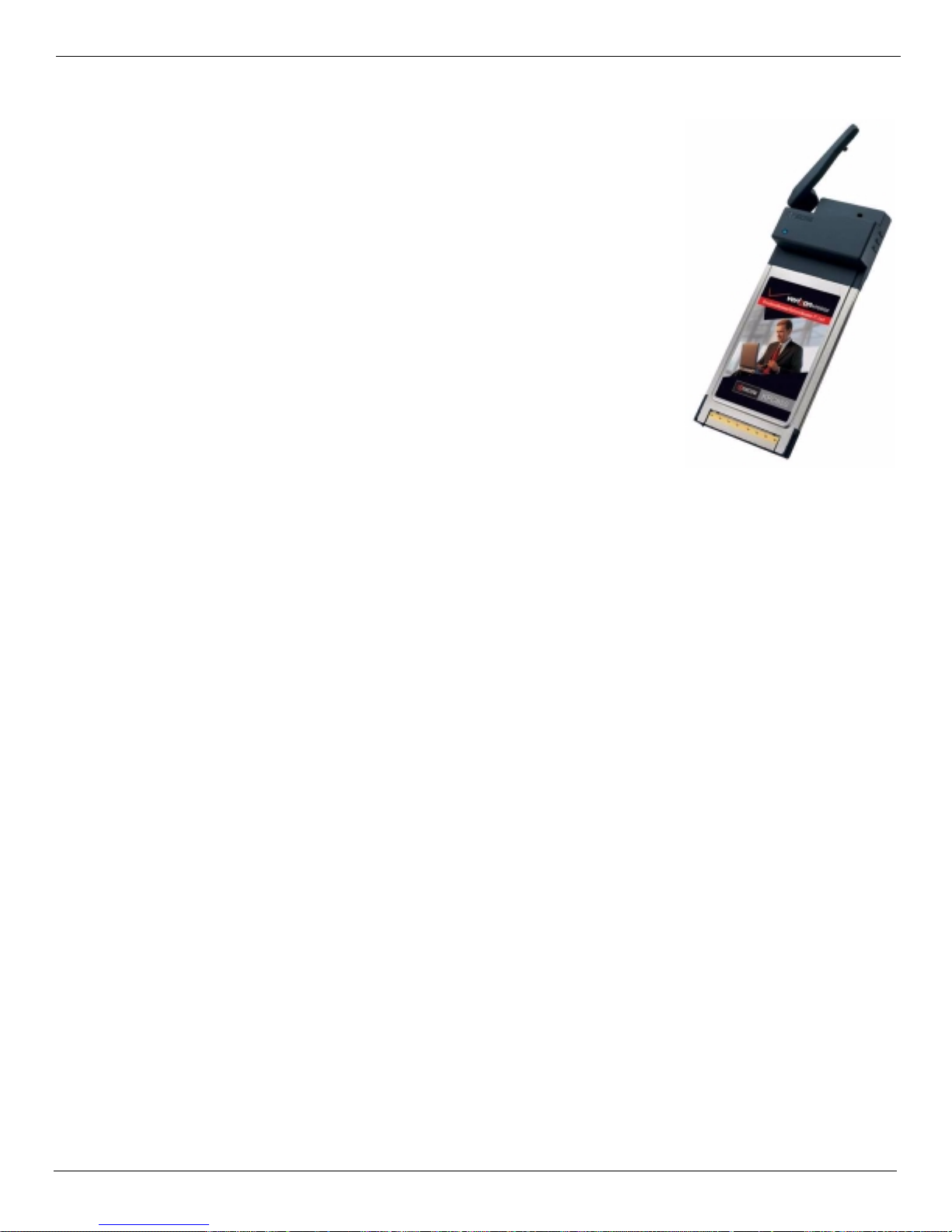
The KPC650 is a dual- band 1X EVDO PC card modem designed to fit into a Type II
PCMCIA card slot available on most noteboo k PCs. This unique ly de signed card
allows you to connect to the Internet, send and receive email efficiently, connect to
your company’s network, and maximize productivity when away from the office.
Note that the KPC supports SMS, but does not support voice services.
Power Management
The KPC650 is designed to take advantage of the power management and system
overhead benefits of fered by the standard 32-bit CardBus elec trical interface that
minimizes power consumptio n.
Other Features and Benefits
• A Type II PCMCIA format supporting the CardBus I/O interface
• Supports North American PCS (1900 MHz) and Cellular (800 MHz) bands
• Based on the QUALCOMM MSM6500 chipset
• Supports 3G network technologies
• Optimized data rates of up to 2 Mbps in receive mode and up to 144 kbps in transmit mode
• Equipped with all necessary host software and drivers for various operating syste ms
• Works at lower battery voltage and operates at a greater speed than standard PC Card interface .
• Verizon Wireless BroadbandAccess compatible (download speeds 2.4 Mb/sec max, 300
• Verizon Wireless NationalAccess compatible (40
• VZ Access Manager compatible
• Memory (FLASH/RAM): 128/64 MB
• 32-bit Cardbus interface
• Integrated dual band main antenna and a dial-band chip-based diversity antenna
• Supports external accessory antenna for enhanced diversity performance
• LED service indicator
• Supports 2-way Short Message Service (SMS)
• External accessory antenna for enhanced performance
−60 kbps)
−500 kbps typical)
Storage
• When not in use, fold the antenna down and store in a compartment where the card can be prote cted from being
crushed or broken.
• Store your KPC650 in a dry and clean place. S torage temperature:
• Do not apply adhesive labels to the KPC650. This may cause the card to jam inside the PC Card slot of your
notebook PC.
• The antenna extends freely. Do not force or hyper-e xtend the antenna. This may cause it to break.
• The KPC650 easily fits into the PC Card slot. Forcing the KPC650 into the PC Card slot may cause considerable
damage.
• Protect your card from liquids, dust and excessive heat.
2 User Guide for the Kyocera KPC650
−30° to 65°C [86° to 149°F].
Page 7

Installation and Configur at ion Noteboo k PC I ns tal lat ion Precauti ons
Installati on a nd Conf iguration
Notebook PC Installation Precautions
Warning: DO NOT in sert the KPC650 P C card be fore you i nstall the sof twar e onto you r note book PC. Onc e you ins tall
the software, and drivers you will be prompted to insert the KPC650 into the Type II PC Card slot
Once the card is inserted, do not physically remove the KPC650 from the PC Card slot until you have
completed the
System Requirements
Unplug/Eject process. Removing the card improperly may cause a fatal error to your PC.
Your KPC650 functions in notebook PCs with these Windows
®
Windows
Windows
Windows
Windows
98 SE: Note that you may need the original Microsoft W indows 98 installation CD.
®
Me
®
XP
®
2000
®
operating systems:
To install the KPC650 and the softwa re, thes e mi ni mum system resourc es are req ui red :
Card slots: Type II PC Card slot (CardBus)
Disk Drive: CD-ROM
Memory: 32 MB
Disk Space: 14 MB
Processor: Pentium 166 MHz or higher
Dial Up Network in g : DUN bound to TCP/IP
For VZW Access Manager , you al so need
Optional Wi-F i adapter for Wi-Fi access
Internet browser sof tware for Internet access or the software use d by your company for network access
Verizon Wireless wireless data service
Setup Instructions
Important: VZAccess Manager software must be installed before you insert the KPC650 PC Card in to the
computer for the first time. Only after the software has been installed can Windows successfully detect a nd
configure the PC Card.
Step 1: Install PC Card Drivers
1. Insert the Inst alla tion CD int o your note book PC’s CD-ROM drive. If set up doe s not automa tical ly start, clic k the
Start button on the taskbar and choose Run. Type D:\Start (where D is the letter of your CD-ROM drive) and click
OK.
2. Select Install KP650 Drivers option install the drivers onto your computer.
Important: Do not insert the PC Card until Step 4.
User Guide for the Kyocera KPC650 3
Page 8
Setup Inst ructions Installatio n and Configu ration
Step 2: Install VZAccess Manager
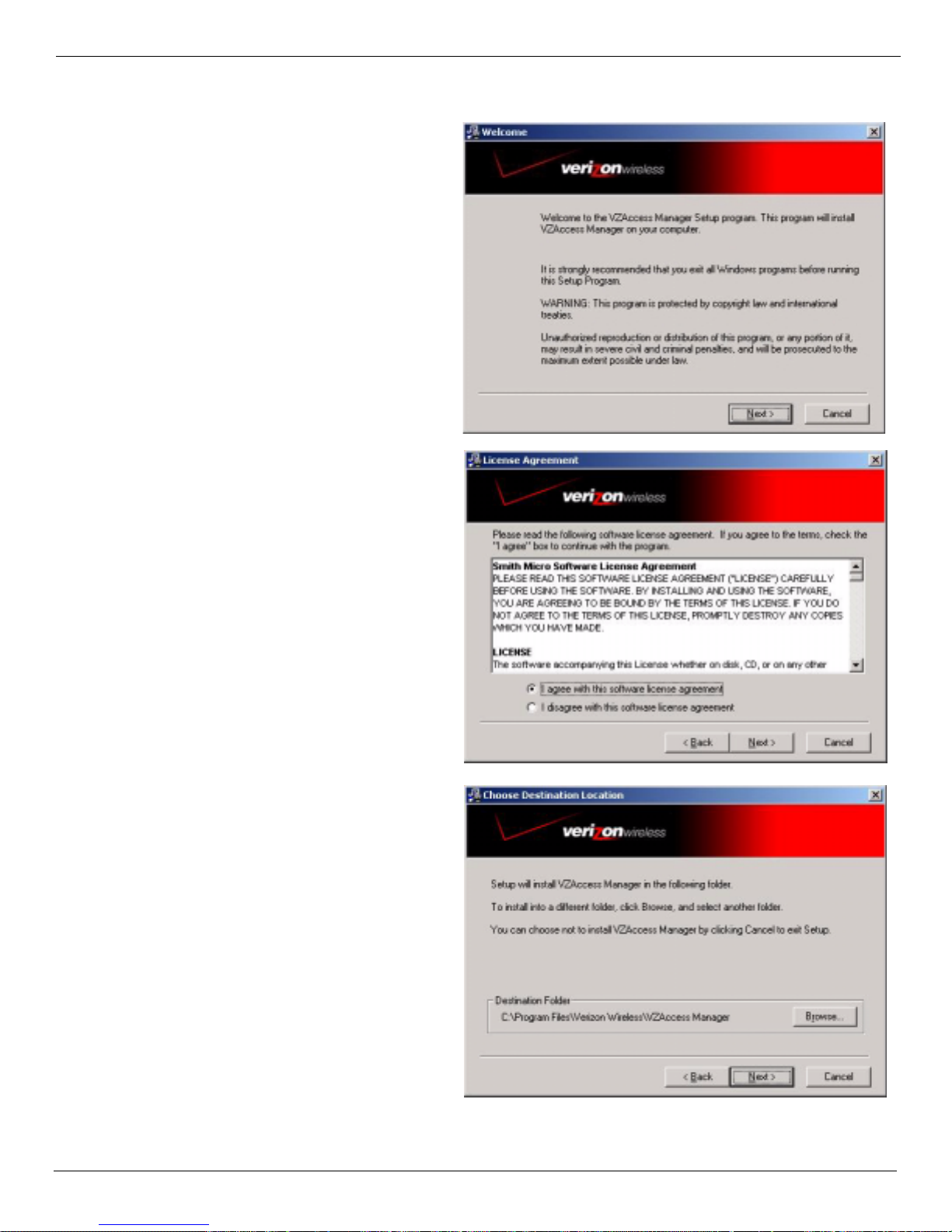
1. From the CD-ROM, choose Install VZAccess
Manager to begin the installation process.
The VZAcces s Manager install ation
program opens. Click Next.
2. The VZAccess Manager License Agreement
appears. To install and use this product you
must agree with the terms of the VZAccess
Manager License Agreement. Select I agree
with this software license agr eeme nt.
Click Next to continue.
3. Choose a destination fold er for your files, or
use the default location.
4. Click Next to continue.
4 User Guide for the Kyocera KPC650
Page 9
Installation and Configur at ion Setup Instruc ti ons
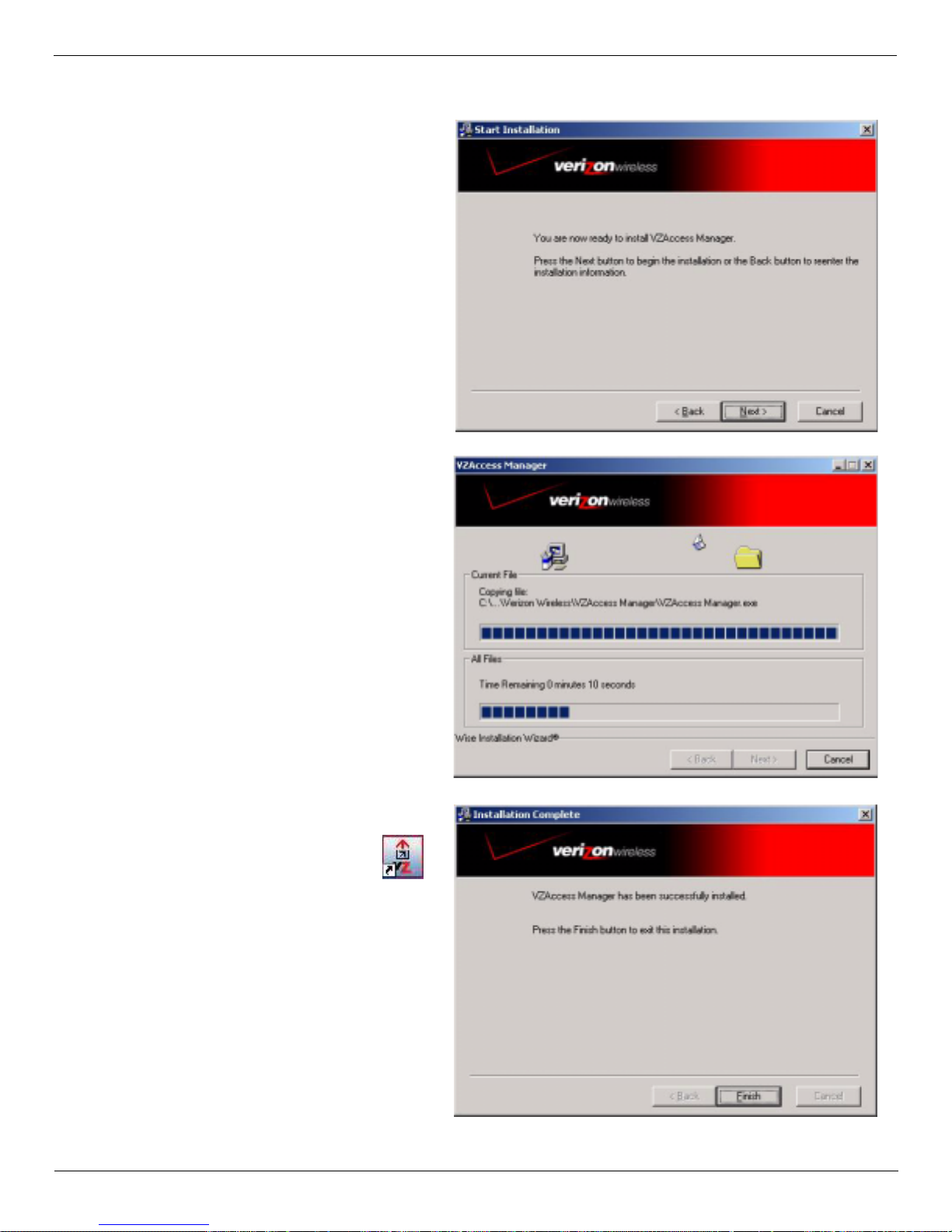
5. Click Next to begin installing VZAccess
Manager components onto your computer.
6. During this step the VZAccess Manager
components product are being installed
onto your computer. Installed files will be
placed within the destination folder
specified in Step 3 above.
7. Installation is now comple te. Click Finish.
The setup program will automatically create a VZAccess Manager
shortcut on your desktop.
Proceed to the continued inst ructions on
page 6.
User Guide for the Kyocera KPC650 5
Page 10
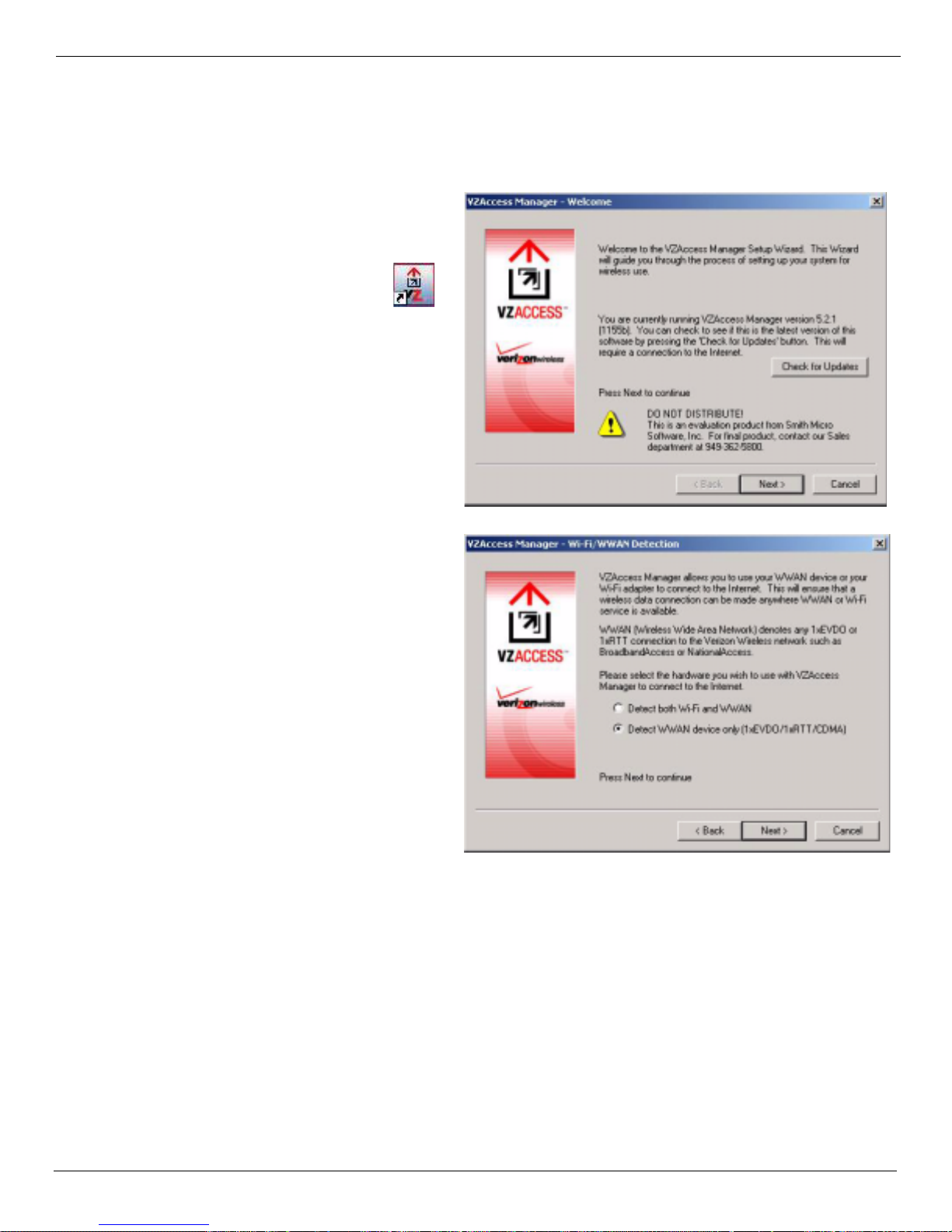
Setup Inst ructions Installatio n and Configu ration
Step 3: Run the VZAccess Manager Setup Wizard
After you have successfully completed the installation process of VZAccess Manager, you are ready to install the
VZAccess Manager p rogram. The steps in the Setup Wi zar d are crit ical to t he proper o peration of VZAc cess Manager
when using your WWAN or Wi-Fi device to connect to the Internet wirelessly.
1. The VZAccess Manager software set up
automatically launch when you complete
initial setup.
If setup did not automatically initiate, double-click on the
VZAccess Manager icon to begin
the installation pr ocess, if t.
2. Click Next at the Welcome screen to
continue the install ation process.
3. Specify the type of wireless device that you
intend to use with VZAccess Manager by
selecting either
Detect both Wi-Fi and WWAN
or
Detect WWAN device only (1xEV-DO/1xRTT/
CDMA).
For the purposes of this guide, Detect
WWAN device only (1xEV-DO/1xRTT/
CDMA).. Please note that your experience
may be different if you use a dif ferent
selection.
4. Click Next to continue.
6 User Guide for the Kyocera KPC650
Page 11
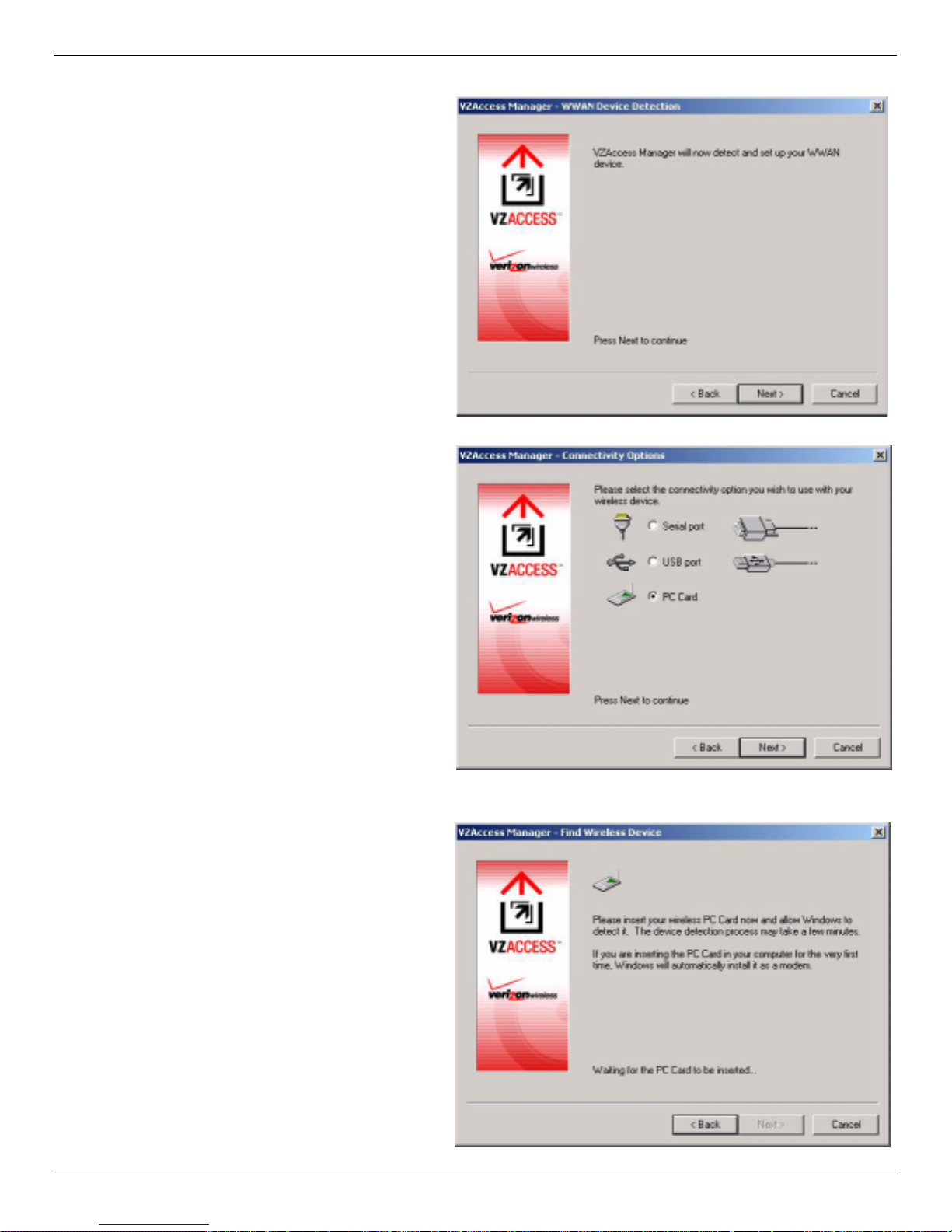
Installation and Configur at ion Setup Instruc ti ons
5. VZAccess Manager now detects and sets
up your WWAN adadevice on your
computer. WWAN (Wireless Wide Area
Network) denotes any 1xEVDO, 1xR TT or
CDMA connection to the Verizon Wireless
network such as BroadbandAccess,
NationalAccess or Quick 2 Net.
Note: If you selected Wi-Fi and your com-
puter has a built-in Wi-Fi adapter, you do
not need to do anything and can proceed to
the next step. Otherwise, inse rt your Wi-Fi
PC Card now. Y ou will need the drivers for
the card if not a lready installed on the computer.
6. Click Next to continue...
7. Select the type of connecti vity you wish to
use with your wireless device . For the
purposes of this guide, we use PC Card.
Please note that this sele ction may not be
appropriate for your type of wireles s device.
8. Click Next to continue after you have
selected your connectivity option
Note: If you selected USB and have not
already installed the data cable drivers supplied with the cable, you must install them
now . To install the data cable drivers cli ck
the
Cancel button to exit the Setup Wizard
and refer to the documentation included
with the cable. Plug the data cable into your
wireless phone and then plug the cable into
your computer . If your wireles s phone is not
turned on, do so now.
9. You are now prompted to insert your PC
card. Proceed to the steps below.
User Guide for the Kyocera KPC650 7
Page 12
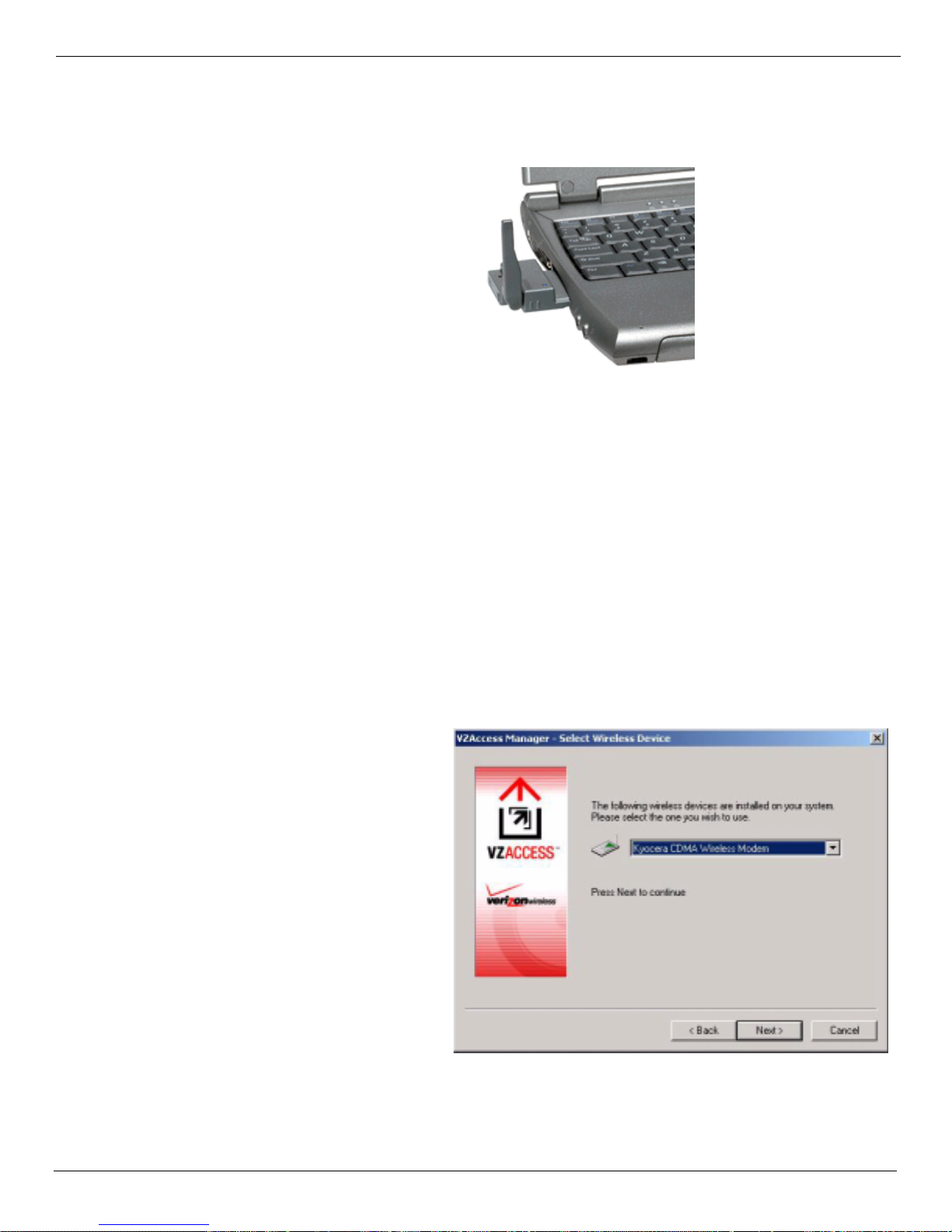
Setup Inst ructions Installatio n and Configu ration
Step 4: Install Your KPC650 PC Card.
1. Remove the installation CD from your CD-ROM drive.
2. Insert the KPC650 into your notebook ’s
PC Card Slot with the label facing up.
Raise the antenna so that it is fully
extended and pointed up at a 90° angle.
Use in any other configura tion may exceed
FCC RF exposure limits.
3. When you insert the PC card, the Found New Hardware wizard appear s and installs the drive r s placed on your
computer system in the last set of steps.
Windows 98 SE/2000/Me ONLY: Once you have inserted the card properly, your W ind ows operati ng syst em notifies
you that new hardware has been detected. Please wait a moment for the Found New Hardware f unction to complete the au tomated t asks. Multi ple windows sim ilar to the Found New Hardware window bri efly appear a nd close
automatically. Once complete you are prompted to begin Activation.
Windows XP ONLY: Once you have inserted the card prope rly , your Windows operating system notifies you that
new hardware has been detected. Ple ase wait momentarily for the “Found New Hardware” function to complete the automated task s. Mult iple Tool Tips similar to the “Found New Hardware ” function will appear
briefly in the system tray and will c lose automatically. Once complete you will be prompted to begin Activ ation (step 4).
Note: You may hear a short beep each time the KPC650 is inserted and removed from your notebook PC. This
is normal. It is an audible notification from your notebook PC communicating that it recognizes new hardware
Click Next to continue.
4. Select the wireless device you are using
with VZAccess Manager.
5. Click Next to continue.
8 User Guide for the Kyocera KPC650
Page 13
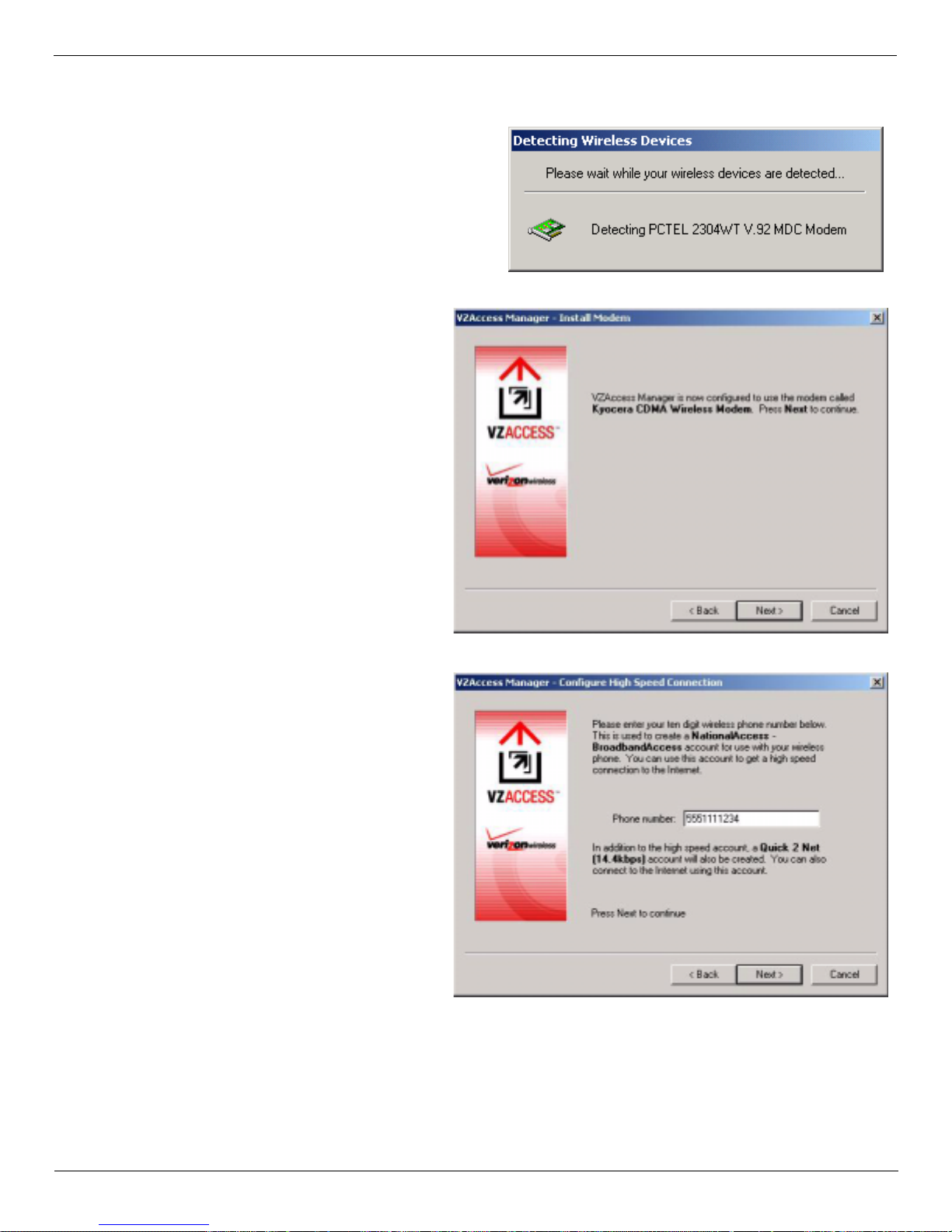
Installation and Configur at ion Setup Instruc ti ons
.
6. Your wireless device will now be detected.
7. After detecting the devi ce, you are notified
that the VZAccess Manager is configured
to use the modem you selected.
8. Press Next to continue.
9. Enter your 10-digit phone number.
10. Press Next to continue.
User Guide for the Kyocera KPC650 9
Page 14
Setup Inst ructions Installatio n and Configu ration
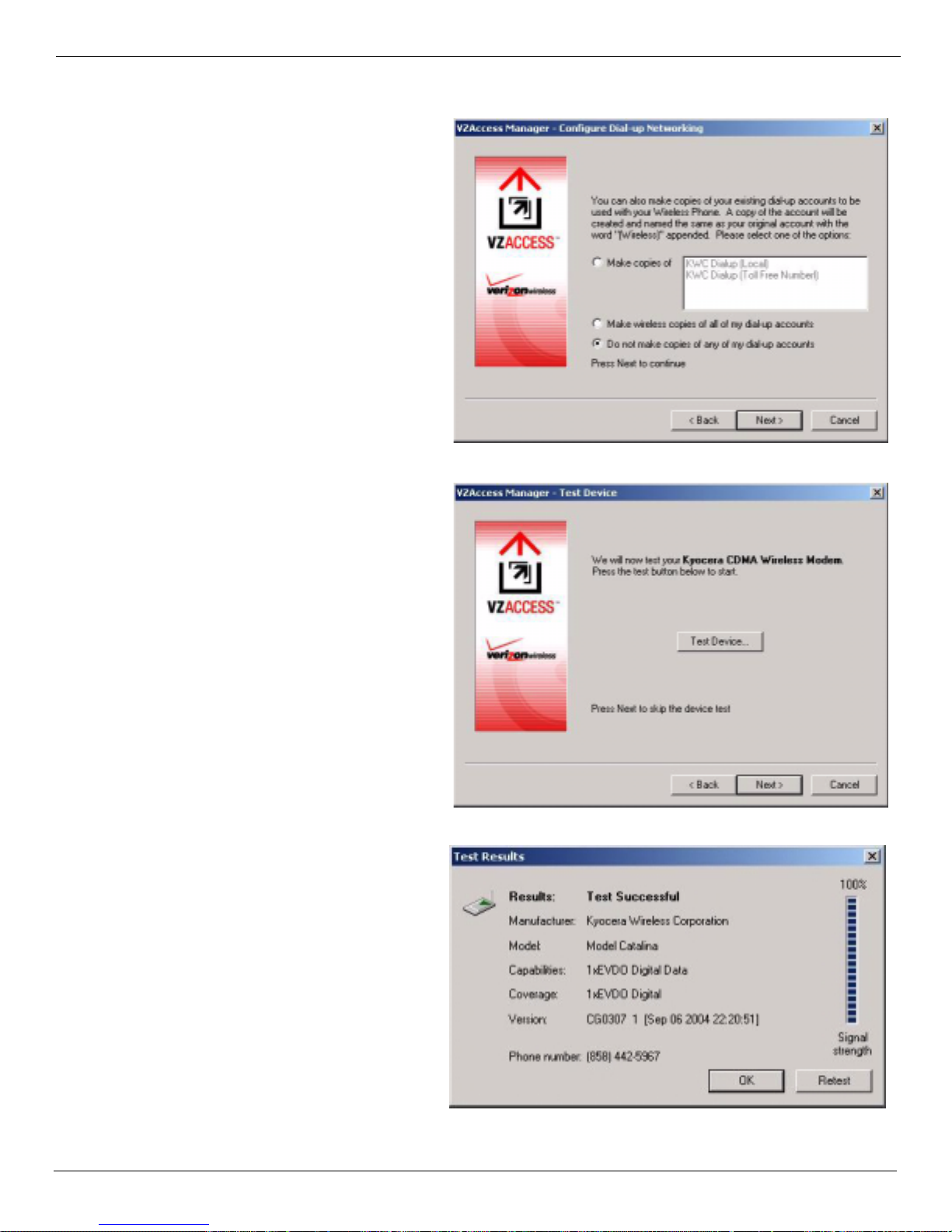
11. Select whether or not you would like like
to make copies of your dialup accounts if
you wish. These accounts will appear as
dialup options on the VZAccess Manager
Connect view.
12. Click Next to contin ue.
13. Click the Test Device button to see detail
on your PC Card and to verify that all
components are wo rking. The Test Device
screen shows your device manufactur e r,
model, signal strength and other details.
14. Click the Test Device button to see detail
on your PC Card and to verify that all
components are wo rking. The Test Device
screen shows your device manufactur e r,
model, signal strength and other details.
10 User Guide for the Kyocera KPC650
Page 15
Installation and Configur at ion Setup Instruc ti ons
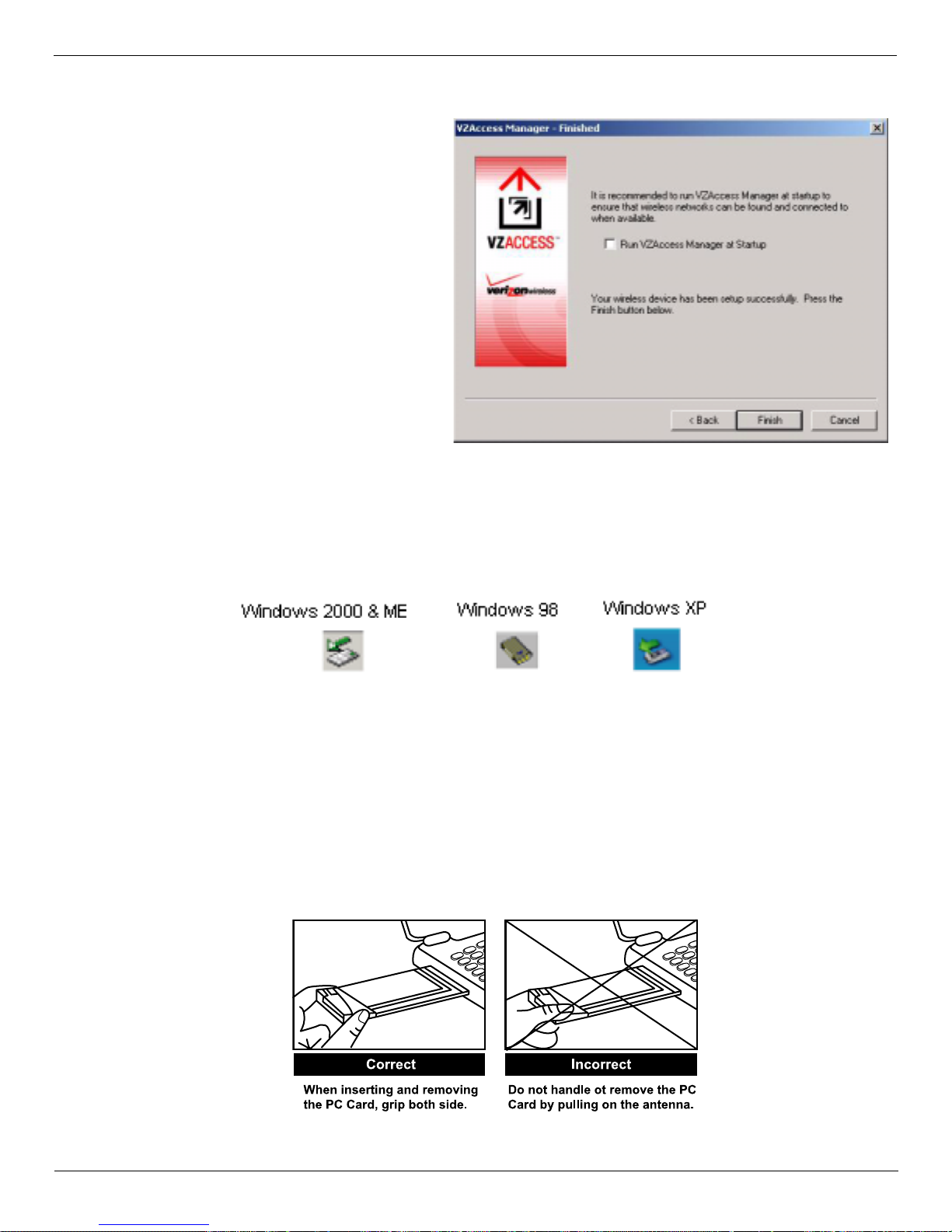
15. Click Finish to exit the Setup.
VZAcess Manager launches. For more
information on how VZAccess Manager
works, refer to “V Z Access Manager from
Verizon Wireless” on page 12.
Ejecting the KPC650
Warning: Do not eject the KPC650 from your noteb ook until you ha ve followed the Unplug/Eject Hardware
instructions for proper removal. Removing the card improperly may cause a fatal error on your PC.
1. Double-click on the Unplug/Eject Hardware icon in the system tray.
2. Select the correct opti on for your operating system from the Unplug or Eject Hardware window and click OK.
Windows 98 SE and Me: Select Wireless PC Card Open Host Controller.
Windows 2000: Select
Windows XP: Select Lucent USB Open Host Controller.
3. Confirm the device to be stopped and click OK.
4. A Safe to Remove Hardware message appears, clic k OK.
5. Remove the KPC650 from your notebook. When removing the KPC650, alwa ys grip it by the sides of the card
rather than from the top. Pulli ng on the antenna ov er tim e may damage the card. If avail abl e, use the Card Eject or
tool on your laptop.
NEC PCI to USB Open Host Controller.
User Guide for the Kyocera KPC650 11
Page 16

Supported Services VZAcces s M anager from Verizon Wireless
VZAccess Manager from Verizon Wireless
Welcome to the Verizon Wireless VZAccess Manager. The VZAccess Manager provides a one-touch connection to
the wireless Internet. It has built-in support for WWAN and Wi-Fi devices to give you the flexibility you need while
you are mobile to connect your laptop to the Internet wirelessly.
Supported Services
VZAccess Manager supports the following services from Verizon Wireless:
Quick 2 NetSM (14.4 kbps): Requires a CDMA data-capable phone and Mobile Office Kit or IS95A-capable PC Card.
•
This connection operates at 14.4 kbps and provides a connection to the Internet. Additional per-minute changes
apply.
Dial-Up-Data Service: Requires a CDMA data-capabl e phone a nd Mobile Office Kit or IS95A-capable PC Card. This
•
allows you to use your wireless device to dial int o your corporate networ k, or other servic es you normally dial into,
over a regular phone line. This connection ope rates at 14.4 kbps. Additional per-minute changes apply.
NationalAccess: Requires a NationalAccess-capable wireless phone and Mobile Office Kit or NationalAccess PC
•
Card. NationalAccess delivers typical speeds of 40 to 60 kbps, bursting up to 144 kbps (speed claim based on our
network tests with 101 Kilobyte FTP data files). Actual throughput speed and coverage vary.. This service requires
subscription to a NationalAccess plan. Additional information is available at
www.verizonwireless.com/b2c/mobileoptions/nationalaccess/index.jsp
•
BroadbandAccess: Requires a BroadbandAccess-capable PC Card and provides a wireless broadband connecti on to
the Internet. Verizon Wireless BroadbandAccess is one of the fastest, fully mobile wireless Internet data solutions
available. Quickly download complex files and view email attachments at broadband-like speeds (typical speeds of
300
−500 kbps, capable of reaching speeds up to 2 Mbps). Today this subscription service is available in the
W ashington, D.C., San Diego and Las Vegas areas.
Visit www.verizonwireless.com/b2c/mobileoptions/broadband/index.jsp
details.
Net or Dial-Up-Data Service.
Note: Pre sent B roadbandAcc ess Equi pment d evices also sup port Na tion alAccess, but do not suppor t Qui ck 2
.
for service availability and additional
You do not need a separate Internet service provider (ISP) to access the Internet when using Quick 2 Net,
NationalAccess, or BroadbandAccess.
NationalAccess and BroadbandAccess defined
The KPC650 operates on Verizon Wireless NationalAccess and BroadbandAccess technologies that leverage a
wireless cellula r network called Code Division Multiple Access (CDMA). CDMA is a digital spread- spectrum
wireless technology tha t offers reliable, high- speed bi-directional throughput at speeds ranging from 144 kbps or 2
Mbps for email, corporate databases, and all the services of the Internet. The high-performance KPC650, designed to
leverage CDMA 1xEVDO and 1xRTT network technologies, enables you to both send and receive data/email at
maximum network rates.
Often times when using a dial-up connection, a network busy signal appears. That's be cause there are bottlenecks
slowing down the network. With the spread spectrum technology of CDMA these frustrating bottlenecks are
eliminated. In fact, CDMA technology allows a network to handle more calls than competing digital technologies.
BroadbandAccess is Verizon W ireless' premier data service, off ering one of the fastest, fully mobile wi reless Internet
data solutions avail able today. This ultra-high-speed wireless service, provides users with typical speeds of 300
kbps with bursts up to 2 Mbps. BroadbandAccess is also known as CDMA 1xEVDO, a 3G (third generation)
technology. National Access is the na me for Verizon Wireless' nationa l wirele ss Int ernet se rvice. This is a ls o known as
CDMA 1xRTT, another variant of 3G technology, and delivers bi-directional peak packet data speeds of up to 144
kbps. Together, Verizon Wireless NationalAccess/BroadbandAccess offers a national mobile wireless data soluti on.
−500
12 User Guide for the Kyocera KPC650
Page 17

VZAccess Manager from Ve rizon Wireless VZAccess Manager Tools
Maximum possible speed varies upon location and availability. Visit the Verizon Wireless website for up-to-date
coverage information: www.verizonwireless.com
What about privacy?
The secure CDMA network is designed with digital coding that is recognized only by the base station and
unintelligible to eavesdroppers.
.
VZAcce ss Ma nager Tools
T oday's online world of fers more services everyday and Verizon Wireless gives you the tools you need to ta ke
advantage of the best in connect ivity solutions. W ith VZAccess Manager, enjoy the fre edom and convenience of
wireless Internet c onnectivity from your notebook computer!
WWAN (Wireless Wide Area Network, 1xEV-DO/1xRTT/CDMA) Features
• Configures your PC to use your wireless phone and cable or wireless CDMA PC Card as a modem.
• Creates a Quick 2 Net (14.4 kbps) connection if supported by your device.
• Creates a NationalAccess connection if using a NationalAccess capable wire less phone and cable or PC Card,
which does not support BroadbandAccess.
• Creates a NationalAccess - BroadbandAccess connection if using a BroadbandAccess capable device. This
connection will a utomatically fall back and attempt connecting via NationalAccess if the Broadba ndAccess service
is unavailable.
• Copy utility to create wireless copies of your dial-up connections, if supported by your device.
• Controls the Venturi compression softwa re when using your NationalAccess - BroadbandAccess, National Access,
or Quick 2 Net (14.4 kbps) connections.
• Signal strength and battery level display for most wireless phones.
• Te st function for WWAN device.
Wi-Fi Features
• Configures Wi-Fi Adapter to work with VZAccess Manager.
• Displays Wi-Fi connections and signal strength when in a Wi-Fi coverage area. Supports connecting to Wi-Fi
networks such as ones used at home or work.
• Supports built-in Wi-Fi adapters or PC cards.
WWAN capable device is require d to use the WWAN features. Individual WWAN features are also device
dependent as described in the WWAN section above.
Other Features
• Launch all of your dial-up networking connections, if desired.
• Launch your browser, e-mail client, VPN or a program of your choice upon connection.
• Lo connections used, duration and bytes sent and received.
• TXT messaging
• For more information about VZAccess Manager featur es, refer to “Additional VZAccess Manager Features” on
page 30.
User Guide for the Kyocera KPC650 13
Page 18
Getting Started with VZAccess Manager VZAccess Manager from Verizon Wireless
Getting Started with VZAccess Manager
Double-click on the VZAccess Manager icon on your desktop or click on the Windows Start menu and go to
Programs → VZAccess Manager.
About the Connect View
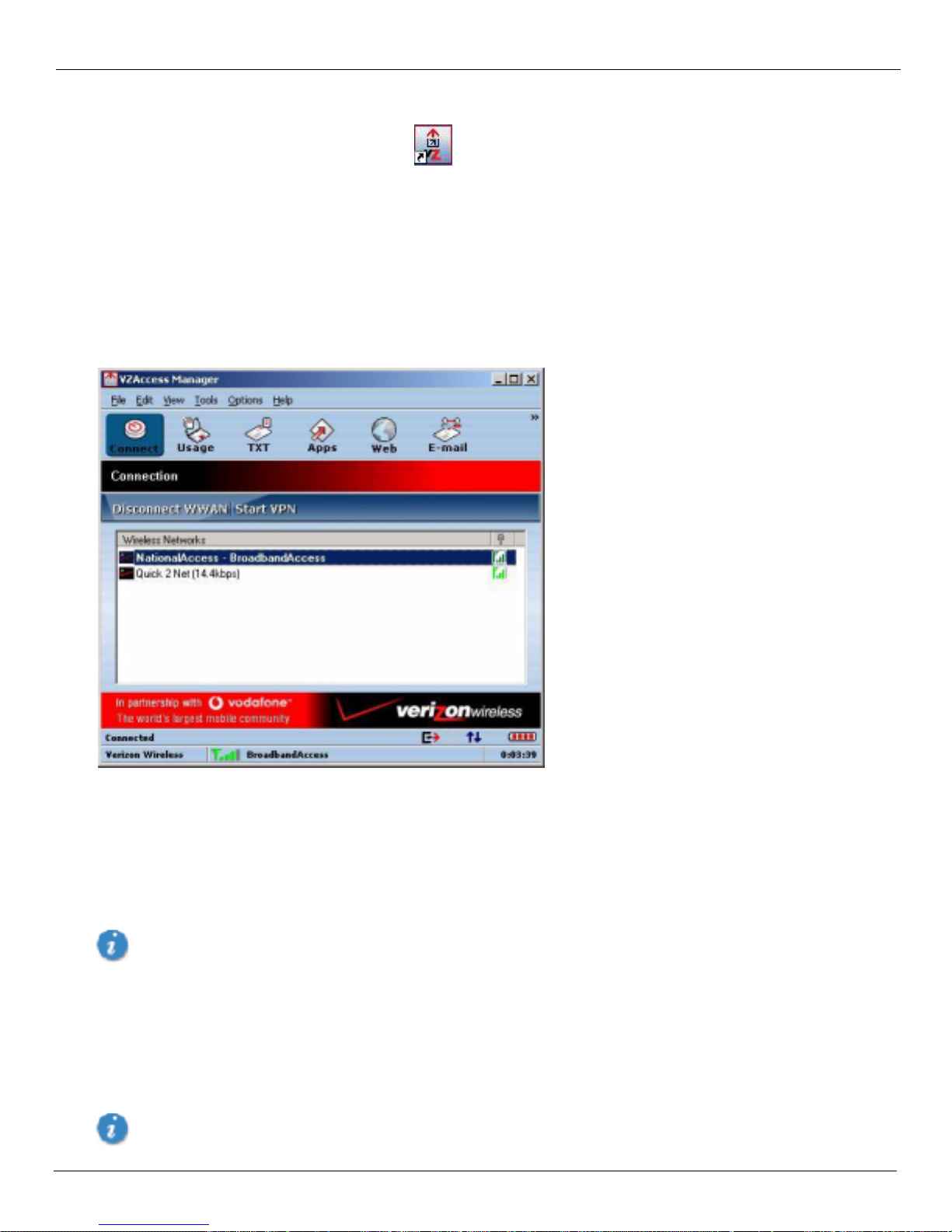
VZAccess Manager will open to the Connect view by default. This view is where you manage your wireless
connections. The Connect view displays all currently available network connections.
At a glance you can see the signal strength and battery level (if applicable) of your WWAN or Wi-Fi network. To
update the informatio n on this pane l, selec t
connection state and the el apsed time of the connection are displayed along the bott om of the status bar.
Options → Refresh Netwo rks or Options → Refresh Signal Levels. Your current
If your expected connecti on does not appear or if you connected your wireless phone and cable, or inser ted your
wireless CDMA PC Card or Wi-Fi Card afte r starting VZAccess Manager, select
VZAccess Manager look for your wireless device(s) a nd verify network availability . If you have any Wi-Fi networks
you manually added because they do not broad cast the ir SSID, they will always be displayed, and you will have to
refer to the signal strength displayed to know when you are in range. Refer to “Wi-Fi Preferences” on page 25 fo r
additional detai ls.
Note that with certain W i-Fi adapters the signal streng th for Wi-Fi networks is not accurate until you connect
to the network.
Note: The Quick 2 Net (14.4 kbps) connection is only created when the WWAN option is selected during setup and if
your wireless device suppor ts it. The NationalAccess connection is only created when the WWAN option is selected
during setup and if you are using a NationalAccess capable device that does not support the Verizon Wireless
BroadbandAccess service. If you are using a BroadbandAc cess capable device a NationalAccess - BroadbandAccess
connection will be creat ed. This con nection will use BroadbandAccess if availa ble and will automatically attempt a
NationalAccess connec tion when BroadbandAccess is not available.
If you change phones or PC cards, you wil l need t o run the S etup W i zard agai n. To do this make sure that your
phone and cable are connected, then select
14 User Guide for the Kyocera KPC650
Options → Refresh Networks to have
Options → Run Wizard from the VZAccess Manager contact view.
Page 19
VZAccess Manager from Ve rizon Wireless Getting Started with VZAccess Manager
Connecting
Once your Wi-Fi or WWAN device is properly configured, connecting to the Internet is as simple as selecting the
network connection type shown in the list and clicking the
above the list changes to Connect WWAN or Connect Wi-Fi as appropriate bas ed on the current selection in the
networks list.
1. Select one of the following conne ctions: NationalAccess, NationalAccess - BroadbandAccess, or Quick 2 Net (14.4kbps).
2. Click the Connect WWAN button when it becomes enable d.
Connect button. Note that the Conne ct button immediately
Once connected, the Connect WWAN button changes to
connection. To connect to any other network shown, select it, and then select
Disconnect WWAN. Simply click this to end your current
Connect.
Status Bar
Information regarding your current network connection can be seen in the stat us bar along the bottom of the
VZAccess Manager interface.
Note: If you are using a WWAN (1xEV-DO/1xRTT/CDMA) device that supports the Verizon Wireless Dial-Up-Data
service and you made wireless copi es of your dial-up accounts, they will also appear. If you are in the presence of a
private Wi-Fi network (such as one at work or at home) it will also appear if you selected the Wi-Fi option during
setup. If the number of connections exceeds wha t can be displayed, a verti cal scroll bar will appear to the right of the
connections. Scroll down to see them all.
The first time you connect with the NationalAccess - BroadbandAccess, NationalAccess, or
Quick 2 Net (14.4 kbps) connections, or a private Wi-Fi connection, a connectivity warni ng message appears.
These messages will appear each time you connect, unless you suppress them. For more information, refer to
“Warning Messages” on page 17.
Status information appears the bottom of the VZAccess Manager window. When not connected, the status text in the
lower left corner will dis play "Not connected" for the currently sele cted network. The timer will display "00:00:00".
Once connected, the status text will display "Connected" and the elapsed timer will begin to run. When a connection
is active, its name will appear as bol d text.
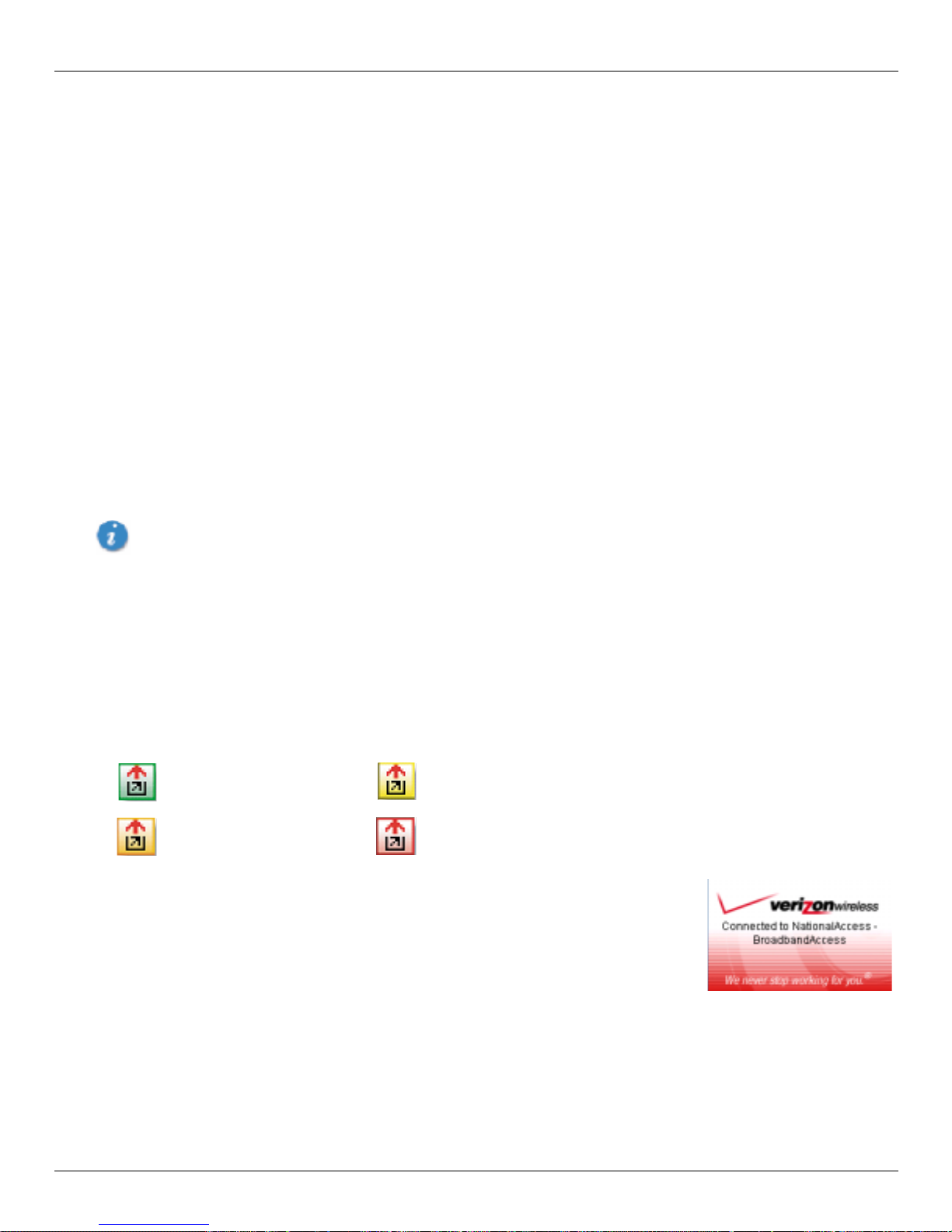
The status i s also reflected in the Task Tray icon. Right-c licking on the tr ay icon provides various options and doubl eclicking on it will always show the application. Placing your cursor on it will display the current connection status.
Connected Connecting
Idle - Not Connected Disconnecting
When you connect and disconnect from VZAccess Manager an alert window slides out
of the task tray showing the status from networks.
The pop up status can be turned of f, by selectin g
unchecking
Show popup status windows by tray.
Based on your preferences, your browser or e-mail or VPN program can be launched
automatically, or you can launch whatever software you want to use. You can also determine if all connections show
in the drop down list or only your wireless ones, see “VZAccess Manager Settings” on page 19.
Note: Always use VZAccess Manager when connecting via the NationalAccess - BroadbandAccess, NationalAccess,
or Quick 2 Net (14.4 kbps) connection. This will ensure that the Venturi compression software is enabled and the
wireless device is conf igured properly before connecting. Refer to “Using Venturi” on page 36 fo r mo re information
on how Venturi works.
User Guide for the Kyocera KPC650 15
Tools → Preferences → Options tab, and
Page 20
Getting Started with VZAccess Manager VZAccess Manager from Verizon Wireless
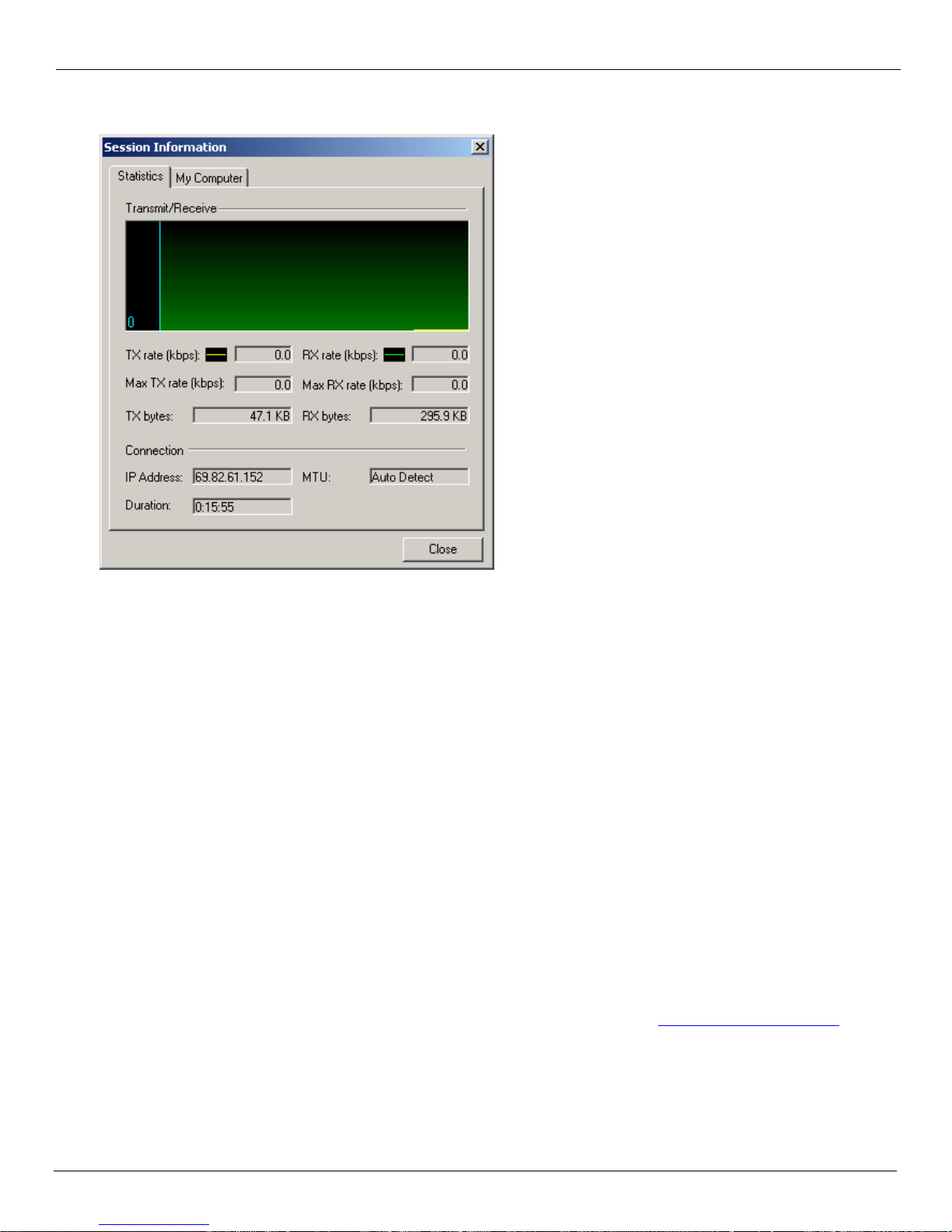
At any time during your connection you can check your curr ent connection speed and throughput stats in the
Statist ics tab of the Session Information window. To see this window, select
Options → Statistics.
The Session Information window also contains a My Computer tab and a Wi-Fi tab if applicable. The My Computer
tab contains detaile d information about your computer. This information is helpful when troubleshooting a problem.
Additional information when using the Quick 2 Net (14.4 kbps) connection:
When using the Quick 2 Net (14.4 kbps) connection, VZAccess Manager enables the Venturi compression software
to roughly double your performance. For additional details refer to “Using Venturi” on page 36.
Additional information when using the NationalAccess connection:
By default VZAccess Manager enables the Venturi compression software for the BroadbandAccess and
NationalAccess connections.
If you are using the NationalAccess - BroadbandAcce ss or NationalAc cess connect ion and the call fails when you try
to connect, with VZAccess Manager returning to i ts idle state, you should try to connect again. If you are still having
trouble, try the Quick 2 Net (14.4 kbps) co nnection, if your device supports it. If you feel you may have incorrectly
entered your wireles s telephone number during initial setup, select
Dormancy:
Options → Run Wiza r d.
NationalAccess an d BroadbandAcce ss data sess ions beco me dormant if you are not sending or r eceiving any data. As
soon as you resume sending or receiving data, the data session will return to an active state.
Depending on your device and your Nationa lAcce ss or BroadbandAccess
during a dormant state. See your Verizon Calling Plan brochure for details or visit www.verizonwireless.com
happens select
Disconnect, and then connect agai n .
plan, your data session may disconnect
. If this
While dormant your wireless phone/device may be able to receive a voice call. If you leave your wireless phone
connected to your PC, after you finish your voice call you may be able to resume your data session as you normally
would.
16 User Guide for the Kyocera KPC650
Page 21
VZAccess Manager from Ve rizon Wireless Getting Started with VZAccess Manager
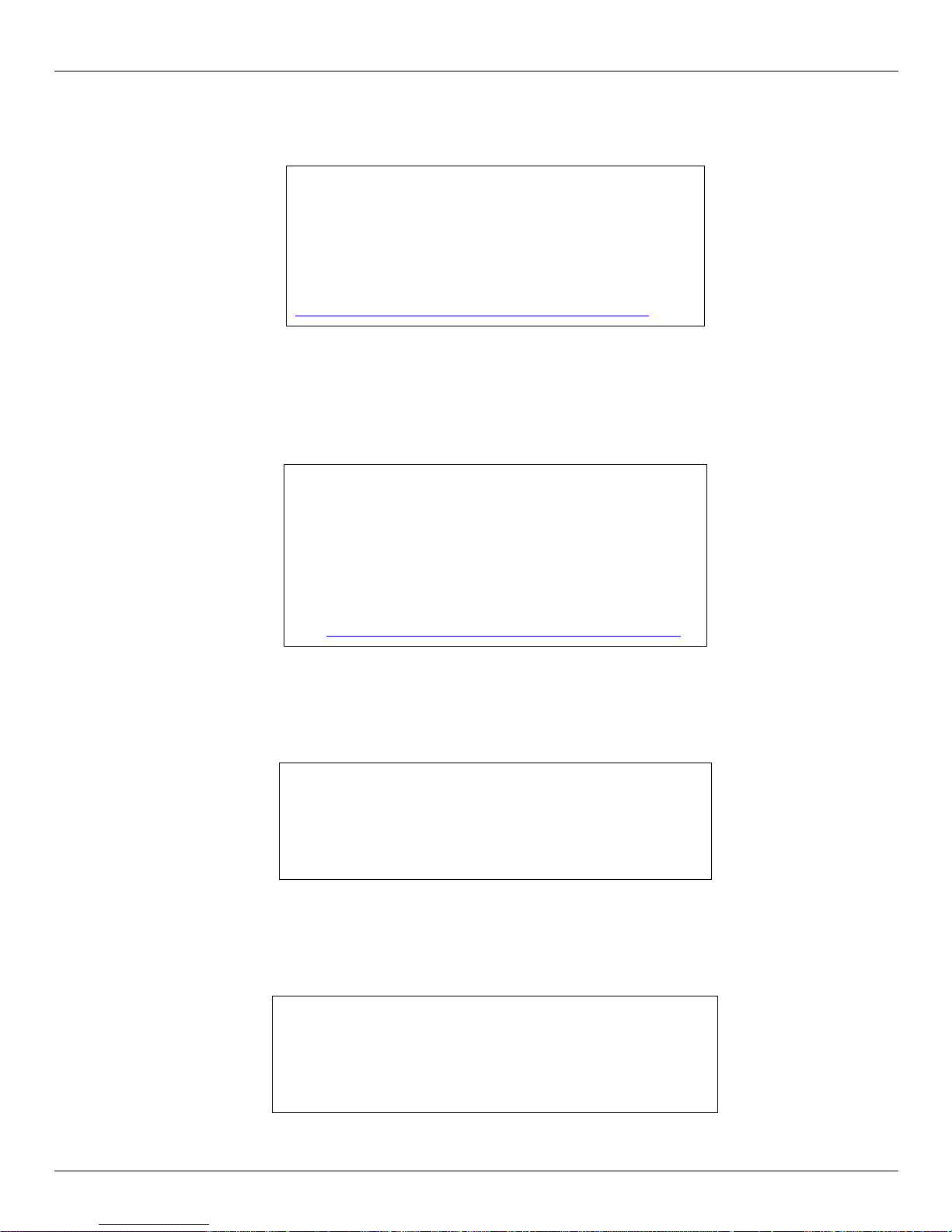
Warning Messages
NationalAccess
The first time you connect via the Nationa lAccess connection, the follo wing warning messa ge appears:
ATTENTION
You are about to establish a NationalAccess (1xRTT)
connection. Charges apply in accordance with your
subscription to Verizon Wireless' NationalAccess.
T o see our current pricing for NationalAccess, please visit
http://www.verizonwireless.com/b2c/mobileoptions
Do not show this warning again to suppress the message. Otherwise, each time you connect via the
Select
NationalAccess connection this message will appear.
NationalAccess - BroadbandAccess
The first time you connect via the NationalAccess - BroadbandAccess connection, the following warning message
appears:
ATTENTION
You are about to establish a BroadbandAccess or
NationalAccess connection. Charges apply in accordance
with your subscription to Verizon Wireless'
NationalAccess/BroadbandAccess.
To see our current pricing for BroadbandAccess, please
visit http://www.verizonwireless.com/b2c/mobileoptions
Do not show this warning again to suppress the message. Otherwise, each time you connect via the
Select
.
NationalAccess - Broadba ndAccess connection this message will appear.
Quick 2 Net (14.4 kbps)
The first time you connect via the Quick 2 Net (14.4 kbps) con nection, the following warning message appears:
ATTENTION
Quick 2 Net(sm) may be charged diff erently than
NationalAccess sessions.
Please check your Calling Plan for details.
Do not show this warning again to suppress the message. Otherwise, each time you connect via the
Select
Quick 2 Net (14.4 kbps) connection this message will appear.
Dial-Up
The first time you connect via a wireless Dia l-Up connection, the following warning message appears:
ATTENTION
Dial Up connections may be charged differently than
NationalAccess sessions.
Please check your Calling Plan for details.
Do not show this warning again to suppress the message. Otherwise, each time you connect via the
Select
Dial-Up connection this messa ge will appear.
User Guide for the Kyocera KPC650 17
Page 22
Getting Started with VZAccess Manager VZAccess Manager from Verizon Wireless
Wi-Fi
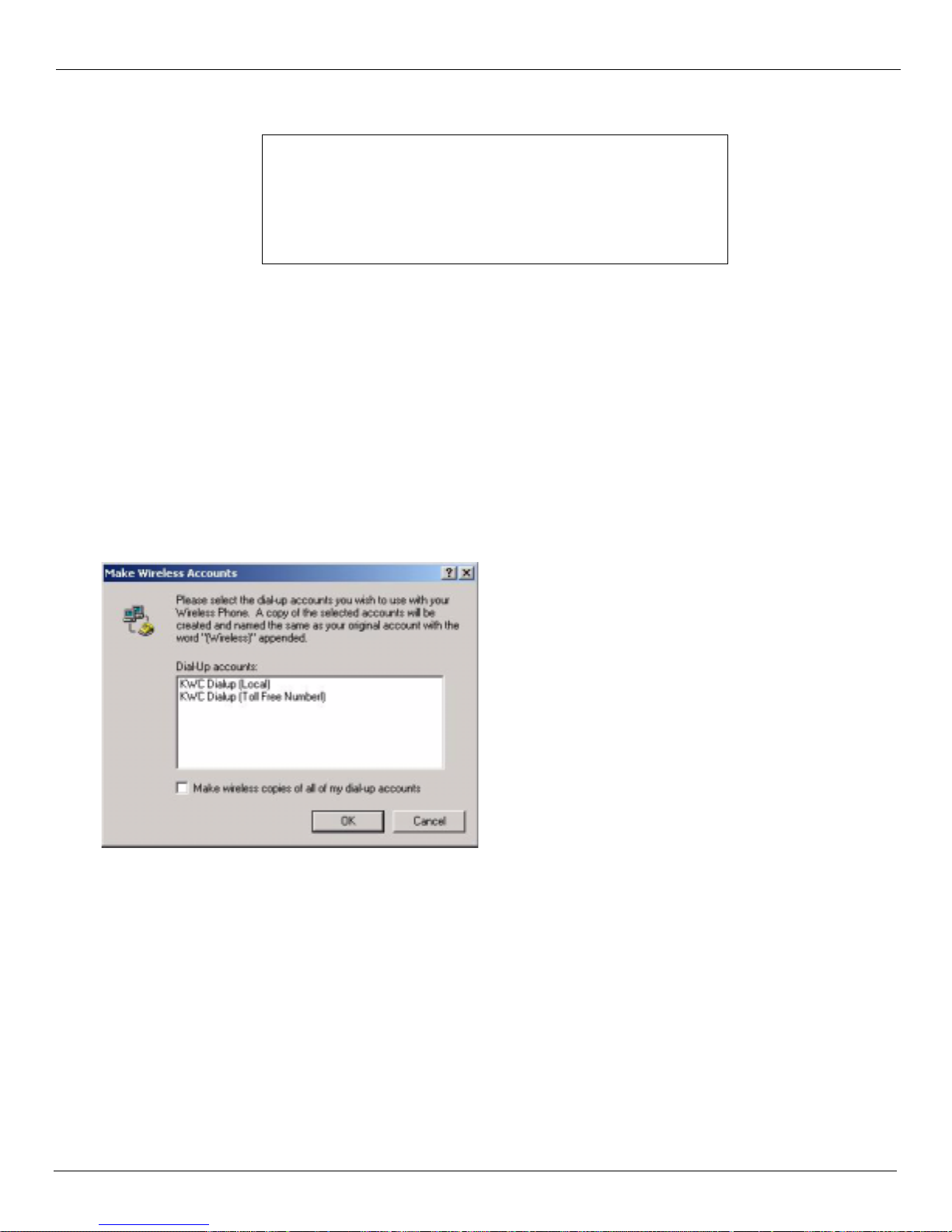
The first time you connect to a Wi-Fi network, the following warning appears
You are about to establish a conne ction to a Wi-Fi network.
Verizon Wireless does not support proble ms associated with
Wi-Fi networ ks.
Verizon Wireless Customer Care will not be able to assist you.
Please see the Help file for details.
In most cases connecting to a privat e Wi-Fi network is a simple process and you can use VZAccess Manager instead
of the Wi-Fi client you would normally use. If you have any problems doing this try the recommendations in the
section on Wi -Fi Troubleshooting.
Setting Dial Up Connections
This section is only appli cable if you are using a WWAN Device that supports Dial-Up connections (a wir eless phone
and cable or a PC card).
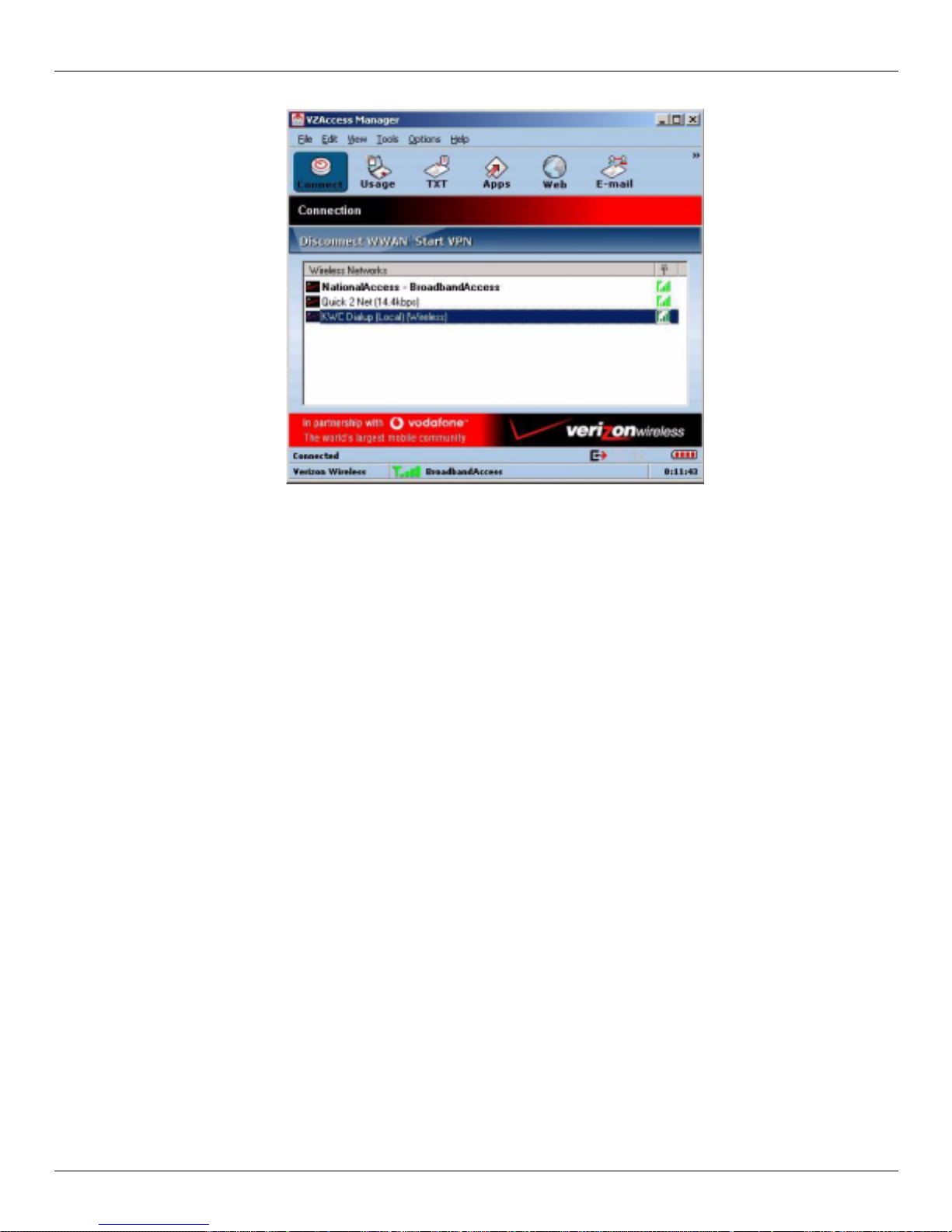
You can make wireless copies of existing dial up accounts on your system. This will enable those accounts and allow
you to connect to them wirelessly.
T o launch the copy utility, select
Tools → Dial-up Accounts → Copy.
Click on the connection or connect ion(s) you want to copy and click OK.
The new connection will have a suffix of "( Wireless)" and will be set to use your wireless phone as the modem. If the
utility is unable to automatically recognize your existing area code and number, the existing number will be
displayed, and you will be prompted to enter the area code and number. The utility configures the new wireless
connections to always dia l 11 digi ts, so that they will work locally and also in oth er digital data coverage area s. If it is
determined that the connec tion might benefit by further optimization, an additional connection with a "(Wireless
Optimized)" suffix, will also be created. This connection may connect faster. If you have trouble with the "(Wireless
Optimized)" connection, you can delete it from your dial-up networking folder and use the "(Wir eless)" connection.
18 User Guide for the Kyocera KPC650
Page 23
VZAccess Manager from Ve rizon Wireless VZAccess Manager Settings
Note: Some applications, such as AOL and JUNO, have Dial-Up Networking connections that can't be used directly
from VZAccess Manager or Dial-Up Networking. Co pies of these connections will not work with your wireless
phone, since the original connections do not work by themselves. In most cases the origina l c onnections or the
software can be configured to use your wireless phone or CDMA PC Card as a modem. For the easiest way to
configure AOL to work with your wireless phone , r efe r to “Configuring AOL Version 9” on page 43.
To delete connections:
Windows 95, 98, or ME:
Select Tools → Dial-up Accounts → Edit. To delete a connection, click on it to sele ct it, and press
the delete key.
Windows 2000 and XP: Select Tools → Control Panels → Network and Dial-up Connections. Right-click on the desired
connection and select
Delete.
VZAcce ss Manager Se ttings
General Preferences
This section co vers the pre fere n ces that are co m mon to b oth W WAN and Wi-Fi. Preferences that are un iqu e to
WWAN and Wi-Fi are discussed in “WWAN Preferences” on page 22 and “Wi-Fi Preferences” on page 25.
User Guide for the Kyocera KPC650 19
Page 24
VZAccess Manager Settings VZAccess Manager from Verizon Wireless
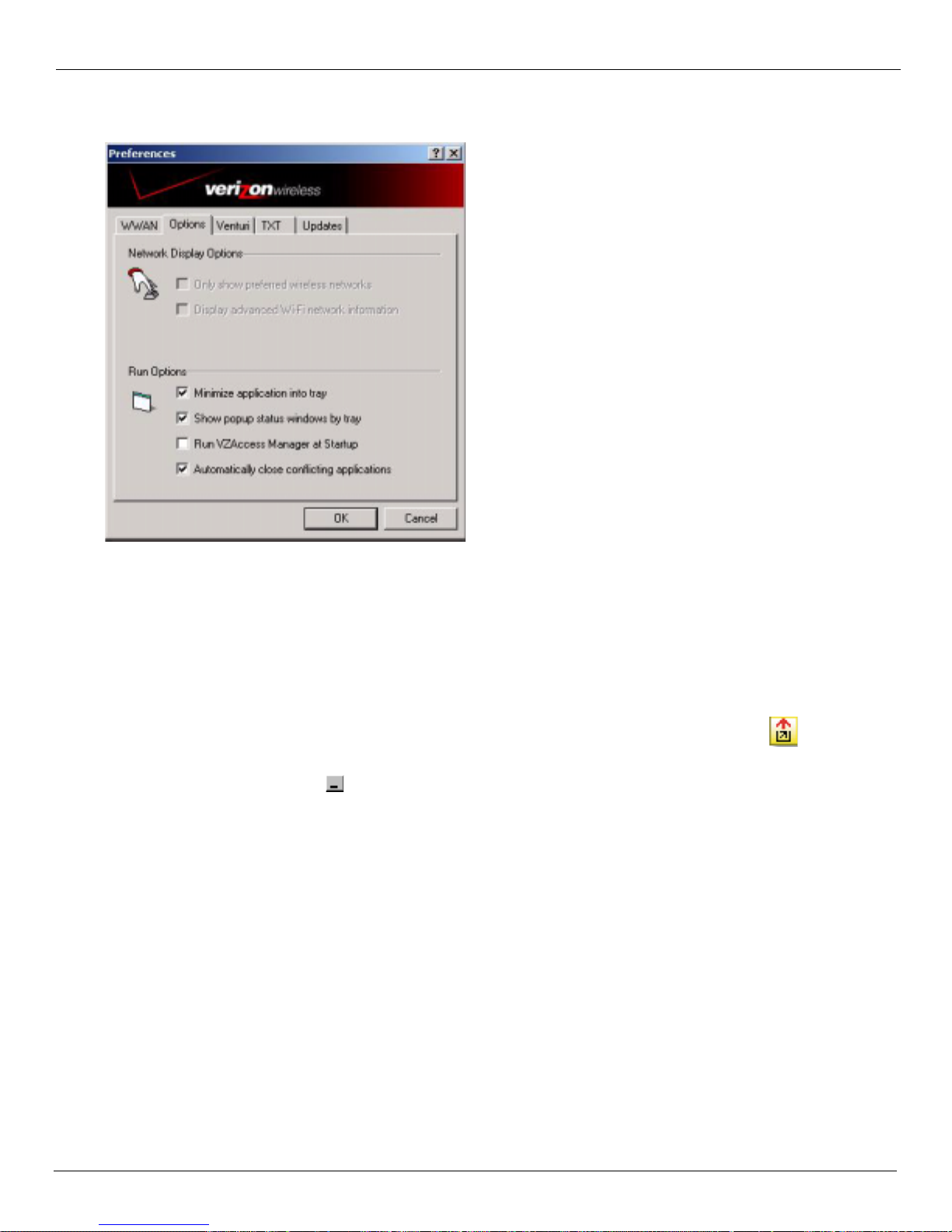
Options Tab
On the VZAcce ss Manager Home screen , sel ect
Only show preferred wireless networks: This only applie s to W i- Fi networks. If checked, at startup, only networ ks in your
Tools → Preferences → Options tab.
Preferred list on the Wi-Fi tab are displayed (networks you have connected to in the past) otherwise, all detected
networks are displayed.
Display advanced Wi-Fi network information: This only applies to Wi-Fi networks. If checked, additional information will
be displayed for Wi-Fi networks such as the channel, MAC address and type of security.
Minimize Application into tray: With this option selected, when you minimize VZAccess Manager, instead of taking up
space in your taskbar, it will just disappear. You can get it back by double-clicking on the tray icon , alternatively
you can right-click in the icon and se lect
Show Application. You can minimize the main window of VZAccess Manager
by selecting the minimize icon ( ) in the upper-right corner of the main window.
Show popup status windows by tray: Ena bles status notification in a pop up window a bove the task bar that displays for a
few seconds whenever connection status changes.
Run VZAccess Manager at Startup: Selecting this option adds VZAccess Manager to the Windows Startup group,
unchecking it removes VZAccess Manager from the startup group.
Automatically close conflicting application s: With this option selected, VZAccess Manag er will a utomatically close any
application it recognizes that is known to prevent it from working correctly. For example, it may close the client
software that was suppli ed with your Wi-Fi card, if it's known to conflict with VZAccess Manager controlling your
Wi-Fi card.
For Wi-Fi, Passwords, and VPN options, refer “Wi-Fi Preferences” on page 25.
For WWAN options and Ve nturi options see “WWAN Preferences” on page 22.
20 User Guide for the Kyocera KPC650
Page 25
VZAccess Manager from Ve rizon Wireless VZAccess Manager Settings
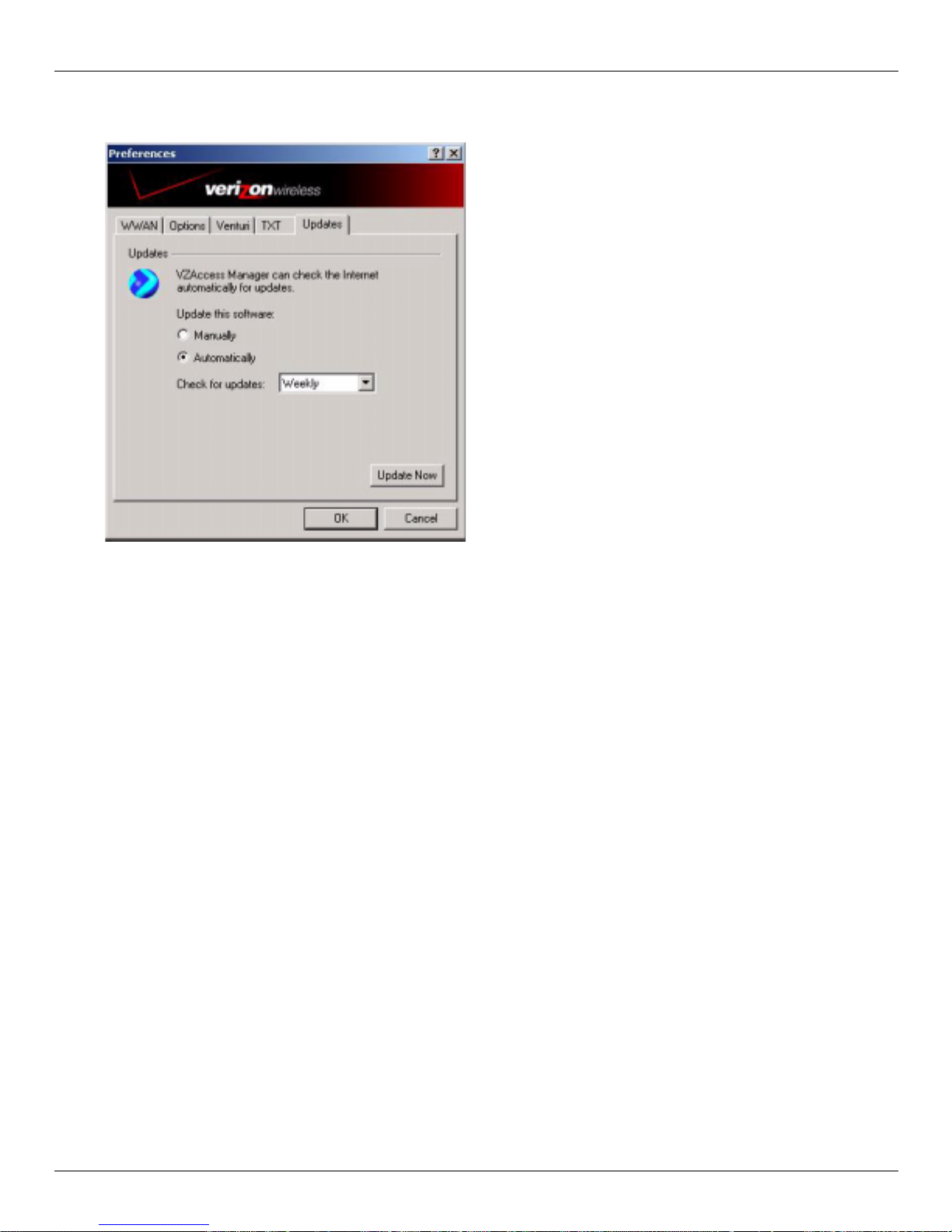
Updat es Tab
On the VZAcce ss Manager connect vie w, select
Tools → Preferences → Updates tab.
This feature allows VZAccess Mana ger to aut omatically check for software updates. If an update is available, you
will be notified of it s size and approximate download times if using NationalAccess, BroadbandAcces s, Quic k 2 Net
or any Wi-Fi connection.
You will be given the choice to download or cancel. If you select download, you will be presented with a display that
shows the progre ss as the upda te is downloading with t he option to cance l if de sired. You do not need to download the
updates wirelessly; you can use any connection to the Internet.
Note: If you download the updates wirelessly, normal
usage charges apply.
You can allow the softwar e to check automatically for updates, dai ly, weekly (default), or monthly. It only checks
when the application is runni ng and when it detects that you are connected and able to access to the Inter net. If
desired, you can sele ct
you select, from VZAccess Manag er's con n ect view
Manually and the softwa re will only ch eck for up dates when you sele ct Update Now, or you when
Help, Check for Updates.
User Guide for the Kyocera KPC650 21
Page 26
VZAccess Manager Settings VZAccess Manager from Verizon Wireless
WWAN Preferences
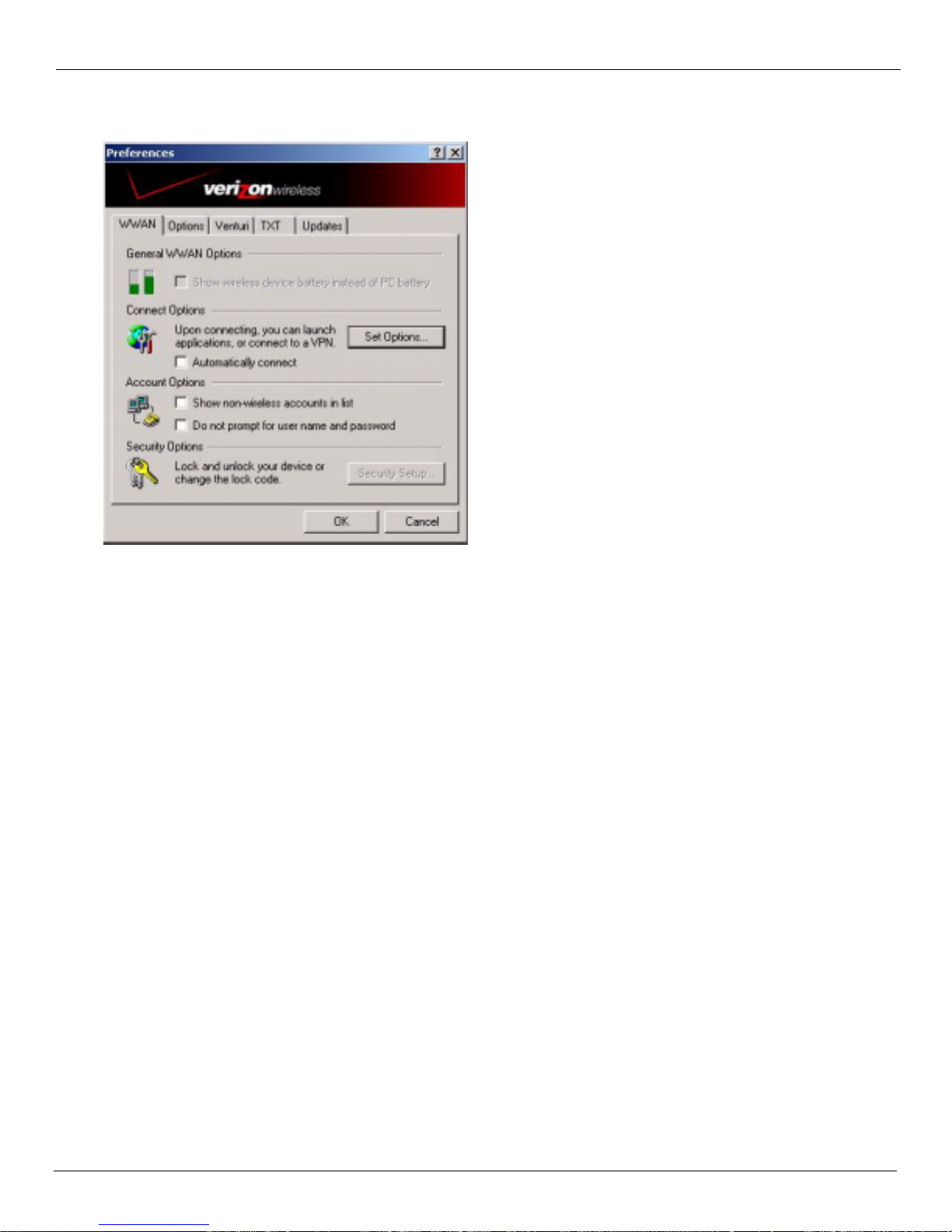
From the VZAccess Manager home screen, select Tools → Preferences → WWAN tab.
Show wireless device battery instead of PC battery: If you only selected to detect and install Wi-Fi when installing
VZAccess Manager, VZAccess Manager will display the PC's battery status in its main window. If you are using a
WWAN device and this option is selected, the battery level of your WWAN device is displayed when your device is
connected and detected by VZAcces s Manager, as well as when you connect and disconnect using your WWAN
device. Battery status cannot be updated while you are connected. You can refresh the status when you are not
connected, by selecting
Tools → Refresh Signal Levels from VZAccess Manager's main window. Some phones fail to
accurately report the ir battery level to VZAccess Manager and some WWAN devices such as PC cards do not use
batteries, so you can use this option to display the PC's battery instead.
Set Options. . . : This is used to set various connect options. See “Connect Tab” on page 23 and “VPN T ab” on page 24.
Show non-wireless accounts in list: If you select this option all of your dial up accounts will show up in VZAccess
Manager's list of account s, a llowing you to use VZAccess Manager to launch them instead of Dial-Up Network ing.
With this option unchecked, the only connections that a re displayed in VZAccess Manager's list of accounts are the
Verizon Wireless NationalAccess - BroadbandAccess, NationalAccess or Quick 2 Net (14.4 kbps) connection,
(depending on your wireless phone/device capabilities) and any wireless connections you have created, manually or
with the Copy Accounts Wizard. If VZAccess Manager is also configured for Wi-Fi, these connections are also
displayed when in coverage of the hot spot.
Do not prompt for user name and password: If you are only using the Verizon Wireless NationalAccess -
BroadbandAccess, NationalAccess or Quick 2 Net (14.4 kbps) connection, this se tting has no effect. If you creat ed
Wireless connections to dial into other networks or have existing connections you are going to launch using
VZAccess Manager, checking this option will skip the screen that normally asks for your user name and password.
For this to work you will have had to connect previously , suc cessfully saving your user name and password.
22 User Guide for the Kyocera KPC650
Page 27
VZAccess Manager from Ve rizon Wireless VZAccess Manager Settings
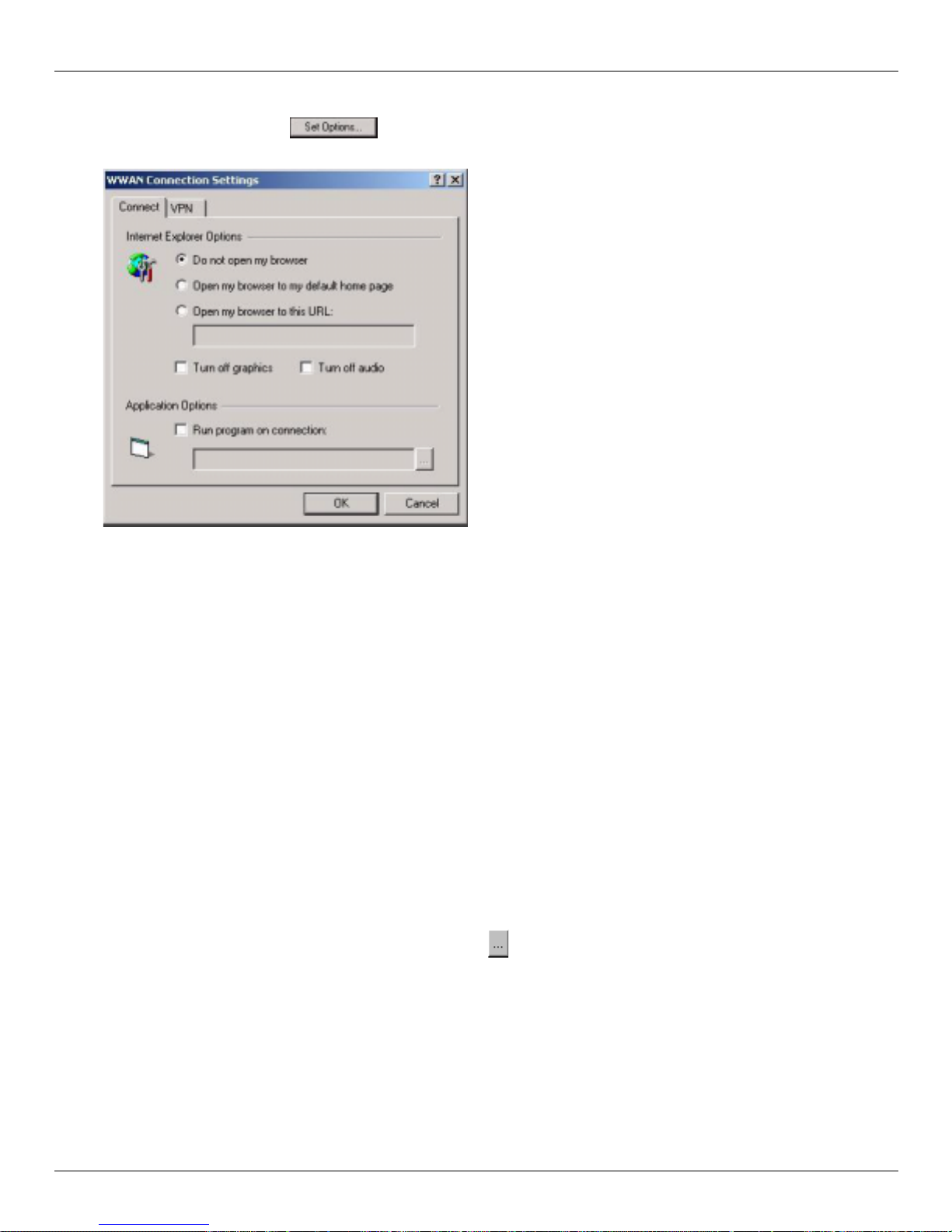
Connect Tab
When you sele ct
Set Options → Connect tab.) , the following options appear .
Do not open my browser: With this option selected, when you connect to a WWAN network, VZAccess Manager wil l
Set Options from the WWAN Prefer ences sc ree n (Tools → Preferences→ WWAN tab →
not automatically launch your default web browser.
Open my browser to my default home page: With this option sele cted, when you connect to a WWAN network
(NationalAccess - BroadbandAccess, NationalAccess or Quick 2 Net), VZAccess Mana ger automatically launches
your default web browser and your home page loads.
Open my browser to this URL: With this option selected, when you connect to a WWAN network (NationalAccess -
BroadbandAccess, NationalAccess or Quick 2 Net), VZAccess Manager automatically launches your default web
browser but does it in such a way that the URL you specify will load ins te ad of your home page.
Turn off graphics: When selected, this turns off graphics in Internet Explorer.
Turn off audio: When selected, this turns off audio in Internet Explorer.
With these options off, web pages load faster but you have to right-click and select
show picture to view any pictures .
With the added performance of the Venturi compression software when using the Verizon Wireless NationalAccess BroadbandAccess, Nationa lAcc ess or Quick 2 Net ( 14.4 kbps) connection, most users prefer to se e graphics a nd have
audio support, so the default setting for both options is unchecked.
Run program on connection: This allows you to automatically run a program when you use VZAccess Manager to
connect to a WWAN network. Select the browse button, , to browse to the desired application you want to run
when you connect to a WWAN network using VZAccess Manager. The application will run for all WWAN
connections made from VZAccess Manager.
User Guide for the Kyocera KPC650 23
Page 28
VZAccess Manager Settings VZAccess Manager from Verizon Wireless
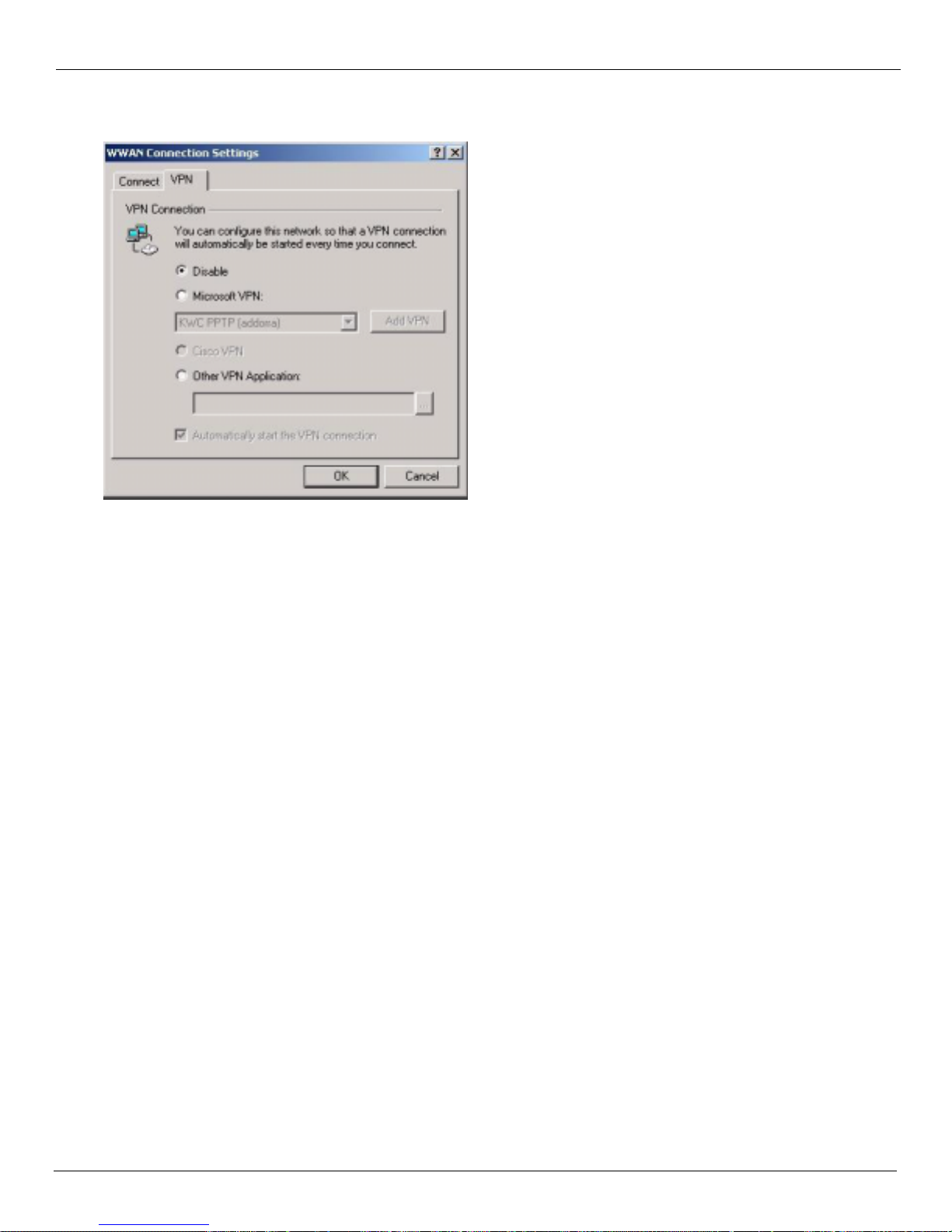
VPN Tab
The following options exist on the VPN tab (
Disable: When you connect to a WWAN network, VZAccess Manager will not automatically launch your VPN client.
Microsoft VPN: If the network you are connecting to supports using Microsoft's VPN, you can select this option and
select the VPN connection you normally use from the drop down list. You can also use the
Tools → Preferences→ WWAN tab → Set Options → VPN tab):
Add VPN to create a
Microsoft VPN c onnection. When you use VZAccess Manager to connect to a WWAN network, it will automatically
launch your VPN connection.
Cisco VPN: If Cisco VPN software is install ed, you can sele ct this opti on to cause VZAcce ss Manager to automatic ally
launch your Cisco VPN software when you connect to a WWAN network using VZAccess Manager.
Other VPN Application: This allows you to automatically runany VPN program when you use VZAccess Manager to
connect to a WWAN network. Check th e
Other VPN Application radial button and then cli ck on the browse button to
locate the desired VPN application you want to run when you connect to a WWAN network using VZAccess
Manager. The VPN application will run for all WWAN connections made from VZAccess Manager. If you have a
shortcut you normally use to launch your VPN application you may want to right-click on it and select properties to
see where the program is located and how it's named.
24 User Guide for the Kyocera KPC650
Page 29
VZAccess Manager from Ve rizon Wireless VZAccess Manager Settings
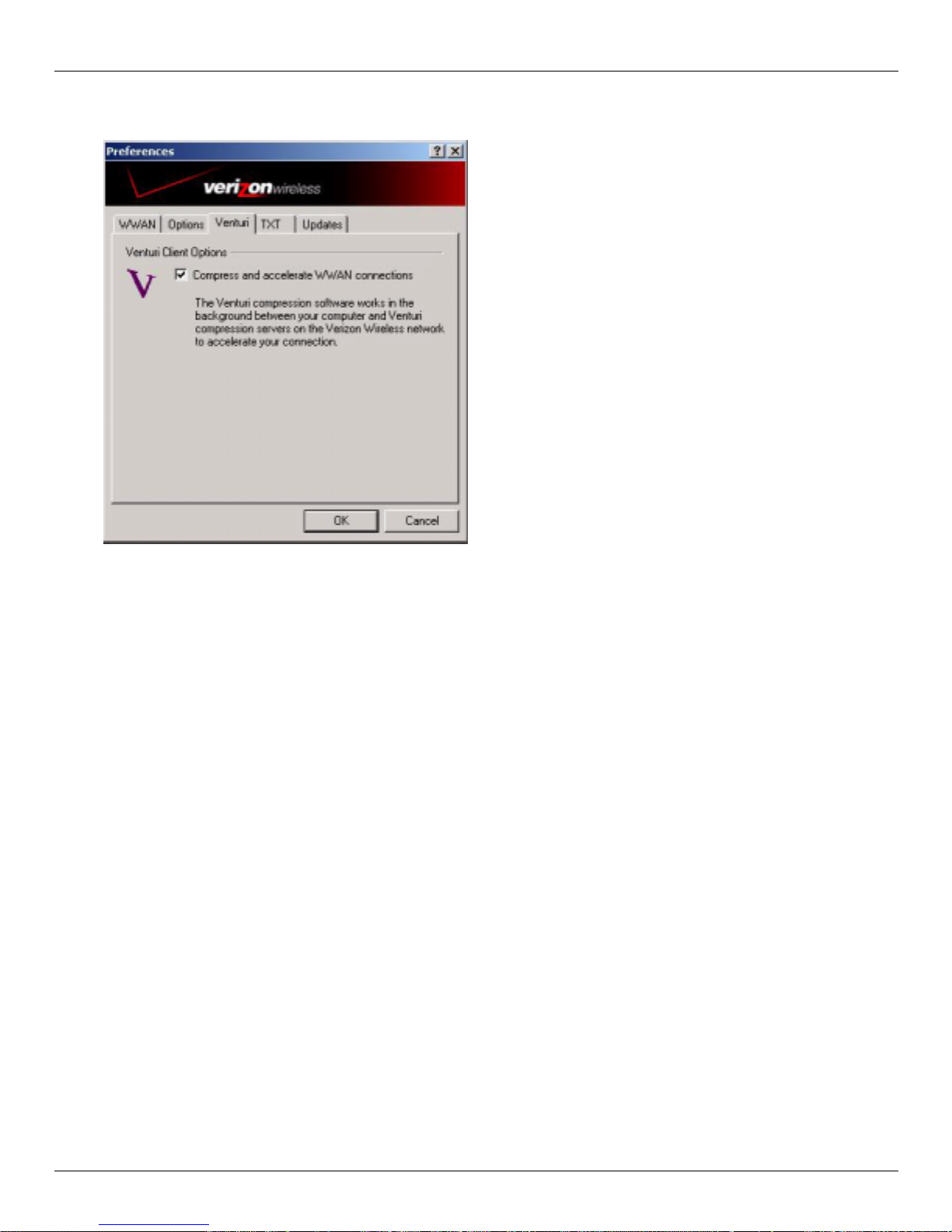
Venturi Tab
The last WWAN specifi c option is the Venturi tab (
Tools → Preferences → Venturi tab):
The Venturi compression software works in the background between your computer and Venturi compression servers
on the Verizon Wireless network to improve your performance when using the NationalAccess - BroadbandAcc ess,
NationalAccess or Quick 2 Net (14.4 kbps) co nnection. This option is selected by default a nd allows VZAccess
Manager to aut omatically turn the Venturi compression software on when you use VZAccess Manager to connect via
BroadbandAccess, NationalAccess or Quick 2 Net, and off when you disconnect.
Unselecting "Compress and accelerate WWAN connections" will cause VZAccess Manager to no longer toggle the
Venturi compression software on and off when using BroadbandAccess, NationalAccess or Quick 2 Net. The
recommendation is to leave thi s option se lected because it helps in most cases. There are some rare situa t ions where
you may get better performance by turning the compression software off, so the option is available. You can also
control the co mpression client through its user interface. For additional deta ils see the section on Venturi Instructions.
Wi-Fi Preferences
The following options are available if you selected "detect Wi-Fi" device during setup. I f you have adde d a Wi-Fi
device after having installed VZAccess Manager, you can select
If you connect your W i-Fi device after VZAccess Manager has been started an d you are in covera ge of a Wi-Fi
network, selecting
Options → Refresh Networks will cause VZAccess Manager to recognize your Wi-Fi device (and
WWAN if connected) and scan for available networks.
Options → Run Wizard to run the setup wizard again.
User Guide for the Kyocera KPC650 25
Page 30
VZAccess Manager Settings VZAccess Manager from Verizon Wireless
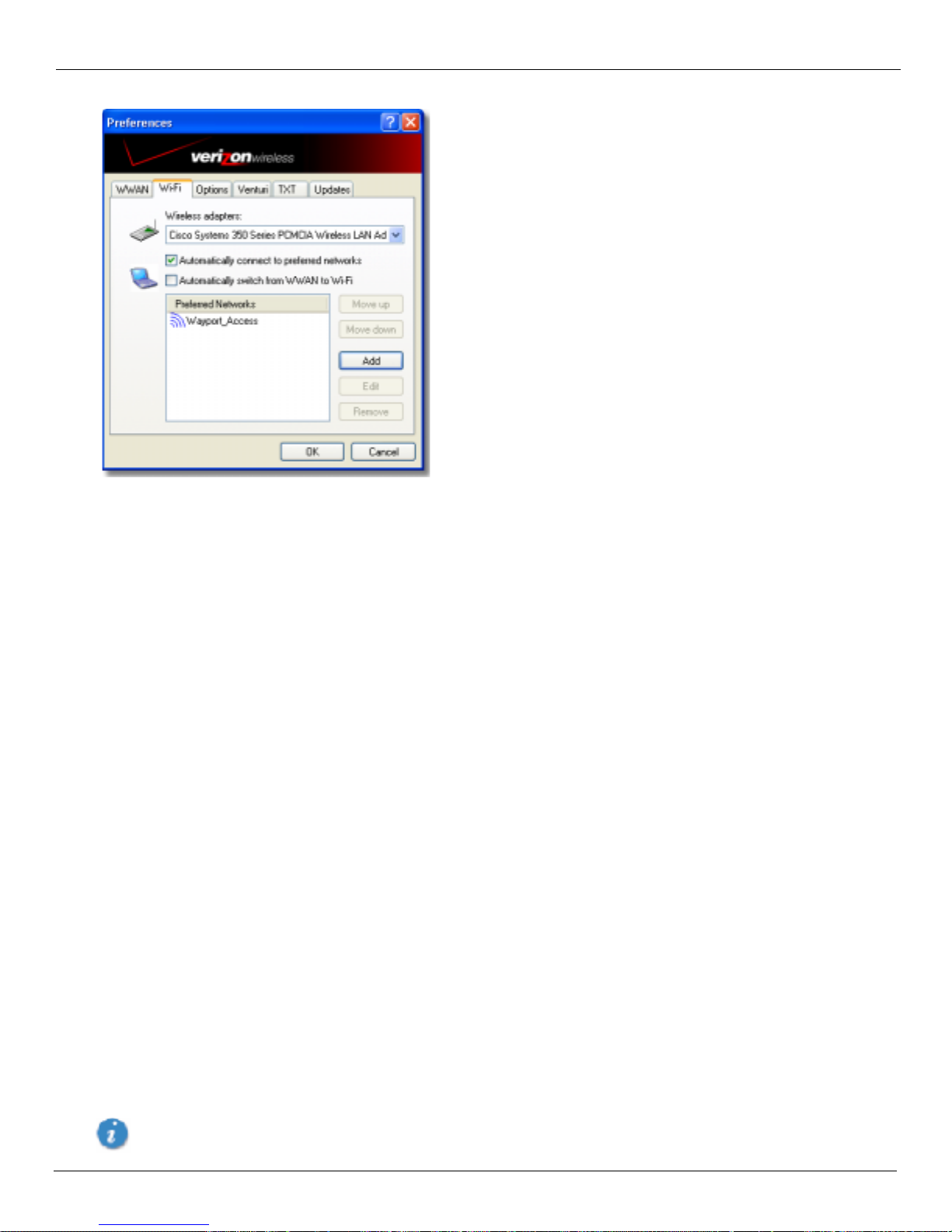
Select Tools → Preferences → Wi -Fi tab.
Wireless adapters: In the rare case you have more than one Wi-Fi adapter, you can select the Wi-Fi adapter you are
using. If your adapter does not appear, try upgrading to the latest available drivers from the Wi-Fi device
manufacturer.
Automatically connect to preferred networks: Allows you to have VZAccess Manager automatically connect to your
preferred Wi-Fi netw ork s when t hey are de tect ed .
Automatically switch from WWAN to Wi-Fi: Requires that Automatically connect to preferred networks is selected. When you
select this option to aut omatically switch from WWAN to Wi-F i
VZAccess Manager will disconne ct your WWAN connection (NationalAccess - BroadbandAccess, NationalAccess,
or Quick 2 Net (14.4 kbps)) and automatically connects via Wi-Fi when a prefe rred Wi-Fi network is detected.
WWAN connections are only relevant if using a 1XRTT/CDMA wireless phone and cable or an 1XEVDO/1XRTT/
CDMA PC card.
Preferred Networks: When you connect to or add Wi -Fi net works they appear in this list. If using the Automatically
connect
Move Up: Changes the priority of the Wi- Fi networks you have added or connected to in the past. This option is only
feature VZAccess Manager attempts to connect to the networks in the order they appear in this list.
available when you have two or more Wi-Fi networks in the Preferred list.
Move Down: Changes the priority of non Verizon Wireless Wi-Fi networ ks you have added or connec ted to in the past.
This option is only available when you have two or more W i-Fi networks in the Preferred list.
Add: Used to manually add Wi -Fi networ k. If you se lect "Add" you will ha ve to enter the networ k's name and i ndicat e
if it is password protected. The only time you would need to use the "Add" feature would be if the Access Point
providing the Wi-Fi coverage does not broadcast its network name (SSID). The easiest way to add a network that
broadcasts its network name, is to select the Wi-Fi network connection when it appears, and then select
Connect. If it
is password protected you will be prompted to enter your WEP (Wired Equivalent Privacy) key.
Note: If you manually add a W i-Fi network, when VZAccess Manager finds it, its signa l strength is displayed to the
right of the network name when you are within coverage of that network. If you incorrectly entere d the name, the
signal strength will never indicate any signal.
With certain Wi-Fi adapters the signal strength for Wi-Fi networks is not accurate until you connect to the
network.
26 User Guide for the Kyocera KPC650
Page 31
VZAccess Manager from Ve rizon Wireless VZAccess Manager Settings
Edit: If you select a connection in the Preferred Network list, the Edit button will become active. Pressing it will
provide you with three additi onal tabs: Network, Connect, and VPN. These are discuss ed below.
Remove: Removes any other Wi-Fi networks you have a dded or connected to in the past. Just se lect the network, then
select
Remove.
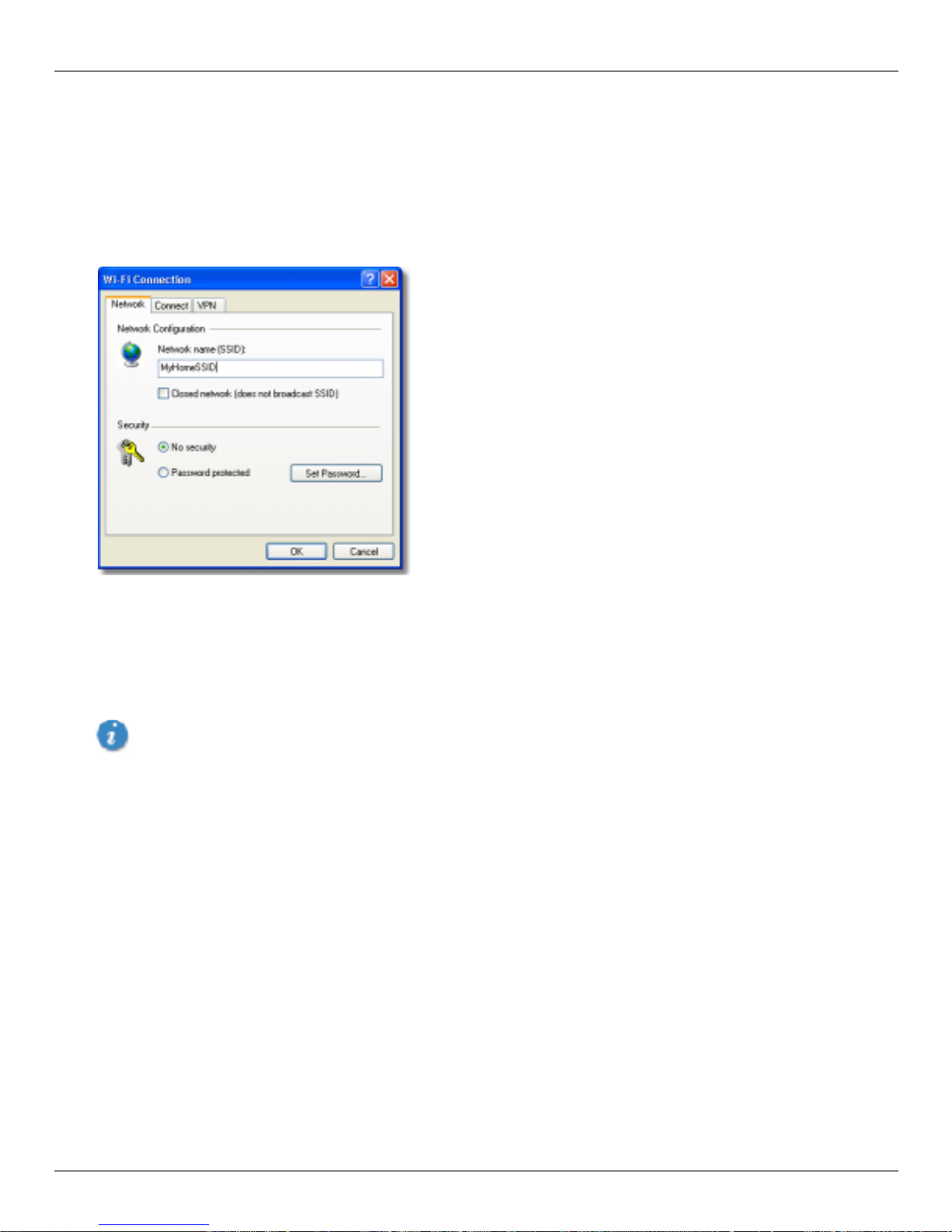
Network Tab
From the Wi-Fi tab above (
select the
Edit button, or if you select the Add button, one of the following options will be displayed:
Tools → Preferences → Wi-Fi tab), select a network listed under Preferred Networks then
The following options exist on the Network tab:
Network Name: On the Network tab, for private networks you can edit or enter the Network name and specify if it is a
closed network.
manually adding it, select the Wi-Fi network connection when it appears, and then select
Note: The name has to match the network to work. If the network broadc asts its SSID, instead of
Connect. If it is password
protected you will be prompted to enter your WEP (Wired Equivalent Privacy) key.
The name has to match the network to work. Note that this name is case sensitive when ente ring it
Set Password: This option allows you to modify, delete or enter your Wi-Fi WEP keys for a private Wi-Fi network..
User Guide for the Kyocera KPC650 27
Page 32
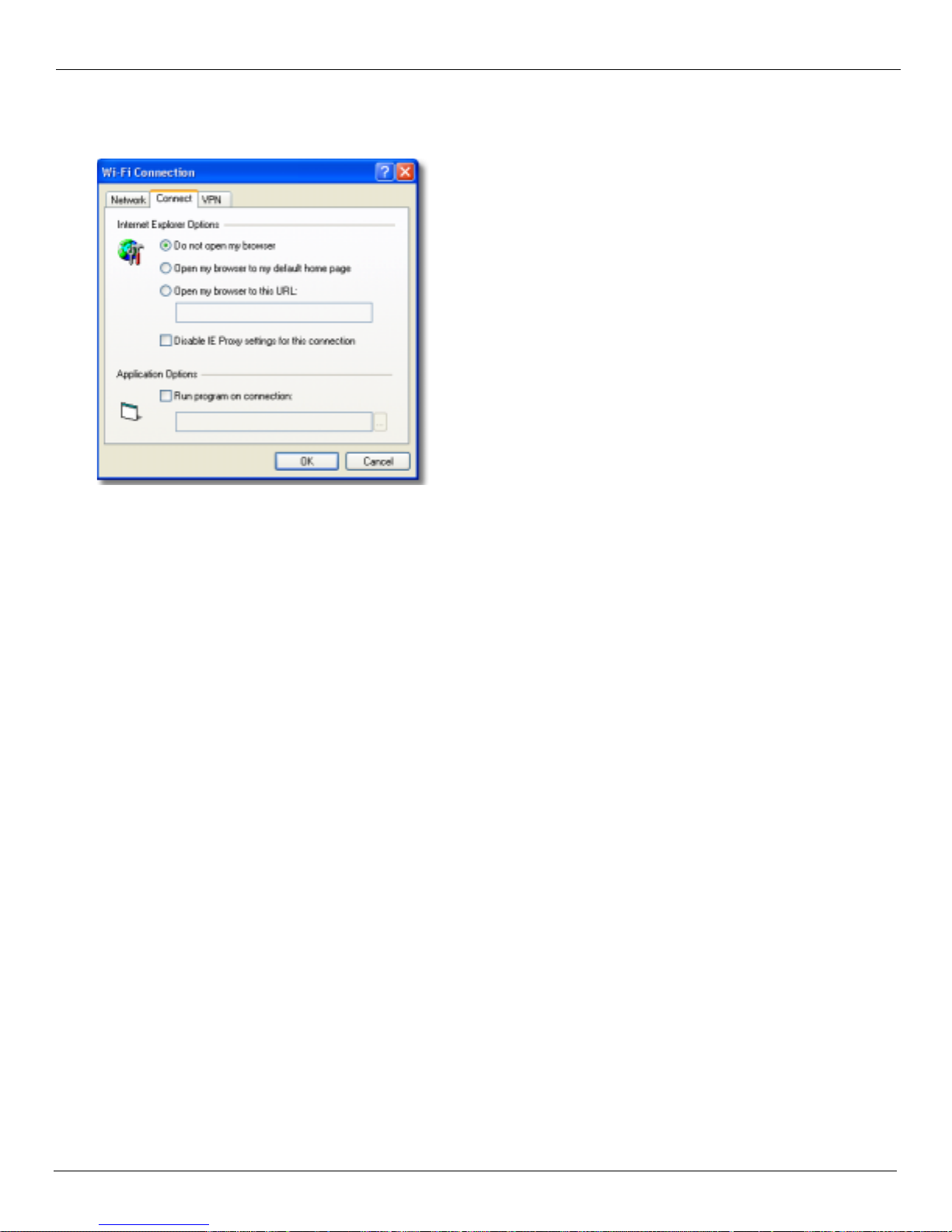
VZAccess Manager Settings VZAccess Manager from Verizon Wireless
Connect Tab
The following options exist on the
Network list → Edit → Connect tab.):
Do not open my browser: With this option selected, when you c onnect to a Wi-Fi network, VZAccess Manager will not
Connect tab (Tools → Preferences → Wi-Fi tab → Add or a network in the Preferred
automatically la unch your web browser.
Open my browser to my default home page: With this option selected, when you connect to a Wi-Fi network VZAccess
Manager will automatically launch your web browser and your default home page will load.
Open my browser to this URL: With this option selected, when you connect to a Wi-Fi network, VZAccess Manager will
automatically la unch your web browser but do it in such a way that the URL you specify will load instead of your
home page.
Disable IE Proxy settings for this connection: This option provides an automatic method to turn off proxy settings when
connecting to a Wi-Fi network. This would typically be used if you normally use proxy settings at work to access the
Internet and you wanted to access the Inter net directly via Wi-Fi without using VPN (Virtual Private Networking)
software.
Run program on connection: This allows automatically running a program when you use VZAccess M anage r to connect
to a Wi-Fi netwo rk. Select the browse button to browse to the desired application you want to run when you connect
to a Wi-Fi network using VZAccess Manager. The application will run for all Wi-Fi connections made from
VZAccess Manager.
28 User Guide for the Kyocera KPC650
Page 33
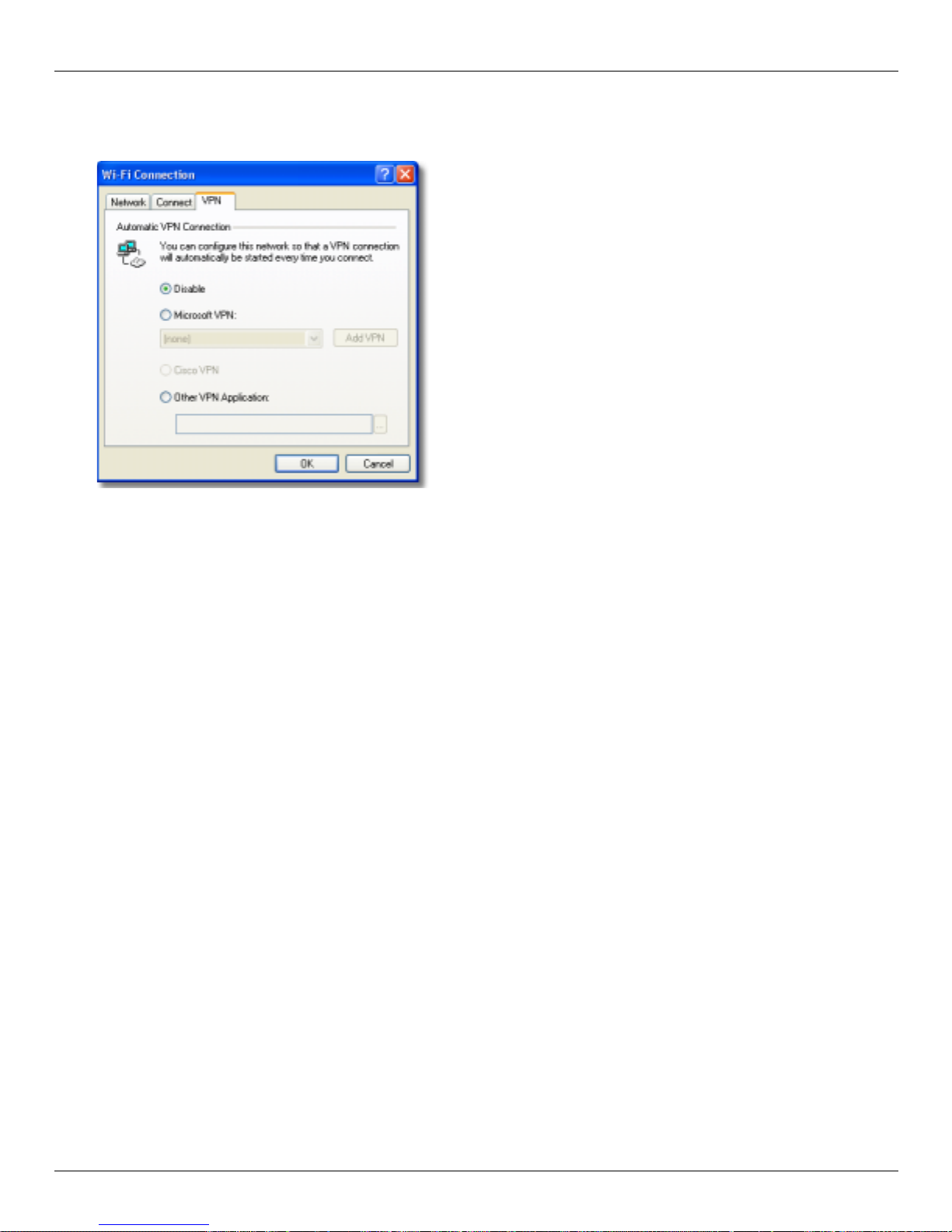
VZAccess Manager from Ve rizon Wireless VZAccess Manager Settings
VPN Tab
The following options exist on the
Network
Disable: When you connect to a Wi-Fi network, VZAccess Manager will not automatically launch your VPN client.
Microsoft VPN: If the network you are connecting to supports using Microsoft's VPN, you can sele ct this option and
list → Edit → VPN tab):
select the VPN connection you normally use from the drop down list. You can also use the
VPN tab (Tools → Preferences → Wi-Fi tab → Add or a network in the Preferred
Add VPN to create a
Microsoft VPN connecti on. Whe n you use VZAccess Manager to connect to the Wi-Fi network you added or edited,
it will automatically la unch your VPN connection.
Cisco VPN: If Cisco VPN software is in stalled, you can sele ct this option t o cause VZAccess Mana ger to automatica lly
launch your Cisco VPN software when you connect to the Wi-Fi network you added or edited, using VZAccess
Manager.
Other VPN Application: This allows you to automatically run any VPN program when you use VZAccess Manager to
connect to the Wi-Fi network you added or edited. Select the browse button to browse to the desired VPN application
you want to run when you connect t o the W i-Fi network you added or edite d, using VZAccess Mana ger. If you have a
shortcut you normally use to launch your VPN application you may want to right click on it and select properties to
see where the program is located and how it's named.
Options Tab
The last tab in Preferences that has Wi-Fi specific settings is the
Only show preferred wireless networks at start up: This only applies to Wi-Fi networks. If checked, at startup, only
Options tab (Tools → Preferences → Options):
networks in your Preferr ed list on th e W i-Fi tab a re displayed ( networ ks you have connect ed to in the past) othe rwise,
all detected networks are displayed. You also have the option in the main scr een of VZAccess Manager of selecting
"Show All Networks" when only preferr ed networks are displayed and you have the option to select "Show
Preferred" networ ks when VZAccess Manager is set to show all detected networks.
Display advanced Wi-Fi network information: This only applies to Wi-Fi networks. If checked, additional information will
be displayed for Wi-Fi networks such as the channel, MAC address and type of security.
The rest of the features on this tab are explained in “General Preferences” on page 19.
User Guide for the Kyocera KPC650 29
Page 34
Additional VZAccess Manager Features VZAccess Manager from Verizon Wireless
Additional VZAccess Manager Features
In addition t o the basic features mentioned in previous sections, VZAccess Manager has the additio nal features listed
below.
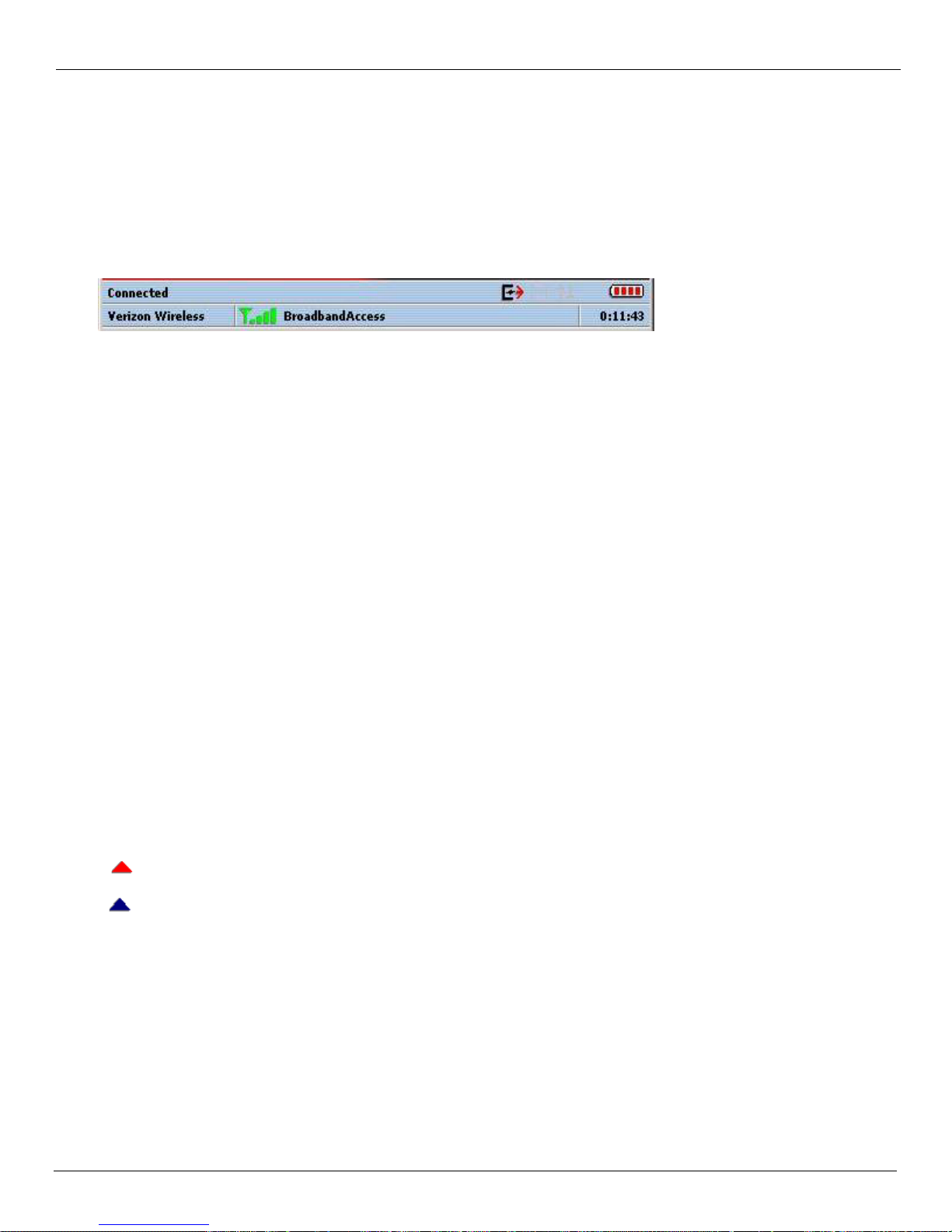
The Status Bar
The details of your current connection can be seen in the status bar at the bottom of t he VZAccess Manager interface.
This status bar is always visible when the interface is fully expanded. For information on minimizing the VZAccess
Manager in terface, refer to “Minimizing the Interface” on page 32.
Connection Status: The te xt on the t op lef t portion of the s tatus bar above "Verizon Wir eles s" reflec ts you r current state .
During an active connection, this text changes to
WWAN PC Card Status Area:
The text that reads Verizon Wireless can change to the following:
Device not inserted - Your WWAN PC Card is removed from the laptop.
Connected. If you are not connected, Not Connected displays.
Device not acti vat ed - Your PC Card needs to be activate d.
Coverage: For PC cards, an icon will display if you are in NationalAccess or Broadba ndAccess coverage. Hover the
mouse to see the tool tip showing the name of the current network.
New TXT: If your device supports TXT messaging, an icon a ppears on the status bar to show that you have a new TXT
message waiting. Double-click on the icon to jump to the TXT view to see the message.
Throughput: The amount of data that you have sent and receive d since the current network connection was initia ted
can be seen by holding the mouse over the green up and down arrows on the right side of the status bar.
Battery Level: The current batte ry level of your mobile phone can be seen on the right side of the status bar.
Elapsed Time: The amount of time that has elapsed since the current network con necti on was initiated is tracked on the
lower right side of the status ba r.
Roaming Status: VZAccess Manager displays Roaming status f or PC Cards. These icons will show on status bar in
these scenarios:
Icon Status
Roaming
Extended Network
No icon displayed Home Network
30 User Guide for the Kyocera KPC650
Page 35
VZAccess Manager from Ve rizon Wireless Additional VZAccess Manager Features
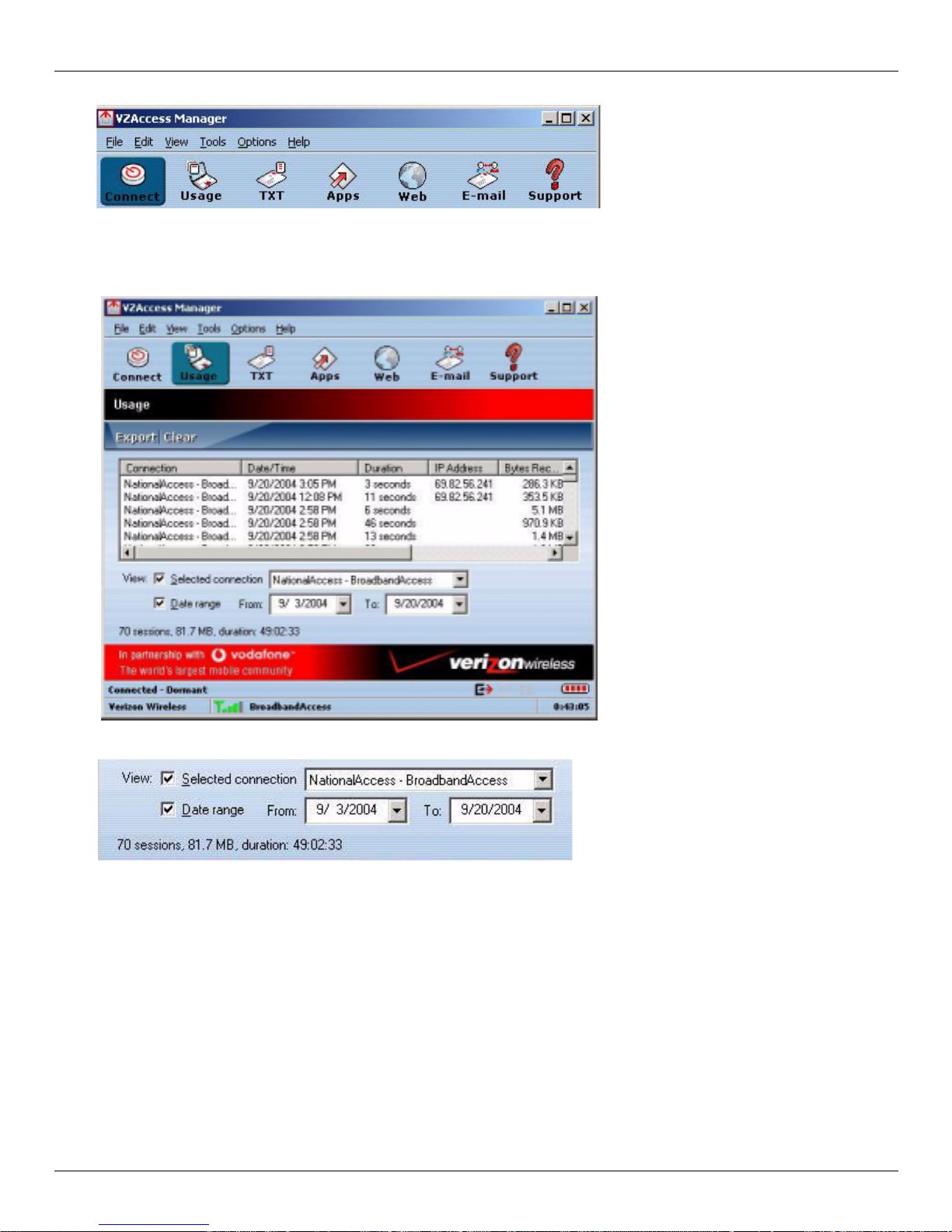
The Toolbar Buttons
Connect: Displays all of your available wire less connections and networks.
Usage: Provides a concise session log of your network activity. Click on a column heading to sort the log. This
window also displays the total number of sessions as well as the total time connected.
The information displa yed in the Usage log can be customized using the controls that appear just below the list.
T o view only the connection history of a specific network type, check the
desired type from the drop-down list. To view only the connections made during a specific interval, check the
range
checkbox and specify the date in the From: and To: fields.
To export this log as a CSV file, click the
Export button that is just above the log. To clear the log, press the Clear
Selected connection chec kbox and select the
Date
button. Note that clearing the log cannot be undone.
Apps: Add applications here that you want easy access to while connected to the wireless Internet. VZAccess
Manager will pre-load into this view links to Verizon Wireless web sites, and any Microsoft Office applications you
have loaded on your computer.
TXT: The TXT button allows you to send short text messages to any other wireless device that supports SMS. Note
that this button is only available when using a wireless device that supports SMS.
Web: Launches the default web browser on your computer.
User Guide for the Kyocera KPC650 31
Page 36
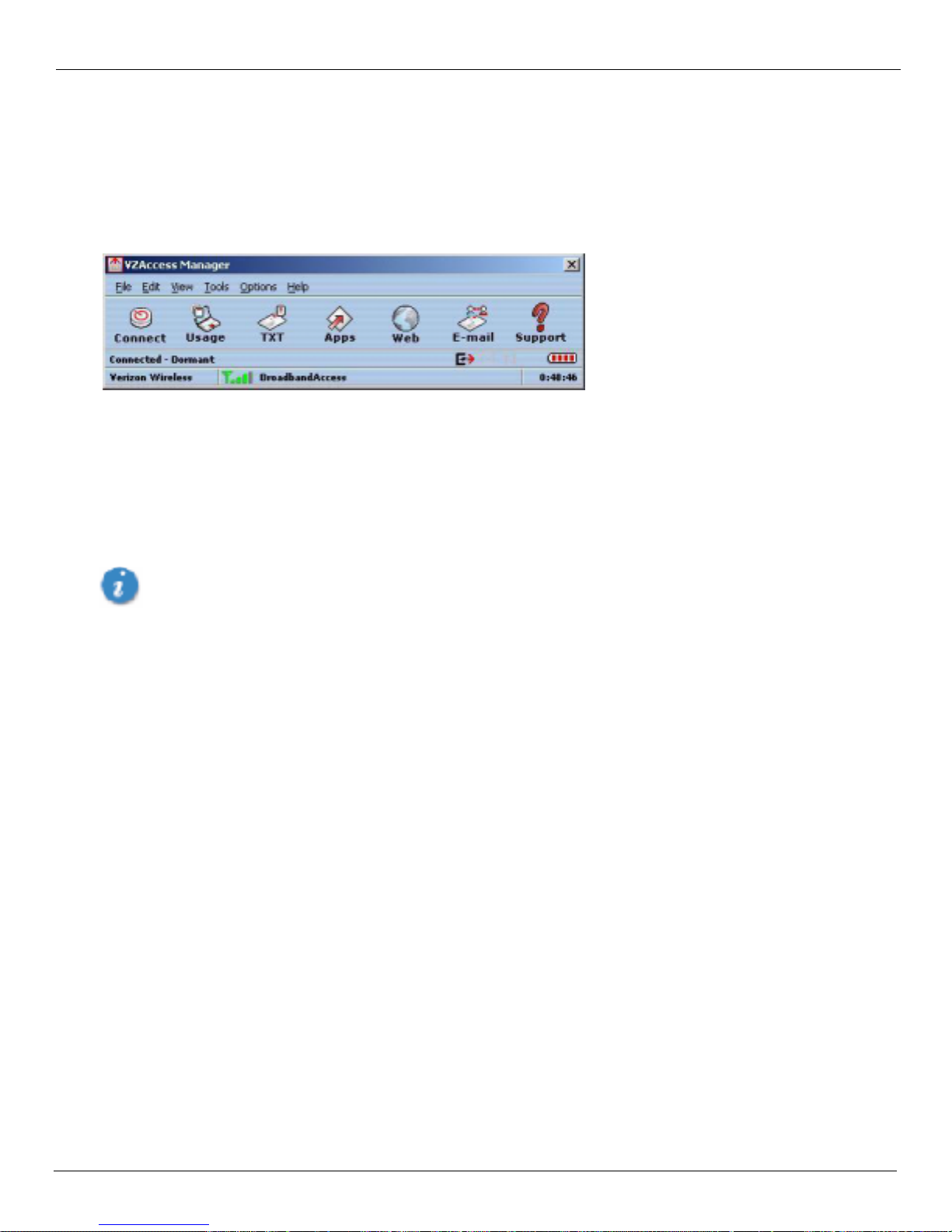
Additional VZAccess Manager Features VZAccess Manager from Verizon Wireless
Email: Launches the default email application on your computer.
Support: Displays a variety of help options available to you. Click this button to find assistance with a problem, to
explore the full range of VZW products and services, or to contact Verizon Wireless.
Minimizing the Interface
The VZAccess Manage r interface can be minimized to take up as little screen real estate as possible. T o minimize the
interface, sel ect
View → Minimum.
T o return the VZAccess Manager interface to the normal size, select
View → Minimum again.
The Tools Menu
Preferences: Allows you to set preferenc es for WWAN, WiFi, Options, Venturi and updates.
Control Pan e ls : Acce ss to your systems Modem, Network and Dial-Up Connections, a nd Internet control panels. You can also
see all control panels by selecting
All.
The following options are only appli cable if using a WWAN device (Wireless Phone and cable or 1xRTT/
CDMA PC card) that supports dial-up accounts
Dial-Up Accounts: Add, edit, or copy wireless dial-up accounts.
• Add Wireless: This is used to create a wireless dial-up connection f rom scratch.
• Add Other: This is used to create a regular dial-up con nection from scratch.
• Edit: This is used to edit properties of any dial- up connection.
• Copy: See section on Using Dial-Up Connections.
The Options Menu
Refresh Networks: This cause s VZAccess Manage r to veri fy devi ces connec ted and t o scan for a vailable Networ ks. Use
this feature if you connected your equipment after launching VZAccess Manager. Pressing the F6 function key can
also access this option.
Refresh Signal Levels: This causes VZAccess Manager to query signal levels and update its display. This will also
update the ba ttery display for your WWAN device if it is not in an active data session. Signal levels are automatically
refreshed when you launch VZAccess Manager, connect or discon nect. Pressing the F5 function key can also access
this option.
Statistics: If you selected to detect an d insta ll Wi-Fi during ins tal lation, there will be a Wi-F i statistics tab with
additional infor mation and tools that are helpful in the event any troubleshooting of the connection is required. You
can view key statistics including bandwidth and your IP address information, release your IP address, renew your IP
address. If you selected to detect and install a WWAN device duri ng installation, there will be a Statistics tab that will
show data speeds during a session when usin g the WWAN device. Quick 2 Net is capable of data speeds bursting up
to 14.4 Kbps. NationalAccess delivers typical speeds of 40 to 60 kbps, bursting up to 144 kbps. BroadbandAccess
provides broadband-like speeds (up to 1.54 Mbps). There is also a My Computer tab; this tab has key information
about your computer that may be helpful in troubleshooting any problems that may occur. It also has the option of
being e-mailed to Verizon Wireless Technical Support.
32 User Guide for the Kyocera KPC650
Page 37
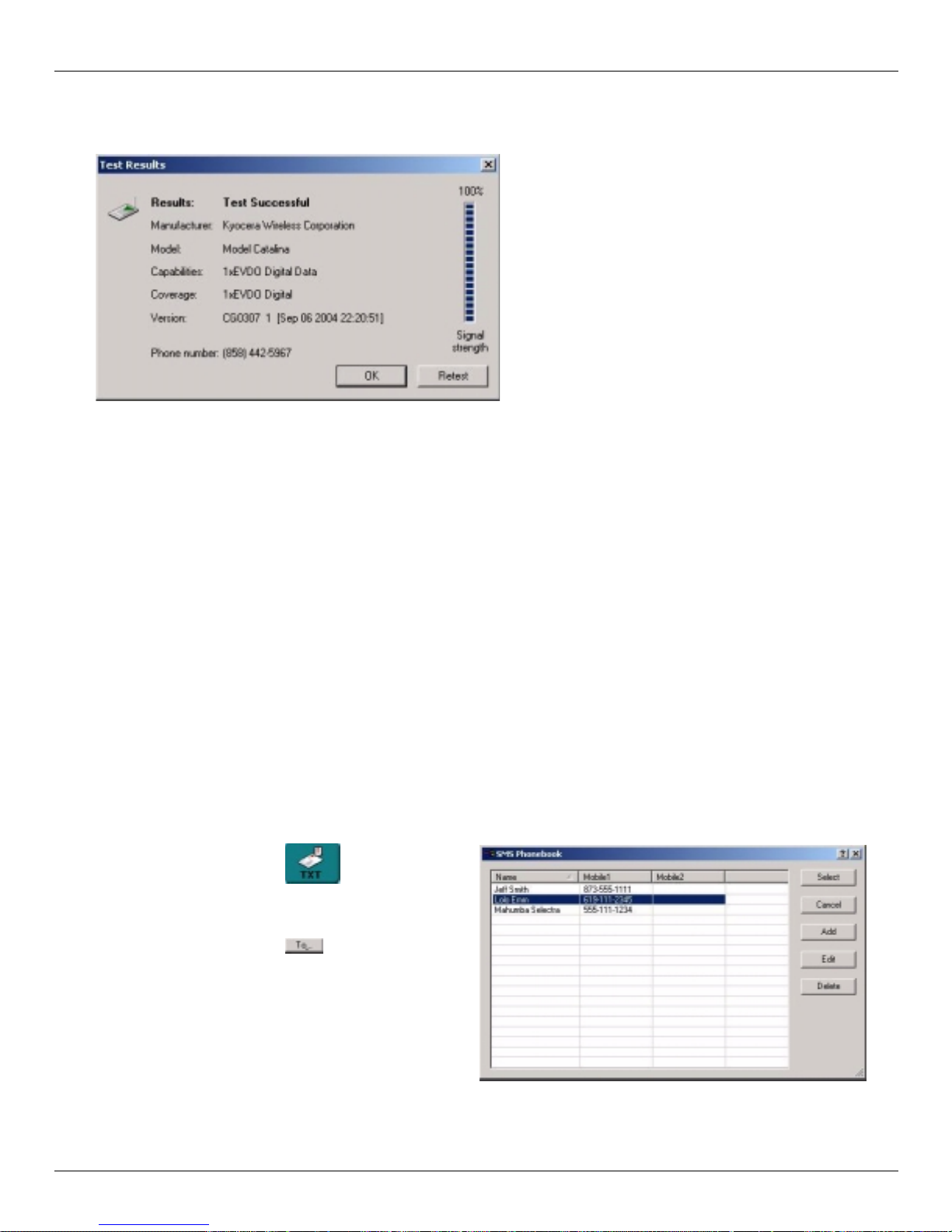
VZAccess Manager from Ve rizon Wireless Te xt messaging
Test WWAN Device: Retrieve and display detailed information about your WWAN device (Wireless phone and cable or
1xEV-DO/1xRTT/CDMA PC Card) such as manufacturer, model, version, etc. Also, see the current battery (not wi th
PC cards) and signal strengt hs. This information can be valuable when troubleshooting a problem.
Run Wizard: Runs the Setup Wizard again. Useful if you need to reconfigure VZAccess Manager to use a new mobile
handset or PC Card.
The Help Menu
Contents: Launches this help fi le. You can also access this help file from your installation CD.
Check for Updates: Can be used with any connection to the Internet to check for software updates for VZAccess
Manager.
Device Support Page: Takes you to the Verizon Wireless device support page that contains information about wireless
Note: If downloading an update wirelessly, normal usage charges apply. “Updates Tab” on page 21.
devices, useful tips and hardware manuals.
E-mail Verizon Wireless Support: This option will a ttempt to launch your mail client with the default addre ss to e-mail
Verizon Wireless Support.
About VZAccess Manager: Displays the software version.
Text messaging
Your Kyocera KPC650 is short message service (SMS) capable. B efore sending messages, you must have the mobile
numbers of your contacts set up your SMS phonebook. To do this:.
1. Click the TXT button on the
VZAccess Manager home screen to open the
TXT Messaging window
2. Click on the To butto n located toward t he
bottom part of the window. The SMS
Phonebook screen appears .
3. Click Add. The Phonebook Entry screen opens
User Guide for the Kyocera KPC650 33
Page 38
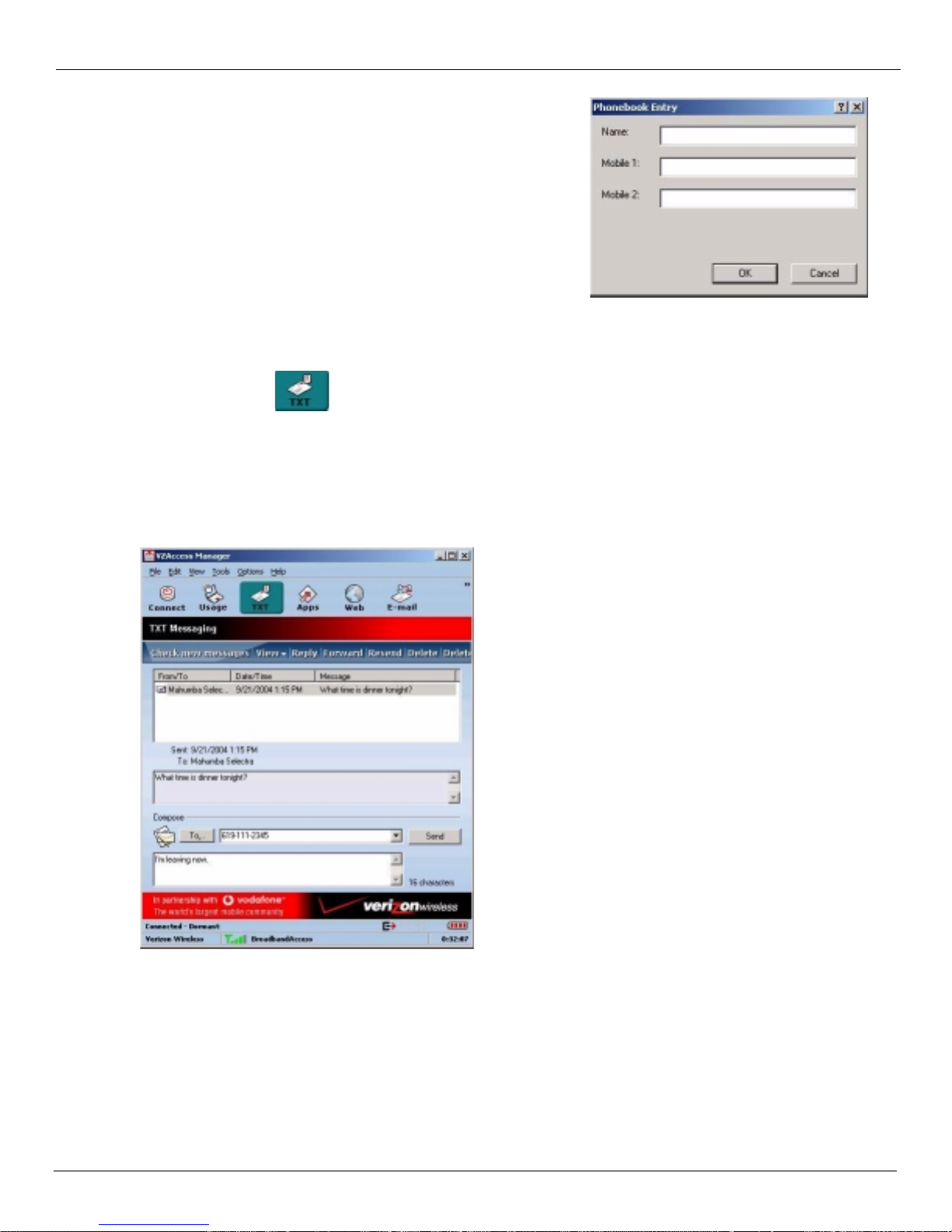
Text messaging VZAccess Manager from Verizon Wireless
4. Enter the name and phone number(s) of your
contact and click OK.
5. Repeat for each contact you want to add.
Sending a text message
1. Click the TXT button on the VZAccess Manager home screen to open the TXT Messaging window..
2. Click on the To: button, highlight the contact you want to send a mess ag e to, and click Select.The addr es s is laced
in the To: text field.
3. T ype your message in the Compose text field.
4. Click the Send button. A message alerts you that VZAccess Manager is attempting to send the message. Shortly
after you will receive a confirmation that the message has been sent or that the attempt faile d.
Options within TXT Messaging
Check new messages: Click on this text to update message tha t have been sent to you.
View: Check to see Received Messag es, Sent Messages, or All messages in the display window at the top of the
screen.
Reply: Reply to any messages you have recei ved. Selec t the message to which you want to reply , clic k Reply, and type
your text. Click
Forward: Send an existing message to another address. Highlight the message, click Forward, Click the To button and
choose the recipient. Click
34 User Guide for the Kyocera KPC650
Send.
Send.
Page 39
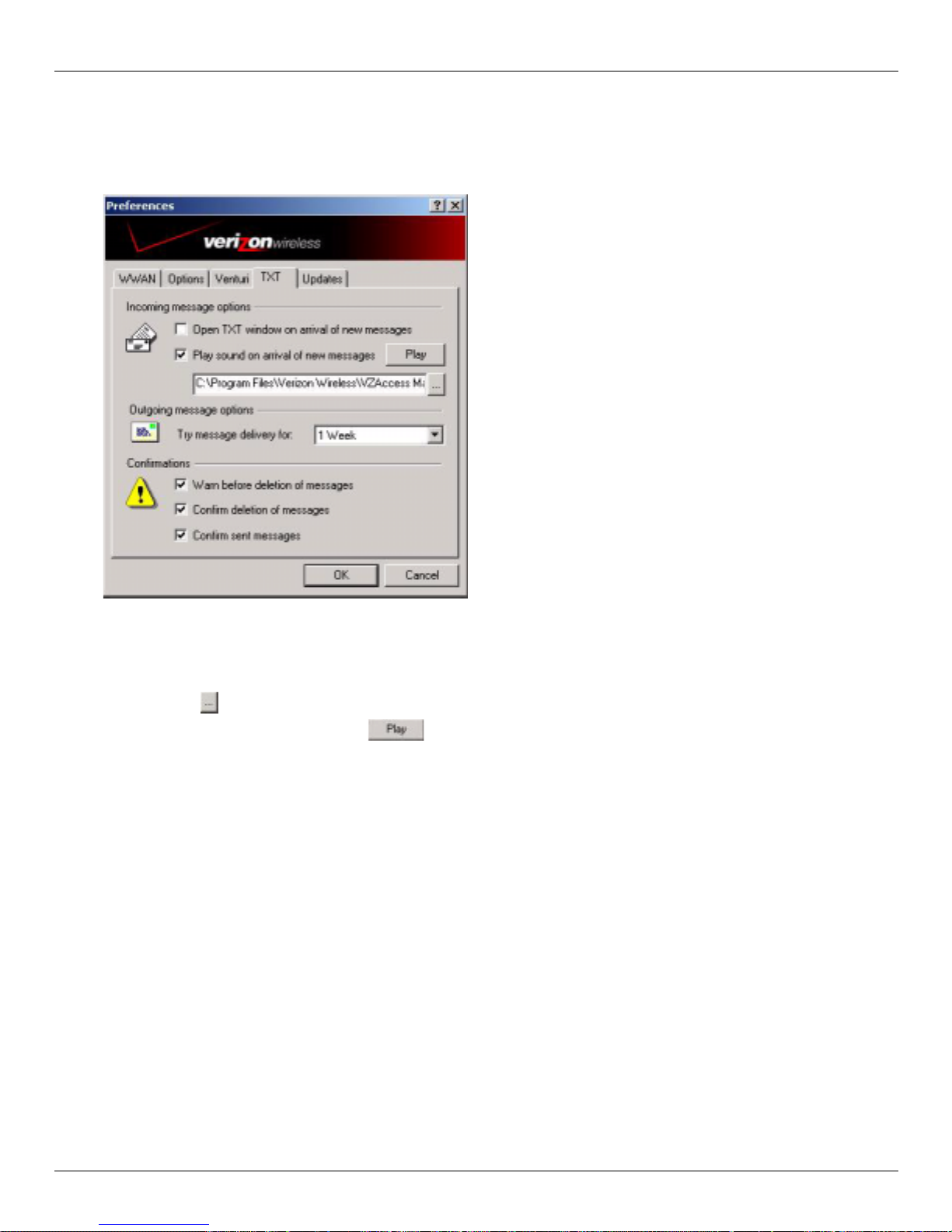
VZAccess Manager from Ve rizon Wireless Te xt messaging
Resend: Resend the message to the original recipient.
Delete: Delete messages f rom your inbox. Highl ight the messa ge, clic k Delete. A warning will confirm that you want to
delete the mes sag e. Se le ct
Yes.
Setting TXT preferences
Open TXT Window on arrival of new messages: All ows you to set how te xt messages are delivere d. Placi ng a checkmark in
this box will cause open a new window when a TXT message arrives for you.
Play sound on arrival of new messages: Checking this box allows you to set sounds for incoming messages. Use the
Browse button to search for your sound fil es. Click on the sound file you want to set. Confirm you set the sound
you wanted by clicking the Play button .
Try message delivery for: Set the timeframe for which how long you want to attempt to send messages if they are
undeliverable. Use the dropdown to set 1 Hour, 6 Hours, 24 Hours, 72 Hours, or 1 Week.
Warn before deletion of messages: Place a checkmark in this box if you want a warning before messa ges are deleted.
Confirm deletion of messages: Place a checkmark in this box to rec ei v e conf ir ma tio n when messages are de let ed .
Confirm sent messages: Place a checkmark in this box to receive confirmation of when messages have been sent.
User Guide for the Kyocera KPC650 35
Page 40

Supported Protocol s Venturi Compres s ion Software
Venturi Compression Software
Venturi, on average, roughly doubles your web browsing performance when connecting to the Internet when using a
WWAN device (Wireless phone and cable or 1xEV-DO/1XRTT/CDMA PC Card) and the NationalAccess BroadbandAccess, NationalAccess or Quick 2 Net (14.4 kbps) connection. Performance can vary due to many
factors.
Here's how it works
The Venturi client intercepts your req uest from your web browser and pass es i t to a Venturi compression server on th e
Verizon Wireless Network. The ser ver gets your web content, reduces the quality of the graphics, to reduce their size,
and compresses the text that makes up the rest of the web page. The now compressed page, smaller in size, is sent to
the client. The client decompresses the page and passes it to your browser. Performance is improved since less
information has to be sent for you to get your web page.
Supported Protocols
• HTTP (used for web pages)
• HTTPS (used for secure web pages). Note: Due to encryption secure web pages are not compresse d, but Venturi still
improves HTTPS performance.
• FTP (used when accessing Internet file se rvers)
• POP3 (used to access some e-mail servers)
• IMAP (used to acce ss som e e-m ai l serve rs )
• SMTP (used for e-mail, send mail servers)
• Telnet and Secure Shell (used for terminal appl ications accessing other computers)
Note: Although Venturi supports these protocols, you may not be able to access certain servers if they are not accessi-
ble via any connection to the Internet. For example, many I nternet Service Providers (ISPs) only allow access to their
send mail servers when you are connected to the Internet through them. They do this to minimize fraudulent use of
their send mail servers. An alternative is to use the Veriz on Wireless Send Mail Server or to use web based e-mail,
such as Micro sof t's Ho tm ail (http://www.hotmail.com
Office.
). For more details, see section on Using E-mail with Mobile
Using Venturi
Venturi Icons
The Venturi compression software loads automatically at startup. A “V” icon is available in your system tray. This
icon indicates the fol lowing states:
A purple "V" indicates that Venturi is idle and on.
A spinning “V” indicates Venturi is processing requests.
A “V” with a red X indicates that eithe r the Venturi compression software is off or in bypass mode. If
the client is on and enters bypass mode, this is an indication that the client was unsuccessful
communicating with the Venturi server . In the rare case of this happening, Venturi will automatically
resume working as soon as it's able to reach the ser ver. While in bypass mode you will still be able to
access web pages, but Venturi compression will not occur.
36 User Guide for the Kyocera KPC650
Page 41
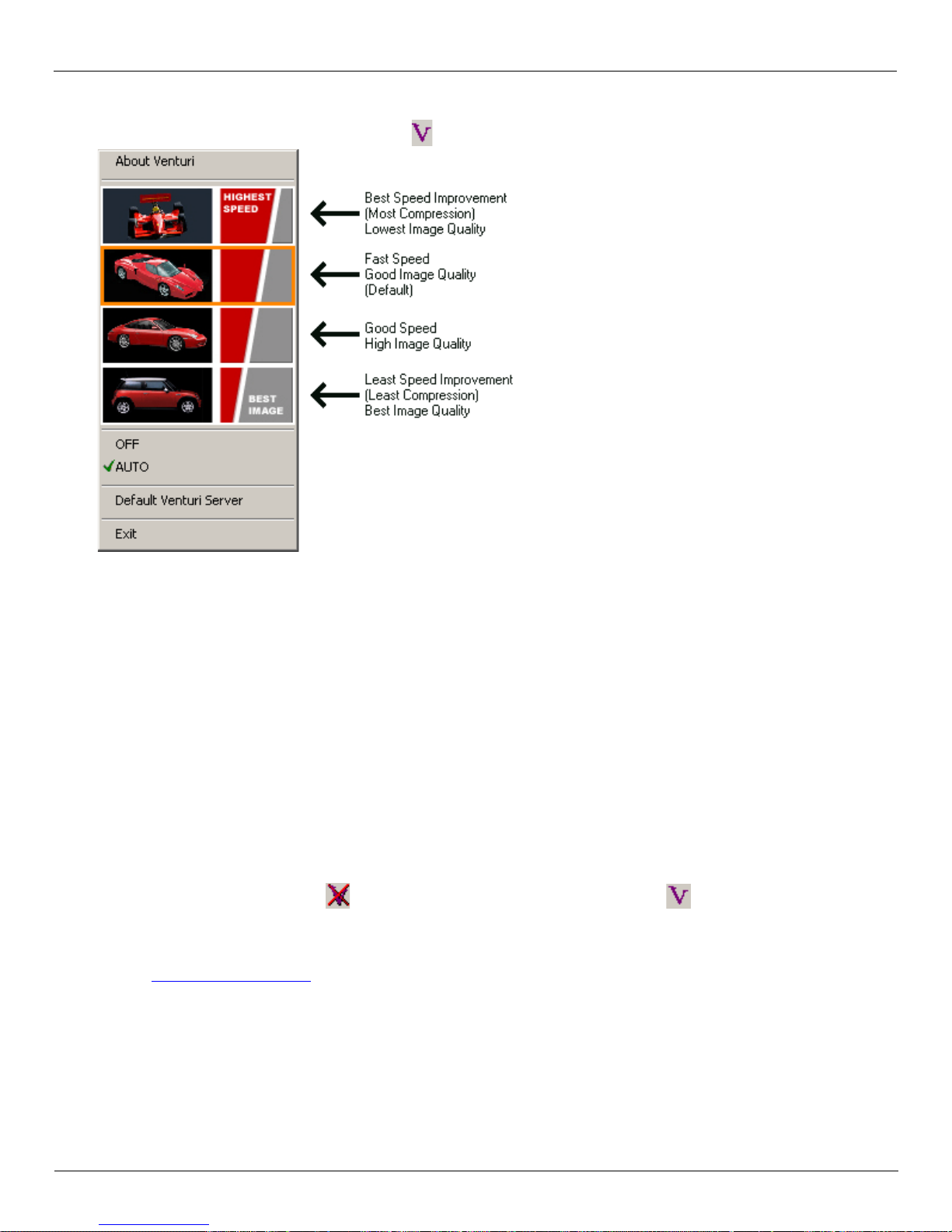
Venturi Compression Software Using Venturi
Venturi Options
If you right click on the Venturi task tray icon the following menu appear s.
About Venturi: Displays the version of the client .
Speed/Image Selection: Select the quality of graphics you wan t Venturi to provide by clicking on one of the four car
images. It's a trade-of f between speed and im age quality. With any of these settings, you c an always force a web page
to load with uncompressed images by doing a forced refresh. If using Internet Explorer this is accomplished by
holding down the
Ctrl key + Alt key + the Shift k ey and then clicking on the refresh icon. If using Netscape , hold down
the shift key and click on the "Reload " icon.
OFF and AUTO: Allows you to switch the cli ent be tween AUTO and OFF (or ON and OFF, if configure d for manual mode).
If you are using Virtual Private Networking (VPN) or are connected wirelessly to a private network or Internet
Service Provider where the Verizon Wireless Venturi servers are not reachable, you may want to turn Venturi off so
you don't have to wait for it to determine that no server is available and switch into its bypass mode. Also, in the rar e
case you have an issue accessi ng a partic ular site , you can also tempo rarily turn Venturi off. Remember to turn it back
on when you want to use it.
The BroadbandAccess / Nationa lAccess / Quick 2 Net version of Venturi is configu red by defa ult to use Auto mode.
This means that it loads , turns off , and expects a n exte rnal prog ram to turn i t on when you c onnect wir elessly
and turn it off when you disconnec t. The VZAccess Manager software performs these functions.
Default Venturi Server: Displays the address for the Venturi compr ession servers on the Verizon Wireless Network, this
is set to expressnet.myvzw.com
. By default this value cannot be changed but may be used for troubleshooting when
working with Verizon Wireless support.
Exit: Closes Venturi.
Using Ven tur i
Make sure that Venturi is set to AUTO (or ON if configured for manual mode), connect to the Internet by doubleclicking on
connected, start browsing web pages.
User Guide for the Kyocera KPC650 37
NationalAccess - BroadbandAccess, NationalAccess, or Quick 2 Net (14.4kbps) from VZAccess Manager. Once
Page 42

Settings in other Applicat ions Venturi Compres s ion Software
Additional Tip s :
If you have trouble loading a page or signing onto a site you can temporarily turn Venturi off as follows:
1. Click Stop in your browse r to stop any data being processed by Venturi. The "V" should stop spinning. If it does
not, exit your browser.
2. Right-click on in the task tray to bring up the user interface.
3. Click on OFF.
4. Click on Refresh or Reload in your browser, to reload the page. If you had to exit your browser in step 1, launch it
and navigate to your desired page . (It should also appear in your browser's history.)
5. T o turn Venturi ba ck on, simply right-click on in the task tray and click on AUTO (or ON if configured for
manual mode).
Note: If your browser fails to stop pa ssi ng data to Venturi and will not stop spinni ng to a llow you to t oggle Venturi
off, exit your browser, toggle Venturi off, and then launch your browser again .
If you ever have a web pa ge where a gra phic fail s to load, try ri ght-clic king where the graphi c should ha ve loa ded and
Show Picture or View Image, and just that image will be requested and load.
select
Downloading V entu ri
The VZAccess Manager should c ome with the latest version of Venturi, but you can check the following web site for
updates to this software : www.venturiwireless.com/support.html
.
For troubleshooti ng tips on using Venturi, see the Online help.
Settings in other Applications
This section describes special settings that might be required to use Personal Digital Assistants (PDAs) over the
Verizon Wireless wireless network.
Sync Applications
Palm Incorporated' s HotSync® and Microsoft Corporation's Active Sync® are used for PDAs. These programs
synchronize files between a laptop or desktop PC and the PDA, and may conflict with your WWAN device. If you
have any problems using your WWAN device, try turning these programs off as explained below:
To turn HotSync On and Off: Right-click on the HotSync icon in your task tray to bring up HotSync options. Click on
Local Serial and Local USB to remove the check marks. This disables HotSync. If HotSync was causing a conflict your
WWAN device should now work. Repeat this process to recheck
you are using an early version of HotSync , you may not be able to uncheck the Local options without first checking
Modem or Network. If this is the case, you can always select Exit to close HotSync and launch it from the Start menu
the next time you need it.
Local Serial and Local USB to re-enable HotSync. If
To turn Windows CE Services On and Off: For the original Windows CE services: Right-click on the Windows CE
Services icon in your task tra y and select/deselect
Office and checked when you want to sync your W indows CE based PDA.
For Microsoft ActiveSync: Right-click on the ActiveSync icon in your task tray and select
Select/deselect
Make sure they are
Allow serial cable or infrared connection to this COM port: and Allow USB connection with this deskt op computer.
unchecked if you are having trouble connecting with your WWAN device and restore them to their
original settings when syncing your PDA. Click
38 User Guide for the Kyocera KPC650
Enable Serial Connection. Make sure it is unchecked for Mobile
Connection Settings.
OK when finished.
Page 43
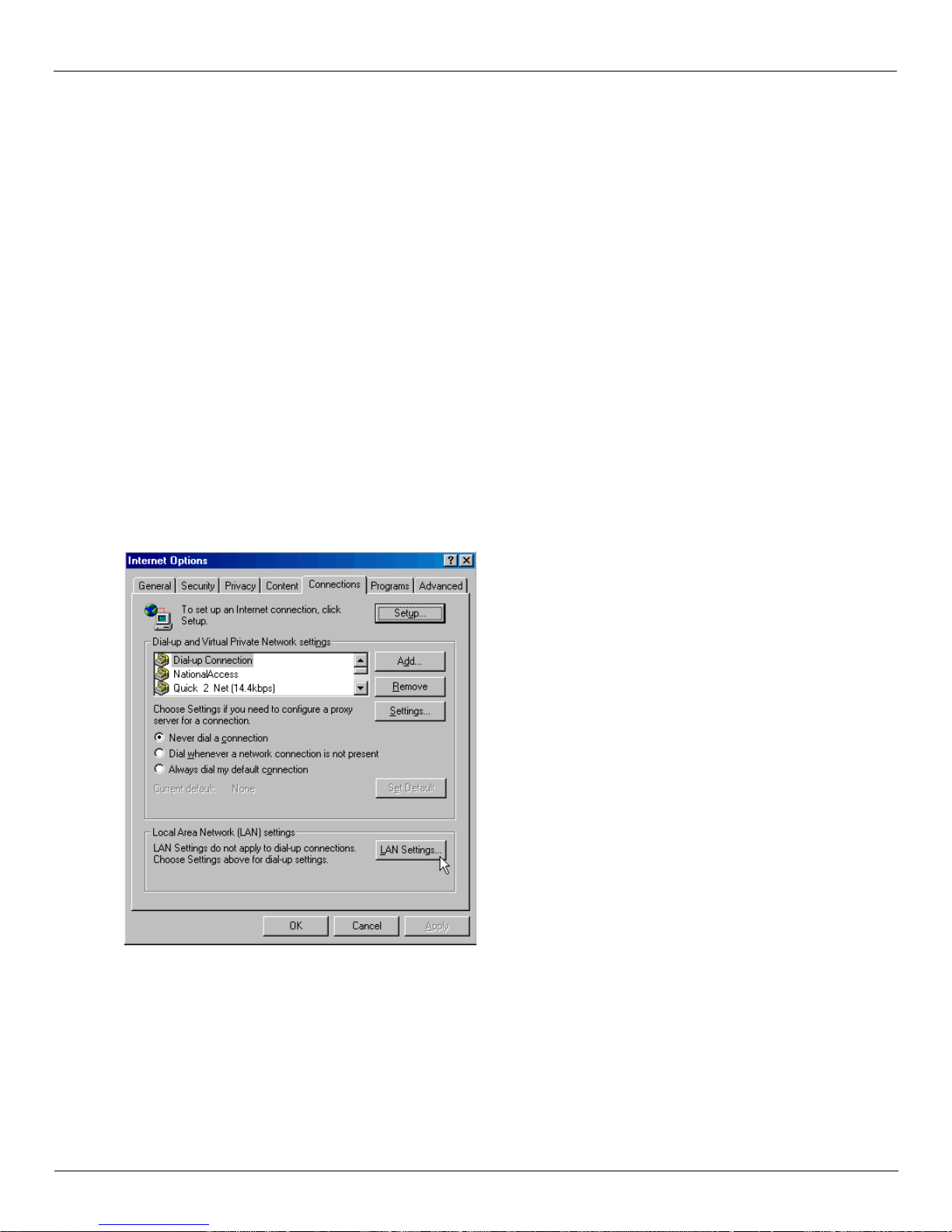
Venturi Compres s ion Software Settings in other Ap plic ations
Proxy Settings
Most corporations go through a proxy server to access the Internet via the corporate network. If you wish to access
the internet directly through the Verizon Wireless BroadbandAccess, Na tionalAccess, or Quick 2 Net (14.4 kbps)
connection, proxy settings must be turned off. If you are connecting to your corporation's network using VPN and
your corporation uses proxies, then you would need the correct proxy settings to be able to access the Internet. For
exact details on the proxy set tings needed when accessing your corporate networ k, c ontact your corporate network
technical support de partment.
Performance, when accessing the Internet directly, is improved because you elimi nate any overhead of the VPN
client. Also for the NationalAccess - BroadbandAccess, NationalAccess, and Quick 2 Net (14.4 kbps) connection, if
the Venturi compression software is installed, it also increases performance when you are accessing the Internet
directly. When using a VPN client, it creates a secure connection to your corporate network and prevents accessing
the Venturi compression servers on the Verizon Wireless network, so Venturi is of no value when you are using VPN.
For additional detai ls on Venturi, refer to “Using Venturi” on page 36.
Proxy settings if using Internet Explorer (version 5 and newer)
If you are using proxy se tti ngs, whe n connected t o a corporate network vi a y our Network adapt er , they will be en tered
under LAN settings. These settings apply to devices that appear to windows as Network adapter s, which include
Wi-Fi adapters as well as your Network adapter. You can access the LAN Settings by doing the following:
1. In Internet Explorer, select Tools → Internet Options .
2. Then select the Connections Tab then LAN Settings.
User Guide for the Kyocera KPC650 39
Page 44
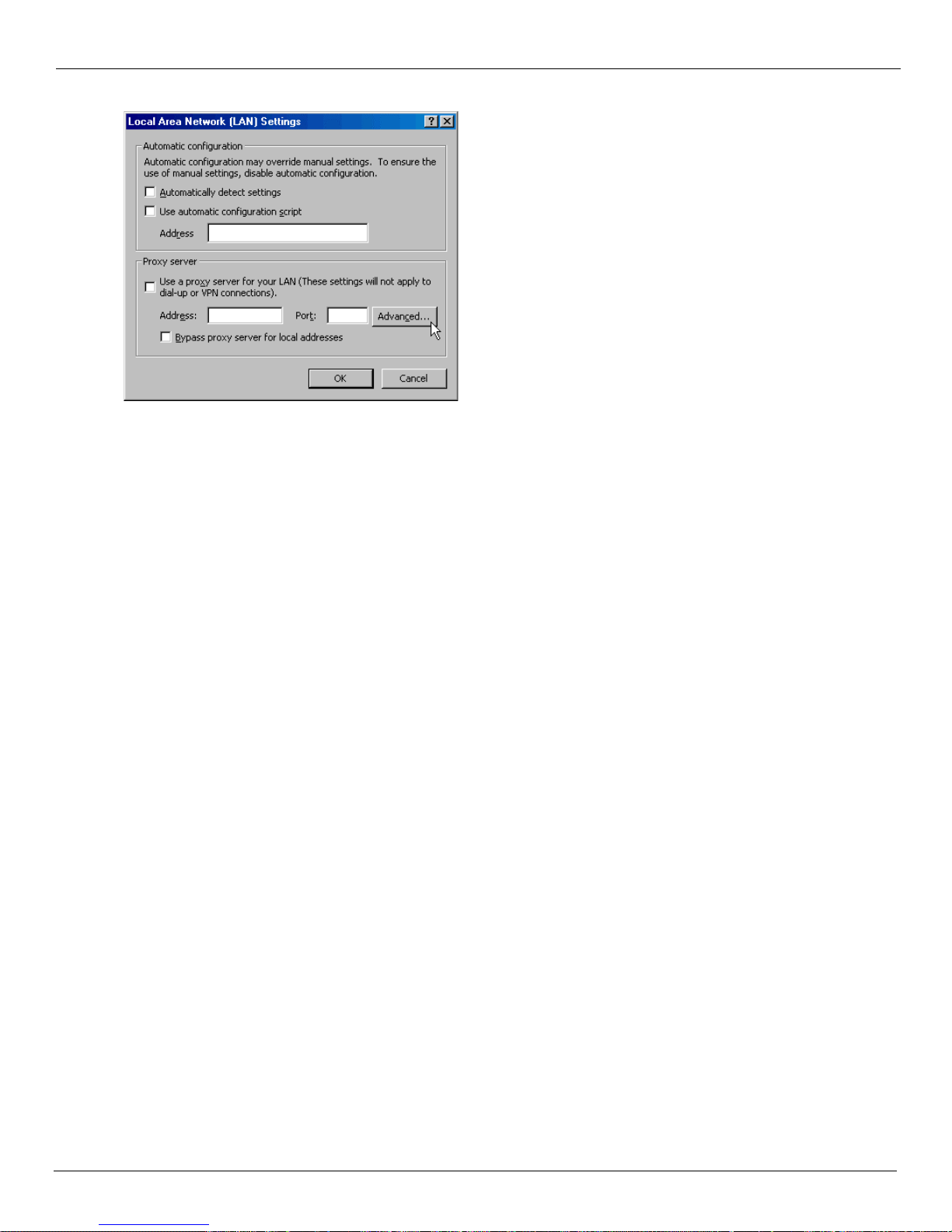
Settings in other Applicat ions Venturi Compres s ion Software
If your company uses proxy settings they will appear here.
3. If you are only using Wi-Fi connections without VPN and you want to access the Internet directly, uncheck the
first three opti ons to t urn pro xy settin gs of f. If us ing VPN and i f the set tings are present l eave the m as they a re. To
restore the settin gs, na vigate back to this screen and recheck any boxes you had unchecked. If using a WWAN
device, the NationalAccess - BroadbandAccess, NationalAccess and Quick 2 Net (14.4 kbps) connections from
within VZAccess Manager have no proxy settings associated with them by default. This means you can access
the Internet direct ly using these connections but if you connect via VPN and your company require s proxy
settings, you will not be able to access the Internet when connected via VPN. Performance is better if you drop
your VPN connection when you want to access the Internet directly, but you can record all the settings on this
screen and on the screen tha t app ea rs when y ou sel ect the
Advanced button, then enter these settings in the
properties for your WWAN connections (NationalAcc ess - BroadbandAcce ss, Nat ionalAccess, Quick 2 Ne t [14. 4
kbps]).
Note: You can have proxy setting s automatically turned off when you connect using Wi-Fi connections , refer to
“Wi- Fi Preferences” on page 25.
4. If you need to enter proxy settings for the NationalAccess - BroadbandAccess, NationalAccess or Quick 2 Net
(14.4 kbps) connection that is used by VZAccess Manager, you would select the connection from the Connections
tab in the previous step and select Settings. The exact names of the connections used by VZAccess Manager are
40 User Guide for the Kyocera KPC650
Page 45
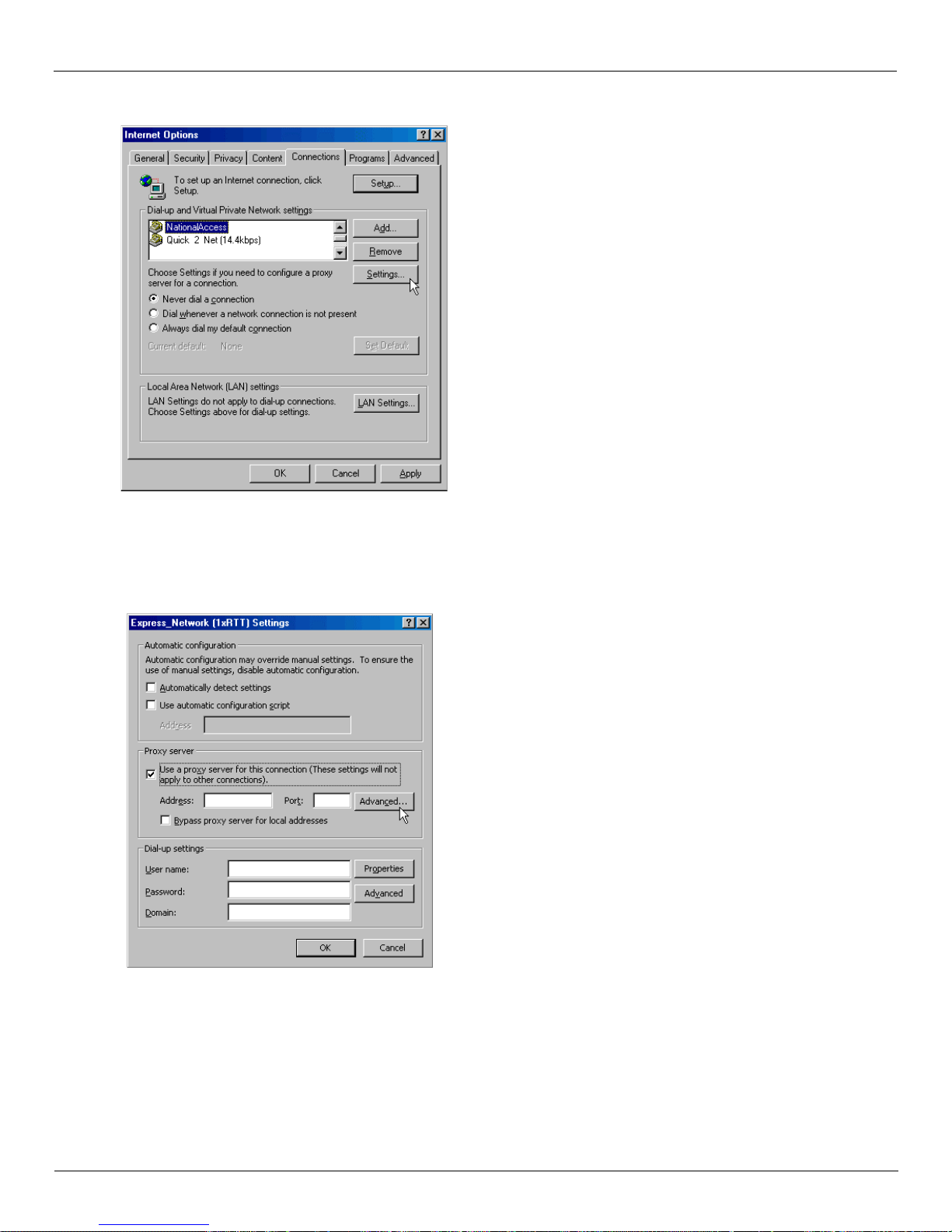
Venturi Compres s ion Software Settings in other Ap plic ations
NationalAccess - BroadbandAc cess, Na tionalAcc ess, and Qu ick 2 Net (14.4 kbps). (If you n eed to naviga te to th is
tab, from Internet Explorer's main screen, select
Tools → Internet Options → Connections tab.)
5. The settings are displayed, you can now enter the same proxy settings you recorded in Step 3, if you want to use
VPN and your proxy settings with these connec tions. If necessary also enter the information recorded from the
screen that appears after selecting the Ad vanced button. To disable proxy settings for these connections, uncheck
the
Use proxy server. . . box. Proxy settings must be disabled to access the Internet directly when using these
connections without VPN.
Proxy Settings if using Internet Explorer 4.x:
In Internet Explorer 4.x, proxy settings are global and have to be turned off when accessing the Internet directly
through the Verizon Wireless BroadbandAcce ss, NationalAccess, or Quick 2 Net (14.4 kbps) connecti on and back on
if required by your company when using their network to access the Internet or when using VPN.
User Guide for the Kyocera KPC650 41
Page 46
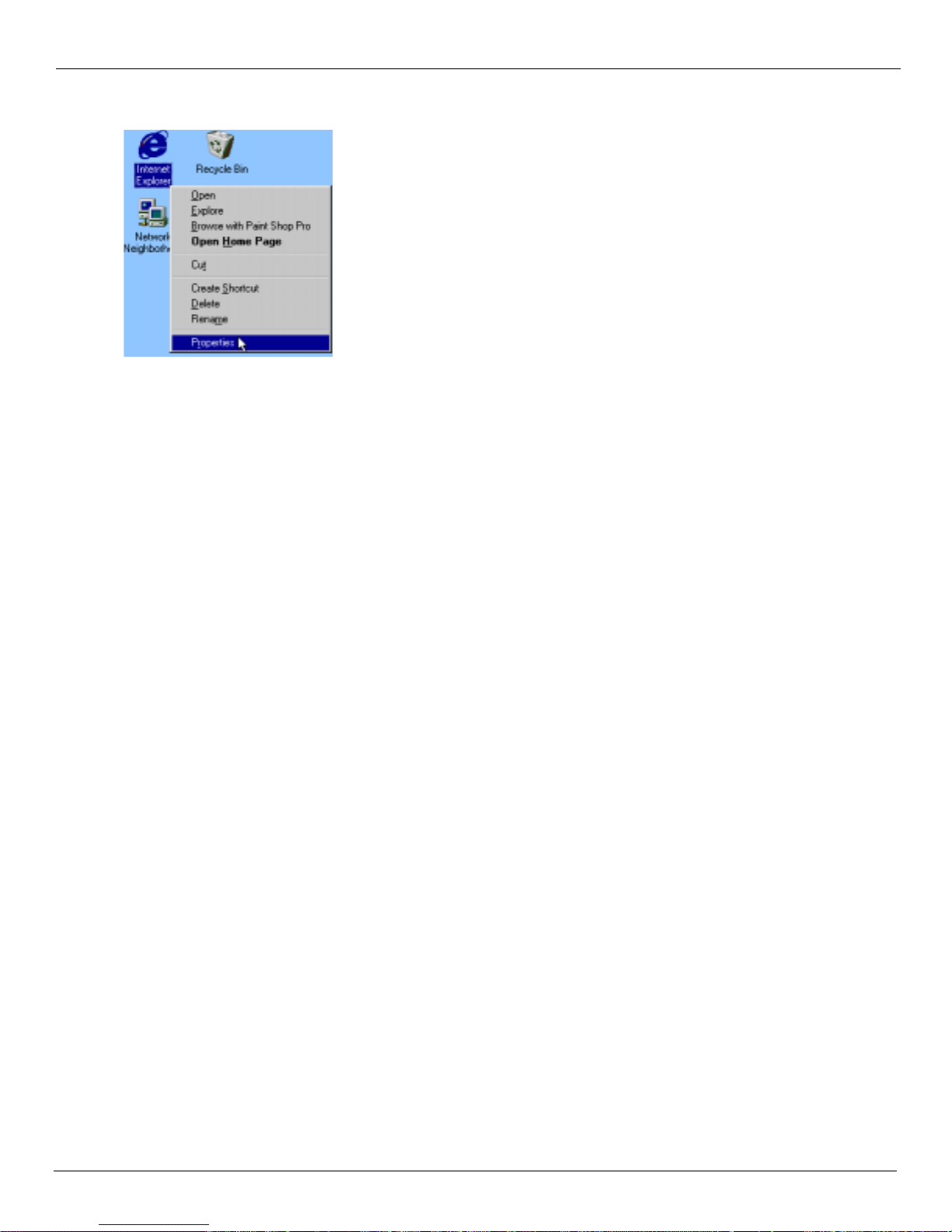
Settings in other Applicat ions Venturi Compres s ion Software
1. Right-click on the Inter net Explorer icon and select Properties (or if Internet Explorer is already open go to
Tools → Intern e t Options...).
2. Click on the Connection tab. Uncheck the box labeled Access the Internet using a proxy server then click OK or Apply.
You may now access the Internet through the Verizon Wireless BroadbandAccess, NationalAccess, or Quick 2
Net (14.4 kbps) connection.
When you wish to access the Internet through your corpor ate network proxy server, you must repeat these steps,
checking the box labeled
Access the Internet using a proxy server.
If your prox y setting is incorrect for the connection you are using, you will get a n error whenever you try to go to
any site.
Proxy Settings if using Netscape Navigator 4.0 and higher:
In Netscape Nav igator 4.0 and higher, proxy settings are global and have to be turned off when accessing the Internet
directly thr ough the Verizon Wireless Bro adbandAccess, NationalAcce ss, or Quick 2 Net (14.4 kbps) connection and
back on if required by your company when using their network to acc ess the Internet or when using VPN.
1. From within your browser, go to Edit → Preferences.
2. Click on the + beside Advanced the n Proxies. Next select Direct connection to the Inter net and click OK. You may now
access the Intern et through the Verizon Wireless BroadbandAccess, NationalAccess , or Quick 2 Net (14.4 Kbps)
connection.
Reminder: When you wish to access the Interne t through your corporate network proxy server, you mus t repeat these
steps, select
Manual proxy configurati on and clic k OK. If your proxy setting is inc orrect for the connection you are using,
you will get an error whenever you try to go to any site.
Instructions for AOL Users
AOL supports using other c onnections to the Internet, so it can be used with the Verizon Wireless Broadb andAccess,
NationalAccess or Quick 2 Net (14.4 kbps) co nnection.
Note: If you installed AOL after installing the Verizon Wireless Mobile Office Software or if you upgraded to a new
version of AOL and are having trouble accessing web pages. Refer to “Troubleshooting” on page 50 to resolve the
issue.
For instructi ons on how to c onfigur e AOL versi ons 8.0 or earlier, refer to the 0nline help located unde r the Hel p menu
on the VZAccess Manager connect view.
AOL Version 9
AOL supports using other c onnections to the Internet, so it can be used with the Verizon Wireless Broadb andAccess,
NationalAccess or Quick 2 Net (14.4 kbps) co nnection.
42 User Guide for the Kyocera KPC650
Page 47
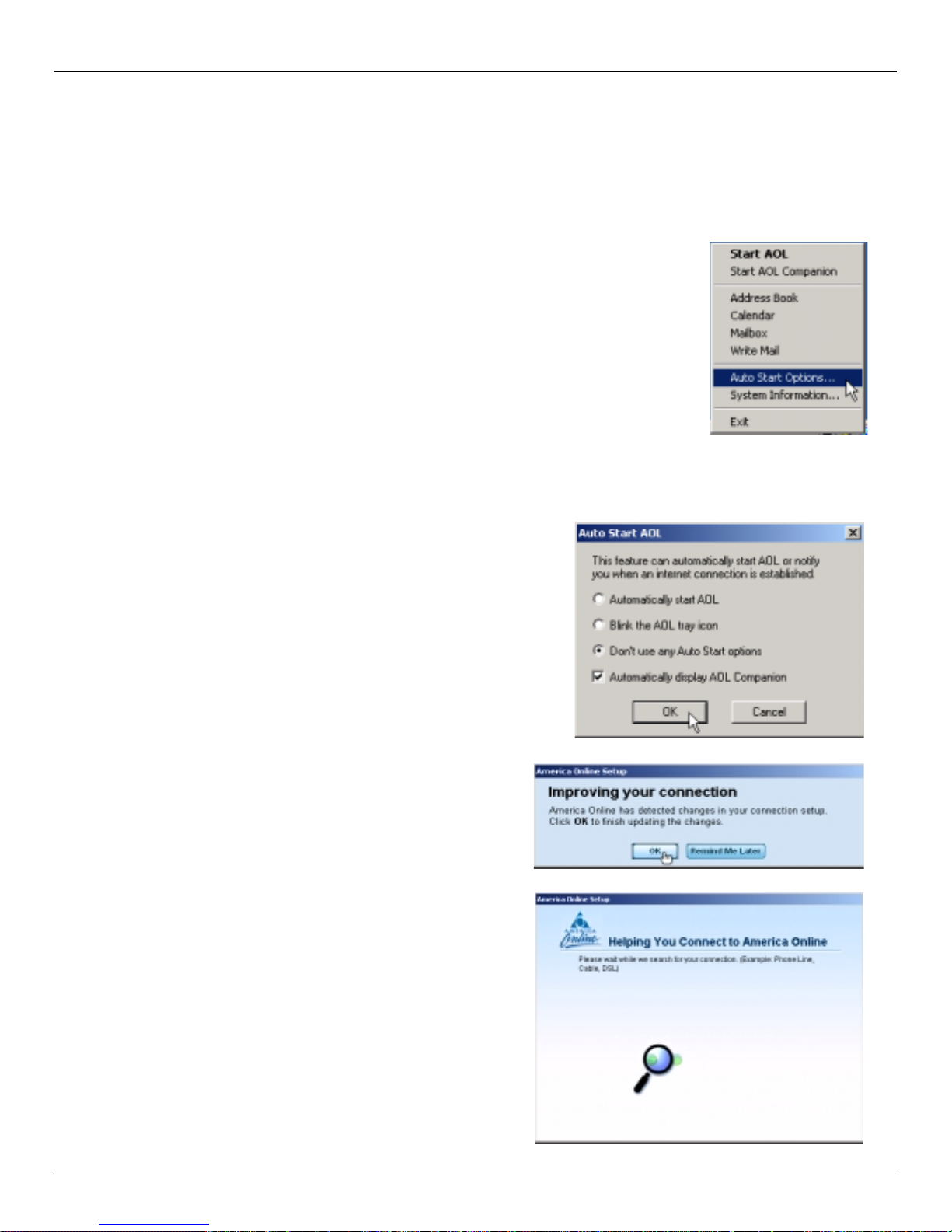
Venturi Compres s ion Software Settings in other Ap plic ations
Note: If you installed AOL after installing the Verizon Wireless Mobile Office Software or if you upgraded to a new
version of AOL a nd are having trouble accessing web pages, click here to see how to resolve this issue in our troubleshooting section.
When using the AOL interf ace, Venturi is unable to com press your Inter net tr aff ic, however, Venturi compression will
occur if you launch and use your web browser.
Configuring AOL Version 9
1. Right-click on the AOL icon in your task
tray, and then click on Auto Start Opt io n s..
2. Select Don't use any Auto Start options, and then click
OK. (We have found it to be more rel iable to manuall y
launch AOL, rather than to use the Auto Start optio ns.
3. The first time you run AOL (version 9), after setting
your wireless devic e up as a modem, you may get the
following screen; sel ect
OK to proceed. If you do not
get this screen go to Step
4. AOL will attempt to detect how it might be able to
connect
User Guide for the Kyocera KPC650 43
Page 48
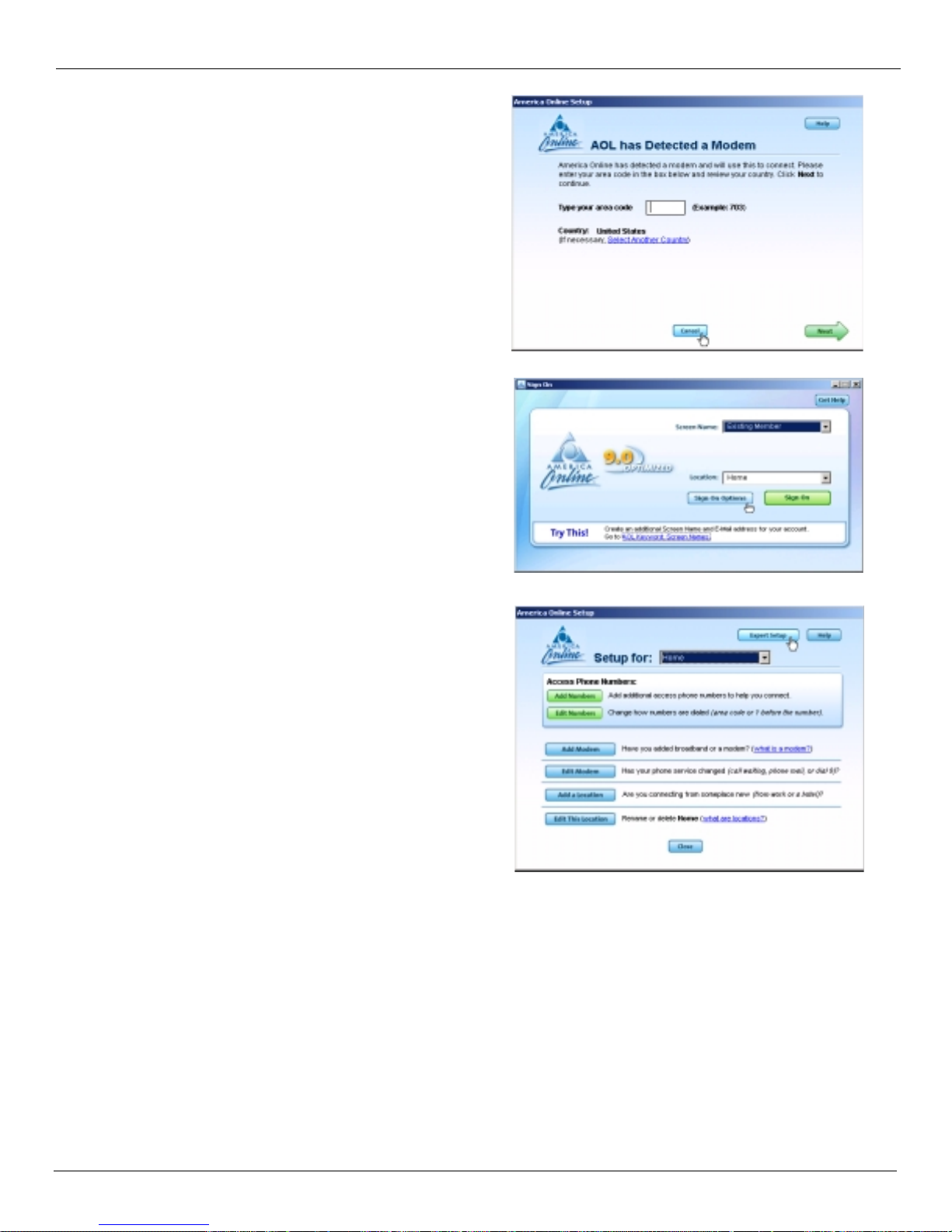
Settings in other Applicat ions Venturi Compres s ion Software
5. Once AOL de tect s a way to con nect , sel ect Cancel.
From the sign on screen select Sign On Op tions .
6.
7. Select Expert Setup.
44 User Guide for the Kyocera KPC650
Page 49
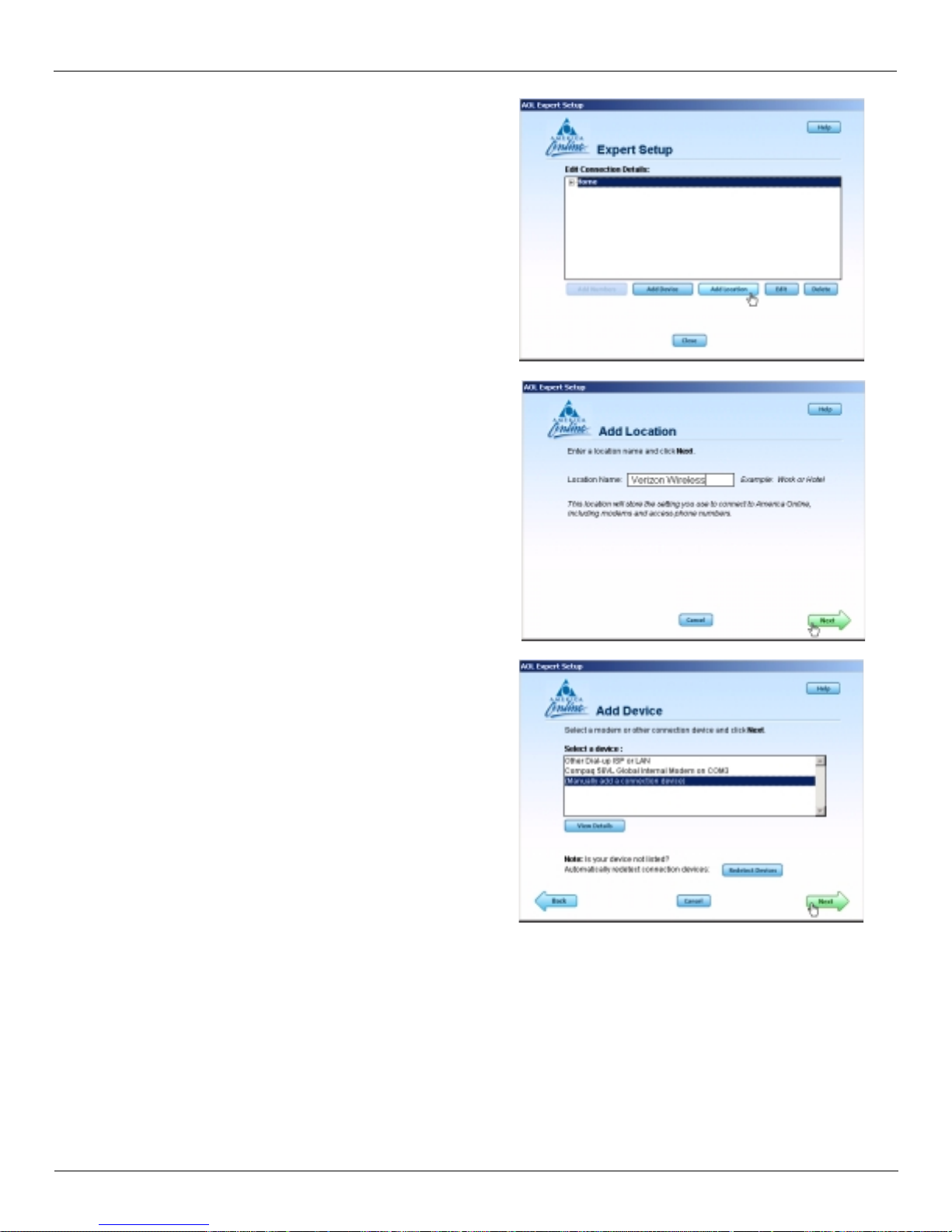
Venturi Compres s ion Software Settings in other Ap plic ations
8. Select Add Location.
9. For the location name enter Verizon Wireless and then
select Next
..Select Other Dial-up ISP or LAN, then select Next and go
10.
to Step 10. If this option is not available, select
Manually add a connection device and then select Next.
User Guide for the Kyocera KPC650 45
Page 50
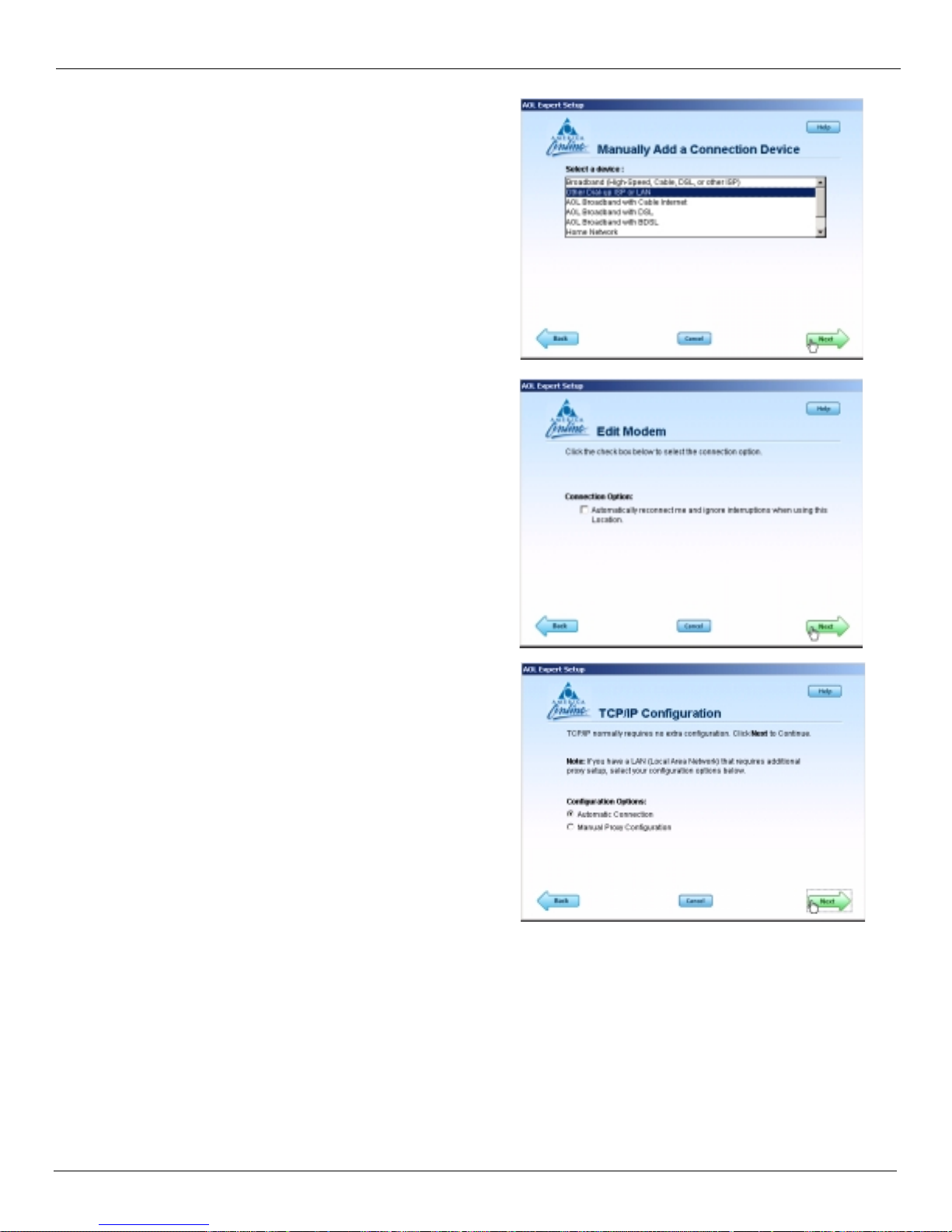
Settings in other Applicat ions Venturi Compres s ion Software
11. Select Other Dial-up ISP or LAN then select Next.
12. Select Next.
13.
Select Next.
46 User Guide for the Kyocera KPC650
Page 51
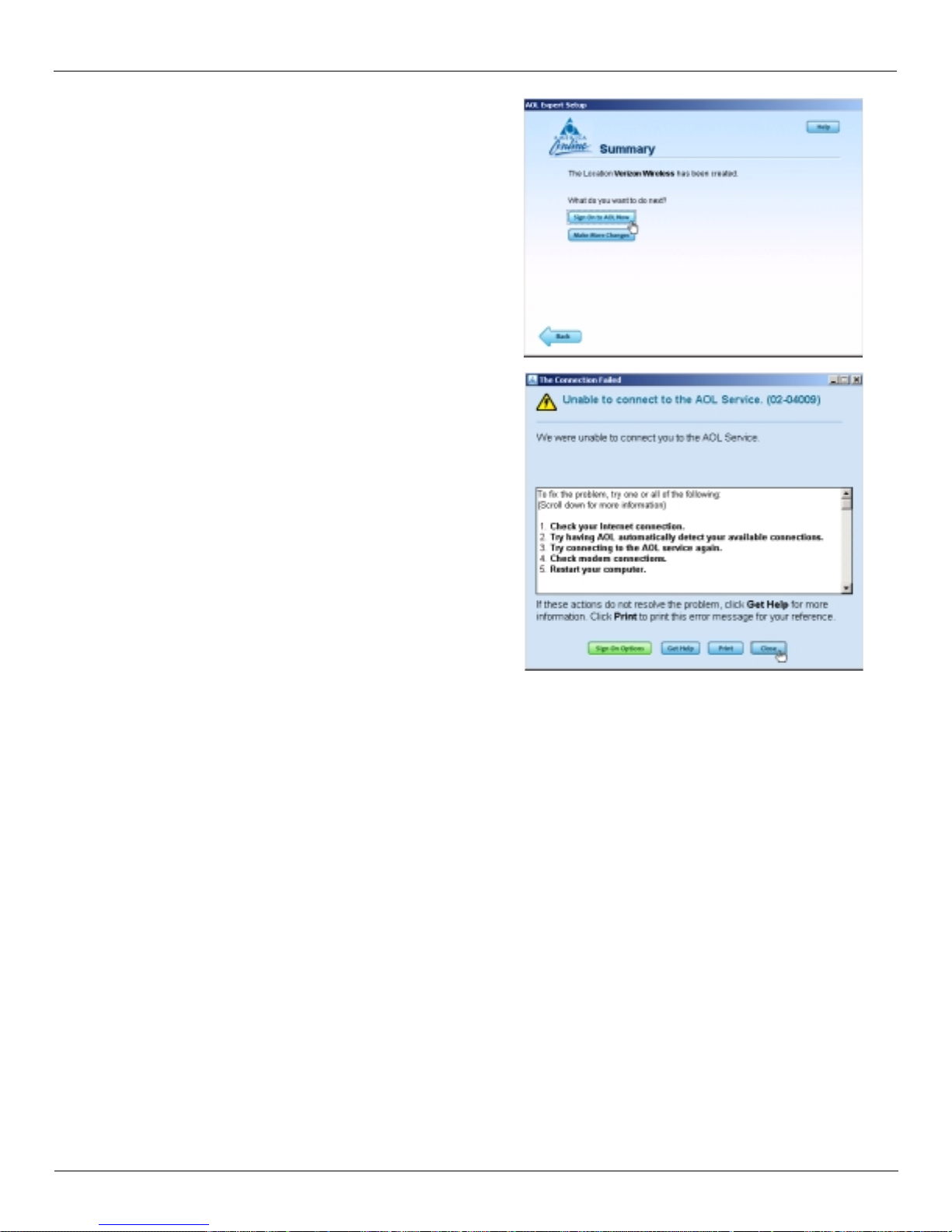
Venturi Compres s ion Software Settings in other Ap plic ations
14. Even though AOL reports the location has been
created, you must click on Sign On to AOL Now to save
the changes. Since you are not actual ly connected to
the Internet, AOL will not actually be able to sign on,
but it will save your changes.
15. Select Close when you get the following error
message. This completes configuring AOL to work
with any connection to the Internet, including
BroadbandAccess, NationalAccess and Quick 2 Net
(14.4 kbps)
Using AOL Version 9 with your Mobile Office Connections
T o use AOL with the Verizon Wireless BroadbandAccess, Nati onalAccess or Quick 2 Net (14.4 kbps) connection,
select the desired conn ection from VZAccess Manager's main window and select
Once connected, launch AOL. From your sign on sc reen, select
Verizon Wireless for the location and sign on. Note: You
Connect.
can set VZAccess Manager to automatically launch AOL when you get connected. See “Wi-Fi Preferences” on
page 25 and “WWA N Pre fere n ces ” on page 22. Check the box to Run program on connection:, then click the browse
button to loca te and select
aol.exe, which should be located in your "C" drive in an America On Line folder, under the
Program Files folder).
Note: If you normally use a landline modem rather than connecting wirelessly, just remember to change the location
back to the one you normally use. Then change it back to Verizon Wireless when you use the Verizon Wireless BroadbandAccess, NationalAccess, or Quick 2 Net (14.4 kbps) connection.
Reminder: To disconnect the Verizon Wireless Broadba ndAccess, NationalAccess or Quick 2 Net (14.4 kbps)
connection, click on the
Disconnect button in VZAccess Manager. (Signing off AOL will not end the call.)
Using E-mail with VZAccess
POP3 E-m ail
You can use the Verizon Wireless BroadbandAccess, NationalAccess, or Quick 2 Net (14.4 kbps) connection to
access your POP3 e-mail account if your e-mail provider allows access through other pro viders (many do). If your
provider restricts access to their outgoing mail server you will get an error message if you are attempting to send mail.
User Guide for the Kyocera KPC650 47
Page 52
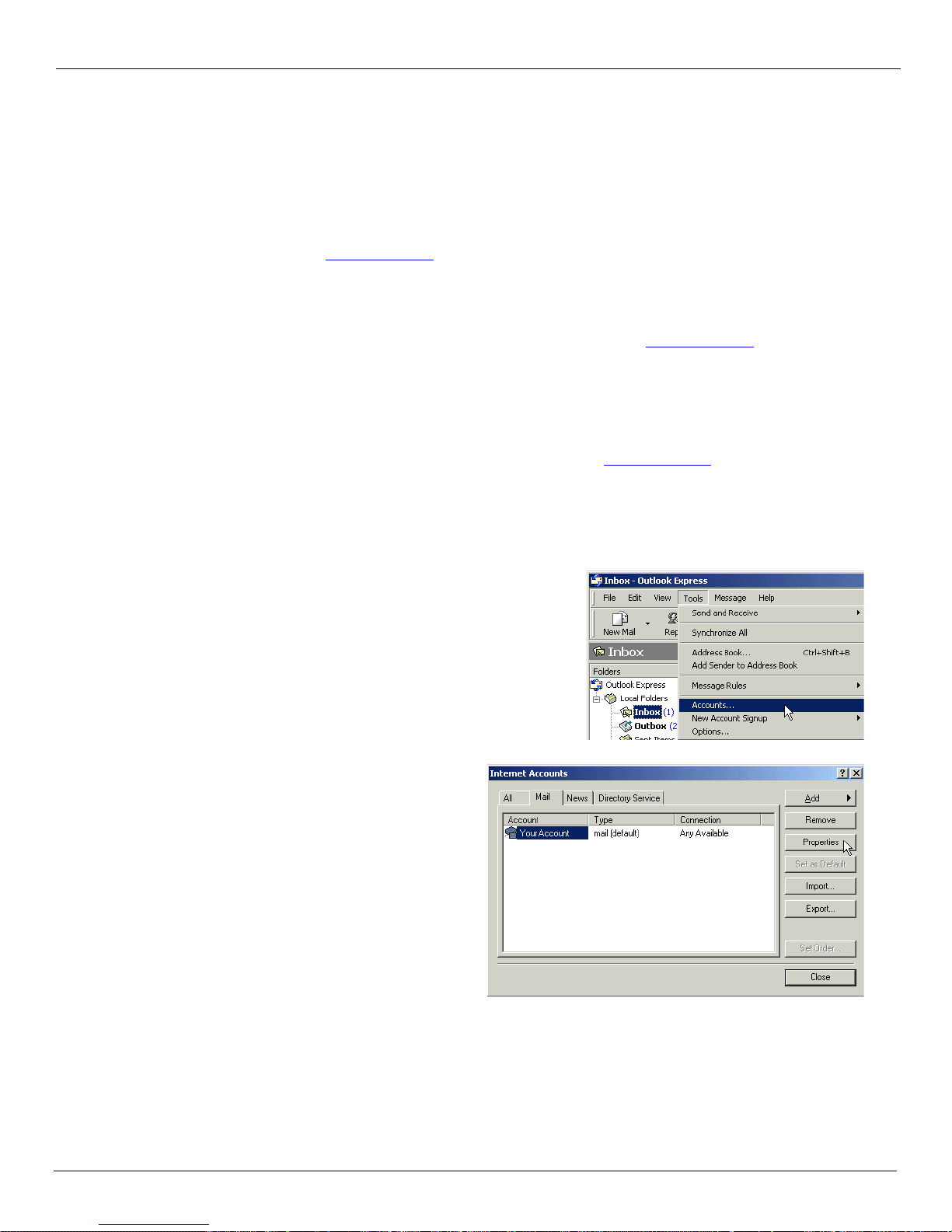
Settings in other Applicat ions Venturi Compres s ion Software
Most mail servers are not accessibl e from var ious conne ctions to the Interne t. You usually have to be connected to the
e-mail providers’ network to access their mail server and most e-mail providers require authentication (a user name
and password). Without these measures, anyone can use a mail server to send massive amounts of unwanted junk email. If you are having trouble sending e-mail (which includes replying and forwarding), and you are getting an error
message, then your mail server cannot be accessed from the Verizon Wireless network.
For customers in this situation , Verizon Wireless has made avail able a mail server that you can use in place of the one
you normally use. All that is required is that you have a TXT messaging-capable Verizon Wireless phone or device
and TXT messaging ser vice, vi sit www.vtext.com
and establish a profile ther e by sele cting Join Up and completi ng the
form. You will be asked to enter your 10-digit mobile number. A TXT message will be sent to your handset or devi ce
and will be used to est ablish you r password. The Kyocer a KPC650 PC card can r eceive TXT messag es. Most Verizon
Wireless phones are TXT messaging capable. If your PC card is not capable of receiving TXT messages but your
Veriz on Wireless cell phone is , you can use your phone to est ab lish a profile on www.vtext.com
as described above.
T o use the Verizon Wireless Send Mail Server, you will edit your existing Mail acc ount settings and change the
outgoing mail server you are currently using. In place of y our existing Send Mai l Server, enter
My server requires authentication and using the 10-digit mobile number you used to establish your profile on
www.vtext.com, enter the 10-digit mobile [email protected] (i.e. [email protected]) for the Send Mail
Server user name. For the password, use the password you established for www.vtext.com
smtp.vzwmail.net, s ele ct
. You will also be able to
use this serve r when con nected t o the I nternet from va rious provi ders elimin ating th e need to change thi s sett ing whe n
you switch from being connected to the Internet through Veriz on Wireless and by various other means. If you need to
know where these se ttings normally are in your e-mail client, che ck with your e-mail provider. For your convenience
the settings for Outloo k Express® are as follows:
1. Select Tools → Accounts.
2. Select your default account, then Properties.
48 User Guide for the Kyocera KPC650
Page 53
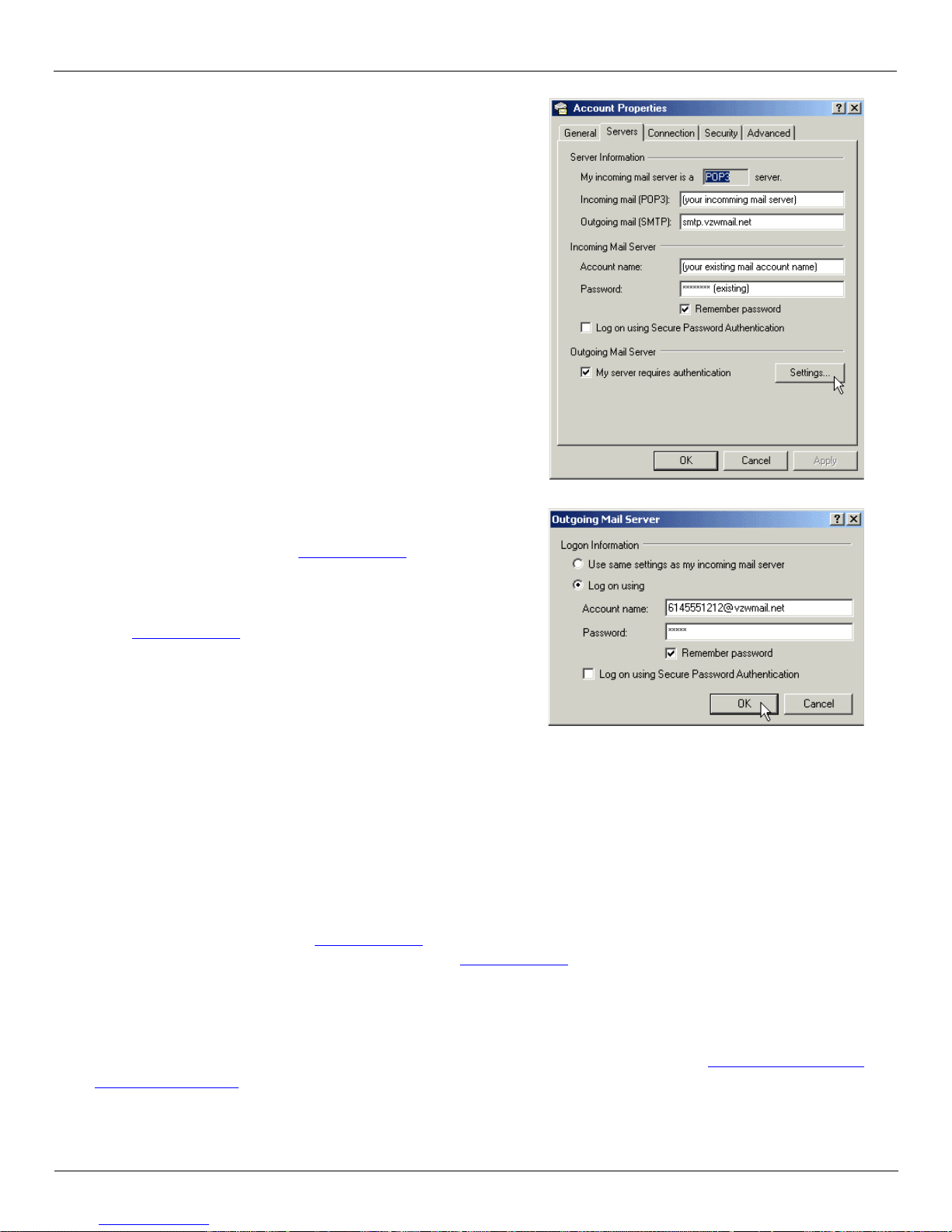
Venturi Compres s ion Software Settings in other Ap plic ations
3. Select the Servers tab. In the Outgoing mail
(SMTP): field enter smtp.vzwmail.net. In the
"Outgoing Mail Server" section at the bottom,
select My server requires authentication, then select
Settings.
4. Select Log on using
Account Name:
Using the 10-digit number used to
establish your profile at www.vtext.com, create
[email protected]
([email protected])
Password: Enter the password you estab lished on
www.vtext.com
.
Select Remember password.
OK → Apply → OK → Close to return to the
Click
Outlook Express® main screen.
Additional important notes about the Verizon Wireless Send Mail Server
• There is no monthly charge for this service.
• Message Limits are 2 MB Message Size, 100 Recipients per message.
• Customers that are identified as using this server to generate SPAM messages (what most would consider
unsolicited junk e-mail ) will be denied access to this server (e-mail messages will not be sent).
• If you are using an e-mail client other than Outlook® or Outlook Express® and it fails to work with the Verizon
Wireless Send Mail se rver, it may not support authentication correctly. If it works and your e-mail client does not,
check to see if any updates are available for your e-mail client.
Note: Credentia ls established on www.vtext.com may take up two hours before they will work on the
smtp.vzwmail.net server. If your credentials work on www.vtext.com but not on the smtp.vzwmail.net server, try
again after two hours.
Web Based E-mail
If you currentl y do not have e-mail software, or if you do not have a text messaging-capable Verizon Wireless device
or phone, you can sign up for web-based e-mail at any of the popula r portal sites, such as http://www.yahoo.com
http://www. msn.com
User Guide for the Kyocera KPC650 49
. You may also search for other e-mail providers from any of these pages.
, or
Page 54

WWAN (CDMA / 1x RTT / 1x EVDO) Troubleshoo ti ng
Troubleshooting
WWAN (CDMA/1xRTT/1xEVDO)
Possible P r oblem Possible Resolution
When I installed VZAccess
Manager, it was not able to
find the WWAN device
(wireless phone and cable or
1xEV-DO/1XRTT/CDMA
PC card).
I get connecte d, but I c an't get
to any web sites.
• If using a wireless phone and cable make sure it is powered ON and securely
connected.
• If using a wireless phone and cable, try powering it OFF, then ON again.
• If using a WWAN (1xEV-DO/1XRTT/CDMA) PC card, try removing it and
reinserting it.
• Identify any software that uses the seria l port on your computer or other USB devices
(such as Microsoft W in dows CE ser vices, Ac tiveSync and P alm HotSync) and e xit al l
of these programs. See Turning Sync Applications On and Off.
• Make sure that the auto-answer feature of any fax software you are using is disabled.
• Check with your computer manufacturer to veri fy your serial port or USB port is
enabled and properly configur ed.
• If using a USB cable be sure to follow the documentation supplie d with it to get it
installed as a serial port or USB modem, before installing the VZAccess Manager
software. If you ha ve done this, also tr y d isconnect ing t he USB cabl e from the PC and
the wireless phone, then reconnect it and try again.
• If you are using a NationalAccess capab le wireless phone and cable, verify the se rial
port speed settin g on the phone is set to 19,200 or 1 15, 200. If your seria l port su pports
115,200 or 230,4 00, VZAc cess Manager will automatically set the phone to the best
speed setting. See your wireless phone's manual for instructions on how to do this. If
your wireless phone does not have a speed setti ng, power it OFF , the n ON again.
• If you are using VPN (Virtual Private Networ king) you may req uire proxy se ttings on
the BroadbandAccess, NationalAccess and Quick 2 Net (14.4 kbps) connections if
you wish to acces s the Internet when connected to a corporate network through VPN.
To see if this is the case d i sco nne ct from you r V PN an d se e if yo u can ac ces s the
Internet directly. For additional information see “Proxy Settings” on page 39.
• If you are using a PC provided by your employer it's possible they might be using
Microsoft's Winsock Proxy or a similar program that enforces Proxy settings without
having to enter any proxy settings in your web browser. If this is the case, you will
only be able to acc es s the Internet when using VPN . To access the Internet dire ctly
you will have to disable the Winsock Proxy. Usually these applications have an icon
in Control Panel that allows turning them on and off. Check with your Network
Administrator if you think this migh t be the case.
• An application may be causing a conflict with the Venturi compression software. I f
you just installed an applica tion temporarily uninstall it and see if normal ope ration
returns.
I can't load a specific page. • Try turning Venturi off to load a page that is causing a problem and then turn it back
on to continue browsing. Right-click on the V icon in the task tray and OFF to turn
Venturi off, click it again to return it to AUTO (ON if configured for manual control).
I can receive e-mail but
cannot send e-mail using my
e-mail program.
50 User Guide for the Kyocera KPC650
Some Internet Service Provi ders require that you be connected through them to access
their mail server to send e-mail. See section on E-mail Options.
Page 55

Troubleshooting WWAN (CDMA/1xRTT / 1xEVDO)
Possible P r oblem Possible Resolution
My computer, during
installati on or normal use:
1. Locks up or cr ashes whe n
attempting to dial.
2. Mouse does not work
properly when I try to use
my Mobile Office wireless phone or device.
My connection fails
immediately , or I get a "Call
Failed" message on the
display of the wireless phone.
My connection fails, and I am
getting a "Signal Faded"
message on the display of my
wireless phone.
• Refer to your computer manual f or hel p in managing you r serial COM port s and USB
ports, to resolve potential resource conflicts.
• Exit any applications that may use serial ports or USB ports, that might be causing a
conflict and try again.
• Remove any PC card (PCMCIA) modems in your computer while using your
wireless phone and cable or 1xEV-DO/1XRTT/CDMA PC card, and try again
• If using a wireless phone and cable, check the battery strength indicator on the
display of your wireless phone. Low power may cause loss of sig nal.
• Raise the ant enna on your wi reless p hone, and ve rif y that ther e is a "D" on t he display
to indicate digital covera ge. If you are not within the digital coverage area, wait until
you are back in Verizon Wireless digital coverage to place your call. Try to connect
again.
• Try powering the wireless phone OFF, then ON again. If using a PC card you can
remove it and reinsert it. Then try to estab lish your session again.
• Raise the antenna on your PC card and your wireless phone and verify tha t there is a
"D" on the display to indicate digita l coverage. If you are not within the digital
coverage area, wait until you are back in the Verizon Wireless digital coverage area to
place your call.
• Try to establish your session again.
My communication software
shows that I am connected,
but my wireless phone does
not.
I get disconnected while
using Mobile Off ice, or whi le
dialed in to my corporate
network.
• Depending on your device and your NationalAccess or BroadbandAccess plan, your
data session may disconnect during a dormant state. See your Calling Plan brochure
for details . Selec t disconnect, then connect agai n
• Your call may have been disconnected due to a network anomaly. Disconnect and try
to establish your session agai n.
• If you are unable to establish a session using the NationalAccess - BroadbandAc cess
or the NationalAccess connect ion, try the Quick 2 Net (14.4 kbps) connection.
Note: Quick 2 Net and Dial Up connections may be charged differently than
NationalAccess or Broa dbandAcce ss ses sions. P lease check y our Call ing P lan b rochure
for details.
• Raise the ant enna on your wi reless p hone, and ve rif y that ther e is a "D" on t he display
to indicate digital covera ge. If you are not within the digital coverage area, wait until
you are back in the Verizon Wireless digital coverage area to place your call.
• Check the battery strength indicator on the display of your wireless phone. Low
power may cause loss of signal.
• Try to establish your session again.
• Make sure the data cable between your wireless phone and your computer is securely
connected to both devices.
• Your corporate network or Internet service provider may have disconnected you. If
the problem persists, contact your Internet service provider or corporate network
administrator for support.
• Check your application software set up to see if it has an inactivity timeout. Increase
the timeout to match your needs.
User Guide for the Kyocera KPC650 51
Page 56

WWAN (CDMA / 1x RTT / 1x EVDO) Troubleshoo ti ng
Possible P r oblem Possible Resolution
When I launch VZAccess
Manager:
1. my wireless phone powers off.
2. the levels reported for
Battery or Signal level
are incorrect.
I get There is no dial tone while
trying to connect, using my
wireless phone or it seems as
if the wireless phone is not
being recognized at all.
• Some wireless phones do not support the commands used to determi ne the battery
and signal levels. If the display of the phone differs with what is displayed in
VZAccess Manager use the information dis pla yed on the phone.
• You can set VZAccess Manager to display the PC' s batte ry leve l inst ead of th e batt ery
level of the wire less device. This wi ll resolve the powering off issue if it is occurring.
See WWAN Spec ific Set ting s.
• Also keep in mind the battery levels in VZAccess Manager cannot upda te when the
wireless phone is in use. The default setting is to query the wireless phone when the
program starts, right before you establish a session and when you disconnect. So the
levels are a snapshot; they do not constantly update. You can refresh the levels when
you are not in a session by selecting
Options → Refresh Networks from VZAccess
Manager's home screen.
• Try powering the wireless phone OFF, then ON again. If using a PC card you can
remove it and reinsert it. Then try to estab lish your session again.
• Raise the ant enna on your wi reless p hone, and ve rif y that ther e is a "D" on t he display
to indicate digital covera ge. If you are not within the digital coverage area, wait until
you are back in the Verizon Wireless digital coverage area to place your call.
Note: There is a known issue with some Kyocera 2035s, which will cause this symptom
if you receive or miss a call then connect the wireless phone to your PC and attempt to
use your Quick 2 Net (14.4 kbps) connection. Powering the wireless phone OFF and
then back ON will r eset t he phone, all owing y ou to use it. If you t ake t he wir eless phone
in for service, the phone's software can be upgraded to the latest version to resol ve this
issue.
• If you are using a NationalAccess capab le wireless phone and cable, verify the se rial
port speed settin g on the phone is set to 19,200 or 1 15, 200. If your seria l port su pports
115,200 or 230,4 00, VZAc cess Manager will automatically set the phone to the best
speed setting. See your wireless phone's manual for instructions on how to do this. If
your wireless phone does not have a speed setti ng, power it OFF , the n ON again.
• If using a USB cable, be sure you connected it to the same port it was connected to
when you configured VZAccess Manager. You can reset the USB drivers by
unplugging and reconnecting the USB cable. If neces sary, from VZAccess Manager' s
main screen you can s elect
Options → Run Wizard to run the setup wizard again to
redetect and configure the phone .
V e nturi stoppe d working after
I installed softwar e provided
by my service manufacturer.
• The Venturi compression software is configured to be turned on and off by the
VZAccess Manager when using the NationalAccess - BroadbandAccess,
NationalAccess, or Quick 2 Net (14.4 kbps) co nnection. Verizo n Wireless only
supports VZAccess Manager and does not support application software that may be
provided by the device manufactur er.
Every time I try t o establish a
NationalAccess BroadbandAccess or
NationalAccess con nection, it
fails.
52 User Guide for the Kyocera KPC650
• Most likely, you are outside of NationalAccess and BroadbandAccess coverage. If
this is the case, you can try the Quick 2 Net (14.4 kbps) connection.
• If you feel you may have incorrectly entered your wireless telephone number during
initial setup, from the menu bar select
finishes, try connecting again.
Options → Run Wizard. After the wizard
Page 57
Troubleshooting Wi-Fi
Possible P r oblem Possible Resolution
After installing Venturi or
another applicat ion I can no
longer browse web pages
connected to any ne twork or I
• Typically this is caused by an existing conflicting application that is using a feature
from Micr osoft called Layere d Se rvi ce Prov i der (L SP ) sometimes also referr ed to as
transparency. Venturi uses LSP by default but can be re configur ed to elimin ate the use
of LSP to resolve the conflict. Click here for detailed instructions on how to do this.
get a blue screen on start up.
Wi-Fi
Possible P r oblem Possible Resolution
When installing VZAccess
Manager, it was not able to
find the Wi -Fi device.
• Verify that the client that came with the Wi-Fi device can talk to it. If it can't, contact the
Wi-Fi device manufacturer for assistance getting it to work with the client it comes with.
Then try VZAccess Manager again.
• Check with the Wi-Fi device manufacturer to see if newer drivers are available. If they
are, download and install them.
• If using a Wi-Fi PC card, try removing it and reinserting it.
• On Windows 2000 and XP, this can happen if you do not have administrative rights.
Check with your IT departmen t, if you have one, to see if they lim ited your use r rights. If
they have, you will need their assista nce to run the setup wizard with administrative
rights. You can access the setup wizard from VZAccess Manager's main screen by
selecting
Options → Run Wizard.
When installing VZAccess
Manager, a dialog
appeared stating that a
feature in the Cisco®
Aironet® Client needed to
be enabled.
When installing VZAccess
Manager, a dialog
appeared stating You will
need to upgrade your Wi-Fi
card drivers before running
this program
.
I'm unable to connect
using Wi-F i.
• A simple configuration change is required to the Cisco® Aironet® Client to allow
VZAccess Manager to work properly. Select
Aironet Client Utility ( ACU) → Select Profile → Use Another Application to Configure My Wireless
Settings
→ Apply.
Start → Program s → Cisco Systems →
• Check with the Wi-Fi device manufacturer to see if newer drivers are available. If they
are downlo ad an d insta ll them .
• A low signal c an c ause this. Try moving within th e W i- Fi hot spot to i mprove your s igna l
and try connecting again.
• This can happen when your computer fails to successfully obtain an IP address. Try
performing a release and renew by selecting the following from VZAccess Manager's
home screen:
Options → Statistics → Wi-Fi tab. The Address type should show Assigned
by DHCP. If it shows Automatic Private Address you have not been assigned an IP
address from the Wi-Fi network. Select
Release, then Renew.
• Try selecting Disconnect and then connect again.
User Guide for the Kyocera KPC650 53
Page 58

Wi-Fi Troubleshooting
Possible P r oblem Possible Resolution
I get connected, but I can't
get to any web sites.
I can receive e-mail but
cannot send e-mail using
my e-mail program.
I connected OK,
everything was working,
then everything stopp ed
working.
• If you are using VPN (Virtual Private Networking) you may require proxy settings to
access the Internet when Wi-Fi connections. To see if this is the case disc onnect from
your VPN and see if you can access the Internet directly. Also if you are not using VPN
and you have proxy settings set, they will prevent you from accessing web pages. For
additional informat ion see Turning Proxy Settings On and Off .
• If you are using a PC provided by your employer, it's possible they might be using
Microsoft's Winsock Proxy or a similar program that enforce s Proxy settings without
having to enter any pr oxy sett ings i n your web br owser. If thi s is t he case you would only
be able to access the Internet when using VPN. To access the internet directly you would
have to disable the Winsock Proxy. Usually these applications have an icon in Cont rol
Panel that allows turning them on and of f. Check with your Network Administrator if
you think this might be the case.
• An application may be causing a conflict with the Venturi compression software. I f you
just installed an applica tion temporarily uninstall it and see if normal ope ration returns.
Venturi is not used for the W i-Fi connections but a conflicting application might prevent
access to web pages.
• Some Internet Service Providers require that you be connected through them to access
their mail server to send e-mail. See section on E-mail Options.
• A low signal c an c ause this. Try moving within th e W i- Fi hot spot to i mprove your s igna l
and try connecting again.
• If necessary, try disconnecting and reconnecting.
My connection was lost. • A low signal c an cause t his. T ry moving wit hin th e W i-F i hot spot to i mprove your s ignal
and try connecting again
I can't get VZAccess
Manager to work with my
private Wi-Fi Network.
• First verify that the client that came with the Wi-Fi device works with your private
network. If it doesn't, contact your Wi-Fi device provider and or the device provider of
your network equipment.
• In the section on Wi-Fi specific settings there are options to manually add a Wi-Fi
network if it does not broadcast its Network ID (SSID) whic h would prevent it from
appearing in VZAccess Manager. There is also an option to enter/ edit your WEP
(Wirele ss Equivalent Privacy) password if your network r equires one. If it was
incorrectly entered, it could prevent you from connecting.
• The issue may be related to using WEP security and your specifi c Wi-Fi adapter. You
may want to temporarily test your network without WEP to determine if this is the case.
If it works without WEP and fails using WEP, please e-mail Verizon Wireless Tech
support with your computer and Wi-Fi device info by doing the following: From
VZAccess Manager's main screen select
Technical Support
. Please also include in the body of the e-mail your computer brand,
Options → Statistics → My Computer → E-mail
model and any W i-Fi de vice i nformation yo u ha ve - built i n de vice or PC ca rd, bra nd and
model. We will pass this information on to Smith Micro for consideration in a future
version. Use the client that came with your devi ce if you have this issue. Also please be
aware that Verizon Wireless does not support probl ems associated with Wi-Fi networks.
Customer Care will not be able to assist you.
54 User Guide for the Kyocera KPC650
Page 59
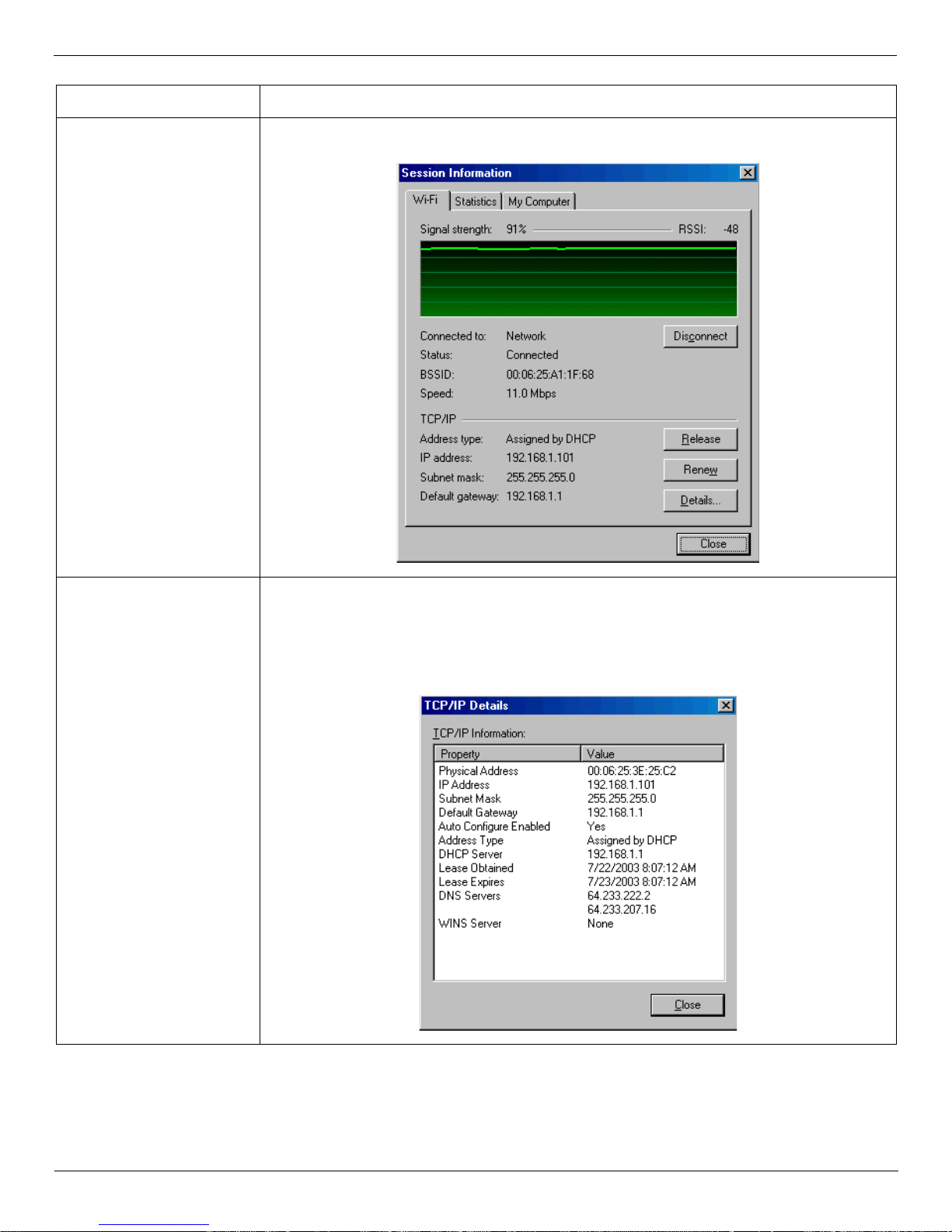
Troubleshooting Wi-Fi
Possible P r oblem Possible Resolution
Wi-Fi Statistics Support
Tool
From VZAccess Manager's home screen select Options → Statistics → Wi-Fi tab.
• This tool displays signal strength, all relevant IP address information with additional
details by selecting Details. It al so pr ovides the ability to release your existing IP address
and request a new one by selecting Release, then Renew. Thi s procedure i s a common
troubleshooting step as explained in some of the symptoms and solutions listed above.
• The Details.. . option displays the following information:
User Guide for the Kyocera KPC650 55
Page 60

Venturi Troubleshooting
Venturi
Possible P r oblem Possible Resolution
The Venturi compression
software does not work. I
get a V with a red X in my
task tray.
• When traveling / roaming the Venturi compression servers may not be able accessible
from the network you are using. In this case Venturi will fall to bypass mode, displaying
the V with the X through it and you will be able to browse web pages without
compression.
• This could also happen for other more rare reasons, such as the server being down or a
temporary network issue making it unreachab le, in these cases the compression soft ware
will automatically resume using the Venturi server as soon as its reachable.
I can't load a specific page. Try turning Venturi off to load a page that is causing a problem and then turn it back on to
continue browsing. You do this by accessing the main user interface by right clicking on
the "V" icon in the task tray and select ing OFF. Right click on the "V" again and select
AUTO (ON if configured for manual control) , to turn it back on.
When I establish a
connection to my ISP or
corporate network the "V"
in my task tr ay does not
spin.
• This is normal. The Venturi compression software onl y spins the "V" when you a re us ing
the NationalAccess - BroadbandAc cess, NationalAccess or Quick 2 Net (14.4 kbps)
connection, since it has to be able to estab lish communication with the Venturi
compression servers on the Verizon Wireless net work. These servers are not accessible
from the Internet, your corporate network or from Wi-Fi connections.
• The "V" not spinning is also normal when using Virtual Private Networking (VPN) to
connect to your corporate network as this preve nts communication with the Venturi
compr ession servers.
• For more details, refe r “Using Venturi” on page 36.
I can no longer browse
web pages when
connected to any network
after:
• Installing AOL
• Applying a Service Pa ck
• Making any changes to
my network
configuration such as
installing a Network
card.
After installing Venturi or
another applicat ion I can
no longer browse web
pages connected to any
network or I get a blue
screen on start up.
Venturi use s a feature from Microsoft called Layered Servic e Provider (LSP). If changes
are made to your network configuration it is necessary to uninstall and reinstall Venturi's
LSP. You can uninstal l Venturi from Add/Remove programs in W indows® contro l panel and
then reinstall it to restore normal operation or you can follow the inst ructions bel ow to just
uninstall and reins tall Venturi' s LSP:
T o uninstall Venturi's LSP:
1. Click on your
2. Open the
3. Open the
4. Open the
5. Double-click on
6. Select
Start → Shutdown → Restart to restart your PC.
C: drive.
Program Files folder.
Venturi2 folder.
SPI fol der.
Uninstall Transparency.
T o re-install Venturi's LSP:
Repeat the above instructions but in step 3, select
Install Transparency .
• Typically this is cause d by an existing conflicting application that is using a feature from
Microsoft called Layered Service Provider (LSP) sometimes also referred to as
transparency. Venturi uses LSP by default but can be reconfigured to e limina te the use of
LSP to resolve the conflict.
• For more details, refe r to “Proxy Settings” on page 39.
56 User Guide for the Kyocera KPC650
Page 61

Troubleshooting Venturi
Possible P r oblem Possible Resolution
When trying to use
V enturi, I can't browse web
pages wirelessly.
I can't get Venturi to
coexist with o the r
applications I use.
I use a personal fire wal l
and I am not sure what
settings are require d to
allow Venturi to work.
Uninstall Venturi:
1. Select
2. Select
Start → Programs → Venturi 2 → Unin s ta ll Vent u r i Client 2. 3 .
Start → Shutdown → Restart to restart your PC.
3. Verify you can browse web pages wirelessly, if not, and this is a corporate PC - look
for a Winsoc k Proxy icon in Windows Control Panel or check with your network
administrator to see if your company is using Winsock Proxy software on your PC. If
this is the case, it must be turned off to access the Internet directly when connecting via
the Verizon Wireless BroadbandAccess, NationalAccess or Quick 2 Net (14.4 kbps)
connection.
4. If you can browse wirelessly with Venturi removed, there is probably a conflicting
application on the PC using Microsoft's Layered Service Provider (LSP) technology.
You can r einstall Venturi and then reconfigur e it to eliminate the use of LSP to resolve
the conflict. For more details see section on Explicit Proxy Settings on how to do this.
• This is vary rare but you also have the option of using the Venturi compression servers
for improved web browsing in a clientless mode, eliminating the need to install the
Venturi compression software on your PC.
• VentC.exe should be granted permission to listen for dat a from the localhost and to send/
receive data to the internet. VentC.exe listens on the following ports:TCP 8000, 8001,
9875 and UDP 8008. It connects to the Venturi server on UDP port 29301.
• Ventcfg.exe should be granted permission to listen for data fro m the localhost and to
send/receive data to the localhost. Ventcfg.e xe listens on UDP port 8007. It
communicates with VentC.exe on TCP port 9875.
• Wi th most person al f irewalls contr olling I nterne t ac cess, you will only need to se lect ye s,
always, when prompted to allow VentC.exe to connect to the Internet.
I changed my pe rformance
settings, but some pages
do not appear to match my
new settings.
This can be caused by pages you may have in your browser's cache. Try clearing your
cache by following the instruc tions below:
For Internet Explorer ve rsions 5.0, 5.5, 6.0:
1. Open Internet Explorer.
2. Select
Tools → Internet Options.
3. Select the General tab.
4. In the
Temporary Internet file area, select Delete Files, then select OK.
For Netscape versions 4.7, 6.0, 7.0:
1. Open Netscape
2. Select
3. Select
4. Select the
5. Select
Note: For any single page, you could do a forced refresh as described below instead of
Edit → Preferences.
Advanced on the left, then select Cache.
Clear Disk Cache button and the Clear Memory Cache button.
OK.
clearing the entire cache. This will refresh the page without it loading from the cache .
User Guide for the Kyocera KPC650 57
Page 62
Venturi Troubleshooting
Possible P r oblem Possible Resolution
Graphics on a page were
compressed to the point I
can't make them out.
I need additional help, or
my problem is not listed.
Where can I find
additional help?
Other than changing the perfor mance settings, how can I reload just one page with
uncompressed graphic s?
You can always force a web page to load with uncompres se d images by doing a forced
refresh:
· If using Internet Explorer this is accomplished by holding down the "Ctrl" key + "Alt"
key + the "Shift" key and then clicking on the refresh icon.
· If using Netscape, hold down the shift key and click on the "Reload" icon.
Visit www.venturiwireless.com/support.html
Contact Verizon Wireless:
• Wireless Data Technical Support 1-866-788-9387
• Billing & Customer Service 1-800-256-4646
58 User Guide for the Kyocera KPC650
Page 63
Glossary
Glossary
Term Definition
1xRTT
1xEVDO
Access Point
bps
Broadband
COM Port
Dial-Up
Connection
Dormancy
Short for si ngle carr ier (1x) Radi o Transmission Technology. A high-spe ed wir eless t echnol ogy base d
on the CDMA platform. 1xRTT has the capability of providing broadband-like speeds of up to 144
Kbps. 1xRTT is also referred to as CDMA2000.
Part of a family of CDMA2000 1x digital wireless sta ndards. 1xEVDO is a 3G standard. EVDO
stands for EVolution, Data-Only. 1xEVDO is based on a technology initially known as HDR (High
Data Rate) or HRPD (High Rate Packet Data), developed by QUALCOMM. The international
standard is known as IS-856. 1xEVDO has the capability of providing broadband-like speeds of
average spe eds of 300
−600 kbps.
An interface between a W i-Fi network and a wired network.
Bits per second – rate of data flow.
High-capacity high- speed, transmission channel with a wider bandwidth than conventional copper
telephone lines. Broadband channels can carry video, voice, and data simultaneously.
Defines a serial/RS- 232 port within the Windows environment. May be physical or virtual.
A switched network conne ction est abl ished by a c omputer usi ng an analog d ata modem ove r ordi nary
copper telephone lines.
A network state that occurs when no data has been transmitted or received after a given amount of
time. A network connection may disconnect during a dormant state.
Firewall
HTTP
ISP
IP
Kilobyte
Kbps
LSP
LAN
Mbps
PC
PC Card
PC Card Slot
A hardware or software boundary that protects a network or single PC from unwanted outside traffic.
Hypertext Tr ansfer Protocol
Internet Ser vic e Pro vi de r
Internet Protocol. The mechanism by which packets are routed between computers on a networ k.
1024 bytes
Kilobits per second – rate of data flow
Layered Service Provide r – a Microsoft f eature
Local Area Network. A data network confined to limited area with moderate to high data rates. Does
not use common carrier circuits, although may have gateways or bridges to other publi c or private
networks.
Megabits per second
Pers onal co mputer
A card having physical and electrical characteristics specified by PCMCIA providing extra
functionality when inse rte d into a mobile PC. Typical examples are modems and networ k car ds. A P C
card type refers to the thickness of the card.
A physical slot on a mobile computer, usually located on the side of the machi ne, which accepts
standard sized PC cards to enhance the f unctio nality of the machi ne.
User Guide for the Kyocera KPC650 59
Page 64
Term Definition
Glossary
PCMCIA
PDA
POP3
Proxy
Serial
Connection
SMS
SSID
Sync
TCP/IP
URL
USB
Personal Computer Memory Card Inter national Association. Defines spe cifications used for PC
cards. www.pcmcia.org
Personal Digital Assistant. A handheld device used for organization, notes, address books, etc.
Post Office Protoc ol v3. A standard transport protocol used send and receive email.
A firewall mechanism that repl aces the IP address of a host on the internal (protected ) network with
its own IP address for all traffic passing through it.
A network connecti on esta blis hed by a se ria l device such as a mode m. Seria l communica tion between
your PC and modem or other serial devices adhere to the RS-232 standard.
Short Messaging S ervice. Short text m essages of generally no more than 140-160 chara cters sent and
received by wireless devices.
Service Set Identif ier. An SSID is also referred to as a Network Name because it is a name that
identifies a W i-Fi network. Most access points broadcast their SSID.
T o compare and synchronize two or more sources of data.
Trans mission Control Protocol / Internet Protocol
Uniform Re source Locator
Universal Serial Bus . A connection type for computer peripheral s such as a print er , mobile phone, etc .
VPN
WAN
WEP
Wi-Fi
WWAN
WWAN Device
WWW
Virtual Private Network. A way to communicate through a dedicated server securely to a corporate
network over the Internet.
Wide Area Network. A net work which uses common carrier-provided line s. Contrasts with LAN.
Wired Equivalent Privacy. A security protocol for wireless local area networks (WLANs) defined in
the 802.11b standard. WEP is designed to provide the same level of security as that of a wired LAN.
Wire less Fidelity. A generic term used to describe any type of 802.11 (a, b, g) network.
Wir eless Wide Area Network
Wire less Phone and cable or 1xEVDO/1xRTT/CDMA PC card.
World Wide Web
60 User Guide for the Kyocera KPC650
Page 65

Kyoce ra Wireless Cons um er Limint ed Warranty
Kyocera Wireless Consumer Liminted Warranty
Kyocera Wi reless Corp. (“KYOCERA”) offers you a limite d warranty that the enclosed product or products (the
“Product”) will be free from defects in mate rial and workmanship for a period that expires one year from the date of
sale of the Product to you, provide d that you ar e the origin al end-use r purchase r of the Produ ct and provid ed that you r
purchase was made from an author ized supplie r. Tr ansfer or re sale of a Prod uct will automati call y terminat e warranty
coverage with respect to that Produc t. This limited warranty is not transfe rable to any third party, including but not
limited to any subsequent pur chaser or owner of the Product.
KYOCERA shall, at its sole and absolute discretion, either repair or repla ce a Produ ct (which unit may use
refurbished parts of similar quality and functionality) if found by KYOCERA to be defective in material or
workmanship, or if KYOCERA determines that it is unable to repair or replace such Product, KYOCERA shall
refund the purchase price for such Product, provided that the subject Produc t (i) is returned, with transportation
prepaid, to a KYOCERA authorized service center within the one year warranty period, and (ii) is accompanied by a
proof of purchase in the form of a bill of sale or receipted invoice which evidences that the subje ct Product is within
the one year warranty period (“Proof of Purchase”). After the one year warranty period, you must pay all shipping,
parts and labor char ges.
This limited warranty does not cover and is void with respect to the following: (i) any Product which has been
improperly installe d, repaired, maintained or modifie d; (ii) any Product which has been subjected to misuse
(including any Product used in conjunction with hardware electrica lly or mechanically incompatible or used with
accessories not approved by KYOCERA), abuse, accident, phys ical damage , abnormal ope rati on, imprope r handling,
neglect, exposure to fire, water or excessive moisture or da mpness or extreme cha nges in climate or temperature; (iii)
any Product operate d outside published maximum ratings; (iv) cosmetic damage; (v) any Product on which warranty
stickers or Product serial numbers have been removed, altered, or rendered illegible; (vi) cost of installation, removal
or reinstallation; (vii) signal reception problems (unless caused by defects in material and workmanship); (viii)
damage the result of fire, flood, acts of God or other ac ts whi ch are not the faul t of KYOCERA and which the Product
is not specified to toler ate, including damage caused by mishandling, shipping and blown fuses; (ix) consumables
(such as fuses);
or (x) any Product which has been opened, repaired, modified or altered by anyone other than KYOCERA or a
KYOCERA authorized service cent er.
USE ONLY KYOCERA APPROVED ACCESSORIES WITH KYOCERA PHONES. USE OF ANY
UNAUTHORIZED ACCESSORIES MAY BE DANGEROUS AND WILL INVALIDATE THE PHONE
WARRANTY IF SAID ACCESSORIES CAUSE DAMAGE OR A DEFECT TO THE PHONE.
KYOCERA SPECIFICALLY DISCLAIMS LIABILITY FOR ANY AND ALL DIRECT , I NDIRECT, SPECIAL,
GENERAL, PUNITIVE, EXEMPLARY, AGGRAVATED, INCIDENT AL OR CONSEQUENTIAL DAMAGES,
EVEN IF ADVISED OF THE POSSIBILITY THEREOF, WHETHER FORESEEABLE OR UNFORESEEABLE
OF ANY KIND WHATSOEVER, INCLUDING BUT NOT LIMITED TO LOSS OF PROFITS, UNANTICIPATED
BENEFITS OR REVENUE, ANTICIPATED PROFITS ARISING OUT OF USE OF OR INABILITY TO USE
ANY PRODUCT (FOR EXAMPLE, WASTED AIRTIME CHARGES DUE TO THE MALFUNCTION OF A
PRODUCT) OR CONTRIBUTION OR INDEMNITY IN RESPECT OF ANY CLAIM RELATED TO A
PRODUCT.
REPAIR OR REPLACEMENT OF A DEFECTIVE PRODUCT OR REFUND OF THE PURCHASE PRICE
RELATING TO A DEFECTIVE PRODUCT, AS PROVIDED UNDER THIS WARRANTY, ARE YOUR SOLE
AND EXCLUSIVE REMEDIES FOR BREACH OF THE LIMITED WARRANTY, AND SUBJECT TO THIS
WARRANTY, THE PRODUCTS ARE APPROVED AND ACCEP TED BY YOU “AS IS”. KYOCERA MAKES
NO OTHER WARRANTIES, REPRESENTATI ONS OR CONDITIONS OF ANY KIND, ORAL OR VERBAL,
EXPRESS OR IMPLIED, ST ATUTOR Y OR OTHERWISE, WITH RESPECT TO THE PRODUCTS, INCLUDING
BUT NOT LIMITED TO ANY IMPLIED WARRANTY OR CONDITION OF MERCHANTABILITY OR
User Guide for the Kyocera KPC650 61
Page 66

Kyocera W ireless Cons um er Liminted Warran t y
FITNESS FOR A PARTICULAR PURPOSE OR AGAINST INFRINGEMENT OR ANY IMPLIED WARRANTY
OR CONDITION ARISING OUT OF TRADE USAGE OR OUT OF A COURSE OF DEALING OR COURSE OF
PERFORMANCE. NO DEALER, DISTRIBUTOR, AGENT OR EMPLOYEE IS AUTHORIZED TO MAKE ANY
MODIFICATION OR ADDITION TO THIS WARRANTY.
Some jurisdictions do not all ow the exclusion or limitation of incidental or consequential damages, or allow
limitations on how long an implied warr anty lasts, so the above limitations or exclusions may not apply to you.
This limited warrant y gives you specifi c lega l rights, and you may also have other r ights which var y from juris diction
to jurisdiction.
For warranty service information, please call the following telephone number from anywhere in the continental
United State s and Canada: 1-800-349-4478 or 858-882-1401; or contact KYOCERA at the following address: 10300
Campus Point Drive, San Diego, Califor nia, 92121-1582, USA, Attention: Technica l Support.
DO NOT RETURN YOUR PRODUCTS TO THE ABOVE ADDRESS. Please call or write for the loca tion of the
Kyocera Wi reless Corp. authorized servic e center nearest you and for procedures for obtaining warranty service.
62 User Guide for the Kyocera KPC650
Page 67
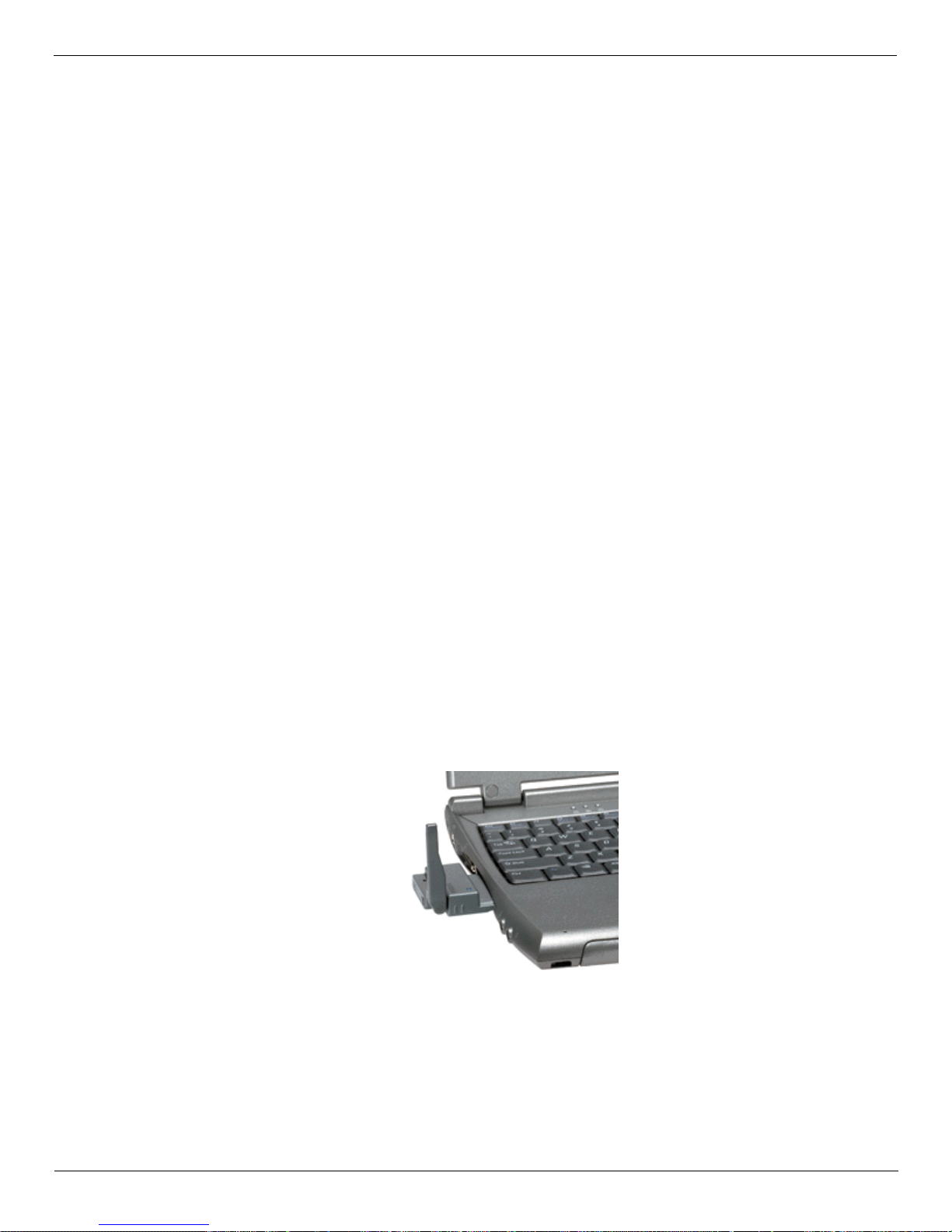
Regulatory and Safety Information Regulatory Notices
Regulatory and Safety Information
This Section outlines important regulatory notices concerning your new KPC650 PC card.
FCC ID:OVFKWC-KPC650, IC:3572A-KPC650
Regulatory Notices
FCC/IC Notice:
This device complies with part 15 of the FCC rules. Operation is subject to the following two conditions:(1) This
device may not cause harmful interference, and (2) this device must accept any interference received, including
interference that may cause undesired operation.
This Class B digital apparat us complies with Canadian ICES-003.
Cet appareil numérique de la classe B est conforme à la norme NMB-003 du Canada.
Caution: The user is cautioned that changes or modifications not expressly approved by the party responsible for
compliance could void the warr ant y and users’ authority to operate the equipment.
Note: This equipment has been tested and found to comply with the limit s for a Class B digital devic e, pursua nt to part
15 of the FCC Rules. These limits are designed to provide reasonable protection against harmful interference in a
residential installation. This equipment generates, uses and can radiate radio frequency energy and, if not installed
and used in accordance with the instructions, may cause harmful interference to radio communications. However,
there is no guarantee that interference will not occur in a particular installati on. I f this equipment does cause harmful
interference to radio or television reception, which ca n be determined by tur ning the equipm ent off and on, the user is
encouraged to try to correct the interference by one or more of the following measures.
• Reorient or relocate the receiving antenna.
• Increase the separation between the equipment and receiver.
• Connect the equipment into an outlet on a circuit different from that to which the receiver is connected.
• Consult the dealer or an experienced radi o/TV technician for help.
Caution: This device has been tested for compliance with FCC RF exposure limits in the laptop computers
configuration s with side PCMCIA slot, and can be used in laptop computers with substantially similar physical
dimensions, construction, and electrical and RF characteristics. Always place the antenna in the upright position
(oriented verti cally) when using this data modem in a notebook computer.
This PC card must not be co-location or operated in conjunction with any other antenna or transmitter. Use of this
device in any other configuration may exceed the FCC RF Exposure compliance limit.
If you have purchased this product under a United States Government contract, it shall be subject to restrictions as set
forth in subparagraph (C) (1)(ii) of Defense Federal Acquisitions Regulations (DFARs) Section 252.227- 7013 for
Department of Defense contr acts, and as set forth in Federal Acquisitions Regulations (FARs) Section 52.227-19 for
civilian agency contracts or any successor regulations. If further government regulations apply, it is your
responsibility to ensure compliance with such regulations.
User Guide for the Kyocera KPC650 63
Page 68

Safety Information Regulat ory and Safety In fo rm ation
Safety Information
This section outlines important liability and safety guidelines concerning your new PC card.
Important Notice
Because of the nature of wireless communications, transmis sion and reception of data can never be guarante ed. Data
may be delayed, corrupted (i.e. , have errors) or totally be lost. Although significant delays or losses of data are rar e
when wireless devices suc h as the PC Card-Model KPC650 CDMA modem are used in a normal manner with a well
constructed networ k, the y should not be used in situations where failure to tran smit or receive data could result in
damage of any kind t o the user or another party, including but not limited to personal injury, death or loss of personal
property. No responsibility for damages of any kind resulting from delays or errors in data transmitted or received
using the PC Card-Model KPC650 CDMA modem, or for failure of the PC Card-Model KPC650 to transmit or
receive such data.
Safety and Hazards
Blasting Areas and Hospit alsDo not operate the PC C a rd-Model KPC650 in a reas where blasting is in progress, where
explosive atmo spheres may be pr esent, near m edical equipment, li fe suppor t equi pment, or any e quipment whi ch may
be susceptible to any form of radio.
Aircraft
FCC regulations prohibit using your KPC650 on a plane that is in the air. Do not operate the PC card in any
aircraft whether the aircraft is on the ground or in flight. In aircraft, the PC card must be powered off. When operating
it can transmit signals that could interfere with various onboard systems.
VehiclesRF signals may affect improperly installed or inadequately shielded electronic systems in motor vehicle s.
Check with the manufacturer of the device to determine if it is adequately shielded from external RF energy
Air bags If your vehicle has an air bag, DO NOT place installed or portable equipment or other object s over the air
bag or in the air bag deployment area. If equipment is not properly installed, you and your passengers risk serious
injury.
Medical devices
PacemakersWarning to pacemaker wearers: PC card, when in the ‘on’ position, may interfere with pacemakers. The
PC card should be kept at least 15 cm (6 inches) away from the pacemaker to reduce risk. If you have any reason to
suspect that interf erence is taking place, turn off your phone immediately. Contact your cardiologist f or more
information.
Other medical devices
determine if it is adequately shielded from external RF energy. Your physician may be able to help you obtain this
information.
In heal th care facili ties
facilities may be using equipment that is sensitive to external RF ener gy.
Posted facilities
If you use any other personal medical devi ce, consult the manufacturer of the device to
Turn your PC card of f in health care facilities when instruc ted. Hospitals and health care
Turn your PC card of f in any facility when posted notices require you to do so.
Potentially explosive atmospheres
atmosphere. Obey all signs and instructions. Sparks in such areas could cause an explosion or fire, resulting in bodily
injury or death. Areas with a potentially explosive atmosphere are ofte n, but not always, clearly marked. They
include:
• fueling areas such as gas sta tio ns
• below deck on boats
• transfer or storage facilities for fuel or chemicals
• vehicles using liquefied petroleum gas, such as propane or butane
• areas where the air contains chemicals or particles such as grain, dust, or metal powders
• any other area where you would normally be advised to turn of f your vehicle engine
64 User Guide for the Kyocera KPC650
Turn off your PC card when you are in any area with a potentially explosive
 Loading...