

KVMSwitchTech RKD-KVM-217, RKD-KVMSD-217, RKD-KVMSD-219, RKD-SKVM-219, RKD-KVM-219 User Manual
...Page 1

User Manual
2U Dual Slides LCD Keyboard Drawer
17", 19" screen size
Models
RKD-KVM-217 / 219
Series
- With KVM Options
- 2U 17”, 19” screen size
Models
RKD-SKVM-217 / 219
Series
- With KVM Options
- 2U 17", 19" screen size
- Designed for SUN Solaris
Models
RKD-KVMSD-217 / 219
Series
- Short depth version
Page 2

Contents
Chapter 1
Getting Started
1.1
Important Safeguards ............................................................1
1.2
Regulatory Notice ..................................................................2
1.3
Package Contents .................................................................3
1.4
Before Installation ..................................................................4
1.5
Unpacking ..............................................................................4
1.6
Optional Accessories .............................................................4
1.7
Peripheral Products ...............................................................5
1.8
Structure Diagram..................................................................5
1.9
How to Install “One Man” Installation Slides ...................... 6-7
1.10
How to Use The Slides ........................................................8
1.11
How to Use The Dual Slide .................................................9
1.12
“SUN” Series (Single console)
- Use KVMCB-6 to connect to server via USB interface ............... 10
1.13
“SUN” Series (Single console)
- Use KVMCB-6 to connect to KVM via USB interface .................. 10
1.14
RKD Series (Single console)
- Use KVMCE-6 to connect to server via PS/2 interface ............... 11
1.15
RKD Series (Single console)
- Use KVMCE-6 to connect to KVM via PS/2 interface ................. 11
1.16
RKD Series (Single console)
- Use KVMCE-6 to connect to server via USB interface ............... 12
1.17
RKD Series (Single console)
- Use KVMCE-6 to connect to KVM via USB interface .................. 12
Chapter 2
Operation
2.1
On-screen Display Operation .............................................. 13
2.2
On-screen Menu .................................................................. 14
Chapter 3
Standard Specification
3.1
Specifications ...................................................................... 15
3.2
Keyboard & Mouse ........................................................ 16-17
3.3
How to Use “NS” keyboard .................................................. 18
Page 3

Contents
Chapter 4
Optional Specification
4.1
KVM Options .........................................................................19
4.2
DVI-D Input Option ...............................................................19
4.3
BNC + S-Video Option ..........................................................19
4.4
Audio Option .........................................................................20
4.5
DC power Options ................................................................21
4.6
Touchscreen Options ............................................................21
Chapter 5
Troubleshooting ...................................... 22
Chapter 6
Dimensions .............................................. 23
Page 4

1.1 Important Safeguards
Chapter 1
P.1
Please read all of these instructions carefully before you use the device. Save this
manual for future reference.
What the warranty does not cover
Any product, on which the serial number has been defaced, modified or removed.
Damage, deterioration or malfunction resulting from:
Accident, misuse, neglect, fire, water, lightning, or other acts of nature, unauthorized product
modification, or failure to follow instructions supplied with the product.
Repair or attempted repair by anyone not authorized by us.
Any damage of the product due to shipment.
Removal or installation of the product.
Causes external to the product, such as electric power fluctuation or failure.
Use of supplies or parts not meeting our specifications.
Normal wear and tear.
Any other causes which does not relate to a product defect.
Removal, installation, and set-up service charges.
Page 5

1.2 Regulatory Notice
Chapter 1
P.2
Page 6

1.3 Package Contents
Chapter 1
P.3
1
LCD keyboard drawer x 1 pc
2
KVMCB-6 USB 2-in-1 KVM cable x 1 pc
(for “SUN” series)
or
KVMCE-6 Combo 4-in-1 KVM cable x 1 pc
(for RKD series)
3
User manual x 1 pc
4
Power cord x 1 pc
5
Auto switch power adapter ( for external power version) x 1 pc
6
Mounting bracket x 2 pcs
7
M6*15mm screw x 8 pcs
8
M6 cage nut x 6 pcs
9
Cup washer x 8 pcs
Page 7

1.4 Before Installation
Chapter 1
P.4
It is very important to locate the LCD Keyboard Drawer in a suitable environment.
The surface for placing and fixing the LCD Keyboard Drawer should be stable and level or mounted into a suitable
cabinet.
Make sure the place has good ventilation, is out of direct sunlight, away from sources of excessive dust, dirt, heat,
water, moisture and vibration.
Position LCD keyboard drawer with respect to related facilities.
1.5 Unpacking
The LCD keyboard drawer comes with the standard parts shown on the package contents. Check and make sure they
are included and in good condition. If anything is missing, or damage, contact the supplier immediately.
1.6 Optional Accessories
1. Combo 4-in-1 KVM cable
1.1 KVMCE-6 6 feet
1.2 KVMCE-10 10 feet
1.3 KVMCE-15 15 feet
2. USB 2-in-1 KVM cable
2.1 KVMCB-6 6 feet
2.2 KVMCB-10 10 feet
2.3 KVMCB-15 15 feet
3. Power Cord
3.1 IEC power cord
3.2 NEMA 5-15 power cord (US)
3.3 BS 1363 power cord (UK) 3.4
CEE 7/4 power cord (German) 3.5
AS 3112 power cord (Australia)
Remarks :
KVMCB-6 is for “SUN” series only.
Page 8

1.7 Peripheral Products
Chapter 1
P.5
Item Description
Matrix Cat6 KVM
Matrix Cat6 16 port KVM
Matrix IP Cat6 16 port KVM
Matrix Cat6 32 port KVM
Matrix IP Cat6 32 port KVM
Matrix DB-15 KVM
Matrix DB-15 8 port KVM
Matrix IP DB-15 8 port KVM
Matrix DB-15 16 port KVM
Matrix IP DB-15 16 port KVM
Combo Cat6 KVM
Combo Cat6 8 port KVM
Combo Cat6 16 port KVM
Combo Cat6 32 port KVM
Combo DB-15 KVM
Combo DB-15 8 port KVM
Combo DB-15 16 port KVM
PS/2 DB-15 KVM
4 / 8 / 16 port PS/2 DB-15 KVM
Remarks :
“SUN” Series is for Matrix & Combo KVM only.
Remarks :
RKD-KVMSD- 217 / 219 has no membrane switch for KVM option
Page 9
P.6
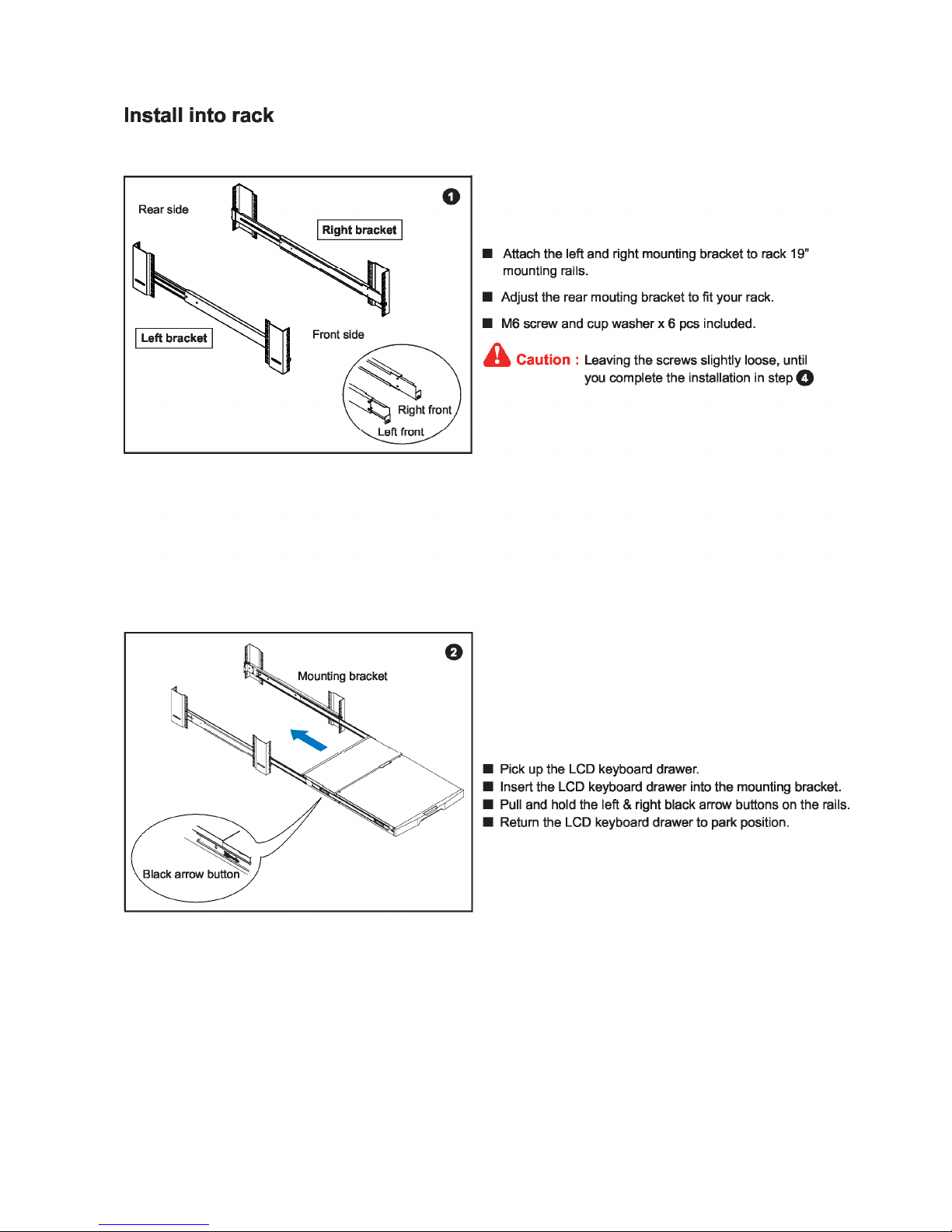
1.9 How to Install "One Man" Installation Slides
Chapter 1
Page 10

1.9 How to Install "One Man" Installation Slides
Chapter 1
P.7
Remarks :
NBK-01 is for RKD-KVM-217 / 219 & RKD-SKVM-217 / 219 series only.
NBK-02 is for RKD-KVMSD-217 / 219 series only.
Installation procedures of NBK-02 are same to that of NBK-01.
Page 11

1.10 How to Use the Slides
Chapter 1
P.8
For keyboard drawer only
Page 12

1.11 How to Use The Dual slide
Chapter 1
P.9
Page 13
P.10
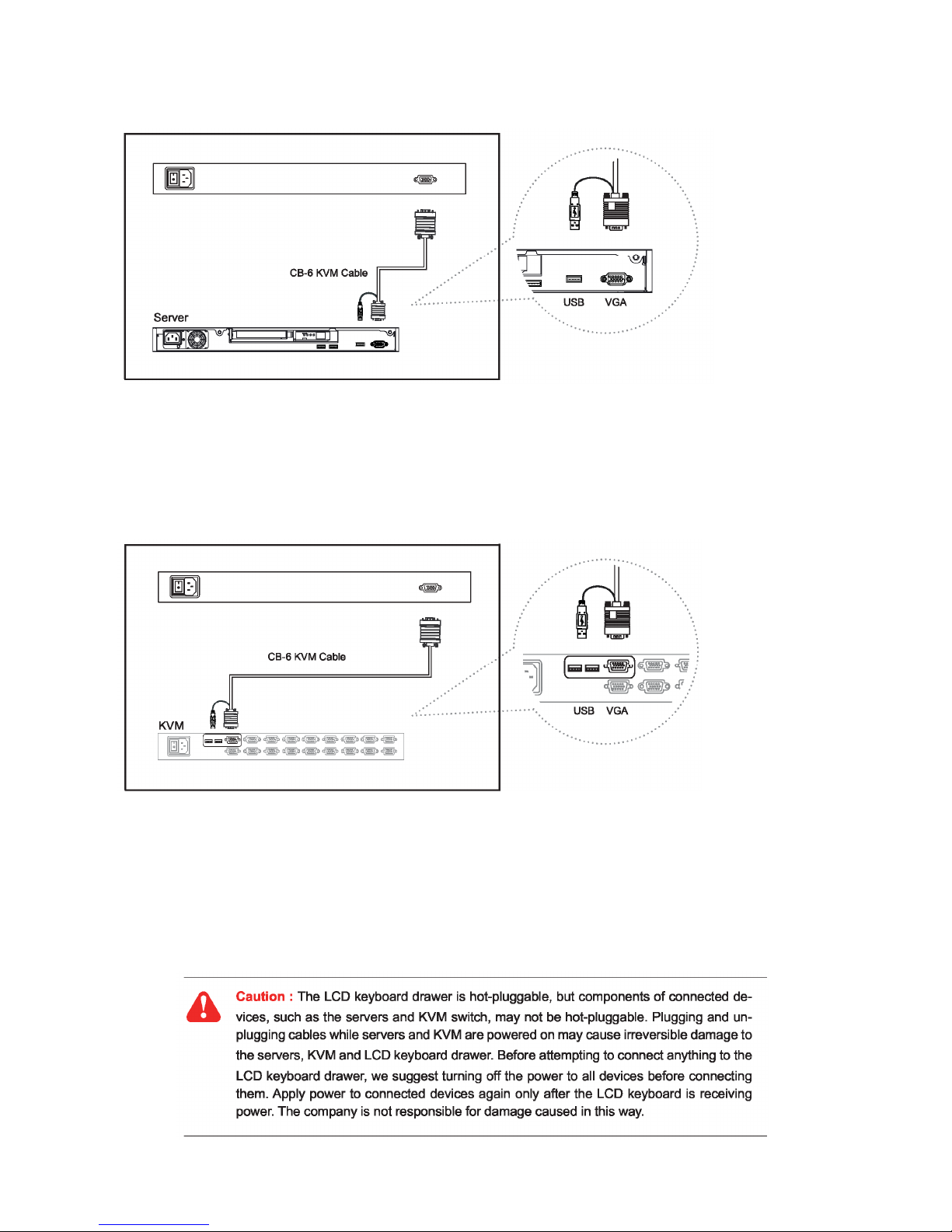
1.12 “SUN” Series (Single console)
Chapter 1
- Use KVMCB-6 to connect to server via USB interface
Figure 8. Example of connecting KVMCB-6 2-in-1 USB KVM cable to server via USB interface
1.13 “SUN” Series (Single console)
- Use KVMCB-6 to connect to KVM via USB interface
Figure 9. Example of connecting KVMCB-6 2-in-1 USB KVM cable to KVM via USB interface
Remarks
The above connection is only for the LCD keyboard without KVM switch built-in.
For the LCD keyboard drawer with KVM switch built-in, please refer to attached KVM switch user manual.
Page 14
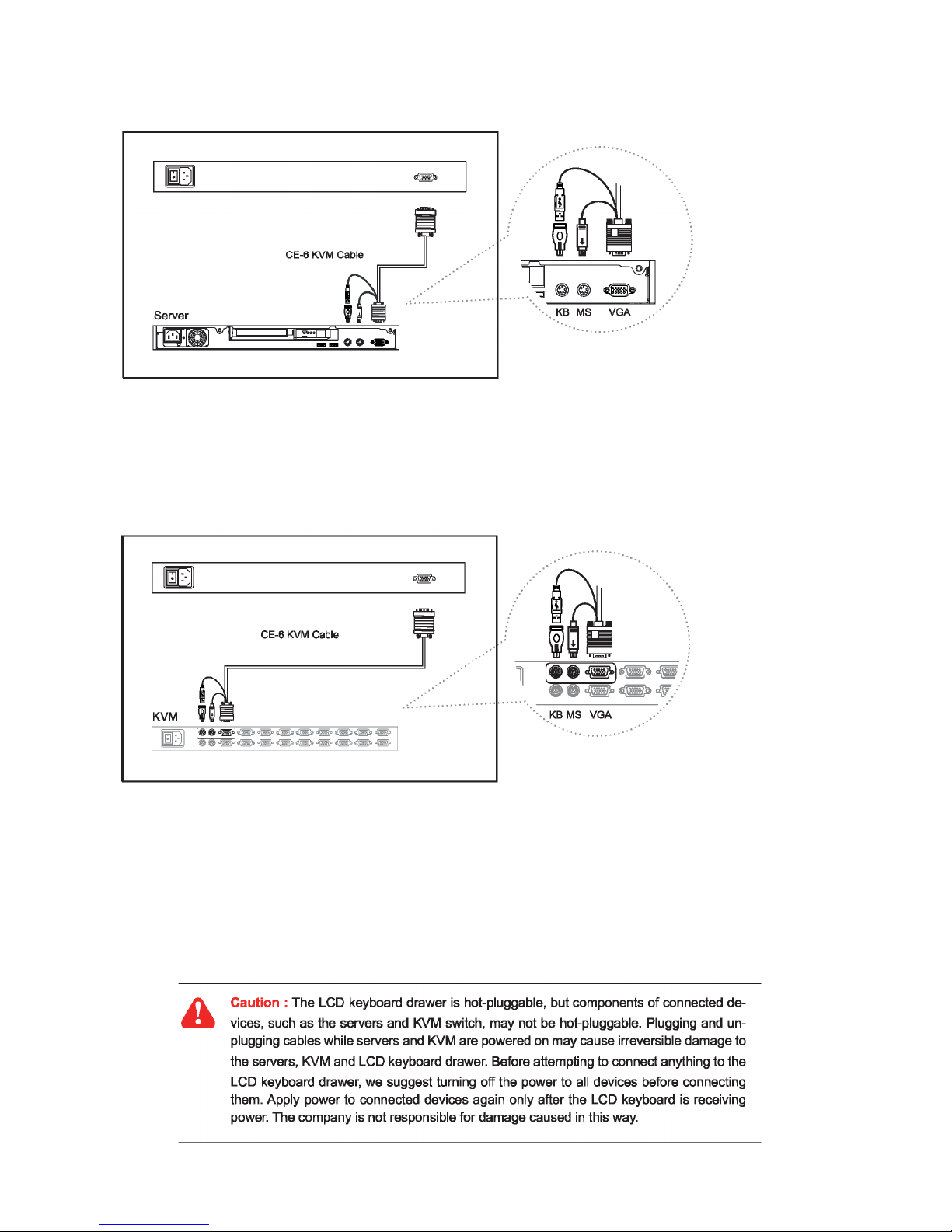
1.14 RKD Series (Single console)
- Use KVMCE-6 to connect to server via PS/2 interface
Chapter 1
P.11
Figure 10. Example of connecting KVMCE-6 4-in-1 Combo KVM cable to server via PS/2 interface
1.15 RKD Series (Single console)
- Use KVMCE-6 to connect to KVM via PS/2 interface
Figure 11 Example of connecting KVMCE-6 4-in-1 Combo KVM cable to KVM via PS/2 interface
Remarks
RKD-KVMSD-217 / 219 series are external power version in single console.
The above connection is only for the LCD keyboard without KVM switch built-in.
For the LCD keyboard drawer with KVM switch built-in, please refer to attached KVM switch user manual.
Page 15
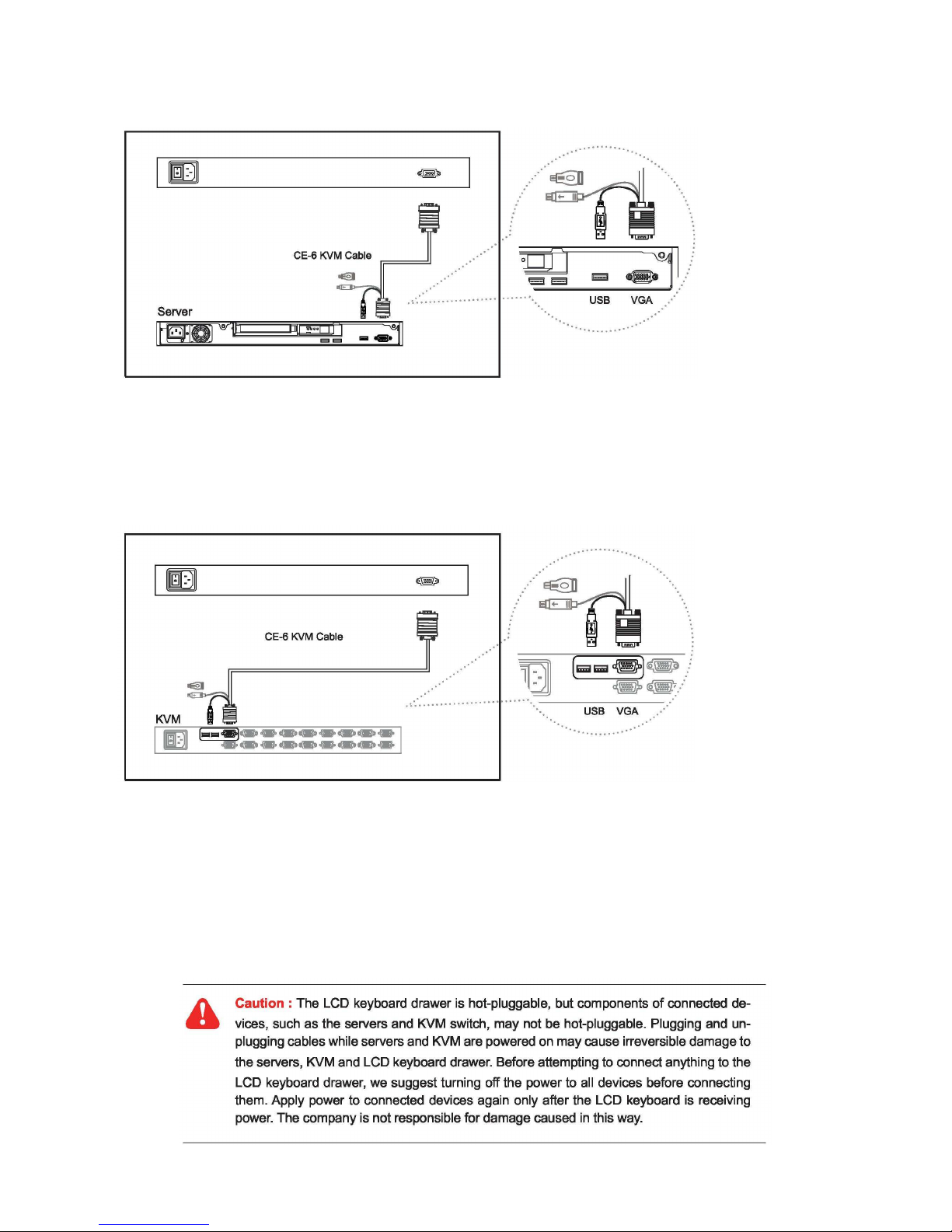
1.16 RKD Series (Single console)
- Use KVMCE-6 to connect to server via USB interface
Chapter 1
P.12
Figure 12. Example of connecting KVMCE-6 4-in-1 Combo KVM cable to server via USB interface
1.17 RKD Series (Single console)
- Use KVMCE-6 to connect to KVM via USB interface
Figure 13. Example of connecting KVMCE-6 4-in-1 Combo KVM cable to KVM via USB interface
Remarks
RKD-KVMSD-217 / 219 series are external power version in single console.
The above connection is only for the LCD keyboard without KVM switch built-in.
For the LCD keyboard drawer with KVM switch built-in, please refer to attached KVM switch user manual.
Page 16

2.1 On-screen Display Operation
Chapter 2
P.13
Page 17

2.2 On
-
screen Menu
Chapter 2
P.14
Page 18

3.1 Specifications
Chapter 3
P.15
Page 19

3.2 Keyboard & Mouse
Chapter 3
P.16
For RKD-KVM-217 / 219 & KVMSD-217 / 219 series
Page 20

3.2 Keyboard & Mouse
Chapter 3
P.17
For RKD-SKVM-217 / 219 series
Page 21

P.18
3.3 How to Use "NS" keyboard
Chapter 3
NS SUN-compatible keyboard incorporates SUN short-cut keys.
Page 22

P.19
4.1 KVM Options
Chapter 4
Our KVM is designed to seamlessly integrate into the rear of our full range of LCD drawer solutions:
For KVM operation, please refer to KVM user manual
Option with Multiple consoles Matrix KVM
Option with high density & cost efficient Combo KVM integration with either 8 / 16 / 32 ports
Option with low cost PS/2 KVM
Please ask your supplier for full KVM details
Remarks
“SUN” series is for Matrix & Combo KVM only.
Remarks
Package includes 1 x 6ft DVI-D cable
The depth of RKD-KVMSD-217 / 219 will be extended from 480mm ( “18.9” ) to 530mm ( “20.9” )
Page 23

4.4 Audio Option
Chapter 4
P.20
Page 24

P.21
Remarks
Package does not include power cord and AC power adapter
In RKD-KVMSD-217-16 / 219-16 series, the depth will be extended form 480mm ( “18.9” ) to
530mm ( “20.9” )
4.6 Touchscreen Options
e-Resistive
Model 17” 19”
Screen size
Interface
Optical transmittance
Surface hardness
Operating system
17" 19"
USB / serial
80% ± 3%
≥3H (JIS K5400)
Windows 98 / 2000 / ME / XP / NT / CE, DOS, Linux
e-Capacitive
Model 17” 19”
Screen size
Interface
Optical transmittance
Surface hardness
Operating system
17" 19"
USB / serial
93% ± 2%
>9H Surface hardness, withstand over 300 million touches
Windows 98 / 2000 / ME / XP / NT / CE, DOS, Linux
Remarks
USB touchscreen package includes 1 x 6ft USB cable, quick reference guideline and CD disc
Serial touchscreen package includes 1 x 6ft serial cable, quick reference guideline and CD disc
For detailed information, please refer to the attached CD disc
As the touchscreen unit is not made of toughened glass, please handle it carefully
Touchscreen in other brands are available on request
Page 25

P.22
For RKD-KVM-217 / 219 & KVMSD-217 / 219 series
1. How do I adjust the resolution?
To change monitor resolution, click Start -> Control Panel -> Display. Select Setting tab to adjust the monitor resolution in
Desktop Area. The available resolutions, "640 x 480", "800 x 600", "1024 x 768", "1152 x 864", "1280 x 1024", are determined by the display card in your computer.
For “SUN” series
1. How can I adjust the monitor resolution to 1152 x 900 for SUN Micro system ?
The NS solution LCD keyboard drawer will automatically detect the 1152 x 900 resolution, so no user conÞguration
should be necessary.
2. How do I adjust the resolution in MS Windows operation system?
To change monitor resolution, click Start -> Control Panel -> Display. Select Setting tab to adjust the monitor resolution in
Desktop Area. The available resolutions, "640 x 480", "800 x 600", "1024 x 768", "1152 x 864", "1280 x 1024", are determined by the display card in your computer.
3. The Stop-A hot key is not work in Trusted Solaris
The keyboard combination Stop-A (L1-A) is not available in Trusted Solaris by default. The security administrator can
change this.
Page 26

6.1 Dimensions
Chapter 6
P.23
Model
Product Dimension
(W x D x H)
Packing Dimension
(W x D x H)
Net
Weight
Gross
Weight
RKD-KVM-217
series
442 x 600 x 88 mm
17.4 x 23.6 x 3.5"
581 x 753 x 216 mm
22.9 x 29.6 x 8.5"
18 kg
40 lb
24 kg
53 lb
RKD-KVM-219
series
442 x 600 x 88 mm
17.4 x 23.6 x 3.5"
581 x 753 x 216 mm
22.9 x 29.6 x 8.5"
18 kg
40 lb
24 kg
53 lb
RKD-SKVM-217
series
442 x 600 x 88 mm
17.4 x 23.6 x 3.5"
581 x 753 x 216 mm
22.9 x 29.6 x 8.5"
18 kg
40 lb
24 kg
53 lb
RKD-SKVM-219
series
442 x 600 x 88 mm
17.4 x 23.6 x 3.5"
581 x 753 x 216 mm
22.9 x 29.6 x 8.5"
18 kg
40 lb
24 kg
53 lb
RKD-KVMSD-217
series
442 x 480 x 88 mm
17.4 x 18.9 x 3.5"
584 x 616 x 216 mm
23 x 24.3 x 8.5"
18 kg
40 lb
24 kg
53 lb
RKD-KVMSD-219
series
442 x 480 x 88 mm
17.4 x 18.9 x 3.5"
584 x 616 x 216 mm
23 x 24.3 x 8.5”
18 kg
40 lb
24 kg
53 lb
Page 27

Page 28

The company reserves the right to modify product Specifications without prior notice and assumes no responsibility for any error which
may appear in this publication.
All brand names, logo and registered trademarks are properties of their respective owners.
Copyright 2010 AHS Ltd. All rights reserved.
CV-RKD2-1010V8
 Loading...