

Page 1

Showcase DVD
Player
Instructions for Use
Owner’s Reference
THE LEADER IN AUDIO ENGINEERING
Page 2

Krell Industries, Inc.
45 Connair Road
Orange, CT 06477-3650 USA
TEL 203-799-9954
FAX 203-891-2028
E-MAIL krell@krellonline.com
WEB SITE http://www.krellonline.com
This product complies with the EMC directive (89/336/EEC) and the low-voltage
directive (73/23/EEC).
Do not place the Showcase DVD where it could be exposed to dripping or splashing.
Do not remove or bypass the ground pin on the end of the AC cord. This may cause
radio frequency interference (RFI) to be introduced into your playback system.
The ventilation grids on the top and bottom of the Showcase DVD must be unob-
structed at all times during operation. Do not place flammable material on top of or
beneath the component.
Turn off all systems’ power before connecting the Showcase DVD to any component. Make sure all cable terminations are of the highest quality, free from frayed
ends, short circuits, or cold solder joints.
Caution: Visible and invisible laser radiation. When the cover is open, avoid exposure to beam.
This unit employs a laser. To prevent possible eye injury, only a qualified service person should remove the cover or attempt to service this device. Use of controls or
adjustments or performance of procedures other than those specified herein may
result in hazardous radiation exposure.
THERE ARE NO USER-SERVICEABLE PARTS INSIDE ANYKRELL PRODUCT.
Please contact your authorized dealer, distributor, or Krell if you have any questions
not addressed in this reference manual.
This product incorporates copyright protection technology that is protected by method claims of certain U.S.
patents and other property rights owned by Macrovision Corporation and other rights owners. Use of this
copyright protection technology must be authorized by Macrovision Corporation, and is intended for home
and other limited viewing uses only unless otherwise authorized by Macrovision Corporation. Reverse engineering or disassembly is prohibited.
This product is manufactured in the United States of America. Krell
®
is a registered trademark of Krell
Industries, Inc., and is restricted for use by Krell Industries, Inc., its subsidiaries, and authorized agents. Krell
Current Mode
™
and Krellcoat™are trademarks of Krell Industries, Inc. HDMI, the HDMI logo, and HighDefinition Multimedia Interface are trademarks or registered trademarks of HDMI Licensing LLC. "DTS"
and "DTS Digital Out" are registered trademarks of Digital Theater Systems, Inc. Manufactured under license
from Dolby Laboratories. "Dolby," and the double-D symbol are trademarks of Dolby Laboratories. “DCDi” is
a trademark of Faroudja, a division of Sage, Inc. All other trademarks and tradenames are registered to their
respective companies.
© 2003 by Krell Industries, Inc. All rights reserved P/N 306989
Showcase DVD
Instructions for Use
v 03.0
CONTACT
INFORMATION
WARNINGS
Page 3

Contents
Krell Showcase DVD iii
INTRODUCTION / 1
DEFINITION OF TERMS / 2
UNPACKING / 4
PLACEMENT / 5
AC Power Guidelines / 5
QUICK START / 6
FRONT PANEL DESCRIPTION / 9
REMOTE CONTROL DESCRIPTION / 16
Battery Installation and Removal / 12
Remote Control-Only Functions / 12
BACK PANEL DESCRIPTION / 15
SHOWCASE DVD CONNECTIONS TO YOUR SYSTEM / 18
SHOWCASE DVD OPERATION / 20
Compatible Discs / 20
To Play a DVD or VCD / 20
To Play an Audio CD / 24
MP3 Disc Formats / 26
To Play MP3 Discs / 27
Interpreting Temporary Feedback Field Icons / 29
SETUP MENU OVERVIEW / 31
SHOWCASE DVD SETUP MENU / 32
To Access the Setup Menu / 32
Navigation Conventions / 34
On Screen Display (OSD) Menus / 35
Example: To Change the TV Shape / 40
Multiple-Toolbar Icons / 42
SPECIAL MENU OPERATIONS / 46
How To Write a Title / Chapter Program for a DVD or VCD / 46
How To Write a Track Program for an Audio CD / 48
How to Create an A-B Loop for a DVD, VCD, or an Audio CD / 49
Child Lock/Unlock / 50
To Authorize a Disk / 51
To Unauthorize a Discs / 52
To Activate/Deactivate Parental Control / 52
To Change the Country Code / 53
To Change the 4-Digit Code / 53
Did You Forget the 4-Digit Code? / 54
WARRANTY / 55
RETURN AUTHORIZATION PROCEDURE / 56
Page 4

iv Krell Showcase DVD
Illustrations
FIGURE 1 The Showcase DVD Front Panel / 8
FIGURE 2 The Showcase DVD Remote Control / 8
FIGURE 3 The Showcase DVD Back Panel / 14
Page 5

Thank you for your purchase of the Krell Showcase DVD.
The Showcase DVD produces a brilliant video image through the use
of the high bandwidth circuit architecture, pioneered by Krell in the
DVD Standard, and is at the forefront of DVD video technology with
HDMI, an optional scalable output stage.
Acarefully regulated power supply results in picture stability, even
during line fluctuations while the proprietary Krell Digital Video Filter
enhances DAC performance. The Krell Current Mode output stage
delivers outstanding bass weight, midrange articulation, and high frequency extension.
The wireless infrared remote control, and RS-232 and 12 VDC
remote connection options on the back panel allow you to integrate
the Showcase DVD into advanced control systems. The user-friendly
setup menu provides a variety of audio, video, and access control
options for optimum configuration and enjoyment of your Showcase
DVD and home theater system.
This owner’s reference manual contains important information on
placement, connection, and operation of your Showcase DVD.
Please read this information carefully. A thorough understanding of
these details will help ensure satisfactory operation and long life for
your Showcase DVD and related system components.
Introduction
Krell Showcase DVD 1
Page 6

Definition of Terms
2 Krell Showcase DVD
Operation
Following are the definitions of key terms used in your owner’s reference manual.
Button
Front panel selection device on the Showcase DVD.
Key
Remote control selection device on the Showcase DVD.
Video Monitor
Video screen without a receiver.
Television
Video screen with a receiver. The term “television” in this document
stands for a video screen with or without a receiver.
Balanced
Asymmetrical input or output circuit that has equal impedance from
both input terminals to a common ground reference point. The industry standard for professional and sound recording installations, balanced connections have 6 dB more gain than single-ended connections and allow the use of long interconnect cables. Balanced connections are more immune to induced noise from the system or the
environment.
Single-ended
Atwo-wire input or output circuit. Use care when using single-ended
connections. Turn the system off prior to making or breaking singleended connections. Single-ended connections are not recommended
for connections requiring long cable runs.
Off
When the AC power cord is unplugged from the AC power source,
the component is off.
Stand-by Mode
When the Showcase DVD is connected to AC power, the red standby LED illuminates. This indicates that the component is in stand-by
mode, a low power consumption status that keeps the audio and regulator circuits at idle. Krell recommends leaving the component in the
stand-by mode when not playing a disc.
Operational Mode
When the power button on the front panel or power key on the
remote control is pressed and the blue power LED illuminates, the
component is in the operational mode and ready to play a disc.
Input and Output
Connections
Hardware
Page 7

Definition of Terms, continued
Krell Showcase DVD 3
Video Technology
VIDEO SIGNAL
OPTIONS
BUILDING THE VIDEO
PICTURE
Video Signal
Asignal which includes all the information present in the video picture. There are three basic elements in a video picture: color, brightness, and synchronization data.
Chrominance (C or Chroma). The color portion of a video
signal.
Luminance (Y, Brightness, or Luma). The monochrome
portion of a video signal.
Component Video Signal (3 Signals)
Three separate signals transmit: luma (Y), blue minus luma (B-Y),
and red minus luma (R-Y), resulting in a high quality, film-like picture.
YPbPr (or PrPbY). One way to designate the three signals used
in component video. Y = the luma signal, Pb = the blue minus
luma (B-Y) chroma signal, and Pr = the red minus luma (R-Y)
chroma signal.
S-Video Signal (2 Signals)
Two separate signals transmit the luma (Y) and chroma (C). S-video
signals bypass television circuitry required by composite video, and
reduces video noise as well as cross-contamination of luma and
chroma signals.
Composite Video Signal (1 Signal)
One signal transmits luma (Y) chroma (color), and synchronization
data.
Interlaced (standard) signals build the video picture in two passes.
Progressive signals build the video picture in one pass. This tech-
nology eliminates motion artifacts and produces film-quality pictures.
Both the video source and television must be equipped with progressive video connections.
Page 8

Unpacking
4 Krell Showcase DVD
Follow these steps to safely unpack your Showcase DVD:
1. Open the shipping box and remove the top layer of foam. You
see these items:
1 Krell Showcase DVD
1 AC power cord
1 12 VDC (12 V trigger) cable
1 remote control
1 CR2025 lithium battery
1 Quick Setup Guide
2. Grasp the underside of the foam end-caps that encase the
Showcase DVD and lift it straight out of the shipping box.
3. Place the Showcase DVD in a safe location and remove the end-
caps and protective plastic wrapping.
Only one person needed.
Notes
If any of these items are not included in the shipping box, please contact
your authorized Krell dealer, distributor, or Krell for assistance.
Save all packing materials. If you ship your Showcase DVD in the future,
repack the unit in its original packaging to prevent transit damage. See
Return Authorization Procedure, on page 56, for more information.
Page 9

Krell Showcase DVD 5
Before you install the Showcase DVD into your system, review the
following guidelines to choose the location for the component. This
will facilitate a clean, trouble-free installation. The Showcase DVD
does not require any type of special rack or cabinet for installation.
Place the Showcase DVD on a firm, level surface, away from excessive heat, humidity, or moisture. The Showcase DVD requires at
least one inch (2.5 cm) of clearance on each side and at least one
inch (2.5 cm) of clearance above and below the component to provide adequate ventilation. Installations inside cabinetry may need
extra ventilation.
The Showcase DVD incorporates an advanced suspension system and
does not require additional mass coupling or isolation. You may experiment
with feet or cones as long as they are not permanently affixed to the unit.
Any unauthorized modifications to the unit or electronics will void the warranty .
Do not attach enhancement accessories such as rings, mats, or
dampers to individual discs. These accessories may interfere with the
disc transport, resulting in erratic playback and/or poor performance.
The Showcase DVD has superb regulation and does not require a
dedicated AC circuit. Operate the Showcase DVD only with the
power cord supplied.
Avoid connections through extension cords or multiple AC adapters.
High quality 15 amp grounded AC strips are acceptable. High quality
AC line conditioners or filters may be used if they are grounded and
meet or exceed the unit’s power supply rating of 100 VA.
Placement
Note
IMPORTANT
AC Power
Guidelines
Page 10

6 Krell Showcase DVD
The Showcase DVD is shipped ready to play from the factory. The
player automatically switches to NTSC or PAL, depending on the
disc format. The default standard is preset, and not selectable by the
user.
To get started, Krell recommends the following routine:
Connect the Showcase DVD to AC Power
Plug the AC cord into the wall outlet. The red stand-by LED (3) illuminates.
Choose and Connect the Video Outputs
to Your Television
Choose the output that matches your television input. The Showcase
DVD supports composite, S-Video, interlaced, and progressive
scan (480p) component video signals. See Definition of Terms, on
page 3, for a detailed description of video signals.
The progressive PrPbY outputs will provide the best quality picture, because they build video screen content in one pass. To
achieve this picture quality, the progressive PrPb Y outputs need
to be connected to a television with a 31.5 kHz horizontal scan
rate, capable of accepting a progressive signal of 480p or better.
Most plasma, D-ILA, DLP, and HDTV televisions have this feature.
Connect the Showcase DVD directly to the television. Set the TV to the correct video input channel.
An optional HDMI connector is available for the Showcase DVD. The
connector produces the following digital component signals: 480p,
720p, and 1080i.
Quick Start
READ THIS FIRST
Step 1
Step 2
PROGRESSIVE SCAN
VIDEO
HDMI CONNECTOR
(Optional)
Note
Page 11

Connect the Showcase DVD Audio Outputs
to Your Home Theater System
Connect the left and right balanced or single-ended analog audio outputs to the left and right audio inputs of your amplifier or receiver.
Configure the Showcase DVD to Match
Your Television
Use this section of you want to change the picture view on the video
screen, and you already have a good working knowledge of the
Showcase DVD setup menu. For greater detail on how to access
and navigate the setup menu, see pages 31-45.
1. Press the power button or key (1) to place the Showcase DVD in
the operational mode. The blue power LED (2) illuminates. The
video screen displays the Krell logo, followed by the appearance
of a status window, which indicates the playing condition of the
Showcase DVD.
2. If a disc is in the transport (12), pause (6) or stop (7) disc play-
back.
3. Press the setup button or key (17) to access the setup menu.
The setup menu multiple-toolbar appears on the video screen.
4. Use directional buttons or keys (14) to navigate to the
OSD icon
on the multiple-toolbar. When an item on the menu is selected, it
is highlighted in black and surrounded by cursor arrows.
5. Press the down directional button or key to navigate to the main
menu options for
OSD.
6. Press the right directional button or key to select TV SHAPE.
7. Press the right button or key again to access the TV shape
options in the
OSD first sub-menu:
8. Select the TV shape you want:
4:3 LETTERBOX, 4:3 PANSCAN, or 16:9.
9. Press the setup button or key again to exit the setup menu.
Krell Showcase DVD 7
Quick Start, continued
Step 3
Step 4
(Optional)
Page 12
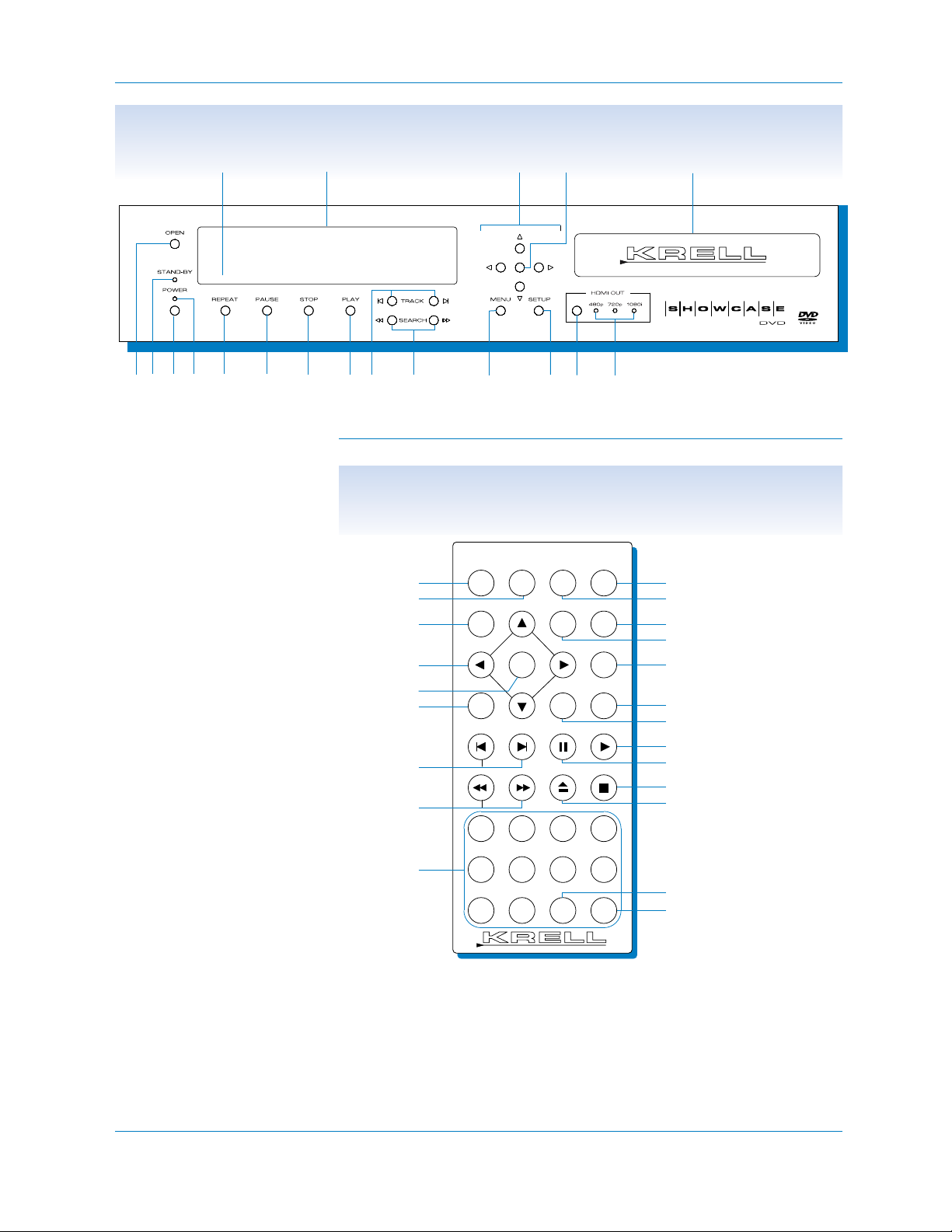
Figure 1 The Showcase DVD Front Panel
1
11
6
5
8
7
10
9
17
16
12
14
19
18
4
13
3
2
15
Figure 2 The Showcase DVD Remote Control
8 Krell Showcase DVD
Power
1 Power Button or Key
2 Power LED
3Stand-by LED
4 Front Infrared Sensor
Disc Functions
5 Repeat Button or Key
6 Pause Button or Key
7 Stop Button or Key
8Play Button or Key
9Track Forward and
Track Back Button or Key
10 Search Forward and
Search Back Button or Key
11 Open/Close Button or Key
14 Directional Buttons or Keys
15 Enter Button or Key
16 Menu Button or Key
17 Setup Button or Key
18 HDMI Button
19 HDMI LEDs
Display
12 Disc Transport
13 Front Panel Display
Remote Only
Advanced Disc Functions
20 Audio Key
21 Subtitle Key
22 Angle Key
23 Title Key
24 Numeric Keys
Programming Functions
25 A-B Key
26 Prog(ram) Key
1 22
20
23
14
15
not active*
9
10
24
SubtitleAudio AnglePower
Title Menu
DispRet
1
6
5
Clr09
Setup
Repeat
A-B
432
87
Prog
21
17
16
5
25
not active*
8
6
7
11
not active*
26
*This key does not activate a function
on the Showcase DVD.
Page 13

1 Power Button or Key
Use this button or key to switch the Showcase DVD from the
stand-by to the operational mode.
2 Power LED
The blue power LED illuminates when the Showcase DVD is in
the operational mode.
3Stand-by LED
The red stand-by LED illuminates when the Showcase DVD is
plugged into AC power and is in the stand-by mode.
4Front Infrared Sensor
The infrared sensor receives commands from the Showcase
DVD remote control when the IR select switch (37) is in the up
position. For proper remote control operation, make sure the
infrared sensor is not covered or obstructed.
5 Repeat Button or Key
Use this button or key to activate and deactivate disc repeat
options. See also: To Play a DVD or VCD, page 20; To Play an
Audio CD, page 24; To Play an MP3 Disc, page 27.
6 Pause Button or Key
Use this button or key to pause disc playback. The phrase
PAUSE
appears briefly in the status window in the upper left corner of the
television. To resume playback, press the pause button or key
again, or press the play button or key (8).
7 Stop Button or Key
Use this button or key to stop disc playback. Astatus window
appears in the upper left corner of the television screen, followed
by a
RESUME temporary feedback field icon. If you are playing a
DVD or VCD, press play (8) when the
RESUME icon appears, to
resume playback from the stop point. If you do not press play
while
RESUME icon is on the screen, the DVD starts playing from
the first title and chapter.
8Play Button or Key
Use this button or key to begin or resume disc playback.
9Track Forward Button or Key
Track Forward. Use this button or key to move forward one
chapter or track. The mode selected appears in a status window
in the upper left corner of the television screen. The front panel
display (13) shows the currently playing chapter or track number.
Krell Showcase DVD 9
Front Panel Description
See Figure 1 on page 8
Power
Disc Functions
Page 14

Front Panel Description,
continued
10 Krell Showcase DVD
9Track Forward Button or Key,
continued
Track Back. Use this button or key to move back one title, chapter, or track. The mode selected appears in a status window in
the upper left corner of the television screen. The front panel display shows the currently playing title and chapter, or track number. See also: To Play a DVD or VCD, page 20; To Play an
Audio CD, page 24; To Play an MP3 Disc, page 27.
10 Search Forward and Back Buttons or Keys
Search Forward. Use this button or key to access the two fastforward playback modes. Use the search forward button or key to
switch between the slower and faster modes. On DVD, VCD, or
Audio CD playback, the mode selected appears in the status box
in the upper left corner of the television screen. Press the play
button or key to resume normal playback.
Search Back. Use this button or key to access the two fastreverse playback modes when in the play mode. On DVD, VCD,
or Audio CD playback, the mode selected appears in the status
box in the upper left corner of the television screen. Use the
search back button or key to switch between the slower and
faster modes. Press the play button or key to resume normal
playback. See also: To Play a DVD or VCD, page 20; To Play
an Audio CD, page 24.
11 Open/Close Button or Key
Use this button or key to open and close the disc transport.
12 Disc Transport
The disc transport holds the disc.
13 Front Panel Display
The front panel display shows currently playing title and chapter
or track numbers, elapsed time, repeat mode, and disc status.
14 Directional Buttons or Keys
Use these buttons or keys to navigate the Showcase DVD setup
menu, a DVD disc menu, an audio CD, or an MP3 disc menu.
Also, use these buttons to view a DVD disc as frame by frame
stills.
15 Enter Button or Key
Use this button or key to set select disc menu functions or exit
the setup menu.
DISC FUNCTIONS, continued
Menu Access
and Setup
Functions
Page 15

Front Panel Description, continued
Krell Showcase DVD 11
16 Menu Button or Key
Use this button or key to access the DVD disc menu. Disc playback pauses automatically when you enter the menu. Use the
directional buttons or keys (14) to move through the menu. Press
enter to select the desired menu item.
17 Setup Button or Key
Use this button or key to access the Showcase DVD setup
menu. The setup menu allows you to customize your Showcase
DVD on screen display (OSD), audio soundtrack, and select special features such as access control. Press the setup button
again to reveal sub menus, or press the enter key to exit the
setup menu. See Showcase DVD Setup Menu, pp. 31-54, for
information on configuring the Showcase DVD.
18 HDMI Button (Optional)
Use this button to scroll through three output signal choices:
480p, 720p and 1080i.
19 HDMI LEDs (Optional)
The illuminated LED indicates the component video scan resolution in use: 480p, 720p, or 1080i.
DISC FUNCTIONS, continued
Page 16

Remote Control Description
See Figure 2 on page 8
12 Krell Showcase DVD
The Showcase DVD remote control uses one CR2025 lithium battery, which is included with the shipment.
To open the battery compartment on the back of the remote control:
1. Place the remote face down on the table.
2. Use your thumbnail or a small jeweler’s or eyeglass screwdriver
to move the small tab toward the center of the remote, while
using your index fingernail or screwdriver to pull down gently on
the slot to the right of the tab. The battery compartment will slide
out.
3. Place the battery, positive (+) side up, in the battery tray.
4. Slide battery compartment back into the remote until you hear a
click.
The remote control is ready for operation.
Do not use a knife or other sharp object to open the battery compartment;
they will scratch the remote control finish.
Replace batteries when remote control function becomes intermittent.
Remove batteries if the remote control is not used for a long time. Battery
leakage can damage the remote control.
The Showcase DVD remote control provides all the power, standard
disc functions, menu access, and menu setup functions available on
the front panel. Additional advanced disc and programming functions
are accessed only from the remote control. Adescription of the
remote control-only keys for the Showcase DVD follows.
20 Audio Key
Press this key to access the audio icon on the multiple-toolbar
menu. Use the down directional button or key (14) to cycle
between
OFF or the languages available on the disc soundtrack.
The last language scrolled to is automatically selected, and
becomes active after the transport (12) is opened and closed.
Navigate to the audio sound category of the
OSD menu for an
expanded view of the languages available.
Notes
Battery Installation
and Removal
Remote
Control-Only
Functions
ADVANCED DISC
FUNCTIONS
Page 17

Remote Control Functions, continued
Krell Showcase DVD 13
21 Subtitle Key
Press this key to access the subtitle icon in the multiple-toolbar
menu. Use the down directional button or key (14) to cycle
between
OFF or the subtitle languages available on the disc
soundtrack. The last subtitle language scrolled to is automatically
selected, and becomes active after the transport (12) is opened
and closed. Navigate to the audio mode category of the
OSD
menu for an expanded view of the subtitle languages available.
22 Angle Key
Use this key to select alternate camera angles, when they are
available on the disc.
23 Title Key
Press this key to access the title which is playing.
Many discs have only one title.
24 Numeric Keys
Press a numeric key to select a disc chapter, title, or track during playback. The setup menu opens with the cursor at the title
and chapter number or track number that is playing. Press the
numeric key for the next chapter, title, or track number you
want to play. Playback resumes at the selected title, chapter, or
track.
If a title, chapter, or track is not available on the disc, the number you
select is not displayed on the menu.
25 A-B Key
Press this key to define the start of a continuous loop. Press
again to define the end of a continuous loop. Playback begins
immediately and continues until you press the A-B key a third
time, to clear the loop. See How to Create an A-B Loop, on
page 49.
26 Prog(ram) Key
Press this key to access the favorite track selection (FTS) icon in
the multiple-toolbar menu. Select and playback chapters, titles, or
tracks in a particular sequence. See also: How to Write a
Title/Chapter Program, for a DVD or VCD, on page 46; How to
Write a Track Program for an Audio CD, on page 48.
Note
ADVANCED DISC
FUNCTIONS,
continued
Note
PROGRAMMING
FUNCTIONS
Page 18
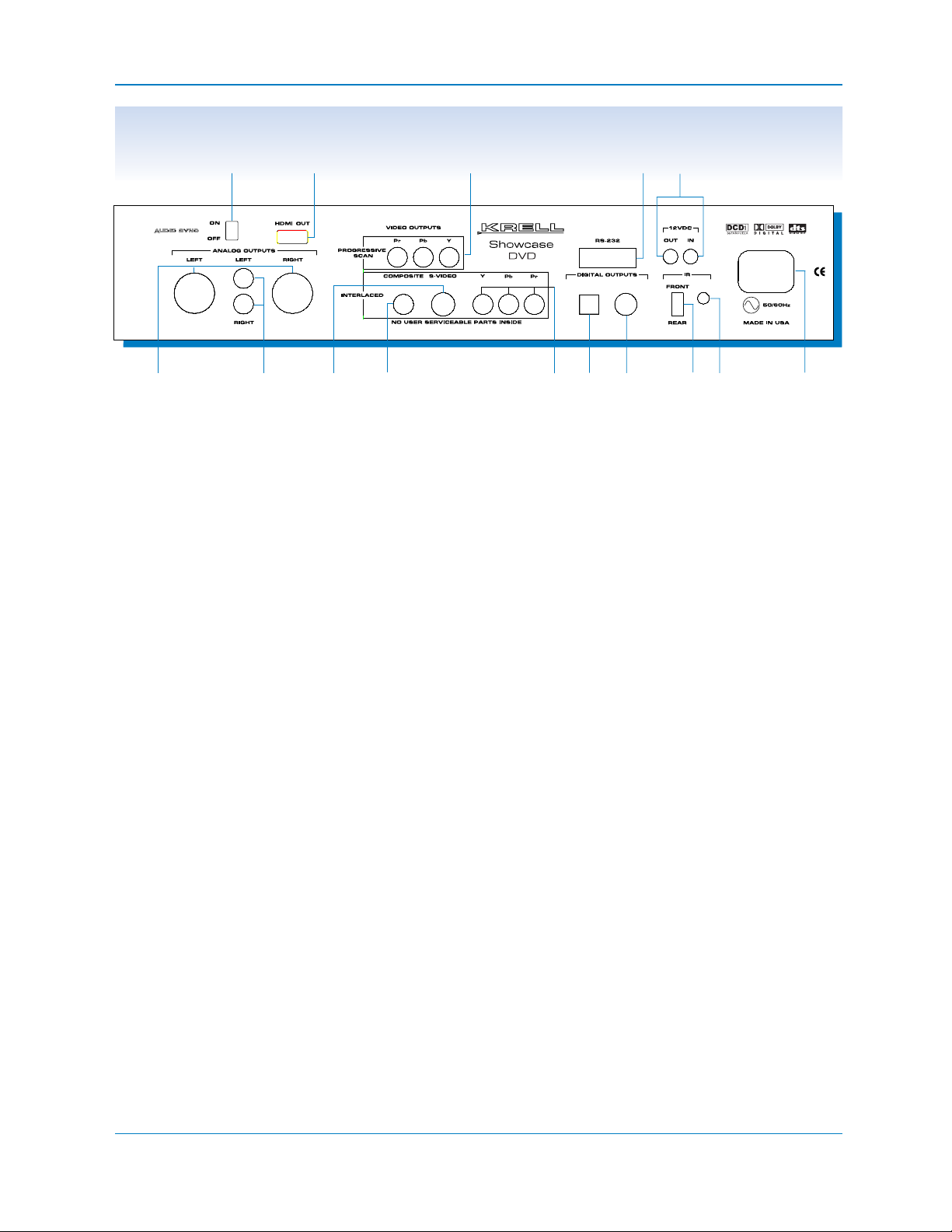
Figure 1 The Showcase DVD Back Panel
27 28
40
41
32
30
29
31
33
34
35
37
36
38
39
14 Krell Showcase DVD
Analog Audio Outputs
27 Left and Right Balanced Audio Outputs
28 Left and Right Single-ended
Audio Outputs
Interlaced Video Outputs
29 Composite Video Output
30 S-Video Video Output
31 Component Video Output (Y, Pb, Pr)
Progressive Scan Video Output
32 Progressive Scan Video Output, (Pr, Pb,Y)
Digital Audio Outputs
33 Optics Digital Output
34 Coaxial Digital Output
Remote Back Panel Connections
35 RS-232 Communication Port
36 12 VDC In/Out (12 V Trigger)
37 IR Select Switch
38 Back Infrared Sensor
Power
39 IEC Connector
HDMI Connection (Optional)
40 Audio Sync Switch
41 HDMI Out
Page 19

Back Panel Description
See Figure 3 on page 14
Krell Showcase DVD 15
27 Left and Right Balanced Audio Outputs
The Showcase DVD is equipped with one pair of left and right
balanced analog audio outputs via XLR connectors.
28 Left and Right Single-ended Audio Outputs
The Showcase DVD is equipped with one pair of left and right
single-ended analog audio outputs via RCA connectors.
29 Composite Video Output
The Showcase DVD is equipped with a composite video output
via an RCA connector. Composite video uses one wire to convey
the video signal.
30 S-Video Video Output
The Showcase DVD is equipped with an S-video output via a
4 pin mini-DIN connector. Composite video uses two wires to
convey the video signal.
31 Component Video Output (Y, Pb, Pr)
The Showcase DVD is equipped with a component video output
via RCA connectors. Component video uses three wires to convey the video signal.
32 Progressive Scan Video Outputs (Pr, Pb, Y)
The Showcase DVD is equipped with a progressive video output
via RCA connectors. Progressive video uses three wires to convey the video signal.
The Showcase DVD automatically switches to NTSC or PAL, depending on
the disc format. The default standard is preset, and not selectable by the
user.
Analog Audio
Outputs
Interlaced Video
Outputs
Progressive Scan
Video Outputs
Notes
Page 20

16 Krell Showcase DVD
Back Panel Description,
continued
Back Panel
Remote
Connections
33 Optics Digital Output
The Showcase DVD is equipped with one EIAJ optics digital
audio output via a TosLink connector.
34 Coaxial Digital Output
The Showcase DVD is equipped with one S/PDIF coaxial digital
audio output via an RCA connector.
35 RS-232 Communication Port
The Showcase DVD is equipped with an RS-232 communication
port, which receives messages from a computer-based control
system, providing more intelligent control of the Showcase DVD.
For more information, see RS-232 Port: Sending Commands
and Interpreting Data, the developer’s reference on the Krell
website at www.krellonline.com.
36 12 VDC Out and In
The 12 VDC out and in connections allows you to control the
operational and stand-by modes of components with 12 V triggers, to easily coordinate allowing whole systems or parts of systems.
Output. The 12 VDC output sends a 12 Volt power on/off signal
to other Krell components via a 12 V cable, as well as to other
devices that incorporate a 12 V power on/off trigger input.
Input. The 12 VDC input receives 12 Volt power on/off signals
from other Krell components and devices that incorporate a 12 V
trigger.
When the Showcase DVD is in the operational mode, 12 VDC output
provides 12 V of DC output. When the Showcase DVD is in the stand-by
mode or off, DC output is 0 V.
12 VDC Out (12 V trigger) current is limited to 30 mA.
Consult the owner’s manual of each component used in a custom installa-
tion to take full advantage of the Showcase DVD’s remote capability.
37 IR Select Switch
Use this switch to activate the front or Back Infrared Sensor (38).
Front. The switch in the up position indicates that the front
infrared sensor is active.
Rear. The switch in the down position indicates that the back
infrared sensor is active.
Digital Audio
Outputs
Notes
Page 21

Krell Showcase DVD 17
Back Panel Description, continued
38 Back Infrared Sensor
This sensor receives commands from the Showcase DVD
remote control when the IR select switch (37) is in the down position.
39 IEC Connector
The Showcase DVD is equipped with a standard female IEC
power connector, for use with the AC power cord.
40 AUDIO SYNC SWITCH
Use this switch to synchronize audio and video when using the
HDMI output (41). Turn this function off, if you are not using the
HDMI output.
41 HDMI OUT
Digital video output that interfaces with an A/V receiver or a video
monitor equipped with an HDMI input.
Power
HDMI Connection
(Optional)
BACK PANEL
REMOTE CONNECTIONS,
continued
Page 22

18 Krell Showcase DVD
Krell recommends using balanced interconnect cables. Balanced
interconnect cables not only can minimize sonic loss but are also
less sensitive to induced noise, especially with installations using
long cables. Balanced connections have 6 dB more gain than singleended connections. When level matching is critical, keep this gain
value in mind.
This section provides information about connecting your Showcase
DVD to other components in your system. The Showcase DVD is
equipped with a variety of connection options, for easy integration
into your home theater system.
Follow these steps to connect the Showcase DVD to your system.
1. Make sure all power sources and components are off before connecting inputs and outputs.
2. Neatly organize the wiring between the Showcase DVD and all
system components. Separate AC wires from audio cables to
prevent hum or other unwanted noises from being introduced into
the system.
3. Match and connect the video outputs from Showcase DVD to the
video inputs of the television. The Showcase DVD supports composite, S-Video, and component interlaced video signals and progressive (480p) component video signals. See Definition of
Terms, on page 3, for more information on video signals.
The progressive PrPbY outputs will provide the best quality picture, when they are connected to a television capable of accepting a progressive signal of 480p or better. This includes most
plasma, D-ILA, DLP, and HDTV televisions.
To use the progressive scan video outputs on the Showcase DVD, the television must have a 31.5 kHz horizontal scan rate and a progressive (480p)
video input.
An optional HDMI connector is available for the Showcase DVD. The
connector uses a single cable to support multiple audio and multiplevideo cables, and produces the following digital component signals:
480p, 720p, and 1080i.
Showcase DVD Connections
to Your System
Using Balanced
Connections
Connection
Steps
PROGRESSIVE SCAN
VIDEO
HDMI CONNECTOR
(Optional)
Note
Page 23

Krell Showcase DVD 19
4. Connect the balanced (27) or single-ended (28) analog audio
outputs to your loudspeakers.
5. Connect the optics digital audio (33) or coaxial audio (34) digital
output to your loudspeakers.
DTS audio playback is available only from the digital outputs.
6. Plug the AC power cord into the IEC connector (39) on the back
panel, then plug the AC power cord into the wall socket. The red
stand-by LED (3) on the front panel illuminates.
When powering up any system, always turn amplifiers on last. When
powering down, always turn amplifiers off first.
Showcase DVD Connections to Your System,
continued
Note
Note
Page 24

Showcase DVD Operation
This section provides information about operating the Showcase
DVD. The Showcase DVD is shipped ready to play. After the player is
connected to the television and other system components, and
plugged into AC power, it is ready for operation.
The Showcase DVD is a Region 2 player which plays the following
disc formats: DVD, DVD-R, CDDA, CD-R, CD-RW, DVD+RW, MP3,
and VCD.
Krell recommends leaving the Showcase DVD in the stand-by mode when
not playing a disc.
Do not attach enhancement accessories such as rings, mats, or dampers to
individual discs. These accessories may interfere with the disc transport,
resulting in erratic playback and/or poor performance.
Adjust the volume level through your system volume control.
All functions outlined on pages 8-11 are available when you play a
DVD or VCD.
1. Press the power button on the front panel or the power key (1) on
the remote. The blue power LED (2) illuminates, and the red
stand-by LED (3) turns off. The Krell logo and a status window
appear on the television screen. The Showcase DVD is in the
operational mode, and the disc transport (12) is active.
Screen in
Operational Mode
Status window
20 Krell Showcase DVD
To Play a DVD
or VCD
Compatible
Discs
Notes
Page 25

2. Press the open/close button or key (11) to open the disc transport.
3. Place the disc on the transport.
4. Press the open/close button or key again to close the disc transport. Playback begins from the first title or track. The front panel
window displays
READING and INFO.
5. The phrase
INFO remains on the front panel display window until
you press the enter (15) or play button or key.
6. The Showcase DVD starts playing the movie and the front panel
window displays the time, the title and chapter, or the track.
7. Press the stop button or key (7) to end disc playback.
8. To turn the Showcase DVD off, press the power button on the
front panel or the power key on the remote. The red stand-by
LED illuminates and the Showcase DVD is in the stand-by mode.
See Front Panel Description, on page 9, and Special Operations,
on page 46, for more information on disc playback options.
The status window icon reports the current operating condition of the
Showcase DVD, and appears in the upper left portion of the television screen. If a disc is playing, the function, title, chapter, or track as
well as time elapsing is displayed in the icon.
To suppress the status window, see page 38.
Krell Showcase DVD 21
Showcase DVD Operation,
continued
To Play a DVD or VCD,
continued
STATUS WINDOW
Page 26

All functions listed under Front Panel Description, on pages 9-11
and under Remote-only, on pages 12-13 are available when you play
a DVD or VCD.
5 Repeat Button or Key
Press this button or key to repeat a title or chapter, or an entire
disk:
CHAPTER REPEAT
Press once to repeat the currently playing
chapter.
TITLE REPEAT Press twice to repeat all chapters in current title.
REPEAT
Press three times to repeat the entire disc.
REPEAT OFF Press four times to clear the repeat function.
The selected repeat option appears briefly in the temporary feedback field icon, in the upper left corner of the television screen.
The phrase
REPEAT appears in the front panel display (13).
When repeat is off, there is no temporary feedback field icon in
the upper left corner of the television screen, and the phrase
REPEAT
disappears from the front panel display.
9Track Forward and Track Back Buttons or Keys
Press this button or key to move to another title or chapter, or
move to the beginning of the current title or chapter. Direction
and title or chapter number are displayed on the front panel display window (13), or in a status window on the television screen.
Track Forward. Press the track forward button or key firmly during playback, to move to the next title or chapter. Press track forward button or key briefly during playback, to return to the beginning of the current title or chapter.
Track Back. Press the track back button or key firmly during
playback, to move to the last title or chapter. Press the track back
button or key briefly during playback to return to the beginning of
the current title or chapter.
To move to any title or chapter, enter the title or chapter number
using the numeric keys (24) on the remote control.
DVD AND VCD
FUNCTIONS
22 Krell Showcase DVD
Showcase DVD Operation,
continued
Page 27

10 Search Forward and Back Buttons or Keys
Press this button or key to search forward or backward through
the disc at an advanced speed. There are two fast-forward playback modes: x 4 and x 32.
Press once and the phrase X4 appears in the status window in
the upper left corner of the television screen. Press again and the
phrase X32 appears in the status window in the upper left corner
of the television screen.
Press the play button or key (8) to resume normal playback.
DVD AND VCD
FUNCTIONS,
continued
Krell Showcase DVD 23
Showcase DVD Operation,
continued
Page 28

24 Krell Showcase DVD
Showcase DVD Operation, continued
To Play
an Audio CD
Audio Mode Menu
on Screen
1-3.Follow the first three steps under To Play a DVD or VCD on
pages 20-21.
4. Press the open/close button or key again to close the disc transport. The front panel window displays
READING
and the television
screen displays the audio CD menu. Playback begins from the
first track.
5. As the Showcase DVD plays the audio CD tracks, the television
screen and the front panel display window continually report the
current track and time elapsed on the track.
6. Playback stops at the end of the disc. To stop playback at any
other time, press the stop button or key (7).
To turn the Showcase DVD off, see To Play a DVD or VCD, Step 8,
on page 21.
Page 29

The following functions are available when you play an audio CD:
5 Repeat Button or Key
Press this button or key to repeat a track selection, or an entire
disc
.
REPEATTRACK
Press once to repeat the currently playing track.
REPEATTRACK appears in the audio CD menu on
the television screen.
REPEATDISC
Press twice to repeat an entire disc. REPEATDISC
appears in the audio CD menu on the video
screen.
To deactivate
REPEAT, press the repeat button or key a third time.
When repeat is off, there is no repeat phrase on the television
screen.
6 Pause Button or Key, 7 Stop, 8 Play Button or Keys
For descriptions of these functions, see Front Panel
Description, on page 10.
9Track Forward and Track Back Button or Key
Press this button or key to move to another track or move to the
beginning of the current track. Direction and track number are
displayed on the front panel display window (13), or in a status
window on the television screen.
Track Forward. Press the track forward button or key firmly during playback to move to the next track. Press track forward button or key briefly during playback return to the beginning of the
current track.
Track Back. Press the track back button or key firmly during
playback to move to the last track. Press track back button or key
briefly during playback to return to the beginning of the current
track.
To move to any track, enter the track number using the numeric
keys (24) on the remote control.
Krell Showcase DVD 25
Showcase DVD Operation, continued
AUDIO CD
FUNCTIONS
Page 30

10 Search Forward and Search Back Button or Key
Press this button or key to search forward or backward through
the disc at an advanced speed. Speed and direction are displayed on the front panel display window (13), or in a status window on the television screen. When the search begins, the sound
is partially muted. To end a search, press play (8) to resume playback or press stop (7) to stop playback.
—Hold down this button or key for approximately 1 second
during playback, to search the disc at X4 the normal speed
—Hold down the button or key again, to search at X8 speed.
— Hold down the button or key a third time, to return to the
normal speed.
14 Directional Buttons or Keys
For descriptions of this function, see Front Panel Description,
on page 10.
25 A-B Key
See How to Create an A-B Loop, on page 49.
26 Program Key
See How to Write a Track Program for an Audio CD, on
page 48.
The Showcase DVD supports the following MP3-CD formats
(ISO 9660 format):
—Amaximum of 30 characters
—Nested director up to eight levels
—Amaximum ALB number of 32
— VBR bit-rate supported
—Sampling frequencies supported: 32 , 44.1 , and 48 k Hz.
— Supported bit rates: 32, 64, 96, 128, 192, and 256 (kbps).
The Showcase DVD does not support the following formats:
— Files including *.WMA, *.AAC, *.DLF, *M3U, *PLS
— Chinese file names
— Non-session closed discs
—Discs recorded under UDF format
It is normal to experience an occasional “skip” while listening to MP3 files.
Digital-out is not active during MP3 disc playback, in compliance with
SDMI.
26 Krell Showcase DVD
Showcase DVD Operation, continued
AUDIO CD FUNCTIONS,
continued
MP3 Disc Formats
Notes
Page 31

Only digital audio music will play, due to the recording nature of Digital
Audio MP3 (DAM).
Disc reading time may exceed ten seconds, if there are a large number of
songs compiled on one disc.
Only the first session of multi-session discs is supported.
1-3.Follow the first three steps under To Play a DVD or VCD above,
on pages 20-21.
4. Press the open/close button or key again to close the disc transport. Playback begins from the first title or track. The front panel
window displays
READING and the video screen displays the MP3
menu.
Krell Showcase DVD 27
Showcase DVD Operation, continued
MP3 Disc Formats,
continued
To Play MP3 Discs
MP3 Menu on Screen
5. The Showcase DVD starts playing the MP3 tracks, and the front
panel window displays the current track and time elapsed on the
track
6. Press the stop button or key (7) to end disc playback.
To turn the Showcase DVD off, see Step 8 on page 21.
Page 32

Showcase DVD Operation, continued
28 Krell Showcase DVD
MP3 DISC
FUNCTIONS
The following functions are available when you play an MP3 disc:
5 Repeat Button or Key
Press this button or key to repeat a track or an album.
REPEATTRACK Press once to repeat the current track.
REPEAT
TRACK
appears on the television screen.
REPEATALBUM
Press the repeat button or key again to repeat
an album.
REPEATALBUM
appears in the MP3
menu on the television screen.
REPEATDISC Press the repeat button or key a third time to
repeat an entire disc,
REPEATDISC appears in
the MP3 menu on the television screen.
To deactivate
REPEAT, press the repeat button or key a fourth time.
When repeat is off, there is no repeat phrase on the television
screen.
6 Pause Button or Key, 7 Stop, 8 Play Button or Keys
For descriptions of these functions, see Front Panel
Description, on page 10.
9Track Forward and Track Back Buttons or Keys
This function allows you to move to the next or previous disc
album or track. Both the front panel window and the MP3 menu
display the current track information.
1. Press the up or down directional button or key (14) to scroll
through available albums.
2. Press the forward or backward track button or key (9) to
scroll through available tracks.
You can also select an album or track using the numeric keys:
In the stop mode, use the numeric keys to select the
ALBUM.
In the play mode, use the numeric keys to select the TRACK.
14 Directional Buttons or Keys
For descriptions of this function, see Front Panel Description,
on page 10.
Page 33

Temporary feedback
field icon
The temporary feedback field icon appears in the upper left portion
of the television screen, displaying information about the status of the
disc. If the setup menu multiple-toolbar is displayed, the icon is integrated in the toolbar (not shown). Icons describe the following
Showcase DVD functions:
Krell Showcase DVD 29
Showcase DVD Operation,
continued
Interpreting
Temporary
Feedback Field
Icons
Temporary Feedback
Field Icon on Screen
ACTION PROHIBITED
ANGLE
CHILD LOCK ON
REPEATCHAPTER
CHILD SAFE
REPEATA-B
REPEATA TO END
REPEATALL
title
track
resume
RESUME
REPEATTITLE
REPEATTRACK
A - B
A - B
repeat
chapter
A -
Page 34

ACTION PROHIBITED
A box containing an X appears on the television screen, when a
selected command is not permitted by the player or the disc. The
gray area in the action prohibited box displays the specific action
requested.
Some discs only allow limited function operation during playback.
RESUME
The resume feature applies to the disc currently in the transport
well as the last four discs played. To start playback of a disc from
the point where it was last stopped, press play (8) when the
resume icon appears on the screen.
30 Krell Showcase DVD
Showcase DVD Operation, continued
Interpreting Temporary
Feedback Field Icons,
continued
Page 35

Krell Showcase DVD 31
Setup Menu Overview
This section explains how to access and navigate the setup menu
and how to select functions. The setup menu is comprised of:
—a multiple-toolbar at the top of the screen
— toolbar icons, each with a unique set of functions, accessed
through a main menu
—a series of sub menus for each function
—a help-text bar at the bottom of the screen
Although all functions in the setup menu are optional and may be set
up at your convenience, Krell encourages you to use the setup menu
to optimize the performance of the Showcase DVD within your system in this sequence:
1. Access the setup menu by pressing the setup button or key (17).
See pages 32–33.
2. Familiarize yourself with the navigation conventions. See page 34.
3. Select the OSD icon on the toolbar. See page 35.
4. Configure the
OSD functions. See pages 36–38.
Initially, you may wish to change the picture view on your video
screen, before playing your Showcase DVD. See Example: To
Change the TV Shape, on page 40.
5. Access other toolbar icons and their functions. See page 42.
For detailed information on limiting child access and designating
authorized discs for viewing, see page 50.
6. Exit the setup menu by pressing the enter button or key (15).
Disc playback pauses automatically, when you access the
OSD menu.
A temporary feedback field icon containing an X is displayed on the video
screen, either alone or within the toolbar menu, if the disc chapter or track
you are playing prohibits access to the setup menu. For more information,
see Interpreting Temporary Feedback Field Icons, on page 29.
Note
Page 36

32 Krell Showcase DVD
Showcase DVD Setup Menu
Follow these steps to access the setup menu, after the Showcase
DVD is connected to your system, and in the operational mode. See
Connecting the Showcase DVD to Your System, on page 18.
1. Pause (6) or stop (7) the disc, or make sure that it is not in the
transport (12). Astatus window appears on the television screen.
To Access the
Setup Menu
Status window
shows disc status
Status Window
on Screen
Page 37

Krell Showcase DVD 33
Showcase DVD Setup Menu, continued
2. Press the setup button or key (17). The setup menu appears,
including the multiple-toolbar, the cursor arrows, and the help-text
bar. The status window continues to be displayed.
To Access the Setup Menu,
continued
Active icon,
in black
Unavailable icon,
in white
Available icon,
in blue
Multiple-Toolbar
Menu Screen
Multiple-toolbar
Cursor arrows
Help menu
Page 38

34 Krell Showcase DVD
Showcase DVD Setup Menu,
continued
Use the directional buttons or keys (14) to move the cursor arrows to
the menu item you want. The cursor will skip over unavailable (white
in color) menu items. Once the cursor arrows are at a menu item, the
menu item is selected. There is no need to press the enter button or
key to set a selection.
The cursor arrows move left and right, along the multiple-toolbar.
When the cursor arrows are on the toolbar icon at the far right, press
the right directional arrow button or key to display more toolbar icons.
If the cursor arrows do not travel, there are no more toolbar icons to
display .
The cursor arrows move up and down between the multiple-tool bar
menu and the main menu. Within the main menu, the cursor arrows
move left, right, up, or down.
Within the main menu, when the cursor arrows move to the right, they
open sub menus with options. Some sub menus access additional
sub menus.
Navigation
Conventions
MENU COLOR
Color indicates selection status in the setup menu. An active menu
item is highlighted in black and available items are blue. Unavailable
items are either white or do not appear on the screen.
HELP-TEXT BAR
The help-text bar describes the active toolbar icon. The factory
default is
ON. To turn the help-text bar off, see page 39.
CURSOR ARROWS
On screen cursor arrows select all functions and their options.
When the cursor arrows are at a menu item, that item is active and
highlighted in black.
Page 39

Krell Showcase DVD 35
Showcase DVD Setup Menu, continued
Left column, main menu, shows categories available
under the OSD toolbar icon
After you access the setup menu, navigate to the
OSD multiple-
toolbar icon. Press the down directional button or key (14) and
the
OSD
main menu appears.
The on screen display (OSD) main menu is comprised of 3 sections: a left column, a middle column, and a right column.
Function categories are displayed in the left column, and include:
—TV
— Audio (sound)
— Audio mode (language selection)
— Special features
The center column contains a list of functions for each category.
The right column displays the function selected, and links to one
or more sub menus that optimize each function.
TV
Audio (sound)
Audio mode (language)
Special functions
On Screen Display
(OSD) Menus
OSD MAIN MENU
OSD Main Menu Screen
Page 40

36 Krell Showcase DVD
Showcase DVD Setup Menu, continued
On Screen Display (OSD)
Menus,
continued
A description of the OSD menu functions follows:
TV SHAPE
Change the aspect ratio of the video output to match your monitor. The choices are:
LETTERBOX
A widescreen picture with black bars at the top and bottom of
the screen. Use with a 4:3 TV.
PAN SCAN
A full-height picture with the sides trimmed. Use with a 4:3 TV.
16:9
A widescreen picture. Use with a 16.9 TV.
BLACK LEVEL SHIFT (NTSC ONLY)
Select ON to enrich the contrast of the video signal, with a NTSC
format television only. The PAL format does not have a pedestal
or setup for black level shift. The choices are: o
N and
OFF.
VIDEO SHIFT
Use the sliders to scroll the picture to the left or right on the
screen. The factory default centers the picture on the screen.
COLOR SETTINGS
Choose one of five color settings, numbered 1 through 5. Choices 2
through 5 are preset options. Choice 1 is user-adjustable using the
personal color feature under toolbar icon
OSD, function name TV SHAPE:
Setting Description
1 Personal
2 Rich
3 Natural
4 Soft
5 Animation
PERSONAL COLOR
Fine tune selected color settings to your taste. Navigate to COLOR
SETTINGS
to adjust the saturation, brightness, and contrast of the
picture.
TV Category:
Adjusts the picture view
Page 41

Krell Showcase DVD 37
Showcase DVD Setup Menu, continued
On Screen Display (OSD)
Menus,
continued
TV Category:
Adjusts the picture view,
continued
DIGITALCRYSTAL CLEAR
Adjust the appearance of the picture. Navigate to SETTINGS and
adjust:
CHROMA DELAY
Adjusts the difference between signals, affecting hue and saturation.
GAMMA
Adjusts the brightness, changing the contrast between light
and dark.
SHARPNESS
Values rang from +3 (very sharp) to -3 (soft).
DCDi
Directional Correlation Deinterlacing (DCDi) eliminates
jagged diagonal edges in a video picture.
VIDEO OUTPUT (INTERLACED ONLY)
Adjust the video output standard. The choices are
RGB or YUV. The
European version of YPbPr is YUV. The selection takes effect
when you exit the menu.
DIGITALOUTPUT
Adjust the digital audio output. The choices are: OFF, PCM ONLY, and
ALL. The factory default is ALL, which means that the coaxial output
is on. If you are not connecting to a device with a digital input,
change the setting to
OFF. If you are not connecting to a digital
multi-channel decoder, set the digital output to
PCM ONLY.
PCM
The abbreviation for pulse code modulation, a digital representation of an audio signal.
ANALOG OUTPUT
Adjust the analog audio output to match your system’s playback
capability. The choices are
STEREO, DOLBY SURR-COMPAT, or 3D SOUND.
NIGHT MODE
This function compresses peaks in the audio playback, and optimizes the dynamics of the sound for low volume playback. The
choices are
ON and OFF.
KARAOKE VOCAL
Use the DVD player to downmix a multi-channel Karaoke sound
track to the audio outputs (2-channel sound). Use
ON only when a
multi-channel karaoke DVD is being played, otherwise turn this function
OFF. The choices are: ON and OFF.
Audio Category:
Adjusts the Sound
Page 42

38 Krell Showcase DVD
Showcase DVD Setup Menu, continued
On Screen Display (OSD)
Menus,
continued
Audio Mode Category:
Adjusts the Language
PCM OUTPUT
Adjust the sampling rate of the PCM (pulse code modulation) output.
The choices are:
48 kHz and 98 kHz
.
AUDIO LANGUAGE
Select a language from the list provided. If available on the disc,
audio will play in the selected language. If the selected language is
unavailable, audio will be in the first spoken language on the disc.
The languages can be selected from the toolbar audio icon, where
the languages show up as abbreviations.
SUBTITLE
Select a subtitle language from the list provided. If the subtitle function is available on the disc, subtitles:
— appear on the television screen in the language selected
—are identified in the help-text box, if it is active
— show up as abbreviations on the toolbar under the subtitle icon
after you resume disc playback. If the selected subtitle language is
unavailable, subtitles will appear in the first subtitle language on the
disc. The subtitles can be selected from the toolbar audio icon,
where the subtitles show up as abbreviations.
The Showcase DVD resets the subtitle icon in the multiple-menu
toolbar to
OFF when it is in the stand-by mode.
MENU
Displays the setup menu in English, Spanish, or French.
ACCESS CONTROL
Create, confirm, or change a 4-digit access code. The designated
4-digit code must be entered in order to playback discs. The access
control system will only operate a DVD disc which is programmed
with access code software.
STATUS WINDOW
Displays the current status of the Showcase DVD. When this feature
is enabled, the temporary feedback icon and the toolbar menu
appear if the disc is stopped. The factory default is
ON. Select OFF to
suppress the icon and toolbar.
Special Functions Category:
Audio Category:
Adjusts the Sound,
continued
Page 43

Krell Showcase DVD 39
Showcase DVD Setup Menu, continued
On Screen Display (OSD)
Menus,
continued
LOW POWER STANDBY
Dims the television screen when the pause selection is active. The
function starts automatically after the Showcase DVD is in the pause
mode for 15 minutes.
BIT RATE INDICATOR
Displays bit rate information for video and audio during playback of
DVD and SVCD discs. The choices are
ON and OFF.
PLAYBACK CONTROL(PBC)
Access the menu on a VCD, gives navigation information about MP3
files, or allows the viewing of computer discs. If a VCD is programmed for PBC, this function must be
ON in order th access the
PBC menu. The choices are:
ON and OFF.
HELP TEXT
View a description of a toolbar icon, when the icon is selected. The
description appears in a help menu along the bottom of the screen.
The choices are:
ON and OFF. The factory default is ON.
Special Functions Category:
continued
Page 44

40 Krell Showcase DVD
Showcase DVD Setup Menu, continued
The example below describes how to access a function and change
it, using the the
OSD main menu and TV SHAPE function and sub menus
as an example.
After accessing the setup menu:
1. Select the toolbar menu icon
OSD.
2. Press the down directional button or key (14). The
OSD main
menu appears. The main menu has three columns: left, center,
and right. The cursor arrows are in the left column, highlighting
the TV category.
Left column
Center column
Right column
Main Menu Screen
3. Press the right directional button or key to access the function
TV SHAPE.
4. Press the right directional button or key a second time to access
the picture view function in the right hand column. Asub menu
appears, displaying the following options:
4:3 LETTERBOX, 4:3 PANSCAN,
and16:9.
Example:
To Change
the TV Shape
Cursor arrows at
TV category
OSD icon
Page 45

Krell Showcase DVD 41
Showcase DVD Setup Menu, continued
Example: To Change
the TV Shape,
continued
Left column,
main menu
Center column,
main menu
Sub menu
Sub Menu Screen
5. Choose a picture view. The video screen will show the picture
you select, if the television supports the format.
6. After selecting the picture view, you may wish to navigate
through the main menu to select other
OSD
functions.
7. Exit the setup menu by pressing the setup button or key.
Page 46

42 Krell Showcase DVD
Showcase DVD Setup Menu, continued
Multiple-toolbar
Icons
Located near the top of the video screen, the multiple-tool bar in the
setup menu uses a set of icons to quickly access and change functions the Showcase DVD performs, if the disc you are playing has
been programmed to allow access.
There are three toolbar menus:
Toolbar 1 On screen display (OSD)
Subtitle
Audio language
Color
Sound
Toolbar 2 Step (frame by frame)
Slow motion
Fast motion
Camera angle
Zoom
Toolbar 3 Title
Chapter
Time search
FTS (favorite track selection)
Press the setup key (17) once to scroll through Toolbar 1, Toolbar
2, and Toolbar 3. When there is no disc in the transport, only
Toolbar 1 is accessible.
There is an abbreviated phrase below each toolbar icon. This
phrase is the function that is active when the toolbar icon is
selected. Scroll through the list of abbreviated phrases using the
down directional button or key (14). The last function scrolled to is
automatically selected. Some functions do not take effect until the
transport (12) is opened and closed (11).
Adescription of each icon follows:
TOOLBAR ICON LIST
Page 47

Krell Showcase DVD 43
Showcase DVD Setup Menu,
continued
Multiple-toolbar Icons,
continued
ON SCREEN DISPLAY(OSD)
The user preferences settings in the setup menu.The on screen display (
OSD) enables you to adjust picture, sound, language and access
control functions. See page 35 for more information.
SUBTITLE
The current subtitle language. Scroll through the list of available subtitles. The Showcase DVD resets the subtitle icon in the multiplemenu toolbar to
OFF when it is in the stand-by mode. See page 38 for
more information.
AUDIO LANGUAGE
The current audio language. Scroll through the list of languages
available on the disc and audio will play in the selected language.
See page 38 for more information.
SMART COLOR
Scroll through one of five color settings, numbered 1 through 5.
Choice 1 is user-adjustable. See page 36 for more information.
SOUND MODE
Adjust the analog audio output. See page 37 for more information.
TOOLBAR 1
Toolbar 1 on Screen
OSD
SUBTITLE
AUDIO
LANGUAGE
SMART
COLOR
SOUND
FRAME
BY FRAME
SLOW
MOTION
FAST
MOTION
CAMERA
ANGLE
ZOOM
FRAME BY FRAME
View a DVD OR VCD frame by frame, either forward or backward.
Press the down directional button or key (14) to access the frame by
frame box. Press the right directional button or key to move forward
in the disc, frame by frame. Press the left directional button or key to
move backward on the disc, frame by frame.
TOOLBAR 2
Toolbar 2 on Screen
Page 48

44 Krell Showcase DVD
Showcase DVD Setup Menu, continued
Multiple-Tool bar Icons,
continued
SLOW MOTION
View a DVD OR VCD in slow motion, either forward or backward on
the disc. Press the down directional button or key (14) to access the
slow motion settings selection box: -1/8, -1/2, -1/4, 0,1/4, 1/2, 1/8.
The selected speed is highlighted in black. When you exit the selection box, the disc plays at the speed you selected.
FASTMOTION
View a DVD or VCD in fast motion, either forward or backward on the
disc. Press the down directional button or key (14) to access the fast
motion settings selection box: -32, -8, -4, < 1 > 4, 8, 32. The selected
speed is highlighted in black, and starts to play immediately upon
selection. The selected speed continues to play when you exit the
selection box. To return to normal playback speed, access the fast
motion settings selection box again, and highlight the number 1.
CAMERA ANGLE
If the disc currently playing contains scenes recorded from different
camera angles, the angle icon displays the angle being shown and
displays the number and kind of angles you can select. This icon is
inactive if there are no alternate camera angles recorded on disc.
ENLARGE PICTURE
Zoom the picture up or down, and pan through the image. The available zoom settings are:
OFF, x 1.33. x 2.4. Press the down directional but-
ton or key (14) to access the pan box and press the enter button
or key (15) to pan. An
OK box appears on the screen. Use the direc-
tional arrows to pan around the image. Press enter to exit the setup
menu. The disc plays with the image at the enlarged size in the pan
position. To return the picture image to the regular size and position,
enter the setup menu, navigate to the enlarge picture icon, and select
OFF.
TOOLBAR 2, continued
Page 49

Krell Showcase DVD 45
Showcase DVD Setup Menu, continued
Multiple-Tool bar Icons,
continued
TITLE
Select a title on a DVD or VCD, and the disc plays the title selected.
Discs containing only one title will restart from the beginning of
TITLE 1
when you activate this function.
CHAPTER
Select a chapter on a DVD. The chapter number appears at the top
of the screen, and the disc plays the chapter selected.
TIME SEARCH
Use the time search function to begin playing from a desired time on
the DVD. Enter the time in the time edit box using the numeric keypad (24), and the disc plays at the time selected.
FTS (FAVORITE TRACK SELECTION)
Store up to 20 of your favorite DVD or VCD titles and chapters, or
Audio CD tracks. If this function is off, you can program a loop. If this
function is on, you can play a loop that you have programmed. See
page 46 for more information.
USE CURSOR ARROW
TO RETURN TO PREVIOUS
TOOLBAR ICONS
TITLE
CHAPTER
TIME
SEARCH
FTS
TOOLBAR 3
Toolbar 3 on Screen
Page 50

46 Krell Showcase DVD
Special Operations
When you play a DVD or VCD, you can write a program, if the disc
allows this function:
Navigate to the favorite track selection (FTS) check box at the far
right of the third toolbar.
ON or OFF is displayed below the icon:
ON
Titles or chapters are programmed.
OFF
Titles or chapters are not programmed.
When a disc does not offer the FTS feature, there is no FTS check box icon
in the toolbar and you cannot write a program.
To select a program:
1. The phrase below the FTS icon in the FTS toolbar icon is
OFF.
Press the down directional button (14) on the front panel or the
down directional key on the remote control to move the cursor
arrows to the FTS main menu. The FTS selection in the main
menu is
OFF.
2. Press the down directional buttons or keys to move the cursor
arrows to
TITLE or CHAPTER
on the left FTS screen.Notice the disc
title and chapter number(s), on the right program screen. The cursor arrow is at the selected number, highlighted in black.
3. Use the right and left directional arrow button or key to select the
title(s) and chapter(s) for your program.
4. Press the enter button or key (15) to set each selection. The FTS
selection in the main menu changes to
ON, and each selection
appears after
PROGRAM.
How to Write
a Title/Chapter
Program
for a DVD or VCD
Notes
Page 51

Krell Showcase DVD 47
Special Operations, continued
5. Exit the FTS program screen by pressing the up directional arrow.
The phrase in the FTS toolbar icon changes to
ON.
6. When you have finished selecting program titles and chapters,
press the play button or key (8) to begin playback of the program
sequence.
To clear a program:
1. The phrase in the FTS toolbar icon is
ON, and the box in the tool-
bar menu is checked. Press the down directional arrow which is
located to the right of the word
ON. The FTS screens appear. The
FTS selection in the right program screen is
ON.
2. Press the down directional button or key (14) and scroll to the bottom of the program box, to select
CLEAR ALL,
which changes from
blue to black. Press enter. The selected program tracks disappear
and the FTS selection on the right hand program screen changes
to
OFF.
3. Exit the FTS program screens by pressing the up directional
arrow.The phrase in the FTS toolbar icon changes to
OFF.
Favorite Track Selection (FTS)
Setup Menu on Screen
Page 52

48 Krell Showcase DVD
Special Operations, continued
FAVORITE TRACK SELECTION FTS
The FTS program allows you to store your favorite tracks for a particular disc in the Showcase DVD memory. Each FTS program contains up to 20 tracks.
1. Place an audio disc in the disc transport (12) and press the stop
button or key (7). The audio mode menu appears on the video
screen.
2. Use the down directional button or key (14) to navigate to the list
of available tracks.
3. Use the left and right directional button or key to select tracks
from the list, or enter the track number using the numeric keys.
4. Store each track by pressing enter (15). The track numbers are
added to the program list. The number of tracks and the playing
time of the program are displayed in the front panel window and
in the audio mode menu on the video screen. The Showcase
DVD automatically memorizes the FTS program.
5. Use the right or left directional buttons or keys to select
ON or OFF.
6. When the FTS program is complete, press play (8) to start playback or press stop to return to the stop mode.
To erase a track from an FTS program:
1. Use the directional buttons or keys to select the track number
you want to erase.
2. Press enter. The track number will be erased from the list of
selected tracks.
or
1. To erase the complete FTS program, use the down directional
arrow to select
CLEAR ALL.
2. Press enter. The complete FTS program will be erased.
How to Write
a Track Program
for an Audio CD
Page 53

Krell Showcase DVD 49
Special Operations, continued
1. When you see or hear the selection that you want as the beginning of the loop, press the A-B key (25) to insert the start position.
REPEAT A appears on the video screen.
2. When you see or hear the selection you want as the end of the
loop, press the A-B key again to insert the finish position.
REPEAT A-
B appears on the television screen.
3. Playback of the loop begins automatically and continues until you
press the A-B key a third time.
REPEAT disappears on the video
screen.
Pause and resume play functions are active within an A-B loop.
How to Create
an A-B Loop for
a DVD, VCD, or
Audio CD
Note
Page 54

50 Krell Showcase DVD
Special Operations, continued
Child
Lock/Unlock
When child lock is inactive, the
CHILD SAFE temporary feedback field
icon appears in the upper left hand corner of the television screen, at
the start of playback. When child lock is active, the
CHILD LOCK ON
tem-
porary feedback field icon appears instead, at the start of playback.
To activate or deactivate
CHILD LOCK:
1. If a disc is playing, stop disc playback (7).
2. Navigate to the
OSD icon on the toolbar and press the down
directional arrow or key (14). The main menu appears on the
screen with the cursor arrows at the
TV category.
3. Navigate to the
ACCESS CONTROL function in the main menu.
4. Select
ENTER CODE from the main menu. The enter code dialog
box appears.
5. Enter the code of your choice. The confirm code dialog box
appears.
6. Confirm the code. The access control dialog box appears.
7. Navigate to
CHILD LOCK using the directional buttons or keys.
8. Select the
LOCK icon using the directional buttons or keys. The
lock icon is selected when it is highlighted in black
or
select the
UNLOCK icon to deactivate child lock.
8. Press the enter button or key (15) to exit the setup menu.
Child lock is inactivated
Access control
Dialog box
Access Control Menu
on Screen
Page 55

Krell Showcase DVD 51
Special Operations, continued
To Authorize a Disc
Child Protection Dialog Box
on Screen
When child lock is active, the child protection dialog box appears on
screen each time a new DVD or VCD is played.
1. Enter your secret code and select
PLAYBACK ONCE. The disc can
be played as long as it is in the Showcase DVD transport, and
the player is
ON.
or
Enter your secret code and select PLAYBACK ALWA YS. The disc is
authorized for play and the child safe temporary field icon is displayed, even if the child lock function in the setup menu is
ON. If
you select
PLAYALWAYS
, the player will remember the disc for
future use.
The Showcase DVD keeps a list of 80 child safe disc titles in memory.
Adisc is placed at the top of the list when you select
PLAYBACK ALWA YS
in the child protection dialog box. When the list is full and a new disc
is added, the last disc on the list is deleted from memory. Double
sided DVDs may have a different ID for each side. To make the disc
child safe, each side needs to be authorized.
LIST OF AUTHORIZED
DISCS
Page 56

52 Krell Showcase DVD
Special Operations,
continued
To Activate/
Deactivate
Parental Control
(DVD Only)
PARENTAL CONTROL
DISCLAIMER
The Showcase DVD player features a parental control system
which activates when playing
DVDs programmed with parental
control coding. This parental
control system will not be active
on a DVD which does not have
parental control coding. Please
make sure that the disc plays
according to your parental control settings, before you allow
children to play the disc.
1. Place the disc in the transport (12). Playback starts immediately.
2. Press the stop button or key (7) when the
CHILD SAFE temporary
field feedback icon is visible.
3. The
CHILD LOCK ON temporary field feedback icon replaces the
child safe icon. The disc is now unauthorized.
The
PARENTAL LEVEL
function allows you to prevent discs from being
played by children, or allows you to play certain discs with alternative
scenes. Adisc may be programmed to contain parental control information, on the entire disc or on certain scenes. These scenes are
rated from 1 to 8, and alternative scenes more suitable to viewing by
children, are available on the disc. These ratings are country dependent.
1. Open the setup menu (17).
2. Navigate to the
OSD main menu.
3. Select
ACCESS CONTROL. The access control dialog box appears.
4. Enter your 4-digit code.
5. Navigate to PARENTAL LEVEL.
6. Navigate to the value adjustment bar (1-8).
7. Use the up and down directional buttons or keys (14) to select a
rating for the disc that is on the transport.
RATING 0
Rating is not active. The disc plays in full.
RATINGS 1-8.
The disc contains scenes not suitable for children. If you set a
rating for the player, all scenes with the same rating or lower
playback. Higher rated scenes do not playback unless an alternative is available on the disc.
8. Press enter (15), or press the left directional button or key to exit
the menu.
To Unauthorize
a Disc
Page 57

Krell Showcase DVD 53
Special Operations, continued
To Change
the Country
To Change
the 4-digit Code
1. Open the setup menu (17).
2. Navigate to the
OSD main menu.
3. Select the
SPECIAL FEATURES
category .
4. Select ACCESS CONTROL.
5. Select ENTER CODE. The enter code dialog box appears.
6. Enter your 4-digit code. The access control dialog box appears.
7. Navigate to
CHANGE COUNTRY.
8. Press the right directional button or key (14). The country sub
menu appears.
9. Use the up and down directional buttons or keys to select a
country .
10. Press the enter button or key (15), or press the left directional
button or key again to exit the menu.
1. Open the setup menu (17).
2. Navigate to the
OSD main menu.
3. Select the
SPECIAL FEATURES category.
4. Select ACCESS CONTROL.
5. Select ENTER CODE. The enter code dialog box appears.
6. Enter your 4-digit code. The access control dialog box appears.
7. Navigate to
CHANGE CODE.
8. Press the right directional button or key (14). The enter code dialog box appears.
9. Enter the new 4-digit code using the numeric keys (24). The confirm code dialog box appears.
10. Enter the new code a second time. The access control dialog
box reappears.
11.Press the enter button or key (15), or press the left directional
button or key to exit the menu.
Page 58

54 Krell Showcase DVD
Special Operations,
continued
Did You Forget the
4-digit Code?
1. Press the stop button or key to exit the child protect screen.
2. Open the setup menu (17).
3. Navigate to the
OSD main menu.
4. Select the
SPECIAL FEATURES category.
5. Select
ACCESS CONTROL.
6. Select
ENTER CODE. The enter code dialog box appears.
7. Cancel the 4-digit code by pressing the stop button or key (7)
4 times in the access control dialog box.
8. Enter the new code. The confirm code dialog box appears
9. Enter the new code a second time. The access control dialog
box reappears.
10. Press the enter button or key (15), or press the left directional
button or key (14) to exit the menu.
Page 59

Krell DVD Standard 55
This Krell product has a limited warranty of five years for parts and labor on circuitry and three
years for parts and labor on all mechanical components. Should this product fail to perform at
any time during the warranty, Krell will repair it at no cost to the owner, except as set forth in
this warranty.
The warranty does not apply to damage caused by acts of God or nature.
The warranty on this page shall be in lieu of any other warranty, expressed or implied, includ-
ing, but not limited to, any implied warranty of merchantability or fitness for a particular purpose.
There are no warranties which exceed beyond those described in this document. If this product
does not perform as warranted herein, the owner’s sole remedy shall be repair. In no event will
Krell be liable for incidental or consequential damages arising from purchase, use, or inability to
use this product, even if Krell has been advised of the possibility of such damages.
Proof of purchase in the form of a bill of sale or receipted invoice substantiating that the unit is
within the warranty period must be presented to obtain warranty service. The warranty begins
on the date of the original retail purchase, as noted on the bill of sale or receipted invoice from
an authorized Krell dealer or distributor. Previously owned equipment, when re-purchased from
an authorized Krell dealer or distributor, has the balance of the original warranty, based on the
original date of manufacture.
The warranty for Krell products is valid only in the country to which they were originally shipped,
through the authorized Krell distributor for that country, and at the factory. There may be restrictions on or changes to Krell’s warranty because of regulations within a specific country. Please
check with your distributor for a complete understanding of the warranty in your country.
If a unit is serviced by a distributor who did not import the unit, there may be a charge for service, even if the product is within the warranty period.
Freight to the factory is your responsibility. Return freight within the United States (U.S.A.) is
included in the warranty. If you have purchased your Krell product outside the U.S.A. and wish
to have it serviced at the factory, all freight and associated charges to the factory are your
responsibility.
Krell will pay return freight to the U.S.A.-based freight forwarder of your choice. Freight and
other charges to ship the unit from the freight forwarder to you are also your responsibility.
Krell is not responsible for any damage incurred in transit. Krell will file claims for damages as
necessary for units damaged in transit to the factory. You are responsible for filing claims for
shipping damages during the return shipment.
Krell does not supply replacement parts and/or products to the owner of the unit. Replacement
parts and/or products will be furnished only to the distributor performing service on this unit on
an exchange basis only; any parts and/or products returned to Krell for exchange become the
property of Krell.
No expressed or implied warranty is made for any Krell product damaged by accident, abuse,
misuse, natural or personal disaster, or unauthorized modification.
Any unauthorized voltage conversion, disassembly, component replacement, perforation
of chassis, updates, or modifications performed to the unit will void the warranty.
The operating voltage of this unit is determined by the factory and can only be changed by an
authorized Krell distributor or at the factory. The voltage for this product in the U.S.A. cannot be
changed until six months from the original purchase date.
In the event that Krell receives a product for warranty service that has been modified in any
way without Krell authorization, all warranties on that product will be void. The product will be
returned to original factory layout specifications at the owner’s expense before it is repaired. All
repairs required after the product has been returned to original factory specifications will be
charged to the customer, at current parts and labor rates.
All operational features, functions, and specifications and policies are subject to change without
notification.
Warranty
To register your product
for warranty benefits, please
complete and return the
Warranty Registration Card
enclosed in the shipping box
within 15 days of
purchase. Thank you.
Page 60

Your Showcase DVD product serial number is:
Return Authorization
Procedure
56 Krell Showcase DVD
If you believe there is a problem with your component, please contact your dealer, distributor, or the Krell factory to discuss the problem
before you return the component for repair. To expedite service, you
may wish to complete and e-mail the Service Request Form in the
Service section of our website at:
http://www.krellonline.com
To return a product to Krell, please follow this procedure so that we
may serve you better:
1. Obtain a Return Authorization Number (R/Anumber) and ship-
ping address from the Krell Service Department.
2. Insure and accept all liability for loss or damage to the product
during shipment to the Krell factory and ensure all freight (shipping) charges are prepaid.
The product may also be hand delivered if arrangements with the
Service Department have been made in advance. Proof of purchase
will be required for warranty validation at the time of hand delivery.
Use the original packaging to ensure the safe transit of the product to
the factory, dealer, or distributor. Krell may, at its discretion, return a
product in new packaging and bill the owner for such packaging if the
product received by Krell was boxed in nonstandard packaging or if
the original packaging was so damaged that it was unusable. If Krell
determines that new packaging is required, the owner will be notified
before the product is returned.
HOW TO RETURN
A PRODUCT
IMPORTANT
To purchase additional packaging, please contact your authorized
Krell dealer, distributor, or the Krell Service Department for assistance.
HOW TO PURCHASE
ADDITIONAL PACKING
To contact the Krell Service Department:
TEL 203-799-9954
Monday-Friday, 9:00
AM to 5:00 PM EST
FAX 203-799-9796
E-MAIL service@krellonline.com
WEB SITE http://www.krellonline.com
SERIAL NUMBER
HOW TO EXPEDITE
SERVICE
Page 61

Krell Industries, Inc.
45 Connair Road
Orange, CT 06477-3650 USA
TEL 203-799-9954, FAX 203-891-2028
E-MAIL krell@krellonline.com
WEB SITE www.krellonline.com
Showcase DVD
v 03.0
Page 62

THE LEADER IN AUDIO ENGINEERING
Krell Technical Bulletin Showcase DVD withHDMI/October 2004
HDMI Operation for the
Showcase DVD
Power on the Showcase DVD and turn on your HDCP compatible display
device. In most cases, you see one of the resolution lights illuminate,
indicating the default resolution of your monitor. This resolution is detected
automatically by the Showcase DVD circuitry. The resolution you prefer may
or may not be the same as the detected resolution. Press the HDMI button
to cycle through the available resolutions: 480p, 720p, or 1080i. For your
convenience, the Showcase DVD remembers the last resolution to which
it is set.
When you power on, and no HDMI resolution light illuminates, try pressing
the HDMI button anyway. Some video displays do not provide intelligible
information to the auto-detect circuitry in the Showcase DVD. Despite this
condition, it is likely that you will succeed in adjusting the resolution to your
preference by pressing the HDMI button. The lack of initial auto-detection
does not compromise the operation of the circuit in any way.
Please contact your authorized dealer, distributor, or Krell should you have
any questions or concerns, after completing the routine described above.
Krell Industries, Inc., 45 Connair Road,Or
TEL 203-799-9954, FAX 203-891-2028, E-MAIL krell@krellonline.com
WEB SITE http://www.krellonline.com
ange, CT 06477-3650 USA
P/N 307550
v 04.0
Page 63

THE LEADER IN AUDIO ENGINEERING
Krell Technical Bulletin Showcase DVD withHDMI/September 2004
HDMI Upgrade Now Available
for the Showcase DVD
The HDMI Digital Video Output Stage for the Krell Showcase DVD combines
high definition video and multi-channel audio in a single digital interface,
and is fully backward compatible with the Digital Visual Interface (DVI) standard. The HDMI Digital Video Output Stage utilizes an on board video scaler
that converts standard DVD video from the native 480i resolution to high-definition resolutions, 480p, 720p, or 1080i.
Contact your authorized Krell dealer or distributor for more information on
adding HDMI functionality to your Showcase DVD.
Krell Industries, Inc., 45 Connair Road,Or
TEL 203-799-9954, FAX 203-891-2028, E-MAIL krell@krellonline.com
WEB SITE http://www.krellonline.com
ange, CT 06477-3650 USA
P/N 307466
v 04.0
Page 64

Follow these steps to safely unpack your Showcase DVD:
1. Open the shipping box and remove the top layer of foam. You see these items:
1 Krell Showcase DVD
1 AC power cord
1 12 VDC (12 V trigger) cable
2. Grasp the underside of the foam end-caps that encase the Showcase DVD and
lift it straight out of the shipping box.
3. Place the Showcase DVD in a safe location and remove the endcaps and protective plastic wrapping.
Only one person needed.
Showcase DVD
Digital Video Disc Player
QUICK SETUP GUIDE
Getting Started
THE LEADER IN AUDIO ENGINEERING
Thank you for your purchase of the Krell Showcase DVD. Your new digital video
disc player features progressive scan video connections as well as standard component, S-Video, and composite video connections and allows you to seamlessly
integrate the Showcase DVD with the highest quality video display devices. A
substantive and carefully regulated power supply results in picture stability, even
during line fluctuations. Advanced drive mechanisms results in superior disc reading capabilities.
The wireless infrared remote control, the RS-232 and12 VDC back panel remote
connections, and the optional HDMI out connection allow you to integrate the
Showcase DVD into advanced control systems. The user-friendly setup menu provides a variety of audio, video, and access control options for optimum configuration
and enjoyment of your Showcase DVD and home theater system.
This document outlines the basic steps for unpacking, placing, connecting, and operating the Showcase DVD. The owner’s reference for this product, including a
detailed description of features and the product warranty, is available on the web at:
www.krellonline.com
Please contact your authorized dealer, distributor, or Krell if you have any questions not addressed in the owner’s reference.
Do not place the Showcase DVD where it could be exposed to dripping or splashing.
Do not remove or bypass the ground pin on the end of the AC cord. This may cause radio frequency interference (RFI) to be introduced into your playback system.
The ventilation grids on the top and bottom of the Showcase DVD must be unobstructed at all
times during operation. Do not place flammable material on top of or beneath the component.
Tu rn off all systems’ power before connecting the Showcase DVD to any component. Make
sure all cable terminations are of the highest quality, free from frayed ends, short circuits, or
cold solder joints.
Caution: Visible and invisible laser radiation. When the cover is open, avoid exposure to beam.
This unit employs a laser. To prevent possible eye injury, only a qualified service person should
remove the cover or attempt to service this device. Use of controls, adjustments, or perfor-
mance of procedures other than those specified herein may result in hazardous radiation expo-
sure.
WARNINGS
THERE ARE NO USER-SERVICEABLE PARTS INSIDE ANY KRELL
PRODUCT.
Krell Showcase DVD 1
Unpacking
Note
Save all packing materials.
If you need to ship the
Showcase DVD in the future,
repack the unit in its original
packaging to prevent
shipping damage.
Krell Industries, Inc., 45 Connair Road,Orange, CT 06477-3650 USA
TEL 203-799-9954, FAX 203-891-2028, E-MAIL krell@krellonline.com
WEB SITE http://www.krellonline.com
Connecting
the Showcase DVD
to Your System
Placement
Place the Showcase DVD on a firm, level surface, away from excessive heat,
humidity, or moisture. The Showcase DVD requires at least two inches (5 cm) of
clearance on each side and at least two inches (5 cm) of clearance above and
below the component to provide adequate ventilation. Installations inside cabinetry
may need extra ventilation.
AC Power Guidelines. The Showcase DVD has superb regulation and does not
require a dedicated AC circuit. Operate the Showcase DVD only with the power cord
supplied.
Avoid connections through extension cords or multiple AC adapters. High quality 15
amp grounded AC strips are acceptable. High quality AC line conditioners or filters
may be used if they are grounded and meet or exceed the unit’s power supply rating
of 100 VA.
Krell recommends using balanced interconnect cables. Balanced interconnect
cables not only can minimize sonic loss but are also immune to induced noise, especially with installations using long cables. Balanced connections have 6 dB more
gain than single-ended connections. When level matching is critical, keep this gain
value in mind.
Follow these steps to connect the Showcase DVD to your system.
1. Make sure all power sources and components are off before connecting inputs
and outputs.
2. Neatly organize the wiring between the Showcase DVD and all system components. Separate AC wires from audio cables to prevent hum or other unwanted
noises from being introduced into the system.
3. Connect the input of your video components to the appropriate output of the
Showcase DVD.
4. Connect the balanced or single-ended analog outputs.
5. Plug the AC power cord into the IEC connector (39) on the back panel, then plug
the AC power cord into the wall socket. The red stand-by LED (3) on the front
panel illuminates.
The Showcase DVD is shipped ready to play when it is connected to a home theater
system and plugged into AC power.
1. Press the power button on the front panel or the power key (1) on the remote.
The blue power LED (2) illuminates, and the red stand-by LED (3) turns off. The
Showcase DVD is in the operational mode, and the disc transport (12) is active.
2. Press the open/close button or key (11) to open the disc transport.
3. Place the disc on the transport.
4. Press the open/close button or key again to close the disc transport.
5. Press the play button or key (8) to start playing the disc. Playback begins from the
first title or track.
6. Press the stop button or key(7) to end disc playback.
7. To turn the Showcase DVD off, press the power button on the front panel or the
power key on the remote. The red stand-by LED illuminates and the Showcase
DVD is in the stand-by mode.
Status box. Astatus box appears briefly in the upper left of the video monitor, when
a disc is playing while a feature is selected. If the box contains an X, the feature
selected is not available.
4 Krell Showcase DVD
Your Showcase DVD product serial number is:
This product complies with the EMC directive (89/336/EEC) and
the low-voltage directive (73/23/EEC).
P/N 306988
v 03.0
1 remote control
1 CR2025 lithium battery
1 Quick Setup Guide
Operation
Notes
Krell recommends leaving the
Showcase DVD in the stand-by
mode when not playing a disc.
Do not attach enhancement
accessories such as rings, mats,
or dampers to individual discs.
These accessories may interfere
with the disc transport, resulting
in erratic playback and/or poor
performance.
Showcase DVD Compatible
Disc Formats Include:
DVD, DVD-R, CDDA, CD-R,
CD-RW, DVD+RW, MP3, VCD
Note
When powering up any system,
always turn amplifiers on last.
When powering down, always
turn amplifiers off first.
Note
The Showcase DVD has an
advanced suspension system
and does not require additional
mass coupling or isolation.
Experiment with feet or cones as
long as they are not permanently affixed to the unit. Any unauthorized modifications to the unit
or electronics void the warranty.
Page 65

2 Krell Showcase DVD Krell Showcase DVD 3
Figure 1 The SHOWCASE DVD Front Panel
1
11
6
5
8
7
10
9
17
16
12
14
19
18
4
13
3
2
15
Figure 2 The Showcase DVD Remote
DispRet
Title Menu
A-B
Repeat
Setup
87
432
SubtitleAudio AnglePower
Prog
6
Clr09
5
1
1 22
21
17
5
25
16
not active*
23
14
15
not active*
9
10
24
20
8
6
7
26
11
not active*
*This key does not activate a function
on the Showcase DVD.
Figure 3 The Showcase DVD Back Panel
27 28
40
41
32
30
29
31
33
34
35
37
36
38
39
This product is manufactured in the United States of America. Krell®is a registered trademark of Krell Industries, Inc., and is restricted for use by Krell
Industries, Inc., its subsidiaries, and authorized agents. Krell Current Mode
™
and Krellcoat™are trademarks of Krell Industries, Inc. HDMI, the HDMI logo, and
High-Definition Multimedia Interface are trademarks or registered trademarks of HDMI Licensing LLC. "DTS" and "DTS Digital Out" are registered trademarks of
Digital Theater Systems, Inc. Manufactured under license from Dolby Laboratories. "Dolby," and the double-D symbol are trademarks of Dolby Laboratories.
DCDi” is a trademark of Faroudja, a division of Sage, Inc. All other trademarks and tradenames are registered to their respective companies.
© 2003 by Krell Industries, Inc., All rights reserved
This product incorporates copyright protection technology that is protected by method claims of certain U.S. patents and other property rights owned by
Macrovision Corporation and other rights owners. Use of this copyright protection technology must be authorized by Macrovision Corporation, and is intended
for home and other limited viewing uses only unless otherwise authorized by Macrovision Corporation. Reverse engineering or disassembly is prohibited.
Front Panel
and Remote
Back Panel
DISC FUNCTIONS, continued
Repeat, continued
REPEAT OFF Clears the
repeat function.
6 Pause Button or Key
Pauses disc playback.
The video status box
indicates PAUSE in the
top right corner. To
resume playback as single frame stills, press the
pause button again. To
resume normal playback, press the play button or key (8).
7 Stop Button or Key
Stops DVD playback.
8 Play Button or Key
Begins or resumes DVD
playback.
9Track Forward and
Back Button or Key
Selects the track that
follows or precedes the
current track.
10 Search Forward and
Back Button or Key
Accesses two fast forward or two fast backward playback modes,
while in the play mode.
Press once to access
the first mode. Press
again to access the second mode. While in the
pause mode, press once
to access one fast forward or backward playback mode.
11 Open/Close Button
or Key
Opens and closes the
disc transport.
12 Disc Transport
Holds the disc.
POWER
1 Power Button and Key
Switches the Showcase
DVD between stand-by
and operational modes.
2 Power LED
The blue power LED illuminates when the
Showcase DVD is in the
operational mode.
3 Stand-by LED
The red stand-by LED
illuminates when the
Showcase DVD is
plugged into a standard
AC wall receptacle,
indicating that the
Showcase DVD is in
the stand-by mode and
ready to be switched to
the operational mode.
4Front Infrared Sensor
Receives commands
from the Showcase DVD
remote. When the IR
Select Switch (37) is in
the up position, the front
infrared sensor is active.
For proper remote control operation, make sure
that nothing is obstructing the infrared sensor.
DISC FUNCTIONS
5 Repeat Button or Key
Repeat the currently
playing chapter, repeat
chapters in a current
title, or repeat the entire
disc.
DISC FUNCTIONS, continued
13 Front Panel Display
Shows currently playing
title and chapter numbers, elapsed time, and
repeat mode.
14 Directional Buttons
or Keys
Navigate the disc menu
and setup menus.
15 Enter Button or Key
Selects menu items,
program items, returns
to previous setup menu,
and suppresses setup
menu.
16 Menu Button or Key
Accesses the disc
menu. The directional
buttons or keys navigate the menu (14).
17 Setup Button or Key
Accesses the setup
menu, to configure display, audio, language,
parental control, and
other functions. Press
the setup button or key
again to exit the setup
menu.
18 HDMI Button
(Optional, located on
front panel only)
Scrolls through available resolutions.
19 HDMI LEDs
(Optional, located on
front panel only)
Illuminated LED indicates component video
format and resolution of
signal/video display.
Remote
Only
ADVANCED DISC
FUNCTIONS
20 Audio Key
Cycles between languages on the disc
soundtrack.
21 Subtitle Key
Activates subtitles on
the currently playing
disc.
22 Angle Key
Selects alternate camera angles, when they
are available on the
disc.
23 Title Key
Access the title number.
ANALOG AUDIO
OUTPUTS
27 Left and Right
Balanced Audio
Outputs
One pair via XLR connectors.
28 Left and Right Single-
ended Audio Outputs
One pair via RCA connectors.
STANDARD VIDEO
OUTPUTS
29 Composite Standard
Video Output
One composite standard
video output via an RCA
connector.
30 S-Video Standard
Video Output
One S-video output via
a 4 pin mini-DIN
connector.
31 Component Standard
Video Output
One component standard video output via
RCA connectors.
Component video uses
three wires (labeled Y,
Pb, and Pr on the back
panel) to convey the
video signal.
Note
The Showcase DVD automatically switches to NTSC
or PAL, depending on the
disc format. The default
standard is preset, and not
selectable by the user.
PROGRESSIVE SCAN
VIDEO OUTPUT
32 Progressive Video
Output Pr, Pb, Y.
One progressive video
output via RCA connectors.
DIGITAL AUDIO
OUTPUTS
33 Optics Digital Output
One EIAJ optics digital
audio output via a
TosLink connector.
34 Coaxial Digital Output
One S/PDIF coaxial digital audio output via an
RCA connector.
BACK PANEL
REMOTE
CONNECTIONS
35 RS-232
Communication Port
For application developers who want to control
the Showcase DVD
using an external computer-based device. For
more information, see
RS-232 Port: Sending
Commands and
Interpreting Data, the
developer’s reference
shipped with the
Showcase DVD.
36 12 VDC In/Out
(12 V Trigger)
Allows you to turn the
Showcase DVD on, or
off, or to and from standby from other components.
REMOTE BACK PANEL
CONNECTIONS,
12 VDC In/Out, continued
Out. The output sends
12 VDC power on/off
signals to other components and devices that
incorporate a 12 V trigger.
In. The input receives
12 VDC power on/off
signals from other components and devices
that incorporate a 12 V
trigger.
Notes
When the Showcase DVD
is in the operational mode,
12 VDC output provides
12 V of DC output. When
the Showcase DVD is in
the stand-by mode or off,
DC output is 0 V.
12 VDC Out (12 V trigger)
current is limited to 30 mA.
37 IR Select Switch
Front. The switch in the
up position indicates that
the front infrared sensor
is active.
Rear. The switch in the
down position indicates
that the back infrared
sensor is active.
38 Back Infrared Sensor
Receives commands
from the Showcase DVD
remote control.
POWER
39 IEC Connector
Use the provided IEC
standard 15 amp power
cord.
HDMI CONNECTION
(Optional)
40 AUDIO SYNC
Synchronizes audio and
video when using the
HDMI output (41). Turn
this function off, if you
are not using the HDMI
output.
41 HDMI OUT
Interfaces with an A/V
receiver or a video
monitor.
24 Numeric Keys
Press a numeric key to
select a disc track during playback. The toolbar menu opens with
the cursor at the title
and chapter number
that is playing. Press
the numeric key for the
title and chapter number you want to play.
Playback resumes at
the selected title and
chapter.
PROGRAMMING
FUNCTIONS
25 A-B Key
Press this key to define
the start of a continuous
loop. Press again to
define the end of a continuous loop. Playback
begins immediately
and continues until you
press the A-B key a third
time, to clear the loop.
26 Prog(ram) Key
Programs tracks to playback in sequence .
Press this key to access
the FTS configuration
menu. Select a track,
and press enter. Use the
directional buttons or
keys (14) to add tracks.
Press the play button or
key (8) to begin playback of the sequence.
Setup Menu
Although the Showcase
DVD is shipped as an easy
to use, “plug and play”
component , the setup
menu allows you to access
and modify video, audio,
and playback functions.
After your DVD player is
connected to your system:
1. Access the setup menu
by pressing the setup
button on the front
panel or the setup key
(17) on the remote.
The setup menu
appears, including a
toolbar with the configuration menus at the top,
and a help screen at the
bottom.
When you press the
down directional arrow
(14), a left hand column
including the categories
within each configuration menu appears,
along with a right hand
column displaying the
items in each category.
When you press the
right directional arrow in
the item list, selections
appear for each item.
2. Modify the on screen
display (OSD) while the
disc is stopped.
3. Modify other functions
while the disc is playing.
You can configure the following menus on the toolbar, if the disc you are playing allows access to them:
On screen display (OSD),
Subtitle, Language, Color,
Sound, Frame by Frame,
Slow Motion, Scan
Speeds, Camera Angle,
Enlarge Picture, Title ,
Chapter, Time Search, and
Favorite Track Selection.
For an expanded list of
functions and details on
how to use them, see the
Showcase DVD Owner’s
Reference Setup Menu
on the Krell website at:
www.krellonline.com
Navigating
the Setup Menu
Black menu items are the
current selection. Blue
menu items are available
selections. White menu
items are not selectable.
Use the directional arrows
on the front panel or
remote control (14) to navigate the menu. The last
item selected is active.
Page 66

HDMI Upgrade
THE LE
ADER IN AUDIO ENGINEERING
for the
Showcase DVD
INSTALLATION AND SETUP GUIDE
Getting Started
THERE ARE NO USERSERVICEABLE PARTS INSIDE
ANY KRELL PRODUCT.
Krell authorizes this HDMI
upgrade to the Showcase DVD
to be performed only by Krell
authorized dealers, Krell authorized distributors, or the Krell factory.
Unpacking
IMPORTANT
The HDMI MAIN PCB contains
static sensitive components.
Take proper static precautions
during the HDMI upgrade
procedure.
Note
Save all packing materials.
If you need to ship the HDMI
upgrade kit in the future, repack
the unit in its original packaging
to prevent shipping damage.
Thank you for your purchase of the HDMI Digital Video Output Stage for the Krell
Showcase DVD. HDMI combines high definition video and multi-channel audio in
a single digital interface, and is fully backward compatible with the Digital V
Interface (DVI) standard. The HDMI Digital Video Output Stage utilizes an on
board video scaler that converts standard DVD video from the native 480i resolution to high-definition resolutions, 480p, 720p, or 1080i.
This document outlines the basic steps for unpacking the HDMI boards and accessories that comprise the HDMI Digital V
dure for installing them into the Showcase DVD. The owner’s reference for the
Showcase DVD, including a detailed description of features and the product warranty, is available on the web at:
www.krellonline.com
Please contact your authorized dealer, distributor, or Krell if you have any questions not addressed in this installation guide.
Follow these steps to safely unpack the shipping box.
1. Open the shipping box and remove the top layer of foam. You see these items:
Quantity Description Part Number
1 SC DVD 5V P/S PCB (HDMI power PCB) 307221-TK
1 HDMI adapter PCB 307124-TK
1 6-pin, 12-inch JST cable 307294
1 8-pin, 12-inch JST cable 307295
1 22-pin, 4-inch flat FFC cable 307297
1 22-pin, 2-inch flat FFC cable 307296
4 4-40 x 1/2-inch SHSC 301413
3 4-40 x 1/4-inch SHSC 301416
1
1 4-40 x 3/8-inch FHTS 304972
1 1/4 hex 4-40 x 1-1/2-inch standoff 307291
1
4 Ty-Wraps 302816
1 Installation and Setup Guide 308022
1
2. Remove the HDMI boards and place them in a safe location, in your working
area. Remove the protective plastic wrapping.
Remove the accessories and place them in a safe location, in your working area,
3.
in preparation for the installation process.
4-40 x 3/4-inch SHSC
4-40 Kepnut
HDMI Owner
ideo Output Stage and describes the proce-
Only one person needed:
302600
302660
s Reference 307463
’
isual
Placement
This product complies with the EMC directive (89/336/EEC) and
the low-voltage directive (73/23/EEC).
Place the Showcase DVD on a firm, level surface in your working area, away from
excessive heat, humidity
upgrade described on pages 2-7.
, or moisture. Follow the installation procedure for the HDMI
Showcase DVD / 1
HDMI Upgrade
Page 67

HDMI Upgrade
Procedure
Figure 1
Showcase DVD
Back Panel
1 Hex screw
2 Access plate
Follow steps A – Z to install the HDMI board and related components into the Krell
Showcase DVD. You will need the following tools, not provided in the installation kit:
one 3/32 Allen wrench one T-15 Torx wrench
one 1/4-inch nut driver
one T-10 Torx wrench
Make sure that the Showcase DVD is unplugged from AC power.
Steps A–D. Prepare the Showcase DVD For Installation
A. Remove the 12 T-15 Torx screws from the top cover of the Showcase DVD.
B. Set the cover aside.
C. Remove the two 440 7/16-inch hex screws (1) and nuts that secure the access
plate (2) on the back panel of the Showcase DVD
D. Set the hex screws, nuts, and access plate aside.
2
(see Figure 1).
1
Steps E–I. Prepare the Progressive Output PCB and Analog Output
PCB For HDMI Upgrade.
E. Release the 22-pin, 7-inch flat digital video cable (3) from the locking socket (4)
on the progressive output PCB
To release a cable from a locking socket, pull the two tabs back, away from the
cable, at either end of the locking socket. To reset the locking socket, push the
tabs on the locking socket toward the cable.
F. Unscrew the 4-40 x 7/16-inch hex screw (5) from the pin standoff at MT1, on the
front left corner of the analog output PCB
screw and its washer
through hole
(not illustrated). The pin standoff is attached to the chassis.
. Notice the MT1 through hole and the pin standof
G. Turn the DVD Standard on its side to perform Steps H and I.
Insert and thread the supplied 4-40 x 3/4-inch screw through the bottom of the
H.
chassis into the pin standoff. Notice that the screw protrudes up from the pin
f
standof
Thread the supplied 1-1/2-inch standoff onto the screw protruding through the
I.
MT1 hole.
(not illustrated).
(not illustrated).
(see Figure 2).
(see Figure 2 inset), and remove the
f below the
2 Showcase DVD /
HDMI Upgrade
This product is manufactured in the United States of America. Krell®is a registered trademark of Krell Industries, Inc., and is restricted for use
by Krell Industries, Inc., its subsidiaries, and authorized agents. HDMI, the HDMI logo, and High-Definition Multimedia Interface are trademarks
or registered trademarks of HDMI Licensing LLC. All other trademarks and trade names are registered to their respective companies.
© 2004 by Krell Industries, Inc., All rights reserved
Page 68

Position the
HDMI power
PCB here.
pages
4-5.)
Progressive output PCB
4
3
Analog
output
PCB
5
(See
Figure 2
Showcase DVD Interior,
Before HDMI Upgrade
Installation
22-pin, 7-inch flat digital video
3
cable
4 Locking socket
4-40 x 7/16-inch hex screw.
5
The pin standoff is below this
.
screw
Figure 2 Inset
Analog Output PCB,
Left Front Corner
4-40 x 7/16-inch hex screw.
5
The pin standoff is below this
.
screw
5 Lift the cables
to expose the
through hole at
MT1 on the ana
log output PCB.
-
Showcase DVD / 3
HDMI Upgrade
Page 69

Steps J–M. Install the HDMI Adapter PCB
J. Locate the HDMI connector on the back edge of the supplied HDMI adapter PCB
(not illustrated) and slide it into the HDMI connector through hole (6) on the back
panel
(see Figure 3) of the Showcase DVD.
K. Secure the HDMI adapter PCB to the back panel using two supplied 4-40 x 1/4-
inch SHSC (7)
L. Position the left front through hole on the HDMI adapter PCB over the standoff
protruding up from the analog output board
M. Thread one supplied 4-40 x 1/4-inch SHSC (28) onto the standoff to support the
front left corner of the HDMI adapter PCB
(see Figure 3).
(not illustrated).
(see Figure 4).
Audio sync switch
Figure 3
Showcase DVD Back Panel
Showing HDMI Connector,
After HDMI Adapter PCB Is
Installed
6 Connector through hole with
HDMI connector in place
7 two 4-40 x 1/4-inch SHSC
7
6
Steps N–P. Install the HDMI Power PCB
N. Mount the supplied HDMI power PCB onto the Showcase DVD chassis using the
four supplied 4-40 x 1/2-inch SHCS (8); one in each corner of the board.
Figure 4).
O. Secure the regulator to the chassis with the supplied 4-40 x 3/8-inch FHTS (9)
and cap it with the supplied 4-40 Kepnut (10)
(see Figure 4).
P. Tighten until “just snug”. The torque spec is 5-8 in lbs.
(see
4 Showcase DVD /
HDMI Upgrade
Page 70

HDMI
adapter
PCB
8
HDMI power PCB
8
28
8
9
10
8
Regulator
Figure 4
Showcase DVD Interior,
ith HDMI
W
Adapter PCB and
HDMI Power PCB Installed
4-40 x 1/2-inch SHCS
8
9 4-40 x 3/8-inch FHTS (below
Kepnut)
4-40 Kepnut
10
28 4-40 x 1/4-inch SHSC
Showcase DVD / 5
HDMI Upgrade
Page 71

HDMI Upgrade
Procedure, continued
Note
Remove the plastic tags from
the supplied cables and wires,
before continuing the installa
tion. Add the Ty-Wrap plastic
tags to cables, if needed, to
keep them neatly positioned
inside the chassis.
IMPORTANT
To unplug a transformer wire,
pull the female fast-on connector
at the end of the wire. If you pull
the wire itself, instead of the
connector, the wire may detach
from the connector.
Steps Q–Y. Connect the Cables
Q. Release the 22-pin, 10-inch flat cable (22) from J1603 (23) on the drive PCB
(This cable is affixed to the main power supply PCB. Not illustrated).
R. Connect the 22-pin, 10-inch flat cable (22) to connector J29 (24) on the HDMI
adapter PCB. Orient the contacts to face the front of the Showcase DVD.
Connect the supplied 22-pin, 2-inch flat cable (11), with the contacts facing up,
S.
from J1002 (4) on the progressive output PCB to connector J4 (12) on the HDMI
adapter PCB. Reset the tabs to lock the socket on J1002
T. Connect the supplied 6-pin JST cable (13) from connector J7 (14) on the HDMI
adapter PCB to connector J3 (15) on the HDMI power PCB
U. Unplug the two white transformer wires (16) from the main power PCB (see
Figure 5 inset)
power PCB
and connect them to connectors J1 (17) and J2 (18) on the HDMI
(see Figure 5). Polarity is not an issue.
V. Connect the supplied 8-pin JST cable (19) from connector J12 (20) on the HDMI
adapter PCB to connector J6 (21) on the front panel PCB
W.Connect the 22-pin, 4-inch flat cable (25) from connector J1603 (26), on the
HDMI adapter PCB to connector J1603 (23) on the drive PCB. Orient the contacts from J1603 (26) to face the front of the Showcase DVD.
(see Figure 5).
(see Figure 5).
(see Figure 5).
X. Connect the 22-pin, 7-inch, flat digital video cable (3)
Step E)
to connector J1506 (27) on the HDMI adapter PCB. Orient the contacts
(previously disconnected in
so that they are facing toward the back of the unit.
Y. Position jumper JMP2 on the faceplate board so that it is across pins 1-2 , the
middle and right-hand pins as you face the front of the unit. (not illustrated)
Step Z. Replace the Top Cover Of the Showcase DVD
Z. Replace the top cover using the 12 T-15 Torx screws (set aside in Step B above).
The Showcase DVD is ready for operation with the HDMI Digital Video Ouput Stage
installed.
Figure 5 Inset
2 White Transformer Wires,
Main Power PCB
16 2 white transformer wires
connected to the main power
PCB
16
6 Showcase DVD /
HDMI Upgrade
Page 72

Progressive output PCB
12
4
Main power PCB
HDMI power PCB
18
17
16
15
13
19
11
14
20
27
HDMI
adapter
PCB
24
26
1616
23
22
25
Drive
PCB
3
Figure 5
Showcase DVD Interior,
With HDMI Upgrade
Completed
3 22-pin, 7-inch flat cable
4 Connector J1002
11 22-pin, 2-inch flat cable
12 Connector J4
13 6-pin JST cable
14 Connector J7
15 Connector J3
16 2 white transformer wires
17 Connector J1
18 Connector J2
19 8-pin JST cable
20 Connector J12
Front panel PCB
21 Connector J6
22-pin, 10-inch flat cable
22
Connector J1603 on the drive
23
PCB
Connector J29
24
22-pin, 4-inch flat cable
25
26 Connector J1603 on the HDMI
adapter PCB
Connector J1506
27
21
Showcase DVD / 7
HDMI Upgrade
Page 73

Connections
HDMI CONNECTIONS
Follow these steps to connect the Showcase DVD with HDMI to your system.
1. Make sure all power sources and components are off before connecting inputs
and outputs.
2. Neatly organize the wiring between the Showcase DVD and all system components. Separate AC wires from audio cables to prevent hum or other unwanted
noises from being introduced into the system.
3. Connect the desired Showcase DVD video output to the appropriate video input
of your video component, for example to the video input of a preamp/processor
Connect the output of the HDMI Digital Video Output Stage to a HDMI or DVI
compatible display device using a HDMI-to-HDMI or HDMI-to-DVI cable. For
HDMI-to-HDMI and HDMI-to-DVI connections, set the
Figure 3)
video signals to align precisely. Set the Audio Sync switch located on the rear
panel to “off” whenever you are using component, S-video, or composite video
outputs and coax or optical audio outputs.
4. Connect a digital audio output to an appropriate digital audio input.
5. Connect balanced or single-ended analog outputs if desired.
6. Plug the AC power cord into the IEC connector (39) on the back panel, then plug
the AC power cord into the wall socket. The red stand-by LED (3) on the front
panel illuminates.
located on the rear panel to “on”. Audio Sync synchronizes audio and
Audio Sync switch
(see
.
HDMI Operation
Notes
Questions and
Answers
Power on the Showcase DVD and turn on your HDCP-compatible display device.
The HDMI Digital Video Output Stage detects the HDMI or DVI compatible circuitry
in the display device, and one of the three HDMI LED’s on the front panel illuminates. Push the HDMI button to cycle through available resolutions: 480p, 720p, and
1080i.
When powering up any system, always turn amplifiers on last. When powering
down, always turn amplifiers off first.
For further information on how to operate the Showcase DVD, please refer to the
Showcase DVD Owner’s Reference on the website at www.krellonline.com.
Q. Where do I obtain a HDMI-to-HDMI or HDMI-to-DVI cable?
A. HDMI-to-HDMI or HDMI-to-DVI cables are available from most major cable manu-
facturers. Consult your local Krell dealer or distributor.
Are component, S-video, and composite video outputs active while the HDMI
Q.
Digital Video Output Stage is in use?
A. Yes.
Are the analog and digital audio outputs active while the HDMI Digital V
Q.
Output Stage is in use?
es.
Y
A.
Q. What is HDCP?
A. HDCP stands for High-bandwidth Digital Content Protection. HDCP is a form of
copyright protection designed for digital entertainment content. The HDMI Digital
Video Output Stage is a HDCP compliant device, and will only work with other
HDCP compliant devices.
ideo
8 Showcase DVD /
HDMI Upgrade
Krell Industries, Inc., 45 Connair Road,Orange, CT
TEL 203-799-9954, FAX 203-891-2028, E-MAIL krell@krellonline.com
WEB SITE http://www
.krellonline.com
06477-3650 USA
P/N 308022-W
v 04.1
 Loading...