

Page 1
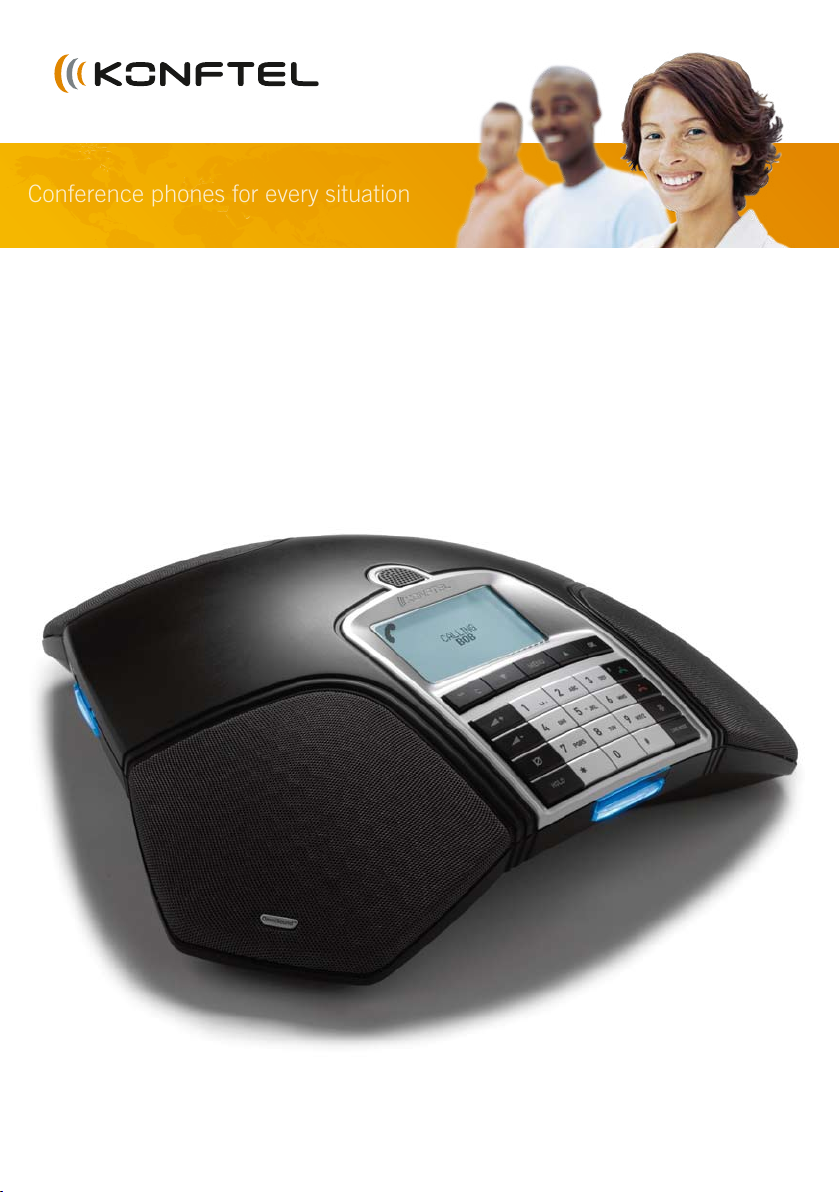
Conference phones for every situation
The Konftel 300 User Guide
ENGLISH
Page 2
B
1
TABLE OF CONTENTS
Our patented audio technology, OmniSound®, is embedded into all Konftel phones to
ensure crystal-clear voice transmission. We’re now taking OmniSound® to the next level.
OmniSound® 2.0 provides the Konftel 300 with the capability to deliver an even more
impressive audio quality. Just like OmniSound® full duplex, OmniSound® 2.0 uses
an omni-directional microphone and three speakers for optimal audio performance.
OmniSound® 2.0 is enhanced with innovative features – noise suppression minimises
distracting background noise, wideband voice transmission gives 7 kHz during VoIP calls
and an equaliser allows you to adjust sound levels during your meeting.
Konftel AB hereby declares that this conference unit complies with all essential require-
ments and other relevant provisions of Directive 1999/5/EC.
Warning!
do not expose the Konftel 300 to rain or moisture.
Warning!
Do not open the case on the Konftel 300.
Description 2
General .................................................. 2
Maintenance .......................................... 2
keypad................................................... 4
Navigation and selection in menus ........... 5
Connections 6
Unpacking ............................................. 6
Connecting and installing ........................ 6
Connectivity options ................................ 7
Answering and making calls 8
Answering calls....................................... 8
Ending calls ........................................... 8
Making calls ........................................... 8
Making three-way calls on an analogue line..9
VoIP calls ............................................... 9
Calls via DECT and GSM phones .............10
During a call 11
Adjusting the speaker volume ..................11
Placing calls on temporary hold ...............11
Ending calls ..........................................11
Switching lines during calls .....................12
Conference guide 13
Creating conference groups.....................13
Making conference group calls ................13
Making multi-party calls .........................14
Displaying conference group participants .14
Editing conference groups ......................14
Deleting conference groups .....................15
Delete all conference groups ...................15
Conference guide settings ......................15
Displaying conference guide status ..........16
Phonebook 17
Searching for contacts ...........................17
Adding contacts ....................................17
Editing contacts ....................................17
Deleting contacts ...................................18
Deleting all conference groups ................18
Displaying phonebook status ...................18
recording 19
Starting a recording ...............................19
Mute function ........................................19
Hold .....................................................19
Ending a recording .................................19
Listening to a recording ......................... 20
Managing recordings ..............................21
Adjusting the recording indicator .............21
Displaying recording feature status ..........21
Settings 22
Selecting languages .............................. 22
Deactivating keypad tones ..................... 22
Adjusting date and time ........................ 22
Adjusting ring level volume .................... 22
Adjusting R-pulse (ash duration) ........... 23
Adjusting microphone volume with
mobile phone connected ....................... 23
Adjusting sound (equaliZer).................... 23
Settings for connecting external
equipment (Aux) ................................... 23
Changing text on the display screen ........ 23
Resetting ..............................................24
Checking status .....................................24
Upgrading software 25
Installing Konftel PC Suite ..................... 25
Updating software ................................ 25
Upgrading with new features .................. 25
Optional accessories 26
Troubleshooting 27
Technical specications 28
Service and guarantee 30
Page 3
2
3
DESCRIPTIONDESCRIPTION
GENERAL
The Konftel 300 conference phone offers a host of innovative features:
• OmniSound® 2.0 audio technology.
• USB connectivity allows the phone to be used to make VoIP calls.
• The line mode enables you to combine and switch easily between connectivity
technologies – analogue, USB, mobile (GSM/DECT).
• Conference guide for easy set-up of multiparty calls.
• Record your meetings with an SD memory card so that you can listen to them later
on.
• Expansion microphones can be added to increase the voice pickup range.
(Optional.)
• A wireless headset or PA system can be connected. (Optional.)
• Can be upgraded with smart features, making it future-proof.
• 2 year guarantee.
The Konftel 300 is a future-proof product that is constantly evolving with smart new
features.
MAINTENANCE
Clean the equipment with a soft, dry cloth. Never use liquids.
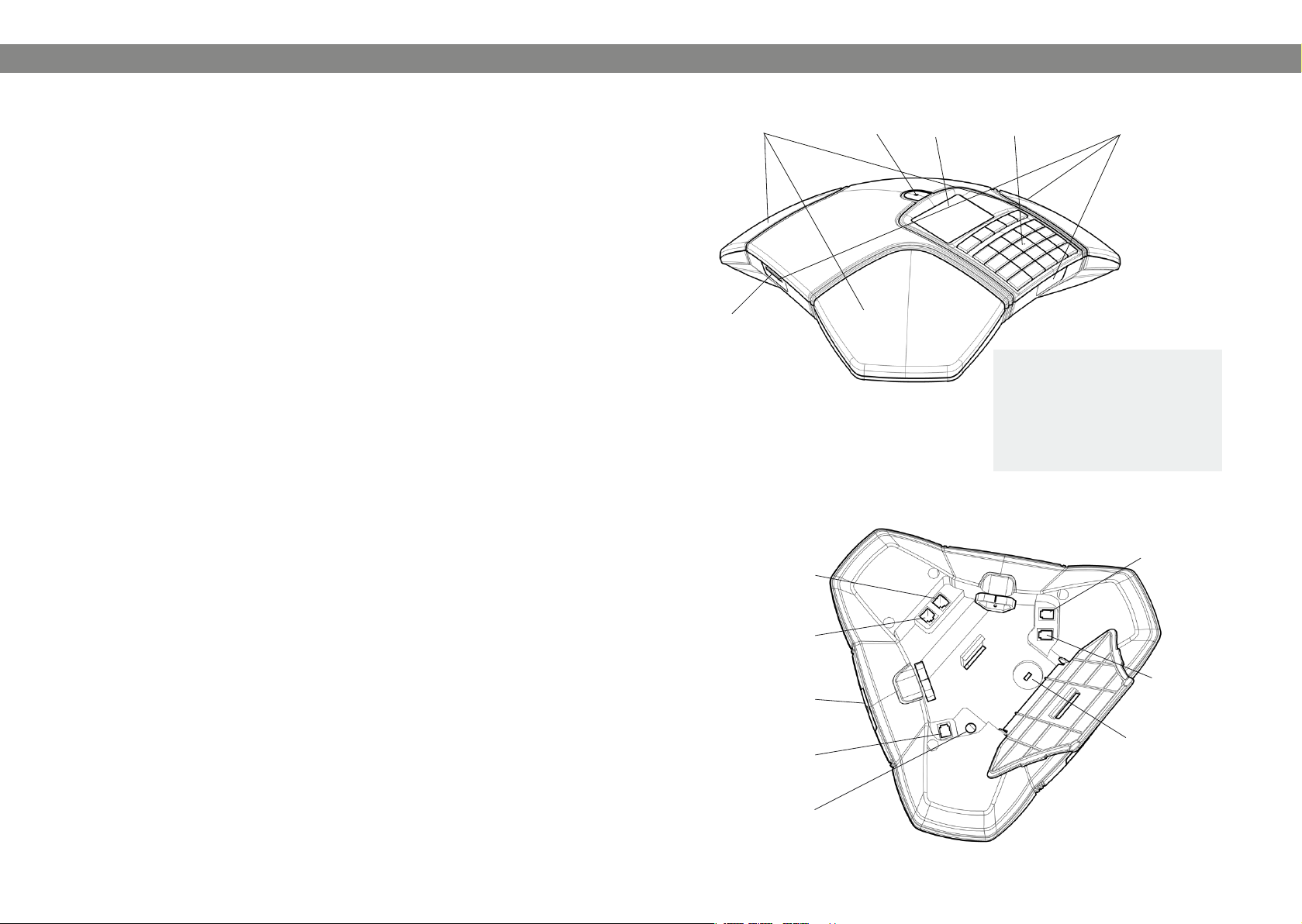
SD memory
card port
GSM/DECT phone
connection
Display screenSpeaker Microphone Keypad LEDs
LEDs
Flashing blue Incoming call
Steady blue light Call in progress
Flashing red Hold, microphone and
speaker turned off
Steady red light Mute, microphone turned
off
Expansion
microphone
port
Analogue line
connection
Mini USB port for
PC connection
Expansion
microphone port
Power supply port
AUX port
Security lock port
Page 4
SEARCH
CONTACT
PHONE BOOK SETTINGS CONF GUIDE RECORDING STATUS
ADD
CONTACT
EDIT
CONTACT
ERASE
CONTACT
ERASE
ALL
STATUS
LANGUAGE
KEY
TONE
TIME
DATE
RING
LEVEL
FLASH/R
MOBILE
LEVEL
EQUALIZER
AUX
SCREEN
TEXT
DEFAULT
SEARCH
GROUP
SHOW
GROUP
ADD
GROUP
EDIT
GROUP
ERASE
GROUP
ERASE
ALL
SETTINGS
STATUS
PLAYBACK
FILE
EDIT
FILE
DELETE
FILE
DELETE
ALL
SETTINGS
STATUS
4
5
DESCRIPTION DESCRIPTION
KEYPAD
UP ARROW
navigation in menus,
display of call list
recording
MUTE
hear you
HOLD
C,
Alphanumerical buttons, phonebook
no/end/back
Increase volume
Decrease volume
the caller cannot
puts a call on hold
Writing text
Each button contains letters and characters – more than those shown on the button
(see illustration below). Press the same button repeatedly to change to another character. If there are two letters under the same button that you want to enter one after the
other, you need to pause slightly before entering the second letter.
Press the C button to delete the last character you entered.
MENU,
settings menu
navigation in menus,
DOWN ARROW
display of call list
OK,
yes/conrm choice
Answer/connect
calls and Flash
Hang up/end call
CONFERENCE
automatic dialling
of conference
groups
LINE MODE,
connectivity
options
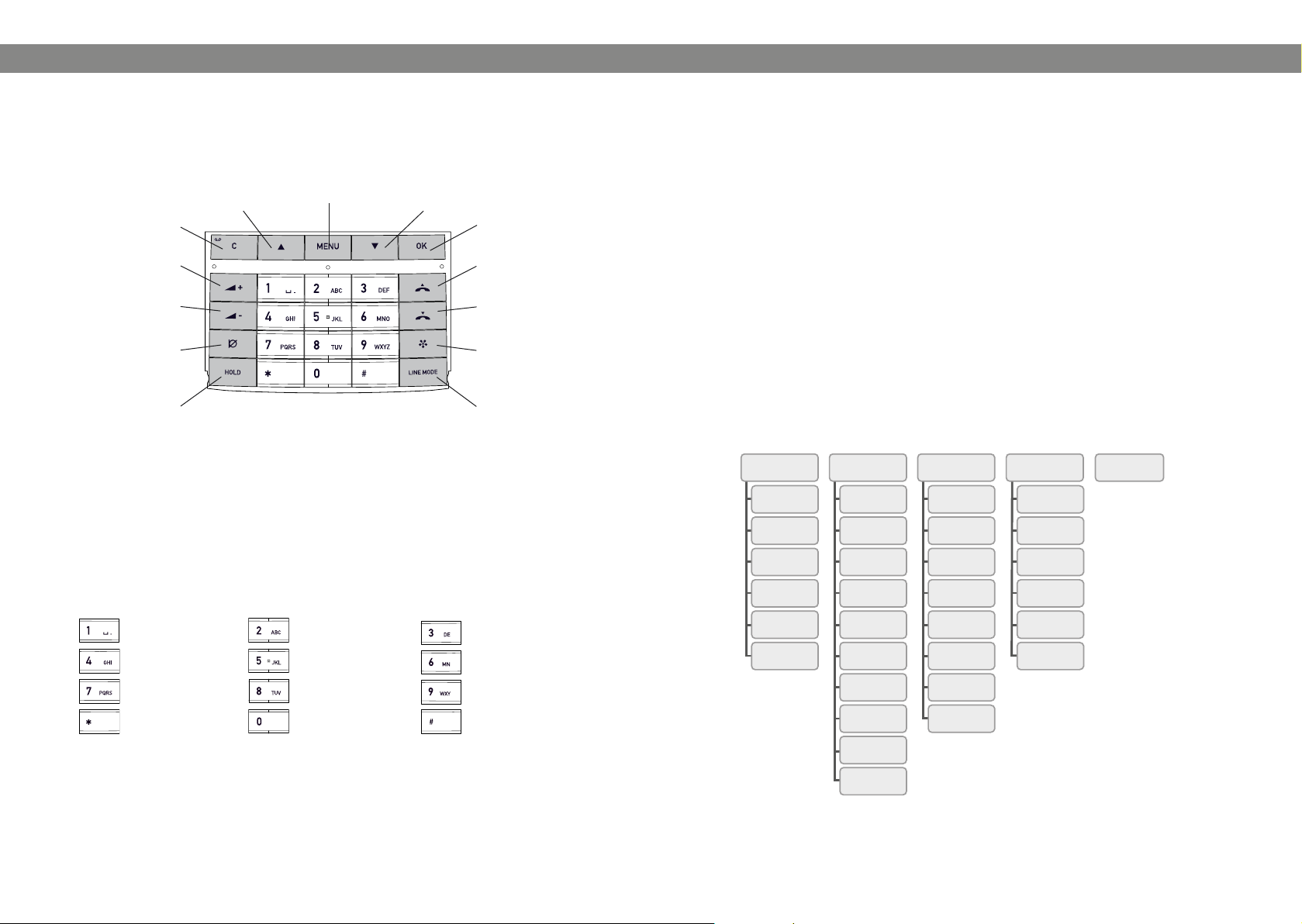
NAVIGATION AND SELECTION IN MENUS
Press MENU.
Select the option you want from the menu using the arrow buttons.
Conrm by pressing OK to select the marked option.
Cancel the setting or go back one level in the menu by pressing C.
Quit the menu by pressing MENU again.
Note that after you have made changes to a setting, you must press OK to activate
the setting.
Writing style in instructions
In the instructions, MENU > SETTINGS means you should:
Press MENU.
Mark the SETTINGS option using the arrow buttons and conrm by pressing OK to
open the menu.
Menu tree
(space) . - 1
G H I 4
P Q R S 7
A B C Å Ä Á À 2
J K L 5
T U V Ü Ú 8
0
D E F É È 3
M N O Ö Ø Ñ 6
W X Y Z 9
Page 5
6
7
CONNECTIONS CONNECTIONS
UNPACKING
Check that all parts are included in the package. If any parts are missing, please
contact your retailer.
• The Konftel 300 conference phone
• Power adapter with universal socket compatibility
• 7.5 metre cable for electric power and line connection
• 1.5 metre USB cable
• Intermediate plugs for analogue connection
• Quick reference guides in different languages
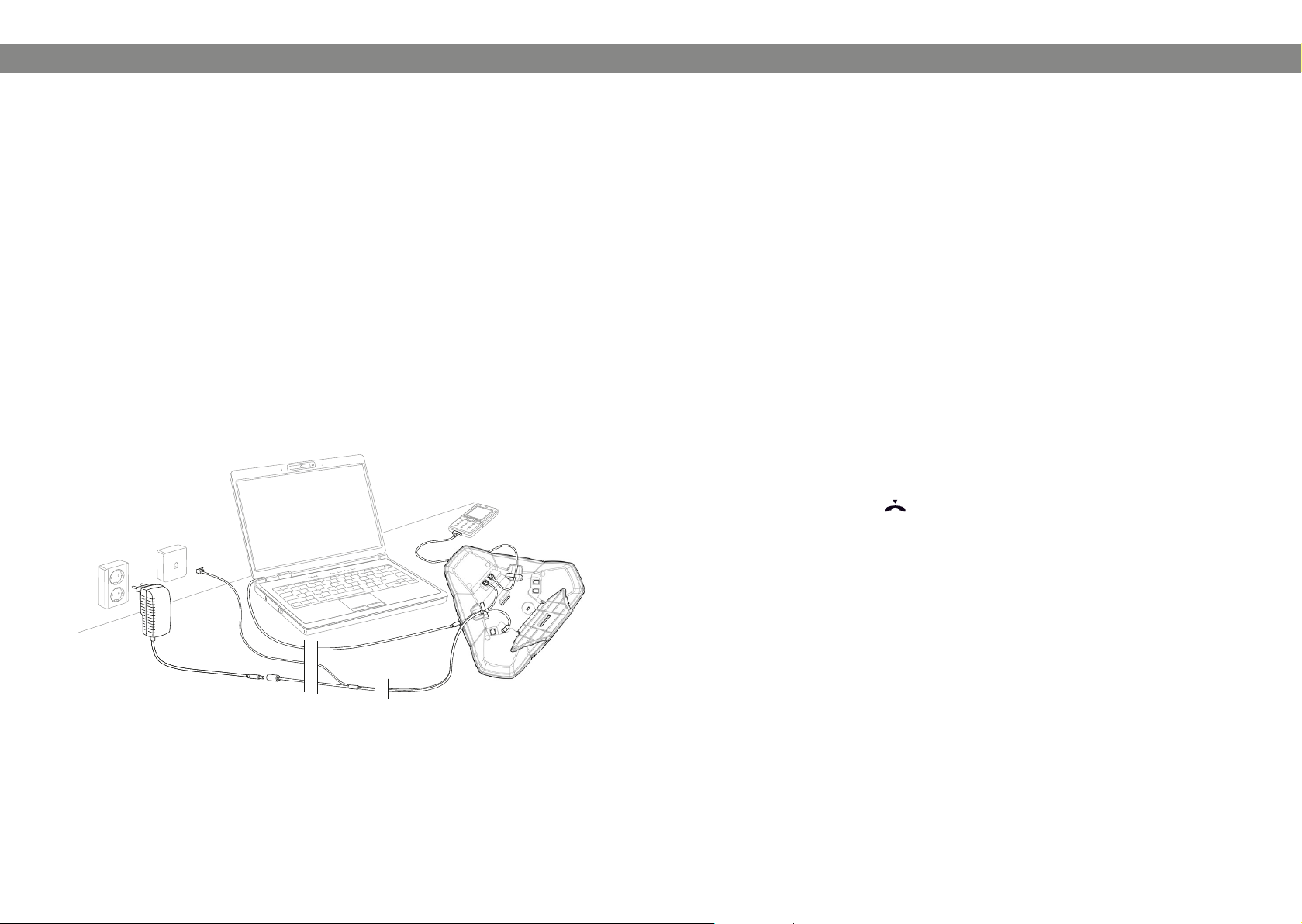
CONNECTING AND INSTALLING
Plug the Konftel 300 into the mains using the power adapter as illustrated.
Connect to an analogue line, wireless DECT/GSM telephone or PC as illustrated. (An
optional phone cable is required for connection to DECT/GSM phones.)
Place the conference phone in the middle of the table.
CONNECTIVITY OPTIONS
An analogue phone line is the pre-programmed option, but it is possible to switch
between and combine two connectivity options.
Press the LINE MODE key.
Use the arrow buttons to select a connectivity option and press OK to conrm your
choice.
Options
Connections: The display screen shows:
• Analogue telephone line ANALOGUE
• GSM/DECT telephone MOBILE
• Computer (VoIP) USB
• Analogue telephone line+computer ANALOGUE+USB
• Mobile/DECT telephone+computer MOBILE+USB
Please turn to page 9 for instructions on using the Konftel 300 with a computer and a
GSM/DECT telephone.
Connection to a PC
You can hold group calls over the Internet using VoIP software (e.g. Skype®) with the
Konftel 300. The Konftel 300 acts as a loudspeaker and microphone when making
VoIP calls. In stand-by mode , it can also be used to play audio and music. When
the Konftel 300 is in stand-by mode, the display screen shows that the microphone is
turned off.
Page 6

8
9
ANSWERING AND MAKING CALLS
ANSWERING AND MAKING CALLS
ANSWERING CALLS
A ring tone is heard and the blue LEDs start ashing.
Press to answer.
The LEDs show a steady blue light. The duration of the call is shown on the display screen.
ENDING CALLS
End the call by pressing .
MAKING CALLS
Dial the number.
Press .
The number is called and the LEDs show a steady blue light. The duration of the call is shown
on the display screen.
Or:
Press .
Dial the number.
The number is called and the LEDs show a steady blue light. The duration of the call is shown
on the display screen.
Redialling
Press an arrow button.
The last number that you dialled appears on the display screen.
Use the arrow buttons to look through previously dialled numbers.
Press .
The number you select is dialled.
Calling from the phonebook
Please turn to page 17 for instructions on adding and updating contacts in the phonebook.
Press and hold down a number button for two seconds.
The phonebook appears on the display screen. The pre-programmed names appear in alphabetical order, starting with the number button’s rst letter.
Use the arrow buttons to look through the phonebook.
Press .
The contact you select is dialled.
MAKING THREE-WAY CALLS ON AN ANALOGUE LINE
The simplest way to set up a multi-party call is to use the conference guide (see page
13). You can connect another party to an on-going call as follows. During a call, the
button acts as R-pulse (ash), which means it transmits commands to the PBX.
Please note that you may need to adjust some settings in your Konftel 300 to make it
compatible with your PBX. Please turn to page 15 in this User Guide for more details.
Press .
A second dialling tone is heard.
Dial the second participant’s number and wait for an answer.
Press the (R) button and then 3.
All three participants are now linked together in one call.
If you don’t get an answer when you dial the second number
Go back to the rst call by pressing (R) then 1.
VOIP CALLS
For these instructions, it is assumed that the computer is turned on, the VoIP software
(e.g. Skype®) is running and the Konftel 300 is connected to the computer via the USB
cable.
Line mode
Press LINE MODE and select USB as a phone line using the arrow buttons. Press
OK to conrm.
Connecting two lines
MOBILE+USB connects calls via mobile telephones with VoIP calls over the Internet.
ANALOGUE+USB connects calls on analogue lines with VoIP calls over the Internet.
Making VoIP calls
Press .
The Konftel 300 has now been put into call mode and the LEDs show a steady blue light.
Indicate whether you want to connect a call with one user or several users in the
computer’s VoIP software.
The Konftel 300 functions as a speaker and microphone for the computer.
Page 7

10
11
ANSWERING AND MAKING CALLS
DURING A CALL
Answering a VoIP call
Press .
The Konftel 300 has now been put into call mode and the LEDs show a steady blue light.
Indicate whether you want to start the call by answering in the computer’s VoIP
software.
The Konftel 300 functions as a speaker and microphone for the computer.
Ending a VoIP call
End the call in the computer’s VoIP software and put the Konftel 300 on stand-by
by pressing .
The Konftel 300 now only functions as a speaker for the computer.
CALLS VIA DECT AND GSM PHONES
For these instructions, it is assumed that the Konftel 300 is connected to a DECT or
GSM telephone via a cable (optional accessory). Hereafter, both types of telephone are
referred to as mobile phones.
Select mobile as the telephone line
Press LINE MODE and use the arrow buttons to select MOBILE as a phone line.
Press OK to conrm.
If you select MOBILE+USB as the line mode in the Konftel 300, you will be able to
combine the call with a call connected via the computer (see page 9).
Making calls using a mobile phone
Press and dial the number on the mobile phone as you normally would.
The Konftel 300 now functions as a speaker and microphone for the mobile phone. The LEDs
show a steady blue light.
ADJUSTING THE SPEAKER VOLUME
Adjust the speaker volume using the buttons and .
Adjusting the speaker volume when two lines are connected
If you have selected double lines, you can adjust the volume level for each line. This is
useful if the lines have different volume levels.
Press the button or the button to display the current volume setting.
The current main volume appears on the display screen. Above it are two smaller
volume indicators which can be used to adjust the two connection lines.
Increase or decrease the speaker volume for both lines in the normal way, using the
and buttons.
Use the arrow buttons to mark either of the connected lines.
Select a line and adjust its speaker volume using the and buttons.
PLACING CALLS ON TEMPORARY HOLD
Mute
Press (Mute) to turn off the microphone.
The LEDs change from blue to red. The other party cannot hear what you are saying.
Press (Mute) to reconnect the call.
Hold
Press HOLD to put the call on hold.
The LEDs change from blue to ashing red. Both the microphone and the speaker are turned off
and the call is on hold.
Press HOLD to reconnect the call.
Ending calls
Ending the call on the mobile phone.
Press to turn off the Konftel 300.
ENDING CALLS
End the call by pressing .
Page 8

12
13
DURING A CALL CONFERENCE GUIDE
SWITCHING LINES DURING CALLS
Connecting a new line during a call
You can add another line or switch between connected lines during a call.
Press the LINE MODE button during the call.
An indicator appears on the display screen in front of the selected line(s).
Use the arrow buttons to mark the line you want to connect and conrm your choice
by pressing .
If you selected USB or MOBILE, this line will open. You then connect the call via the computer
or mobile phone.
If you selected ANALOGUE, you will hear a dialling tone. You then dial the number on the
Konftel 300 or use the Phonebook.
Please note that an analogue line and a mobile line cannot be used simultaneously.
If you are using ANALOGUE or ANALOGUE+USB as a line connection and you wish
to connect MOBILE during a call, the ANALOGUE line will be put on hold. This is
indicated by a ashing LED on the display screen.
Putting a line on hold during a call
Press the LINE MODE button during the call.
Use the arrow buttons to mark the line you want to put on hold and press the HOLD
button.
The indicator in front of the selected line starts to ash.
Repeat the above to reconnect the line.
Disconnecting a line during a call
Press the LINE MODE button during the call.
Use the arrow buttons to mark the line you want to disconnect and conrm your
choice by pressing .
The indicator in front of the selected line goes out and the line is disconnected. The other calls
can continue.
The conference guide allows you to create 20 conference groups with up to six people in
each. You can now call the participants in a meeting by simply pressing a few buttons.
You may need to adjust some settings in your Konftel 300 to make it compatible with
your PBX. Please turn to page 16 in this User Guide for more details.
Entering text with the keypad
Please turn to page 4 for instructions on using the keypad to enter text.
CREATING CONFERENCE GROUPS
Select MENU > CONF GUIDE > ADD GROUP.
Enter a group name and press OK to conrm.
Press OK to enter the rst person.
Write the name of the rst person and press OK to conrm. Enter the number and
press OK to conrm.
Press OK to add another person and repeat the above steps.
Conclude by pressing C.
MAKING CONFERENCE GROUP CALLS
Press the (Conference) button.
Select the conference group you want to call.
The Konftel 300 dials the rst person and asks you to conrm when the person answers.
Press OK when the rst person has answered.
Continue in the same way for each person in the group.
If you don’t get an answer
Press C if one of the persons you are trying to call does not answer.
The conference guide will ask you if you want to redial that person.
Either press OK or C.
If you decide not to redial (C) you will be asked if you want to end the conference guide or
continue to the next person.
Press OK to continue and C to end the guide.
When the guide has ended, you will be connected with up to six people and ready to start your
conference.
Please note that you can also call a conference group via SEARCH GROUP in the
CONF GUIDE menu.
Page 9

14
15
CONFERENCE GUIDECONFERENCE GUIDE
MAKING MULTI-PARTY CALLS
Press the (Conference) button.
Select QUICK GUIDE with the arrow buttons. Press OK to conrm.
The Quick Guide asks you to dial the rst number.
Dial the rst person’s telephone number. Press OK to conrm.
Press OK when the rst person has answered.
Press OK to call another person and repeat the above steps. Press C when you have
called all the persons you want for your meeting.
If one of the persons does not answer, follow the steps for calling a saved conference
group (see above).
DISPLAYING CONFERENCE GROUP PARTICIPANTS
Select MENU > CONF GUIDE > SHOW GROUP.
Mark the group you want and press OK.
The names of the conference group participants are displayed.
EDITING CONFERENCE GROUPS
Select MENU > CONF GUIDE > EDIT GROUP.
Here, you can change the name of a conference group, add or delete a person from a
group and change a person’s name and phone number.
Mark your choice of option in the menu using the arrow buttons and press OK to
conrm.
The names of the conference groups are displayed.
Mark the group you want to change and press OK to conrm.
Mark a person you want to change and press OK to conrm.
Make the change and press OK to conrm.
Delete a number or a letter in a name by pressing C. If you want to cancel the
change you are making and leave the name or number as they were, press C until
the CONFERENCE GUIDE menu appears.
DELETING CONFERENCE GROUPS
Select MENU > CONF GUIDE > ERASE GROUP.
Mark the group you want to delete and press OK.
Conrm that you really want to delete the group by pressing OK or cancel the dele-
tion of a group by pressing C.
DELETE ALL CONFERENCE GROUPS
Select MENU > CONF GUIDE > ERASE ALL.
Conrm that you really want to delete all groups by pressing OK or cancel the dele-
tion of all groups by pressing C.
CONFERENCE GUIDE SETTINGS
When a multi-party call is going to be connected, a special signal (ash or R-pulse) is
produced which transmits the command (request, return and conference) to the PBX.
It may be necessary to change the type of signal if calls are connected via a PBX.
Different PBXs may require different signals. These requirements should be specied
in the technical data for the PBX. Settings for the most common PBXs are listed on
Konftel’s website.
Select MENU > CONF GUIDE > SETTINGS.
Enter the command for a request for a new dialling tone and press OK to conrm.
(“R” is the basic setting)
Enter the command to return to your original call and press OK to conrm. (“R1” is
the basic setting)
Enter the command to connect everyone to a multi-party call and press OK to
conrm. (“R3” is the basic setting)
If you experience problems making multi-party calls
It may be necessary to change the duration of the R-pulse so that it works with your
PBX. Read “ADJUSTING R-PULSE (FLASH DURATION)” on page 23.
Your PBX may not be programmed to admit multi-party calls or the procedure may be
different. Please contact your telephone administrator or service provider.
Page 10

16
17
CONFERENCE GUIDE
PHONEBOOK
DISPLAYING CONFERENCE GUIDE STATUS
Select MENU > CONF GUIDE > STATUS.
The display screen indicates the number of conference groups already stored plus how many
more groups can be added.
The Konftel 300 has a phonebook that holds up to 50 entries. See page 8 for making
calls via the phonebook.
Entering text with the keypad
Please turn to page 4 for instructions on using the keypad to enter text.
SEARCHING FOR CONTACTS
The simplest way to search for a contact in the address book is to hold down a
number button for two seconds (see page 8). You can also search for a contact via
the PHONEBOOK menu.
Select MENU > PHONE BOOK > SEARCH CONTACT.
Mark the contact you want.
You can use the arrow buttons to press an alphanumeric button to jump to the rst
name that starts with that letter in the list.
Press OK or to dial the selected contact, C to return to the PHONEBOOK menu
or MENU to exit the menu.
ADDING CONTACTS
Select MENU > PHONE BOOK > ADD CONTACT.
Enter the name of the contact and press OK to conrm.
Write the number and press OK to conrm.
Press OK to add another contact or MENU to exit the menu.
EDITING CONTACTS
Select MENU > PHONE BOOK > EDIT CONTACT.
Mark the contact you want to change. Press OK to conrm.
Make the change and press OK to conrm.
Delete a number or a letter in a name by pressing C. If you want to cancel the
change you are making and leave the name or number as they were, press C until
the PHONEBOOK menu appears.
Page 11

18
19
PHONEBOOK RECORDING
DELETING CONTACTS
Select MENU > PHONE BOOK > ERASE CONTACT.
Mark the contact you want to delete and press OK.
Conrm that you really want to delete the contact by pressing OK or cancel the
deletion of a contact by pressing C.
DELETING ALL CONFERENCE GROUPS
Select MENU > PHONE BOOK > ERASE ALL.
Conrm that you really want to delete all contacts by pressing OK or cancel the
deletion of a contact by pressing C.
DISPLAYING PHONEBOOK STATUS
Select MENU > PHONE BOOK > STATUS.
The display screen indicates the number of contacts already stored plus how many more
contacts can be added.
It is possible to record a phone conference on an SD (Secure Digital) memory card so
you can listen to it later on.
A ashing symbol appears on the display screen during recording. A beep is heard every
20 seconds so that other parties in the call know it is being recorded. The beep can be
turned off (see page 21).
The recorded call is saved on the memory card. The document is named after the time
at which the recording began (e.g. 14-35-01.wav) and is saved in a folder with the
current date. This name can be changed after the recording has ended (see page 21).
STARTING A RECORDING
Remember to notify all parties in the call before you start recording.
Press the
The recording symbol ashes on the display screen.
REC
/C button for two seconds and press OK to conrm.
MUTE FUNCTION
Press the (Mute) button during a call to turn the microphone off.
The LEDs change from blue to red.
The other party cannot hear what you are saying and only the called party is recorded.
HOLD
Press HOLD during the call to put the call on hold.
The LEDs change from blue to ashing red.
Both the microphone and the speaker are turned off and the call is on hold. None of the parties
will now be recorded.
ENDING A RECORDING
Press the
The recording symbol is no longer displayed on the screen.
REC
/C button for two seconds and press OK to conrm.
Page 12

20
21
RECORDING
RECORDING
LISTENING TO A RECORDING
You can listen to a recorded phone conference on your Konftel 300 or a computer using
an SD memory card reader. Recordings are saved in .wav format and can be played
back on your choice of media player.
Listening to recordings on the Konftel 300:
Select MENU > RECORDING > PLAYBACK FILE.
Mark the folder you want (date) and press OK to conrm.
A list of all recordings for the specied date is displayed. Names, date, time and length are
displayed for each recording.
Mark the recording you want and start the playback by pressing OK.
Adjusting the speaker volume
Increase the volume using the button and lower it using .
Pause playback
Pause the playback by pressing OK.
Restart playback by pressing OK again.
Move forward in the recording during playback
Move forward in the recording by pressing arrow down or backward by pressing
arrow up.
The recording advances about 10 seconds every time you press the button.
Stop playback
Stop the playback by pressing C.
MANAGING RECORDINGS
Editing the name of a recording
The recording is named by default with the time at which the recording started.
Select MENU > RECORDING > EDIT FILE.
Mark the folder you want and press OK to conrm.
Mark the recording to be edited and press OK.
Make the change and press OK to conrm.
Delete a number or a letter in a name by pressing C.
If you want to cancel the change you are making and leave the name or number as they
were, press C several times until the RECORDING menu appears.
Deleting a recording
Select MENU > RECORDING > DELETE FILE.
Mark the folder you want and press OK.
Mark the recording to be deleted and press OK.
Conrm that you really want to delete the recording by pressing OK again, or cancel
the deletion of a recording by pressing C.
Deleting all recordings
Select MENU > RECORDING > DELETE ALL.
Conrm that you really want to delete all recordings by pressing OK again, or cancel
the deletion of a recording by pressing C.
ADJUSTING THE RECORDING INDICATOR
A short beep is heard every 20 seconds so that all the parties in the call know it is
being recorded. This feature can be turned off.
Select MENU > RECORDING > SETTINGS.
Select your choice and press OK to conrm.
DISPLAYING RECORDING FEATURE STATUS
Select MENU > RECORDING > STATUS.
The display screen indicates the number of recordings, the total length of recorded calls and
how many hours of recording time are left before the memory card is full.
Page 13

22
23
SETTINGSSETTINGS
SELECTING LANGUAGES
Select MENU > SETTINGS > LANGUAGE.
Select the language you want and press OK to conrm.
DEACTIVATING KEYPAD TONES
You can select whether or not you want a tone to be heard when you press a button.
Note that this setting does not affect the tone you hear when you dial a number in call
mode.
Select MENU > SETTINGS > KEY TONE.
Select your choice and press OK to conrm.
ADJUSTING DATE AND TIME
Changing the date
Select MENU > SETTINGS > TIME DATE > DATE.
Change the ashing gures for the year using the arrow buttons or by entering the
gures on the keypad. Press OK to conrm and to continue to the month, and then
proceed in the same way for the day.
Changing the time
Select MENU > SETTINGS > TIME DATE > TIME.
Change the ashing gures for the hour using the arrow buttons or by entering the
gures on the keypad. Press OK to conrm and to continue to minutes.
ADJUSTING R-PULSE (FLASH DURATION)
Different countries and PBXs may require different durations for activating the R-pulse.
Duration requirements should be specied in the technical data for the PBXs.
Select MENU > SETTINGS > FLASH/R.
Select your choice and press OK to conrm.
Applicable settings:
100 ms – Scandinavia, Europe, Siemens HiPath
300 ms – Germany, France, Israel
500 ms – USA
ADJUSTING MICROPHONE VOLUME WITH MOBILE PHONE CONNECTED
The Konftel 300 microphone has seven volume settings, so if the volume of calls via
DECT/GSM phones is too soft or too loud, you can easily adjust it to the right level.
Select MENU > SETTINGS > MOBILE LEVEL.
Select your choice and press OK to conrm.
ADJUSTING SOUND (EQUALIZER)
The sound reproduction can be adjusted to the required pitch (SOFT, NEUTRAL and
BRIGHT).
Select MENU > SETTINGS > MOBILE LEVEL.
Select your choice and press OK to conrm.
Changing the time format
Select MENU > SETTINGS > TIME DATE > TIME FORMAT.
Select either a 12-hour or a 24-hour format using the arrow buttons and press OK
to conrm your choice.
ADJUSTING RING LEVEL VOLUME
Select MENU > SETTINGS > RING LEVEL.
Select your choice and press OK to conrm.
There are six volume levels plus a silent mode. You will hear the ring tone for each
level you select. If you select silent mode, an LED on the phone ashes when an
incoming call is received.
SETTINGS FOR CONNECTING EXTERNAL EQUIPMENT (AUX)
The Konftel 300 can be connected to a wireless headset or an external PA system. An
optional PA interface box is required for PA system connection.
Select MENU > SETTINGS > AUX PORT.
CHANGING TEXT ON THE DISPLAY SCREEN
The text on the display screen can be changed when the Konftel 300 is on hook.
Select MENU > SETTINGS > SCREEN TEXT.
Delete existing text using C and enter your new text. Press OK to conrm.
Page 14

24
25
SETTINGS
UPGRADING SOFTWARE
RESETTING
There is a menu option under SETTINGS that resets all settings to default. Please note
that this also deletes all contacts in the phonebook and all groups saved in the conference guide.
Select MENU > SETTINGS > DEFAULT.
Conrm that you really want to reset the settings to default by pressing OK again, or
cancel the resetting procedure by pressing C.
CHECKING STATUS
If you need to check the software version or serial number.
Select MENU > STATUS.
The Konftel 300 is continually being developed with smart features. You will rst need
to install Konftel PC Suite on your computer before you can upgrade your Konftel 300.
Find out more at www.konftel.com/upgrades.
INSTALLING KONFTEL PC SUITE
Go to the website www.konftel.com/upgrades.
Click to download Konftel PC Suite.
Install the software on your computer.
Follow the instructions given by the installation program.
We recommend that you open the installation instructions document (PDF).
UPDATING SOFTWARE
Connecting the Konftel 300 to the computer using the USB cable.
Start the Konftel PC Suite software on your computer from the Start menu.
Follow the instructions that the software guide gives you.
We recommend that you open and read the installation instructions document
(PDF ).
UPGRADING WITH NEW FEATURES
Please visit www.konftel.com/upgrades to check which new features are available.
Some features can be updated free of charge. Other features can be purchased as
optional extras via your retailer.
Page 15

26
27
Please visit Konftel’s website www.konftel.com/300. If your Konftel 300 is not working properly:
• If there is no dialling tone, check that an analogue line has been selected.
• Check that the microphone is turned on during the call. The blue microphone LEDs
must be lit.
• Bypass any extension cables and check that the Konftel 300 is working properly.
• If the Konftel 300 needs to wait for a second dialling tone, you should enter a pause
using the pause/mute button when entering a telephone number as an instruction or
in the phonebook.
You can nd more FAQ on the Konftel website, www.konftel.com/300.
TROUBLESHOOTINGOPTIONAL ACCESSORIES
Page 16

28
29
TECHNICAL SPECIFICATIONSTECHNICAL SPECIFICATIONS
Size Diameter 240 mm, height 77 mm
Weight 1 kg
Colour Charcoal black
Display screen Illuminated graphics (LCD), 128x64
Keypad Alphanumerical 0–9, *, on/R, off, mute, hold, volume up,
volume down, 5 buttons for menu navigation, line mode,
conference guide
Anti-theft protection Kensington security slot
Memory Support for SD memory cards up to 2 GB
Upgrades The Konftel PC Suite upgrades Konftel 300 software via the
USB connection
Connectivity
Analogue telephone connectivity
Modular 6/6 modular (RJ11) to a public analogue telecommunication network or an analogue PBX
PC connectivity USB 2.0 Mini B
GSM/DECT connectivity 6/6 DEC
Power supply Transformer 100–240 V AC/14 V DC
Expansion microphones 2 modular 4/4
Auxiliary Modular 4/4 for wireless headset
Environment
Temperature 5°–40°C
Relative humidity 20–80% condensation free
Recommended acoustic conditions
Reverberation period: 0.5 S Rt 60
Background noise: 45 dBA
Approvals
Telecommunication TBR21, 47 CFR Part 68/TIA, IC CS-03 Issue 1999/01/01
EMC EN301 489-1,3. EN 300 220-1,2, FCC subparts B and C
Electrical safety UL 60950-1, EN 60950-1:2001
Audio
Technology OmniSound® 2.0 Wideband
Microphone Omni-directional
Reception area Up to 30 metres2, >10 people
Speakers Frequency band 200–3300 Hz, analogue line
200–7000 Hz, USB VoIP
150–15000 Hz, USB playback
Volume 90 dB SPL 0.5 m
Equalizer Three pitches: soft, neutral, bright
Page 17

30
31
SERVICE AND GUARANTEE
If anything is wrong with your Konftel unit, please contact the place of purchase.
Guarantee
We give a two-year guarantee on our conference telephones.
Service
Service is offered after the expiration of the guarantee. Please contact your retailer and
ask for a cost estimate.
Konftel support
If you have any questions about the guarantee and service, please contact your Konftel
support centre
Europe: +46(0)90-706 489 (Monday–Friday 8.00–17.00 GMT+1)
E-mail: rma@konftel.com
USA and Canada:
+1 866-606-4728 (Monday–Friday 08.00–17.00 GMT-8)
E-mail: konftel.usa@konftel.com
Page 18

Konftel is a leading company within loudspeaker communication and audio technology. We develop
and sell products and technology for telephone conferences based on cutting-edge expertise within
acoustics and digital signal processing. A key attribute of our products is that all the conference
telephones have built-in, high-quality audio technology – OmniSound® providing crystal-clear
sound. Read more about Konftel and our products on www.konftel.com.
www.konftel.com
Konftel AB, Box 268, SE-901 06 Umeå, Sweden
Phone: +46 90 706 489 Fax: +46 90 131 435 E-mail: info@konftel.com
110024-61-001 Rev 2b
 Loading...