

Page 1
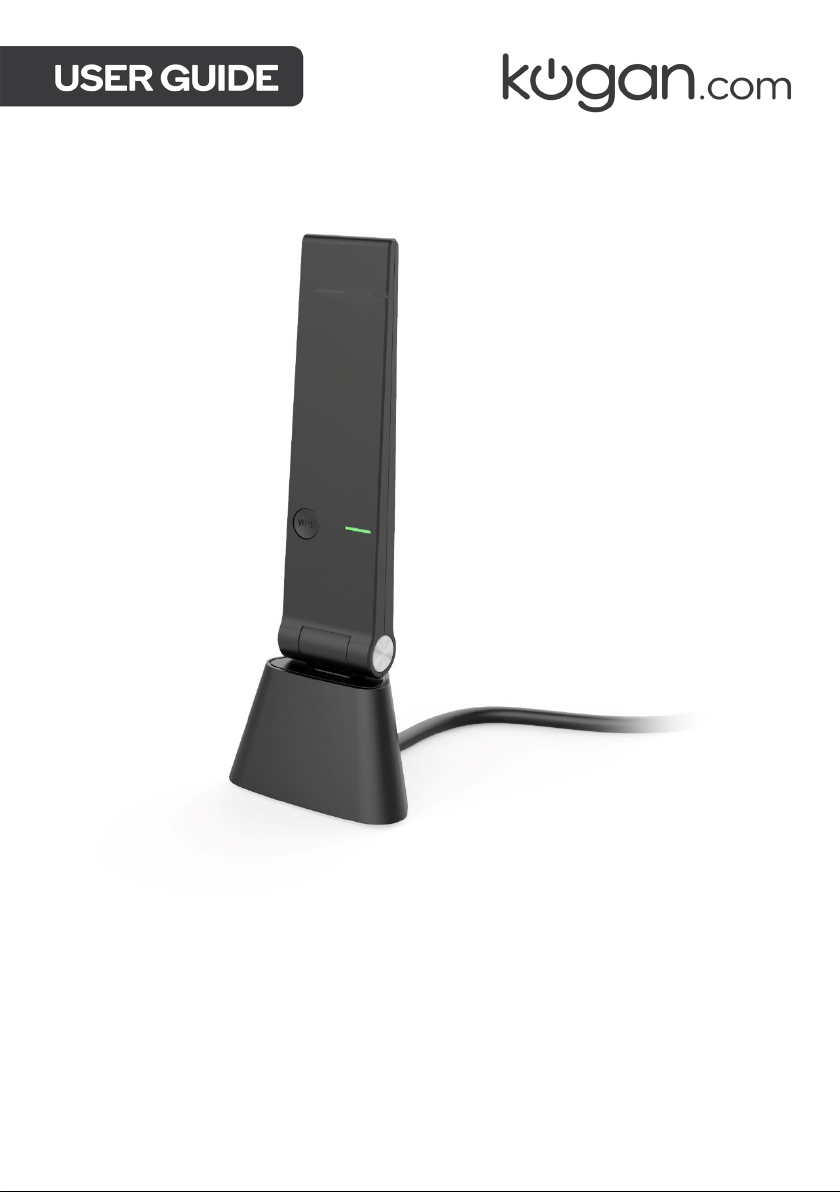
AC1300 DUAL-BAND USB 3.0
BEAMFORMING WI-FI ADAPTER
WITH CRADLE DOCK
KAWFAD1300A
Page 2

Page 3

• Windows XP or above
• MAC OS X
• USB 2.0 port or above
• 1 x AC1300 Dual Band USB Adapter
• 1x USB Mini Dock
• 1 x User Guide
Page 4
IMPORTANT: For proper operation, do not connect the AC1300 Dual Band Adapter to your
computer before you install the software. If you do, wait for the Found New Hardware
screen to display and click on “Cancel”; otherwise, the installation process will likely be
adversely affected.
Please download latest drivers then proceed. Driver download links are available at
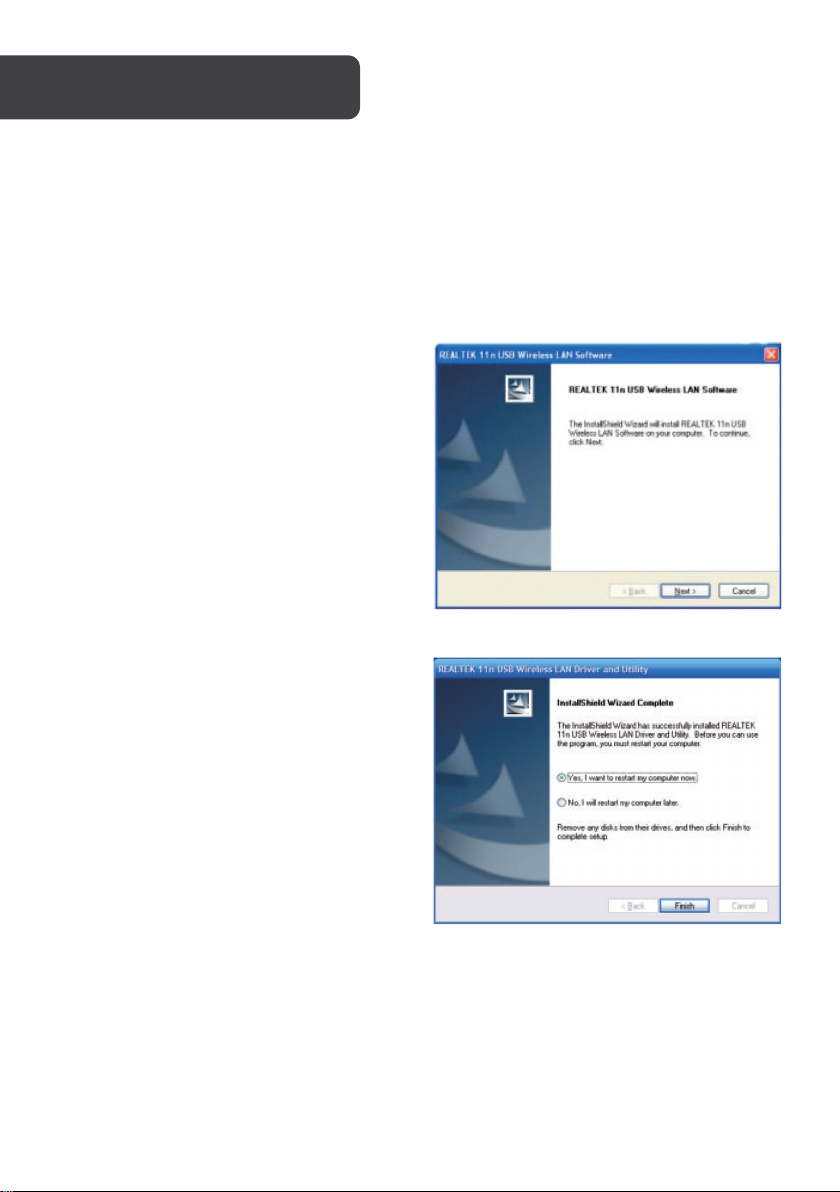
Kogan.com. Once downloaded, double click the application file “Setup”.
Wait for the installer to run.
Click on “Next” to continue with the
installation.
The installer will automatically install the
program. When done you will see the picture
like below, please select “Yes, I want to
restart my computer now” and click on
“Finish” to reboot your computer.
Page 5
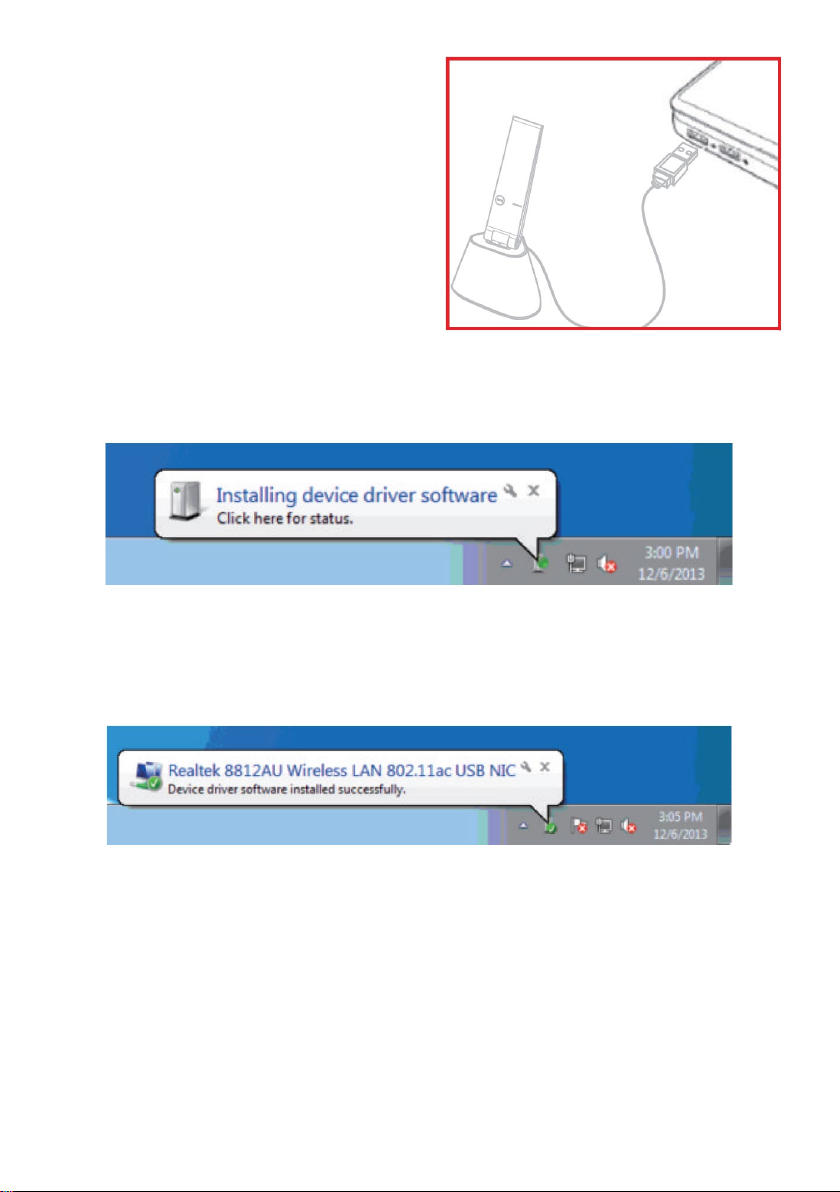
With the computer now turned on, insert the
AC1300 Dual Band Adapter into an open USB
port.
The status screen will display, indicating that the installation is in progress. No action is
needed at this point.
When completing the Found New Hardware Wizard screen displays, it indicates that the
installation has been completed and your AC1300 Dual Band Adapter is ready for
configuration.
Page 6
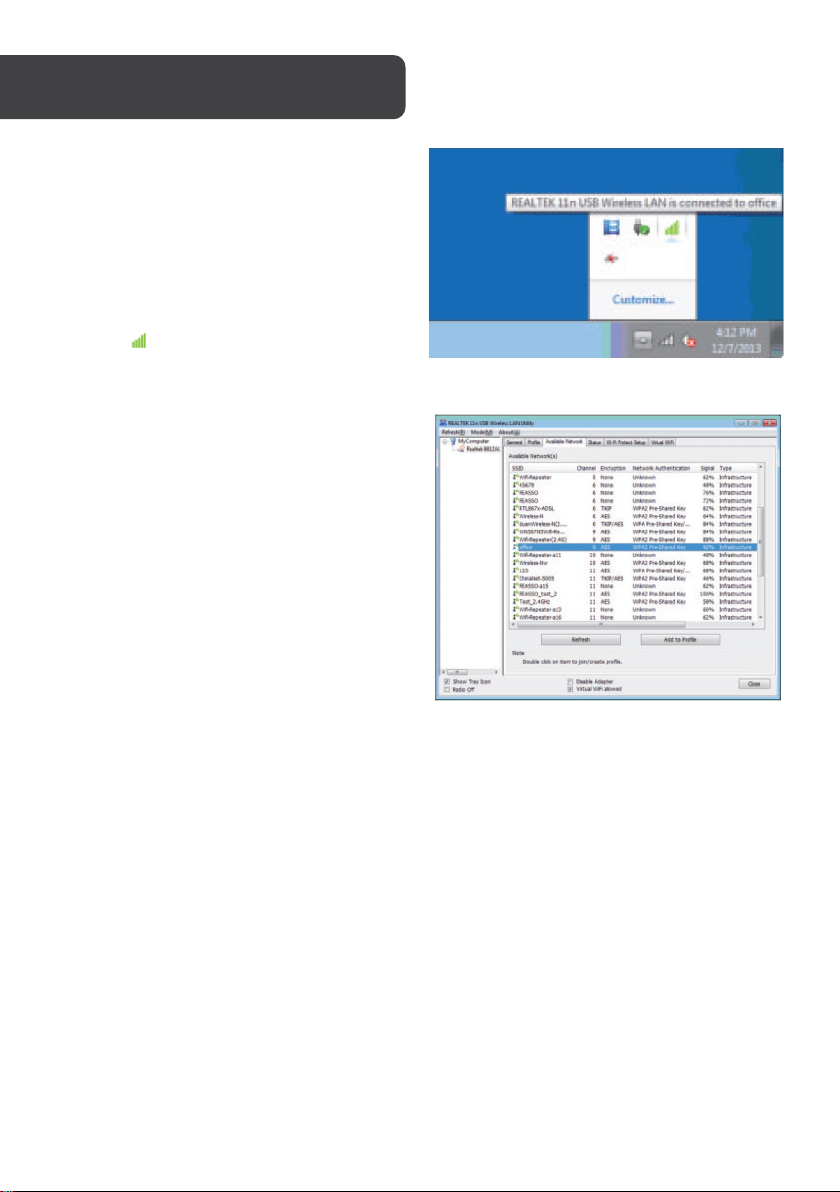
Once the installation is complete, you can
configure the AC1300 Dual Band Adapter to
connect to a wireless access point (AP). The
wireless configuration utility will start
automatically and you’ll also find a tray icon
at the lower right in your Windows systems
tray.
1. Click the tray icon and select the
icon to open a configuration
utility.
2. The configuration utility will scan for
wireless networks within range. Click
“Refresh” to refresh the list of
available wireless networks. To join
a particular network that displays,
just select it and click “Add to
Profile.”
Page 7
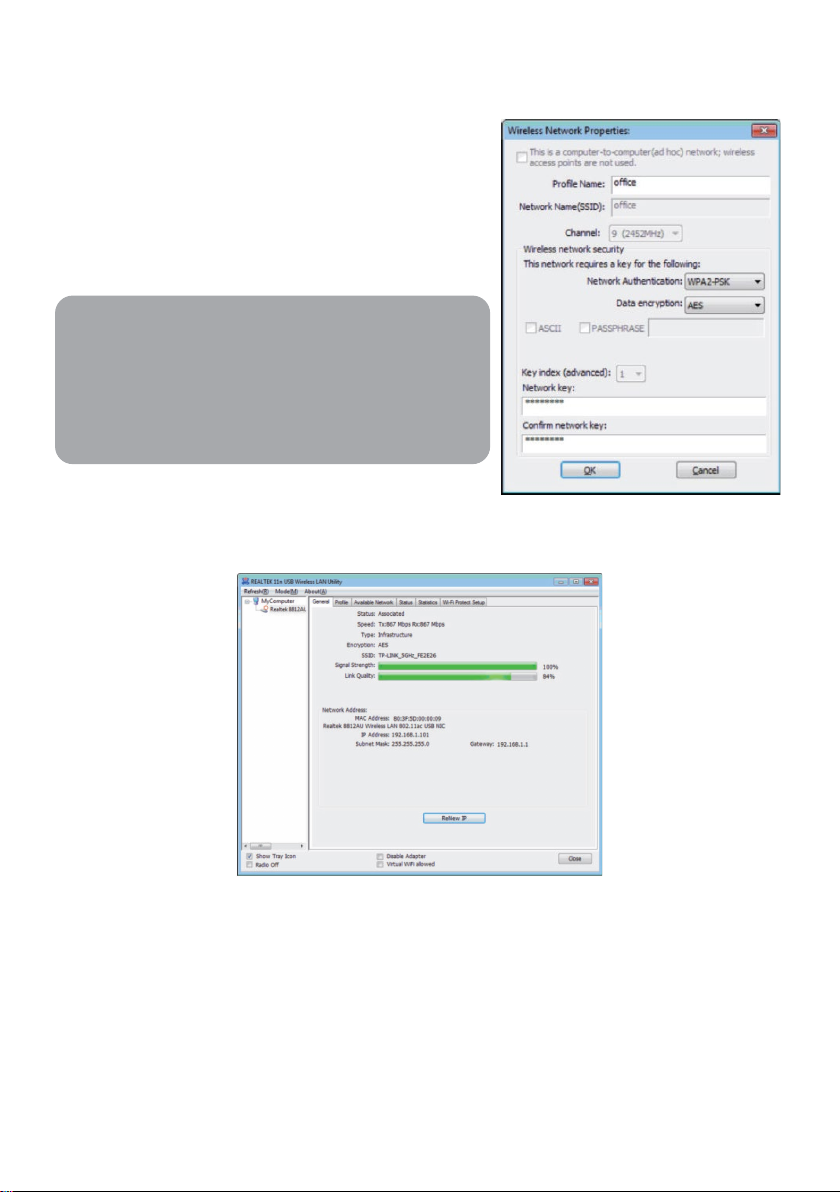
3. If the wireless network uses encryption, you
need to input the correct encryption key. The
configuration utility automatically suggests
the correct authentication type (see the
drop-down list) and you should not change
the suggested value.
Note:
For WPA/WPA2 networks, you need to select the
correct encryption type, as well (AES or TKIP).
These settings depend on how the wireless
network is set up. Only the owner of the wireless
network can provide the required information.
4. If the wireless access point is successfully connected, it will be displayed here as
such.
Page 8

Need more information?
We hope that this user guide has given you
the assistance needed for a simple set-up.
For th e most up-to-date guide for your product,
as well as any additional assistance you may require,
head online to help.kogan.com
 Loading...