

Page 1
KOGAN SMARTERHOME™
PAN & TILT MOTION TRACKING
SMART CAMERA 2S
KAPTCAM2EA & KAPTCAM2SA
Page 2

Page 3
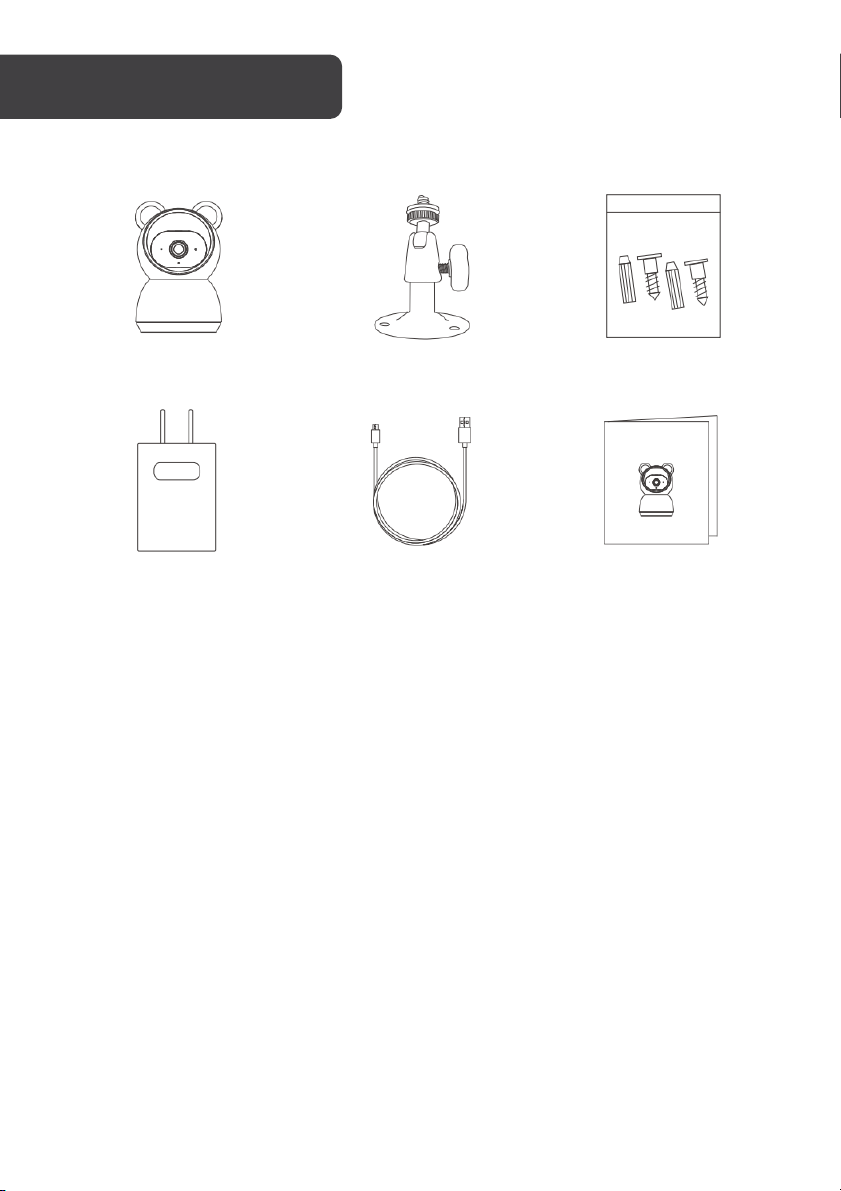
Security Camera
Bracket (Optional)
Wall Mount Screws
(Optional)
Power Adapter
USB Cable
User Guide
Page 4
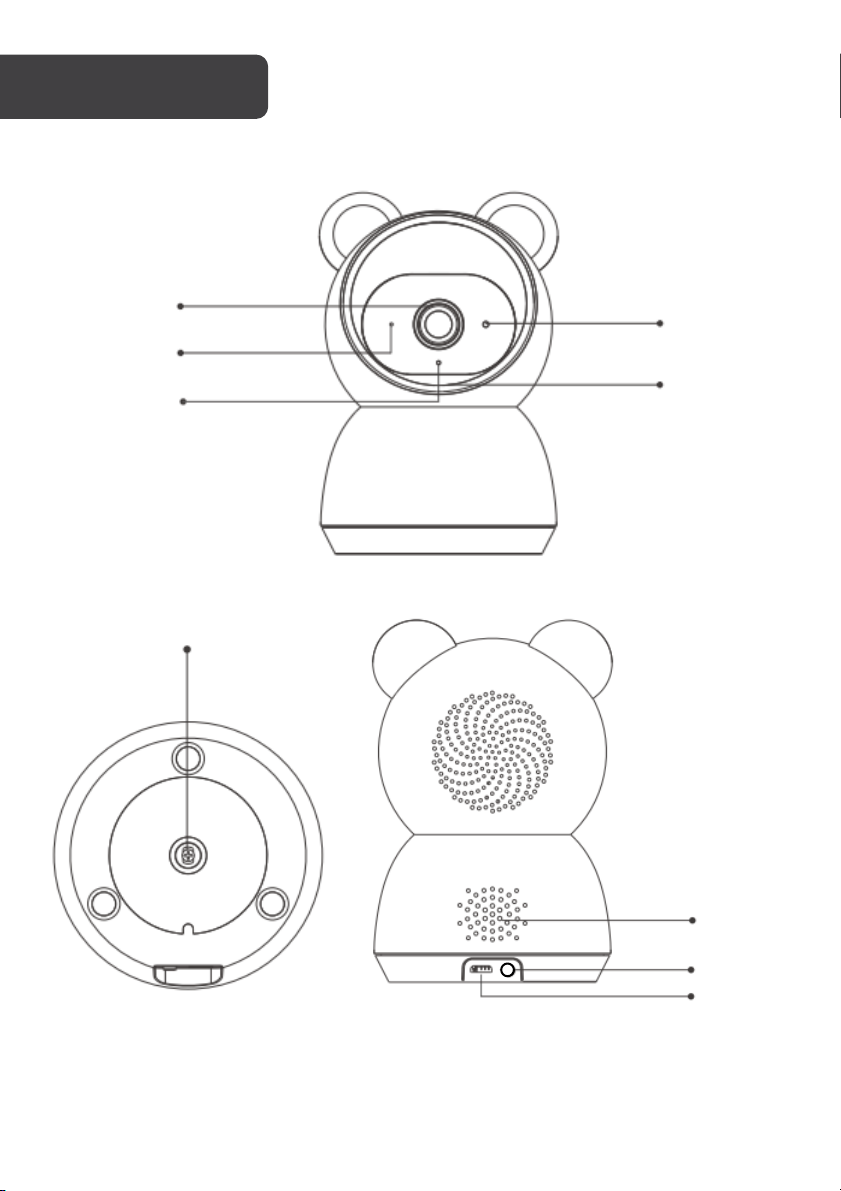
Indicator Light
Light Sensor
Lens
MicroSD Card
Microphone
Speaker
Reset
USB Port
Mounting Hole
Page 5
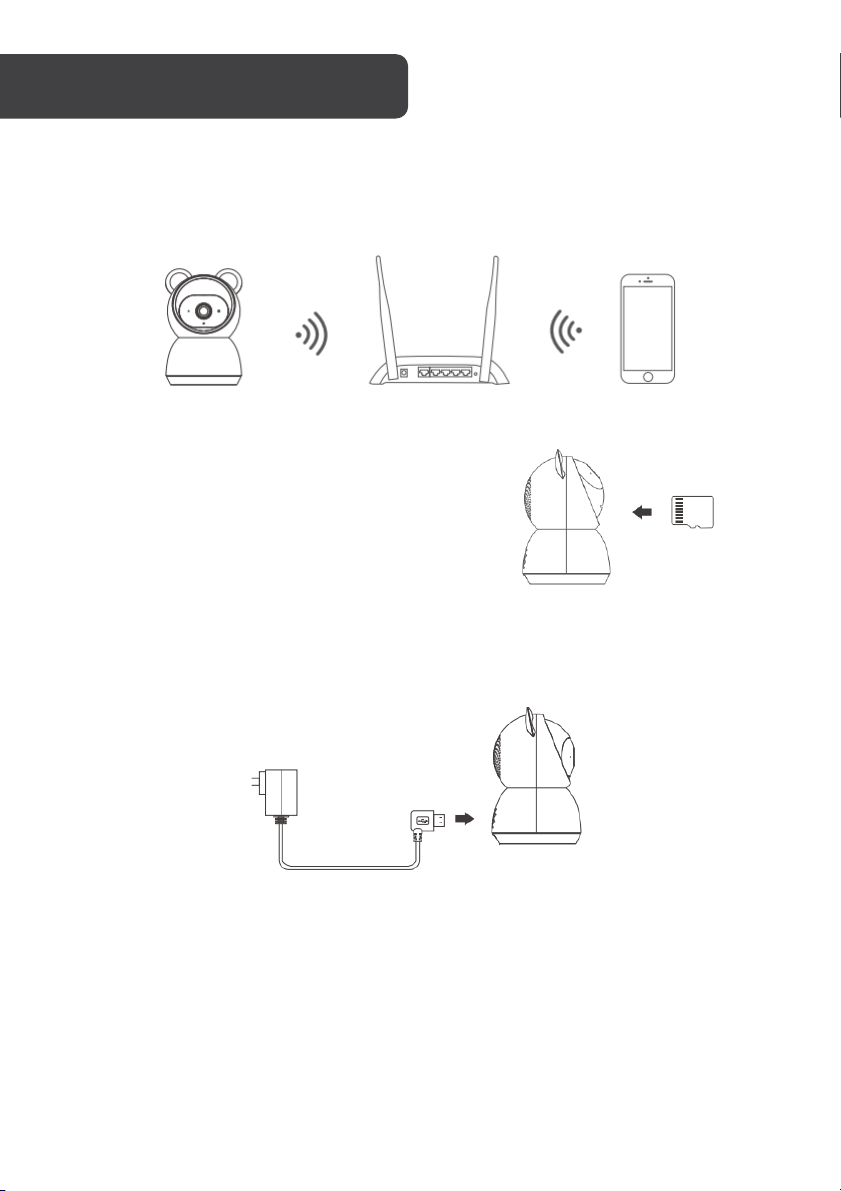
LED Status
Camera Status
Red LED on
System starting up
Red LED flashes rapidly
Standby for configuration
Blue LED flashes rapidly
Network pairing
Blue LED on
Camera online
Red LED flashes slowly
OTA upgrade
Camera
30cm - 100cm
Smartphone
Router
Connection preparation
Bring the camera and your phone within 30 – 100cm of the router.
Insert the Micro SD card
Insert the Micro SD card gently on the side edge of
camera.
Connect the power to the camera
Connect the camera to power using the Micro USB power adapter and USB cable.
LED Guide
Page 6
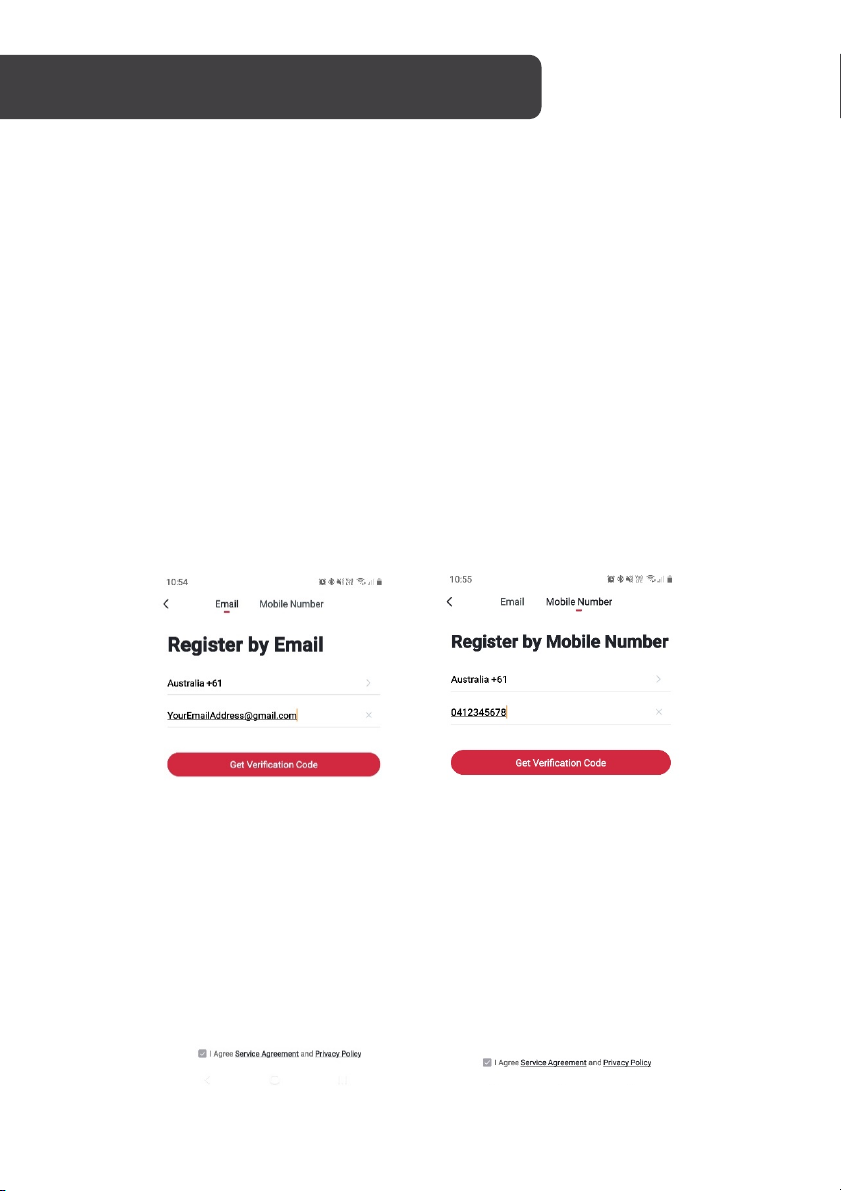
INSTALL THE APPLICATION
Install App
Download the “Kogan SmarterHome™” app from the Play Store (Android) or App Store
(iOS).
Register
If you do not have a Kogan SmarterHome™ account, register or sign in with a verification
code sent by SMS.
To r e g i s t e r :
1. Ta p to enter registration page.
2. The system automatically recognises your country/area. You can also select your
country code manually. Enter your email address and tap ‘Next.’
3. Alternatively, you can select ‘Register by mobile number’ and enter the verification
code sent to you by SMS.
4. Create a profile on the next page to define your location and room.
Page 7
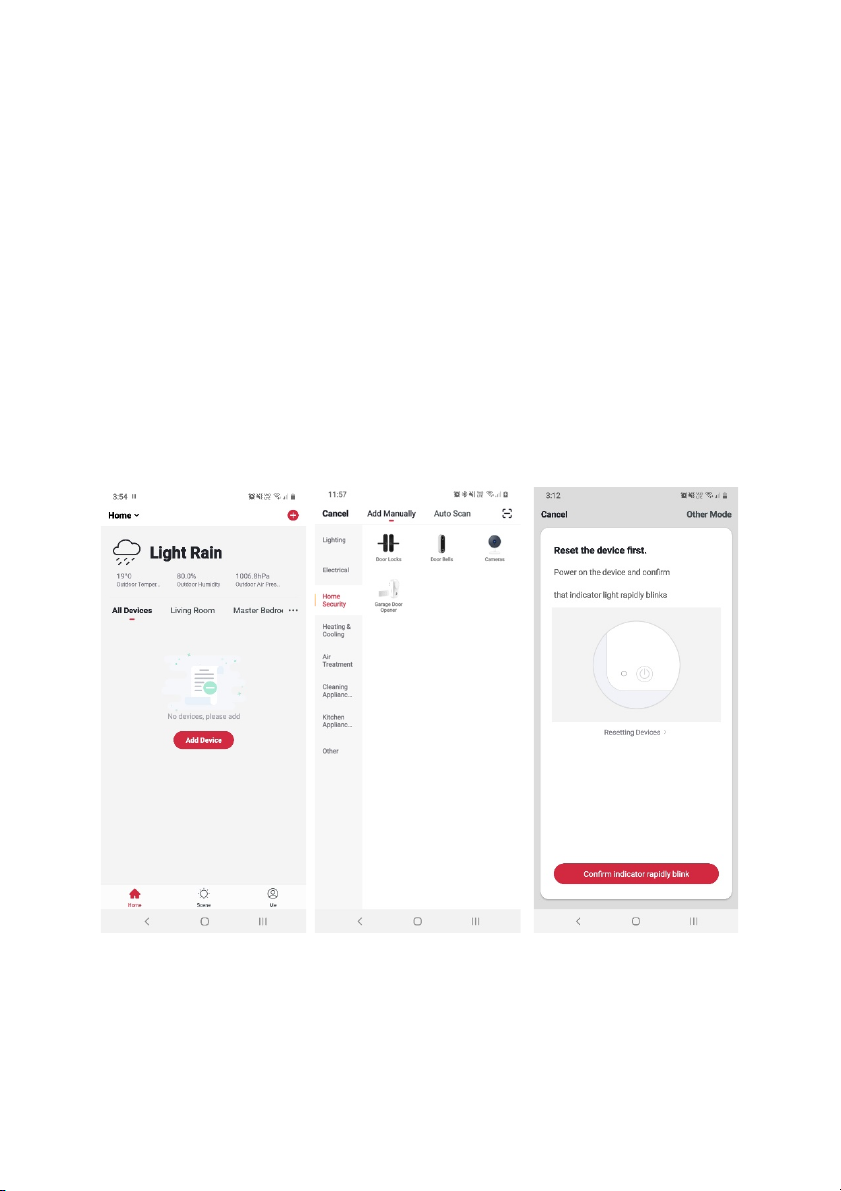
Set device in pairing mode
When the device is first turned on, it may automatically enter pairing mode (indicator light
rapidly flashing).
If not automatically in pairing mode when powered on, you can manually set the device in
pairing mode by pressing and holding the reset button for 5 seconds until the indicator light
is rapidly flashing
Add device through network
5. Once registered, tap “+” in the upper right corner of the app’s home page to add a
new device through the network.
6. Select the product type from the list of options in the app (Home Security >
Cameras).
7. Ensure that the device is in pairing mode, with the indicator light rapidly flashing,
and tap “Confirm light is rapidly flashing”.
Page 8
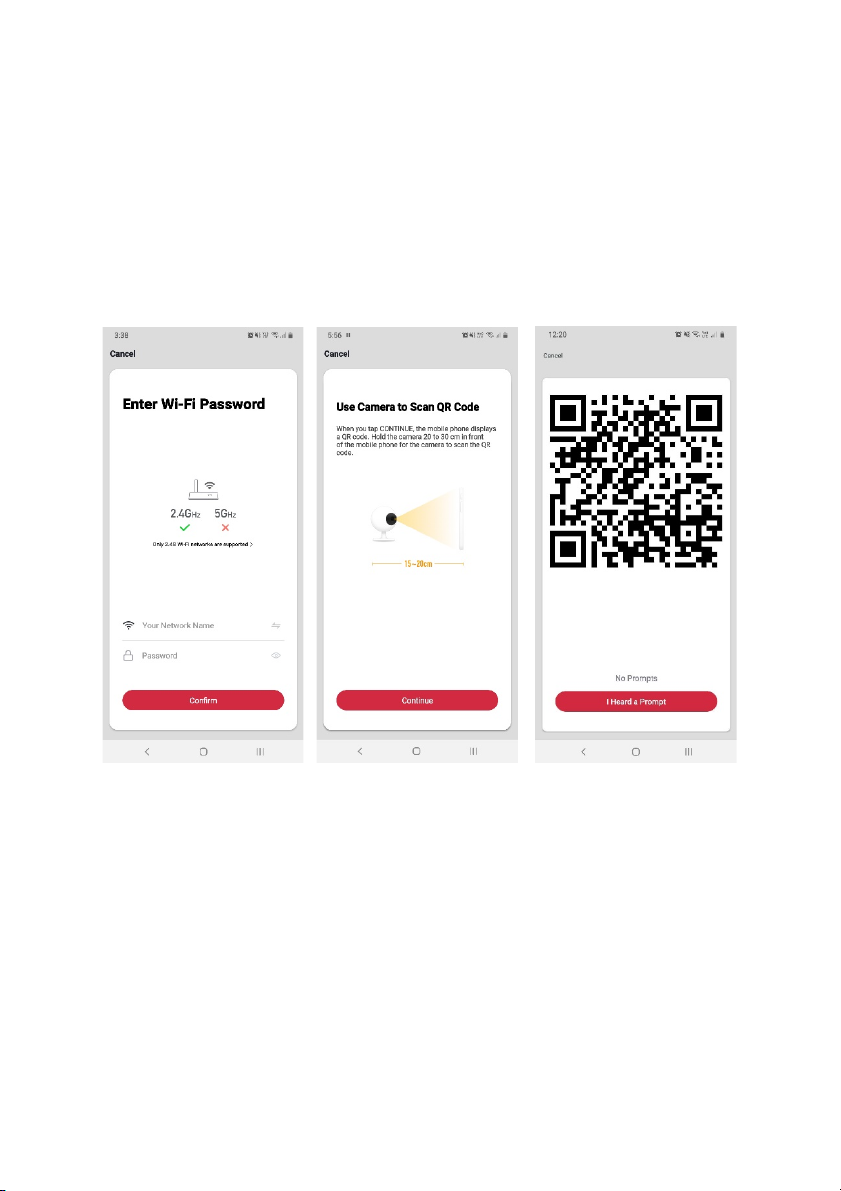
8. Upon successfully confirming pairing mode, enter your Wi-Fi details. It is important
that your SmarterHome™ device and the app are connected to the same Wi-Fi
network during setup.
9. The camera will next activate and begin scanning for a QR code. When pressing
“Continue” in the app, the next screen will display the code. Ensure you are ready
to hold your phone in front of the camera before selecting “Continue”, then wait
until a sound confirms that it has been scanned.
10. Select “I heard a prompt” when that sound is made. If no sound is made, select
“No prompts” and try again.
Page 9
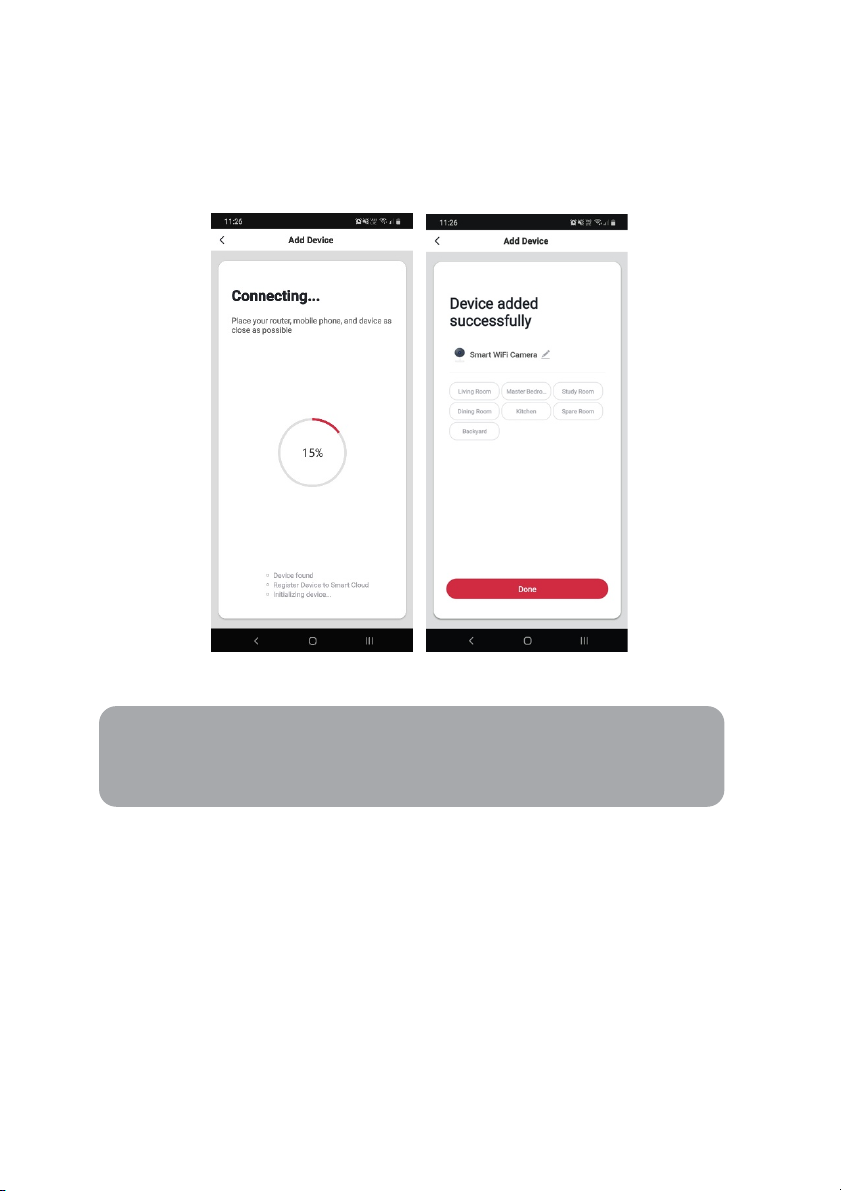
11. The device will commence the pairing process and connect to the app. Ensure your
Notes:
•
The device and the app have to use the same Wi-Fi network.
• The device is only compatible with 2.4Ghz networks.
Wi-Fi router, mobile phone, and the SmarterHome™ device are kept close until
connection is complete.
12. After successfully being added, you will have the option to rename the device and
assign it to a location. It will now be listed on the app’s home page. Tap the device
listing to enter its control page.
Page 10
Note:
Yo u w i l l n e e d t o ha v e se t u p a G o o gl e H om e a c co u n t p r i or t o li n k in g y ou r
Kogan SmarterHome™ device.
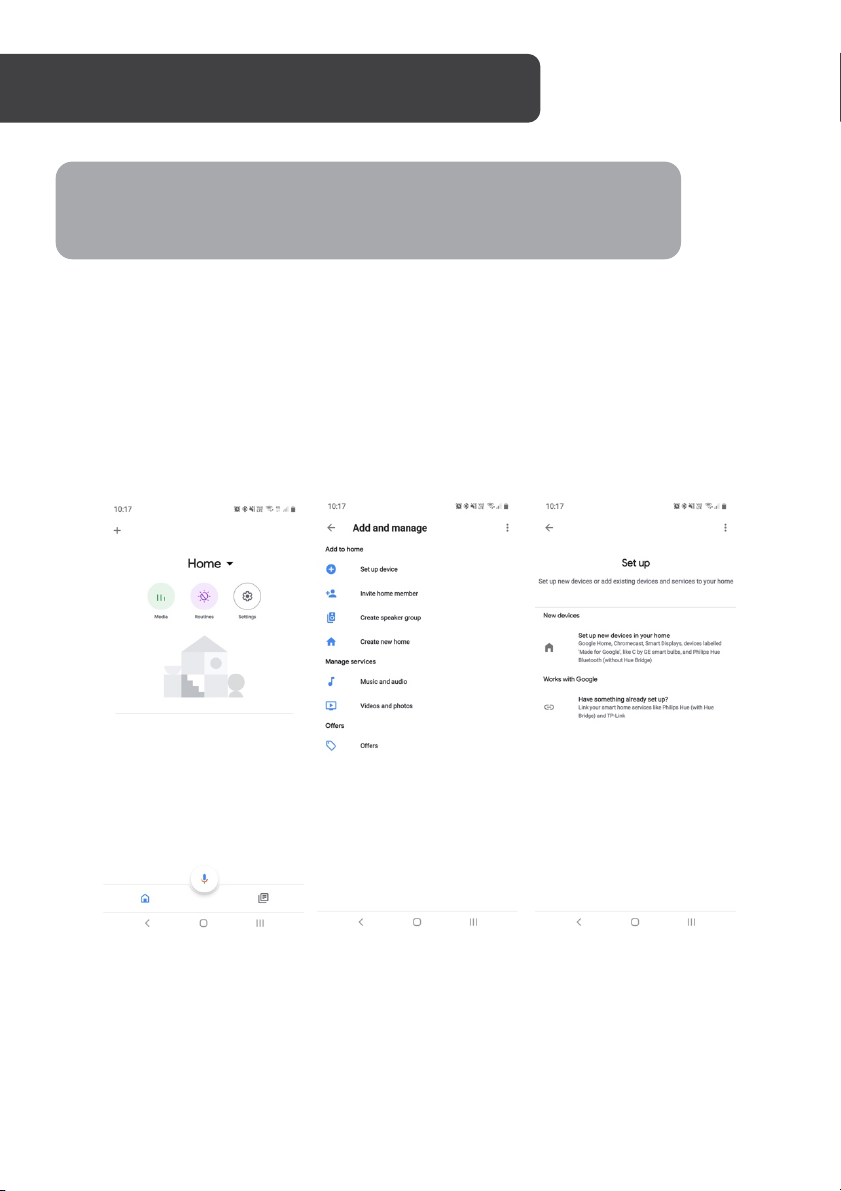
Adding “SmarterHome” to the Google Home app
1. From th e hom e pag e of the Google Home app, select the “+” icon to access the
‘Ad d and m ana ge’ p age .
2. Select ‘Set up device’, then under the Works with Google banner, select ‘Have
something already set up?’
3. Select the search bar and type ‘Smarter Home’ to locate the Kogan
SmarterHome™ service.
Page 11
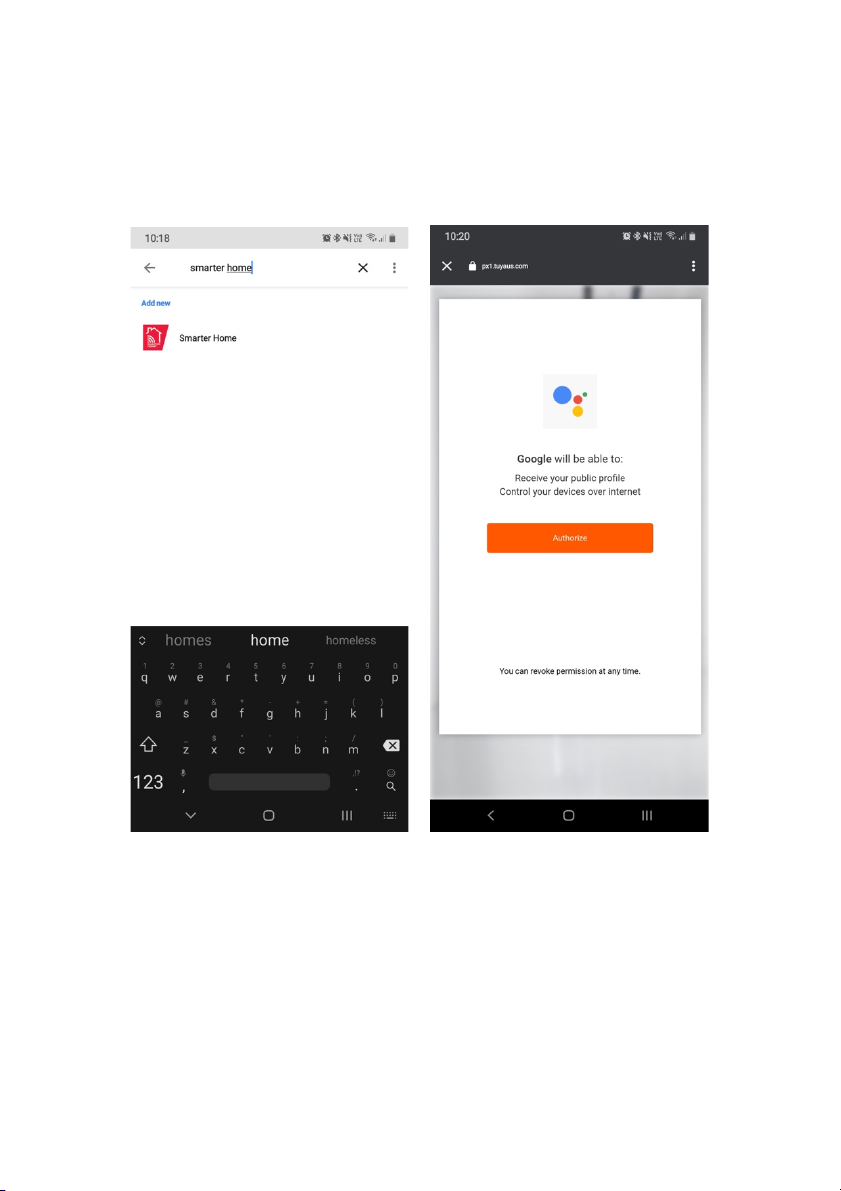
4. Ta p ‘ A u t h o r i s e ’ t o g r a n t G o o g l e p e r m i s s i o n t o a c c e s s t h e S m a r t e r H o m e ™ a p p a n d
your devices.
5. From here, you will be prompted to sign into your SmarterHome™ account using
either your email or mobile phone number, depending on which method you used
to register your account.
Page 12
Note:
Please note that Google Home can only control the base/core functions of any
compatible SmarterHome™ devices. To make full use of this product’s smart
functionality, please use the Kogan SmarterHome™ app.
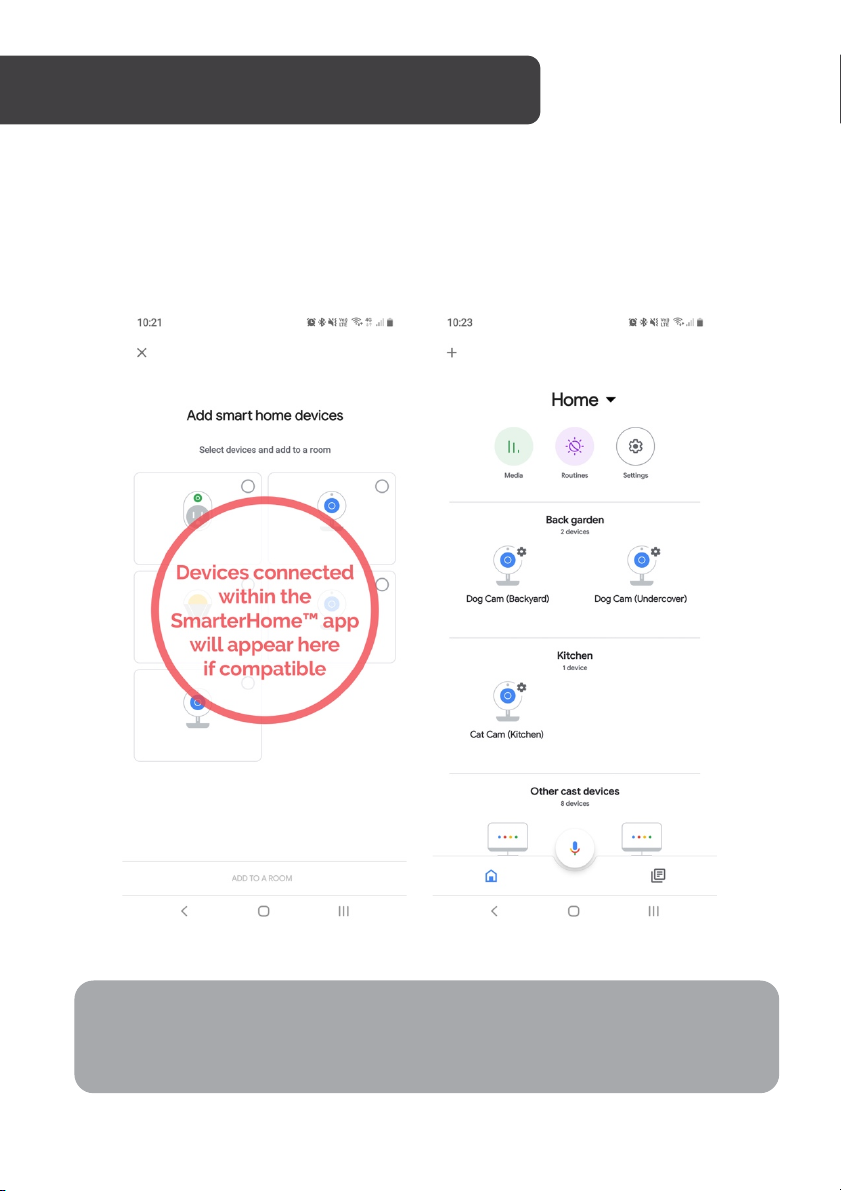
6. Once connected, the app will display any compatible devices linked to your
SmarterHome™ account. From here you can assign them to rooms and set up any
routines.
7. Tap on any of the devices to view a list of available commands.
Page 13
Note:
You will need to have set up an Alexa account prior to linking your Kogan
SmarterHome™ device.
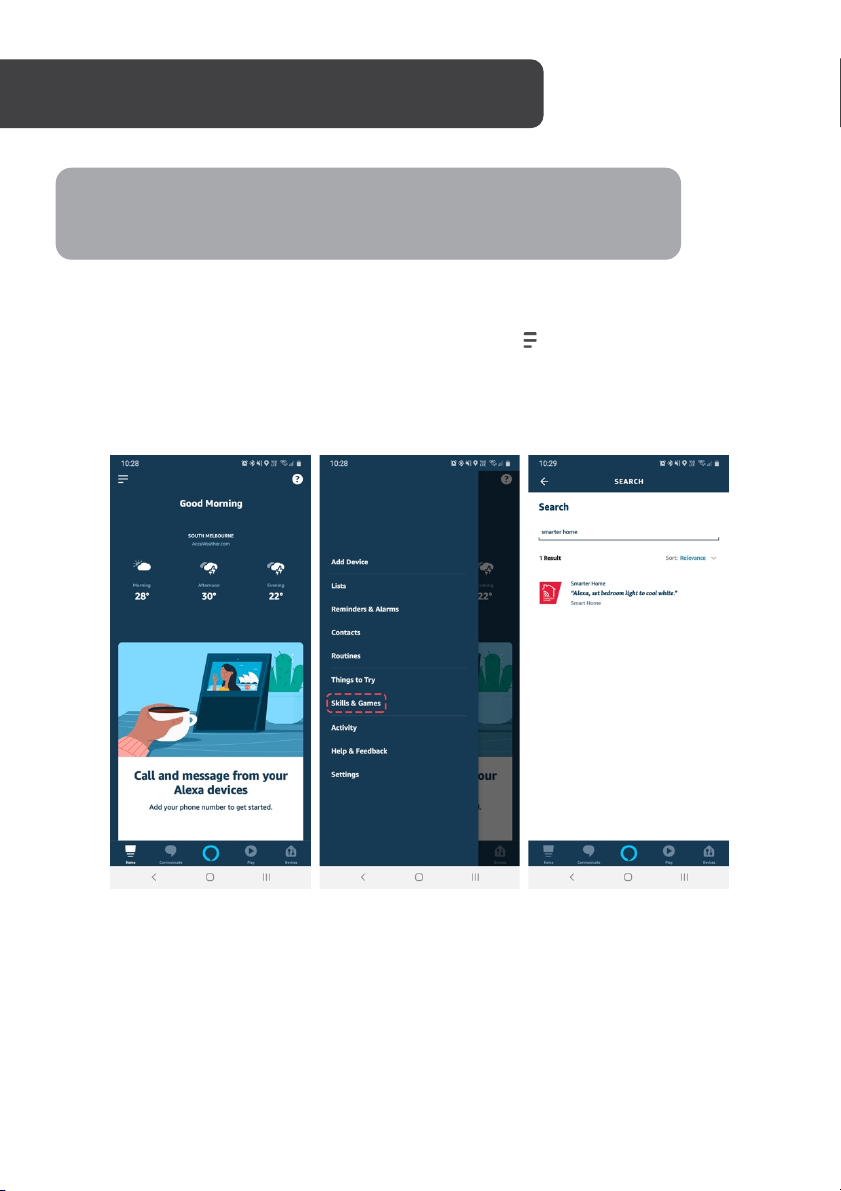
Adding “SmarterHome” to the Alexa app
1. From th e hom e pag e of the Alexa app, sele ct the “ ” icon in the top-right and
select Skills & Games from the sidebar.
2. Select the search bar and type ‘Smarter Home’ to locate the Kogan
SmarterHome™ skill.
Page 14
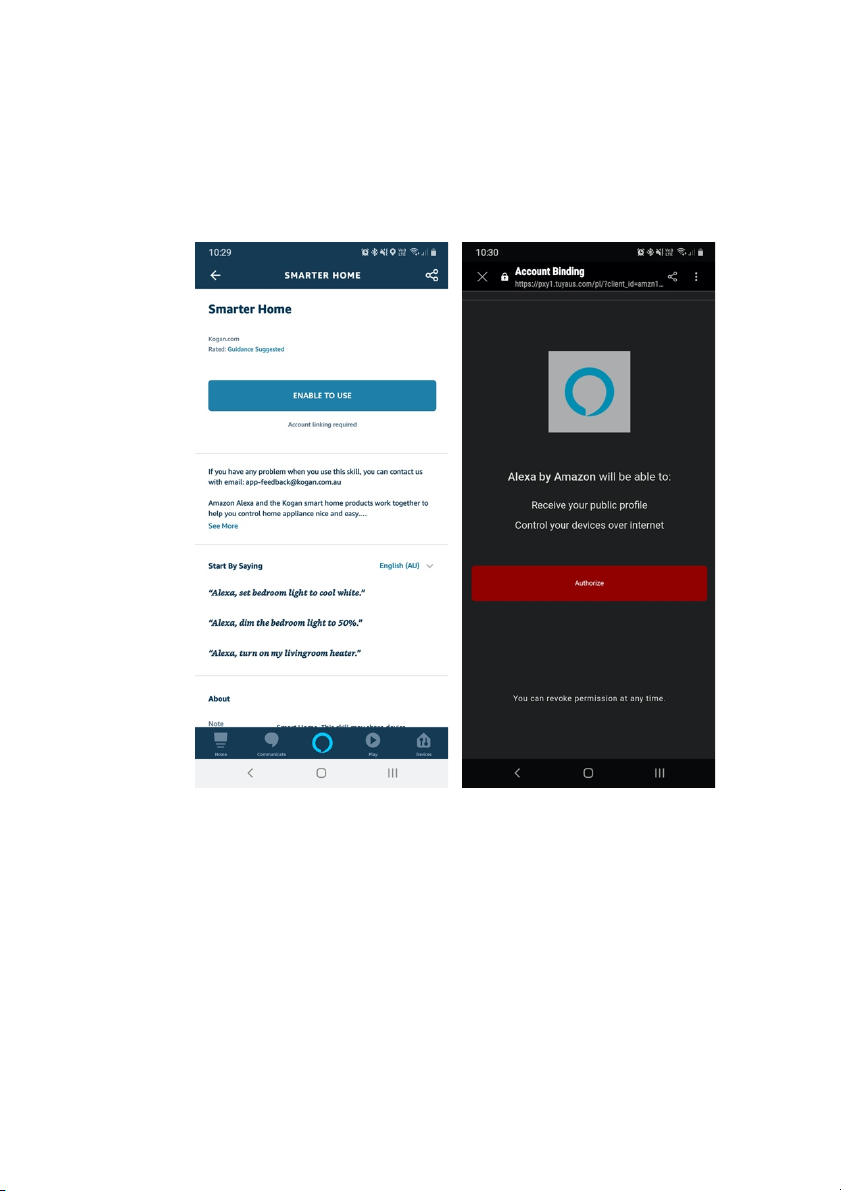
3. Ta p ‘ E n a b l e t o U s e ’ t o a d d t h e K o g a n S m a r t e r H o m e ™ s k i l l t o A l e x a .
4. From here, you will be prompted to sign into your SmarterHome™ account using
either your email or mobile phone number, depending on which method you used
to register your account.
5. Ta p ‘ A u t h o r i s e ’ t o g r a n t A l e x a p e r m i s s i o n t o a c c e s s t h e S m a r t e r H o m e ™ a p p a n d
your devices.
Page 15
Note:
Please note that Alexa can only control the base/core functions of any compatible
SmarterHome™ devices. To make full use of this product’s smart functionality,
please use the Kogan SmarterHome™ app.
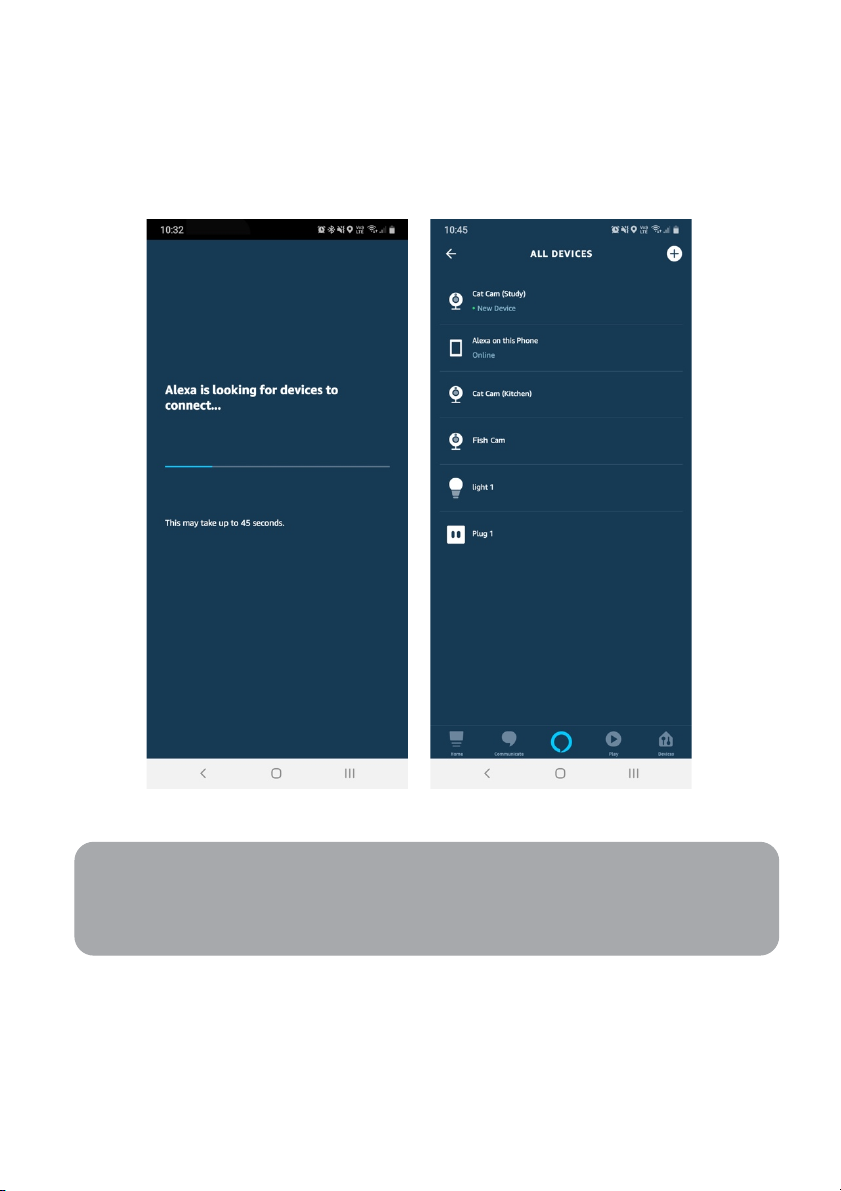
6. Once connected, the app will perform a search and display the devices linked to
your SmarterHome™ account.
7. When your devices have successfully connected to the Alexa app, you will be able
to control your Kogan SmarterHome™ devices via Alexa’s voice commands.
Page 16
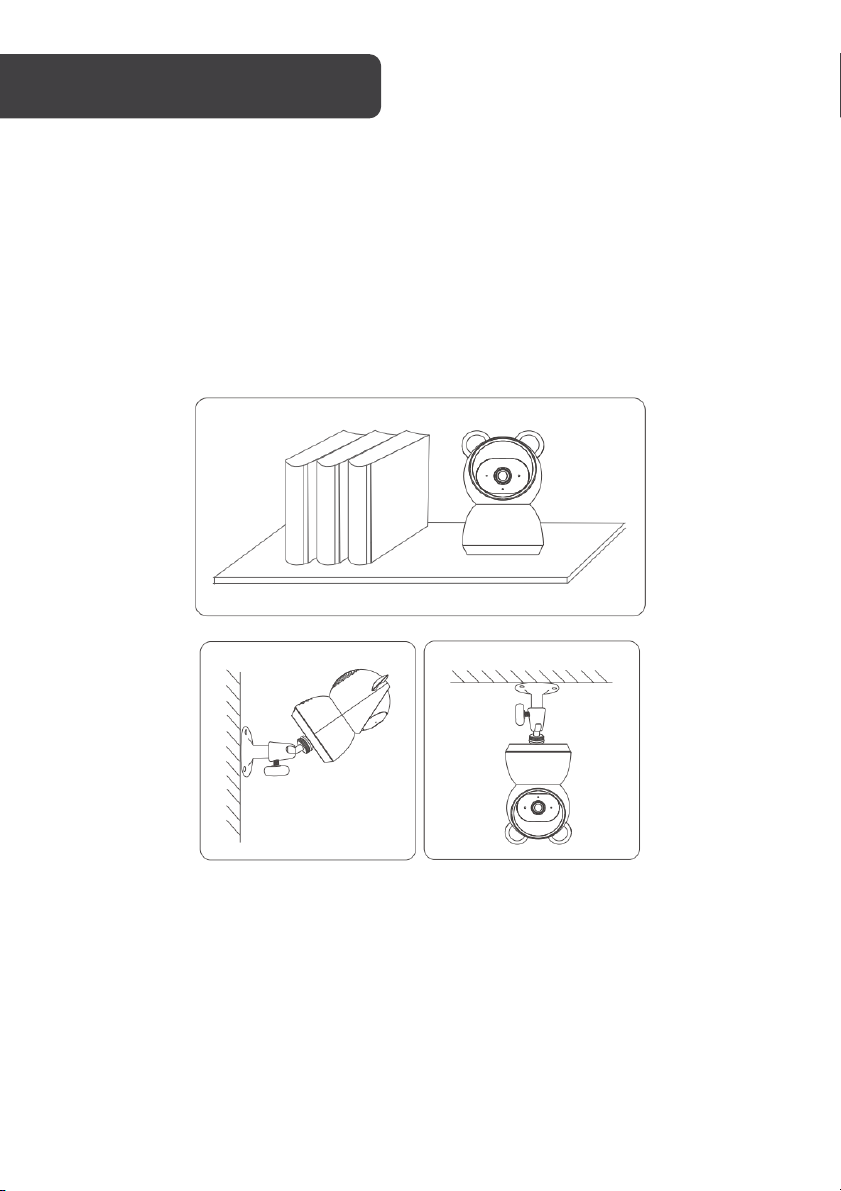
Yo u c a n p l a ce y ou r ca m e ra o n a s he l f o r ot h e r f l at s ur f a ce , o r y ou c a n m o un t i t t o a wall.
To m o u n t y o u r c a m e r a t o t h e w a l l :
• Attach the bracket to the wall or ceiling using the mounting screws.
• If mounting the camera to plaster, ensure to use the supplied plastic plaster
anchors.
• Attach the camera to the bracket. Ensure the camera is secure in place to avoid it
falling and causing potential injury or damage.
Page 17
Page 18
Page 19
Page 20
Need more information?
We hope that this user guide has given you
the assistance needed for a simple set-up.
For th e mo st u p-to-date guide for your product,
as well as any additional assistance you may require,
head online to help.kogan.com
 Loading...