

Page 1
!
KLIM SKILL USER MANUAL
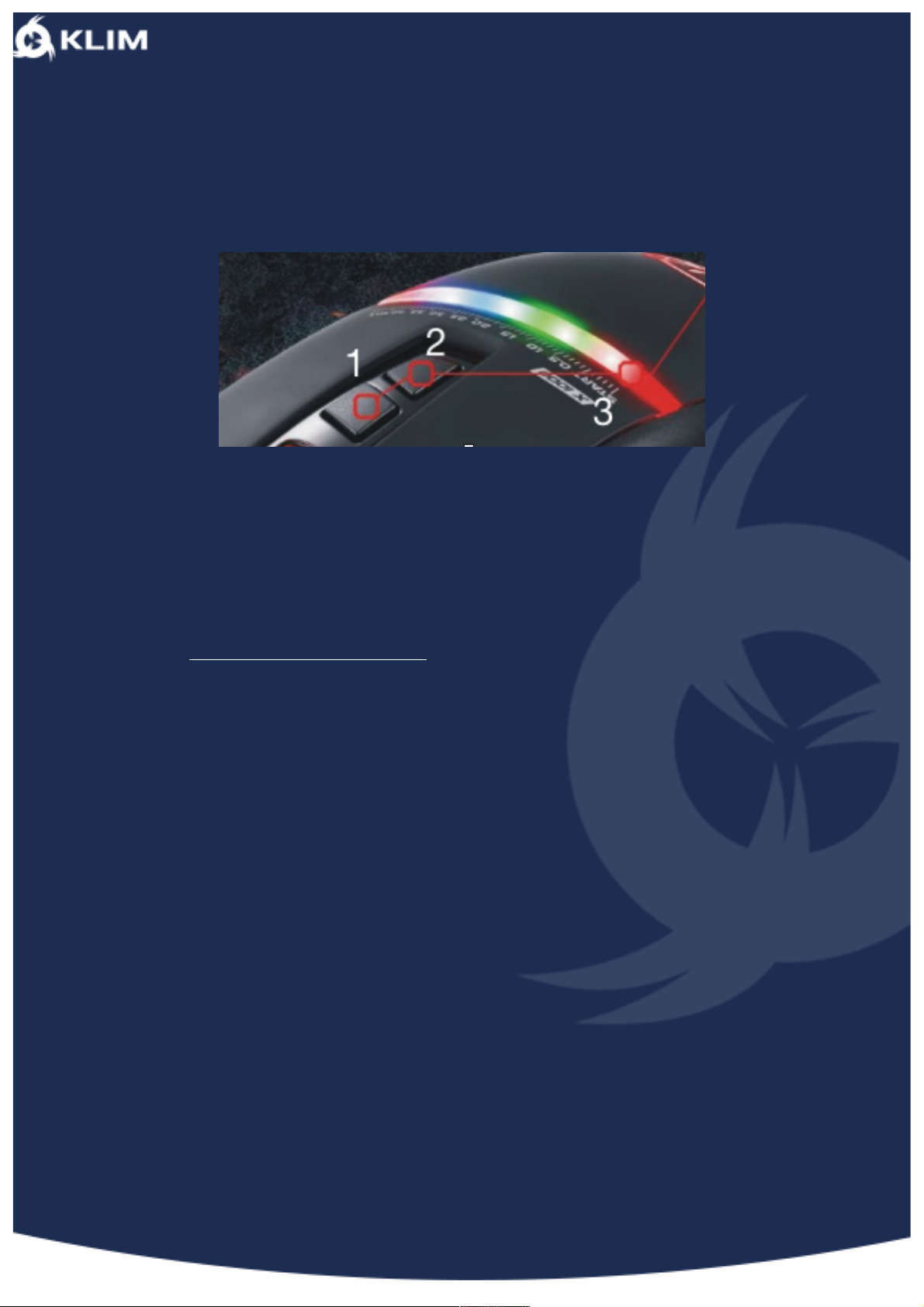
To adjust the DPI level press 1 to increase, and 2 to decrease. You can see at which
DPI
level you are looking at the LED line (3).
You can program any buttons and much more by downloading our driver at this
address => http://klimtechs.com/driver
The KLIM Skill is Plug and Play, you plug it and it should work.
The driver should be simple enough to navigate.
However, if you encounter any difficulties, big or small, please don't hesitate to
contact us.
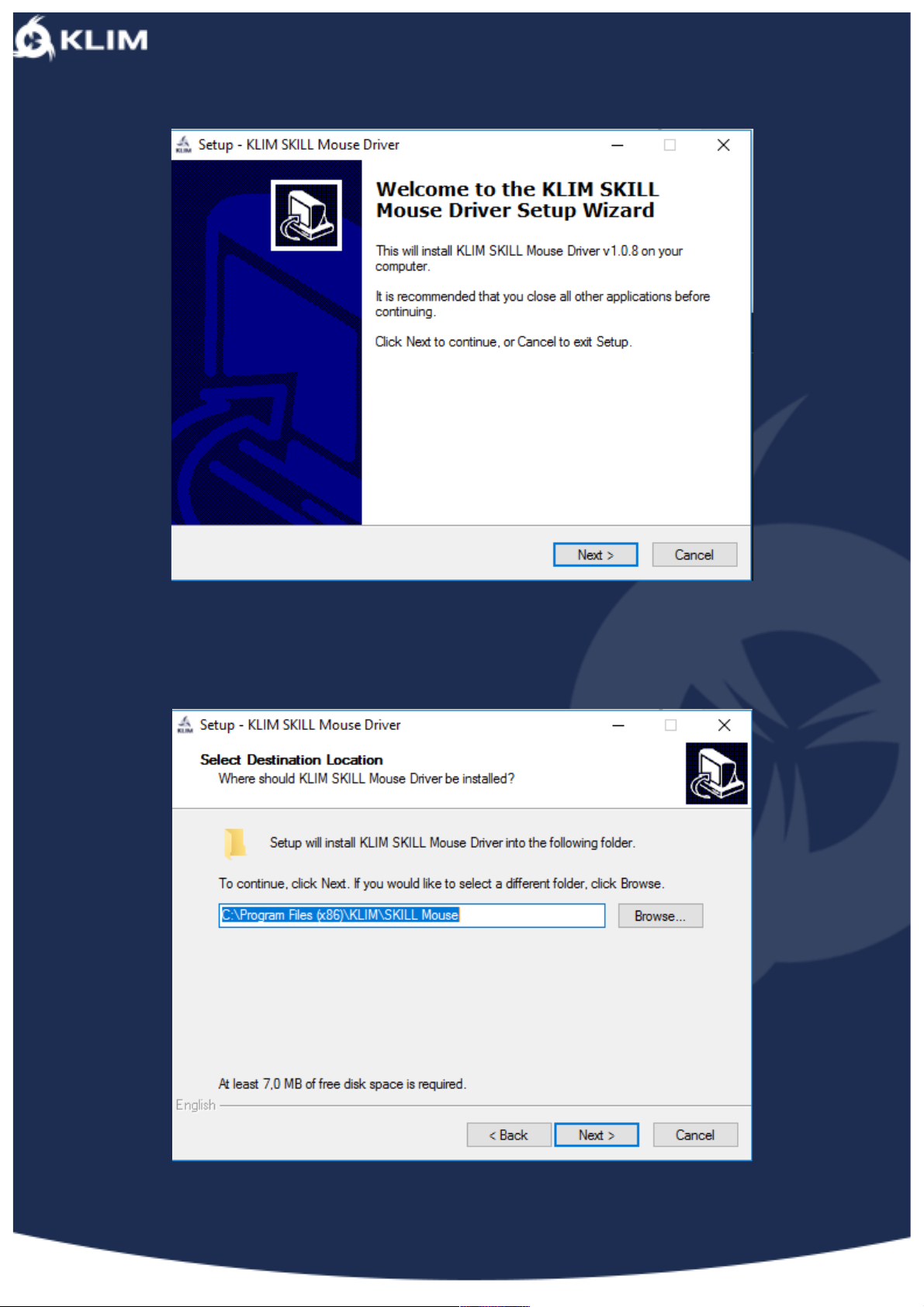
Step 1:
Download the driver from our website, use WinRaR or any similar unzipping
software to open the “.zip” file. Then double click on the “.exe” file to launch the
installer.
Page 2
!
Step 2:
Click “Next”.
Step 3:
You can select which folder you would like to install the driver in, we suggest you
simply click on “Next”.
Page 3
!
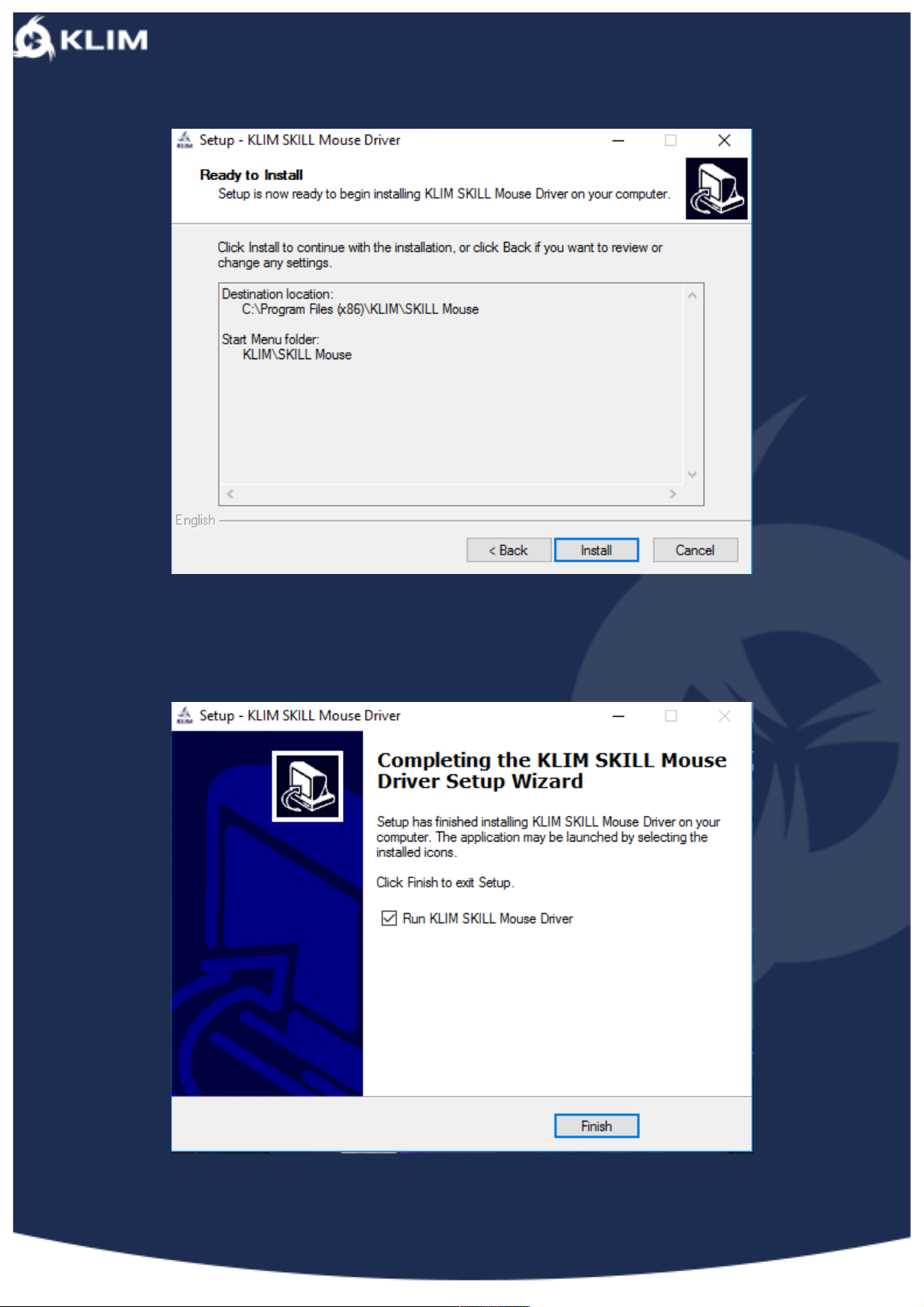
Step 4:
Click on “Install”.
Step 5:
Tick “Run KLIM SKILL Mouse driver” and click on “Finish”.
Page 4
!
Step 6:
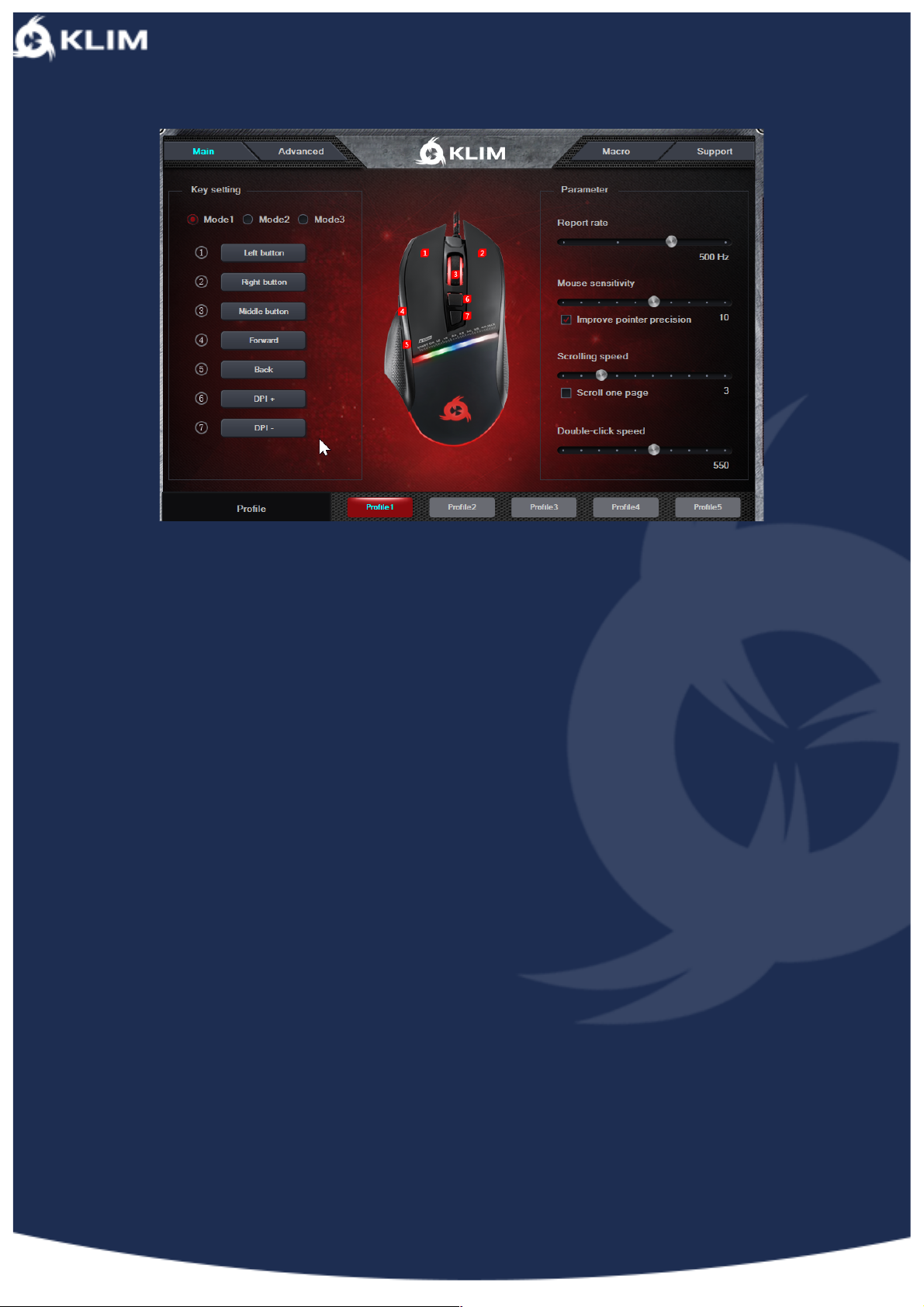
This is the driver's main menu:
1. Here you can configure the buttons and the general settings of your mouse. The
choice of buttons is quite extensive, from simple left/right clicks to multimedia
options (play/pause on a video, mute, opening a browser window...) or even ingame commands.
2. This is the refresh rate, we recommend you avoid it unless you know what
you’re doing.
3. Mouse sensitivity and the “improve pointer precision” option. We recommend
you keep sensitivity on 4, 5 or 6 and, if you're playing a high precision game
we recommend you deactivate the "improve pointer precision" option. You can
Google this for more information.
4. Mouse scroll speed, this is mostly unimportant except in very specific cases.
5. Double click speed, again, mostly unimportant, except in a few very specific
cases.
6. You can save up to 5 different profiles, this can be useful if you need a
different profile when playing different games.
7. To turn off the DPI LEDs, press the buttons 3 and 4 at the same time (scroll
wheel + forward button).
Page 5
!
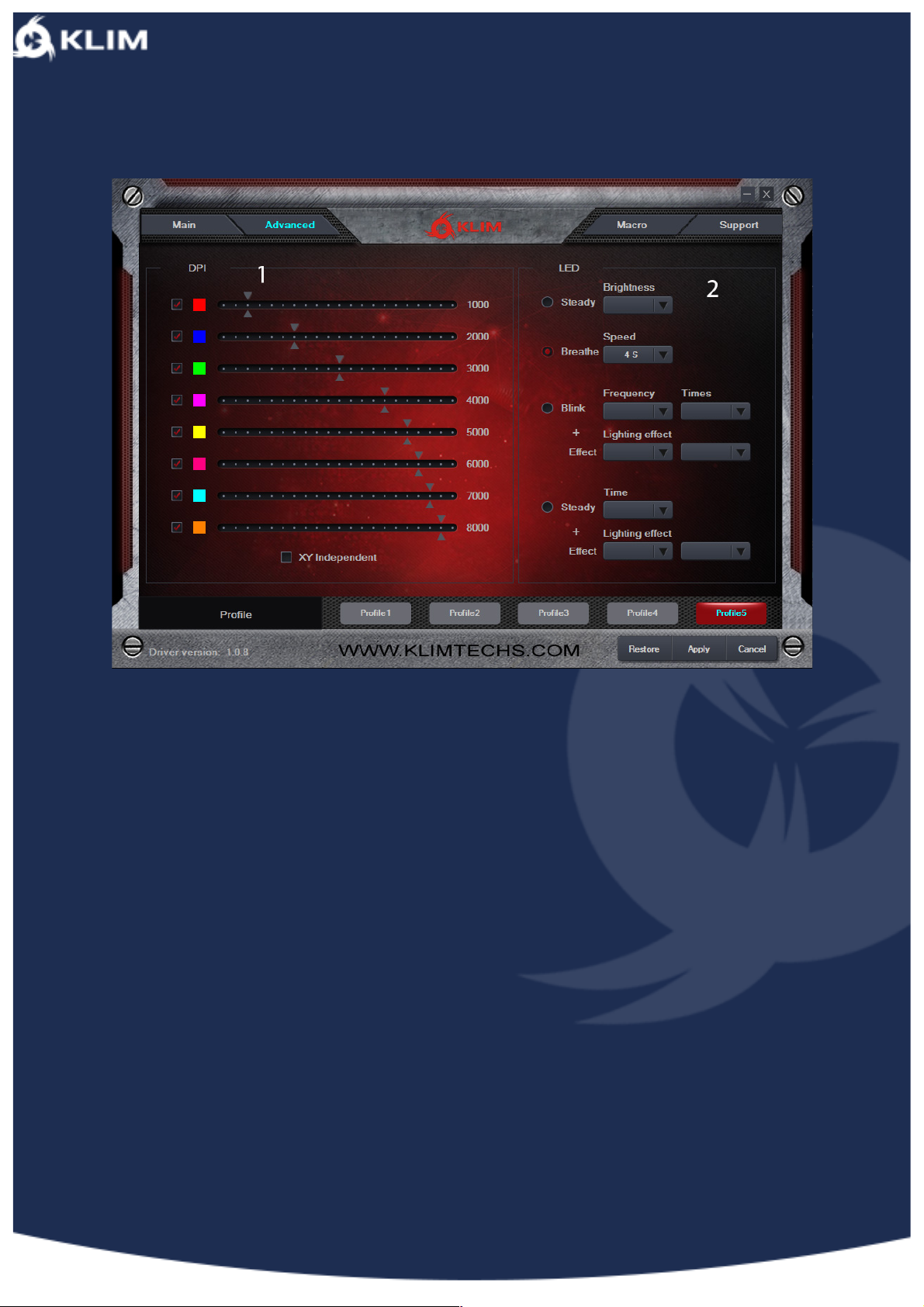
Step 7:
1. You can choose what colour each DPI level corresponds to.
2. You can choose 4 different modes for LED, steady will display a continuous
light, breathe means a slow blink and blink means a blinking light. You can
then select its brightness, frequency etc...
Page 6
!
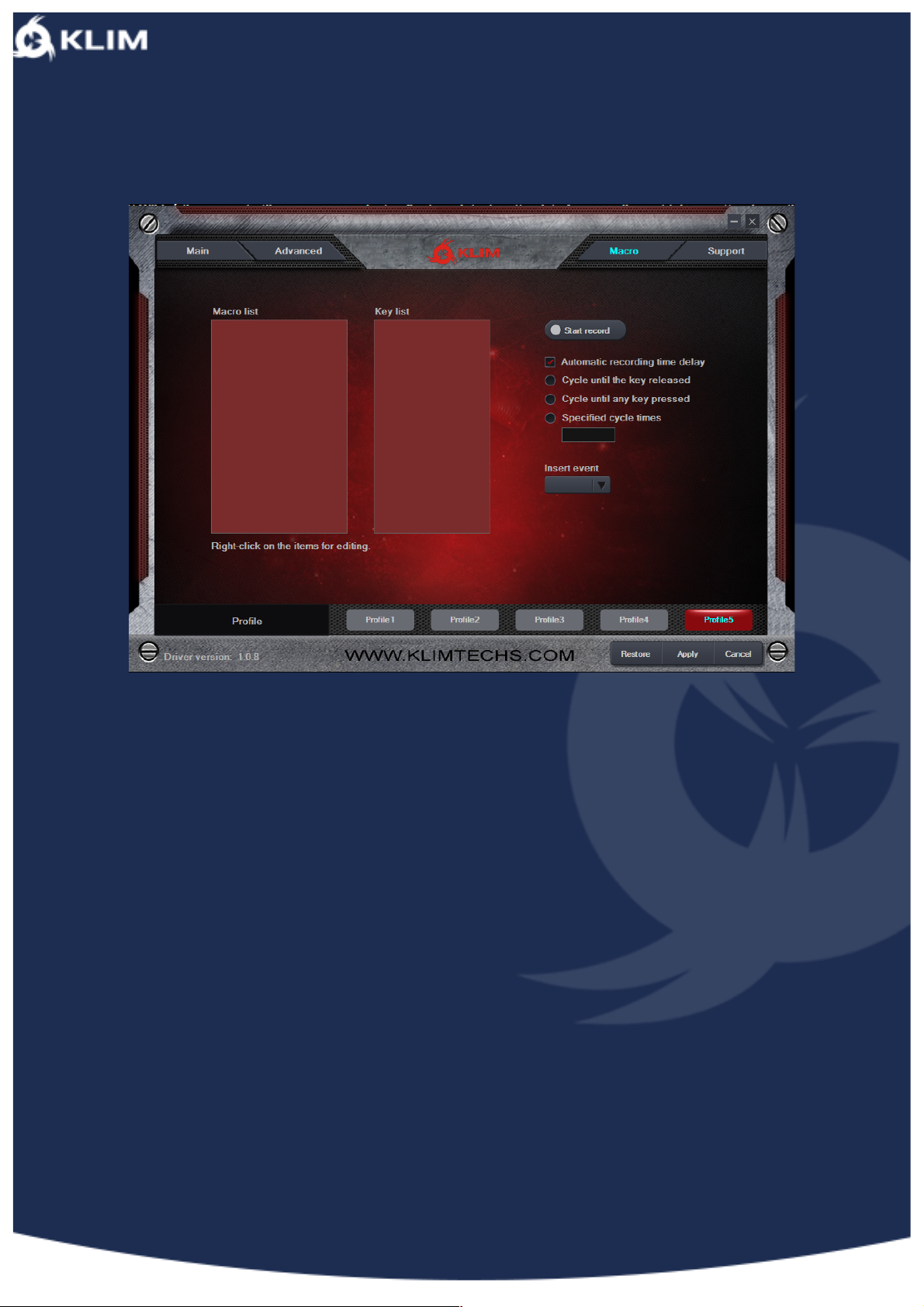
Step 8:
In this tab you can configure macros, these will allow you to execute a series of
commands with a single button press.
--
We would like to thank you, in the name of the entire team here at KLIM, for having
purchased the KLIM Skill and we hope it will live up to your expectations!
Don’t hesitate to leave us a comment on the website you purchased it from, it really
helps us tremendously!
KLIM Team
 Loading...