

Page 1
KLIM PUMA USER MANUAL
Thank you for your purchase, if you ever encounter any problem whatsoever please
remember we will remain at your disposal to help you.
I.KLIM PUMA FUNCTIONALITY
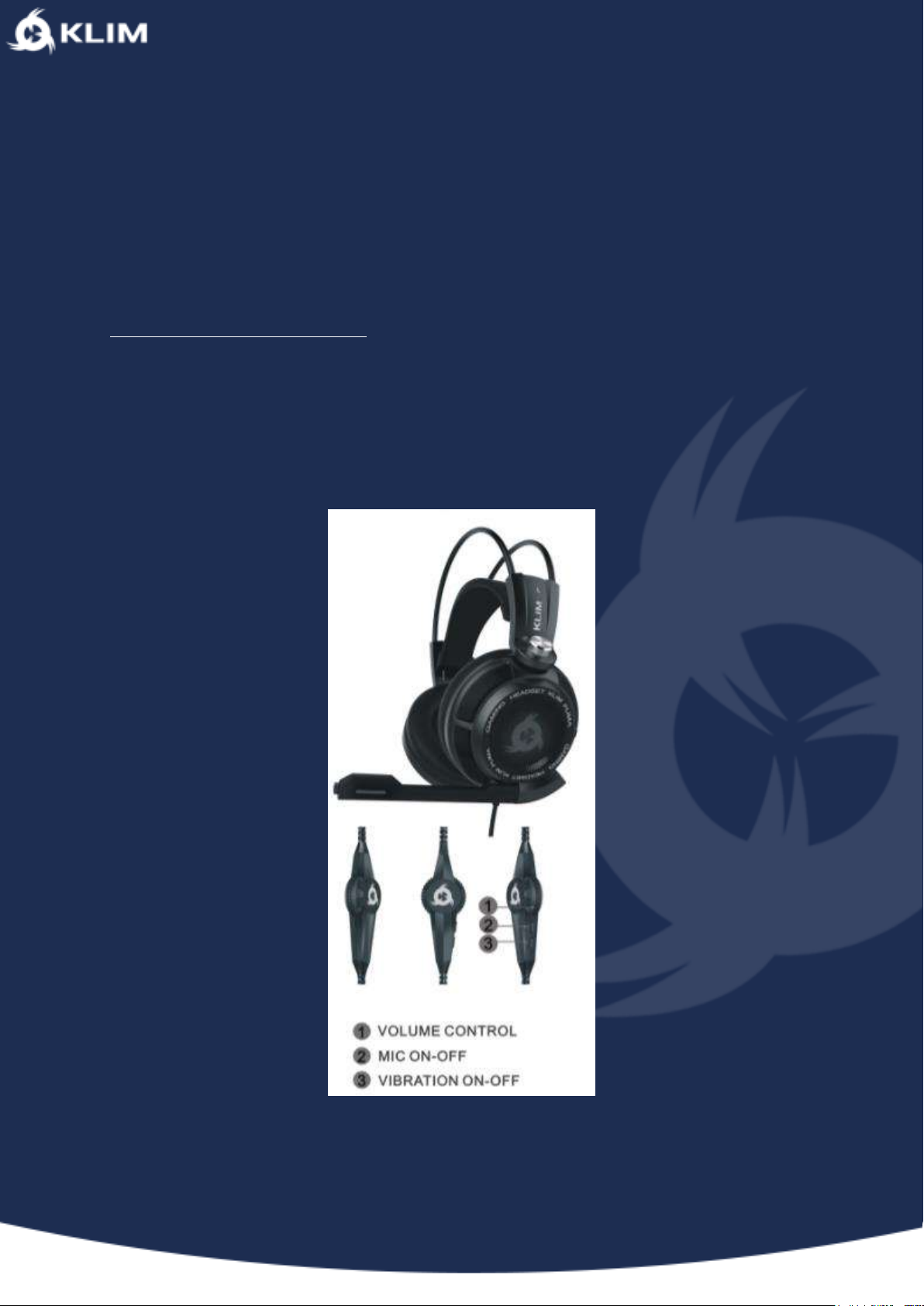
The KLIM Puma’s operation is fairly simple, it has 3 controls : one for changing the
audio volume, one for switching the microphone on or off and one for switching
vibrations on or off.
Page 2
II.KLIM PUMA INSTALLATION
1.On Windows
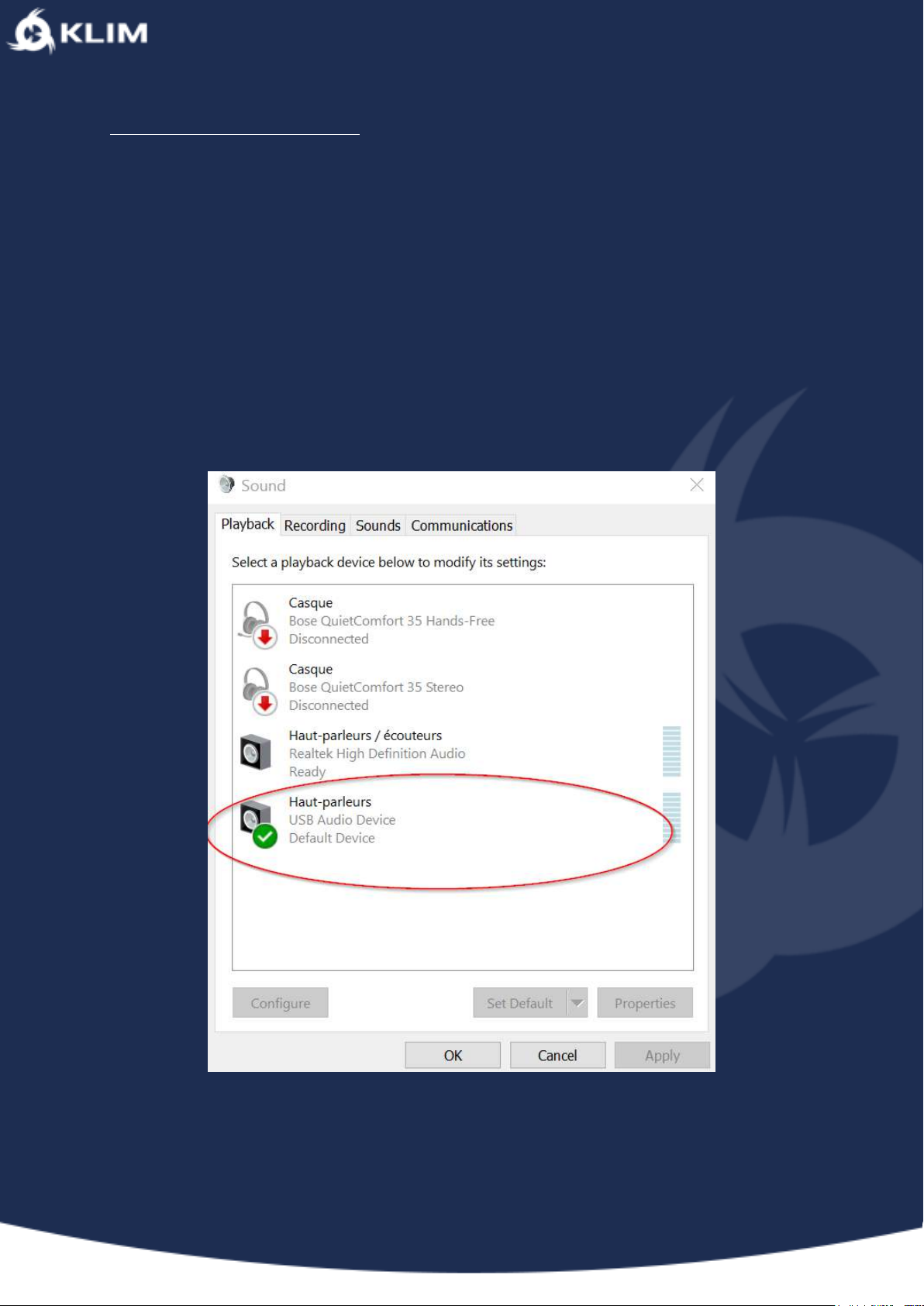
Check that the audio and the microphone are recognised, go to the control panel =>
Hardware & Sound => Sound. The exact title wording may vary depending on your
version of Windows.
Then check the headphones are showing up on the list and are selected as the default
audio device (little green tick icon).
Page 3
2.On a Mac
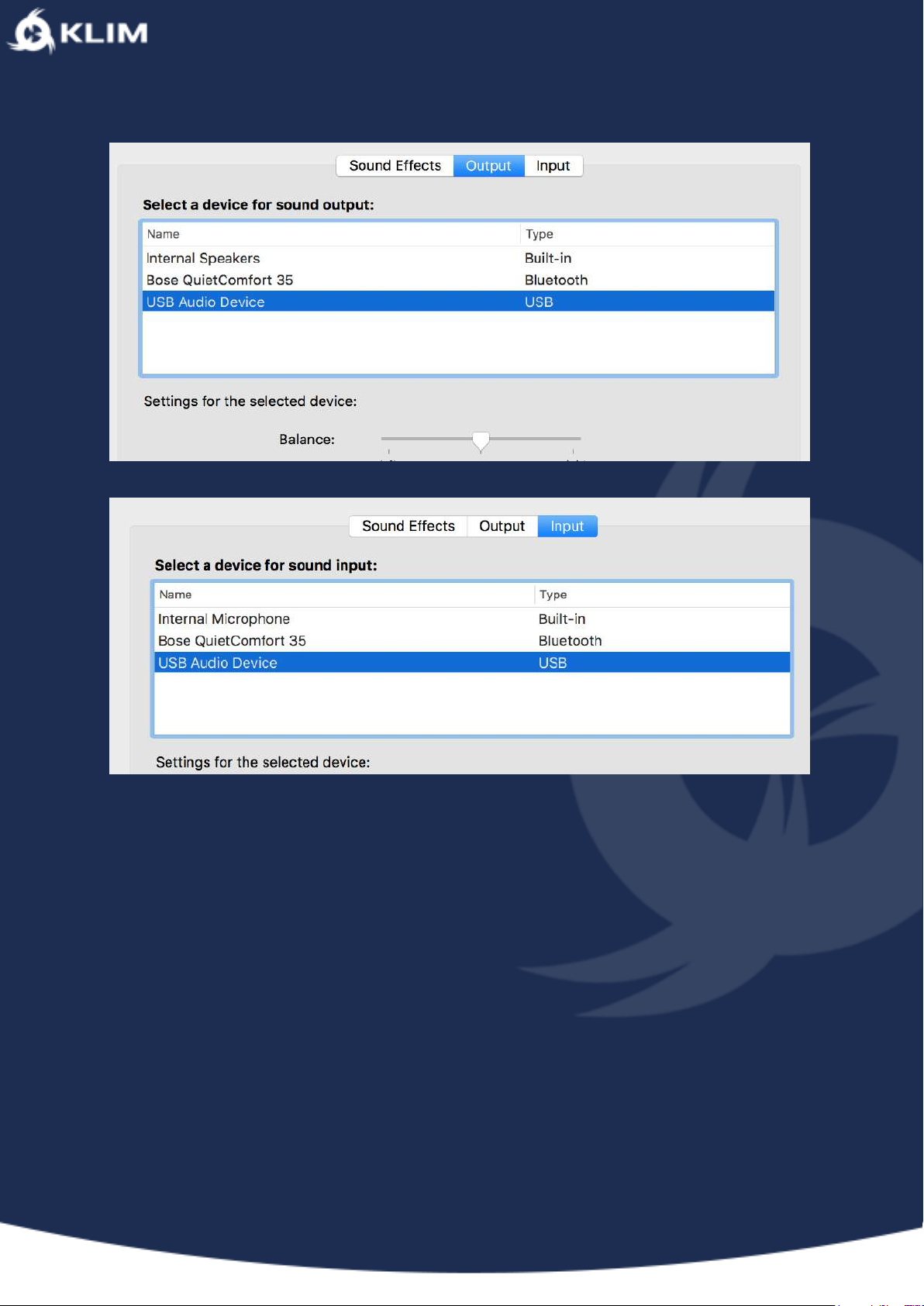
Go to “System Preferences” and “Sound”, make sure that the USB Audio Device is
selected as audio in and out.
Page 4
Also remember to check inside the software you’re using that the KLIM Puma is
selected.
Page 5
III. DRIVER INSTALLATION
• Download the driver from our website.
• Open it, if Windows warns you the software is potentially dangerous ignore
it. It is just a precaution Windows takes, our software is secure. There are no
third party programs.
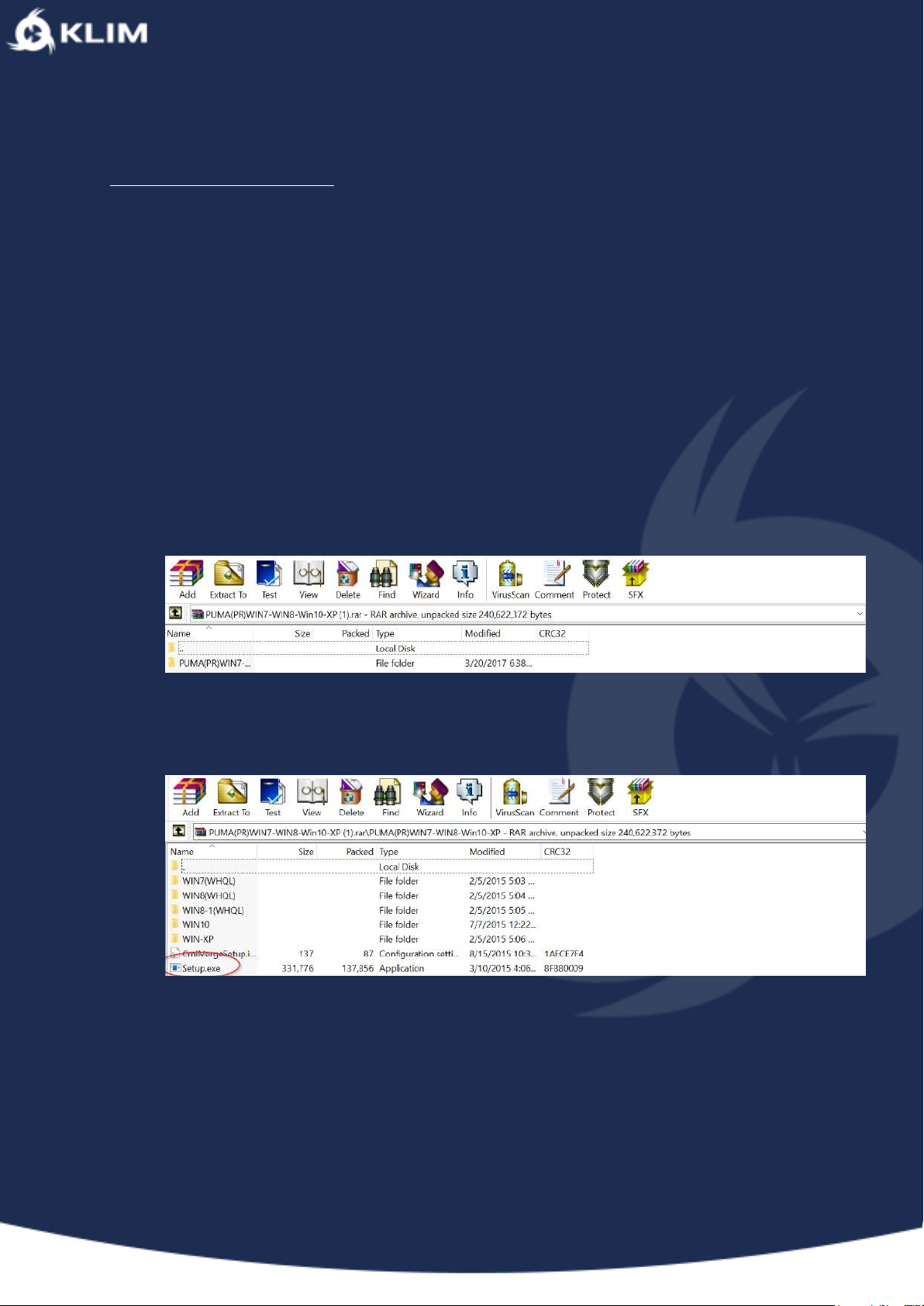
• Open the file with an unzipping tool such as Winrar.
• Double click on PUMA(PR)WIN7-....
• Extract the archive : This may take a few moments.
Page 6
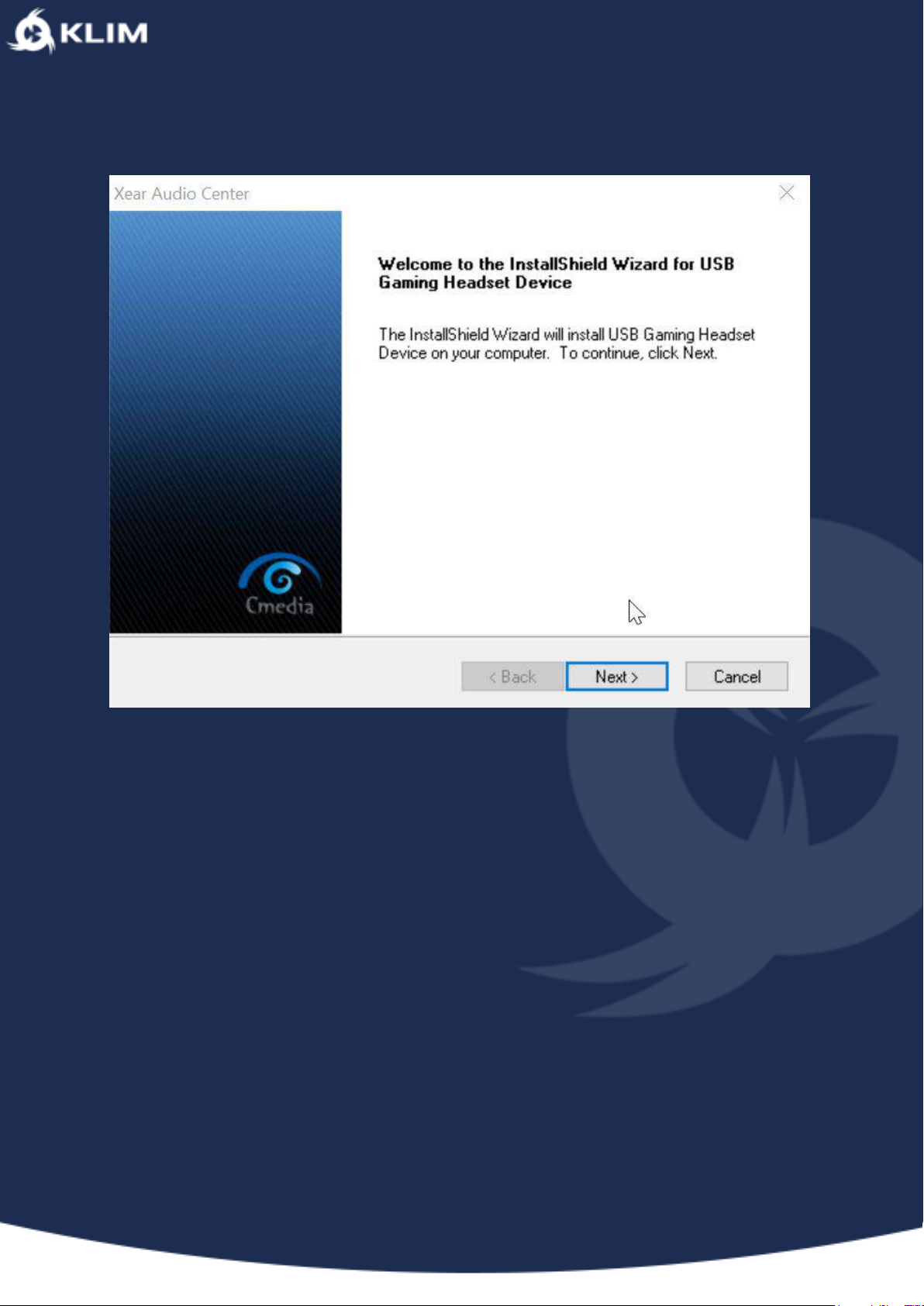
Once you’re done, you should see this window appear :
You will probably be told your headphones are not connected, make sure they are
and restart your computer
After restarting your computer, you will need to unzip the .rar file once more, which
will lead you to the installation process where you will accept terms and conditions
and install the driver.
Once the software has been installed, you will be asked to restart your computer.
Most of the time this shouldn’t even be necessary.
In your program files, you should be able to find one named Xear Audio Center with
the KLIM logo.
Page 7
IV. USING THE DRIVER
We would first like to apologise for the rather rustic design of our driver, but we
preferred to prioritise functionality over aesthetics when creating it.
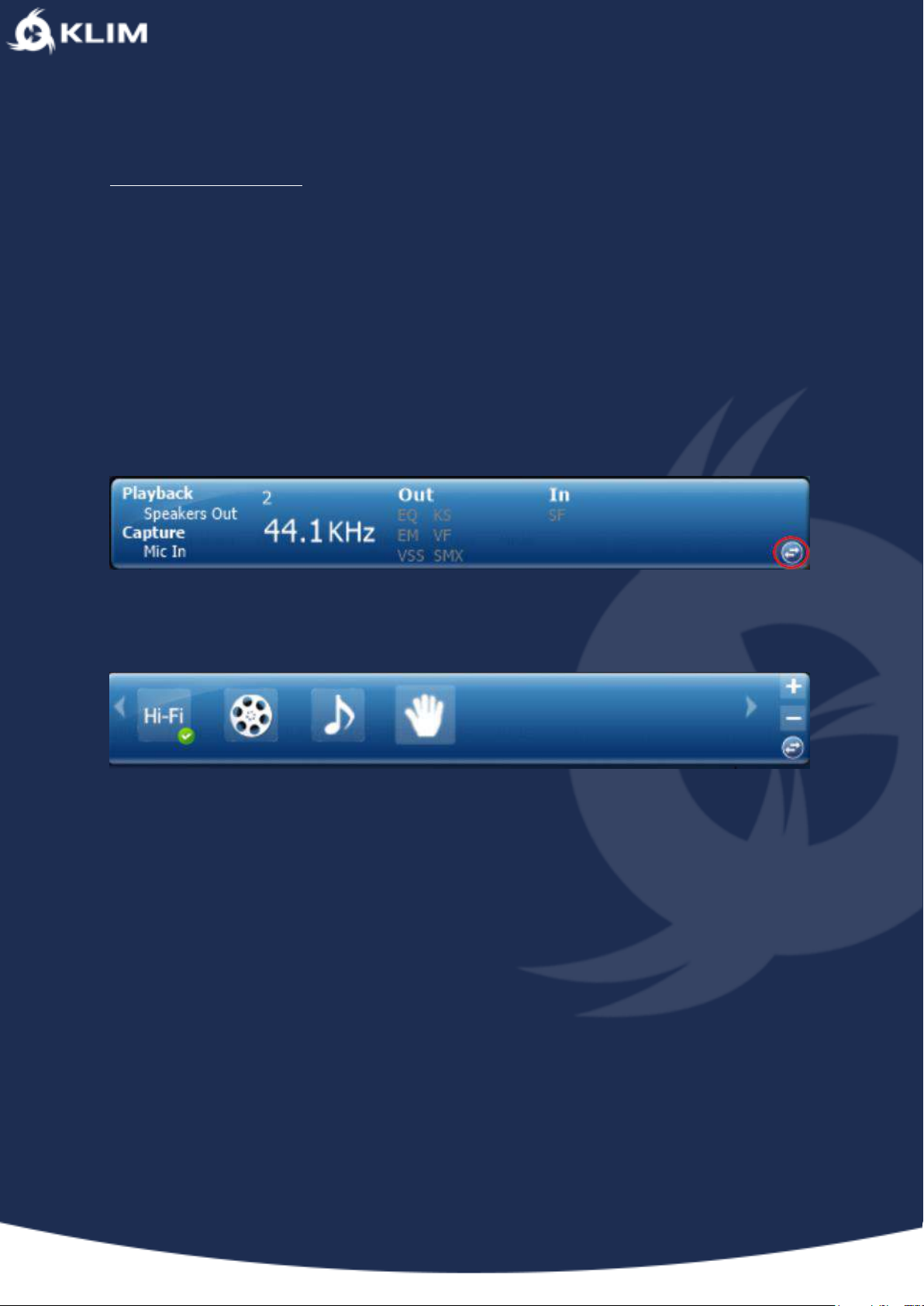
1. Modes
To access different modes, click here :
You can tinker around with it and listen to the difference.
Page 8
2. Customisation
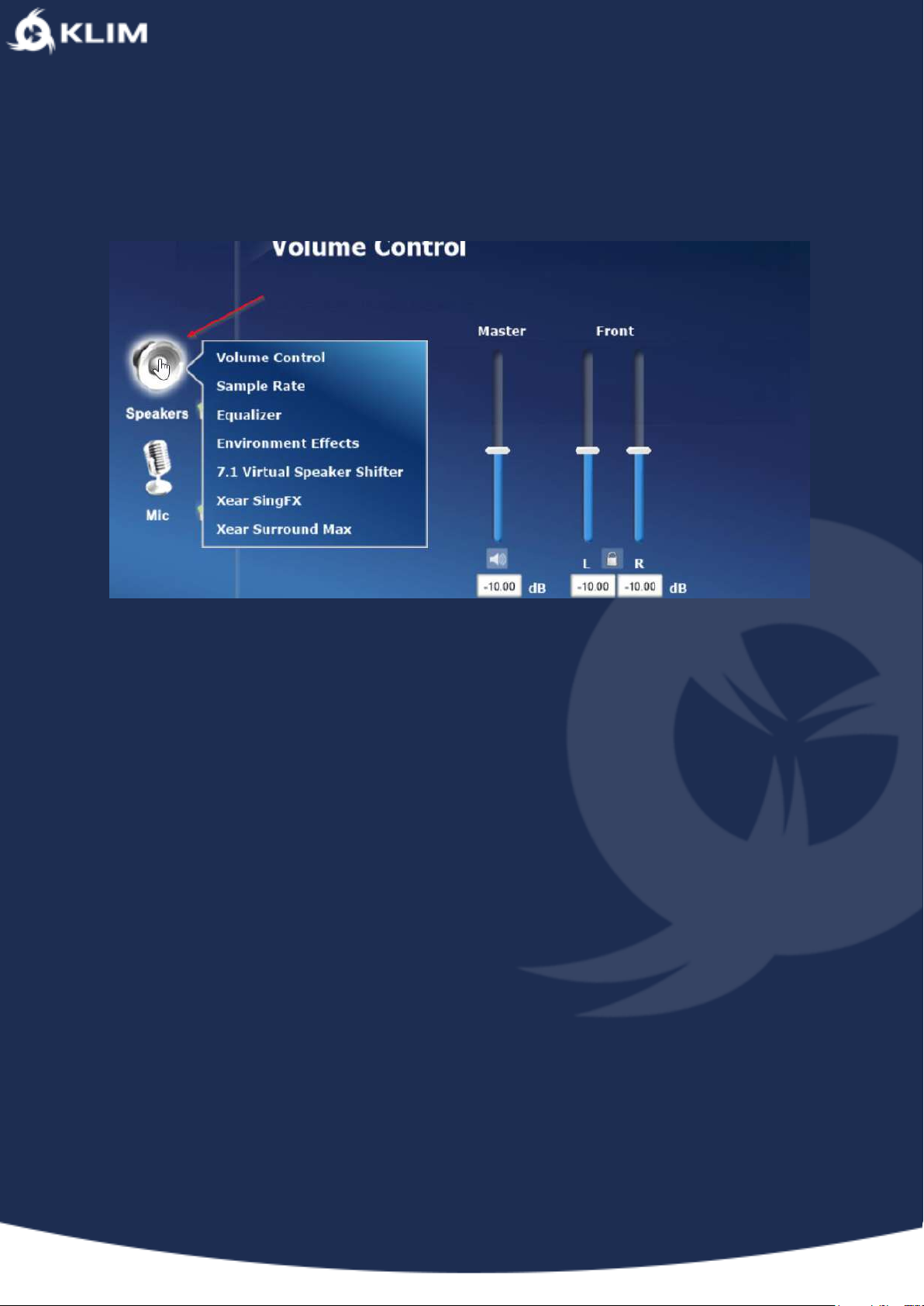
With a right click on Speaker this options menu will appear :
You can select Equalizer.
Tick the Enable Equalizer box and many options will be available to you.
Page 9
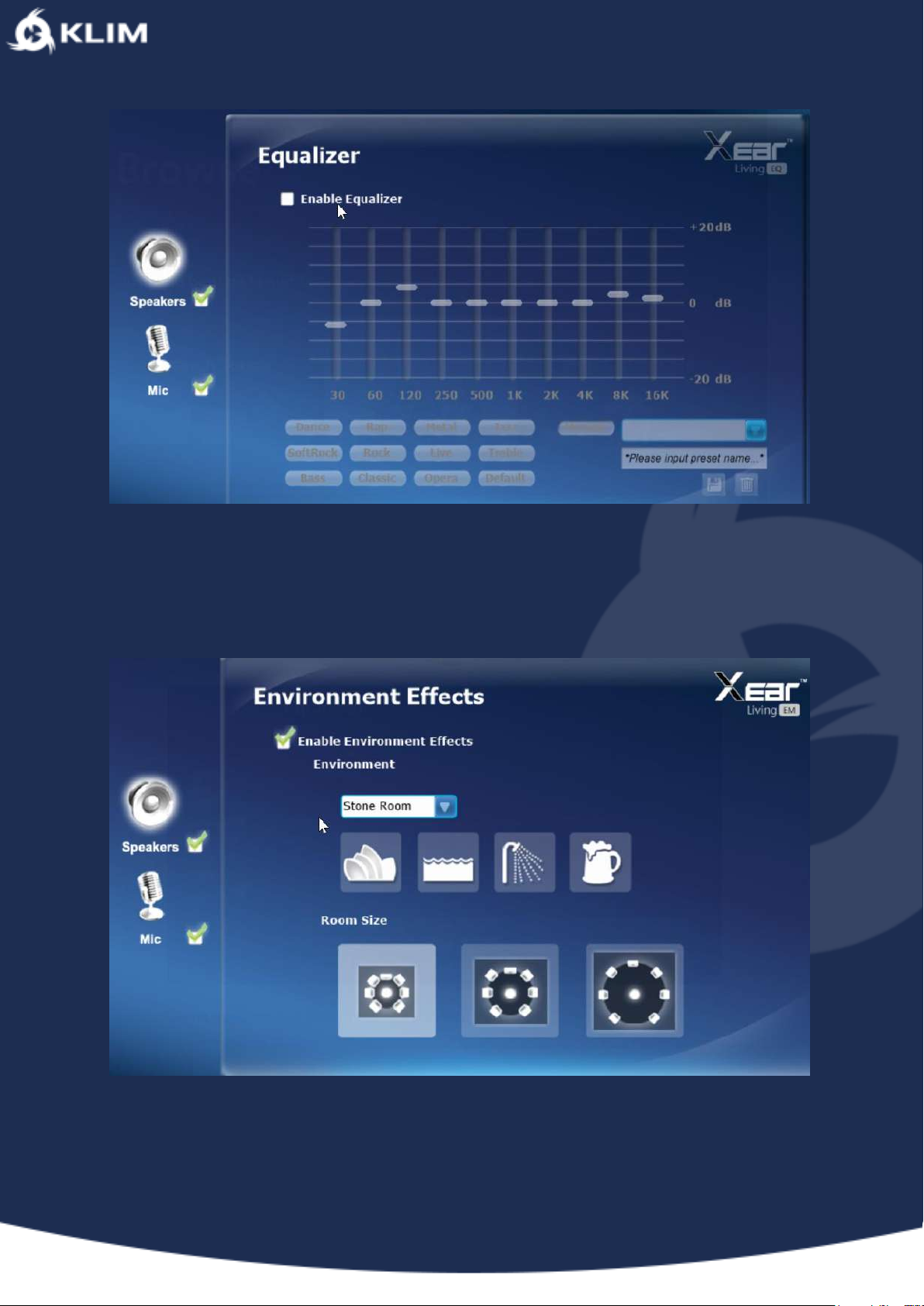
With Environment Effects you can vary the environment (to simulate a concert hall
for example).
As you know these headphones are 7.1 Surround. You can play around with it, for
example you can choose the 7.1 to be anti-clock wise.
Page 10
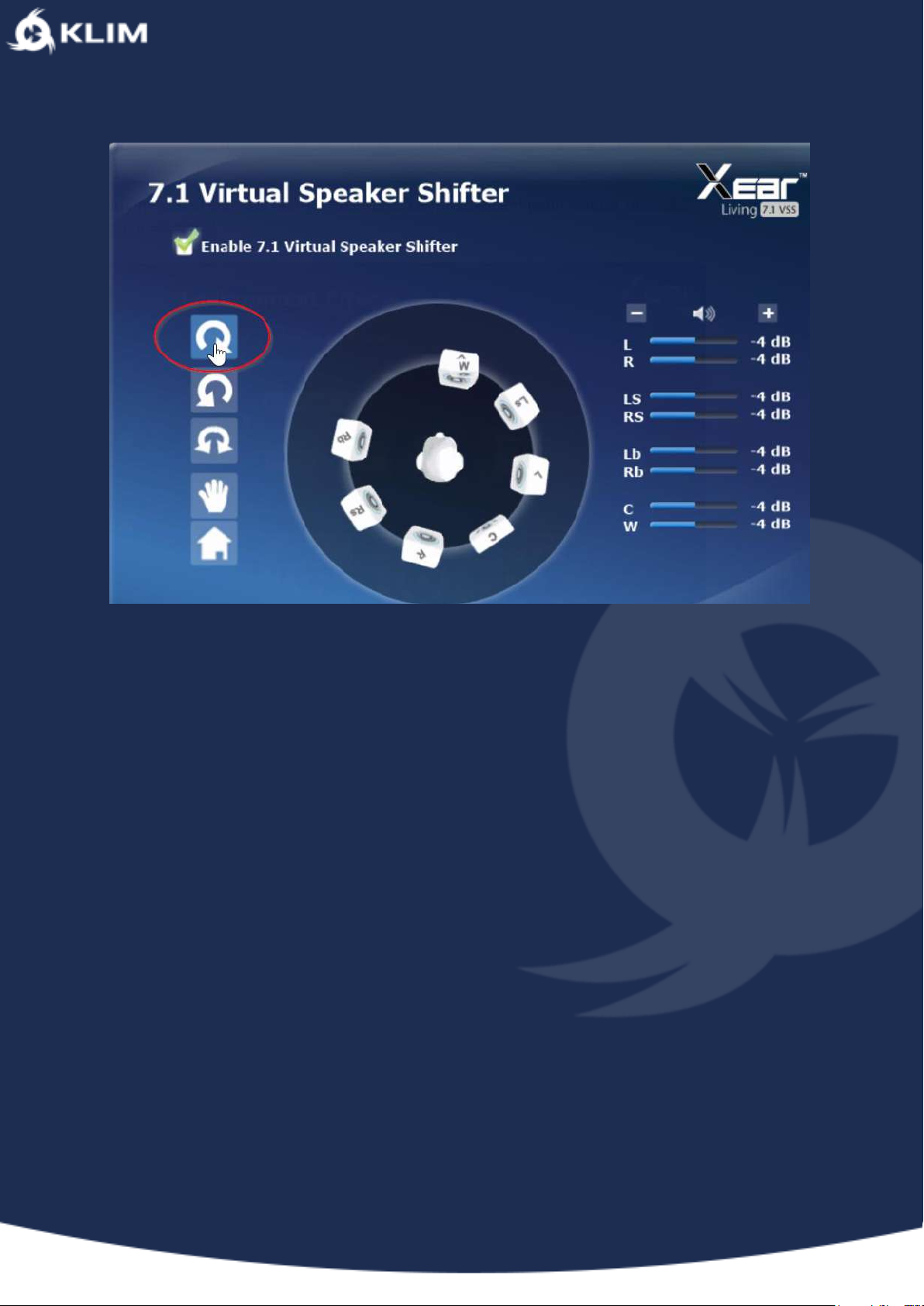
If you have this option activated you can then activate Xear Surround Max which is
particularly well suited for immersing yourself fully in a film.
Page 11
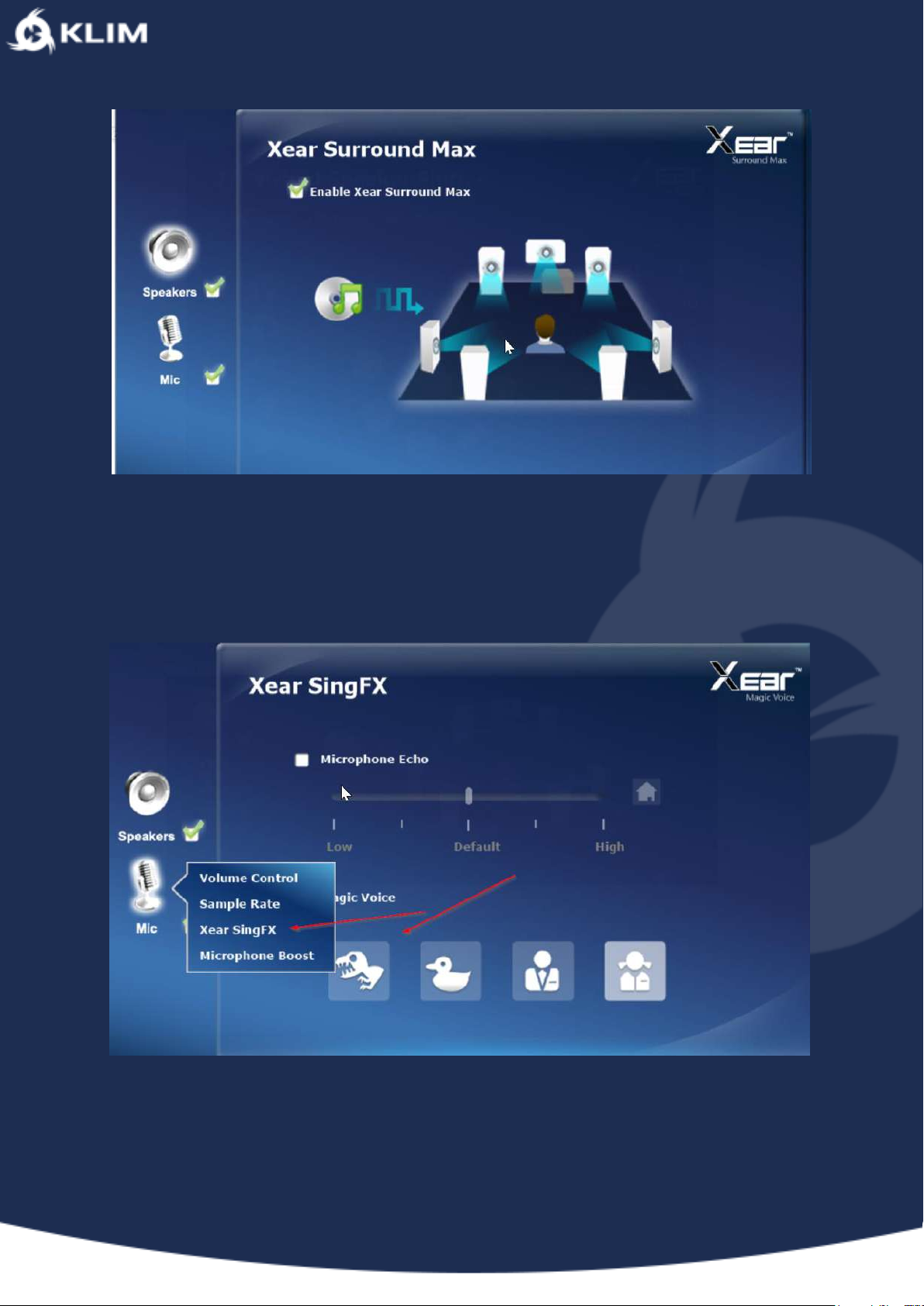
Now onto to core functionality !
These 4 modes allow you to modulate your voice. A must have.
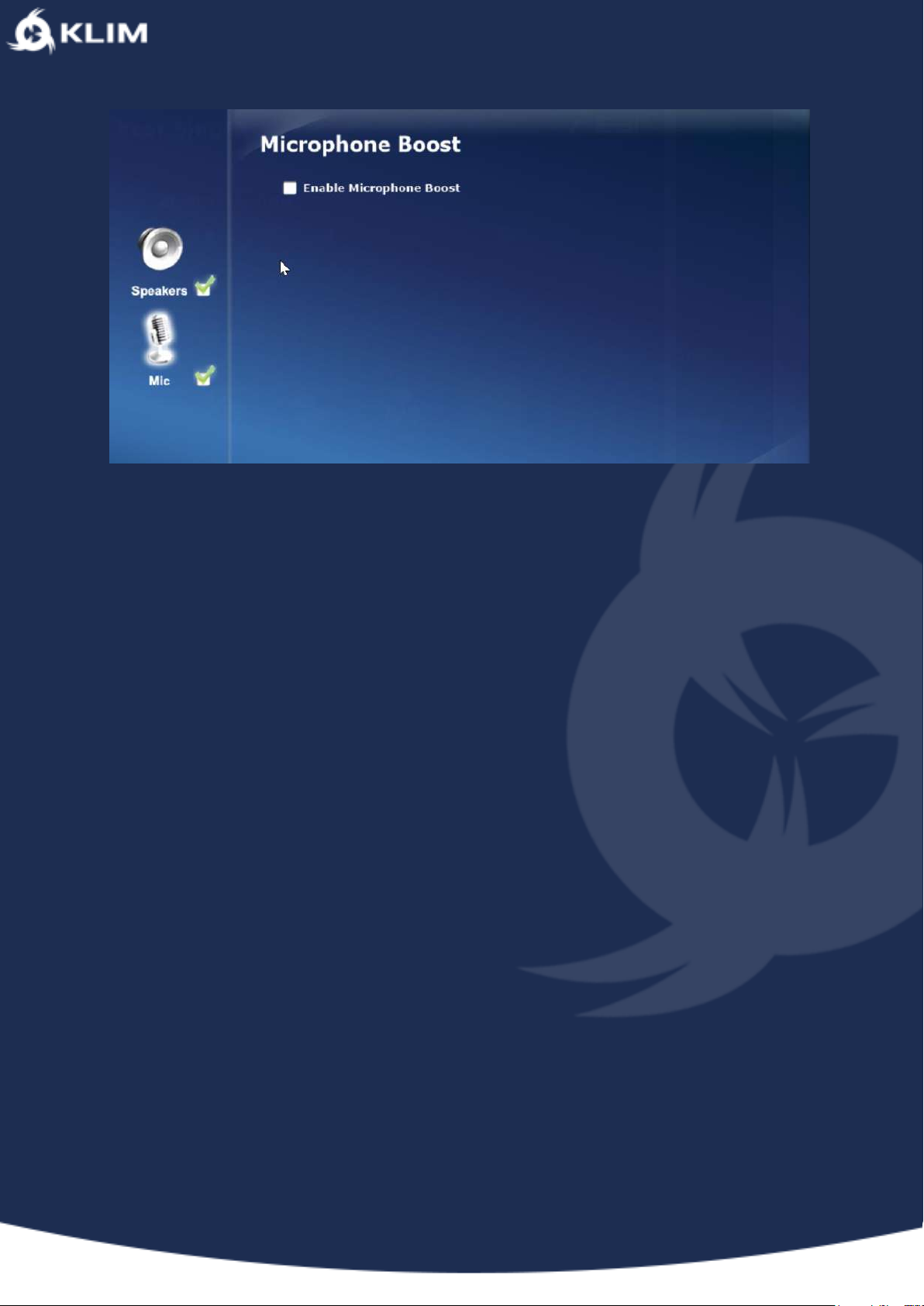
You can amplify your voice with the driver.
Page 12
--
We would like to thank you, in the name of the entire team here at KLIM, for having
purchased the KLIM Puma and we hope it will live up to your expectations !
Don’t hesitate to leave us a comment on the website you purchased it from, it really
helps us tremendously!
The Klim Team
 Loading...