

Page 1
INSTRUCTION MANUAL
P T 8 1 0 0
VHF/UHF MOBILE RADIO
Page 2
Memo:
INSTRUCTION MANUAL
P T 8 1 0 0
VHF/UHF MOBILE RADIO
MANDATORY SAFETY INSTRUCTIONS TO INSTAL-
-LERS AND USERS
● Use Only manufacturer or dealer supplied antennas.
● Antenna minimum safe distance: 108 cm.
● Antennas used for this transmitter must not exceed an
antenna gain of 3 dBi.
The FCC (Federal Communications Commission) has
adopted a safety standard for human exposure to RF
energy which is below the OSHA (Occupational Safety
and Health Act) limits.
● Antenna mounting: The antenna supplied by the manu-
-facturer or radio dealer must not be mounted at a location
such that during radio transmission, any person can come
23
Page 3

Closer than the above indicated minimum safe distance to the antenna (i.e. 108cm).
● To comply with current FCC RF Exposure limitations, the antenna must be installed at or
exceeding the minim--um safe distance indicated above, and in accordance with the requirements
to the antenna manufacturer or supplier.
● Vehicle installation: The antenna can be mounted at the center of a vehicle metal roof or
trunk lid if the minim-um safe distance is observed.
Antenna substitution: Don't substitute any antenna for the one supplied or recommended
by the manufacturer or radio dealer. You may be exposing person(s) to excess--ive radio frequency
radiation. You may contact your radio dealer or the manufacturer for further instructions.
Maintain a separation distance from the ante nna to person(s) at least 108cm.
● “This transmitter is authorized to operate with a maximum duty factor of 50%, in a typical
push-to-talk mode, for satisfying FCC RF exposure compliance requirements.”
● The device is authorised for occupational use only. Qualified users must be provided with
training information for meeting occupational exposure requirements.
● The device complies with SAR and/or RF field strength li mits of RSS-102 requirement and
contact information where the user can obtain Canadian information on RF exposure and
compliance.
Page 4
Caution:
Chang es or modificatio ns not ex pressly approved
by the party re spon sibl e for com plia nce c ould voi d
the use r's au thor ity to operate th e equi pmen t.
CONTENTS
1. Package-opened Inspection and Installing.........................1
2. Radio Overview..................................................................3
3. Basic Operation..................................................................6
4. Programmable Button Function..........................................7
5. Radio Call.........................................................................11
5.1. Transmit The Selective Call.......................................11
5.2. Receive The Selective Call........................................11
5.3. Call Tips....................................................................11
6. Zone.................................................................................12
7. Talkaround........................................................................12
8. Utilities..............................................................................13
9. Scan.................................................................................14
9.1 Start/End Scan Function..........................................14
9.2 Nuisance Delete.........................................................15
9.3 Edit Scan List..............................................................15
9.4 Add Or Delete The Channels In The Scan List..........15
9.5 Set The Priority Channels..........................................16
10. OST.................................................................................16
11. GPS Information View......................................................17
12. Trouble Shooting Guide...................................................18
13. Major Specifications........................................................20
Page 5
1. Package-opened Inspection and Installing
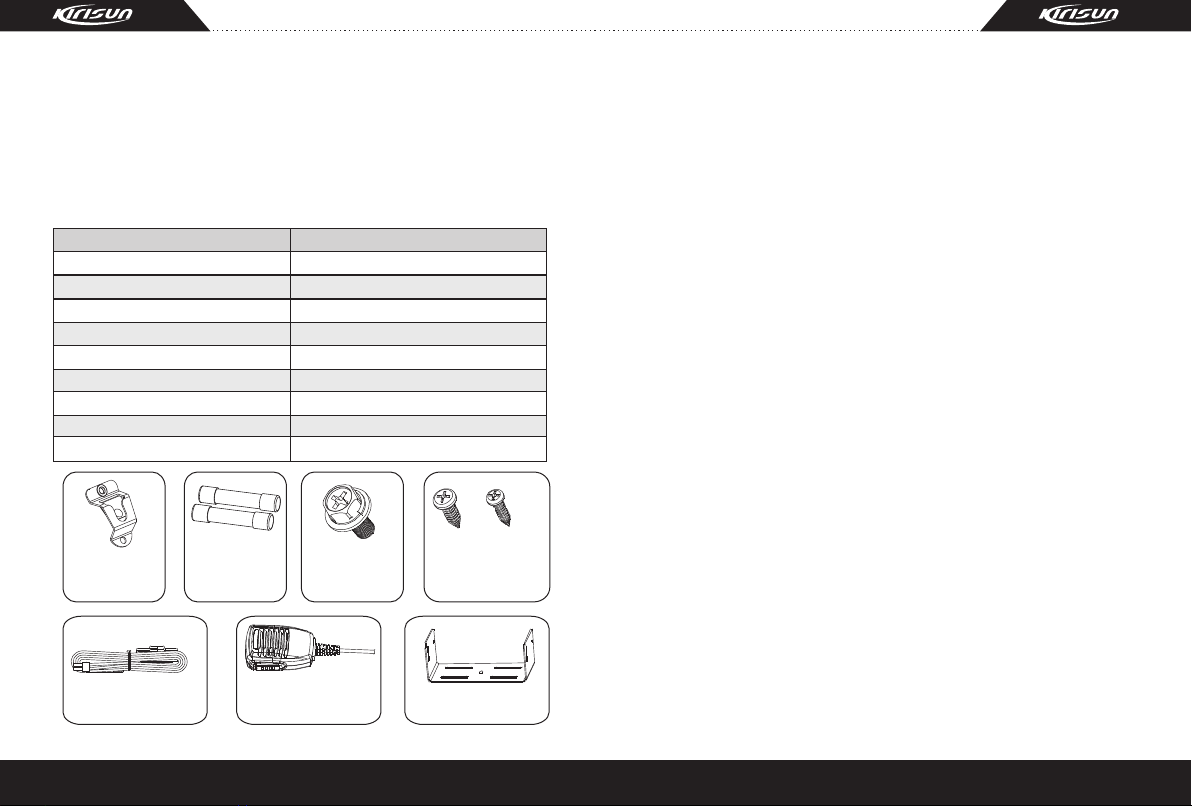
Please check the radio in the package and the supplied accessories in the following table before using. Any articles are
found lost or damaged, please contact the distributor without
delay.
1.1 Supplied Accessories
Accessories
Fixed bracket
Power Cable
Hand Microphone
Microphone Hanger
M4*10 Combination Screw
M4*16 Self-tapping Screw
M5*16 Self-tapping Screw
Instruction Manual
Fuse
Microphone
Hanger
Fuse
Power Cable
1
M4*10
Combination
Screw
Hand
Microphone
Quan tit y
1
1
1
1
4
2
4
1
2
M5*16 / M4*16
Self-tapping
Screw
Fixed bracket
Preparation
1.2
Connection of Power Cable
1.2.1
First of all, please check whether there is a hole for the
*
power cable on the insulating board. If no, please bore the
board with the suitable drill bit and fix a rubber grommet on it.
Afterwards, please have the cable pass through the
*
insulating board and lead from the car into the car engine.
Connect the red conductor to the positive terminal of the
accumulator and the black conductor to the negative terminal.
At last, ring the remained conductor and fix it.
*
Note: Please maintain the sufficient relaxation of the
power cable to make it convenient to dismantle the radio in
the state of power connection.
Radio Installing
1.2.2
Warning: For passengers' safety, please fix the radio firmly
on the fixed bracket so that the radio will not be loosened in
case of collision.
The fixed bracket is taken as an example. Draw the position
*
and drill a hole on the instrument panel first, and then install the
fixed bracket with 4 M5*16 self-tapping screws. (Note: please fix
the radio at the position convenient for operation and control,
and leave an enough space for fixation and connection of the
cable.)
Slide the radio into the fixed bracket and fix it with 4 M4*10
*
combination screws (plus plain washer and spring washer).
(Different combinations of fixing holes are selectable to adjust
the radio to the proper height and visual angle.)
2
Page 6

*
Connect the antenna and the power cable to the radio.
*
Install the microphone hanger at the position easy to use, with
2 M4*16 self-tapping screws. (The microphone and its cable sho-
-uld be fixed at the position not affecting safe driving.)
Connect the microphone to the microphone jack on the front
*
panel of the radio and put it on the hanger.
Note: When replacing the protective tube for the power cable,
please use the one of the same specification without fail. It is
not allowed to change it into the tube of higher capacity.
2.
Radio Overview
2.1
Description of External
4
View
(1) Power button
Press this button for a long time (more
than 1.5 seconds) to swith the radio on/off.
(2)LED indicator
The red indicator will light while transmitting;
the green indicator will light when it receives the
carrier.
The led flashes orange on received correct DTMF/
2Tone signalling.
The red indicator flashes in the scanning process.
5
(3)LCD display screen
For details, see “LCD Display”.
(4)Volume Control knob
To be used to adjust volume.
(5)Microphone/Programming Interface
P1
(6) button (programmable button)
P
2
(7) button (programmable button)
(8) button (programmable button)
P
3
(9) / button (programmable button)
(10)PTT button (on the hand microphone)
Press the PTT button first, and then speak to the microphone
2
3
to transmit the voice to the other. Release to receive.
2.2 LCD Display
8
7
6
1
9
⑩
P1 P2 P3
Disp lay D esc rip tio n
It means the receiving signal strength. 4 lines means
the strongest signal.
Transmission power level
“L” means the transmission of signal for the radio
at the lower power;
“M” means the transmission of signal for the radio
at the medium power;
3
4
Page 7

Disp lay D esc rip tio n
“H” means the transmission of signal for the
radio at the high power;
Received indicator.
Call
The radio receives a selective call/call alert.
Monitor State Indicator.
Scan I ndi cat or.
Talkaround
P2
OST Indicator.
2.3 Rea r Pane l
(1)Antenna Interface
(2)Power Interface
(3)External Speaker Interface
Indicator.
3.Basic Operation
① Startup:
Press the red POWER button for a long time (at least 1.5 seconds)
to switch the radio on/off
② Volume
Press the “MONITOR” or “Squelch” button to listen to the backg-
round noise first, and then adjust the volume by turning the volume con-
trol knob.
③ Channel
The radio can provide 256 conventional channels(
programmed, from 1 zone to 16 zone, 16 channels is in each zone at
most; Zone 0, which cannot be programmed, includes all the valid ch-
annels .
) Press the “CHANNEL UP” or “CHANNEL DOWN” button
to select the channel. Press the “ZONE UP” or“ZONE
DOWN” button to select the group you require.
④Transmission
To send a call, press the PTT button and speak to the microphone
in the normal voice. Please keep the microphone about 3 or 4 cm far
from your mouth. After speaking,
⑤ Receive
The radio will return to the receiving state after you loosen the PTT
button. The distributor may have set the CTCSS/DCS signaling in the
programmed radio of your radio. On the channels with CTCSS/DCS are
set, you can only hear the call from other radio with the same CTCSS/DCS.
please loosen the PTT button.
16 Zones can be
5
6
Page 8

4. Programmable Button Function
/ , , , , can be programmed as one of the auxiliary
functions.
Butt ons F unc tio n Des cri ption
0.None No function
1.Channel Up Select the next channel
2.Channel Down Select the previous channel
3.Zone Up Select the next zone
4.Zone Down Select the previous zone
5.Display Channel
Frequency
6.Display Channel
Name
7.Display Mode
Switch
8.OST
Press this button to make selection among the
9.Power level
high, medium and low transmission power, and
Selection
“H”, “M” and “L” will be shown on the LCD
to represent the current transmission power.
10.Squelch Level
Selection
P2P
P1
3
Press this button and the LCD will show the
frequency of the current channel.
Press this button and the LCD will show the
name of the current channel.
Press this button and the LCD will show “Channel
Number”, “Channel Name”, “Zone Number,
Zone Name” and “Channel Frequency”
alternately.
Change the setup of preset CTCSS/DCS for the
current channel.
Press this button to enter the “Squelch Level
Adjustment Mode” first, and then press the /
Butt ons F unc tio n Des cri ption
10.Squelch Level
Selection
11.Key lock
12.Scan
13.Nuisance
Delete
14. Public
Address
15.Home Channel
16.Talkaround
17. Monitor
momentary/
Call Cancel
button to adjust the level. Press the button
to save the selected squelch level and quit this
mode.
To toggle between locking/unlocking your radio’
keypad.
Start/end the scanning function of system.
When one channel continually generated unwanted
noise.this allow you temporary remove the channel
from the current active scan.
Start/end the public address function.
Press this button and the function will be actived.
Press the PTT button and speak to the microphone
so that you can hear your voice through the external
speaker . Press this button once again and return
to the normal user mode.
Changes to the home channels.
Switch the radio between talkaround and repeater
mode.
Press this button, CTCSS, DCS, 2Tone/DTMF
signaling will be closed as setting, release it to
return to the normal operation.
7
8
Page 9

Butt ons F unc tio n Des cri ption Butt ons F unc tio n Des cri ption
18.Monitor/Call
Cancel
19.Squelch off
momentary/
Call Cancel
20.Squelch off/
Call Cancel
21.Emergency
Alarm
22.Call Button 1
23.Call Button 2
24.Call Button 3
25.Call Button 4
26.Menu Select
/Enter
27.Lone worker
9
Press this button to trigger this function and the
CTCSS, DCS, and 2Tone/DTMF signaling will be
closed, so you can receive the signal that can't be
heard in the normal operation. Press this button
again to return to the normal operation. Press this
button in the selective call state to quit such a state.
Hold this button to open the squelch. Loosen this
button to return to the normal operation. Press this
button in the selective call state to quit such a state.
Press this button to open squelch, press it again to
return to normal operation.Press the button in the
selective call state to quit such a state
Press the top button which programmed as
Emergency Alarm, the emergency tone could be
sent as the set in program software, and also the
identity and background sound could be sent to your
partners and system.
Sends the DTMF/2Tone code assigned to call 1 key.
Sends the DTMF/2Tone code assigned to call 2 key.
Sends the DTMF/2Tone code assigned to call 3 key.
Sends the DTMF/2Tone code assigned to call 4 key.
To enter the menu mode or make menu selections.
Enables Lone worker function
28.Scan List Edit
29.Backlight
Select
Monitor/ Hook Detection: select the Hook or Desk Mic Monitor
function.
5. Radio Call
5.1 Send Selective Call
A. Press “Menu Select/Enter” button to enter the menu mode.
B. Press / button until RADIOCAL .
C. Press button to select “SEL CALL”.
D. Press / button until the required call list appears.
E. Press “PTT” button to send the selective call.
F. Press “PTT” button and speak to the microphone in normal
voice. Please keep the microphone about 3 to 4 cm far from your
mouth. After speaking, please loosen the “PTT”.
G. Press button to return to the previous operation.
5.2 Receive Selective Call
Receiving a selective call, you will hear the alert tone and the LED
Press this button, the radio will enter the fast menu
mode for scan list edit. For details, see “Menu
Operation”.
Press the button, the backlight could be chosen
among light for long time, dark for long time, and light
automatically.
P
3
P
1
“ ”
10
Page 10

Indicator will blink orange. Icon flashes and the caller’s ID or
name displays.
Press PPT button for callback.
5.3 Call Alert
After the radio receives the call alert, the alert tone will sound and
the orange indicator flicker. icon flashes and the caller’s ID
code or name shows until someone answers.
Press the “PTT” button for callback or other buttons for
cancellation.
A. Press “Menu Selection/Enter” button to enter the menu mode
B. Press / button until “RADIOCAL”..
C. Press button to select “CALL ALT”.
D. Press / button until the required call list is showed.
E. Press “PTT” button to send the call.
F. After calling, press button to return the previous operation.
P
3
P1
6. Zone
According to the setup of the communication network, the radio can
be distributed to different zones. Select the proper zone to realize
communicating with the radio from a different zone.
①. Select the zone through menu.
A. Press the “Menu Selection/Enter” button to enter the menu mode.
B. Press / button until “ZONE”.
C. Press button for selection.
P
3
D. Press / button until the zone name you require is appeared.
E. Press button for selection.
②. Select the zone through “ZONE UP” or “ZONE DOWN”button.
P
3
7. Talkaround
In the communication network, you can expand communication
range through the repeater, but when the mobile radio is out of the
communication range, you can connect with other radio in the talk-
around method. The talkaround function can be showed by
①.Select the talk around by menu.
A. Press the “Menu Selection/Enter” button to enter the menu
mode.
B. Press / button until “RPTRTALK”.
C. Press button for selection.
D. Press / button until “REPEATE ” or “TALKRND”.
E. Press button for confirmation.
②. Switch the talkaround or repeater mode through “talkaround”
button.
P
P
3
3
8. Utilities
The item can help you customize some setups of the radio.
The operating steps go as follows:
A. Press the “Menu Selection/Enter” button to enter the menu
mode.
11
12
Page 11

B. Press / button until “UTILITY”.
C. Press button for selection.
D. Press / button until the items you require are showed.
E. Press button for select. The radio will show the current setup.
F. Press / button to show all items that can be set with this item.
G. Press button to select this setup.
H. Press button to return to the previous operation.
Change the setup items in the following table as per the previous steps.
Items Selectable Setups Functions
Squelch Level
“SQL LEV ”
Transmission
Power
“PWR LEV”
Backlight
“BACK LED”.
MCU software
version
display
“SOFT VER”
P
3
P
3
P
3
P1
SQL 0 ~ 9
“PWR LOW ”
“PWR MID ”
“PWR HI ”
“BLED OFF”
“BLED ON ”
“BL AUTO ”
…
Eg.“R01.00”
Change the squelch level of the
radio.
Select transmission power among
high, medium and low levels.
Select among such modes of
backlight as “turnoff”, “normal
turn-on” or “auto”
Show the software version.
9. Scan
In order to receive the calls from many channels, the radio can be
programmed to scan these channels. At most there are 16 channels
in each scan list. Each channel can use a scan list together with
others or alone. (Zone 0 is the special list, which can have 256
channels.)
9.1 Start/End Scan Function
You can press “SCAN” button directly or enable the scan through
the menu. When the scan function is started, icon and your
revert channel will display .
①. Enter the scan state through menu mode.
A. Press the “Menu Selection/Enter” button to enter the menu
mode.
B. Press / button until “SYS SCAN”.
C. Press button for selection.
D. Press / button until “SCAN ON?” or “SCAN OF?”
E. Press button for select.
②. Use the scan button.
A. Press “SCAN” button to activate the scan function.
B. Press “SCAN” button again to disable the scan function.
9.2 Nuisance Delete
If a channel continuously generates noise or interference, press
the button to remove this channel from the scan list temporarily.
Note: the priority channel can't be removed and the last one in the
scan list, either.
P
P
3
3
13
14
Page 12

9.3 Edit Scan List
9.4 Add or Delete the Channels in the Scan List
A. Press the “Menu Selection/Enter” button to enter the menu
mode.
B. Press / button until “PROG LST”.
C. Press button to select “SCAN LIST”.
D. Press / button until “ADD LST?” or “DEL LST?”.
E. Press button for selection.
F. Press / button until the channel you want to add or delete.
G. Press button to complete operation you will see“CHN
SAVE” (If you added a channel)or“CHN DEL”.
H. Press button to return to the previous operation.
9.5 Set Priority Channel
①. Pre ss the “Menu Selection/Enter” button to enter the menu
mode.
② . Press / button until “PROG LST”.
③. Press button to select “SCAN LIST”.
④. Press / button until “ED PRIO?”.
⑤. Press button for selection.
⑥. Press / button until “PRIO#1?” or “PRIO#2?”.
⑦. Press button to select the type of the required priority channel.
For example, in Step 7, the type of priority channel is “DES?”.
Press / button to select the required priority channel.
⑧. Press button to complete operation.
P
P
P
P
3
3
3
3
P
P
P
P1
3
3
3
⑨. Press button to return to the previous operation.
P1
10. OST
In a certain specific channel, you can revise the CTCSS/DCS
encode/decode setup of current channel.
The operating steps go as follows:
A.Press the “OST” button to enter the OST menu mode.
B. Press / button until the CTCSS/DCS encode/decode you
want.
C. Press button to select .
Note:
When the OST backup function is enabled, the radio retains
the OST code of each channel even if the channel is changed
or the radio is shut down.
In the OST state, P2“·”icon will display.
Press “OST” button again to return to normal operation.
P
3
11. Wired Clone Mode
If the wired clone function is enabled, the radio will not quit after
entering the wired clone mode. To return to normal user mode, the user
needs to restart the machine.
The operating steps go as follows:
①. Press and buttons for power-on until show “CLONE”
(for two seconds) and enter the clone mode. If the function is disabled,
P1
P
2
15
16
Page 13

It will enter the user mode.
②. Connect the slave radio with the wired clone cable first, and then
turn on.
③. Press the master radio's for starting clone. During transmi-
tting the data, the master radio lights red, and the slave radio lights
green.
④. Press the button and the master will return to the clone mode.
Continuous clone will start from Step 3.
Note: The master displays “success” and the slave automatically
restart upon successfully receipt of all data.
P
3
P
3
12. Trouble Shooting Guide
Number Problem Solution
1 Power on
Failure
A. The power cable is not connected with the
accumulator or the host reliably. Please connect
the power cable reliably.
B. The protective tube of power cable is burnt
out. Please replace it.
C. The power button is of poor contact. Please
change the silica gel button or PCB button.
D. The accumulator is out of power, please
replace it.
E. The CPU is broken, please replace it.
Number Problem Solution
2 Phase lock
loop
unlocked
(Beeping)
3
4
No talkback
No receiving
signal
A. The crystal X1 of phase lock loop is broken,
please replace it.
B. The oscillator tube is broken, please
replace it.
C. The IC 3 of phase lock loop is broken, please
replace it.
A. The frequency is not right. Please reselect
the channel of the same frequency.
B. The CTCSS/DCS code is not the same.
Please reset it.
C. Please check the TX/RX signaling system
of both.
D. It is out of the effective communication range.
A. The antenna is not in good contact.
Please fasten the antenna head.
B. The high-frequency amplifying tube
Q18 is broken, please replace it.
C. The squelch level is set to high, please
reset the squelch level.
D. The mixed tube Q19 is broken, please
replace it.
E. The FM IC 6 is broken, please replace it.
17
18
Page 14

o.
N Problem Solution
The red transmission
5
Indicator lights but no
sound is heard.
The green receiving
6
dictator lights but no
sound is heard.
A.Power amplifier IC1 is broken, and no
power is output, please replace it.
B. The microphone is broken, please
replace it.
A. The speaker is broken. Please replace it.
B. The audio power amplifier TDA1519C
is broken. Please replace IC.
13. Major Specifications
Frequency Range: 136MHz--174MHz 400MHz--450MHz
438MHz--490MHz 470MHz--512MHz
Channel Number: 256
Channel Spacing: 25 kHz (wide band)/
12.5 kHz (narrow band)
Operating Voltage: 13.6V Dc±10%
Operating Temperature: -25℃-+55℃
External Dimension: machine only: 150mm*43mm*131mm
plus fixed bracket: 165mm*75mm*131mm
Weight: machine only: 1070g; plus fixed bracket: 1350g
Memo:
19 20
Page 15

We, Kirisun Electronics (Shenzhen) Co., Ltd.
2/F, Bldg.H-3, East Industrial Zone Of Overseas
Chinese Town, Shenzhen 518053, China
Declare on our sole responsibility that this equipment complies with the essential requirements
of the Radio and Telecommunication Terminal Equipment Directive, 1999/5/EC, and th at any
applicable Essential Test Suits measurement has been performed.
Description of equipment: FM Mobile Transceiver
Model No.: PT8100-01
This compliances is based on conformity with the following harmonised standards or
documents:
(1). ETSI EN301 489-1 V1.8.1 (2008-12)
(2). ETSI EN301 489-5 V1.3.1(2008-04)
(3). ETSI EN300 086-1 V1.3.1(2008-09)
(4). ETSI EN300 086-2 V1.2.1(2008-09)
(5). EN 60950:2006+A11:20009
Shenzhen, 10 Dec 2008 WenLiang, Fu
General Manager
Place and date of issue
Signature
 Loading...