

Page 1

Tablet PC
Model Name: PC1021
Brand Name:Kinwei
FCC ID: BRCPC1021
Page 2

1
Content
1 Preface ............................................................................................................................................................................... 3
2. Safety Notices ................................................................................................................................................................... 3
3. Ready to Use ..................................................................................................................................................................... 4
3.1 Packing list .............................................................................................................................................................. 4
3.2 Product Appearance ................................................................................................................................................ 5
3.3 Instructions on Keys ............................................................................................................................................... 5
3.4 Features Overview .................................................................................................................................................. 6
3.5 Technical Specifications ......................................................................................................................................... 6
3.6 Function Icons......................................................................................................................................................... 8
3.7 Switch on/off ........................................................................................................................................................... 8
3.8 Power Saving Mode and Locked Mode: ................................ ................................ ................................................. 9
3.9 Operation of touch panel .................................................................................................................................... 9
3.10 Main Interface .................................................................................................................................................. 10
3.11 Apps ................................................................................................................................................................... 12
3.12 USB Connect ................................................................................................................................................... 13
3.13 Input Text .......................................................................................................................................................... 14
3.14 Use Skills .......................................................................................................................................................... 15
4 General Setup ............................................................................................................................................................... 15
4.1 SIM Card management, WIFI & Network ............................................................................................................ 15
4.2 Bluetooth(Optional) ................................ ................................................................ ...................................... 17
4.3 Data Usage ......................................................................................................................................................... 20
4.4 More... ................................................................................................................................................................. 21
4.5 Audio Profiles ..................................................................................................................................................... 26
4.6 Display ................................................................................................................................................................. 29
4.7 Storage ................................................................................................................................................................ 31
4.8 Battery ................................................................................................................................................................. 34
4.9 Apps ..................................................................................................................................................................... 34
4.10 Account ............................................................................................................................................................. 35
4.11 Location access ............................................................................................................................................... 37
4.12 Security ................................................................................................................................ ............................. 37
4.13 Language & input ............................................................................................................................................ 38
4.14 Backup and reset ............................................................................................................................................ 40
4.15 Date and Time .................................................................................................................................................. 41
4.16 Scheduled power on off .................................................................................................................................. 42
4.17 Accessibility ...................................................................................................................................................... 42
4.18 Developer options ........................................................................................................................................... 43
4.19 About MID ......................................................................................................................................................... 44
5. Multimedia ...................................................................................................................................................................... 44
5.1 Music Player ......................................................................................................................................................... 44
5.2 Video ..................................................................................................................................................................... 45
5.3 Gallery .................................................................................................................................................................. 45
5.4 Camera .................................................................................................................................................................. 46
5.5 FM Radio (Optional functions) ......................................................................................................................... 47
6 Communication function .............................................................................................................................................. 49
6.1 Phone .................................................................................................................................................................... 49
6.2 SMS ..................................................................................................................................................................... 49
6.3 Contacts .............................................................................................................................................................. 50
7. Movil Teacher (Optional) ............................................................................................................................................. 50
7.1 Device setting ..................................................................................................................................................... 50
7.2 User’s interface .................................................................................................................................................. 54
7.3Navegacion .......................................................................................................................................................... 54
8 Internet ........................................................................................................................................................................... 59
8.1 Browser ............................................................................................................................................................... 59
8.2 E-mail .................................................................................................................................................................. 59
9 GPS function (optional feature) .................................................................................................................................. 61
9.1 GPS positioning ................................................................................................................................................. 61
10 Other Applications ...................................................................................................................................................... 62
10.1 Clock ................................................................................................................................................................. 62
10.2 Calculator ......................................................................................................................................................... 62
10.3 Explorer ............................................................................................................................................................. 63
10.4 Recorder ........................................................................................................................................................... 65
Page 3

2
11 Application Installation ................................................................................................................................................ 66
11.1 Installation ........................................................................................................................................................... 66
11.2 Uninstall .............................................................................................................................................................. 66
12 Firmware upgrade .......................................................................................................................................................... 66
13 Troubleshooting and FAQ .......................................................................................................................................... 79
Page 4

3
1 Preface
Dear Customers,
Thanks very much for purchasing our product!
This Tablet PC is a built-in high performance Wi-Fi receiver module, supporting an external 3G
USB-DONGLE wireless network card, using broadband wireless networks, breaking through the
restraint of network cables; it will bring you into the portable media player world and fulfill your
entertainment needs. It also supports picture browsing, e-book reading, games, online chat and
other functions; various settings will fully show your individuality.
To operate this player easily, first, please read this User Manual included with the player. Then you
will have a better understanding of the operations. Before operating this player, please carefully
read all data we provide about the player, so that you will have a better understanding of the
product and its operations.
The Company will not be responsible for any loss of personal data and damage caused by
incorrect operation of the Software/Hardware, artificial damages, replacement of batteries or any
other accident. To avoid loss of your data, please backup your data to your computer at all times.
Also, since we can not control any dispute from users’ misunderstanding or incorrect operation
against the manual, the Company will not take any relevant responsibility for any accidental loss
potentially occurring in the process of using this manual.
Due to constant product development, the information in this manual is subject to change without
any prior notice.
This manual is protected by copyright and no part is permitted to be copied or reproduced in any
way without prior written permission of the Company.
The Company reserves the final explanation right of this manual, warranty as well as its related
information.
(Note: When compiling this manual, we are very careful to provide you completely reliable
information. However, there is inevitably some error and oversight, please understand, and we
welcome your suggestions. If any problem occurs during your use of this product, please
immediately contact your local seller)
Thanks for your support and please pay attention to our other products。
2. Safety Notices
1) Please keep the Tablet PC away from strong magnetic fields in order to avoid damage to the
product.
2) Please do not let the Tablet PC fall onto, rub against or knock against hard objects during use,
because this may cause surface scratches on the Tablet PC, battery damage, data loss or other
damage to the hardware.
3) Never let this product be exposed to a humid environment or rain as the water leaking into the
Tablet PC could disable it to the extent of being beyond repair.
4) Never clean the Tablet PC with any chemicals or detergent, these will damage the product
surface and corrode the finish.
5) You are recommended not to use the headset with the volume at its highest settings, please
adjust the volume to an appropriate safe level and limit the amount of time you spend using
headphones to avoid possible damage to your hearing. Excessive volume will cause permanent
hearing damage.
6) Please do not cut off the power abruptly during software updates or downloading, because this
may cause data loss or system errors.
7) Over-voltage, power cable strain and bending or squeezing of the power cable by heavy objects
must be avoided to prevent the possibility of overheating or fire.
8) In order to eliminate the risk of electric shock, do not touch the cable power plug with wet hands.
9) Some movies, music and pictures are under the protection of copyright, unauthorized usage is
deemed as an infringement to the laws of copyright.
10) Please don’t turn on the Tablet PC on in locations where wireless equipment is forbidden or
when the usage of the Tablet PC will cause interference and possible danger.
Page 5
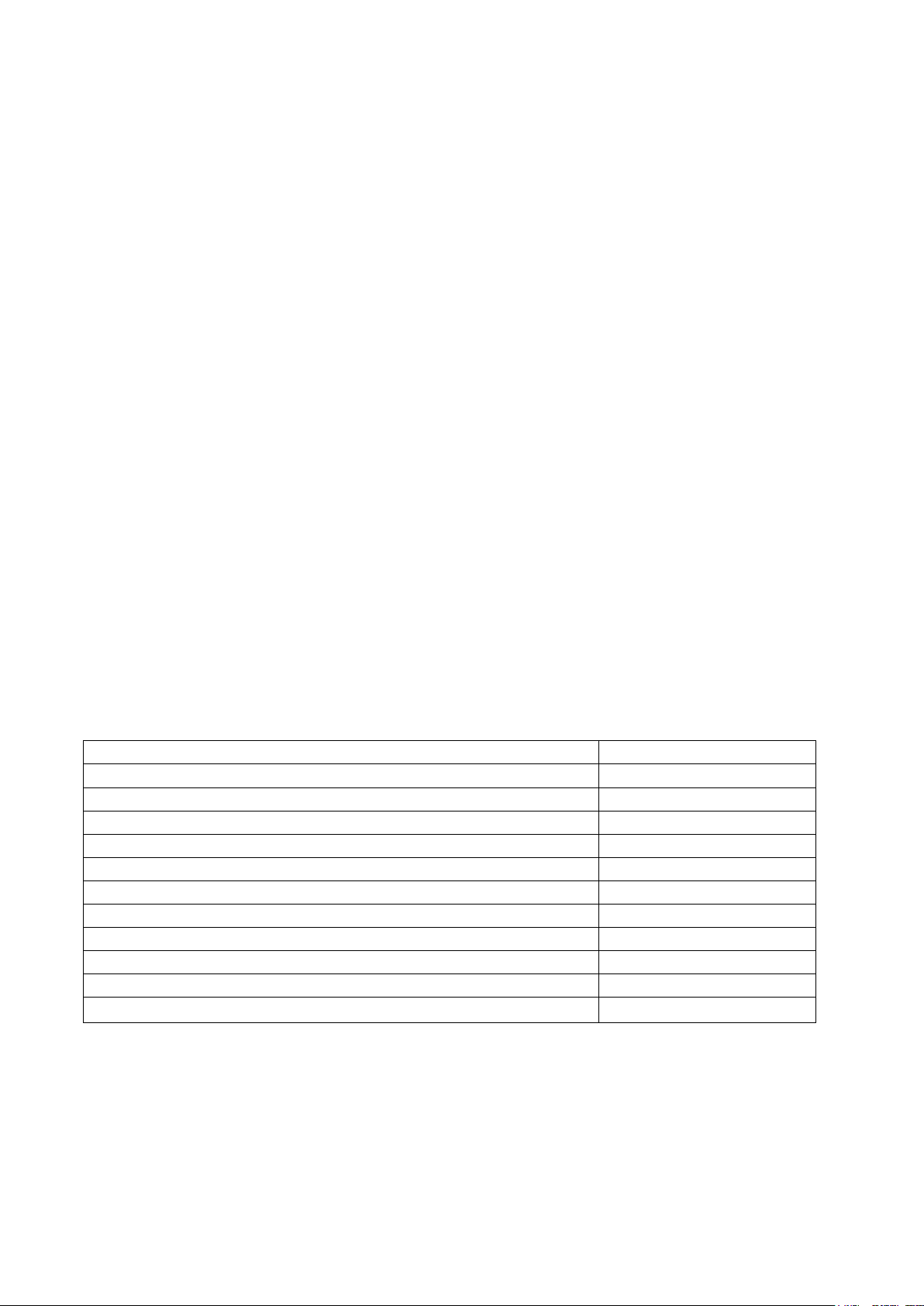
4
Components
Quantity
MID Device
1
Power Adaptor
1
CD-ROM
1
USB Cable
1
HOST cable(optional )
1
Earphone
1
User Manual (Optional)
1
Warranty Card (Optional)
1
Leather Case (Optional)
1
Keyboard/Mouse (Optional)
1
TF (Micro SD) Card (Optional)
1
11) All the wireless equipment is subject to external interference and this can affect its
performance.
12) Please comply with any related restrictions and rules, wireless equipment can influence the
flight of the plane; please consult the relevant airline company if you intend to use the Tablet PC on
a plane.
13) Please don’t use the Tablet PC in a petrol station, or near to fuel or chemicals.
14) Please comply with any related restrictions and rules; do not use the Tablet PC where blasting
operations are in progress.
15) Only qualified maintenance personnel can install or repair the Tablet PC. Opening the Tablet
PC in any way will invalidate the warranty.
16) Please use the original accessories and battery provided with the Tablet PC, do not use the
incompatible products.
17) The Tablet PC is not waterproof, please keep it dry.
18) For the sake of data safety, please back up any important information on the Tablet PC, or
keep a handwritten record.
19) When the Tablet PC is connecting with other devices, please read the user manual for detailed
safety instructions. Don’t connect the Tablet PC to incompatible products.
20) Please upgrade device with enclosed optical disk when the device is set to operate in a
different way.
Note: Android4.4 system using the MTP protocol transfer files, rather than the original MSC
agreement (ordinary U disk), currently supports the MTP protocol only (10) in Windows Media
Player and Media Player, Windows Media Player 11) and older version. If there are no updates to
the above two versions of the Player, the computer will not recognize MID or existing file cannot be
copied down, etc., please correct in the computer, which is connected with the MID above installed
version of the Player, can be installed to the computer, do not need to run for connection to the
Mids.
3. Ready to Use
3.1 Packing list
Page 6
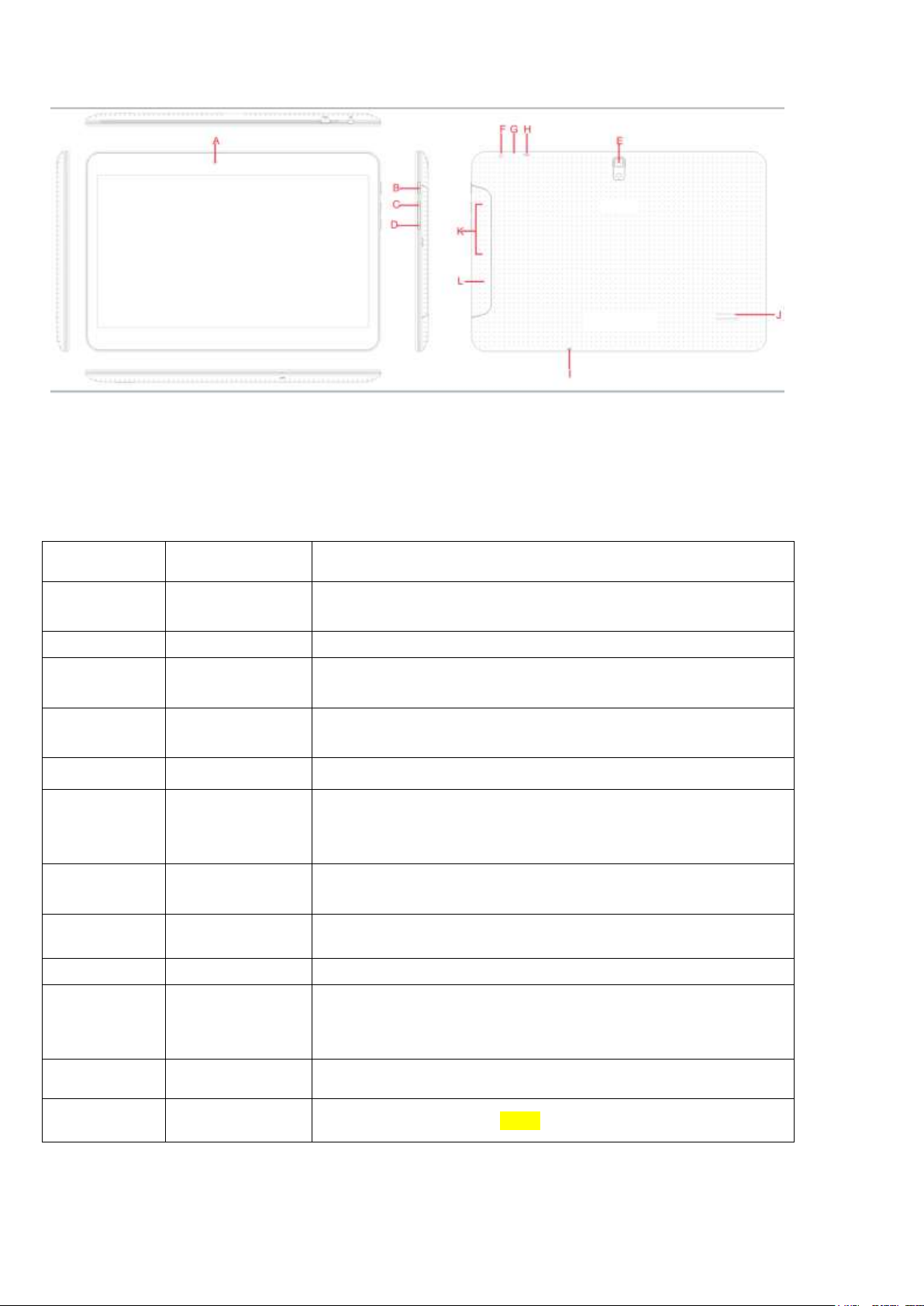
5
Symbol
Name
Description
A
Stereo
Earphone Jack
Stereo Earphone Jack
B
MIC USB port
MIC_5PIN USB Port
C
the cover
buckle
The TF (Micro SD) Card slot and SIM Card slot under
the cover
D
Speaker
For music or movie
E
Reset
Reset
F
POWER
Short press this button to enter sleeping/wake up mode,
press long to switch ON/OFF
G
Volume
Volume + , Volume -
H
Rear Camera
Static and dynamic camera
I
Front Camera
Static and dynamic camera
J
Telephone
receiver
Telephone receiver
K
SIM card slot
SIM1、SIM2 card slot
L
TF card slot
TF(Micro SD) card slot
3.2 Product Appearance
3.3 Instructions on Keys
Note:
1. At the same time, press the "POWER" + "V -" button can realize screen function.
Page 7
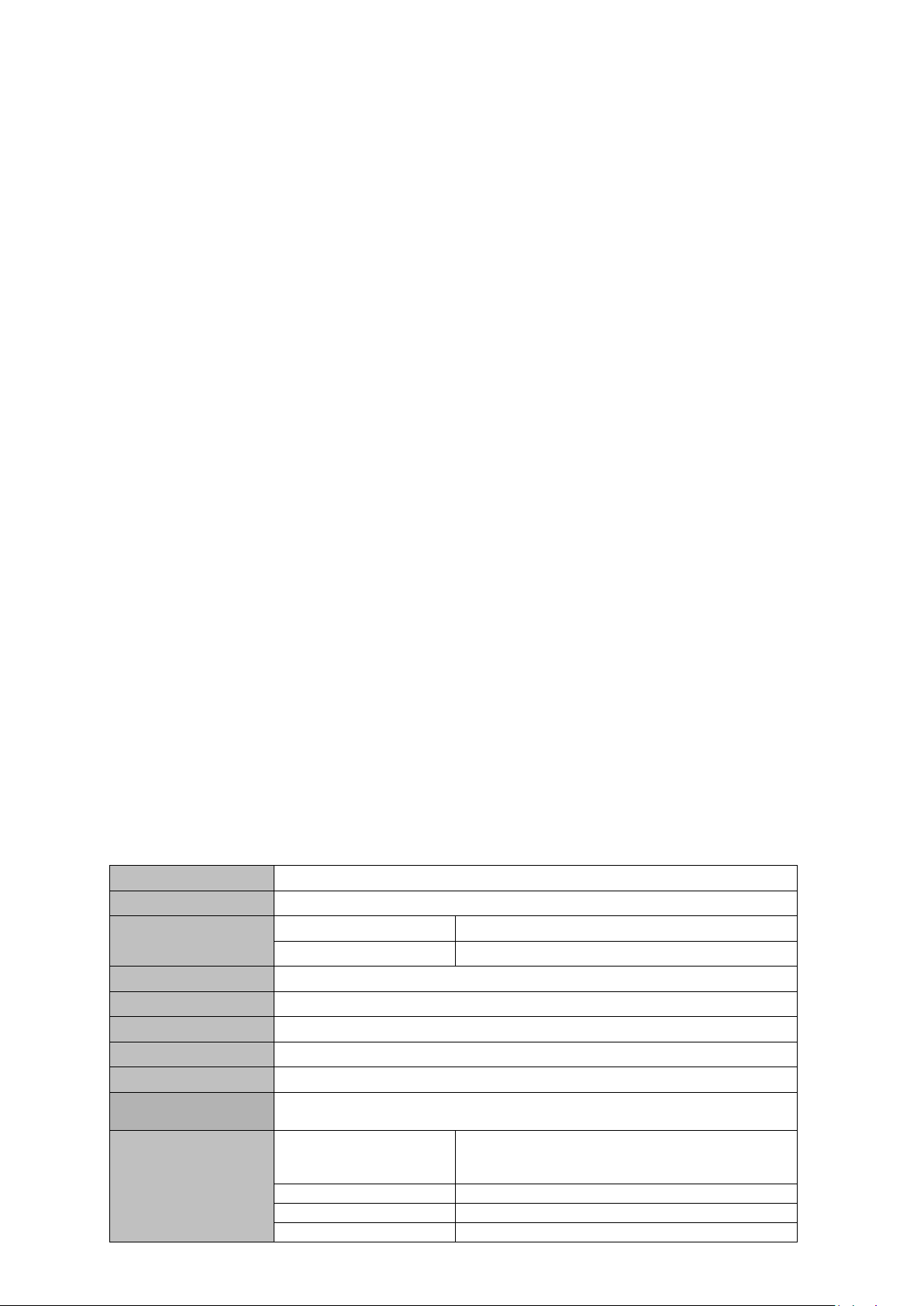
6
Unit Size
243.5*177*10.8mm
Weight
514g
Panel
Size
10.1 –inch LCD screen
Resolution
1280*800
Computer port
USB port ,USB OTG 2.0/USB Host2.0 (MIC 5PIN to 4PIN HOST)
CPU
MTK8320V Quad-core 1.3GHZ
Storage
Flash Memory : 4GB/8GB/16GB
Ram
DDR3 1 GB
Extend storage
Support TF card, 1GB -32GB
Power supply
Built-in rechargeable Lithium polymer battery(3.7V/5000mAH), External power
adaptor(output:DC5V@1.5A)
Music
Format
MP3,WMA
Earphone
(L)5mW+(R)5mW(32Ohm)
MP3
8Kbps ~ 392 Kbps
WMA、WMV
5Kbps ~ 192 Kbps
3.4 Features Overview
GPU: MTK8382V, Quad-core ARM® Cortex-A7 MPCore™at 1.3GHz processor Mali400-MP2 44.3M tri/sec
and 832M pixel/sec @ 416MHz;support ANDROIED4.4 OS .
Support DDR3 512M/1GB(optional)
Support 4GB/8GB/16G(optional)built-in ROM Flash memory,External T-flash card 1G~32GB Memory
Support 10.1’’ HD LCD screen 1280*800,multipoint capacitive touch
Support video: mp4,3gp,AVI,MOV etc formats
Support JPG, PNG, BMP, GIF, etc picture formats, Support picture with 8000*8000 resolution
Support MP3, WAV etc video formats
Support E-book format TXT、LRC、PDF、EPUB etc,automatic browsing, zoom, bookmarks, ext, etc function.
Support built-In WIFI access to broadband wireless Internet access, colorful software can operational in the
ANDROIED 4.4 system, Some of the commonly used software system preset: Internet Google browser (IE),
video, books, etc
Support Microphone and speaker function ,support record and video function
Support built-in 3G(WCDMA 3G ), Wireless communication by USIM card, phone receive/calling, message
receive/Sending, email and contacts same as mobile phone
Support USB HOST(Through Mini USB connection )
Support 0.3M Front Camera and 2.0 Back Camera(optional)
Support G-sensor and screen direction spin function (optional)
Support built-in Bluetooth 4.0
Support FM function (optional);
Support GPS navigation (optional)
Support stereo headphone and double trumpet output
Support multiple languages
USB mobile disk, WIN_2000 drive system from above
3.5 Technical Specifications
Page 8
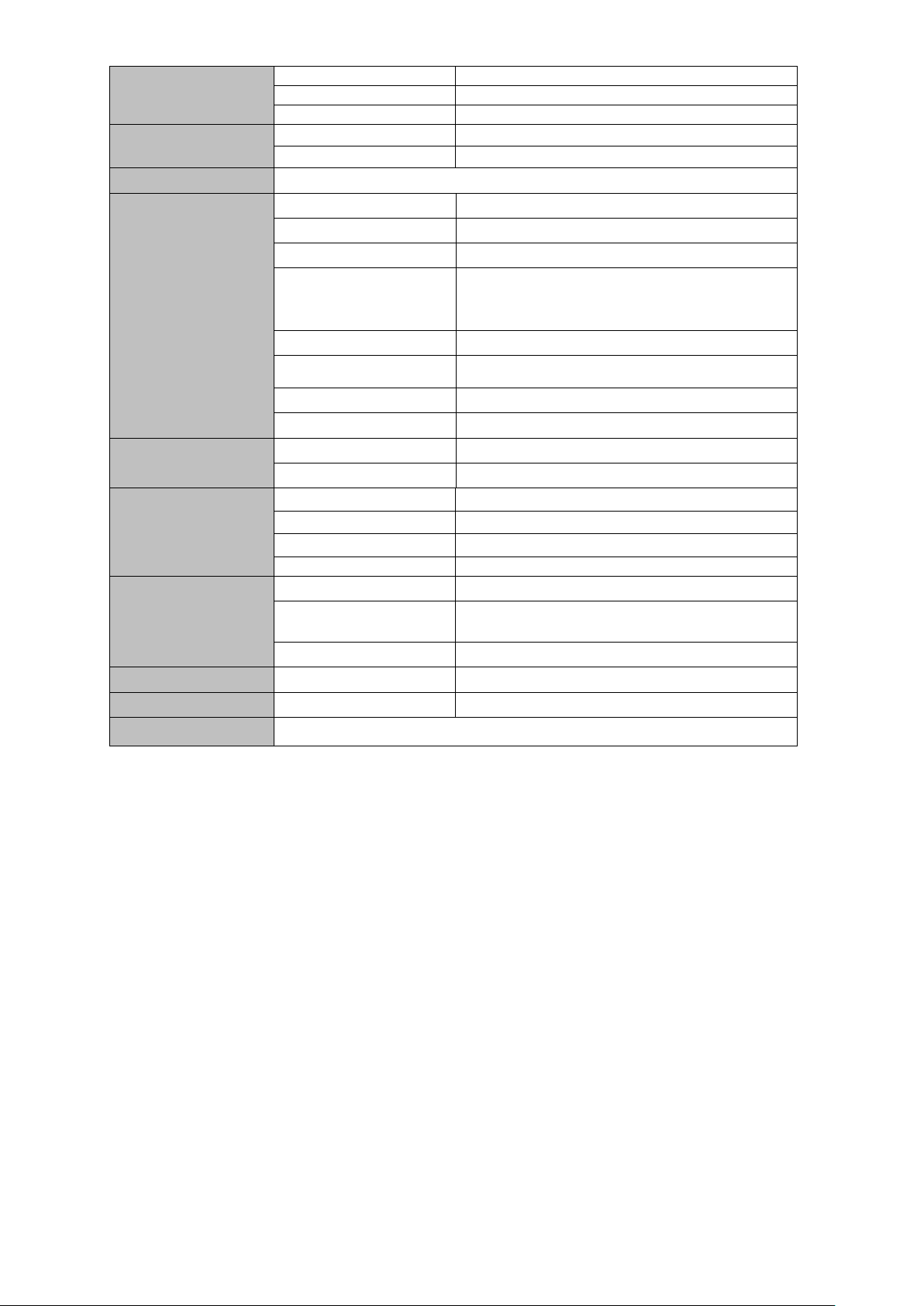
7
Frequency
20Hz-20KHz
SNR
90dB
Distortion
<0.05%
Video
Format
Support mp4,3gp,AVI,MOV,etc.
Maximum resolution
1920*1088
Image
JPG, PNG, BMP, GIF,etc.
GPS
frequency
1.57542GHZ
Positioning accuracy
3m,2D cep
Channel Number
16
Reboot Time
Cold boot: <35s(OPEN SKY)
Warm boot:32s
Hot boot:<2s(OPEN SKY)
Maximum Speed
515m/s
location Data updating
rate
1HZ
Maximum Height
18,000ms
Antenna
Built-in Wifi antenna
E-book
Format
TXT、LRC、PDF、EPUB,etc.
Largest reading capacity
5M
WIFI
Working frequency
2.4-2.4835GHZ
Speed
Max54Mbps
Range
Max100m
Wifi system
802.11b/g/n
Built-in 3G/2G
System
WCDMA/GSM
Network protocol and
frequency
WCDMA 850/900/1900/2100(850or900)
GSM 850/900/1800/1900
speed
HSDPA 7.2Mbps/HSUPA 5.76Mbps
Record
Format
WAV
FM
frequency
87.5MHZ-10 8M H Z
Operating system
Win98/2000/2003/XP/Vista/Win7、Mac9.1above and Linux2.4
Page 9
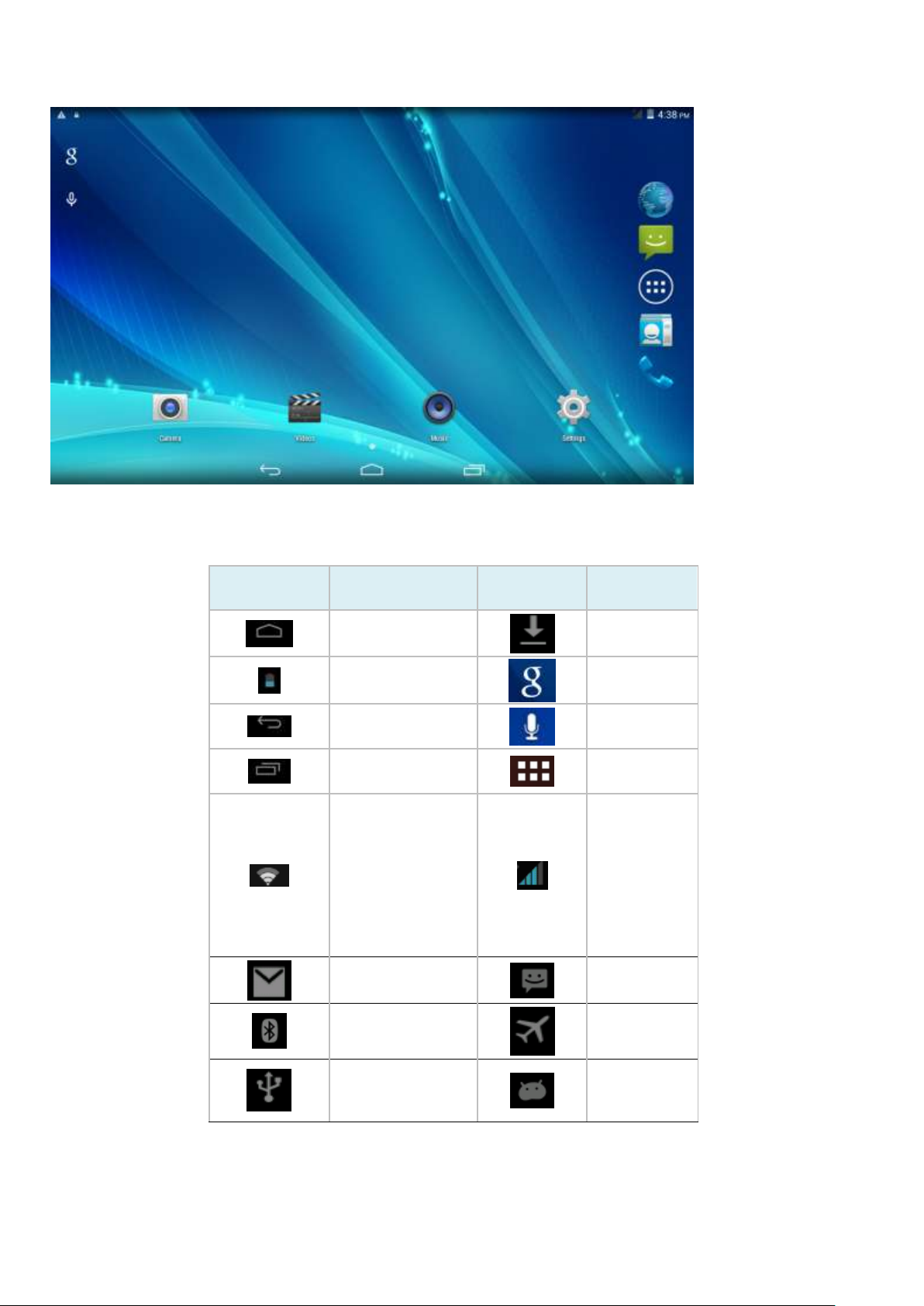
8
Icon
Description
Icon
Description
Back to main
menu
downloadin
g
Power status
internet
search
Return
Language
search
Recently
viewed
Functions
menu
WIFI Status
(blue indicates
Wi-Fi
connected)
Network
status
(blue
indicates
2G/3G
network
connected)
New e-mail
New
message
Bluetooth
signal
Flight
mode
Under USB
connection
Under USB
debugging
3.6 Function Icons
Icons Description:
3.7 Switch on/off
Switch on and unlocked:
Page 10
9
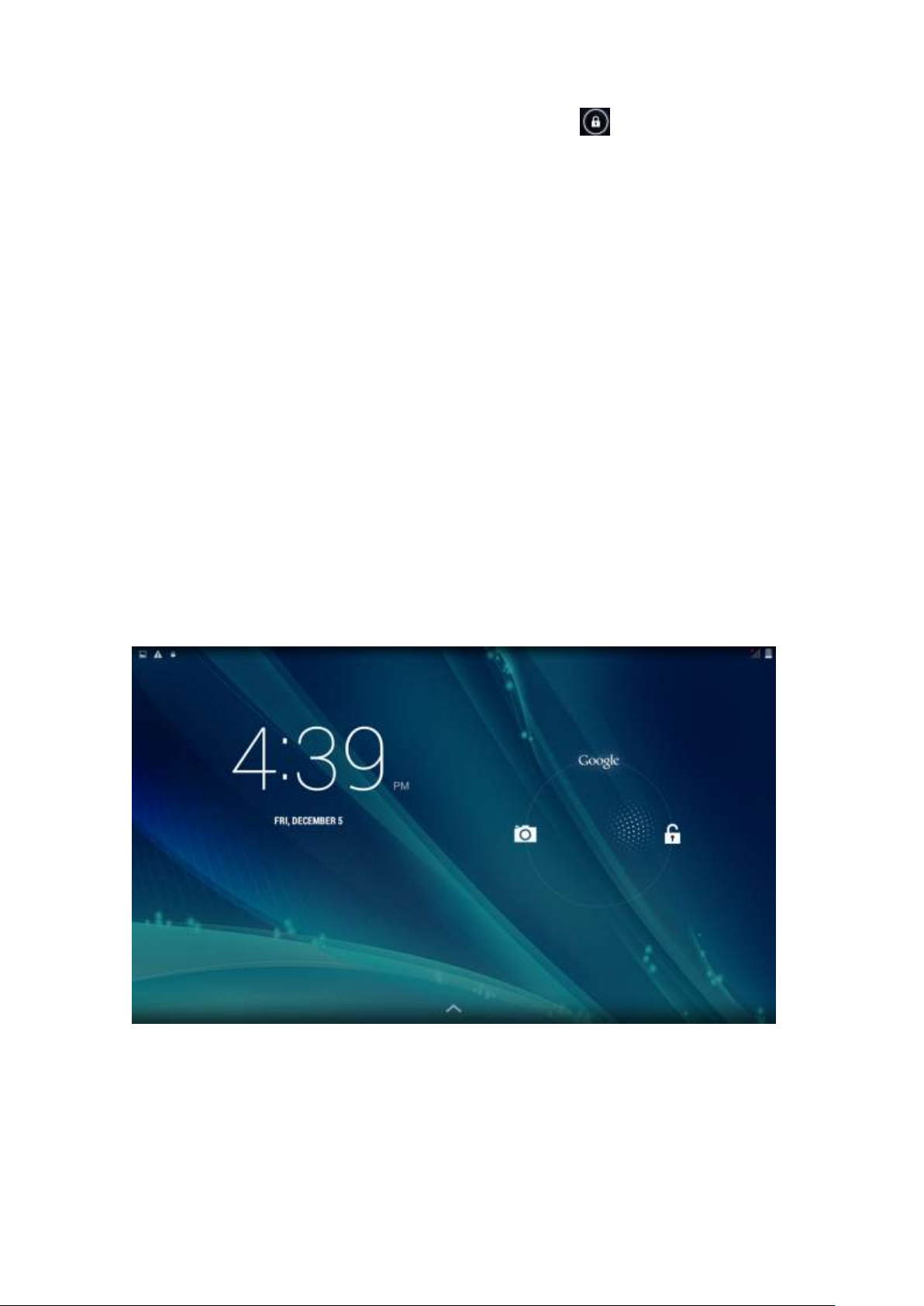
When the devices is in powered OFF mode, press and hold the Power key for 3 seconds to enter
the Android startup process. The device will take about 10 seconds to enter the system desktop,
with the display in locked mode, please press and move the icon by the white circle, the
display will unlock automatically, see the image below:
Switch off:
1. When the device is in use, press and hold the POWER key for 3 seconds, the screen will display
the power off interface; choose the power off option to confirm your selection and the system will
shut down automatically.
2. Note: When the device is running low on battery power, it will sound an alarm and then shut
down automatically if it isn’t plugged into a power source to start charging. If the device cannot
start up please check if the battery power is too low by charging the device
3.8 Power Saving Mode and Locked Mode:
Display turn off automatically when the device is under no usage status
(1)Starting power saving mode, display will turn off automatically when device not in using.
(2)Short press the “POWER” key when the device is in use will make the system enter SLEEP
power save and locked mode.
Turn on the screen under inactive state
Under the power saving mode, the display is just turned off and showing a black screen. This
means that music play, movies play etc. will still continue to run.
Short press the power key, the system will return to locked mode, unlock by pressing and moving
the icon as show.
3.9 Operation of touch panel
How to operate?
You can browse over the user interface, main menu or applications by kinds of ways:
Click:
Just touch and click, when you’re going to input or choose applications on the main interface.
Press on:
Page 11
10
Press on the icons or shortcut icons to open program you’d like, like textbox & linkage.
Slide
To move quickly on screen vertically or horizontally with your finger
Drag
Press on with certain pressure before dragging, and then keep pressing until the icon be
dragged to the target place.
Rotate
To most interfaces, for example, the input text and music interface, the direction can be
changed easily just by swaying the device
3.10 Main Interface
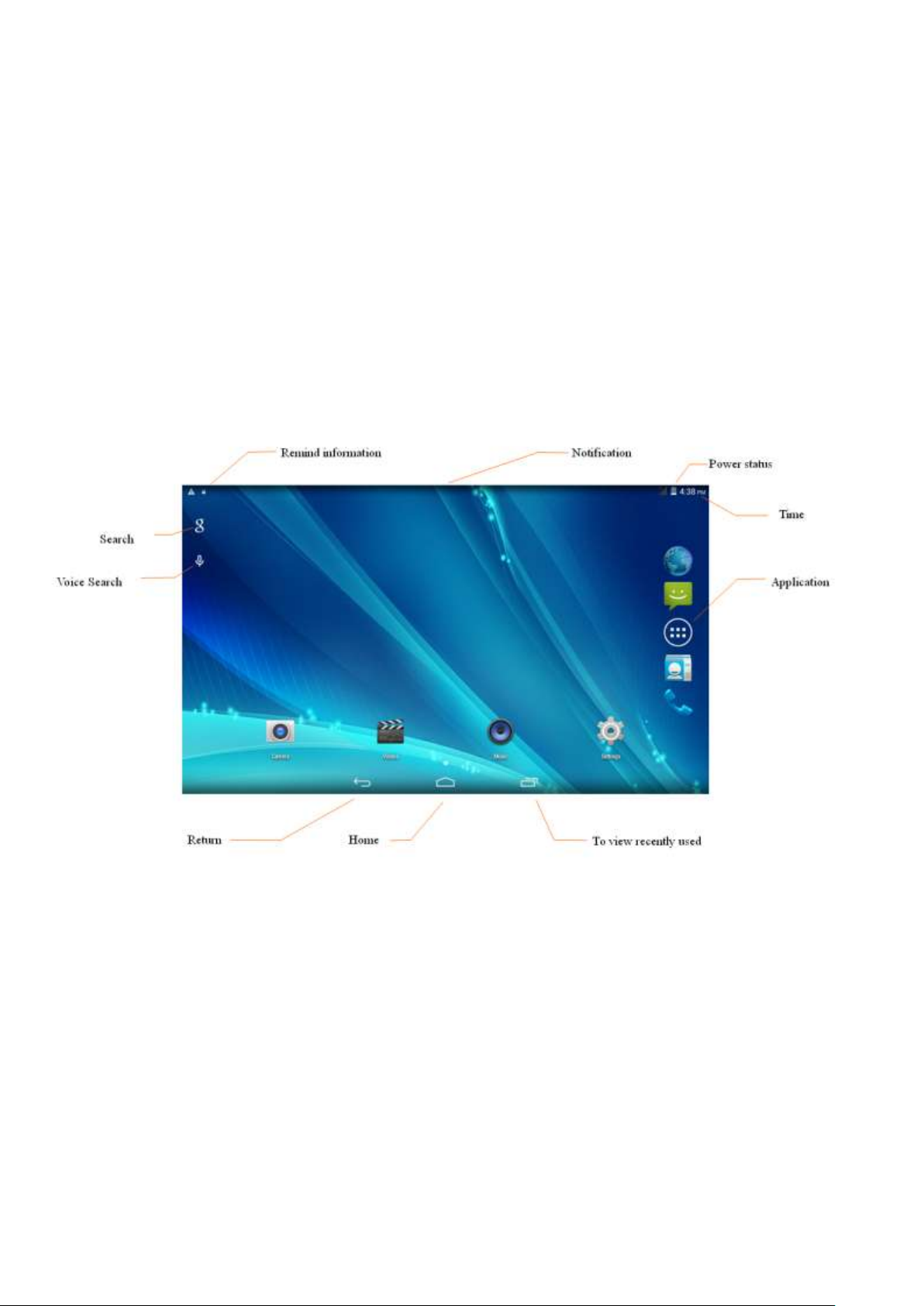
Main interface as below, press blank place for seconds, you can use the interface of applications,
shortcut icons or user-defined page as wallpaper.
Extend out of main interface
Main interface can extend beyond of interface to provide more space for new-added shortcuts or
gadgets. Pressing the blank place of interface, slide to left or to right quickly to extend to left or
right of outsider interface of screen and there are two extensible interfaces available, see below:
Page 12

11
Shortcut Icons
Build a folder on desktop
(1)Drag and overlie icons into one, see below:
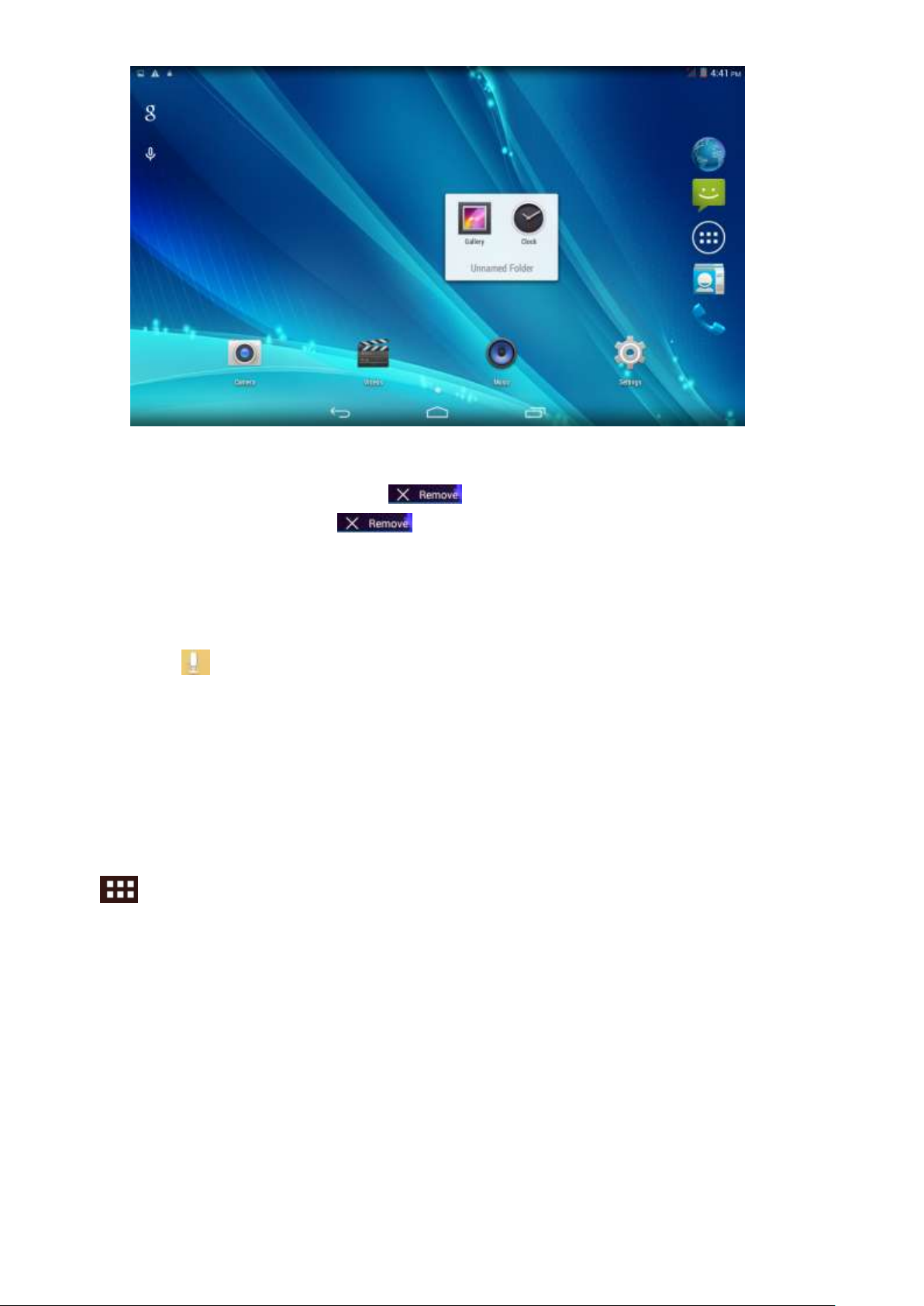
(2)click the overlying icon, you’ll find all icons dragged inside it. See below:
Click the unnamed folder at lower edge of black pane, hidden keyboard shows up, and then you
can rename the folder. You can also change the place of icons inside by long pressing the icons.
Page 13
12
Delete icons on desktop
Long pressing the icon to delete an icon will show up.
Drag the icon to right place above until the dragged icon is in red.,
Change desktop wallpaper
Long pressing the blank place of main interface, a window pops up.
Click gallery or system default wallpaper and choose the pic you want.
Voice search
Touch the icon 。
Operate accordingly the goggle options.
Set up your target language according to the prompting of pop-up window, and confirm.
Speak out towards to the mic what you need, and result list will show up.
Note: Please make sure your network is connected before search.
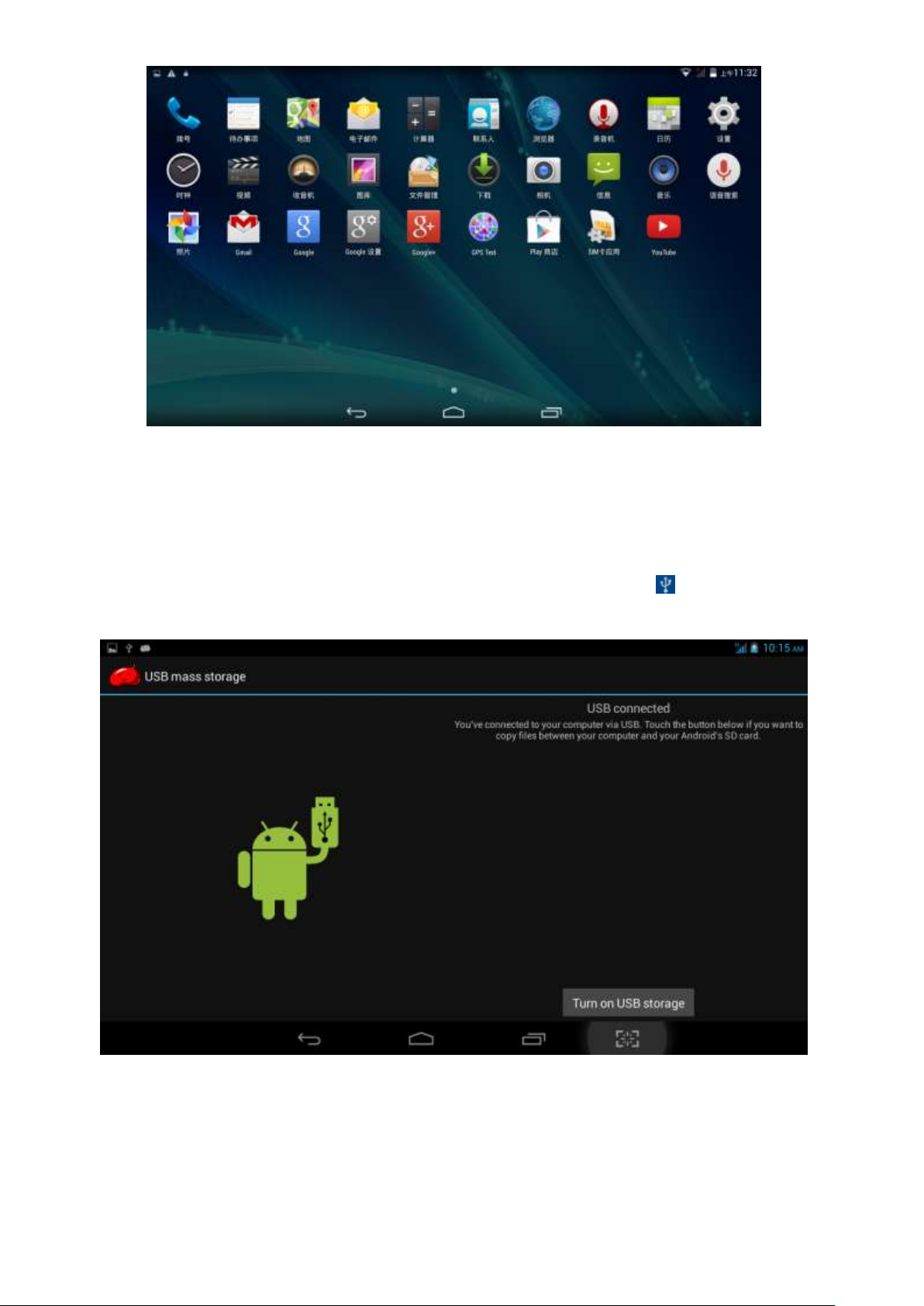
3.11 Apps
Click on the screen, then choose your target app after entering into the main interface, see
below:
Page 14
13
3.12 USB Connect
MTP Storage setup
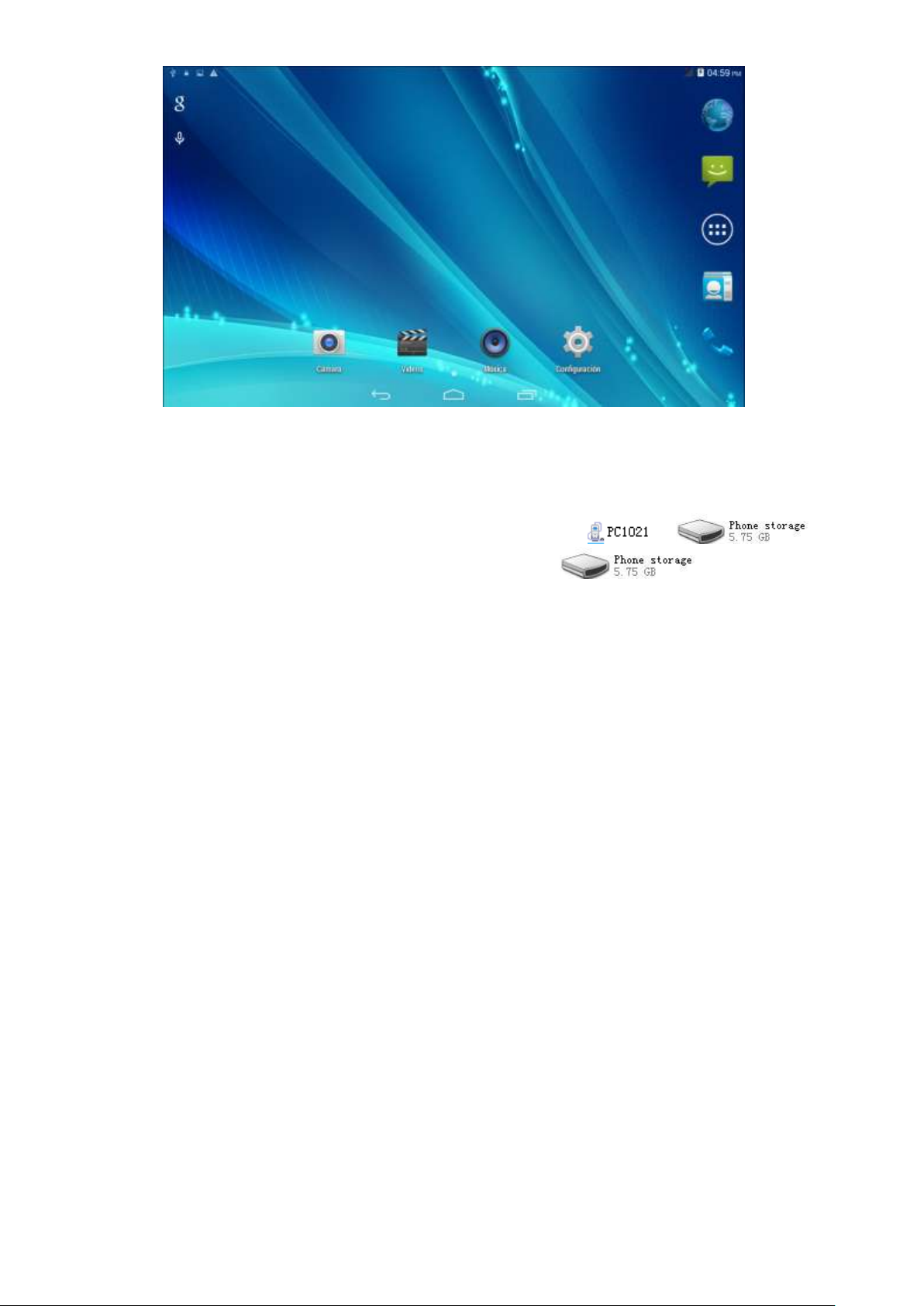
Set up the storage mode before transfer files Connect MID and computer with USB cable.
Connect the tablet and the computer by the USB cable.
Open the notice interface, (refer to chapter 2.3- Condition and Status of MID).
Clicking USB Connected, open the icon of USB Storage, see pic.3.7.
USB connected successfully
Page 15
14
pic.3.7
Copy file into SD
1. Use USB cable connects MID with computer.
2. According to the MID storage Settings, after successfully connected to the computer.
3. Open your MID in “my computer”, you see the this icon content in .
4. Find wants to copy the file, copied to the removable disk (x) .
5. Copy is completed, click on the "closed USB storage devices" uninstall it.
Note: when your MID connected on the USB cable, if you open the USB storage devices, you will
not be able to access memory through the MID, if you want to visit in the MID memory card, as
long as the disconnect USB connection.
3.13 Input Text
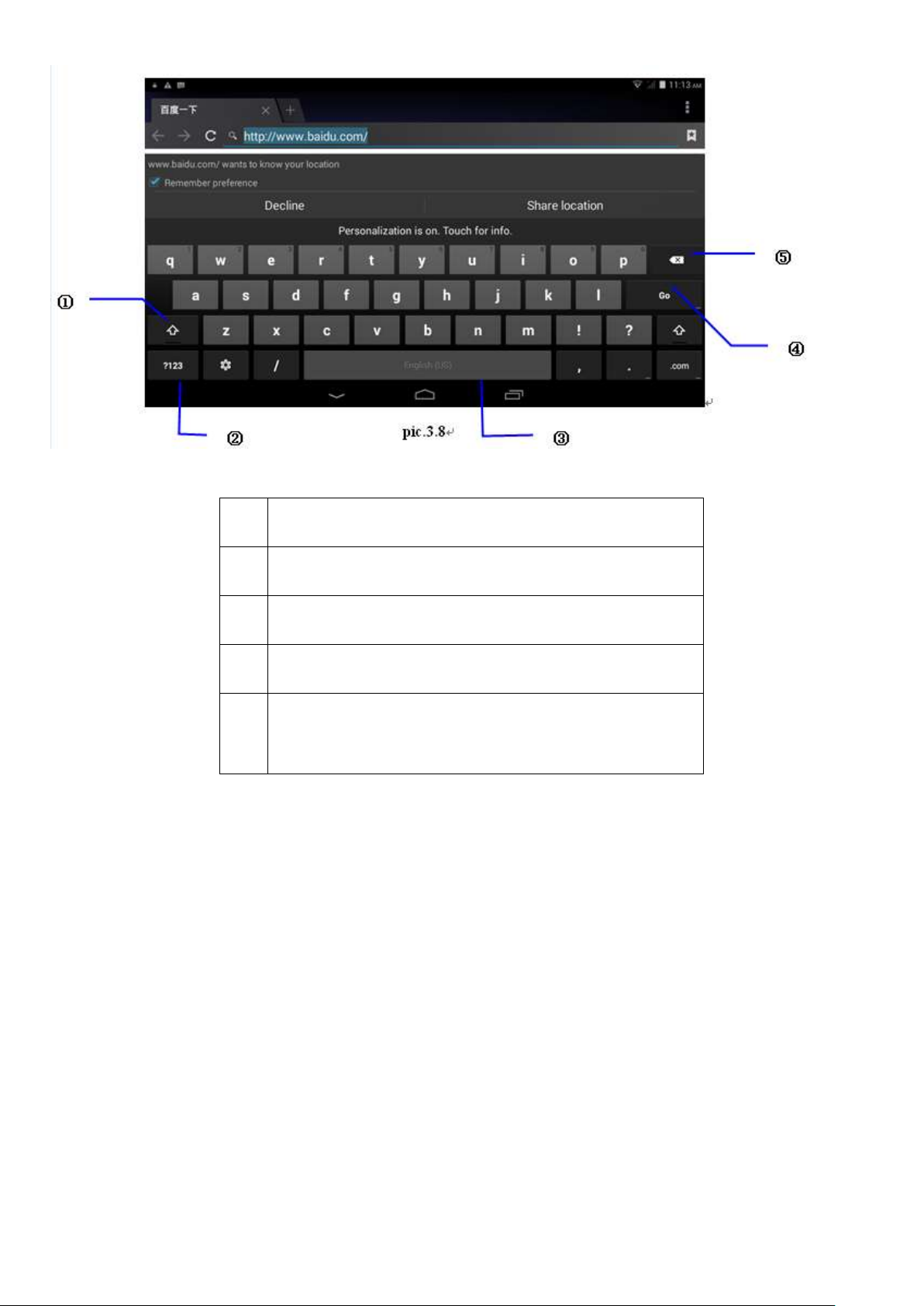
Screen Keyboard
When you need to input or edited , android keyboard will show up.
Choose input method
Open application setup。
Click Language and input
All input installed will list on text setup.
Choose your target input.
Input Method use and switch
Page 16
15
1
Capital and small letter
2
Digital input
3
Insert whitespace
4
Execute
5
Select character on the left of cursor and long
press to select all.
3.14 Use Skills
Widget interface
Click “widget” or slide on the screen to left to enter into widget interface. Long press the widget to
create a shortcut, and you can enter related app quickly just through the shortcut icon on desktop.
Create a shortcut icon on desktop
After enter into program interface or widget interface, long press any icons, a shortcut icon will
be created on the desktop, or press on and drug the icon to desktop.
Note widget shortcut will not be created if there is no enough space left for.
4 General Setup
4.1 SIM Card management, WIFI & Network
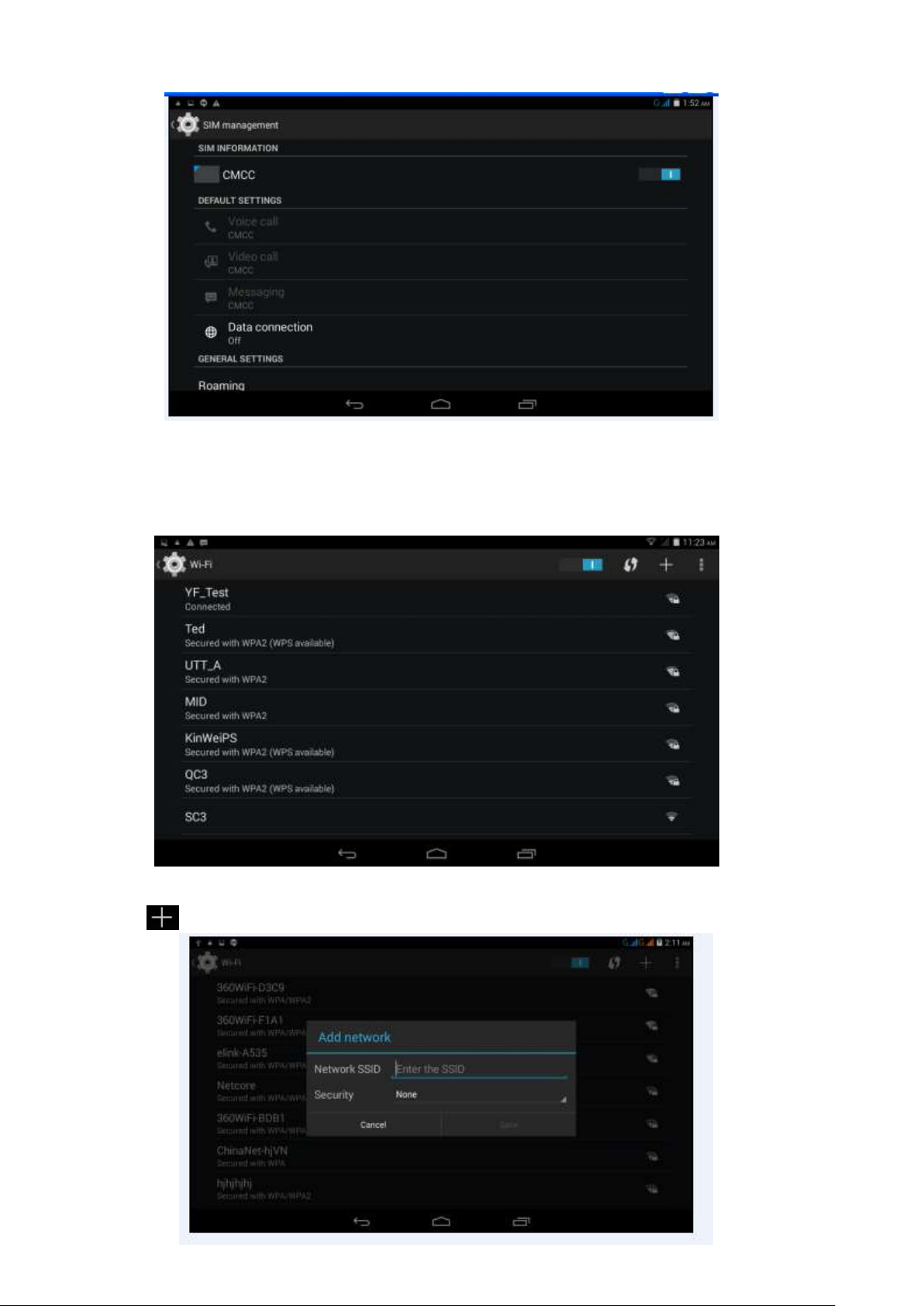
SIM Card management
Through SIM management, SIM setup can achieve, for example, turn on/off SIM or turn on/ off
Page 17
16
data connection.
pic.4.0
Connect WIFI
Choose setup application on main interface.
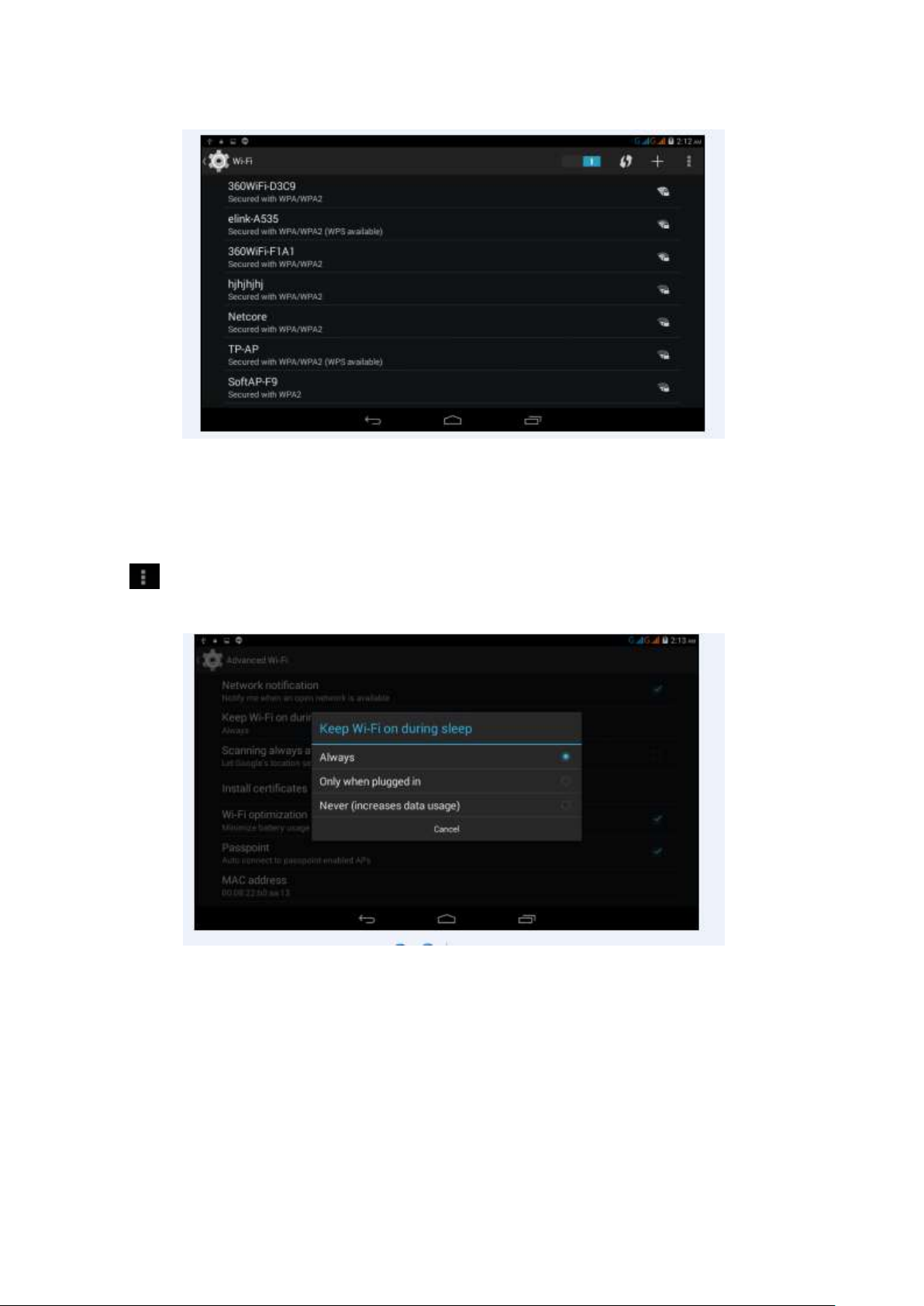
Turn on WLAN, MID will scan automatically available Wi-Fi network.(pic.4.1)
Choose target Wi-Fi network, inputting password if requested, click “connect”
pic.4.1
Add Network
Click icon ,
Page 18
17
pic.4.2
Input network SSID,name of target network, and click “save”.
Click user name saved and click “connect”.( pic.4.3)
pic.4.3
WI-FI status:
Under WIFI Status turned on, user can see the notice at bottom right corner when WLAM network
available.
Connect WLAN during sleep mode.
Click icon top right at screen,and choose high class mode。
Click “keep Wi-Fi on during sleep” and choose accordingly the option prefer to.
pic.4.4
4.2 Bluetooth(Optional)
. Choose settings application on main interface.
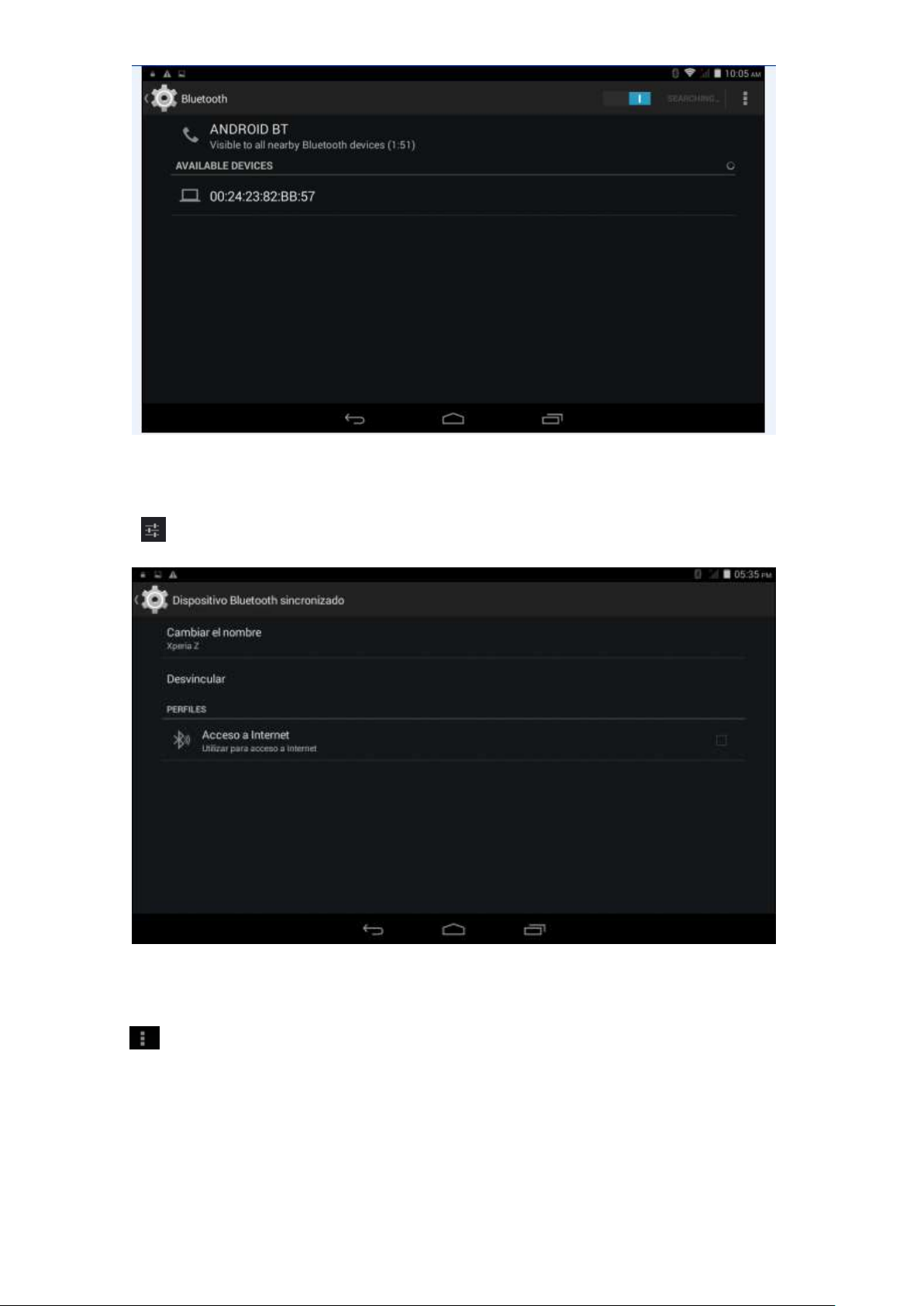
Turn on Bluetooth as shown below.
The device will find the nearby device automatically when you click “search for devices”.
Page 19
18
pic.4.5
Click the target device BT name, input the password and choose “pair” for sure after “Bluetooth
pairing request” window pop up.
Click icon ,entering into the interface, and then you can operate accordingly. Target device
name can renamed if need.
pic.4.6
4.2.1 Bluetooth setup
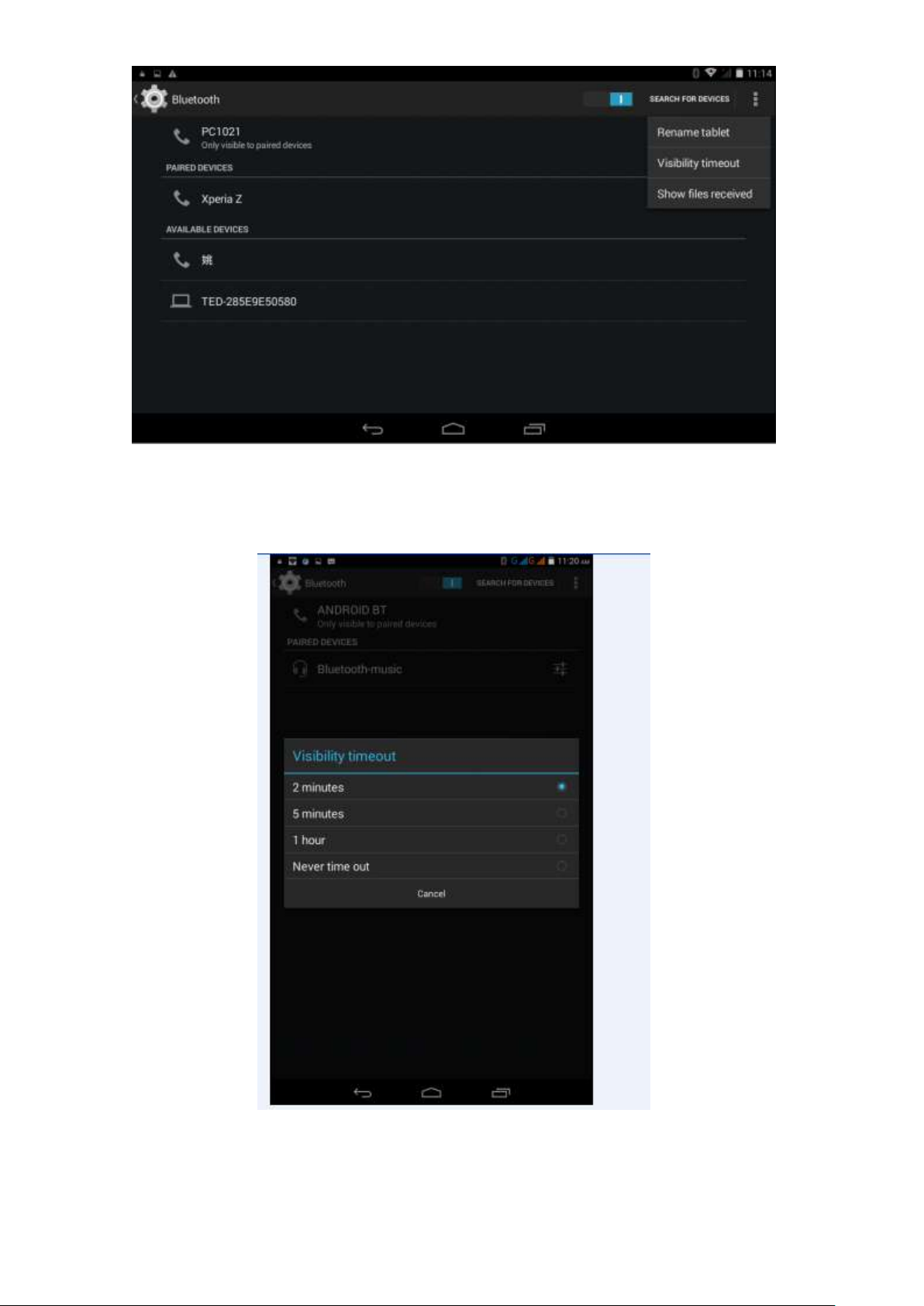
Rename
Click icon ,choose “rename tablet” and change to the name as what you want.
Page 20
19
pic.4.7
Visibility Timeout
Click “visibility timeout” and choose time options accordingly.(Note:visibility timeout refers to the
time setup of device be visible. )
pic.4.8
Show received files
Click the received files to see the upload or download files.
1. Open a file transfer service, allowing support Bluetooth FTP client connect Bluetooth devices, to
achieve access to the server file and operations.
Page 21
20
2. Bluetooth distance sensor
Turn on Bluetooth distance sensor, when two Bluetooth devices relatively far distance, or broken
links, a Bluetooth device will make prompt sound
4.3 Data Usage
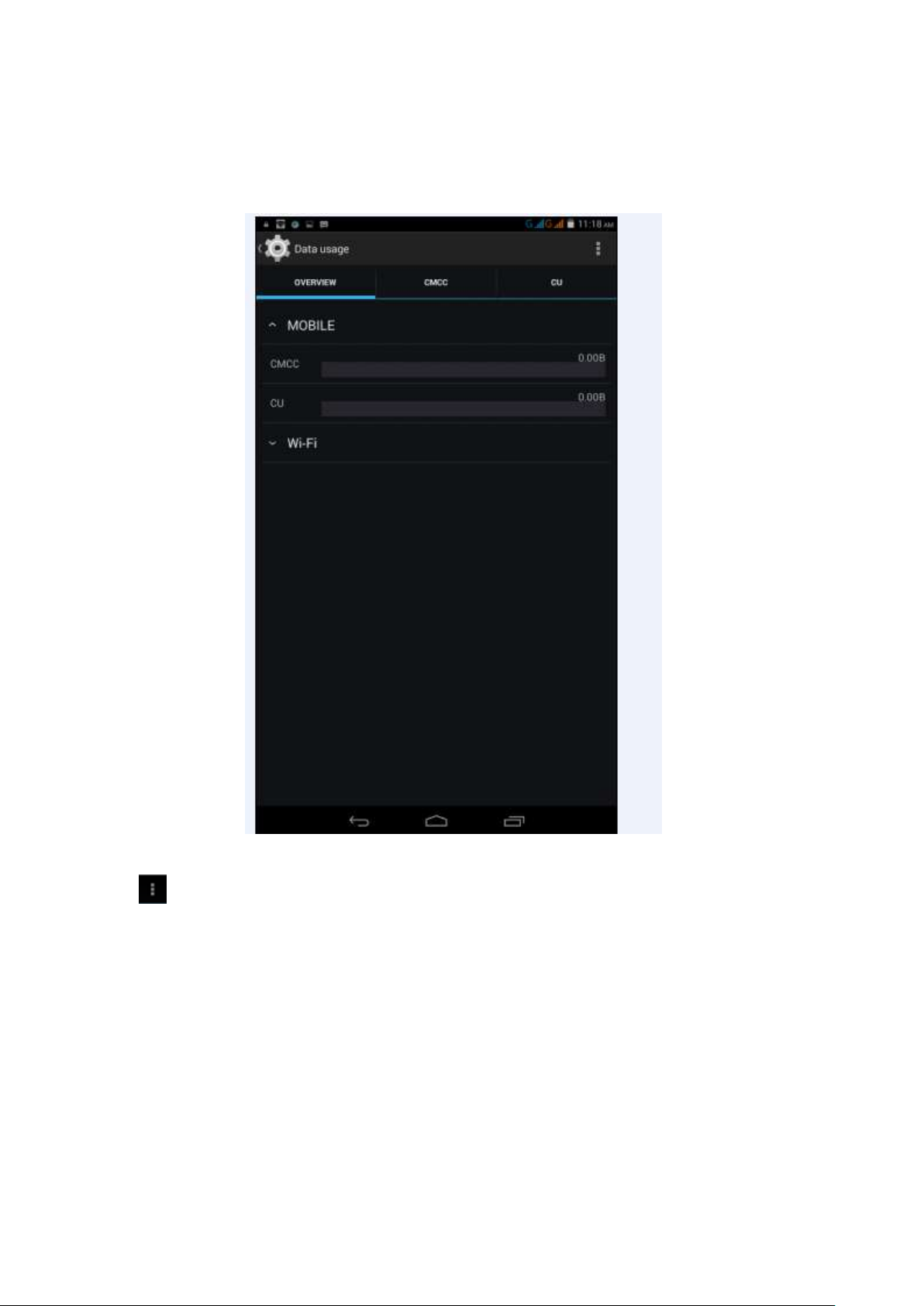
SIM Card data usage,
WIFI data usage
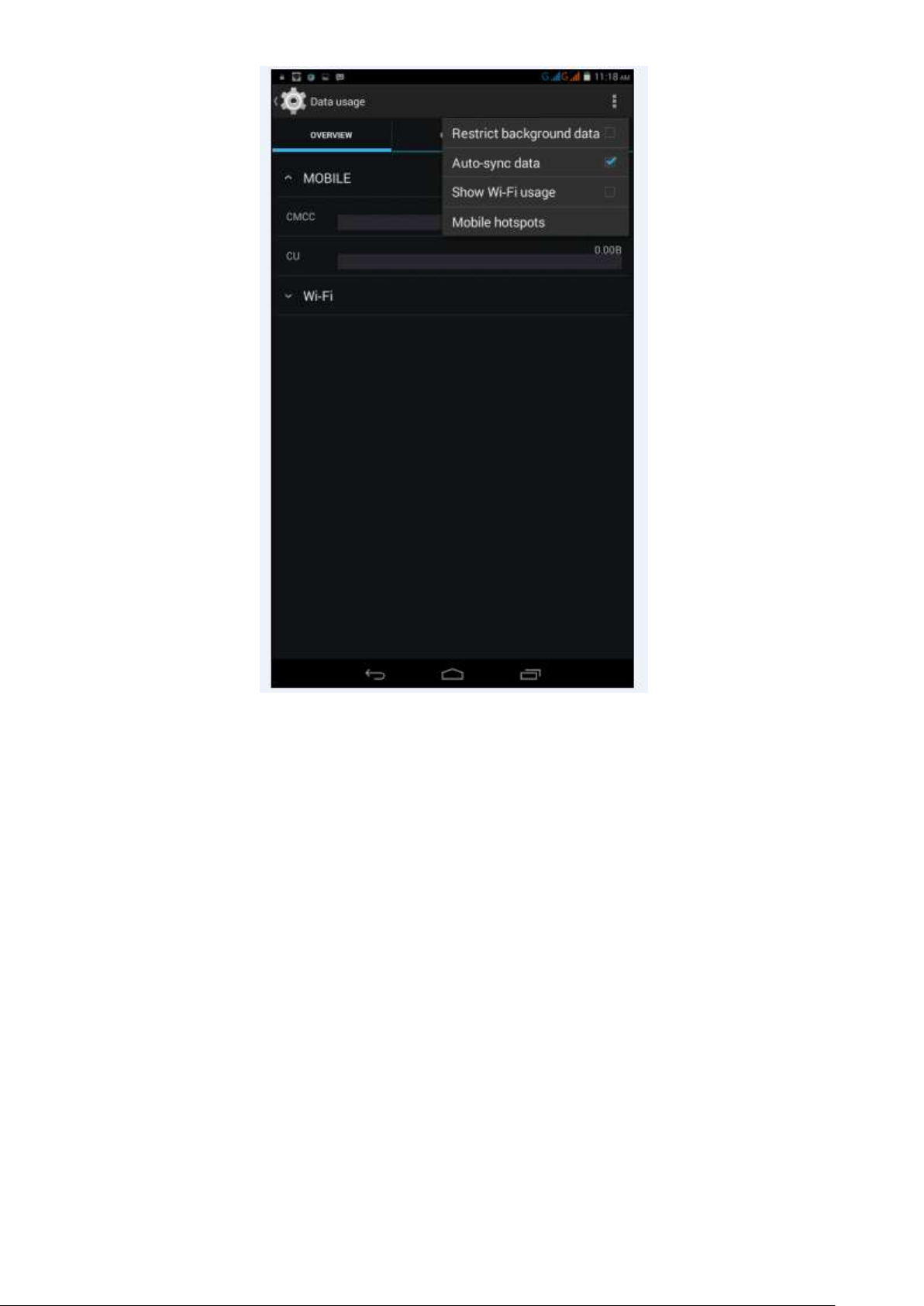
Click icon ,Choose “Show Wi-Fi usage”,
pic.4.10
Page 22
21
pic.4.11
4.4 More...
4.4-1 Airplane Mode
Airplane mode is function for quick turn off of WIFI & SIM Card. WIFI & SIM card is out of reach
under airplane mode, but it recovers once airplane mode turn off
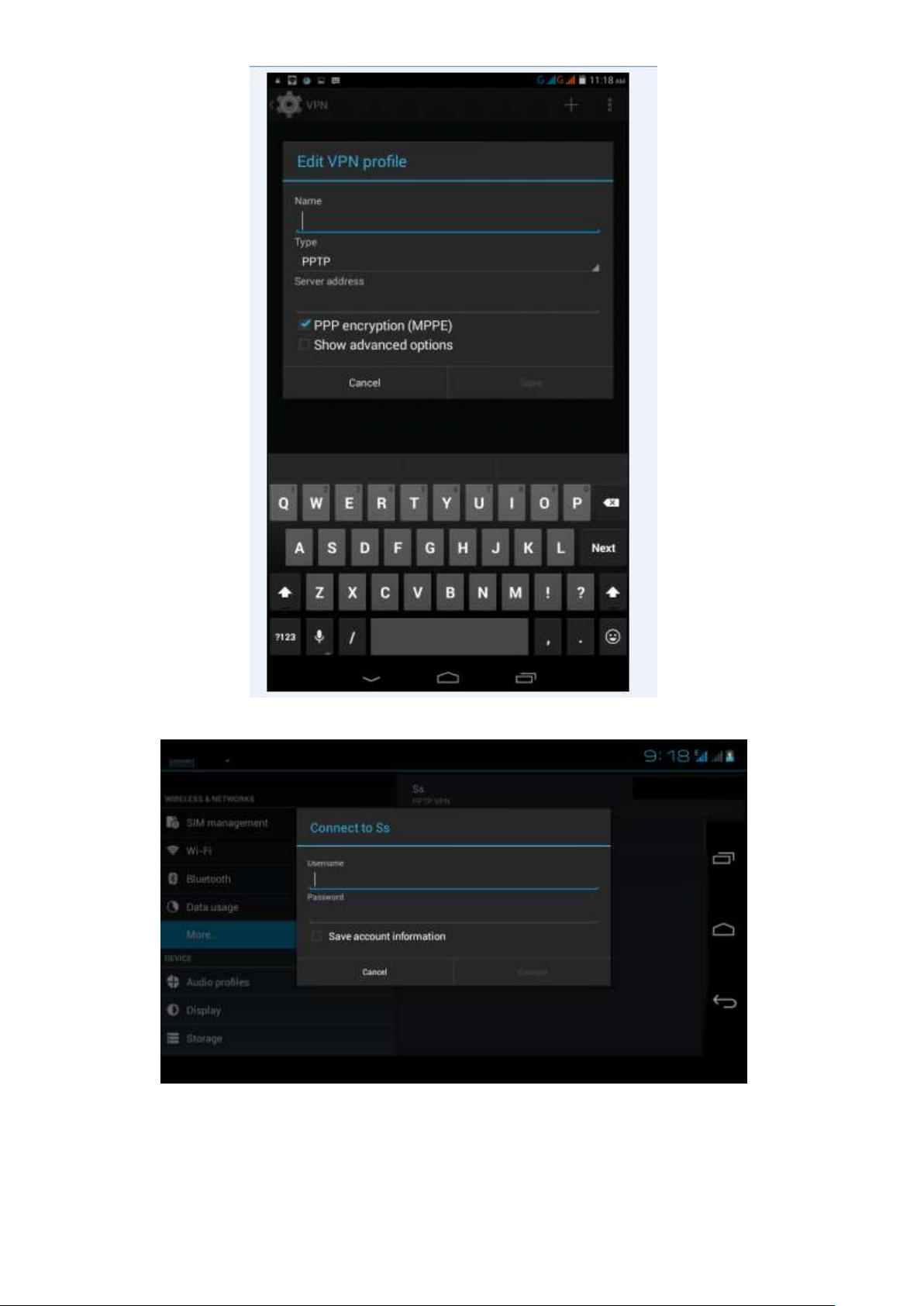
4.4-2 VPN
Open VPN and add VPN network, Input network name and related server address, and click
“save” for sure.
Page 23
22
pic.4.12
Click VPN created, Input VPN Account & password accordingly, and click “connect” to finish.
pic.4.13
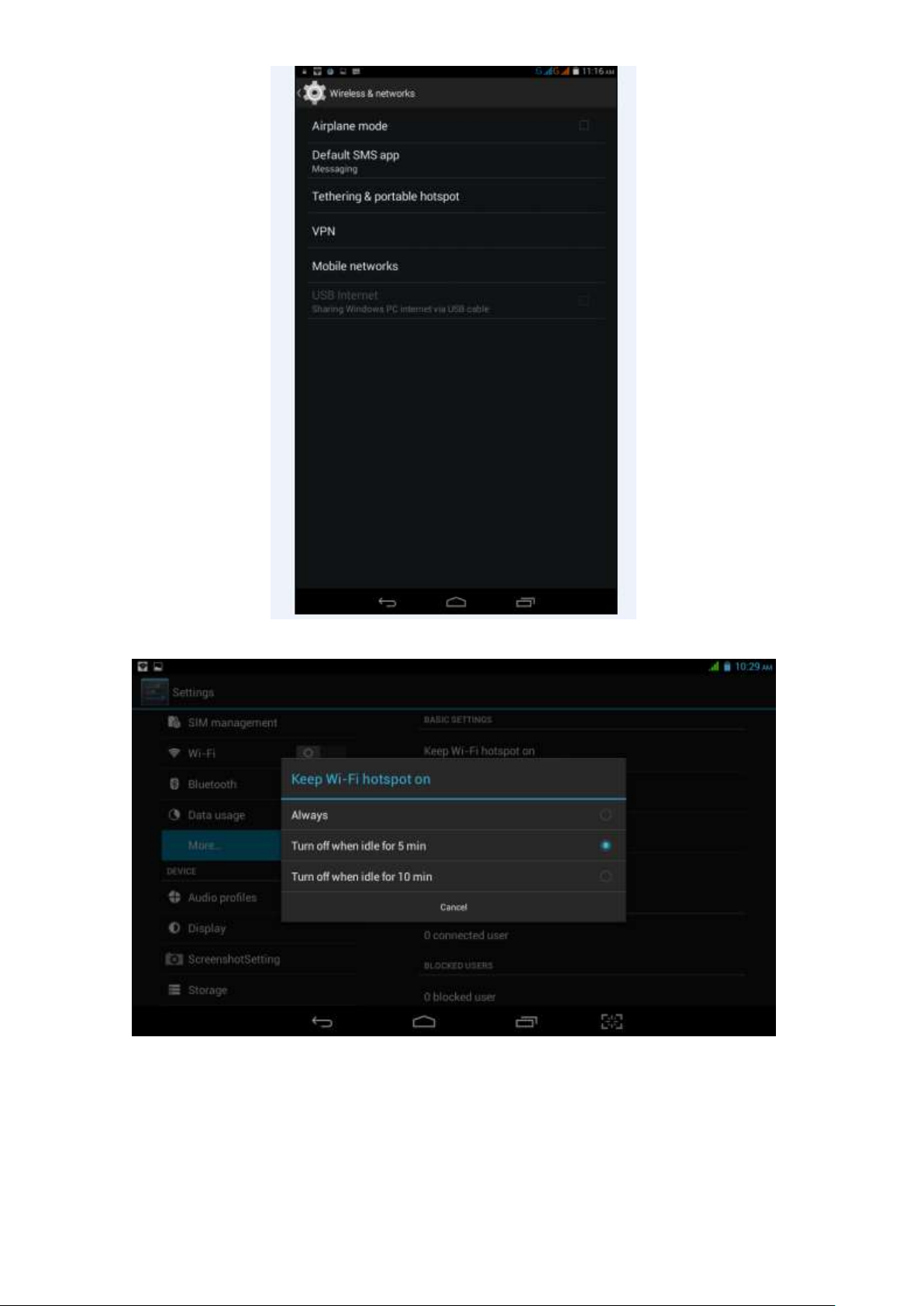
4.4-3 Tethering & portable hotspot
Tethering & portable hotspot
Click the app “settings” on menu interface.
Make sure the device is under Wi-Fi connected. Choose More… and click “Tethering &portable
hotspot”.
Page 24
23
pic.4.14
pic.4.15
Clicks “keep Wi-Fi hotspot on” and choose suitable period.
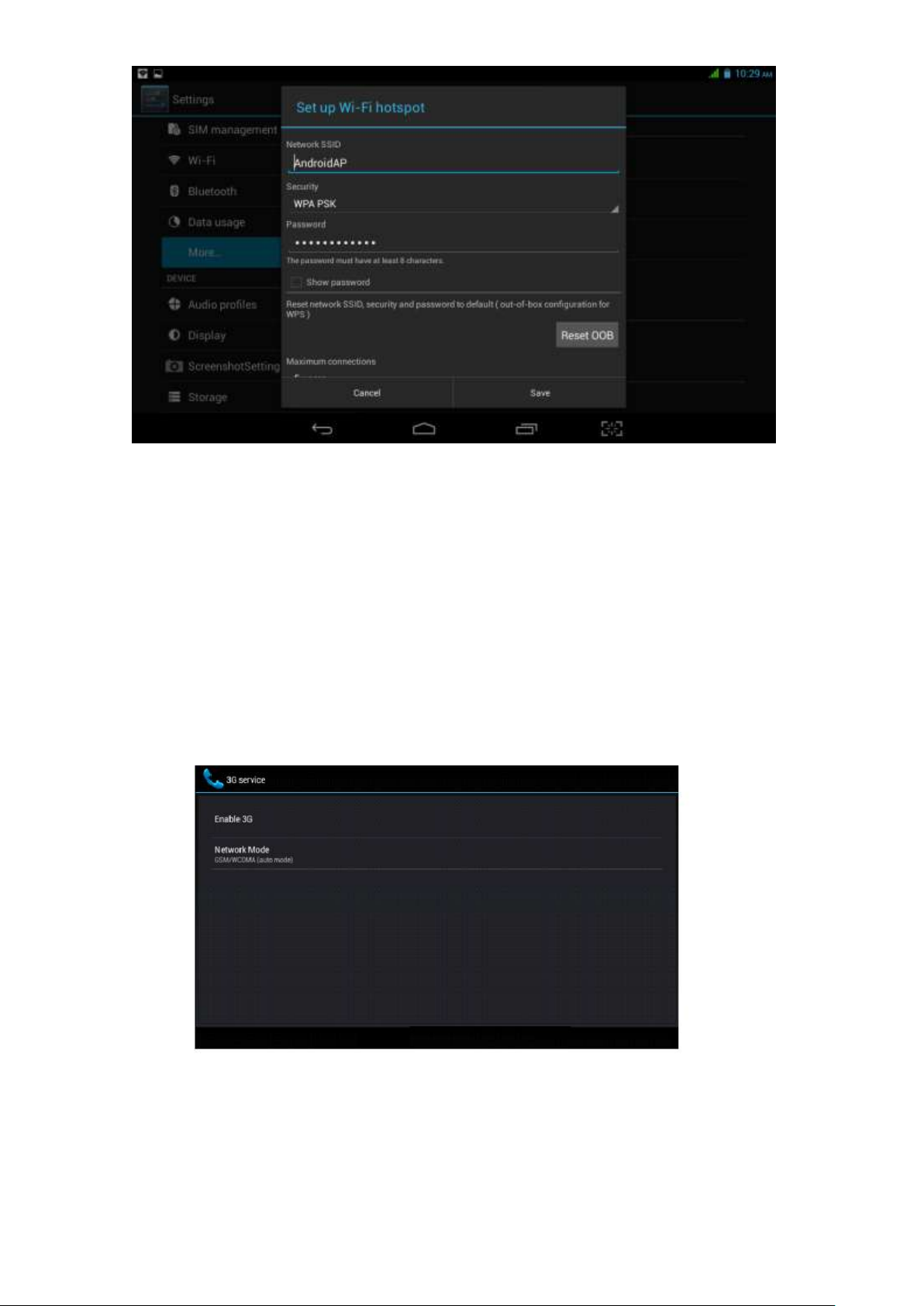
Click icon “return”,opening portable Wi-Fi hotspot and click “setup Wi-Fi hotspot”.
Page 25
24
pic.4.16
Set up password for network encryption, and password should no less than 8 digits.
4.4-4 Mobile Networks
Data enabled
Under data enabled, you can use 2G/3G network through the SIM card.
Data roaming
Under data roaming, you can surf the internet by SIM card in the situation of roaming.
This data roaming means roaming between operators, but not areas.
Network mode
Choose 2G/3Gfrequency channel. GSM means 2G network, this device support GSM
850/900/1800/1900MHz and 3G frequency channel WCDMA 850MHz/1900/2100MHz MHz.
pic.4.17
(1)Access Point Name(APN)
Click Mobile network settings, see as below picture
Page 26

25
pic.4.18
(2)Choose access point name (APN)
Choose the corresponding connection method see as below picture
pic.4.19
Notes : (CMWAP transfers the date via GPRS, it can only visit wap webpage, but CMNET supports
Page 27

26
www browser on mobile internet, it can log in the similar web page the same as we surfing on the
computer. Meanwhile, the charges for them are different.)
(3)Network operator
Click operator, tablet system will automatically search available networks GSM and WCDMA, see
as below picture
pic.4.20
4.4-5 GPRS data priority mode
When open the GPRS date priority mode, it will give preference to your use of the telephone
network.
4.5 Audio Profiles
Open setting and choose Audio profiles and you can choose different mode for setting see as
below picture
pic.4.21
Click General and access to setting see as below picture
Page 28

27
pic.4.22
Vibrate
Click Vibrate which can realize the vibration effect on MID when you dial phone call, see as above
picture.
Volumes
Click Volumes which can control the volumes of ringtone & notifications、alarms, see as below
picture
pic.4.23
Page 29

28
Voice call ringtone
Click voice call ringtone and you can choose the different ringtone as you like, see as below picture
pic.4.24
Video call ringtone
Click video call ringtone and you can choose different mode of ringtones, see as below picture
Page 30

29
pic.4.25
System
It can be checked by ON/OFF, “Dial pad touch tones”, “Touch sound”, “Screen lock sound”,
“Vibrate on touch”.
(Notes: except standard, silent, meeting, outdoor mode can only be chosen but not be set.)
4.6 Display
4.6-1 Brightness
Click setting Apps
Click Display Brightness.
When pop-up brightness Settings panel, you can drag the brightness slider to adjust degree
between dark and bright. See as shown picture
Page 31

30
pic.4.26
Once you set up the brightness, click ok.
4.6-2 Wallpaper
Click Setting Apps
Click Display wallpaper
You can choose the wallpaper as you like, such as live wallpaper - gallery (custom) - wallpaper
(system) - video wallpaper, as shown in picture
pic.4.28
4.6-3 Automatic rotation
System as the default open, when closed, the system will not rely on gravity induction to shift MID
panel.
4.6-4 Sleep
Click Setting Apps
Click Display
Click Sleep
When pop-up the page of sleep time setting, you can choose the sleep time as you like. See as
below picture
Page 32

31
pic.4.30
4.6-5 Font Size
Click Font Size which can adjust font size of the MID, see as below picture
4.7 Storage
Open setting AppsStorageDEFAULT WRITE DISK, you can choose the preferred installation
space when you install new applications.
Check available space of SD Card and MID.
pic.4.31
Page 33

32
Check SD card and MID storage
Enter setting interface。
1. click storage to see the storage
2. INTERNAL STORAGE
System is stored as a MID space reserved for system files; see below picture, this space can't see
content.
pic.4.35
(2) USB STORAGE
USB Storage is MID NAND memory. If want to check the storage content you can go to main
menu files managements for checking.
Page 34

33
pic.4.36
2. SD Card
In the storage you can check the SD Card total space, available, unmounts SD Card and Erase SD
Card, and see as below picture
pic.4.37
Page 35

34
Remove SD Card safely
Click setting Apps
Click storage
Click uninstall SD Card
Now you can remove the SD Card safely.
Notes: If you remove the SD Card correctly, it can effectively protect it and increase the usage life
of the SD Card.
4.8 Battery
Click settings battery and then to check the battery using status as shown below:
pic.4.38
4.9 Apps
1. Please select setting in the application list.
2.Choose application and enter and then you can manage and delete the installed applications. In
the lower left corner you can check the system storage space, see as below picture
pic.4.39
3. Check internal storage space; see as below picture
Page 36

35
pic.4.40
4. Check the running applications of their usage and available space see as below picture
pic.4.41
4.10 Account
1. Click setting
2. Click Add account, see as picture
Page 37

36
pic.4.42
3. For example tap Google, see as picture
pic.4.43
4. Once login successfully you can open synchronization function, see as picture
Page 38

37
pic.4.44
4.11 Location access
Click setting and choose location access, see as picture
pic.4.45
4.12 Security
Set up screen lock
You can use password and unlock pattern to lock the touch panel and protect your MID.
Notes: Once you have set up the screen lock, every time when you reboot and unlock the touch
screen will request to enter your password.
Set up unlock pattern
1.
In the main menu page please click setting Application.
2.
Click the security
3.
Click the Screen lock
4.
In the pop-up text setting area, choose pattern.
5.
Click Next step as it mentioned.
6.
It will pop up unlock pattern screen which has 9 dots. Slide your finger to connect the dots in
any order on the next screen for creating a personal screen unlock pattern. You need to connect at
least 4 dots. See as picture
7.
Click Next
8.
When you see the notice and type again the unlock pattern and click OK.
Page 39

38
pic.4.50
Set up unlock PIN password
In main menu please tap settingsSecurityLock screenin the pop up text set area choose
PINtype new PIN password(finger) and tap Nexttype again new PIN password and tap OK.
Set up password
In main menu please tap settingsSecurityLock screenin the pop up text set area choose
Passwordtype new Password(alphanumeric) an
tap Nexttype again new Password and tap OK.
Unknown sources
In main menu tap Settings SecurityUnknown sources, see as shown picture
Notes: Click unknown sources and then you can install APK files by hand successfully.
4.13 Language & input
Tap settingLanguage & input. You can choose the language as you need. See as below picture
pic.4.51
Page 40

39
pic.4.52
Tap settingsLanguage & inputAndroid keyboard settingsinput language, see as below
picture
pic.4.53
In the effective input method you can change the default language as you need. See as picture
Page 41

40
pic.4.54
Return to Language & input, tap default to choose input method as you need. See shown picture
pic.4.55
4.14 Backup and reset
Tap Backup my date after you have logged in Google account and connected Wi-Fi the system will
automatically backup your date to Google server.
For some reasons you have to restore the factory settings, please tap restore the factory settings.;
If you want to format MID NAND, please click on Erase USB Storage and tap reset tablet is ok. See
as picture
Page 42

41
pic.4.56
4.15 Date and Time
As default setting, system will set the date and time automatically by using network-provided
values.
Set the date and time zone by hand
9.
Click settings
10.
scroll down the screen and click date and time.
11.
Close Automatic date & time
12.
Close Automatic time zone
13.
Click Select time zone, and then choose time zone in the list. Scroll down the screen you can
check more time zones.
14.
Click set date and tap up and down button to select Day, Month and Year, then tap “set” to
finish the setting.
15.
Tap set time, and tap up and down button to select hours , minutes, choose AM and PM to set
morning or afternoon(it will not support 24-hour format), and then tap “set” to finish the setting.
16.
Click Use 24-hour format, you can shift between 12-hour and 24-hour format. And the time
format will applied in the alarm clock.
17.
Click choose date format and choose the date format which will show in your MID.
Page 43

42
pic.4.57
Notes: If you use the time which network provided automatically, you are unable to set the date
and time zone?
4.16 Scheduled power on off
Tap settingsScheduled power on & off, see as below picture 4.58;
4.17 Accessibility
4.17-1. large text
Click Large text can make the system font become larger
4.17-2.Press Power button to end call
With this function, when you make a call and press “power” button, you phone call will
pic.4.58
Page 44

43
automatically hang up but will not turn to sleep
4.17-3.Touch & hold delay
Click Touch & hold delay can adjust the delay time, see as shown picture
pic.4.59
4.17-4. Install web scripts
When you open it system will allow you install web scripts, but it will increase the security risk when
you browser website.
4.18 Developer options
4.18-1 USB Debugging
Once you open USB debugging, it can read the MID with some software. But when it opened the
USB storage need to manually bring up before us.
4.18-2 stays awake
When you open stay awake, MID screen will never sleep while charging.
4.18-3 Cursor position
When you open Cursor position, you can read the touching point operation’s transverse and
longitudinal axis coordinates of your MID
4.18-4 Display touching operation
When you open display touching operation, it will display your touching area of MID. And it will
more accurate and clear when used with cursor position
4.18-5 Display update
When display updates, it will flash in the corresponding place.
4.18-6 Display CPU usage
After opening display CPU usage, upper right corner of MID will display the CPU usage,
Page 45

44
pic.4.60
4.19 About MID
MID status
1Enter the settings application
2 Click About MID. Can view the status information, model No., Android version, version no. and
other information.
3 Click “status information”, Can view the battery status, battery, SIM status, IMEI No., IP address,
etc.
5. Multimedia
5.1 Music Player
In the application menu or on the desktop, click the icon to enter into the Music Player
interface, select a different way to find songs
pic.5.1
Page 46

45
pic.5.2
Drag the playback progress bar to adjust audio playback progress
Music player button operation is shown in pic 5.2
5.2 Video
In the application menu or on the desktop, tap the icon to enter into the video player interface.
Video player buttons described in pic 5.3
5.3 Gallery
pic.5.3
Gallery application can automatically search for photos from the Micro SD card and video files,
And Gallery folder will classify these pictures and video files, You can use the Gallery application to
check and edit photos, check the photos and set it as a desktop picture
Page 47

46
Check Photos
1 In the application menu or on the desktop, tap the Gallery application
2 Enter the gallery, tap the folder to check the included pictures
3 Tap the picture you want to view, the system will automatically view in full screen mode.
4 Photos can zoom in or zoom out by separate or fold two fingers. Double clicks can make it too.
Tips: When browse pictures, you can swipe left or right picture to switch picture Browse
Edit and set picture
View images in full screen mode, press the Menu button to display the menu options, you can
select the options you want to edit and set the picture.
slideshow
1 Open a picture, click the menu button using the virtual keys to display the menu options
2 Tap the slideshow, it will automatically loop (or tap the icon in image folder)
Crop
1 Click on the menu button to display the menu options
2 Then tap Corp, drag the relevant regional election to adjust the cutter
3 Tap cutter, drag from center to outside to adjust the crop size.
4 Adjust the size you want, tap Crop
5 As abandon cropping, click Cancel to return to picture overview
Edit
1 Click on the menu button to display the menu options
2 Tap Edit
3 In the pop-up options can be brightness, style, color, effect settings
4 Click Save
5 As abandon editing, click the Back key, in the pop-up dialog box, click NO back to picture
browsing
5.4 Camera
In the application menu or on the desktop, tap the icon to enter into the Camera interface
Camera operation button and Switching camera as shown in pic 5.4 and pic 5.5
Page 48

47
5.5 FM Radio (Optional functions)
In the application menu or on the desktop, tap the icon to enter into the FM Radio interface
Connect Headphones
Select the top right corner button pic 5.6
Page 49

48
Select the search, Then FM band can be found in
pic.5.7
Favorites: Click the button on the main interface to add to Favorites
Note: Using FM Radio plug in your headphones as an antenna
If no antenna, you will not be able to search the MID band radio
Page 50

49
6 Communication function
6.1 Phone
6.2 SMS
6.2.1 In the application menu or on the desktop, tap the icon to enter into the SMS interface
6.2.2 Select edit new message
Page 51

50
6.3 Contacts
In the application menu or on the desktop, tap the icon to enter into the Contacts interface
pic.6.3
Search for contacts: Click the button to enter into the search function
Add contacts: Click the button to enter into the Add contact interface
7. Mobil Teacher (Optional)
7.1 Device setting
Click the "Setting" icon to enter in the setting panel.
Page 52

51
Locate and choose "Language and keyboard" and select "Voice Search"
Select "Language"
Page 53

52
Select “English”
Page 54

53
Under "Dialect" choose, select English(US)
Select "Keyboard and Language", and select "Output of Voice Text" on the right
Select “Language”
Page 55

54
Select in the menu that appears "English (United States)"
7.2 User’s interface
7.3Navegacion
The main screen contains the Main Menu of each chapter.
From here you can enter all of the chapters of course.
There are two methods of navigation between chapters.
You can move forwards and back from one chapter to another as shown in the following image.
Page 56

55
Drag the tabs to navigate between chapters.
Drag lessons’ panels for details of that lesson
Page 57

56
In compounds chapters touch tabs to access that section
Once you enter a letter or a word in the "search query" in the dictionary, you can scroll through all
the words in the dictionary, or choose the word that interests you to access more options
Once you choose a word from the list, you will see the dictionary.
From here you can:
• See the translation of the word.
• See the definition of the word.
• Practice writing.
• Listen to the pronunciation.
• Practice your pronunciation of the word.
Page 58

57
Touch the panels to access the main menu of the lessons in this chapter
The main menu of the lessons allows access to each individual lesson and also displays
information about your score and progress in each lesson.
Page 59

58
To unlock the padlock and enter the next lesson, you should get 50% or more in the previous
lesson
Once the lock is opened, you will see the blue button 'play' to begin the next lesson
As you progress through the chapter, you will have access to more lessons.
You can always go back and review the finished lesson to review topics or improve your score.
The lessons have several different types of activities, all complete with instructions and guidance.
In all the lessons you can find the same functionality and continuity of concepts of user’s
interface.
Page 60

59
8 Internet
8.1 Browser
When Wi-Fi or net work is well connected, click to input IP address and can surf internet. As
pic 8.1
Pic 8.1
8.2 E-mail
Email application with e-mail setup wizard, can add common Web e-mail service provider (Such
as Yahoo, Gmail and 163 other provider) external POP3 or IMAP e-mail account. Figure 8.2
Page 61

60
A E-mail settings
Pic 8.2
1 After clicking the icon , E-mail setup wizard will appear to help you set up
2 Input your email address and password for the email account
3 Click the Next Step button to check the mail server is available transceivers
4 Input the account name and email name, then tap Done
5 If the mailbox is available, will automatically enter your inbox
B Delete mail account
You can delete the set up POP3 or IMAP email account from your MID
1 taps the icon
2 Enter into your inbox
3 Click the Menu key
4 Tap the Settings
5 Right down select Delete Account
6 Click OK to remove
C Send E-mail message
1 Tap to display your inbox
2 Click the e-mail inbox will automatically refresh, click to read
3 Click the Menu key to pop up the menu
4 Tap the top right corner ; enter into edit new mail interface
5 input the recipient's e-mail address
6 Input a subject and message content
7 Click Add Attachment
8 Select the attachment you want to send (such as pictures, video, etc.)
9 Click the Sending key to send an e-mail
Page 62

61
Pic 8.3
9 GPS function (optional feature)
9.1 GPS positioning
1 MID built-in GPS precise positioning satellite signal receiver. But available map is provided by
third party.
2 Enter into the setting interface, click on the icon , enter in pic 9.1
Pic 9.1
After successfully positioned, blue part will be transformed into green. And display the latitude,
longitude and altitude, speed, position location time. pic 9.2.Satellite value represent positioning
signal of the intensity, Positioning time associated with the choice of setting time zone range. If
time does not match with positioning location time, please check your time zone selection is
correct
Page 63

62
Clock
Setting
10 Other Applications
Pic9.2
10.1 Clock
In the application menu or on the desktop, tap the icon Clock to enter into the Clock interface,
Figure 9.1
Click the alarm settings, alarm clock can be set
pic 10.1
10.2 Calculator
1 Tap on the icon
2 Enter The calculator basic panel
3 Touch counter number on the panel or operator to calculate
Page 64

63
pic 10.2
10.3 Explorer
Explorer with the TF card files or folders to copy, cut, delete, rename and other operations
can also share the file, install apk and other functions
In the application menu or on the desktop, tap the icon to enter into the Explorer interface,
Figure 9.3
Pic10.3
A. Some operations, such as copy, cut, delete, rename, etc. Select a folder or file, long press a
folder or file to enter into Figure 9.4 Interface.
Page 65

64
pic 10.4
B. Paste the copied or cut file or folder: on the directory you want to paste, you can select the
icon in the upper right corner to paste
Pic10.5
C .Share the file: Select a file and long press this file, In the top click on " " In the pop-up list,
select "Share" item. According to the pop-up list to select the way you want to share
Page 66

65
Pic 10.6
D. Install apk file: select the suffix. Apk file on the Explorer, pop up the installation program,
follow the prompts to install third-party software
E. Create new folder: Select the folder you want to create the directory, Click the right button ,
select the Create New Folder, Follow the prompts to complete the Create New Folder
10.4 Recorder
In the application menu or on the desktop, tap the icon to enter into the Recorder interface,
Click the Record button to start recording, click the Stop button to stop recording. Just
click the play button to play the recording, the system automatically prompts to use this
recording or to give up, please manually select.
Play recordings: Select to use audio player audio, in accordance with the Explorer select the
audio files, and click to play
Figure10.7
Page 67

66
11 Application Installation
11.1 Installation
Install third-party applications
1 Tap on "Explorer" application, select the application you want to install
2 Press and hold the application you need to install
3 Pop-up installation options, click Install apk
4 Follow the installation wizard to complete then can be run.
Note: Applications only with APK suffix are compatible with system.
11.2 Uninstall
Uninstall application
1 On the Home screen, tap Settings bitmap
2 Tap the application that lists all the applications installed on the system list of programs
3 Tap the APK you want to uninstall, click Uninstall
4 Click OK to complete the uninstall
Tips: system pre-installed program manager can easily achieve uninstall, Open the
Program Manager, click on Uninstall tab, the system will list the installed application list
12 Firmware upgrade
1. Press the “POWER button to turn off the device before updating (NOTE: Press and hold
the “POWER button for at least 10 seconds if the device can not be turned on normally).
Insert the Driver CD and copy the file named “MTK Android Upgrade Tool” to your
computer desktop (NOTE: The device can not be updated directly from CD).
Open file “MTK Android Upgrade Tool” and double click ““WiseLinkTool_v4.6.0.44.exe”to open
the upgrade tool and install upgrade tool and then click” Next” as below pic.
Page 68

67
Page 69

68
Choose “create a desktop icon”
Page 70

69
Click the login interface of upgrade tool and click this icon “ ”to Select register file. Choose
the file “ MTK Android Upgrade Tool” > “ public_KEY_Downloads_1000000_Time_20161231 ” >
“ZZZZZZZZZZZZZZZZZZZZZZZZ.key”, an then click “open regcode file” as below pic.
Page 71

70
Page 72

71
Click “OK” and open the upgrade tool. (Note: Open the upgrade tool, find three options
up side and click “Download”. It is default that click “Download” as below pic.
All the other option is default and no need to revise. Click icon “ ”on the right side and choose this file
“Upgrade firmware”and then renamed the file to be 《sca》“ KH5015_EMMC_MT6582.sca”and then
open as below pic.
Page 73

72
Page 74

73
Choose all the option as above pic and click this button to upgrade as below pic.
Turn off the MID and input the USB cable. It will remind to install the drive if the devise
didn’t install before. Choose “Install from a list or specific location (Advanced)” and click
“Next” as below pic. (Note: This devise installation method is based on Windows XP
system).
Page 75

74
Choose “Include this location in the search”, click “Browse”and choose “MTK Android Upgrade
Tool” > “Driver_Auto_Installer_v1.1236.00” > “Smartphone Driver ”> “x86” > “Infs”,
then click “Ok” as below pic.
Page 76

75
Then click “Next”, the system will install the drive automatically and click “Finish” after installation as below
picture.
Page 77

76
Page 78

77
Pull out the USB cable and click the icon to upgrade again “ ”, and then
connect the USB cable as below pic.
MID will start upgrade as below pic. (Note: If the MID is under charge, please pull out the
USB cable and re-connected, the MID will restart to upgrade again.
After it run like 100% and appear “Download finished”. That is mean finish the
installation. At this time, pull out the USB cable as below.
Page 79

78
After pull out the USB cable, turn on the MID. (Note: if MID is out of charge, it can’t be
turn on. It needs to be charge for a while then turn on.)
NOTE: 1. If the process isn’t 100%, please don’t disconnect the USB cable during the
updating process because this will cause update failure or possible system failure of the
device.
2. If you accidentally pull out the USB cable or the USB cable Loose during the upgrade
process. You need to pull out the USB cable and then find some small material like needle
and reset the MID then re-upgrade.
3. If the computer installed the tool before, you can click the icon “ ”to enter
upgrade tool login interface. And then start from step 4. If the MTK drive has installed drive
before, is no need to reinstall again.
Page 80

79
13 Troubleshooting and FAQ
13.1 Troubleshooting
1.1 Device can not connect to Wi-Fi
1) Ensure the wireless network is working by testing it using another wireless device.
2) Ensure the device and the wireless router is within the range of the wireless network to be
connected too. Walls or other obstructions will reduce the possible distances between wireless
devices.
3) Ensure the security password being used is correct.
1.2 Device doesn’t turn on
1) You cannot turn on the device when the battery charge is below the critical level, please
charge the battery.
2) Press the RESET button on the top of the device and check if it is restarting normally or not.
3) Check if the charger is connected correctly.
1.3 Heat Issues
When running multiple applications, using the screen on its brightest setting, or when being
charged, this device can get quite hot. This is normal and should not cause any inconvenience
when in use.
1.4 System has anomalies and doesn’t work correctly
Installing some third-party applications may cause the system to operate incorrectly. Press the
RESET button and perform a system reset to resolve this issue.
1.5 Cannot set E-mail Account or registration application
1) Ensure that the tablet is connected to a Wi-Fi network and can connect to the Internet.
2) Ensure your E-mail settings have been entered correctly for the account being accessed.
3) Make sure your system time and local time is correct.
1.6 Cannot record
Press the RESET button on the top of the device, and then check if the record function works
correctly.
1.7 The stand-by time of the device is too short
1) The duration of the lithium battery varies with environmental temperature changes and the
service conditions. If the environment temperature is too low or too high, the duration of the
battery will be affected. It is recommended to use this device at normal temperature.
2) Battery life is dependent on usage. High volume, WIFI, and the frequent use may cause the
battery to be drained at a higher rate.
1.8 No sound via earphone
1) Please check if the volume setting is 0.
2) Please check if audio file is broken, and try to play another audio file to confirm. If the audio file
is broken, it may cause severe noise or static.
1.9 The color distortion of video or picture display
Press the RESET button on the top of the device to resolve this issue.
1.10 Cannot copy files
1) Please check if the device is connected to the computer correctly.
2) Please check if the memory space is full.
3) Please check if the USB cable is broken.
1.11 No sound or no image via HD Output.
1) Please check if the device is connected to an HD cable correctly, and the TV settings of the
HD port are correct.
2) Please check if the HD cable is broken.
3) Press the RESET button on the top of the device, then check if the HD output function works
correctly.
1.12 Other troubles
Please follow up the steps as below to fix the other troubles before you return the MID/Tablet to
us:
1) Press the RESET button on the top of the device, and then check if the function works
correctly;
2) Upgrade the firmware from the CD and restart the device and then check if the function works
Page 81

80
correctly.
13.2 Frequently Asked Questions
2.1 Will my existing eBooks be compatible with this device?
Most popular e-book formats that are not DRM protected are compatible as long as they are in a
supported format: TXT, LRC, PDF, HTM, EPUB, etc. If they are not compatible, an application
may be available on APKShare.com, which could assist you.
2.2 Will this device play High Definition video?
Yes, the maximum HD resolution is 1920x1080.
2.3 Can I add more storage?
Yes, there is a Micro SD card slot on the base of the unit, which supports up to 32GB of
additional memory.
2.4 Can I use an external keyboard?
No, but there are applications on APKShare.com which may make on screen typing easier for
you.
2.5 Can I run multiple applications at once?
Yes, if you plan on running several applications at the same time we recommend installing a task
manager for the unit to run most efficiently.
2.6 Does this device support 3G?
You must use an external 3G USB dongle from your mobile service provider.
(All information is subject to change without pre-notice.)
Page 82

FCC RF EXPOSURE INFORMATION:
WARNING!! Read this information before using your phone
In August 1986 the Federal Communications Commission (FCC) of the United States with its action
in Report and Outer FCC 96-326 adopted an updated safety standard for human exposure to radio
frequency (RF) electromagnetic energy emitted by FCC regulated transmitters. Those guidelines are
consistent with the safety standard previously set by both U.S. and international standards bodies.
The design of this phone complies with the FCC guidelines and these international standards. Use
only the supplied or an approved antenna. Unauthorized antennas modifications, or attachments
could impair call quality, damage the phone, or result in violation of FCC regulations. Do not use the
phone with a damaged antenna. If a damaged antenna comes into contact with the skin, a minor burn
may result. Please contact your local dealer for replacement antenna.
BODY-WORN OPERATION:
This device was tested for typical body-worn operations with the back/front of the phone kept 0.5cm
from the body. To comply with FCC RF exposure requirements, a minimum separation distance of
0.5cm must be maintained between the user's body and the back/front of the phone, including the
antenna. Third-party belt-clips, holsters and similar accessories containing metallic components shall
not be used. Body-worn accessories
that cannot maintain 0.5cm separation distance between the user’s body and the back/front of the
phone, and have not been tested for typical body-worn operations may not comply with FCC RF
exposure limits and should be avoided.
For more information about RF exposure, please visit the FCC website at www.fcc.gov
Your wireless handheld portable telephone is a low power radio transmitter and receiver. When it is
ON, it receives and also sends out radio frequency (RF) signals. In August, 1996, the Federal
Communications Commissions (FCC) adopted RF exposure guidelines with safety levels for handheld wireless phones. Those guidelines are consistent with the safety standards previously set by
both U.S. and international standards bodies:
<ANSIC95.1> (1992) / <NCRP Report 86> (1986) / <ICNIRP> (1999)
Those standards were based on comprehensive and periodic evaluations of the relevant scientific
literature. For example, over 120 scientists, engineers, and physicians from universities, government
health agencies, and industry reviewed the available body of research to develop the ANSI Standard
(C95.1). Nevertheless, we recommend that you use a hands-free kit with your phone (such as an
earpiece or headset) to avoid potential exposure to RF energy. The design of your phone complies
with the FCC guidelines (and those standards).
Use only the supplied or an approved replacement antenna. Unauthorized antennas, modifications,
or attachments could damage the phone and may violate FCC regulations.
NORMAL POSITION:
Hold the phone as you would any other telephone with the antenna pointed up and over your
shoulder.
RF Exposure Information:
This product is compliance to FCC RF Exposure requirements and refers to FCC website
https://apps.fcc.gov/oetcf/eas/reports/GenericSearch.cfm search for FCC ID: BRCPC1021 to
gain further information include SAR Values.
This device complies with part 15 of the FCC rules. Operation is subject to the following two
conditions:
(1) this device may not cause harmful interference, and
Page 83

(2) this device must accept any interference received, including interference that may cause
undesired operation.
NOTE: The manufacturer is not responsible for any radio or TV interference caused by unauthorized
modifications to this equipment. Such modifications could void the user’s authority to operate the
equipment.
NOTE: This equipment has been tested and found to comply with the limits for a Class B digital
device, pursuant to part 15 of the FCC Rules. These limits are designed to provide reasonable
protection against harmful interference in a residential installation. This equipment generates uses
and can radiate radio frequency energy and, if not installed and used in accordance with the
instructions, may cause harmful interference to radio communications. However, there is no
guarantee that interference will not occur in a particular installation. If this equipment does cause
harmful interference to radio or television reception, which can be determined by turning the
equipment off and on, the user is encouraged to try to correct the interference by one or more of the
following measures:
- Reorient or relocate the receiving antenna.
- Increase the separation between the equipment and receiver.
-Connect the equipment into an outlet on a circuit different from that to which the receiver is
connected.
-Consult the dealer or an experienced radio/TV technician for help
Do not use the device with the environment which below minimum -10℃ or over maximum 50℃,
the device may not work.
Changes or modifications to this unit not expressly approved by the party responsible for
compliance could void the user’s authority to operate the equipment.
Ad Hoc function is supported but not able to operate on non-US frequencies.
 Loading...