

Page 1

Keysight P9241/42/43A
Oscilloscopes
IVI Programming
Guide
Page 2

Notices
CAUTION
WARNING
© Keysight Technologies, Inc. 2017, 2018
No part of this manual may be reproduced in
any form or by any means (including
electronic storage and retrieval or
translation into a foreign language) without
prior agreement and written consent from
Keysight Technologies, Inc. as governed by
United States and international copyright
laws.
Manual Part Number
P9241-97002
Edition
First edition, February 2018
Printed in Malaysia
Published by:
Keysight Technologies, Inc.
1900 Garden of the Gods Road
Colorado Springs, CO 80907 USA
Print History
P9241-97002, February 2018
Warranty
The material contained in this document is
provided "as is," and is subject to being
changed, without notice, in future ed itions.
Further, to the maximum extent permitted
by applicable law, Keysight disclaims all
warranties, either express or implied, with
regard to this manual and any information
contained herein, including but not l imited
to the implied warranties of
merchantability and fitness for a particular
purpose. Keysight shall not be liable for
errors or for incidental or consequential
damages in connection with the furnishing,
use, or performance of this document or of
any information contained herein. Should
Keysight and the user have a separate
written agreement with warranty terms
covering the material in this document that
conflict with these terms, the warranty
terms in the separate agreement shall
control.
Technology License
The hardware and/or software described in
this document are furnished under a license
and may be used or copied only in
accordance with the terms of such license.
U.S. Government Rights
The Software is "commercial computer
software," as defined by Federal Acquisition
Regulation ("FAR") 2.101. Pursuant to FAR
12.212 and 27.405-3 and Department of
Defense FAR Supplement ("DFARS")
227.7202, the U.S. government acquires
commercial computer software under the
same terms by which the software is
customarily provided to the public.
Accordingly, Keysight provides the Software
to U.S. government customers under its
stand ard commercial l icense, which is
embodied in its End User License Agreement
(EULA), a copy of which can be found at
www.keysight.com/find/sweula. The
license set forth in the EULA represents the
exclusive authority by which the U.S.
government may use, modify, distribute, or
disclose the Software. The EULA and the
license set forth therein, does not require or
permit, among other things, that Keysight:
(1) Furnish technical information related to
commercial computer software or
commercial computer software
documentation that is not customarily
provided to the public; or (2) Relinquish to,
or otherwise provide, the government rights
in excess of these rights customarily
provided to the public to use, modify,
reproduce, release, perform, display, or
disclose commercial computer software or
commercial computer software
documentation. No additional government
requirements beyond those set forth in the
EULA shall apply, except to the extent that
those terms, rights, or licenses are explicitly
required from all providers of commercial
computer software pursuant to the FAR and
the DFARS and are set forth specifically in
writing elsewhere in the EULA. Keysight
shall be under no obligation to update,
revise or otherwise modify the Software.
With respect to any technical data as
defined by FAR 2.101, pursuant to FAR
12.211 and 27.404.2 and DFARS 227.7102,
the U.S. government acquires no greater
than Limited Rights as defined in FAR 27.401
or DFAR 227.7103-5 (c), as applicable in any
technical data.
Safety Notices
A CAUTION notice denotes a hazard.
It calls attention to an operating
procedure, practice, or the like that,
if not correctly performed or
adhered to, could result in damage
to the product or loss of important
data. Do not proceed beyond a
CAUTION notice until the indicated
conditions are fully understood and
met.
A WARNING notice denotes a
hazard. It calls attention to an
operating procedure, practice, or
the like that, if not correctly
performed or adhered to, could
result in personal injury or death.
Do not proceed beyond a WARNING
notice until the indicated
conditions are fully understood and
met.
2 Keysight P9241/42/43A Oscilloscopes IVI Programming Guide
Page 3

Contents
1 What You Will Learn in This Programming Guide
2 Installing Hardware, Software, and Licenses
3 APIs for the P9241/42/43A Oscilloscopes
Related Websites / 6
Related Documentation / 7
Overall Process Flow / 8
IVI Compliant or IVI Class Compliant / 13
IVI Driver Types / 14
IVI Driver Hierarchy / 16
Class-Complaint and Instrument-Specific Hierarchies for the P924xA / 17
Naming Conventions Used to Program IVI Drivers / 19
General IVI Naming Conventions / 19
IVI-COM Naming Conventions / 19
4 Creating a Project with IVI-COM Using C-Sharp
Step 1 - Create a Console Application / 22
Step 2 - Add References / 23
Step 3 - Add "using" Statements / 25
Step 4 - Create Instance of the IVI-COM Driver / 26
Step 5 - Initialize the Driver Instance / 27
Resource Names / 27
Initialize() Parameters / 29
Initialize() Options / 30
Step 6 - Write the Program Steps / 33
Step 7 - Close the Driver / 34
Step 8 - Building and Running a Complete Program Using Visual C-Sharp / 35
Example Program - Code Structure / 35
Example Program - Full Code Listing / 36
Keysight P9241/42/43A Oscilloscopes IVI Programming Guide 3
Page 4

Additional Example Programs / 39
5 Creating a Project with IVI-COM Using Python
6 References
7 Glossary
Index
4 Keysight P9241/42/43A Oscilloscopes IVI Programming Guide
Page 5

Keysight P9241/42/43A Oscilloscopes
IVI Programming Guide
1 What You Will Learn in This
Programming Guide
Related Websites / 6
Related Documentation / 7
Overall Process Flow / 8
This programming guide is intended for individuals who write and run programs to
control test-and-measurement instruments. Specifically, in this programming
guide, you will learn how to use Visual Studio 2010 with the .NET Framework to
write IVI-COM Console Applications in Visual C#. Knowledge of Visual Studio 2010
with the .NET Framework and knowledge of the programming syntax for Visual C#
is required.
Our basic user programming model uses the IVI-COM driver directly and allows
customer code to:
• Access the IVI-COM driver at the lowest level
• Control the Keysight P9241/42/43A oscilloscopes
This guide describes:
• Example Program: How to Print Driver Properties, Check for Errors, and Close
Driver Sessions
Additional example programs show how to perform waveform acquisitions.
5
Page 6

1 What You Will Learn in This Programming Guide
Related Websites
• Keysight Technologies USB Products
• Keysight P9241/42/43A Oscilloscopes
• Keysight Technologies
• IVI Drivers & Components Downloads
• Keysight I/O Libraries Suite
• GPIB, USB, & Instrument Control Products
• Keysight VEE Pro
• Technical Support, Manuals, & Downloads
• Contact Keysight Test & Measurement
• IVI Foundation - Usage Guides, Specifications, Shared Components Downloads
• MSDN Online
6 Keysight P9241/42/43A Oscilloscopes IVI Programming Guide
Page 7
What You Will Learn in This Programming Guide 1
Related Documentation
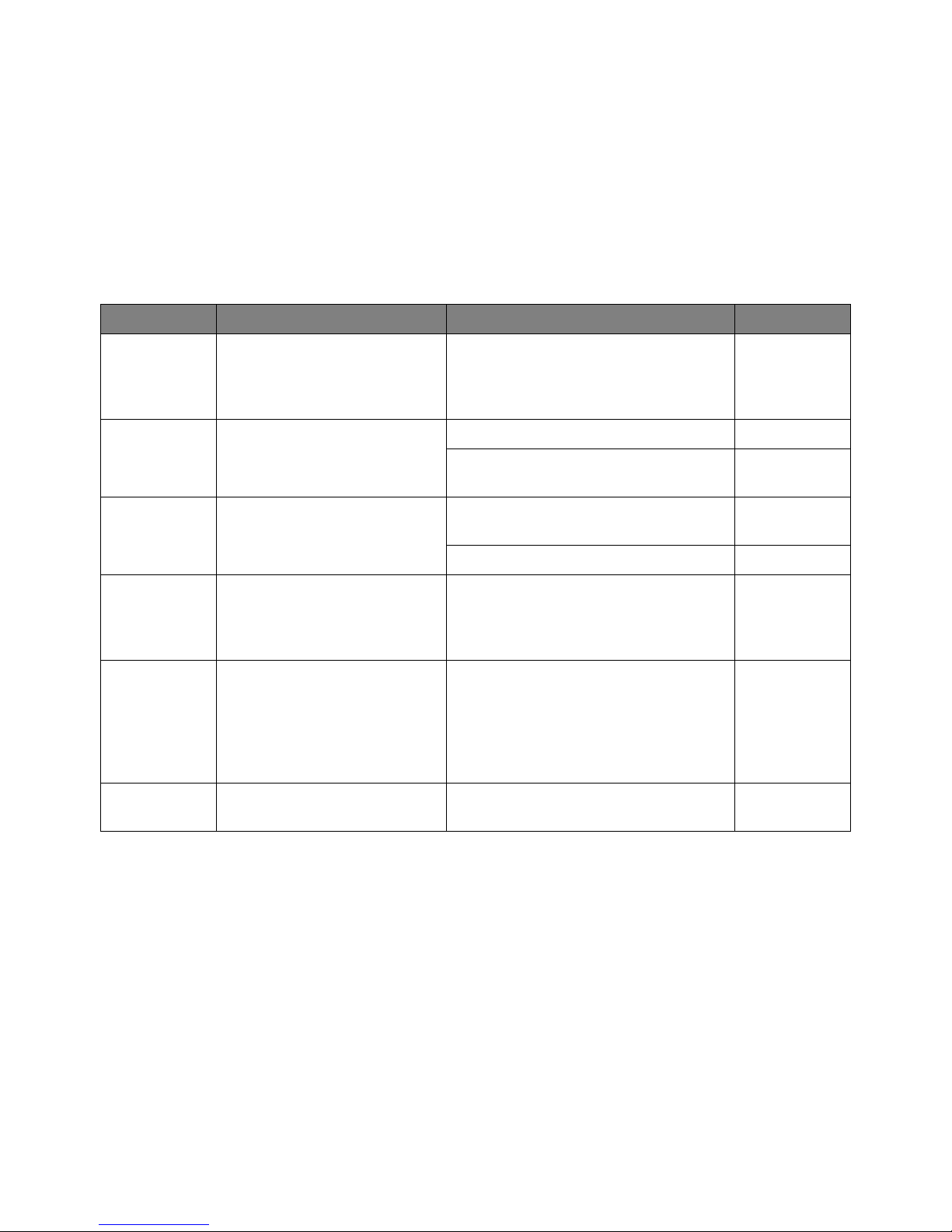
To access documentation related to the Keysight P9241/42/43A oscilloscopes,
use one of the following methods:
• The related documents are available on the product CD:
Document Description File name Format
Startup Guide Includes procedures to help you to
unpack, inspect, install (hardware
and software), verify operation, and
make a basic measurement.
Soft Front Panel
(SFP) User's
Guide
SCPI
Programmer's
Guide
IVI Programming
Guide (this
manual)
IVI Driver
reference (help
system)
LabVIEW Driver
Reference
Shows how to use the
P9241/42/43A oscilloscope's Soft
Front Panel (SFP) user interface.
Shows how to program the
P9241/42/43A oscilloscopes using
SCPI commands.
Shows you how to use Visual Studio
2010 with the .NET Framework to
write IVI-COM Console Applications
in Visual C#.
Provides detailed documentation of
the IVI-COM and IVI-C driver API
functions, as well as information to
help you get started with using the
IVI drivers in your application
development environment.
Provides detailed documentation of
the LabVIEW G Driver API functions.
P924x_StartupGuide.pdf PDF
P924x_SFP_Users_Guide.pdf PDF
P924x_SFP_Users_Guide.chm CHM (Microsoft
Help Format)
P924x_SCPI_Programmers_Guide.chm CHM (Microsoft
Help Format)
P924x_SCPI_Programmers_Guide.pdf PDF
P924x_IVI_ProgrammingGuide.pdf PDF
AgInfiniiVision.chm CHM (Microsoft
Help Format)
KtInfiniiVision_LabVIEW_Help.chm CHM (Microsoft
Help Format)
• To find the latest versions of the user documentation, go to
www.keysight.com/manuals/P9241A.
See Also The data sheet introduces the product and provides full product specifications.
You can find the data sheet at: www.keysight.com/products/P9241A
The Keysight P9241/42/43A Oscilloscopes Security Guide is available at
www.keysight.com/find/security.
Keysight P9241/42/43A Oscilloscopes IVI Programming Guide 7
Page 8

1 What You Will Learn in This Programming Guide
Overall Process Flow
Perform the following steps:
1 Write source code using Microsoft Visual Studio 2010 with .NET Visual C#
running on Windows 7.
2 Compile source code using the .NET Framework Library.
3 Produce an Assembly.exe file – this file can run directly from Microsoft
Windows without the need for any other programs.
• When using the Visual Studio Integrated Development Environment (IDE),
the Console Applications you write are stored in conceptual containers
called Solutions and Projects.
• You can view and access Solutions and Projects using the Solution Explorer
window (View > Solution Explorer).
8 Keysight P9241/42/43A Oscilloscopes IVI Programming Guide
Page 9

Keysight P9241/42/43A Oscilloscopes
IVI Programming Guide
2 Installing Hardware,
Software, and Licenses
Perform the following steps:
1 Unpack and inspect all hardware.
2 Verify the shipment contents.
3 Install the software. Note the following order when installing software.
a Install Microsoft Visual Studio 2010 with .NET Visual C# running on
Windows 7.
You can also use a free version of Visual Studio Express 2010 tools from:
http://www.microsoft.com/visualstudio/eng/products/visual-studio-2010
-express
The following steps, defined in the Keysight P9241/42/43A Oscilloscopes
Startup Guide, but repeated here must be completed before
programmatically controlling the P9241/42/43A oscilloscope hardware with
their IVI drivers.
b Install Keysight IO Libraries Suite 2018 Update 0.2 (or later); this installation
includes Keysight Connection Expert.
c Install the P9241/42/43A oscilloscope software version 7.21 or later; this
installation includes the AgInfiniiVision IVI driver version 2.4.1 or later.
Driver software includes all IVI-COM, IVI-C, and LabVIEW G Drivers along with
Soft Front Panel (SFP) programs and documentation. All of these items may be
downloaded from the Keysight product websites:
• http://www.keysight.com/find/iosuite > Select Technical Support > Select
the Drivers, Firmware & Software tab > Download the Keysight IO Libraries
Suite Recommended
• http://www.keysight.com/support/P9241A > Select Technical Support >
Select the Drivers, Firmware & Software tab > Download the Instrument
Driver.
9
Page 10
2 Installing Hardware, Software, and Licenses
NOTE
• http://www.keysight.com/find/ivi - download other installers for Keysight
IVI-COM drivers
4 Connect the oscilloscope to the controller PC using the USB cable.
5 Verify operation of the oscilloscope.
Before programming or making measurements, conduct a Self-Test on each P924xA USB
oscilloscope to make sure there are no problems with the oscilloscope or cabling.
Once the software and hardware are installed, and after Self-Test has been
performed, the P924xA USB oscilloscopes are ready to be programmatically
controlled.
10 Keysight P9241/42/43A Oscilloscopes IVI Programming Guide
Page 11

Keysight P9241/42/43A Oscilloscopes
IVI Programming Guide
3 APIs for the P9241/42/43A
Oscilloscopes
IVI Compliant or IVI Class Compliant / 13
IVI Driver Types / 14
IVI Driver Hierarchy / 16
Class-Complaint and Instrument-Specific Hierarchies for the P924xA / 17
Naming Conventions Used to Program IVI Drivers / 19
IVI Instrument
Classes (Defined
by the IVI
Foundation)
The following IVI driver terminology may be used when describing the Application
Programming Interfaces (APIs) for the P9241/42/43A oscilloscopes.
IVI [Interchangeable Virtual Instruments] - a standard instrument driver model
defined by the IVI Foundation that enables engineers to exchange instruments
made by different manufacturers without rewriting their code.
www.ivifoundation.org
Currently, there are 13 IVI Instrument Classes defined by the IVI Foundation. The
P9241/42/43A oscilloscope belongs to the Oscilloscope IVI Instrument Class and
are therefore is described as a "Class" instrument.
• DC Power Supply
•AC Power Supply
•DMM
• Function Generator
• Oscilloscope
•Power Meter
•RF Signal Generator
•Spectrum Analyzer
•Switch
•Upconverter
•Downconverter
• Digitizer
11
Page 12

3 APIs for the P9241/42/43A Oscilloscopes
• Counter/Timer
12 Keysight P9241/42/43A Oscilloscopes IVI Programming Guide
Page 13

IVI Compliant or IVI Class Compliant
The P9241/42/43A oscilloscopes driver is IVI Compliant and IVI Class Compliant
because it belongs to one of the 13 IVI Instrument Classes defined by the IVI
Foundation.
• IVI Compliant – means that the IVI driver follows architectural specifications for
these categories:
• Installation
• Inherent Capabilities
• Cross Class Capabilities
• Style
• Custom Instrument API
• IVI Class Compliant – means that the IVI driver implements one of the 13 IVI
Instrument Classes
• If an instrument is IVI Class Compliant, it is also IVI Compliant
APIs for the P9241/42/43A Oscilloscopes 3
• Provides one of the 13 IVI Instrument Class APIs in addition to a Custom API
• Custom API may be omitted (unusual)
• Simplifies exchanging instruments
Keysight P9241/42/43A Oscilloscopes IVI Programming Guide 13
Page 14
3 APIs for the P9241/42/43A Oscilloscopes
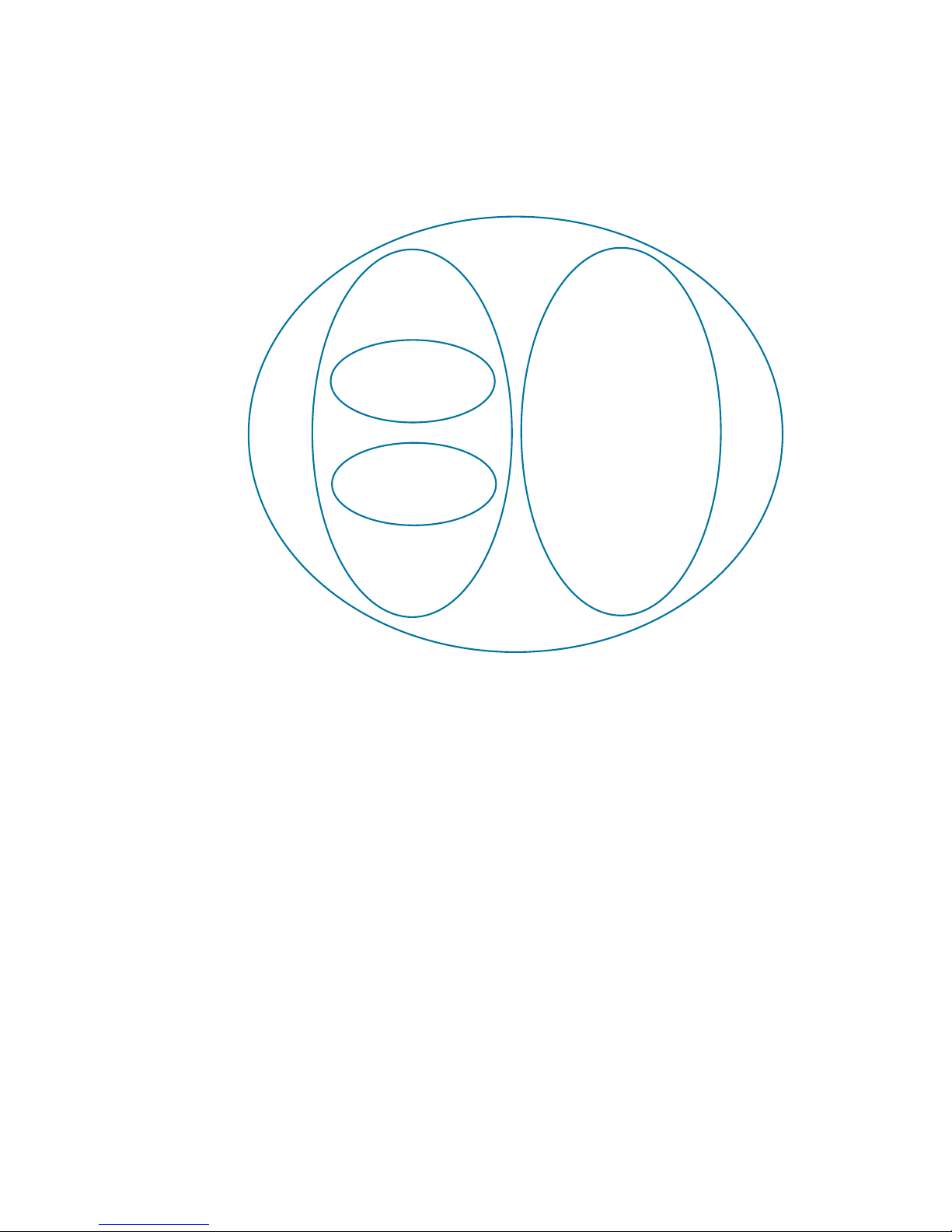
IVI Driver
IVI Specific
Driver
IVI Class-Compliant
Specific Driver
13 IVI Instrument
Classes defined by
the IVI Foundation:
- DC Power Supply
- AC Power Supply
- DMM
- Function Generator
- Oscilloscope
- RF Signal Generator
- Spectrum Analyzer
- Switch
- Upconverter
- Downconverter
- Digitizer
- Counter/Timer
IVI Custom
Specific Driver
IVI Class
Driver
IVI Driver Types
•IVI Driver
• Implements the Inherent Capabilities Specification
• Complies with all of the architecture specifications
• May or may not comply with one of the 13 IVI Instrument Classes
• Is either an IVI Specific Driver or an IVI Class Driver
•IVI Class Driver
• Is an IVI Driver needed only for interchangeability in IVI-C environments
• The IVI Class may be IVI-defined or customer-defined
• IVI Specific Driver
• Is an IVI Driver that is written for a particular instrument such as the
P9241/42/43A oscilloscopes
• IVI Class-Compliant Specific Driver
• IVI Specific Driver that complies with one (or more) of the IVI defined
• Used when hardware independence is desired
• IVI Custom Specific Driver
class specifications
14 Keysight P9241/42/43A Oscilloscopes IVI Programming Guide
Page 15

APIs for the P9241/42/43A Oscilloscopes 3
• Is an IVI Specific Driver that is not compliant with any one of the 13 IVI
defined class specifications
• Not interchangeable
Keysight P9241/42/43A Oscilloscopes IVI Programming Guide 15
Page 16
3 APIs for the P9241/42/43A Oscilloscopes
IVI Driver Hierarchy
When writing programs, you will be using the interfaces (APIs) available to the
IVI-COM driver.
• The core of every IVI-COM driver is a single object with many interfaces.
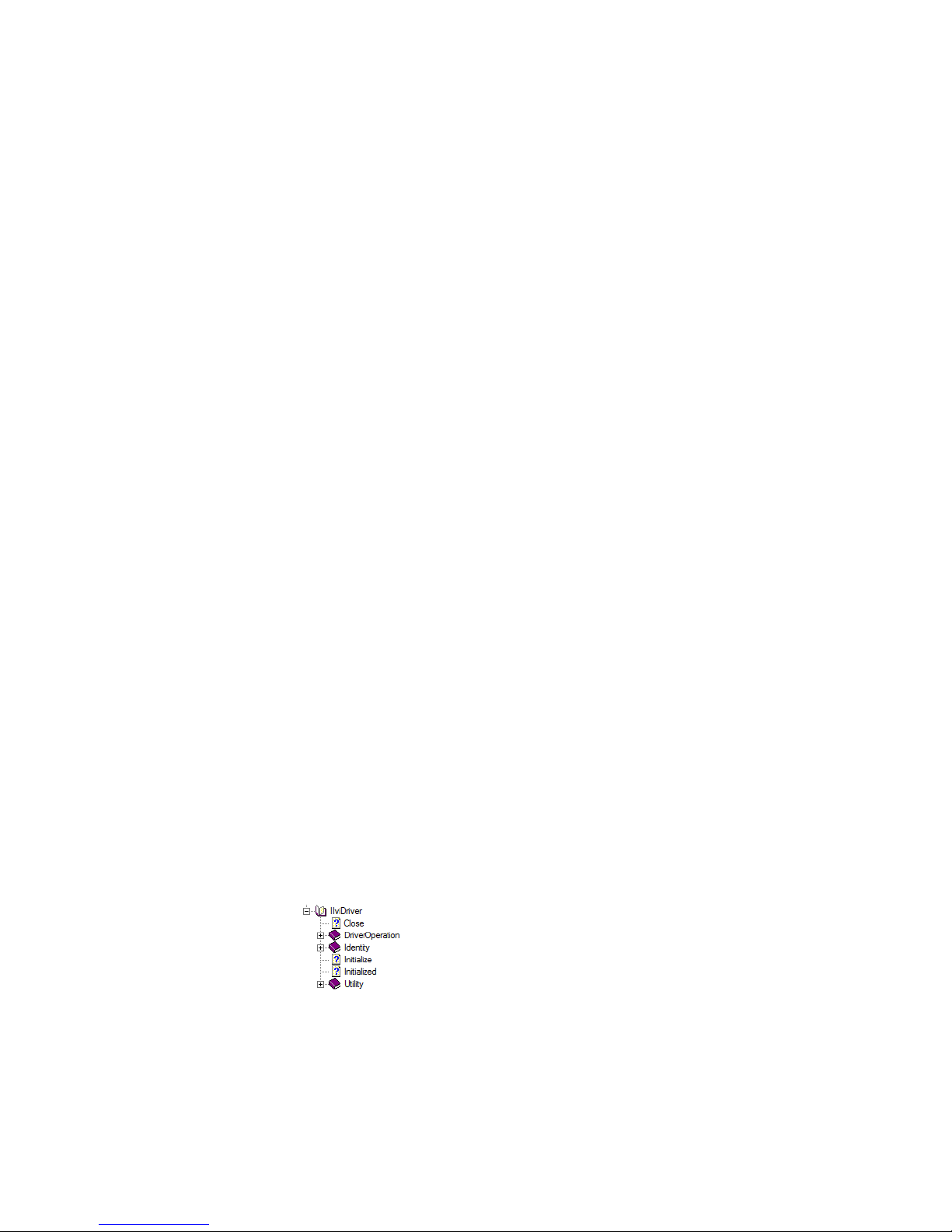
• These interfaces are organized into two hierarchies: Class-Compliant Hierarchy
and Instrument-Specific Hierarchy – and both include the IIviDriver interfaces.
• Class-Compliant Hierarchy - Because the P9241/42/43A oscilloscopes
belong to one of the 13 IVI Classes, there is a Class-Compliant Hierarchy in
its IVI Driver.
• The P9241/42/43A oscilloscope's class-compliant hierarchy has
IIviScope at the root (where IviScope is the driver name).
• IIviScope is the root interface and contains references to child
interfaces, which in turn contain references to other child interfaces.
Collectively, these interfaces define the Class-Compliant Hierarchy.
• Instrument-Specific Hierarchy
• The P9241/42/43A oscilloscope's instrument-specific hierarchy has
IAgInfiniiVision7 at the root (where AgInfiniiVision is the driver name).
• IAgInfiniiVision7 is the root interface and contains references to child
interfaces, which in turn contain references to other child interfaces.
• The IIviDriver interfaces are incorporated into both hierarchies:
Collectively, these interfaces define the Instrument-Specific
Hierarchy.
Class-Compliant Hierarchy and Instrument-Specific Hierarchy.
The IIviDriver is the root interface for IVI Inherent Capabilities which are what
the IVI Foundation has established as a set of functions and attributes that
all IVI drivers must include – irrespective of which IVI instrument class the
driver supports. These common functions and attributes are called IVI
inherent capabilities and they are documented in IVI-3.2 – Inherent
Capabilities Specification. Drivers that do not support any IVI instrument
class must still include these IVI inherent capabilities.
16 Keysight P9241/42/43A Oscilloscopes IVI Programming Guide
Page 17
APIs for the P9241/42/43A Oscilloscopes 3
Class-Complaint and Instrument-Specific Hierarchies for the P924xA
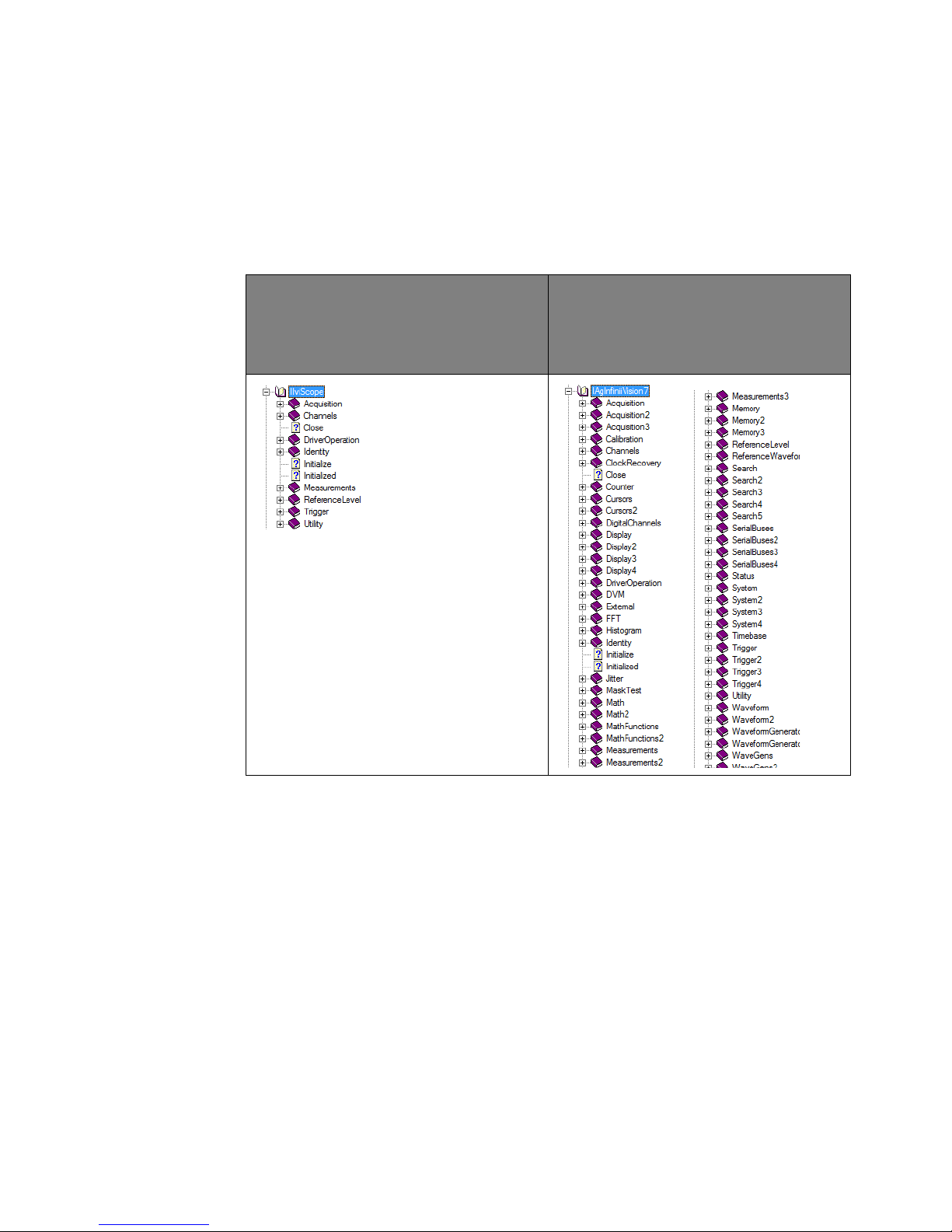
The following table lists the class-compliant and instrument-specific hierarchy
interfaces for the P9241/42/43A oscilloscopes.
IVI Class-Compliant Hierarchy
IviScope is the driver name
IIviScope is the root interface
Keysight P924xA Oscilloscope
Instrument-Specific Hierarchy
AgInfiniiVision is the driver name
IAgInfiniiVision7 is the root interface
When Using Visual
Studio
Keysight P9241/42/43A Oscilloscopes IVI Programming Guide 17
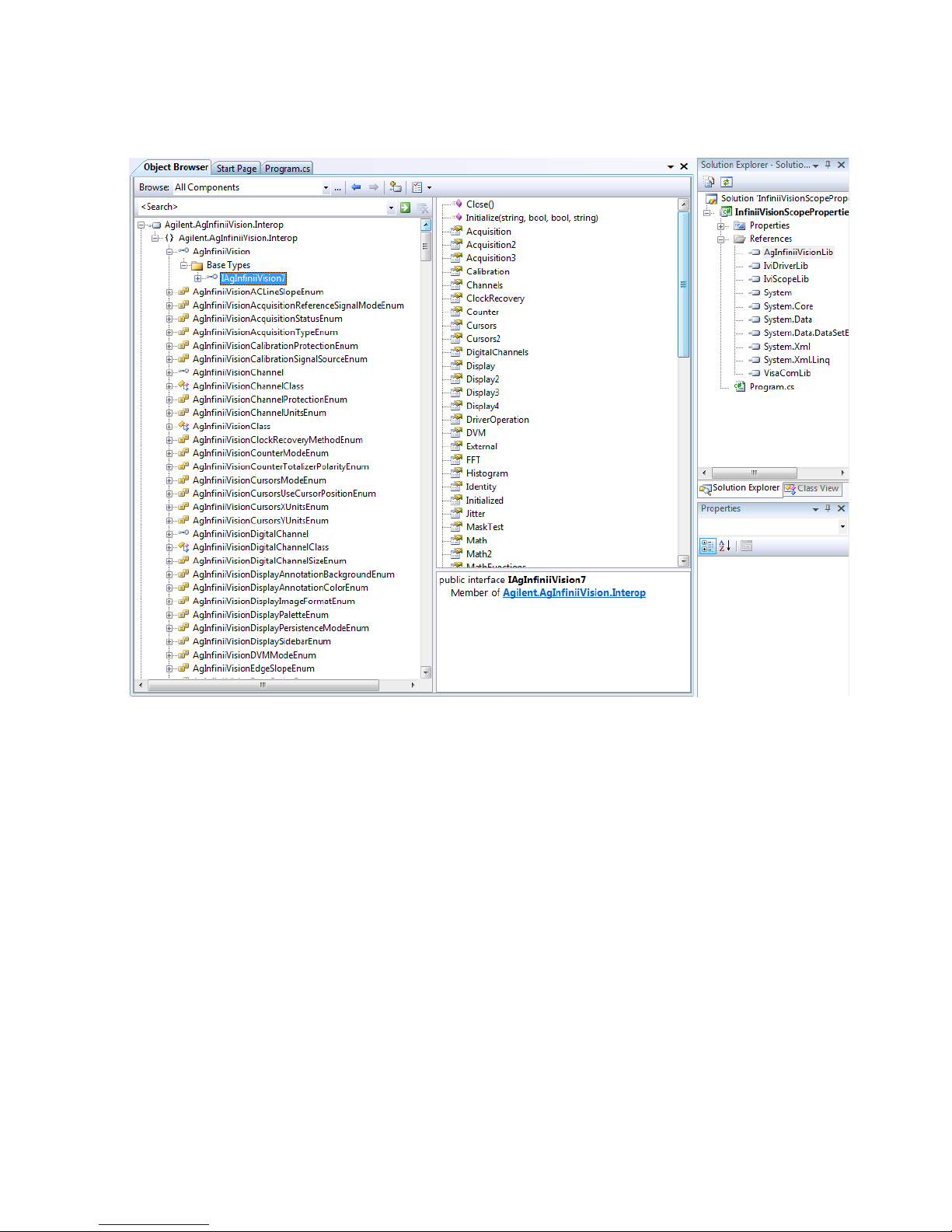
To view the interfaces available in the P924xA USB oscilloscope driver, right-click
AgInfiniiVisionLib library file, in the References folder, from the Solution Explorer
window and select View in Object Browser.
Page 18
3 APIs for the P9241/42/43A Oscilloscopes
18 Keysight P9241/42/43A Oscilloscopes IVI Programming Guide
Page 19

APIs for the P9241/42/43A Oscilloscopes 3
Naming Conventions Used to Program IVI Drivers
General IVI Naming Conventions
• All instrument class names start with "Ivi"
• Example: IviScope, IviDmm
• Function names
• One or more words use PascalCasing
• First word should be a verb
IVI-COM Naming Conventions
• Interface naming
• Class compliant: Starts with "IIvi"
• I<ClassName>
• Example: IIviScope, IIviDmm
• Sub-interfaces add words to the base name that match the C hierarchy as close
as possible
• Examples: IIviFgenArbitrary, IIviFgenArbitraryWaveform
• Defined values
• Enumerations and enum values are used to represent discrete values in
IVI-COM
• <ClassName><descriptive words>Enum
• Example: IviScopeTriggerCouplingEnum
• Enum values do not end in "Enum" but use the last word to differentiate
• Examples: IviScopeTriggerCouplingAC and IviScopeTriggerCouplingDC
Keysight P9241/42/43A Oscilloscopes IVI Programming Guide 19
Page 20

3 APIs for the P9241/42/43A Oscilloscopes
20 Keysight P9241/42/43A Oscilloscopes IVI Programming Guide
Page 21

Keysight P9241/42/43A Oscilloscopes
IVI Programming Guide
4 Creating a Project with
IVI-COM Using C-Sharp
Step 1 - Create a Console Application / 22
Step 2 - Add References / 23
Step 3 - Add "using" Statements / 25
Step 4 - Create Instance of the IVI-COM Driver / 26
Step 5 - Initialize the Driver Instance / 27
Step 6 - Write the Program Steps / 33
Step 7 - Close the Driver / 34
Step 8 - Building and Running a Complete Program Using Visual C-Sharp / 35
Additional Example Programs / 39
This tutorial walks through the various steps required to create a console
application using Visual Studio and C#. It demonstrates how to instantiate a driver
instance, set the resource name and various initialization values, initialize the
driver instance, print various driver properties to a console, check drivers for
errors, report errors if they occur, and close the driver.
At the end of this tutorial is a complete example program that shows what the
console application looks like if you follow all of these steps.
21
Page 22
4 Creating a Project with IVI-COM Using C-Sharp
NOTE
NOTE
Step 1 - Create a Console Application
Projects that use a Console Application do not show a Graphical User Interface (GUI) display.
1 Launch Visual Studio and create a new Console Application in Visual C# by
selecting: File > New > Project and select a Visual C#, Windows, Console
Application.
2 Enter "InfiniiVisionScopeProperties" as the Name of the project and click OK.
When you select New, Visual Studio will create an empty "Program.cs" file that includes some
necessary code, including using statements. This code is required, so do not delete it.
22 Keysight P9241/42/43A Oscilloscopes IVI Programming Guide
Page 23
Step 2 - Add References
NOTE
In order to access the P924xA oscilloscope driver interfaces, references to their
drivers (DLL) must be created.
1 For this step, Solution Explorer must be visible (View > Solution Explorer) and the
"Program.cs" editor window must be visible; select the Program.cs tab to bring
it to the front view.
2 In Solution Explorer, right-click on References and select Add Reference....
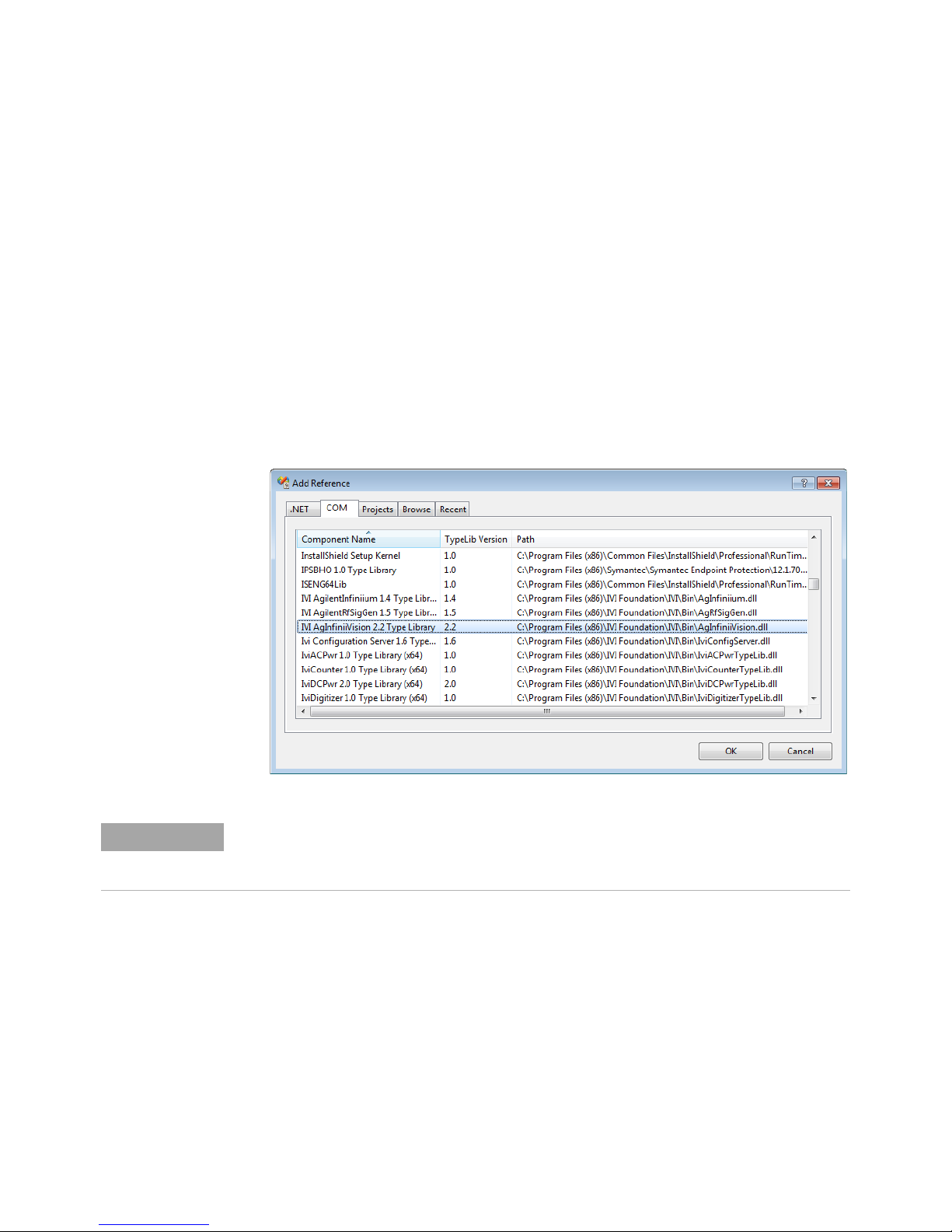
3 From the Add Reference dialog box, select the COM tab.
4 Click on any of the type libraries under the "Component Name" heading and
enter the letter "I".(All IVI drivers begin with IVI so this will move down the list of
type libraries that begin with "I".)
Creating a Project with IVI-COM Using C-Sharp 4
If you have not installed the IVI driver for the P924xA oscilloscope products (as listed in
Chapter 2, “Installing Hardware, Software, and Licenses,” starting on page 9), their IVI
drivers will not appear in this list.
Also, the TypeLib Version that appears will depend on the version of the IVI
driver that is installed. The version numbers change over time and typically
increase as new drivers are released.
If the TypeLib Version that is displayed on your system is higher than the ones
shown in this example, your system simply has newer versions – newer versions
may have additional commands available.
To get the IVI drivers to appear in this list, you must close this Add Reference
dialog, install the IVI drivers, and come back to this section and repeat "Step 2
- Add References" on page 23.
Keysight P9241/42/43A Oscilloscopes IVI Programming Guide 23
Page 24
4 Creating a Project with IVI-COM Using C-Sharp
NOTE
NOTE
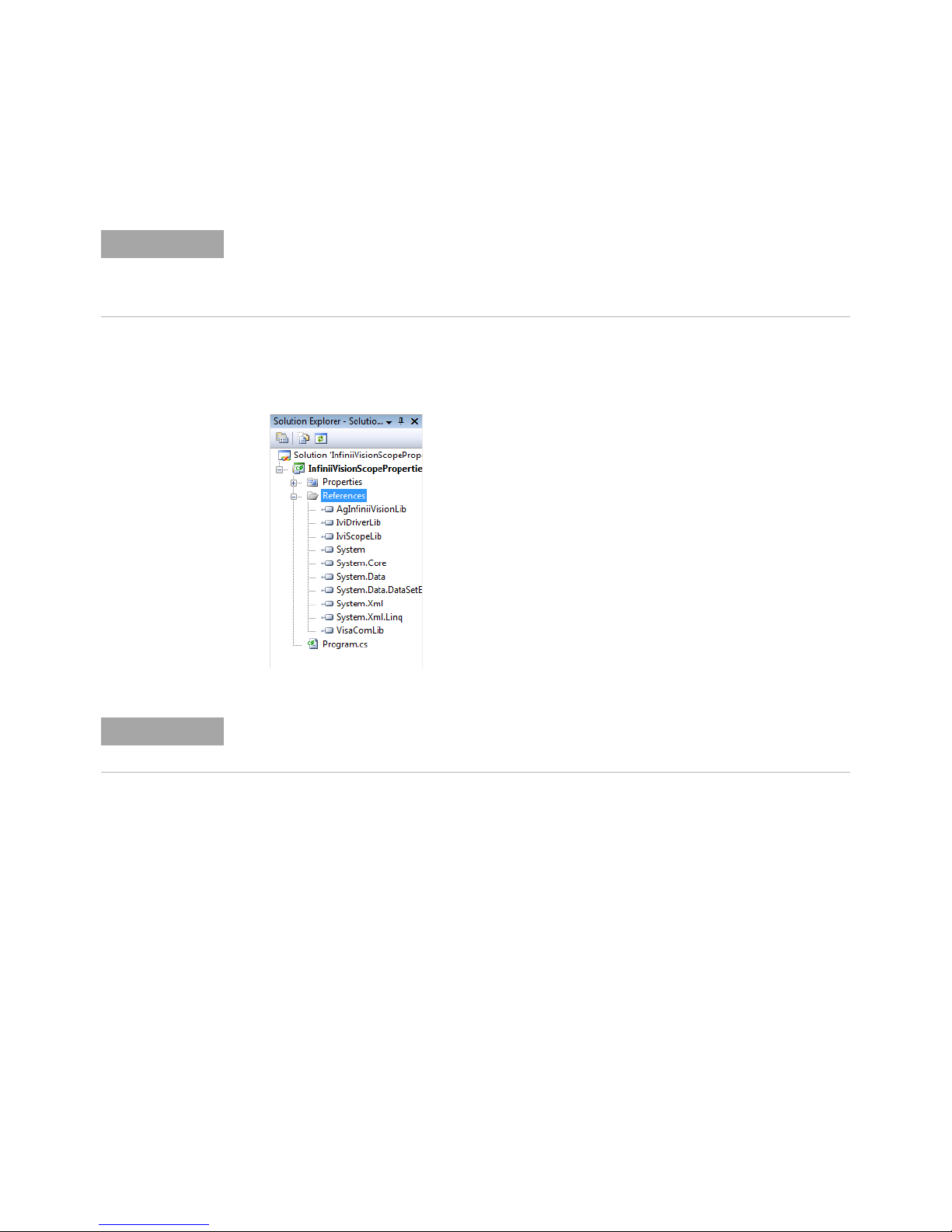
5 Scroll to IVI section and select the following type library. Then click OK.
• IVI AgInfiniiVision 2.2 Type Library
When any of the references for the AgInfiniiVision are added, the IVIDriver 1.0 Type Library is
also automatically added. This is visible as IviDriverLib under the project Reference; this
reference houses the interface definitions for IVI inherent capabilities which are located in the
file IviDriverTypeLib.dll (dynamically linked library).
6 These selected type libraries appear under the References node, in Solution
Explorer, as:
The program looks same as before you added the References, with the difference that the IVI
drivers that are referenced are now available for use.
To allow your program to access the IVI drivers without specifying full path
names of each interface or enum, you need to add using statements to your
program.
24 Keysight P9241/42/43A Oscilloscopes IVI Programming Guide
Page 25
Step 3 - Add "using" Statements
NOTE
Collapse
and
Expand
All data types (interfaces and enums) are contained within namespaces. (A
namespace is a hierarchical naming scheme for grouping types into logical
categories of related functionality. Design tools, such as Visual Studio, can use
namespaces which makes it easier to browse and reference types in your code.)
The C# "using" statement allows the type name to be used directly. Without the
"using" statement, the complete namespace-qualified name must be used.
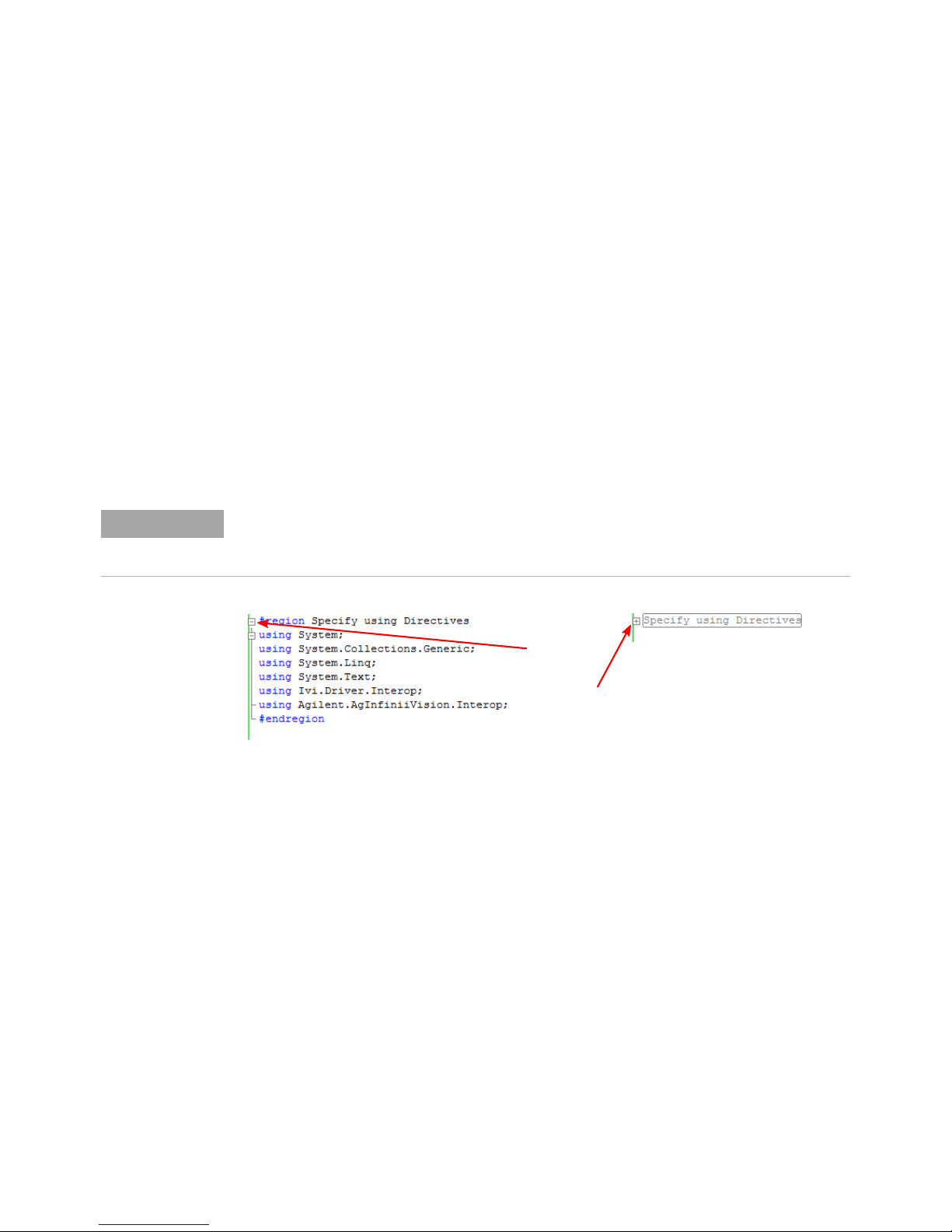
To allow your program to access the IVI driver without having to type the full path
of each interface or enum, type the following using statements immediately below
the other using statements.
These using statements should be added to your program:
using Ivi.Driver.Interop;
using Agilent.AgInfiniiVision.Interop;
You can create sections of code in your program that can be expanded and collapsed by
surrounding the code with #region and #endregion preprocessing directives. Select – or +
symbol to collapse or expand the region.
Creating a Project with IVI-COM Using C-Sharp 4
Keysight P9241/42/43A Oscilloscopes IVI Programming Guide 25
Page 26

4 Creating a Project with IVI-COM Using C-Sharp
Step 4 - Create Instance of the IVI-COM Driver
There are two ways to instantiate (create an instance of) the IVI-COM drivers:
•COM Session Factory
• Direct Instantiation
Because the InfiniiVision oscilloscopes are considered Class instruments (because
they belong to one of the 13 IVI Classes), the COM Session Factory can be used to
create instances of their IVI-COM drivers.
// Create an instance of the session factory
IIviSessionFactory factory = new IviSessionFactoryClass();
// Ask the session factory to create an instance of
// the appropriate driver based on a logical name
IIviScope iviscope = (IIviScope)factory.CreateDriver("MyLogicalName");
When direct instantiation of the InfiniiVision oscilloscope driver is used:
// Instantiate the driver class directly
AgInfiniiVision driver = new AgInfiniiVision();
The IVI-COM drivers may not be interchangeable with other oscilloscopes.
new operator is used in C# to create an instance of the driver.
The
// Create driver instance
AgInfiniiVision driver = new AgInfiniiVision();
26 Keysight P9241/42/43A Oscilloscopes IVI Programming Guide
Page 27
Step 5 - Initialize the Driver Instance
The Initialize() method is required when using any IVI driver. It establishes a
communication link (an "I/O session") with an instrument and it must be called
before the program can do anything with an instrument or work in simulation
mode.
Initialize() method has a number of options that can be defined. In this
The
example, we prepare the
parameters, then we call the
Resource Names
• If you are using Simulate Mode, you can set the Resource Name address string
to:
string resourceDesc = "%";
• If you are actually establishing a communication link (an "I/O session") with an
instrument, you need to determine the Resource Name address string (VISA
address string) that is needed.You can use an IO application such as
Agilent/Keysight Connection Expert, Agilent/Keysight Command Expert,
National Instruments Measurement and Automation Explorer (MAX), or you can
use the Keysight product's Soft Front Panel (SFP) to get the physical Resource
Name string.
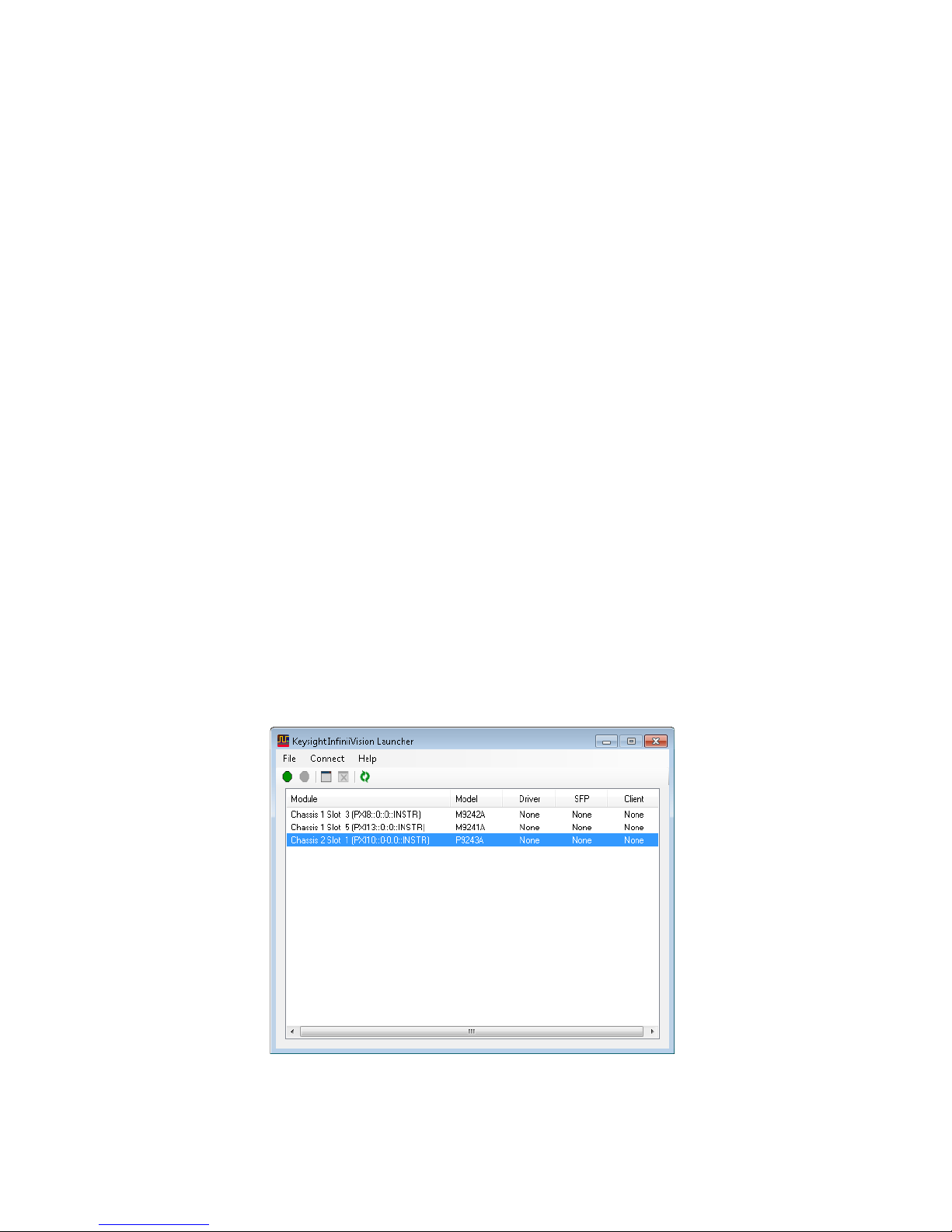
Using the Keysight P924x InfiniiVision SFP, you might get the following
Resource Name address strings.
Initialize() method by defining only a few of the
Initialize() method with these parameters:
Creating a Project with IVI-COM Using C-Sharp 4
Keysight P9241/42/43A Oscilloscopes IVI Programming Guide 27
Page 28
4 Creating a Project with IVI-COM Using C-Sharp
Module Name P9243A USB Oscilloscope
Slot Number 1
VISA Address PXI10::0-0.0::INSTR
When running the remote program on the controller PC that the oscilloscope is
connected to, you could, for example, use the following resource string.
string resourceDesc = "PXI10::0-0.0::INSTR";
When running the remote program on some other controller PC on the
network, you need to find the "HiSLIP Address" Resource Name address string.
To do this:
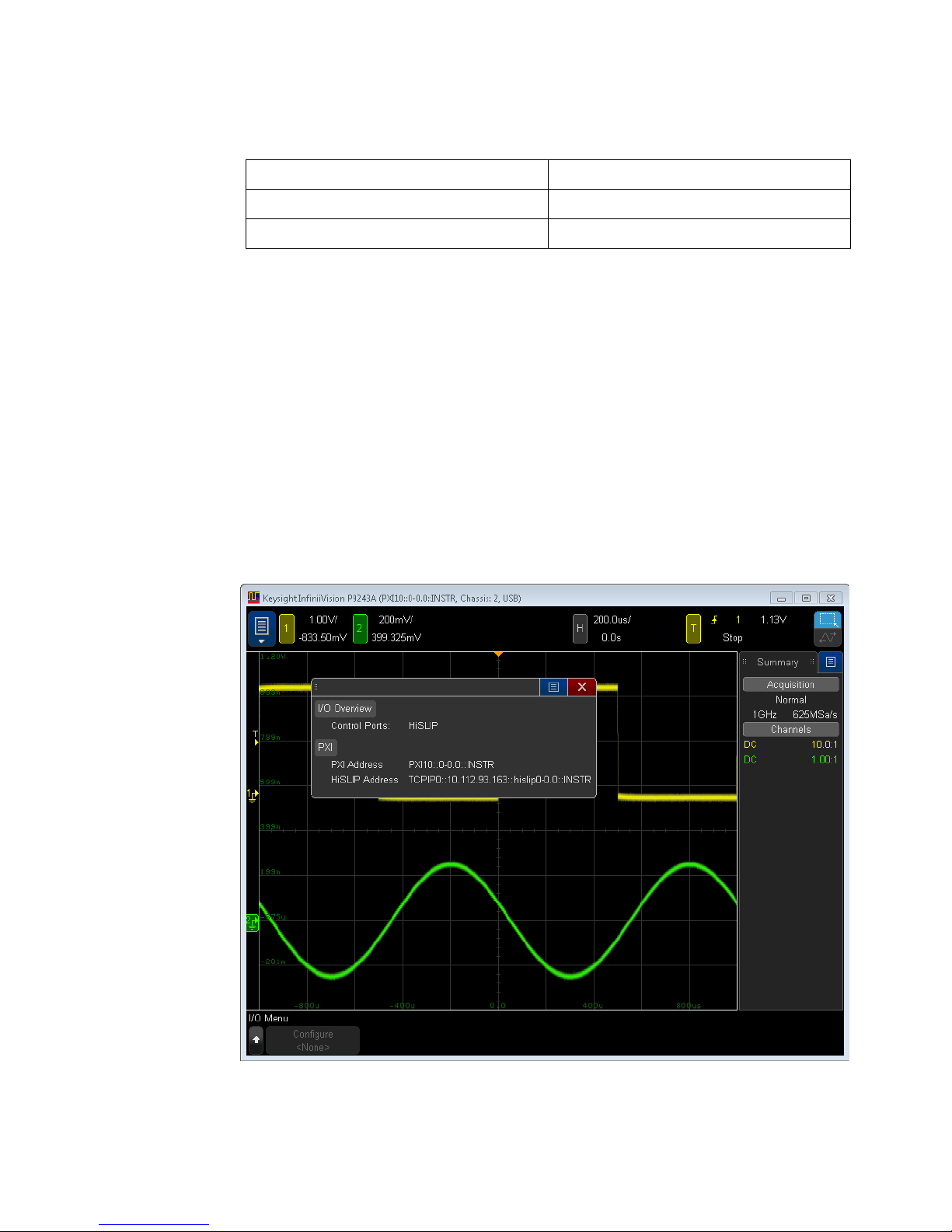
a In the the Keysight InfiniiVision SFP, select one of the P924xA InfiniiVision
oscilloscopes and click its Show Front Panel icon.
b In the oscilloscope's Front Panel graphical user interface, choose (Menu) >
Utilities > I/O Menu.
c In the dialog box that appears, take note of the HiSLIP address.
28 Keysight P9241/42/43A Oscilloscopes IVI Programming Guide
Page 29
Creating a Project with IVI-COM Using C-Sharp 4
NOTE
NOTE
So, when running the remote program on a controller PC other than the one the
oscilloscope is connected to, you could, for example, use the following resource
string.
string resourceDesc = "TCPIP::10.112.93.163::hislip0-0.0::INSTR";
You could also include the controller PC's host name in place of the IP address
(10.112.93.163) in the "HiSLIP Address" string.
In order to control a P924x InfiniiVision oscilloscope, its Front Panel interface must be running.
This resource string is similar to one you would use for a standalone InfiniiVision
oscilloscope, for example:
string resourceDesc = "TCPIP0::141.121.230.115::hislip0::INSTR";
PXI and HiSLIP
Address
Differences
The PXI interface does not support sending the <END> message and depends on a
new line <NL> to terminate a command or query (similar to a telnet socket port on
a benchtop oscilloscope). You may run into this issue when using raw binary writes
over the PXI interface. For example:
AgInfiniiVision driver = new AgInfiniiVision();
string initOptions = "QueryInstrStatus=true, Simulate=false,
DriverSetup= Model=, Trace=false, TraceName=c:\\temp\\traceOut";
bool idquery = true;
bool reset = false;
string pxiAddr = "PXI35::0::0::INSTR";
string hislipAddr = "TCPIP0::localhost::hislip35-0.0::INSTR";
driver.Initialize(pxiAddr, idquery, reset, initOptions);
…
…
…
byte[] cmd = Encoding.ASCII.GetBytes("*IDN?\n");
driver.System4.DirectIO.IO.Write(cmd, cmd.Length);
When using a HiSLIP address, the "\n" is not required. However, when using the
PXI address, the "\n" is required.
Initialize() Parameters
Although the Initialize() method has a number of options that can be defined (see
Initialize Options below), we are showing this example with a minimum set of options to help
minimize complexity.
// Define driver Initialize options
string initOptions = "QueryInstrStatus=true, Simulate=false, DriverSetup
Keysight P9241/42/43A Oscilloscopes IVI Programming Guide 29
Page 30
4 Creating a Project with IVI-COM Using C-Sharp
NOTE
=
Model=, Trace=false, TraceName=c:\\temp\\traceOut";
bool idquery = true;
bool reset = false;
// Initialize the driver.
driver.Initialize(resourceDesc, idquery, reset, initOptions);
Console.WriteLine("Driver Initialized");
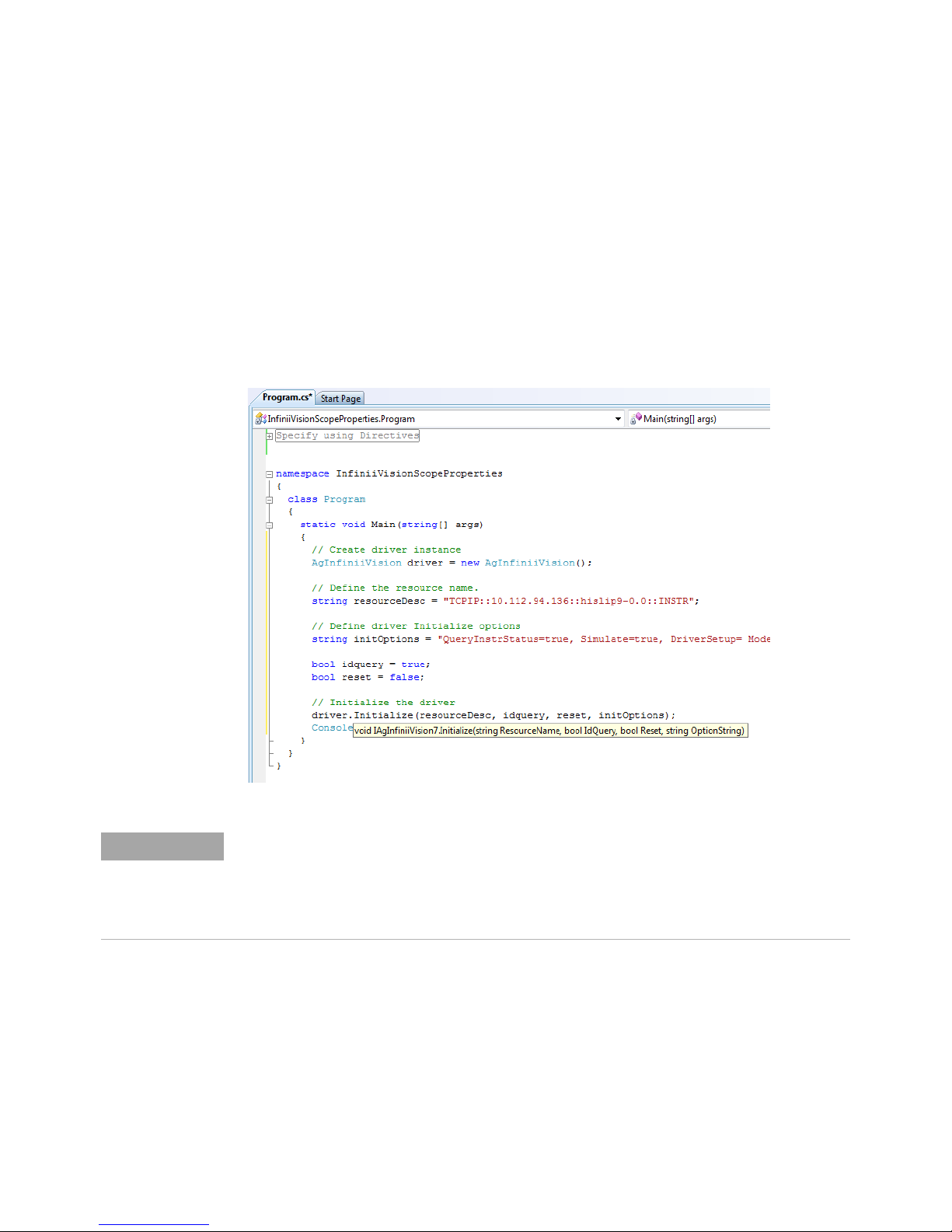
The following picture shows how IntelliSense is invoked by simply rolling the
cursor over the word "Initialize".
One of the key advantages of using C# in the Microsoft Visual Studio Integrated Development
Environment (IDE) is IntelliSense. IntelliSense is a form of auto-completion for variable names
and functions and a convenient way to access parameter lists and ensure correct syntax. This
feature also enhances software development by reducing the amount of keyboard input
required.
Initialize() Options
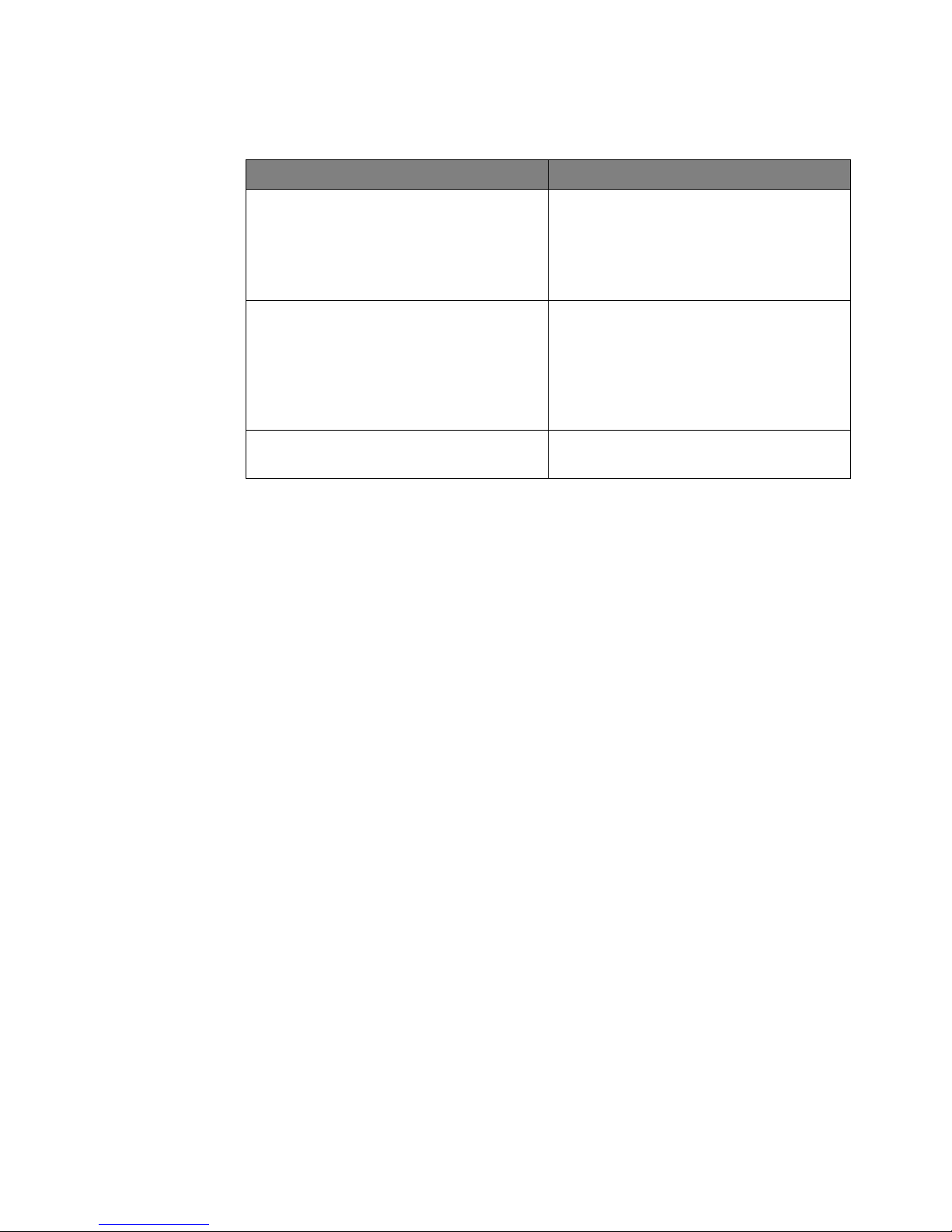
The following table describes options that are most commonly used with the
Initialize() method.
30 Keysight P9241/42/43A Oscilloscopes IVI Programming Guide
Page 31
Creating a Project with IVI-COM Using C-Sharp 4
Property Type and Example Value Description of Property
string ResourceName =
"PXI[bus]::device[::function][::INSTR]";
string ResourceName =
"PXI13::0::0::INSTR;PXI14::0::0::INSTR;PXI15::0::
0::INSTR;PXI16::0::0::INSTR";
bool IdQuery = true; Setting the ID query to false prevents the driver
bool Reset = true; Setting Reset to true instructs the driver to
ResourceName – The driver is typically
initialized using a physical resource name
descriptor, often a VISA resource descriptor.
See the procedure in the "Resource Names"
on page 27 section.
from verifying that the connected instrument is
the one the driver was written for.
If IdQuery is set to true, this will query the
instrument model and fail initialization if the
model is not supported by the driver.
initially reset the instrument.
Keysight P9241/42/43A Oscilloscopes IVI Programming Guide 31
Page 32
4 Creating a Project with IVI-COM Using C-Sharp
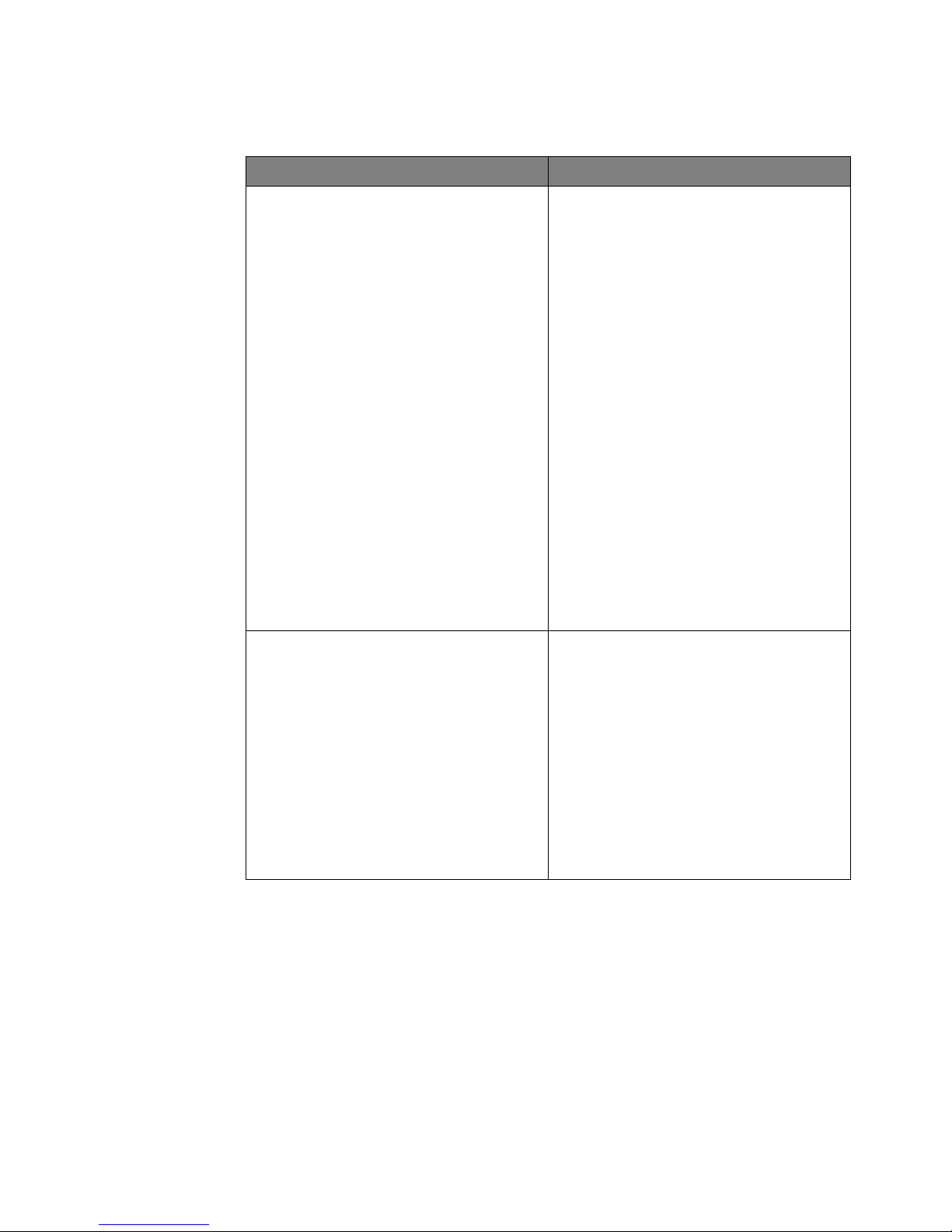
Property Type and Example Value Description of Property
string OptionString = "QueryInstrStatus=true,
Simulate=true, DriverSetup= Trace=false";
OptionString - Setup the following initialization
options:
• QueryInstrStatus=true (Specifies whether the
IVI specific driver queries the instrument
status at the end of each user operation.)
• Simulate=true (Setting Simulate to true
instructs the driver to not attempt to connect
to a physical instrument, but use a simulation
of the instrument instead.)
• Cache=false (Specifies whether or not to
cache the value of properties.)
• InterchangeCheck=false (Specifies whether
the IVI specific driver performs
interchangeability checking.)
• RangeCheck=false (Specifies whether the IVI
specific driver validates attribute values and
function parameters.)
• RecordCoercions=false (Specifies whether
the IVI specific driver keeps a list of the value
coercions it makes for ViInt32 and ViReal64
attributes.)
DriverSetup= Trace=false";
• DriverSetup= (This is used to specify settings
that are supported by the driver, but not
defined by IVI. If the Options String parameter
(OptionString in this example) contains an
assignment for the Driver Setup attribute, the
Initialize function assumes that everything
following 'DriverSetup=' is part of the
assignment.)
• Model= (Instrument model to use during
simulation)
• Trace=false (If false, an output trace log of all
driver calls is not saved in an XML file.)
If these drivers were installed, additional information can be found under
Initializing the IVI-COM Driver from the following:
AgInfiniiVision IVI
Driver Reference
Start > All Programs > Keysight Instrument Drivers > IVI-COM-C AgInfiniiVision 2.2.3
Oscilloscope (Open driver root folder)
In the driver root folder, double-click the "AgInfiniiVision.chm" file to open the
driver reference.
32 Keysight P9241/42/43A Oscilloscopes IVI Programming Guide
Page 33

Step 6 - Write the Program Steps
At this point, you can add program steps that use the driver instance to perform
tasks. For example:
// Print a few IIviDriverIdentity properties
Console.WriteLine("Identifier: {0}", driver.Identity.Identifier);
Console.WriteLine("Revision: {0}", driver.Identity.Revision);
Console.WriteLine("Vendor: {0}", driver.Identity.Vendor);
Console.WriteLine("Description: {0}", driver.Identity.Description);
Console.WriteLine("Model: {0}", driver.Identity.InstrumentModel);
Console.WriteLine("FirmwareRev: {0}", driver.Identity.InstrumentFirmware
Revision);
Console.WriteLine("Serial #: {0}", driver.System.SerialNumber);
Console.WriteLine("\nSimulate: {0}\
n", driver.DriverOperation.Simulate);
//Initiate the acquisition and return the acquired waveform data
System.Double[] WaveformArray={128,64,32,16,8,4,2,1};
System.Double InitialX = 10;
System.Double XIncrement = 5;
driver.Measurements.AutoSetup();
Creating a Project with IVI-COM Using C-Sharp 4
driver.Measurements.Initiate();
driver.Measurements.get_Item("Channel1").FetchWaveform(ref WaveformArray
, ref InitialX, ref XIncrement);
Console.WriteLine("\
nInitialX: {0} XIncrement: {1}", InitialX, XIncrement);
System.Int32 Points = WaveformArray.Length;
Console.Write("\n\nData Points: {0}\n\nWaveformArray: \n", Points);
if (Points > 100) Points = 100;
for (int i = 0; i < Points; i++)
Console.Write("{0}, ", WaveformArray[i]);
Console.WriteLine();
// Check instrument for errors
int errorNum = -1;
string errorMsg = null;
Console.WriteLine();
while (errorNum != 0)
{
driver.Utility.ErrorQuery(ref errorNum, ref errorMsg);
Console.WriteLine("ErrorQuery: {0}, {1}", errorNum, errorMsg);
}
Keysight P9241/42/43A Oscilloscopes IVI Programming Guide 33
Page 34

4 Creating a Project with IVI-COM Using C-Sharp
CAUTION
Step 7 - Close the Driver
Calling Close() at the end of the program is required by the IVI specification
when using any IVI driver.
Important! Close() may be the most commonly missed step when using an IVI driver.
Failing to do this could mean that system resources are not freed up and your program
may behave unexpectedly on subsequent executions.
// Close the driver
if (driver != null && driver.Initialized)
{
driver.Close();
Console.WriteLine("Driver Closed");
}
// Write "Done" to console
Console.WriteLine("Done - Press Enter to Exit");
Console.ReadLine();
34 Keysight P9241/42/43A Oscilloscopes IVI Programming Guide
Page 35

Creating a Project with IVI-COM Using C-Sharp 4
Step 8 - Building and Running a Complete Program Using Visual
C-Sharp
Build your console application and run it to verify it works properly.
1 Open the solution file SolutionNameThatYouUsed.sln in Visual Studio 2010.
2 Set the appropriate platform target for your project.
• In many cases, the default platform target (Any CPU) is appropriate.
• However, if you are using a 64-bit PC (such as Windows 7) to build a .NET
application that uses a 32-bit IVI-COM driver, you may need to specify your
project's platform target as x86.
3 Choose Project > ProjectNameThatYouUsed Properties and select Build | Rebuild
Solution.
• Tip: You can also do the same thing from the Debug menu by clicking Start
Debugging or pressing the F5 key.
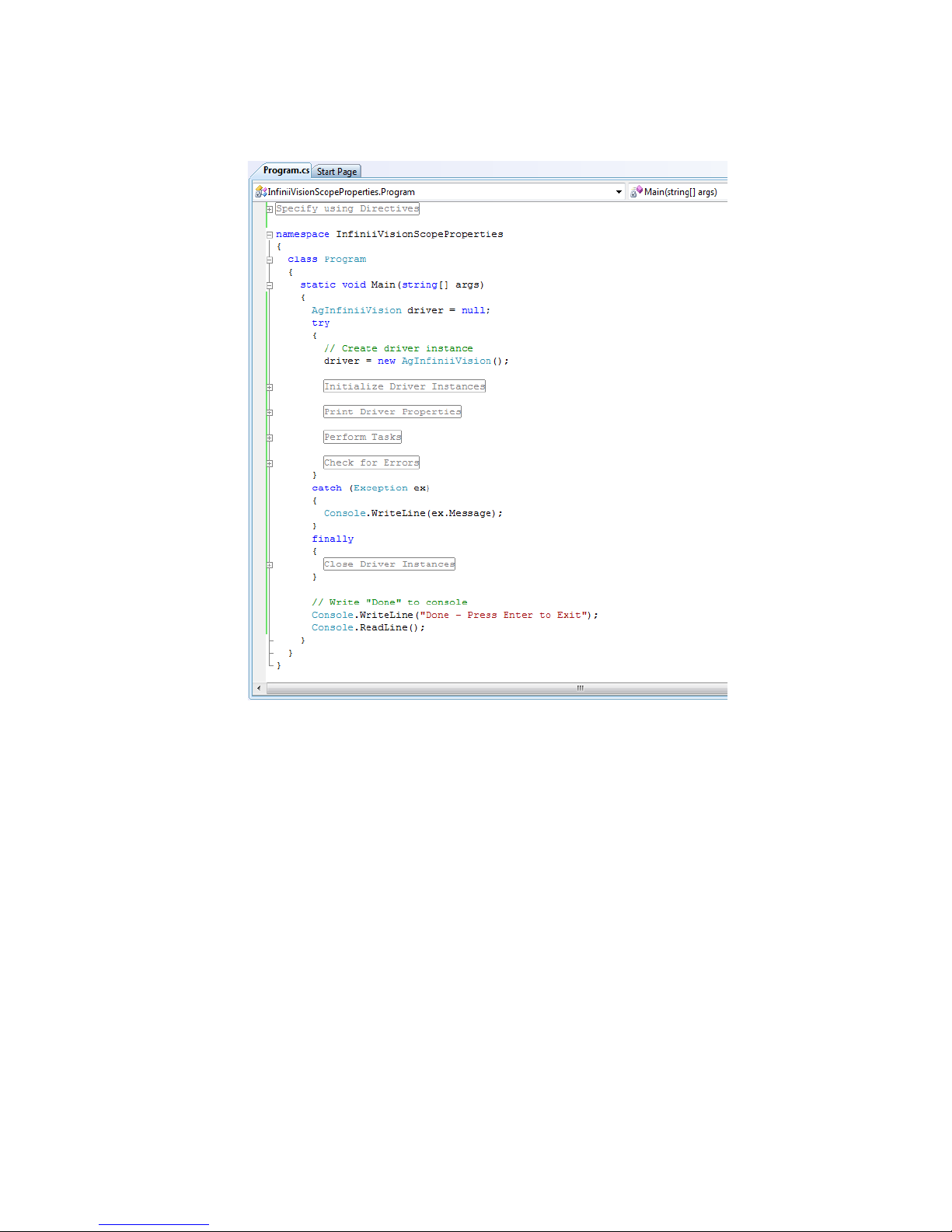
Example Program - Code Structure
After placing the example program statements in try/catch/finally blocks,
separating the driver declaration from instance creation, and adding #region and
#endregion preprocessor directives, you end up with an example program
structure that looks like:
Keysight P9241/42/43A Oscilloscopes IVI Programming Guide 35
Page 36
4 Creating a Project with IVI-COM Using C-Sharp
Example Program - Full Code Listing
The example program full code listing looks like:
#region Specify using Directives
using System;
using System.Collections.Generic;
using System.Linq;
using System.Text;
using Ivi.Driver.Interop;
using Agilent.AgInfiniiVision.Interop;
#endregion
namespace InfiniiVisionScopeProperties
{
class Program
{
static void Main(string[] args)
{
AgInfiniiVision driver = null;
try
36 Keysight P9241/42/43A Oscilloscopes IVI Programming Guide
Page 37

Creating a Project with IVI-COM Using C-Sharp 4
{
// Create driver instance
driver = new AgInfiniiVision();
#region Initialize Driver Instances
// Define the resource name.
string resourceDesc = "TCPIP::10.112.94.136::hislip9-0.0::INSTR"
;
// Define driver Initialize options
string initOptions = "QueryInstrStatus=true, Simulate=false, Dri
verSetup= Model=, Trace=false, TraceName=c:\\temp\\traceOut";
bool idquery = true;
bool reset = false;
// Initialize the driver
driver.Initialize(resourceDesc, idquery, reset, initOptions);
Console.WriteLine("Driver Initialized");
#endregion
#region Print Driver Properties
// Print a few IIviDriverIdentity properties
Console.WriteLine("Identifier: {0}", driver.Identity.Identifier
);
Console.WriteLine("Revision: {0}", driver.Identity.Revision);
Console.WriteLine("Vendor: {0}", driver.Identity.Vendor);
Console.WriteLine("Description: {0}", driver.Identity.Descriptio
n);
Console.WriteLine("Model: {0}", driver.Identity.Instrument
Model);
Console.WriteLine("FirmwareRev: {0}", driver.Identity.Instrument
FirmwareRevision);
Console.WriteLine("Serial #: {0}", driver.System.SerialNumber
);
Console.WriteLine("\nSimulate: {0}\
n", driver.DriverOperation.Simulate);
#endregion
#region Perform Tasks
//Initiate the acquisition and return the acquired waveform data
System.Double[] WaveformArray={128,64,32,16,8,4,2,1};
System.Double InitialX = 10;
System.Double XIncrement = 5;
driver.Measurements.AutoSetup();
driver.Measurements.Initiate();
driver.Measurements.get_Item("Channel1").FetchWaveform(ref Wavef
ormArray, ref InitialX, ref XIncrement);
Console.WriteLine("\
nInitialX: {0} XIncrement: {1}", InitialX, XIncrement);
System.Int32 Points = WaveformArray.Length;
Console.Write("\n\nData Points: {0}\n\nWaveformArray: \
n", Points);
if (Points > 100) Points = 100;
Keysight P9241/42/43A Oscilloscopes IVI Programming Guide 37
Page 38

4 Creating a Project with IVI-COM Using C-Sharp
for (int i = 0; i < Points; i++)
Console.Write("{0}, ", WaveformArray[i]);
Console.WriteLine();
#endregion
#region Check for Errors
// Check instrument for errors
int errorNum = -1;
string errorMsg = null;
Console.WriteLine();
while (errorNum != 0)
{
driver.Utility.ErrorQuery(ref errorNum, ref errorMsg);
Console.WriteLine("ErrorQuery: {0}, {1}", errorNum, errorMsg);
}
#endregion
}
catch (Exception ex)
{
Console.WriteLine(ex.Message);
}
finally
{
#region Close Driver Instances
// Close the driver
if (driver != null && driver.Initialized)
{
driver.Close();
Console.WriteLine("Driver Closed");
}
#endregion
}
// Write "Done" to console
Console.WriteLine("Done - Press Enter to Exit");
Console.ReadLine();
}
}
}
38 Keysight P9241/42/43A Oscilloscopes IVI Programming Guide
Page 39

Additional Example Programs
Additional example programs can be found in: C:\Program Files (x86)\IVI
Foundation\IVI\Drivers\AgInfiniiVision\Examples
Creating a Project with IVI-COM Using C-Sharp 4
Keysight P9241/42/43A Oscilloscopes IVI Programming Guide 39
Page 40

4 Creating a Project with IVI-COM Using C-Sharp
40 Keysight P9241/42/43A Oscilloscopes IVI Programming Guide
Page 41

Keysight P9241/42/43A Oscilloscopes
IVI Programming Guide
5 Creating a Project with
IVI-COM Using Python
You can use the Python programming language with the "comtypes" package to
control Keysight oscilloscopes using the IVI-COM library.
The Python language and "comtypes" package can be downloaded from the web
at http://www.python.org/ and
http://starship.python.net/crew/theller/comtypes/, respectively.
To run this example with Python and "comtypes":
1 Cut-and-paste the code that follows into a file named "example.py".
2 Edit the program to use the VISA address of your oscilloscope.
3 If "python.exe" can be found via your PATH environment variable, open a
Command Prompt window; then, change to the folder that contains the
"example.py" file, and enter:
python example.py
#
# Oscilloscope IVI-COM instrument-specific AgInfiniiVision
# example in Python using "comtypes"
# *********************************************************
# This program illustrates a few commonly used programming
# features of your Keysight oscilloscope.
# *********************************************************
# Import Python modules.
# --------------------------------------------------------import sys
import array
from comtypes.client import GetModule
from comtypes.client import CreateObject
# Run GetModule once to generate comtypes.gen.AgInfiniiVisionLib
if not hasattr(sys, "frozen"):
GetModule("C:\Program Files (x86)\IVI Foundation\IVI\Bin\
AgInfiniiVision.dll")
41
Page 42

5 Creating a Project with IVI-COM Using Python
from comtypes.gen import AgInfiniiVisionLib
# Global variables (booleans:0=False, 1 = True).
# ---------------------------------------------------------
# =========================================================
# Initialize:
# =========================================================
def initialize():
# Initialize.
if not my_scope.Initialized:
my_scope.Initialize(
'TCPIP0::lab-pxi-5.cos.is.keysight.com::hislip9-0.0::INSTR',
False,
False,
''
)
# Clear the interface.
my_scope.System2.ClearIO
print "Interface cleared."
# Set the Timeout to 15 seconds.
my_scope.System.TimeoutMilliseconds = 15000 # 15 seconds.
print "Timeout set to 15000 milliseconds."
# Query instrument status after each I/O.
my_scope.DriverOperation.QueryInstrumentStatus = True
# Get and display the oscilloscope's identity.
print "Description: '%s'" % my_scope.Identity.Description
print "Group capabilities: '%s'" % my_scope.Identity.GroupCapabilities
print "Identifier: '%s'" % my_scope.Identity.Identifier
print "Instrument firmware revision: '%s'" % my_scope.Identity.Instrume
ntFirmwareRevision
print "Instrument manufacturer: '%s'" % my_scope.Identity.InstrumentMan
ufacturer
print "Instrument model: '%s'" % my_scope.Identity.InstrumentModel
print "Revision: '%s'" % my_scope.Identity.Revision
print "Specification major version: '%s'" % my_scope.Identity.Specifica
tionMajorVersion
print "Specification minor version: '%s'" % my_scope.Identity.Specifica
tionMinorVersion
print "Supported instrument models: '%s'" % my_scope.Identity.Supported
InstrumentModels
print "Vendor: '%s'" % my_scope.Identity.Vendor
print "Serial number: '%s'" % my_scope.System.SerialNumber
# Place oscilloscope in known state.
my_scope.Utility.Reset()
# =========================================================
42 Keysight P9241/42/43A Oscilloscopes IVI Programming Guide
Page 43

Creating a Project with IVI-COM Using Python 5
# Capture:
# =========================================================
def capture():
# Use auto-scale to automatically set up oscilloscope.
print "Autoscale."
my_scope.Measurements.AutoSetup()
# Set trigger mode.
my_scope.Trigger.Configure(
Type=AgInfiniiVisionLib.AgInfiniiVisionTriggerTypeEdge,
Holdoff=0.000000040
)
print "Trigger type: %s" % my_scope.Trigger.Type
# Set edge trigger parameters.
my_scope.Trigger.Edge.Configure(
Source='Channel1',
Level=1.5,
Slope=AgInfiniiVisionLib.AgInfiniiVisionTriggerSlopePositive
)
print "Trigger edge source: %s" % my_scope.Trigger.Source
print "Trigger edge level: %s" % my_scope.Trigger.Level
print "Trigger edge slope: %s" % my_scope.Trigger.Edge.Slope
# Save oscilloscope setup.
setup_bytes = my_scope.System.GetState()
# nLength = len(setup_bytes)
nLength = len(setup_bytes) + 1 # Plus newline character.
f = open("setup.stp", "wb")
f.write(bytearray(setup_bytes))
f.write("\n") # Needs newline or will get error on restore.
f.close()
print "Setup bytes saved: %d" % nLength
print "Setup saved to setup.stp."
check_instrument_errors()
# Change oscilloscope settings with individual commands:
# Set channel 1 vertical scale and offset.
ch1 = my_scope.Channels.Item('Channel1')
ch1.Configure(
Range=4.0,
Offset=2.075,
Coupling=AgInfiniiVisionLib.AgInfiniiVisionVerticalCouplingDC,
ProbeAttenuation=10.0,
Enabled=True
)
ch1.Offset = 2.075 # Parameters can be configured using properties
print "Channel 1 vertical range: %f" % ch1.Range
print "Channel 1 vertical offset: %f" % ch1.Offset
# Set horizontal scale and offset.
my_scope.Acquisition.ConfigureRecord(
TimePerRecord=0.005,
NumberOfPointsMin=1000,
StartTime=-0.0025
Keysight P9241/42/43A Oscilloscopes IVI Programming Guide 43
Page 44

5 Creating a Project with IVI-COM Using Python
)
print "Time per record: %f" % my_scope.Acquisition.TimePerRecord
print "Acquisition start time: %f" % my_scope.Acquisition.StartTime
print "Number of points minimum: %d" % my_scope.Acquisition.NumberOfPoi
ntsMin
# Set the acquisition type.
my_scope.Acquisition.Type = AgInfiniiVisionLib.AgInfiniiVisionAcquisiti
onTypeNormal
print "Acquisition type: %s" % my_scope.Acquisition.Type
# Or, configure by loading a previously saved setup.
f = open("setup.stp", "rb")
setup_bytes = f.read()
f.close()
my_scope.System.PutState(array.array('B', setup_bytes))
check_instrument_errors()
print "Setup bytes restored: %d" % len(setup_bytes)
# =========================================================
# Analyze:
# =========================================================
def analyze():
# Make measurements.
# -------------------------------------------------------meas_freq = my_scope.Measurements.Item('Channel1').ReadWaveformMeasurem
ent(
MeasFunction=AgInfiniiVisionLib.AgInfiniiVisionMeasurementFrequency,
MaxTimeMilliseconds=10000
)
print "Measured frequency on channel 1: %f" % meas_freq
meas_vamp = my_scope.Measurements.Item('Channel1').FetchWaveformMeasure
ment(
MeasFunction=AgInfiniiVisionLib.AgInfiniiVisionMeasurementAmplitude
)
print "Measured vertical amplitude on channel 1: %f" % meas_vamp
# Download the screen image.
# -------------------------------------------------------my_scope.Display2.InvertColorEnabled = False
image_bytes = my_scope.Display.GetScreenBitmap(
ImageFormat=AgInfiniiVisionLib.AgInfiniiVisionDisplayImageFormatPNG,
Palette=AgInfiniiVisionLib.AgInfiniiVisionDisplayPaletteColor
)
f = open("screen.png", "wb")
f.write(bytearray(image_bytes))
f.close()
print "Screen image written to screen.png."
# Download waveform data.
# -------------------------------------------------------(wfm_data, x_origin, x_increment) = my_scope.Measurements.Item('Channel
1').FetchWaveform()
44 Keysight P9241/42/43A Oscilloscopes IVI Programming Guide
Page 45

Creating a Project with IVI-COM Using Python 5
# print "Waveform array: ", wfm_data
print "Initial X time origin: ", x_origin
print "X increment: ", x_increment
# Get the number of waveform points available.
print "Waveform points available: %s" % my_scope.Acquisition.RecordLeng
th
# Get the waveform data.
wfm_points = len(wfm_data)
print "Number of waveform data values: %d" % wfm_points
# Open file for output.
strPath = "waveform_data.csv"
f = open(strPath, "w")
# Output waveform data in CSV format.
for i in xrange(0, wfm_points - 1):
time_val = x_origin + (i * x_increment)
f.write("%E, %f\n" % (time_val, wfm_data[i]))
# Close output file.
f.close()
print "Waveform data written to %s." % strPath
# =========================================================
# Check for instrument errors:
# =========================================================
def check_instrument_errors():
errors_found = False
while True:
(error_code, error_msg) = my_scope.Utility.ErrorQuery()
if error_code != 0:
print "ERROR: %d,\"%s\"" % (error_code, error_msg)
errors_found = True
else: # Error code == 0.
break
if errors_found:
print "Exited because of error."
sys.exit(1)
# =========================================================
# Main program:
# =========================================================
my_scope = CreateObject(
'AgInfiniiVision.AgInfiniiVision'
)
# Initialize the oscilloscope, capture data, and analyze.
initialize()
capture()
Keysight P9241/42/43A Oscilloscopes IVI Programming Guide 45
Page 46

5 Creating a Project with IVI-COM Using Python
analyze()
# Close the I/O session to the instrument.
my_scope.Close()
print "End of program"
46 Keysight P9241/42/43A Oscilloscopes IVI Programming Guide
Page 47

Keysight P9241/42/43A Oscilloscopes
IVI Programming Guide
6 References
• Understanding Drivers and Direct I/O, Application Note 1465-3 (Keysight
literature part number: 5989-0110EN)
• www.ivifoundation.org
47
Page 48

6 References
48 Keysight P9241/42/43A Oscilloscopes IVI Programming Guide
Page 49

Keysight P9241/42/43A Oscilloscopes
IVI Programming Guide
Glossary
A
ADE (application development environment) — An integrated suite of software
development programs. ADEs may include a text editor, compiler, and debugger,
as well as other tools used in creating, maintaining, and debugging application
programs. Example: Microsoft Visual Studio.
API (application programming interface) — An API is a well-defined set of set of
software routines through which application program can access the functions and
services provided by an underlying operating system or library. Example: IVI
Drivers
C
C# (pronounced "C sharp") — C-like, component-oriented language that
eliminates much of the difficulty associated with C/C++.
D
Direct I/O Commands sent directly to an instrument, without the benefit of, or
interference from a driver. SCPI Example: SENSe:VOLTage:RANGe:AUTO Driver (or
device driver) — a collection of functions resident on a computer and used to
control a peripheral device.
DLL (dynamic link library) — An executable program or data file bound to an
application program and loaded only when needed, thereby reducing memory
requirements. The functions or data in a DLL can be simultaneously shared by
several applications.
49
Page 50

Glossary
I
Input/Output (I/O) layer The software that collects data from and issues
commands to peripheral devices. The VISA function library is an example of an I/O
layer that allows application programs and drivers to access peripheral
instrumentation.
IVI (Interchangeable Virtual Instruments) — a standard instrument driver model
defined by the IVI Foundation that enables engineers to exchange instruments
made by different manufacturers without rewriting their code.
www.ivifoundation.org
IVI COM drivers (also known as IVI Component drivers) — IVI COM presents the
IVI driver as a COM object in Visual Basic. You get all the intelligence and all the
benefits of the development environment because IVI COM does things in a smart
way and presents an easier, more consistent way to send commands to an
instrument. It is similar across multiple instruments.
M
Microsoft COM (Component Object Model) — The concept of software
components is analogous to that of hardware components: as long as components
present the same interface and perform the same functions, they are
interchangeable. Software components are the natural extension of DLLs.
Microsoft developed the COM standard to allow software manufacturers to create
new software components that can be used with an existing application program,
without requiring that the application be rebuilt. It is this capability that allows
T&M instruments and their COM-based IVIComponent drivers to be interchanged.
N
.NET Framework The .NET Framework is an object-oriented API that simplifies
application development in a Windows environment. The .NET Framework has two
main components: the common language runtime and the .NET Framework class
library.
V
VISA (Virtual Instrument Software Architecture) — The VISA standard was
created by the VXIplug&play Foundation. Drivers that conform to the VXIplug&play
standards always perform I/O through the VISA library. Therefore if you are using
Plug and Play drivers, you will need the VISA I/O library. The VISA standard was
intended to provide a common set of function calls that are similar across physical
interfaces. In practice, VISA libraries tend to be specific to the vendor's interface.
50 Keysight P9241/42/43A Oscilloscopes IVI Programming Guide
Page 51

Glossary
VISA-COM The VISA-COM library is a COM interface for I/O that was developed
as a companion to the VISA specification. VISA-COM I/O provides the services of
VISA in a COM-based API. VISA-COM includes some higher-level services that are
not available in VISA, but in terms of low-level I/O communication capabilities,
VISA-COM is a subset of VISA. Agilent VISA-COM is used by its IVIComponent
drivers and requires that Agilent VISA also be installed.
Keysight P9241/42/43A Oscilloscopes IVI Programming Guide 51
Page 52

Glossary
52 Keysight P9241/42/43A Oscilloscopes IVI Programming Guide
Page 53

Index
Symbols
.NET Framework, 50
#endregion preprocessing directive, 25
#region preprocessing directive, 25
A
ADE (application development
environment), 49
AgInfiniiVision driver name, 17
API (application programming
interface), 49
APIs for P9241/42/43A oscilloscopes, 11
B
building a program, 35
C
C#, 49
Cache initialization option, 32
class driver, IVI, 14
class-compliant hierarchy for P924xA, 17
class-compliant specific driver, IVI, 14
class-compliant, IVI, 13
class-compliant, IVI driver hierarchy, 16
code, IVI-COM library example in
Python, 41
COM session factory instantiation of
IVI-COM driver, 26
compliant, IVI, 13
Console Application, create, 22
copyright, 2
custom specific driver, IVI, 14
D
defined values, 19
Direct I/O, 49
direct instantiation of IVI-COM driver, 26
DLL (dynamic link library), 49
driver instance, initializing, 27
driver types, IVI, 14
driver, closing, 34
driver, IVI, 14
DriverSetup, Initialize() option, 32
E
ecample program, code structure, 35
END message not supported in PXI
interface, 29
enum values, 19
example program, full code listing, 36
example programs, additional, 39
F
function names, 19
G
glossary, 49
H
hierarchy, IVI driver, 16
HiSLIP address, 28
HiSLIP address and PXI address
differences, 29
I
IAgInfiniiVision7 root interface, 17
IdQuery, Initialize() option, 31
IIviDriver interface, 16
IIviScope root interface, 17
Initialize() options, 30
Initialize() prameters, 29
Input/Output (I/O) layer, 50
instrument class names, 19
instrument-specific hierarchy for
P924xA, 17
instrument-specific, IVI driver hierarchy, 16
IntelliSense, 30
InterchangeCheck initialization option, 32
interface names, 19
interfaces, viewing in Visual Studio, 17
IVI (Interchangeable Virtual
Instruments), 50
IVI class driver, 14
IVI COM drivers, 50
IVI driver, 14
IVI driver naming conventions, 19
IVI driver types, 14
IVI Inherent Capabilities, 16
IVI instrument classes, 11
IVI naming conventions, general, 19
IVI specific driver, 14
IVI-COM driver, creating an instance, 26
IVI-COM example in Python, 41
IVI-COM naming conventions, 19
IviScope driver name, 17
M
Microsoft COM (Component Object
Model), 50
Model initialization option, 32
N
naming conventions, IVI drivers, 19
new line required with PXI address
message, 29
notices, 2
O
OptionString, Initialize() option, 32
P
program steps, writing, 33
project, creating, 21
project, creating Python, 41
PXI address and HiSLIP address
differences, 29
Python, IVI-COM example, 41
Q
QueryInstrStatus initialization option, 32
R
RangeCheck initialization option, 32
RecordCoercions initialization option, 32
reference, IVI driver, 32
references, 47
references, adding, 23
Keysight P9241/42/43A Oscilloscopes IVI Programming Guide 53
Page 54

Index
related documentation, 7
Reset, Initialize() option, 31
resource names, 27
ResourceName, Initialize() option, 31
running a program, 35
S
Simulate initialization option, 32
specific driver, IVI, 14
sub-interface names, 19
T
Trace initialization option, 32
U
using statements, adding, 25
V
VISA (Virtual Instrument Software
Architecture), 50
VISA-COM, 51
Visual Studio, viewing interfaces, 17
W
warranty, 2
54 Keysight P9241/42/43A Oscilloscopes IVI Programming Guide
 Loading...