

Page 1
PPoorrttaabbllee MMeemmoorryy CCaarrdd RReeaaddeerr
UUsseerr''ss MMaannuuaall
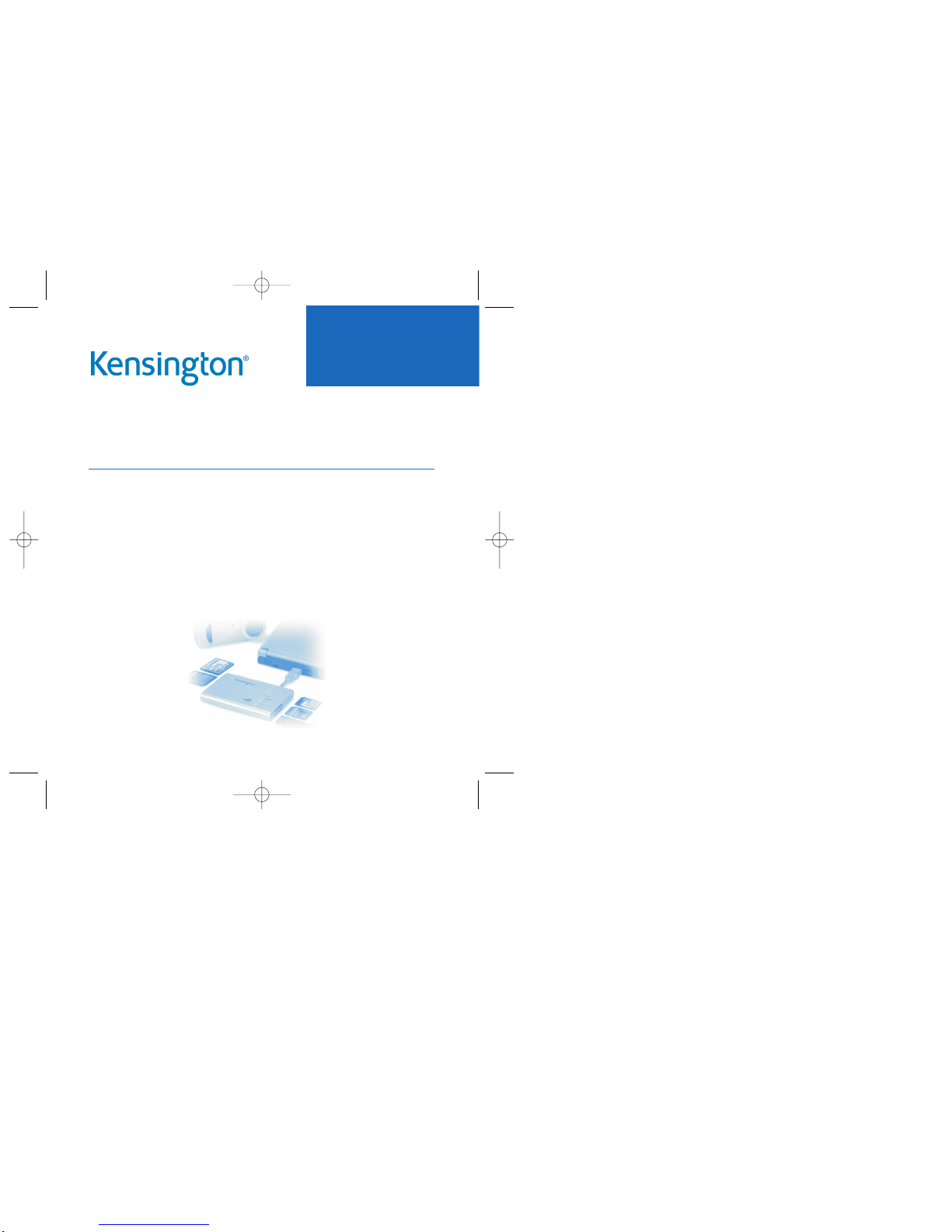
CCooppyy aanndd sshhaarree ffiilleess eeaassiillyy
Easily copy files to your computer from a digital camera or any other device that uses
portable memory cards-without the hassle of a direct connection. Four media slots
accept six different types of memory cards, yet the Kensington Portable Memory Card
Reader fits easily in your pocket or laptop carrying case.
Transfer data fast - at speeds up to 480 Megabits per second with a USB 2.0 connection. The reader accepts the memory cards used by most digital cameras, MP3 players,
digital voice recorders, PDAs, and handheld computers.
1
READ FIRST!
CardReader02-20Rev.qxd 2/20/2003 4:06 PM Page 1
Page 2

IInnssttaallllaattiioonn iinnssttrruuccttiioonnss
WWiinnddoowwss MMee,, XXPP,, 22000000,, aanndd MMaacc OOSS
Note for Windows 2000 and XP: If you do not have Windows 2000 Service Pack 3 or
Windows XP Service Pack 1 installed, please download the service pack from the
Microsoft® Web site (http://windowsupdate.microsoft.com) and install it before you
install the reader.
You must be logged into Windows with the appropriate privileges to install a hardware
device. If you have difficulties installing the reader on a computer at your office (or on a
company-provided notebook computer), please see your company's network administrator.
1. With your computer running, plug the Kensington Portable Memory Card Reader into
an available USB port as shown on page 7.
2. These operating systems will detect the reader as a new device and install the
appropriate device drivers automatically.
WWiinnddoowwss 9988 SSEE::
1. With your computer running, insert the Kensington driver CD into your CD-ROM
drive.
2. Plug the Kensington Portable Memory Card Reader into an available USB port as
shown on page 7.
The New Hardware Found screen appears briefly, indicating that Windows has
detected the reader.
IInncclluuddeedd iinn tthhiiss ppaacckkaaggee
• The Kensington Portable Memory Card Reader
• This User's Manual
• Kensington Portable Memory Card Reader Driver CD (required for Windows 98 SE
installation only)
SSyysstteemm rreeqquuiirreemmeennttss
HHaarrddwwaarree::
• PC with a Pentium® processor or equivalent, or Macintosh® with PowerPC or higher
• USB port (USB 2.0 recommended for faster data transfer)
• CD-ROM drive
OOppeerraattiinngg SSyysstteemm::
• Windows® 98 SE, Millennium Edition, 2000 with Service Pack 3, or XP with
Service Pack 1
• Mac OS® 10.1.5 or higher (10.2.2 recommended)
2
3
SSyysstteemm rreeqquuiirreemmeennttss IInnssttaallllaattiioonn iinnssttrruuccttiioonnss
CardReader02-20Rev.qxd 2/20/2003 4:06 PM Page 2
Page 3
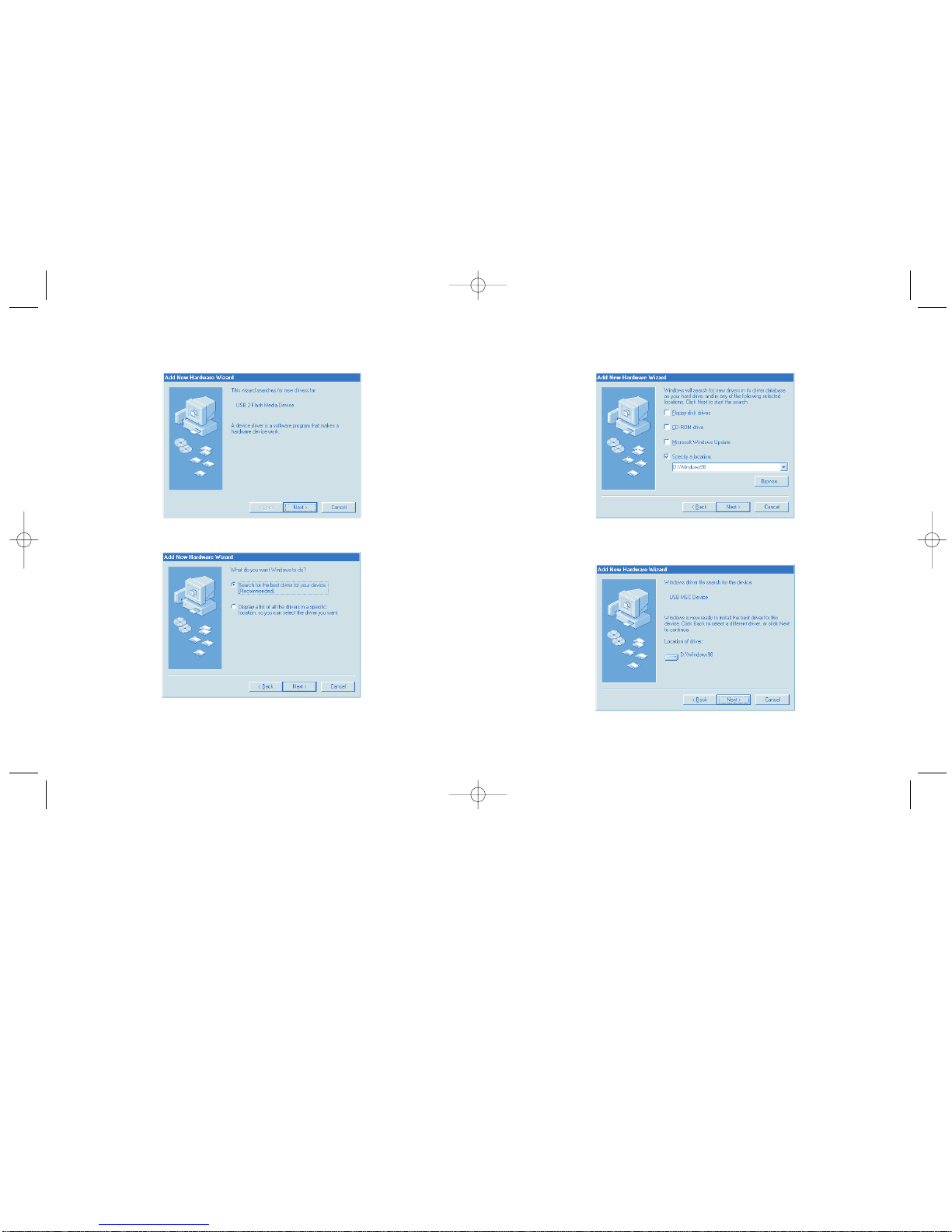
5. Select Search for the best driver for your device [Recommended]. Click Next.
6. Select Specify a location and click Browse. Select the Windows98 folder on the
CD, then click Next.
3. The Add New Hardware Wizard starts automatically.
4. Click Next.
4
5
IInnssttaalllliinngg tthhee rreeaaddeerr -- WWiinnddoowwss 9988SSEE IInnssttaalllliinngg tthhee rreeaaddeerr -- WWiinnddoowwss 9988SSEE
CardReader02-20Rev.qxd 2/20/2003 4:06 PM Page 4
Page 4
CCoonnnneeccttiinngg tthhee rreeaaddeerr
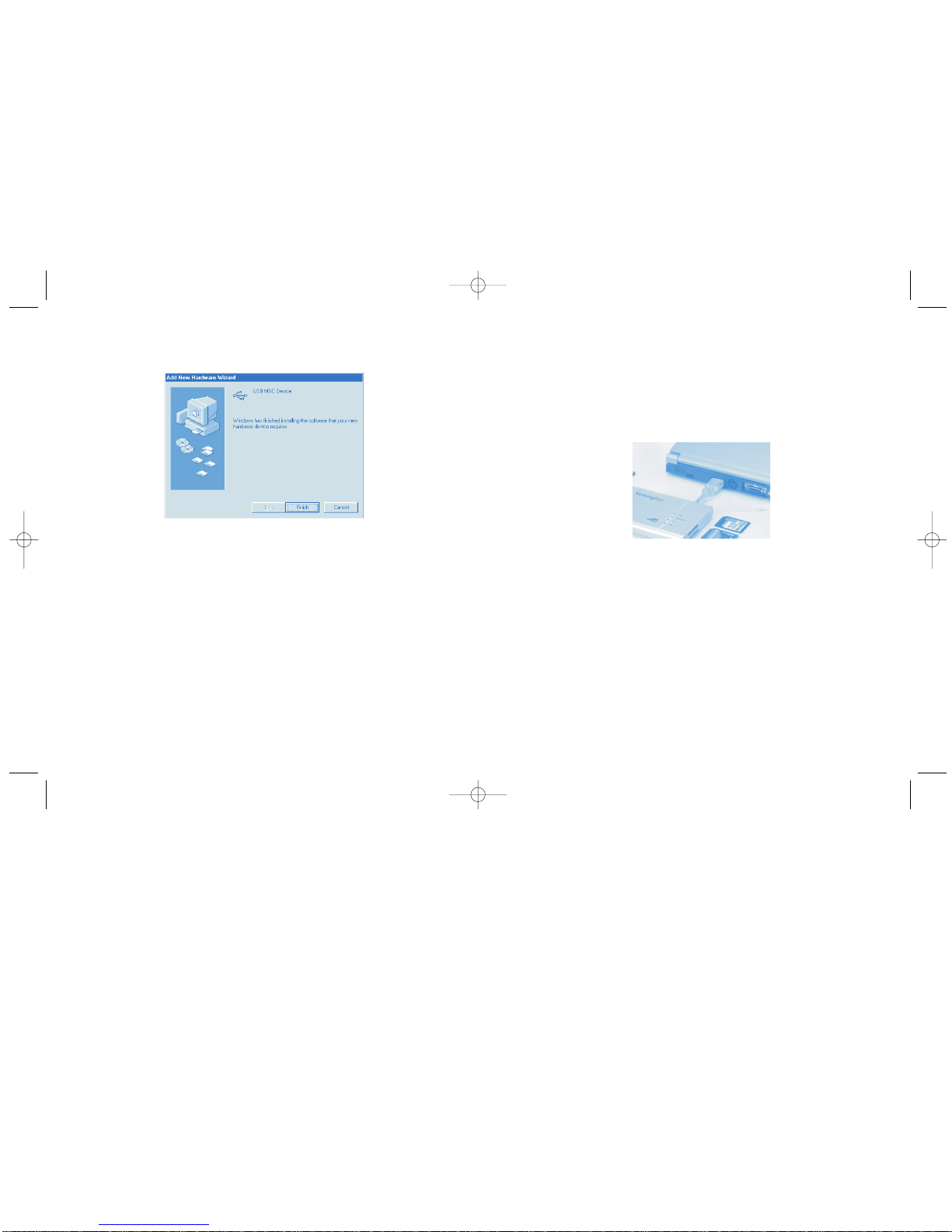
The USB cable tucks into the reader for storage. To connect the reader, gently pull the
connector out and plug it into one of your computer’s USB ports (or a USB hub connected to your computer).
Make sure that the cable is firmly connected, but do not force it.
CCoonnnneecctt tthhee rreeaaddeerr ttoo aa UUSSBB ppoorrtt oonn yyoouurr ccoommppuutteerr
There is no need to turn off your computer before connecting or disconnecting a USB
device.
The Kensington Portable Memory Card Reader is a USB 2.0 device. If you plug the reader into an older USB 1.x port or hub, Windows XP will display a warning message:
The Unknown USB Device is a HI-SPEED USB device and will function at reduced
speed when plugged into a non-HI-SPEED port.
Close the message window to continue. The reader will work with a USB 1.x connection, but it will operate at reduced speed (a maximum of 12 Megabits per second, compared to 480 Megabits per second maximum with USB 2.0).
7. Click Next.
8. When the driver has been installed, click Finish.
9. If prompted to restart, first follow the instructions on page 13 to safely disconnect
the reader from your computer. Then select Yes to continue.
6
7
IInnssttaalllliinngg tthhee rreeaaddeerr -- WWiinnddoowwss 9988SSEE CCoonnnneeccttiinngg tthhee rreeaaddeerr
CardReader02-20Rev.qxd 2/20/2003 4:06 PM Page 6
Page 5
VViieewwiinngg rreeaaddeerr ccoonntteennttss
9
Smart Media card: Insert with the notched corner at the upper right and the gold contacts facing up.
MultiMediaCard/Secure Digital card: Insert with the notched corner at the upper
right and the gold contacts facing down.
VViieewwiinngg tthhee ccoonntteennttss ooff tthhee mmeemmoorryy ccaarrdd
WWiinnddoowwss::
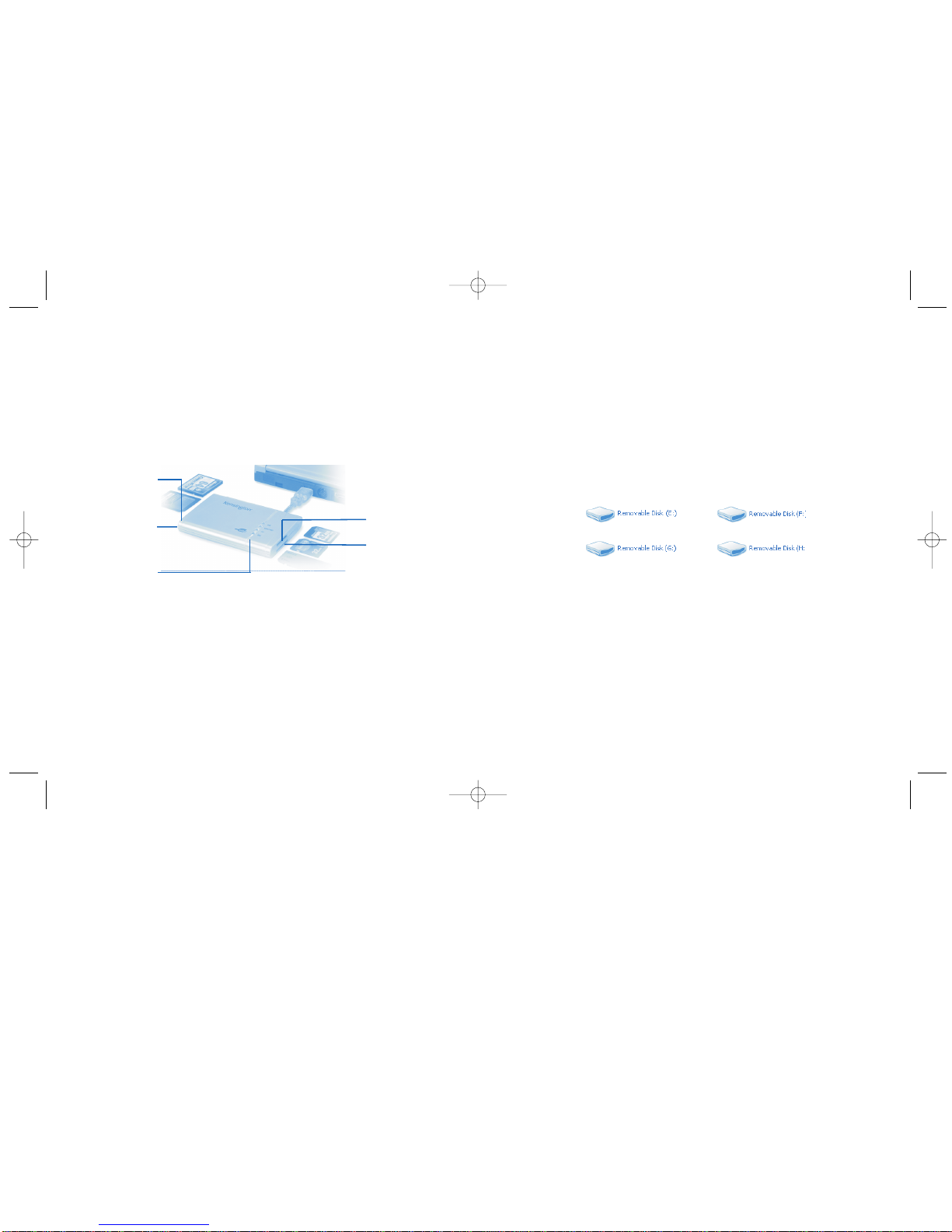
The reader’s four media slots appear in My Computer as four Removable Disks.
The actual drive letters displayed in My Computer may vary from this example if you
have multiple hard drives, mapped network drives, CD-ROM drives, or other removable
media drives installed in your computer. On your computer they could appear as (G:),
(H:), (I:), and (J:), or any other combination of letters.
No matter what drive letters are used, the order of the four Removable Disks is the
same. The disk drive icons represent the following memory card slots, in this order:
(E:) Compact Flash/IBM MicroDrive
(F:) Memory Stick
(G:) Smart Media
(H:) Secure Digital /MultiMediaCard
UUssiinngg tthhee rreeaaddeerr
IInnsseerrttiinngg aa mmeemmoorryy ccaarrdd iinnttoo tthhee rreeaaddeerr
You can insert memory cards into the reader while the computer is running. A slight
delay is normal before the computer recognizes the new memory card. The appropriate
status light on the reader glows when your computer recognizes the memory card type.
A flashing status light indicates that the reader is transferring data.
TThhee KKeennssiinnggttoonn PPoorrttaabbllee MMeemmoorryy CCaarrdd RReeaaddeerr ssuuppppoorrttss 66 ttyyppeess ooff mmeemmoorryy ccaarrddss
Make sure that you insert the memory card firmly but gently into the appropriate slot as
illustrated above. Do not attempt to force a memory card into a slot.
Compact Flash/IBM MicroDrive: Look for the connectors along one edge of the card.
Insert that edge of the card into the reader, with the card’s label facing up.
Memory Stick: Insert with the rounded corner at the upper left and the gold contacts
facing down.
8
UUssiinngg tthhee rreeaaddeerr
MMeemmoorryy SSttiicckk
((MMSS))
MMuullttiiMMeeddiiaa
CCaarrdd//SSeeccuurree
DDiiggiittaall ((MMMMCC//SSDD))
TToopp sslloott::
CCoommppaacctt
FFllaasshh//MMiiccrrooDDrriivvee
((CCFF))
BBoottttoomm sslloott::
SSmmaarrtt MMeeddiiaa
((SSMM))
SSttaattuuss lliigghhttss
CardReader02-20Rev.qxd 2/20/2003 4:06 PM Page 8
Page 6
CCooppyyiinngg ffiilleess ffrroomm aa mmeemmoorryy ccaarrdd
You can copy files from a memory card in the same way that you copy files from any
diskette or CD-ROM. Make sure that the data transfer between the memory card and
your computer is complete before you remove the memory card.
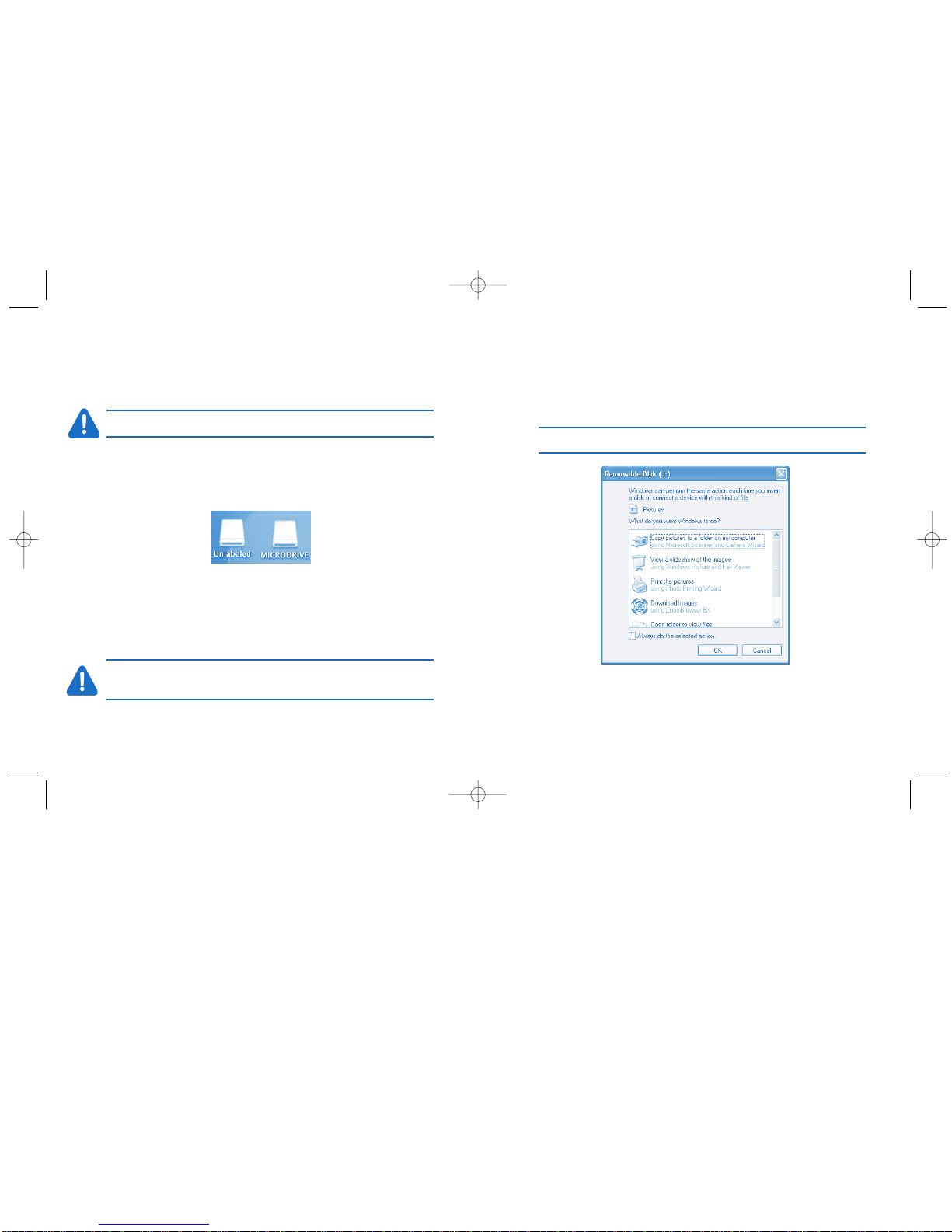
Note: When you insert a memory card under Window XP, a window may pop up with a
choice of options. Choose the option you want and click OK.
If you insert an IBM MicroDrive memory card, the "Removable Disk" label for the first
media slot changes to "MICRODRIVE."
To see the contents of the memory card, double-click on the appropriate drive icon.
IImmppoorrttaanntt!! IIff yyoouu ddoo nnoott sseeee tthhee ddiisskk ddrriivvee iiccoonnss iinn MMyy CCoommppuutteerr,, uunnpplluugg tthhee
rreeaaddeerr ffrroomm yyoouurr ccoommppuutteerr’’ss UUSSBB ppoorrtt aanndd tthheenn pplluugg iitt iinn aaggaaiinn..
MMaacc OOSS::
When you insert a memory card into one of the reader’s four media slots, the memory
card appears on your Mac OS desktop as a removable disk drive.
MMeemmoorryy ccaarrddss aappppeeaarr oonn yyoouurr MMaacc OOSS ddeesskkttoopp aass ddiisskk ddrriivvee iiccoonnss
If you insert an IBM MicroDrive memory card, the new disk drive icon will be labeled
"MICRODRIVE." Otherwise, the new drive will appear as "Unlabeled."
To see the contents of the memory card, double-click on the appropriate drive icon.
IImmppoorrttaanntt!! IIff yyoouu hhaavvee iinnsseerrtteedd aa mmeemmoorryy ccaarrdd iinnttoo tthhee sslloott aanndd ssttiillll ddoo nnoott
sseeee tthhee ddiisskk ddrriivvee iiccoonn oonn yyoouurr MMaacc OOSS ddeesskkttoopp,, uunnpplluugg tthhee rreeaaddeerr ffrroomm yyoouurr
ccoommppuutteerr’’ss UUSSBB ppoorrtt aanndd tthheenn pplluugg iitt iinn aaggaaiinn..
10
11
VViieewwiinngg rreeaaddeerr ccoonntteennttss CCooppyyiinngg ffiilleess
CardReader02-20Rev.qxd 2/20/2003 4:06 PM Page 10
Page 7

DDiissccoonnnneeccttiinngg tthhee rreeaaddeerr wwhhiillee yyoouurr ccoommppuutteerr iiss rruunnnniinngg
You can connect and disconnect the reader while the computer is running. However, you
should never remove a memory card or unplug the reader while it is transferring data.
To safely unplug the reader:
1. If the reader is transferring data, wait until the status light stops flashing.
2. Properly eject any memory cards, and remove the cards from the reader as
described on page 12.
3. Follow the instructions below for your operating system to safely unplug the reader.
To disconnect the reader under Windows 98:
Once you have ejected and removed all memory cards, you can safely unplug the
reader from your computer.
To disconnect the reader under Mac OS:
Once you have ejected any mounted memory cards by dragging their icons to the
trash and removing the cards from the reader, you can safely unplug the reader from
your computer.
RReemmoovviinngg aa mmeemmoorryy ccaarrdd ffrroomm tthhee rreeaaddeerr
You can remove memory cards from the reader while your computer is running, but it is
important never to remove a card while the reader is transferring information to your
computer. A flashing light indicates that the reader is transferring data.
To remove a memory card safely:
1. If the reader is transferring data, wait until the status light stops flashing.
2. Follow the steps below for your operating system to safely eject the card:
All Windows Operating Systems:
a. Open My Computer.
b. Right-click on the disk drive icon for the memory card that you wish to eject,
and choose Eject.
c. Remove the memory card from the reader.
Mac OS:
a. Drag the disk drive icon for the memory card to the trash.
b. Remove the memory card from the reader.
12
13
RReemmoovviinngg mmeemmoorryy ccaarrddss DDiissccoonnnneeccttiinngg tthhee rreeaaddeerr
CardReader02-20Rev.qxd 2/20/2003 4:06 PM Page 12
Page 8
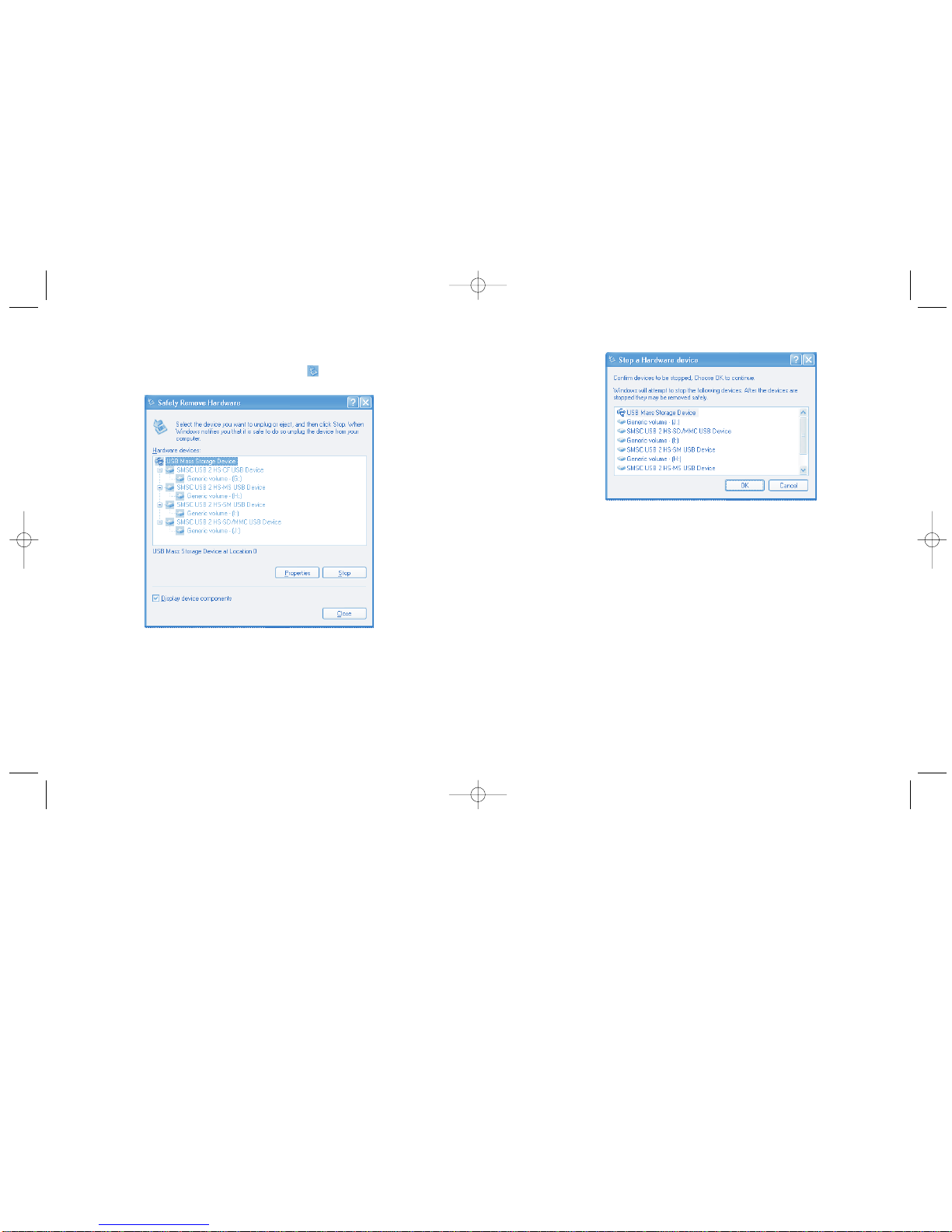
c. Click OK, and then close the Safely Remove Hardware window.
d. Disconnect the reader from your computer’s USB port.
To disconnect the reader under Windows XP:
a. Double-click the Safely Remove Hardware icon in the system tray.
b. Select USB Mass Storage Device and then click the Stop button.
14
15
DDiissccoonnnneeccttiinngg tthhee rreeaaddeerr -- WWiinnddoowwss XXPP DDiissccoonnnneeccttiinngg tthhee rreeaaddeerr -- WWiinnddoowwss XXPP
CardReader02-20Rev.qxd 2/20/2003 4:06 PM Page 14
Page 9
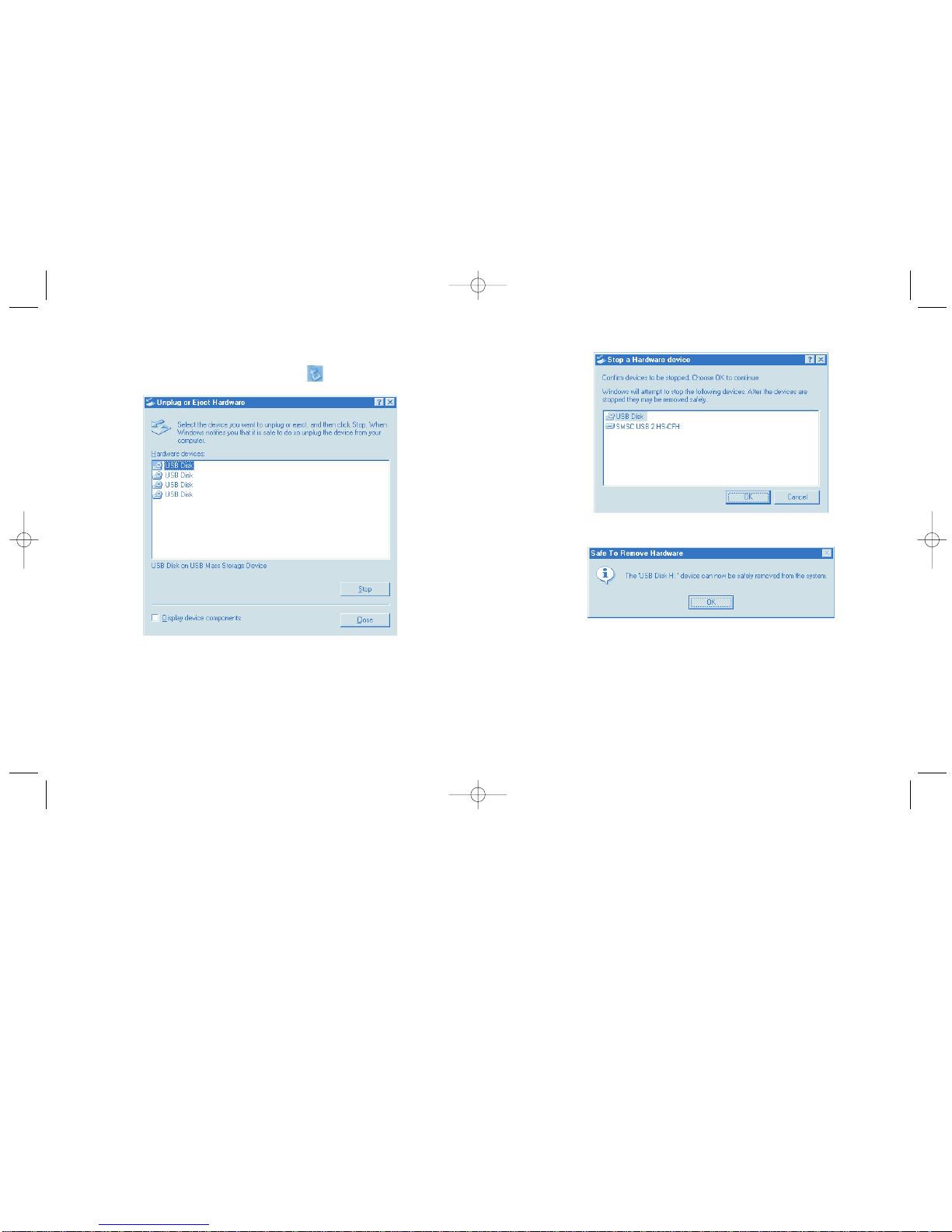
c. Click OK to confirm.
d. Click OK again, and repeat steps b and c to stop the remaining four USB Disks.
e. Click OK to dismiss the final Safe to Remove Hardware prompt, and then close
the Unplug or Eject Hardware window.
f. Disconnect the reader from your computer’s USB port.
To disconnect the reader under Windows Me:
a. Double-click the Safely Remove Hardware icon in the system tray.
b. Select the first USB Disk, and click the Stop button.
16
17
DDiissccoonnnneeccttiinngg tthhee rreeaaddeerr -- WWiinnddoowwss MMee DDiissccoonnnneeccttiinngg tthhee rreeaaddeerr -- WWiinnddoowwss MMee
CardReader02-20Rev.qxd 2/20/2003 4:06 PM Page 16
Page 10
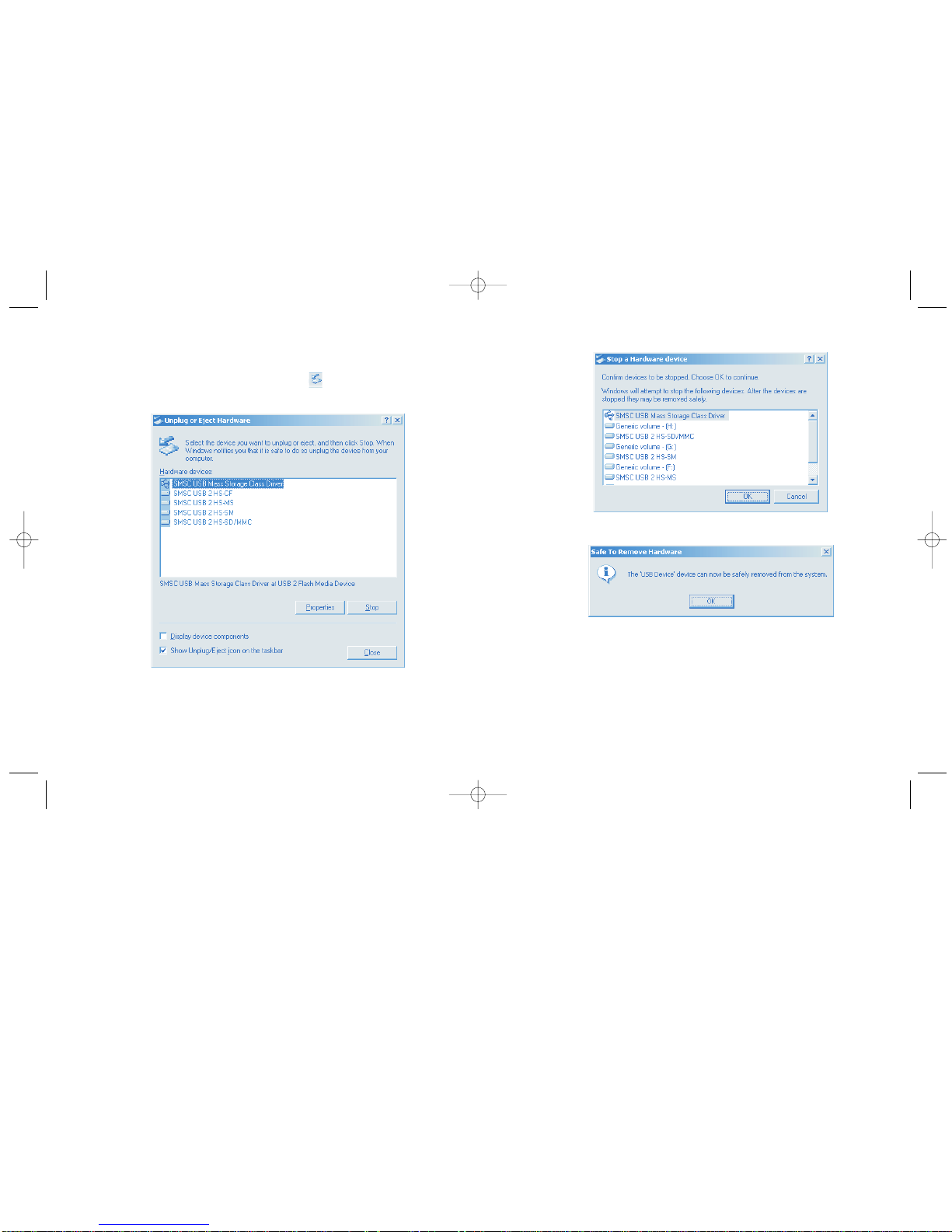
c. Click OK to confirm.
d. Click OK again, and then close the Unplug or Eject Hardware window.
e. Disconnect the reader from your computer’s USB port.
To disconnect the reader under Windows 2000:
a. Double-click the Unplug or Eject Hardware icon in the system tray (at
the bottom-right corner of your computer screen).
b. Select SMSC USB Mass Storage Class Driver, and click the Stop button.
18
19
DDiissccoonnnneeccttiinngg tthhee rreeaaddeerr -- WWiinnddoowwss 22000000 DDiissccoonnnneeccttiinngg tthhee rreeaaddeerr -- WWiinnddoowwss 22000000
CardReader02-20Rev.qxd 2/20/2003 4:06 PM Page 18
Page 11

TTeecchhnniiccaall ssuuppppoorrtt
In North America, technical support is available to all registered users of Kensington
products. You may find the answer to your problem in the Frequently Asked Questions
(FAQ) section of the Support area on the Kensington Web site: www.kensington.com.
There is no charge for technical support except long distance charges where applicable.
See the last page of this manual for contact information.
• Call from a phone where you have access to your computer.
• Be prepared to provide the following information:
- Name, address, and telephone number
- The name of the Kensington product
- Make and model of your computer
- Your system software and version
- Symptoms of the problem and what led to them
RReeggiisstteerriinngg yyoouurr KKeennssiinnggttoonn pprroodduucctt
Register your Kensington product online at www.kensington.com. At the bottom of
the Web page, select Register products.
SSppeecciiffiiccaattiioonnss
SSuuppppoorrtteedd MMeeddiiaa FFoorrmmaattss
• Compact Flash Card [Types I and II]
• IBM Microdrive
• SmartMedia Card
• MultiMediaCard
• Secure Digital Card
• Memory Stick
DDaattaa RRaatteess
The Kensington Card Reader can transfer data at up to 480 Megabits per second. If
your computer, operating system, and USB port (and USB hub if you use one) support
USB 2.0, your card reader will automatically use this high-speed transfer. If not, your
card reader will still work, but at the USB 1.1 full speed of 12 Megabits per second.
With USB 2.0, the transfer rate is limited by the read/write speed of the flash memory
card.
Hardware built before April 2002 usually supports USB 1.1. If your computer has USB
1.1 ports built in, you can purchase a USB 2.0 plug-in card. The following operating systems support USB 2.0: Windows 2000 with Microsoft USB driver version 5.1.2600.0,
Windows XP with Service Pack 3 or higher, and Mac OS 10.2.2 or higher.
20
21
SSppeecciiffiiccaattiioonnss TTeecchhnniiccaall ssuuppppoorrtt aanndd rreeggiissttrraattiioonn
CardReader02-20Rev.qxd 2/20/2003 4:06 PM Page 20
Page 12

FFeeddeerraall CCoommmmuunniiccaattiioonnss CCoommmmiissssiioonn RRaaddiioo FFrreeqquueennccyy
IInntteerrffeerreennccee SSttaatteemmeenntt
Note: The Kensington Portable Memory Card Reader has been tested and found to comply with the limits for a
Class B digital device, pursuant to Part 15 of the FCC Rules. These limits are designed to provide reasonable protection against harmful interference in a residential installation. This equipment generates, uses and can radiate
radio frequency energy and, if not installed and used in accordance with the instructions, may cause harmful
interference to radio communications.
However, there is no guarantee that interference will not occur in a particular installation. If this equipment does
cause harmful interference to radio or television reception, which can be determined by turning the equipment off
and on, the user is encouraged to try to correct the interference by one or more of the following measures:
• Reorient or relocate the receiving antenna.
• Increase the separation between the equipment and receiver.
• Connect the equipment into an outlet on a circuit different from that to which the receiver is connected.
• Consult the dealer or an experienced radio/TV technician for help.
MODIFICATIONS: Modifications not expressly approved by Kensington may void the user's authority to operate
the device under FCC regulations and must not be made.
SHIELDED CABLES: In order to meet FCC requirements, all connections to equipment using a Kensington input
device should be made using only the shielded cable provided.
DDeeccllaarraattiioonn ooff CCoonnffoorrmmiittyy CCoommpplliiaannccee SSttaatteemmeenntt ffoorr tthhee KKeennssiinnggttoonn PPoorrttaabbllee
MMeemmoorryy CCaarrdd RReeaaddeerr
The Kensington Portable Memory Card Reader model no. 33056 complies with Part 15 of the FCC Rules.
Operation is subject to two conditions: (1) This device may not cause harmful interference, and, (2) this device
must accept any interference received, including interference that may cause undesired operation. As defined in
Section 2.909 of the FCC Rules, the responsible party for this device is Kensington Technology Group, 2000
Alameda de las Pulgas, Second Floor, San Mateo, CA 94403, (650) 572-2700.
55--YYeeaarr WWaarrrraannttyy
KENSINGTON TECHNOLOGY GROUP ("KENSINGTON") warrants this PRODUCT against defects in material and
workmanship under normal use and service for five years from the original date of purchase. KENSINGTON, at its
option, shall repair or replace the defective unit covered by this warranty. Please retain the dated sales receipt as
evidence of the date of purchase. You will need it for any warranty service.
In order to keep this warranty in effect, the product must have been handled and used as prescribed in the
instructions accompanying this warranty. This warranty does not cover any damage due to accident, misuse,
abuse, or negligence. This warranty is valid only if the product is used on the computer or system specified on the
product box. Please check product box for details, or call technical support.
Repair or replacement, as provided under this warranty, is your exclusive remedy. KENSINGTON shall not be liable
for any incidental or consequential damages. Implied warranties of merchantability and fitness for a particular
purpose on this product are limited in duration to the duration of this warranty. Some states/countries do not
allow the exclusion or limitation of incidental or consequential damages, so the above limitation or exclusion may
not apply to you. Some states/countries do not allow limitations on how long an implied warranty lasts, so the
above limitation may not apply to you. This warranty gives you specific legal rights, and you may also have other
rights that vary from state to state and country to country.
22
23
WWaarrrraannttyy FFCCCC ssttaatteemmeenntt
CardReader02-20Rev.qxd 2/20/2003 4:06 PM Page 22
Page 13

CCoonnttaaccttiinngg KKeennssiinnggttoonn
Troubleshooting information and answers to frequently asked questions are available 24
hours a day on the Kensington Web site at support.kensington.com.
SSuuppppoorrtt bbyy TTeelleepphhoonnee
Technical Support is available by telephone. Please visit www.kensington.com for
hours.
US 800-535-4242 or 650-572-2700
Fax 650-572-9675
Canada 800-268-3447
Mexico 001-880-535-4242
Kensington Technology Group ACCO Europe PLC Acco Canada Inc.
2000 Alameda de las Pulgas Nepicar House, London Road 5 Precidio Court
Second Floor Wrotham Heath, Sevenoaks Brampton, Ontario L6S 6B7
San Mateo, CA 94403 Kent TN15 7RS, CANADA
USA UNITED KINGDOM
www.kensington.com
This manual is copyright ©2003 Kensington Technology Group, a division of ACCO Brands, Inc. Any unauthorized
copying, duplicating, or other reproduction of the contents hereof is prohibited without written consent from
Kensington Technology Group. All rights reserved. 12/02
Kensington is the registered trademark of ACCO World Corporation. Mac and Macintosh are registered trademarks
of Apple Computer, Inc. Microsoft and Windows are registered trademarks of Microsoft, Inc. All other registered
and unregistered trademarks are the sole property of their respective owners.
906-0528-00
24
CCoonnttaacctt iinnffoorrmmaattiioonn
CardReader02-20Rev.qxd 2/20/2003 4:06 PM Page 24
 Loading...