

Page 1

1
Quick Guide for Kata Venus.
GSM/GPRS Digital Mobile Phone
For the complete user guide and other helpful resources,
please go to www.katamobile.com/support. Please also read
the Safety and regulatory guide that’s included in the box
Page 2

2
Before you do anything else, please read this
Charge the battery
The battery in your phone hasn’t been charged yet. While your phone is charging, it’s important that you
do not remove the battery pack. Doing so can damage your phone. Also, please don’t try to take your
phone apart. (If you do, it may invalidate your warranty.)
Choose a rate plan wisely
Your phone can use up a lot of Internet bandwidth really quickly. Before you use your phone, we strongly
recommend that you talk to your mobile operator about data rates.
Know about privacy laws
Some countries have strict laws about how and when you can record phone conversations. It’s a good
idea to find out what the laws are where you live before you use your phone’s recording feature.
And finally, a few important words from our legal team(LIMITATION OF DAMAGES)
To the maximum extent permitted by applicable law, in no event shall Kata or its affiliates be
liable to you, any user, or third party for any indirect, special, consequential, incidental or
punitive damages of any kind, arising in contract, tort, or otherwise, including, but not limited to,
injury, loss of revenue, loss of goodwill, loss of business opportunity, loss of data, and/or loss
of profits, regardless of the foreseeability thereof or whether Kata or its affiliates have been
advised of the possibility of such damages. And in no event shall the total liability of Kata or its
affiliates exceed the amount received from you, regardless of the legal theory under which the
cause of action is brought. The foregoing does not affect any statutory rights which may not be
disclaimed.
Page 3
3
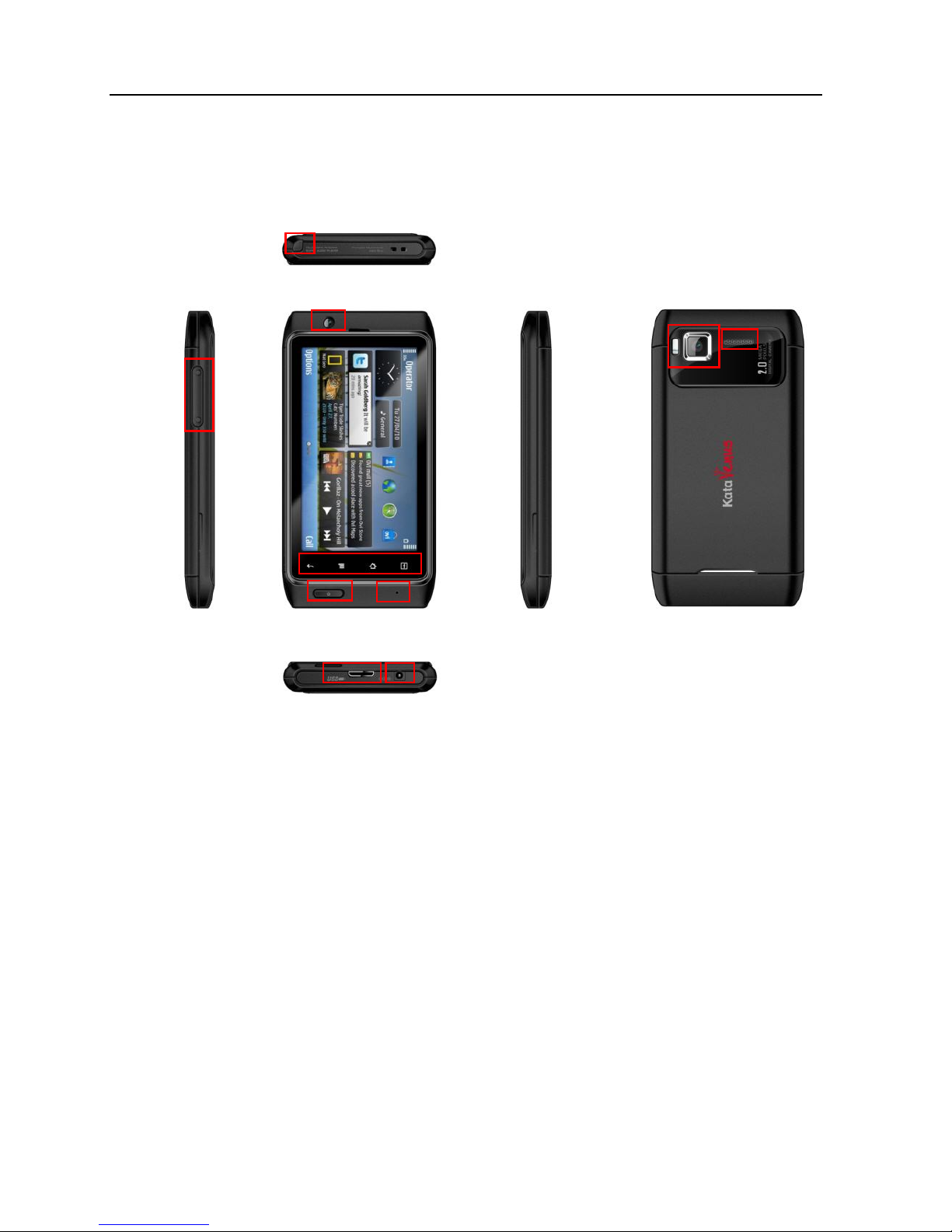
1. At a glance
1. Front camera
2. Navigation bar: Back, Menu,
Home, Zoom
3. Power
4. Microphone
5. Volume Control
6. TV antenna
7. USB Connection
8. Power Charger
9. Camera and Flash
10. Speaker
1
2
3
5
6
7
8
9
10
4
Page 4
4
2. Before you turn on your phone
Get everything in order before you press the POWER button.
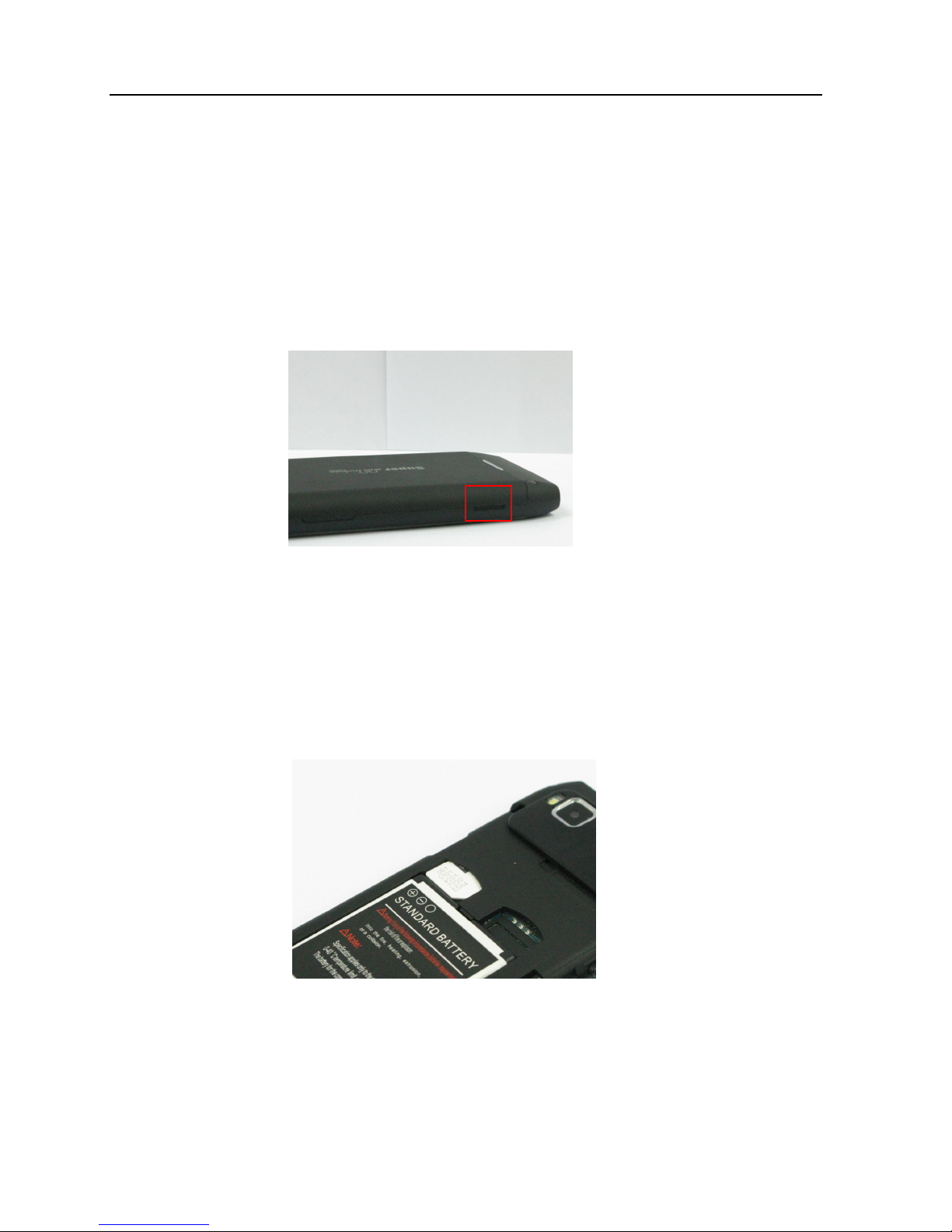
Remove back cover
1. Hold your phone securely with the front facing down.
2. Pull up back cover from gaps on left and right side.
Inserting SIM Cards and storage card
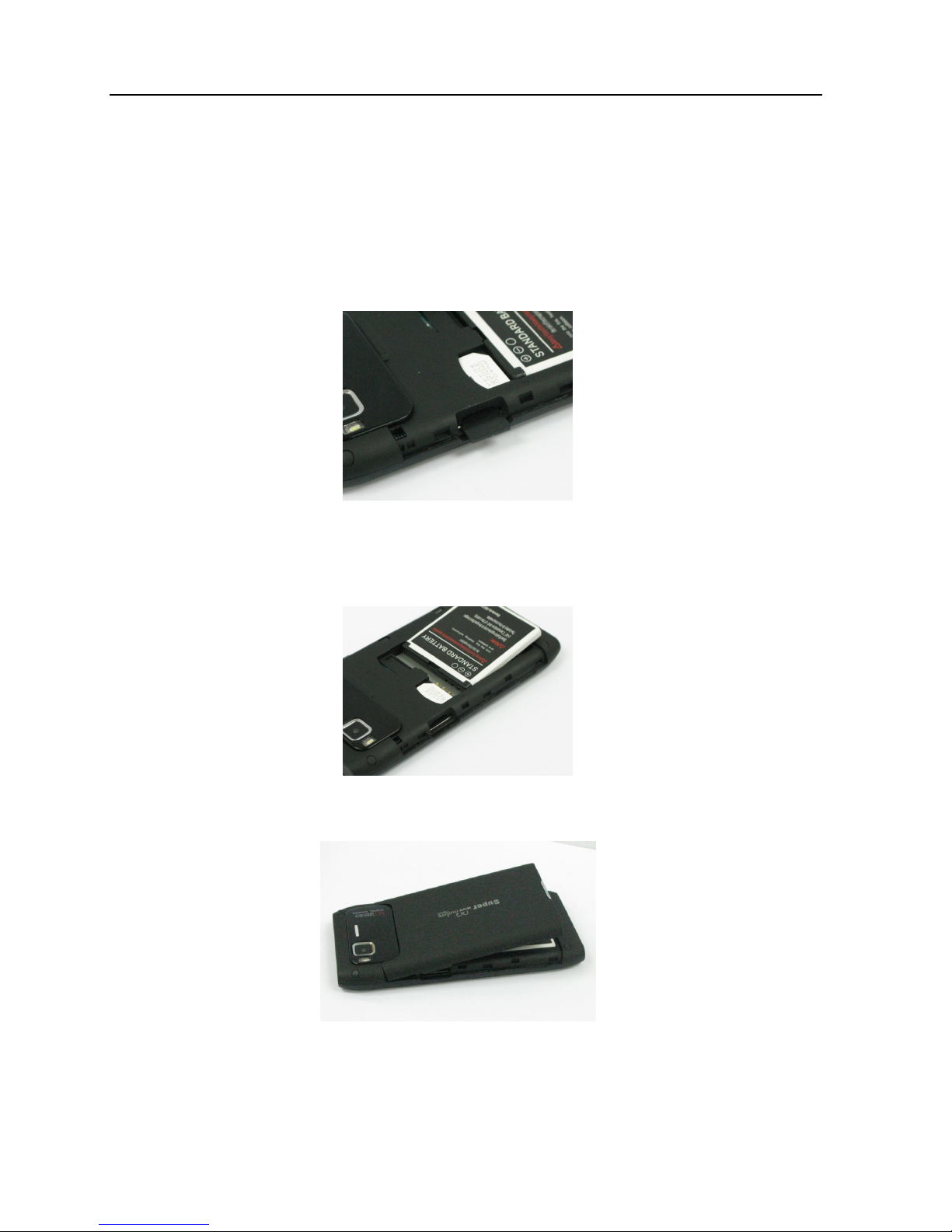
A. SIM Card
1. Remove Battery
2. Insert SIM 1 and SIM 2 (if applicable) (with its gold contacts
facing down and cut-off corner face out) all the way into the
SIM card slots.
Page 5
5
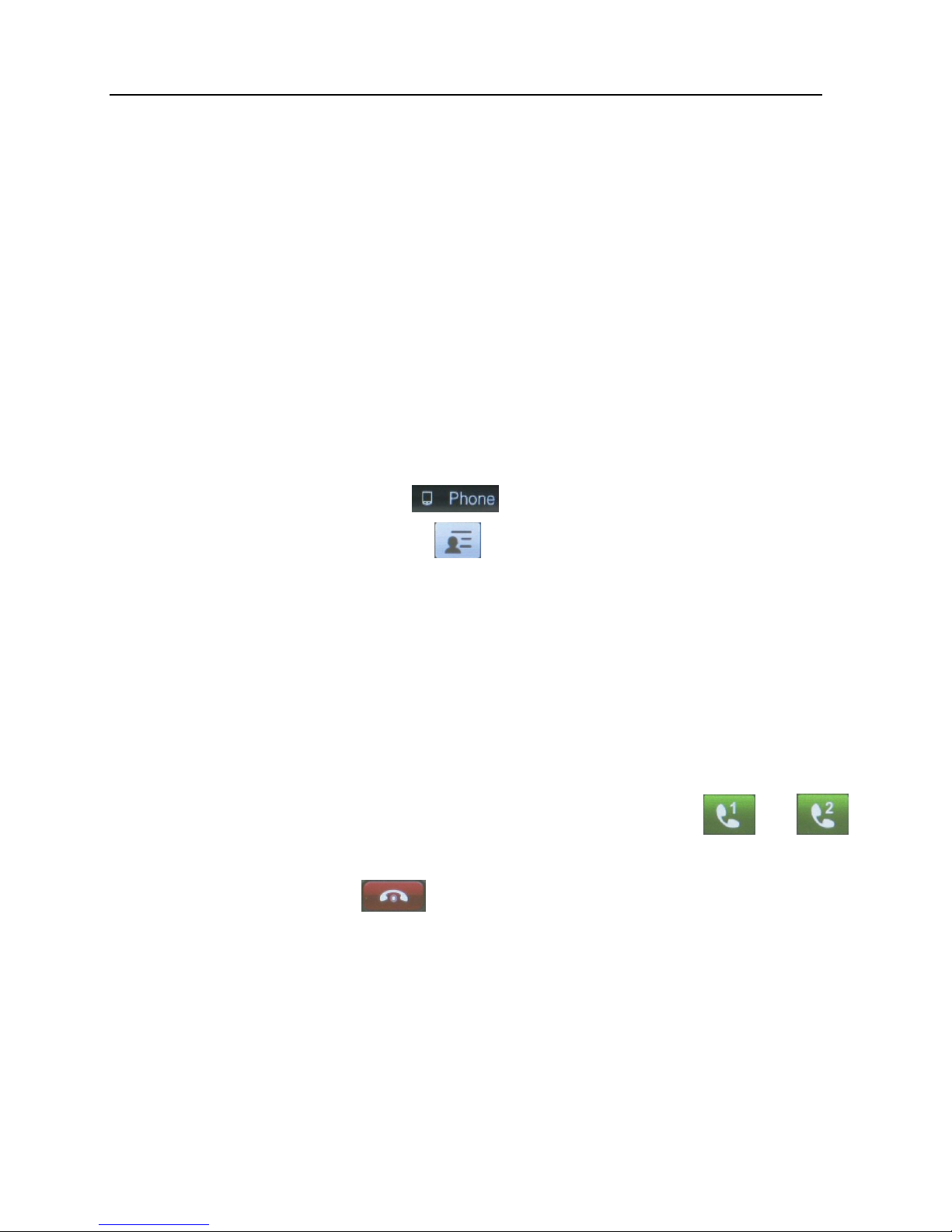
B. Storage Card
1. Insert the SIM card (with its gold contacts facing up) all the
way into the SIM card slot.
2. There’s already a micro-SD card in your phone, which is in
the left panel. (Push the micro-SD card in to eject and
remove it. To reinsert, push it in until it clicks into place).
Inserting the battery & installing back cover
1. Insert the battery (with its exposed copper contacts first) into
the battery compartment.
2. Press all sides of the back cover towards the phone
Charging the battery
Use the supplied power adapter and USB cable to charge your phone.
Page 6
6
3. Set up your phone
When you switch on your phone for the first time, just follow the onscreen
instructions to set up your phone.
Be sure to sign in to your Google Account so you can use Google apps like
Gmail™.
You can also set up your other email accounts, favorite social networks like
Facebook® and Twitter™, and more. You can even easily transfer contacts and
other information from popular brand phones to your new Kata phone through
Bluetooth.
4. Keep in contact
Adding a new contact
1. On the home screen tap
2. Input phone number > tap
3. Choose storage media
4. Input detail information
5. “Done” to save a contact
5. Make your first call
1. On the home screen, tap Phone.
2. Enter the number or contact you want to call, then tap or
for choosing SIM 1 or SIM 2
3. To hang up, tap
Page 7

7
6. Send a text message
1. On the home screen, tap Phone.
2. Tap to enter text message
3. Select “Write message”
4. Type message, tap “Options” While ready to send
5. Select “SIM 1 done” or “SIM 2 done” to select SMS network
6. Select “Send only” and enter the number or contact you want to
send
7. Tap “OK”
Page 8

8
7. Connect to the Internet
Get online using your phone’s data connection or Wi-Fi.
Using a data connection
It’s simple. When you turn your phone on for the first time (with the SIM card
inserted), it should connect automatically to your mobile operator’s data
service.
Using Wi-Fi
1. Tap (logo) to show application page
2. Tap “WLAN”
3. Select “4. Search for networks”
4. Select access point
5. Select “1 Connect”
6. Input password and tap “options”
7. Tap “Done” and “OK”
Browsing the Web
1. From the Home screen, tap “”Opera 5.
2. Tap the address bar on top of the screen.
3. Enter the web address, and then tap the “Go” key.
4. Use finger gestures to browse the webpage and to zoom in or out.
Page 9
9
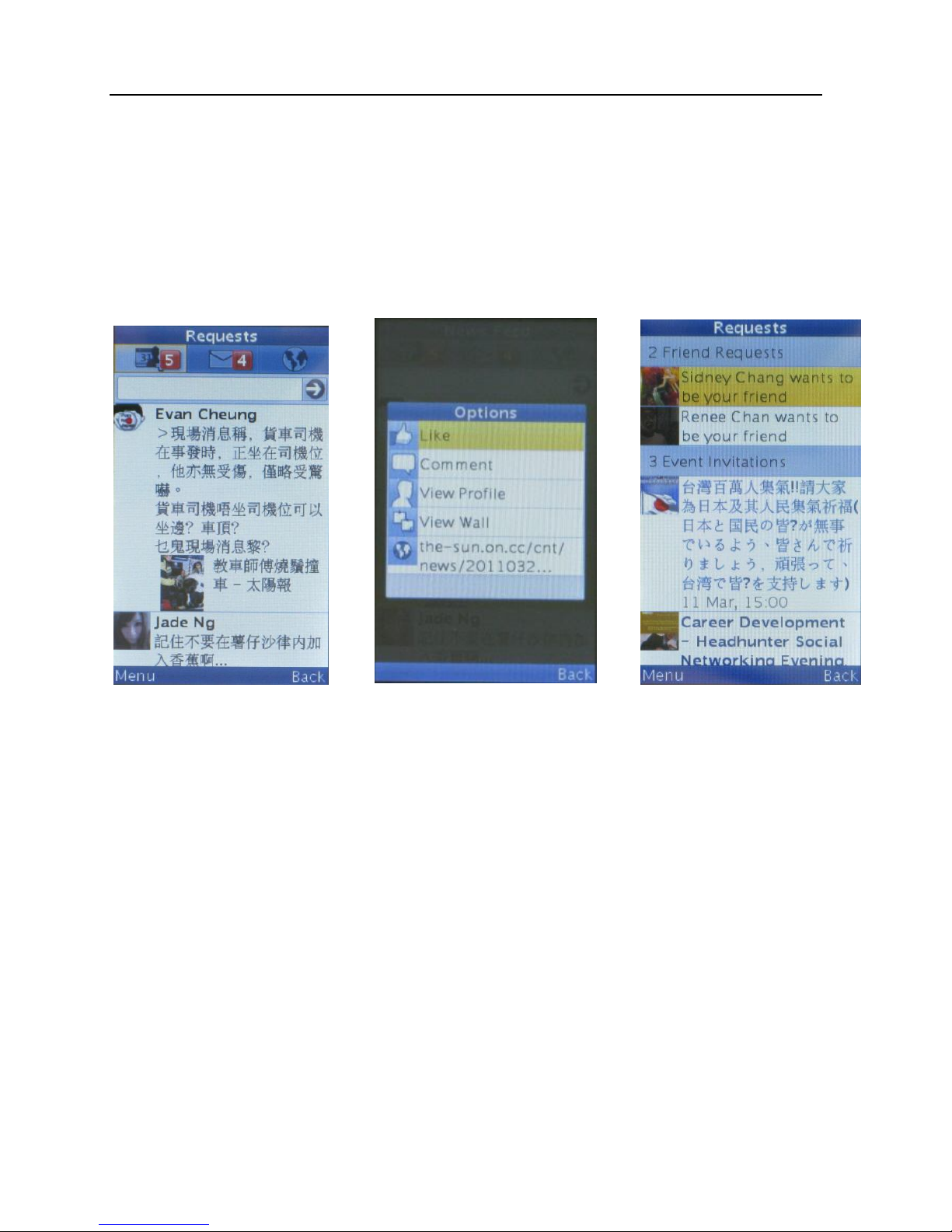
8. Catch up with friends in your social networks
Friend Stream connects you to your social networks.
Share and get updates from friends in popular networks like Facebook and
Twitter in a single feed. With Friend Stream, you can easily track your friends’
status messages, photo uploads, notifications, and more — or comment and
post your own.
© 2011 SAA Asia Limited. All rights reserved. Kata is a trademark of SAA Asia Limited, registered
in the H.K. and other countries.Other product and company names mentioned herein may be
trademarks of their respective companies.
 Loading...