

Page 1
Page 2

2
Kata IDroid Dual SIM Cards on line
Smart Phone
User Guide
Page 3

3
Dear Customer,
Thank you for choosing Kata IDroid smart phone.
This is a smart phone. In addition to common call functions, it also provides you with a variety
of practical functions including bluetooth, English input, Contacts, ringing or image alert for
incoming calls, camera, MP3 player, Video player, memory card (T-Flash card), recorder,
calculator, Schedule power on/off, MMS (Multimedia Message Service). With this manual,
you can acquire a full understanding of the usage of this phone. Our company reserves the
right to revise contents in this manual without any prior notice.
In order to provide you better service, your mobile phone will send a message to our
after-sale service and have a backup upon you power on. This message will cost you some
fee, but we will provide you favorable price for the phone, and the discount has included the
message fee. Please note, thanks!
The right of final interpretation of above content is reserved.
Page 4

4
Contents
1 Introduction to the Mobile Phone ..................... 1
2 Insertion and Removal of SIM card .................. 2
3 Insertion and Remove of the Memory Card ... 3
4 Installation and Removal of the Battery .......... 3
5 Battery Charging ................................................... 6
6 Dialing ....................................................................... 7
7 Guide to Menu Operations ................................ 10
8 Safety Precautions .............................................. 21
9 Cleaning and Maintenance ............................... 23
Page 5

5
10 Technical Information ........................................ 24
11 Trouble shooting ................................................. 25
Page 6
1
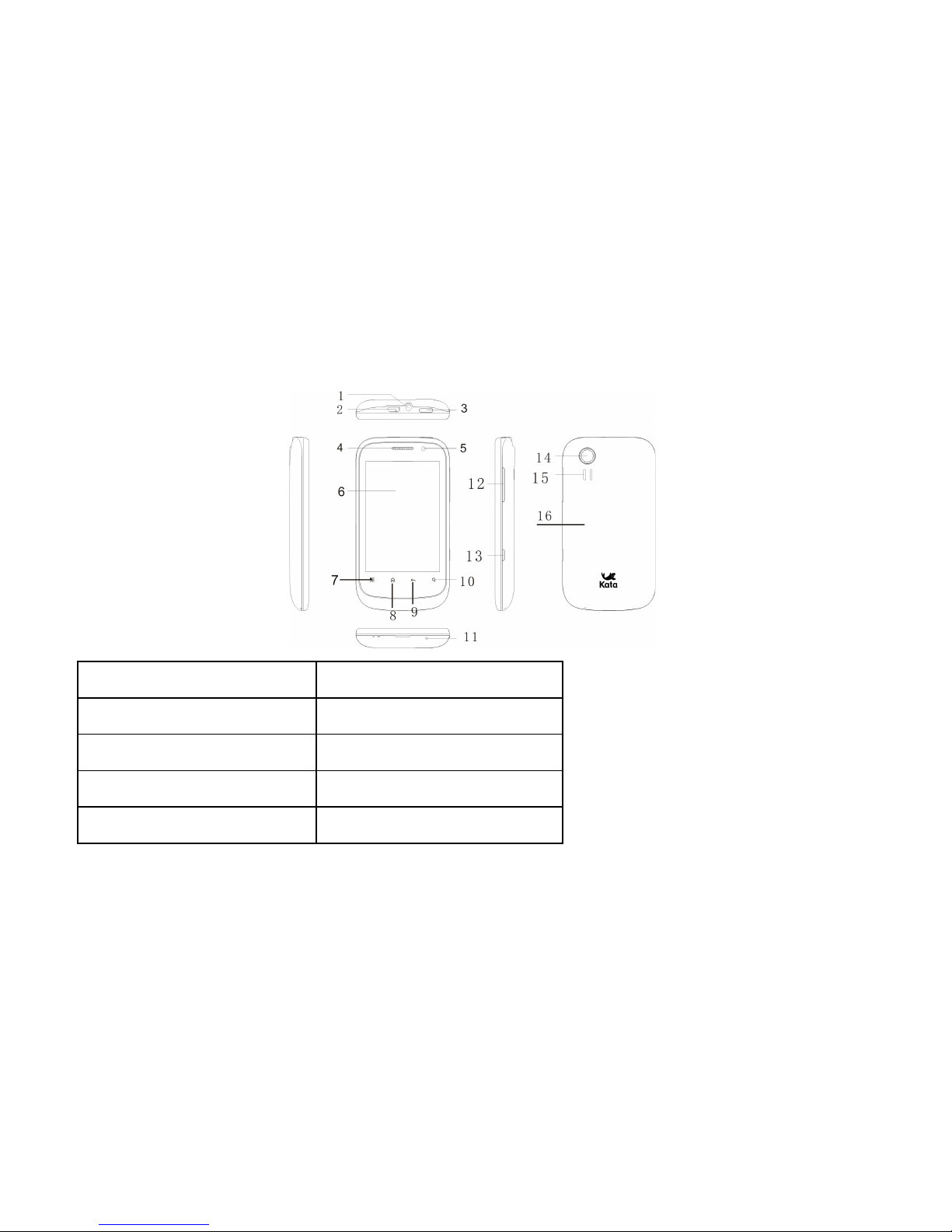
1 Introduction to the Mobile Phone
1. Earphone jack
2. Charger inferface
3. Power key
4. Telephone receiver
5. Front camera
6. Screen
7. Menu key
8. Home key
9. Back key
10. Search key
Page 7
2
11. Microphone
12. Volume keys
13. Camera key
14. Rear camera
15. Lound speaker
16.!Battery cover
2 Insertion and Removal of SIM card
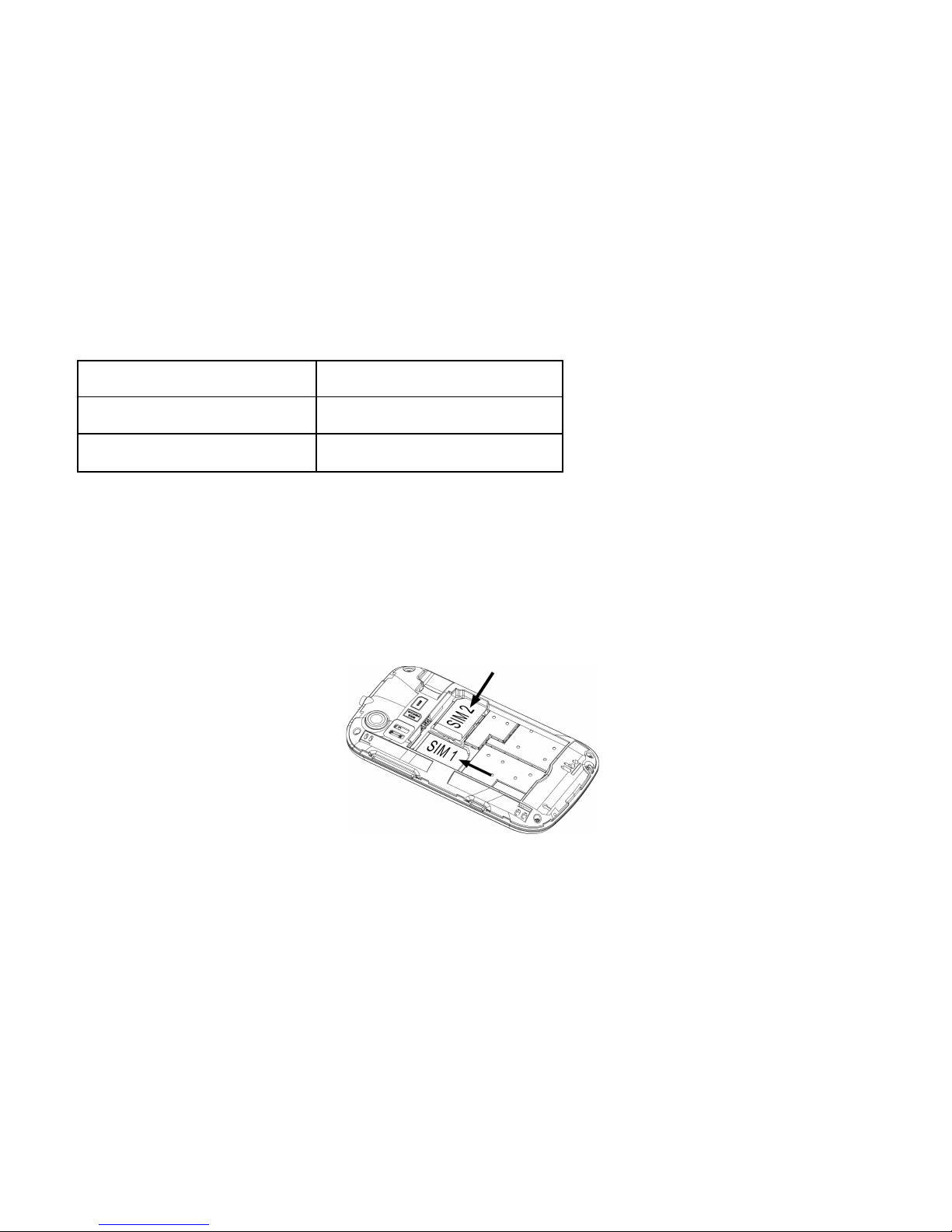
Turn off the phone; remove the battery and unplug other external power sources.
Insert the SIM card into the SIM slot.
When you need to remove the SIM card, please first turn off the phone, remove the
battery, then remove the SIM card. Only SIM card 1 slot support WCDMA.
Page 8
3
3 Insertion and Remove of the Memory Card
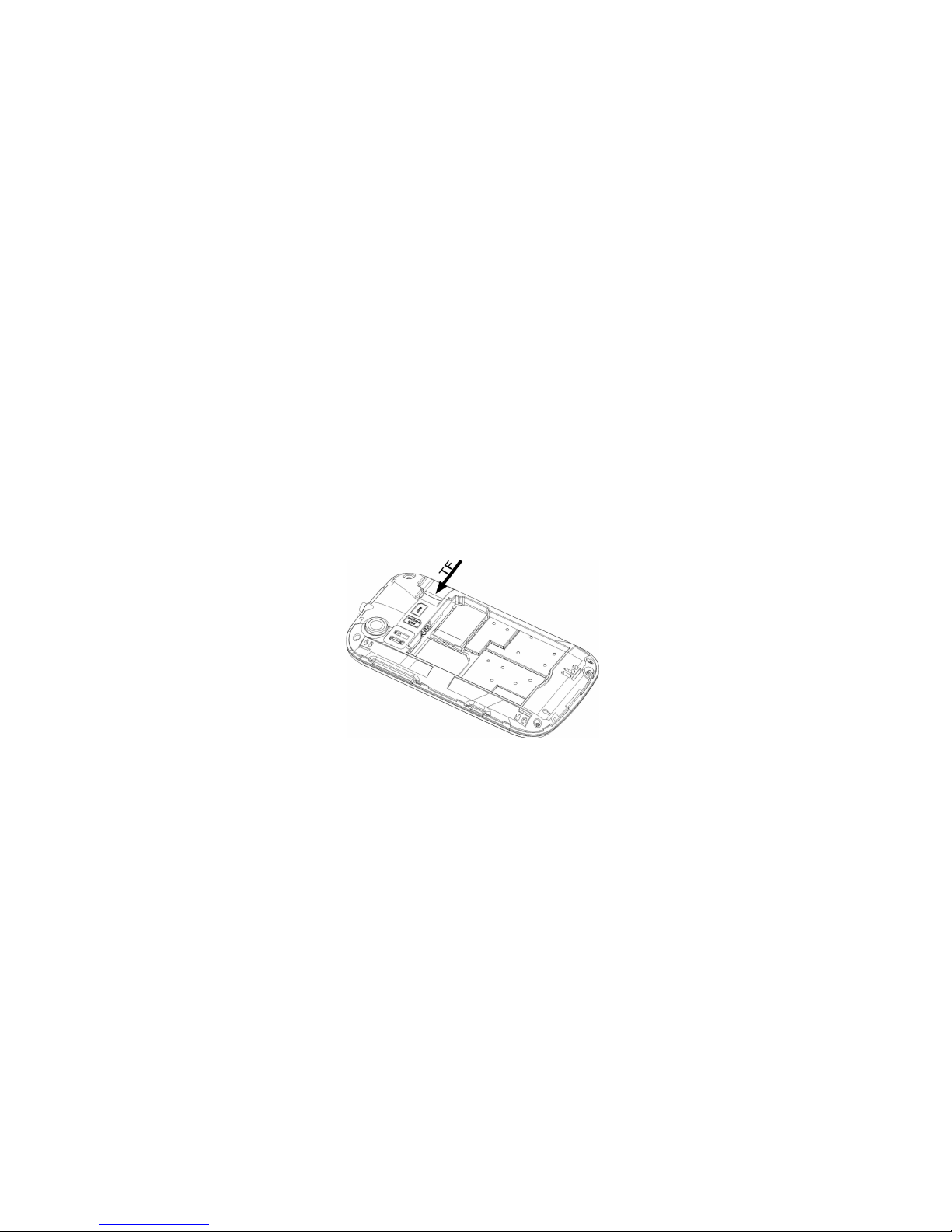
Put the Memory Card into the Memory Card trough.
When you need to insert or remove the memory card, it is suggest that first turn off the
phone. When you turn on the phone, insert the memory card can lead to memory card
don’t recognize.
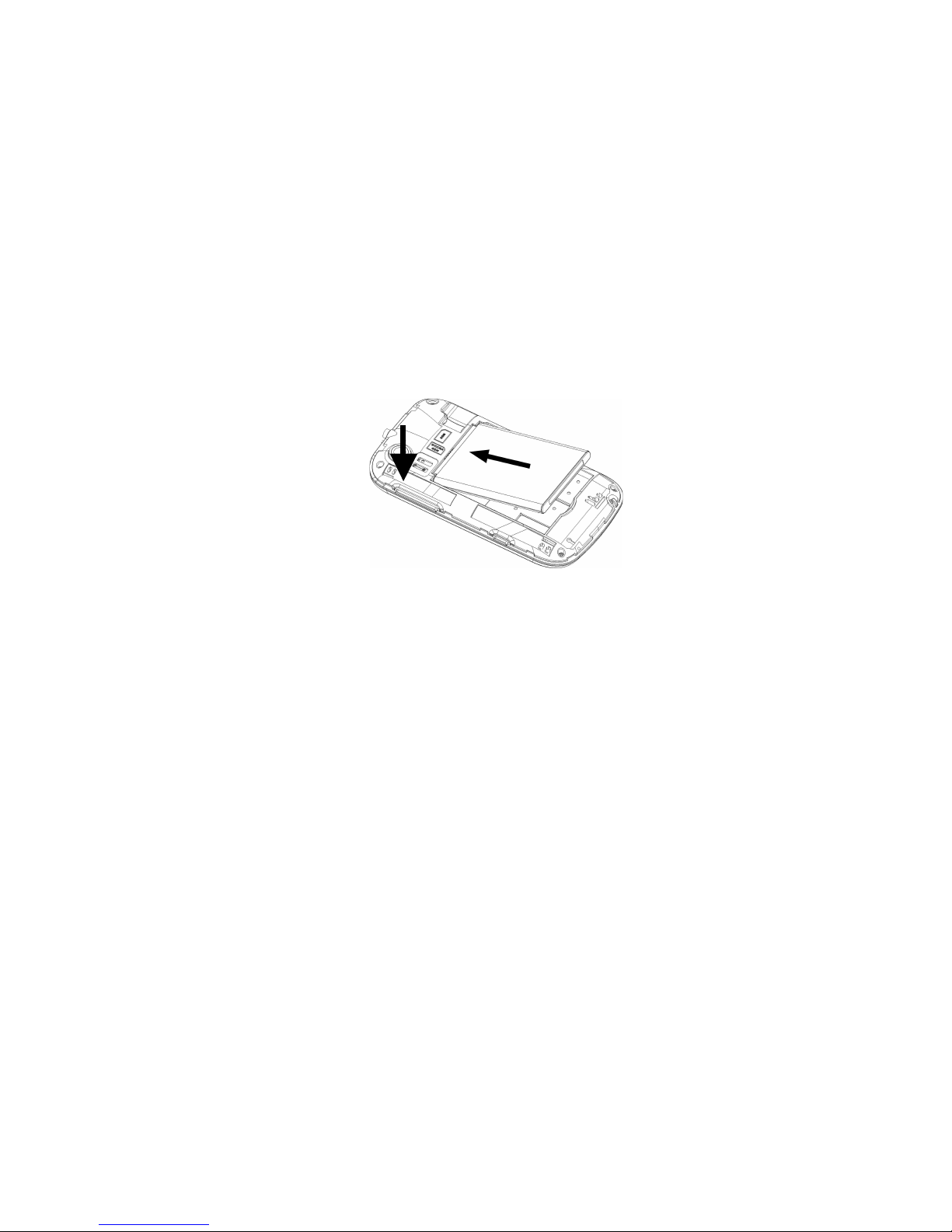
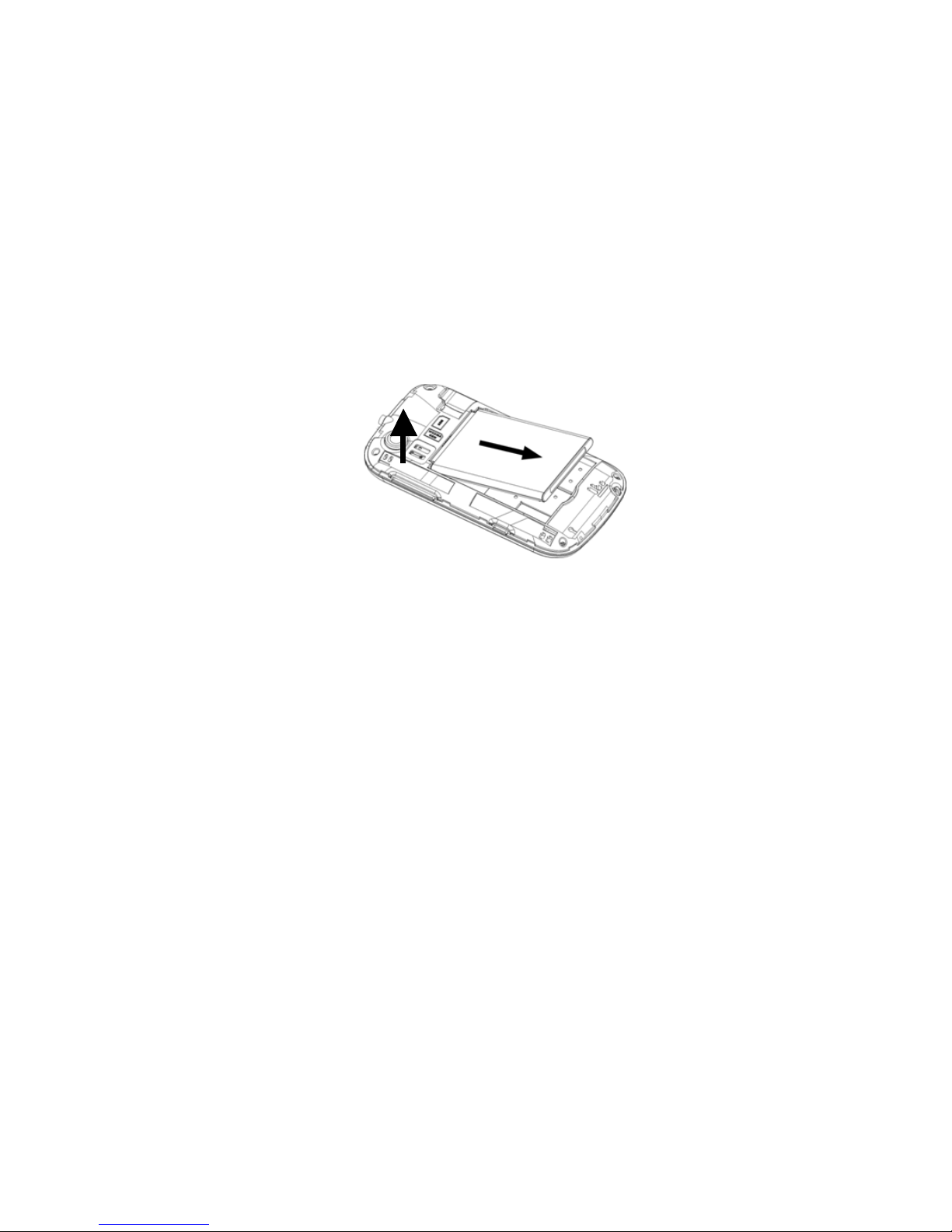
4 Installation and Removal of the Battery
When removing the battery follow the following steps:
Push the battery cover and remove.
Page 9
4
Break out the battery from the mobile-phone.
When installing the battery follow the following steps:
Push the battery to inset mobile-phone.
Cover with the battery cover.
Page 10
5
Warning: You must turn off your mobile phone before removing the battery.
Do not place the battery in fire; follow local laws and ordinances in disposing used
battery.
Check the model number of the charger before using it to charge the mobile.
Only use approved battery, charger and accessories applicable to the specific mobile
model. Using other types of battery, charger and accessories may violate the
certification or warranty terms of the equipment and may result in danger.”
Return waste and used batteries to the supplier or specified recovery site.
Page 11

6
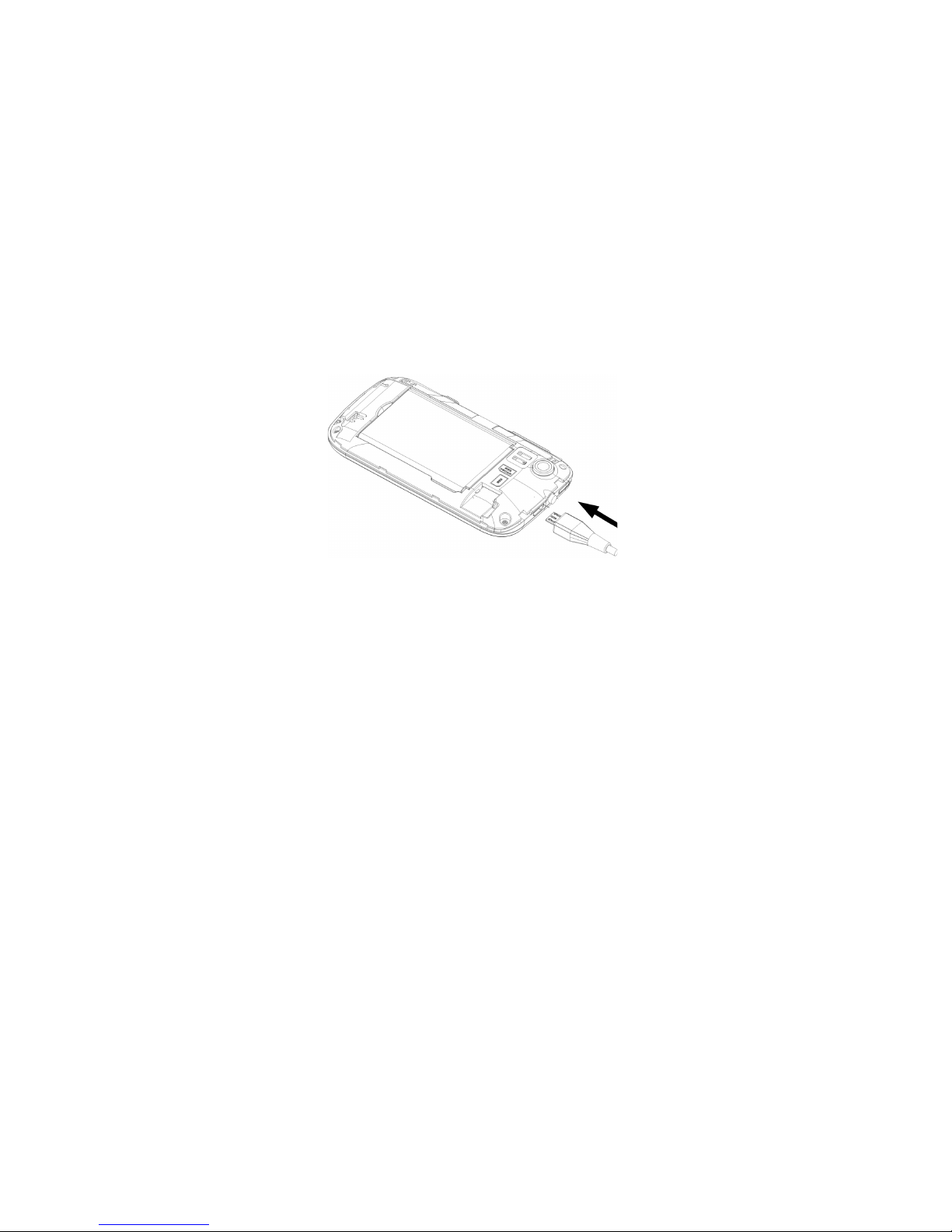
5 Battery Charging
Plug the charger into the electrical outlet.
Plug the charger connector into the charge interface of the phone.
The mobile phone and charger will become warm during charging and this is
normal.
When charging is complete, unplug the charge connector from the electrical outlet
and the mobile phone.
Charging must be performed in a well-ventilated area with a temperature between
-10°C and +55°C.
If the mobile phone automatically shuts down, or indicates that the Battery is low
you should immediately charge the battery.
Page 12
7
6 Dialing
6.1 Making Domestic Calls
Use the number keys to input number, then press the dial key to dial the call via SIM
card 1/2.
You can input domestic calls in this order:
Area code phone number dial key
Page 13

8
6.2 Making International calls
For making international calls you should long press the 0 key, until the international
phone prefix “+” appears on the screen. This will allow you to make an international call in
any country regardless of what the international call prefix is.
You can input international calls in this order:
+ Country code area code telephone number dial key
After entering the prefix, enter the country code and full number you wish to call.
6.3 Emergency Calls
If you are located within a network area (you can find this out by referring to the network
strength indicator located on the upper left-hand corner of your mobile phone screen), even if
you do not have a SIM card, you will be able to transmit emergency calls.
6.4 Key board values
Power key: hold down for power off or power on, press for close or switch on
Page 14

9
background light.
Camera key: in the idle, long press the key can enter the menu of Camera. In the
function of camera, short press the key for taking pictures or videos.
Volume keys (up/down key): adjust sound volume in stand by interface.
Home key: in function interface, shoft press the key to return to standby interface; long
press the key to display Recent.
Menu key: in standby interface, press the key can display the menu of Add, Wallpapers,
Search, Notifications, Settings, Animation. And in different function interface, press the
key can display different menus.
Back key: in function interface, press the key to return to the menu.
Search key: press the key to enter search page.
Page 15
10
7 Guide to Menu Operations
All function options about the mobile phone are listed as below with brief descriptions.
Application software
The mobile phone provides you with a lot of application
software, including UC Browser, YouTu be, Talk,
Places, Maps, Navigation, Market, Latitude, Gmail.
While at the same time, customer can installed unlimited
application software.
Note: need to insert the memory card, and keep the
memory card has enough space.
Phone
Be used to dial the number. !
Contacts!
Page 16

11
It displays the contacts. Long press one contact, it displays
the options in follows: View contact, Edit contact, Delete
contact, Add to speed dial, Share contact. !
Messages
You can compose new message. Press the Menu key,
you can choose Compose, Search, Settings to set. In
the menu of Settings, you can set it as follows: Delete old
messages, Text message limit, Multimedia message
limit, Delivery reports, Manage SIM card messages,
Edit quick text, SMS Service Center, SMS storage
location, Delivery reports, Read reports, Auto-retrieve,
Roaming auto-retrieve, Creation Mode, Size Limit,
Priority, Notifications, Select ringtone, Enable Service
Message.
Page 17
12
Dialtacts Favorites
In this menu, you can switch Phone, Call log. Contacts,
Favorites through the button.
Phone
Be used to dial the number.
Call log
Enter the menu, it shows the call
logs. You can click the button of All
calls, Dial calls, Received calls,
Missed calls, to respectively show
the list of call logs.
Contacts
It displays the contacts. Long press
one contact, it displays the options
in follows: View contact, Edit
contact, Delete contact, Add to
speed dial, Share contact.
Page 18
13
Favorites
To save the favorites contacts.
Music
To play the music. You can choose the music from the
menu of Artists, Alnums, Songs, Playlists to view or
play.
Camera
To take pictures and videos at anytime by a vivid camera
and then save them
Gallery
To view the saved pictures and videos.
Email
You can create an account and use the email.
Video Wallpaper
You can play video wallpaper form the menu of Default,
Page 19
14
SD Card, Camera. If you like the video wallpaper, you can
click the button of “Set Wallpaper” to set as Wallpaper
File Manager
You can use File Manager to organize your files in folders
in the Memory card.
Settings
SIM management
You can choose SIM card 1/2 in
SIM Information. And you can
perform the settings such as Voice
call, Video call, Meaasging, Data
connection, Roaming, Contacts
& SIM.
Wireless& networks
To perform the settings as follows:
Airplane mode, WLAN, WLAN
Page 20

15
settings, Bluetooth, Bluetooth
settings, Tethering & Portable
hotspot, VPN settings, Mobile
networks, GPRS transfer prefer.
Call settings
To perform the call settings
including Voice Call, Video Call, IP
Call settings, Other settings.
Audio profiles
To activate and customize the
desired profile as General, Silent,
Meeting, Outdoor.
Display
To perform the settings including
Brightness, Auto-rotate screen,
Animation, Screen timeout,
Proximity.
Page 21

16
Location
To perform the settings including
Use wireless networks, Use GPS
satellites, GPS EPO assistance,
EPO settings, A-GPS, A-GPS
settings.
Security
To perform the security settings
including Set up screen lock, Set
up SIM card lock, Visible
passwords, Select device
administrators, Use secure
credentials, Install from SD card,
Set password, Clear storage.
Applications
To perform the settings including
Unknown sources, Preferred
Page 22

17
install location, Manage
applications, Running services,
Storage use, Delelopment.
Accounts & sync
To perform the settings including
Background data, Auto-sync.
Privacy
To perform the settings including
Back up my data, Automatic
restore, Factory data reset.
Storage
You can view the information form
the SD card or phone storage.
Language&
keyboard
Enter the menu, you can set the
function of Select language, User
dictionary, Android keyboard,
Select input method.
Page 23

18
Accessibility
You can download a screen reader
for your device form Android Market
through the function. Duiring the
call, When you turn on the fuction of
Power button ends call, press
Power key will end the call instead
of turning off screen.
Date & time
This menu to change the time and
date displayed on your phone.
Schedule power
on/off
You can edit four times to turn
on/off the mobile-phone.
About phone
It displays the information of your
phone.
Browser
Page 24
19
You can visit the website through this function. But this
function need network support.
Search
To access to search page, you can search the content
through the virtual keyboard input.
Calendar
To view and arrange your journey according to calendar.
Calculator
To provide a calculator with 4 basic functions to facilitate
simple calculations.
Clock
Entet the menu, you can view the date and time set
weather location. Click the button of Alarm, Gallery or
Music, you can enter corresponding function.
Page 25
20
Sound recoder
To record the sound.
Downloads
To display a downloadable content.
SIM management
You can choose SIM card 1/2 in SIM Information. And
you can perform the settings such as Voice call, Video
call, Meaasging, Data connection, Roaming, Contacts
& SIM.
SIM Toolkit
Your phone supports STK (SIM TOOL KIT) function for
SIM1/2.
Page 26
21
8 Safety Precautions
Before using the phone, please read the safety precautions carefully and let your
children know these, so that you can use your phone correctly and safely.
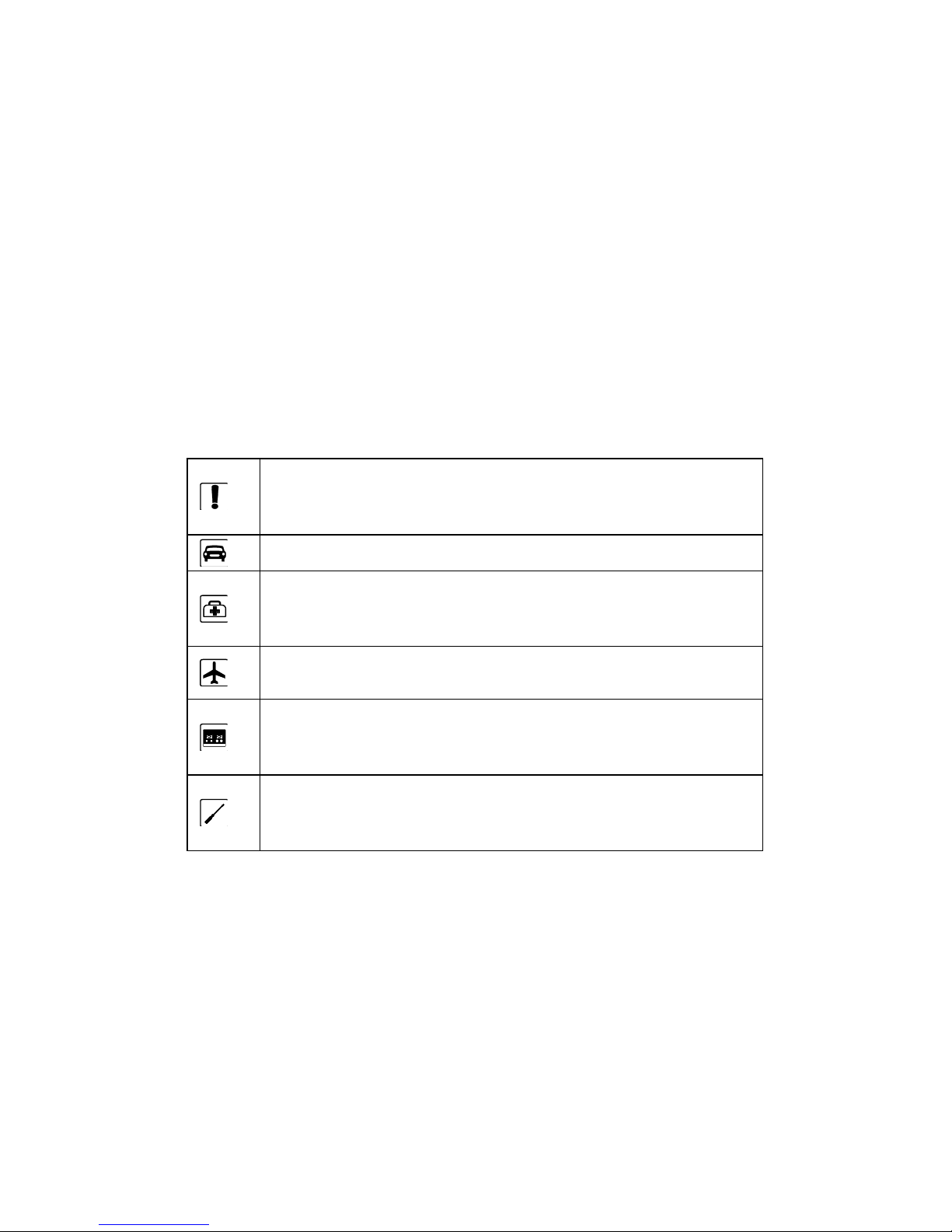
Do not switch on your phone when phone use is
prohibited or when phone use may cause
interference or danger.
Do not use your phone while driving.
Follow the rules or regulations in hospitals and health
care facilities. Switch off your phone near medical
apparatus.
Switch off your phone in an aircraft. The phone may
cause interference to control signals of the aircraft.
Switch off your phone near high-precision electronic
devices. The phone may affect the performance of
these devices.
Do not attempt to disassemble your phone or its
accessories. Only qualified personnel are allowed to
service or repair the phone.
Page 27
22
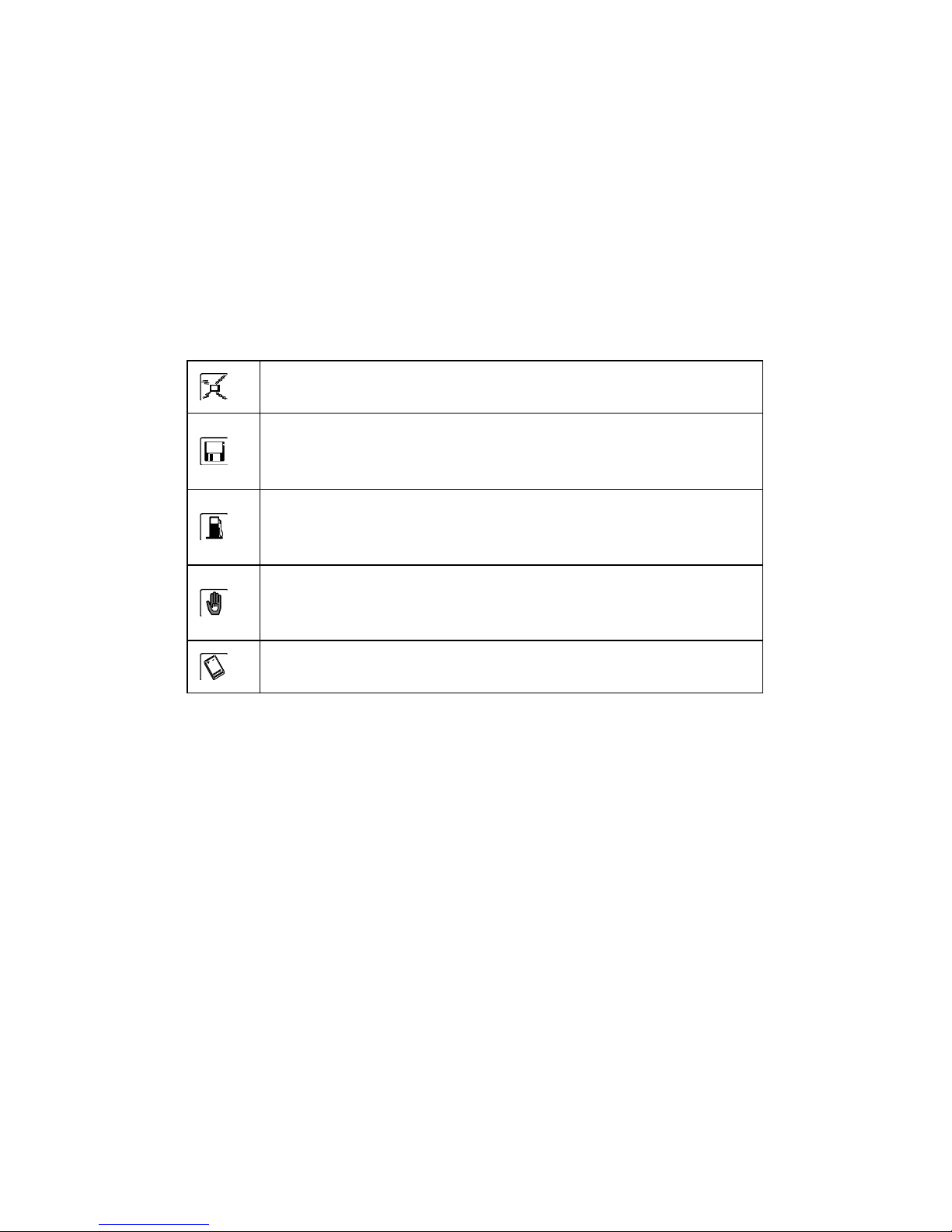
Do not place your phone or its accessories in
containers with strong electromagnetic field.
Do not place magnetic storage media near your
phone. Radiation from the phone may delete the
information stored on them.
Do not put your phone in a high-temperature place or
use it in a place with flammable gas such as a gas
station.
Keep your phone and its accessories away from
children. Do not allow children to use your phone
without guidance.
Use approved batteries and chargers only to avoid
explosion.
Page 28

23
9 Cleaning and Maintenance
The mobile phone, battery and charger are not water resistant. Please do not use
them in the bathroom or other excessively moist areas and likewise avoid allowing
them to get wet in the rain.
Use a soft, dry cloth to clean the mobile phone, battery and charger.
Please do not use alcohol, thinner, benzene or other solvents to wipe the mobile
phone. A dirty outlet will cause poor electrical contact, lose of power and even
inability to recharge. Please clean regularly.
Page 29

24
10 Technical Information
Phone
Model Kata IDroid
Lithium Battery
Model Kata IDroid
Nominal voltage 3.7v
Nominal 4.2v
Capacity rating 1450mAh
Continuous standby time * 400-500hrs
Continuous calling time 4-5hrs
* Depending on the network
Operation Temperature -10~+55 °C
Page 30

25
11 Trouble shooting
If anything unusual occurs while using your mobile phone, please refer to the following
table.
Frequently
Occurring
Problems
Cause
How to Fix
Poor
reception
Using the mobile phone
in an area with poor
reception such as near
tall buildings or in a
basement where radio
waves cannot be
transmitted.
Try to avoid.
Page 31

26
Using the mobile phone
when the network is
busy, such as during
rush hour, when the
lines are full making it
impossible to get
through.
Try to avoid.
Related to the distance
from the base station
built by the network.
You can request
that the network
service provider
provide a service
area plan.
Page 32

27
Echo or
noise
Caused by poor network
relay, a regional
problem.
Hang up and
redial, if the relay
is changed then
the line may be
better.
Some calling regions
have poor lines.
Shortening
of the
standby time
Standby time is related
to the network system.
Please
temporarily turn
off your mobile
phone, as you
are located in an
area with poor
reception.
Batteries need to be
replaced
Replace the
batteries
Page 33

28
When you cannot get a
signal, the phone will
continue to transmit in
order to find a base
station, thereby
expending large
amounts of electricity
will cause the standby
time to decrease.
Please move to
an area with a
strong signal or
temporarily turn
off your mobile
phone.
Unable
to turn on
the phone
The battery is empty.
Look at the
remaining
electricity or
recharge.
Page 34

29
SIM card
malfunction
SIM card is damaged.
Contact your
network service
provider.
SIM card is not properly
inserted.
Confirm SIM card
is properly
inserted.
There is a foreign
substance on the metal
surface of the SIM card.
Use a clean cloth
to wipe off the
metal contact
point of the SIM
card.
Unable to
connect with
Expired SIM card
Contact your
network provider.
Page 35

30
the network
Outside the GSM
service area
Consult your
network provider
on the service
area.
Poor signal.
Please move to a
place with a
better signal and
try again.
Unable to
make a call
Using the call bar
function
Cancel the call
bar function.
Using the fixed dialling
function.
Cancel the fixed
call setting.
Incorrect
PIN number
Consecutively enter the
wrong password three
Contact your
network provider.
Page 36

31
times.
Unable to
charge
Battery or charger is
damaged
Replace the
battery or
charger.
Recharging in the
environment of less
than -10or higher than
45.
Change the
charging
environment.
Poor contact
Check if the plug
is properly
connected
Unable to
add new
phone book
The storage space of
the phone book is full
Delete a portion
of the phone
number entries
Page 37

32
entries
Unable to
set certain
functions
Your network provider
does not support this
function or you have not
applied for it.
Contact your
network provider.
Page 38
33
 Loading...