

Page 1

TitaniumS21
1
TitaniumS21
User Manual
Android 4.4.2 (Ki tkat) is the Oper ati ng System for your
Touc h Scree n Smart Pho ne - Titani umS 21
Page 2

TitaniumS21
2
INTR ODU CTI ON
Than ks for cho osi ng Tita niu mS2 1 , Dual SI M Andro id, 3G
smar t phone ba sed on 1.0 GHz Processor . Th is Sma rtp hone
is runn ing on Android OS , V4.4. 2 (Kitk at). If you ’d like your
phone to live a lon g a nd fruitful li fe, ple ase rea d this gui de
careful ly and kee p it fo r fu ture re ference. You neve r kn ow
when yo u mi ght nee d it.
And don ’t worry if the pictures we use to demonstrate your
phone’ s functi ons look a lit tle dif fer ent from what you see
on its scre en. It ’s the functio ns that matter.
Page 3

TitaniumS21
3
Cont ent s
1 Ph one Layout 5
2 Getting Star ted 5
2.1 Insert SIM car d
........... .............. ............. .............. ..
5
2.2 Insert Mem ory car d
........... .............. ............. ........
6
2.3 Unlock the phone ........... .............. .............. ........... 7
3 Placing and Receiving Calls 8
3.1 Make a call
........... .............. ............. .............. ........
8
3.2 Confere nce Call.. .............. ............. .............. .......... 8
3.3 End a call
........... .............. ............. .............. ............
9
3.4 Disable Pho ne Cal ls (Air pla ne mode)
........... .......
9
3.5 Using the Touch sc reen
........... .............. ............. ..
9
3.6 Using the P hone’s But ton s
........... .............. ........
10
4 Th e Home Screen 11
4.1 Customize Home Sc ree n
........... .............. ...........
11
4.2 Add ite ms to the Home sc ree n
........... .............. .
12
5 Wo rking With Menus 12
5.1 Context Men us
........... .............. ............. ..............
13
5.2 Options me nus
........... .............. ............. ..............
13
5.3 Menu Icons .......... .............. .............. ............. ....... 14
6 Co nnect to the Inte rne t 14
6.1 Access Internet via Wi-F i
........... .............. ...........
15
7 Managing Notifi cat ion s 15
7.1 Open th e Notificat ion s Panel
........... .............. ...
15
7.2 Respond to Notifi cat ions
........... .............. ..........
17
7.3 Close Notif ica tio ns Pane l
........... .............. ..........
17
8 Me ssaging 17
8.1 Create and Sen d M ultimed ia Message
........... ..
19
8.2 Forw ard a message
........... .............. ............. .......
20
8.3 Lock a Message
........... .............. ............. .............
20
Page 4

TitaniumS21
4
8.4 Using the Onscreen Keyboard
........... .............. ..
21
8.5 Enter Vario us Charact ers
........... .............. ..........
21
9 Multi med ia 22
9.1 Camera
........... .............. ............. .............. .............
22
9.2 Gallery
........... .............. ............. .............. ..............
22
9.3 Music... ............. .............. .............. ............. ...........2 3
9.4 FM Radi o
........... .............. ............. .............. ..........
23
10Manag e Acco unt s 23
10.1Why Use a Goog le Acc oun t..... .............. ........... 24
11Conne ct to Netw ork s and D evic es 24
11.1Con nec t to In ternet
........... .............. ............. ....
24
11.2Con nec t to Wi -Fi Net wor ks
........... .............. .....
24
11.3Pai r With Blue tooth Dev ices...... ............. ......... 24
11.4Ins tall Secure Ce rtificate fro m SD Ca rd
..........
25
12Healt h a nd Safety Prec aution s 26
13 Taki ng Care of You r Devic e 29
Page 5
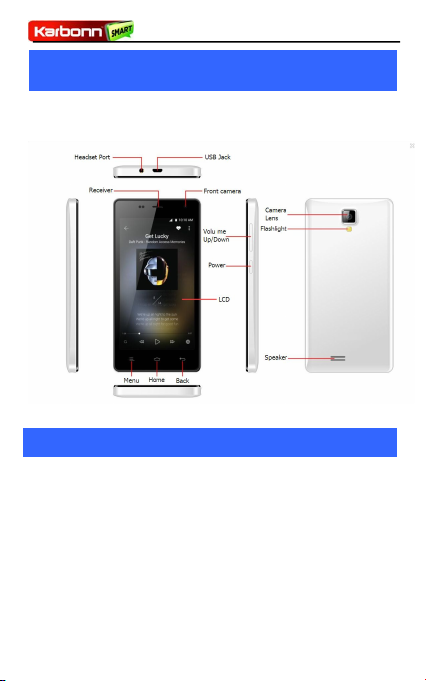
TitaniumS21
5
11Phone
Phone
Layout
Layout
22Getting
Getting
Started
Started
2.1
2.1 Inse rt SIM car d
The Titaniu mS2 1 is a Dual SIM mo bil e ph one allowing you
to us e the faci lit ies of two net wor ks simu lta neo usly.
To inser t SIM c ard(s):
1. Switc h off the mobi le phone and remove the rear c over
and battery.
Page 6

TitaniumS21
6
2. Inser t the S IM card (s) cor rec tly in the card s lot( s)
3. Fi nally inser t the batter y and th e re ar c over of the mobile
phone
2.2
2.2 Insert Mem ory card
1. Power off th e mo bile ph one and th en remo ve the rear
cove r and batte ry.
2. Inser t the memory c ard int o th e slot.
Page 7

TitaniumS21
7
3. Final ly inse rt the bat ter y and th e rear cover of the mob ile
phon e.
Use only compa tib le memory cards a pproved by A9 2PLUS
with this devi ce. Inc omp ati ble memory cards may damage
the card or the de vic e and corru pt the dat a st ored in the
card . (See figu re bel ow).
2.3 Unlo ck the pho ne
You may nee d to pr ovide P IN, Passwo rd, or dra w a pat ter n
to un loc k your phone. To unlock the screen:
1. Press the po wer key to wak e up th e ph one.
2. Drag to the lef t to unlock.
You may be required to un loc k yo ur phone base d on the
unlo ck meth od in sett ing s.
To set th e unlock method:
1. On th e ma in menu, touc h Setti ngs > Secu rit y.
Page 8
TitaniumS21
8
2. To uch Scree n lock.
3. Choos e the type of locking as des ire d. You can set yo ur
scre en lock on the ba sis of pat tern, PIN, Pas swo rd or none .
33Placing
Placing
and
and
Receiving
Receiving
Calls
Calls
You can dia l a pho ne number or touch a num ber in your
cont act s.
You can als o place from the Call lo g or co ntacts.
3.1 Make a call
1. Ta p the icon on main menu or the home scree n to
dial the desired number.. .
2. Ta p on any of the Phone, Call Lo gs, Conta cts and Favorite
tabs to make a cal l.
3. To di al an inter nat ion al numb er, touch and hold the 0
key to ente r the P lus (+) symbol, a nd then ent er the
inte rna tio nal cou ntr y pr efi x, foll owe d by the ph one
numb er
4. To uch the or icon to dial the numb er.
5. Pr ess the Vol ume Up/ Down ke ys on the left to adjust the
call volume .
3.2 Conf ere nce Call
If you dial or accept a new call when you are alr ead y on a
call , yo u can or me rge th e calls int o a con ference call.
1. Place a call to the first par ticipan t.
2. When you are co nnected , touch th e Add c all icon, the
firs t participa nt is put on ho ld a nd you are pr omp ted to dial
the second con tac t.
Page 9

TitaniumS21
9
3. Place the ne xt call, usin g the ph one tab, the Call log, or
your contac ts.
4. When you are co nnected , touch Merge calls. Th e
partici pan t is added to the con fer ence call.
You can als o c lick on the sc reen to cal l, call screen call
func tio n ca n scree n the callint erf ace
3.3 End a call
While du rin g a cal l, touc h th e icon .
3.4 Disa ble Pho ne Cal ls (Air pla ne mode)
Some locati ons may re qui re you to turn off your mobile,
Wi-F i, and Blu etooth wir ele ss connect ion s.
Pres s and ho ld the Pow er button and then choo se
Airp lan e Mode.
Drag notifi cation pan el dow n th en touch the Airp lan e
mode .
3.5 Usin g th e Touch sc ree n
You can use th e to uch scr een in the following ways:
Touch:
Touch: Acts on items on the sc ree n, such as app lic ati on
and settings icons, to type letters and symbols using the
onsc ree n ke ybo ard , or to pre ss onsc ree n bu tto ns.
Touch
Touch
and
and
hold :
hold : Touch and hold an item on the screen
unti l an action occurs .
Drag:
Drag: Touch an d ho ld an item and mo ve your fi nger on
the scre en unt il you rea ch the tar get pos iti on.
Swipe
Swipeoror
slid e:
slid e:
Quic kly sli de your fi nger acros s th e
surf ace of the screen , (with out dragging an item). For
exam ple , slide the scree n up or dow n to sc roll a list .
Doub le-t ap:
Doub le-t ap:
Tap qui ckl y tw ice on a webpa ge, map, or
Page 10

TitaniumS21
10
other scree n to zoom. For example, dou ble -tap a section of
a webpage in Br owser to zoom tha t section to f it the widt h
of th e s cree n. You can also doub le- tap to con trol the
Came ra zoom, in Maps, and in oth er applica tio ns.
Pinc h:
Pinc h: In some applicati ons (Such as Maps , Brows er,
and Gallery) yo u can zoom in and out by placing two
fing ers on the screen at onc e and pinc hin g th em tog ether
(to zoom out) or s prea din g th em apart (to zoom in ).
Rota te
Rota te
the
the
scre en:
scre en: On mos t scree ns, the or ientation of
the scre en cha nge s as yo u rotate it. Yo u can turn this
feat ure on and off .
3.6 Usin g th e Phone ’s Buttons
The phon e’ s buttons and sof t buttons offers a lot o f
func tio ns and shortcuts.
Butt on
Pres s
Pres s an d
hold
Left
butt on
Menu key: Open s a
cont ext men u re lat ed wi th
curr ent scr een or
Appl ica tio n.
Open s the
sear ch bar
Midd le
butt on
Home ke y: Opens th e
Home screen.
Open s
rece ntl y
used
appl ica tions.
Righ t
butt on
Back key: Open s th e
prev iou s sc ree n yo u we re
work ing on.
Page 11

TitaniumS21
11
44The
The
Home
Home
Screen
Screen
When you si gn in, the home screen opens.
The ma in menu screen is your start ing po int to acc ess
all the fea tur es on your pho ne.
At the top of the screen , the Status bar displays the
time , statu s, and not ificati ons .
Press Hom e icon or Back ic on to clos e the La unc her.
4.1 Custom ize Hom e Scre en
You can ad d appli cat ions, s hortcut s, widgets, and other
item s to an y pa rt of the Home sc ree n or ch ange the
wall pap er.
Tap ite ms on the Home scr een
to open the m. Touc h and hold
an e mpty sp ot to add a
shor tcu t to an app lic ati on, a
widg et and so on
The status bar shows the time,
sign al stre ngt h, bat tery status,
and notific ati on icon s.
Slid e th e Launc her le ft
or right to bri ng more
icon s into view.
Touc h an applicati on
to open it..
Page 12

TitaniumS21
12
4.2 Ad d it ems to the Ho me scre en
1. Press
Home
Home
key
key to o pen the Home scre en.
2. To uch
Menu
Menu
key
key>>
Add
Add++ or just to uch and ho ld an e mpty
area on the Home scre en.
3. A men u for a ddin g the f ollo win g pops up.
WALLPAPERS
WALLPAPERS:: Choose di fferent ty pes of wal lpapers as
desi red .
WIDGERS
WIDGERS:: Add sh ort cuts to applic ati ons, a bookmarked
webp age , a favorit e cont act, a destinatio n in Maps, a
music pl ay list, etc.
SETT ING S
SETT ING S:: Enter th e setup menu
55Working
Working
With
With
Menus
Menus
The ph one provides you wi th Context men us an d Opti ons
Page 13

TitaniumS21
13
menus for accessin g the feat ure s in an int uit ive way .
5.1 Contex t Me nus
You can op en cont ext menu by touch ing Menu key on
any screen.
No t all s cree ns have co ntext menus. If you touc h
Menu
Menu
key
key on a scre en that has no con tex t me nu, nothing
happ ens .
5.2 Option s me nus
Opti ons menus con tai n to ols that appl y to specific items on
the scre en. You can open an option by touchin g and ho ldi ng
an it em on the scr een . No t all items have opti ons menus.
When you to uch and ho ld some items on a sc ree n, an
Opti ons menu open s.
Shor tcut i con
Page 14

TitaniumS21
14
5.3 Menu Icons
You hav e th e follo win g me nu icon s to e asil y let you a ccess
its important fea tur es:
Open s me ssag ing
Open s the dialer
Open s the co ntacts
Open s Search bar . Ne eds Int erne t
conn ectivit y fo r th is featu re.
66Connect
Connecttoto
the
the
Internet
Internet
1.To co nfigure yo ur Inte rne t:
A. Go to
Sett ing s>
Sett ing s>
Wire les s
Wire les s&&
Network s
Network s>>
Data
Data
usag e
usag e>>
Mobi le
Mobi le
data
data..
BB..GoGototoSett ing s
Sett ing s>>
Wireles s
Wireles s&&
Network
Network
>Mor e
>Mor e>>
Mobi le
Mobi le
Network >
Network >
Acce ss
Acce ss
point
point
name s
name s
(Fro m
(Fro m
ther e
ther e
you
you
can
can
select
select
the
the
APN)
APN)
2. By default, you r ne twork prov ide r sends the ac ces s po int
name set tin gs via SMS , o r it com es with yo ur SIM car d. You
may need to instal l these set tin gs. After this, you can
choose from th e li ste d ac ces s po int names. If the access
poin t na mes are no t liste d by default, please con tac t yo ur
netw ork provider for the sam e.
3. After yo u ha ve sele cte d or config ure d the access poin t
Page 15

TitaniumS21
15
name, go to
Sett ing s>
Sett ing s>
PERS ONA L>D ual
PERS ONA L>D ual
Sim
Sim
Sett ing s
Sett ing s
>Dat a
>Dat a
Conn ect ion
Conn ect ion
Sett ing s
Sett ing s and tap the service pr ovider of your
SIM to enab le Internet c onnection.
Simi lar ly, you can perfor m s tep 3 to enable data conn ection
on yo ur SIM card.
6.1 Access Inte rnet via Wi-Fi
To br ows e the Inte rne t via Wi -Fi :
1. Go to
Menu >
Menu >SS
etti ngs>
etti ngs>
Netw ork
Netw ork
and
and
then
then
tap
tap
Wi-Fi
Wi-Fi..
2. Ne xt, go to
Menu >
Menu >
sett ings>
sett ings>
Netw ork
Netw ork>>
Wi-F i
Wi-F i
Sett ings
Sett ings
and then select th e WIFI connect ion listed un der Wi- Fi
netw ork s.W ifi is ON
77Managing
Managing
Notifications
Notifications
Notific ati on icon s infor m yo u of new me ssa ges and ev ent s.
When you re cei ve a notificat ion , it s icon appears in the
stat us bar, along wit h a summary th at appe ars only brie fly.
7.1 Open th e Notificat ion s Pane l
Drag the st atus ba r do wn from th e to p o f th e sc ree n as
show n below .
Page 16

TitaniumS21
16
You can ope n S hort cut menu by to uch ing on scree n.
Page 17

TitaniumS21
17
The Notific ati ons pan el displays your net wor k provi der
name and a list of your current not ifications .
7.2 Resp ond to Not ifi cations
1. Open the no tif ication panel and to uch a notifica tion to
resp ond to it.
2. Wha t ha ppens next depends on the notif ica tio n.
7.3 Clos e No tif ica tions Pane l
1. Drag the tab at the bo ttom of the No tification s pa nel to
the top of the screen. Or ju st pres s th e ba ck button. Th e
pane l al so closes when yo u to uch a noti fic ati on to respo nd
to it .
88Messaging
Messaging
You can use Messaging to exchan ge text me ssa ges and
mult ime dia messages wit h yo ur friends .
Page 18

TitaniumS21
18
You can als o press the
Menu
Menu
key
key a nd o pen the contex t
menu to wor k on messages and the ir setting s.
Touc h to compose a
new tex t or
mult ime dia
Touc h to op en a
mess agi ng
convers ation
Page 19

TitaniumS21
19
A Mes sag e becomes an MMS if you sen d it to an ema il
addr ess , or add mu ltimedia media fi le(s).
8.1 Create and Send Mult ime dia Mes sag e
1. To uch compose new mes sage.
2. En ter or sel ect a mobile phone numb er.
3. To uch the co mpo sition text bo x and ente r yo ur message
body.
4. To uch the Me nu key to open the co ntext menu .
5. To uch icon to at tach va rio us type s of files.
6. Send the MMS .
Page 20

TitaniumS21
20
8.2 Forw ard a mess age
1. Op en a me ssa ge and the n to uch that mess age in a
mess age conversat ion window.
2. Touc h Fo rward in the menu that open s.
3. Add a contact.
4. Touc h Se nd to s end the mes sag e.
You can also Copy mes sage te xt, Save message to SIM car d,
View message details and delete me ssage..
8.3 Lock a Mes sag e
You can loc k a mes sage so it won ’t be dele ted if you rea ch
your storag e limi ts.
1. Touc h an d ho ld mes sage in a message window .
2. Touc h Lo ck message in the me nu that opens. Un lock a
mess age by tou ching and holding it and then touc h
Unlo ck
Unlo ck
message
message..
Touc h to fo rward the
mess age .
Tap to lock the
mess age .
Page 21

TitaniumS21
21
8.4 Using the Ons cre en Keyboard
Some applic ations display the keyboard by def ault. In
others, you touch a text field wher e yo u want to ent er text ,
to open the key boa rd.
Use the icon to era se char act ers
Afte r ty ping, pres s
Back
Back
key
key ico n to close the keyboard.
8.5 Enter Var ious Ch aracters
Pres s th e sy mbo ls key to swit ch to the num ber s and
symb ols key boa rd.
Touc h an d ho ld the tex t field to open a men u an d to
copy /cu t te xts .
Touc h to to ggle be twe en Fron t and rear cam era mo des
Tap this ic on to select
desi red contac t from
phonebo ok
Touc h once to
capi tal ize the ne xt
letter you typ e. Touc h
and hold for caps.
Pres s space or a
punc tua tio n ma rk to
ente r the highligh ted
sugg est ion.
Page 22

TitaniumS21
22
99Multimedia
Multimedia
9.1 Camera
Your camera ’s pictur es and vid eos are st ored in the SD
card , so you must insert one to use the Camera. You can
copy pictures and vid eos from the SD c ard to a PC and vi ce
vers a.
9.1 Gall ery
You can use th e Galle ry to view pic tur es and play videos
and share file s.
1. To uch the Ga llery icon in the ma in menu .
2. To uch an alb um to open and view its content s.
3. To uch a pict ure or a video in an alb um to view it.
9.2 Share an Albu m
1. Op en the main G allery win dow.
2. Ta p th e Menu ke y an d th en touch S hare .
Touc h to ch ang e setti ngs
Slide to toggle betwe en
vide o/c amera/Panora
mode s
Touc h to to ggle be tween
fron t and rear camera mod es
Page 23

TitaniumS21
23
3. Check or unchec k th e albu ms you wan t to share.
4. To uch Share aga in at the con text me nu. In the men u that
open s, touch the appl ica tion to use to sha re the sel ect ed
albums.
You can sha re via ema il, Blu eto oth , Gmail messaging an d so
on.
9.3 Music
You can eas ily transfer your favorite mus ic from yo ur PC to
the SD card and exper ience a whole world of inter est ing
and melodio us mus ic.
To uch the
Menu
Menu
key
key o r the intuitive bu tto ns and icons
on th e phon e in music int erface to enjoy the features o f
your music pla yer.
Press the pho ne ’s vol ume up/ dow n ke ys on th e left side
of th e mobile phone to adjust th e vo lume.
9.4 FM R adio
You can listen to your favo rit e FM channe ls usin g th e inbuilt
FM receiver of you r phone.
Tou ch the
Menu
Menu
key
key o r the intuitive bu tto ns and icons
on th e phone in Rad io interfa ce to enjoy the f eatures of
your inbuil t FM ra dio.
Press the pho ne’s volume up/ down ke ys on the right
side of the mobile ph one to adj ust the volume.
1010Manage
Manage
Accounts
Accounts
You can set up a c orporat e, Goo gle acc oun t etc o n your
device. You can do this by ta ppi ng
Sett ings>
Sett ings>
Perso nal>
Perso nal>
Add
Add
Acco unt
Acco unt::
.
.
Page 24

TitaniumS21
24
10.1 Why Use a Goog le Acco unt
Your Google Ac count lets you take full advant age of Google
appl ica tions and ser vices that you ma y wa nt to use, such as
Gmai l, Maps, Navigation, and va rious appl ica tio ns.
11
11
Connect
Connecttoto
Networks
Networks
and
and
Devices
Devices
Your phone can connect to a vari ety of net wor ks and
devices , in clu din g Wi -Fi, GPRS, Blueto oth , de vic es, such a s
head set s. You can als o tran sfe r files to/from yo ur PC
thro ugh the da ta cabl e.
11.1 Conn ect to Intern et
Refe r to sectio n 6 for details.
11.2 Conn ect to Wi- Fi Network s
Refe r to Section 6.1 for det ail s.
11.3 Pair With Blue tooth Devi ces
1. Go to
Sett ings
Sett ings>>
Wire less
Wire less&&
Netw orks
Netw orks>>
Blue tooth
Blue tooth
sett ings
sett ings..
2. If Bluetooth is off , c heck
Blue tooth
Blue tooth to turn it on. You r
phone scans and di splays the Bluetooth devices in ra nge .
3. If the de vic e yo u wa nt to pair with is no t in the list, mak e
it disco ver abl e.
4. If your phon e stops scanning before you ma ke the oth er
device disc ove rab le, touch
Scan
Scan
for
for
devi ces .
devi ces .
5. To uch the ID of the oth er dev ice in the lis t in Settings to
pair the m. If you a re prompted to for a password, enter any
pass wor d on one device and enter the same passwor d you
ente red in the other dev ice to be pair ed.), If the pairing is
succ ess ful, yo ur phon e c onnects to the devic e.
Page 25

TitaniumS21
25
11.4 Insta ll Secure Cer tificate f rom SD Card
If your VPN or Wi- Fi Netw ork re lies on secure certif ica tes ,
you must ob tai n th e ce rti ficates and store th em in your
phone’ s storage, bef ore you can configure acc ess to those
VPN or Wi-F i ne tworks on you r phone .
You may need to do wnl oad the certificates fr om a websit e.
1. Copy the certif ica te from yo ur computer to th e ro ot of
the SD card .
2. Touc h
Sett ings>
Sett ings>
Perso nal>Se cur ity
Perso nal>Se cur ity..
3. Touc h
Inst all
Inst all
from
fromSDSD
card
card
under
under
Secu rit y
Secu rit y
Sett ings
Sett ings..
4. Touc h th e file name of the cer tif ica te to inst all . On ly the
names of certifica tes tha t you have not alread y inst alled on
your phone are di splayed .
5. If pr omp ted, enter the certifica te ’s pass wor d and touch
OK.
OK.
6. Ente r a name fo r th e certi ficate and to uch
OK.
OK.
Page 26

TitaniumS21
26
1212Health
Health
and
and
Safety
Safety
Precautions
Precautions
Safety Precautions
Plea se read th rough the following bri efi ngs
care fully and act in acc ordance with thes e rules ,
so as to pre vent causi ng any dan ger or violating
any law .
SAR Value
Your mobile ph one mo del has been desi gne d to co mpile
with applicabl e safet y re quirements for ex posure to radi o
waves. The rad io wave ex posure gui delines em ploy a unit
of measurem ent ca lled Specific Abs orp tion Ra te (SAR ).
The recommended SAR limit for mobile han dset is 1.6
W/Kg avera ged ove r a 6 minutes period and tak en ove r a
volu me con taining a mass 1g of huma n tiss ue.
The high est SAR va lue for th is mobi le phone mode l is
xxxx x W att/ Kg averaged over a 6 minute s pe rio d and
taken over a vo lum e conta ini ng a mass 1g of hum an
tiss ue.
Use cell phone whe n th e signa l stren gth is goo d. Keep
your calls sho rt or inst ead use headset or s end a te xt
mess age . This advice app lies espec ially to ch ildren,
adol esc ents and pr egn ant women.
I f yo u ar e us ing a Blue too th head set device, plea se make
sure it has a low pow er emitter .
ROHS Declara tion
Decl arat ion of Con formity with the require men ts of the
Page 27

TitaniumS21
27
e-wa ste Mana gem ent Rules, 2011 (adop ted by Noti fica tio n
S.O.1035 (E) of Min istry of Envir onm ent and For ests )
The Produ ct is in confor mit y wit h the require men ts of Rule
13 of the e-w ast e Rule s. The c onte nt of haz ardous
subs tan ce with the exem ption of the applicati ons listed in
SCHE DUL E II of the e-w ast e R ules:
1. Le ad (Pb ) – not over 0.1% by wei ght;
2. Cadmi um (Cd ) – not over 0.01 % by we igh t;
3. Mercury (Hg) – not ov er 0.1% by wei ght ;
4. Hexa val ent chrom ium (Cr6+ ) – not ov er 0.1 % by
weight;
5. Pol ybrominate d biph eny ls (PBBs) – not over 0.1% by
weight;
6. Polyb rom ina ted dip hen yl ethe rs (PBD Es) – no t ov er
0.1% by wei ght .
Do not use the pho ne whil e dr iving. Whe n yo u hav e to
use the pho ne, please us e th e pe rso nal hands- fre e ki t.
Plea se do not put the ph one onto any pass eng er sea t or
any place fr om whi ch it may fall down in cas e of
vehi cular coll isi on or emergenc y braking.
Flig ht is influe nce d by in ter fer enc e caus ed by the phone.
It is il legal to use a pho ne on the airp lan e. Plea se turn
off your ph one during a flig ht.
Your Phone ’s radio wave s ma y in ter fer e wi th the
func tio nin g of ina deq uately shield ed medical devices.
Safe
Safe
Driv ing
Driv ing
Duri ng
Duri ng
Flig ht
Flig ht
InInHosp ital s
Hosp ital s
Page 28

TitaniumS21
28
Cons ult a physician o r the ma nufact urer of the medical
devi ce to dete rmi ne whet her th ey are adequately
shie lded fr om e xter nal Rad io Freq uen cy. Swi tch off your
devi ce when re gulations pos ted ins tru ct you to do s o.
To avoid po tential in terfere nce with impl anted medi cal
devi ces such a s a pace mak er or cardiov ert er
defi bri lla tor:
Alwa ys keep your phon e at least 15.3 centi met ers (6
inch es) fro m the medical device.
Do no t carry the wi reless dev ice in a breast pocket.
Turn off the ph one if there is any reason to su spe ct that
inte rfe rence is ta kin g pl ace .
Foll ow the man ufacturer dir ections for th e im pla nte d
medical device.
If yo u ha ve any questi ons about usi ng your wi rel ess
devi ce with an implan ted me dical devi ce, consul t your
heal th care provider.
Plea se turn of f yo ur phone when you are cl ose to a ga s
stat ion or in the vic inity of any place wh ere fuel and
chem ica l pr eparations, o r an y ot her danger ous go ods
are stored.
Unsa fe
Unsa fe
Area s
Area s
Page 29

TitaniumS21
29
1313Taking
Taking
Care
Careofof
Your
Your
Device
Device
Your
Your
device
deviceisisaa
prod uct
prod uctofof
supe rio r
supe rio r
desi gn
desi gn
and
and
craf tsm anship
craf tsm anship
and
and
shou ld
shou ldbebe
hand led
hand led
with
with
care :
care :
The
The
foll owing
foll owing
suggest ions
suggest ions
will
will
help
help
you
you
prot ect
prot ect
your
your
phon e:
phon e:
Keep the de vic e dr y. Precipi tat ion, hu mid ity , an d all
type s o f liq uid s o r moisture can con tai n mi ner als that
will rust electron ic circuits. If your de vice do es get wet ,
remo ve the bat ter y wi tho ut turn ing on the dev ice , wipe
it with a dr y cloth and take it the s ervice cen ter.
Do no t stor e th e de vic e in high or cold tem peratur e.
High temperatu res can shorten the life of electr oni c
devi ces and da mage batter ies .
Do no t use or stor e th e de vic e in du sty , di rty are as. Its
movi ng parts and elec tro nic compon ent s c an be
damaged .
Do no t attempt to ope n th e de vic e other than as
inst ruc ted in this gu ide. Repairing this phone by
your sel f ot her tha n o ur auth ori zed ser vice
agen ts/ cen ters goes agai nst the warranty rul es.
Do no t drop , kn ock , or sha ke the dev ice . Rough
hand lin g can br eak internal circuit bo ards and fine
mech ani cs.
Do no t use hars h chemical s, cleanin g s olve nts , or strong
dete rge nts to clean the dev ice. Only use a so ft, clean,
dry clot h to clean the su rface o f th e de vic e.
Do no t stor e yo ur device nea r ma gne tic fie lds or allow
your device to com e in contact with mag net ic fiel ds for
exte nde d pe rio d of tim e.
Batte ry
Batte ry
Recommen dati ons :
Recommen dati ons :
Page 30

TitaniumS21
30
Plea se put the batter y in a cool and we ll- ventila ted
plac e out o f direct su nlight. We recommend you to
char ge the bat tery at roo m tempe rat ure range.
Batt eri es have lif e c ycles. If the tim e th at the bat ter y
powers equipment bec omes mu ch shorter tha n usua l,
the battery life is at an end . Repl ace the battery with a
new battery of the sa me make and sp ecificatio n.
Do no t disc ard the batter y with househ old tra sh. Please
disp ose of use d ba tte ry acco rdi ng to your local
envi ron men tal law s and guidelin es.
The colors and specifica tio ns show n/m ent ioned in the
user manual may di ffer fr om the act ual pro duc t. Images
show n ar e for repre sen tat ion purpos e o nly. Other
prod uct logos and com pan y na mes me nti oned he rei n
may be trad ema rks or tra de names of th eir respec tiv e
owners.
Recyc le
Recyc le
Your
Your
Phon e
Phon e
Disc lai mers
Disc lai mers
The WEEE lo go (sho wn at the left)
appe ars on the pr oduct (bat tery,
hand set , a nd c harg er) to ind ica te
that th is prod uct must not be
disp ose d o ff or dumped wi th your
other house hol d waste s. You are
liab le to disp ose of all your
elec tro nic or ele ctrical wa ste
equi pme nt by relo cating over to th e
spec ified coll ection point for
recycli ng of such hazard ous waste.
Page 31

TitaniumS21
31
Karb onn kee ps the right to make modifica tio ns to any of
the content in thi s us er gui de with out public
anno unc eme nt in advance. Th e content of this man ual
may vary fr om the actual con ten t di spl ayed in the
mobi le phon e. In such a c ase, th e la tter shall govern.
All rights res erv ed. Rep rod uct ion , transfer, distribution or
stor age of par t or all of the co ntents in this do cum ent in
any for m wi tho ut the pri or writ ten permis sion o f Karbonn
is strictly pr ohib ite d.
Copy righ ts
Copy righ ts
 Loading...