

Page 1

User Manual
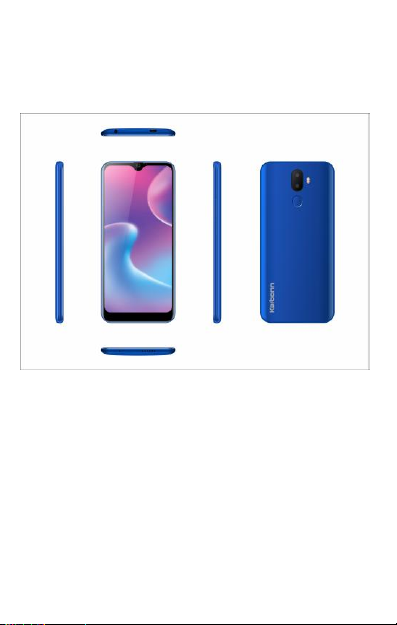
Titanium P9 Plus
Android
TM
9 Pie is the Operating
System for your Touch Screen
smart phone – Titanium S9 Plus.
Page 2

2
The Android Advantage
Welcome to the world of Karbonn. You have just become the proud
owner Karbonn enabled Device. Your device comes with Android 9
which provides you a host of advanced and desirable features to
give you a whole new Android experience.
Read Me First
Please read all safety precautions and this manual
carefully before using your device to ensure safe and
proper use.
The descriptions in this manual are based on the default
settings of your device.
Available features and additional services may vary by
device, software, or service provider.
Applications and their functions may vary based on the
country, region, software or hardware specifications.
Karbonn is not liable for performance issues caused by
third-party applications.
o Sales Tracker: Upon first use of your device, your device will
send information related to your mobile number, IMEI
numbers, location details and other software details through
SMS automatically. Operator tariff charges shall be
applicable for SMS.
Page 3

3
Safety
Please read through the following briefings
carefully, and act in accordance with these rules, so
as to prevent causing any danger or violating any law.
SAR Value
Your mobile phone model has been designed to
compile with applicable safety requirements for
exposure to radio waves. The radio wave exposure
guidelines employ a unit of measurement called
Specific Absorption Rate (SAR). The recommended SAR
limit for mobile handset is 1.6 W/Kg averaged over a 6
minutes period and taken over a volume containing a
mass 1g of human tissue.
The highest SAR value for this mobile phone model is
0.646 Watt/Kg averaged over a 6 minutes period and
taken over a volume containing a mass 1g of human
tissue.
Use cell phone when the signal strength is good.
Keep your calls short or instead use headset or send a
text message. This advice applies especially to children,
adolescents and pregnant women.
If you are using a Bluetooth headset device, please
make sure it has a low power emitter.
ROHS Declaration
Page 4

4
Declaration of Conformity with the requirements
of the e-waste Management Rules, 2011 (adopted
by Notification S.O.1035 (E) of Ministry of
Environment and Forests)
The Product is in conformity with the requirements of Rule
13 of the e-waste Rules. The content of hazardous substance
with the exemption of the applications listed in SCHEDULE II
of the e-waste Rules:
Lead (Pb) – not over 0.1% by weight;
Cadmium (Cd) – not over 0.01% by weight;
Mercury (Hg) – not over 0.1% by weight;
Hexavalent chromium (Cr6+) – not over 0.1% by weight;
Polybrominated biphenyls (PBBs) – not over 0.1% by
weight;
Polybrominateddiphenyl ethers (PBDEs) – not over 0.1% by
weight
Page 5
5
Understand Your Phone
Fingerprint Functions
Fingerprint lock
If you want to better security protection, you can set up the
fingerprint locked by following steps.
In menu screen, select
settings>Security&location>Fingerprint >Add fingerprint, then
add a fingerprint successfully, Then you can unlock by input
fingerprint.
Page 6
6
Take photos
You take a photo in framing interface according to the fingerprint
Turning Your Phone On/Off
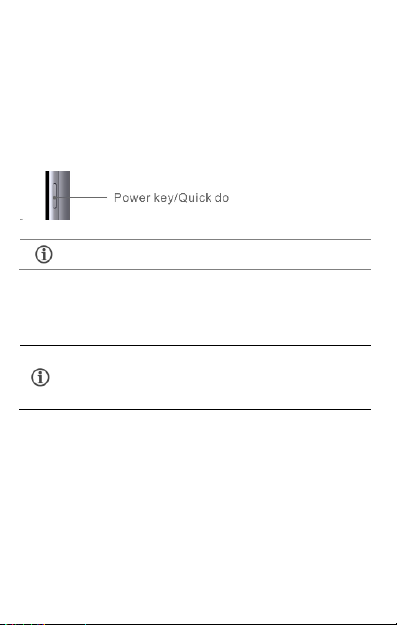
1. Hold down the power button for a few seconds to switch on/off
the phone.
To restart your phone, long press the Power key and
select Reboot.
Charging the Battery
Before using the device for the first time, we recommend you to
fully charge the battery.
Use only given Karbonn chargers and cables with
this device. Other chargers or cables may damage
the battery or your device. This will invalidate your
phone warranty.
GoogleTM Account
Your Google account lets you take full advantage of applications
and services offered on Google Play. Configure your Google
account on this handset to get access to your GmailTM, Google Play,
Google Maps, and much more.
Google account setup will be prompted when you turn on your
handset for the first time.
Page 7
7
Network connection is required to set up Google
account.
However, you may configure your Google account at any later
stage from → Accounts → Add account → Google. Follow
the registration steps to successfully configure your mail account
on the device.
If you do not have an existing Google account, you
may create one from the account configuring step.
Use Google Search
Search for anything in your phone or on the Net using Google
Search by simply typing the keywords. Google Search also supports
voice recognition, allowing you to speak to search, and use voice
commands to access various sections in your handset.
Google Search is available on the home screen and also in the
application menu.
Take a Picture or record a video
Touch the camera icon to enter camera interface
Touch on camera preview screen to take a picture.
Touch on camera preview screen to record a video.
Share Photo
1. From the Main Menu screen, tough the Gallery icon
Page 8
8
2. Touch an album to open it then touch the picture you want to
share & tap on share Button
4. Touch an application for sending the photo (such as Gmail to
mail the photo, or Messages to send the photo via messaging).
Using the mobile phone memory card as USB
mass storage
1. Use USB line will be mobile phone connected to the computer.
The status bar will show the notification icon.
2. Open the notice panel.
3. In the notification panel, touch “USB connected”, and then
touch "turn on USB storage”. When you want to disconnect, can
touch “turn off USB storage”
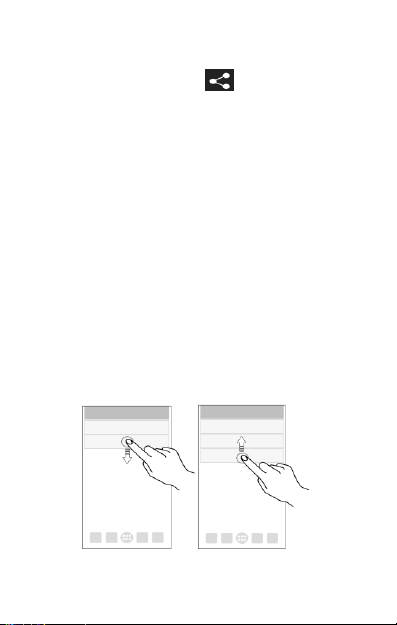
Notifications
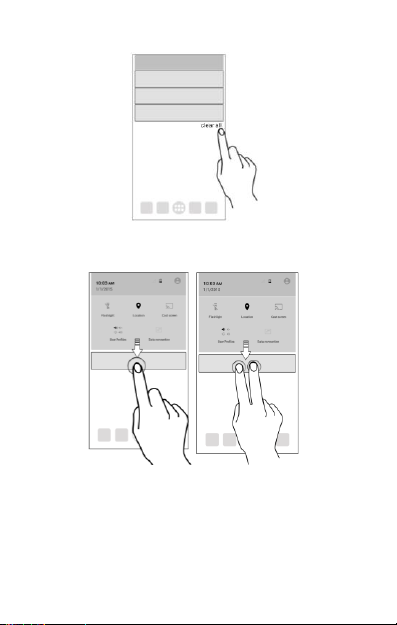
Notifications inform you of new messages and events as and when
they appear on the device.
Open Notifications Close Notifications
Clear all Notifications
Page 9
9
Open Quick Settings
Quick Settings allow access to basic phone features such as
Airplane Mode, Wi-Fi, Display Brightness, and many more.
Phone Unlocking Techniques
Page 10
10
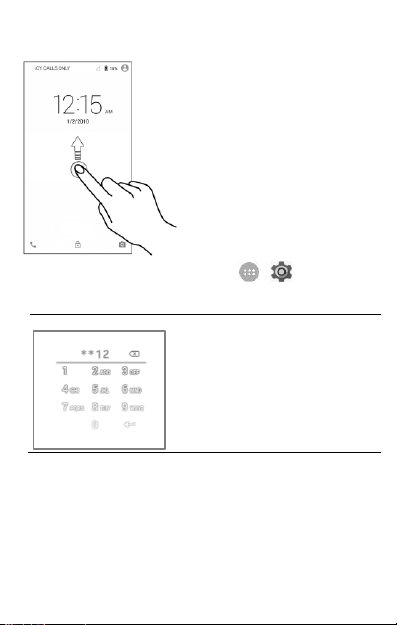
You can unlock your phone using
a variety of methods.
The default unlock method is
Swipe. To unlock screen, just
swipe on lock screen.
To set other unlocking techniques, go to → →Security →
Screen lock
PIN
Enter your PIN to unlock your phone!
You can set a PIN as your screen
password.
Page 11
11
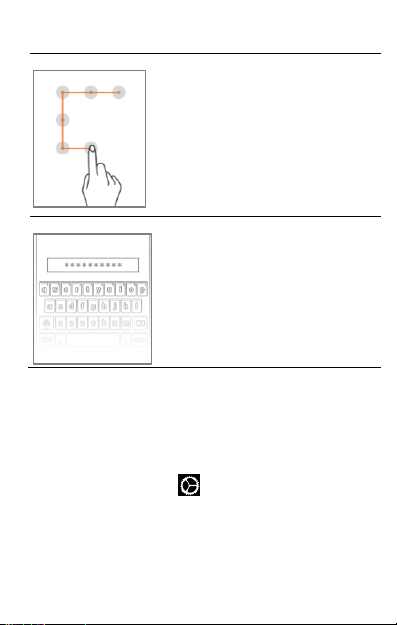
Pattern
Draw your pattern to unlock! You can
set your own pattern by connecting the
dots to prevent your phone from
unauthorized access.
Password
Enter your password to unlock! You
can set your desired password as your
screen password.
Smart Lock
Smart Lock allows you to bypass PIN or Password, and unlock your
device if it is at a trusted place, connected to a trusted device, or
when one of the lock screen method other than Swipe unlock is set
To enable Smart Lock, go to →Security → Smart Lock
Settings, Networks, and
Page 12
12
Applications
Your phone can connect to various networks and devices. You can
also transfer files to/from your PC through the data cable.
Connect to the Internet
Go to →Network&internet→Data usage and switch on
Mobile Data.
You might also need to configure the access point name for the
data connection to work.
To configure the access point name:
Go to →Network&internet→Mobilenetwork→Advanced
→Access Point Names and select the access point name from
the list.
USB Tethering
1. Connect your phone with your PC/Laptop via USB cable.
2. Select the USB tethering option.
3. Select your phone network as the network connection in
your PC/laptop and get access to the Internet.
By default, the access point name gets configured once
you insert the SIM, Or, your network provider sends the
access point name settings via SMS. You may need to
install these settings. If the access point names are not
listed by default, please contact your network provider for
the same.
Page 13
13
Wi-Fi Hotspot
1. Turn on the Wi-Fi hotspot option in your phone.
2. On the other Wi-Fi enabled PC/laptop/handset, choose your
phone as a Wi-Fi network to connect with it.
3. View and configure Wi-Fi hotspot settings by tapping Set
up Wi-Fi hotspot option.
Pair With Bluetooth Devices
Go to →connected devices
1. If Bluetooth is off, turn it on. Your phone scans and displays
the Bluetooth devices in range.
2. Tap the ID of the other device in the list to pair with it.
3. You will be prompted to confirm passkey on both devices.
4. Tap Pair to confirm the passkey and pair the devices. On
successful pairing, your phone connects to the device.
Configuring E-Mail
You can configure various email accounts and check your Emails on
the device.
Your mobile operator will charge you based on your data
usage.
If the device you want to pair with is not in the list,
make sure the Bluetooth on that device is turned on,
then tap and select Refresh to search again.
Page 14
14
1. Go to → Accounts → Add account and select the
type of account you want to create.
2. Enter the required details to successfully configure your
account on the device.
Airplane Mode
Airplane Mode allows you to disable all Mobile networks, Wi-Fi, and
Bluetooth connections. To activate the airplane mode, open Quick
settings and select Airplane mode.
Google Maps
Google Maps is a web-based service offered by Google LLC. which
offers you access to various map-based services. You can view
various streets, landmarks and can even plan your routes with the
help of Google Maps. It comes with a navigation system (GPS
required) which gives step-by-step route guidance while driving or
walking. You can even download maps for offline usage. This
serves as a useful application for your day-to-day usage.
Settings required for Google Maps access include:
1. Enable location access from → Security&Location.
2. Go to Google Maps to start using Google Maps.
Internet needs to be enabled to successfully configure
your email accounts.
Internet connection is required for using Google Maps.
When you use the map, you use your Internet
connection to transfer data to and from your phone.
Page 15
15
Google Play
Your Android phone lets you access unlimited entertainment
sources. You can download applications, games, movies, and
books on Google Play.
To view and manage the list of all inbuilt, downloaded, and running
applications, go to → Apps¬ifications
To download applications, games, movies, and books from the
Changing Display Language
Open Android Settings .
Scroll Down and tap System.
Tap Languages & input
Tap Languages
Tap Add Languages
Select a language; tap the language that you want to use for your
Android menu and stock app.
Move the language to the top of the menu. Tap and hold the
far-right corner of the language, then drag it to the top of the
Google Maps application may not be available in every
street, country or region.
Karbonn does not guarantee the accuracy of any
directional services.
You need to enable Internet connection and configure
Google account on your device to get access to the Play
Store.
Page 16

16
menu.
Changing Input Language
Open your Android's Settings
Scroll Down and tap System.
Tap Language & input
Tap Virtual Keyboard.
Select your Android Menu and Stock App.
Tap Languages
Tap on add Keyboard
Tap the language which you want to add and tap on ADD.
Activate the language. When typing, press and hold the spacebar (or tap
the globe icon, if available) to bring up a list of your currently enabled
languages, then select a language.
Safety Precautions
Switch off your device in any area with potential explosive
atmosphere such as refueling s tations, fuel depots, chemical
plants or places where blasting operation is in progress. Sparks
arising out of radio frequency may cause fire or explosion.
Remember to comply with legal requirements and local
restrictions when using the phone.
Page 17
17
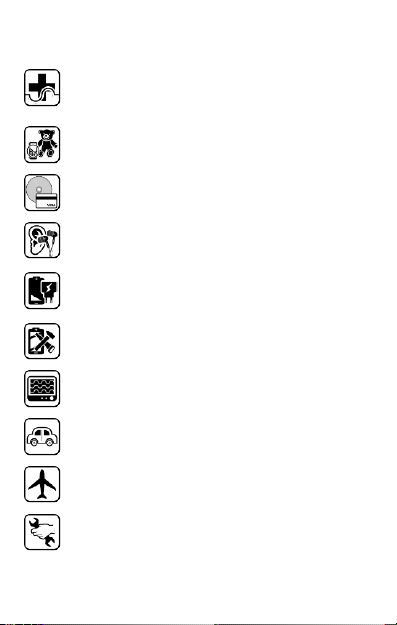
Your Phone’s radio waves may interfere with medical devices.
Preferably maintain a distance between a wireless device and
implanted medical devices such as pacemaker or cardiverter
defibrillator. Switch off your device when regulations require
you to do so.
Always keep the phone and accessories out of reach of small
children. Small parts such as the SIM card can be dismantled
and swallowed by small children.
Do not place the phone near electromagnetic data carriers such
as credit/Debit cards. Information stored on them could be
lost.
Permanent damage to hearing may occur if you use earphones
at high volume for prolonged periods. Set your volume to a safe
level.
The mains voltage (V) specified on the power supply unit must
not be exceeded to prevent damage to the charging device.
The power supply must be plugged into an easily accessible AC
power socket when charging the battery.
You may only open the phone to replace the battery (if not
inbuilt), SIM card. All other changes to this device are strictly
prohibited and will invalidate the warranty.
The phone may cause interference in the vicinity of TV sets,
radios and PCs.
Do not use the phone while driving. Please put the phone safely
in the phone stand. Do not put it onto any spot from which it
may fall down during collision or emergency braking.
Flight is influenced by interference caused by the phone. It is
advised to switch on Airplane mode or switch off phone during
flight.
Please repair the device at Karbonn authorized service center
only. Repairing the device by yourself invalidates the warranty
rules.
Page 18

18
Taking Care of your device
Your device is a product of superior design and cr aftsmanship and should be handled with care in the
following ways:
Keep the device dry. Precipitatio n, humidit y, and all types of liquids can rust the electr onic
circuits. If your device gets w et, rem ove th e batter y, wip e it with a dry cloth and take it to
an authorized service center.
Do not store the device i n high or cold temperature. Extreme temper atures can shorten
the life of electronic devices and damage batteries.
Do not use or store the device i n dusty, dirty areas. Its moving parts and electronic
components can get damaged.
Do not att empt to open the device other than as instructed in this guide.
Do not drop, knock, shake or bend th e device. Rough handling can break internal circuit
boards and fine mechanics.
Do not use harsh chemicals, cleaning solv ents, or strong detergents to clean the device.
Only use a soft, clean, dry cloth to clean the surfa ce of the device.
Do not store or bring your device near ma gnetic fields for extended period of time.
Battery Recommendations
Please put the battery in a co ol and well-ventilated place out of direct sunlight.
We recommend you to charge the battery at room temperature range.
Batteries have life cycles. After a full charge, if the power reserve of the
battery tends to deplete inordinately faster than usual, the battery life is at an
end.
Use compatible batteries, chargers, accessories and supplies. Karbonn will
not be held responsible for user’s safety when using incompatible accessories
or supplies.
Do not discard the battery with household trash. Please dispose off used
battery according to your local environmental laws and guidelines.
Temperature and Humidity
The device i s designed for use within a temperature range of -20 ˚c ± 5 to
45˚c ± 5, storage within the temperature range of -30 ˚c ± 5 to 65˚c ± 5. In
case of violation of these temperature conditions, the device can be damaged
and battery life can be reduced.
The recommended humidity for maintaining the device is in the range 50 to
Page 19

19
55%.
Do not expose yo ur device to extreme temperatures or humidity.
Recycle your Phone
The WEEE logo (shown) appears on the product (battery,
handset, and charger) to indicate that this product must not be
disposed of or dumped with yo ur other household wastes. You
are liable to dispose of all your electronic or electrical was te
equipment by relocating over to the specified collection point for recycling of
such hazardous waste.
Collection and proper recovery of your electronic waste equipment at the time of
disposal will all ow us to help preserve the environment. Recycling of the
electronic waste equipment will ensure safety of human health and environment.
Note: Karbonn will not bear any responsibility for any incompliance with the
above mentioned guidelines or improper usage of the mobile phone.
Disclaimer
The col ors, specifications, functions and graphics shown/mentioned in
the user manual may differ from the actual product. In such a case, the
latter shall govern. Images shown are for representation purpose only.
Specifications are subject to change without prior notice. Karbonn keeps
the right to modify the content in this user guide without prior notice.
Upon first use of your device, your device will send information related
to your mobile, IMEI numbers, location details and other software
details through SMS*/Web automatically. Thi s information may be used
as further specified in Karbonn privacy policy.
Talk and standby times are affected by network preferences, type of
SIM cards, connected accessories and individual usage patterns.
Services and some features may be dependent on the network,
service/content providers, SIM cards, compatibility of the devices used
and the content formats supported.
Other product logos and company names mentioned herein may be
trademarks or trade names of their respective owners.
*Operator tariff shall be applicable for SMS.
Copyright
Page 20

20
All rights reserved. Reproduction, transfer, distribution or storage of
part or all of the contents in this document in any form without the prior
written permission of Karbonn is strictly prohibited.
All Trademark, Logos, Mark Symbol and offer details mentioned are
trademark or service mark of their perspective owners, Karbonn holds
no responsibility of their partner logos & contents. All I mages are for
representation purpose only.
Google, Android, Google Play and other marks are trademarks of Google
LLC.
 Loading...