

Page 1
1
www.jynxbox.me
Page 2

2
www.jynxbox.me
JYNXBOX ANDROID MINI TV Stick User Manual
Introduction
JYNXBOX ANDROID MINI Android TV s tick is an Android based stick connected to your TV via
an HDMI port that turns your TV to a multifunction smart TV. It is a revolutionary entertainment
device on your TV. It is also an Android HD Media player, a mini Android PC, and a DLNA
server, a photo viewer, a game player, a music player, a huge size screen e-book/ e-magazine/
e-newspaper reader that provides a very powerful smart TV experience.
Features
ARM Cortex™-A9 CPU, frequency is 1.2GHz
Embedded high-performance Open GL 3D GPU Mali-400
High Capability 1G DDR3 ROM
Built-in 802.1 1b/ g/n Wi-Fi Module
HDMI 1.3 Digital Audio & Video Output
2.4G Wireless QWERTY Remote Control (or IR remote control)
Support USB or 2.4G wireless mouse and keyboard operation
Support flash player 10.2 hardware acceleration
Support up to Full HD 1080P video decoding
High Connectivity for File Sharing
Support Google play store
Support Google Chrome browser
Multi User Interface (optional)
Video format suppor t :
DAT/MPEG/MPE/MPG/M2V/ISO/TS/VOB/AVI/MKV/MP4/MOV/3GP/3GPP/FLC/AVI/WMA/TS/M
2TS/M3TS/M4TS/M5TS/MTS/M4V/FLV/3G2.
Audio format support:
MP3/WMA/WAV/OGG/OGA/FLAC/ALAC/APE/AAC/M4A/AC-3/DTS/RM.
Page 3
3
www.jynxbox.me
Remote control
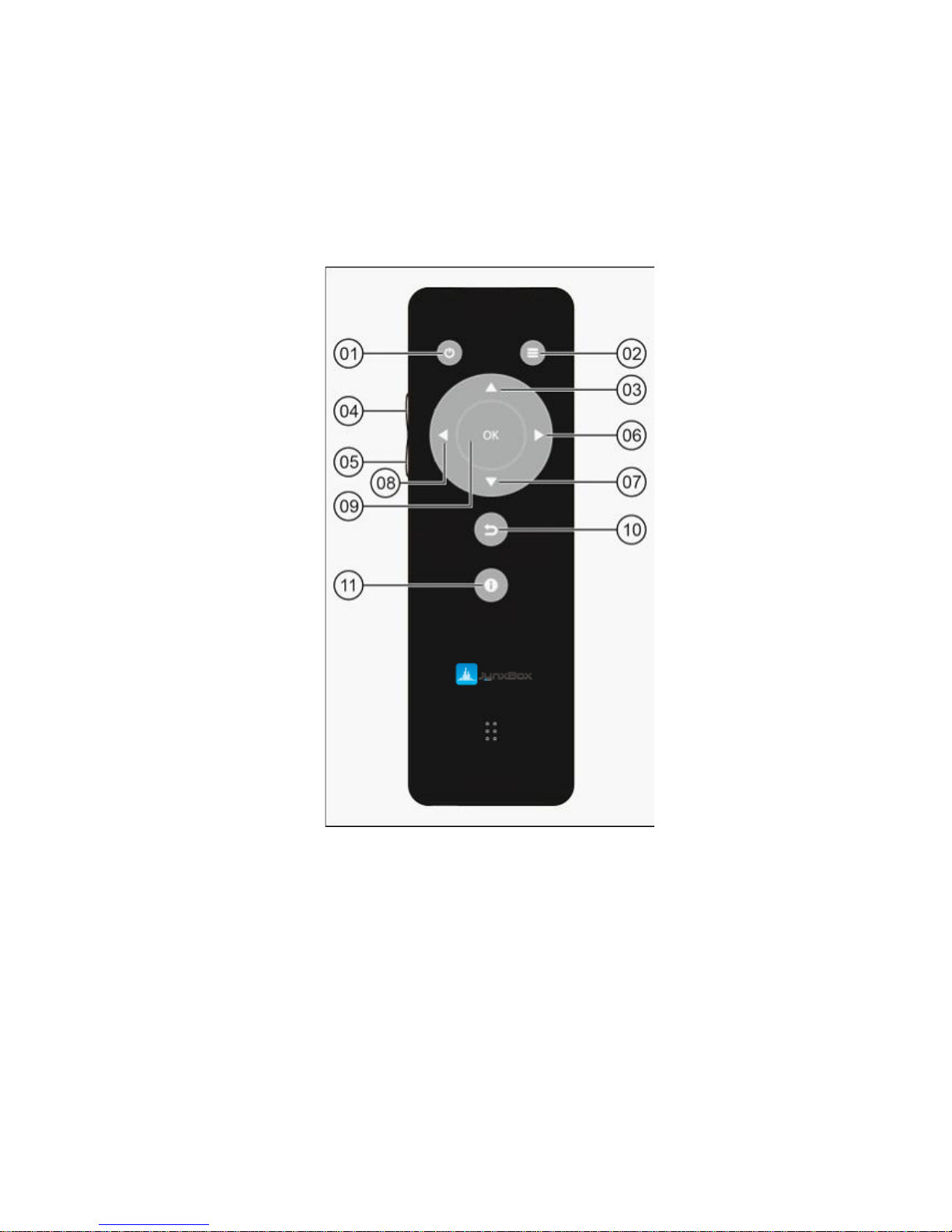
Jynx IR remote
[01] Standby (No function currently)
[02] Menu
[03] Up
[04] VOL+
[05] VOL-[06] Right
[07] Down
[08] Left
[09] OK
[10] Exit
[11] Notification
Page 4
4
www.jynxbox.me
Start Up
1 Plug in the USB power cable and connect your Jynxbox Mini TV stick to TV via HDMI
port.
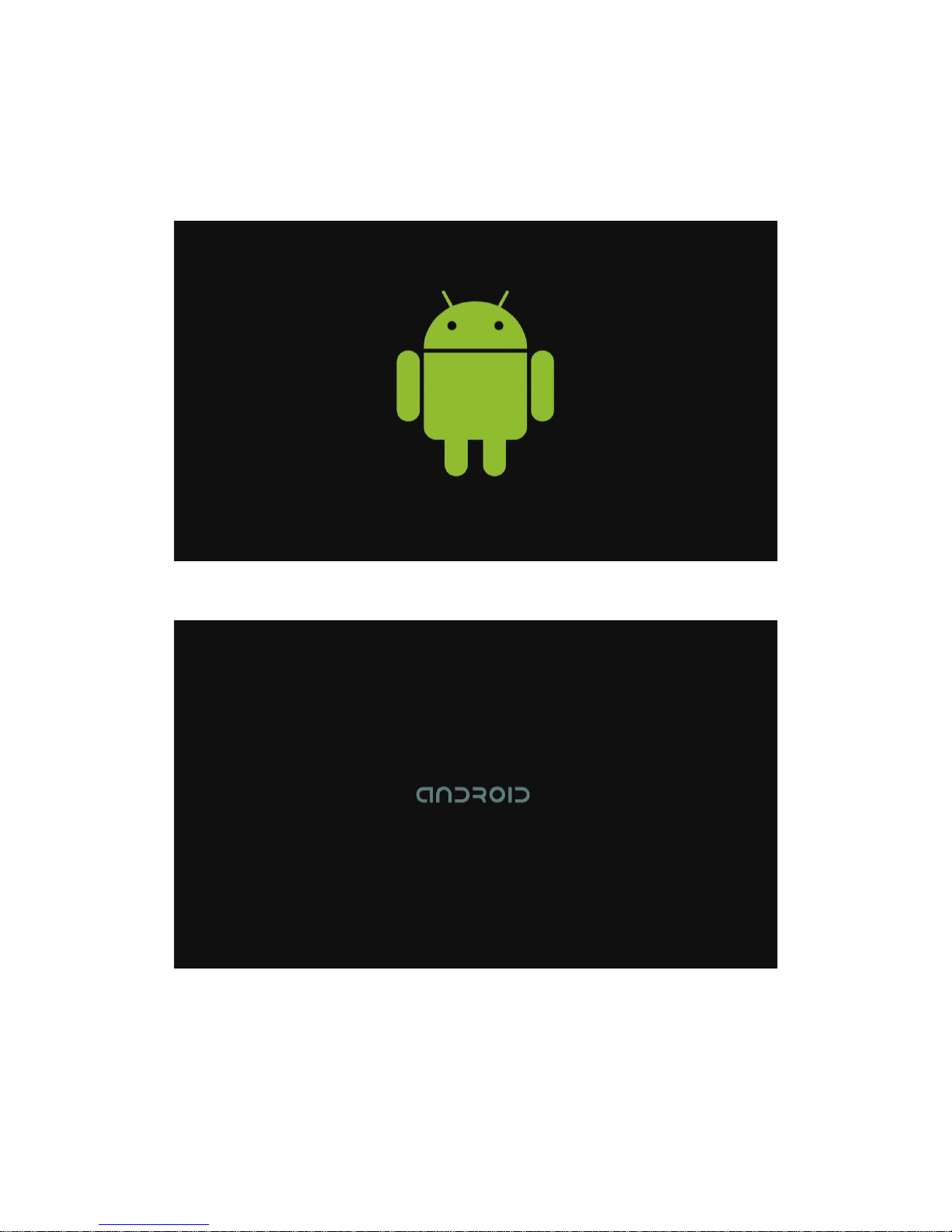
2 There are two screens that appear on start-up: the first screen is a robot logo, and the
second is an android text logo.
Page 5
5
www.jynxbox.me
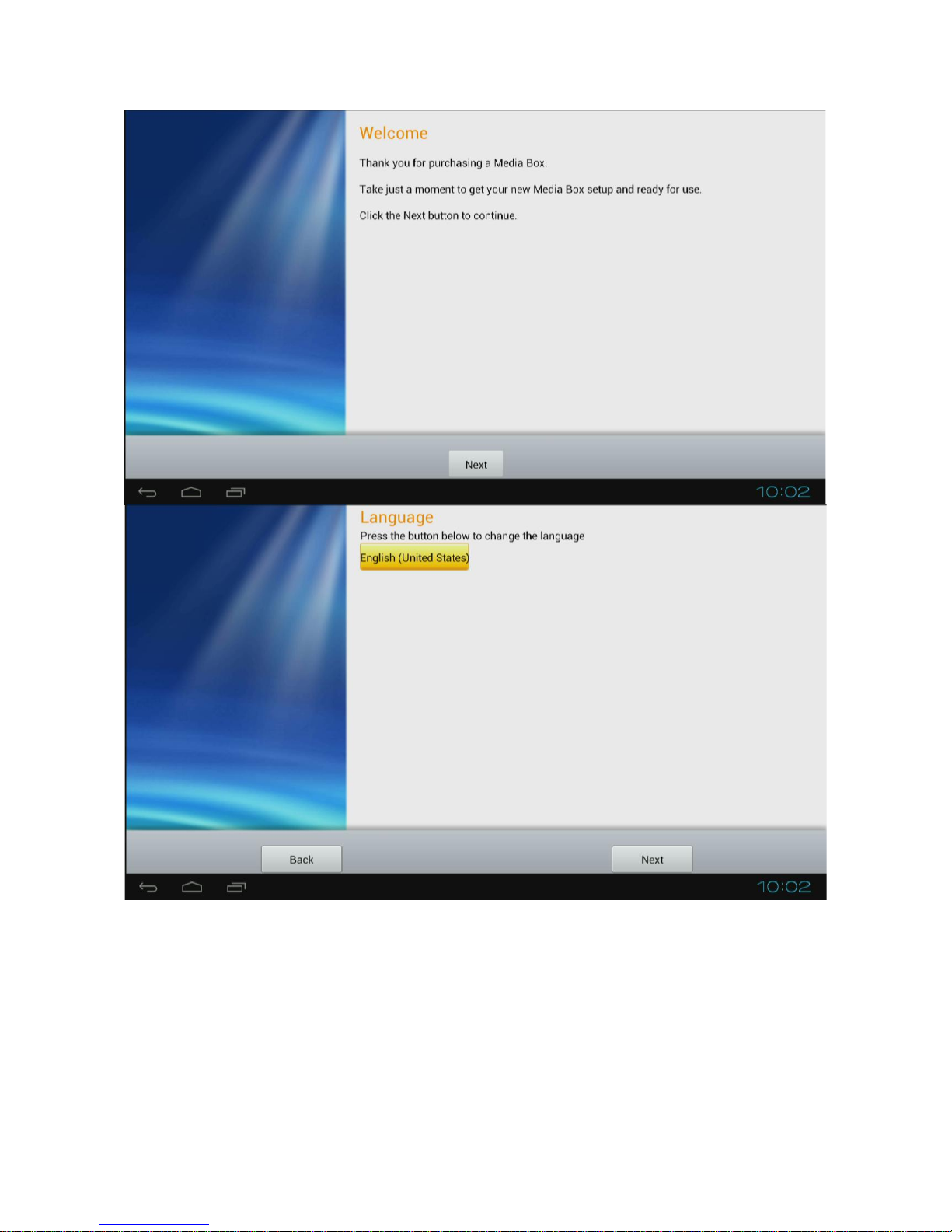
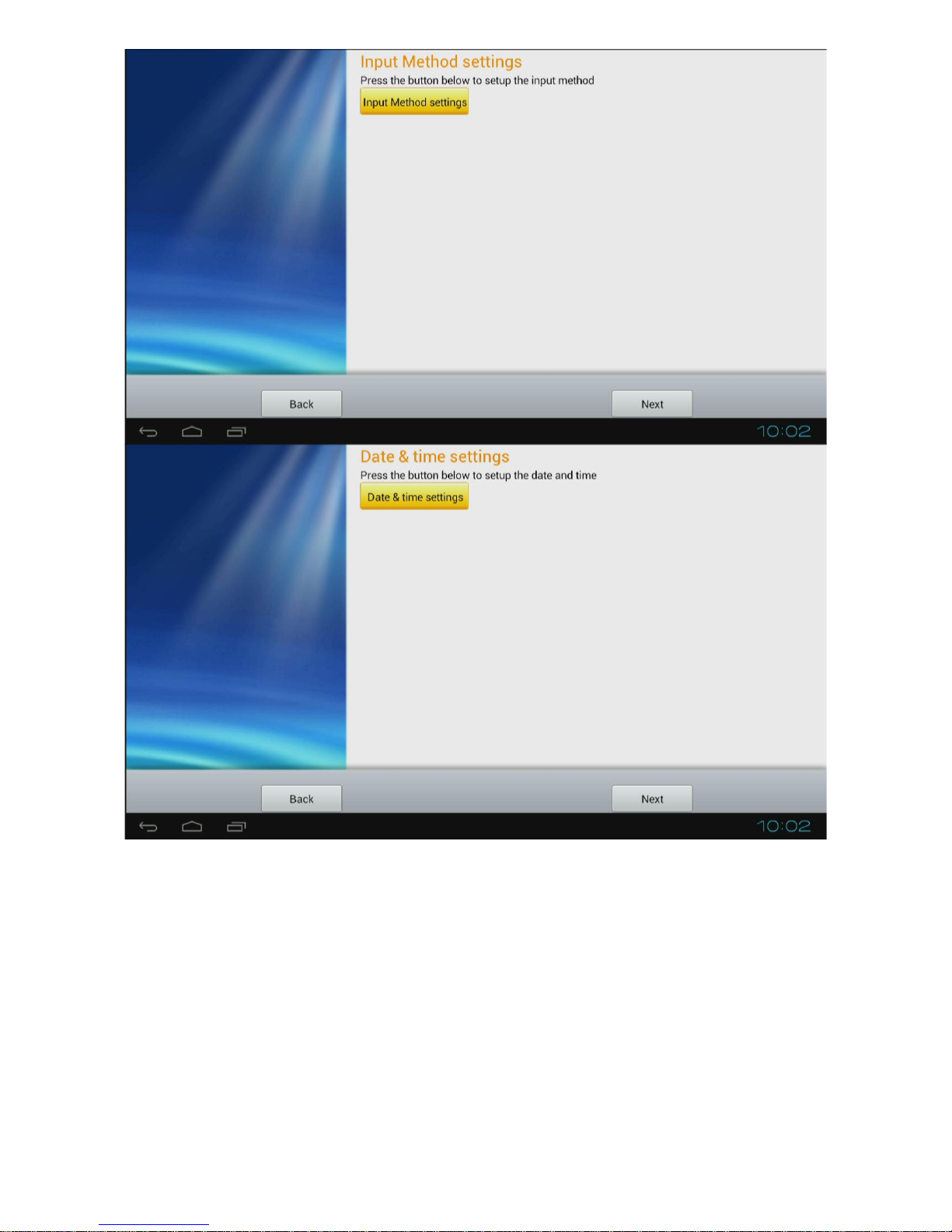
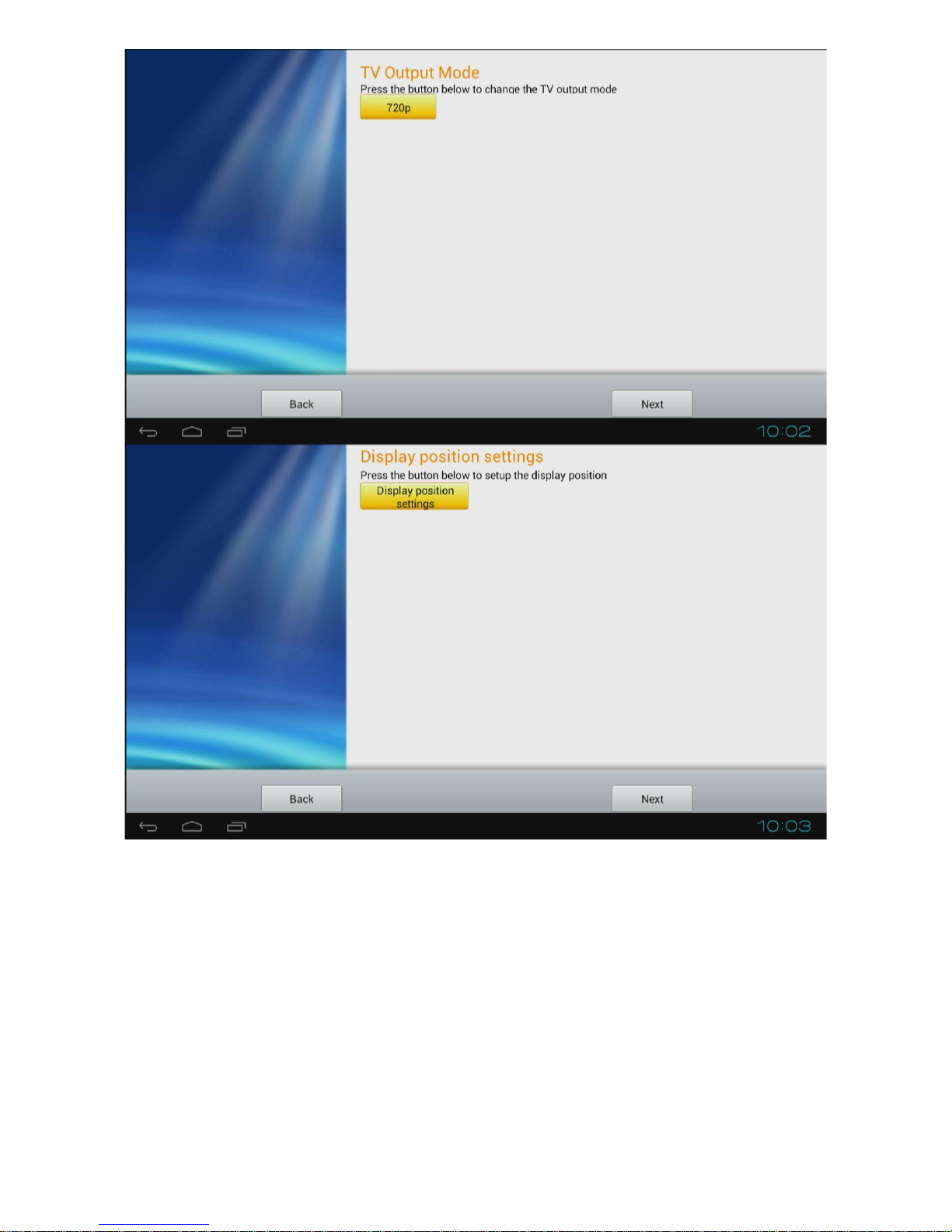
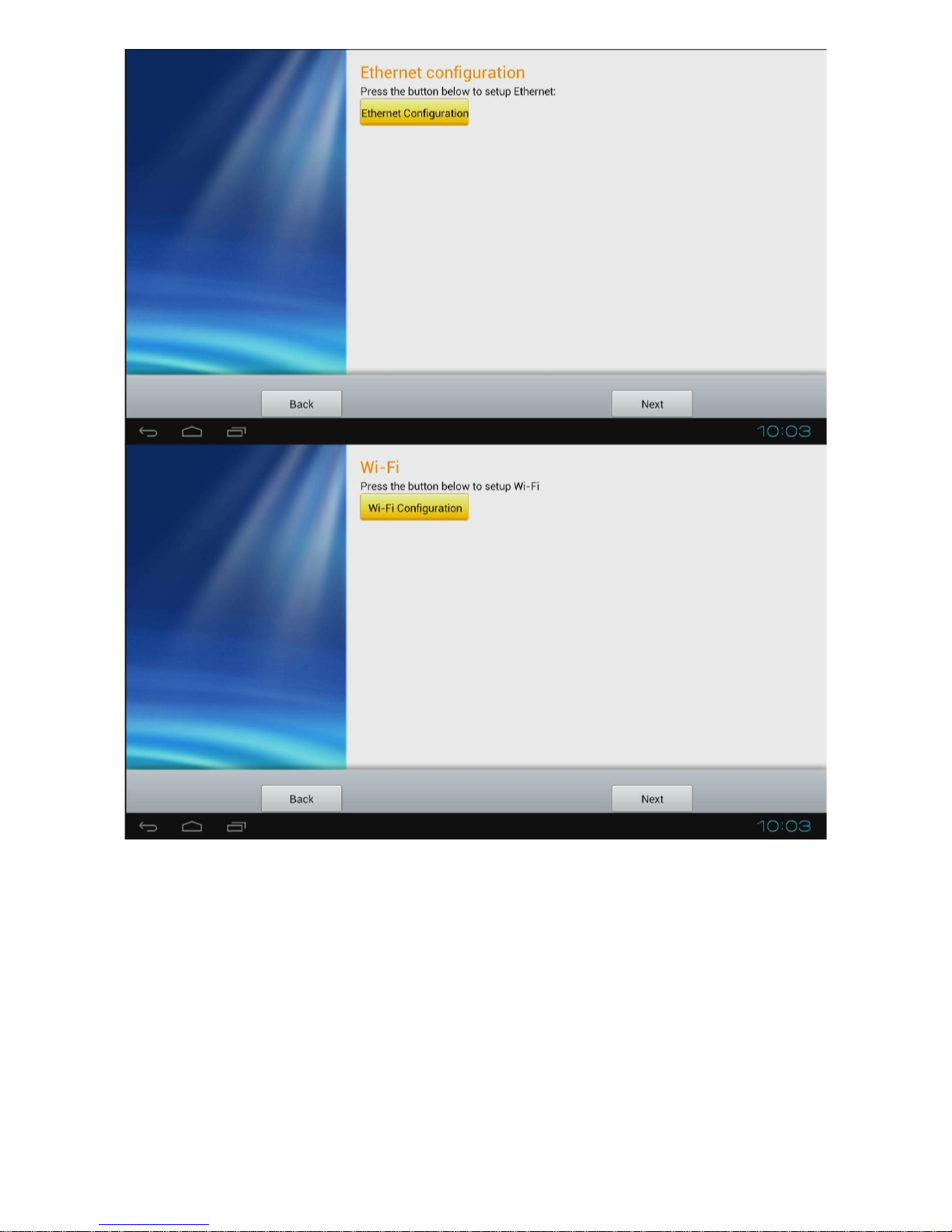
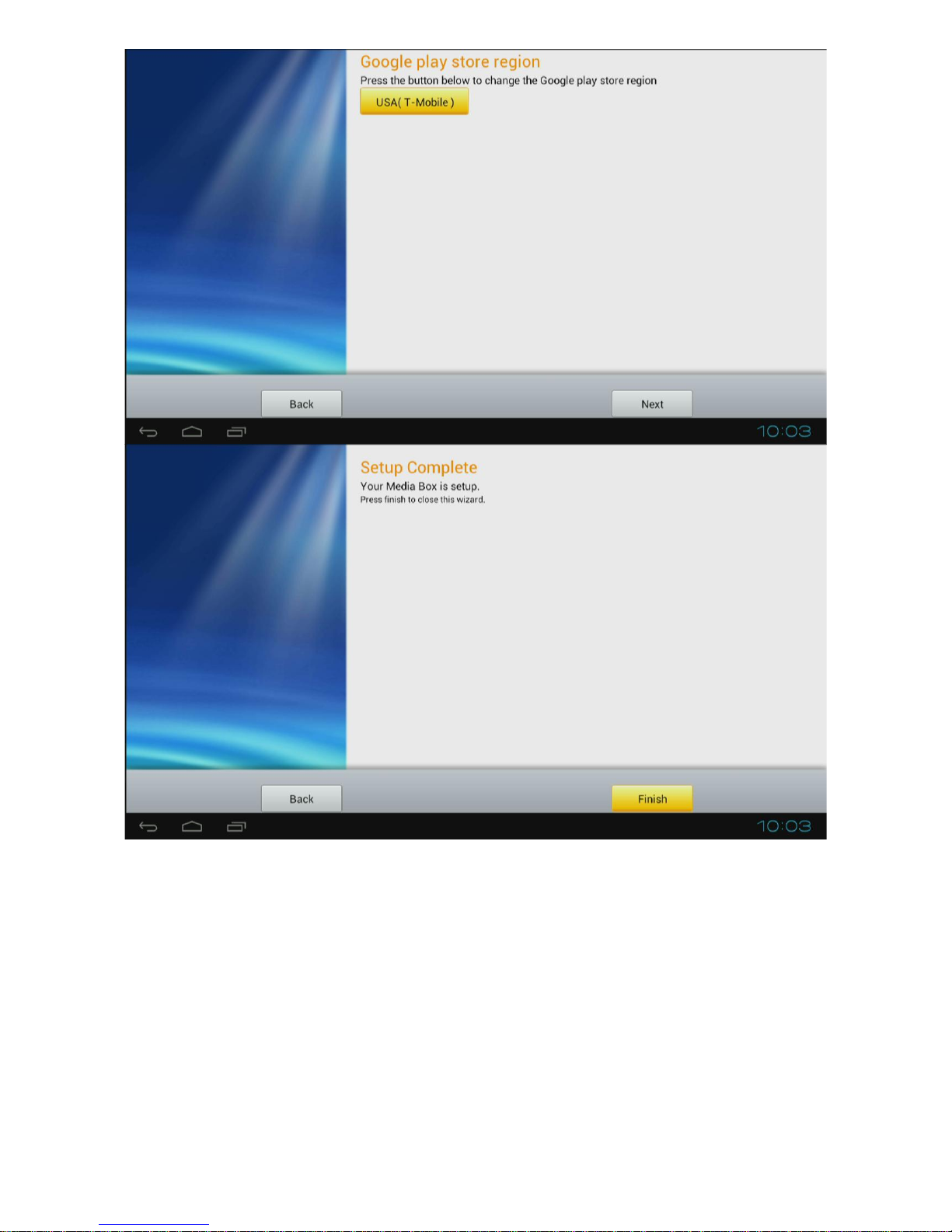
3. You will get a welcome screen which will prompt the first time user through the setup
steps
Page 6
6
www.jynxbox.me
Page 7
7
www.jynxbox.me
Page 8
8
www.jynxbox.me
Page 9
9
www.jynxbox.me
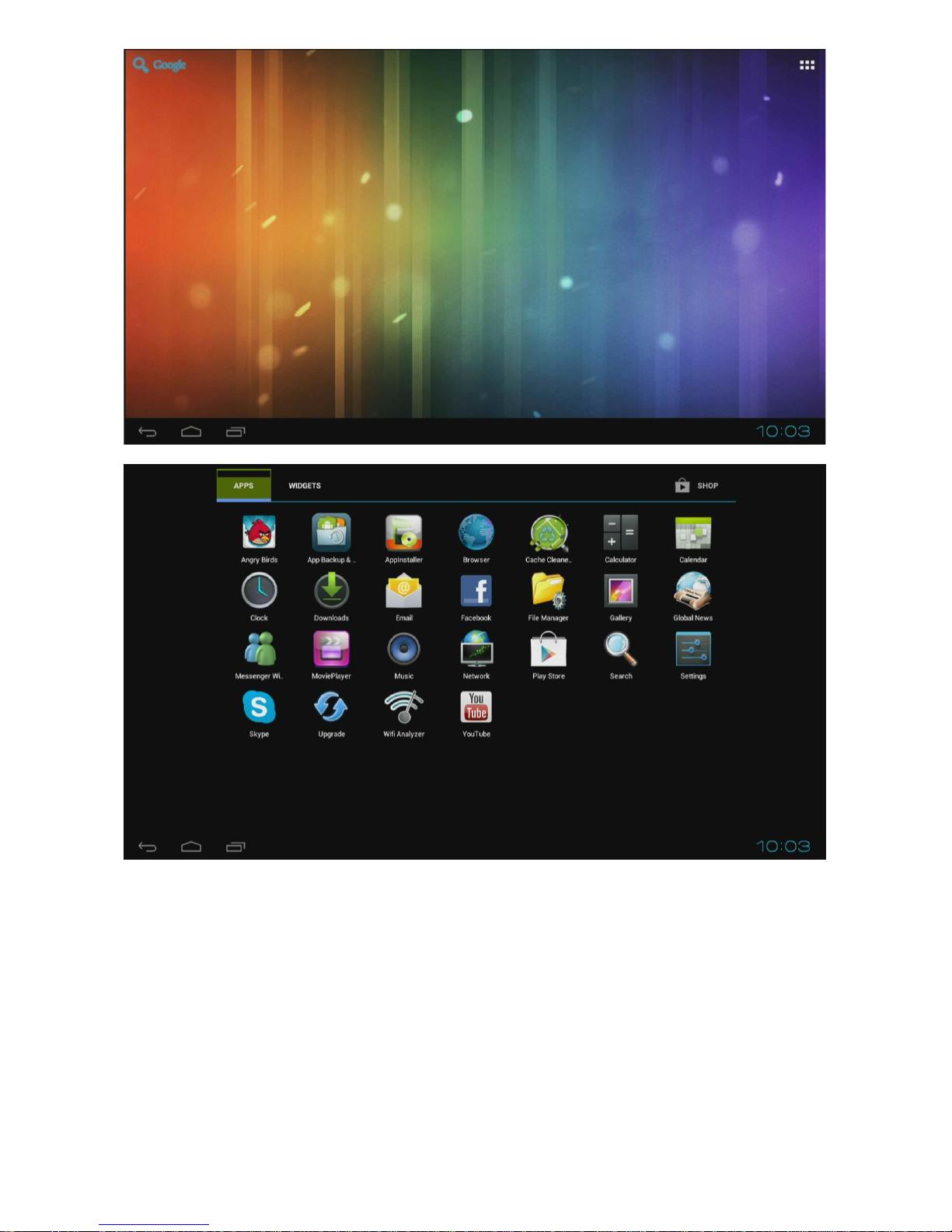
4. Click the FINISH button to complete the setup, after which, the main screen will be
displayed as below
Page 10
10
www.jynxbox.me
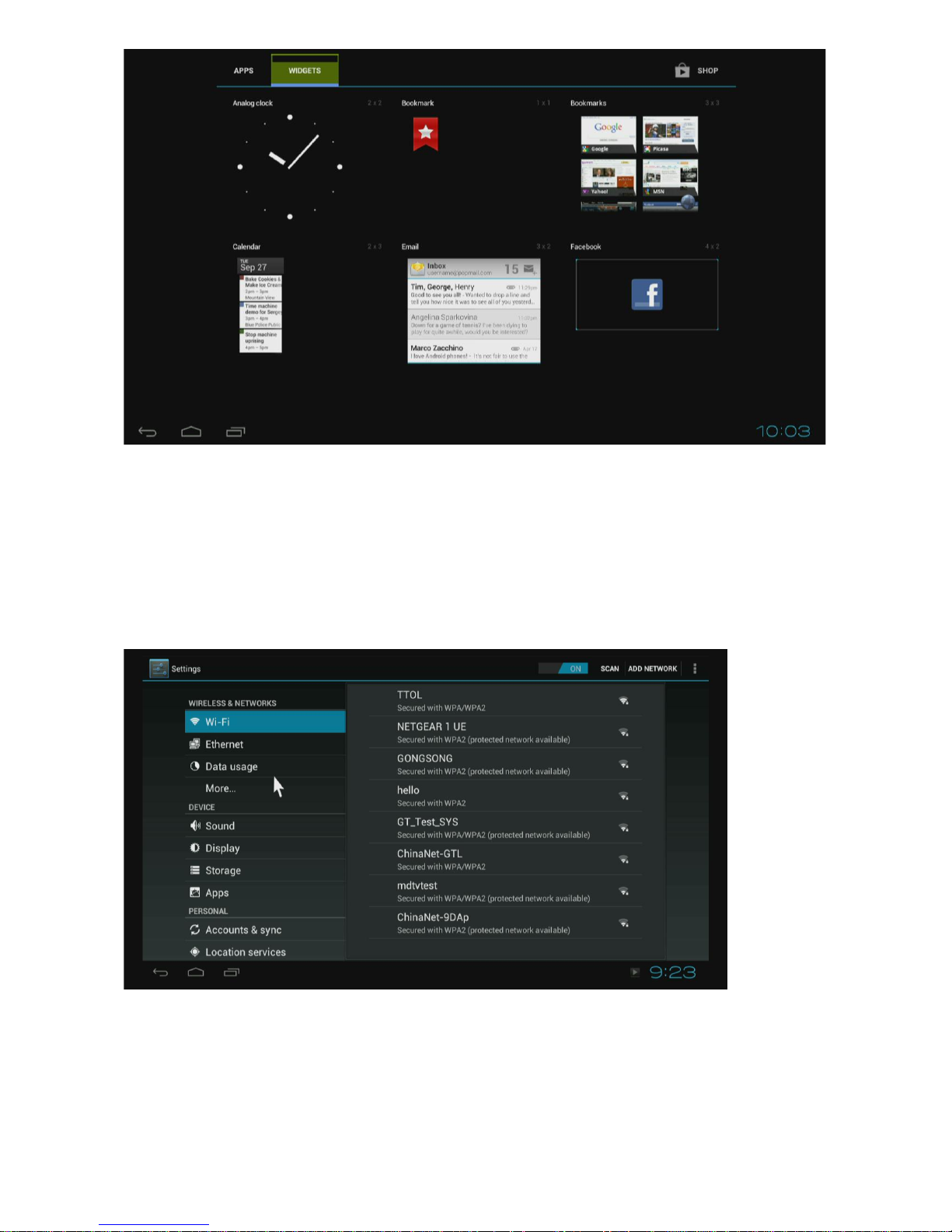
5. Click the top right icon which will display all the APPs list
Page 11
11
www.jynxbox.me
Settings
Settings provide individual preference setting functions.
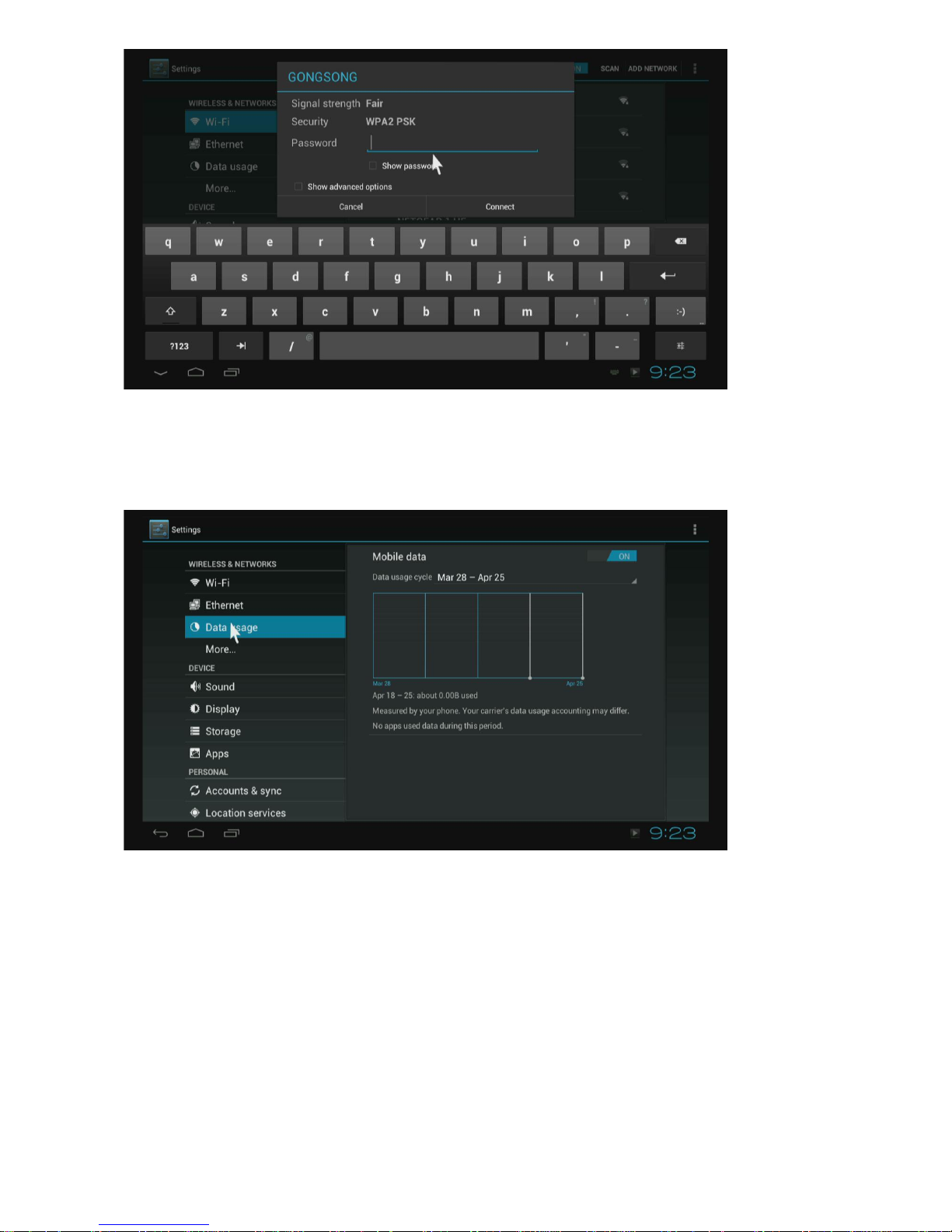
1. Wi-Fi
It will scan available Wi-Fi networks automatically while clicked “ON” in Wi-Fi setting.
Choose one encrypted Wi-Fi network to connect
Page 12
12
www.jynxbox.me
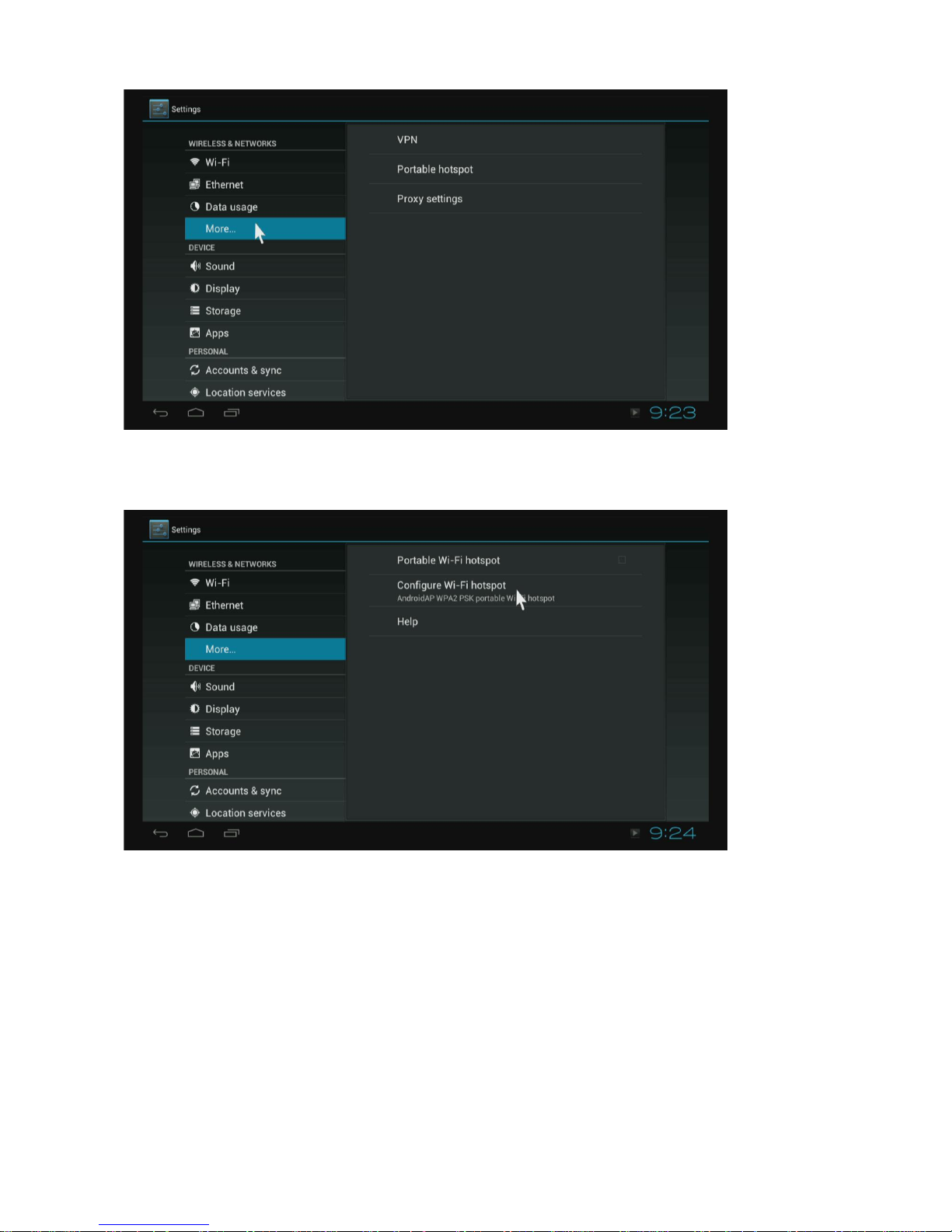
2. Data usage
Shows data usage information.
Page 13
13
www.jynxbox.me
3. More
It includes VPN, Portable hotspot and Proxy settings.
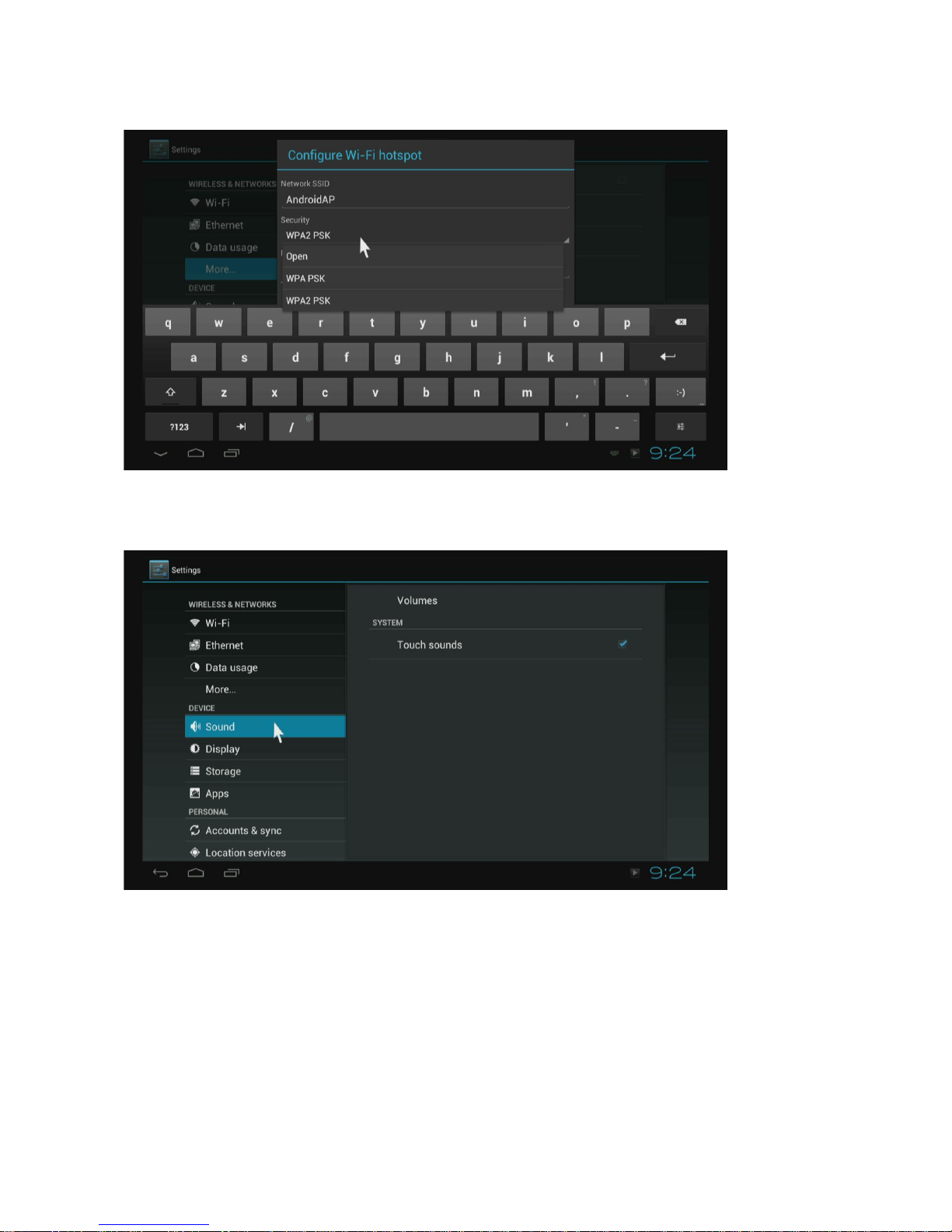
Enable Portable hotspot
Page 14
14
www.jynxbox.me
Configure Wi-Fi hotspot.
Choose a different security mode to share your network.
Please note that y ou need to di sco nnec t fro m Wi-Fi an d conn ect to Ethern et w hile us ing the
hotspot function. Wi-Fi and hotspot connections can’t be used simultaneously.
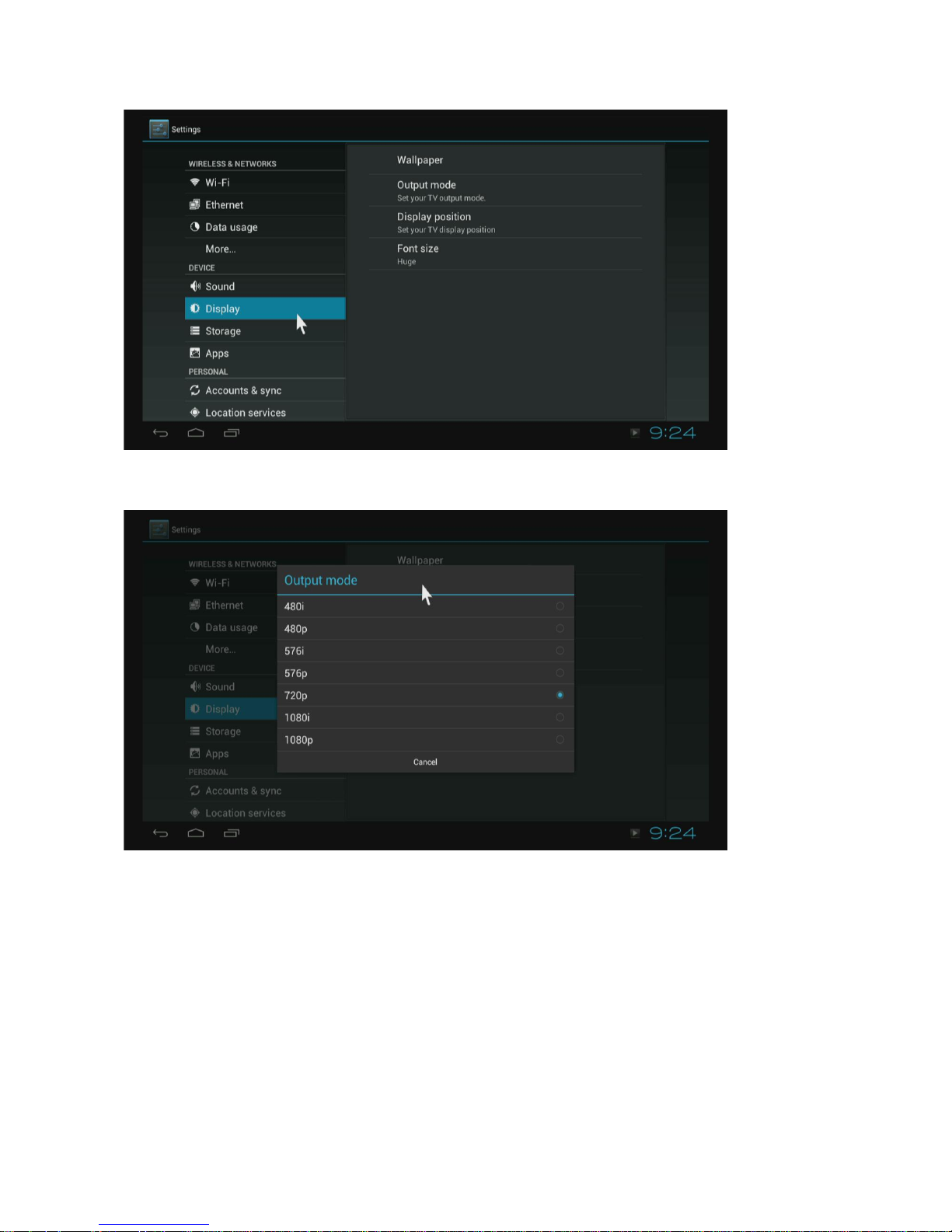
4. Sound
If you enable Touch sounds, you will hear the sound while moving the remote control.
Page 15
15
www.jynxbox.me
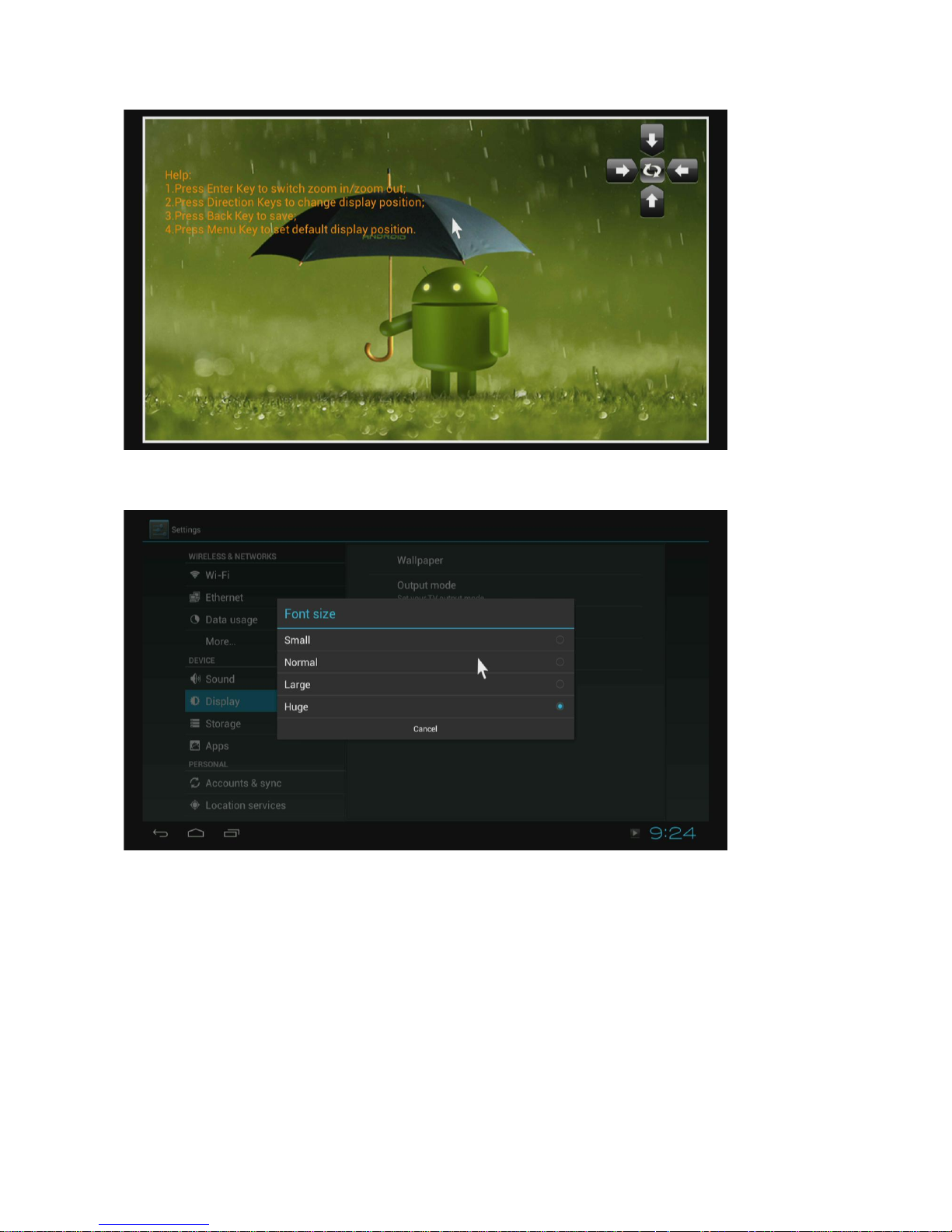
5. Display
Sets wallpaper, output mode, display positi on and fon t siz e.
Output mode
The default resolution is 720P
Page 16
16
www.jynxbox.me
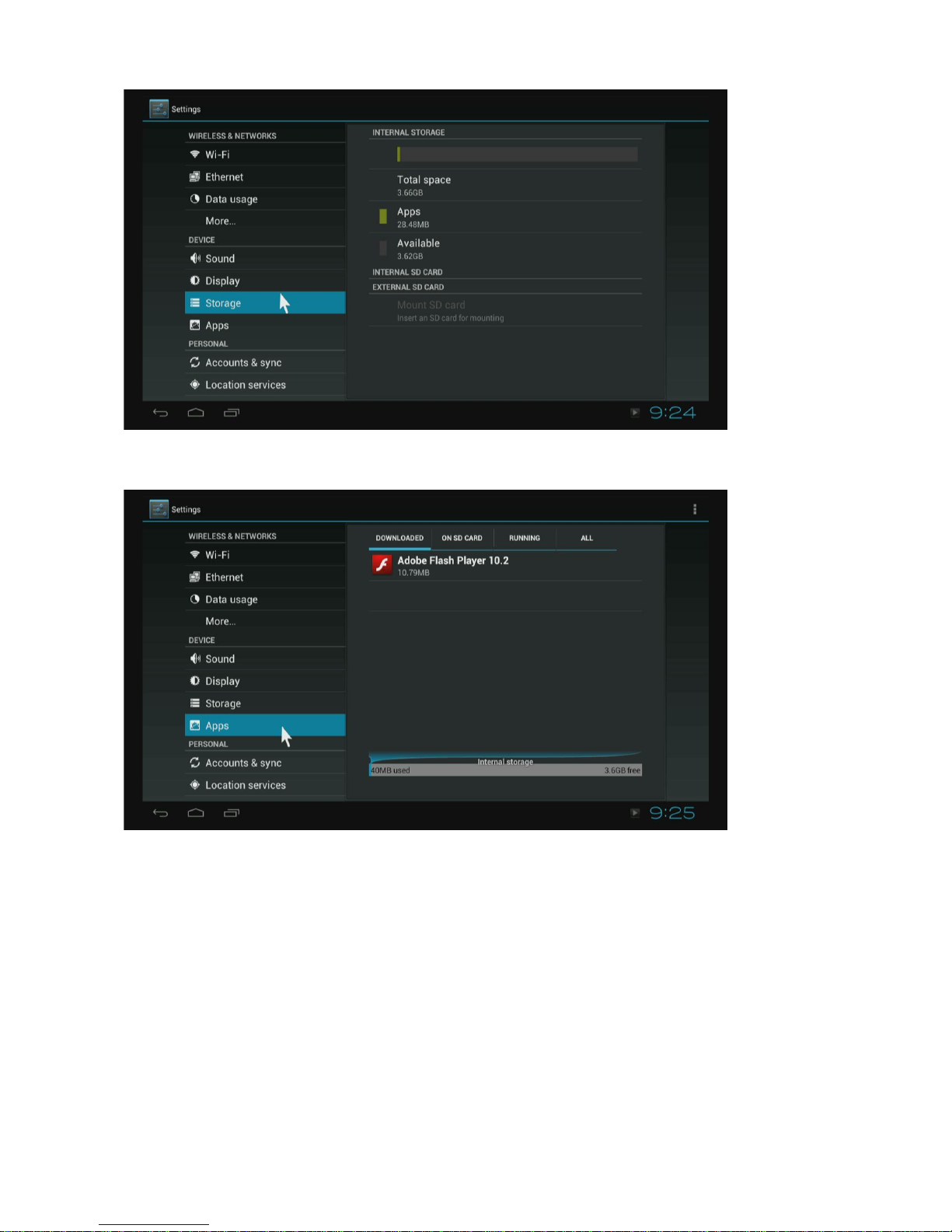
Display position
Use the Direction keys and the Enter/Ok button on the remote control to adjust the display
position when the screen is not displayed as full screen on your TV.
Font size
Changes the font size of OSD.
Page 17
17
www.jynxbox.me
6. Storage
Shows the storage used of the OS and SD card.
7. Apps
Lists all apps and their different status.
Page 18
18
www.jynxbox.me
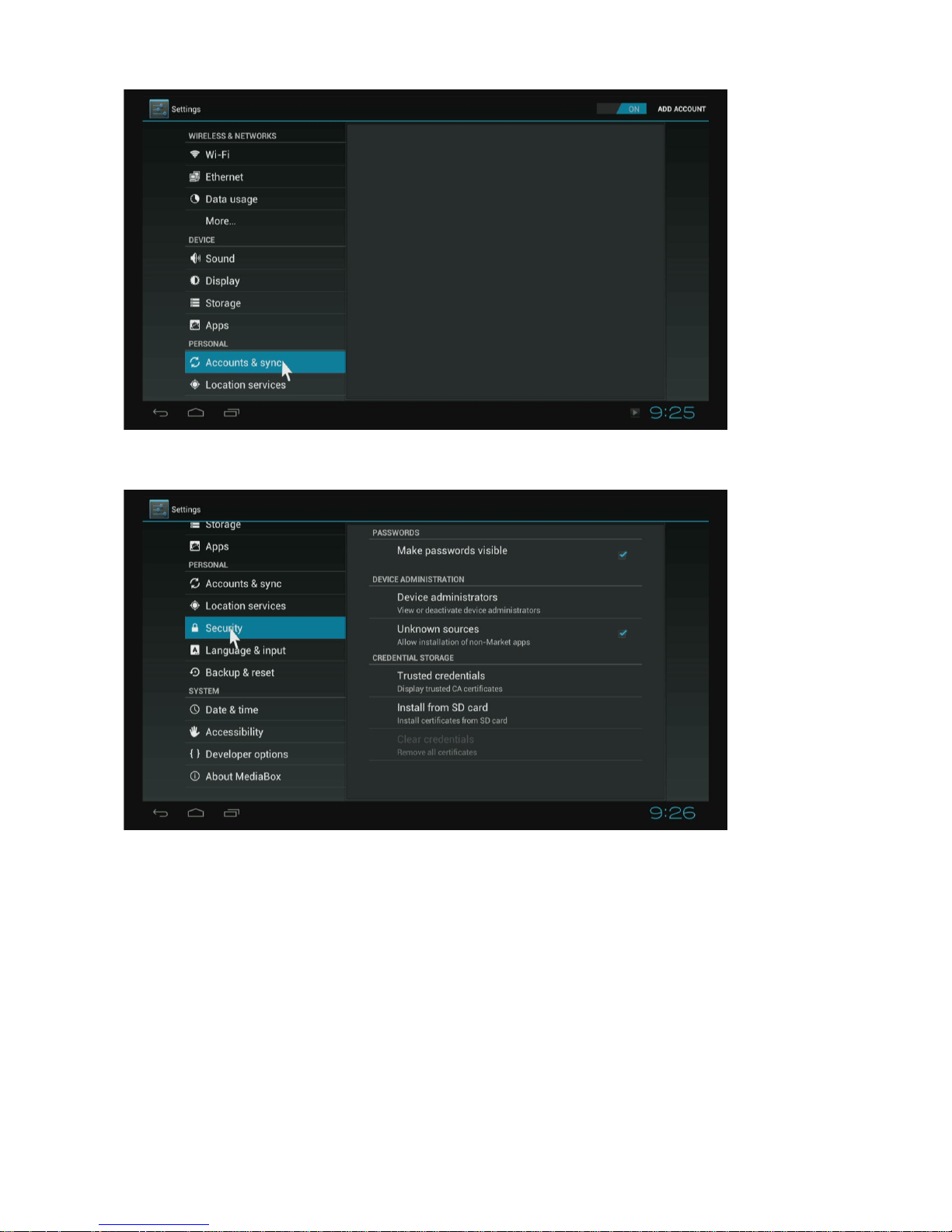
8. Accounts & sync
Click” ON” to enable accounts & sync.
9. Security
Enabling unknown sources will allow you to install non-market apps .
Page 19
19
www.jynxbox.me
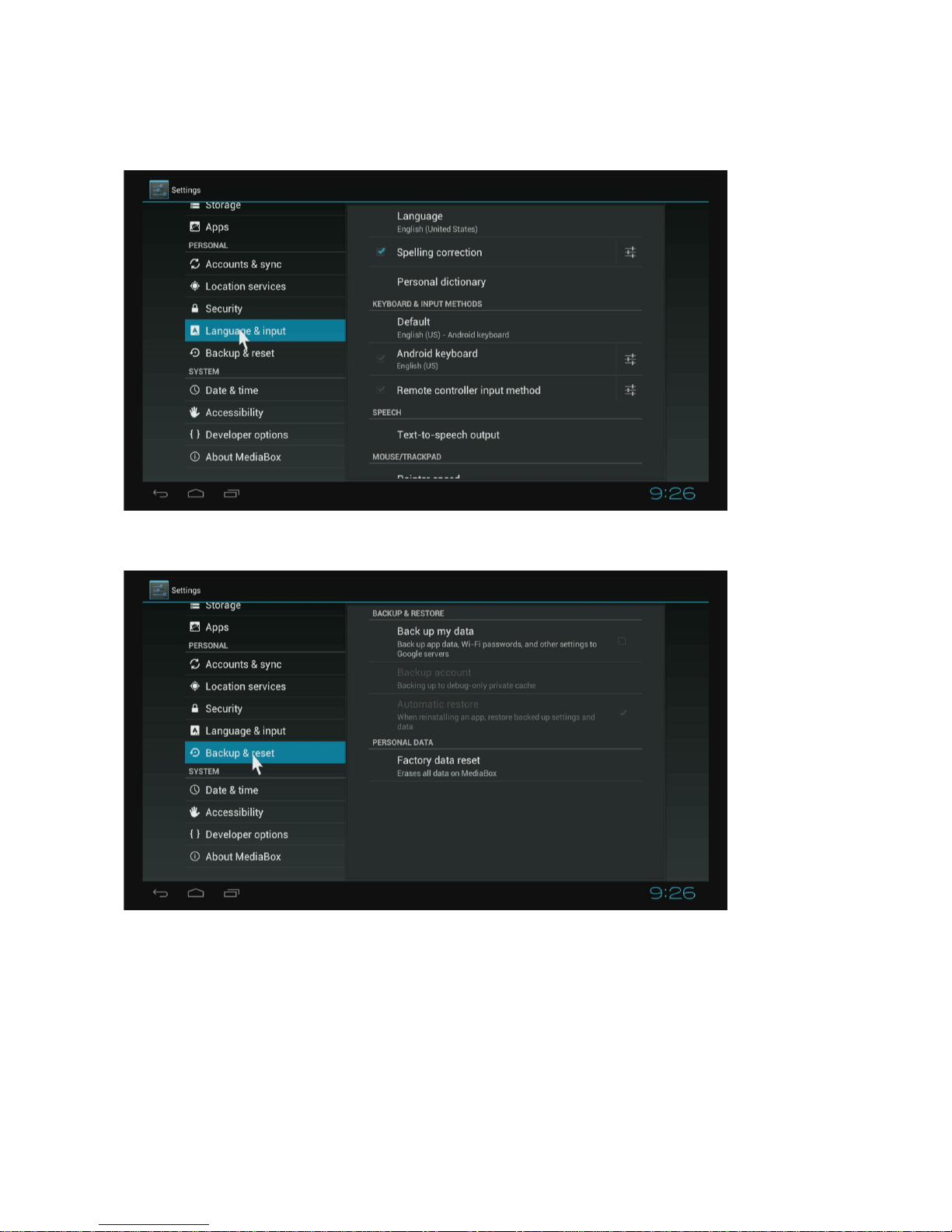
10. Lang uag e & input
Changes OSD language and input method.
The default input method is android standard keyboard.
If you are using our IR remote control, enter into “Default” option and switch to remote
controller input method.
11. Factory reset
Choosing factory reset will erase all user data of the box.
Page 20
20
www.jynxbox.me
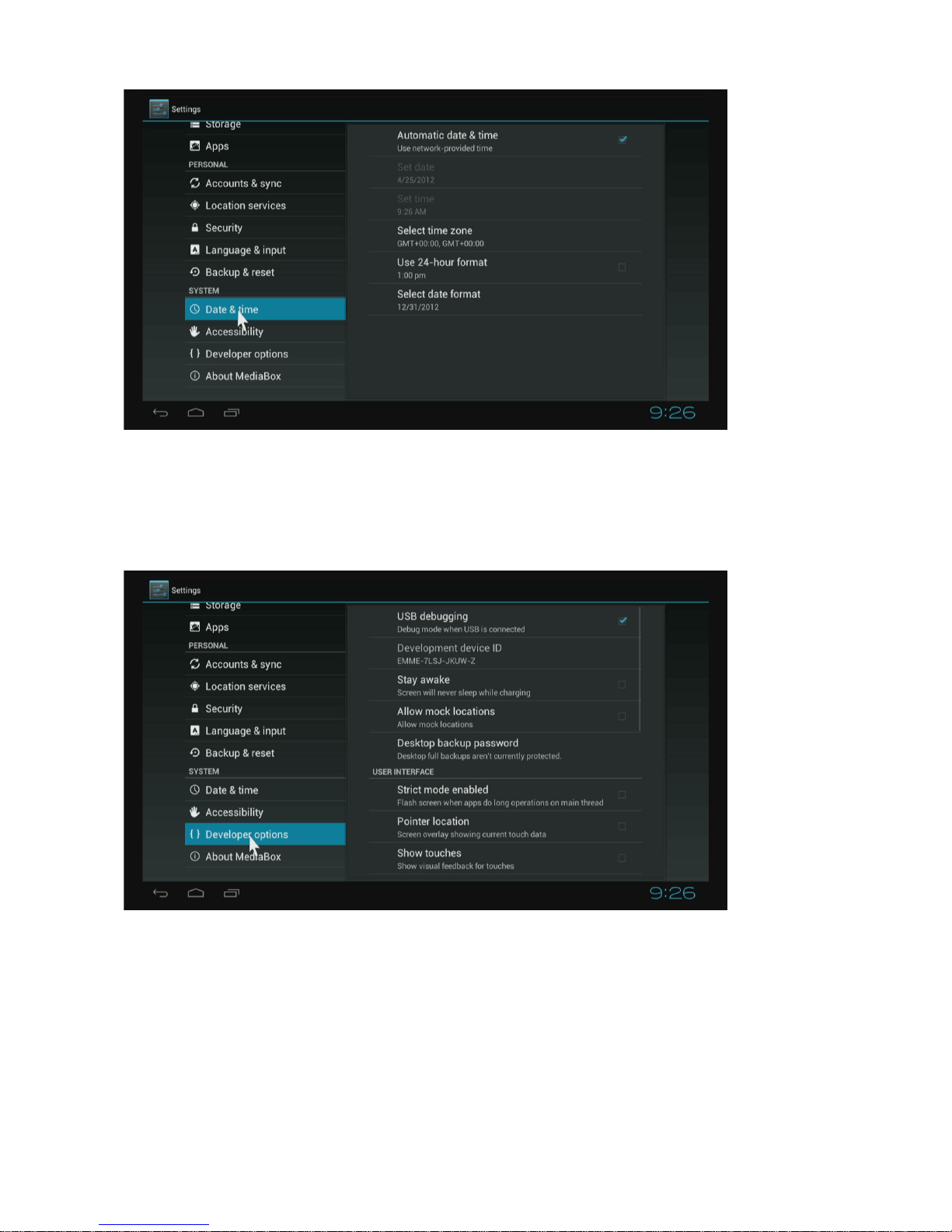
12. Date & Time
Sets the time of the box.
13. Developer options
The android debug bridge (ADB) is supported for android software developers. It can be
used on Ethernet or on Wi-Fi, but it is not enabled by default. The ADB can be turned on
by enabling the USB debugging option in the menu.
Page 21
21
www.jynxbox.me
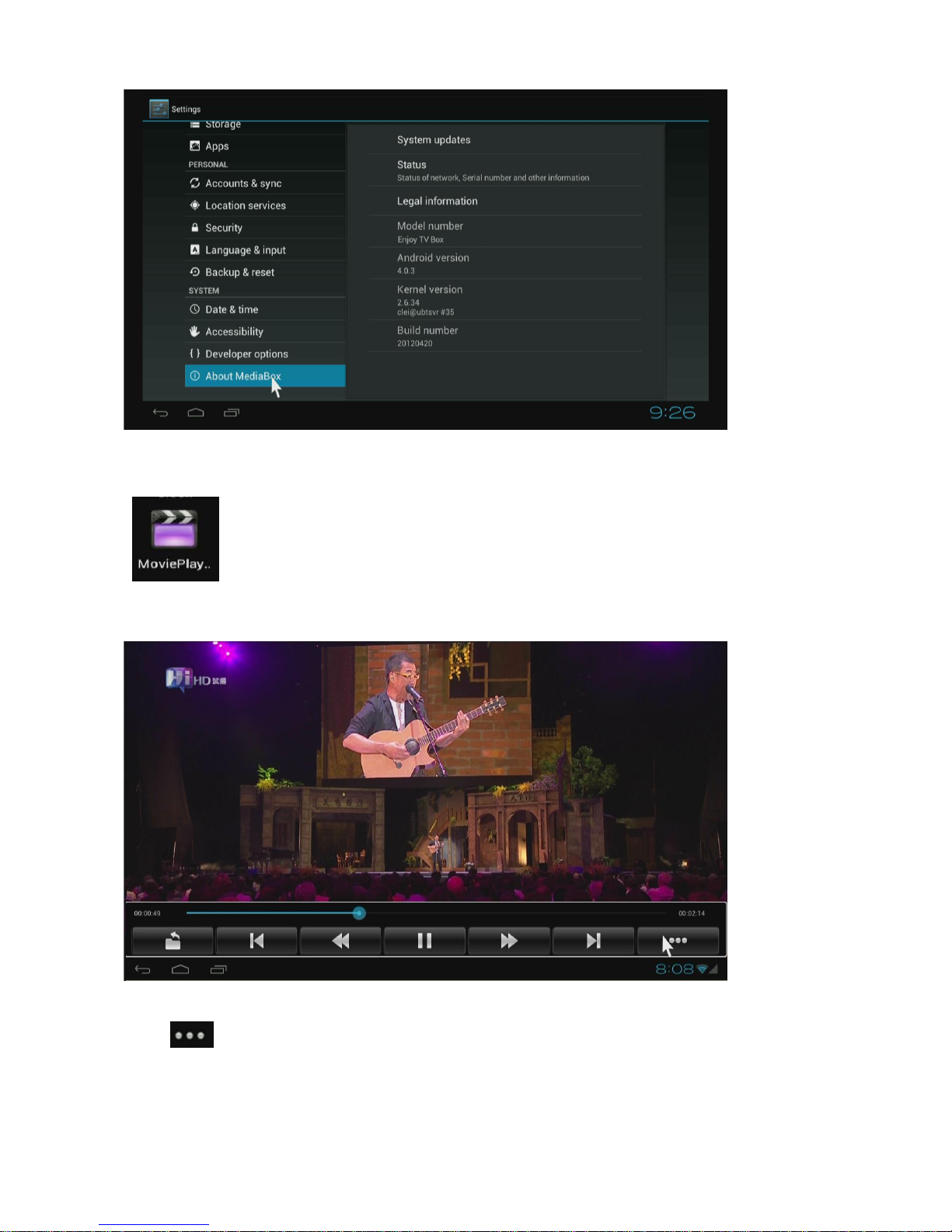
14. About Jynxbox.
You will find the firmware version under the build number.
Movie player
.
Plays video files which may be found on your storage devices such as on your SD card,
USB disk and USB / SATA HDD
Click button to change video mode, subtitle, audio track, and get video information
and so on.
Page 22
22
www.jynxbox.me
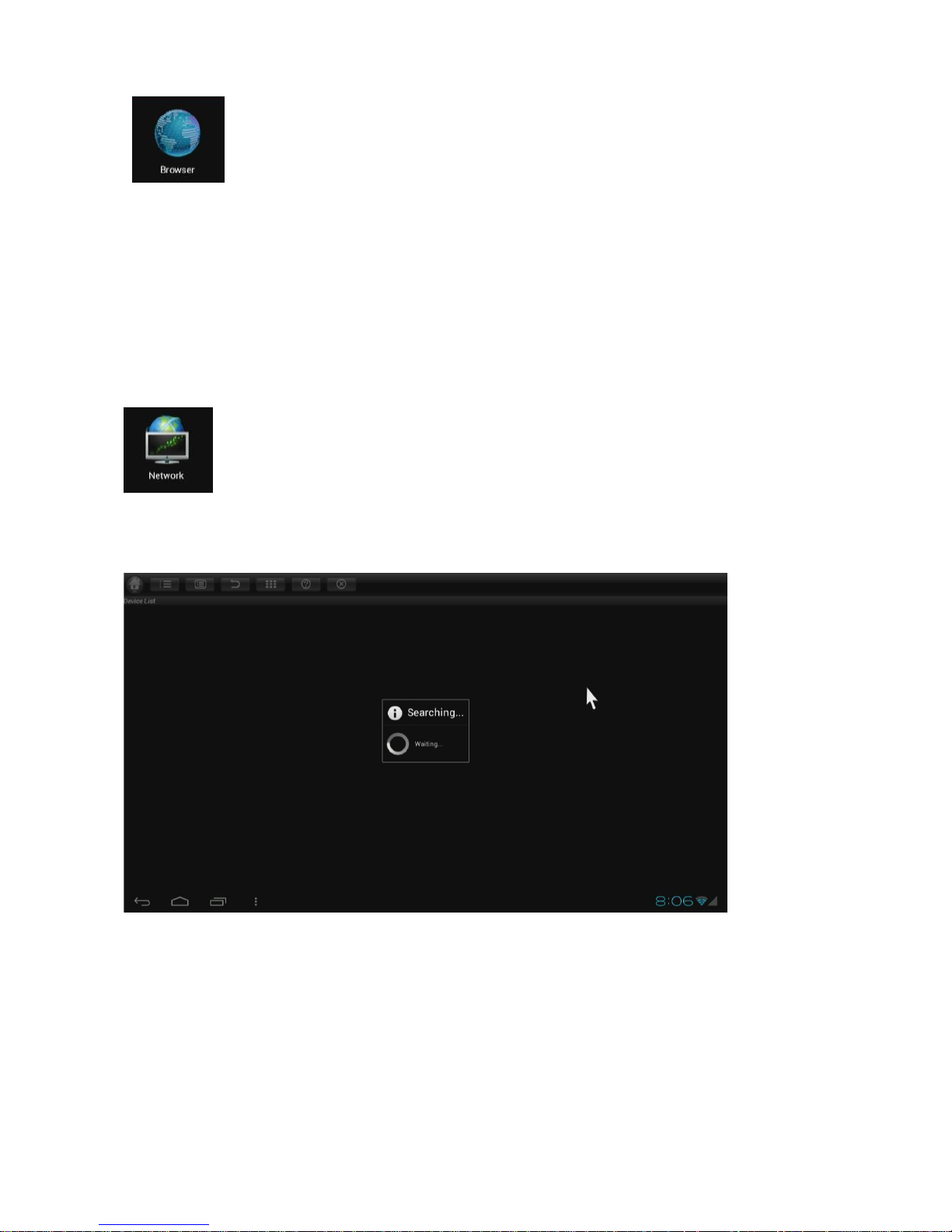
Browser
Visit any website around the world. Read news, view online videos.
To change “Set Browser Type” for your Browser, please follow these easy steps:
Open your Browser, Hit the menu icon (Top right corner) > SETTINGS > ADVANCED >
SET BROWSER TYPE > Select your browser type by checking the appropriate box and
exit the menu.
Network (SAMBA function)
When you open network app the first time, it will scan all shared folders in the local area
network.
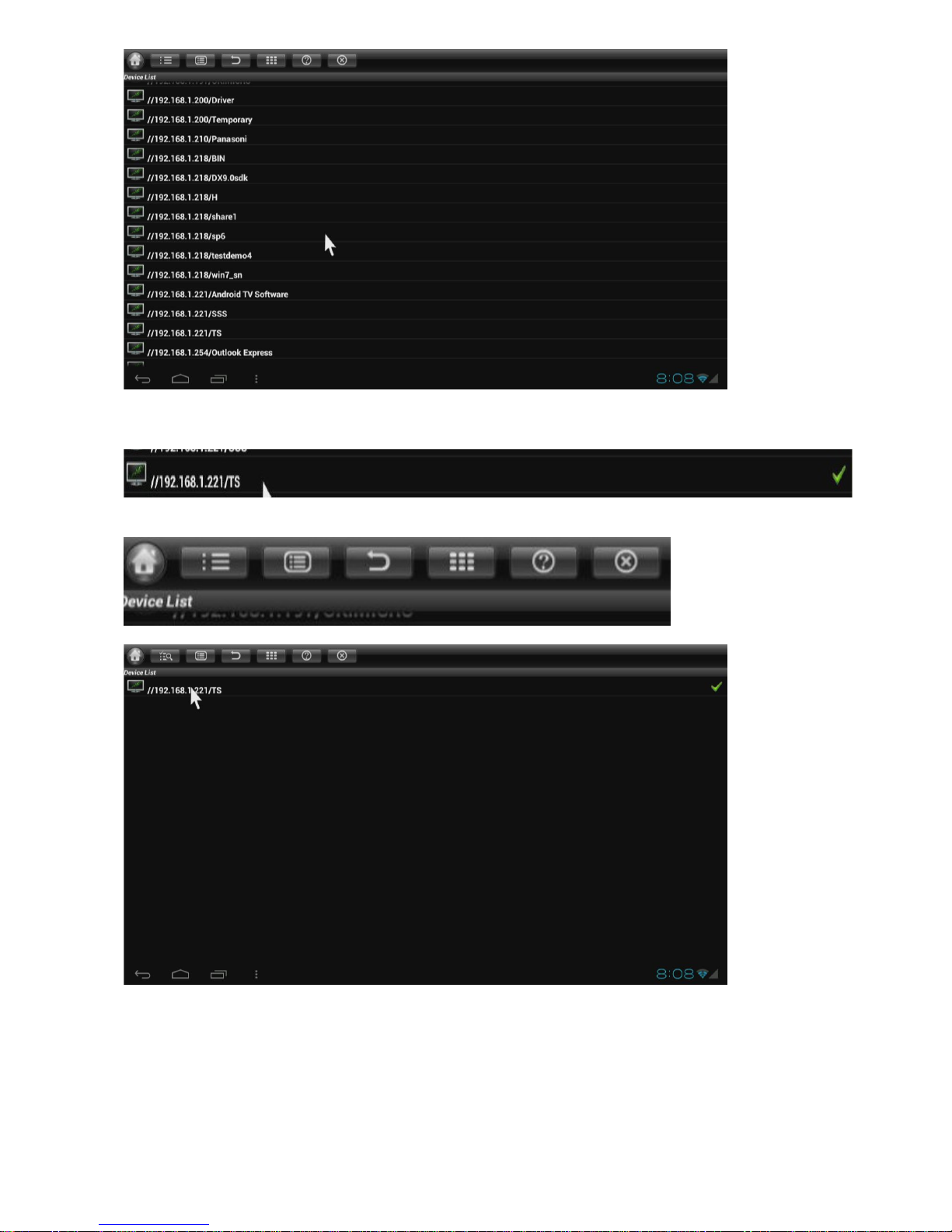
Scanned shared folder s
Page 23
23
www.jynxbox.me
Choose one of them and you will see a green checkmark icon appearing on the right.
Click the second button to confirm the choice.
Then, click and open the folder to browse videos, music, pictures and documents inside it.
Page 24
24
www.jynxbox.me
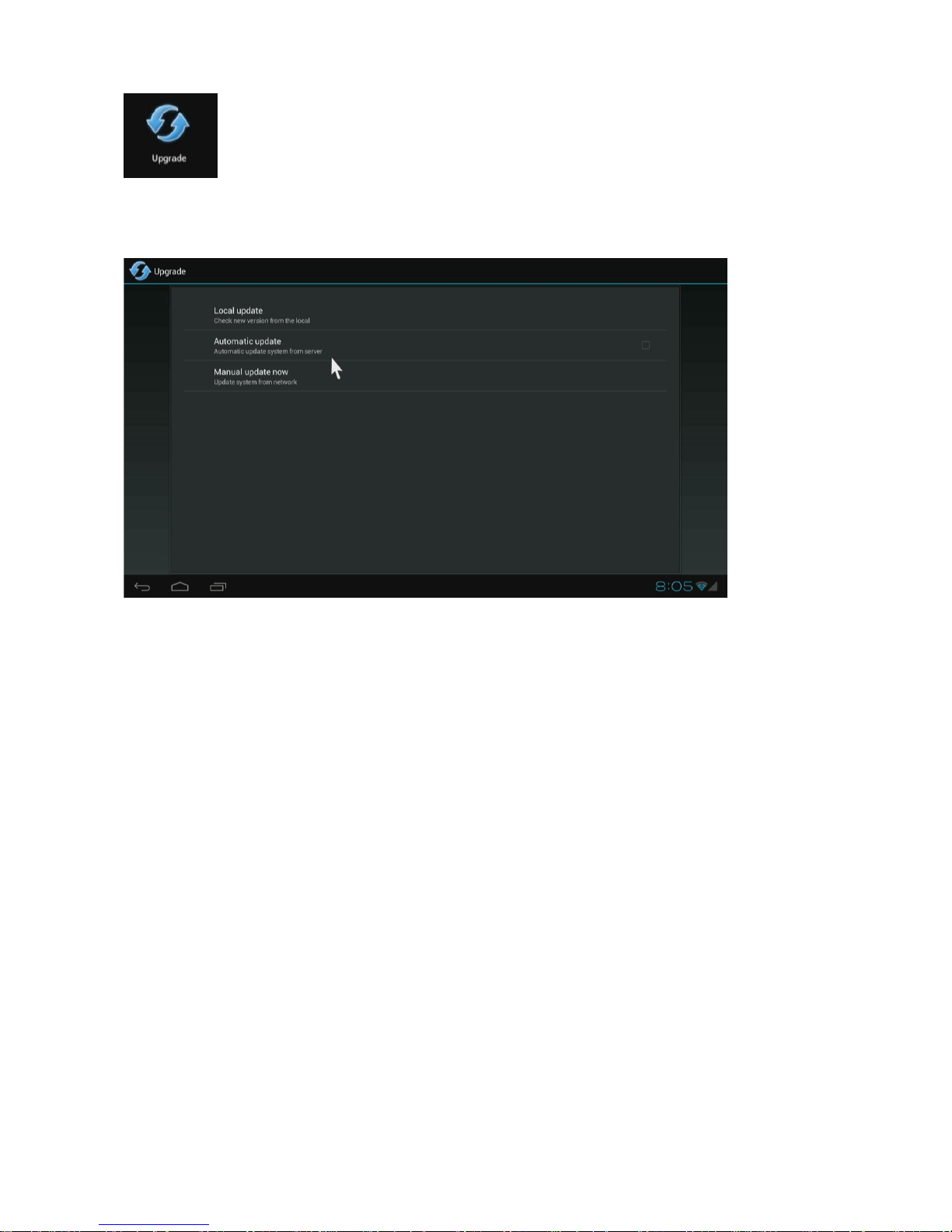
Upgrade
Upgrade the firmware from an external storage device. You can choose to upgrade your
firmware via your SD c ar d, U SB di sk or HD D . You just need to copy the update.img fil e i nt o
the storage device.
This manual is suitable for JYNXBOX ANDROID series products.
 Loading...