

Page 1
www.joy-it.net
Pascalstr. 8 47506 Neukirchen-Vluyn
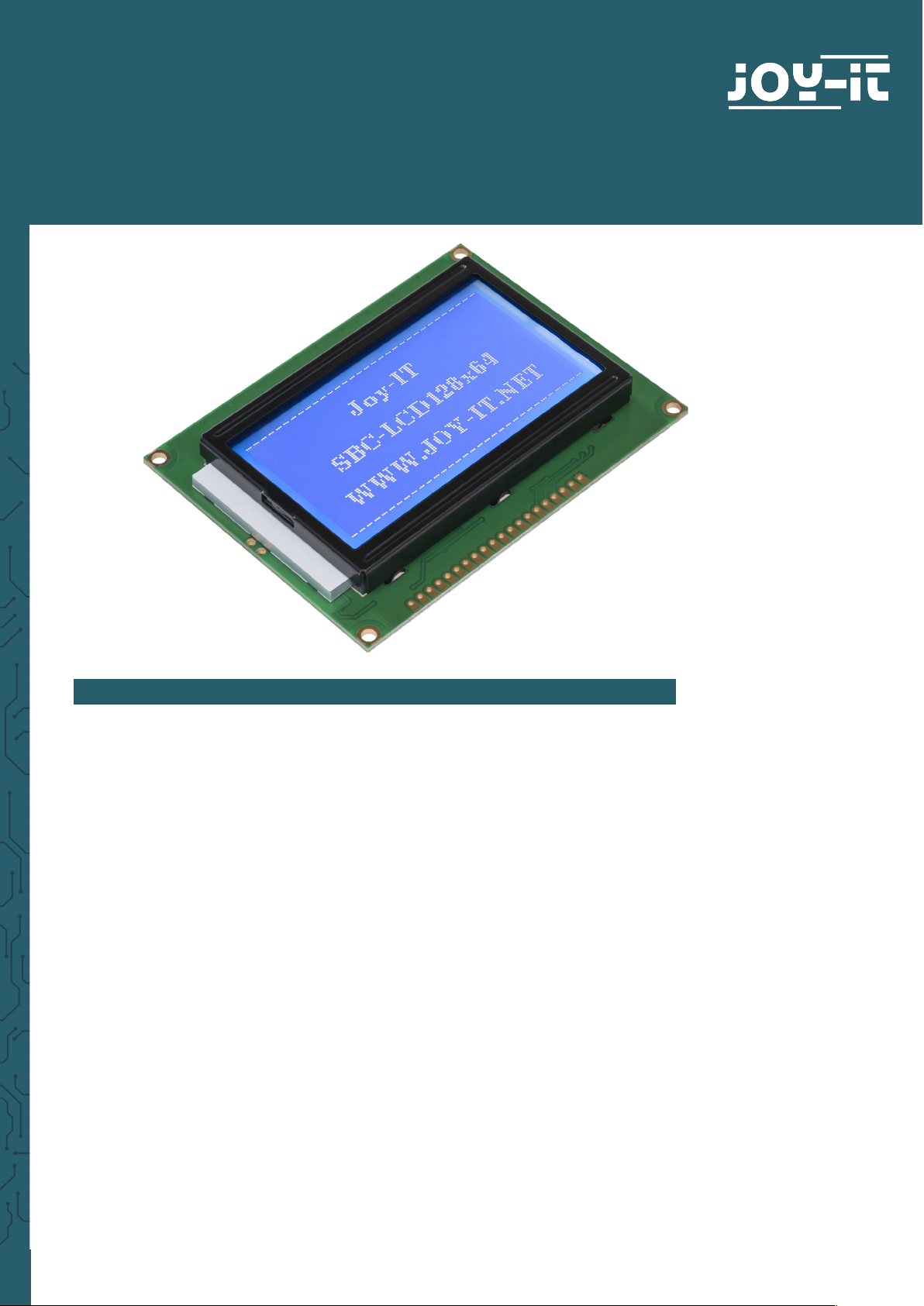
LCD 128X64
Controllable via SPI and parallel
1. GENERAL INFORMATION
Dear customer,
Thank you for purchasing our product. In the following, we will show you
which things should be noted during the use.
Should you encounter any unexpected problems, do not hesitate to contact
us.
Page 2
www.joy-it.net
Pascalstr. 8 47506 Neukirchen-Vluyn
2. CONTRAST SETTING
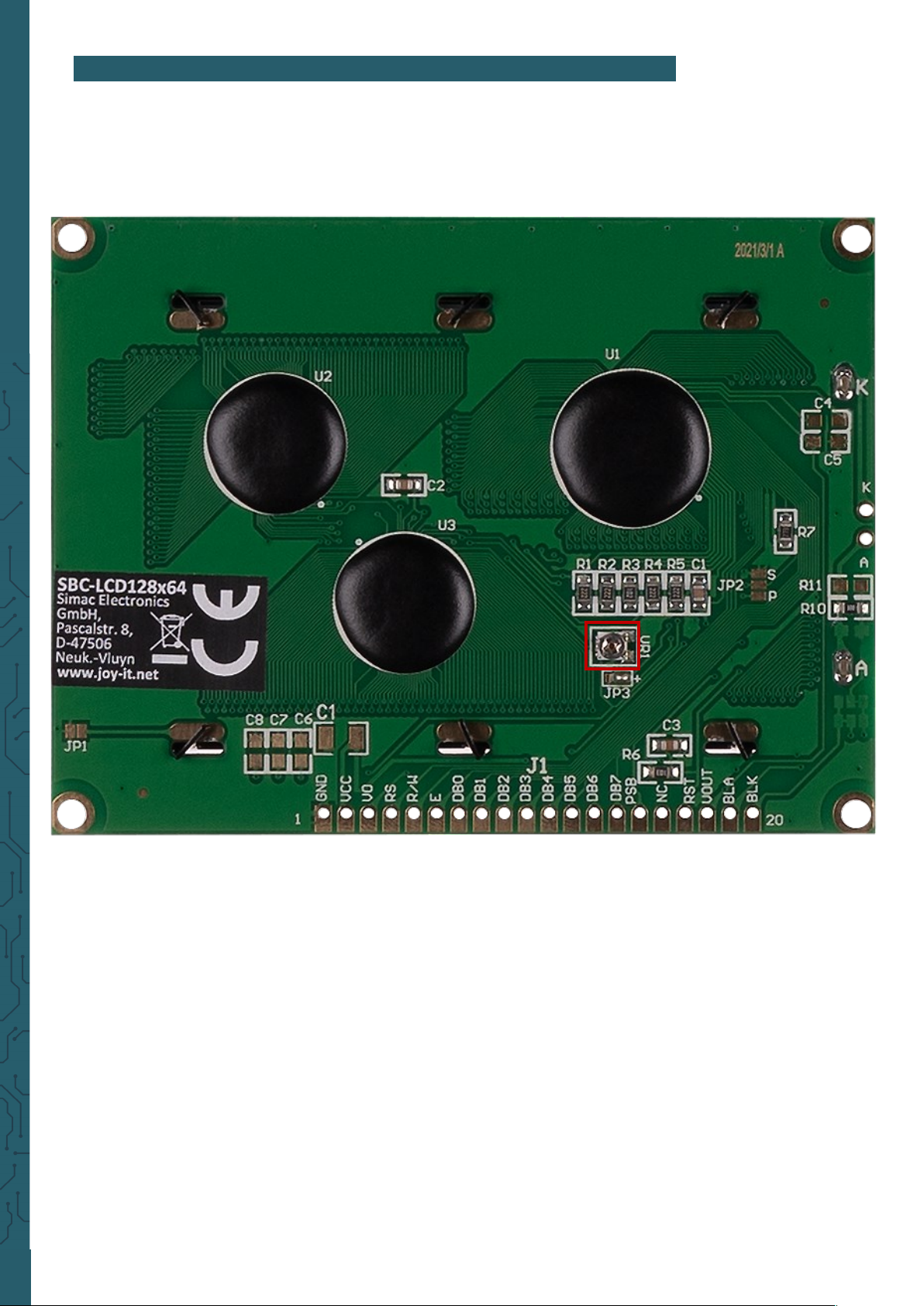
On the back of the display is a potentiometer with which you can adjust
the contrast.
Page 3
www.joy-it.net
Pascalstr. 8 47506 Neukirchen-Vluyn
3. USAGE WITH ARDUINO
3.1 SPI
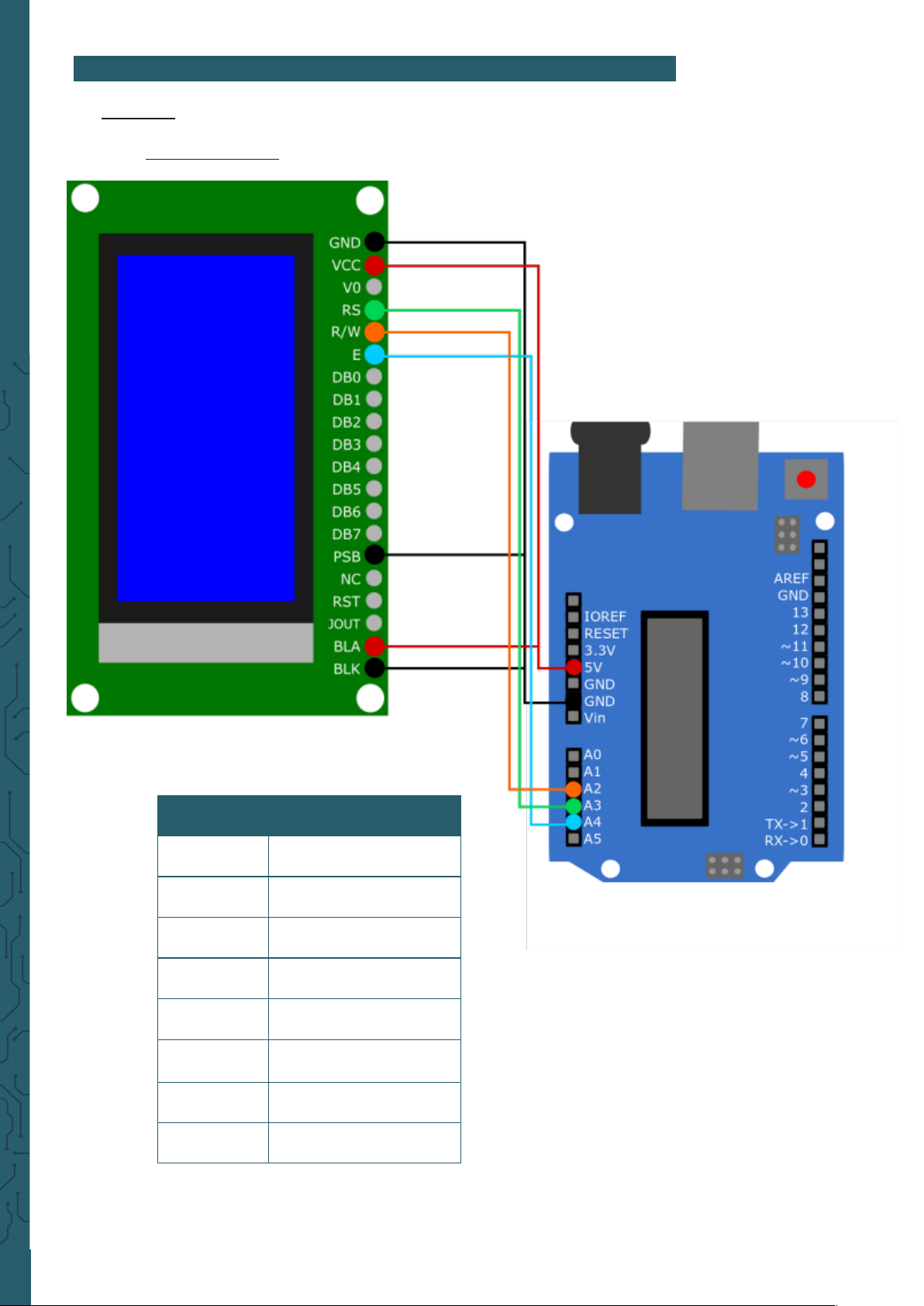
3.1.1 Connection
LCD Arduino
GND GND
VCC 5V
RS A3
R/W A2
E A4
PSB GND
BLA 5V
BLK GND
Page 4
www.joy-it.net
Pascalstr. 8 47506 Neukirchen-Vluyn
3.1.2 Library
We use the U8g2 library for the Arduino, which was published by
oliver
. You can find this library in your Arduino IDE under
Tools
→
Manage libraries...
. If you have successfully downloaded the libra
ry, you can find examples under
File → Examples → U8g2 Examp
les
.
3.1.3 Code Example
Here we will explain how to use a code example of the U8g2 library.
We will use the example
GraphicsTest
.
This example can be found under
File → Examples → U8g2
→
full_buer → GraphicsTest
. In this code, you need to uncomment
line 161 before you can execute it using the Upload button.
This is because line 161 contains the declaration of the display
using SPI. Of course, you can use the other examples in the same
way by uncommenting the same line in the other code
examples.
Note that under
Tools
, Board and Port must be correctly selected.
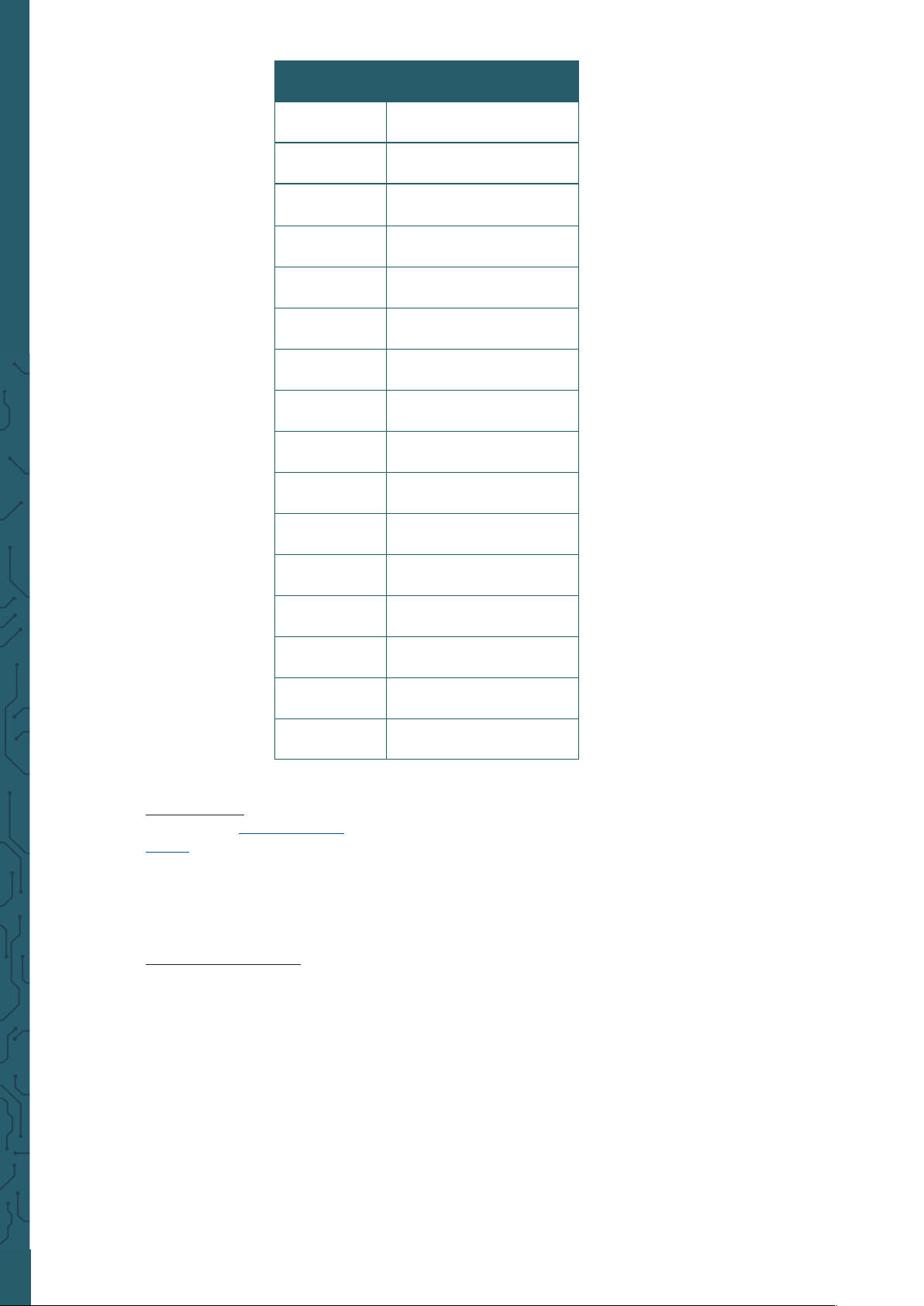
3.2 Parallel (8080)
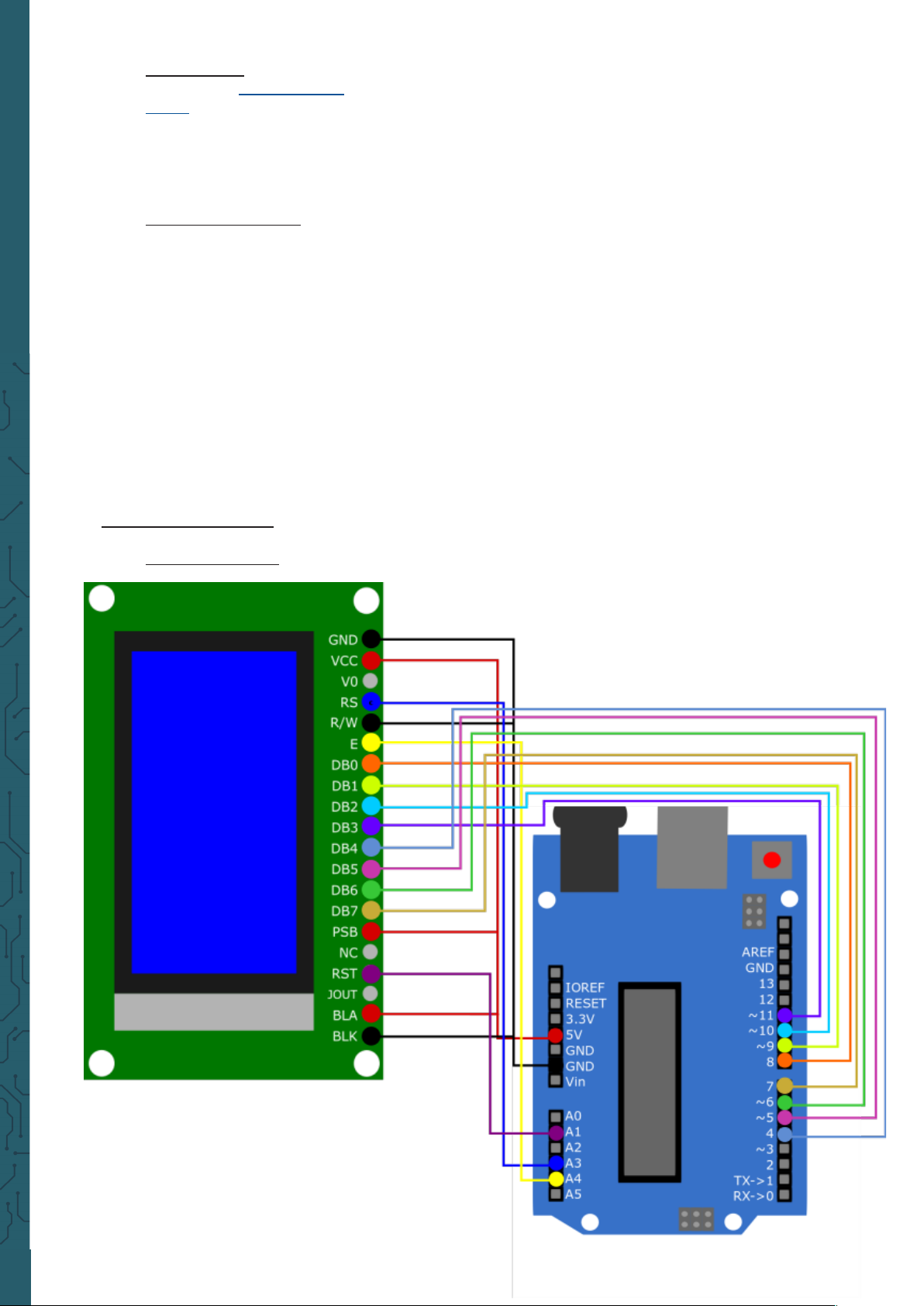
3.2.1 Connection
Page 5
www.joy-it.net
Pascalstr. 8 47506 Neukirchen-Vluyn
3.2.2 Library
We use the U8g2 library for the Arduino, which was published by
oliver
. You can find this library in your Arduino IDE under
Tools
→
Manage libraries ...
. If you have successfully downloaded the
library, you can find examples under
File → Examples
→
U8g2 Examples
.
3.2.3 Code Example
Here we will explain how to use a code example of the U8g2 library.
We will use the example
GraphicsTest
.
This example can be found under
File → Examples → U8g2
→
full_buer → GraphicsTest
. In this code, you need to uncomment
line 160 before you can execute it using the Upload button.
This is because line 160 contains the declaration of the display
using 8080. Of course, you can use the other examples in the same
way by uncommenting the same line in the other code
examples.
Note that under
Tools
, Board and Port must be correctly selected.
LCD Arduino
GND GND
VCC 5V
RS A3
R/W GND
E A4
DB0 Pin 8
DB1 Pin 9
DB2 Pin 10
DB3 Pin 11
DB4 Pin 4
DB5 Pin 5
DB6 Pin 6
DB7 Pin 7
PSB 5V
BLA 5V
BLK GND
Page 6
www.joy-it.net
Pascalstr. 8 47506 Neukirchen-Vluyn
4. USAGE WITH THE RASPBERRY PI
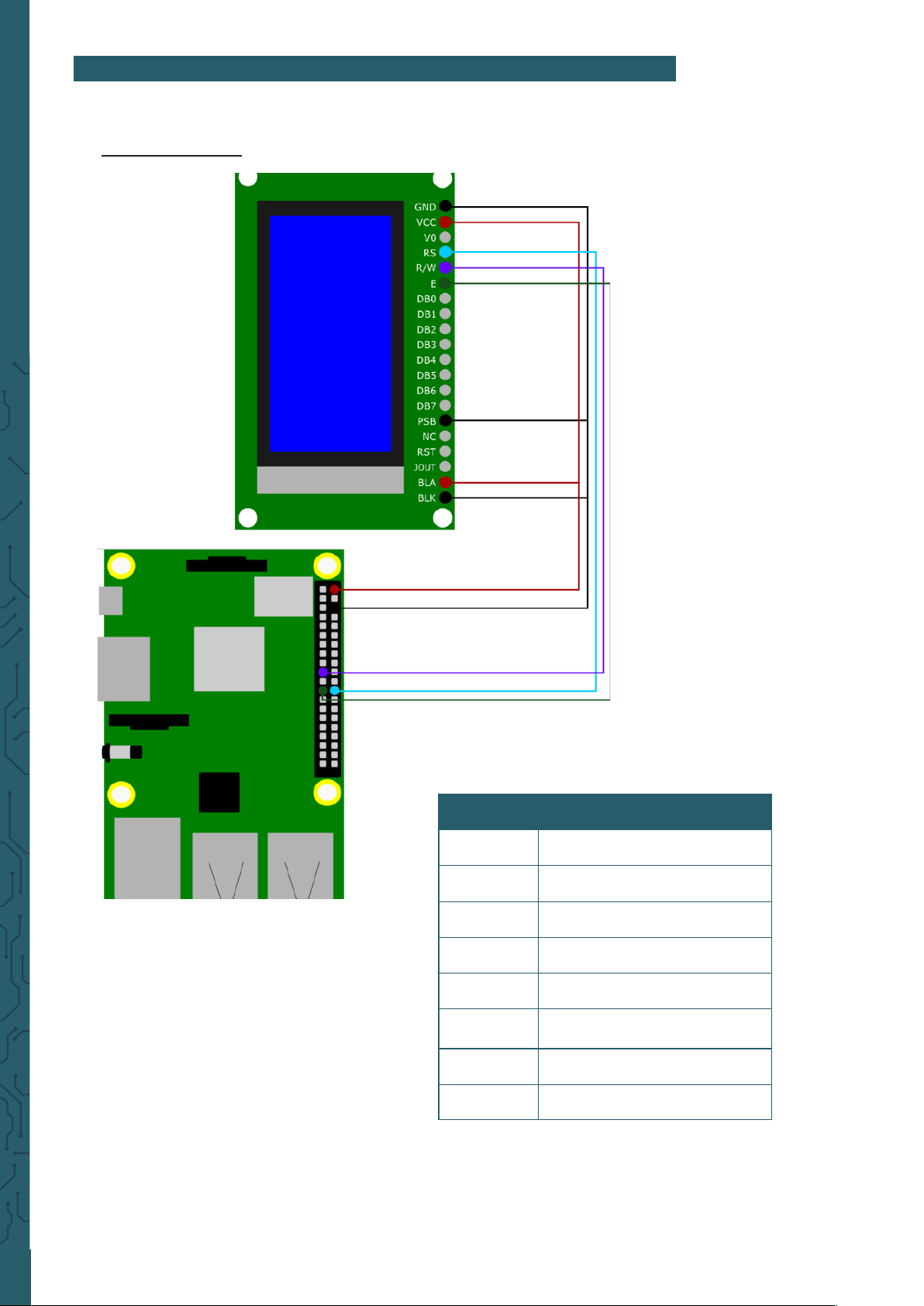
We use the LCD with the Raspberry Pi only via SPI.
4.1 Connection
LCD Arduino
GND GND
VCC 5V
RS GPIO 8
R/W GPIO 10
E GPIO 11
PSB GND
BLA 5V
BLK GND
Page 7
www.joy-it.net
Pascalstr. 8 47506 Neukirchen-Vluyn
4.2 Library
We use the library u8g2-rpi-demo from
ribasco
, which is released under
the Apache License 2.0.
First, download
git
for this purpose. To do this, enter the following com-
mands:
git clone https://github.com/ribasco/u8g2-rpi-demo.git
Now enter the following commands into the console to download and
install all the necessary files.
Some steps in the installation might take some time.
cd u8g2-rpi-demo/
sudo apt-get install libcurl4-openssl-dev
git clone https://github.com/Kitware/CMake.git
cd CMake
./bootstrap --system-curl
make
sudo make install
sudo apt-get update
sudo apt-get install git
Then run the following command to download the library.
cd ..
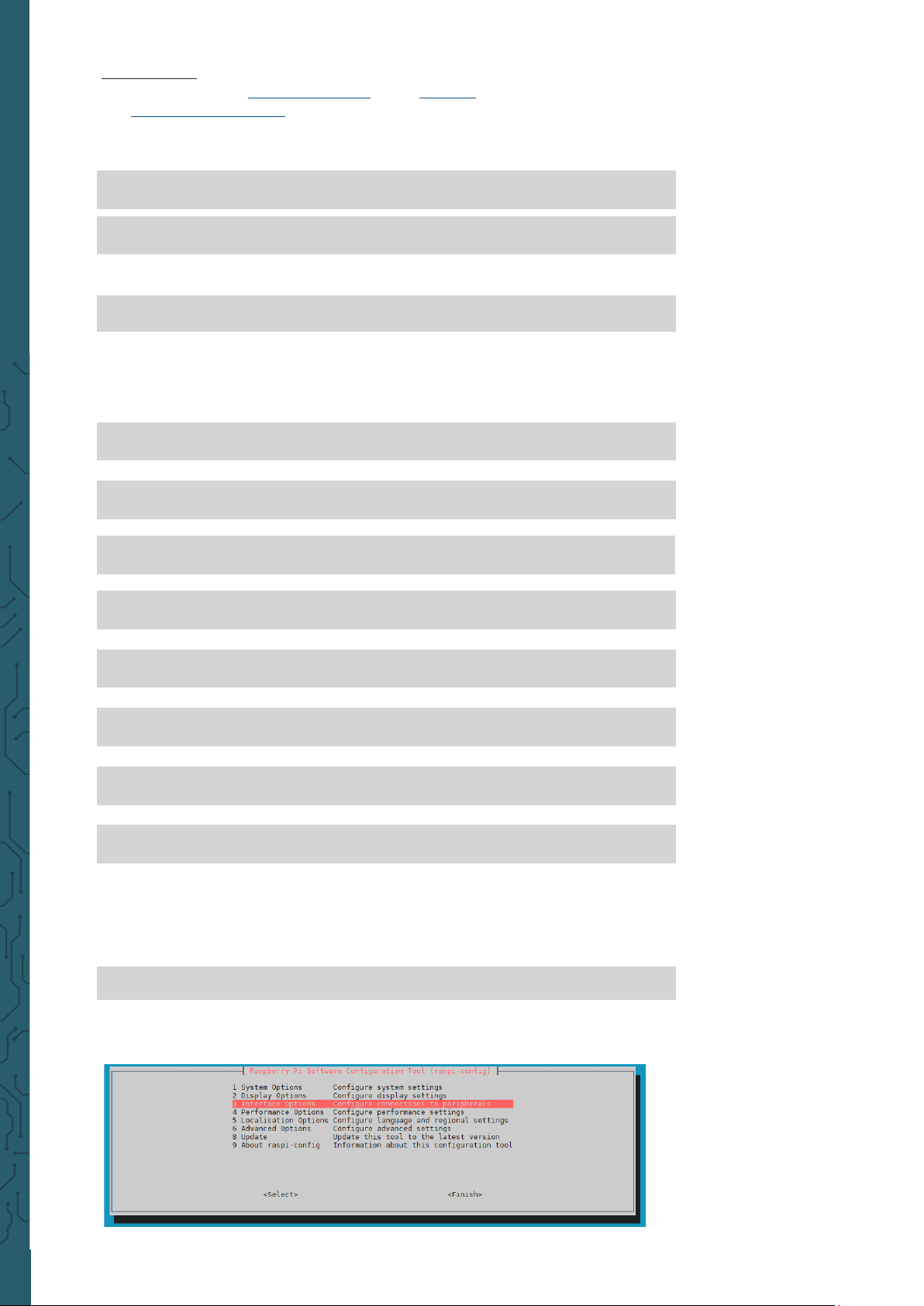
Select there under
3 Interface Options → P4 SPI
sudo raspi-config
Now enable serial communication by calling the configuration of the
Raspberry Pi with the following command.
Page 8
www.joy-it.net
Pascalstr. 8 47506 Neukirchen-Vluyn
4.3 Usage of the library
You can compile the code example from the library with the following
command.
./compile.sh
You can press Y to confirm starting the sample code immediately aer
compiling, or run the following command.
./build/arm/debug/bin/u8g2demo
You can also edit the sample code using the
main.cpp
. If you edit this file,
you must recompile it with the first command.
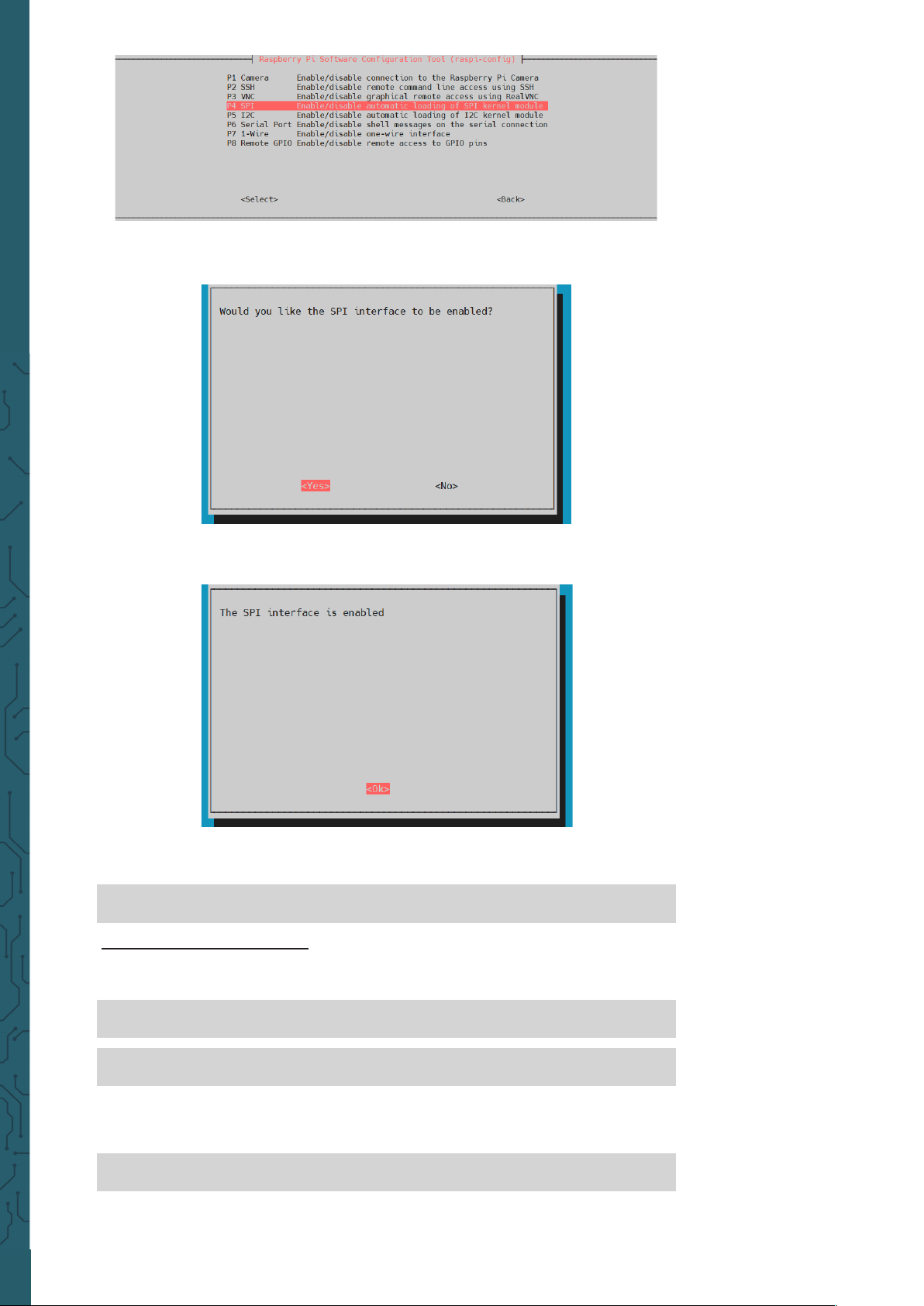
Agree with the question „
Would you like the SPI interface to be enabled?“
with
„Yes“.
Finish the activation of the SPI interface
„OK“
and close the configurati-
on with
„Finish“
.
You have now successfully activated the SPI interface. Please reboot your
Raspberry Pi.
cd ~/u8g2-rpi-demo/
sudo reboot
Page 9

www.joy-it.net
Pascalstr. 8 47506 Neukirchen-Vluyn
PR
5. OTHER INFORMATION
Our Information and Take-back Obligations according to the
Electrical and Electronic Equipment Act (ElektroG)
Symbol on Electrial and Electronic Products:
This crossed-out bin means that electrical and electronic products do not
belong into the household waste. You must hand over your old appliance
to a registration place. Before you can hand over the old appliance, you
must remove used batteries and replacement batteries which are not
enclosed by the device.
Return Options:
As the end user, you can hand over your old appliance (which has
essentially the same functions as the new one bought with us) free of
charge for disposal with the purchase of a new device.
Small devices, which do not have outer dimensions bigger than 25 cm
can be handed in for disposal independently of the
purchase of a new product in normal household quantities.
1. Possibility of return at our company location during our opening
hours
Simac Electronics Handel GmbH, Pascalstr. 8, D-47506 Neukirchen-Vluyn
2. Possibility of return nearby
We will send you a parcel stamp with which you can send us your old
appliance free of charge. For this possibility, please contact us via e-mail
at [email protected] or via telephone.
Information about Package:
Please package your old appliance safe for transport. Should you not
have suitable packaging material or you do not want to use your own
material, you can contact us and we will send you an appropriate
package.
6. SUPPORT
If any questions remained open or problems may arise aer your
purchase,we are available by e-mail, telephone and ticket
support system to answer these.
E-Mail: [email protected]
Ticket-system: http://support.joy-it.net
Telephone: +49 (0)2845 98469 – 66 (10 - 17 o'clock)
For further information visit our website:
www.joy-it.net
Published: 29.07.2021
www.joy-it.net
SIMAC Electronics GmbH
Pascalstr. 8, 47506 Neukirchen-Vluyn
 Loading...