

Page 1

Initialize each page: Page 1/15
User Manual
Model:John’s 1
Brand:John’s
Page 2

EXHIBIT D: FTS PHONE SOFTWARE SPEC (SW)
Initialize each page: Page 2/15
Contents
1. For Your Safety ............................................................................................................................... 3
2. Phone Feature .................................................................................................................................. 4
3. Keys and Part .................................................................................................................................. 5
4. Basic Function ................................................................................................................................. 6
4.1 Get started ......................................................................................................................... 6
4.2 Security .............................................................................................................................. 9
5.Screens referenced in this SW ................................................................................................. 9
Page 3
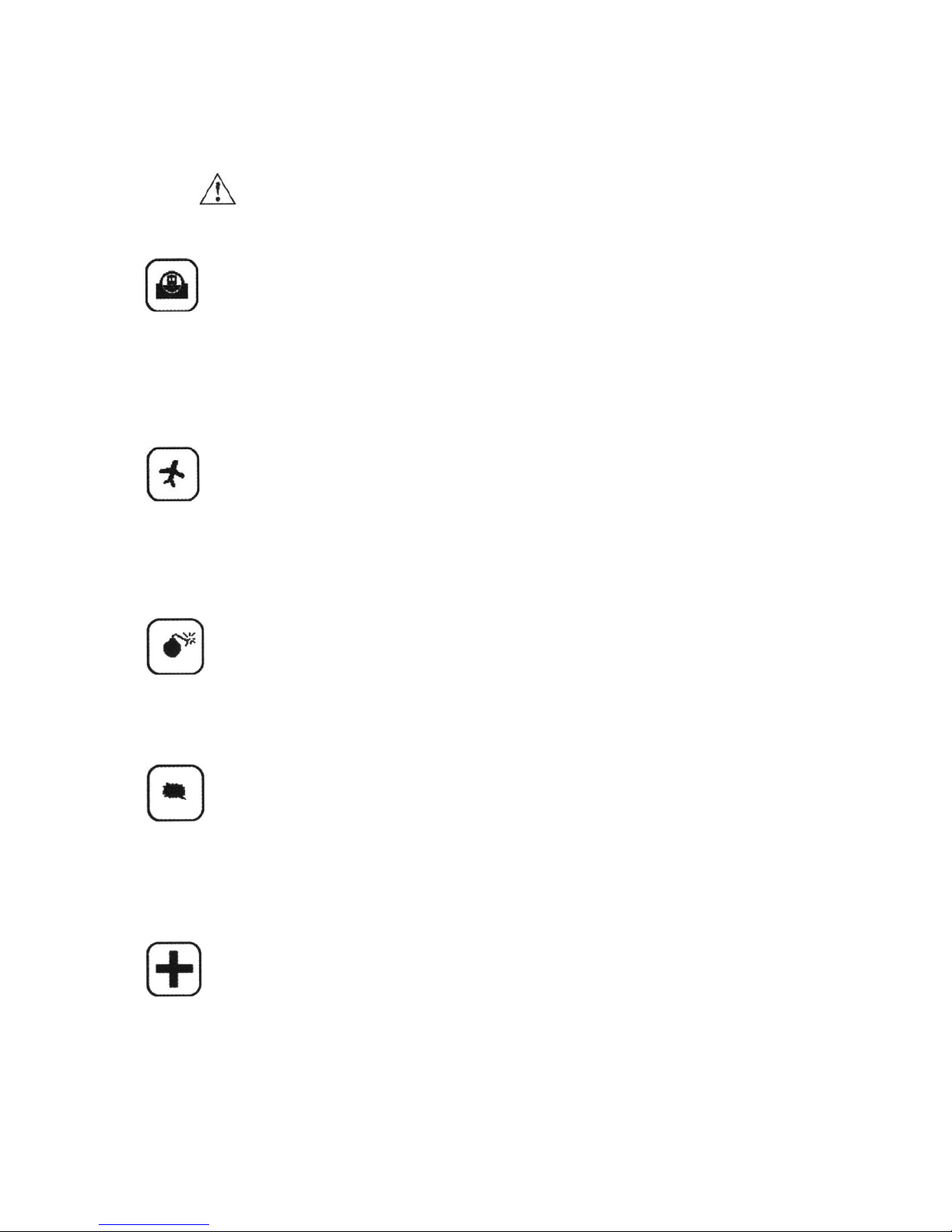
EXHIBIT D: FTS PHONE SOFTWARE SPEC (SW)
Initialize each page: Page 3/15
1. For Your Safety
Please read these simple guidelines. Not following them may be
dangerous or illegal。
Road safety comes first
Do not use the phone hand-held while driving. If using the phone hand-held,
park the vehicle before conversing.
Switch off in aircraft
Switch your phone off when on an aircraft. The aircraft’s systems may be
affected by the phone signal. You are legally obliged to comply with this
recommendation.
Switch off near blasting
Switch your phone off when blasting is in progress. Observe any provided
guidelines or regulations.
Switch off when refueling
Do not use your phone when refueling. You should keep your phone away
from fuel and chemicals.
Switch off in hospitals
Follow any restrictions. Switch the phone off near medical
equipment.
Page 4
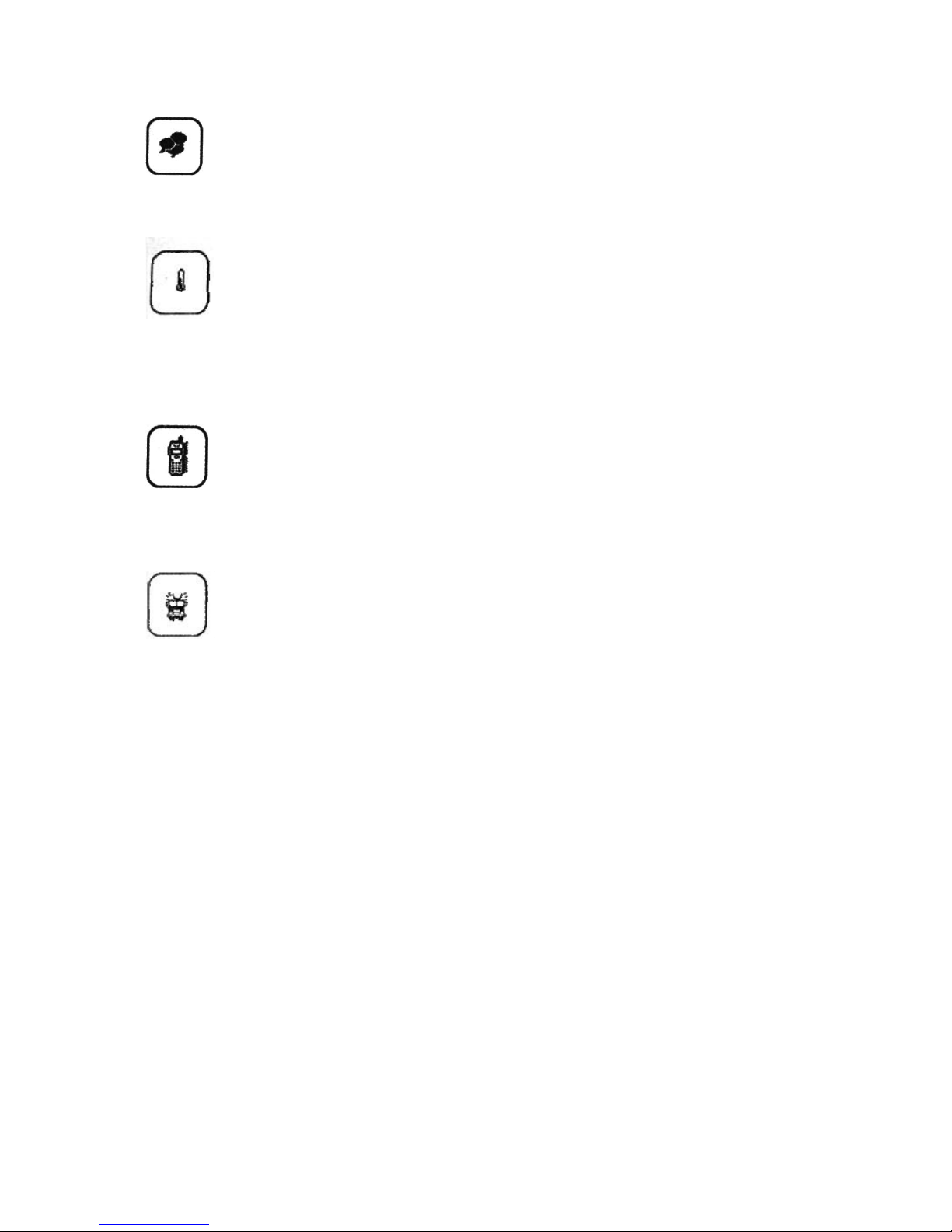
EXHIBIT D: FTS PHONE SOFTWARE SPEC (SW)
Initialize each page: Page 4/15
interference
All wireless phones may be susceptible to interference , which
could affect performance。
Enhancements and batteries
Use only approved enhancements and batteries. Do not connect
incompatible products.
use sensibly
Use only in the normal position as explained in the produce
documentation. Do not touch the antenna unnecessarily.
Emergency calls
Ensure the phone is switched on and in service. Enter the
emergency number ,then press the call key. Give your location. Do not end the call
until given permission to do so.
2. Phone Feature
Page 5
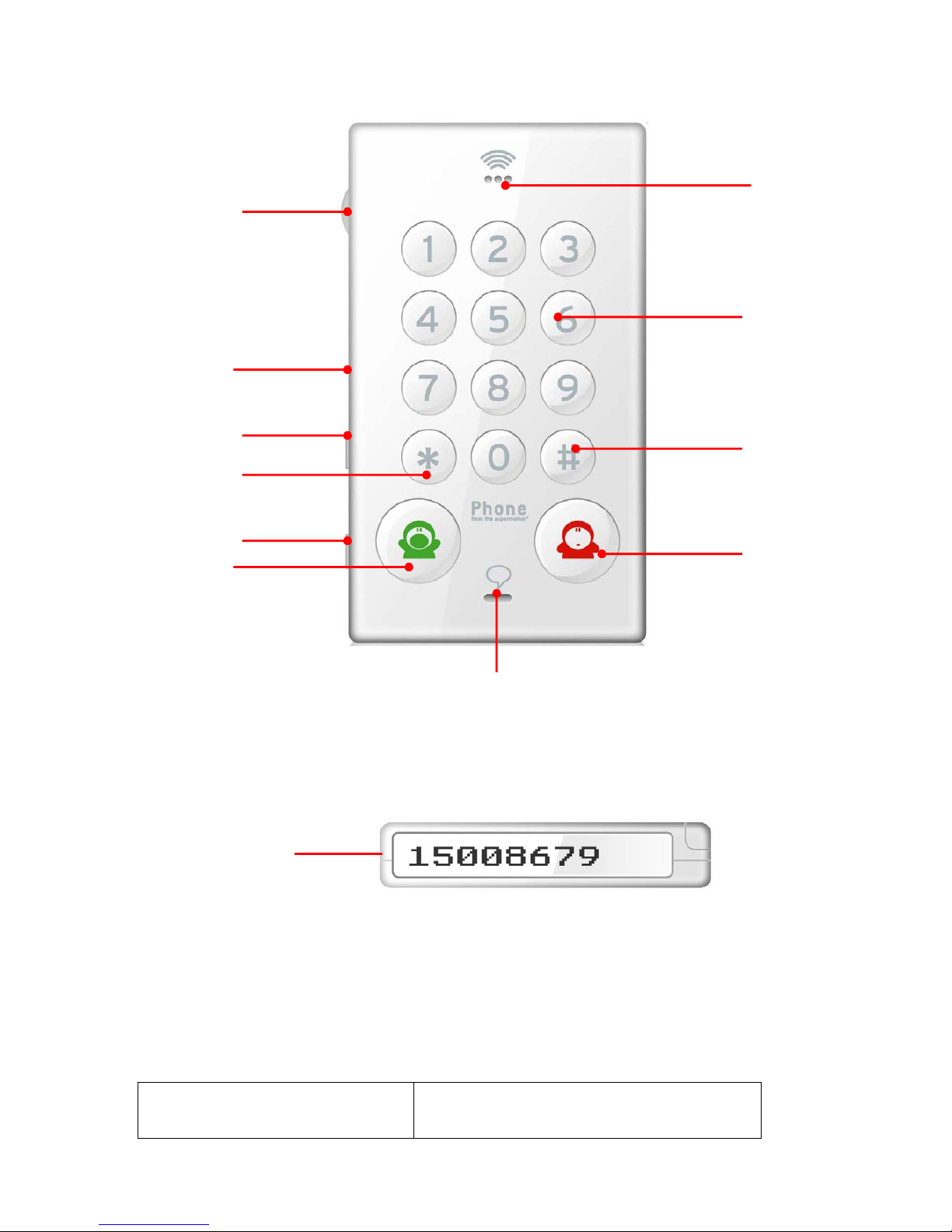
EXHIBIT D: FTS PHONE SOFTWARE SPEC (SW)
Initialize each page: Page 5/15
3. Keys and Part
Keys Description
SIM card
Volume Key
User profiles Key
* Key
Power on/off lock Key
Talk Key
MIC
C Key
# Key
Number Key
Earpiece
LCD
Page 6
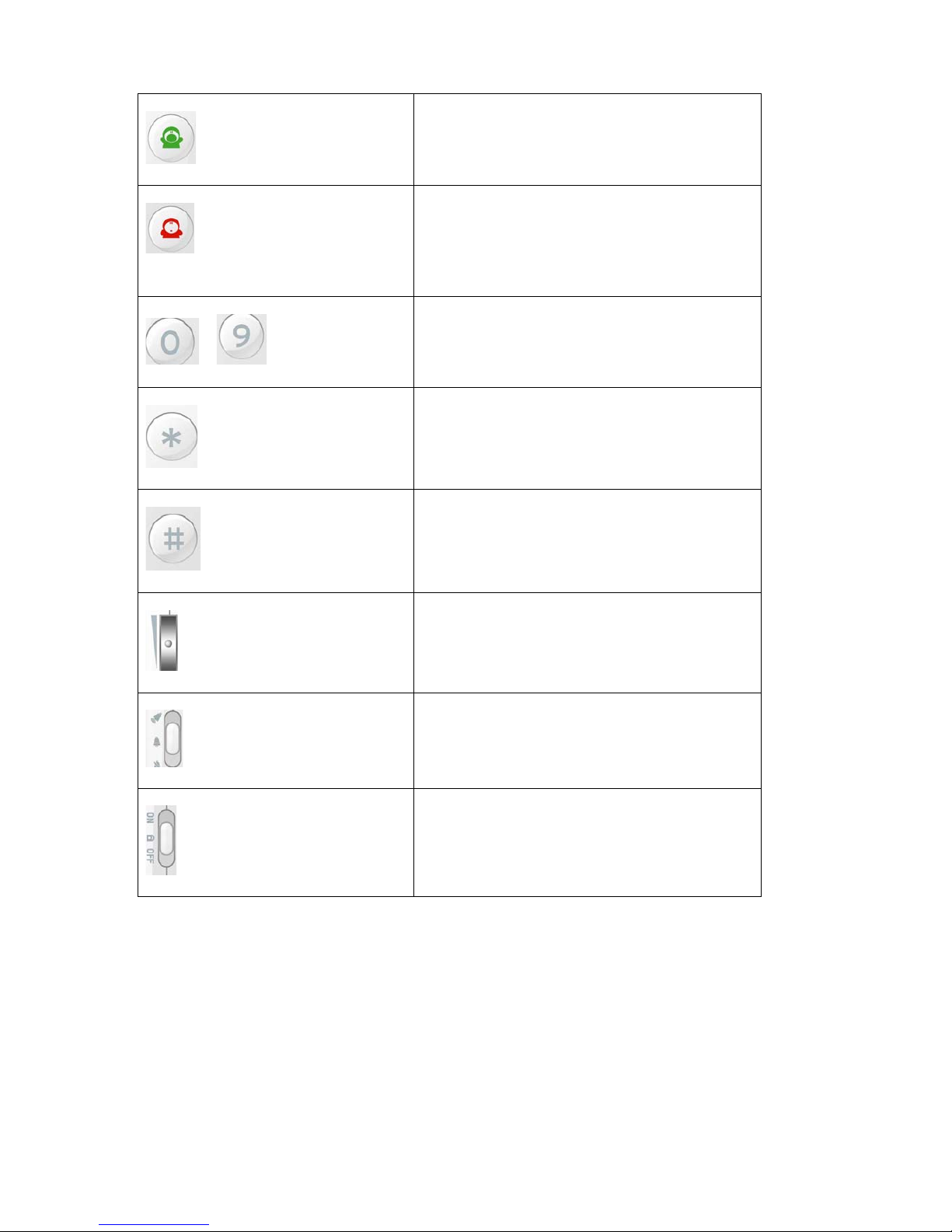
EXHIBIT D: FTS PHONE SOFTWARE SPEC (SW)
Initialize each page: Page 6/15
Talk Key
Dial a phone number and answers a call.
C Key
press it to clear the input number one by one;
~ 0~9 Number Key
In idle, press to dial numbers;
Long press it to speed dial;
* Key
In idle, press it to input “*”/ “+” / “P”/“W”
#Key
To iuput #
Volume Key
Press it to adjust the volume
User Profiles Key
Push it to switch user profiles. adjusted to
Normal , Loud, Mute.
Power on/off lock Key
Push it to switch Power on/off.,or
locked the keypad or unlock.
4. Basic Function
4.1 Get started
Page 7

EXHIBIT D: FTS PHONE SOFTWARE SPEC (SW)
Initialize each page: Page 7/15
1 Power on/off/Key Lock
The power switch can switch the phone to power on/off/key lock mode. When the phone is in
key lock mode, all keys will be invalid except when a call is incoming the C key and Talk Key
are valid, and the Volume wheel.
2 DIAL
When a dialing key is pushed, the corresponding letter will be displayed in screen and a keytone will be played
except when the phone is in Down Mute Mode.
If the letters keyed in is more than the max letters that can be displayed in screen, the letters displayed will roll
to left and the new one will be added at the end of the existing letters.
When the user pushes the C Key, the numbers keyed in will be cleared.
3 Speed Dial
Speed dial will be executed (call activated) when holding a 0-9 number key for 2 seconds, and a
confirmation ‘Click’ will be played。
4 Speed dial number seting
,for example: if ** 1*12345678#.
1) press * key to input **;
2) press number key 1 to input 1;
3) press number key to input the phone number 12345678;
4) press the # key to input #;
5) press the Talk key to save the speed dial number.
5 Voice Volume setting
Page 8

EXHIBIT D: FTS PHONE SOFTWARE SPEC (SW)
Initialize each page: Page 8/15
The volume setting is only active during calling. When starting a new call, the volume will be
the same since the last adjustment; The Volume Key can go up and down, the volume goes up
and down without ‘steps’; The volume wheels returns to its original ‘middle’ position. This
volume setting is also the setting for when the ‘Headset’ is plugged in.
6 User Profiles
Speaker volume adjusting for RINGTONE and KEYTONE,
It can be adjusted to Normal, Loud, Mute profiles.
The User profile key on up step is normal profile ;
The User profile key on middle step is loud profile ;
The User profile key on down step is mute profile .
Vibrating alert is always switched on; This volume is also adjusted for the ‘Headset’ when the
headset is plug in, Ringtone and Key tone are played in the headset as well.
7 Ringtone setting
Can input the code to switch the ringtone 1 to 4
Ringtone1 : #78737627538#
Ringtone2 : #5646363#
Ringtone3 : #7925626#
Ringtone4 : #3669#
8 Call Incoming
When a call is incoming and the phone is not calling, the phone will play the ringtone (except the
phone is in DOWN MUTE MODE) and vibrate and the key light will be shown.
During a call, a second incoming call cannot be taken. (The caller will hear the tone of an
occupied line). The phone will not make a sound or beep;
Page 9

EXHIBIT D: FTS PHONE SOFTWARE SPEC (SW)
Initialize each page: Page 9/15
An incoming call can be accepted by press Talk Key and rejected by C Key when the phone is
not in calling.
9 During calling
During a call, the calling or called numbers will be shown on the screen, scrolling from right to
left if too many characters to display in the screen.
10 Other
The phone cannot support SIM plug in/out when the phone is on. If the end user wants to change
the SIM, the phone should be restart after plugging in the new SIM
4.2 Security
The phone support PIN1 input and PIN1 unblock function when the phone is powering on.
The phone cannot enable or disable the PIN1 of the SIM.
PIN1 Input
When the phone powers on, after the starting up screens, and the SIM in it is PIN1
enabled,
PUK Input
When the phone power on, after the starting up screens, and the SIM in it is PIN1 unblocked
5.Screens referenced in this SW
Page 10
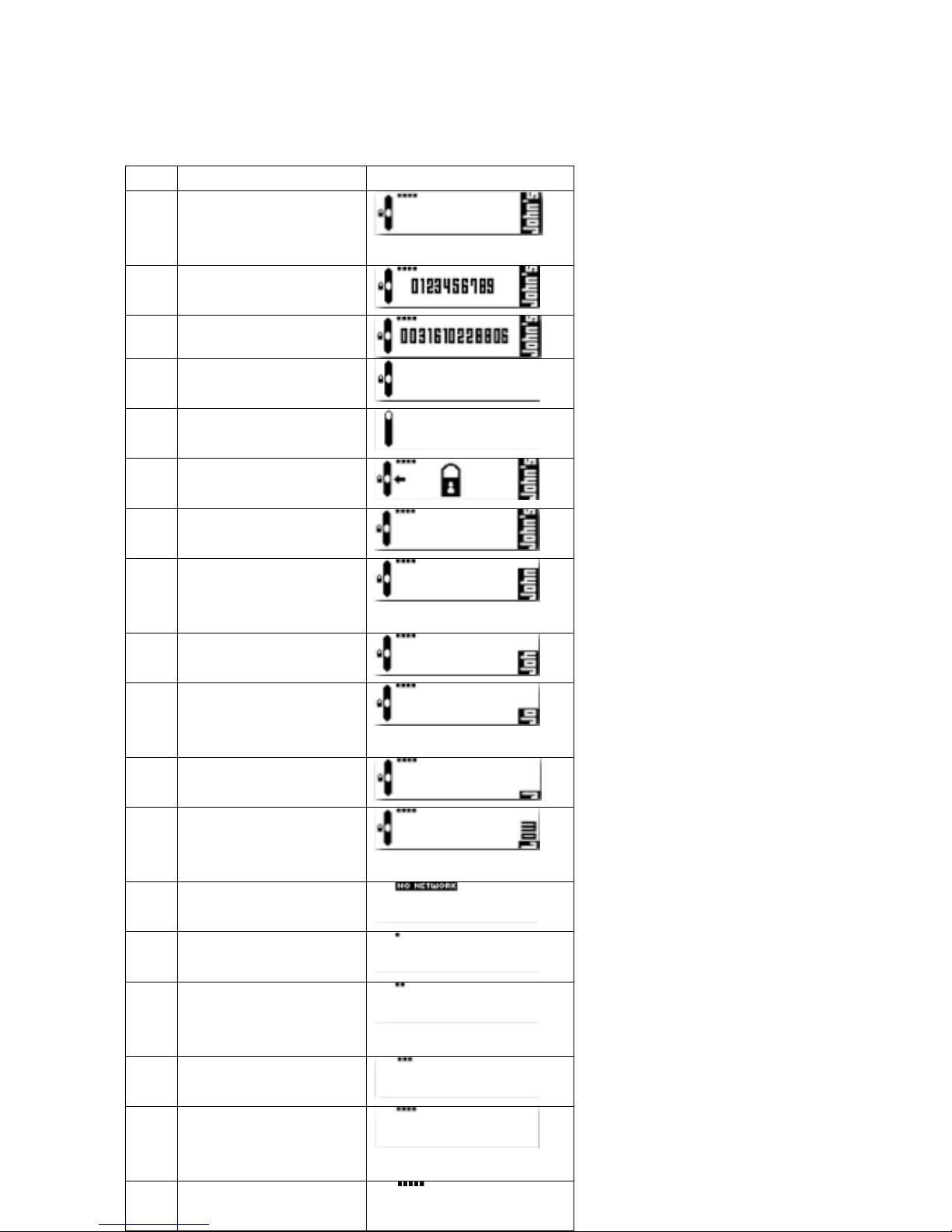
EXHIBIT D: FTS PHONE SOFTWARE SPEC (SW)
Initialize each page: Page 10/15
No. Description Graphic
1.1 Basic screen with
all standard
showings
1.2 Number layout
1.3 Incoming number
2.1 Key locked
standard showing
2.2 Key unlocked
standard showing
2.3 Key locking 2 sec.
3.1 Battery full
3.2 Battery medium
full
3.3 Battery medium
3.4 Battery medium
low
3.5 Battery low
3.6 Battery empty, 5
minutes
4.1 No network
4.2 Weak network
4.3 Medium weak
network
4.4 Medium network
4.5 Medium strong
network
4.6 Strong Network
Page 11
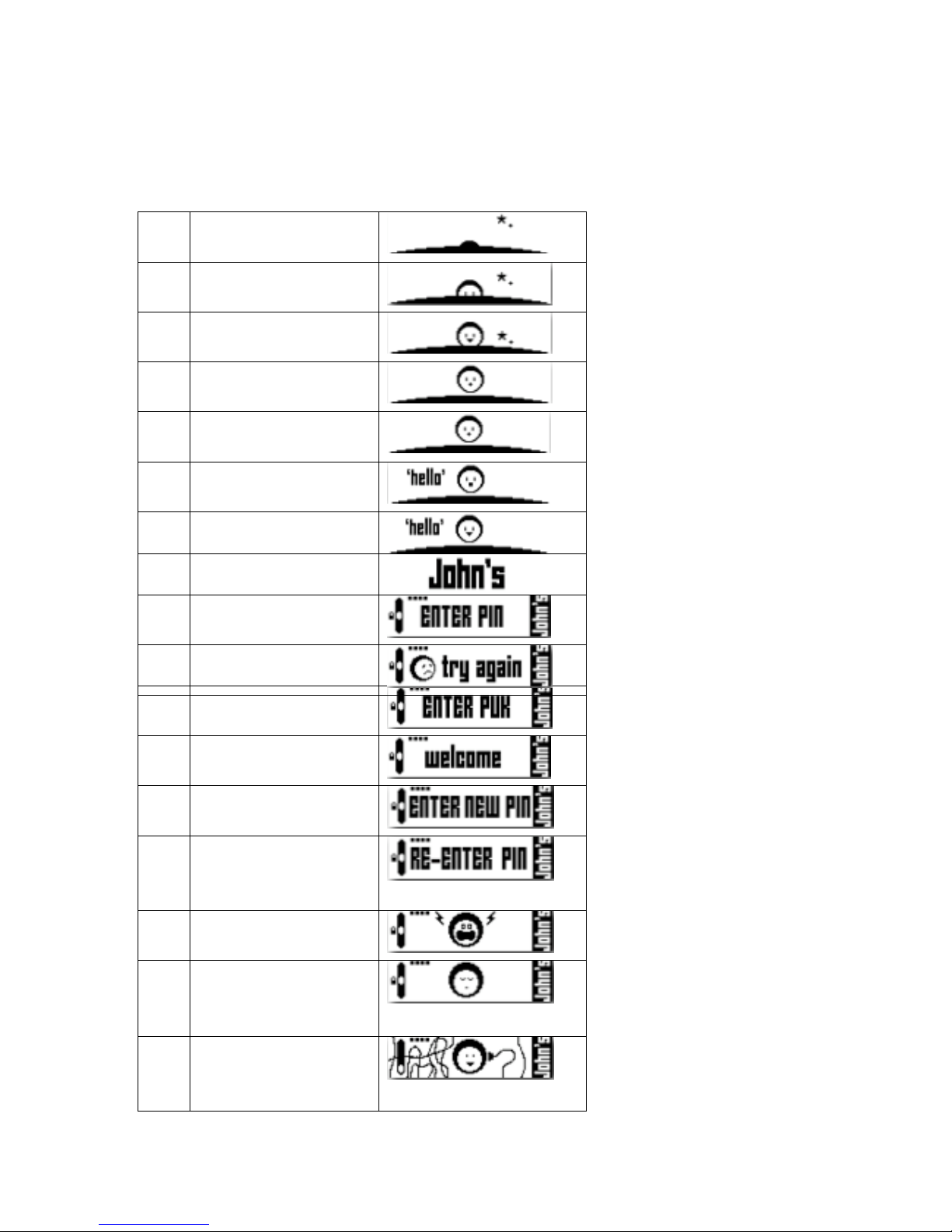
EXHIBIT D: FTS PHONE SOFTWARE SPEC (SW)
Initialize each page: Page 11/15
6.3 Enter PUK
6.4 Welcome
6.5 Enter new PIN
6.6 Re-Enter new
PIN
7.1 Charging screen 1
7.2 Charging screen 2
8.1
Headset plugged
in
5.1 Start screen 1
5.2 Start screen 2
5.3 Start screen 3
5.4 Start screen 4
5.5 Start screen 5
5.6 Start screen 6
5.7 Start screen 7
5.8 Start screen 8
6.1 Enter PIN
6.2 Try again
Page 12
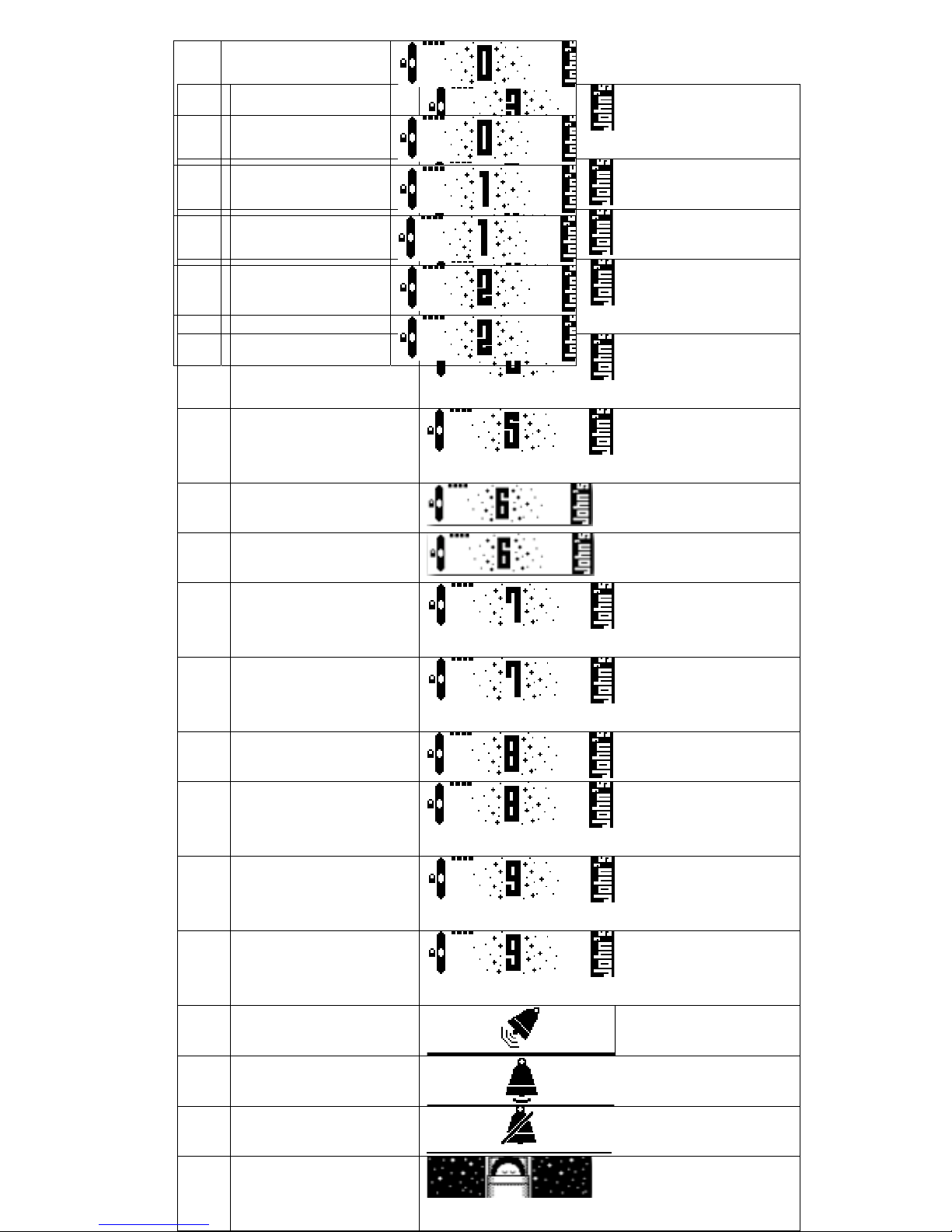
EXHIBIT D: FTS PHONE SOFTWARE SPEC (SW)
Initialize each page: Page 12/15
9.7
Speed dial under
‘3’
9.8 Speed dial under
‘3’
9.9 Speed dial under
‘4’
9.1
0
Speed dial under
‘4’
9.1
1
Speed dial under
‘5’
9.1
2
Speed dial under
‘5’
9.13 Speed dial under
‘6’
9.14 Speed dial under
‘6’
9.1
5
Speed dial under
‘7’
9.1
6
Speed dial under
‘7’
9.17 Speed dial under
‘8’
9.1
8
Speed dial under
‘8’
9.1
9
Speed dial under
‘9’
9.2
0
Speed dial under
‘9’
10.1 Ringtone loud
10.2 Ringtone normal
10.3 Ringtone off
11.
1
Sleep screen
9.1
Speed dial
under ‘0’
9.2 Speed dial
under ‘0’
9.3 Speed dial
under ‘1’
9.4 Speed dial
under ‘1’
9.5 Speed dial
under ‘2’
9.6 Speed dial
under ‘2’
Page 13

EXHIBIT D: FTS PHONE SOFTWARE SPEC (SW)
Initialize each page: Page 13/15
Page 14
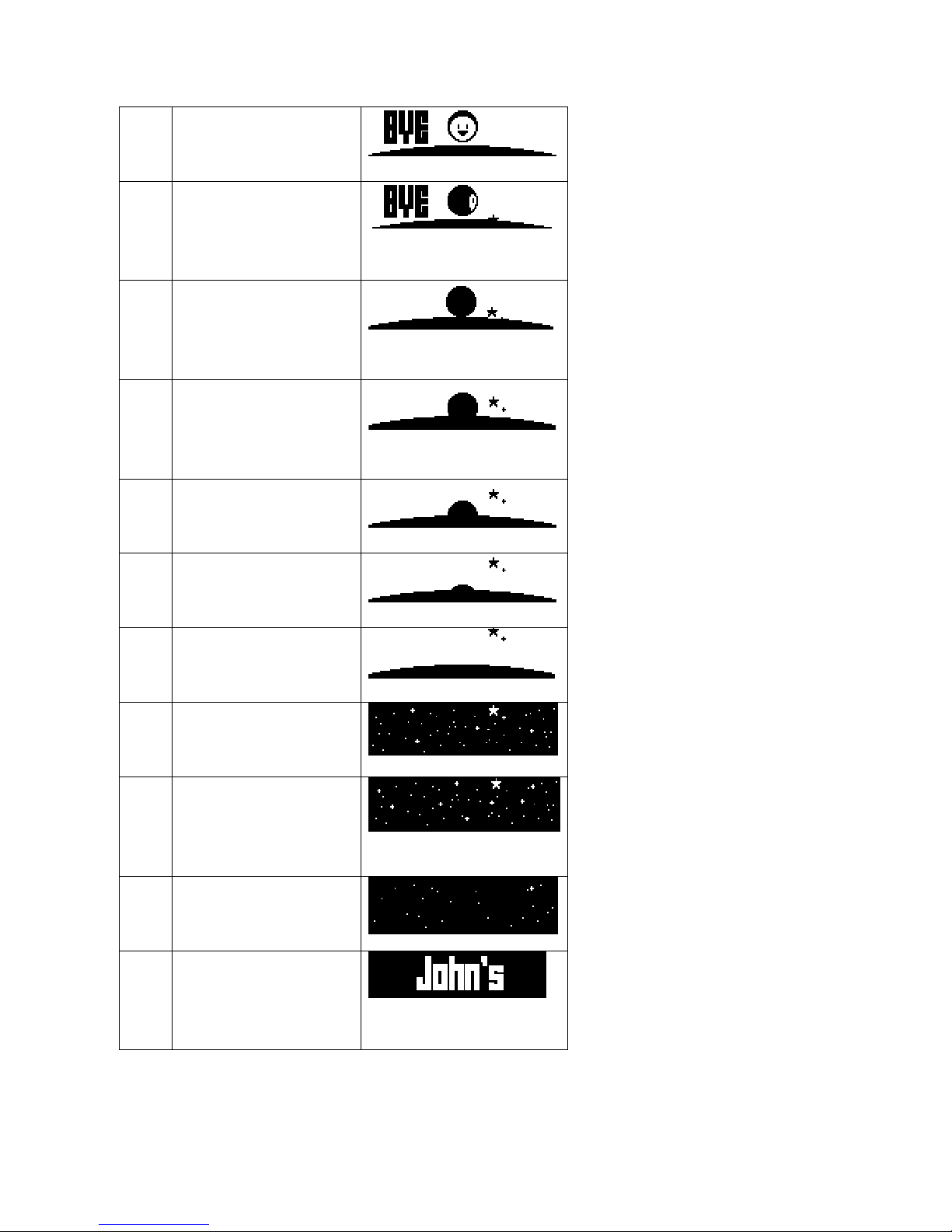
EXHIBIT D: FTS PHONE SOFTWARE SPEC (SW)
Initialize each page: Page 14/15
1. Signatures
By signing this agreement,
FTS and Desay officially
agree with the terms and
conditions stated in this
Software Spec.
12.
1
Turning off
screen 1
12.
2
Turning off
screen 2
12.
3
Turning off
screen 3
12.
4
Turning off
screen 4
12.
5
Turning off
screen 5
12.
6
Turning off
screen 6
12.
7
Turning off
screen 7
12.
8
Turning off
screen 8
12.
9
Turning off
screen 9
12.
10
Turning off
screen 10
12.
11
Turning off
screen 11
Page 15
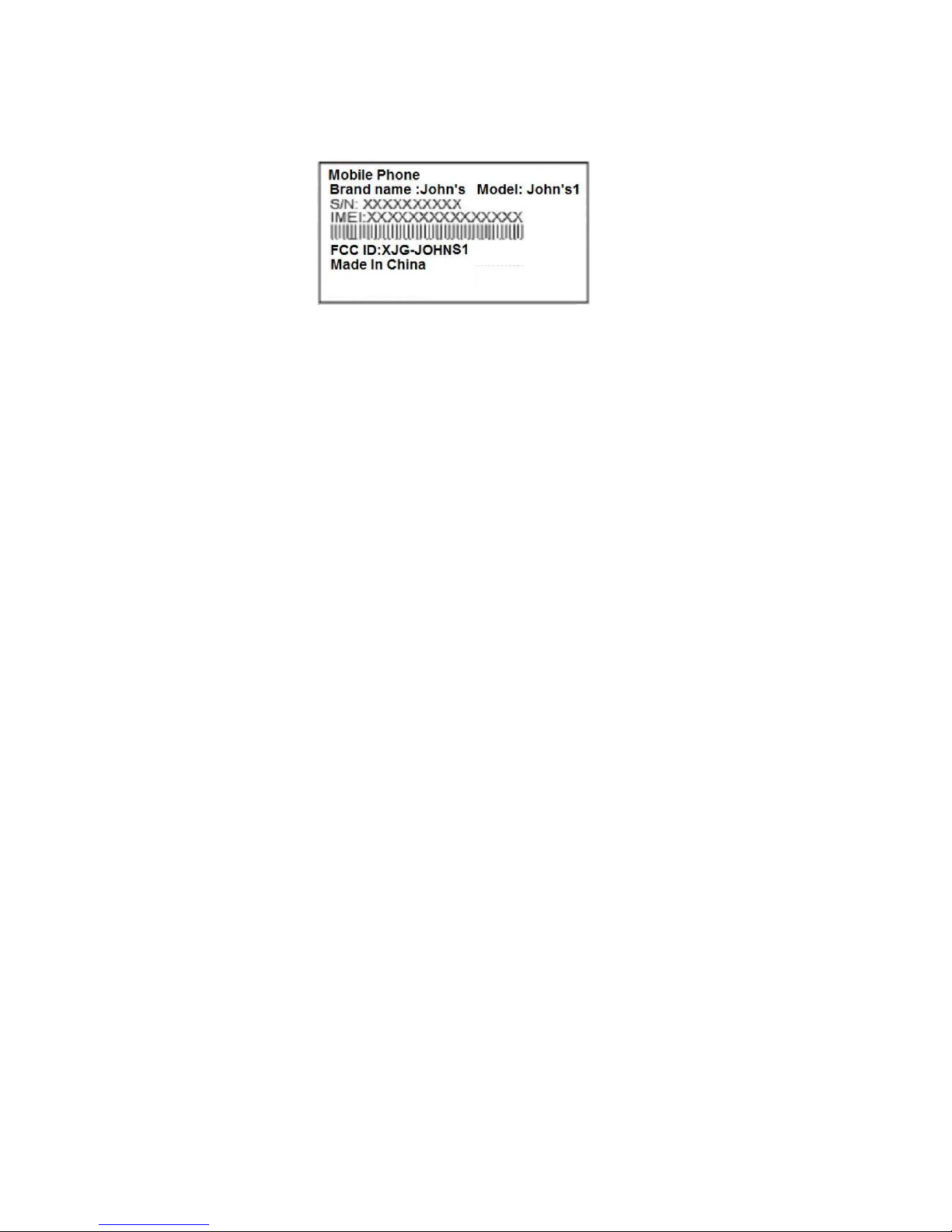
EXHIBIT D: FTS PHONE SOFTWARE SPEC (SW)
Initialize each page: Page 15/15
FCC ID: XJG-JOHNS1
FC C ID Label:
Page 16

RF Exposure Information:
FCC RF Exposure requirements: The highest SAR value reported under this standard
during product certification for use next to the body is 0.685 W/kg, next to the head is
1.170 W/kg. This transmitter must not be collocated or operating in conjunction with any
other antenna or transmitter.
This device complies with part 15 of the FCC rules. Operation is subject to the following
two conditions:
(1) this device may not cause harmful interference, and
(2) this device must accept any interference received, including interference that may
cause undesired operation.
NOTE: The manufacturer is not responsible for any radio or TV interference caused by
unauthorized modifications to this equipment. Such modifications could void the user’s
authority to operate the equipment.
NOTE: This equipment has been tested and found to comply with the limits for a Class B
digital device, pursuant to part 15 of the FCC Rules. These limits are designed to provide
reasonable protection against harmful interference in a residential installation. This
equipment generates uses and can radiate radio frequency energy and, if no t installed and
used in accordance with the instructions, may cause harmful interference to radio
communications. However, there is no guarantee that interference will not occur in a
particular installation. If this equipment does cause harmful interference to radio or
television reception, which can be determined by turning the equipment off and on, the
user is encouraged to try to correct the interference by one or more of the following
measures:
- Reorient or relocate the receiving antenna.
- Increase the separation between the equipment and receiver.
-Connect the equipment into an outlet on a circuit different from that to which the receiver
is connected.
-Consult the dealer or an experienced radio/TV technician for help
 Loading...