

Page 1
F300B
Page 2
Page 3
Getting started
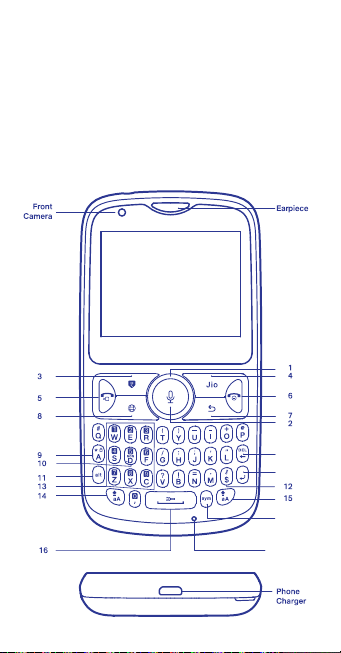
1 JioPhone.
Illustration for reference only.
17
18
19
Microphone
Page 4
Page 5

2 Know the keys
1 Directional Keypad (DPAD) keys
The navigation keys on DPAD (Left/Right/Top/
Down) are used to move around the screen and
the center key to select a particular item.
DPAD Shortcuts from home screen
Left key Short press it to launch Messages app.
Right key Short press it to launch Camera app.
Up key Short press it to open Quick settings
which gives you easy access to frequently used
features like Torch, Bluetooth, Wi-Fi, Calculator,
Airplane Mode, Camera, Volume, Brightness, etc.
Down key Short press it to launch Music app
OR to reopen any other music app running in
the background.
2 HelloJio From home screen long press the
center key to launch Voice search using HelloJio.
3 Left Side Key (LSK) / Payments key
In unlocked state, long press to launch/close
payment option; short press to launch alerts/
notifications.
4 Right Side Key (RSK) / Jio key
From Home screen: In unlock state, long
pressing of this will launch Jio app. In unlock
state, short press of this will launch Contacts
app.
5 Voice/Video Call Key
In unlock state the Green call key, will trigger the
call logs. While dialing number/selected contact,
short press to make voice call and long press to
make video call.
Page 6

6 End call key / Power key To end calls; long
press to power ON/OFF the phone.
7 Back key It will be always use to go to one level
back from the current state.
8 Browser key Short pressing of this key from
home will launch browser application.
9 Lock / Unlock Key Long pressing of this key
will lock and unlock the phone.
10 SOS / Panic button call Long press to
initiate Emergency service number “112”.
11 Alt key Input method Allows to type the
Alternate character on a Key. Hitting the Alt key
twice will turn on the NUM lock function and
alternate key functions. Hit Alt to turn off alternate
characters.
12 Audio profile key Long press of [ $ ] from
home screen to toggle between normal/vibrate
audio profile mode.
13 Number Keypad On Home screen, all
numbers 0 to 9, *,# and + keys can be used by
pressing them directly.
14 Left Up Arrow Press this key once and then
hit a letter to get the Upper Case form of that
letter. After typing one letter it will go back to
lower case typing. If you continue to press it
before typing any letter while you type, will give
you captital letter. To turn on CAPS Lock, hit it
twice. Press it again to turn CAPS off.
To change Language Press Alt and up arrow
together to change the input language
Page 7

15 Right Up Arrow Key Press this key once and
then hit a letter to get the Upper Case form of
that letter. After typing one letter it will go back to
lower case typing. If you continue to press it
before typing any letter while you type, will give
you captital letter. To turn on CAPS Lock, hit it
twice. Press it again to turn CAPS off.
To change Language Press Alt and up arrow
together to change the input language
16 Torch Key Long press of space key will be
used to Turn OFF/ON the Torch.
17 Delete Key Press this key to delete text on
the left side of the cursor while typing in input
field. To remove the text on the right side of the
cursor press Alt and DEL key while typing in input
field.
18 Enter Key Use this key to add line break in
text field while typing.
19 Sym Key This key will pulls up menu of
symbols that can be inserted in any input field.
Page 8

3 Status bar
Jio 4G
Operator
Name
LTE
Network
Voice
kind & strength
Network
Voice via LTE network
Voice via Wifi
Data
traffic
12:04 PM
Time
Battery charging
Battery full
Battery emptyNo SIM
Battery
Status
1 2
4 About the JioPhone
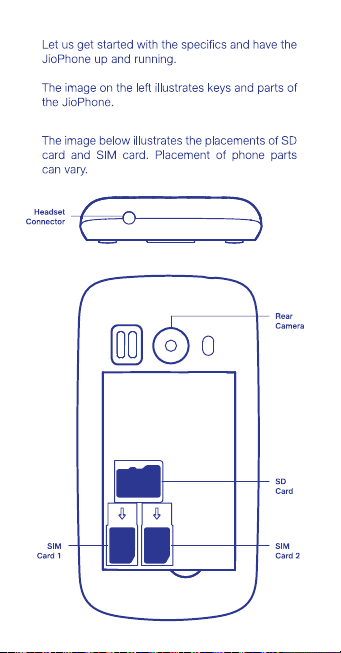
a) Insert Jio SIM card, battery and memory card.
Important: This Phone is designed to
work only when sim slot 1 has active Jio SIM
card and comes with a pre-installed Jio SIM
card in sim slot 1.
Follow the next steps to replace it.
Note Switch OFF your phone and disconnect the
charger.
1 To remove back cover, gently pull it using the
indentation at the back side of your phone.
2 Take the battery out.
3 Insert your Jio SIM card into SIM card slot 1.
It is for Nano SIM card only.
4 Insert a memory card into the SD card slot.
SD Slot It is for External memory card.
5 To insert the battery, slide it into the
compartment ensuring that the three terminals
match the three contact points on your phone.
6 Reattach the back cover.
Page 9
Page 10
Page 11
Page 12

Page 13

JioPhone Features
Let us learn about the amazing features of
the JioPhone.
Call supports True 4G VOLTE calls including
popular options such as Speed dial, Recent,
Contacts and Emergency call key.
Network supports True 4G VoLTE (HD Voice and
Video Call) and 2G support with another sim slot.
Messaging supports SMS and popular options.
Internet supports 4G Data, supports browsing.
Languages supports English and multiple Indian
languages.
Dual SIM device comes with Dual sim support.
kindly ensure sim slot 1 has Jio SIM card to get
4G VoLTE services, add another sim to avail the
2G connectivity on SIM slot 2.
SPECIAL FEATURES AND APPS
Connect to TV
Watch your favourite movies and television
shows on your TV from the JioPhone with the
help of a JioMediaCable. This feature works on
any TV set, be it CRT, LCD, or a Smart TV with
JioMediaCable.
Page 14
Page 15
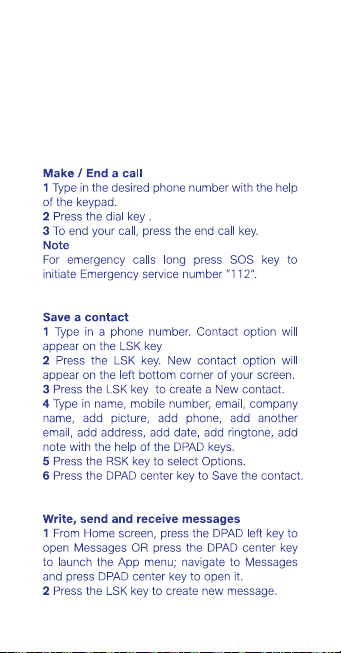
Basic Functions
1 CALL & MESSAGE
Page 16
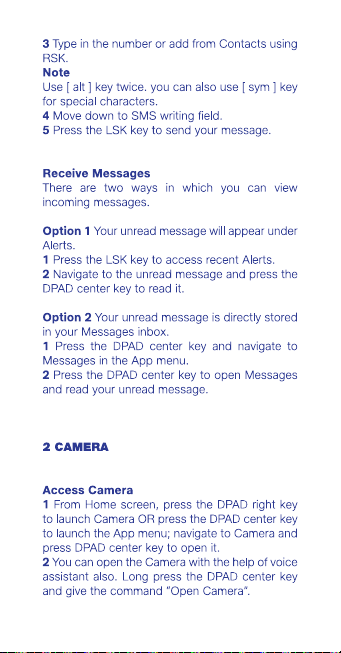
Page 17
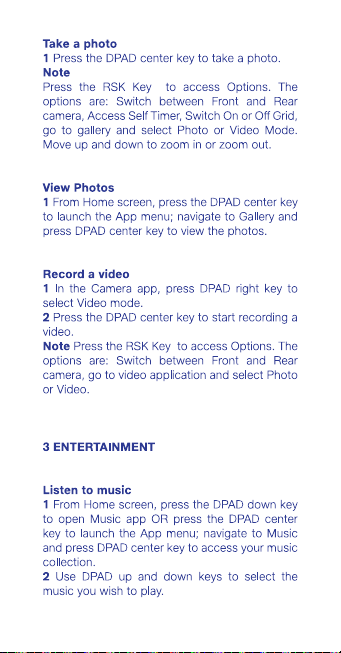
Page 18

Play FM radio
1 From Home screen, press the DPAD center key
to launch the App menu; navigate to FM Radio
and press DPAD center key to open it.
2 Use DPAD left and right keys to select the radio
station you wish to listen to.
Note You can play or pause the radio by pressing
the LSK key.
Play a video
1 From Home screen, press the DPAD center key
to launch the App menu; navigate to Video and
press DPAD center key to open it.
2 Use DPAD up and down keys to select the
video you wish to play.
4 CLOCK & CALENDAR
Set an alarm
1 From Home screen, press the DPAD center key
to launch the App menu; navigate to Clock and
press DPAD center key to open it.
2 Press the LSK key to select New Alarm option
on the bottom left corner of the screen.
3 Press the DPAD center key to select the time.
4 Press the RSK key to save the alarm.
Note You can repeat this alarm, set a ringtone,
opt for vibrate option, and assign this alarm a
name for reference.
Add a calendar event
1 From Home screen, press the DPAD center key
to launch the App menu; navigate to Calendar
and press DPAD center key to open it.
Page 19
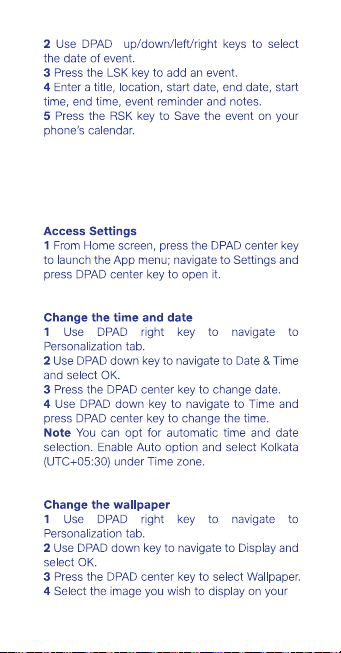
5 PHONE SETTINGS
Page 20
Page 21

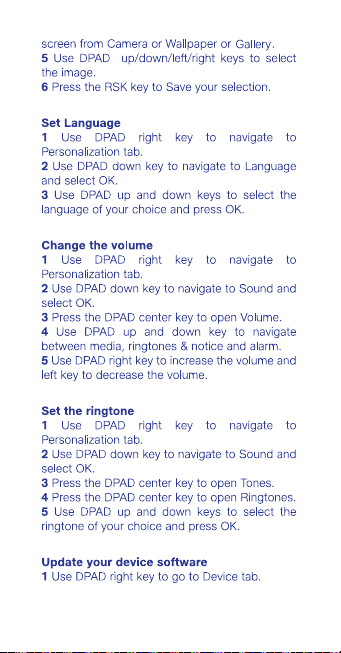
2 Use DPAD center key to choose Software
update option, select OK and follow instructions.
Factory reset
1 Use DPAD right key to go to Device tab.
2 Use DPAD down key to navigate to Reset
Phone and select OK.
3 Press the RSK key to reset your phone to
factory settings.
Model number and serial number (IMEI)
1 Use DPAD right key to go to Device tab.
2 Press the DPAD center key to open Device
Information.
Model
You can view the model number and software.
IMEI
3 Use DPAD down key to navigate to More
Information and select OK.
You can view the IMEI number.
6 BROWSER
Browse the web
1 From Home screen, press Browser key to
launch OR press the DPAD center key to launch
the App menu; navigate to Browser and press
DPAD center key to open it.
2 Press the LSK key to search for your website of
choice.
3 Type in the URL and press the DPAD center key.
Page 22
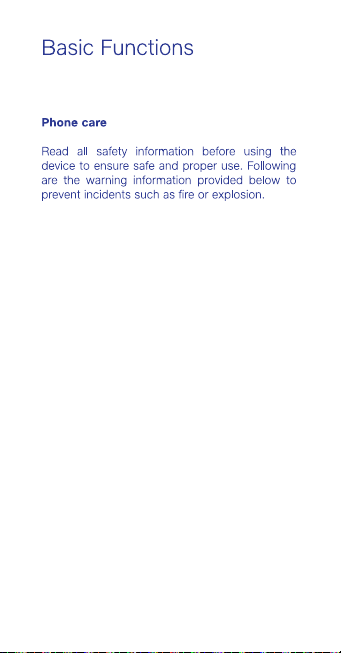
Do not expose the device to physical impact
1
or damage.
Do not carry your device in your back pockets
2
or on your waist.
Use manufacturer-approved batteries,
3
chargers, accessories, and supplies.
Prevent the multipurpose jack and battery
4
terminals from contacting conductive
elements, such as metal or liquids.
Do not touch the device with wet hands. Also,
5
do not use the device in humid environments,
such as rest rooms, or during water-based
activities, such as swimming.
If any part of the device is cracked or broken,
6
or if the device becomes very hot, stop using
the device immediately and take it to a Device
Care Centre.
Do not turn on or use the device when the
7
battery compartment is exposed.
Following are the warnings below to prevent
8
injury to people or damage to the device
a) Do not store your device in very hot or very
cold areas. It is recommended to use your
device at temperature between 5 to 35
degree Celsius.
b) Do not use your device outdoor during a
thunderstorm.
Page 23
1
2
3
1
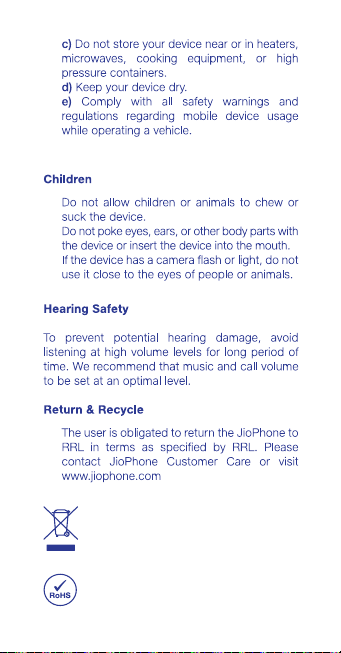
This marking on the product accessories or literature indicates that the
product and its electronic accessories
(such as charger) should not be
disposed with other household waste.
This product is ROHS compliant.
Page 24
Page 25
3
Page 26
 Loading...