

Page 1

Wall Mountable Bluetooth Music
System with CD
USER MANUAL
JBS-225
PLEASE READ THIS USER MANUAL COMPLETELY BEFORE OPERATING THIS UNIT AND
RETAIN THIS BOOKLET FOR FUTURE REFERENCE.
Page 2

E-1
DEAR JENSEN® CUSTOMER
Selecting fine audio equipment such as the unit you've just purchased is only the start of your
musical enjoyment. Now it's time to consider how you can maximize the fun and excitement your
equipment offers. This manufacturer and the Electronic Industries Association's Consumer
Electronics Group want you to get the most out of your equipment by playing it at a safe level.
One that lets the sound come through loud and clear without annoying blaring or distortion and,
most importantly, without affecting your sensitive hearing.
Sound can be deceiving. Over time your hearing "comfort level" adapts to higher volumes of
sound. So what sounds "normal" can actually be loud and harmful to your hearing. Guard
against this by setting your equipment at a safe level BEFORE your hearing adapts.
To establish a safe level:
• Start your volume control at a low setting.
• Slowly increase the sound until you can hear it comfortably and clearly, and without
distortion.
Once you have established a comfortable sound level:
• Set the dial and leave it there.
Taking a minute to do this now will help to prevent hearing damage or loss in the future. After all,
we want you listening for a lifetime.
We Want You Listening For a Lifetime
Used wisely, your new sound equipment will provide a lifetime of
fun and enjoyment. Since hearing damage from loud noise is
often undetectable until it is too late, this manufacturer and the
Electronic Industries Association's Consumer Electronics Group
recommend you avoid prolonged exposure to excessive noise.
Customer's Record:
The serial number of this product is found on its back cover. You should note the serial number
of this unit in the space provided as a permanent record of your purchase to aid in identification
in the event of theft of loss.
Model Number: JBS-225 Serial Number: ____________________
Page 3

E-2
WARNING
TO PREVENT FIRE OR SHOCK HAZARD, DO NOT USE THIS PLUG WITH AN
EXTENSION CORD, RECEPTACLE OR OTHER OUTLET UNLESS THE BLADES CAN BE
FULLY INSERTED TO PREVENT BLADE EXPOSURE. TO PREVENT FIRE OR SHOCK
HAZARD, DO NOT EXPOSE THIS APPLIANCE TO RAIN OR MOISTURE.
The Caution Marking is located at the back enclosure of the apparatus.
IMPORTANT SAFETY INSTRUCTIONS
1. Read these instructions.
2. Keep these instructions.
3. Heed all warnings.
4. Follow all instructions.
5. Do not use this apparatus near water.
6. Cleaning-Unplug this product from the wall outlet before cleaning. Do not use liquid cleaners
or aerosol cleaners. Clean only with dry cloth.
7. Do not block any ventilation openings. Install in accordance with the manufacturer’s
instructions.
8. Do not place this product on an unstable cart, stand, tripod, bracket, or
table. The product may fall, causing serious injury to a child or adult,
and serious damage to the product. Use only with a cart, stand, tripod,
bracket, or table recommended by the manufacturer, or sold with the
product. Any mounting of the product should follow the manufacturer’s
instructions, and should use a mounting accessory recommended by
the manufacturer. A product and cart combination should be moved with care-quick stops,
excessive force and uneven surfaces may cause the product and cart combination to
overturn.
9. Do not install near any heat sources such as radiators, heat registers, stoves, or other
apparatus (including amplifiers) that product heat.
10. Do not defeat the safety purpose of the polarized or grounding-type plug. A polarized plug
has two blades with one wider than the other. A grounding type plug has two blades and a
third grounding prong. The wide blade or the third prong is provided for your safety. If the
provided plug does not fit into your outlet, consult an electrician for replacement of the
obsolete outlet.
11. Protect the power cord from being walked on or pinched particularly at plugs, convenience
receptacles, and the point where they exit from the apparatus.
12. Only use attachments/accessories specified by the manufacturer.
13. Unplug this apparatus during lightning storms or when unused for a long periods of time.
Page 4

E-3
14. Refer all servicing to qualified service personnel. Servicing is required when the apparatus
has been damaged in any way, such as power-supply cord or plug is damaged, liquid has
been spilled or objects have fallen into the apparatus, the apparatus has been exposed to
rain or moisture, does not operate normally, or has been dropped.
15. This appliance shall not be exposed to dripping or splashing water and that no object filled
with liquids such as vases shall be placed on the apparatus.
16. Do not overload wall outlet. Use only power source as indicated.
17. Use replacement part as specified by the manufacturer.
18. Upon completion of any service or repairs to this product, ask the service technician to
perform safety checks.
19. Power Sources - This product should be operated only from the type of power source
indicated on the marking label. If you are not sure of the type of power supply to your home,
consult your product dealer or local power company. For products intended to operate from
battery power, or other sources, refer to the operating instruction.
20. Object and Liquid Entry - Never push objects of any kind into this product through openings
as they may touch dangerous voltage points or short-out parts that could result in a fire or
electric shock. Never spill liquid of any kind on the product.
21. Damage Requiring Service - Unplug this product from the wall outlet and refer servicing to
qualified service personnel under the following conditions:
a) When the power-supply cord or plug is damaged,
b) If liquid has been spilled, or objects have fallen into the product,
c) If the product has been exposed to rain or water,
d) If the product does not operate normally by following the operating instructions. Adjust
only those controls that are covered by the operating instructions as an improper
adjustment of other controls may result in damage and will often require extensive work
by a qualified technician to restore the product to its normal operation.
e) If the product has been dropped or damaged in any way, and
f) When the product exhibits a distinct change in performance - this indicates a need for
service.
22. The mains plug is used as disconnect device, the disconnect device shall remain readily
operable.
This symbol indicates that this product incorporates double
insulation between hazardous mains voltage and user accessible
parts.
CAUTION:
TO PREVENT ELECTRIC SHOCK,
MATCH WIDE BLADE OF AC PLUG TO WIDE SLOT.
FULLY INSERT THE PLUG TO MAIN POWER SOCKET.
SAVE THESE INSTRUCTIONS
Page 5

E-4
CAUTION
Follow the advice below for safe operations.
ON PROTECTION AGAINST LASER ENERGY EXPOSURE
o As the laser beam used in this compact disc player is harmful to the eyes, do not
attempt to disassemble the casing.
o Stop operation immediately if any liquid or solid object should fall into the cabinet.
o Do not touch the lens or poke at it. If you do, you may damage the lens and the player
may not operate properly.
o Do not put anything in the safety slot. If you do, the laser diode will be ON when the CD
door is still open.
o This unit employs a laser. The use of controls or adjustment or performance of
procedures other than those specified here may result in exposure to hazardous
radiation.
ON SAFETY
• When connecting and disconnecting the AC power, grip the AC cord plastic plug and not the
cord itself. Pulling the cord may damage it and create hazard.
• When you are not going to use the unit for a long period of time, disconnect the AC power cord
from the wall outlet.
ON AC VOLTAGE
• Before use, check that the rated voltage of your unit matches your local voltage.
ON CONDENSATION
• When left in a heated room where it is warm and damp, water droplets or condensation may
form inside the CD player.
• When there is condensation inside the unit, the unit may not function normally.
• Let it stand for 1 to 2 hours before turning the power on, or gradually heat the room up and dry
the unit before use.
Should any trouble occur, disconnect the AC power cord and refer servicing to qualified
personnel.
COMPLIANCE WITH FCC REGULATIONS
This device complies with Part 15 of the FCC Rules. Operation is subject to the following two
conditions:
(1) This device may not cause harmful interference, and
(2) This device must accept any interference received, including interference that may cause
undesired operation.
This equipment has been tested and found to comply with the limits for a Class B Digital Device,
pursuant to Part 15 of the FCC Rules. These limits are designed to provide reasonable protection
against harmful interference in a residential installation. This equipment generates, uses and can
Page 6

E-5
radiate radio frequency energy and, if not installed and used in accordance with the instructions,
may cause harmful interference to radio communications. However, there is no guarantee that
interference will not occur in a particular installation. If this equipment does cause harmful
interference to radio or television reception, which can be determined by turning the equipment off
and on, the user is encouraged to try to correct the interference by one or more of the following
measures:
- Reorient or relocate the receiving antenna.
- Increase the separation between the equipment and receiver.
- Connect the equipment into an outlet on a circuit different from that to which the receiver is
connected.
- Consult the dealer or an experienced radio/TV technician for help.
CAUTION: Changes or modifications not expressly approved by the party responsible for
compliance could void the user’s authority to operate the equipment.
PROTECT YOUR FURNITURE
This product is equipped with non-skid rubber 'feet' to prevent the product from moving when you
operate the controls. These 'feet' are made from non-migrating rubber material specially
formulated to avoid leaving any marks or stains on your furniture. However certain types of oil
based furniture polishes, wood preservatives, or cleaning sprays may cause the rubber 'feet' to
soften, and leave marks or a rubber residue on the furniture. To prevent any damage to your
furniture we strongly recommend that you purchase small self-adhesive felt pads, available at
hardware stores and home improvement centers everywhere, and apply these pads to the bottom
of the rubber 'feet' before you place the product on fine wooden furniture.
Page 7

E-6
INSTALLATION OPTIONS
ATTACHING THE STAND (See Illustrations Below)
A. Turn the unit over as shown below, and align the mounting blocks on the top of the stand, with
the mounting openings located on the bottom of the main unit. Once in place, the 4 mounting tabs
on the stand will align with the 4 rectangular mounting slots located on the bottom of the unit. Make
sure the mounting tabs are lined up with the slots, and slide the stand towards the front of the unit
until the mounting stand it is fully inserted, and locked in place. Make sure the base is locked firmly
in place, so it does not come off.
B. To remove the stand, use both hands to hold the stand, and using two fingers, lift the two
locking tabs marked with arrows to unlock the base. Slide the stand towards the back of the unit to
unlock. When the stand is in unlock position, pull the stand upward to remove it.
FOR WALL MOUNTING (STAND MUST BE REMOVED)
It’s important to be sure there are no electric, gas or water lines located behind the wall where you
are attaching the unit. We recommend having this speaker professionally installed. Use the
included wall mounting accessories and template to attach the sound bar to the wall.
1.
Use the supplied wall mounting instruction sheet to make marks on the wall for the plastic
anchors. Make sure the marks are level before drilling.
2.
Drill 1/4” holes on the marks.
3.
Insert the included plastic anchors into the holes until they are flush with the wall.
4. Screwing the 2 included flat head screws into the plastic anchor holes and tighten the screws.
5. When the screws are tightened, the screw heads should be about ¼” away from the mounting
wall. Line up the keyhole slots located on the back of the main unit with screws in the wall.
6. Hang the unit onto the screws.
Page 8
E-7
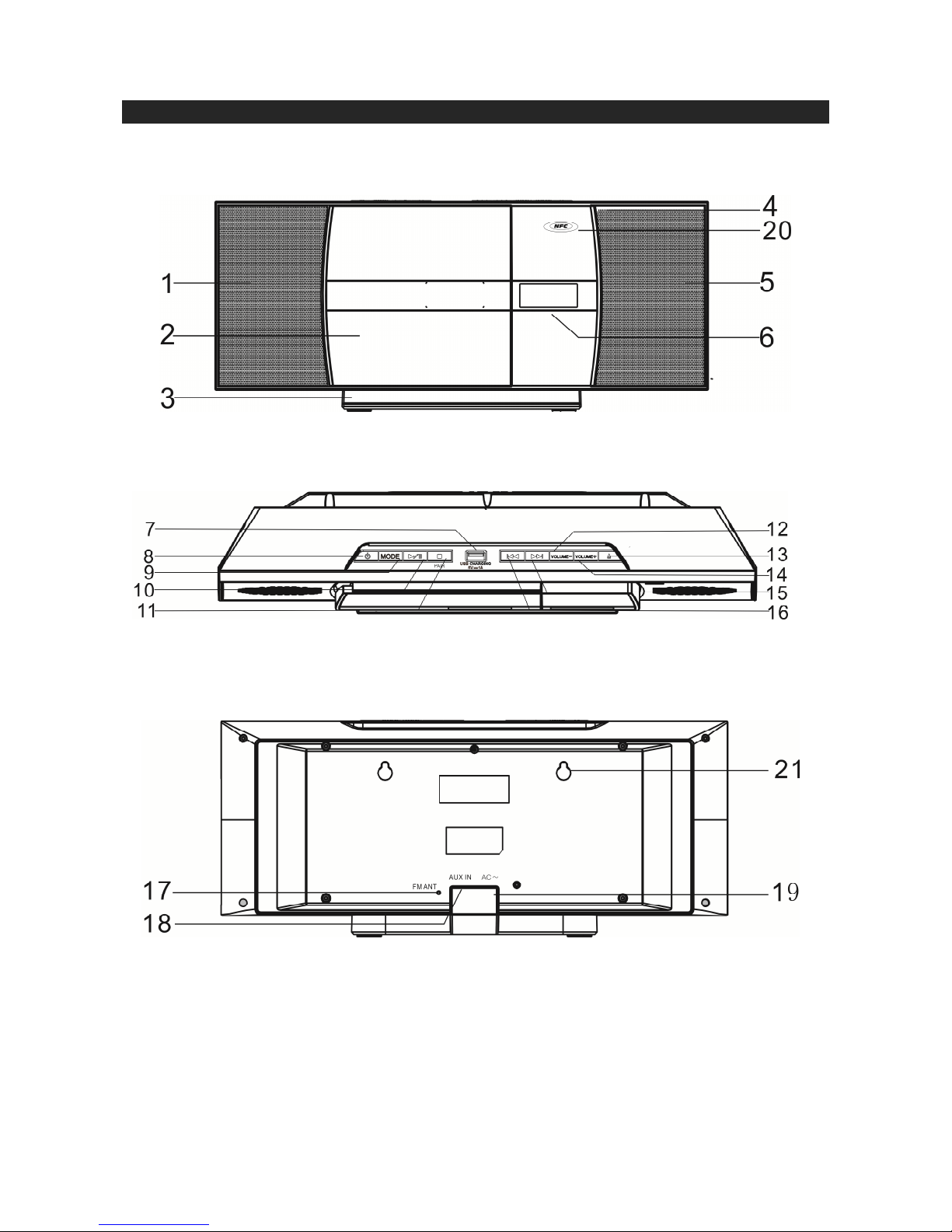
LOCATION OF CONTROLS
MAIN UNIT
Page 9

E-8
REMOTE CONTROL
1. LEFT SPEAKER 12. VOLUME DOWN (-) BUTTON
2. CD COMPARTMENT 13. CD DOOR OPEN/CLOSE BUTTON
3. DETACHABLE STAND 14. VOLUME UP (+) BUTTON
4. REMOTE SENSOR
15. CD/BLUETOOTH SKIP NEXT
/
FM TUNE+ BUTTON
5. RIGHT SPEAKER
16. CD/BLUETOOTH SKIP PREVIOUS /
FM TUNE- BUTTON
6. LCD DISPLAY 17. FM WIRE ANTENNA
7. USB CHARGING PORT 18. AUX IN JACK
8. POWER ON/STANDBY BUTTON
19. AC POWER CORD
9. FUNCTION MODE BUTTON
20. NFC LINKING POINT
10. CD/BLUETOOTH
PLAY/PAUSE BUTTON
21. Wall Mounting Keyholes
11. CD STOP BUTTON/
BLUETOOTH PAIR BUTTON
1. POWER ON/STANDBY BUTTON
12. MODE BUTTON
2. SLEEP BUTTON 13. CD PLAY MODE BUTTON
3. EQ BUTTON
14. CD/BLUETOOTH SKIP NEXT
/
FM TUNE+ BUTTON
4. MEMORY/CLOCK SET BUTTON
15. PLAY/PAUSE BUTTON
5. CD/BLUETOOTH SKIP PREVIOUS /
FM TUNE- BUTTON
16. FM MONO/STEREO BUTTON
6. X-BASS BUTTON 17. STOP BUTTON
7. TUNER PRESET- BUTTON
18. TUNER PRESET+ BUTTON
8. MUTE BUTTON 19. VOLUME DOWN (-) BUTTON
9. CD DOOR OPEN/CLOSE BUTTON 20. VOLUME UP (+) BUTTON
10. SNOOZE BUTTON 21. INFRARED TRANSMITTER
11. ALARM SET/ON/OFF BUTTON 22. BATTERY COMPARTMENT
Page 10

E-9
GETTING STARTED
ACCESSORIES INCLUDED
Carefully remove the unit and all accessories from the package.
Please verify that you have all the following accessories before recycling the gift box.
• Main Unit and Stand
• User Manual
• Remote control
• Wall mounting instruction sheet
• Wall mounting kit (2 screws and 2 plastic anchors)
POWER SOURCE
This unit operates on 120 VAC ~ 60 Hz AC house current and requires one 3V type CR2025
Lithium battery (included) for remote control. Do not attempt to operate the unit from any other
power source. You could cause damage to the unit and void your warranty.
AC Power Connection
An AC power is required for operating the main unit.
To connect the unit to 120V~ 60Hz AC Outlet, firmly and securely insert the AC plug of the power
cord into a power outlet rated at 120 VAC~60 Hz.
NOTE ON NON-MAGNETICALLY SHIELDED SPEAKERS
This unit is not magnetically shielded and may cause color distortion on the screen of some TVs or
video monitors. To avoid this, you may need to move the unit further away from the TV or monitor
if unnatural color shifts or image distortion occurs.
Remote Control
The remote control operates on one CR2025 battery (included). To
activate the remote control, remove the insulation tab inserted in the
battery compartment.
When the operation of the remote control becomes intermittent or
unsatisfactory, replace the original battery with a new 3-volt lithium
battery.
1. Press down on the compartment cover, slide out the battery
holder from the remote control case.
2. Replace the 3V CR2025 battery. Be sure the battery is installed
correctly. The remote will not work if the battery is installed with
the wrong polarity.
CAUTION:
1.)Danger of explosion if the battery is replaced incorrectly.
2.)Replace only with the same or equivalent type battery.
3. Insert the battery holder back into the battery slot.
NOTE: Only use a well-known brand of battery to ensure the
longest life and best performance.
Page 11

E-10
TURNING THE UNIT POWER ON/OFF
1. In Off (standby) mode, tap the POWER Button on main unit or remote control to turn the
unit ON. The unit will turn on, and the last selected input mode icon will show on LCD display.
2. To turn the unit OFF (standby), tap the POWER Button on main unit or remote control again.
The LCD DISPLAY will dim and show the current time.
SETTING THE CLOCK (REMOTE CONTROL ONLY)
After plugging in the AC power, “12:00” will appear and start blinking on the LCD display.
1. In Power Off (Standby) mode, press and hold the TIME SET Button on remote control. The 12
HOUR format will show in display and digit “12” will keep blinking.
2. Tap the or Button on remote control or main unit to select 24 Hour format if
necessary. Otherwise, press the TIME SET Button to confirm 12 Hour clock format and enter
clock setup mode, Hour digits will be flashing.
3. Tap the or Button on remote control or main unit to adjust the hour. Press and hold
the button for fast advance / reverse setting.
Note: Make sure the hour is set so that the PM indicator is displayed correctly.
4. Press the TIME SET Button on remote control to confirm the hour setting, the minute digits will
flash to prompt for input.
5. Tap the or Button on remote control or main unit to adjust the minute. Press and hold
the button for fast advance / reverse setting.
6. Press the TIME SET Button on remote control again to complete the setting.
NOTE: The clock and radio station presets will need to be reset if the power is interrupted or in the
event of a power outage. “12:00” will appear and start blinking on the LCD display to notify
you that the power was interrupted and the clock will need to be reset. Please follow steps
1-6 above to reset the clock.
Battery Precautions
Replacement of batteries must be done by an adult.
The supply terminals are not to be short-circuited.
Non-rechargeable batteries are not to be recharged.
Exhausted batteries are to be removed.
Only batteries of the equivalent type are to be used.
Batteries are to be inserted with the correct polarity.
Dispose of batteries properly. Do not dispose of batteries in fire. The
batteries may explode or leak.
WARNING
DO NOT INGEST BATTERY, CHEMICAL
BURN HAZARD
The remote control supplied with this product contains a
coin/button cell battery. If the coin/button cell battery is
swallowed, it can cause severe internal burns in just 2 hours
and can lead to death.
Keep new and used batteries away from children. If the battery
compartment does not close securely, stop using the product
and keep it away from children.
If you think batteries might have been swallowed or placed
inside any part of the body, seek immediate medical attention.
Page 12

E-11
CHECKING THE CLOCK (REMOTE CONTROL ONLY)
The unit will show current time in standby mode. To check the current time in Power ON mode,
press and hold the TIME SET Button on remote control, the current time will show for 10 seconds
and then return to the previous screen.
ALARM OPERATION (REMOTE CONTROL ONLY)
SETTING THE ALARM CLOCK
This function allows the system to turn on automatically and wake you using a beeping alarm, the
CD or the FM radio.
1. In standby mode, press and hold the ALARM Button on remote control, display will show “oN”
for 3 seconds and then alarm time 12:00 will appear in display. Hour digits of alarm clock start
flashing.
2. Press the / Button to set the hour and then press the ALARM Button
again to confirm, Minute digits will be flashing.
Note: Make sure the hour is set so that the PM indicator is displayed correctly.
3. Press the / Button to set the minute and then press the ALARM Button
again to confirm, display will show “oFF” for 3 seconds and then alarm off time 1:00 will appear
in display. Hour digits of alarm off time start flashing.
4. Press the / Button to set the hour and then press the ALARM Button
again to confirm, Minute digits will be flashing.
5. Press the / Button to set the minute and then press the ALARM Button again to
confirm, alarm wake up source will appear in display.
6. Press the / Button to select wake to radio, CD or Beep and then press the ALARM
Button again to confirm, alarm volume level will be flashing.
Note: Alarm volume level setting is not available in beeping alarm setting.
7. Press the / Button to preset the wake up alarm volume level and then press the
SELECT Button to finish alarm setup.
NOTE:
1.)
If “Wake to CD” is selected but a CD is not inserted, the alarm will default to the Beeping Alarm
automatically when the alarm wake time is reached.
2.)
For ‘Wake to Radio”, the system will default to the last radio station listened to before switching
off.
ACTIVE/DE-ACTIVE ALARM FUNCTION
1. To active ALARM, tap the “ALARM” Button once, the alarm icon “ ” will shown on LCD
display.
2. To cancel ALARM function by tap again the “ALARM” Button until the alarm icon “ ” goes off.
Wake to Radio, CD or Beeping Alarm
• When the alarm time is reached, the CD, radio or beeping alarm will sound for the time you
set then shut off and reset itself for the following day (without pressing the snooze button).
You may activate the snooze function manually after the alarm sounds by pressing the
SNOOZE Button. The buzzer stops for the snooze time (9 minutes) then comes again.
The snooze operation can be repeated again within the remaining minutes from the set
alarm time.
NOTE: remaining time must be greater than 9 minutes from the alarm off time, otherwise
alarm will stop until next day.
• To stop the alarm immediately after it sounds, tap the Power Button on remote control
or on main unit once. It resets itself for the following day.
• To cancel the following day alarm, tap the ALARM Button once, ALARM icon “
”
goes off.
Page 13
E-12
SNOOZE FUNCTION
Press the SNOOZE Button on remote control once to terminate the alarm mode temporarily, and
the alarm will re-start again after 9 minutes on each press. To cancel the SNOOZE mode, press
the POWER Button once. The alarm icon “” stops flashing.
RADIO OPERATION
1. Tap the POWER Button on main unit or remote control to turn on the unit.
2. Tap the MODE Button on main unit or remote control to select FM mode, the FM radio
frequency appear in display.
3. To manually tune to a specific radio station, tap the or Button on either main unit or
remote control repeatedly. Use the manual tuning method to tune in weaker stations that are
bypassed during Automatic Tuning.
4. To automatically tune to the next available radio station, press and hold the or Button
on main unit or remote control for 1-2 seconds until frequency readout on the display begins to
scan and then release the button. The tuner will stop scanning when it receives the next
broadcasting station of adequate signal strength.
5. Press the volume control VOLUME+/– Button on main unit or remote control to adjust the
volume control to the desired volume level.
FM & FM-Stereo reception
- When listening to the FM radio, press the ST./MONO Button on remote control to switch
between stereo mode and mono mode. The FM stereo icon “ST” will appear on the display if
unit is in stereo mode. It is preferable to receive the program in mono when you are receiving a
weak station.
HINTS FOR BEST RECEPTION:
The receiver has a build-in FM wire antenna hanging from the back of the cabinet. This wire
should be totally unwrapped and fully extended for the best reception.
NOTE: Automatic tuning depends on the signal strength of the broadcasting station, so weak
stations may be skipped. You can manually tune to find the weak stations if a station gets
skipped. With strong signals, the tuner may stop before it reaches the actual broadcast
frequency, so you may need to manually tune for the best reception.
PRESET RADIO STATIONS
1. Press the POWER Button on main unit or remote control to turn on the unit.
2. Tap the MODE Button on main unit or remote control to select FM radio mode.
3. Tune to the desired radio station either by “manually” or “automatically” tuning method.
4. Tap the MEM. Button on remote control, the next available preset memory number flash in
the LED display. (Note:”P01” will blink in the display if you are programming preset for first
time)
5. Tap the PRESET or Button on remote control to select the preset number you want to
assign the station to.
6. Tap the MEM. Button on remote control to confirm the setting.
7. Repeat above steps 3 - 6 to preset up to 30 FM stations.
RECALLING PRESET MEMORY CHANNELS
In radio mode, recall the pre-set channels by pressing the PRESET or Button on remote
control repeatedly.
NOTE:
The clock and FM radio station presets will need to be reset if the power is interrupted or in the
event of a power outage. “12:00” will appear and start blinking on the LCD display to notify you
that the power was interrupted and the clock will need to be reset. Please follow steps 1-7
above to resave the preset stations.
Page 14
E-13
CD PLAYER OPERATION
PLEASE READ THIS IMPORTANT INFORMATION:
CD mechanisms used in devices like this are designed to read all commercial CDs. It will also read
self-compiled CD-R/CD-RW discs, but it may take up to 10 seconds for the actual playback to
begin. If playback does not start, it is likely due to the quality of the CD-R/RW disc and/or the
compatibility of the CD compilation software. The manufacturer is not responsible for the playback
quality of CD-R/RW discs.
Do not attach a label or seal to either side of the CD-R/RW disc. It may cause a malfunction.
PLAYING A CD
1. Press the POWER Button on main unit or remote control to turn on the unit.
2. Tap the MODE Button on remote control or main unit to select CD mode and then press the
OPEN/CLOSE Button to open the CD door.
3. Place an audio CD on th e center spindle with its label side facing ou t tow a rds the
CD D O O R. Press t h e Button to close the CD Door.
4. Unit starts to read the disc, “Cd” shows in display and flashing. After few seconds, the total
number of tracks show one second and then total time of the CD will be shown on the LCD
DISPLAY.
5. Press the PLAY/PAUSE Button on main unit or remote control, PLAY indicator shows in
display, the CD will start playing from first track.
6. Press the volume control VOLUME+/- Button on main unit or remote control to adjust to the
desired volume level.
7.
To pause playback, press the PLAY/PAUSE Button on main unit or remote control. The
track time will be paused and
PAUSE indicator will show in display. To resume playing, press
the CD
PLAY/PAUSE
Button again.
8. You can choose to play your favorite track directly by pressing either the SKIP NEXT
Button or SKIP PREVIOUS Button. The LCD Display will indicate the correct track number
selected.
9. To locate a particular section within a track, press and hold the or Button until the
section is found. Release the button to continue playing your selection.
10.
To stop playing, press the STOP Button.
11. Turn off the JBS-225 when you are done listening.
SKIP AND SEARCH MODE
1. During Play or Pause mode, tap the SKIP NEXT or SKIP PREVIOUS Button to go
to the next track or go back to the beginning of the current track.
2. During playback, press and hold the or Button to search within the current track with
audible high speed playback.
DIFFERENT PLAY MODES (REMOTE CONTROL ONLY)
Press the PLAY MODE Button on remote control repeatedly to select different of play modes
when CD or MP3 CD is playing.
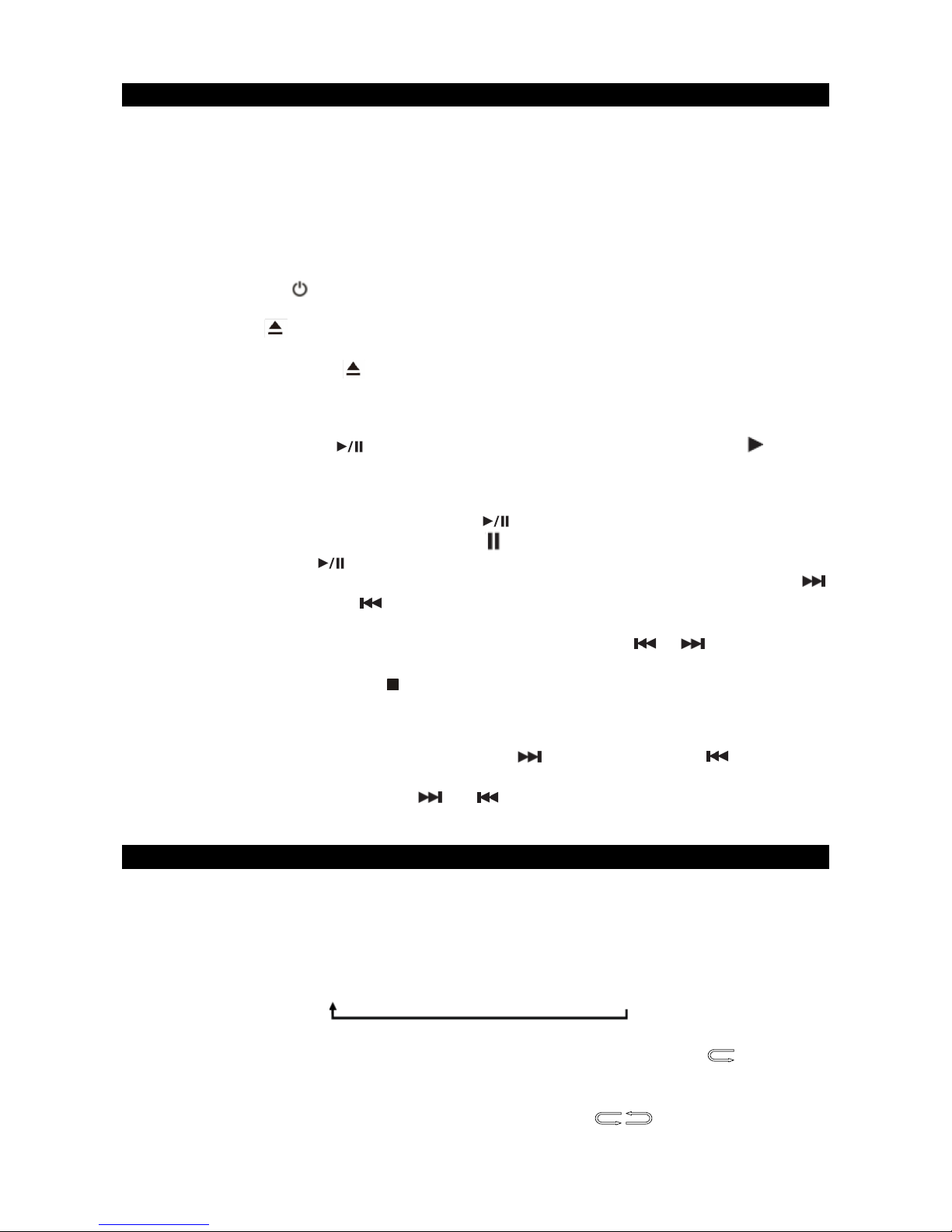
When playing CD, the play modes are shown as below.
Repeat 1 Repeat All Random Normal
REPEAT 1 - the track being played and will repeat continuously. Repeat one icon shows in
display.
REPEAT ALL - all tracks will repeat continuously. Repeat All icon
shows in display.
Page 15

E-14
RANDOM – the tracks in the disc will be played in random sequence. Random icon “RDM” shows
in display.
PLAY TRACK SEQUENCE PROGRAMMING (REMOTE CONTROL ONLY)
This function allows the tracks to be played in a programmed sequence.
NOTE: Program can only be set in STOP mode.
1. Tap the MEM. Button on remote control, the program track number “P01” and the icon “MEM”
show in the LED display. (Note:”00 P-01” will be in the display if you are programming first
time).
2. Use the or Button on main unit or remote control to select the desired track. The
track number will be shown in display.
3. Tap the MEM. Button on remote control to store the selected track in the memory, the next
program number will advance one (i.e.“P02”) in LCD display.
4. Repeat steps 2 to 3 to store more tracks in the memory. You can store up to 30 tracks.
Display will show “FULL” after 30 tracks have been programmed.
5. Tap the
Button
on main unit or remote control to start playing the CD or MP3 CD in the
programmed sequence.
6. Press the PLAY MODE Button on remote control to select Repeat 1/All or Random play if
necessary.
7. To stop playing, press the STOP Button on main unit or remote control.
8.
To cancel the program play, press the STOP Button on main unit or remote control twice,
“MEM” icon disappears from display.
BLUETOOTH OPERATION
Press the Power Button to turn ON the unit and follow the directions below to connect via
Bluetooth.
CONNECTING YOUR BLUETOOTH DEVICE USING NFC
ABOUT NFC
NFC (Near Field Communication) is a technology enabling short-range wireless communication
between various devices, such as mobile phones and IC tags Thanks to the NFC function, data
communication can be achieved easily just by touching the relevant symbol or designated location
on NFC compatible devices.
1. Make sure your Smartphone or Bluetooth device has the NFC feature, and it is turned ON
(enabled).
2. Turn on the JBS-225 power, press the MODE Button on main unit or remote control to enter
Bluetooth mode, the Bluetooth “bt” message will be shown in display and flashing.
Note : If the JBS-225 is connected to other smartphone, press and hold the PAIR Button on
remote control or main unit for 3 seconds to enter Bluetooth paring mode, display will
show “PAIr” message and flashing.
3. Touch the back of your smartphone to the NFC linking point
icon
located on the front
panel of the unit (near VOLUME+ button). Check the owner’s manual of your Bluetooth device
to locate the NFC touch point if you are not sure where it is.
4. If the JBS-225 is in pairing mode, it will turn on and enter Bluetooth mode automatically and
pair with your smartphone. Display will change show “BT” steadily and Bluetooth icon turns
ON.
5. Some smartphones may ask you to confirm the pairing if they are not paired before.
NOTE: If you have multiple NFC compatible devices to link, just touch the smartphone to a
different device to switch the connection to that device. For example, when your smartphone is
connected to the JBS-225, just touch the linked smartphone to the system to disconnect it and
then touch another smartphone you want to change the Bluetooth connection to (one touch
Page 16

E-15
connection switching). The connection will automatically be transferred from your smartphone to
the new device.
NOTE ON CONNECTING
Some 3rd party batteries and/or add-on wireless charging coils may interfere with using the NFC
feature on this unit. If you followed the directions above for connecting, but find that you are still
having problems connecting using NFC, we recommend checking to be sure your Bluetooth device
is only using factory authorized parts and batteries.
PAIRING (Linking) a BLUETOOTH ENABLED cell phone OR OTHER BLUETOOTH
ENABLED DEVICE to the JBS-225
If the JBS-225 has never been paired with a Bluetooth device before. You need to follow the
pairing instructions below to link the JBS-225 with your Bluetooth device.
1. Press the POWER Button on main unit or remote control to turn on the unit.
2. Tap the MODE Button on main or remote control to select Bluetooth mode, Bluetooth “bt”
message appears in display and flashing.
3. If the JBS-225 has never been paired with a Bluetooth device before or cannot find the last
paired device, the flashing “bt” on LCD will indicate the JBS-225 is in search mode. You need
to follow the pairing instructions below to link the JBS-225 with your Bluetooth device.
• Turn on the Bluetooth function of your Bluetooth device and enable the search or scan
function to find the JBS-225.
• Select "JBS-225" from the device list when it appears on your device screen. If required,
enter the pass code “0000” to pair (link) the JBS-225 with your device.
4. After successfully pairing (linking), display will change to show “bt” steadily, the Bluetooth icon
also will show in display. You can begin playing music from your Bluetooth device
wirelessly to the speaker.
5. After selecting your favorite song, press
PLAY/PAUSE
Button on the unit or remote
control to play or pause the song.
6. Press the volume control VOLUME+/- Button on main unit or remote control to adjust to the
desired volume level.
7. Press or Button on main unit or remote control to skip to previous or next song.
8. If you want to pair the JBS-225 with another Bluetooth enabled device, press and hold the
PAIR Button for 3 seconds or turn off the Bluetooth function of device currently paired with
JBS-225 then repeat step 3 above.
Notes:
1.) Refer to the manual of your cell phone, tablet PC, computer or other Bluetooth enabled
devices for Bluetooth operation since it may vary from model to model.
2.) If your Bluetooth enabled device does not support A2DP profile, it will not play the music
through the speaker, even if paired (linked).
3.) If you are pairing (linking) your computer to the unit using Bluetooth, you may need to set the
speaker as your computer’s default sound device.
AUXILIARY INPUT OPERATION
This unit features an auxiliary audio signal input jack for connecting external audio devices like
MP3 players, Digital Audio Device and listen to them through the speakers of this unit.
1. Use an audio cable (not included) with one 3.5 mm stereo plug on each end of the cable.
2. Plug one end into the AUX IN JACK on main unit and the other end of the cable into the Lineout Jack or Headphone Jack of your external audio device.
3. Turn on the unit and external audio device.
4. Tap the MODE Button on main or remote control to select AUX mode, “AUDIO IN” icon turns
on, display shows “AU” message.
5. The volume level can now be controlled through the main unit. Operate all other functions on
the auxiliary device as usual.
Note:
•
If you connect this unit to the Line-Out Jack of your external device then you only need to
adjust the volume control of this unit. If you connect the Headphone Jack of your external
device then you may need to adjust both the volume controls of your external device and this
Page 17
E-16
unit to obtain the desirable volume setting.
•
Press the POWER Button on main unit or remote control to turn off the unit when you have
finished listening. Don't forget to switch off the power of your external device as well.
PRESET EQ (REMOTE CONTROL ONLY)
This unit provides 4 different EQ modes to enhance your listening experience. You can select the
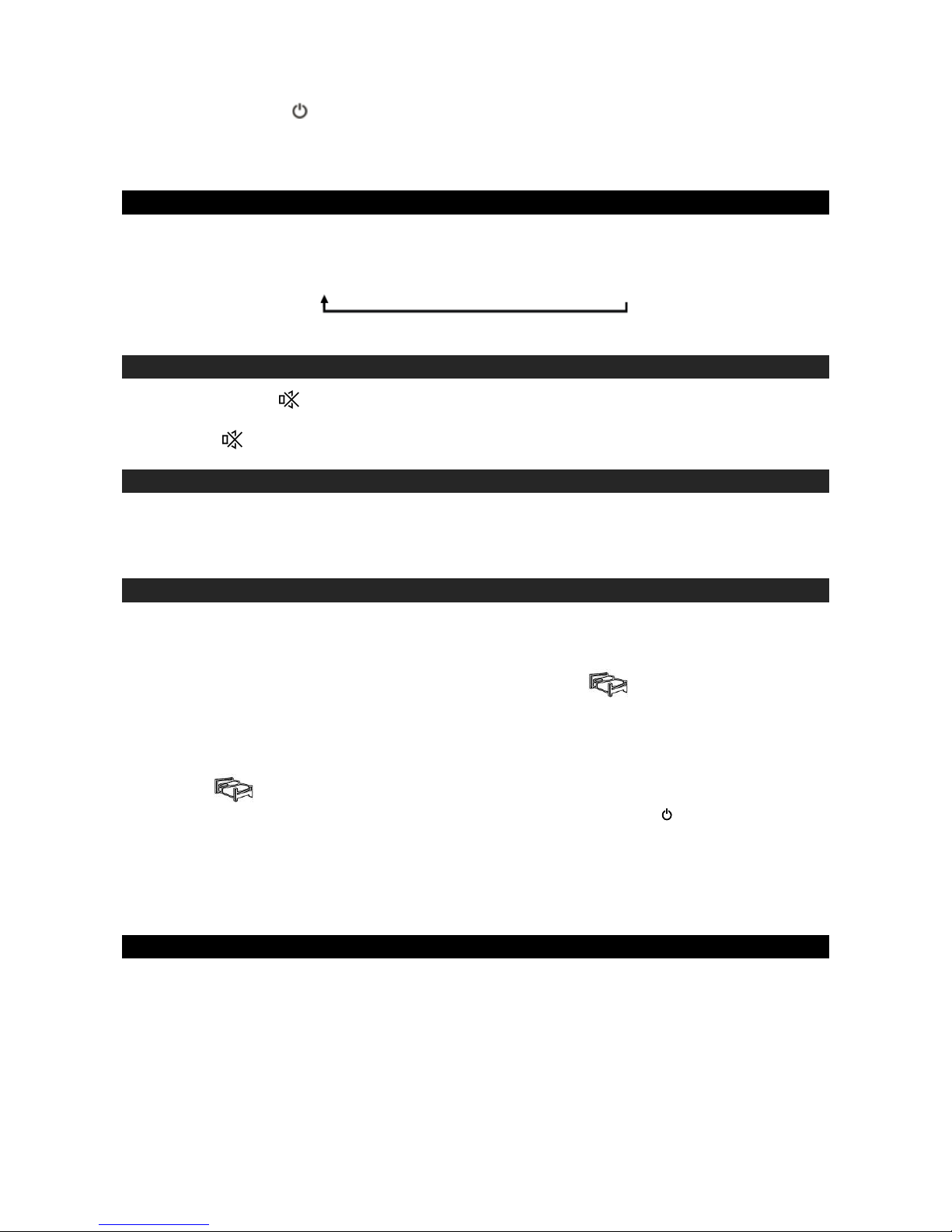
desired effect by pressing the EQ Button on remote control repeatedly at following sequence:
ROCK POPS JAZZ CLASSIC OFF
MUTE BUTTON (REMOTE CONTROL ONLY)
•
Press the MUTE Button on remote control to mute the sound output from the speaker
temporarily. The “MUTE” icon will appear in display.
•
Press the Button again or VOLUME+/- Button to resume to normal speaker playback.
X-BASS BUTTON (REMOTE CONTROL ONLY)
Press the X-BASS button on remote control if you want to enhance the bass when listening to the
system, “X-BASS” icon will appear in display. Press the button again to turn off extra bass effect,
“X-BASS” icon will disappear in display.
SLEEP OPERATIONS (REMOTE CONTROL ONLY)
The sleep timer allows you to turn the unit off after a designated time is reached.
1. To activate the sleep timer, turn the unit on and tap the MODE button to select FM radio, CD,
Bluetooth or listening to music via AUX IN.
2. Tap the SLEEP button on remote control, the sleep time icon appears on the display.
3. Repeatedly tap the SLEEP button to select a sleep time. The unit will turn off after 10, 20, 30,
40, 50, 60, 70, 80 or 90 minutes. Wait for 3 seconds after your selection for the unit to confirm
the selection, the unit will play for the selected length of time then automatically turn off.
4. To cancel the sleep timer, tap the SLEEP button repeatedly until timer shows “OFF”, the sleep
time icon disappears on the display
5. To turn the unit off before the selected length of time, press the POWER button at any time.
Notes:
1.) To check the remaining sleep time, tap the SLEEP button once.
2.) If you are falling asleep to music from an external device connected to the AUX input, the
sleep timer will shut off the power to this system but it will not turn off the external device.
CHARGING YOUR SMART PHONE OR PORTABLE DEVICE
This unit features a 1 AMP USB charging port on the top of the unit for charging your portable
device (iPod, iPhone, Android phone, etc.) when used with the USB charging cord that came with
your device.
1. Plug one end of the USB cable (not included) into the USB Charging Port located on the top
panel of the unit. Plug the other end of the cord into the device you wish to charge.
2. Observe the battery charge indicator on your device to make sure the charging process starts
normally.
3. Unplug the cable when your device is fully charged.
Page 18

E-17
CAUTION:
Before charging, please refer to the user manual of the device you wish to charge to make sure
the charging current requested does not exceed 1A (1000mA). Overloading the charging circuit
may damage the unit permanently and void the warranty.
1. The USB charging port of this unit supplies a DC 5V output at 1000 mA maximum current to
charge your smart phone or portable device battery and it cannot support any other voltage
range.
2. Make sure the device you want to charge has a battery charge rating of DC 5V only.
3. The USB port of this unit is designed for smart phone or portable device battery charging only
and it cannot support data transfer or connect to computer.
4. Do not connect the USB port of this unit to other external power charger USB ports, it may
damage both units and void the warranty.
Note:
1.) Some smart phones and portable devices use proprietary USB connections and circuitry, so
they may not charge when plugged into the USB port. Please refer to your device user manual
before you attempt to charge them.
2.) It is normal if the unit gets warm while the USB port is in use and charging your smart phone or
portable device.
3.) Do not charge your smart phone over 12 hours continuously. Disconnect your smart phone or
other portable device from the USB cord once it is fully charged.
RESETTING
If the system does not respond or has erratic operation, you may have experienced an
electrostatic discharge (ESD) or a power surge that triggered the internal computer to shut down
automatically. If this occurs, unplug the AC cord from power source, wait for 60 seconds, then plug
the AC cord to power source again. The unit will be reset, you need to setup the clock, alarm and
preset radio channels.
CARE AND MAINTENANCE
1. Do not subject the unit to excessive force, shock, dust or extreme temperature.
2. Do not tamper the internal components of the unit.
3. Clean your unit with a dry cloth. Solvent or detergent should never be used.
4. Avoid leaving your unit in direct sunlight or in hot, humid or dusty places.
5.
Keep your unit away from heating appliances and sources of electrical noise such as
fluorescent lamps or motors.
6.
If drop-outs or interruptions occur in the music during CD play, or if
the CD fails to play at all, its bottom surface may require cleaning.
Before playing, wipe the disc from the center
outwards with a good
soft cleaning cloth.
CLEANING THE UNIT
•
To prevent fire or shock hazard, disconnect your unit from the AC power source when
cleaning.
•
The finish on the unit may be cleaned with a dust cloth and cared for as other furniture, Use
caution when cleaning and wiping the plastic parts.
•
If the cabinet becomes dusty wipe it with a soft dry dust cloth. Do not use any wax or polish
sprays on the cabinet.
•
If the front panel becomes dirty or smudged with fingerprints it may be cleaned with a soft
cloth slightly dampened with a mild soap and water solution. Never use abrasive cloths or
polishes as these will damage the finish of your unit.
CAUTION: Never allow any water or other liquids to get inside the unit while cleaning.
Page 19

E-18
TROUBLESHOOTING GUIDE
If you experience difficulties in the use of this music system, please check the following or
call
1-800-777-5331 for Customer Service.
Symptom P
ossible Cause Solution
The unit does not
respond (no power)
The unit is disconnected from the
AC outlet.
Reconnect to the AC outlet.
The AC outlet has not power. Try the unit on another outlet.
Unit is ON but there is
low or no volume
Volume set too low.
Press the VOLUME+ Button
on main unit or remote control
to turn the sound level up.
No Sound
Bluetooth speaker is not linked with
the cell phone
Go through “Bluetooth
Operations” process to link the
speakers.
Speaker placement out of range
Relocate the speaker within
Bluetooth operating range
Noise or sound
distorted on FM
broadcast
Station not tuned properly.
FM wire antenna is not fully
extended.
Fine tune the FM broadcast
station.
Fully extend the FM wire
antenna.
CD player will not
play
Unit not in CD function mode. CD
is installed incorrectly.
If the CD is self-compiled, the
media used may not be compatible
with the player.
Select CD function mode. Inser
t
CD with label facing to the CD
door.
Use better quality blank
media and retest.
CD skips while
playing
Disc is dirty or scratched.
Wipe CD with clean cloth or
use another disc.
Intermittent sound
from CD Player
Dirty or defective disc.
Dirty pick up lens.
Player is subject to excessive
shock or vibration.
Clean or replace the
defective disc.
Use a CD-lens cleaning disc
to clean the lens.
Relocate the player away
from shock or vibration.
Sound is distorted Volume level is set too
high.
Decrease the volume.
Sound source is distorted. Try a different sound
source.
If you are using an external
sound source like older
generation of iPod, try
reducing the output volume
on the device itself. Also try
turning bass boost OFF or
change the EQ setting.
Unit gets warm
after extended
play at high
volume
This is normal.
Turn the unit off for a period
of time or lower volume
Page 20
E-19
SPECIFICATIONS
Power requirement:
Main unit AC input: 120V ~ 60Hz 29 W
USB output: 5V 1000 mA
Remote control: 1 x 3V CR2025 Lithium Battery
Frequency Range
Radio Band: FM 87.5 ~ 108 MHz
At Spectra, environmental and social responsibility is a core
value of our business. We are dedicated to continuous
implementation of responsible initiatives with an aim to conserve
and maintain the environment through responsible recycling.
Please visit us at http://www.spectraintl.com/green.htm for more
information on Spectra’s green initiatives or to find a recycler in your area.
The Bluetooth® word mark and logos are registered trademarks owned by Bluetooth SIG, Inc. and
any use of such marks by Spectra Merchandising Intl, Inc. is under license. Other trademarks and
trade names are those of their respective owners.
Page 21

E-20
90 DAY LIMITED WARRANTY AND SERVICE
VALID IN THE U.S.A. ONLY
SPECTRA MERCHANDISING INTERNATIONAL, INC. warrants this unit to be free from defective
materials or factory workmanship for a period of 90 days from the date of original customer
purchase and provided the product is utilized within the U.S.A. This warranty is not assignable or
transferable. Our obligation under this warranty is the repair or replacement of the defective unit or
any part thereof, except batteries, when it is returned to the SPECTRA Service Department,
accompanied by proof of the date of original consumer purchase, such as a duplicate copy of a
sales receipt.
You must pay all shipping charges required to ship the product to SPECTRA for warranty service.
If the product is repaired or replaced under warranty, the return charges will be at SPECTRA’s
expense. There are no other express warranties other than those stated herein.
This warranty is valid only in accordance with the conditions set forth below:
1. The warranty applies to the SPECTRA product only while:
a. It remains in the possession of the original purchaser and proof of purchase is
demonstrated.
b. It has not been subjected to accident, misuse, abuse, improper service, usage outside the
descriptions and warnings covered within the user manual or non-SPECTRA approved
modifications.
c. Claims are made within the warranty period.
2. This warranty does not cover damage or equipment failure caused by electrical wiring not in
compliance with electrical codes or SPECTRA user manual specifications, or failure to provide
reasonable care and necessary maintenance as outlined in the user manual.
3. Warranty of all SPECTRA products applies to residential use only and is void when products are
used in a nonresidential environment or installed outside the united States.
This warranty gives you specific legal rights, and you may also have other rights which vary from
state to state. TO OBTAIN SERVICE please remove all batteries (if any) and pack the unit
carefully and send it freight prepaid to SPECTRA at the address shown below. IF THE UNIT IS
RETURNED WITHIN THE WARRANTY PERIOD shown above, please include a proof of
purchase (dated cash register receipt) so that we may establish your eligibility for warranty service
and repair of the unit without cost. Also include a note with a description explaining how the unit is
defective. A customer service representative may need to contact you regarding the status of your
repair, so please include your name, address, phone number and email address to expedite the
process.
IF THE UNIT IS OUTSIDE THE WARRANTY PERIOD, please include a check for $40.00 to cover
the cost of repair, handling and return postage. All out of warranty returns must be sent prepaid.
It is recommended that you contact SPECTRA first at 1-800-777-5331 or by email at
[email protected] for updated information on the unit requiring service. In some cases the
model you have may be discontinued, and SPECTRA reserves the right to offer alternative options
for repair or replacement.
SPECTRA MERCHANDISING INTERNATIONAL, INC.
4230 North Normandy Avenue,
Chicago, IL60634, USA.
1-800-777-5331
To register your product, visit the link on the website below to enter your information.
http://www.spectraintl.com/wform.htm
1015 Printed in China
 Loading...