

Page 1

OPERATING INSTRUCTIONS | AMP+DACS
ELEMENT II
SUPPORT
ONLINE BY PHONE BY MAIL
JDSLABS.COM/SUPPORT
314-252-0936
9:30AM-6PM CST,
MONDAY THROUGH FRIDAY
909 N BLUFF RD
COLLINSVILLE, IL 62234
UNITED STATES
Page 2
SECTION 1
SECTION 2
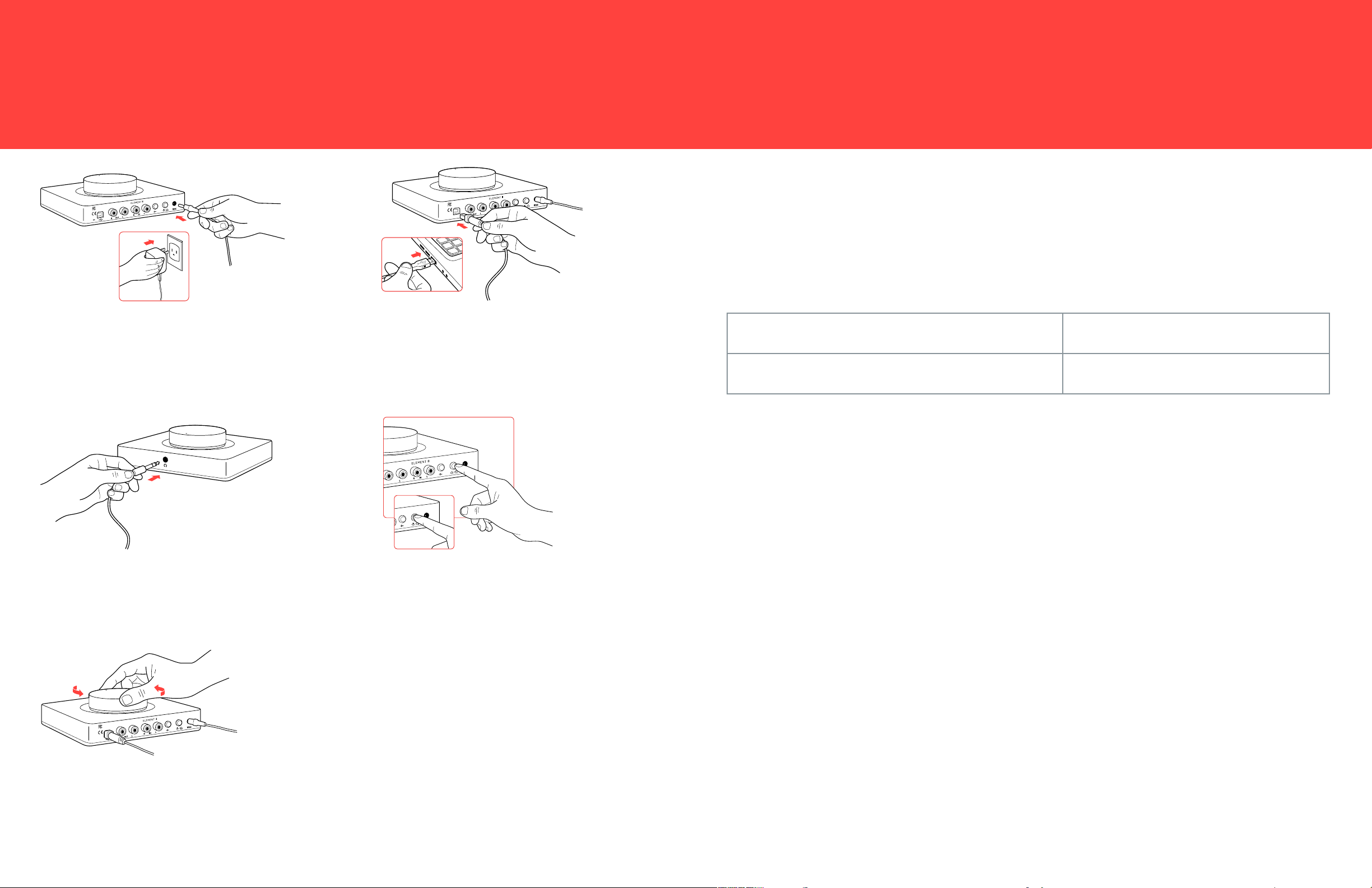
QUICK SETUP
STEP 01
Connect AC power adapter to rear power jack
(16VAC), then connect to wall outlet
STEP 02
Connect USB cable between your computer and
the USB jack
CONFIGURATION
Connectivity
Element II accepts two methods of audio input: Digital input via USB, or Analog input via RCA
jacks. Connecting an RCA cable mechanically bypasses the integrated DAC, so that the
amplier only plays audio from your external source.
Maximum RCA Analog Input Level (High Gain):
Maximum RCA Analog Input Level (Low Gain):
2.2 VRMS (+9 dBu)
9.9 VRMS (+22 dBu)
STEP 03
Connect headphones to the front
headphone output jack
Setting Gain
Press the gain button to toggle between low or high gain amplication. Always use the lowest
gain necessary.
Switch to high gain only when you’re unable to achieve desired listening volume at low gain.
STEP 04
A short press of the Power/Mode button turns
Element on, indicated by lighting beneath the
volume knob.
A long press of the Power/Mode button will
toggle between headphone or RCA Output.
Please see Connectivity and Computer Setup for
additional help.
STEP 05
Slowly raise the volume knob to an
appropriate listening level.
See listening tips on page 5
JDSLABS.COM 2 JDSLABS.COM 3
Page 3
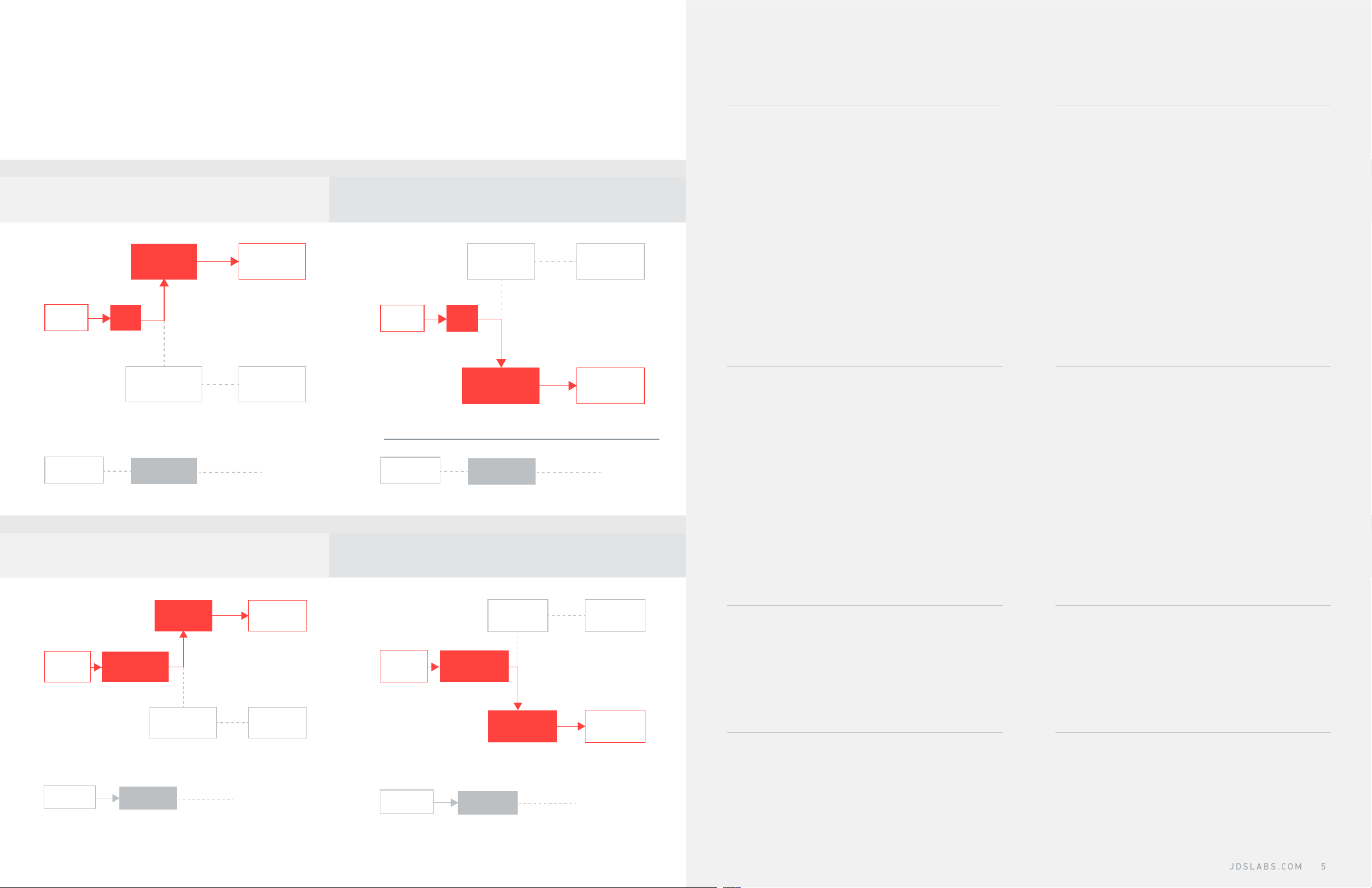
Element II Connectivity
Element II provides headphone output and RCA Preamp Outputs. Press the Power/Mode
button for at least 1 second to toggle between these modes. Only one mode is active at a time.
Volume is adjustable in either mode.
RCA INPUTS DISCONNECTED
HEADPHONE OUTPUT MODE
USB
INPUT
HEADPHONE
AMPLIFIER
DAC
AUDIO TO
HEADPHONES
RCA OUTPUT MODE
HEADPHONE
AMPLIFIER
USB
INPUT
DAC
HEADPHONES
MUTE
Listening Tips
For maximum signal delity, set the DAC
to 24 or 32-bit audio and adjust digital
volume slightly below 100% at your
computer. Only control volume from the
amplier.
Set sampling rate to the highest integer
multiple of your music collection. For
example, use 176.4kHz for a collection
of 44.1k or 88.2k or 176.4kHz les. Use
192kHz for a collection of 48k or 96k or
192k audio les.
Alternatively, you may install the
optional XMOS drivers in Win10 for
exclusive WASAPI mode.
SPEAKERS
MUTE
RCA INPUTS CONNECTED
EXTERNAL
AUDIO
RCA JACKS
(LINE-OUTPUT)
RCA JACKS
(LINE-INPUT)
NOT USED
EXTERNAL
AUDIO
RCA JACKS
(LINE-OUTPUT)
RCA JACKS
(LINE-INPUT)
NOT USED
HEADPHONE OUTPUT MODE RCA OUTPUT MODE
HEADPHONE
AMPLIFIER
EXTERNAL
AUDIO
RCA JACKS
(LINE-INPUT)
HEADPHONE
AMPLIFIER
AUDIO TO
HEADPHONES
EXTERNAL
AUDIO
RCA JACKS
(LINE-INPUT)
AUDIO TO
SPEAKERS
HEADPHONES
MUTE
Element II can amplify headphones to
dangerously loud audio. Listen
safely to conserve your hearing:
www.hearingloss.org
Operating Care
Element II uses a high current
power supply and runs warm to the touch.
Avoid covering the top and sides.
To ensure an optimal noise oor,
always position headphone ampliers as
far away as possible from wireless devices.
Element II can be safely powered on 24/7.
For maximum relay lifespan, cycle power at
least once per month.
USB
INPUT
RCA JACKS
(LINE-OUTPUT)
DAC
NOT USED
SPEAKERS
MUTE
USB
INPUT
RCA JACKS
(LINE-OUTPUT)
DAC
AUDIO TO
SPEAKERS
Do not lift the amplier by knob, or turn
knob beyond its limits.
NOT USED
JDSLABS.COM 4 JDSLABS.COM 5
Use gentle force when inserting or
removing cables.
Page 4
SECTION 3
SETUP
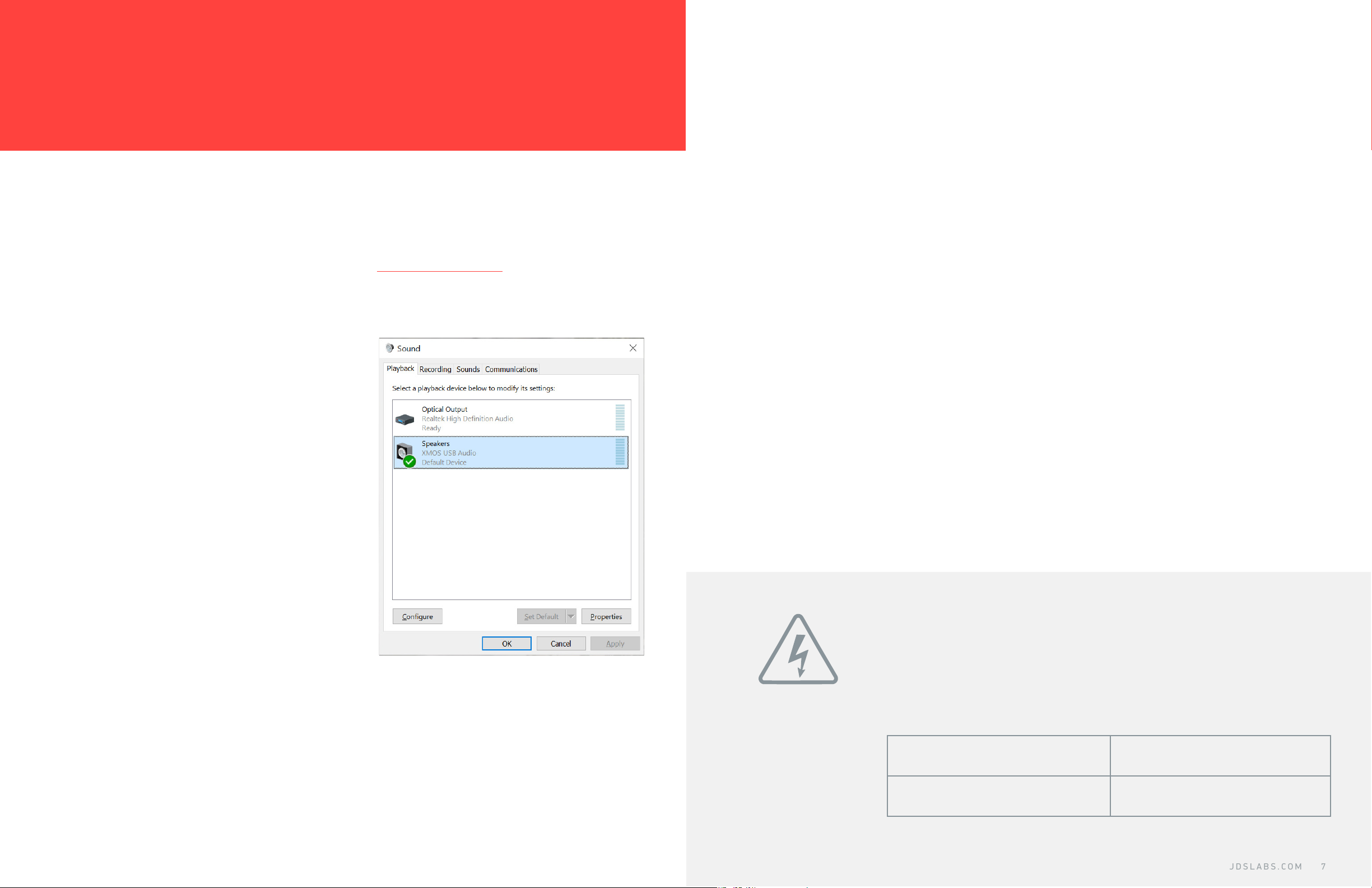
Computer Setup
Element II requires no drivers in Windows 10, Mac OS, Linux, and modern version of iOS and
Android. You may download drivers for Win7/8 from jdslabs.com/drivers. These drivers may
optionally be installed in Win10 for WASAPI support. Be sure to select your new DAC as the
default playback device:
Troubleshooting
No USB device or “Failed to Play Audio”
Cause: USB Device is not initialized.
Solution: Turn Element II o, then back on to reset the USB device.
Amplier does not turn on
Cause: Missing or loose power adapter connection.
Solution: Firmly connect AC adapter to 16VAC power jack.
Internal LED ashes, then turns o
Cause: Wrong power adapter detected.
Solution: Please see Power Adapters section below.
Windows 7/8/10
Right click the volume icon in your taskbar and
choose Sound --> Playback. Click the XMOS
or JDS Labs audio device, then choose “Set
Default”. For best experience, also congure
Properties:
• Enhancements: Check “Disable all
enhancements”
• Advanced: See Listening Tips
Mac OS X
Ensure JDS Labs audio device is selected from
Audio Devices.
No sound in one channel
Cause: Bad cable, or incorrect computer settings.
Solution: Check balance settings; try another headphone or RCA cable. Some Mac OS X systems
will pan audio to the Left channel upon initial connection of a DAC. User must restore balance
to center.
No sound from headphones
Cause: Wrong mode, or incorrect connectivity, or incorrect setup
Solution: Please see Connectivity page to toggle between Headphone or RCA Output. Check
cabling.
Power Adapters
ATTENTION: Incorrect power adapters can result in capacitor
explosion hazards and device damage. Only use the power adapter
included with your Element:
Type: AC-to-AC Transformer Output Voltage: 16 VAC
Current: Minimum 1000mA Connector: 2.1x55.mm (ID x OD)
JDSLABS.COM 6 JDSLABS.COM 7
Page 5

Application for Council Directives 2004/108/EC, 2006/95/EC, 2002/95/
EC.Conformity declared for EN55022:2011, EN611000-3-2, EN61000-33, EN55024-2
This equipment has been tested and found to
comply with the limits for a Class B digital device,
pursuant to part 15 of the FCC Rules.
JDSLABS.COM 8
 Loading...