

Page 1

Product User’s Guide
Page 2

Venue Performance Series User’s Guide
2
Page 3

TABLE OF CONTENTS
Section 1. Safety Instructions .....................................................................................Page 4
Section 2. Before You Begin ....................................................................................... Page 7
Section 3. Introduction to VP Series Powered Loudspeaker Systems ..................Page 8
Specifications by model
Section 4. VP Series Transducers ..............................................................................Page 11
Section 5. Enclosure Care and Maintenance ............................................................ Page 12
Section 6. Rigging and Suspension ...........................................................................Page 13
Safety Precautions
Industry Resources
Section 7. JBL DrivePack® Technology .....................................................................Page 16
AC Power Module, Electrical Information
Input Modules (DPIP, DPAN, DPCN)
Protective Jackets & installation
Section 8. HiQnet System Architect™ Software Configuration Guide ...................Page 28
Configuring your PC
Ethernet Network connections
Appendix A: Configuring CobraNet devices
Appendix B: Setting Microsoft Windows to standard font size
Appendix C: Setting Regional Language Options to US English
Section 9. JBL Professional Warranty .......................................................................Page 39
Section 10. Factory Contact Information ....................................................................Page 40
JBL Professional
3
Page 4

SECTION 1 : SAFETY INSTRUCTIONS
Important
1. Read these instructions.
2. Keep these instructions.
3. Heed all warnings.
4. Follow all instructions.
5. Do not use this apparatus near water.
6. Clean only with dry cloth.
7. Do not block any ventilation openings. Install in accordance with the manufacturer’s instructions.
8. Do not install near any heat sources such as radiators, heat registers, stoves, or other apparatus
(including amplifiers) that produce heat.
9. Do not defeat the safety purpose of the polarized or grounding-type plug. A polarized plug has
two blades with one wider than the other. A grounding-type plug has two blades and a third
grounding prong. The wide blade or the third prong are provided for your safety. If the provided
plug does not fit into your outlet, consult an electrician for replacement of the obsolete outlet.
10. Protect the power cord from being walked on or pinched, particularly at plugs, convenience
receptacles, and the point where they exit from the apparatus.
11. Only use attachments/accessories specified by the manufacturer.
12. Use only with the cart, stand, tripod, bracket, or table specified by the manufacturer, or
sold with the apparatus. When a cart is used, use caution when moving the cart/apparatus
combination to avoid injury from tip-over.
13. Unplug this apparatus during lightning storms or when unused for long periods of time.
14. Refer all servicing to qualified service personnel. Servicing is required when the apparatus has
been damaged in any way, such as power supply cord or plug is damaged, liquid has been
spilled or objects have fallen into the apparatus, the apparatus has been exposed to rain or
moisture, does not operate normally, or has been dropped.
15. WARNING: To reduce the risk of fire or electric shock, do not expose this apparatus
to rain or moisture.
16. Do not expose this equipment to dripping or splashing and ensure that no objects filled with
liquids, such as vases, are placed on the equipment.
17. To completely disconnect this apparatus from the AC Mains, disconnect the power supply
cord plug from the AC receptacle.
18. The mains plug of the power supply cord shall remain readily operable.
Venue Performance Series User’s Guide
4
Page 5
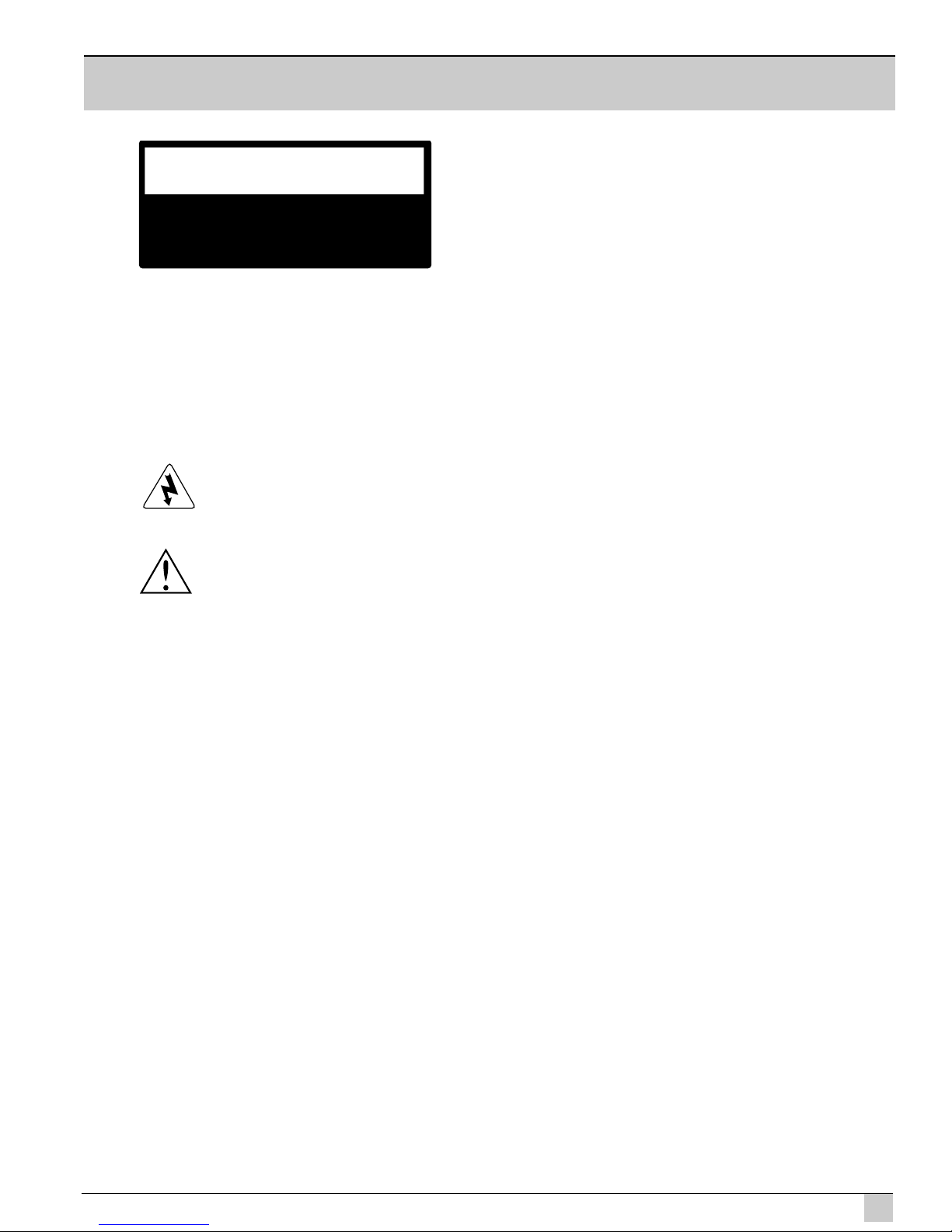
THIS APPARATUS CONTAINS POTENTIALLY LETHAL VOLTAGES. TO PREVENT ELECTRIC SHOCK OR
HAZARD, DO NOT REMOVE DRIVEPACK CHASSIS, INPUT MODULE OR AC INPUT COVERS. NO USER
SERVICEABLE PARTS INSIDE. REFER SERVICING TO QUALIFIED SERVICE PERSONNEL.
WATCH FOR THESE SYMBOLS
The lightning bolt triangle is used to alert the user to the risk of electric shock.
The exclamation point triangle is used to alert the user to important operating or
maintenance instructions.
FCC COMPLIANCE NOTICE
This device complies with part 15 of the FCC rules. Operation is subject to the following two conditions: (1)
This device may not cause harmful interference, and (2) this device must accept any interference received,
including interference that may cause undesired operation.
CAUTION: Changes or modifications not expressly approved by the party responsible for compliance could
void the user’s authority to operate the equipment.
CSA COMPLIANCE NOTICE
CSA Certification Applies to Amplifier Module Only
JBL Professional
5
Page 6

JBL DRIVEPACK® DECLARATION OF CONFORMITY
Safety and EMC Compliance Specifications
EN 55103-1:1997 Electromagnetic Compatibility - Product Family Standard for Audio, Video, Audio-
Visual and Entertainment Lighting Control Apparatus for Professional Use, Part 1: Emissions
EN 55103-1:1997 Magnetic Field Emissions-Annex A @ 10 cm and 1 M
EN 55022:2003 Limits and Methods of Measurement of Radio Disturbance Characteristics of ITE:
Radiated, Class B Limits; Conducted, Class A
EN 55103-2:1997 Electromagnetic Compatibility - Product Family Standard for Audio, Video, AudioVisual and Entertainment Lighting Control Apparatus for Professional Use, Part 2: Immunity
EN 61000-4-2:1995 + A1:1999 & A2:2001 Electrostatic Discharge Immunity (Environment E2-criteria B, 4
kV Contact, 8 kV Air discharge)
EN 61000-4-3:2003 Radiated, Radio-frequency, Electromagnetic Immunity (Environment E2, criteria A)
EN61000-4-4:2005 Electrical Fast Transient/Burst Immunity (criteria B)
EN 61000-4-5:2001 Surge Immunity (criteria B)
EN 61000-4-6:1996 Immunity to Conducted Disturbances Induced by Radio-Frequency Fields (criteria A)
EN 61000-4-11:2004 Voltage Dips, Short Interruptions and Voltage Variation
UL 60065:2003, 7th edition: Audio/Video and Musical Instrument Apparatus for Household, Commercial
and Similar General Use
IEC 60065, 2001: Audio, Video and Similar Electronic Apparatus - Safety Requirements
CAN/CSA E60065-03: Audio, Video and Similar Electronic Apparatus – Safety Requirements
Venue Performance Series User’s Guide
6
Page 7

SECTION 2 : BEFORE YOU BEGIN
The VP Series loudspeakers covered by this manual are not intended for fixed installation in outdoor
or high moisture environments. Moisture can damage the speaker cone and surround and cause
corrosion of electrical contacts and metal parts. Avoid exposing the speakers to direct moisture.
Keep loudspeakers out of extended or intense direct sunlight. The driver suspension will prematurely
dry out and finished surfaces may be degraded by long-term exposure to intense ultra-violet (UV)
light.
The VP Series loudspeakers can generate considerable energy. When placed on a slippery surface
such as polished wood or linoleum, the speaker may move due to its acoustical energy output.
Precautions should be taken to assure that the speaker does not fall off a stage or table on which it
is placed.
Stand mounting safety precautions
Some VP Series models can be used with an optional stand mount accessory allowing mounting
on tripod stands or on a pole over subwoofers. When using stands or poles, be sure to observe the
following precautions:
Check the stand or pole specification to be certain the device is designed to support the
weight of the speaker. Observe all safety precautions specified by the manufacturer.
Always verify that the stand (or subwoofer / pole) is placed on a flat, level, and stable surface
and be sure to fully extend the legs of tripod type stands. Position the stand so that the legs
do not present a trip hazard.
Route cables so that performers, production crew, and audience will not trip over them and
pull the speaker over.
Inspect the stand (or pole and associated hardware) before each use and do not use
equipment with worn, damaged, or missing parts.
Do not attempt to place more than one VP Series loudspeaker on a stand or pole.
Always be cautious in windy, outdoor conditions. It may be necessary to place additional
weight (i.e. sandbags) on the base of the stand to improve stability. Avoid attaching banners
or similar items to any part of a speaker system. Such attachments could act as a sail and
topple the system.
Unless you are confident that you can handle the weight of the speaker, ask another person
to help you get it onto the tripod stand or pole.
Hearing damage, prolonged exposure to excessive SPL
VP Series loudspeakers are easily capable of generating sound pressure levels (SPL) sufficient to
cause permanent hearing damage to performers, production crew and audience members. Caution
should be taken to avoid prolonged exposure to SPL in excess of 90 dB.
Package Contents
• Product User’s Guide (this document)
• DP compatible loudspeaker
• CD containing System Architect™ software, E.A.S.E. data, DXF files,
and spec sheets.
• A.C. Power North America/Europe Cord-Set
• Protective Jacket Set
• Warranty Card
JBL Professional
7
Page 8

SECTION 3 : INTRODUCTION TO VP SERIES
POWERED LOUDSPEAKER SYSTEMS
VP (Venue Performance) Series
The VP Series is a family of powered integrated audio loudspeaker systems featuring the JBL DrivePack®
amplifier modules, designed in cooperation with Crown International. The JBL DrivePack features cuttingedge technology such as patented high efficiency Class-I power amplifier circuitry. Loudspeaker components
include patented JBL Differential Drive® woofers. The full-range models feature the JBL 2452H-SL large
format 1.5” exit compression driver. This high frequency driver is coupled to a JBL Progressive Transition
(PT) Waveguide for excellent pattern control, smooth frequency response, and low distortion. Waveguides
can be rotated for either a horizontal or vertical orientation.
™
This guide covers the following models:
VP7212/64DP - 12” two-way with 60 x 40-degree waveguide
VP7212/95DP - 12” two-way with 90 x 50-degree waveguide
VP7215/64DP - 15” two-way with 60 x 40-degree waveguide
VP7215/95DP - 15” two-way with 90 x 50-degree waveguide
VP7315/64DP - 15” three-way with 60 x 40 degree waveguide
VPSB7118DP - 18” subwoofer
VP7212/64DPAN - with optional Analog Audio/Network input module
VP7212/95DPAN - with optional Analog Audio/Network input module
VP7215/64DPAN - with optional Analog Audio/Network input module
VP7215/95DPAN - with optional Analog Audio/Network input module
VP7315/64DPAN - with optional Analog Audio/Network input module
VPSB7118DPAN - with optional Analog Audio/Network input module
VP7212/64DPCN – with optional CobraNet input module
VP7212/95DPCN – with optional CobraNet input module
VP7215/64DPCN – with optional CobraNet input module
VP7215/95DPCN – with optional CobraNet input module
VP7315/64DPCN – with optional CobraNet input module
VPSB7118DPCN – with optional CobraNet input module
VP7212/64DPDA - with optional AES/EBU input module
VP7212/95DPDA - with optional AES/EBU input module
VP7215/64DPDA - with optional AES/EBU input module
VP7215/95DPDA - with optional AES/EBU input module
VP7315/64DPDA - with optional AES/EBU input module
VPSB7118DPDA - with optional AES/EBU input module
Venue Performance Series User’s Guide
8
Page 9

VP SERIES SYSTEMS SPECIFICATIONS
VP7212/64DP
Specifications:
Transducer Section:
System:
DP2 Internal Amplification Output (at nominal load): 2200 Watts Peak (1100 Watts Continuous)
DP2 Output (Continuous IEC shaped pink noise
Enclosure:
Frequency Response (+/-3dB): 63 Hz - 18 kHz
Frequency Range (-10dB): 47 Hz - 20 kHz
Coverage Pattern: 60° x 40° rotatable waveguide
Directivity Factor (Q): 15.8
Directivity Index (DI): 12 dB
Max Peak Output: 136 dB SPL 1m
Low Frequency Section: JBL 2262G, 304 mm (12 in) dia., 76 mm (3 in) Dual
Bandpass Nominal Impedance: 4 ohms
High Frequency: JBL2452H-SL, 100 mm (4 in) titanium damped
Bandpass Nominal Impedance: 8 ohms
into rated load impedance):
DP2 Output Section: 2-Channel, Class I
Audio Input Connector: XLR with loop-through
Network Control Connector: Ethernet, RJ45 (DPAN, DPCN options)
Signal Processing: DSP based, resident in Input Module.
System Management: DSP based limiters for mechanical and thermal
AC Power Operating Range: Auto Select 90-132VAC/216-264VAC, 50/60
AC Line Voltage: 50/60 Hz, Auto-Detect; 120V/240V (-15%, +10%)
AC Input Connector: Neutrik PowerCon
AC Loop-Thru: Neutrik PowerCon
AC Current Requirement: 6A per system at 120V, 3A per system at 240V
Box Construction: 5/8 in. multi-ply exterior grade Baltic birch. Inter-
Suspension System: 6 standard air-cargo 3 in. track and 14 M10 fittings.
Dimensions (H x W x D): 701.8 x 383.8 x 523.5 mm
Net Weight: 35.4 kg (78 lb)
Coil neodymium Differential Drive®, Direct Cooled
diaphragm, 1.5 in. exit.
750LF/350HF Watts
protection
nally braced. Black DuraFlex™ finish
Grille: 14 Gauge Black, powder-coated perforated steel
with foam backing.
27.63 x 15.11 x 20.61 in.
VP7212/95DP
Specifications:
Transducer Section:
System:
DP2 Internal Amplification Output (at nominal load): 2200 Watts Peak (1100 Watts Continuous)
DP2 Output (Continuous IEC shaped pink noise
Enclosure:
Frequency Response (+/-3dB): 63 Hz - 18 kHz
Frequency Range (-10dB): 47 Hz - 20 kHz
Coverage Pattern: 90° x 50° rotatable waveguide
Directivity Factor (Q): 12.6
Directivity Index (DI): 11 dB
Max Peak Output: 136 dB SPL 1m
Low Frequency Section: JBL 2262G, 304 mm (12 in) dia., 76 mm (3 in) Dual
Bandpass Nominal Impedance: 4 ohms
High Frequency: JBL2452H-SL, 100 mm (4 in) titanium damped
Bandpass Nominal Impedance: 8 ohms
into rated load impedance):
DP2 Output Section: 2-Channel, Class I
Audio Input Connector: XLR with loop-through
Network Control Connector: Ethernet, RJ45 (DPAN, DPCN options)
Signal Processing: DSP based, resident in Input Module.
System Management: DSP based limiters for mechanical and thermal
AC Power Operating Range: Auto Select 90-132VAC/216-264VAC, 50/60
AC Line Voltage: 50/60 Hz, Auto-Detect; 120V/240V (-15%, +10%)
AC Input Connector: Neutrik PowerCon
AC Loop-Thru: Neutrik PowerCon
AC Current Requirement: 6A per system at 120V, 3A per system at 240V
Box Construction: 5/8 in. multi-ply exterior grade Baltic birch.
Suspension System: 6 standard air-cargo 3 in. track and 14 M10 fittings.
Dimensions (H x W x D): 701.8 x 383.8 x 523.5 mm
Net Weight: 35.4 kg (78 lb)
Coil neodymium Differential Drive®, Direct Cooled
diaphragm, 1.5 in. exit.
750LF/350HF Watts
protection
Internally braced. Black DuraFlex™ finish
Grille: 14 Gauge Black, powder-coated perforated steel
with foam backing.
27.63 x 15.11 x 20.61 in.
VP7215/64DP
Specifications:
Transducer Section:
System:
DP2 Internal Amplification Output (at nominal load): 2200 Watts Peak (1100 Watts Continuous)
DP2 Output (Continuous IEC shaped pink noise
Enclosure:
Frequency Response (+/-3dB): 60 Hz - 18 kHz
Frequency Range (-10dB): 45 Hz - 20 kHz
Coverage Pattern: 60° x 40° rotatable waveguide
Directivity Factor (Q): 15.8
Directivity Index (DI): 12 dB
Max Peak Output: 137 dB SPL 1m
Low Frequency Section: JBL 2265G, 381 mm (15 in) dia., 76 mm (3 in) Dual
Bandpass Nominal Impedance: 4 ohms
High Frequency: JBL2452H-SL, 100 mm (4 in) titanium damped
Bandpass Nominal Impedance: 8 ohms
into rated load impedance):
DP2 Output Section: 2-Channel, Class I
Audio Input Connector: XLR with loop-through
Network Control Connector: Ethernet, RJ45 (DPAN, DPCN options)
Signal Processing: DSP based, resident in Input Module.
System Management: DSP based limiters for mechanical and thermal
AC Power Operating Range: Auto Select 90-132VAC/216-264VAC, 50/60 Hz
AC Line Voltage: 50/60 Hz, Auto-Detect; 120V/240V (-15%, +10%)
AC Input Connector: Neutrik PowerCon
AC Loop-Thru: Neutrik PowerCon
AC Current Requirement: 6A per system at 120V, 3A per system at 240V
Box Construction: 5/8 in. multi-ply exterior grade Baltic birch.
Suspension System: 6 standard air-cargo 3 in. track and 14 M10 fittings.
Dimensions (H x W x D): 765.3 x 447.6 x 523.5 mm
Net Weight: 38.6 kg (85 lb)
Coil neodymium Differential Drive®, Direct Cooled
diaphragm, 1.5 in. exit.
750LF/350HF Watts
protection
Internally braced. Black DuraFlex™ finish.
Grille: 14 Gauge Black, powder-coated perforated steel
with foam backing.
30.13 x 17.62 x 20.61 in.
VP7215/95DP
Specifications:
Transducer Section:
System:
DP2 Internal Amplification Output (at nominal load): 2200 Watts Peak (1100 Watts Continuous)
DP2 Output (Continuous IEC shaped pink noise
Enclosure:
Frequency Response (+/-3dB): 60 Hz - 18 kHz
Frequency Range (-10dB): 45 Hz - 20 kHz
Coverage Pattern: 90° x 50° rotatable waveguide
Directivity Factor (Q): 12.6
Directivity Index (DI): 11 dB
Max Peak Output: 137 dB SPL 1m
Low Frequency Section: JBL 2265G, 381 mm (15 in) dia., 76 mm (3 in) Dual
Bandpass Nominal Impedance: 4 ohms
High Frequency: JBL2452H-SL, 100 mm (4 in) titanium damped
Bandpass Nominal Impedance: 8 ohms
into rated load impedance):
DP2 Output Section: 2-Channel, Class I
Audio Input Connector: XLR with loop-through
Network Control Connector: Ethernet, RJ45 (DPAN, DPCN options)
Signal Processing: DSP based, resident in Input Module.
System Management: DSP based limiters for mechanical and thermal
AC Power Operating Range: Auto Select 90-132VAC/216-264VAC, 50/60 Hz
AC Line Voltage: 50/60 Hz, Auto-Detect; 120V/240V (-15%, +10%)
AC Input Connector: Neutrik PowerCon
AC Loop-Thru: Neutrik PowerCon
AC Current Requirement: 6A per system at 120V, 3A per system at 240V
Box Construction: 5/8 in. multi-ply exterior grade Baltic birch.
Suspension System: 6 standard air-cargo 3 in. track and 14 M10 fittings
Dimensions (H x W x D): 765.3 x 447.6 x 523.5 mm
Net Weight: 38.6 kg (85 lb)
Coil neodymium Differential Drive®, Direct Cooled
diaphragm, 1.5 in. exit.
750LF/350HF Watts
protection
Internally braced. Black DuraFlex™ finish
Grille: 14 Gauge Black, powder-coated perforated steel
with foam backing.
30.13 x 17.62 x 20.61 in.
JBL Professional
9
Page 10

VP SERIES SYSTEMS SPECIFICATIONS
VP7315/64DP
Specifications:
Transducer Section:
System:
DP2 Internal Amplification Output (at nominal load): 2200 Watts Peak (1100 Watts Continuous)
DP2 Output (Continuous IEC shaped pink noise
Enclosure:
Frequency Response (+/-3dB): 43 Hz - 18 kHz
Frequency Range (-10dB): 34 Hz - 20 kHz
Coverage Pattern: 60° x 40° rotatable waveguide
Directivity Factor (Q): 15.85
Directivity Index (DI): 12 dB
Max Peak Output: 138 dB SPL 1m
Low Frequency Section: JBL 2265G, 381 mm (15 in) dia., 76 mm (3 in) Dual
Bandpass Nominal Impedance: 4 ohms
Mid Frequency: JBL CMCD-82H, 200 mm (8 in) Dual Coil
High Frequency: JBL2452H-SL, 100 mm (4 in) titanium damped
Waveguide: JBL PT-K64-MHF
Bandpass Nominal Impedance: 8 ohms
into rated load impedance):
DP2 Output Section: 2-Channel, Class I
Audio Input Connector: XLR with loop-through
Network Control Connector: Ethernet, RJ45 (DPAN, DPCN options)
Signal Processing: DSP based, resident in Input Module.
System Management: DSP based limiters for mechanical and thermal
AC Power Operating Range: Auto Select 90-132VAC/216-264VAC, 50/60
AC Line Voltage: 50/60 Hz, Auto-Detect; 120V/240V (-15%, +10%)
AC Input Connector: Neutrik PowerCon
AC Loop-Thru: Neutrik PowerCon
AC Current Requirement: 6A per system at 120V, 3A per system at 240V
Box Construction: 5/8 in. multi-ply exterior grade Baltic birch.
Suspension System: 6 standard air-cargo 3 in. track and 12 M10 fittings.
Dimensions (H x W x D): 914.4 x 528.3 x 624.8 mm
Net Weight: 44 kg (97 lb)
Coil neodymium Differential Drive®, Direct Cooled
Differential Drive
diaphragm, 1.5 in. exit.
750LF/350HF Watts
protection
Internally braced. Black DuraFlex
Grille: 14 Gauge Black, powder-coated perforated steel
with foam backing.
36 x 20.8 x 24.6 in.
®
transducer
™
finish.
VPSB7118DP
Specifications:
Transducer Section:
System:
DP2 Internal Amplification Output (at nominal load): 3600 Watts Peak (1800 Watts Continuous)
Enclosure:
Frequency Response (+/-3dB): 39 Hz - 145 Hz
Frequency Range (-10dB): 29 Hz - 165 Hz
Max Peak Output: 129 dB SPL 1m
Low Frequency Section: JBL 2268G, 457 mm (18 in) dia., 76 mm (3 in) Dual
Bandpass Nominal Impedance: 4 ohms
DP1 Output Section: 1-Channel, Class I
Audio Input Connector: XLR with loop-through
Network Control Connector: Ethernet, RJ45 (DPAN, DPCN options)
Signal Processing: DSP based, resident in Input Module.
System Management: DSP based limiters for mechanical and thermal
AC Power Operating Range: Auto Select 90-132VAC/216-264VAC, 50/60 Hz
AC Line Voltage: 50/60 Hz, Auto-Detect; 120V/240V (-15%, +10%)
AC Input Connector: Neutrik PowerCon (NAC 3MPA)
AC Loop-Thru: Neutrik PowerCon (NAC 3MPB)
AC Current Requirement: 6A per system at 120V, 3A per system at 240V
Box Construction: 5/8 in. multi-ply exterior grade Baltic birch.
Suspension System: 8 standard air-cargo 3 in. track and 24 M10 fittings.
Dimensions (H x W x D): 514.4 x 701.8 x 812.8 mm
Net Weight: 54 kg (129 lb)
Coil, Differential Drive
protection
Internally braced. Black DuraFlex
Grille: 14 Gauge Black, powder-coated perforated steel
with foam backing.
20.25 x 27.63 x 32 in.
®
, Direct Cooled
™
finish
Venue Performance Series User’s Guide
10
Page 11

Section 4. VP SERIES TRANSDUCERS
2452H-SL High Frequency Compression Driver
JBL’s new 2452H-SL features a lightweight neodymium magnet structure, 4” damped laminate diaphragm and a 1.5”
exit. It is designed to deliver crystal-clear sound with superb dynamic range. The 2452H-SL is an 8 Ohm device.
CMCD™ Cone Midrange Compression Drivers (VP7315/64 only)
CMCD technology is more than a simple displacement plug. In addition to providing increased output and lower
distortion, this true cone-based compression driver design extends bandwidth (both up and down in frequency) to
cover the entire vocal range seamlessly, allowing for better waveguide pattern control by reducing the projection
aperture. In addition it improves phase coherency of the midrange signal for clearer, more intelligible audio quality. 8
Ohm device.
For more information, see JBL Tech Note Vol. 1 Number 30, “CMCD Technology”.
Differential Drive® Low Frequency Drivers
JBL’s patented Differential Drive low frequency drivers dramatically reduces driver weight while greatly enhancing all
critical performance parameters: frequency response, power output, and distortion. The Differential Drive technology
features a unique design with heat sinks integrated into the cast aluminum frame for a highly improved performance
to weight ratio. The dual voice coil design places the neodymium magnets inside the voice coil assembly, completing
the magnetic circuit without the heavy surrounding steel structure of conventional drivers.
For more information, see JBL Tech Note Vol. 1 Number 33, “Differential Drive Transducers”
JBL Professional
11
Page 12

SECTION 5 : ENCLOSURE CARE AND MAINTENANCE
VP Series enclosures are constructed of 5/8-in. multi-ply exterior grade Baltic birch. Each enclosure model is internally braced. The exterior is covered with JBL’s exclusive DuraFlex™ finish.
PAINTING JBL VP SERIES SYSTEM PRODUCTS
Each JBL Professional VP Series system model is readily paintable. The DuraFlex finish provides a lightly textured
surface that any household or industrial paint readily adheres to. The result is a speaker enclosure that is able to
blend unobtrusively into the decor of any stage set or environment.
Instructions for painting:
1. Prepare the enclosure surface by cleaning and wiping off dust and film with a damp cloth. It may be necessary to
use a mild household cleaner to remove grease. Avoid using a cloth that will deteriorate over the textured surface.
2. Apply as many coats of paint as is required. Application can be by rolling, brushing or spraying. Care must be
taken when painting the grille. Avoid any paint or type of application that will clog the open cells in the foam of the
front grille. Depending on the type of paint, it may not be wise to spray the grille.
3. For painting systems that are installed in environmentally-hostile locations, it is recommended that an automotive
paint should be used for maximum protection.
Note: for systems that will be transported on a regular basis, oil-based paints or Krylon-type spray paints will give
better long-term results than water-based Latex type paints.
Venue Performance Series User’s Guide
12
Page 13

SECTION 6 : RIGGING AND SUSPENSION
Safety Precautions
Before attempting to suspend your speakers, read and understand the following safety information.
IMPORTANT RIGGING SAFETY WARNING!
The information in this section has been assembled from recognized engineering data and is intended for
informational purposes only. None of the information in this section should be used without first obtaining
competent advice with respect to applicability to a given circumstance. None of the information presented
herein is intended as a representation or warranty on the part of JBL. Anyone making use of this information
assumes all liability arising from such use.
All information presented herein is based upon materials and practices common to North America and may
not directly apply to other countries because of differing material dimensions, specifications, and/or local
regulations. Users in other countries should consult with appropriate engineering and regulatory authorities
for specific guidelines.
Correct use of all hardware is required for secure system suspension. Careful calculations should always be
performed to ensure that all components are used within their rated workload before the array is suspended.
Never exceed maximum recommended load ratings.
Before suspending any speaker system always inspect all components (enclosure, rigging frames, pins, etc.)
for cracks, deformations, corrosion, missing, loose or damaged parts that could reduce strength and safety
of the array. Do not suspend the speaker until the proper corrective action has been taken. Use only loadrated hardware when suspending VP Series loudspeakers.
Are You New to Rigging?
If you are new to rigging, you should do the following:
• Read and study JBL Technical Note Volume 1, Number 14: Basic Principles for Suspending Loudspeaker
Systems (available at http://www.jblpro.com/pub/technote/tn_v1n14.pdf).
• Know the Rules for Safe Rigging.
• Attend a safe rigging seminar, such as that presented by professionals like Rigging Seminars™ or by
Chain Motor Hoist manufacturers like Columbus McKinnon Corp. (manufacturers of the C/M Lodestar).
• Meet and establish a relationship with a licensed mechanical or structural engineer. Get in the habit of
asking them questions instead of guessing about their answers. Learn from what they tell you.
• Meet and discuss this aspect of your business with your Insurance Agent.
• Research and understand the codes, practices, and requirements in the venues where you intend to
operate your sound system.
JBL Professional
13
Page 14

General Hardware Information
Any hardware used in an overhead suspension application must be load rated for the intended use.
Generally, this type of hardware is available from rigging supply houses; industrial supply catalogs and
specialized rigging distributors. Local hardware stores do not usually stock these products.
Attachment to Structures
A licensed Professional Engineer must approve placement and method of attachment to structures prior to
installation of any overhead object. The following performance standards should be provided to the Professional
Engineer for design purposes: Uniform Building Code as applicable, Municipal Building Code as applicable,
Seismic Code as applicable. Installation of hardware and method of attachment must be carried out in the
manner specified by the Professional Engineer. Improper installation may result in damage, injury or death.
Rigging Hardware Inspection & Maintenance
Suspension systems are comprised of mechanical devices and, as such, they require regular inspection and
routine maintenance to insure proper function ability. JBL VP Series loudspeakers must be inspected for
fatigue at least annually. The inspection shall include a visual survey of all corners and load bearing surfaces
for signs of cracking, water damage, de-lamination, or any other condition that may decrease the strength
of the loudspeaker enclosure. Accessory rigging hardware provided with or for JBL VP Series loudspeakers
must be inspected for fatigue at least annually. The inspection shall include a visual material survey for signs
of corrosion, bending or any other condition that may decrease strength of the fastener. For other fittings
used, refer to the manufacturer’s inspection and maintenance guidelines for process.
JBL is not responsible for the application of its products for any purpose or the misuse of this information
for any purpose. Furthermore, JBL is not responsible for the abuse of its products caused by avoiding
compliance with inspection and maintenance procedures or any other abuse. Prior to suspending the
system, an expert, trained and experienced in flying loudspeaker systems should inspect all rigging parts and
components.
Venue Performance Series User’s Guide
14
Page 15

Industry Resources
Allen Products
(562) 424-1100
1635 E. Burnett Street
Signal Hill, CA 90806
www.allenproducts.com
M.A.N. Flying Systems
20 Sidar Road Brook Road
Industrial Estate
Rayleight, Essex SS6 7XF U.K.
www.manfly.co.uk
JBL Professional - Tech Note V1 No. 14
“Basic Principles for Suspending Loudspeakers”
www.jblpro.com/technote/tn_v1n14.pdf
ATM Fly-Ware
(562) 424-1100
1635 E. Burnett Street
Signal Hill, CA 90806
www.atmflyware.com
McMaster Carr
Various locations through the U.S.A.
For a location near you, visit them online:
www.mcmastercarr.com
Safe Rigging
The JBL VP Series suspendable loudspeakers are supplied with built-in brackets. The system is designed to
facilitate the suspension of the loudspeaker by a qualified person familiar with rigging hardware and industry
practices. Improper installation may result in damage, injury or death.
Working Load Limit
The working load limit (WLL) of any JBL VP Series suspendable loudspeaker shall be maintained as long as
no more than 136 kg (300 lb) is suspended by a minimum of TWO (2) PRIMARY SUSPENSION points (Track
Suspension), or 46 kg (100 lb) is suspended by TWO (2) of the SECONDARY SUSPENSION points (M10
forged Shoulder Eyebolts).
Flying for Portable Applications (Primary Suspension)
For portable, temporary suspension, order the SRX-FF3 detachable flying fittings kit. This kit includes three
(3) detachable fly-clips. For additional suspension components, contact a professional rigging hardware
supplier. Suspension in Fixed Installations (Secondary Suspension) For fixed installations using M10, forgedshoulder eyebolts, order JBL Part number 229-00009-01 which includes three (3) eyebolts with washers.
JBL Professional
15
Page 16

SECTION 7 : JBL DRIVEPACK® TECHNOLOGY
Introduction to the
JBL DrivePack® Integrated Audio System
JBL DrivePack equipped loudspeakers are a family of fully integrated audio systems, coupling industryleading loudspeaker technology to a combination of comprehensive digital signal processing and advanced
amplifier technology, perfectly matched to the enclosures to deliver superb audio quality and powerful
performance.
The DrivePack is attached to the back of each DP-compatible loudspeaker enclosure, creating a seamless
electro-mechanical system that offers both convenience and portability along with the unmatched reliability,
accuracy and superb sound of JBL loudspeakers. The DrivePack includes onboard DSP functionality to
communicate readiness and operational status, including a self-test cycle and lighted indicators for fault
detection upon power-up.
DrivePack Signal-Processing & Amplification Unit
The DrivePack electronics unit is intended to be used when mounted to a speaker enclosure of
5/8” minimum thickness of wood or composite material and with load impedances of 4 Ohms, 8
Ohms for low and mid frequency channels, and 8 or 16 Ohms for the high frequency channel.
OPERATING INSTRUCTIONS
All that is required to get your DP compatible loudspeaker system up and running is to connect an AC power
source to the AC Power module via the Neutrik PowerCon™ inlet connector, and a full range line level audio
signal to the Input module via the AUDIO IN XLR connector.
Upon initial power-up of the DrivePack, the Blue Power LED will illuminate and the Green DP Ready indicator
(located to the left of the input module input level control) will flash during the boot-up and AC line autoselect soft-start process. The JBL DrivePack is equipped with Auto-Sensing Universal AC Voltage Selection
and can operate anywhere in the world that has an available 100-120VAC or 200-240VAC power source. On
the power-up sequence the JBL DrivePack® input module senses line voltage and sets the high voltage line
select relay within about 2 seconds. The system is ready for operation when the Green Ready LED on both
the AC Input module and DPIP module is steadily illuminated.
Venue Performance Series User’s Guide
16
Page 17

AC Power Module
POWER Indicator:
Blue LED – located near power inlet lights when AC power
is applied.
Amp READY Indicator:
Green LED near power inlet, ON during normal operation,
long pulse during sleep mode.
Sleep Mode:
If audio input signals are not detected for 2 hours, the
amplifi er will go into sleep/standby mode; the amplifi er
output section is turned off while the supply powering the
DP Input Module and DSP logic remains active. This mode
reduces current draw and heat loss. While in sleep mode
the READY indicator pulses slowly. Recovery from sleep
mode is instantaneous when an audio signal is detected
.
Thermal Management:
JBL DrivePack® systems are cooled by Passive Convection. No fans are used in any part of the thermal
management system. To maintain effi cient cooling it is a good practice to assure open space around the
DrivePack units.
Operating Temperature:
The system will remain touchable during quiescent operation and will not provide a burn hazard during any
operating condition.
JBL Professional
17
Page 18

AC POWER REQUIREMENTS
Standard JBL DrivePack systems are equipped with a DP multi-channel Crown Class-I power amplifier and
loudspeaker specific DSP electronics and require appropriate AC power.
CAUTION: In compliance with safety agency criteria and proper system operation, it is critical
that the system installer observe all electrical safety practices at all times and provide proper earth
grounding for all AC Power connections.
AC POWER CORD KIT
Convenience 120VAC North America NEMA 5-15 Edison type AC plug to PowerCon® connector and
240V Europe CEE 7/7 Schuko type AC plug to PowerCon connector cord sets are provided with this JBL
DrivePack product for light-duty shop testing or system configuration type use.
One spare gray Neutrik (P/N NAC3FCB) PowerCon connector is included in the AC Power Cord Set for your
convenience to create a pass-through AC power cable. To create a pass-through cable the system installer
may choose to simply cut off the AC plug from one of the provided AC cord sets and replace it with the
provided Gray PowerCon AC Outlet connector. Follow the wiring convention indicated in Table 1.
NOTE: Tighten set screws to 2.5Nm (1.8lb-ft) torque to prevent opening by hand.
USER-FABRICATED AC POWER DISTRIBUTION
System owners may choose to fabricate or purchase a custom AC Power cable infrastructure optimized for
their specific JBL DrivePack system configuration. See Table 1 for custom application wiring and connector
information.
NOTE: Parts not provided.
CAUTION: Do not exceed 80% current rating of any AC connector at any time! See Table 2 for
current draw information.
Table 1. User-Fabricated AC Cable and Connector Information
AC Inlet Cable Connector Neutrik PowerCon® NAC3FCA quick lock 3-pole A-type
cable connector for power inlet. Rated current per contact:
20 A (rms), Rated Voltage: 250VAC.
AC Outlet Cable Connector Neutrik PowerCon® NAC3FCB quick lock 3-pole B-type
cable connector for power outlet. Rated current per contact:
20 A (rms), Rated Voltage: 250VAC.
Wiring Cable: screw-type terminals or soldering nom. wire size/
contact: 2.5 mm² / 14 AWG
Wiring convention Ground – Ground, Neutral – Neutral, AC Hot – AC Hot
With the two non-interchangeable types of connectors (A-type, B-type) it is impossible to produce a short
circuit. Mating connectors (combination) are identified by mechanical keyways and by color.
Table 2. Power Connector Coding
A-type (POWER INLET); Cable connector: Blue
B-type (POWER OUTLET) Cable connector: Gray, with
Blue bushing
Venue Performance Series User’s Guide
18
Page 19

DP2 AC Power Ratings
Description 120VAC 240VAC
Idle (Sleep Mode) 20W
Quiescent Power Draw 75W
1/8th Power, Pink Noise (UL/CSA) 400W, 4A rms 400W, 3A rms
1/3rd Power, Pink Noise 8 A 4.6 A
Maximum Power Draw 3950W
Inrush Current Inrush current limiting via PTC soft-start
AC Power Module Connectors 12A Max, 100-120VAC/220-240VAC, 50-60 Hz.
Class 1 Wiring
16 AWG
(1.5 mm2)
Inlet Connector Rating 4A 3A
Outlet Connector Rating 8A 9A
DP1 AC Power Ratings
Description 120VAC 240VAC
Idle (Sleep Mode) 10W
Quiescent Power Draw 60W
1/8th Power, Pink Noise (UL/CSA) 600W, 5A rms 600W, 3.2A rms
1/3rd Power, Pink Noise 9 A 6 A
Maximum Power Draw 4500W
Inrush Current Inrush current limiting via PTC soft-start
AC Power Module Connectors 12A Max, 100-120VAC/220-240VAC, 50-60 Hz.
Class 1 Wiring
16 AWG
(1.5 mm2)
Inlet Connector Rating 5A 3.2A
Outlet Connector Rating 7A 8.8A
Line Voltage Selection: The DrivePack® features an international Auto-Sensing power supply and will
automatically select the correct operating voltage range window. Automatic voltage selection is between
100-120VAC and 200-240VAC operation, 50/60Hz.
Line Voltage Tolerance: The amp will operate normally (with expected de-rating in power output during low
line conditions) over a range of 100-120VAC +/-10% or 200-240VAC +/-10% AC input voltage. The amp will
shut down for voltages below nominal line and self protect for over-voltage beyond 15% nominal line.
CAUTION: Continuous voltages 10% beyond high line at either 120VAC or 240VAC operation
ranges can disrupt performance of the JBL DRIVEPACK! To avoid activation of amplifier low line/
high line protection which will interrupt audio performance, the system operator should maintain
AC supply voltages within the rated voltage windows.
JBL Professional
19
Page 20

Input Module Controls, Indicators and Connectors
JBL DrivePack® systems are equipped with
a modular input bay and input modules are
available in three versions in the VP Series:
the DPIP, DPAN and the DPCN.
Audio Signal Distribution
Connecting source audio signals to the input
modules on JBL DrivePack systems is similar
to daisy-chaining multiple external amplifi er
channels together.
Assuming an output device source impedance
of 100 Ohms and a 10:1 load to source ratio,
up to 20 JBL DrivePack units typical can be
linked together on one output source without
using a distribution amp.
NOTE: Please refer to VP Series spec sheets
for additional features and specifi cations of
the DPIP, DPAN and DPCN input modules.
Venue Performance Series User’s Guide
20
Page 21

DPIP – Standard Input Module
See Figure 1
The standard DPIP input module features analog audio inputs and sophisticated onboard digital signal
processing technology. Precision Bandpass limiting, pre-equalization fi lters and automatic self-test functions
ensure optimized performance. JBL engineers have calibrated DSP speaker management and limiter
parameters to insure smooth phase response and transfer function curves right out of the box.
CONTROLS
1) Subwoofer Filter Enable Select Switch
a) Momentary, Enables or disables the selected
function. On subwoofer applications the lowpass frequency is set to 80 Hz and for full range
systems the high-pass is raised to 80 Hz. (Knee
shape and slopes are model dependent).
7) Input Sensitivity/Attenuation Control:
a) 16 dB Precision Detented rotary control, 0.5 dB
steps. Sensitivity +4 dBu nominal (+23 dBu clip)
with the control fully counter clockwise, and -10
dBv nominal (+4 dBu clip) with the control fully
clockwise.
INDICATORS
2) Subwoofer Filter Enable
a) Orange LED, illuminates when the function is
enabled.
3) FAULT
a) Red LED, illuminates during any fault condition.
4) THERMAL PROTECTION
a) Orange LED, illuminates during thermal limiting:
ai) PULSING indicates fi rst stage of thermal
limiting, amplifi er output level is reduced to
prevent overheating.
aii) FLASHING indicates transducer thermal limits
have been exceeded. Further reduction in output level is applied.
CONNECTORS
9) Audio Out
a) M-XLR Passive Audio Pass-through.
b) Pin 2 Hot (Positive voltage produces outward cone motion of L.F. Transducers).
aiii) SOLID illumination indicates thermal protection is in the third stage of protection and amplifi er shut down
may occur if immediate action is not taken to correct the external reason for excessive heating of the
amplifi er.
5) Ready
a) Green LED, illuminates when the system is ready for operation.
6) SIGNAL/CLIP
a) (Signal) Green LED, detects input signal above the threshold set at –70 dBu. b) Yellow indicates
that the audio drive signal has exceeded limits preset in DSP on any channel and compression/limiting is
active.
c) (Clip) Red LED, Clip detection monitors input, DSP, and each amplifi er output channel. The LED changes from
Green to Red when clipping THD at any point is detected.
8) Audio In
a) F-XLR Active 20K Ohm Balanced, 10K Ohm Unbalanced.
b) Pin 2 Hot (Positive voltage produces outward cone motion of L.F. Transducers).
Figure 1
JBL Professional
21
Page 22

DPAN – HiQnet Network Input Module,
Analog Audio with Networking
See Figure 1a
The DPAN input module features analog audio inputs and sophisticated onboard digital signal processing
technology. Precision band pass limiting, pre-equalization fi lters and automatic self-test functions ensure
optimized performance. In addition, the DPAN input module adds 100 Mb Ethernet networking functionality
and HiQnet compatibility. It enables remote control and monitoring via HiQnet System Architect™ software.
Network Control and Monitoring is enabled by the JBL DP-DCP (DrivePack Device Control Panel) supplied
within HiQnet System Architect. Network capabilities include monitoring of status, input and output levels,
clipping, temperature, load faults and gain reduction. Additional control features available in software include
load supervision, dynamic processing, ten internal user defi ned presets, delays, onboard noise and sinewave generators, network device event logging, and user alert messaging.
CONTROLS
1) ENABLE ALT PRESET button
a) Momentary, Enables or Disables the selected function. Factory ALT
Preset:
On subwoofer applications, the subwoofer low-pass fi lter
frequency is set to 80 Hz and for full range systems the high-pass
is raised to 80 Hz. (Knee shape and slopes are model dependent).
Internal Controls - Input Sensitivity 2-Position Switch: Located on
the back side of the front panel, full output is achieved by selecting
either +4 dBu in one position or +20 dBu in the other position. Switch
positions are marked with silkscreen on the PWB.
NOTE: Product is shipped factory set to the +20 dBu switch position
to provide optimal input gain structure and headroom for most
professional audio equipment. Changing the sensitivity switch to the
+4 dBu setting is not recommended unless connection to -10 dBV
equipment is required.
INDICATORS
2) ENABLE ALT PRESET
a) Orange LED illuminates when the function is enabled.
3) FAULT
a) Red LED illuminates during any fault condition.
4) THERMAL Protection
a) Orange LED illuminates during thermal limiting:
ai) FLASHING indicates fi rst stage of thermal limiting, amplifi er
output level is reduced to prevent overheating.
aii) SOLID illumination indicates thermal protection is in the second
stage of protection and amplifi er shut down may occur if immediate action is not taken to correct the
external reason for excessive heating of the amplifi er.
5) READY
a) Green LED, illuminates when the system is ready for operation
6) SIGNAL/CLIP
a) (Signal) Green LED, detects input signal above the threshold set at –70 dBu
b) (Clip) Red LED, Clip detection monitors input, DSP, and each amplifi er output channel. The LED changes from
Green to Red when clipping THD at any point is detected.
Figure 1a
Venue Performance Series User’s Guide
22
Page 23

11) NETWORK 100MB ACTIVITY
a) The Activity LED indicates data activity on the network line.
12) NETWORK 100MB LINK
a) The LINK LED indicates that the data is at 100 Megabits.
13) DATA
a) Yellow LED Flashes for received data packet addressed to this DPAN device.
CONNECTORS
8) AUDIO IN
a) F-XLR Active 20K Ohm Balanced, 10K Ohm Unbalanced.
b) Pin 2 Hot (Positive voltage produces outward cone motion of L.F. Transducers).
9) AUDIO OUT
a) M-XLR Passive Audio Pass-through.
b) Pin 2 Hot (Positive voltage produces outward cone motion of L.F. Transducers).
10) HiQnet 100MB NETWORK Connector
a) The network connector is a standard RJ-45 connector that allows the DPAN to connect to an Ethernet network.
Connection is made using a standard Category 5 cable to a network switch port.
MAC ADDRESS WINDOW
14) The MAC address is a unique 12 digit hexadecimal hardware address assigned to every network device by
the manufacturer and is not changeable by the user. This unique physical address enables each device on the
network to identify and communicate directly with other devices connected to the network.
JBL Professional
23
Page 24

DPCN – Optional HiQnet Network Input Module
with CobraNet™ Digital Audio
See Figure 1b
In addition to all features included on the DPAN, the DPCN input module adds CobraNet and offers
the ability to direct up to 64 audio channels on one network, with digital audio and remote control and
monitoring via Ethernet combined on a single cable.
DPCN modules include the option to use an analog input as a backup audio source providing complete
reliability and fl exibility to cover any situation.
The HiQnet System Architect™ software user interface provides remote access to digital speaker preset fi les
in the JBL DrivePack®. As with the DPAN, user-addressable features include ten user defi ned presets, up to
2 seconds of delay per channel, onboard noise and sine-wave generators, network device event logging,
and user alert messaging.
CONTROLS
1) ENABLE ALT PRESET button
Momentary, Enables or disables the selected function.
Factory ALT Preset: On subwoofer applications the
subwoofer low-pass fi lter frequency is set to 80 Hz and for
full range systems the high-pass is raised to 80 Hz. (Knee
shape and slopes are model dependent).
2) INTERNAL CONTROLS - Internal +4 dBu or +20 dBu
sensitivity select switch. See NOTE on DPAN for details.
INDICATORS
2) ENABLE ALT PRESET
a) Orange LED, illuminates when the function is enabled.
3) FAULT
a) Red LED illuminates during any fault condition.
4) THERMAL Protection
a) Orange LED illuminates during thermal limiting: See
DPAN for details.
5) READY
a) Green LED illuminates when the system is ready for
operation.
6) SIGNAL/CLIP
a) (Signal) Green LED indicates a detected input signal
above the threshold set at –70 dBu.
b) (Clip) Red LED indicates clipping at any point is
detected.
11a & 11b) CobraNet™ NETWORK 100MB ACTIVITY
a) The Activity LED on the RJ-45 connectors display network information concerning the Ethernet and
CobraNet™ connections.
ai) Flashing Green indicates network activity.
aii) Flashing Orange on Activity and Link LEDs simultaneously indicates a network FAULT.
12a & 12b) NETWORK 100MB LINK
a) The LINK LED on the RJ-45 connectors displays network information concerning the Ethernet and CobraNet™
connections.
ai) Solid Orange indicates the device is linked to a CobraNet™ Network.
aii) Flashing Orange on the LINK indicator-only indicates this device is the CobraNet™ Conductor.
aiii) Flashing Orange on Activity and Link LEDs simultaneously indicates a network FAULT.
Figure 1b
Venue Performance Series User’s Guide
24
Page 25

13) DATA
a) Yellow LED Flashes for received data packet addressed to this DPAN device.
CONNECTORS
XLR connectors allow connectivity to an analog audio source. This input can be used as a back-up to
CobraNet™ or as a primary audio source in the absence of CobraNet™.
8) AUDIO IN
a) F-XLR Active 20K Ohm Balanced, 10K Ohm Unbalanced, PIN 2 HOT.
9) AUDIO OUT
a) M-XLR Passive Audio Pass-through.
10a & 10b) CobraNet™ PRIMARY and SECONDARY NETWORK CONNECTORS
a) The dual RJ-45 CobraNet™ connectors allow a Primary & Secondary connection to the 100Mb Ethernet
network and provide device control and monitoring as well as CobraNet™ digital audio on the same CAT5
cable. Should the Primary connection (10a) lose Link activity with the network, the DPCN will automatically
switch to the Secondary connection (10b) to ensure uninterrupted audio and control/monitoring. Use the
Primary connector as your main CobraNet™ and Ethernet port.
NOTE: These dual RJ-45 connectors CANNOT be used to daisy-chain Ethernet cables. An external
Ethernet Switch is required to “distribute” Ethernet connections. See Section 7 for details.
MAC ADDRESS WINDOW
14) The MAC address is a unique 12 digit hexadecimal hardware address assigned to every network device by
the manufacturer and is not changeable by the user. This unique physical address enables each device on the
network to identify and communicate directly with other devices connected to the network.
JBL Professional
25
Page 26

DPDA – HiQnet Networked Input Module with AES Digital Audio
and BSS Omnidrive HD Signal Processing
See Figure 1b
speaker system. Upgrading to the DPDA module provides powered loudspeaker system users with AES/
input and connectivity options.
Its onboard 100 Mb Ethernet networking switch with daisy-chain capability allows for Remote Control and
Monitoring via HiQnet System Architect™ software. Additionally, a rotary mechanical encoder switch allows
speaker arrays or groups.
internally.
In addition, Master Control Panels and Master Monitor Panels within System Architect software allow for
convenient grouping of control and monitoring functions for multiple JBL DrivePack enclosures with DPDA
input modules. This functionality provides a powerful remote control/monitoring interface that is especially
useful when working with larger multi-box line array or subwoofer systems.
The HiQnet System Architect™ software user interface provides remote access to the controls, displays and
INDICATORS
1) CROSSPATCH
If active, AES audio and HiQnet/network is
daisy-chained via Ethercon/RJ45 out connector.
2) AES LOCK
If active, indicates AES sync has been detected and
input card has locked to it.
3) FAULT
Red LED illuminates during any fault condition.
4) CLIP
Red LED indicates clipping at any point is detected.
5) SIGNAL
Green LED indicates a detected input
signal above the threshold set at –70dBu.
6) OVER TEMP
Orange LED illuminates during thermal limiting:
7) READY
Green LED illuminates when the system is ready for
operation.
8) DATA
Yellow LED indicates network activity
Figure 1b
CONTROLS
9) ENABLE ALT PRESET
a) Press and hold for 3 seconds.
b) When LED is active, the alternate preset with 80Hz high pass has been recalled or loaded.
On subwoofers, the preset with 80Hz low pass is recalled.
Venue Performance Series User’s Guide
26
Page 27

10) ARRAY ID MECHANICAL ENCODER
a) If “00”, the software will automatically determine the array IDs as they are wired.
b) User can manually set all speakers to be in the same array or cluster via the rotary dial.
11) LOUDSPEAKER POSITION ID MECHANICAL ENCODER
a) If “00”, the software will automatically determine the position of the speakers within the array via their
network interconnections (speakers must be daisy-chained for software to determine their location).
b) User can manually determine the position of the speakers within the array via the rotary dial.
Note: Array ID/Loudspeaker ID Examples
Example A: “00 00” would be complete auto ID mode.
Example B: “01 01” would be Array ID #1, speaker on position #1 (top) etc.
CONNECTORS
12) NETWORK 100MB ACTIVITY OUTBOUND
The Orange Activity LED indicates activity on the outbound Ethercon connection.
13) NETWORK 100MB ACTIVITY INBOUND
The Orange Activity LED indicates activity on the inbound Ethercon connection.
14) AUDIO OUT
a) Analog mode: passive pass through
b) AES mode: 110 ohms, buffered
15) AUDIO IN
a) Analog mode: Balanced , 20Kohms input impedance
b) AES mode: Differentially balanced, 110 ohms input impedance
JBL Professional
27
Page 28

Protective Jackets for Input and AC Power Modules
Each VP Series system is supplied with a pair of protective jackets that are designed to fit snugly onto the
input and AC power modules of the DP2 or DP1 electronics assembly. These jackets are made of reinforced,
weatherized nylon fabric with Velcro attachment strips and drawstrings to secure the opening once installed.
They can be used by the system operator or installer to provide a degree of protection from dirt, dust, and
moisture and to protect cables and connectors.
These parts are in Compliance with IEC 60529 - IPX-3, (not
evaluated for outdoor use).
Protective Jacket Installation
Complies with IEC 60529 - IPX-3, not evaluated for outdoor use.
.tik tekcaj evitcetorp eht morf stekcaj evitcetorp owt evomeR .1
To install, open the jacket by “unzipping” the Velcro strip and
locate two smaller Velcro tabs on the inside of the jacket. See
Figure 1
Figure 1
2. Open the center Velcro tab and insert through the opening in
the module riser. See Figure 2
of the riser. Insure that the bottom of the jacket is tucked into
the riser ring crevice between the top of the chassis and the
bottom of the riser ring rim. See Figure 3.
Figure 2
egde mottob eht dnuora revoc eht fo edis tfel eht parw ,txeN .3
Venue Performance Series User’s Guide
28
Figure 3
Page 29

eht ni gninepo dnoces eht hguorht bat orcleV dnoces eht lluP .4
riser ring. See Figure 3
shown in Figure 4. Be certain that the bottom of the protective
jacket is tucked-in all the way around the riser ring as shown.
as shown in Figure 5. The protective jacket should now be
securely fastened all the way around the riser ring at the bottom
and top end of the jacket and should be closed securely forming
a protective closure around the connector panel.
sa gnir resir eht dnuora tekcaj nepo eht fo dne etisoppo eht parW .5
Figure 4
deriuqer sa desolc droc ward eht llup dna pirts orcleV eht pu ”piZ“ .6
7. Repeat the process for the other connector panel.
Figure 5
JBL Professional
29
Page 30

SECTION 8 : SYSTEM ARCHITECT SOFTWARE
The VP Series has optional advanced network control capabilities with the DPAN or DPCN input modules.
VP Series loudspeaker systems so equipped utilize Harman Professional’s HiQnet™ protocol to enable
a complete configuration, control, and monitoring solution. HiQnet protocol provides remote access to
loudspeaker preset files in the JBL DrivePack® input modules making system setup easy yet powerful,
via the DrivePack Software Device Control Panel with its intuitive, user-friendly graphical interface.
HiQnet System Architect™ provides complete software control of not only your JBL DrivePack-equipped
loudspeakers, but also other HiQnet-compatible audio components within the total system.
It is recommended to visit www.harman.com for the most up to date version of HiQnet System Architect.
QUICK-START CONFIGURATION GUIDE
For JBL DrivePack-equipped loudspeaker Systems using System Architect software
INTRODUCTION:
This guide applies to all JBL loudspeaker models powered by DrivePack DP1, DP2 or DP3 amplifier
assemblies which incorporate DPAN or DPCN input modules.
Each loudspeaker must be connected to a 100BaseT Ethernet switch using a standard CAT-5 cable. The
control computer which will run System Architect must also be connected by a 100BaseT connection to a
switch on the same physical network.
If managed Ethernet switches are a part of the network, additional knowledge of TCP/IP protocols and
Ethernet-switch manufacturer-specific configurations may be required. This is beyond the scope of this
document. It is assumed that unmanaged switches are used in the networking examples discussed below.
Special requirements exist for CobraNet™ - compliant products using the DPCN input module. This is
addressed in Appendix A.
A Glossary of networking terminology used is provided at the end of this document.
AS-SHIPPED ETHERNET CONFIGURATION:
Each loudspeaker product is shipped from the JBL factory with the following configuration:
- DHCP is enabled. (See glossary for details)
- Auto IP address negotiation is enabled (See glossary for details)
- Auto HiQnet device setting is enabled. (See glossary for details)
- The default IP address for all products shipped is 169.254.127.1 with subnet mask 255.255.0.0
QUICK-START: CONFIGURING YOUR PC WITH SYSTEM ARCHITECT™ SOFTWARE:
1) Install System Architect software on the Microsoft Windows 2000 or XP-equipped computer that will
control/monitor the HiQnet™ - compliant products.
2) Note that System Architect will only display graphics correctly when the Windows PC display is set to
standard, small font size. If Windows is set to “large” fonts, then the displays within System Architect may
become unreadable. To correct this problem change Windows to the standard font size. (See Appendix B for
details)
3) Note that System Architect will only display graphics correctly when the Windows PC. Regional and
Language settings are set to standard US English language. If Windows is set to any language other than
US English, objects in custom control panels will not display or function properly. To correct this problem
change Windows to the standard font size. (See Appendix C for details)
4) If you are using a CobraNet™ - compatible product see Appendix A for special instructions now before
proceeding further.
Venue Performance Series User’s Guide
30
Page 31

QUICK-START -- CONNECTING PC TO A JBL HiQNet DEVICE FOR THE FIRST TIME:
If this your first experience connecting a control computer running System Architect to a HiQnet-compliant
JBL product, then this initial test configuration will be useful. It will greatly help to resolve simple networking
issues before you connect to multiple devices or connect to a larger network:
Step 1) Connect one networked loudspeaker to an unmanaged 100BaseT network switch with a standard
CAT5 cable. Don’t apply AC power to the loudspeaker just yet.
Step 2) Connect the control computer to the Ethernet switch with a standard CAT5 cable.
Setting up a Simple Isolated Ethernet Network Using DHCP
In this configuration DHCP will automatically assign an IP address to the device on the network and your
computer.
Step 1) Open Network Connections on your computer and confirm that DHCP is Enabled. To do this
click Start, point to Settings, click Control Panel, and then double-click Network Connections. When
your Network Connections Window opens, double click on the Local Area Network icon. A Local Area
Connections Status window will open. Click on the Properties button and the Local Area Connection
Properties window open. Next scroll through the items window, select the Internet Protocol (TCP/IP) item
and click on the Properties button. The Internet Protocol (TCP/IP) Properties window will open. Select the
“Obtain an IP address automatically” option. Click OK through all your open network windows to close
them.
Step 2) Apply power to your JBL DrivePack and wait for it to boot up. With DHCP enabled, the DrivePack
and your computer should both automatically negotiate an IP Address.
Step 3) Launch System Architect. The DrivePack system should appear in the Venue View within a few
minutes.
Step 4) If nothing comes up, you should first check that your System Architect™ application has the
‘Network Active when the application starts’ and ‘Auto Populate venue view with detected devices’ boxes
checked; these are found in the Tools menu under Options/General Network Information.
Step 5) If Auto Populate is checked and the network is active (look at the network status icon located at
the bottom left corner of the Venue View window) and the devices are still not showing in the Venue View,
select the Network Wizard in the Tools menu and change the IP address of the devices so they can be on
the same network as your computer.
Set up with a Static IP address
Step 1) Go back through Step 1 above, except select “Use the following IP Address:’ option.
Step 2) Change the TCP/IP address of the control computer to 169.254.1.y and change the subnet mask
set to 255.255.0.0.
Note: The placeholder “y” in the last segment of the IP address represents a number anywhere in the range
of 1 to 254. The only requirement in your number selection is that no two devices on the same network can
share the same IP address. Depending upon PC operating system configuration a reboot may be needed
now.
Step 3) Avoid connecting the switch to any other Ethernet equipment other than the PC and the
loudspeaker just yet. You’re creating a network with only two devices -- the PC and the loudspeaker. This is
useful for a first test as it avoids any additional networking configuration issues.
JBL Professional
31
Page 32

Step 4) Now launch System Architect in Windows. Once you see the Venue View of System Architect
appear, then proceed as follows.
Step 5) Verify that the HiQnet™ network is active by observing the network status icon located at the
bottom left of the Venue window. The icon should indicate “Network Active”. If it shows inactive status,
double click on the icon and the network will activate.
Step 6) Power up the loudspeaker connected to the network. Recheck the network status and verify that
the HiQnet network is Active. The loudspeaker will automatically determine an IP address and a HiQnet
Address. This can require up to 2 minutes in some cases. Once completed an Icon in the venue view will
appear representing the JBL Loudspeaker system connected to the network.
Step 7) Now double-click on the JBL loudspeaker to see the product specific control panel within System
Architect. From here you can control and change parameters and configuration of the JBL loudspeaker as
required.
ALTERNATE QUICK-START -- USING SYSTEM ARCHITECT’S NETWORK WIZARD:
Step 1) Once you have connected a powered up one DrivePack device to the network, verify that the
HiQnet network is active by observing the network status icon located at the bottom left of the Venue
window. The icon should indicate “Network Active”. If it shows inactive status, double click on the icon and
the network will activate.
Step 2) On the menu bar of System Architect™, click on Tools and then select Network Wizard. The
Network Wizard will open up. Click on Next to go to the next screen.
Step 3) The Wizard will detect the device on the network and a device icon appears in the Wizard window.
Select it and then click on the Configure button at the bottom of the screen.
Step 4) The ‘Configure Node’ window will open. Uncheck the ‘Use DHCP” button and verify that the
‘Readdress Automatically’ box at the top of the screen is unchecked.
Step 5) Exit the wizard by clicking on Finish.
Step 6) The JBL loudspeaker system will have appeared in the System Architect Venue view by this time.
Now double-click on the JBL loudspeaker to see the product-specific device control panel within System
Architect. From here you can control and change parameters and configuration of the JBL loudspeaker as
required.
WORKING WITH A NETWORK OF MULTIPLE JBL DEVICES:
Network Setup with DHCP
With the computer set to DHCP Enabled, connect devices to the network and apply power to devices one
or two at a time. The devices should AUTO-IP and populate Venue View as they are discovered by the
network. If they do not or seem to take too long to come up on the network, go back and use Static IP.
Static IP
Step 1) After completing the quick start procedure with one DrivePack device go back and verify that the
host PC’s Static IP address is set to an address in the auto IP range, such as:
IP Address: 169.254.1.Y (Y is a number between 1 and 254)
Subnet Mask: 255.255.0.0
Venue Performance Series User’s Guide
32
Page 33

Step 2) With System Architect running in Windows, power up the remaining loudspeakers connected to
the network one or two at a time. System Architect will automatically determine an IP address and a HiQnet
Address for each loudspeaker on the network assuming the devices populating the network are new units
(DHCP ENABLED). This can require up to 2 minutes in some cases. Once completed an Icon in the venue
view will appear representing the JBL Loudspeaker system connected to the network.
Step 3) If System Architect fails to recognize network devices within about two minutes, make sure all of
your connections are good and verify IP addressing. Launch the Network Wizard and repeat steps 3 - 4 in
the above procedure.
Note: If a device does not auto populate in Venue View or come up in Network Wizard, it is possible that
the device may have been previously configured for a subnet out of the IP range of your network. To find
these network devices you may need to launch Crown’s TCP/IQ utility that is bundled with System Architect
software. The TCP/IQ utility will find any device present on the network and will allow you to reconfigure the
device IP address and subnet mask to the same range as your network.
DISABLE DHCP/AUTO HIQNET ADDRESS IN SYSTEM ARCHITECT™:
Step 1) Click on any previous VP Series icons showing in venue view, and press the Delete key.
Step 2) Select Menu TOOLS->NETWORK WIZARD, click NEXT
Step 3) The master computer should discover the HiQnet™ products powered up on the network. If not,
please make sure all of your connections are good. and verify IP addressing.
Step 4) Once the Network Wizard Utility has launched and found devices on the network, select a single
component (It will highlight) - click on the CONFIGURE button located on the bottom of the window.
Step 5) System Architect will have detected the device, automatically assigned a HiQnet address and
disabled the “Readdress Automatically” function. You can manually assign a HiQnet address if desired.
Step 6) Un-check the box labeled “Use DHCP”
Step 7) The IP Address entry box will un-dim.
Step 8) In the Set Address window, set up a Static IP address—The IP address consists of a set of 4 threedigit numbers separated by a dot and must be unique. Network wizard will have already assigned an IP
address in the 169.254.X.Y range. You can start by leaving the IP address assigned by network wizard
or perhaps just change the X (third) number segment value to the same number in all devices. Start with
an address for example 169.254.1.Y. Enter the same number sets in the Subnet mask field for all of the
components as well as the master computer. Set the HiQnet address on each device sequentially. You can
change the IP address to a completely unique range at a later time, for example 126.126.0.Y or 192.168.1.Y
etc. You may want to create a network system log and write down all of your device IP addresses in your log
for future reference.
Step 9) Click OK. The Configure Node window will close.
Step 10) Repeat the procedure for all remaining devices on the network.
JBL Professional
33
Page 34

GLOSSARY OF TERMS
Auto HiQnet Address: When devices boot up, System Architect software, when configured to do so, will
automatically negotiate and assign a unique HiQnet™ address to each device. The devices will then keep
this address until there is a conflict at start up or the user manually assigns the device a new address.
Auto-IP Address: Devices and computers, if set to use a DHCP server, and a DHCP server is not present
on the network, will automatically negotiate a default IP address in the form of 169.254.xxx.xxx. This can
cause problems if you have some devices or PC’s set with static IP addresses. It is possible that addresses
manually assigned to Static IP devices may intentionally fall outside of the default Auto-IP address range and
may now be on a separate subnet and will no longer be able to communicate with devices in the Auto-IP
address range. However, if there isn’t a DHCP server on the network, then having all devices/PC’s using an
Auto-IP address will not cause any problems. In summary: all devices and PC’s on a network will need to
exist on the same subnet, whatever that may be.
DHCP: (Dynamic Host Configuration Protocol) An established Ethernet protocol for assigning IP addresses
automatically to physical hardware devices. A DHCP server must be present on the network to provide an
IP address to each device when power is applied. With dynamic (DHCP) addressing, a device might have a
different IP address every time it connects to the network. If a DHCP Server is not installed on the network,
a computer will place a default network ID (See Auto-IP Address) into the TCP/IP address and Subnet Mask.
HiQNet: The networking protocol established by Harman Professional to provide communication between
products for the purposes of: control, monitoring, and providing interaction between products. The protocol
is independent of the physical connection type. Typical physical connections include: Ethernet, USB, RS232,
RS422, Infrared, and others. For info go to http://www.harmanpro.com/hiqnet/
HiQnet Address: The HiQnet™ address is a unique number that allows System Architect software, the
PC in use, and the connected devices, to keep track of each other on the network. The HiQnet address is
completely independent of Ethernet IP addresses.
IP Address: (Internet Protocol address) Identifier for a computer or device on a TCP/IP network. Each
device in a network has its own identifying IP address. Example: 169.254.17.42. Networks using the TCP/IP
protocol route messages based on the destination’s IP address. An IP address is made of four numbers
separated by periods. Each number can be zero to 255. The last number can never be a zero or 255. For
example, 126.126.17.1 could be an IP address. 126.126.17.0 would not be a valid IP address.
Subnet Mask (short for Subnetwork Mask): Large networks may require subdivision into smaller groups
or subnets to keep the network more manageable. A subnet is a portion of a network that shares a common
address component. On TCP/IP networks, subnets are defined as all devices whose IP addresses have the
same prefix.
For example, all devices with IP addresses that start with 126.126.126. would be part of the same subnet.
IP networks are divided using a subnet mask. A mask is a filter that selectively includes or excludes certain
values. Values that do not conform to the mask are not visible to each other. A mask is used to determine
what subnet an IP address belongs to. An IP address has two components, the network address and the
host address. Like IP addresses, a subnet mask contains four bytes (32 bits) and is often written using the
same “dotted-decimal” notation. A very common default subnet mask for example is 255.255.0.0 A subnet
mask neither works like an IP address, nor does it exist independently from them. Instead, subnet masks
accompany an IP address and the two values work together. Applying the subnet mask to an IP address
splits the address into two parts, an “extended network address” and a host address. The subnet mask is
the network address plus the bits reserved for identifying the subnetwork. Dividing a network into subnets
is useful for both security and performance reasons.
System Architect: A software application for use on Windows PC’s that provides control of HiQnet
compliant products. System Architect integrates HiQnet-compliant products within a unified control
application program. This program allows grouping, cutting and pasting of settings, custom control panels,
and more. It integrates products from Harman Professional brands using the HiQnet protocol.
Venue Performance Series User’s Guide
34
Page 35

APPENDIX A: CONFIGURING COBRANET
General
CobraNet is a licensed technology developed by Peak Audio, Inc. consisting of proprietary communications
protocol, firmware and hardware. It allows reliable, deterministic (i.e. real-time) transmission of high quality
(i.e. un-compressed) digital audio over standard 100Base-T Fast-Ethernet network. CobraNet will also operate on faster versions of Ethernet (e.g. Giga-bit and 10Giga-bit).
A CobraNet system is comprised of CobraNet devices and the Ethernet network that connects them. PCs or
other system controllers may also be connected to the network for setup but are not required for operation.
Ethernet
Ethernet is a hardware and signaling specification developed by Xerox in 1970 for data networking. The IEEE
(Institute of Electrical and Electronics Engineers) standardized the technology in the IEEE 802.3 standard
and its variants.
With over 50 million nodes installed, Ethernet is easily the most dominant data networking technology in use
today. It is carried over inexpensive CAT-5 UTP cables or fiber. Typical Ethernet cabling limitations are: 100
meters over CAT-5 copper cable, 2 kilometers over multimode fiber.
The CobraNet™ Device
Each CobraNet device embeds specialized hardware and firmware. The hardware includes a standard
100MB Fast-Ethernet interface along with custom high-speed DSP chips and clock circuitry. The DSP and
its embedded software are used to encode and decode the Ethernet network messages using the proprietary protocol. The clock circuitry is used to accurately decode the system master clock timing needed for
high-quality real-time audio delivery.
Audio Specs
All CobraNet devices operate at a fixed sample rate of 48kHz. The audio data may be transmitted at 16, 20
or 24 bit data as desired. For reliable operation, each CobraNet device must implement transmit and receive
buffering. This buffering is fixed at 256 samples and results in a minimum audio network latency of 5.333ms.
(256 samples at 1/48kHz per sample)
Bundles and Audio Channels
Routing of digital audio between CobraNet devices is accomplished through Bundles. A Bundle is the name
given to the proprietary encoded message (a.k.a. “packet”) transmitted between CobraNet devices that include multiple channels of digital audio. Each CobraNet device can transmit and receive up to four Bundles.
Each Bundle includes up to 8 Audio Channels. Therefore, each device is capable of transmitting and receiving up to 32 Audio Channels to and from the network.
Bundles can be transmitted using Ethernet multicast or Ethernet unicast methods. Multicast Bundles are
sent to all CobraNet devices on the network, while unicast Bundles are sent to one and only one CobraNet
device. Since each device can send and receive four Bundles, great flexibility is allowed in the routing of
audio over the network. Up to 8 multicast Bundles (64 Audio Channels) can be transmitted on a simple repeater based Ethernet network. Up to 4 multicast Bundles (32 Audio Channels) along with up to 421 unicast
Bundles (>3000 Audio Channels) can be transmitted simultaneously on a full-duplex switch-based CobraNet
network.
Assignment of Bundles is accomplished through the selection of a Bundle number. Bundles between 1-255
are always multicast, while Bundles between 256 - 65,279 are unicast. Bundle assignments must not be
duplicated. Only one CobraNet transmitter is allowed per bundle.
The Conductor
On a CobraNet network, the Conductor coordinates transmission of audio packets throughout the entire
network. When two or more CobraNet devices are interconnected properly, one of them will be selected the
Conductor based on their respective Conductor.
JBL Professional
35
Page 36

Priority
A higher Conductor Priority over-rides a lower priority. If an operating Conductor is removed from the network for any reason (e.g. power turned off), the remaining devices again arbitrate and select a new Conductor. All CobraNet devices have the capacity to serve as the Conductor.
The Conductor periodically broadcasts a well-defined message to all CobraNet™ devices. This allows each
CobraNet device to recover the master clock timing information needed for high quality audio delivery.
The Conductor also recognizes each CobraNet device on the network and assumes the responsibility to
assign transmitter positions and priorities for each Bundle of each CobraNet device. Like a conductor of an
orchestra, the Conductor signals the beginning of a synchronous transmission cycle, and then each device
sends its Bundle(s) in lock step.
Primary and Secondary Network Ports (Dualink)
Some CobraNet devices implement two network connections. This provides for added reliability in the event
of problems with network hardware or cabling. If the primary connection is lost, the secondary connection
can be enabled using an entirely separate network hardware path in less than a few seconds.
Repeater Networks
CobraNet can operate on simple repeater-based networks and more complex switch-based networks.
Repeater networks use low-cost Ethernet hubs. On a repeater-based network, all packets are broadcast to
all connected nodes. CobraNet multi-cast and unicast Bundles can be assigned but because of the simpler
repeater-type hubs, even unicast transmissions are broadcast to all nodes. Therefore, a maximum of 8 fullloaded Bundles (64 audio channels) are allowed on the entire network. More Bundles may be allowed if they
are loaded with less than the full eight audio channels. There is no limit to the number of active receivers on
a repeater network. Generally, a repeater based CobraNet network must be dedicated to CobraNet traffic
only to guarantee reliable transmission of audio packets.
See Tested Ethernet Products on the Peak Audio website for a list of recommended Ethernet repeaters.
http://www.peakaudio.com/CobraNet/tested_Ethernet.html
Switched Networks
Larger CobraNet networks can be built using Ethernet switches. Ethernet switching technology is more sophisticated than hubs. Switches do not simply broadcast each and every packet to all nodes. Instead, they
examine the destination address of each packet received on each port, and then “switch” that data to the
identified recipient. CobraNet unicast Bundles exploit this feature to allow more overall network traffic. In effect each port has 100MB of bandwidth and the overall network can be as large as 100MB times the number
of ports on the network. Multicast Bundles are allowed on a switched network, but they must be used with
care. Peak recommends that not more than four multicast Bundles be used in a switched CobraNet network.
Another enhancement available with most new Ethernet switches is “full-duplex” links. A full-duplex link allows simultaneous send and receive over the same Ethernet connection. This enables a CobraNet device to
simultaneously send and receive up to 64 channels per node for a total of 128 channels.
The combination of switching and full-duplex technologies in switched CobraNet networks allows up to 128
channels per 100Mbit Ethernet link and greater than 3000 individual audio channels. There is no limit to the
number of active receivers on a switched CobraNet network. Switched networks also eliminate the potential
for Ethernet collisions. This allows general PC network traffic and CobraNet traffic to coexist on the same
network.
See Tested Ethernet Products on the Peak Audio website for a list of recommended Ethernet switches.
http://www.peakaudio.com/CobraNet/tested_Ethernet.html
Venue Performance Series User’s Guide
36
Page 37

APPENDIX B: Setting Windows to the Standard Font Size
1. Open the Windows control panel.
2. Double click on the Display panel, the Display Properties panel will open.
3. Next click on the Appearance tab.
4. Go to the ‘Font size’ drop-down menu and select “Normal”.
5. Click on the Apply button, then “OK” to close the Display Properties panel.
6. End.
APPENDIX C: Setting MS Windows Regional and Language Options to U.S. (United States) English
JBL Professional
37
Page 38

1. Open the Windows control panel.
2. Double-click on Regional and Language Options icon; Regional Options panel will open.
3. Click on the Languages tab.
4. Next, click on the ‘Details’ button.
Venue Performance Series User’s Guide
38
Page 39

5. The Text Services and Input Languages panel will open.
6. Go to the Default input language drop-down menu and select English (United States), U.S... Click on the
OK button to close the Text Services and Input Languages panel.
7. End.
JBL Professional
39
Page 40

Venue Performance Series User’s Guide
40
Page 41

SECTION 9 : JBL LIMITED WARRANTY
The JBL Limited Warranty on professional loudspeaker products (except for enclosures) remains in effect for
five years from the date of the first consumer purchase. JBL DrivePack® amplifiers are warranted for three
years from the date of original purchase. Enclosures and all other JBL products are warranted for two years
from the date of original purchase.
Who Is Protected by This Warranty?
Your JBL Warranty protects the original owner and all subsequent owners so long as: A.) Your JBL product
has been purchased in the Continental United States, Hawaii or Alaska. (This Warranty does not apply
to JBL products purchased elsewhere except for purchases by military outlets. Other purchasers should
contact the local JBL distributor for warranty information.); and B.) The original dated bill of sale is presented
whenever warranty service is required.
What does the JBL Warranty cover?
Except as specified below, your JBL Warranty covers all defects in material and workmanship. The
following are not covered: Damage caused by accident, misuse, abuse, product modification or neglect;
damage occurring during shipment; damage resulting from failure to follow instructions contained in your
Instruction Manual; damage resulting from the performance of repairs by someone not authorized by JBL;
claims based upon any misrepresentations by the seller; any JBL product on which the serial number has
been defaced, modified or removed.
Who Pays for What?
JBL will pay all labor and material expenses for all repairs covered by this warranty. Please be sure to save
the original shipping cartons because a charge will be made if replacement cartons are requested. Payment
of shipping charges is discussed in the next section of this warranty.
How to Obtain Warranty Performance
If your JBL product ever needs service, write or telephone us at JBL Incorporated (Attn: Customer Service
Department), 8500 Balboa Boulevard, PO. Box 2200, Northridge, California 91329 (818/893-8850). We may
direct you to an authorized JBL Service Agency or ask you to send your unit to the factory for repair. Either
way, you’ll need to present the original bill of sale to establish the date of purchase. Please do not ship your
JBL product to the factory without prior authorization. If transportation of your JBL product presents any
unusual difficulties, please advise us and we may make special arrangements with you. Otherwise, you are
responsible for transporting your product for repair or arranging for its transportation and for payment of
any initial shipping charges. However, we will pay the return shipping charges if repairs are covered by the
warranty.
Limitation of Implied Warranties
ALL IMPLIED WARRANTIES, INCLUDING WARRANTIES OF MERCHANTABILITY AND FITNESS FOR
PARTICULAR PURPOSE, ARE LIMITED IN DURATION TO THE LENGTH OF THIS WARRANTY.
EXCLUSION OF CERTAIN DAMAGES
JBL’S LIABILITY IS LIMITED TO THE REPAIR OR REPLACEMENT, AT OUR OPTION, OF ANY DEFECTIVE
PRODUCT AND SHALL NOT INCLUDE INCIDENTAL OR CONSEQUENTIAL DAMAGES OF ANY KIND.
SOME STATES DO NOT ALLOW LIMITATIONS ON HOW LONG AN IMPLIED WARRANTY LASTS AND/OR
DO NOT ALLOW THE EXCLUSION OF INCIDENTAL OR CONSEQUENTIAL DAMAGES, SO THE ABOVE
LIMITATIONS AND EXCLUSIONS MAY NOT APPLY TO YOU. THIS WARRANTY GIVES YOU SPECIFIC
LEGAL RIGHTS, AND YOU MAY ALSO HAVE OTHER RIGHTS, WHICH VARY, FROM STATE TO STATE.
JBL Professional
41
Page 42

SECTION 10 : JBL CONTACT INFORMATION
Mailing Address:
JBL Professional
8500 Balboa Blvd.
Northridge, CA 91329 USA
Shipping Address:
JBL Professional
8370 Balboa Blvd., Dock D
Northridge, CA 91329 USA
(Do not return product to this address without
first obtaining prior authorization from JBL)
Customer Service:
Monday through Friday
8:00am - 5:00pm
Pacific Coast Time In the U.S.A.
(800) 8JBLPRO (800.852.5776)
www.jblproservice.com
On the World Wide Web:
www.jblpro.com
Outside the USA:
Contact the JBL Professional Distributor in
your area. A complete list of JBL Professional
international distributors is provided at our
U.S.A. website - www.jblpro.com
Product Registration:
Register your product online at:
www.jblpro.com/registration
WEB LINKS
JBL Professional: www.jblpro.com
V
P Series Products: http://www.jblpro.com/installedsound/vpseries/index.html
JBL Customer Service: www.jblproservice.com/
Harman Pro Portal: www.harmanpro.com
Venue Performance Series User’s Guide
42
Page 43

NOTES
JBL Professional
43
Page 44

Venue Performance Series User’s Guide
44
Page 45

JBL Professional
45
Page 46

Venue Performance Series User’s Guide
46
Page 47

JBL Professional
47
Page 48

Part Number: 361997-003
VP PROD GUIDE
1010
8500 Balboa Boulevard
Northridge, CA 91329 USA
Visit us online at www.jblpro.com
 Loading...