

Page 1
Zone
Intelligent Zoning
Introduction
The iWD3P zoning system has been installed to improve your
comfort by regulating airflow to each zone to maintain the
comfort level you set on each zone thermostat. To improve
energy usage use higher cooling and lower heating
temperatures in spaces that are not being used regularly.
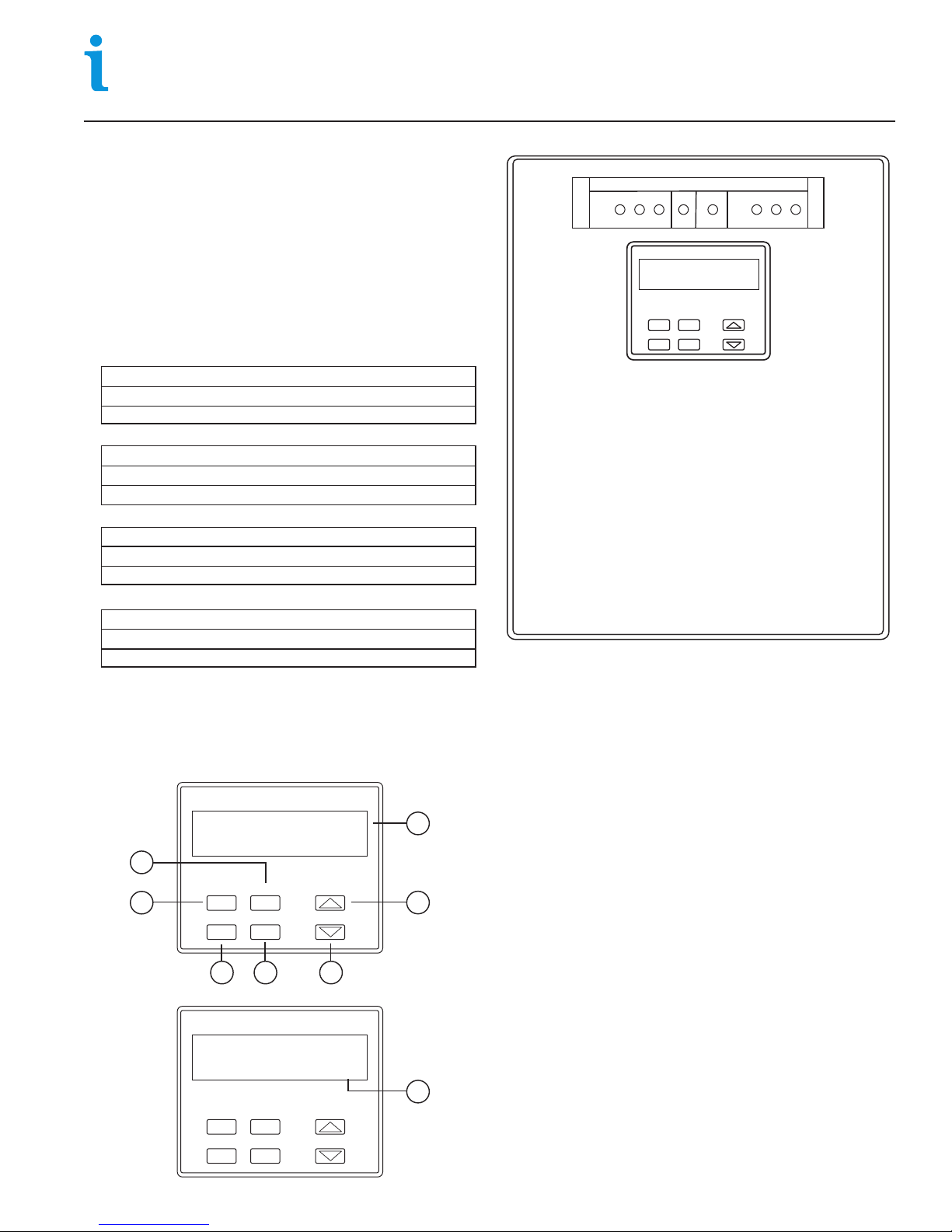
QuickView LED Display
The multi-color LEDs help you determine the status of your
zoning system quickly without removing the cover on the
zoning panel.
Zone Thermostat LEDs
Heating Request
Cooling Request
Fan ventilation
HVAC LED
Heating
Cooling
Fan ventilation
Panel LED
Normal Operation
Minor Fault
Major Fault
Zone Damper LEDs
Damper closed
Damper fully open
Damper partially open.
Using PDM to Display Information
The PDM is used to select vacation mode, display the
contractor’s and manufacturer’s name and telephone number,
error messages and the panel status.
PDM Programming/Display Module
eControls
iWD3P V102
1
MENU
2
CANCEL
Red or blinking red.
Green or blinking green.
Yellow.
Red or blinking red.
Green or blinking green.
Yellow or blinking yellow.
Blinking Green.
Blinking yellow.
Off, red or blinking red.
Off.
Green.
Blinking green.
NEXT
SAVE
UP / YES
DOWN / NO
7
6
User Guide
Model iWD3P
Revised 9/15/13
iWD3 Zoning Panel
ZONE THERMOSTATS
Quic k Vi ew
The NEXT key is used to navigate through the menu.
1.
Momentarily pressing the MENU key displays the first
2.
HVAC
1 12 23 3
PDM Programming/Display ModulePDM Programming/Display Module
eControls
Model iWD3P
MENUMENU
NEXTNEXT
CANCELCANCEL
SAVESAVE
User menu selection.
The CANCEL can be used to exit the display menu.
3.
4.
Pressing the SAVE key is used to turn the vacation
mode on or off.
No (N) key is used to navigate through the menu
5.
selections or turn the Vacation mode off.
Yes (Y) key is used to navigate through the menu
6.
selections or turn the Vacation mode on.
LCD display normally displays the manufacturer,
7.
model number and version.
8.
In menu selections the available keys are shown. The
Cancel key can be used to exit the menu.
PANEL
ZONE DAMPERS
UP/YESUP/YES
DOWN/NODOWN/NO
eControls
3
4
PDM Programming/Display Module
Contractor
Info Y/N
NEXT
MENU
CANCEL
SAVE
UP / YES
DOWN / NO
5
Vacant/Vacation Mode
Vacation or Vacant mode can be used when the building or
home is going to be vacant for a period of time. The Zone1
thermostat will now control all the zones and the HVAC
equipment. Change the Zone1 thermostat to Hold mode if it is
a programmable thermostat and set energy efficient heating
8
and cooling temperatures.
The vacation or vacant mode can be controlled by the PDM on
the panel or by an SW01 Occupied/Vacant switch if it is
installed. The SW01 will override the PDM vacation/vacant
mode selection.
Page 2
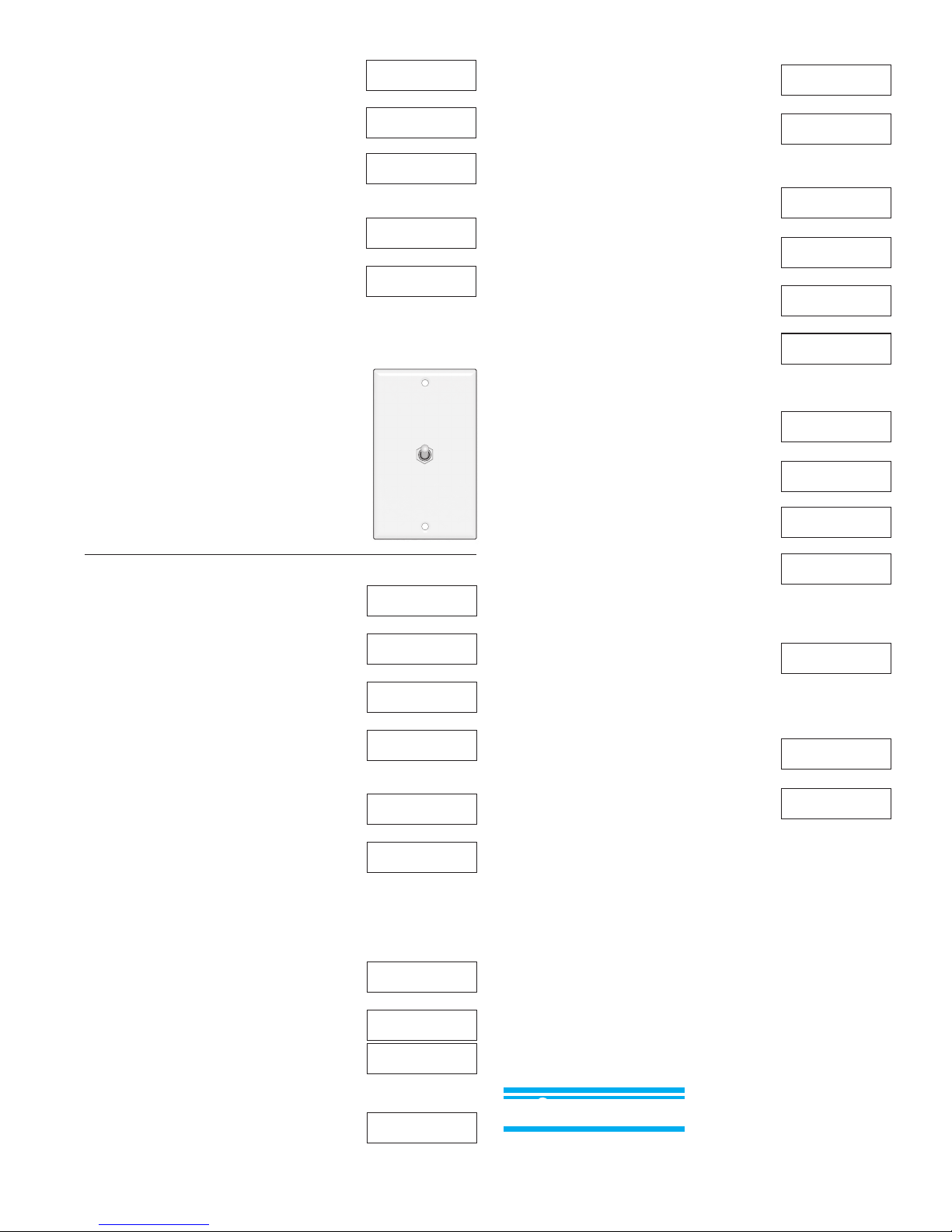
Turning Vacation Mode On Using the PDM
Press the Menu key and the Vacation
screen is shown. Press the Yes key to turn
the Vacation mode on or press No to turn
the Vacation mode off. Press SAVE to
store your selection.
eControls
iWD3P V102
MENU
Vacation Off
Mode Y/NEXT/SAVE
Y
Vacation On
Mode N/NEXT/SAVE
If Vacation Mode is On
The Vacation On screen will remain
displayed when in Vacation mode. Press
the No key to turn the Vacation mode off
and press the SAVE key to store your
selection.
Vacation On
Mode N/NEXT
N
Vacation Off
Mode Y/NEXT
Turning Vacation Mode On Using the SW01
Set the switch to vacant at the end of the
day and the zoning panel will go into
Vacant mode using only the Zone1
thermostat to control the equipment. Set
the switch to Occupied mode at the start of
the day.
Model SW01
OCCUPIED
VACANT
Display Manufacturer Info
Press the MENU key and then the NEXT
key to display the Manufacturer Info screen
and then press Yes to display the
information. The manufacturer’s name and
telephone number is displayed. Press
NEXT to display the Display Contractor
Info screen.
eControls
iWD3P V102
MENU
Vacation Off
Mode Y/NEXT
NEXT
Manufacturer
Info Y/NEXT
Y
eControls, Inc.
949 916 0945 NXT
NEXT
Display Contractor Info
Press Yes to display the contractor
information. The contractor’s name and
telephone number is displayed if it was
entered at installation. Press NEXT to
display the Display Error Message screen.
Contractor
Info Y/NEXT
Y
Best AC
555 111 2222 NXT
NEXT
Display HVAC Status
Press Yes to display the HVAC status. The
example shows the HVAC system is in first
stage heating. Press NEXT to display the
Display Zone Status screen.
Display Zone Status
Press Yes to display the status of each
zone thermostat. The example shows
Zone1 requesting stage 1 heating, Zone2
with no request and Zone3 requesting
stage1 heating. After displaying the last
zone thermostat, Press NEXT to display
the status of each zone damper.
Display Zone Damper Status
Press Yes to display the status of each
zone thermostat. The example shows
Zone1 damper open, Zone2 damper
closed and Zone3 damper open. After
displaying the last zone damper, Press
NEXT to display the Display Sensor Temps
screen.
If Modulating Dampers Are
Used for Bypass
If modulating dampers are being used
for bypass, the screen will shown the
percent a damper is partially open.
Display Sensor Temperatures
Press Yes to display the sensor
temperature readings if your system uses
sensors. The example shows the system
Discharge Air Temperature is 134 F and
the Outdoor Temperature is 42 F. Press
NEXT to return to the main menu.
o
o
Display HVAC
Status Y/NEXT
Y
Heating Stg1
NEXT
NEXT
Display Zone
Status Y/NEXT
Y
Zone 1 Heat1
NEXT
NEXT
Zone 2 No Call
NEXT
NEXT
Zone 3 Heat1
NEXT
NEXT
Display Damper
Status Y/NEXT
Y
Damper 1 Open
NEXT
NEXT
Damper 2 Closed
NEXT
NEXT
Damper 3 Open
NEXT
NEXT
Damper 2 16%
NEXT
Display Sensor
Temps Y/NEXT
Y
SAT 134 ODT 42
NEXT
NEXT
Display Error Message
Press Yes to display any error messages.
The examples show no error messages
and a short in the supply air temperature
sensor. Press NEXT to display the Display
Status screen.
Display Status
Press Yes to display the Display HVAC
Status screen. Press NEXT to return to the
main menu.
Rev 8/22/13
Display Error
Message Y/NEXT
Y
No Error
Message NEXT
SA Sensor Short
NEXT
NEXT
Display Status
Y/NEXT
Y
Limited 5-Year Warranty
The 5-year warranty is limited to the repair or replacement of
defective product due to parts failure or defective workmanship.
eControlseControls
eControls, Inc.
26072 Merit Circle #110 / Laguna Hills, CA 92653
949-916-0945 Fax 949-458-8502 www.iZoneUS.com
 Loading...