

Page 1
www.itsminetechnology.com
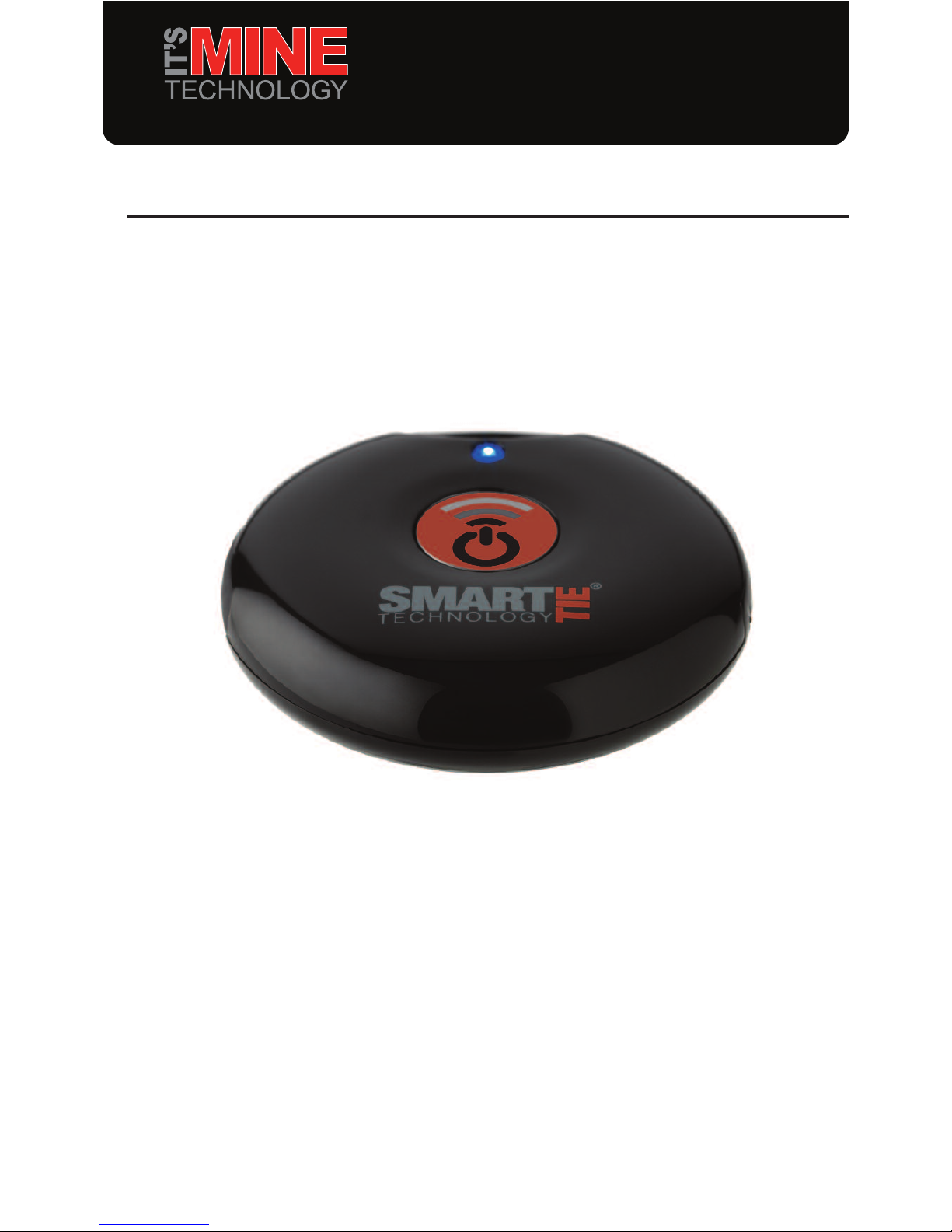
SmartTie
®
User Guide
It’s Mine Technology Ltd
Upway House, School Hill
Lamberhurst,
Tunbridge Wells
TN3 8DF
www.itsminetechnology.com
e: [email protected]
Page 2

www.itsminetechnology.com
SmartTie®User Guide
Congratulations on your purchase of the It’s Mine Technology SmartTie®.
The SmartTie®has been designed to help prevent the loss or theft of your valuable
personal possessions.
The SmartTie®uses radio pulses to tether to other devices such as smartphones, laptops
or tablet computers. It will work with all popular smartphone operating systems. It also
works with devices using operating systems such as Windows or Linux.
Once tethered, if the connection between the SmartTie®and the device is broken the
SmartTie®will either emit an 85 decibel alarm or vibrate. You can choose which option with
the slider control on the side of the SmartTie®. The SmartTie®will also vibrate if a tethered
mobile phone has an incoming call.
The SmartTie®comes with a default alarm but you can replace it with your own
personalised alarm using the usb connector. The SmartTie®also has 2 gigabyte of memory
which can be used as an emergency memory stick.
Charging the SmartTie
®
Connect the SmartTie®to a power source using the usb connector. Your computer or
laptop will charge the SmartTie®, however an iPad or other tablet may not. Before using it
for the first time charge it for between two and three hours. The SmartTie®will need
recharging every 48 hours. When you connect it to the charger the LED will turn red. Once
fully charged the LED will turn off.
Page 3
Power On and first pairing
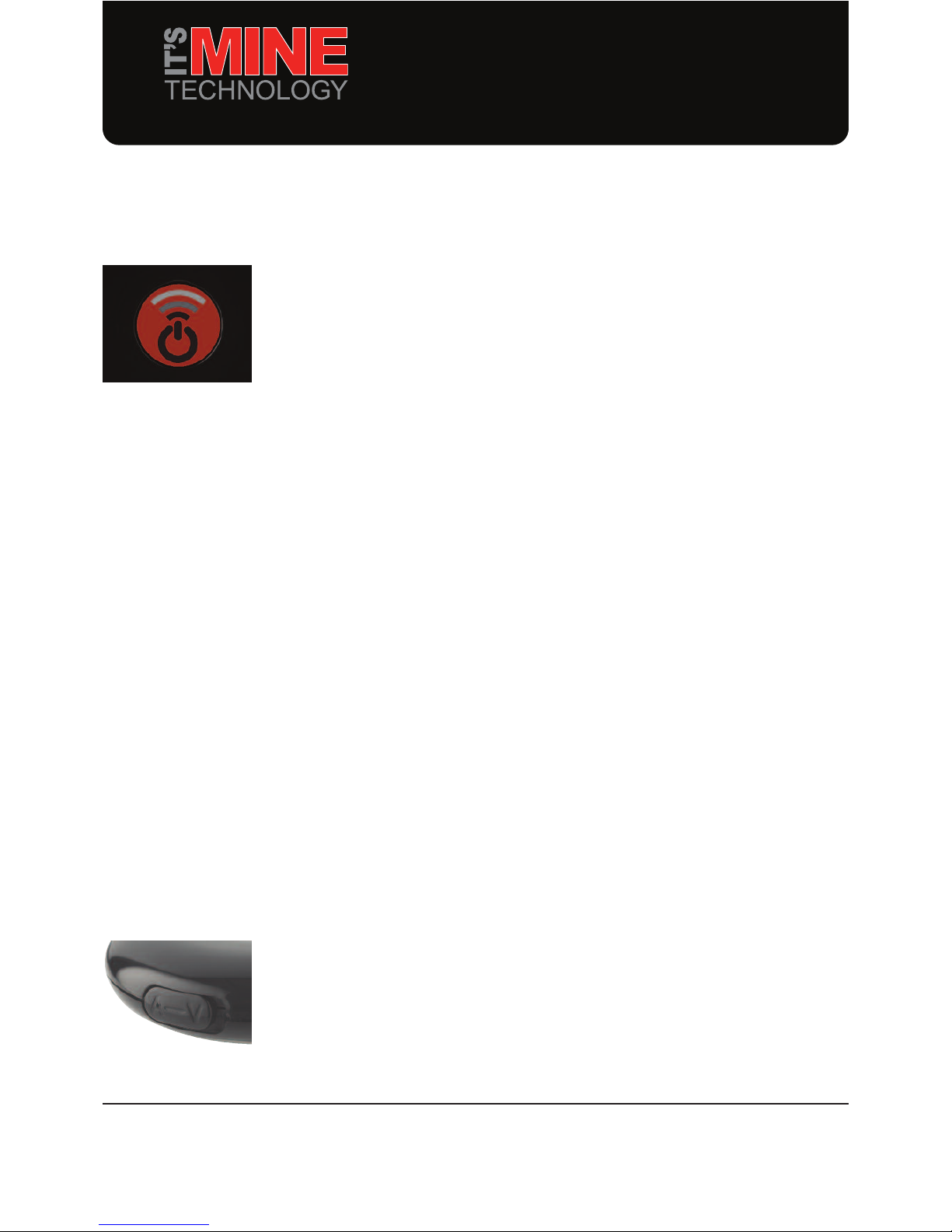
Press the central button for three seconds. If the SmartTie®has been paired previously with
another device it will automatically try to connect to it again. If you are pairing it with
another device for the first time follow the manufacturer’s instructions for pairing that
particular device. If you are asked for a passcode enter four zeros, 0000.
Power Off
Push down the central button for three seconds. The LED will turn red then go out.
Call reminder
If the SmartTie®is connected to a mobile telephone that receives an incoming call it will
vibrate. Once the call has either been answered or rejected the SmartTie®will return to
normal operation.
Changing the alarm sound
If you want a personalised alarm you can change the alarm sound on the SmartTie®easily.
Connect to your computer using the USB cable. It will show up as an external drive. All you
have to do is copy the sound in mp.3 or .wav format onto the drive. The SmartTie®will play
any sound file it finds in any of the directories. CAUTION: make sure that you do not
store a sound you would not want others to hear on the drive.
Using the Flash memory
You can use the SmartTie®as a memory stick. Connect to the SmartTie®using the usb
connector from your computer. The SmartTie®will appear as an external disc drive in both
Windows and Macintosh operating systems. You can use it just as you would using any
other storage device. If you use it to store sound files please be aware that they can be
played as part of the alarm process.
Switching between Audio and Vibrate Alarm
Use the slide on the side of the SmartTie®to change between audio and vibrate alarm.
A denotes ‘Alarm’ mode while V denotes ‘Vibrate’.
www.itsminetechnology.com
Page 4
www.itsminetechnology.com
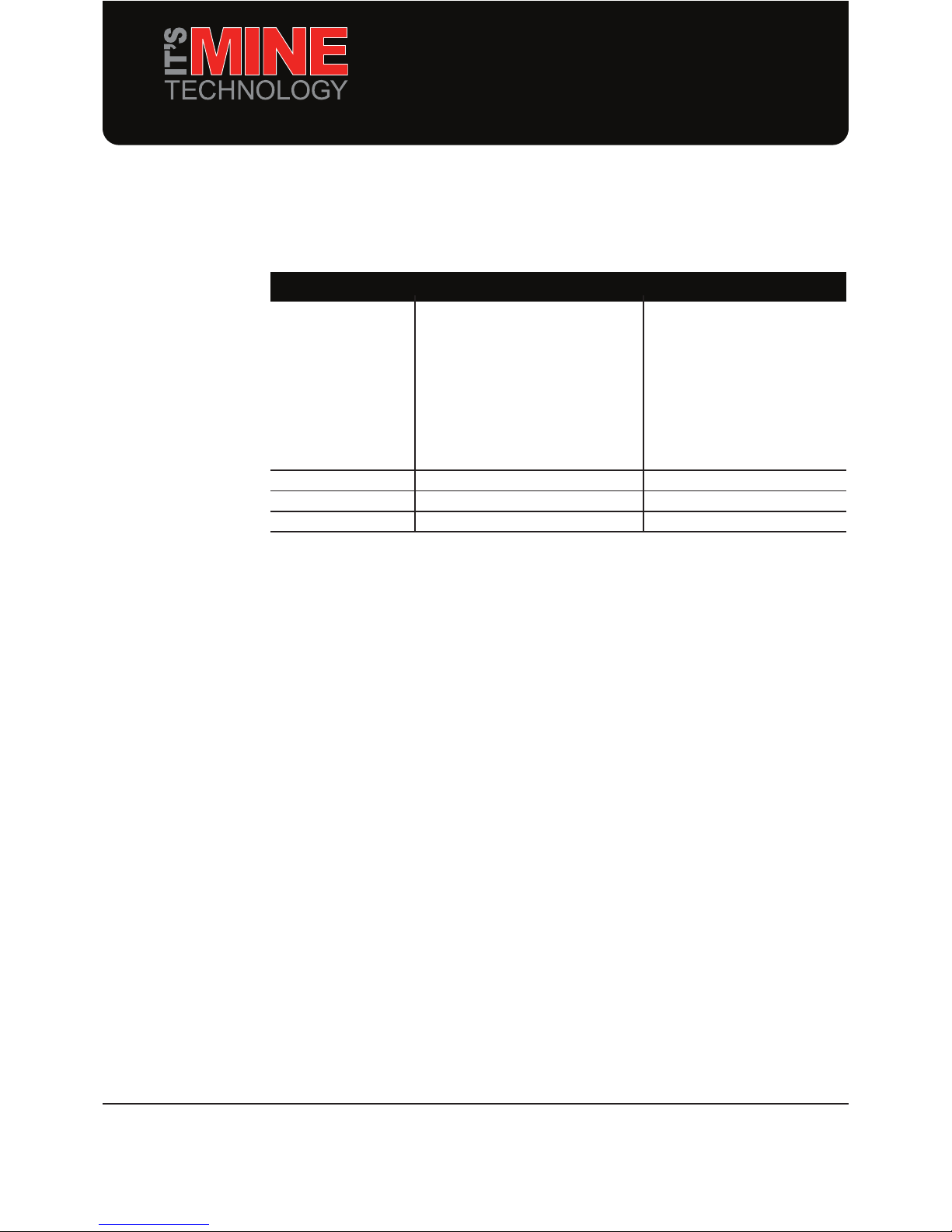
Trouble Shooting
Issue Solution
iPhone, iPad Apple users have been Connect the SmartTie
®
experiencing ongoing normally and set to vibrate for
issues with the implementation the first five minutes. The
of Bluetooth on Apple products. SmartTie®may false alarm
The SmartTie®may sometimes during this time but will
false alarm when connecting for immediately return to
the first time or reconnecting normal operation.
after alarming.
Android devices No known issues
Linux No known issues
Windows No known issues
 Loading...