

Page 1

Bluetooth Virtual Keyboard
For Smartphone 2003
User Guide v1.7
Page 2

Introduction ............................................................................. 3
G
ENERAL PRODUCT DESCRIPTION
L
ASER SAFETY PRECAUTION
D
ISCLAIMER
T
RADEMARKS
................................................................................ 4
.............................................................................. 4
................................................. 3
......................................................... 3
Getting Started ........................................................................ 5
Y
OUR VIRTUAL KEYBOARD
O
VERVIEW
S
WITCHING ON
V
IRTUAL KEYBOARD YOUR SMARTPHONE AND BLUETOOTH
I
NSTALLING THE SOFTWARE DRIVER ON YOUR SMARTPHONE
P
REPARING YOUR KEYBOARD FOR PAIRING
C
ONNECTING WITH YOUR DEVICE
A
PPLICATION DEMONSTRATION
.................................................................................. 5
............................................................................ 6
........................................................... 5
.............. 7
............. 7
..................................... 8
................................................... 8
................................................... 11
Using the VKB Driver Software ............................................ 12
VKB P
Battery Level...........................................................................................12
Projection intensity..................................................................................12
Sound Effects .........................................................................................12
P
Sensitivity................................................................................................13
Reset to Default......................................................................................13
Time-Outs...............................................................................................13
AGE
................................................................................ 12
ROPERTIES PAGE
.................................................................... 13
A
UTOREPEAT CHARACTERS
Enable AutoRepeat.................................................................................14
Repeat Rate............................................................................................14
Initial Repeat Delay.................................................................................14
S
HORT-CUTS PAGE
A
BOUT
...................................................................................... 15
................................................................... 14
....................................................... 14
General Handling Instruction ............................................... 16
M
ICRO-SWITCH
G
ENERAL MAINTENANCE
R
ESETTING THE KEYBOARD TO FACTORY SETTINGS
P
REPARING THE KEYBOARD TO BE PAIRED WITH A DIFFERENT DEVICE
.......................................................................... 16
............................................................ 16
....................... 16
................................................................................................ 16
Troubleshooting.................................................................... 17
Specifications........................................................................ 19
Short-Cuts ............................................................................. 21
2
Page 3

Introduction
Congratulations on choosing the VKB Virtual Keyboard for Smartphone2003.
The keyboard will allow the effortless composition of documents and e-mails
and will turn your phone into a truly indispensable tool whether in the office or
on the go.
Please take a few minutes to review the simple operating instructions in order
to get the most out of your keyboard.
General Product Description
The Virtual Keyboard is a miniature, stand-alone accessory that emulates the
function of a standard, full-sized keyboard. The Virtual Keyboard can connect
via Bluetooth to almost any information appliance, including: PCs, Tablet PCs,
Laptops, PDAs and Smartphones, with the use of an appropriate driver.
Laser Safety Precaution
The Virtual Keyboard device emits two laser beams. One beam (red) projects
the keyboard image, and the other beam (invisible) is used for sensing which
keys have been touched.
The radiation levels of both laser beams do not exceed the Accessible
Emission Limits of Class 1, as defined by the international standard IEC
60825-1 (A2) and the American standard 21 CFR 1040.10. The Virtual
Keyboard device is, therefore, a “Class 1 Laser product”.
This means that the Virtual Keyboard device is safe under reasonably
foreseeable conditions of operation.
Although the emitted laser beams are safe, it is highly recommended not to
stare directly into laser beams.
3
Page 4

Disclaimer
The manufacturer shall not be liable for errors contained herein or for
incidental or consequential damages in connection with the furnishing,
performance or use of this material. This document contains proprietary
information, which is protected by international patent applications and
copyright. All rights reserved. No part of this document may be photocopied,
reproduced or translated without prior written consent of the manufacturer. The
manufacturer reserves the right to revise this publication and to make changes
from time to time in the contents hereof without obligation to notify any person
of such revision or change. The manufacturer also reserves the right to change
the specifications without notice.
Trademarks
VKB Virtual Keyboard is a registered trademark of VKB Inc.
Bluetooth is a registered trademark of Bluetooth SIG.
Smartphone is a registered trademark of Microsoft Corporation.
4
Page 5

Getting Started
Your Virtual Keyboard
Unpack and inspect your Virtual Keyboard. Take a few moments to familiarize
yourself with device using the diagram below.
Overview
Power Key
Charging
Socket
Status indicator
(LED)
Reset
button
Keyboard projection window
Figure 1 – Getting to know your Virtual Keyboard
Before using your Virtual Keyboard:
• Ensure that you remove all protection materials including the
protection sheet on the laser windows.
• Your Virtual Keyboard will need to be charged for at least 2
hours.
Keyboard sensing
receiver window
5
Page 6

Switching On
Place the Virtual Keyboard on a flat surface with the Keyboard projection and
sensing windows facing you. To switch it on press the On/Off button, located
on the upper-left hand side.
Once the unit is switched on an image of a keyboard is projected on to the
surface. Notice that the keyboard image is the basic English keyboard,
including 4 Arrow keys, 1 Control, 2 Shift keys, 1 Alt and a VKB dedicated Fn
function key.
A two-color LED located at the top of the unit indicates the current status of the
Virtual Keyboard, where:
Colour Status/Cause Action
Blinking
Blue
Virtual Keyboard is
ready to pair to a
Bluetooth device
Long Flash
Blue
Virtual Keyboard is
paired to a Bluetooth
device
Blinking
Red
Solid Red
Virtual Keyboard’s
battery is low.
The area of the
projected keyboard is
exposed to direct
Recharge the
Virtual Keyboard
Move the Virtual
Keyboard to a
shaded location
sun-shine or some other
source of direct light.
Table 1 – Functional Status Indicator
The keyboard communicates with all the HOSTs that are in the transceiving
range, and support HID profile, SPP profile, or both SPP and HID profiles.
For communicating with the HID profile, no software installation is required.
For communicating with the SPP profile, VKB driver should be installed on the
HOST.
6
Page 7

Virtual Keyboard your Smartphone and Bluetooth
The Virtual Keyboard (VKB) you have is equipped with Bluetooth, a
short-ranged wireless communications technology allowing you to
communicate with your Smartphone up to 10 meters away without a physical
connection.
As with all Bluetooth devices, to connect with your Smartphone you will need
to do the following:
…Open the VKB Driver to set up a connection…
…and connect.
The first time you use your Virtual Keyboard with a Smartphone device you will
also need to install some software, called a driver, on the Smartphone.
Installing the software driver on your Smartphone
1. Ensure your Smartphone is connected to your computer and switched
on.
2. Open the Microsoft ActiveSync program.
3. Insert the Bluetooth Virtual Keyboard & User Guide Disk into a
CD-ROM drive on your computer. (The CD should run automatically
however if it does not start by itself, please open the CD and run
setup.exe)
4. Follow the onscreen prompts to arrive at the Smartphone page.
Figure 2 – Driver Installation and User Guide Device Selection
7
Page 8
5. Select your device and follow the onscreen instructions to install the
software onto your Smartphone.
The software driver has now been installed on your Smartphone
Preparing your keyboard for pairing
Place the Virtual keyboard on a flat surface and turn it on. The blue LED at the
top should flash at about once a second. This signifies that the Virtual
Keyboard is currently “unpaired” with any device. If this is not the case, please
see “Resetting the keyboard to factory settings” or “Preparing the VKB to be
paired with a different device” on page 17.
Your keyboard is now ready for pairing.
Connecting with your device
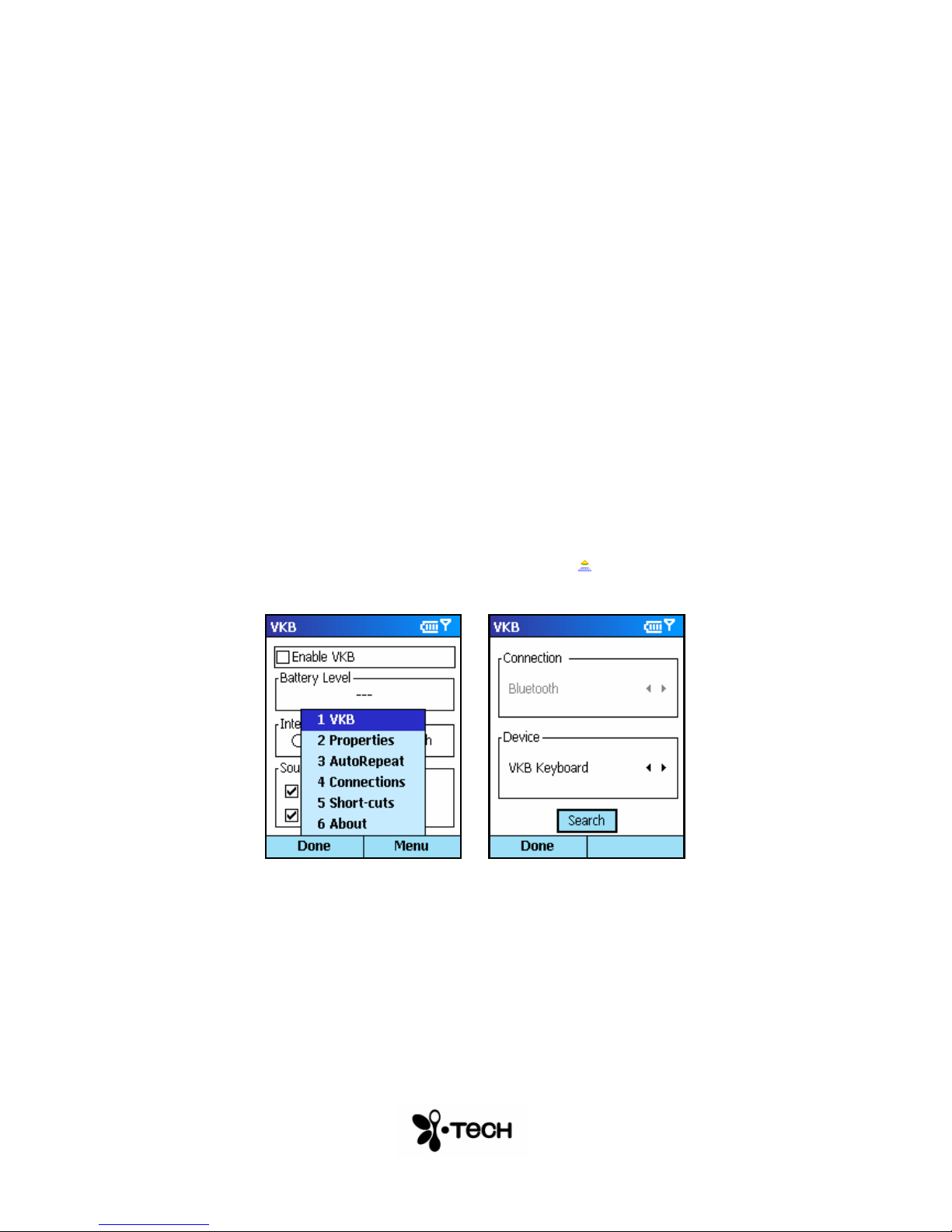
1) Press Start, locate and select VKB program ( ).
2) Press Menu and select Connections
3) Press the Search button at the bottom of the dialog.
4) (If Bluetooth on your Smartphone has not been turned on, you
will prompted to do so)
8
Page 9
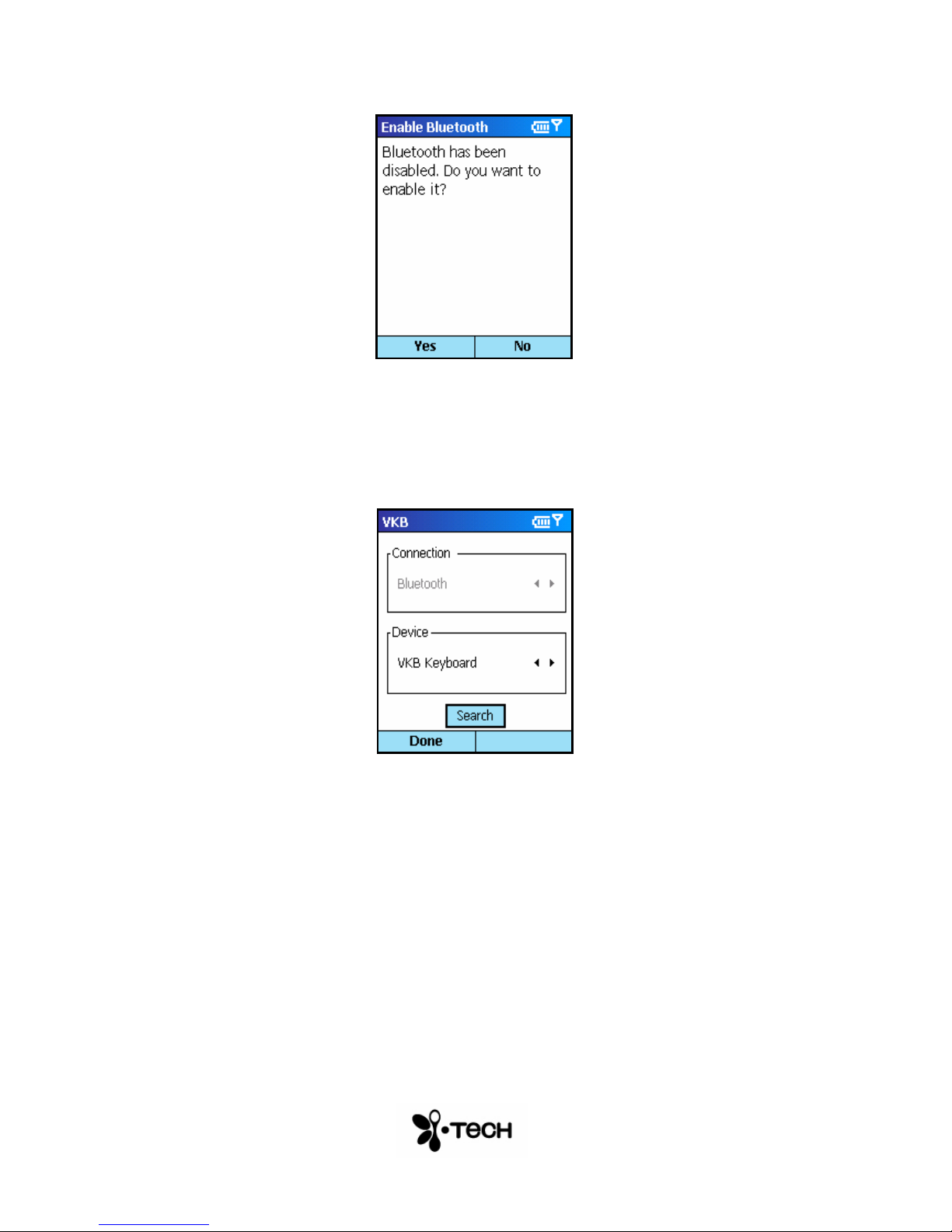
5) Upon completion of the search, the drop down list of devices will
be filled with VKB Keyboards found – select one.
9
Page 10
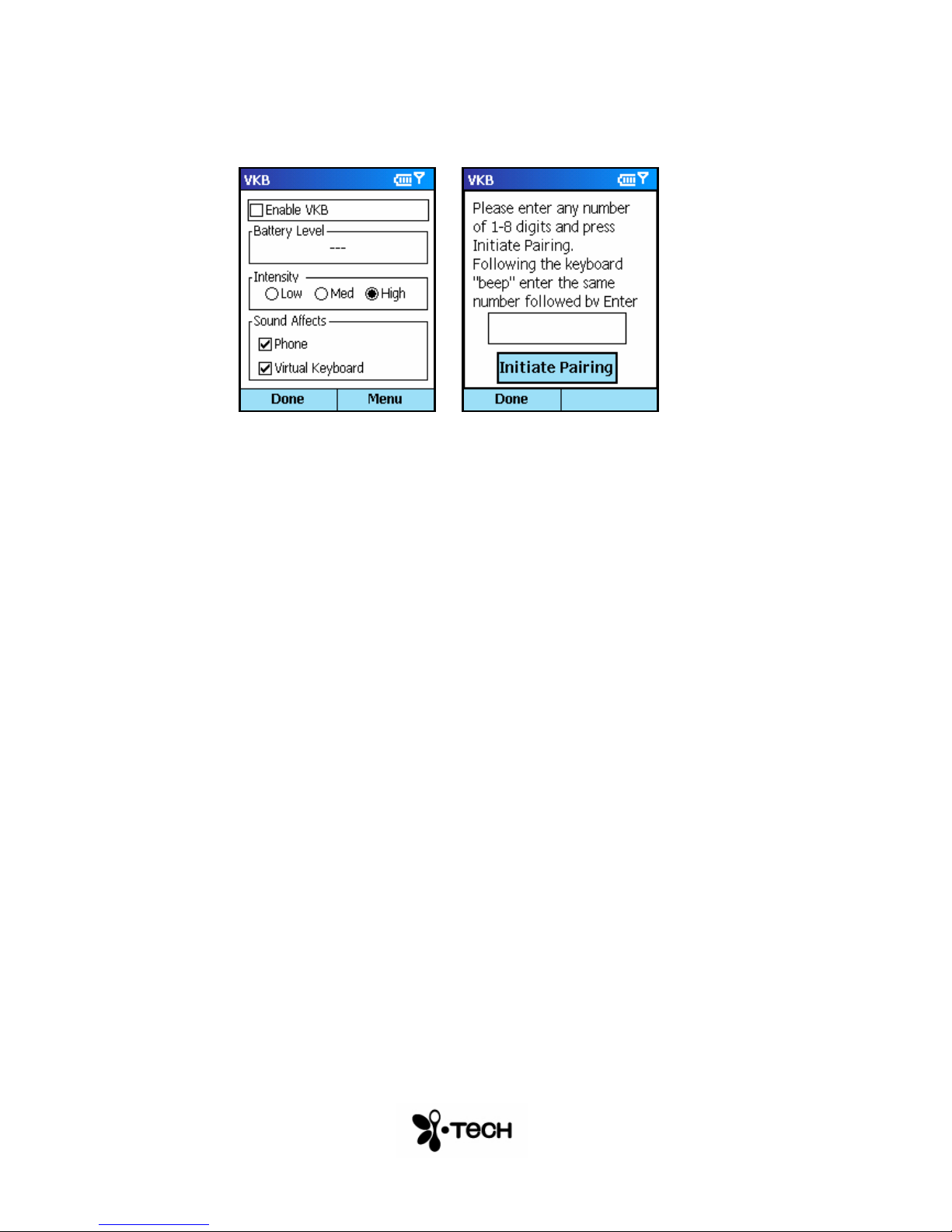
6) Tap the VKB tab and select Enable VKB
Figure 4 – Bluetooth Passkey Entry
7) Using the keyboard on the screen of the Smartphone device,
enter a passkey of between 1 and 8 digits and then tap Initiate
Pairing.
8) Listen for the “beep” on the Virtual Keyboard, then, using the
keyboard projected by the Virtual Keyboard repeat the passkey
and press return [].
The blue LED will go on to show your successful connection. You are now
ready to use the keyboard.
The Virtual Keyboard is now connected to your Smartphone device.
10
Page 11
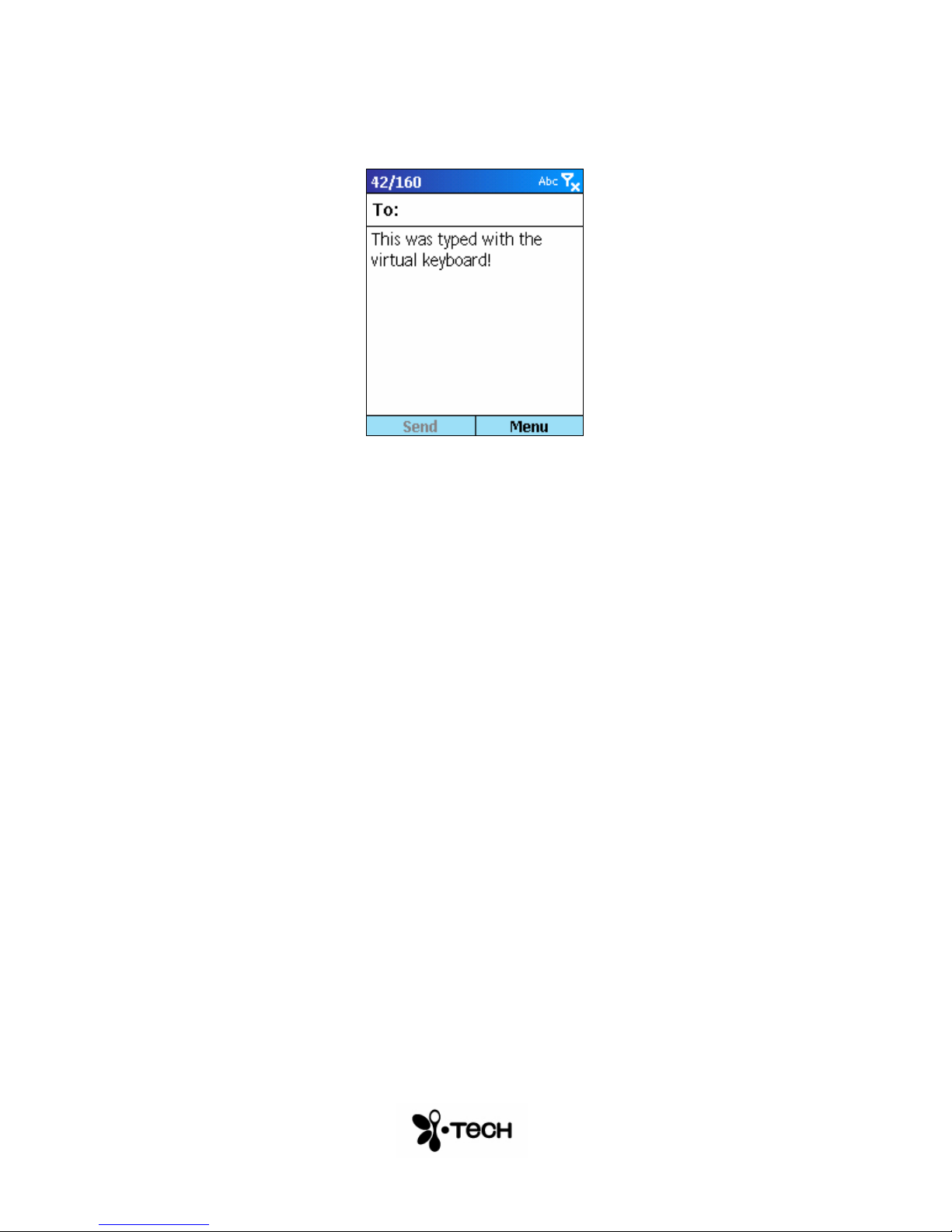
Application Demonstration
11
Page 12
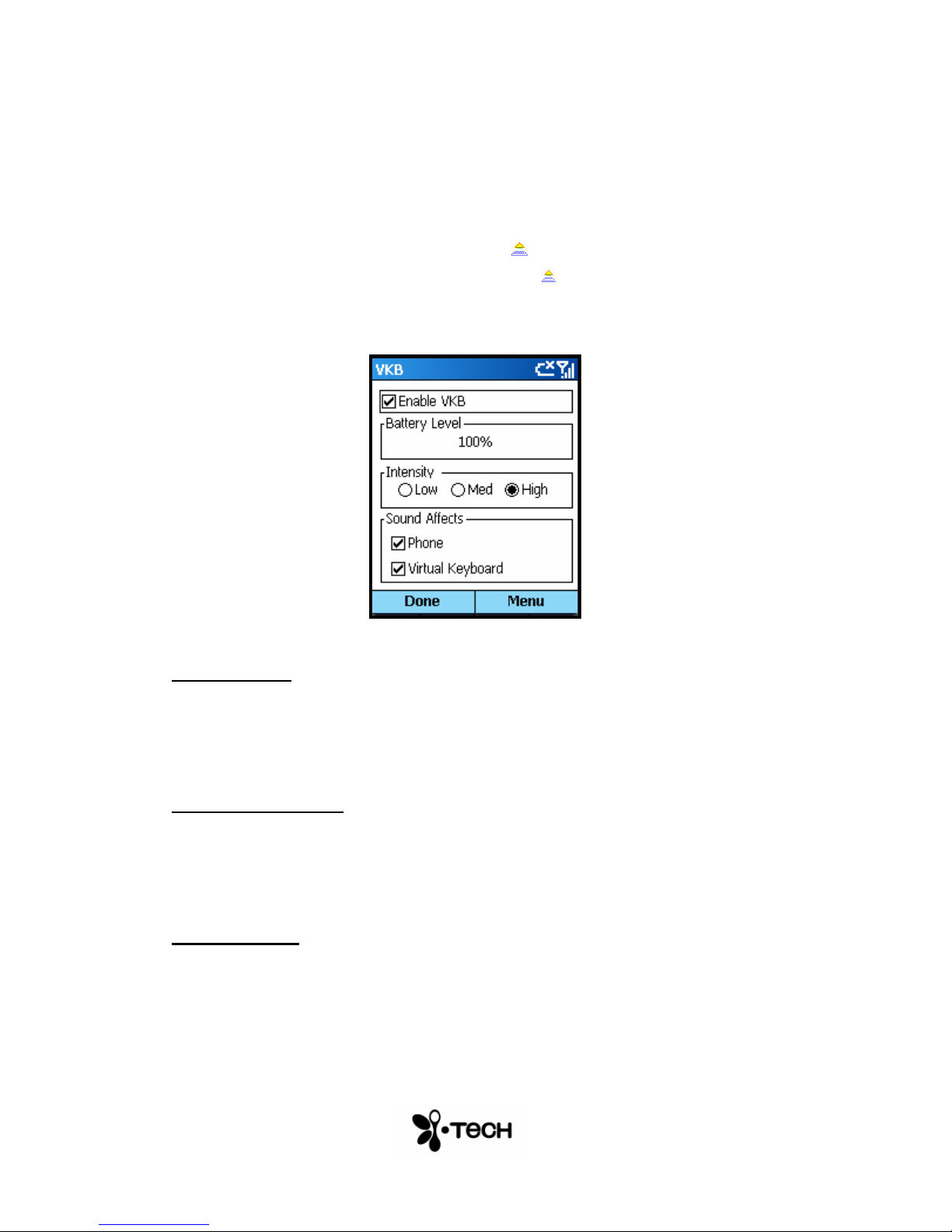
Using the VKB Driver Software
The VKB driver software can be used to adjust the settings of your Virtual
Keyboard.
Press Start and locate the software driver, ( ) on your Smartphone.
Open the VKB page by selecting the VKB icon ( ).
VKB Page
Figure 5 – VKB Main Page
Battery Level
The battery level, displays the current level of the battery in the Virtual
Keyboard. Use this indicator to check when the Virtual Keyboard required
charging.
Projection intensity
You may adjust the intensity of the projected keyboard to so that it is visible in
different light conditions. You may select from between Low, Medium and High
settings.
Sound Effects
The Virtual Keyboard can be set up to emit a “key-click” whenever you press a
key on the projected virtual keyboard. Using the checkboxes you can set the
key-click to be emitted by your computer and/or the Virtual Keyboard.
12
Page 13
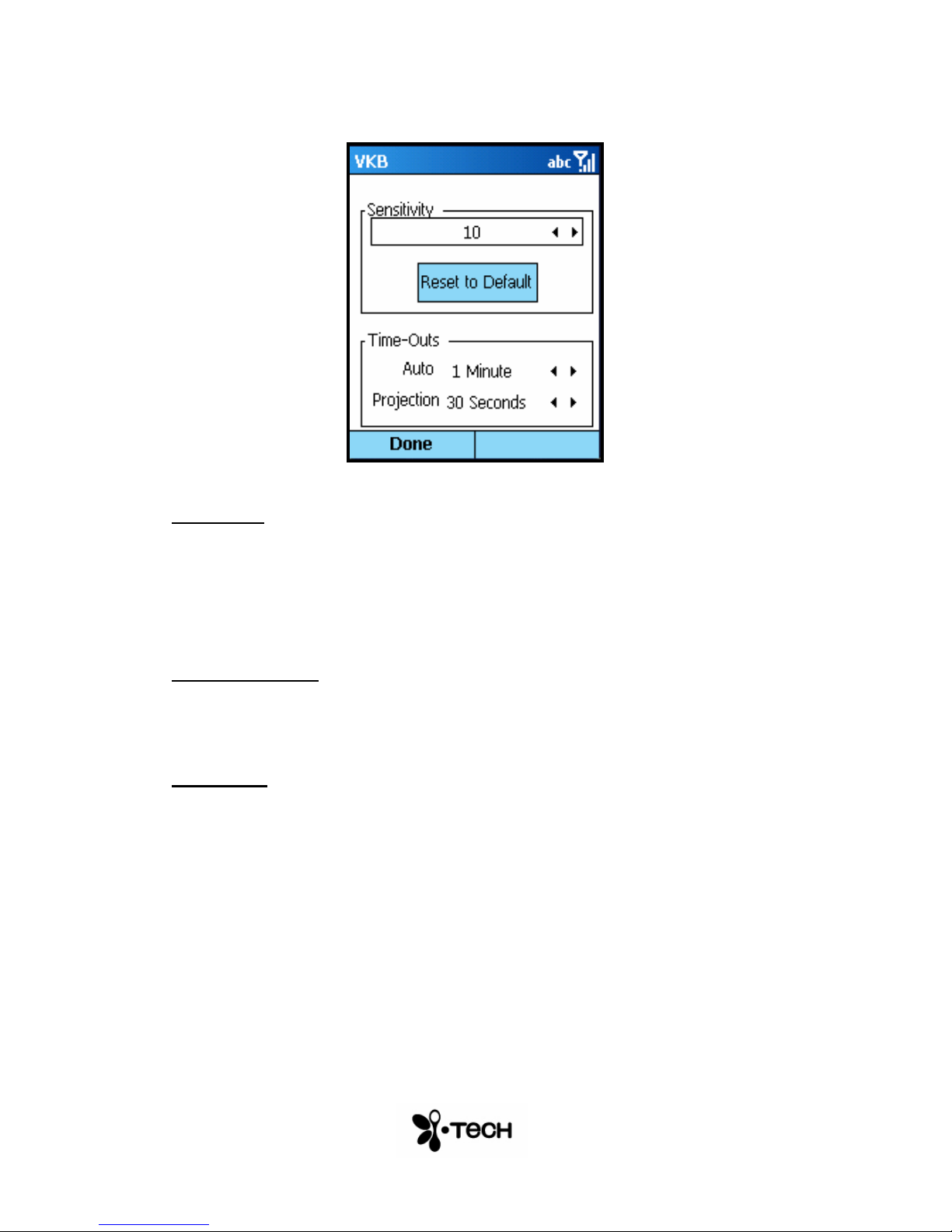
Properties Page
Figure 6 – Properties Menu
Sensitivity
You can adjust the sensitivity of the Virtual Keyboard’s key-press detection.
The default value for this parameter is 10, however you may need to adjust this
for optimal use. If you are experiencing missed key presses, try raising the
setting. If you are experiencing extra key presses, try lowering the sensitivity.
Reset to Default
Pressing the Reset To Default button will cause the Virtual Keyboard and
driver to reset the sensitivity to the keyboard’s factory settings.
Time-Outs
To conserve the battery of the Virtual Keyboard it can be set to switch off
automatically if it has not been used for a while. There are two separate
settings which may be adjusted to suit you. Projection Timeout switches off the
projected keyboard. Auto Timeout switches off the whole device. When a
period exceeding the Projection Timeout has elapsed without typing on the
keyboard, the projection will automatically turn off. Pressing anywhere will
cause the keyboard to be projected again. When the Auto Time-Out has
elapsed the Virtual Keyboard will switch off. If this occurs, press the button on
the Virtual Keyboard to turn it on again.
13
Page 14
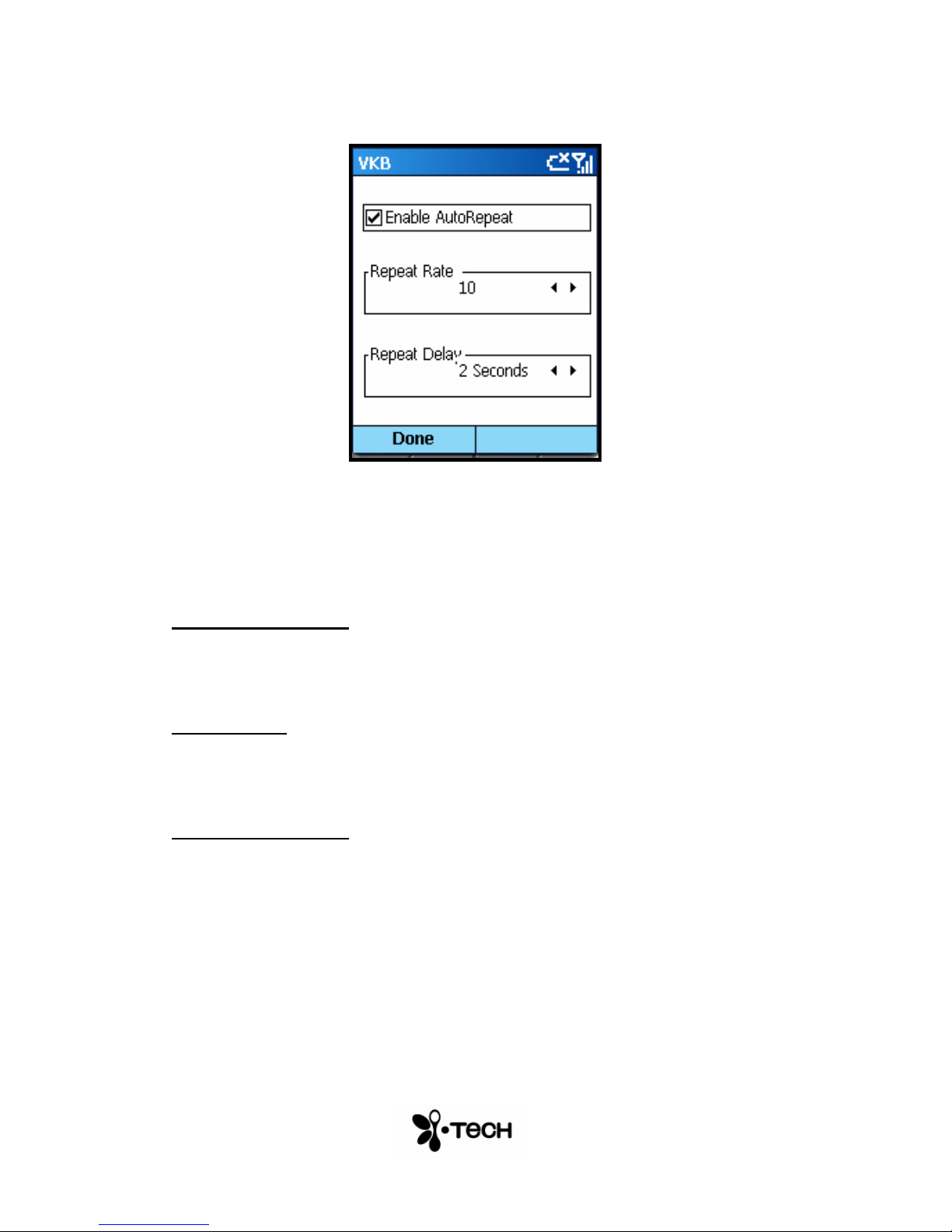
AutoRepeat Characters
Figure 8 – AutoRepeat Page
The AutoRepeat feature employed by the VKB Driver allows the system to
automatically repeat a key that is being pressed. Depending on your phone,
this feature may be disabled or autorepeat only some of the characters.
Enable AutoRepeat
Selecting the Enable AutoRepeat checkbox switches the AutoRepeat function
on and off.
Repeat Rate
The rate at which the key depression occurs is set using the Repeat Rate
slider.
Initial Repeat Delay
The period before the key press is repeated can be set between 1 and 4
seconds using Initial Repeat Delay drop down box.
Short-Cuts Page
The Short-Cuts page, displays the Virtual Keyboard’s special combination
keys, which may be accessed without exiting the application with which you
may be working.
.
14
Page 15
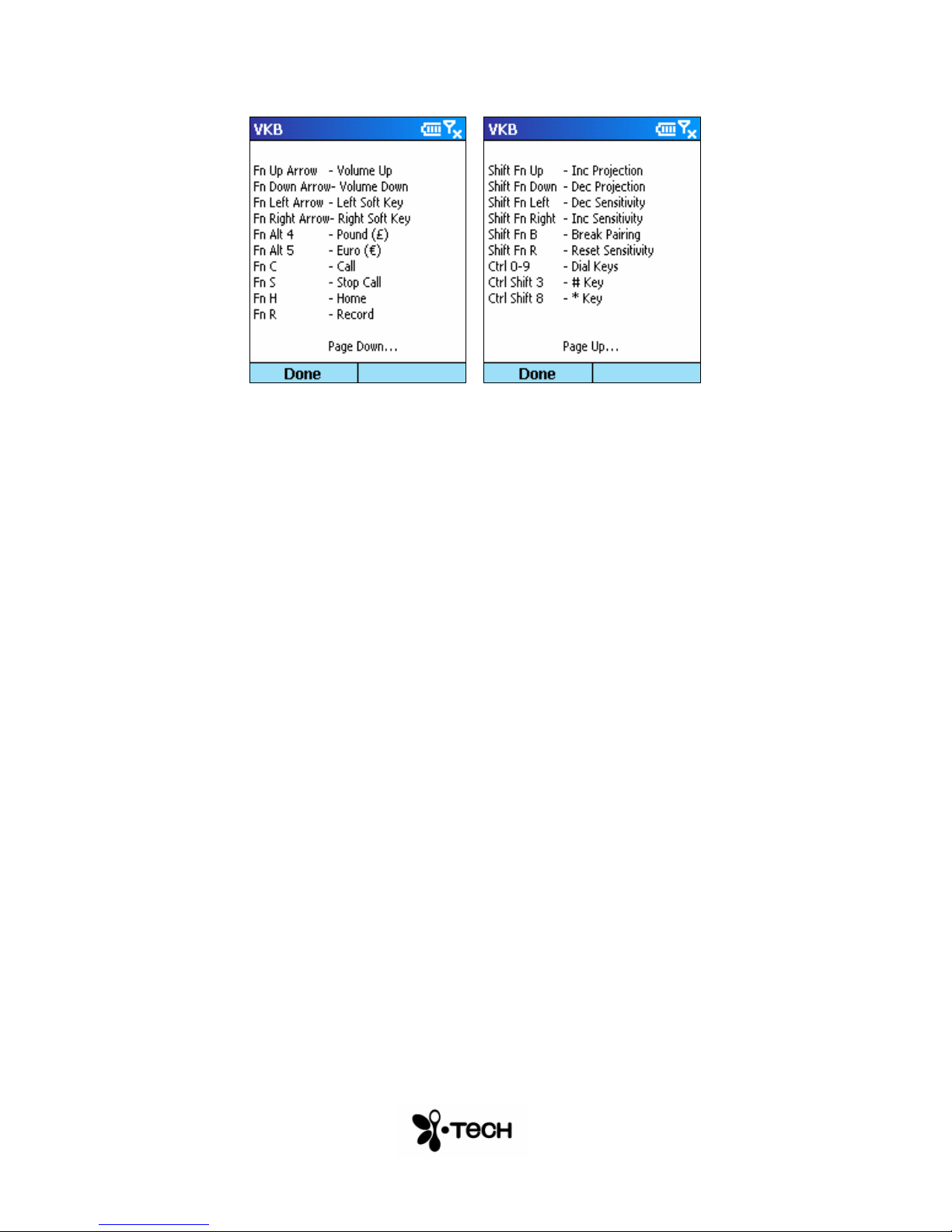
Figure 9 – Short-Cuts Page
About
The About Page displays the Virtual Keyboard Driver’s software version as
well as the software version of the Virtual Keyboard. If you have encountered,
and are reporting a problem, please relay information displayed on this page.
Remarks : the displayed screen is for reference, for detail please browse
i.Tech website : http://www.itechdynamic.com
15
Page 16

General Handling Instruction
Micro-switch
The device is equipped with a micro-switch which disables the Virtual
Keyboard lasers when the device is picked up. This is a safety measure. Do
not attempt to override this micro-switch.
General Maintenance
• Avoid touching the keyboard sensing receiver window.
• Never touch the keyboard projection element.
• Avoid exposing the keyboard to moisture or extreme
temperatures.
• Do not disassemble or try to touch the inside of the device.
• Do not attempt to charge the device with a different charger than
the one provided by VKB.
• If the windows become dirty clean only with a soft, lint free dry
cloth. Do not use any solvents or cleaners.
Resetting the keyboard to factory settings
1) Turn the keyboard on and gently insert the end of a
long sharp object into the reset hole found under
the rubber flap on the right side of the keyboard.
Press for about half a second and then remove the
clip.
2) After about 2 seconds, the keyboard will emit a
short “beep” and the LED will flash blue.
3) Pick up the keyboard and wait for it to turn off,
4) Place the Virtual Keyboard back on the flat surface
and turn it on.
5) The Virtual Keyboard is now ready for pairing.
Preparing the
Once the keyboard has been paired and connected to a host device, to pair the
keyboard with a different host device, turn the keyboard on, and on the projected
image press the keys +Fn+B simultaneously for 3 seconds. The keyboard will emit
a short beep and the LED will flash blue to indicate it is ready for pairing with
another device.
keyboard
to be paired with a different device
16
Page 17
17
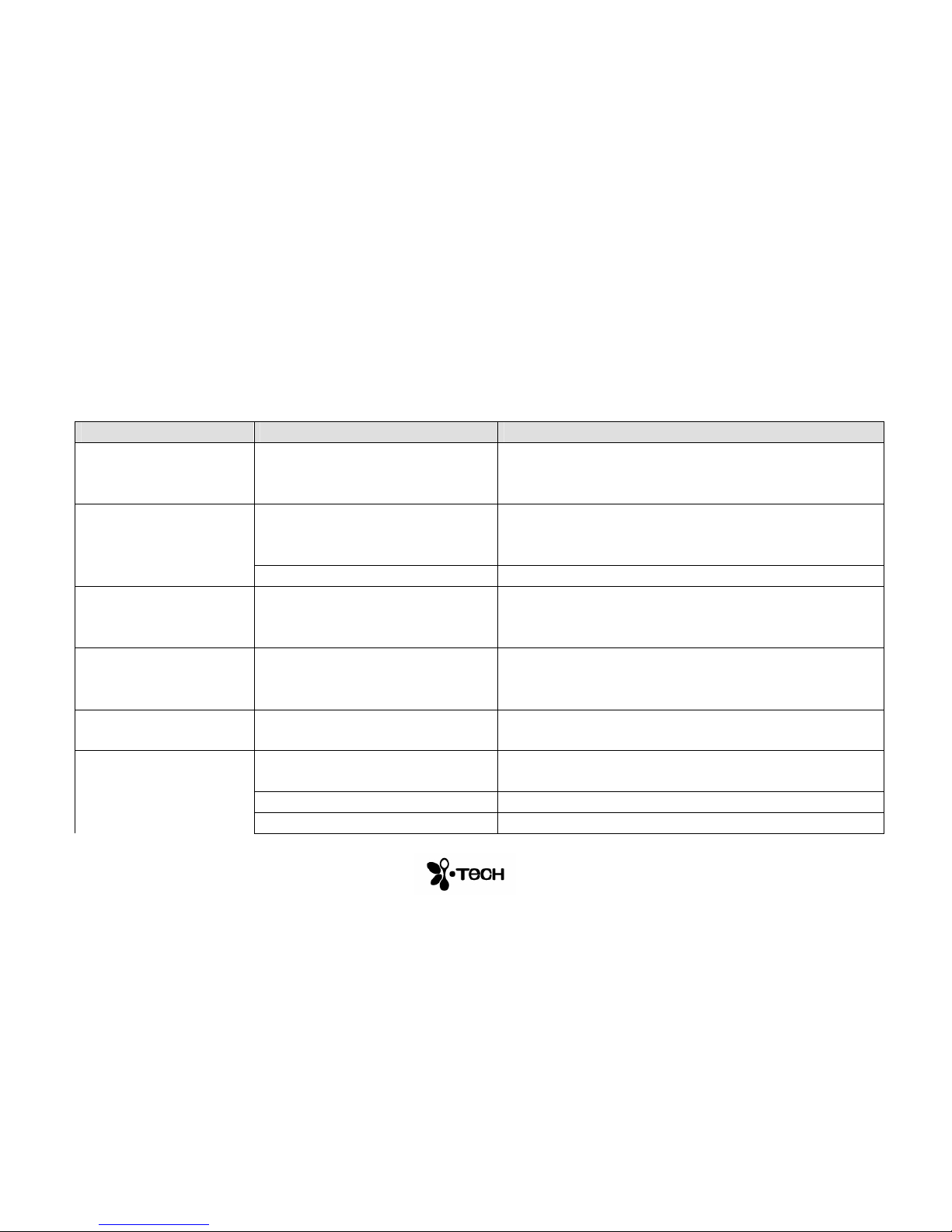
Troubleshooting
Problem Possible cause Corrective action
My keyboard is connected, but
little or no keys are being
detected
The detection sensitivity is too low. Raise the detection sensitivity setting and try again.
When typing, multiple and/or
erroneous keys are displayed in
addition to those I have pressed.
The detection sensitivity setting is too high. Lower the detection sensitivity setting and try again.
Device is not resting on a firm flat surface Reposition device to a firm surface.
My Smartphone doesn’t display
the battery indicator when enable
checkbox is clicked
Device is not pairing on a Bluetooth compatible
device
Start pairing the device.
My Smartphone doesn’t accept
the authentication of my
keyboard while pairing
Device is not entering matched passkey to
request authentication check
Re-start pair device to re-enter the matched passkey.
My Smartphone doesn’t emit
keyclicks when pressing a key
Sound affects, on your Smartphone, have not
been enabled.
Enable Sound affects on the Smartphone, device driver.
My keyboard is turned on but no
image appears.
Device is not charged Charge device
Device is overheated Move device to a cooler location and wait a few minutes
Device is not resting on a firm flat surface Reposition device to a firm surface and verify that the micro-switch is fully
Page 18
18
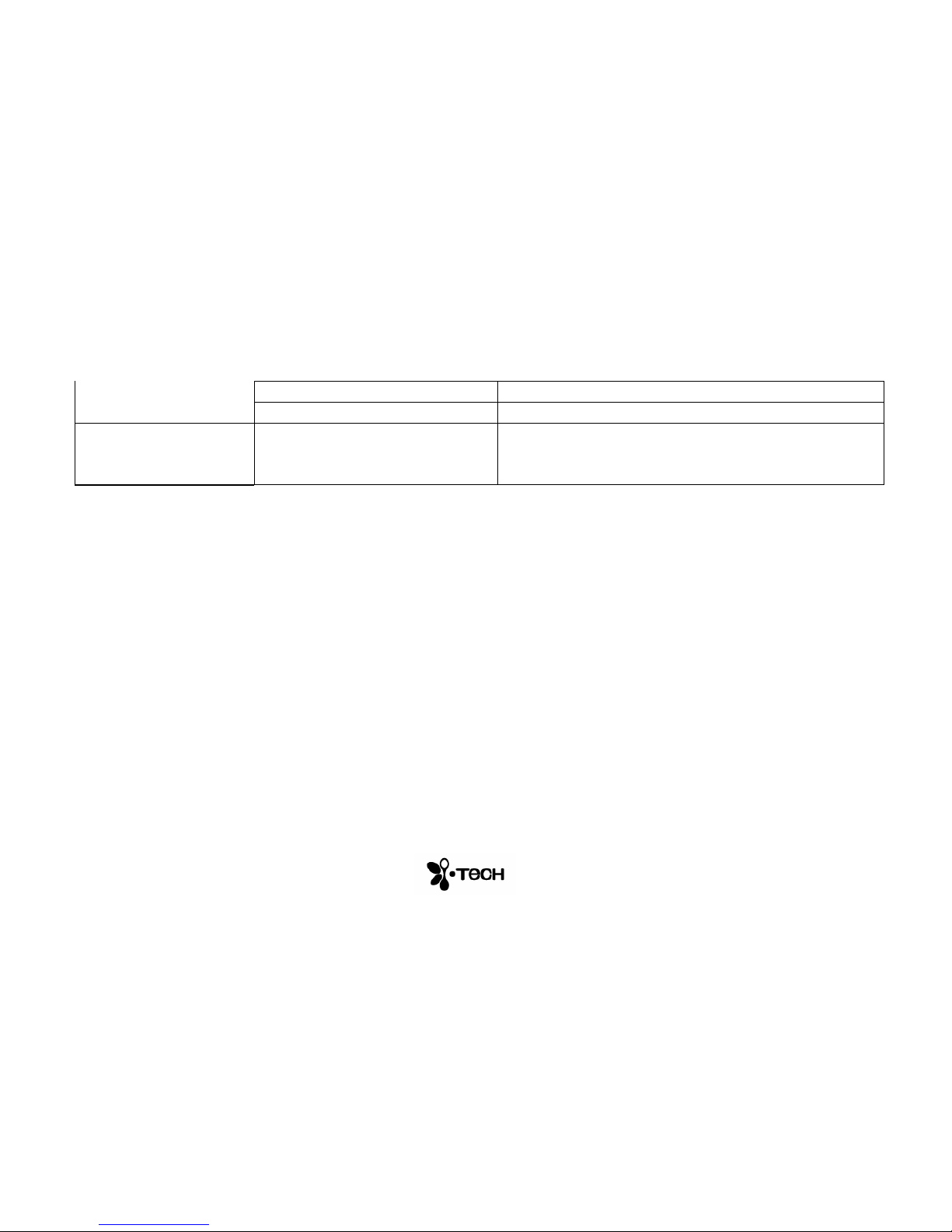
depressed.
Micro-switch stuck Clean micro-switch
“VKB Keyboard” does not appear
as option in Connections list
You have not performed a “Search” from the
Connections page while the keyboard was
prepared for pairing.
Page 19
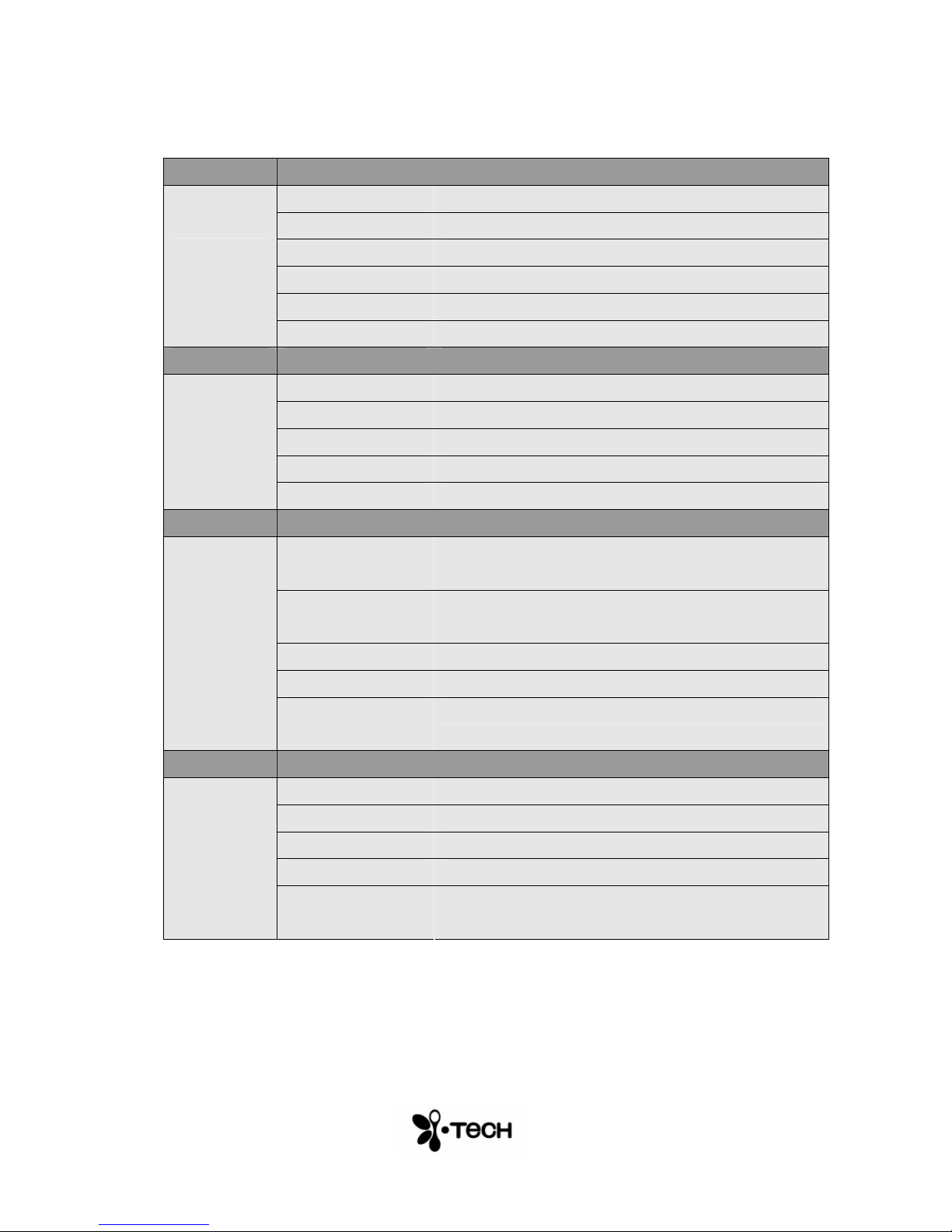
Specifications
Keyboard
Projector
Keystroke
Sensor
Bluetooth
Light source Red diode laser
Keyboard layout 63 key / full sized QWERTY layout
Keyboard size 295 x 95mm projected keyboard size
Keyboard position 60mm from VKB unit
Projection surface Non-reflective, opaque flat surface
Visibility Good contrast up to 600 lux ambient illumination
Ambient illumination Works under all standard indoor illuminations up to 600 lux
Detection rate Up to 400 characters per minute
Detection algorithm Multiple keystroke support
Effective keystroke Approximately 2mm
Operating surface Any firm flat surface with no protrusions greater than 1mm
Bluetooth
Specification
Bluetooth Profile
Supported
Bluetooth v1.1 class 2
HID and SPP
Range of Frequency 2.4GHz Spectrum
Transmission range 9m
Number of supported
passkeys
Electrical
Power source Integrated, rechargeable lithium-ion battery
Voltage 3.6 Volts
Battery capacity > 120 minutes continuous typing
Interface Bluetooth v1.1 class 2
Connector – to
charger
5
Vbat, Gnd
19
Page 20
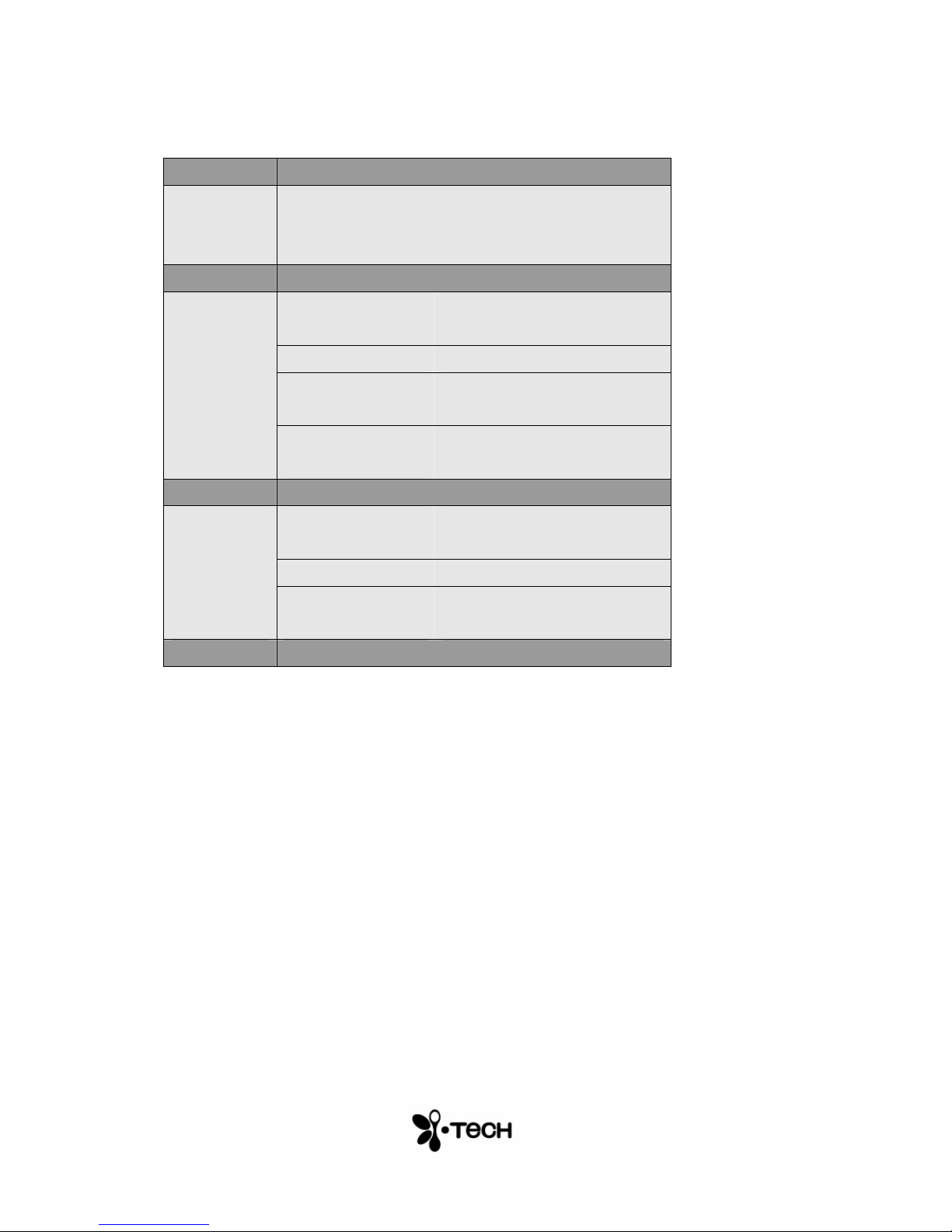
Software Compatibility MS Windows 2000 / XP,
PalmOS5, PocketPC2003,
Smartphone2003, Symbian
Mechanical &
Environmental
Certification &
Safety*
*Certification will be completed prior to commercial introduction
Dimensions Approximately 35 x 92 x 25
mm
Weight ~90 gram
Temperature operation
Temperature storage
EMC per CE EN 55024; 55022; EN 61000-3-2;
BQB, CE, FCC
Laser safety IEC 60825-1; Class 1 laser
10 – 35 Cº
-10 – 75 Cº
-3-3
enclosure
20
Page 21

Short-Cuts
Short Cuts Smartphone Note
Fn Alt 4 Pound (£) Symbol
Fn Alt 5 Euro (€) Symbol
Fn Enter Joystick Press
Fn Left Arrow Left Soft Key
Fn Right Arrow Right Soft Key
Fn Up Arrow Increase Smartphone Volume
Fn Down Arrow Decrease Smartphone Volume
Fn C Call
Fn S Stop Call
Fn H Home Page
Fn R Record
Fn B
Fn R
Fn Up Arrow
Fn Down Arrow
Fn Right Arrow
Fn Left Arrow
Ctrl 0-9 Dial Keys
Ctrl 3
Ctrl 8
<Break Connection>
<Reset to default Sensitivity>
Increase Projection Intensity Special beep is emitted at
Decrease projection intensity Special beep is emitted at
Increase sensitivity Different beep tone emitted for
Decrease sensitivity Different beep tone emitted for
# Key
* Key
maximum intensity
minimum intensity
each sensitivity setting
each sensitivity setting
21
 Loading...