

Page 1

Content
iS
W
AG Fire 1
Page 2

iSWAG Fire 2
Welcome
Thank you for purchasing this innovative iSWAG product. We invite you to read the
instructions contained in this user manual so you can configure and utilize all the
functions your new mobile phone has to offer. For additional information visit us at:
iswagmobile.com
.
General Information
The specifications in this manual are subject to change without prior notice. iSWAG, Inc.
reserves the final right to interpret the performance of this device. While the utmost care
was taken and the latest information compiled in the production of this manual, neither
Swagtek, Inc., iSWAG, nor any other affiliated company, assumes responsibility for any
mistakes or errors that may be contained in this document.
Screen captures, images, diagrams or representations presented in this manual are for
reference purposes. The actual screens or functions may vary due to different software
versions or other factors. Please refer to your mobile phone for the correct details.
iSWAG and the iSWAG logo are registered trademarks of Swagtek, Inc. Other
trademarks are the property of their respective owners.
Safety Information
If your phone is lost or stolen, notify your carrier so that your SIM card can be disabled
(must be done by network operator). This can avoid economic loss due to unauthorized
use.
Please take the following precautions to avoid unauthorized use of your phone:
· Set PIN code for SIM card
· Set phone password
Warnings and Precautions
Safety warning
¾
SAFE OPERATION IN A VEHICL E
Do not use a hand-held phone while driving. Always use a hands-free kit to make/take
calls when driving.
In some states and countries, making or receiving calls while driving is illegal!
¾
SWITCH OFF WHEN ON AN AIRCRAFT
Wireless devices can cause interference in an aircraft. Using a mobile phone in flight is
illegal and risky.
Page 3

Please make s
u
¾
SWITCH OF
F
Strictly observ
e
phones in are
a
before enterin
g
oil tank, chemi
c
¾
OBSERVE A
Follow any sp
e
switch off you
r
interference o
devices, such
a
may cause int
e
¾
INTERFEREN
The conversati
An antenna is
b
touch the ant
e
quality to dete
¾
QUALIFIED
S
Only qualified
p
Installing or re
p
product warra
n
¾
ACCESSOR
I
Use only appr
o
¾
USE CORRE
C
This device is d
¾
EMERGEN
C
Ensure the ph
o
then press the
call until told t
o
Note:
J
ust l
i
features desc
r
networks may
n
mobile phone
network opera
Precautions
This mobile ph
usin
g
it. The f
o
obtain the ma
x
¾
Keep the
m
iS
W
re your mobile phone
BEFORE ENTERING PO
S
the relevant laws, c
o
s where posted notic
e
any area with a pot
e
al plant or location
w
LL SPECIAL REGULATIO
N
cial regulations that
a
phone whenever m
o
r danger. Use cauti
o
s pacemakers, heari
n
rference and not allo
w
CE
on quality of any mo
b
uilt-in to the mobile
p
nna area during a c
o
riorate.
ERVICE
ersonnel may install
o
airing the mobile pho
n
ty.
ES AND BATTERIES
ved accessories and
b
TLY
esi
g
ned to be used in
a
Y CALLS
ne is switched on an
d
Dial key. Give your loc
do so.
ke all other mobile ph
ibed in this manual
d
ot support the emer
g
for critical communi
c
tor.
one is an advanced
llowing suggestions
w
imum benefit from it:
obile phone and all it
s
AG Fire 3
is turned off while in fli
S
TED FACILITIES
des, and regulations
s require you to do so.
ntially explosive atm
o
here a blasting proce
s
S
re enforced in locati
o
bile phone use is for
b
n when using your
aids and other ele
c
these devices to pe
r
ile phone may be a
f
hone and is located
b
nversation because t
h
r repair the phone.
e yourself may cause
atteries.
normal and proper
m
in service, enter the
ation and state your si
ones, this phone may
ue to network or ra
ency call service. Ther
e
ations such as first
a
digital device. Pleas
e
ill help you use your
accessories out of th
e
g
ht.
reg
arding the use of
Turn off your mobile
p
sphere, such as a gas
s is under way.
ns such as hospitals.
idden or when it ma
y
mobile phone near
m
c
tronic medical devi
c
form properly.
fected by radio inter
f
elow the microphone
is will cause the conv
reat harm and it viol
a
anner.
emer
g
ency number,
e
tuation briefly. Do not
not necessarily suppo
r
dio transmission issue
s
e
fore, do not rely solel
y
id. Please consult yo
exercise special ca
r
mobile phone prop
e
reach of children.
mobile
hone
station,
Always
cause
edical
es, as it
erence.
. Do not
ersation
tes the
.g. 112,
end the
t all the
. Some
on this
ur local
e when
rly and
Page 4

iSWAG Fire 4
¾
Keep the mobile phone dry. Keep away from rain, moisture, liquid or other
substances that may corrode the electronic circuits.
¾
Do not use or store the mobile phone in dusty environments to avoid damaging
its mechanical parts.
¾
Excessive use of headphones at high volume may cause permanent hearing
damage.
¾
Do not store the phone under high-temperatures. High temperatures will shorten
the life of the electronic circuits; damage the battery and some plastic parts.
¾
Do not store the mobile phone under extremely low temperatures. Condensation
will form inside the phone and damage the electronic circuits when the phone is
moved to a higher temperature.
¾
Do not throw, knock or shock the mobile phone, as that will damage or destroy
the internal circuits and high-precision components.
Getting to Know Your iSWAG Fire
Power/Lock Key: Press and hold this key to turn on/off your mobile phone. In standby
mode, press this key to turn on/off the screen.
Menu Key: Press this key to open the action list, so that you can execute the action in
current interface or menu.
Home Key: Press this key to return to the home page from any application or interface.
Back Key: Press this key to return to previous interface, or close the dialog box, menu,
notification panel or the screen keypad.
Volume +/-: Press this key to adjust volume
Page 5

Installation an
d
By setting PIN
your SIM card
f
Installing SIM
C
This mobile ph
o
have two SIM
s
the SIM card i
install the batt
e
SIM Card Prec
a
By setting a PI
N
your SIM card
f
If the PIN cod
e
mobile phone.
If you input th
e
need to input
t
Note: Your
SIM card. Plea
s
Connectin
g
to
When the SIM
c
available loca
will be display
e
can make or a
Please conta
c
SIM Card Warn
· Keep the SI
M
· Please use, i
n
contacts a
· Do not expo
s
iS
W
Care of the SIM Card
(
personal identificatio
rom illegal operation.
ard
ne can come confi
g
lots. Please turn off th
e
nto the slot; then, pl
a
ry cover.
utions
(personal identificati
o
rom illegal operation.
is enabled, you nee
d
wrong code three ti
m
he PUK code.
network service provi
d
e change it with your
p
Network
ard is decrypted, th
e
l networks automatic
a
d at the bottom of th
e
nswer calls.
t your network op
e
ings
card out of the reac
h
sert and remove th
e
re prone to bei
n
e the SIM card to ele
c
AG Fire 5
n number) code of t
h
ured for dual SIM op
e
mobile phone first, t
a
ce the battery into t
h
n number) code for
t
to enter the valid PI
N
es in a row, your SI
M
er will set a standard
rivate password as s
o
mobile phone will se
a
lly. Once connected
lock screen. With th
e
rator if the SIM c
a
of children.
SIM card carefully
b
scratched or
trostatic, dusty or moi
s
e SIM card, you can
ration. This configur
a
ke out the battery, a
n
e battery compartm
e
he SIM card, you can
code when you tur
n
card will be locked
a
PIN code (4-8 digits)
on as you get the ph
o
rch for registered net
w
, the network operat
o
phone in standby m
o
rd is not working
p
ecause the SIM card
dama
g
ed from
b
t environment.
protect
tion will
d insert
nt and
protect
on the
nd you
for your
ne.
orks or
r name
de you
roperly.
and its
ending.
Page 6

Micro SD Card
A Micro SD ca
extending the
i
1. To install th
2. Remove th
3. Locate th
e
down.
4. To remove
5. Replace t
h
Charging the
B
1. Connect t
h
2. Connect t
h
3. Connect t
h
the chargi
n
4. The batter
y
the char
ge
5. Disconnec
t
Note: If the
mobile phone
for a while bef
o
The battery c
a
purchase a ne
w
Using data ser
v
The char
ging
ti
The mobile ph
o
power off aut
o
iS
W
Installation and Oper
a
rd is a removable mo
b
nternal storage space
e Micro SD card, care
f
e phone’s battery.
Micro SD card slot
a
the Micro SD card, jus
t
e battery and the ba
c
attery
e wall charger to the
i
e charger plug to the
e USB cable to the m
o
status.
is fully charged whe
n
r from the power outl
e
the charger from the
battery isn’t used for
a
may not turn-on like
n
re turning on the mo
b
n be charged repea
t
battery if you the n
o
ices consumes more
b
me may be affected
b
ne will show a promp
t
matically if the batter
y
AG Fire 6
tion
ile memory card insi
d
of the mobile phone.
ully remove the back
c
nd just slide-in the c
a
slide-out the card ca
r
k cover.
ncluded USB cable.
power outlet.
bile phone; once co
n
the status icon cha
n
t.
mobile phone.
long period of time
o
ormal while chargin
g.
ile phone.
edly; however, it is a
tice a significant redu
c
attery power and will
y the temperature an
t
if the battery level is
t
level drops below a
c
e the mobile phone
u
over of your phone.
rd with the gold con
t
efully to remove.
nected this icon i
n
es to ; please dis
c
r the battery is deple
t
This is normal. Please
consumable product.
tion in the standby ti
m
reduce the standby ti
m
d battery usage.
oo low. The mobile p
h
ertain level.
sed for
acts facing
dicates
onnect
ed, the
charge
Please
e.
e.
one will
Page 7
iSWAG Fire 7
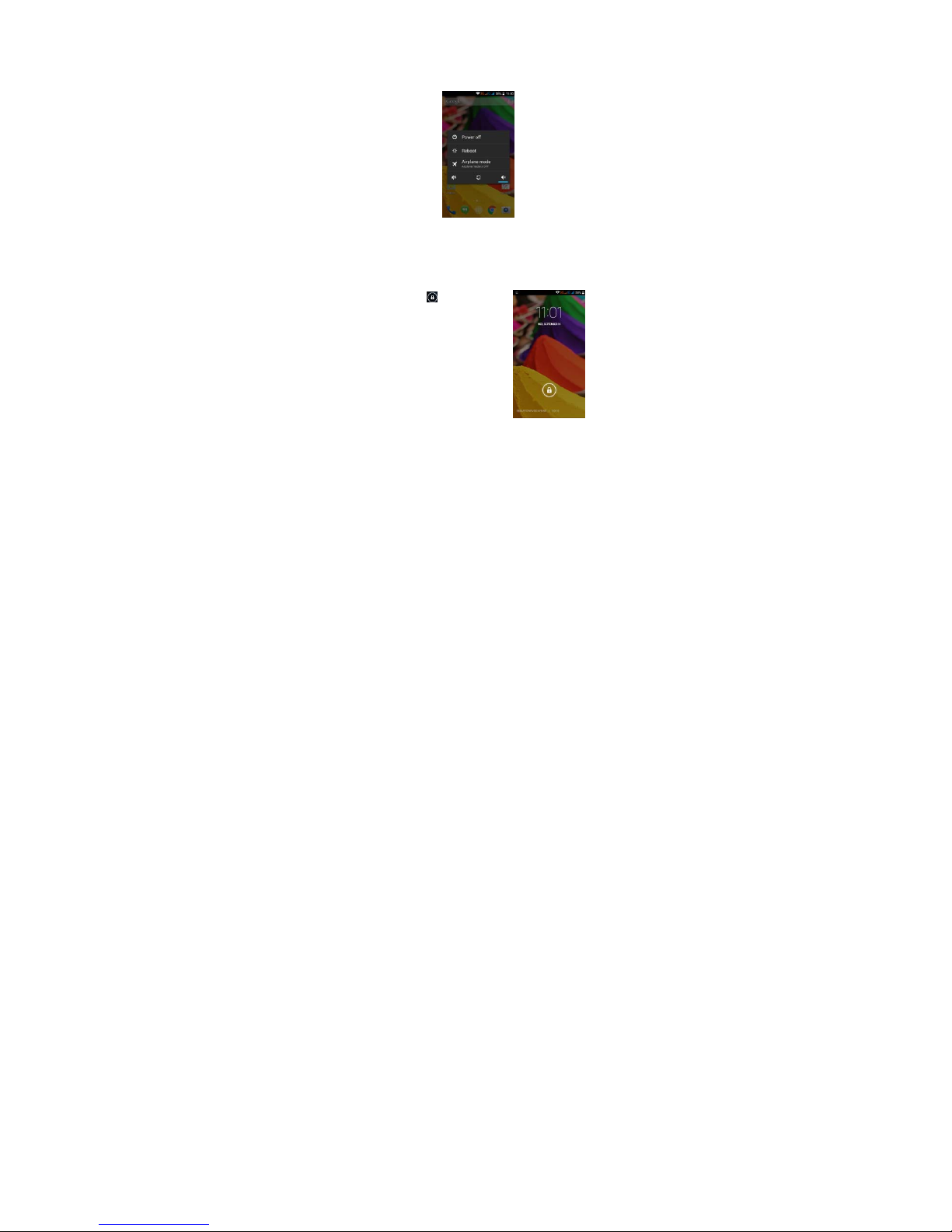
Unlocking Your Phone
Mobile Phone Options List
In standby mode, you can press the Power key to lock and turn off t he screen. Press it
again to turn the screen on. Press and hold the Power key to open the mobile phone
option list.
Unlocking the Interface
With the screen locked, tap the icon at the
bottom of the screen, slide to any direction
to unlock the screen, or drag the screen to right to
access the camera to take pictures.
Page 8

iSWAG Fire 8
Main Menu
Main Menu Page
Slide to the left/right on the screen to switch from the main menu page, and tap the
Menu key to select Manage applications or Settings. Drag and drop an icon to the
desktop to create a shortcut.
View Notifications
Notifications Interface in Status Bar
Page 9

Status Bar
Pull down the
s
can view notifi
of the screen t
o
WLAN, BT, Dat
a
Google Now
Slated as a ‘p
e
such as today’
Goo
g
le now
d
time and loca
t
away when n
o
Google Searc
h
SettingsÆ Sear
c
To mana
g
e se
t
& Now Æ Acc
o
To search, ta
p
commands. F
o
feedback
Voice Comma
Your phone al
iS
W
Quick Settin
g
tatus bar to view the
cations from the mobi
l
display the quick set
connection, GPS, Fli
g
rsonal assistant,’ Goo
g
s weather, traffic, pers
o
isplays ‘cards’ for ea
c
ion. You will be notifie
d
t needed. Swipe up f
r
bar on any Home
s
c
h & Now Æ (ON/OFF)
tings, go to Google S
e
unts & Privacy
the Google searc
h
r more information,
g
nd
so operates via voic
e
AG Fire 9
s Interface in Status B
a
notifications interface
e phone, or tap the
tin
g
s interface. In this
ht mode, customize t
h
le Now shows you inf
o
nal appointments, tr
a
h item that is releva
n
each time a card is
r
om the bottom cent
e
creen. To turn Googl
ttingsÆ Search
bar on top of the
o to Google Setting
s
command. Search it
directly. In this interf
a
icon in the top righ
interface, you can tur
n
e ICON, etc.
rmation at just the ri
g
vel, flights, places, et
c
t, depending on your
to appear. Simply swi
p
of any screen, or to
e Now on/off,
g
o to
screen or tap f
o
Æ
Search & Now
Æ
ems in your phone o
r
ce you
t corner
on/off
ht time,
.
current
e them
uch the
Google
r voice
Help &
on the
Page 10
iSWAG Fire 10
Internet simply by speaking. Tap the when it is visible and follow the prompts before
speaking.
Application Management
From the application management interface, you can manage running applications
to improve the performance of your mobile phone. You can view the information of
the downloaded applications, applications installed on the Micro SD card, running
applications and all applications, restrict permissions or uninstall third party
applications.
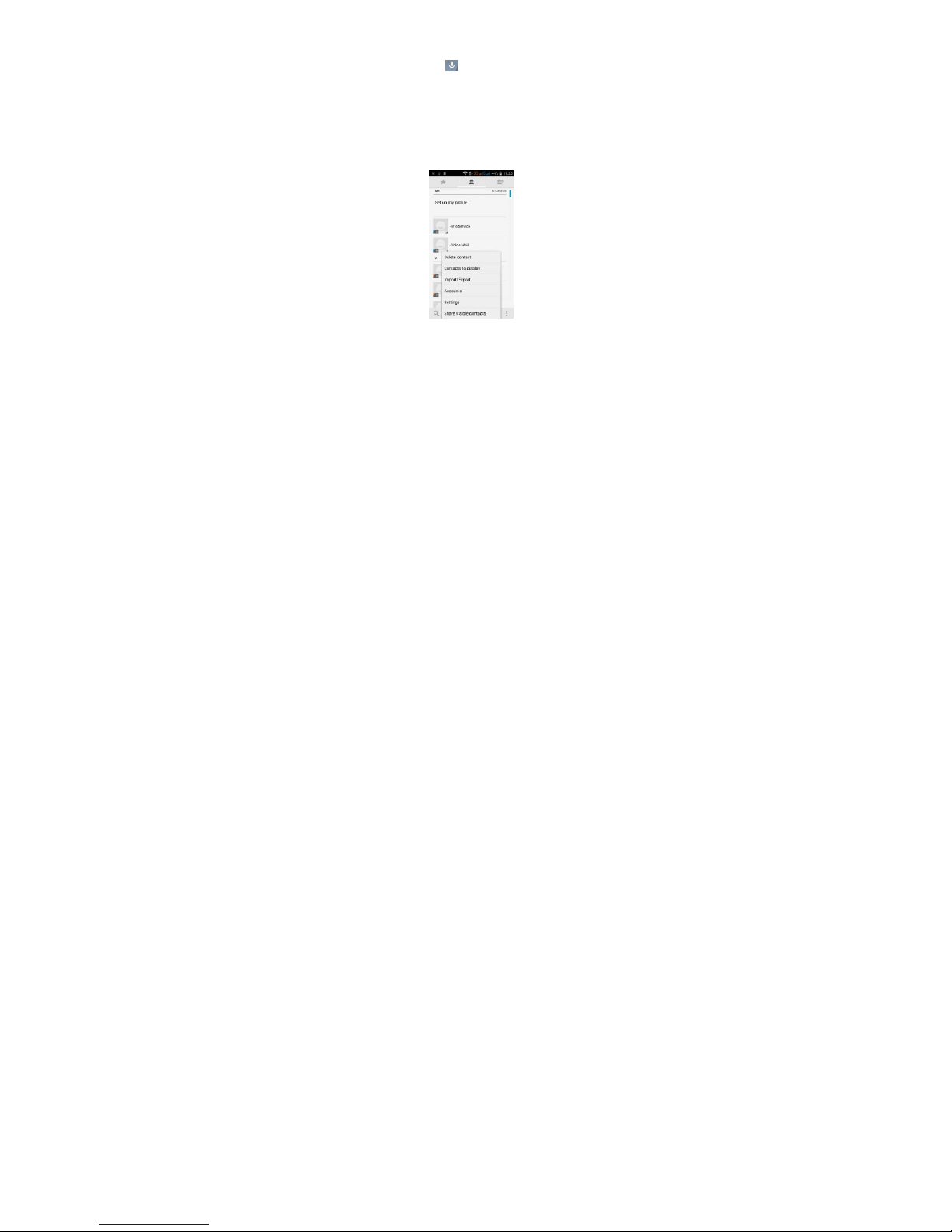
Contacts
You can search contacts by using phone numbers, email accounts or names. Press the
Menu key to select Contacts, Import/Export, Accounts, Send messages or Share current
contact.
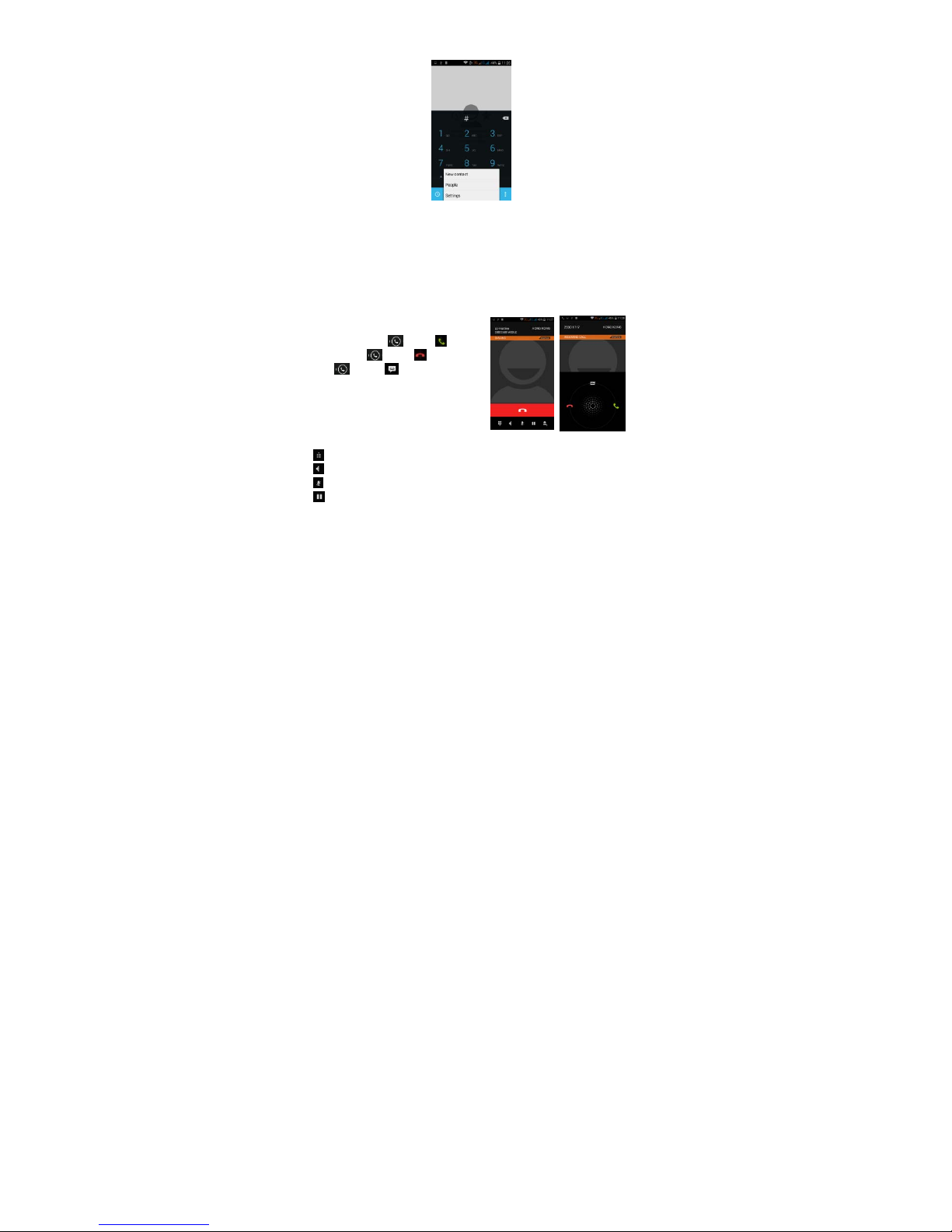
Smart Dialing
Page 11
iSWAG Fire 11
From the keypad interface, the mobile phone will search to find a match in your
contacts as you type in the information.
In settings, you can set up voice call, video call, Quick responses and others.
During a call, you can access the keypad interface or your contacts via shortcuts.
After typing the number from the keypad, press MENU and select Speed dial.
During a call, the backlight turns off when the phone is close to your ear in order to
conserve battery power and prevent any misoperations.
Answer / Reject an Incoming Call
When you receive an incoming call, a
notification message appears on the screen.
To accept call, drag towards
To reject, drag towards
Drag towards to send a message
instead.
Adjust the Volume
During a call, press the Side Keys to adjust
the volume.
Options During a Call
- Launch/Hide Dial Pad
- Turn speakerphone on/off
- Mute
- Put a call on hold
Page 12
iSWAG Fire 12
- Add current call’s details to contacts.
Manage Contacts
You can add contacts to your phone and
synchronize them with the contacts in your
Google account or other accounts that
support contact syncing. To manage your
contacts, go to Æ Contacts [ ].
Messaging and Internet Browser
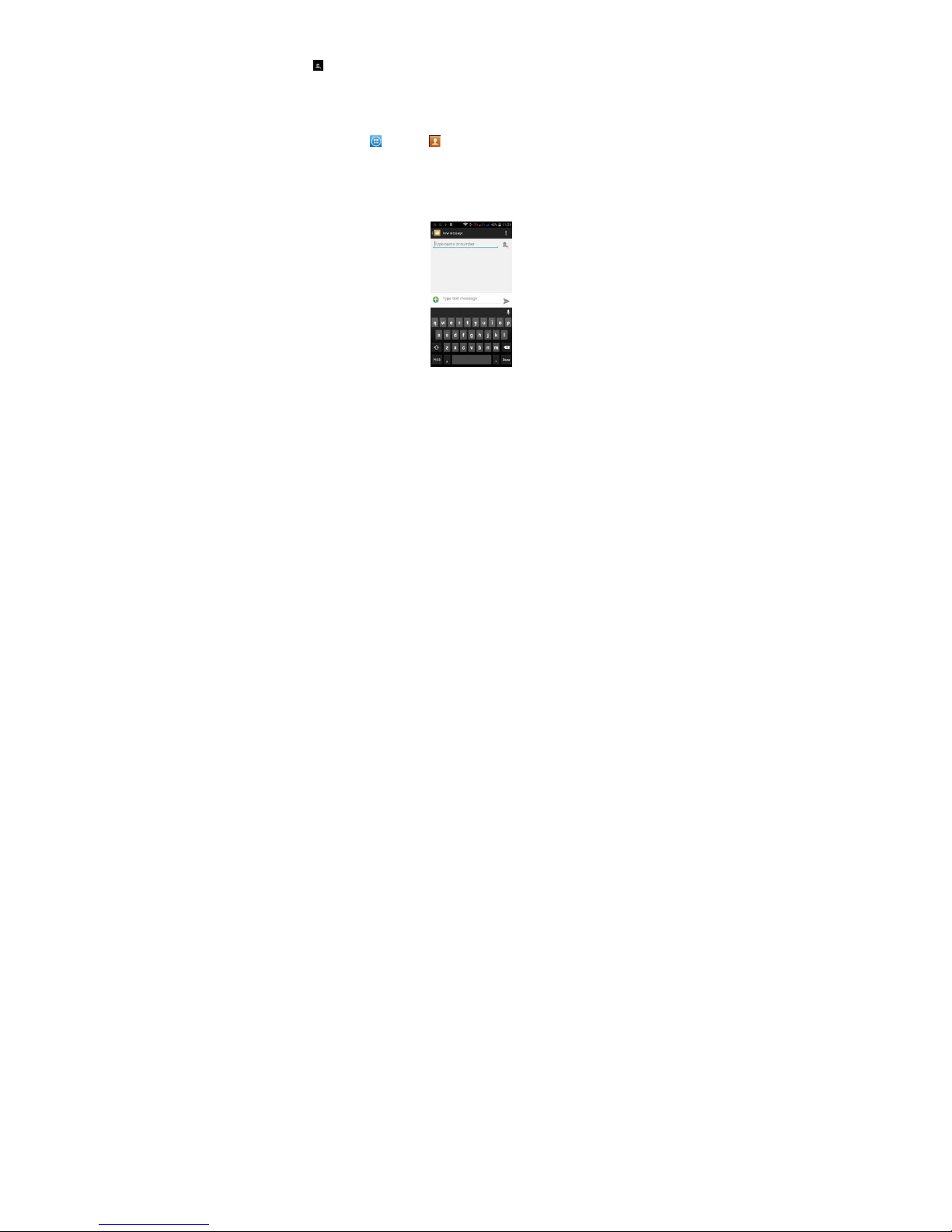
Messaging interface
Your phone supports multiple languages plus third party input method software.
Tap Switch to switch among the different languages. If the language selected for the
spell checker is English, tap the word in the input box while typing to get suggestions for
the correct spelling.
You can also speak to enter text from the majority of screens that require text input.
Tap on a text field, or a location within some text you’ve already entered.
1. Touch the Microphone key on the onscreen keyboard.
2. When you see the microphone image, speak what you
want to type.
Page 13

3. Say “com
m
mark,” or “
e
Browser
The default ho
can chan
g
e t
With the brow
s
watch video o
n
Music Player
iS
W
a,” “period,” “questio
xclamation point” to
e
mepage will be show
n
he default homepa
ge
er you can visit intern
e
line.
AG Fire 13
n mark,” “exclamatio
n
nter punctuation.
when you open the
to one of your cho
o
t webpages, downlo
a
browser for the first ti
m
sing from the settin
gs
d resources form the
e. You
menu.
web or
Page 14

iSWAG Fire 14
Supports MP3, AAC, OGG, MIDI and other music formats. Drag the progress bar while a
song is playing to move to any segment of the track, Tap the Play button to pause or
play.
Tap and hold artist, album or music name to perform operations such as play, add to
playing list, set as ring tone, delete, and search. Select search to search music and play.
Camera
Tap on the screen to focus automatically, making
the capture of moving objects easier and more
convenient.
You can set smile shutter, best capture, continuous
shooting, normal mode, automatic scene detection
plus other modes.
The camera integrates various creative styles; you
can tap to preview different effects.
Dual Camera
Your mobile phone has a front camera built-in.
Tap to switch to the front camera and take a
selfie (self-photo).
Video Recorder
Your phone takes high-quality videos. Tap to switch to the video recorder.
Page 15
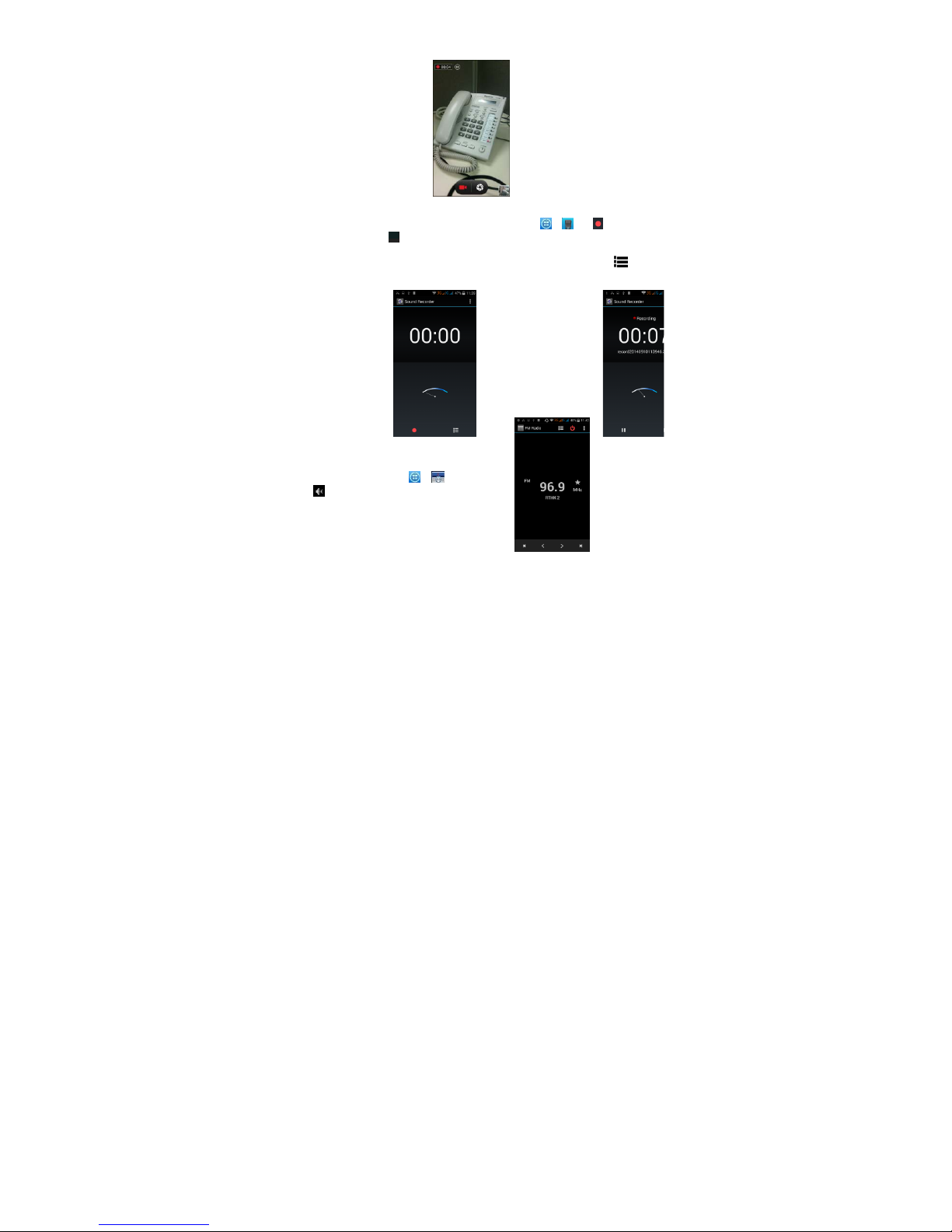
iSWAG Fire 15
Sound Recorder
Record sound and other audio files on your phone by going to → . Tap to star t
recording and press to stop recording. To record FM Radio audio, click Menu and
select Record FM option. To play the recently recorded sound, press ►. After playback,
you may opt to discard or save the recorded file. To view the recorded files, tap .
You can send the recorded file via MMS or BT, or set as your ring tone.
FM Radio
To listen to the radio, go to Æ .
- Switch to speaker
Page 16
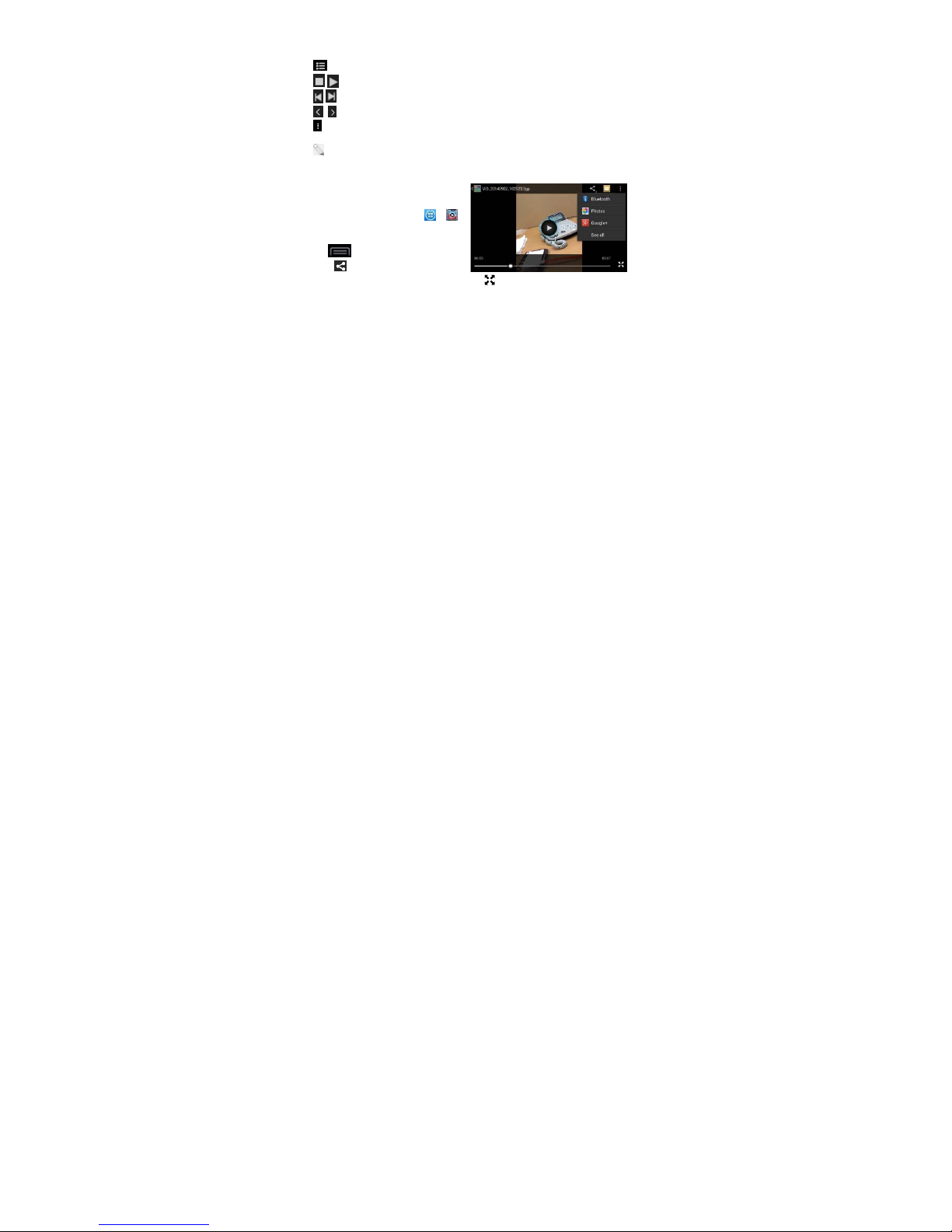
- View ch
a
/ - Play/
S
/ - Searc
h
/ - Fine t
u
- Display op
FM Radio
: A headset
radio to w
o
Video Player
This displays a
n
files stored on
Memory Card.
Æ tap a video
To Pause/Play,
Tap Æ S
t
Tap to
Messaging, BT,
Gallery
You can view
t
recorded by t
h
or pictures an
d
the gallery, yo
u
with multimedi
a
and set as wall
E-mail
Your new pho
n
and read e-m
boxes to the s
a
iS
W
nnel list
top FM radio
the channel list
ne channel
tions: Search channel
s
must be connected f
o
rk. Press side keys to a
d lets you view all vi
d
your phone and on
y
To access, tap Æ
to Play.
ust tap on the video.
t
op to stop playback.
share on Faceb
o
Google+, Email and
G
he pictures and video
s
e camera in Gallery a
videos on SD card. F
r
can perform operati
o
files such as share, e
d
paper, or contact ico
n
e supports Gmail and
ails anywhere at any
me interface.
AG Fire 16
, Record, Exit
r the FM
d
j
ust volume.
eo
our
ok,
mail. Tap to view
nd
om
ns
it
.
other E-mail provider
s
time. You can mer
ge
full screen.
. You can create an
a
e-mails from differen
ccount
t e-mail
Page 17
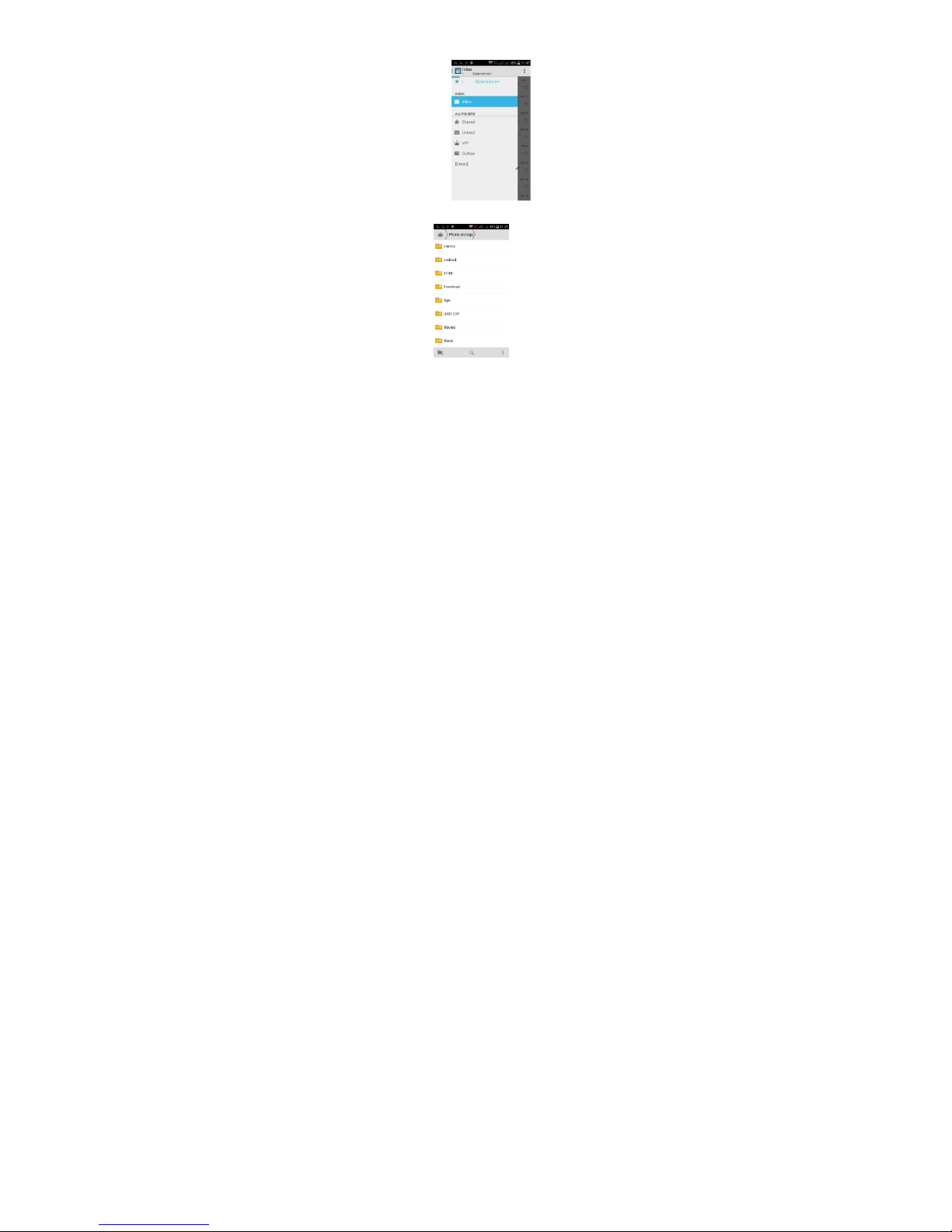
File Manager
From the File
M
files stored on
t
iS
W
anager interface, tap
he Micro SD card.
AG Fire 17
the Menu key to sele
c
t New folder, Cut, or view the
Page 18
iSWAG Fire 18
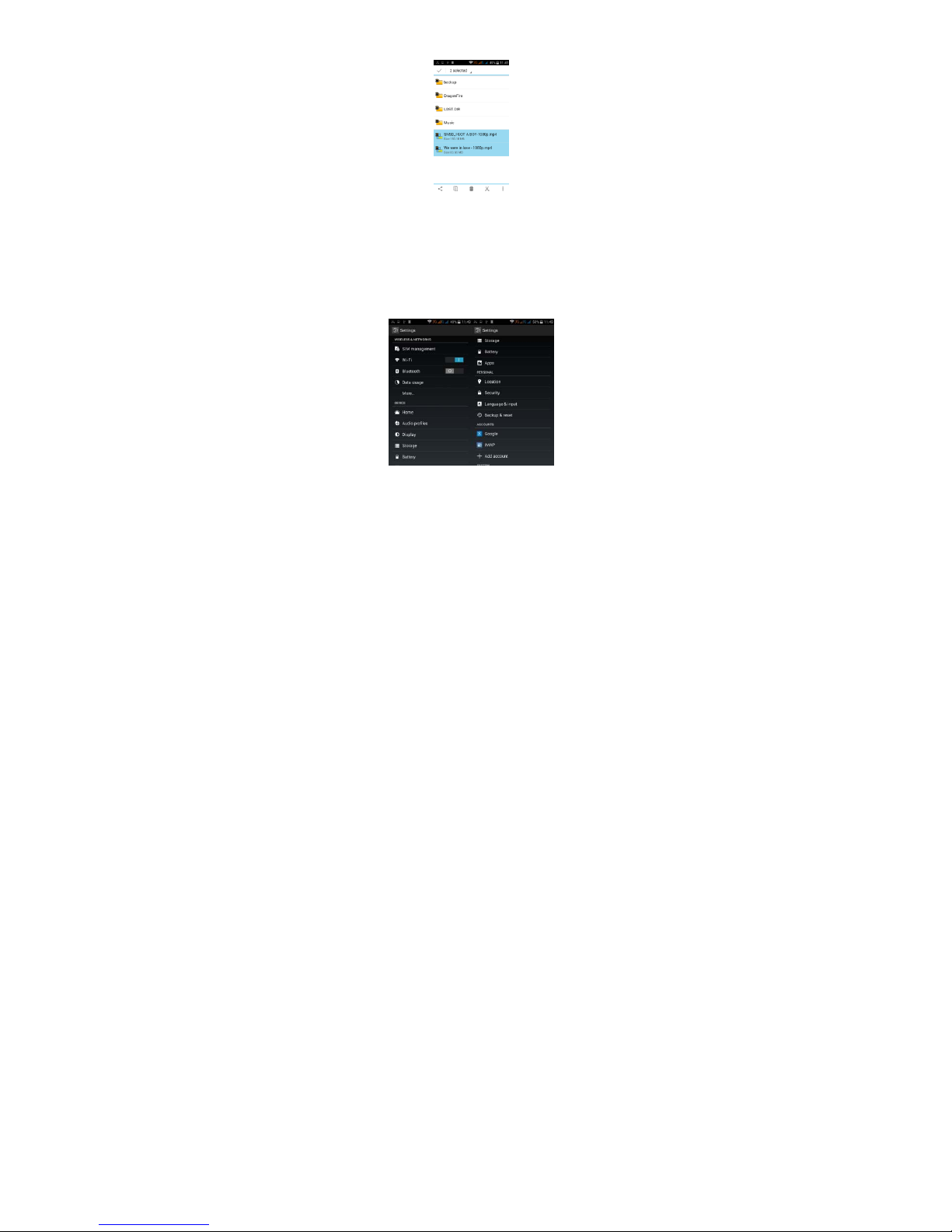
Tap and hold a file or folder and select Copy, Cut, Delete, Rename or select another
option.
Google Play Store
Your mobile phone gives you direct access the “Google Play Store” via the built-in icon.
Google Play offers the most popular apps, e-books, games and more multimedia
content. You can find the latest apps through searching or selecting from the rank lists.
You can connect to Google Play via wireless data or Wi-Fi and begin experiencing
everything it has to offer.
Settings
Wi-Fi
This allows you to switch your phone’s Wi-Fi ON or OFF. Check the status by looking at the
Page 19

iSWAG Fire 19
in the status bar.
Security Functions
You can set up screen security, encryption, SIM lock, etc.
Back-up and Reset
From this interface you can back up the
application data, WLAN password and other
settings to the Google Server. You can also
reset all the data stored on your mobile phone.
Drop-down Menu Bar
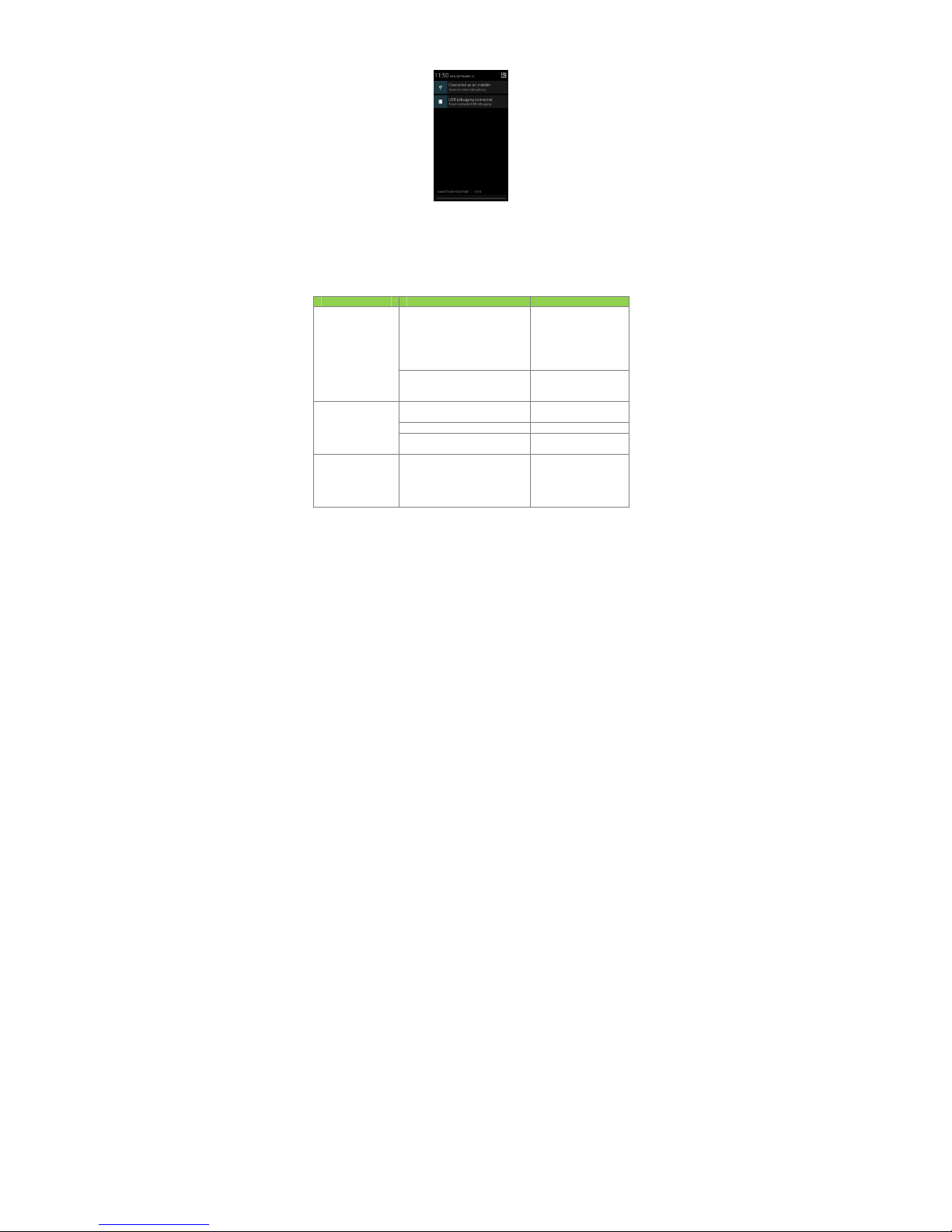
Drop down USB connection in the menu bar. Your mobile phone can be set as a flash
drive and the files on the Micro SD card can be copied to a PC or other files can be
copied from a PC to your mobile phone.
Page 20
iSWAG Fire 20
Troubleshooting
Please refer to the following list of problems and solutions if you run into any issues while
using your mobile phone. Please contact the distributor or service provider if the issue
still persists.
Problem Cause Solution
Can’t access
Internet normally
when using browser
The network operator doesn’t
provide this service or your plan
doesn’t include this service.
Please contact your
network operator for
information on how to
apply and use this
service.
The settings are not correct.
Please refer to the
specific browser’s
instructions.
SIM card error
SIM card is damaged. Please contact your
network operator.
The SIM card isn‘t Check the SIM card.
The metal surface of the SIM
card is dirty.
Clean it with clean.
cloth
Poor reception
The mobile phone is being used
in an area with a weak signal,
for example, near tall buildings
or in a basement, the radio
waves can’t reach these areas
Please make or answer
calls in areas where
there is a stronger
signal.
Page 21
iSWAG Fire 21
The mobile phone is being used
during peak communications
times and the airwaves are
congested.
Try to avoid using your
mobile phone when
communication is
busy.
Phone doesn’t
turn on
Battery is too low. Charge the battery.
Can’t make a call Call barring is active Cancel call barring.
Can’t connect to
the network
SIM card is invalid. Please contact your
network operator.
Outside of coverage area.
Move to an area within
the service area of
your network operator.
Weak signal.
Move to a location
with a stronger signal
and try again.
Problem Cause Solution
Battery won’t
charge
The voltage is not within the
rated range of the charger.
Use an outlet with the
correct voltage that
falls within the rated
range of the charger.
Nonstandard charger is used.
Use a charger that is
designed and
approved for use with
Not connected properly.
Check whether the
plug is connected
properly.
Page 22
iSWAG Fire 22
iSWAG Fire Specifications
Processor 1.2Ghz
Operating System Android 4.4 KitKat
Memory 4GB (ROM) + 512MB (RAM)
External Memory Micro SD slot (max. 32GB)
Cellular 3G (850/1900), GSM Quad-band,
GPRS/WAP
SIM Dual SIM, Dual Standby
Display 3.5” Touchscreen
Resolution: 320x480 HVGA
Cameras 1.3MP with flash + VGA
Wireless Wi-Fi (802.11 b/g/n), BT
Connectors Micro USB (data and charging)
3.5mm audio
Control Buttons Power, Volume +/-,
Multimedia Built-in speaker & microphone
Audio FM Radio
Audio player
Video Video player
Photographs Photo gallery viewer
Sensors G-sensor(3-axis)
Battery 1300m Ah Li-ion
Input/Output 100~240VAC / DC 5V@700mAh
Specifications are subject to change without prior notice.
* Actual storage may be less due to tablet software.
** Certain bitrates, resolutions, and/or file variations may not be compatible.
Page 23

iSWAG Fire 23
Contenido
1. Bienvenido ……… ........................................................................................ 26
2. Información General …………..……………………………………………… 26
3. Información de Seguridad ……………………………………………………
26
4. Advertencias y Precauciones ….…………………………………………….
26
5.
Conozca su iSWAG Fire …...………..…………….…………………………
29
6.
Instalación
y C
uidado
de la Tarjeta SIM ….……………………………….. 29
7. Como Instalar y Utilizar la Tarjeta Micro SD ………………………………. 30
8.
Como Cargar
la Ba
tería ………
…………….................................................. 31
9. Desbloquear el Teléfono …….………………………………………………. 32
10. Lista de Opciones del Teléfono …............................................................ 32
11. Desbloquear la Pantalla ..............……………………………………………. 32
12. Menú Principal ….…………………………………………………………….. 33
13. Google Now ……………………….............................................................. 34
14. Comandos de Voz ..………………………………………………………….. 35
15. Manejo de A
plicaciones …
………………………………………………….. 35
16. Contactos ……………………………………………………………………….. 35
17. Marcación Inteligente …..……………………………………………………. 36
18. Como Contestar / Rechazar Llamadas …..………………………………. 36
19. Mensajes y N
avegador ………
……………................................................. 37
20. Reproductor de Música ….…………………………………………………. 39
21.
Cámara …..… …………… ……….......... ................................. .........................
39
22. Grabadora de Video …..…………………………………………………………..
40
23.
Grabadora
de Sonido ….
…………………......................................................
40
24.
Radio FM .…………….………………………………………………………………..
41
25. Reproductor de Video ….……………………………………………………………
41
26.
Galería .
………………………………………………………………………… .. 42
27. Correo Electrónico ………………………… ………………………………….. 42
28. Administrador de Archivos …..……………………………………………….. 43
29. Google Play ……………………………………………………………………. 43
30. Ajustes ..…………………………………………………………………………. 44
Page 24

iSWAG Fire 24
31. Wi-Fi ….…………………………….....................................................................
44
32.
Funciones
de S
eguridad ...
…………………………………………………… 44
33.
Respaldar
y Reiniciar .………………………………………………………… 45
34.
Barra
de Menú D
esplegable ..
……………………………………………….. 45
35.
Soluciones
a Problemas ….....………………………………………………… 46
36. Especificaciones ……….………………...........................................................
48
Bienvenido
Gracias por haber adquirido este teléfono móvil innovador de iSWAG. Lo invitamos a
leer las instrucciones presentes en este manual para que pueda configurar y utilizar
todas las funciones que ofrece su teléfono nuevo. Para mayor información puede visitar:
iswagmobile.com
.
Información General
Las especificaciones en este manual están sujetas a cambios sin aviso previo. iSWAG, Inc.
reserva el derecho de interpretar el funcionamiento y rendimiento de este teléfono
móvil.
Aunque este manual fue elaborado a conciencia y con mucho cuidado, ni iSWAG, Inc.,
ni Swagtek, Inc. ni ninguna empresa afiliada, asume responsabilidad por cualquier error
o errores contenidos en este documento.
Los ejemplos o representaciones incluidos en este manual son para fines de referencia,
las opciones o pantallas reales pueden variar debido a las versiones diferentes del
sistema operativo y las redes de servicio locales. Por favor, consulte su teléfono para
obtener más información.
iSWAG y el logotipo de iSWAG son marcas registradas de iSWAG, Inc. El resto de las
marcas comerciales son la propiedad de sus respectivos dueños.
Información de Seguridad
Si su teléfono se pierde o es robado, llame a su red de servicio local para desactivar su
tarjeta SIM (esta operación la tiene que llevar a cabo su proveedor de servicio local). Si
se encuentra en esta situación debe de desactivar la tarjeta SIM lo más pronto posible
para evitar daños económicos debido al uso no autorizado de su teléfono.
Por favor, tome las siguientes precauciones para evitar el uso no autorizado de su
teléfono:
• Activar el código PIN para la tarjeta SIM
• Activar la contraseña del teléfono
Page 25

Advertencias
y
Aviso de segur
¾
OPERA
C
No utilice su t
e
de manos li
b
¡
En algunos es
t
¾
APAGU
Los dispositivo
s
teléfono móvil
está apagado
¾
APAGU
Observe estric
teléfonos mó
v
advertencias
q
de entrar en
tanque de pet
¾
OBSER
VSig
a todas las
n
apague su tel
é
pueda causar
Ten
g
a cuidad
o
audífonos y ot
r
e interferir con
¾
INTERFE
La calidad d
e
afectada por
encuentra de
porque esto p
u
¾
SERVIC
I
Sólo personal
c
Nota: Si us
causar
g
ran d
a
¾
ACCES
O
Utilice sólo bat
e
¾
USO C
O
Este dispositivo
iS
W
Precauciones
idad
IÓN SEGURA EN UN V
E
léfono móvil mientra
s
res para hacer /
ados o países, es ile
ga
E SU TELEFONO A BOR
D
móviles pueden ca
u
durante un vuelo es i
durante un vuelo.
E SU TELEFONO EN ARE
A
tamente las leyes, c
ó
iles. Siempre apa
g
ue prohíben el uso d
e
un área con un am
b
róleo, plantas químic
a
E TODAS LAS REGULA
C
ormas especiales qu
e
fono en lugares don
d
interferencia o peligro
al utilizar su teléfono
os equipos médicos
e
el funcionamiento de
b
RENCIA
la comunicación p
o
interferencia de radi
obaj
o del micrófono.
ede causar un deteri
o
O TECNICO
alificado puede instal
ted instala o intenta
r
ño y anula la garantí
a
RIOS y BATERIAS
rías y accesorios apr
o
RRECTO
está diseñado para s
e
AG Fire 25
HICULO
conduce un vehícul
o
recibir llamadas
m
l hacer o recibir llama
O DE UNA AERONAVE
sar interferencia en
le
g
al y peligroso. As
e
S CON RESTRICCION
E
digos y reglamento
s
ue su teléfono en
teléfonos móviles. A
p
iente explosivo, co
m
s o donde haya car
ga
IONES Y REGLAMENT
O
se aplican en lugare
s
e su uso está prohibid
.
cerca de dispositivos
lectrónicos. El teléfo
n
ido de estos dispositi
v
r medio de cualquie
r
. Su teléfono tiene u
No toque la antena
ro en la calidad de l
a
ar o reparar el teléfon
o
eparar el teléfono m
ó
del producto.
bados para uso con
e
r utilizado de una ma
n
. Siempre utilice un
c
ientras está cond
u
das mientras se cond
u
las aeronaves. El us
o
úrese que su teléfo
n
S
relativos a la utiliza
c
áreas donde hay
a
ague su teléfono mó
v
o una estación de
s
s explosivas.
S ESPECIALES
como los hospitales.
S
o o cuando un teléfo
n
médicos, como marc
o puede causar inter
f
os.
teléfono móvil pue
d
na antena integrada
durante una conve
comunicación.
.
vil por su cuenta est
o
ste teléfono.
era normal y apropia
onjunto
ciendo.
ce!
de un
o móvil
ión de
visos o
il antes
ervicio,
iempre
o móvil
apasos,
erencia
e verse
que se
rsación,
puede
da.
Page 26

¾
LLAMA
D
Asegúrese de
emer
g
encia,
p
su ubicación
y
que le indique
n
Nota: Al i
g
descritas en
e
transmisión de
servicio de lla
m
teléfono móvil
consulte con
e
Precauciones
Este teléfono
m
Las siguientes
s
el beneficio m
á
¾
Mante
n
¾
Mante
n
humed
a
electró
n
¾
No utili
c
a las p
a
¾
El esc
u
perma
n
¾
No gu
a
vida úti
¾
No gu
a
el teléf
o
daña l
o
¾
No tire
avanz
a
iS
W
AS DE EMERGENCIA
que el teléfono está
or ejemplo, 112, a c
o
una descripción bre
v
.
ual que todos los o
ste manual puede
la red o interferenci
a
adas de emergenci
a
para las comunicaci
o
l operador de su red l
o
óvil es un dispositivo
d
ugerencias le ayudar
á
ximo:
a el teléfono y todo
s
a el teléfono móvil
a
d, los líquidos u o
t
icos.
e ni guarde el teléfo
n
rtes mecánicas.
char audio a nivel
e
entes al oído.
rde el teléfono en te
m
l de los circuitos electr
ó
rde el teléfono móvil
no a una temperat
u
s circuitos electrónico
ni golpee el teléfon
o
dos internos.
AG Fire 26
encendido y con se
r
ntinuación, oprima la
e de su emergencia.
tros teléfonos móvile
s
que no estén disp
o
de radio. Algunas
r
. Por lo tanto, no se
nes importantes, co
m
cal.
igital avanzado. Por f
a
n a usar su teléfono
m
los accesorios fuera
d
seco. Mantenlo fuer
a
ras sustancias que
p
o móvil en ambiente
s
s de volumen exc
e
peraturas altas. Las
t
nicos, dañan la bate
r
en temperaturas extr
e
ra más alta se form
a
s.
, ya que se dañan
vicio, marque el nú
m
tecla de marcación.
No finalice la llamad
, algunas de las fu
nibles debido a te
m
edes no tienen disp
o
base exclusivamente
o primeros auxilios. P
o
vor, tenga cuidado
a
óvil correctamente y
o
el alcance de los niñ
o
de la lluvia, alejad
o
ueden corroer los
c
con polvo para evit
a
sivos puede causa
r
emperaturas altas ac
r
ía y algunas piezas pl
á
madamente bajas.
A
condensación ade
n
los circuitos y comp
o
ero de
Indique
a antes
nciones
as de
nible el
en este
r favor,
l usarlo.
btener
s.
de la
ircuitos
r daños
daños
ortan la
sticas.
l mover
tro que
nentes
Page 27

iSWAG Fire 27
Botón de encendido/bloqueo: Presione y sostenga este botón
para encender/apagar
el
teléfono móvil; en
espera,
presione este botón
para encender/apagar
la pantalla.
Botón de Menú: Presione este botón para abrir la lista de acciones, así
usted
podrá
ejecutar la acción en la presente interface o
menú.
Botón de inicio: Presione este botón para regresar al menú de inicio desde
cualquier
aplicación
o interface.
Botón de Atrás : Presione este botón para regresar a la interface anterior, o cerrar la
caja
de dialogó, menú, panel de notificaciones o el teclado en pantalla.
Botón de Volumen +/-:
Presione
este botón
para
ajustar el volumen.
Instalación
y C
uidado
de la Tarjeta SIM
lnstalando
su T
arjeta SIM
Este teléfono puede venir configurado para dos 2 tarjetas SIM. Es a
configuración tiene dos ranura s para tarjetas SIM. Comience
p o r a p a g a r su teléfono y quitar la tapa. Después
retire
Ia batería e
inserte
Ia
tarjeta SIM en la ranura con los contactos hacia abajo. Instale
Page 28

Ia batería d e
Cuidados con
Ingresando el
puede proteger
s
Si el código P
teléfono
móvil.
Si ingresa el
c
deberá ingres
a
Nota:
Su
p
tarjeta SI M. P
a
teléfono.
Conectándos
e
Cuando l
a t
a
automáticam
e
aparece en
estado en es
p
Si
experiment
a
su
operador.
Precauciones
c
•
Mantenga l
a
•
Por favor us
e
son
suscep
t
pérdida de
i
•
No
expon
ga
•
Métodos
d
e
• La tarjeta
almacen a
m
Como Instalar
y
La tarjeta Micr
o
equipos para
a
1. Para instala
r
2. Retire la bat
e
iS
W
n ue vo y cierre el tel
é
Ia T
arjeta SIM
código
PIN
(número
d
e de operaciones ilegal
e
IN
está activo,
uste
d
ódigo
erróneament
e
r el códi go
PUK.
roveedor de telefoní
a
favor
cambia
di
c
a la Red T
elefónica
rj
eta SIM sea
activa
nte. Una vez establ
e
la parte inferior d
era u
sted
podrá
reali
z
a
problemas
con l a
on la T
arjeta SIM:
tarjeta SIM fuera d
e
,
inserte
y retire la
t
ibles
a ralladuras a
nformación.
l
a tarjeta
SIM a l
a
e
operaci6n e instala
de
memoria
exte
iento
a su
teléfono
m
Utilizar la Tarjeta Mic
r
SD es una tarjeta de
mpliar la capacidad
d
la tarjeta Micro SD, q
u
ría.
AG Fire 28
fono con Ia
tapa.
e
identificación pers
o
s.
d
deberá ingresar el
3 veces, su tarjeta
ha designado un có
ho código con el
da,
el teléfono
bus
c
e
cida la conexión,
e
e l a pantalla de bl
o
ar
y atender llamadas
conexión
a su tarjet
a
l alcance de los
niñ
arjeta SIM con cuid
a
daños si se dobla
n
lectrostática,
polvo
o
ci6n
de la tarjeta
SD
.
rna SD, le
propo
r
óvil.
o SD
memoria para uso co
n
e almacenamiento i
n
ite, con cuidado, la t
a
nal)
de su tarjeta
SI
M
código PIN al
ence
SIM se
bloqueara,
e
ndig
o PIN
(4-13
dígitos)
propio en
cuanto
r
e
ara l
a red telefónic
l no m br e de su o
p
queo. Con el teléf
o
.
SIM, por favor
con
t
os.
do, ya que las
tar
je
, la qu e
puede
o
c
humedad.
ciona
espacio e
x
teléfonos móviles y o
terno de la unidad.
pa del teléfono.
,
usted
nder
su
ton
ces
para su
ciba su
a local
erador
no e n
acte
a
tas
SIM
asionar
tra
de
tros
Page 29

3. Localice la r
a
dorados hacia
acomode en s
4. Para extraer
5. Vuelva a co
l
Como Cargar l
1. Conecte el
c
2. Conecte el
c
3. Conecte el
c
4.
Cuando
el i
c
por favor de
s
5. Desconecte
Nota:
Si n
o
no encender
c
antes de usar s
u
La batería p
u
perecedero,
p
significativam
e
El servicio de
batería.
El
tiem
El teléfono mó
v
El teléfono m
ó
encuentra por
iS
W
nura para la tarjeta
M
abajo. Deslice, con
c
u posición.
la tarjeta Micro SD, d
e
ocar la batería y la ta
p
a B
atería
argador
con el cable
argador
al tomacorri
e
able USB
al teléfono;
ono cambie a ; signi
f
s
conecte el
cargador
d
el
cargador
del teléfo
n
o
ha usado la
batería
p
orrectamente. Esto e
s
teléfono móvil.
ede ser
recargada
or favor reemplac
e
nte.
datos incrementa el
po de
recarga varía
d
e
il le muestra en p ant
a
vil se
apagará
aut
o
debajo de cierto nive
l
AG Fire 29
icro SD. Oriente la tar
j
uidado, la tarjeta en l
a
slice la tarjeta y retírel
a
a.
USB incluido.
nte de energía.
este icono
indica
el e
s
ica que la
batería
est
á
el tomacorriente.
o móvil.
or un periodo largo
d
normal. Por favor
ca
r
repetidamente; sin
la batería si el ti
e
consumo de
energía,
pendiendo de
la
tem
p
lla cuando la
batería
e
máticamente cuand
o
.
j
eta con los contactos
ranura hasta que se
con cuido.
tado de la recarga.
cargada
completam
e tiempo, el teléfono
ue
la batería
por un
embargo, es un p
r
mpo de carga se
esto reduce la car
g
eratura y el uso de
la
sta baja de carga.
la
carga
de la
ba
ente
pudiese
tiempo
oducto
reduce
a de la
batería.
tería
se
Page 30

iSWAG Fire 30
D
esbloquear el Teléfono
Lista de Opciones del Teléfono
En estado de espera, usted puede presionar el botón de encendido para
desbloquear
la
pantalla,
y presione una vez más
para activar
la
pantalla.
Presione y
sostenga
el botón de
encendido para abrir la
lista de opciones del teléf ono móvil.
Desbloquear la Pantalla
Con la pantalla bloqueada, toque el icono en la
parte inferior de la pantalla, y muévalo hacia la
derecha para desbloquear, o mué valo ha cia la
Izquierda
para entrar a la
cámara
y tomar fotografías.
Menú Principal
Page 31
iSWAG Fire 31
Página del Menú P
rincipal
Deslice a la
izquierda/derecha
para cambiar a la página del menú principal, y toque el
botón del menú
para
elegir manejo de
aplicaciones
o ajustes.
Tome y suelte un icono en el escritorio
para
crear un atajo.
N
otificaciones
Las notificaciones aparecen en la barra de estado
Barra de Estado
Page 32

Configuració
n
Deslice hacia
directamente,
toque el icon
interface de c
WLAN, BT, con
e
Google Now
Google Now
e
cuenta la hor
a
tráfico, citas
p
muestra la in
f
categoría. Go
cualquier mo
m
desde la Con
f
Google Now.
configuración
d
iS
W
R
ápida de la Interfa
c
abajo la barra de
en esta interface,
p
o en la esquina
onfiguración rápida,
e
xión de datos, GPS,
m
s un "asistente person
a
del día y tu ubicaci
ó
ersonales, viajes, vue
ormación de forma
o
g
le Now te notifica
ento puedes eliminar
iguración de Googl
e
Para hacerle ajustes
a
e Google, Búsqueda
AG Fire 32
e de Barra de E
stad
o
estado para ver las
uede ver las notific
a
superior derecha de
n esta interface, pue
odo de vuelo,
perso
n
l", que muestra infor
m
n. Google Now mues
t
los, lugares de impor
t
de "tarjetas" que c
en base a la inform
a
o agregar “tarjetas”.
G
, seleccionando Bús
q
la configuración de
, Cuentas y Privacida
d
notificaciones de i
n
ciones del teléfono
la
pantalla
para m
o
de activar ON/OFF p
e
alizar,
etc.
ación relevante tom
a
ra el tiempo, condici
o
ancia, etc. Google
ontienen cada ele
m
ción de cada “tarje
t
oogle Now se pued
e
ueda y activar o de
Google Now tiene qu
.
terface
móvil o
strar la
rfiles
ndo en
nes del
Now te
ento o
a”. En
activar
sactivar
e ir a la
Page 33
iSWAG Fire 33
Para efectuar una búsqueda, seleccione la barra de búsqueda de Google en la parte
superior de la pantalla o seleccione para utilizar comandos de voz. Para obtener
más información, vaya a la configuración de Google bajo Google Now, Ayuda.
Comandos de Voz
Tu teléfono nuevo lo puedes manejar a través de comandos de voz. Puedes efectuar
búsquedas por el Internet o llevar a cabo otras funciones en tu teléfono simplemente
hablando. Seleccione el icono en cualquier pantalla que aparezca y siga las
instrucciones.
Manejo de A
plicaciones
En la interface de Manejo de aplicaciones, usted puede controlar las
aplicaciones
para
mejorar el desempeño del teléfono móvil.
Puede
también ver la información de las
aplicaciones
descargadas
o instaladas en la tarjeta SD,
aplicaciones activ as
y todas las
aplicaciones,
restricciones, permisos o desinstalar
aplicaciones
de terceros.
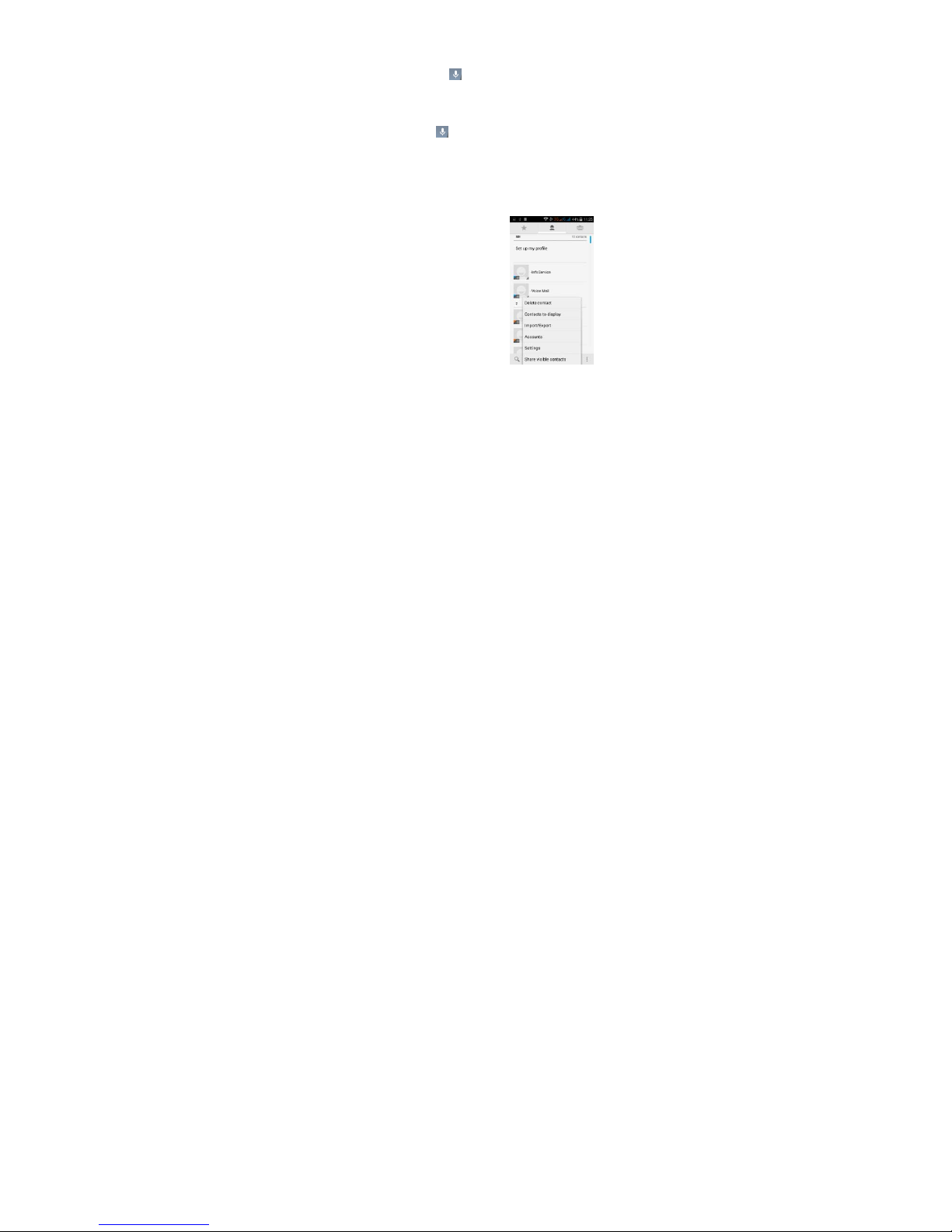
Contactos
Usted puede buscar contactos en la
agenda
de su
teléfono, cuentas de e-mail o nombres. Presione el
botón de Menú
para
elegir Contactos,
Importar/Exportar,
cuentas, eliminar, enviar
mensajes o compartir contactos disponibles.
Marcación I
nteligente
Page 34
iSWAG Fire 34
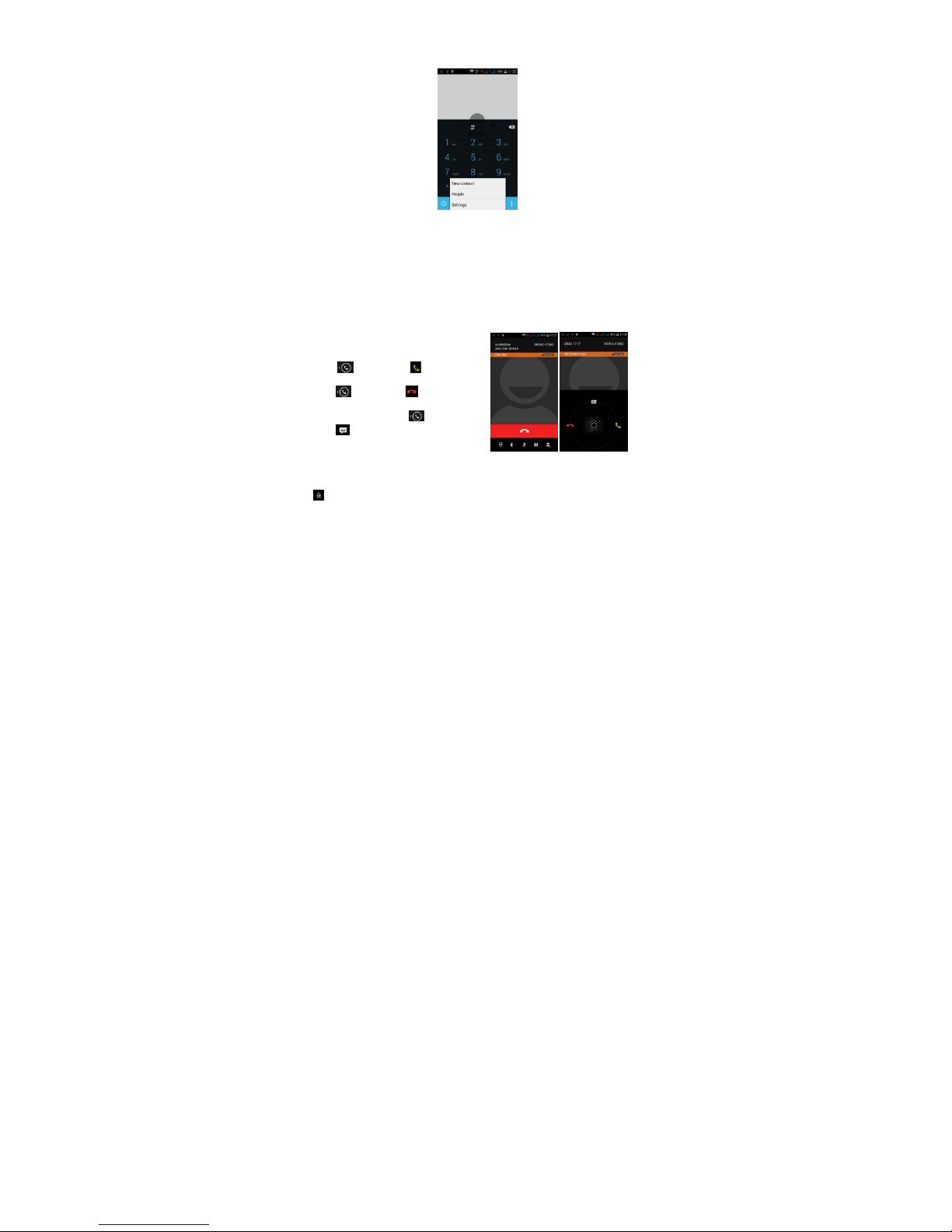
En la interface de marcación, el teléfono le mostrará los contactos automáticamente
mientras in g r es a sus nombres. En configuración de llamadas,
usted
puede ajustar la
llamada
por voz, video
llamada
y otras.
Durante una llamada, usted puede ingresar a la lista de contactos o al teclado
numérico.
Después de ingresar el número con el teclado numérico, presione MENU y
marcación
rápida.
Durante una llamada, la luz
de
la pantalla
se
desactiva al acercar
el
teléfono
cerca de su
oído
para ahorrar energía
y evitar marcaje accidental.
Como Contestar / Rechazar Llamadas
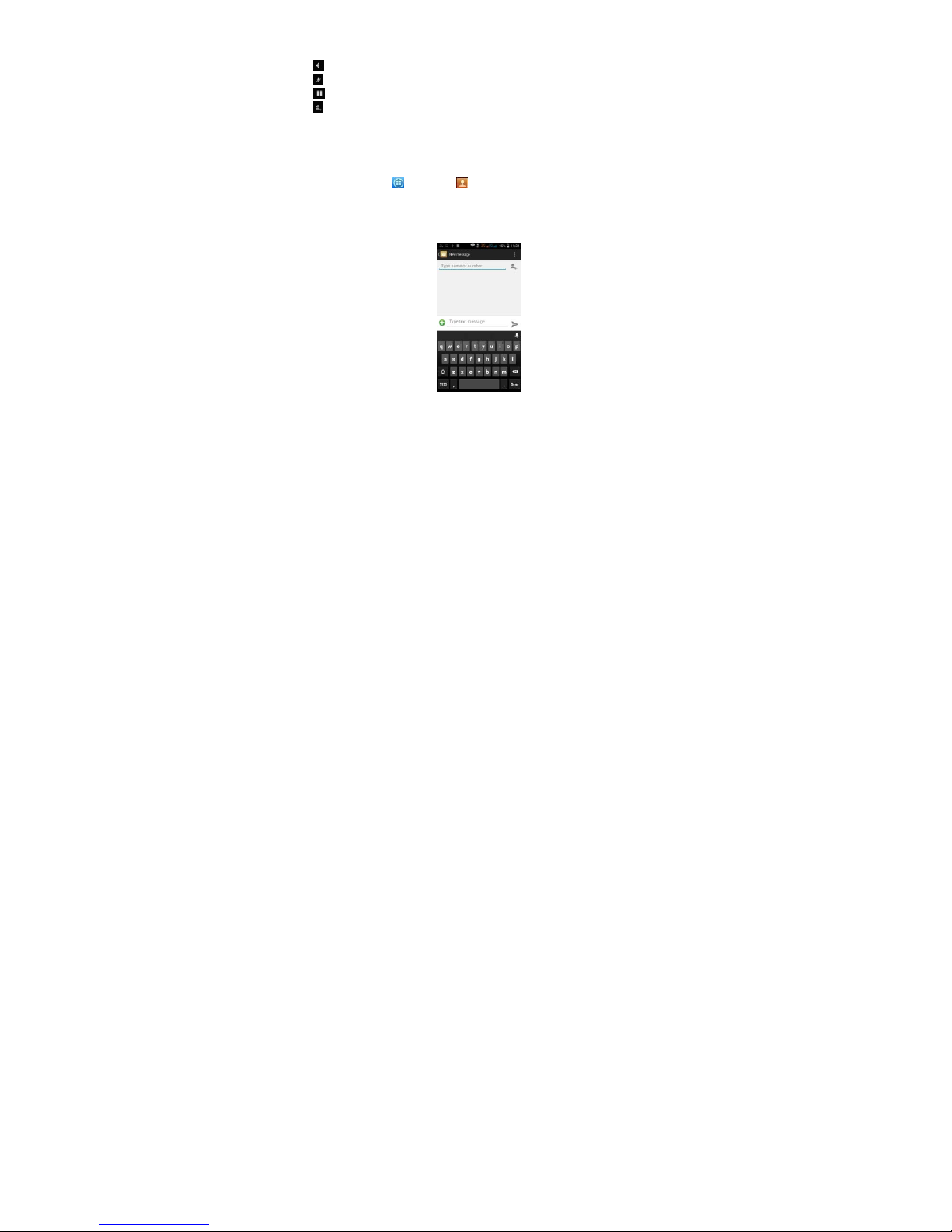
Cuando entra una llamada aparece un
mensaje de notificación en la pantalla.
Para contestar la llamada, mueva el
Icono hacia el icono .
Para rechazar una llamada, mueva el
icono hacia el icono .
Para enviar un mensaje de texto en vez de
contestar, mueva el icono hacia el
icono .
Ajuste de Volumen
Durante una llamada, puede ajustar el volumen utilizando las teclas de volumen al lado
derecho del teléfono.
Opciones Durante una Llamada
- Abrir/Cerrar teclado de marcación
Page 35
iSWAG Fire 35
- Activar/Apagar función de manos libres
- Silenciar
- Poner llamada en espera
- Añadir detalles a contactos
Manejo de Contactos
Puede agregar contactos a su teléfono y
sincronizarlos con los contactos de su
Cuenta de Google u otras cuentas que
sean compatibles. Para manejar los
contactos seleccione Æ Contactos [ ].
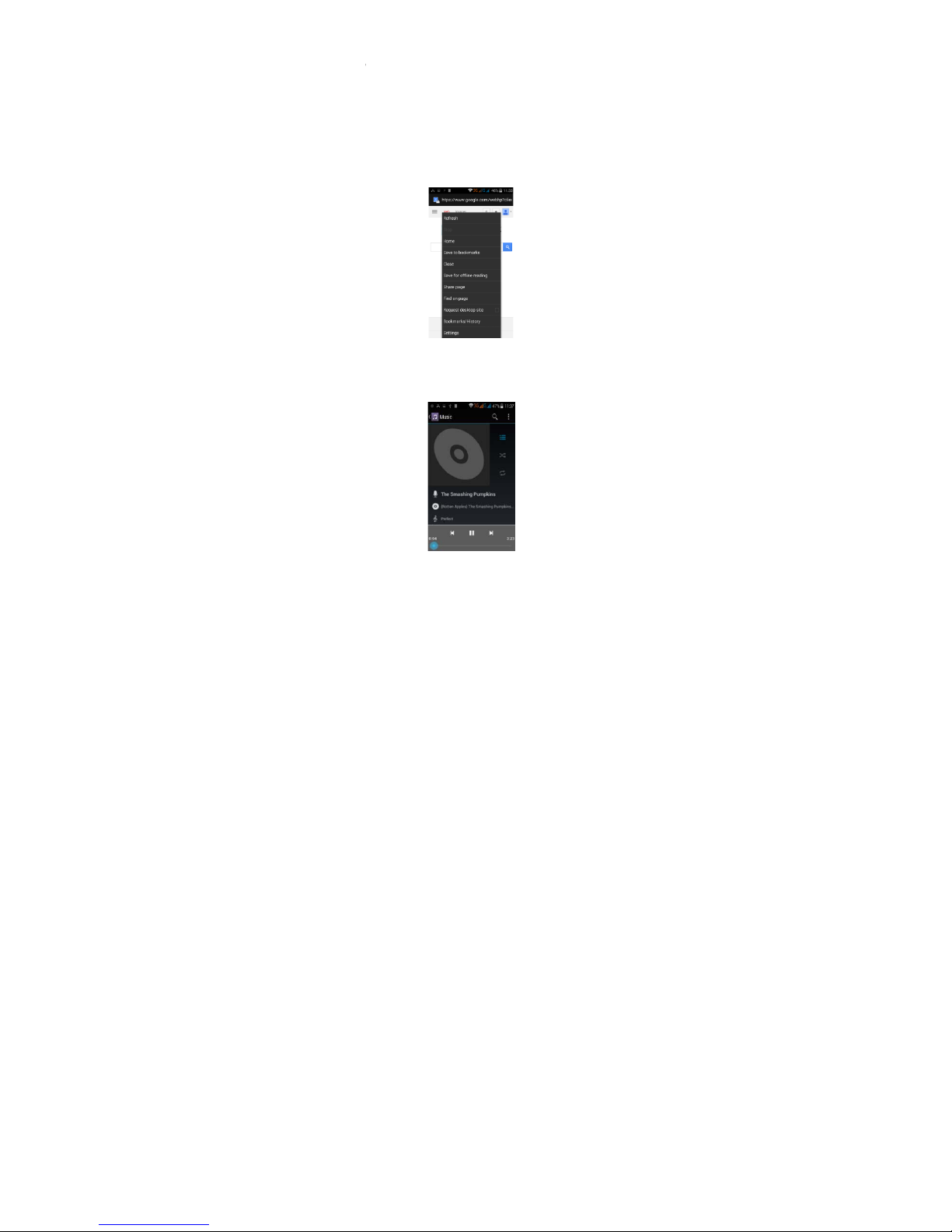
Mensajes y N
avegador
Interface de M
ensajes
Su teléfono soporta varios idiomas y otros métodos pa ra i ngr esa r datos. Seleccione
Cambiar para elegir entre los diferentes idiomas. Si ha seleccionado inglés
co mo su id io ma e nt once s el corrector ortográfico la dará sugerencias ortográficas
mientras que escribe en pantalla.
Otra forma de ingresar datos es por medio de la voz. La mayoría de las pantallas que
aceptan ingreso de datos por medio del teclado también deben de aceptar ingresar
datos por medio de la voz.
Page 36
1. Seleccion
e
2. Cuando a
p
3. Puede de
c
de interro
ga
Navegador
La página inici
a
puede cambi
a
En esta
aplica
c
de servidores
o
Reproductor
d
iS
W
el icono del micrófon
o
arezca el micrófono
e
ir “cámara”, “punto”,
ción”, etc.
l
en
la
interface del
n
a
r este parámetro a s
u
ión,
usted podrá visit
a
disfrutar de
películas
e
e Música
AG Fire 36
n pantalla hable los q
“coma”, “signo
vegador
se
desplega
r
página favorita en lo
todas las
páginas
d
e
n línea.
ue datos que quiera i
n
á al abrir
el navegad
o
s ajustes del navegad
internet, descargar
r
resar
, usted
or.
ecursos
Page 37
iSWAG Fire 37
Soporta archivos MP3, AAC, OGG, MIDI y otros formatos; m u e v e la barra de
progreso mientras esté reproduciendo música a cualquier posición de la canción
,
y
toque el botón de reproducir
para escuchar
o pausar.
Toque y sostenga cualquier opción, artista, álbum o música para reproducir,
agregar
a
la lista de reproducción, o elegir como tono del teléfono, eliminar, y buscar; elija buscar
música y reproducir en línea.
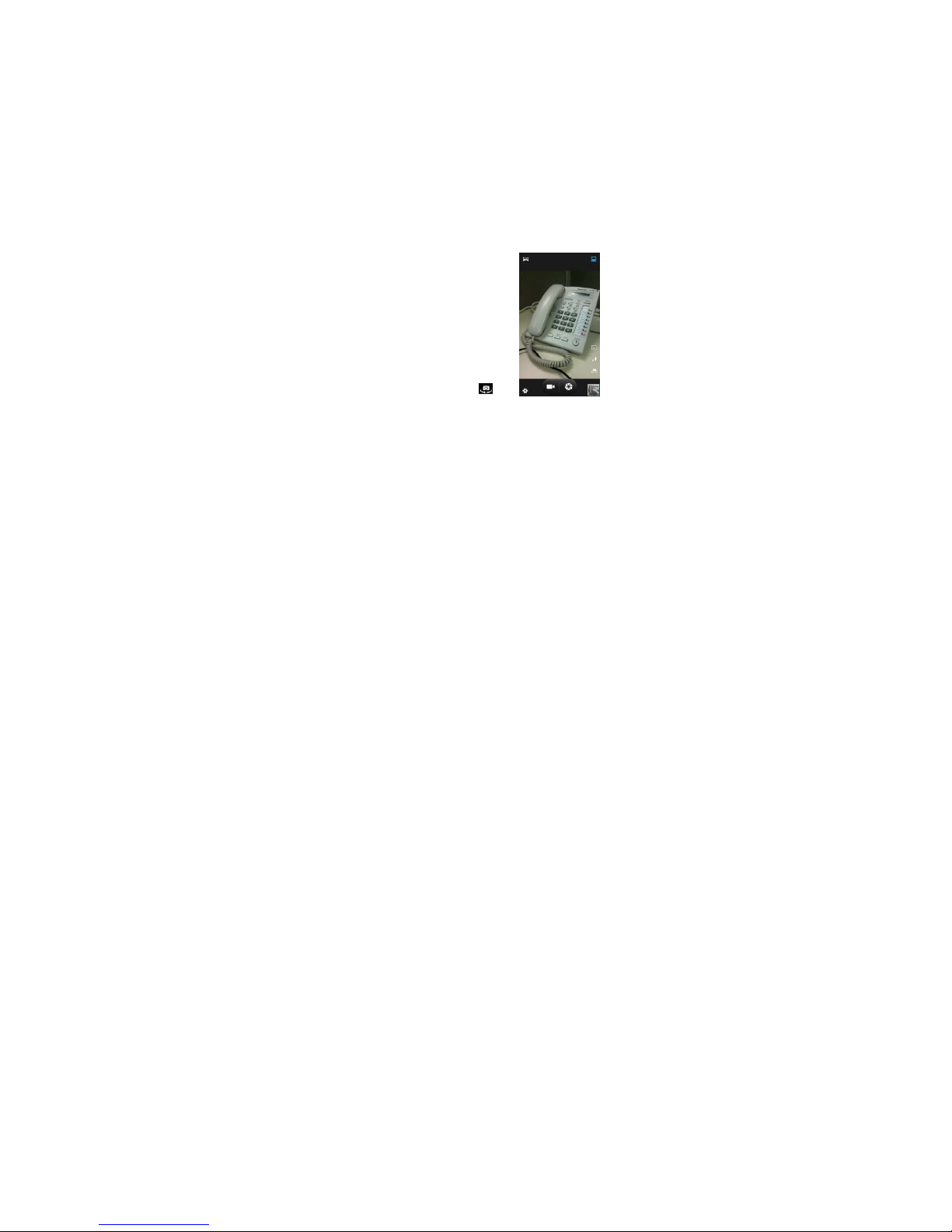
Cámara
El valor máximo en pixeles se alcanza a través de
software de interpolación. Toque la pantalla para
activar el enfoqu e automátic o, esto le per mite, de
forma fácil, tomar fotografías de objetos en
movimiento. Usted puede ajustar: el obturador,
detección de sonrisas, la calidad de las fotografías,
fotografías
continuas,
modo
estándar,
detección
automática
de
la
escena y otras modalidades.
La cámara incluye varios estilos creativos; usted
puede presentar una pre-
visualización
de efectos
solo tocando.
Cámara al Frente
Su teléfono tiene una cámara al frente; toque
para cambiar a la cámara frontal y
tomar fotos
de
uno
mismo.
Page 38
iSWAG Fire 38
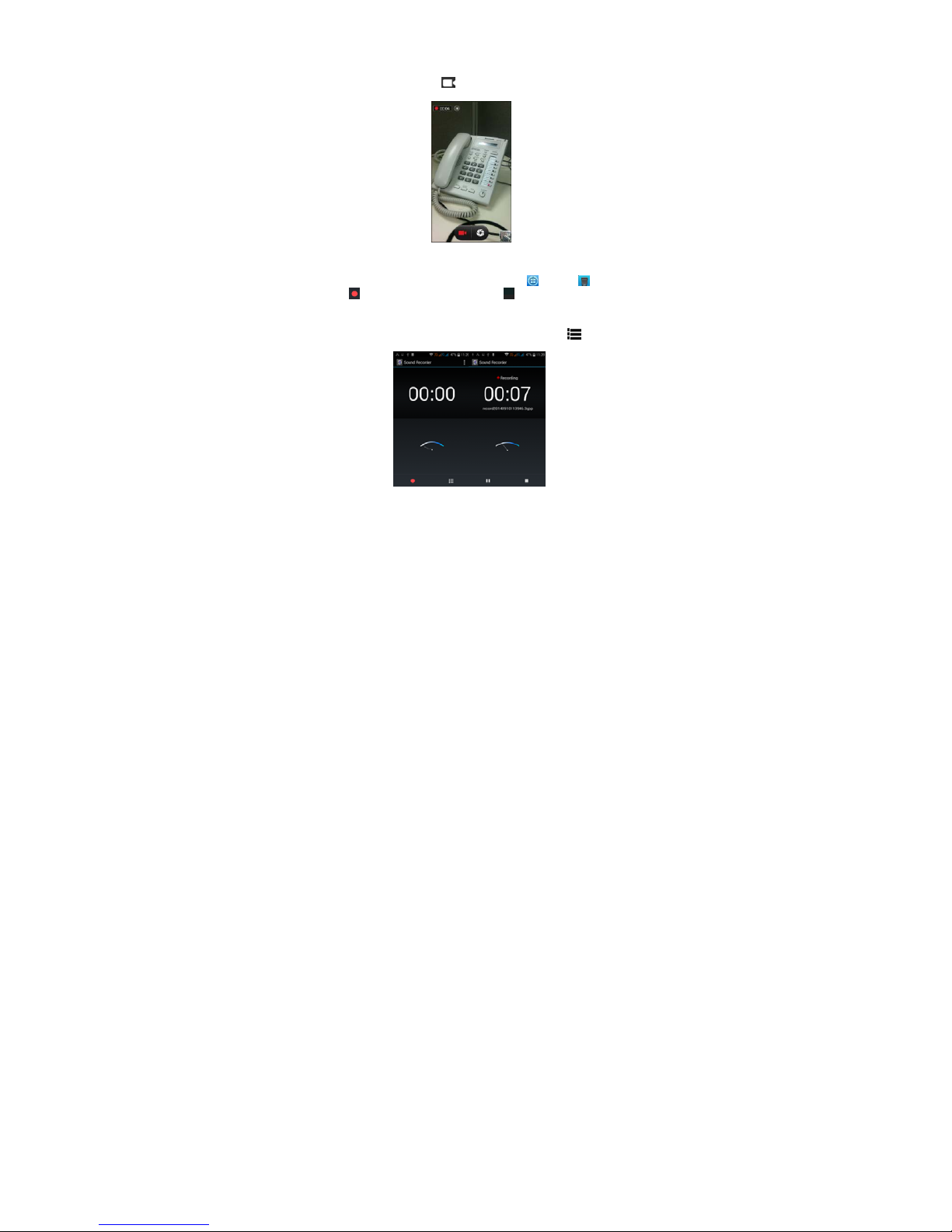
Grabadora de V
ideo
Soporta
grabación
de video, toque para cambiar al modo de
grabación
de video.
Grabadora de S
onido
Usted puede
grabar
sonidos, y
envia r los archivos
mediante MM S o BT, o elegir el sonido
como tono del
teléfono. Para grabar sonidos seleccione y después . Toque el
botón de para iniciar la grabación y el botón d e para terminar.
Para grabar del
Radio FM, elija Menú y seleccione la opción de grabar Radio FM.
Para reproducir la grabación selecci one
►. Tiene la opción de guardar la grabación o
de eliminarla. Puede ver los archivos y las opciones desde el menú de .
Radio
FM
Page 39
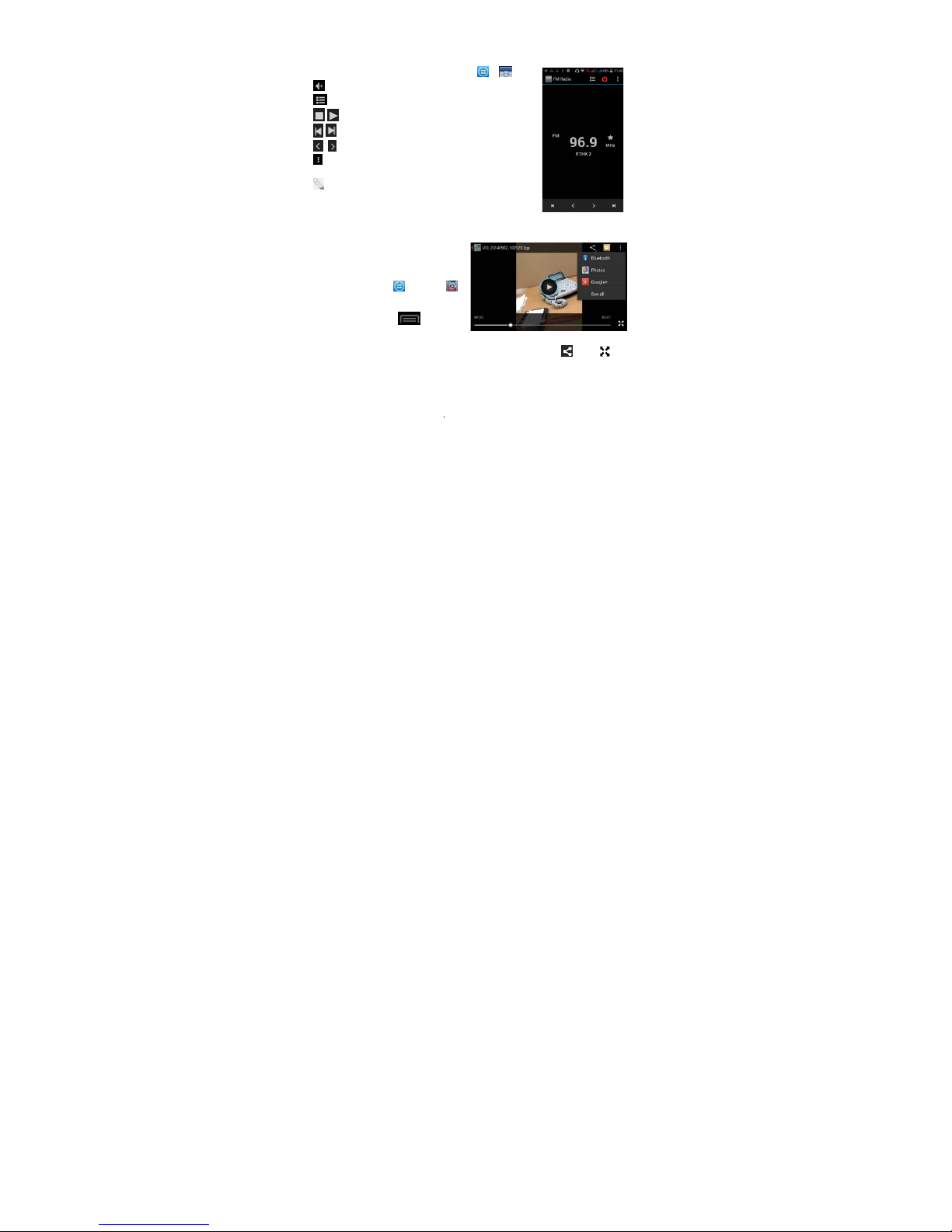
Para escuchar
- para acti
v
- ver lista
d
/ - ence
n
/ - búsqu
/ - a
j
uste
- Opcione
: El teléfon
o
o a un parla
n
volumen lo p
volumen del t
e
Reproductor d
e
El reproduct
o
seleccionar y
almacenados
tar
j
eta de me
los videos sel
e
para reproduc
solo pulse en l
a
la reproducció
Para comparti
r
por Mensajerí
a
ver el video en
Galería
Usted puede
d
iS
W
el radio tiene que sel
e
ar el parlante
e emisoras
der/apagar el radio
F
eda de emisoras
de sintonizado
r
s: Buscar emisora,
G
tiene que estar cone
c
te externo para qu
e
uede ajustar por m
e
léfono.
Video
r de video per
m
ver todos los ví
d
en el teléfono y e
n
moria. Para selecci
o
ccione y después
ir. Para hacer una p
a
pantalla. Para term
n toque .
el video en Faceboo
k
, BT, Google+, correo
pantalla completa.
isfrutar de videos gra
b
AG Fire 39
ccionar Æ .
M
rabar, Salir del rad
tado a unos audífon
o
funcione el radio.
dio de las teclas
d
ite
eos
la
nar
usa
inar
,
electrónico o Gmail s
ados e imágenes
alm
a
io
s
El
e
eleccione . Pulse
cenadas
en la tarjet
a
para
SD por
Page 40

iSWAG Fire 40
medio de la Galería.
Desde la G
alería,
usted puede
realizar
operaciones de multimedia como: editar y
aj us ta r el fondo de pantalla , o
agregar
como icono.
Correo E
lectrónico (e-mail)
Soporta cuentas de correo Gmail y
E-mail;
usted puede crear su propia cuenta y leer
e-mails en cualquier momento y lugar con esta función, usted puede integrar cuentas
de correo de diferentes proveedores a la misma interface.
Page 41
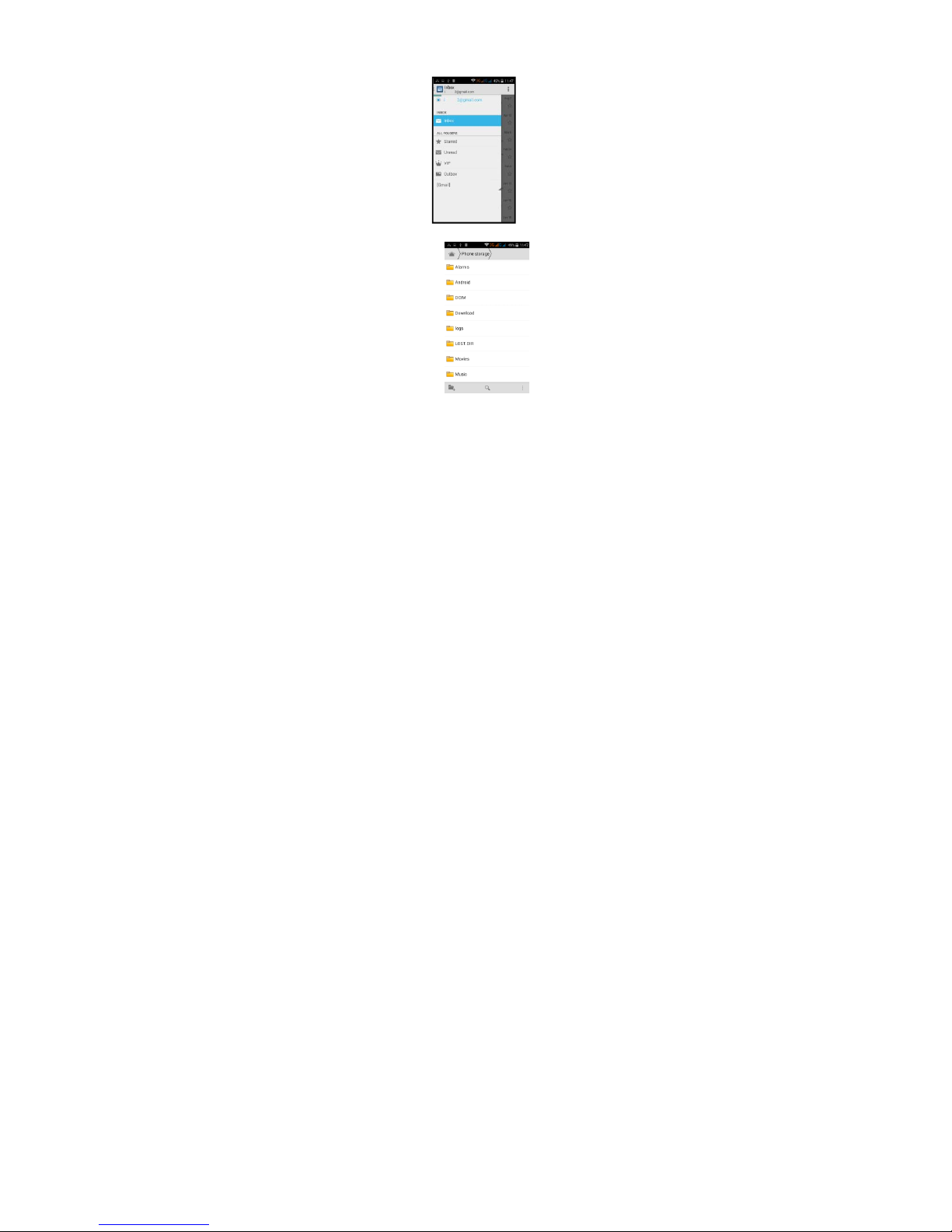
Administrado
r
En la interfac
e
carpeta nueva
Toque y sosten
opciones.
iS
W
de Archivos
del administrador
d
,
cortar, y
revisar
los
ar
c
g
a un archivo o carp
e
AG Fire 41
e arc hi vos , toque e
l
hivos almacenados
e
n
ta y elija
Copiar, C
ort
a
botón del Menú pa
r
la tarjeta SD directam
, Eliminar, Renombra
r
a elegir
ente.
y otras
Page 42

iSWAG Fire 42
Google Play
Su teléfono se ha
diseñado con la tienda d
e software “Google Play S
tore” integrada,
la cual le
proporciona
acceso a las
aplicaciones
más
populares;
usted puede encontrar
las
aplicaciones
que desee
realizando
una
búsqueda
o a través de la lista de
popularidad.
Utilice los atajos en el escritorio
para
obtener recomendaciones e información de las
aplicaciones
que desee instalar, y experimentar,
descargue
libremente a través de la red
Wi-Fi.
Ajustes
Wi-Fi
Esta función le permite encender o apagar la conectividad Wi-Fi de su teléfono. Desde
la barra de estado puede ver el icono de que le muestra el estado de la conexión
Wi-Fi.
Page 43

iSWAG Fire 43
Funciones de S
eguridad
Usted puede ajustar la
pantalla
de
seguridad,
encriptar,
bloquear
la tarjeta SIM,
etc.
Respaldar y R
einiciar
En esta interface usted puede
respaldar
la
información de la
aplicación,
la
contraseña
WLAN y otros ajustes del servidor Google; y
reiniciar toda la información
almacenada
en
el teléfono
móvil.
Barra de Menú D
esplegable
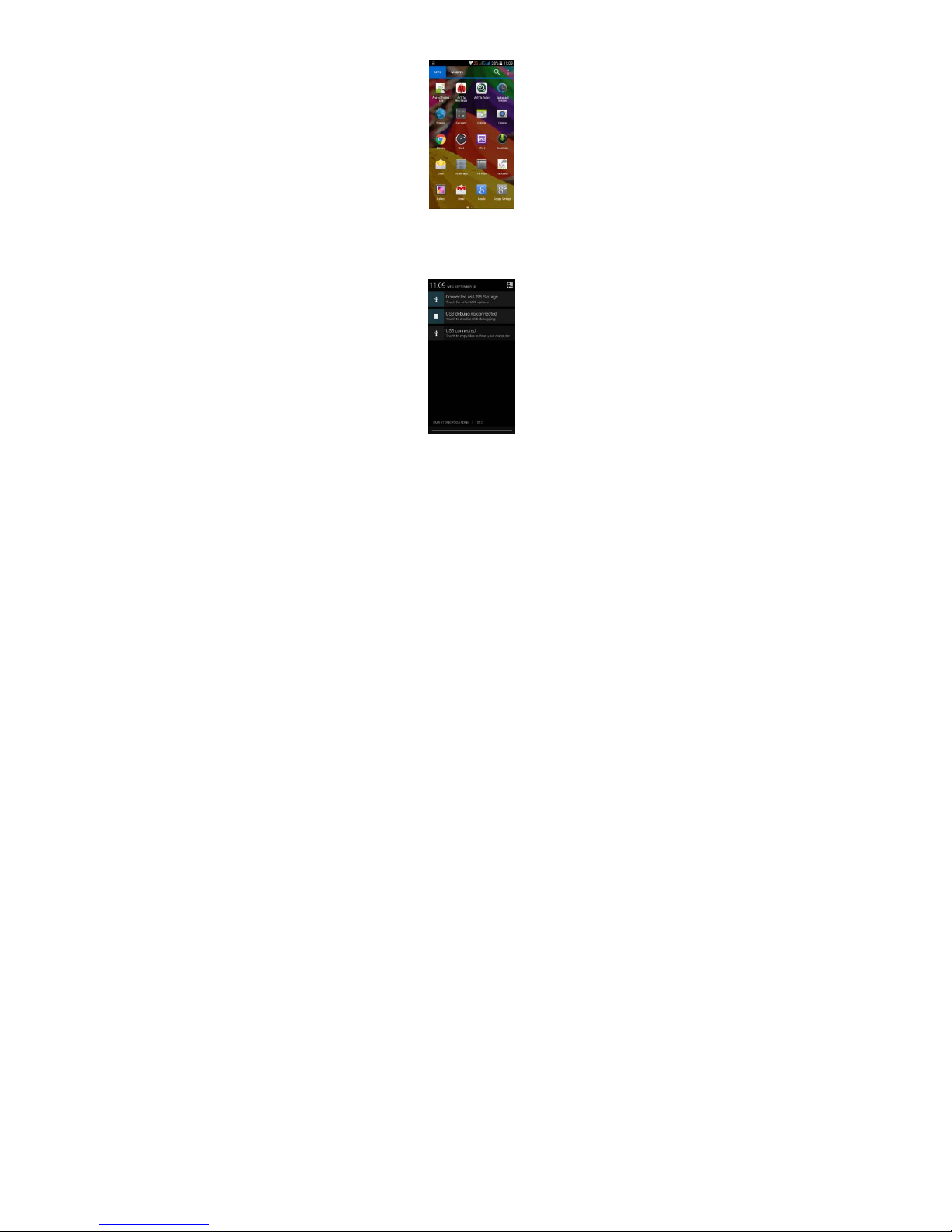
Desde el menú desplegable puede ver el estado de l
a conexión
USB. Puede utilizar su
t
eléfono como una memoria tip o flash, los
archivos
en la tarjeta SD pueden ser copiados
a una
PC o de una PC
a su teléfono.
Page 44

iSWAG Fire 44
Page 45
iSWAG Fire 45
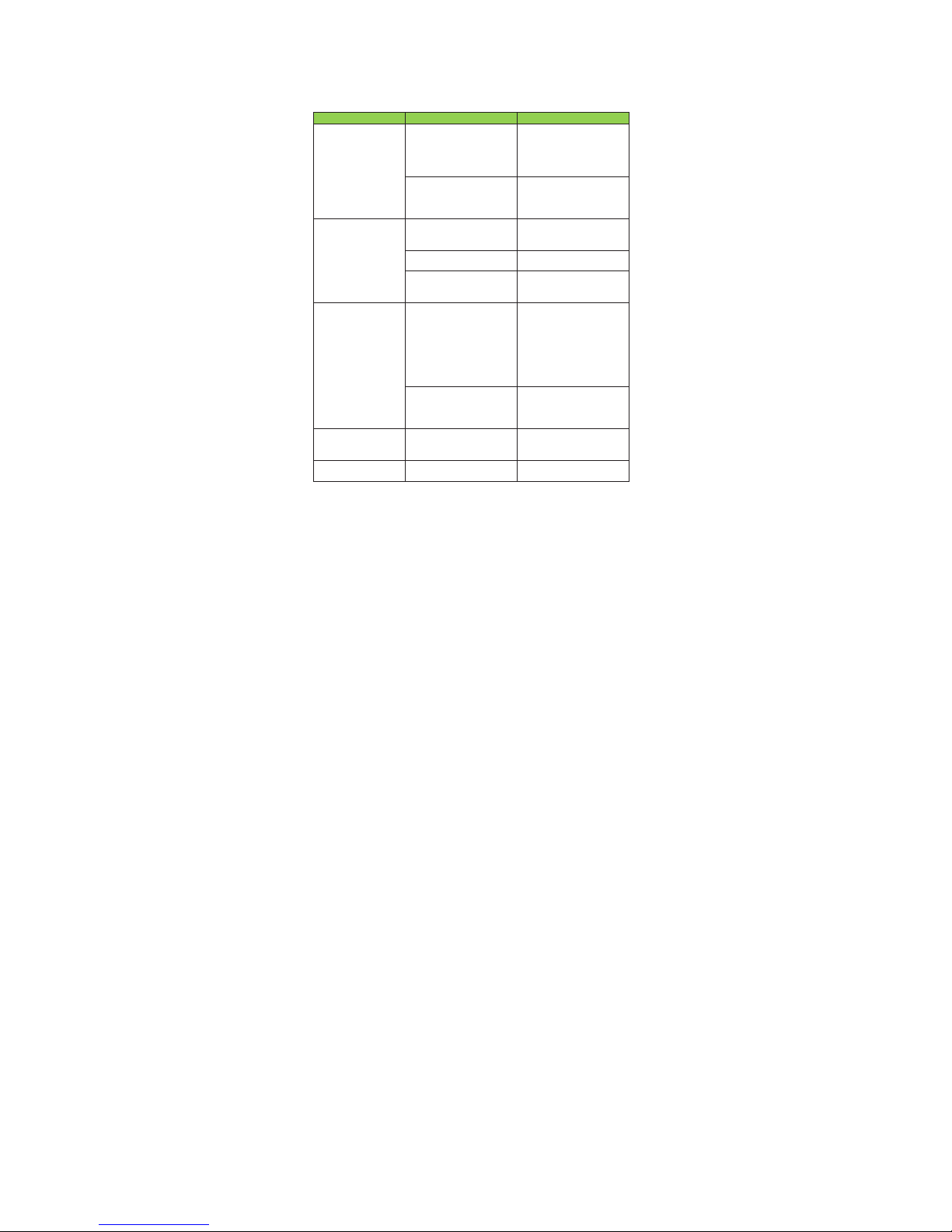
Soluciones a P
roblemas
Si se presenta algún problema al usar su teléfono móvil, por favor revise la siguiente lista
de problemas y soluciones. Si el problema continua, por favor contacte a su operadora
local.
Problema Causa Solución
No tiene
acceso al
internet con el
naveg ador
La operadora local no ofrece
este servicio o su contrato no
incluye ese servicio.
Por favor contacte a su
operadora local p ara s
olicitar
el
servicio o adquirir
información adicional.
El teléfono no tiene la
configuración correcta.
Por favor revise los
parámetros y la
configuración del teléfono y
navegador.
La tarjeta SIM presenta
un error
La tarjeta SIM está dañada. Por favor contacte a su
operadora local
.
La tarjeta SIM no está
instalada correctamente.
Revise la tarjeta
SIM.
Lo s contactos d e l a t ar je ta
SIM
están sucios o dañados.
Limpie la tarjeta con un paño
limpio y seco.
Recepción inadecuada
Está utilizando su
teléfono
móvil en un
área
con
recepción pobre o limitada,
por ejemplo, cerca de
edificios, en un
sótano, o en
otra área donde la señal no
llega.
Por favor trasládese a un
lugar donde hay mejor
recepción.
El teléfono se está
usando
cuando las
líneas
están
congestionadas.
Evite usar su
teléfono durante
ese tiempo. Intente de
nuevo en otro momento.
El teléfono no enciende
La batería no tiene carga.
Cargue
la batería.
No se pueden hacer
llamadas
El teléfono se encuentra en modo
de a
vión.
Desactive
el modo de avión.
Page 46
iSWAG Fire 46
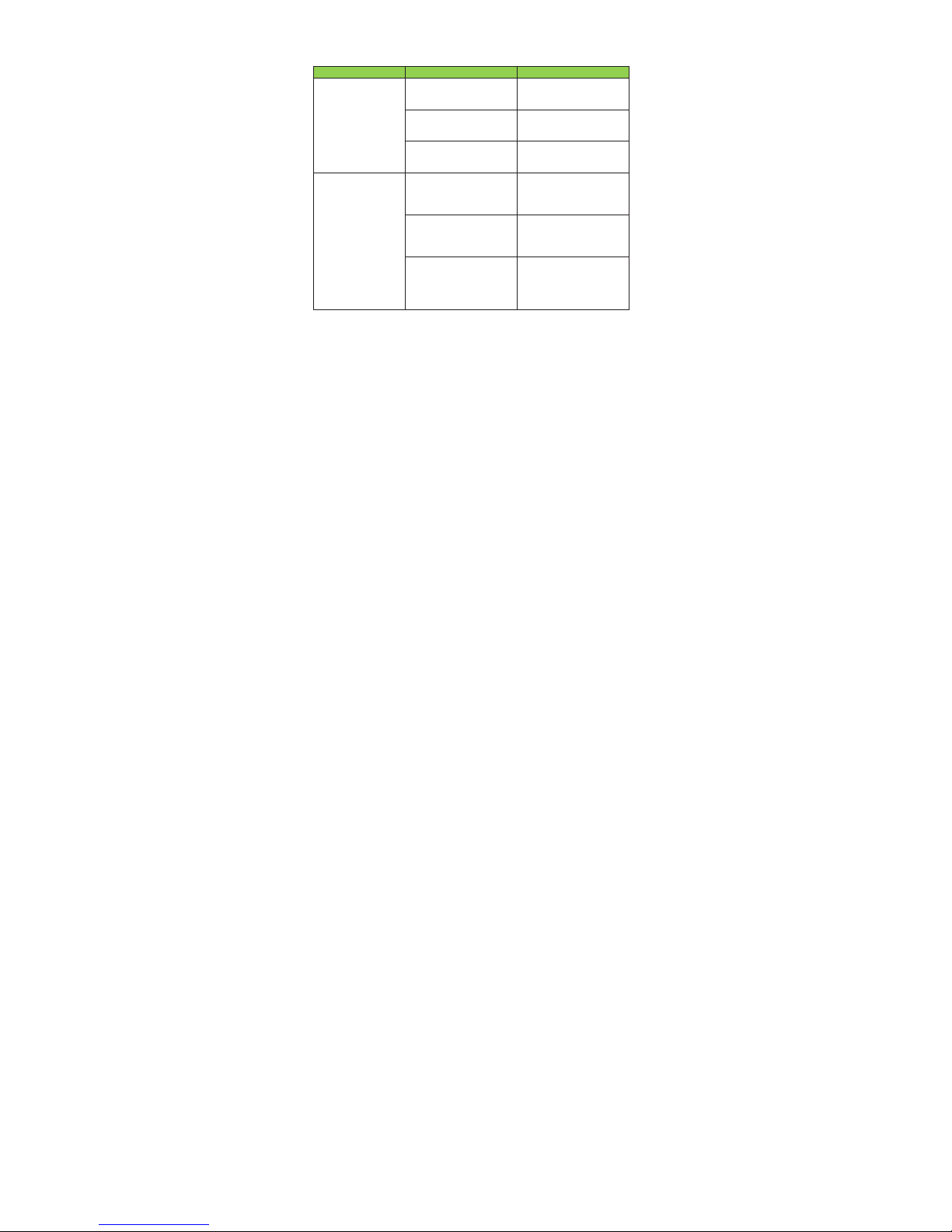
Problema
Causa Solución
El teléfono no se
conecta a la red
La tarjeta SIM no es válida. Por favor contacte a su
operadora local
.
Se encuentra fuera del
área
de servicio
Por
fav or trasládese a lugar
dentro
del
área
de servicio de su
operadora loc al.
La señal está muy débil.
Por
favor trasládese
a una área
donde
la señal es te
mejor.
No se carga la batería
del teléfono
El voltaje no es el
apropiado para
el
cargador
.
Use el voltaje
permitido
para
el
cargador
de batería.
No está utilizando un
cargador aprobado por el
Fabricante.
Utilice el cargador original o
utilice un cargador
diseñado y aprobado
para
su teléfono.
El cargador no está
conectado correctamente.
Asegúrese que el cargador
está conectado
correctamente al teléfono, al
toma o a la computadora.
Page 47
iSWAG Fire 22
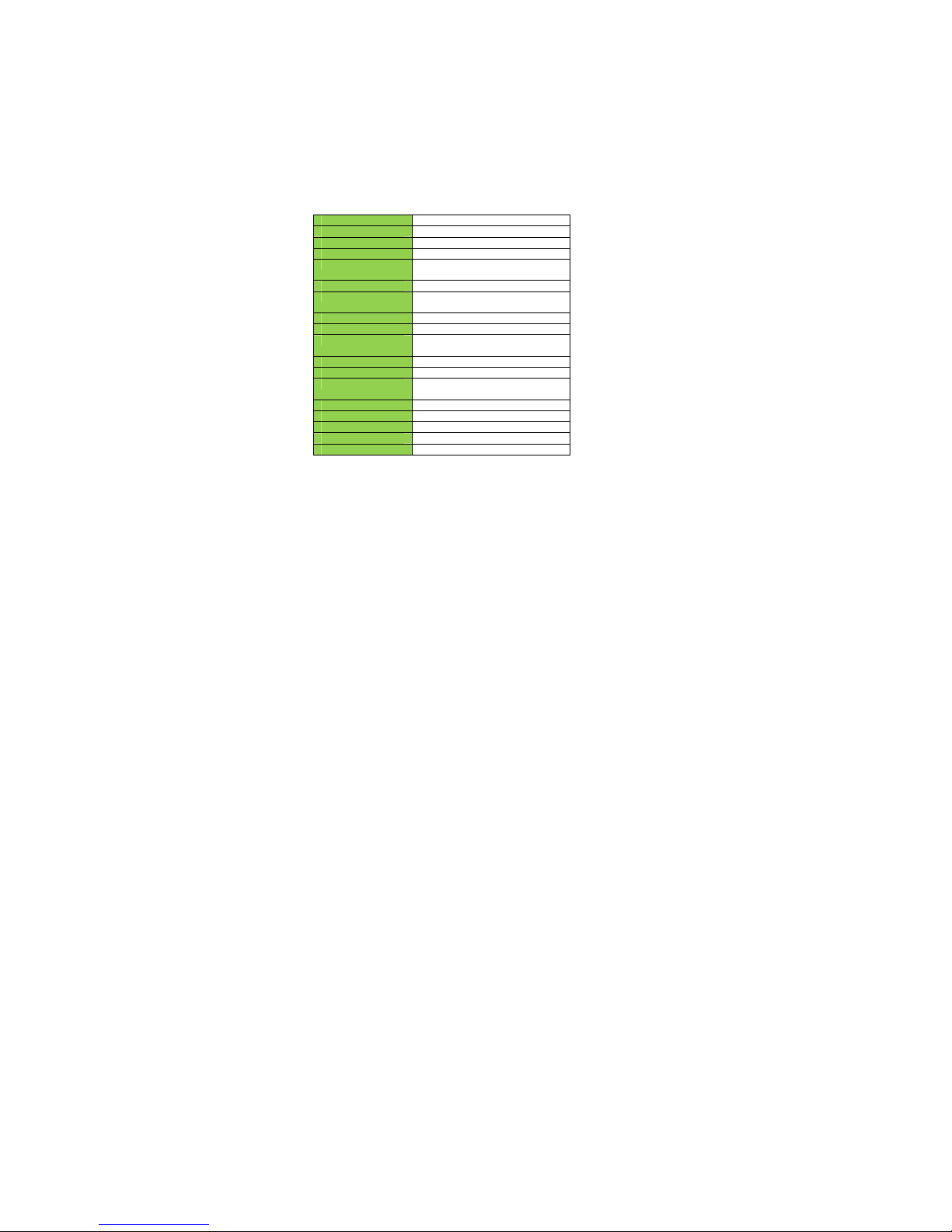
iSWAG Fire Specifications
Processor 1.2Ghz
Operating System Android 4.4 KitKat
Memory 4GB (ROM) + 512MB (RAM)
External Memory Micro SD slot (max. 32GB)
Cellular 3G (850/1900), GSM Quad-band,
GPRS/WAP
SIM Dual SIM, Dual Standby
Display 3.5” Touchscreen
Resolution: 320x480 HVGA
Cameras 1.3MP with flash + VGA
Wireless Wi-Fi (802.11 b/g/n), BT
Connectors Micro USB (data and charging)
3.5mm audio
Control Buttons Power, Volume +/-,
Multimedia Built-in speaker & microphone
Audio FM Radio
Audio player
Video Video player
Photographs Photo gallery viewer
Sensors G-sensor(3-axis)
Battery 1300m Ah Li-ion
Input/Output 100~240VAC / DC 5V@700mAh
Specifications are subject to change without prior notice.
* Actual storage may be less due to tablet software.
** Certain bitrates, resolutions, and/or file variations may not be compatible.
Page 48

FCC Caution:
Any Changes or modifications not expressly approved by the party responsible for
compliance could void the user's authority to operate the equipment.
This device complies with part 15 of the FCC Rules. Operation is subject to the following
two conditions: (1) This device may not cause harmful interference, and (2) this device
must accept any interference received, including interference that may cause undesired
operation.
Note: This equipment has been tested and found to comply with the limits for a Class B digital
device, pursuant to part 15 of the FCC Rules. These limits are designed to provide
reasonable protection against harmful interference in a residential installation. This
equipment generates, uses and can radiate radio frequency energy and, if not installed and
used in accordance with the instructions, may cause harmful interference to radio
communications. However, there is no guarantee that interference will not occur in a
particular installation. If this equipment does cause harmful interference to radio or television
reception, which can be determined by turning the equipment off and on, the user is
encouraged to try to correct the interference by one or more of the following measures:
—Reorient or relocate the receiving antenna.
—Increase the separation between the equipment and receiver.
—Connect the equipment into an outlet on a circuit different from that to which the receiver is
connected.
—Consult the dealer or an experienced radio/TV technician for help.
SAR tests are conducted using standard operating positions accepted by the FCC with the
phone transmitting at its highest certified power level in all tested frequency bands, although
the SAR is determined at the highest certified power level, the actual SAR level of the phone
while operating can be well below the maximum value, in general, the closer you are to a
wireless base station antenna, the lower the power output.
Before a new model phone is a available for sale to the public, it must be tested and certified to
the FCC that it does not exceed the exposure limit established by the FCC, Tests for each
phone are performed in positions and locations (e.g. at the ear and worn on the body)as
required by the FCC.
For body worn operation, this model phone has been tested and
meets the FCC RF exposure
guidelines when used with an accessory designated for this product or when used with an accessory that
Contains no metal and that positions the handset a minimum of 1.0cm from the body.
Non-compliance with the above restrictions may result in violation of RF exposure guidelines.
Page 49
 Loading...