

Page 1
Page 2

Please read this installation carefully before you use the products.
The Installation of External Box
Precaution:
1. USB bus can supply the fixed volt for 5V/500mA to supply for
USB system. Payment attention to buy HDD: There is no need
to supply the power of USB HDD if you choose the Volt of
HDD within 500mA. Whenever use the USB bus to supply the
power to HDD, try to plug USB HDD into the Mother board of
PC directly. You must use extra power source (USB) to supply
the power to USB HDD if you do choose the Volt of HDD over
500mA.
2. External box might not be able to start up or function properly
for some H.D.D. due to insufficient electric current output from
USB port, This is a very rare situation, if the situation do occur,
please purchase an output DC 5V, 1200 mA switching adapter
from your local electronic store.
3. If it is a new HDD, needs to processing the disk partition
System Requirement:
Compatible with IBM PC, USB interface included,
Windows 98SE/ME/2000/XP operate system.
MAC computer system MAC OS V8.6 or higher.
1
Page 3
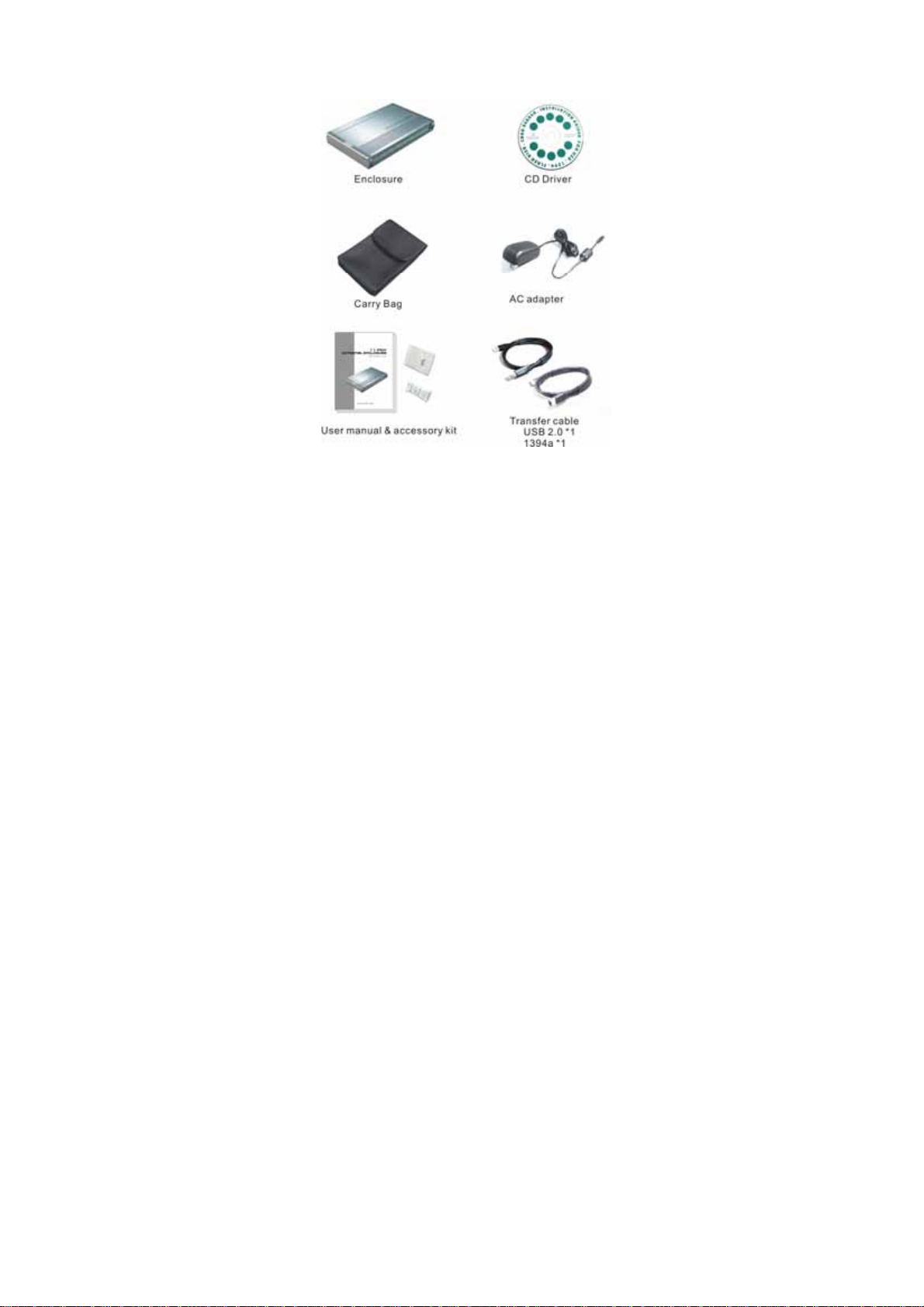
Packing include
- USB2.0 + 1394a
2
Page 4
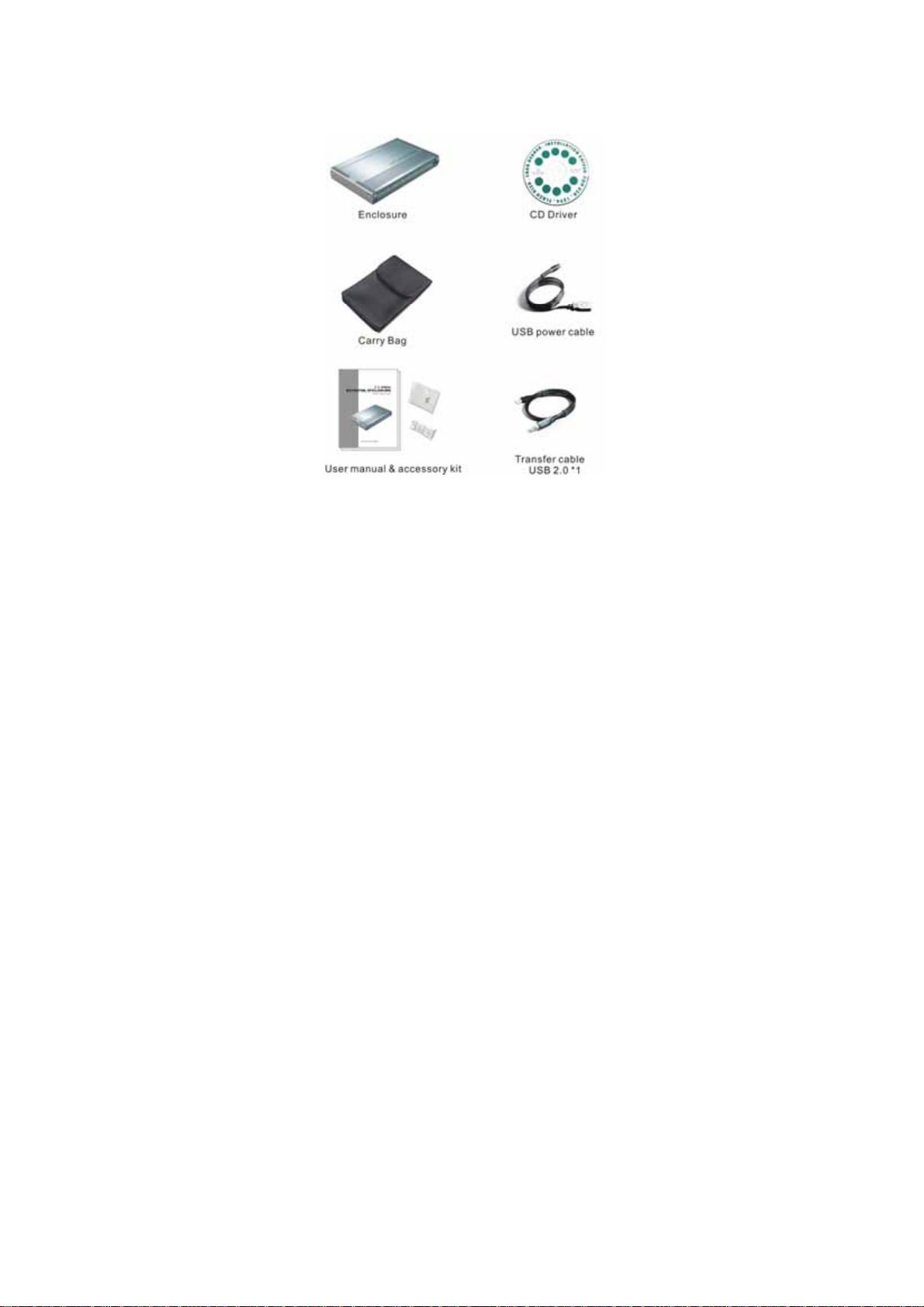
Packing include
- USB2.0
3
Page 5

FEATURE
1.Standard USB2.0 high speed transfer rate.
2.Support IEEE 1394a and can be chained. (USB + 1394a model)
3.All aluminum and super slim design, to enhance heat dissipation.
4.Screw free design, convenient for installation.
5.Small size, handy to carry.
6.Bright color led light cover by acrylic guard.
7.Plug and play / hot swappable.
8.Support Win 98SE/ME/2000/XP/Mac OS 8.6 above.
9.Only one PC at the time can access the drive(USB + 1394a model)
Transfer speed: 480Mb/S(USB2.0), 400Mb/S(1394a)
Consume electrical Voltage: 5V , AC adapter (USB + 1394a model)
4
Page 6

Installation Guide:
1. Just push the button indicated in the diagram, then pull out the
tray.
5
Page 7

2. After H.D.D connects with tray, fasten H.D.D by screws.
3. Aim tray at rails and push to a fixed point to close the tray.
4. After connect transfer cable and power cable, your system will
detect the drive automatically.
Attention: If this HDD is new one, please partition &
format disk, otherwise the system cannot detect HDD.
6
DC-in
Transfer cable
Page 8

Driver Installation:
Windows 98SE
1. After plug the external box into, the system will remind you
there is a new hardware of USB Storage Adapter add into.
2. Design the driver of the safe path (in the driver), the system
will active the installation automatically.
3. After for a while, click "My Computer", USB HDD will
appear the relativity on the PC.
Windows ME/2000/XP
The system already provided support for the software.
MAC OS 8.6/9.x/above
OS 8.6 edition:
1. The Driver is the “GeneUSBIDE_05E3_0702.sit” under
the catalogue of the MAC, copy the document to the
tope a table and clicks the document out, and then it
will occur the document of the driver automatically.
2. Please copy the driver document to the system folder of
the PC. --(System Folder) -(extensions).
3. Connect with the USB HDD
OS 9.X or later edition:
The system already provides support for the software.
7
Page 9

The divided partition of the USB HDD
Windows 98SE/ME SYSTEM
FDISK is command that doing the divided partition to HDD, The step
of how to divided partition from the HDD by using FDISK as follows:
1. Plug the cable of USB into PC, and be sure that the PC has
identified HDD.
2. Execute "FDISK" under the model of COMMAND.
3. After enter the FDISK program [If the FDISK program does not
work, please restart your PC again (don't plug out the USB
HDD) then it will be work]. Firstly select "The fifth item" --select the
USB HDD you want to divided partition for, then just see
the illustration as follows:
partition for the HDD of USB.
Then just follow the instruction to divided
Windows 2000/XP
Plug the USB HDD into your system, it will appear the hot plug a play.
Just click “Control Panel”/ “manage tool” / “computer management” /
“Disk management”. All the disk connects to the PC will appear on
the chart, as well as the state of the HDD. Find out the HDD and click
the right bottom of the mouse under the state of chart, just follow the
step. Take a look of the icon on the bottom.
8
Page 10

To remove the device:
For Windows 98SE Users
Before you remove your device please wait for “Access LED”
on reader stops blinking to prevent data loss.
For Windows ME/2000/XP Users
Please double-click the icon on the system tray. A
dialog box will appear.
Double-click the Generic USB Storage Device to remove
the device or cards for preventing from data loss.
Mac OS
You can remove the cable of USB after putting the icon of USB
HDD on the desktop into the trash can.
9
Page 11

FAQ
After plug the Mobile Disk into system, some note cannot find
the Mobile Disk.
Some HDD of TOSHIBA or IBM cannot be identifying. This
phenomenon shows the battery of notebook lack of power supply. At
the moment, please use the power core, which come along with the
product and plug the biggest side of power core into the USB
interface in the rear side of notebook. Another side of power core
plug into the interface of the USB Mobile Rack. (Just beside of USB
interface). If you need to use the external mouse, still can plug into
the power code and use it constantly.
How to solve it if you can’t use the Mobile Dish under some OS:
It doesn’t support any USB device under the WIN95 and NT4 OS, so
that can’t use the Mobile Disk.
After formatting can PC use in the MAC?
If use the Mobile Disk in the PC, can just format directly. If the PC &
MAC cannot be in common use, you can use the MACOPEN
software (download from the Internet) in the PC, format to the MAC
model.
10
 Loading...