

Page 1
For Close-Ups
For Large Are a
Quick Start Guide
For
VGA / USB Document Camera
Congratulations on your purchase of the VZ-1 HD VGA /USB
Document Camera. This Quick Start Guide is intended to
help you begin using the camera right away.
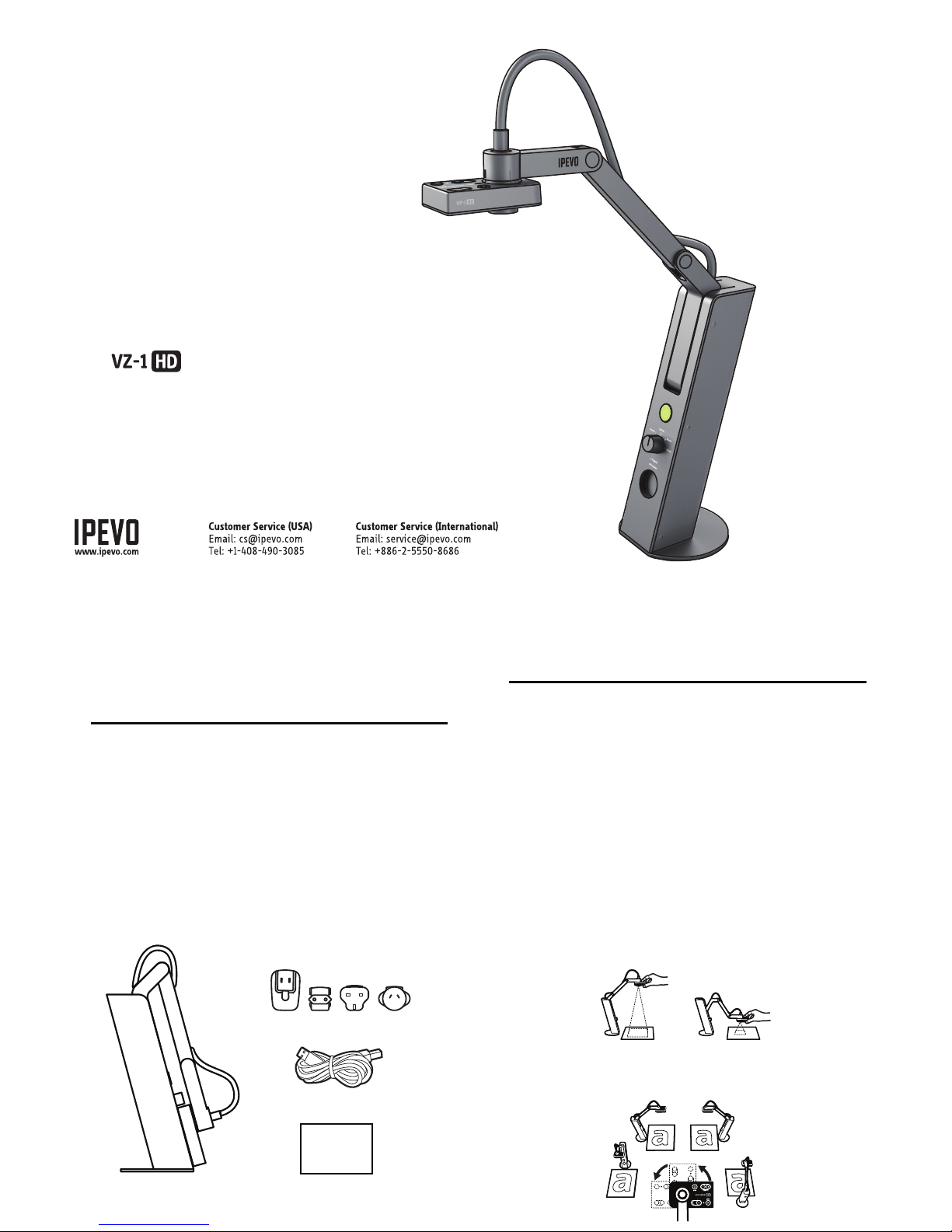
• VZ-1 HD Document Camera, including multi-jointed swing arm
• USB A-to-B cable
• USB power adapter with detachable plugs
(Power Adapter plug may very depending on region)
• Quick Start Guide (this document)
Contents
Your package should contain the following:
VZ-1 HD captures a variety of subjects—including standard
letter-sized documents, devices like smartphones and Apple's
iPad, 3D objects, and even A3-sized documents and
larger—and presents a live video image in one of several
possible resolutions.
Your VZ-1 HD document camera has two modes and can be
connected directly to a projector or monitor via VGA, or to a
computer (PC or Mac) via USB.
Connect the USB cable to the USB power adapter and plug the
VGA cable from your projector or monitor to VZ-1 HD’s VGA
port for straight live image projection on your big screen, or
unplug the USB cable from the USB power adapter and
connect to a computer to turn the VZ-1 HD into a USB
document camera.
The multi-jointed, weighted stand allows you to quickly and
easily change the height and position of the camera to suit
your subject.
Additionally, the camera head can swivel with 270° of
freedom to customize your orientation.
The Basics
VZ-1 HD Document Camera
USB Power Adapter and Plugs
USB A-to-B Cable
Quick Start Guide
Quick Start Guide
Page 2
Installation: PC or Mac
Your VZ-1 HD document camera has two modes and can be connected to a computer (PC or Mac) via USB or directly to a projector or
monitor via VGA.
Note: Connecting the USB cable to a computer will disable the VGA output. VZ-1 HD transmits live images to your computer when you plug the USB cable
into a computer port. To project VZ-1 HD’s live feed straight to a projector or monitor, please remove the USB cable from your computer and plug the USB
cable into the power adapter before connecting the VGA Cable.
You may wish to use VZ-1 HD with IPEVO Presenter software. You may download it at: http://support.ipevo.com/presenter
1. Double-click the downloaded file and follow the prompts to install Presenter.
Note: By installing the latest version of Presenter, the older version of Presenter on your computer will be removed or replaced.
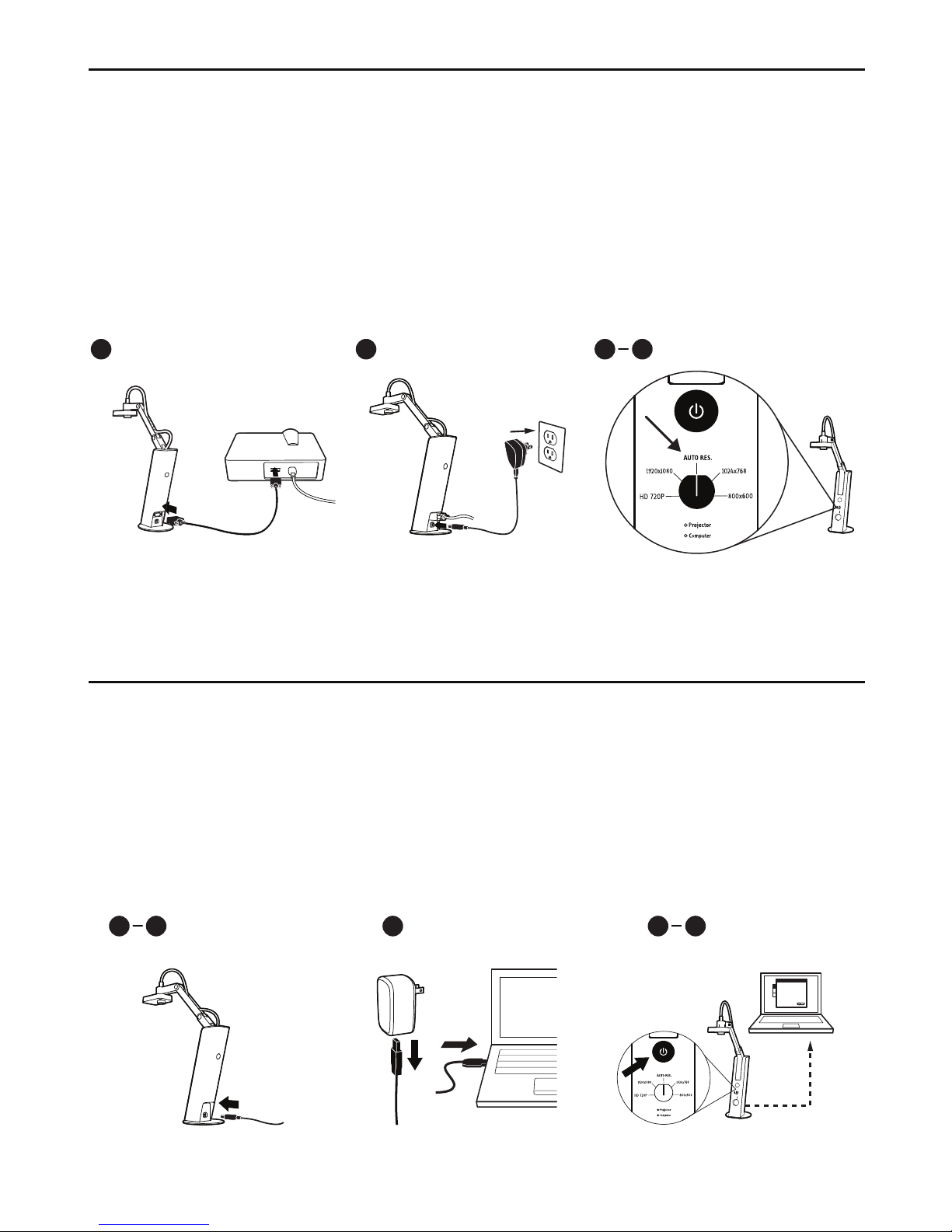
2. Connect the USB cable (B-Type) to the port marked "USB / POWER IN" on the back of VZ-1 HD.
3. Connect the other end of the USB cable (A-Type) to any open USB port on your computer. If your USB cable is connected to the
power adapter, please remove it first.
4. Power on VZ-1 HD by pressing the power button in the front center of the unit.
5. Launch the Presenter software. A window containing a live video image from your VZ-1 HD should appear. VZ-1 HD is now ready to use.
1. Connect a VGA cable (not included) to the VGA port on the back of VZ-1 HD. Connect the other end of the VGA cable into your
monitor or projector's VGA port.
2. Connect the USB power adapter to the port marked "USB/POWER IN" on the back of VZ-1 HD. Plug the adapter into a power socket.
3. Power on the VZ-1 HD by pressing the power button in the front center of the unit.
4. Turn the resolution selector below the power button to "Auto Res." if it is not already there. VZ-1 HD will determine the best
resolution for your monitor or projector.* You may also manually select a desired resolution by turning the resolution selector to
the preset resolutions. Most projectors support 1024 x 768.
The live video image will appear. VZ-1 HD is now ready to use.
Note: If an image does not appear while on "Auto Res.," please turn the selector to other resolutions and try again.
Installation: Projector or Monitor
1
3 4
2
Connect VGA Cable Connect USB Power Adapter Power on VZ-1 HD and select Auto Res.
USB
Power on and
Launch Presenter
4 5
1
Connect USB to VZ-1 HD
2
3
Connect USB to Computer
Page 3
Camera Mode Review Mode Full Screen Mode
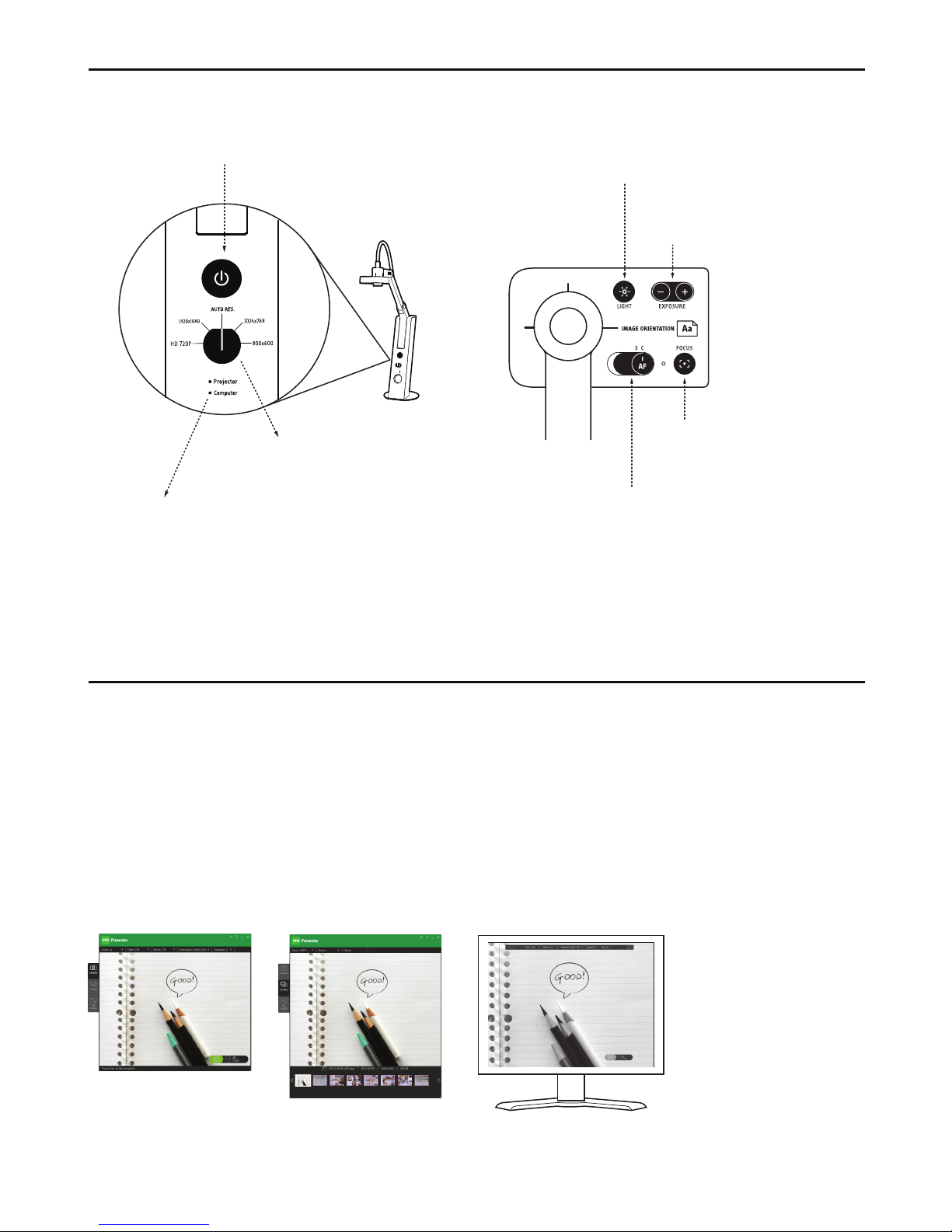
The Presenter software contains the live video image when VZ-1 HD is connected to PC or Mac. Three modes may be switched
between with buttons on the left-hand side tab:
• Camera (default): provides a window with the live video image from the camera.
• Review: review snapshots you have taken
• Full screen: VZ-1 HD's image will take up the entire screen. This is particularly useful for projecting the image in classroom or
conference settings. Press Escape to leave this mode.
IPEVO Presenter Software
(PC or Mac only)
Camera Elements
Focus button: will bring the subject into
sharp focus after a few seconds
Autofocus switch: may be set to Single (S) or
Continuous (C)
Exposure toggle: provides on-the-fly
exposure customization
Power button: powers the
VZ-1 HD on and off
Resolution selector: Selects image
resolution while using VZ-1 HD with VGA
LEDs: indicates whether connected
projector/monitor or computer is on
Light: click to turn on a strong white LED
light to illuminate your subject
Page 4
Best in Single Focus Best in Continuous Focus
Taking Snapshots
(PC or Mac only)
When using PC or Mac, you can take snapshots of the live
video image at any time. These snapshots are stored as .jpg
files on your computer's hard drive. There are two ways to
take snapshots:
• Hit “Enter” (Windows) or “Return” (Macintosh) while using
the Presenter software in Camera mode
• Click the green camera icon in the lower right-hand corner
of the software
You can then review your snapshots by clicking on Review
mode in the left-hand tab of the software. Snapshots will
be presented as thumbnail images.
Focus
To achieve sharp focus, do one of the following:
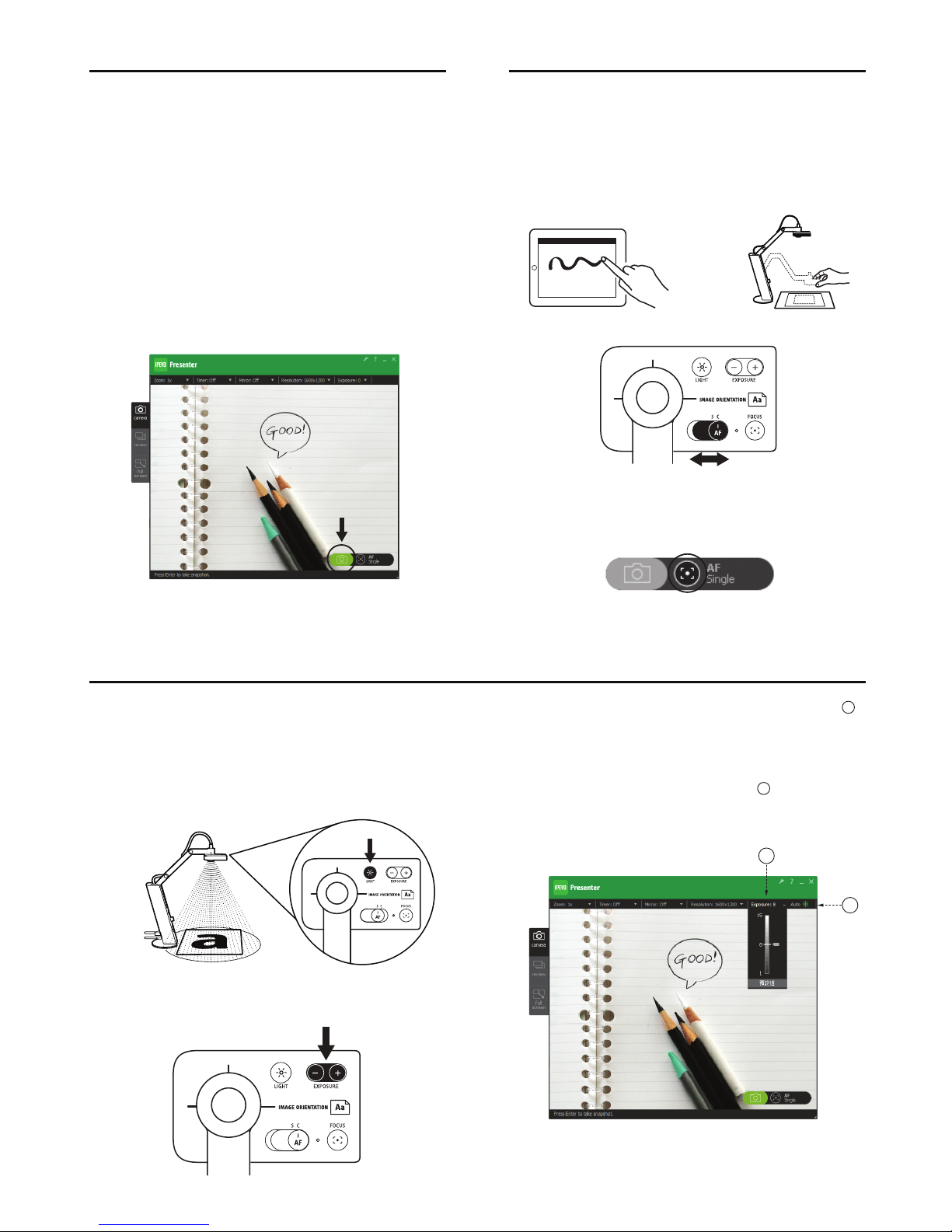
• Change focus to Continuous, via the Autofocus switch. VZ-1
HD will now continuously attempt to find focus
• Press the Focus button. VZ-1 HD will find the optimum
focus after a few seconds
• (PC or Mac only) Click the four-cornered “crosshair” icon in
the lower right-hand corner of the Presenter software.
VZ-1 HD will find the optimum focus
Exposure
To achieve proper exposure, do one of the following:
• Naturally change exposure by using a lamp, brightening or
darkening the room, etc.
• Press the Light button. An LED on the underside of the
camera will cast light onto your subject. Press the button
again to turn off the light.
• Artificially change exposure by using the Exposure toggle
on the camera head.
• (PC or Mac only) Change exposure via the Exposure tab
in the software menu. 1 is maximum darkening; 15 is
maximum brightening; 8 is default.
• (PC or Mac only) Let VZ-1 HD determine the best exposure
by selecting “On” in the Auto Exposure tab in the software
menu. The sun icon in the menu tab will change to green.
1
1
2
2
Copyright© 2017 IPEVO Inc. All right reserved.
 Loading...