

Page 1

GDC-800H IP DECT Handset
User Guide
Please read this user guide carefully before
operating your set. Retain it for future ref erence.
Page 2

S/W Version
Issue
Changes
Release Date
3.06
1.0
Initial release
2013-10-30
316b9
1.2
Add to multi registration feature
2014-12-19
316b9
2.0
General Updates
2015-01-08
Copyright © 2013 Ericsson-LG Enterprise Co. Ltd., All Rights Reserved
This material is copyrighted by Ericsson-LG Enterprise Co. Ltd. Any unauthorized reproductions,
use or disclosure of this material, or any part thereof, is strictly prohibited and is a violation of
Copyright Laws.
Ericsson-LG Enterprise reserves the right to make changes in specifications at any time without
notice.
The information furnished by Ericsson-LG Enterprise in t hi s material is believed to be accurate
and reliable, but is not warranted to be true in all cases.
Ericsson-LG Enterprise and iPECS are trademarks of Ericsson-LG Enterprise Co. Ltd.
Document Information
316b3 1.1
Handset port extension number change from
200 to 1000
2014-07-14
Page 3

Table of Contents
Before Starting .................................................................. 1
About This Guide .......................................................................................................... 1
Audience ........................................................................................................................................1
Organization ..................................................................................................................................1
Notices ...........................................................................................................................................1
Chapter 1 GDC-800H Handset Introduction ................... 3
GDC-800H Overview ..................................................................................................... 3
GDC-800H Package Contents
GDC-800H Description
Handset Notification LED ..............................................................................................................4
Display ...........................................................................................................................................4
Charger Description ..................................................................................................... 5
Installing the Battery
Using the Charger
Low Battery Indication ...................................................................................................................7
Chapter 2 GDC-800H Handset Operation ....................... 8
Turn the Handset ON/OFF ........................................................................................... 8
Out of Range Indication
Unlock/Lock the Handset
Incoming call
Ending a Call
Outgoing Call
...................................................................................... 3
................................................................................................. 3
.................................................................................................... 6
........................................................................................................ 7
............................................................................................... 8
............................................................................................. 8
................................................................................................................ 8
................................................................................................................. 9
................................................................................................................ 9
Hold
Transfer Call
Conference Call
Accessing Your Voice Mail
GDC-800H IP DECT Handset User Guide - Issue 2.0 i
............................................................................................................................. 10
............................................................................................................... 10
.......................................................................................................... 11
........................................................................................ 12
Page 4

Redial ........................................................................................................................... 13
Mute
Hands free
Headset
Volume Adjustment
DND (Do-Not-Disturb)
Chapter 3 GDC-800H Handset Settings ........................ 15
GDC-800H Main Menu ................................................................................................ 15
Local Phone Book
One-touch Speed Dial .................................................................................................................16
Central Directory ........................................................................................................ 16
Call Logs
Connectivity
Settings
Time & date .................................................................................................................................18
Language .....................................................................................................................................18
LED Signal ...................................................................................................................................18
Power Save .................................................................................................................................18
Security ........................................................................................................................................18
Handset name .............................................................................................................................19
Reset settings ..............................................................................................................................19
Status ...........................................................................................................................................19
Auto answer .................................................................................................................................19
Silent charging .............................................................................................................................20
Do not disturb ..............................................................................................................................20
............................................................................................................................. 13
................................................................................................................... 13
....................................................................................................................... 13
.................................................................................................... 14
................................................................................................. 14
...................................................................................................... 16
..................................................................................................................... 17
................................................................................................................ 17
....................................................................................................................... 18
Audio Settings ............................................................................................................ 20
Ringer volume .............................................................................................................................21
Ringer melody .............................................................................................................................21
Alert volume .................................................................................................................................21
Alert tone .....................................................................................................................................21
Vibrator ........................................................................................................................................21
Key sound ....................................................................................................................................21
Confirmation sound .....................................................................................................................22
Coverage warning .......................................................................................................................22
Charger warning ..........................................................................................................................22
ii GDC-800H IP DECT Handset User Guide - Issue 2.0
Page 5

Alarms ......................................................................................................................... 22
Alarm ...........................................................................................................................................23
Recurrent alarm ...........................................................................................................................23
Snooze time .................................................................................................................................23
Appendix Guidelines to Lithium Batteries ..................... 1
Initial Use ......................................................................................................................................1
Use ................................................................................................................................................1
Replacement ................................................................................................................................2
Disposal ........................................................................................................................................2
Storage .........................................................................................................................................2
GDC-800H IP DECT Handset User Guide - Issue 2.0 iii
Page 6

Page 7

Before Starting
About This Guide
This guide describes the features and functions av ai l able to users of the GDC-800H and iPECS
IP DECT solution.
Audience
This guide is intended for users of the GDC-800H handset and may be useful to system
administrators of the iPECS IP DECT system as well.
Organization
This guide has three chapters, an appendix and this Before Start i ng section as below.
Before Starting – an introduction to this iPECS IP DECT handset User guide
Chapter 1
GDC-800H Handset Introduction – a description of the handset and cha rger, battery install
directions and display icons are discussed in thi s c hapter.
Chapter 2
GDC-800H Handset Operation – a description and operation of the GDC-800H calling
features are presented in this chapter
Chapter 3
GDC-800H Handset Settings – the various handset param eters that you can configure are
discussed in this chapter.
Appendix, Lithium battery Guidelines – a guide for the safe use and storage of the handset
battery.
Notices
The following notices and statements are used i n this user guide.
CAUTION
A caution statement alerts you to situations that m ay cause serious damage to hardware,
software, or data.
GDC-800H IP DECT Handset User Guide - Issue 2.0 1
Page 8

NOTE
A note provides additional explanations, im port ant information, or a reference to related
information.
2 GDC-800H IP DECT Handset User Guide - Issue 2.0
Page 9

Chapter 1
GDC-800H Handset Introduction
This chapter includes a description of the handset and charger, battery install directions and
directions on the use of the charger.
CAUTION
Small metal objects may be retained by the handset due to the presence of magnetic fields.
Exercise caution when used where metal objects can be picked up.
GDC-800H Overview
The GDC-800H iPECS IP DECT Handset is a rugged handset wit h a bright large 2” color LCD.
The GDC-800H is powered by a long-life rechargeable Lithium battery pack to deliver up to 16
hours of talk-time and 180 hours of standby time from a ful l y charged battery. The handset
incorporates a rear loudspeaker for full duplex handsfree operation and a vibrator for silent
alerting. The 2.5 mm headset jack on the side of the unit permits connection of a standard
headset. The handset has access to local and central phone books, and call log are for easy
access to commonly called numbers and t o rec al l numbers from the log.
GDC-800H Package Contents
The GDC-800H package contains the items liste d below. Make sure all items are in the
package and are not damaged. If any items are missing or damaged, contact your local vendor.
GDC-800H DECT Handset
Handset belt clip
Lithium rechargeable battery
Battery Charger
Charger AC/DC Adaptor
GDC-800H Description
The figure below displays the various element s (LCD, microphone, etc.) and keys on your
GDC-800H DECT handset. For ease of operation, we recommend you familiarize yourself with
the location of these elements and keys.
GDC-800H IP DECT Handset User Guide - Issue 2.0 3
Page 10
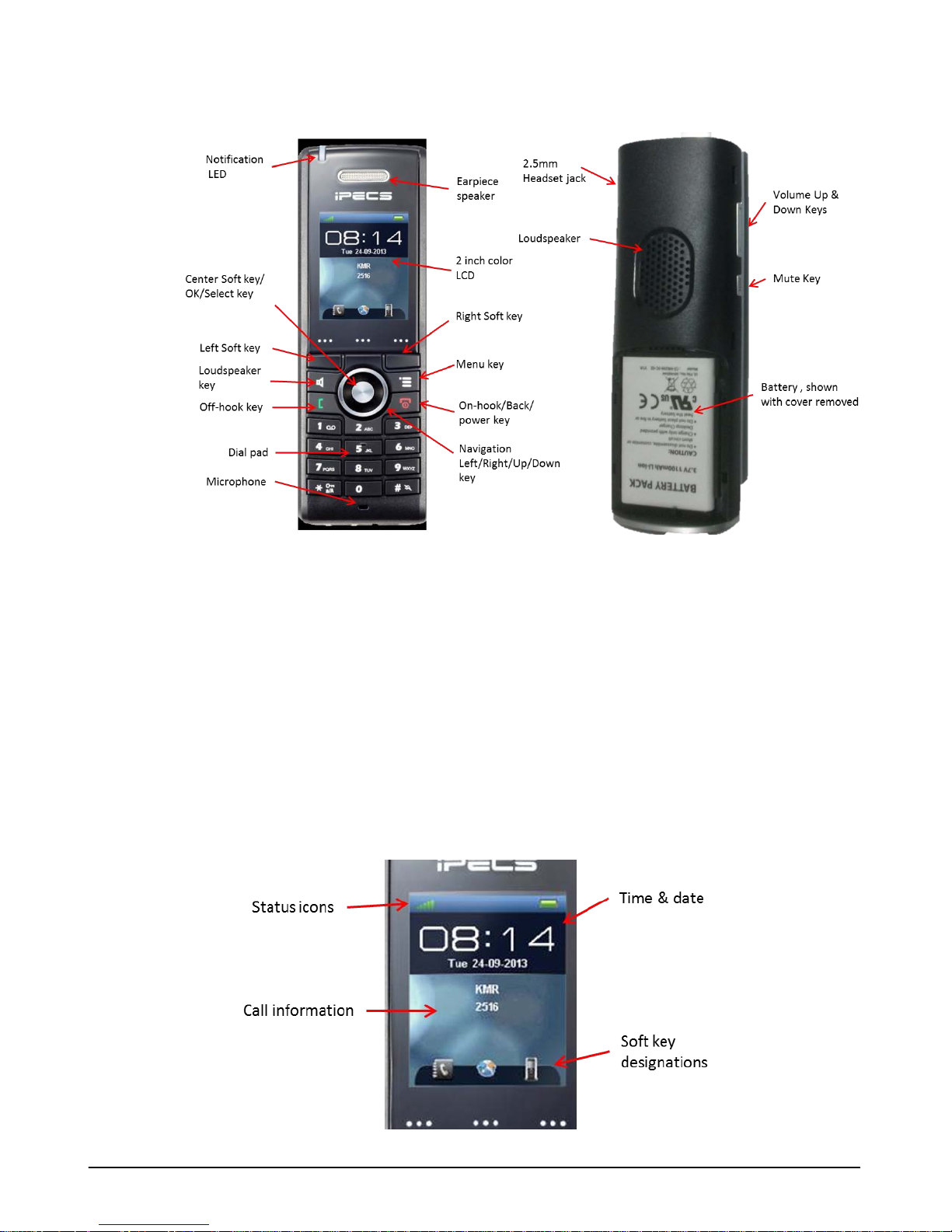
Handset Notification LED
The LED at the top of the handset is a tri-color LED with each color employed to indicate a
different event. Events indicated are missed call, new voice mail, and low battery alert. As a
default, red indicates a missed call, green indicates a new voice mail and orange indicates a
low battery alert. You can select the event asso ciated with each color or disable the color in the
Setting menu.
Display
From top to bottom, the GDC-800H handset LCD shows the status icons, day, date and time,
call information, and at the bottom are the soft key displays in either text or icon format.
4 GDC-800H IP DECT Handset User Guide - Issue 2.0
Page 11

Status Icons
As shown in the figure above the Status icons are shown in the top area of the display. Icons
include:
RSSI (Received Signal Strength Indicat or) – indicates the level of the received RF signal.
Off-hook – indicates the handset is in the talk mode
Alarm – visual indication that the alarm clock has been set
Key Lock – indicates the handset keys are locked
Mute – indicates that the mute functions is act ive
Ringer Off – indicates the ringer is not active
Battery status – indicates the battery charge level or the battery is charging
Soft Key Designations
At the bottom of the display are the soft key funct i on designations. The function of the soft keys
will vary based on the state of the handset. Whil e i dl e, icons are used for the local Phone book,
Central directory and Call logs. The handset has a l eft and right soft key and the Select/Ok key
in the center of the navigation keys is employed as the center soft key.
Charger Description
The charger has three contacts that connect to the handset when it is placed in the charger. On
the rear of the charger is the connector for the A C/ DC adapter that powers the charger. The
LED in the front of the charger indicates when t he handset is properly seated in the charger,
turning on when the handset is placed in the charge r.
GDC-800H IP DECT Handset User Guide - Issue 2.0 5
Page 12
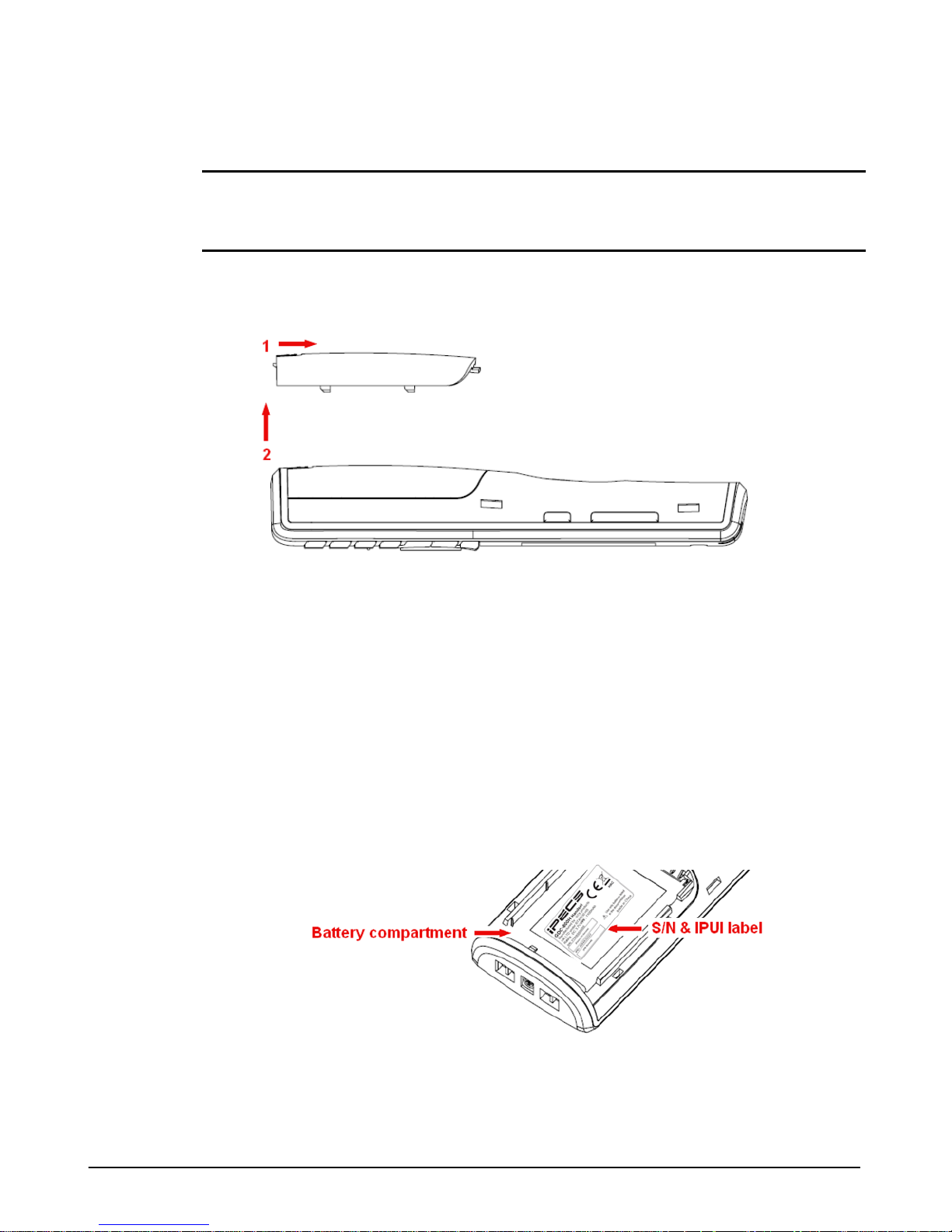
Installing the Battery
NOTE
Please read the Appendix "Guidelines to Lithium Bat teries" before installing the battery. You
can also download this important instruction from www.ericssonlg-enterprise.com.
1. Push the Battery cover lock toward the top of the handset and lift it away from the handset
as shown in the figure below.
2. Insert the battery into the battery compartment with the terminals pointing toward the top of
the handset. If you are replacing an existing battery, remove the old battery before inserting
the now one. Discard the old battery as outlined in the Appendix.
3. Replace the battery cover.
4. It is recommended that you charger the unit for a day before use.
Handset Identification Number
The serial number and IPEI identifier of the handset is found either on a label in the battery
compartment or on the packaging label. To view t he i dentifier, remove the battery cover then lift
the battery. The IPEI number is identified in the base station web manager after the handset
successfully registers indicating the handset re gi st ered to the system.
6 GDC-800H IP DECT Handset User Guide - Issue 2.0
Page 13

Using the Charger
The handset battery is charged through the terminals at the bottom of the unit. When prope rly
placed in the charger these terminals conne ct to the charging terminals in the charger. When
the handset is placed in the charger, the charger LED illuminates, the handset emits the
charging tone and the LCD shows the charging message “The Battery is charging”. Note that if
the handset is off when placed in the charger, it wil l turn on briefly to display the charging
message.
The room temperature should be between 0°C and 25°C (32°F and 77°F). Do not place the
charger in direct sunlight. The battery has a built-in heat sensor, which will stop the charging if
the battery temperature is too high.
Low Battery Indication
The Handset provides both a visual and audible indic ator to warn of a low battery condition.
While idle, the low battery audible signal is sent to the speaker and, during a call, the signal is
sent to the earpiece/headset. The audible signal is sent at intervals of approximately 30
seconds. The handset should be placed in t he charger immediately if you receive the Low
battery indication.
GDC-800H IP DECT Handset User Guide - Issue 2.0 7
Page 14

Chapter 2
GDC-800H Handset Operation
This section gives you descriptions and operati ng st eps for the calling features available from
your GDC-800H DECT handset. In addition to the IP DECT system calling features, you may
have access to features of your iPECS host plat form. Contact your system administrator for
further details.
Turn the Handset ON/OFF
Before use, you must turn the handset ON. To t urn the handset ON or OFF,
Press and hold the On-hook key.
Out of Range Indication
The handset will display “Searching” when t he handset is out of range of a base station and
there will be no RSSI icon. During a call, if the user moves out of a comfortable coverage range
of the base station(s) the “Coverage warning tone”, if enabled, is sent to the earpiece. This
warning is given in such a way, that you will have time to move back in range, before the call is
dropped.
Unlock/Lock the Handset
The handset can be “locked” so that it will not respond to any key press except emergency calls
(911 or 112). You can lock the handset manually or set auto lock under Security in the Settings
menu. To lock or unlock the handset,
Press and hold the asterisk (“*”) dial pad button.
Incoming call
When you receive a call, the LCD displays the incoming caller id. You may answer or reject the
call, or silence the audible ring.
To answer the call, press the Off-hook key (gre en handset).
To reject the call, press the “Reject” soft key.
8 GDC-800H IP DECT Handset User Guide - Issue 2.0
Page 15
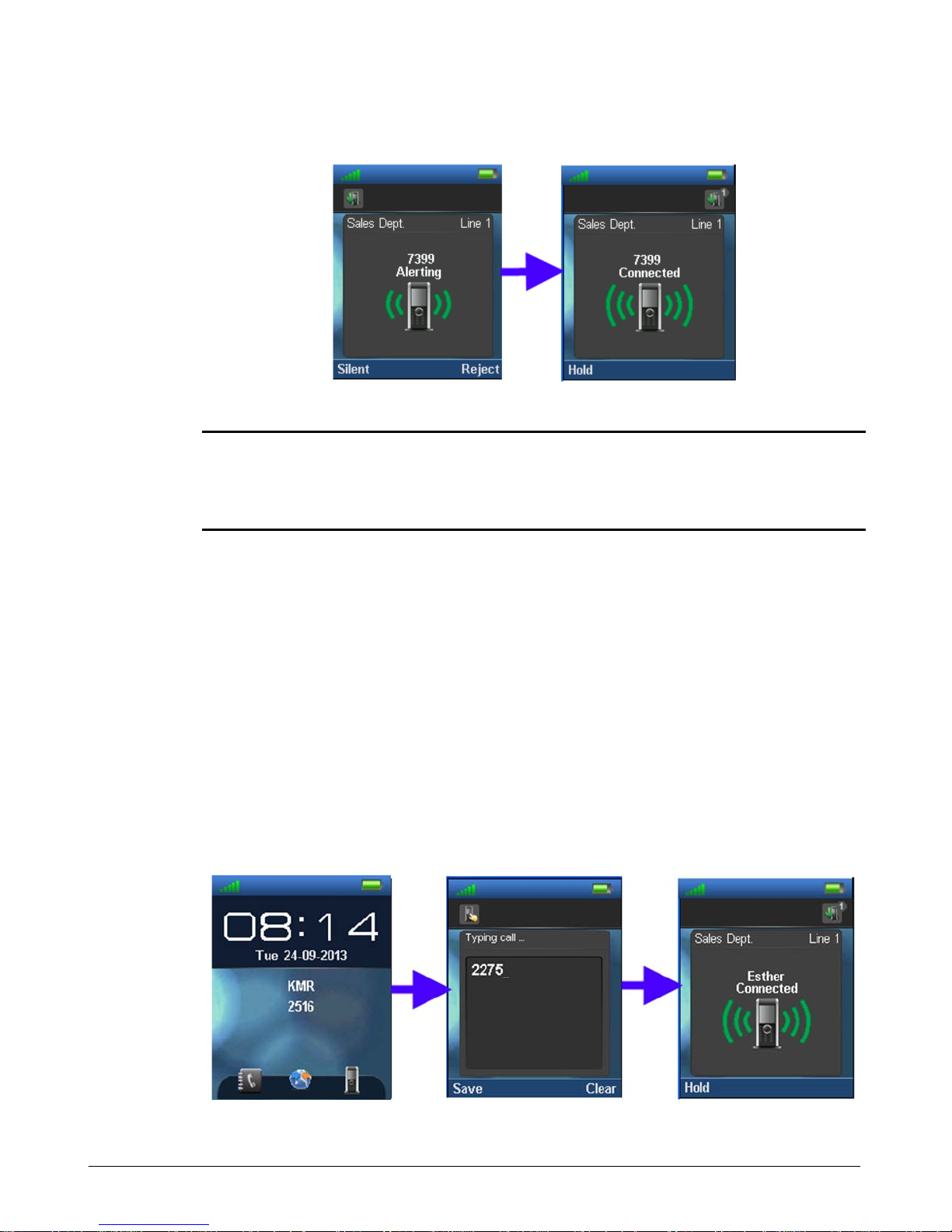
To silence the ringer, press the “Silent” soft key.
NOTE
Depending on the Auto Answer setting, you may be abl e to answer a call by pressing any dial
pad button as well as the Off-hook key. Also, the phone may connect the call automatically after
a short delay. Refer to the Handset Setting section for further details.
Ending a Call
You terminate an active call using the On-hook key (red handset). If a call is on hold,
terminating the active call will connect you to the holding call automatically.
Outgoing Call
You place outgoing calls from your DECT handset by dialing the number or selecting a number
from the Phone book, the Central Directory or the Call Logs.
1. Dial or select a number from the phone books or log.
2. Press the Off-hook key (green handset).
GDC-800H IP DECT Handset User Guide - Issue 2.0 9
Page 16
NOTE
If you begin dialing and then take no action for about 5 seconds, the handset will return to the
idle state. You will need to dial the number again to pl ace t he call. This also applies to transfer
and conference calls.
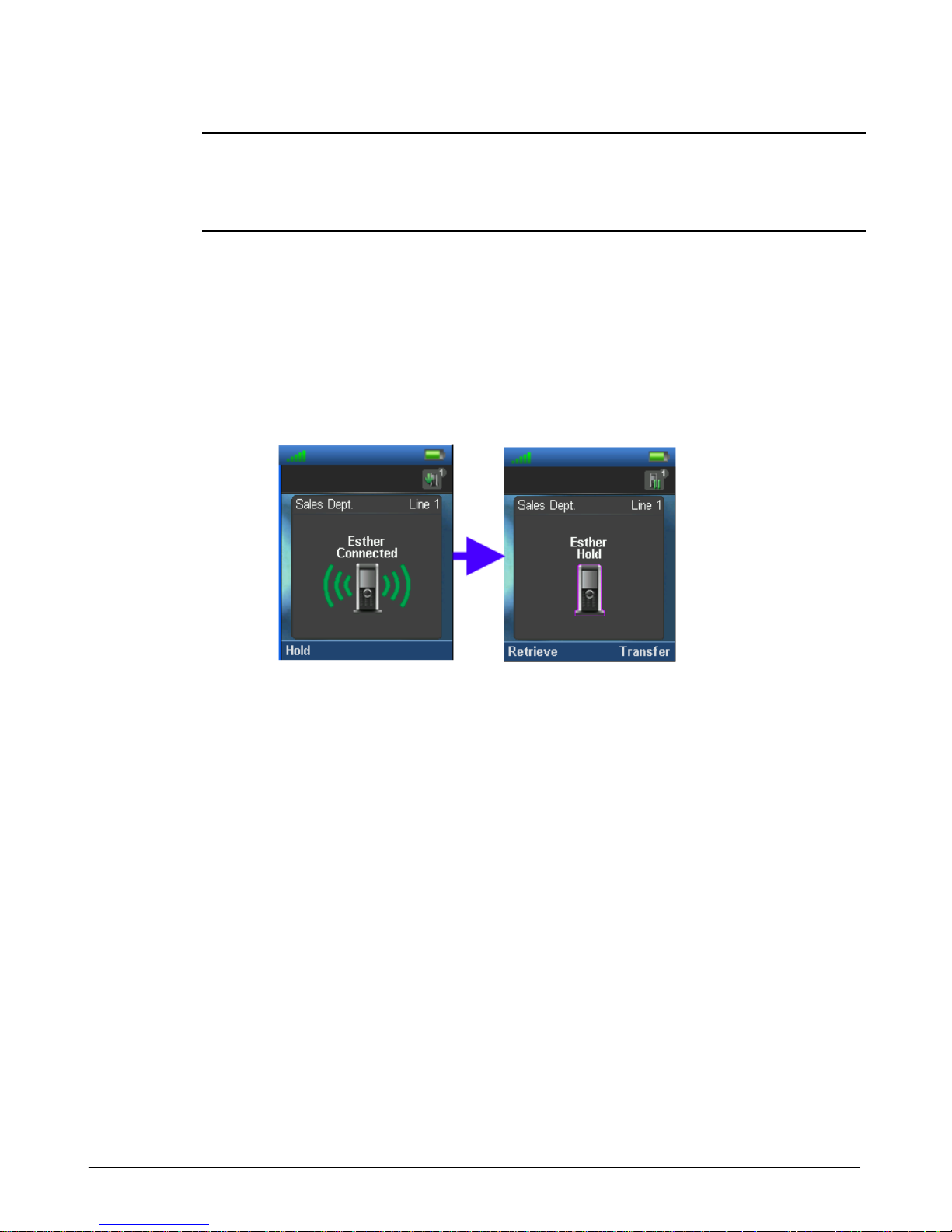
Hold
Pressing the Hold soft key places the call on hold. The call can be retrieved or a second call
can be established. From the second cal l, conference, swap or transfer is possible.
1. Press the “Hold” soft key while on a call,
2. Press the “Retrieve” soft key to re-connect the call.
Transfer Call
You can send an active call to another party. Y ou can announce the transfer (attended transfer)
or transfer the call without announcing it (blind transfer).
Blind Transfer
1. While on an active call, press the “Hold” soft key.
2. Dial the number to receive the transfer.
3. Press the “Transfer” soft key.
10 GDC-800H IP DECT Handset User Guide - Issue 2.0
Page 17
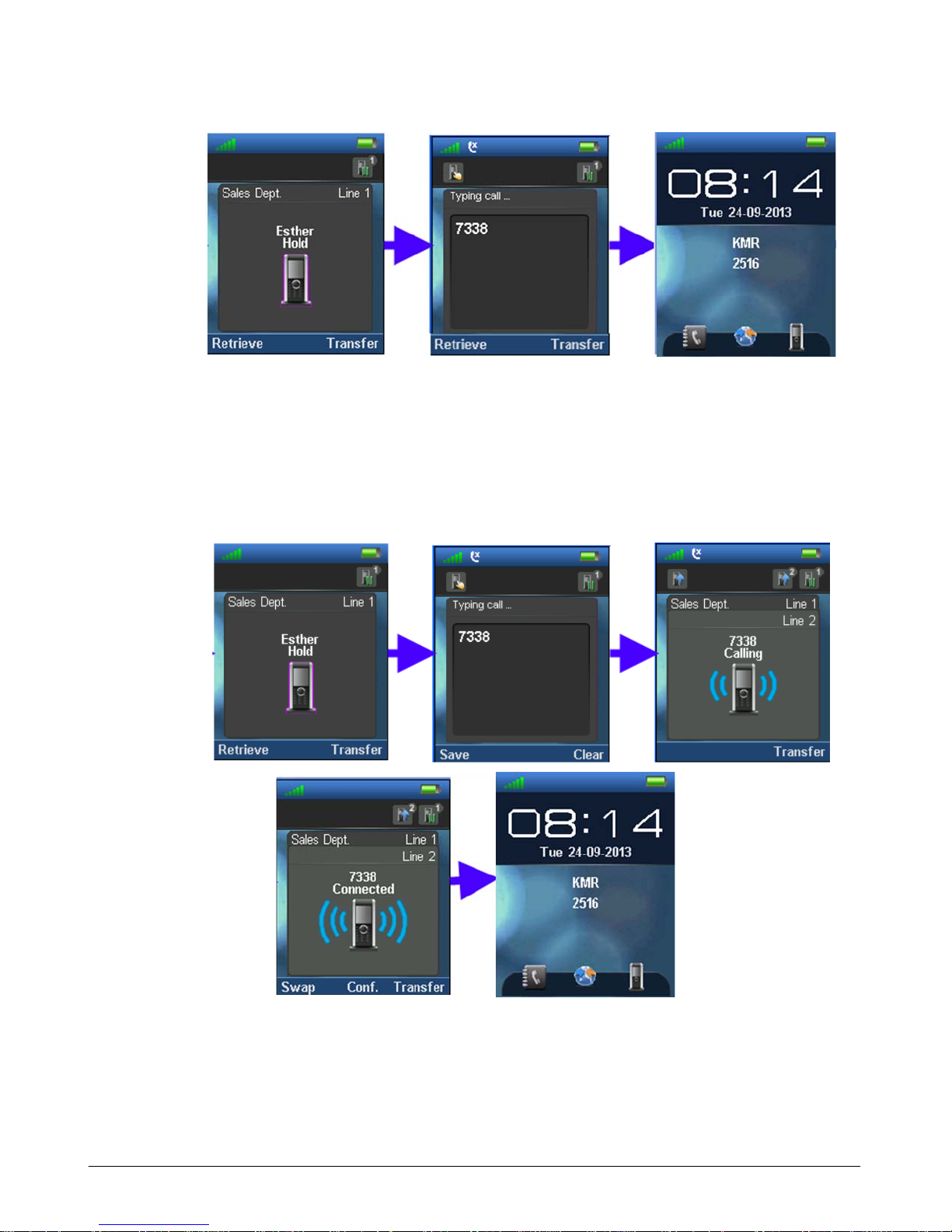
Attended Transfer
1. While on an active call, press the “Hold” soft key.
2. Dial the party to receive the transfer.
3. Press the Off-hook key (green handset).
4. Upon answer, announce the transfer then press the “Transfer” soft key.
Conference Call
You can join two calls into a three-way conferenc e.
GDC-800H IP DECT Handset User Guide - Issue 2.0 11
Page 18
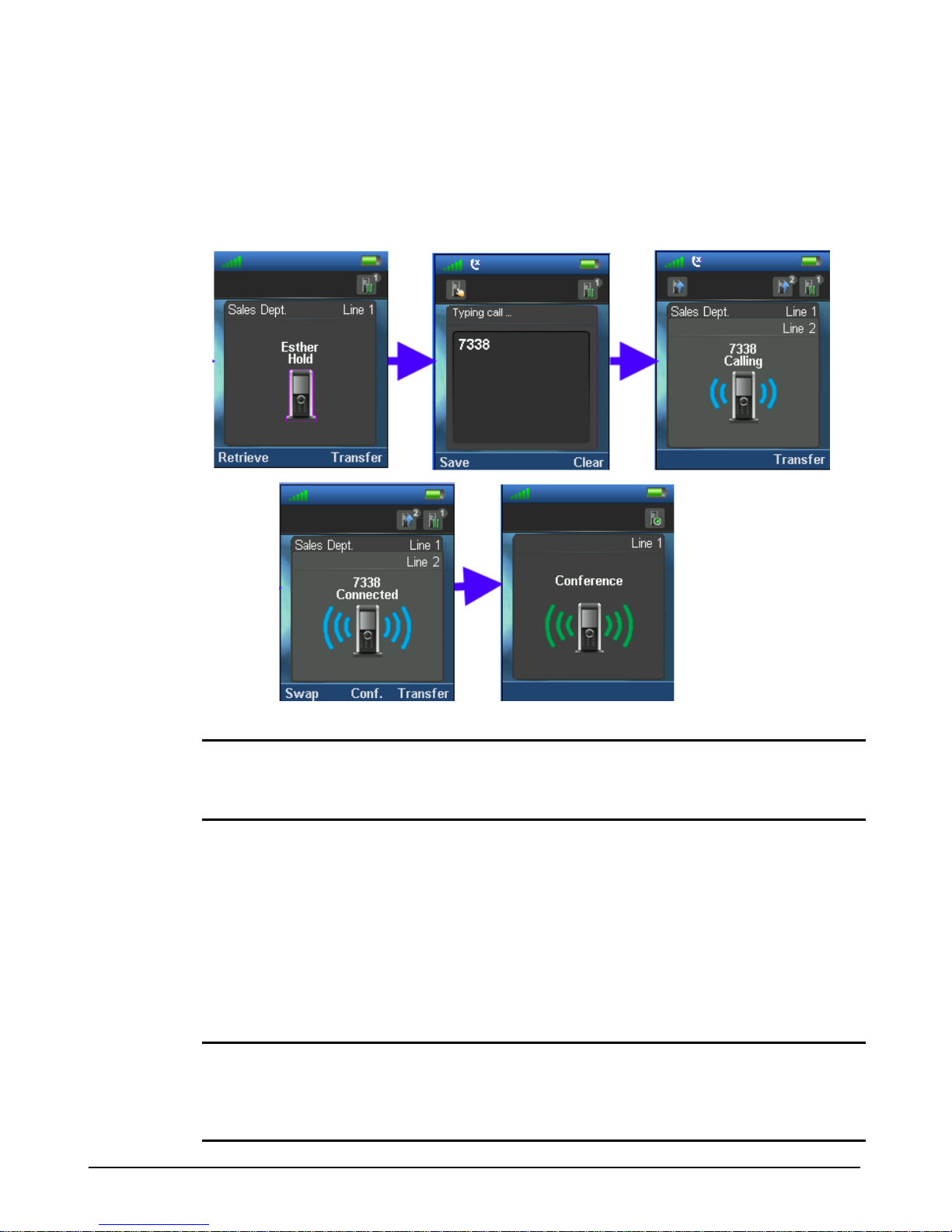
1. While on an active call, press the “Hold” soft key.
2. Dial the party to join in the conference.
3. Press the Off-hook key (green handset).
4. After the party answers, press the “Conf.” soft key to establish the three-way co nference.
NOTE
When you have an active and a held call, you may toggle bet ween the calls using the “Swap”
soft key; pressing the “Swap” key places the act ive call on hold and retrieves the held call.
Accessing Your Voice Mail
The notification LED at the top of the handset l i ghts if you receive a new message. To call your
voice mail to listen to your messages or to manage your mailbox,
1. Press and hold the ‘1’ digit on the dial pad.
2. After connecting to the Voice mail system, follow the voice instructions to retriev e your
messages and manage your mailbox settings.
NOTE
The notification LED lights in a red, green or orange color to indicate a new message. The LED
may be disabled and provide no indication of a new message. The LED is configured under the
Handset “Setting” menu.
12 GDC-800H IP DECT Handset User Guide - Issue 2.0
Page 19

The base station must be configured by your syst em adm inistrator to access your iPECS host
voice mail service.
Redial
The GDC-800H has four call log lists (All, received, outgoing and missed ). You can select a
number from a list to return a call to the number.
1. While idle, press the Menu key then select the Call Logs menu
2. Select “View” then select the type of log (All, received, outgoing, or missed)
3. Use the Up/Down navigation buttons to highlight the desired number.
4. Press the “Call” soft key to call the number.
Mute
You can activate mute so that your voice is not transmitted to the connected cal l . The Mute icon
will display to indicate the active mute status. To act ivate or deactivate mute, press the Mute
button.
Hands free
The GDC-800H includes a loudspeaker on the rear of the unit that can be activated for
handsfree use of the phone. To activate the Handsfree mode press the Speaker key. To
deactivate the speaker, press the Off-hook key (green handset) to continue the call using the
handset earpiece, or press the On-hook key to terminate the call.
Headset
GDC-800H IP DECT Handset User Guide - Issue 2.0 13
Page 20
A headset can be connected to the headset jack (2.5 mm jack) on t he side of the handset.
When you place or receive a call with the headset connected, audio is routed to the headset
instead of the handset earpiece. The call is termi nated in the normal manner using the On-hook
key or the handsfree mode can be activated using the Speaker key.
Volume Adjustment
You can adjust the volume of audio from the acti ve device (earpiece, speaker, or headset). The
volume Up and volume Down keys are located on the side of the handset. Pressing the volume
key adjusts the volume of the active audio rec eiving device and the LCD will show a graphical
representation of the audio level.
DND (Do-Not-Disturb)
While in DND, the handset will not respond to an inc oming call and the call is rerouted based on
the iPECS host configuration, typically the call will route to voice mail. DND is activated through
the handset setting menu. To activate or deactivat e DND,
1. Press the Menu key then select the Settings menu.
2. Use the navigation button to scroll to and select DND.
3. Select the DND status desired, enabled or disabled.
14 GDC-800H IP DECT Handset User Guide - Issue 2.0
Page 21
Chapter 3
GDC-800H Handset Settings
You have control over a number of characteristic s of your GDC-800H handset. The various
settings are discussed in this chapter.
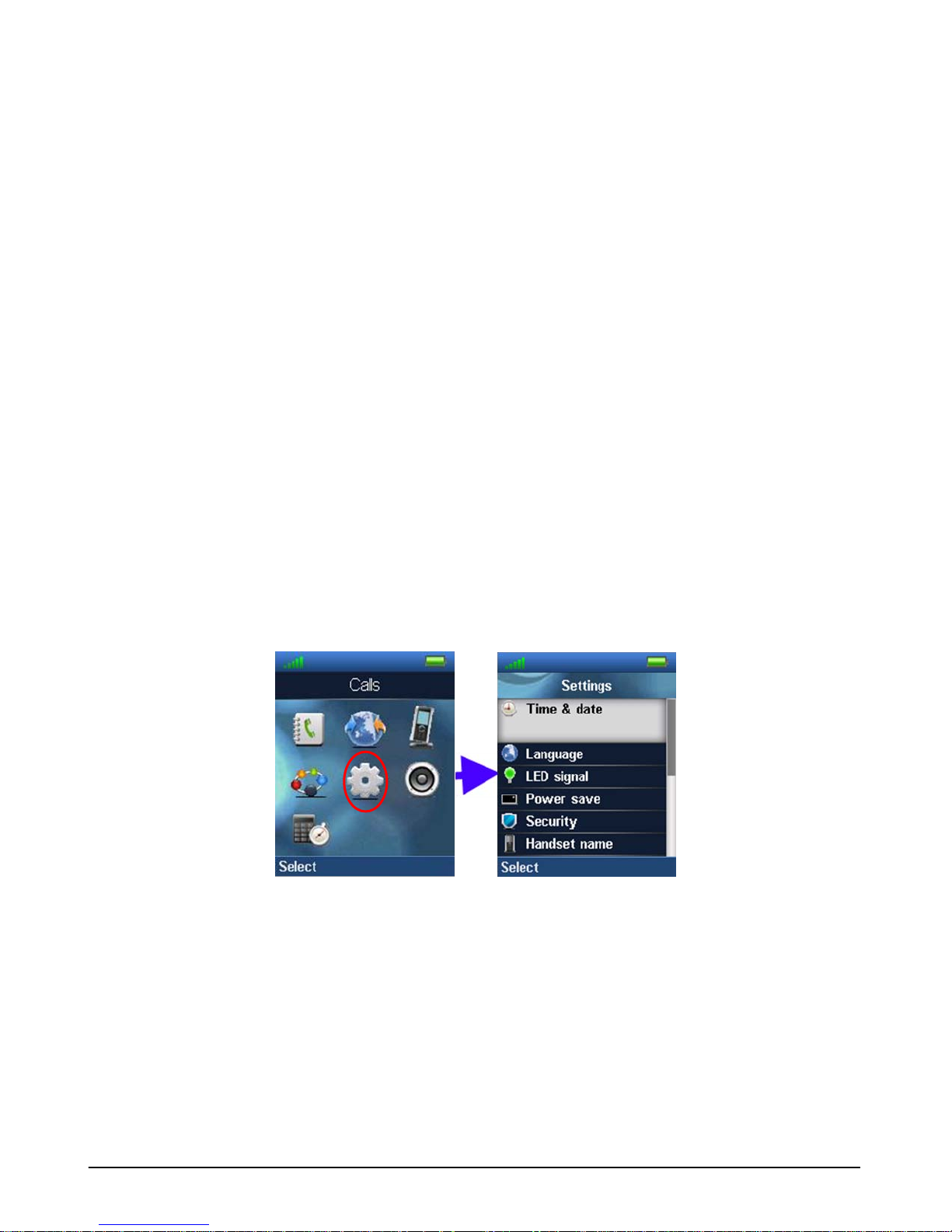
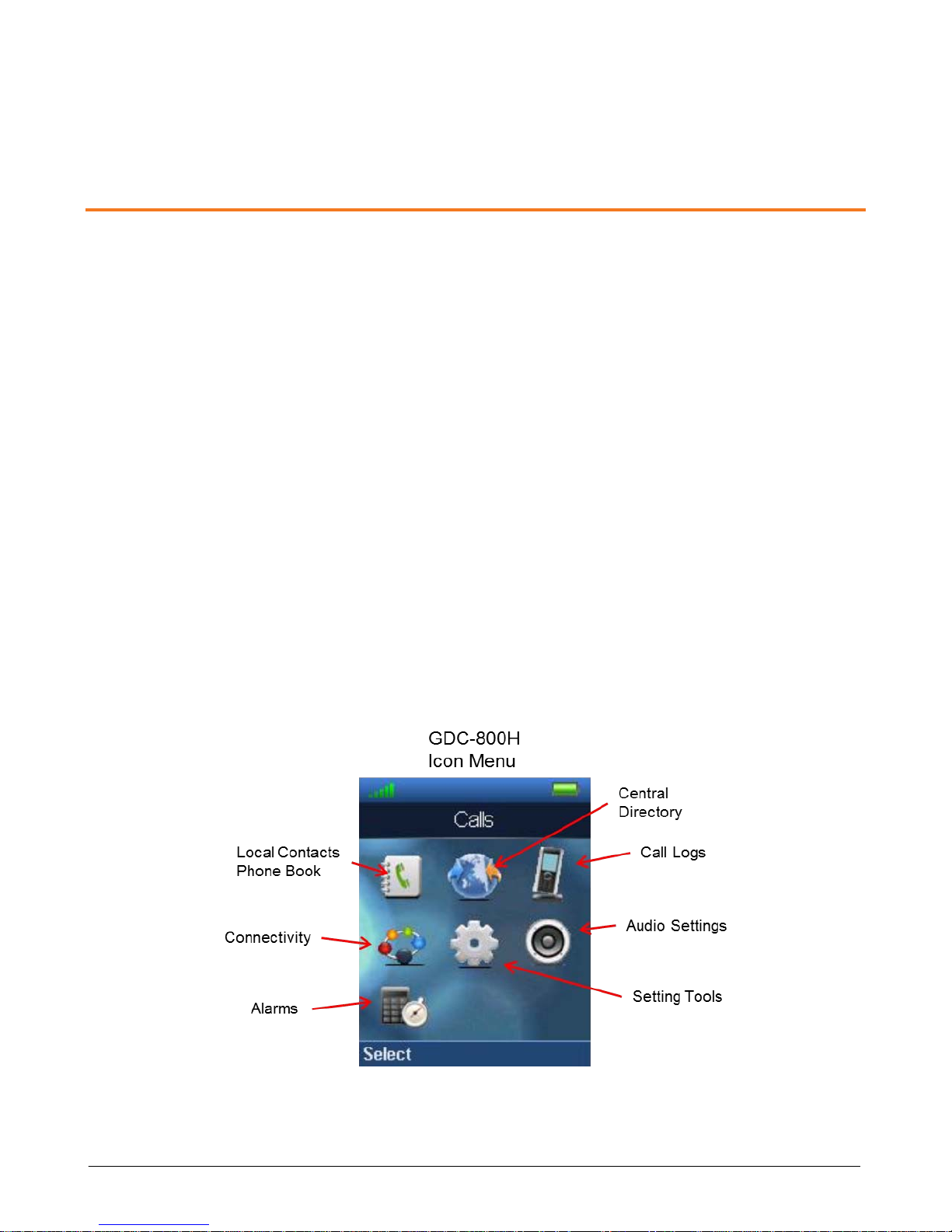
GDC-800H Main Menu
Various settings can be changed, such as ring t ype, registration, deregistration, etc. There are
seven menu selections, which display as icons. These menus, shown in the figure below,
include:
Local Phone Book
Central Directory
Call Logs
Connectivity
Settings Tool
Audio Settings
Alarms
Note when you access a menu, the first selecti on is highlighted and the current setting display s.
If you take no action for a period of about 1-minute, the handset will return to the idle mode.
GDC-800H IP DECT Handset User Guide - Issue 2.0 15
Page 22
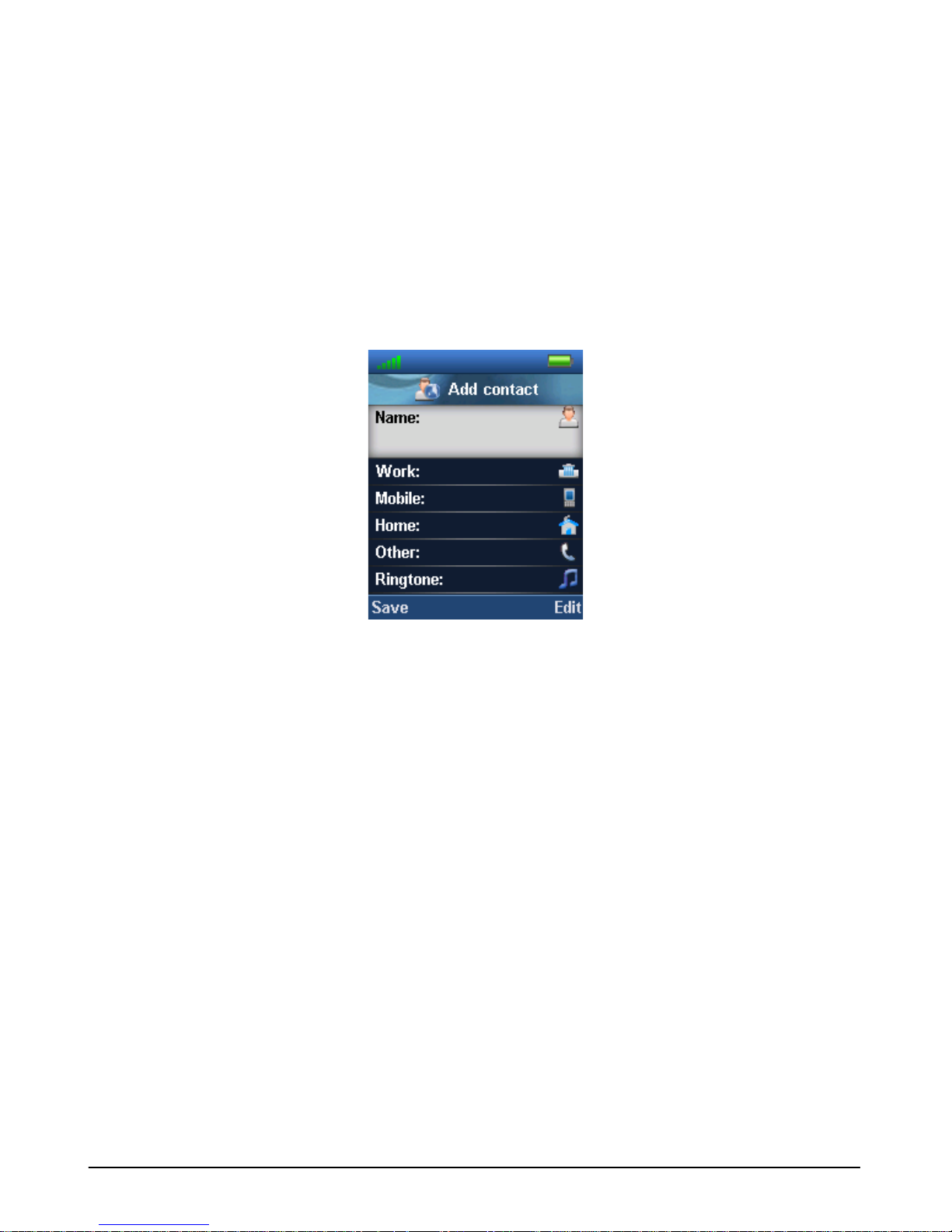
Local Phone Book
Up to 100 contacts can be defined in the Local Phone Book allowing you to call a contact from
the contact list. Up to four 24-digit phone numbers can be assigned for each contact. In addition,
a ringtone can be selected for a contact so that a call from the contact alerts you with the
selected tone allowing you to identify the caller from the ring tone.
Up to eight of your contacts can be assigned a dial pad digit (2 to 9) for One-touch dialing.
Press and hold the dial pad digit and the handset places a cal l to the first number of the
assigned contact. Note the digit ‘1’ is assigned for One-touch calling to your iPECS host voice
mail.
You assign a contact by accessing the Local Phone Book and entering the contact informatio n
in the Add contact screen. Use the “More” soft key to assign a One-touch digit for the contact.
Once you save the contact use the On-hook/Back key to return the handset to idle.
One-touch Speed Dial
To use One-touch dialing,
1. Press and hold the digit assigned for the contact.
Central Directory
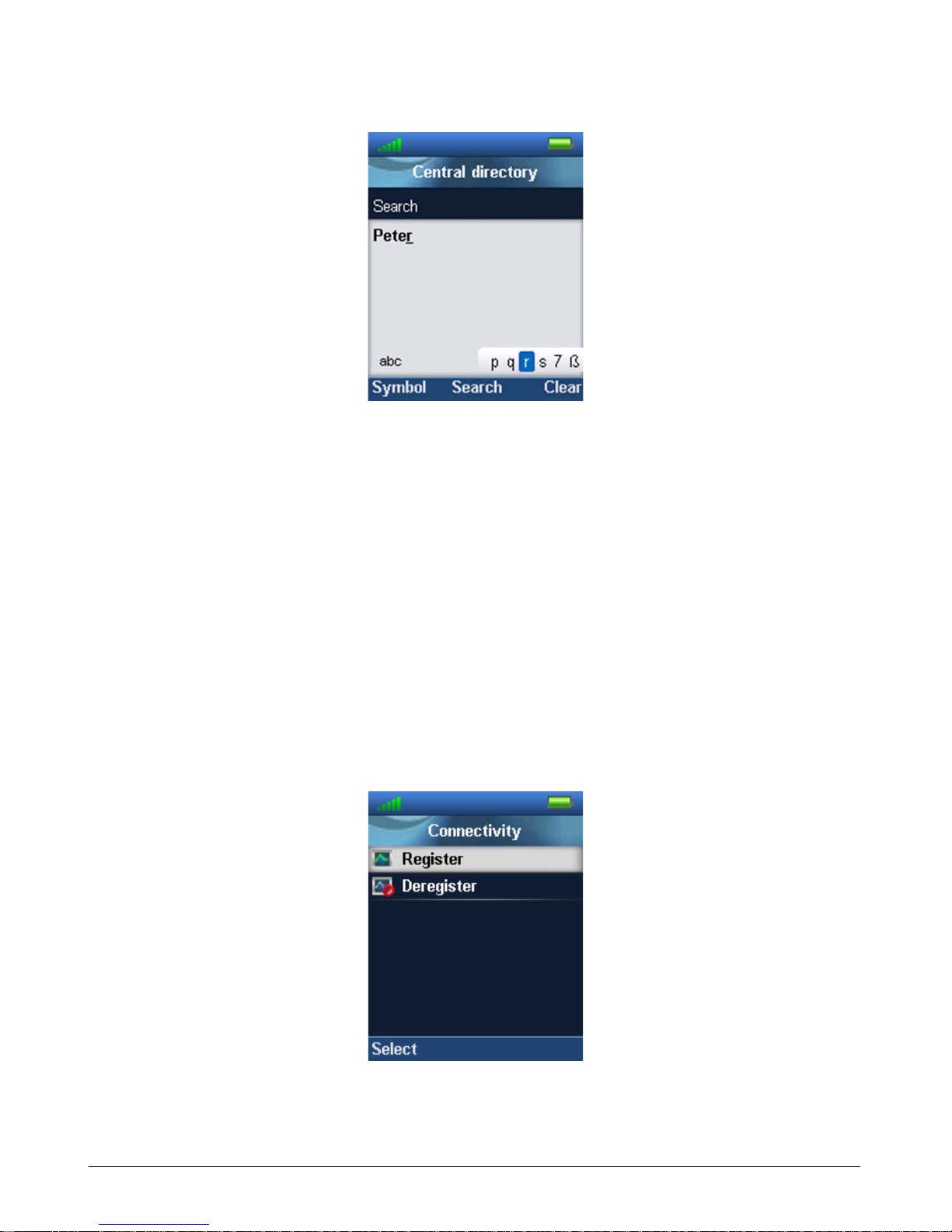
The Central Directory is a database of up to 3000 c ontacts assigned in the base station. You
may access the active base station’s directory to call contacts listed in the directory. This
directory is configured by the iPECS IP DECT system administrator only.
16 GDC-800H IP DECT Handset User Guide - Issue 2.0
Page 23
Call Logs
When you place or receive a call, the GDC-800H will generate a call log record. The handset
will log received calls, outgoing calls and missed calls (incoming calls that are not answered).
You can select a record from the logs to return a call or redial the number in the record.
Up to 50 records are maintained in the logs; when the number of records reaches the maximum,
the oldest record is deleted and the new record stored.
Connectivity
The Connectivity menu controls the registration of the handset to a base station and the iPECS
host. In this menu, you can select to register or deregister the handset. You will be asked to
input the PIN, which is available from your system administrator. Note that the base station
must be placed in the handset registration mode to allow the handset to register.
GDC-800H IP DECT Handset User Guide - Issue 2.0 17
Page 24
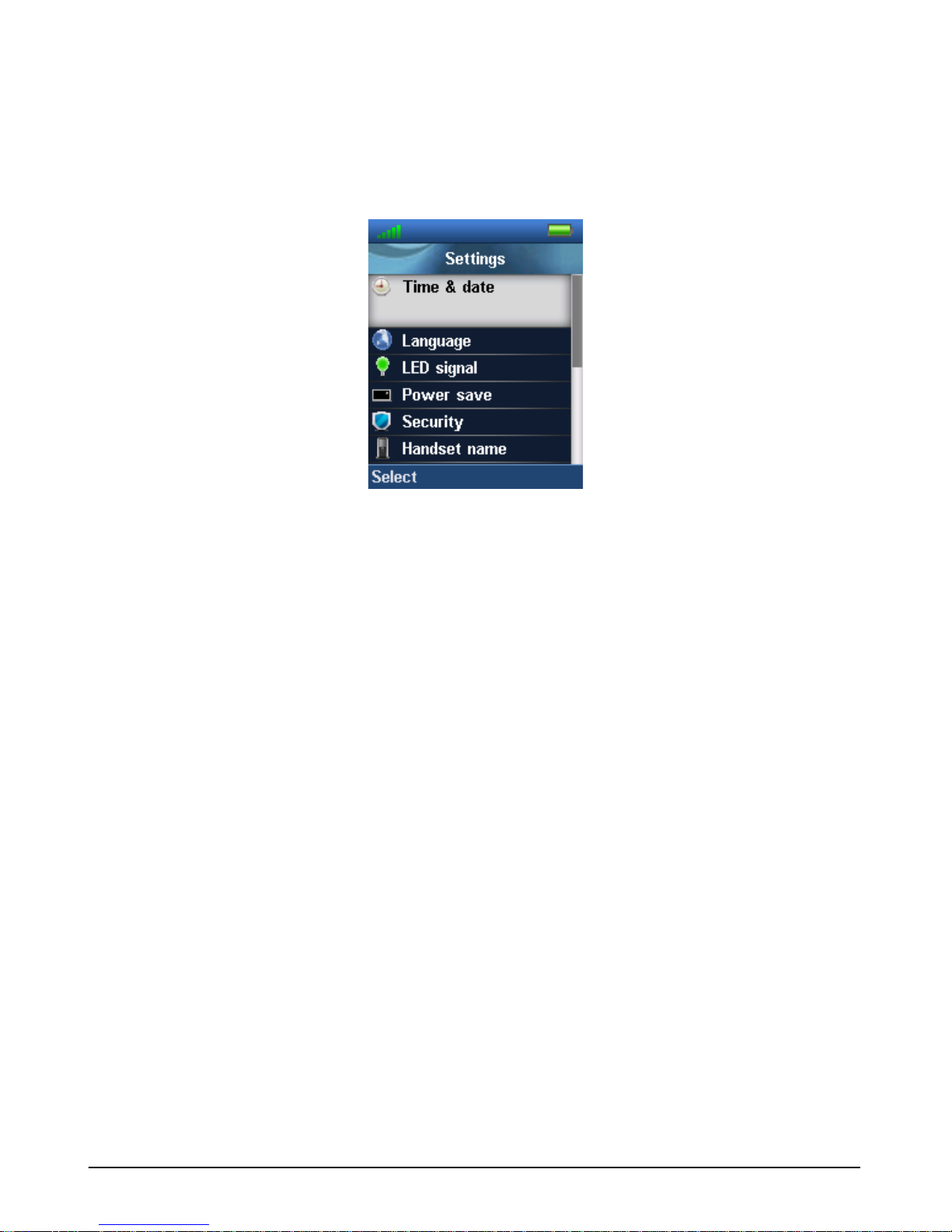
Settings
You can control various handset characteristics through the Settings menu including Time &
date, language, handset name, etc.
Time & date
The GDC-800H can display the time in a 12 or 24-hour format. You can select the date display
format from one of several pre-defined formats including dd-mm-yyyy, mm-dd-yy, etc.
Language
GDC-800H supports a number of languages. Using the Language menu, you can select the
language used for handset displays. When you select the Language menu, a list of languages
available displays with current language highl i ghted.
LED Signal
The LED at the top of the handset is used to notify you of sev eral events including a new voice
message, a missed call and a low battery alert. Y ou can configure the LED color to use for each
of the events (green yellow, or red) or disable the LE D (Off).
Power Save
When you press a key on the handset, the LCD bac klight will turn on to improve the LCD
readability. After a defined period of no action, the LCD backlight will turn off to save power. I n
this menu, you can set the period from 5 to 60 seconds.
Security
The keys of the handset can be locked so that key presses are ignored until the handset is
18 GDC-800H IP DECT Handset User Guide - Issue 2.0
Page 25

unlocked. The key lock is configurable under the Security menu where the Automatic key lock
time is selected. You choose the key lock timer value, which can be set to OFF or times up to 5
minutes. If you do not press any key, when the tim er expires, the handset keys will “lock”. In
addition, you can manually lock the handset. The asterisk (‘*’) button on the dial pad is used to
lock and unlock the handset.
Handset name
You can assign a Name, which is displayed while the handset is idle. An editor is provided on
screen and, using the dial pad keys, the name is entered. The name can be up to 20 characters.
Reset settings
You can return the handset settings to the default values using the Reset settings item. This will
not change the registration status of the hand set.
Status
The “Status” menu delivers status information on the handset and the active base station. The
information includes:
Base station status
Software version
Hardware version
IP address
MAC address
System name
Handset status
Software version
Hardware version
DECT band
Battery level
IPEI
Auto answer
Normally, a call is answered using the Off-hook (green handset) key. If desired, you can
configure the phone to answer a call when any dial pad key as well as the Off-hook key or the
handset may answer the call automatically. O ptions for Auto answer are:
GDC-800H IP DECT Handset User Guide - Issue 2.0 19
Page 26

Normal - The user must always press Off-hook (green handset) key to answer a call. The call is
not answered by removing the handset from t he cr adl e/charger.
Any key - Pressing any key will answer an incomi ng call. The call is not answered by removing
the handset from the cradle/charger.
Automatic
automatically.
– With “Automatic” enabled, incoming calls are answered after 5 seconds
Silent charging
Silent charging controls how your handset will react to an incoming call while in the charger.
The settings available for silent charging are:
Off - The handset reacts normally to an incoming c al l ; the handset rings and the incoming call
information displays.
Disconnect - The handset does not react to an incoming call; no ring or LCD displays for an
incoming call.
- The handset does not ring but the LCD displays the i ncoming call information. Note the
Silent
handset may vibrate, if enabled under the Audio sett i ngs menu.
Do not disturb
While in DND, the handset will not respond to an incoming call and the call is rerouted based on
the iPECS host configuration, typically the call will route to voice mail.
Audio Settings
These settings determine the type and volume of audible signals such as ring that the handset
will provide.
20 GDC-800H IP DECT Handset User Guide - Issue 2.0
Page 27

Ringer volume
The default ringer volume can be adjusted to one of seven levels. As you move up and down
with the navigation buttons, the ring melody i s played at the selected level. Note while receiving
an incoming call you can raise or lower the ring volu m e.
Ringer melody
One of several melodies can be assigned as the normal ring tone. Other than calls from a
contact assigned a different ring tone, you will be alerted to incoming calls with the assigned
melody. You can play the selected melody with the “Play” soft key. Note the “Stop” soft key
stops the playback.
Alert volume
The handset has an alarm clock, which is set under the “Alarms” menu. If the alarm clock is set,
the handset will alert you at the alarm time using the Alert t one at the “Alert volume”. When
accessing the menu, the current level is indicated graphically in the LCD and is adjusted with
the Navigation Up/Right and Down/Left keys.
Alert tone
The handset has an alarm clock, which is set under the “Alarms” menu. If the alarm clock is se t,
the handset will alert you at the alarm time using the assigned “Alert tone”. You select a tone
from the list shown in this menu. You can play the selected melody with the “Play” soft key.
Note the “Stop” soft key stops the playback.
Vibrator
The GDC-800H incorporates a small vibrator that can be configured to alert you in place of or in
addition to the audible ring signal. The setti ngs f or vibration alert are
Off
Vibrate then ring
Vibrate only
Vibrate and ring
Key sound
When you press a key on the handset, the hands et will generate an audible signal as a
confirmation. The signal can be set as a Click, Tone or can be disabled (silent).
GDC-800H IP DECT Handset User Guide - Issue 2.0 21
Page 28
NOTE
When the phone is locked, no sound is generated when a key is pressed.
Confirmation sound
When you set an entry in the menu, the handset can provide a tone confirming the event. Two
tones are used; positive (success) tone and negat i ve (fail) tone. To receive the confirmation
tone, “Confirmation sound” must be enabled.
Coverage warning
While you are on a call and moving through a coverag e area, a tone is provided to indicate you
are moving out of range of the base station(s) in the zone. The tone is sent to the earpiece. You
can enable or disable the “Coverage Warning ton e.
Charger warning
If you enable the “Charger warning”, the handset emit s a bri ef tone to indicate the handset has
been properly placed in the charger. Note the charger LED always lights when the handset is
placed in the charger.
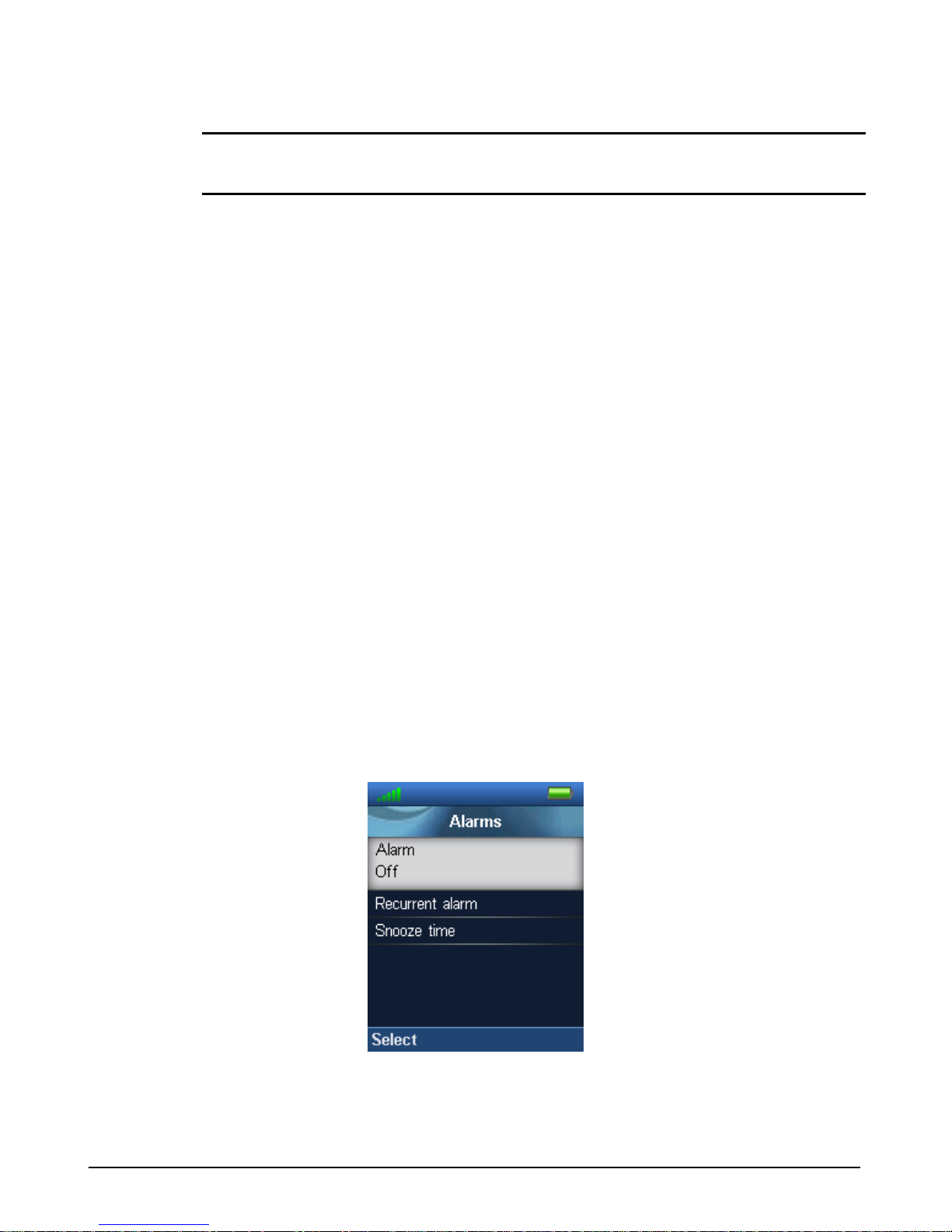
Alarms
The GDC-800H handset incorporates an alarm clock that is configured under the “Alarms”
menu.
22 GDC-800H IP DECT Handset User Guide - Issue 2.0
Page 29

Alarm
The GDC-800H alarm clock can be set to alert you w hen a time is reached. The handset will
notify you of the event with the “Alert tone” at the “Alert volume” configured under the “A udi o
settings” menu.
Recurrent alarm
You can set the alarm clock to repeat the alarm on a dai l y basis or as a one-time alarm. When
“Recurrent alarm” is ON, the alarm repeats daily. When set to OFF, the alarm is provided once
then is erased.
Snooze time
When you are alerted by the alarm clock, you may cancel the alarm, turning the alarm OFF, or
you may silence the alarm temporarily (snoo ze t he al arm). If you snooze the alarm, after the
“Snooze time”, the alarm clock will alert you again.
GDC-800H IP DECT Handset User Guide - Issue 2.0 23
Page 30

Page 31

Appendix
Guidelines to Lithium Batteries
Initial Use
The lithium ion battery in your device is warra nted for 6 months from date of purchase. While
these batteries require no special attention, following the recommendations in this appendix
should extend the useful service life and safety.
Fully discharging and recharging of a new battery may be beneficial in calibrating the battery.
Use
Always keep the batteries at room temperature; exposing the battery to elevated temperature,
such as in window or car windshield in dire ct sunlight, will shorten the batteries useful life span
and may cause damage. The batteries should not be operated below 0°C or above 40°C. Use
only the charger(s) provided with the handset to charge the batteries.
Do not:
short circuit, over-charge or over-discharge the b atteries
attempt to disassemble batteries
pierce the batteries with nail or other sharp obje ct
immerse the batteries in water or expose the batteries to moisture,
strike, throw or subject the batteries to severe physical shock
solder directly on the terminals of the batteries.
Any of the above will invalidate the warranty.
NOTE
The battery compartment contains a Liquid Contact Indicator, which, when exposed to water or
a liquid containing water, will turn from whit e to red and will invalidate the warranty.
When the battery is discharged, recharge the battery as soon as possible. If the battery is lef t in
a discharged state for an extended period, it m ay not be possible to recharge the battery.
Keeping the battery in the constant charging mode for an extended period will shorten its life,
and may cause the battery to deform.
Avoid frequent full discharges of the batteries. Ful l y discharge the batteries only after 25-30
GDC-800H User Guide - Issue 1.0 - Appendix 1
Page 32

charge cycles.
If the device is not in service for an extended period (more than several weeks), remove the
battery from the device. Refer to the Storage secti on later in this appendix for additional details.
Replacement
Rechargeable batteries have a limited numbe r of charge cycles, and eventually need to be
replaced and disposed of. The capacity of the battery to maintain a charge gradually decreases
with use. The rate of decrease depends on the depth of discharge and operating temperatures;
the deeper the batteries are discharged and the higher the ambient temperature, the shorter the
service life.
For best performance of your device, we recomm end replacing weak batteries as soon as
possible.
Signs of weak batteries:
Batteries discharge faster than normal
Service time for the battery is much shorter
A weak battery charges faster than normal
Disposal
Lithium batteries contain metallic lithium that will interact with moisture unpredictably, so these
batteries must be disposed appropriately . Spent batteries should be discharged fully prior t o
disposal. Please check with your local gov ernment about their Rechargeable Battery Recycling
Program.
CAUTION
Under no circumstances should batteries be in cinerated as this may cause the batteries to
explode violently.
Storage
Note that even though in storage, batteries will age and experience permanent loss of battery
capacity. To minimize the aging process while in st orage, consider the following:
Store in a cool dry place, higher temperatures ac celerate the aging process
The battery is best stored when approximately half charged
Remove the battery from the device, and pack and seal in clean insulated bag or plastic
baggie
Avoid possible freezing
2 GDC-800H User Guide - Issue 1.0 - Appendix
Page 33

CAUTION
In case of exposure to the electrolyte, flush the affected area with water immediately. I f ey e
exposure occurs, flush with water for 15 minut es and consult a physician immediately.
GDC-800H User Guide - Issue 1.0 - Appendix 3
Page 34

Page 35

www.ericssonlg.com
Posted In Korea
The contents of this document are subject to revision without
notice due to continued progress in methodology design and
manufacturing. Ericsson-LG shall have no liability for any error
or damage of any kind resulting from the use of this document.
© Ericsson-LG Co., Ltd. 2013
 Loading...