

Page 1

1
IOTATABLETS.COM
ENGLISH | DEUTSCHE | FRANÇAIS
USER GUIDE & WARRANTY
BENUTZERANLEITUNG & GARANTIE
GUIDE D’UTILISATION & GARANTIE
Page 2

2 3
CONTENTS
WE CAN’T WAIT TO GET STARTED 3
LAYOUT 4
FUNCTIONS AND FEATURES 5
ASSEMBLING YOUR IOTA BASE 6-7
What’s in the box
Fitting the holder and stand
Adding a 2.5” Hard Disk Drive
USING YOUR IOTA BASE FOR THE FIRST TIME 8
GETTING STARTED WITH WINDOWS 10 9
RESETTING YOUR DEVICE 1O
FREQUENTLY ASKED QUESTIONS 11
SAFETY INFORMATION 12-14
WARRANTY 15
WE CAN’T WAIT TO GET STARTED, BUT BEFORE WE DO…
REGISTER YOUR iOTA
iotatablets.com/warranty-registration
All pictures and illustrations in this document are for your reference only and may differ from the final product.
Page 3

4 5
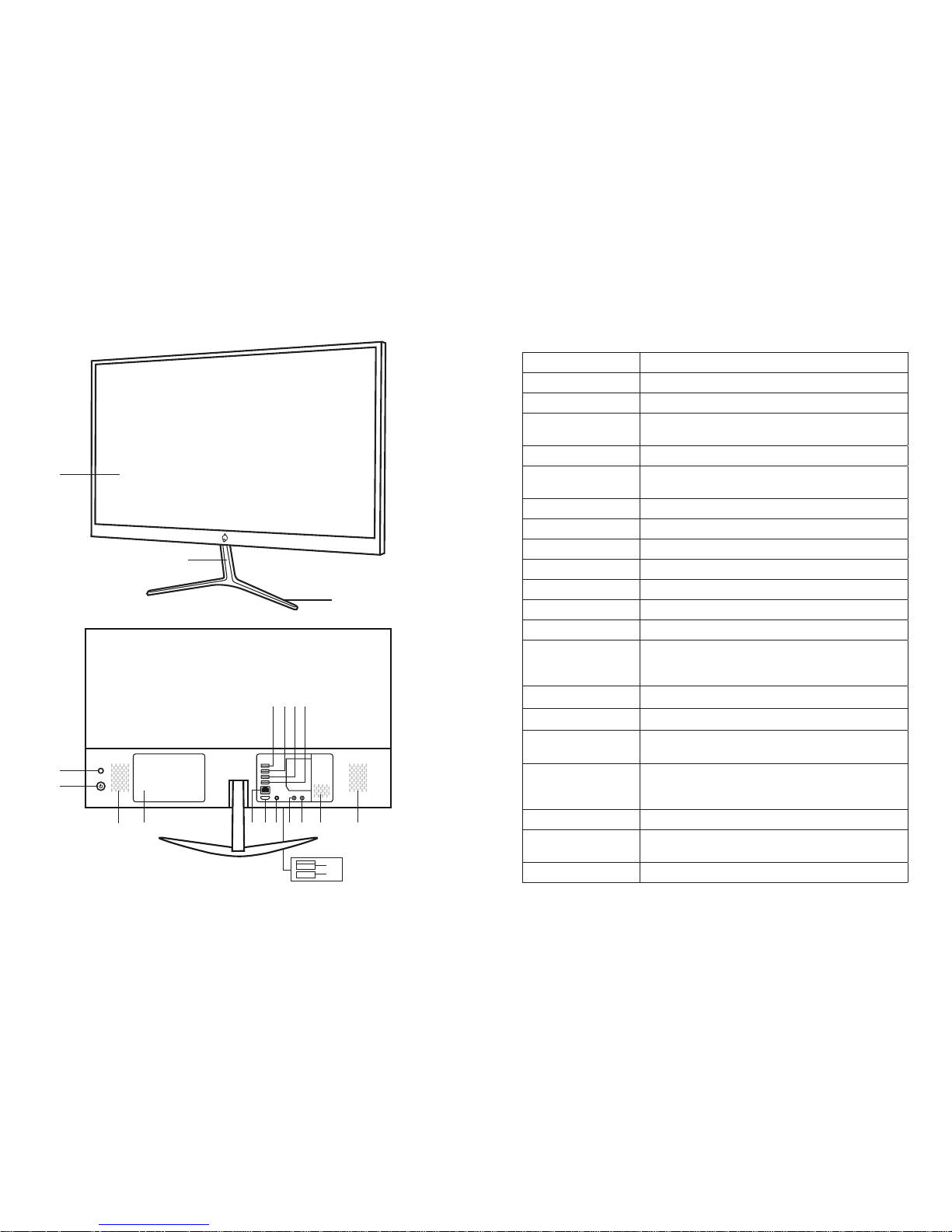
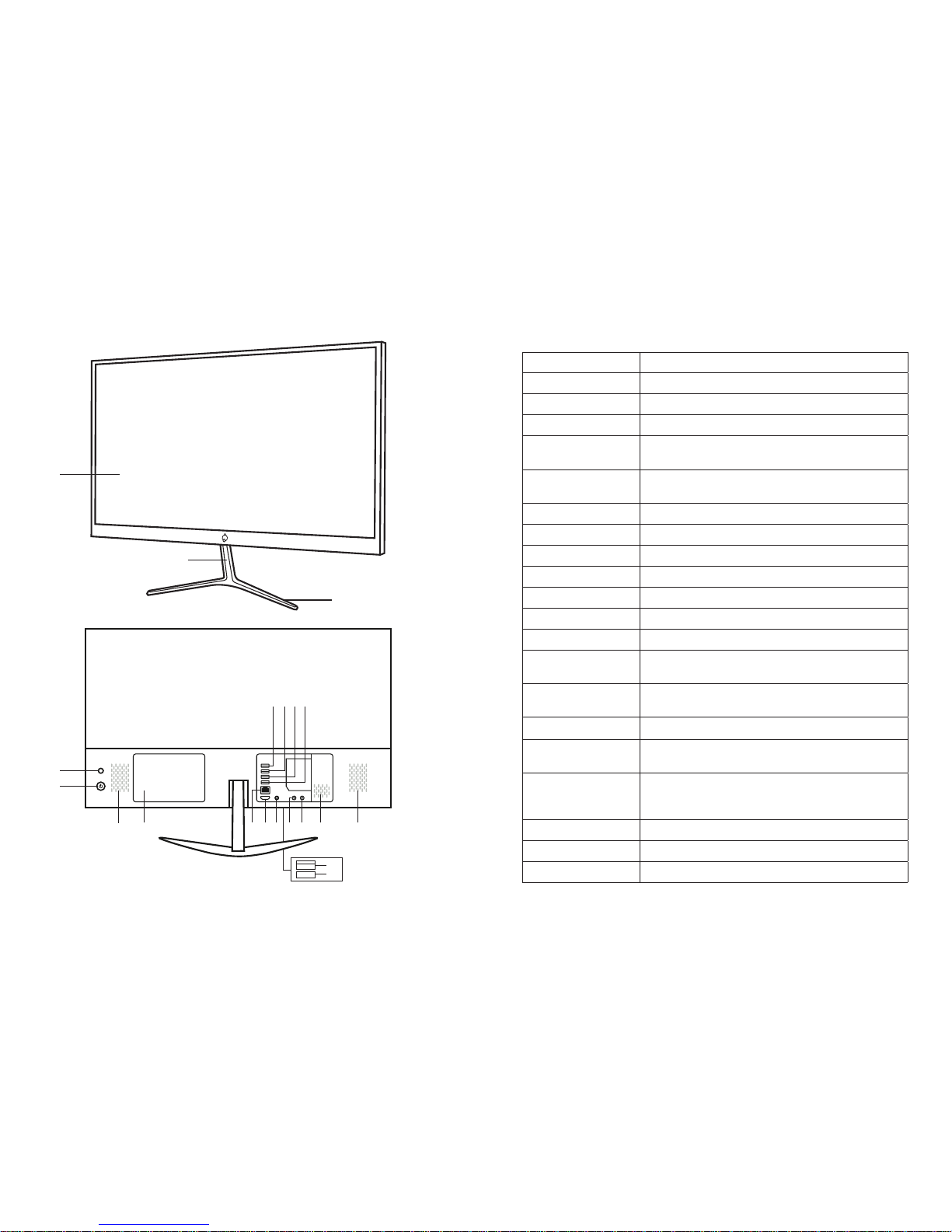
FEATURE FUNCTIONALITY
1. Screen display Displays HD images on 21.5 inch screen
2. Holder Connects screen to the base
3. Base 2 footed support balances the display
4. Reset button Resets your iOTA BASE
5. Power on/off Press and hold to turn the device on/off
6. Speaker Projects audio sounds
7. HDD cover 2.5” Hard Disk Driver to expand storage (optional)
8. USB port 3.0 Connect USB 3.0 devices
9. USB port 3.0 Connect USB 3.0 devices
10. USB port 2.0 Connect USB 2.0 devices
11. USB port 2.0 Connect USB 2.0 devices
12. LAN port Enables a wired internet connection
13. HDMI port Connect HD display via HDMI cable and switch the
display to a wider screen (not included)
14. DC-In socket Connects the supplied power adapter to mains
power supply
15. USB port 2.0 Connect USB 2.0 devices
16. MicroSD card slot Reads and writes files stored on a MicroSD Card
17. Audio port (3.5 mm) Connect a headset, headphones, microphone, or
other audio equipment, to listen to stereo sound,
record audio, or make web calls
18. Microphone port Connect microphone to device
19. Air vents Allows warm and cool air to pass through the
iOTA BASE
20. Speaker Projects audio sounds
LAYOUT FEATURES & FUNCTIONS
1
2
3
4
5
6
7 12 13 1714 18 19 20
8 109 11
15
16
Page 4

6 7
3mm (x4)
6mm (x2)
10mm (x1)
11mm (x2)
ASSEMBLING YOUR IOTA BASE
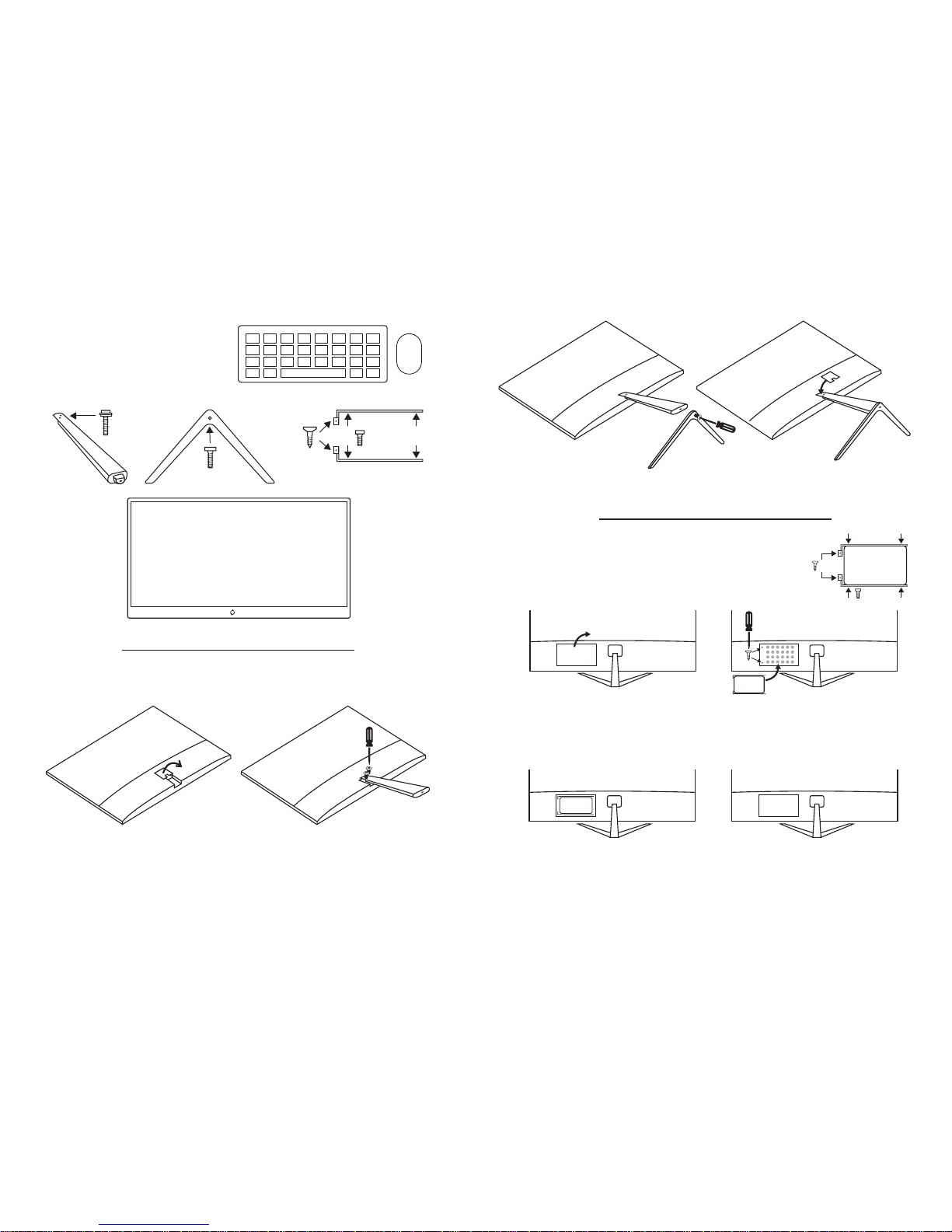
What’s in the box
Your iOTA BASE comes complete with:
2.5” HDD holder (optional)
iOTA BASE
Fitting the holder and stand
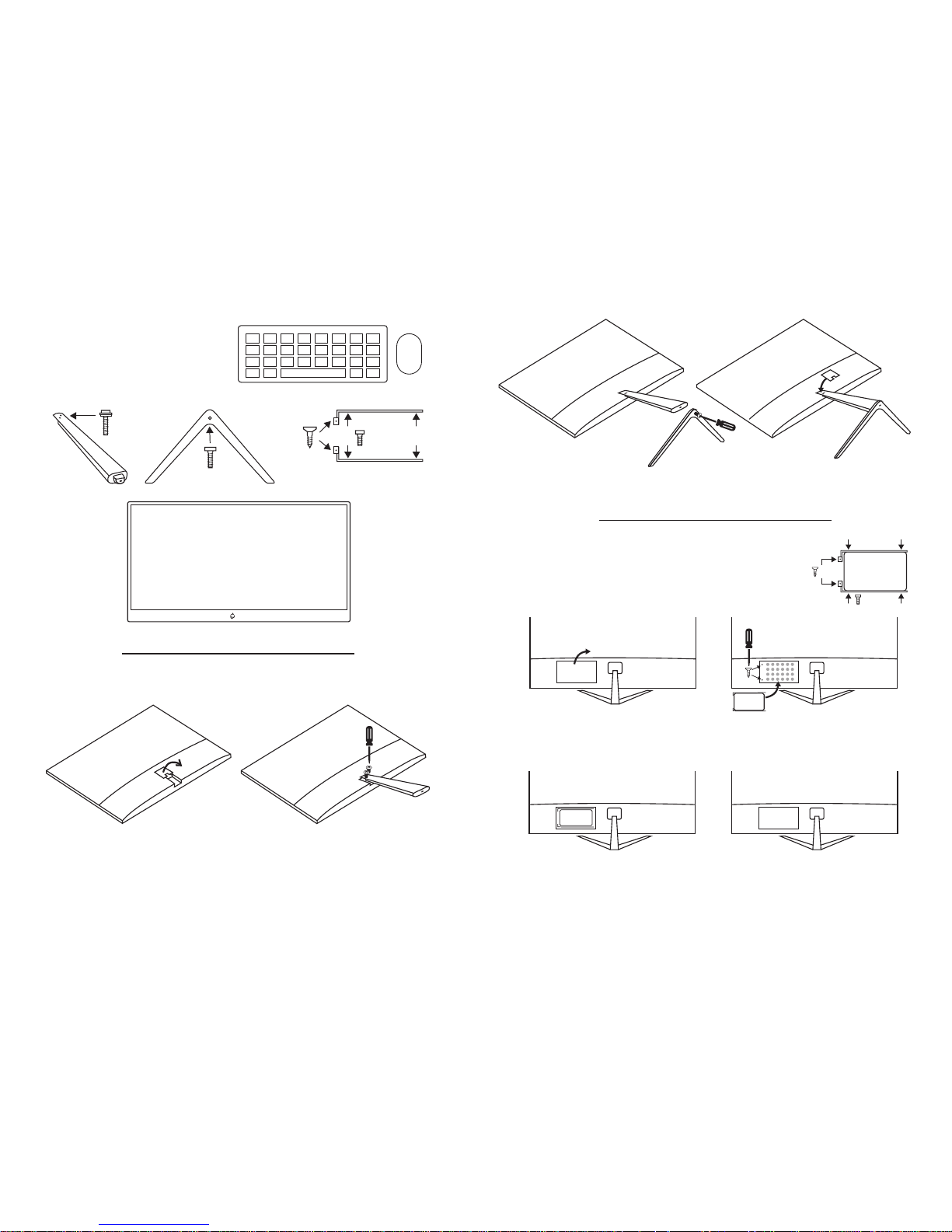
Follow these simple steps to assemble
your iOTA BASE:
A B
Lay iOTA BASE faced down on a flat,
clean, non-abrasive surface (e.g. desk).
Remove cover, as shown above.
Place holder over 2 screw holes on
back. Tighten screws with cross-head
screwdriver.
C D
Once securely affixed, slide into stand. Replace cover removed in illustration A.
Your iOTA BASE is now ready to sit
upright on your desk.
Keyboard Mouse
(x4)
(x4)
(x2)
(x4)
(x2)
Remove back cover of HDD section.
Screw holder to 2.5” HDD before fitting to
your iOTA BASE using 4 screws.
Connect HDD to ports and screw into
place as shown above.
A B
C D
Once HDD is fitted and connected with
ports, you’re good to go.
Replace cover you removed in
illustration A.
Adding a 2.5” Hard Disk Drive
Your iOTA BASE does not require additional Hard Drive space to
function, but for users who require this option, follow the steps
shown below.
Important This is for fitting standard 2.5” HDD with SATA 3
interface connector.
Page 5

8 9
USING YOUR IOTA BASE FOR THE FIRST TIME GETTING STARTED WITH WINDOWS 10
Turning on the device
Note:
This iOTA BASE has been preinstalled
with Windows. You will need to perform
an initial setup before the iOTA BASE can
be used.
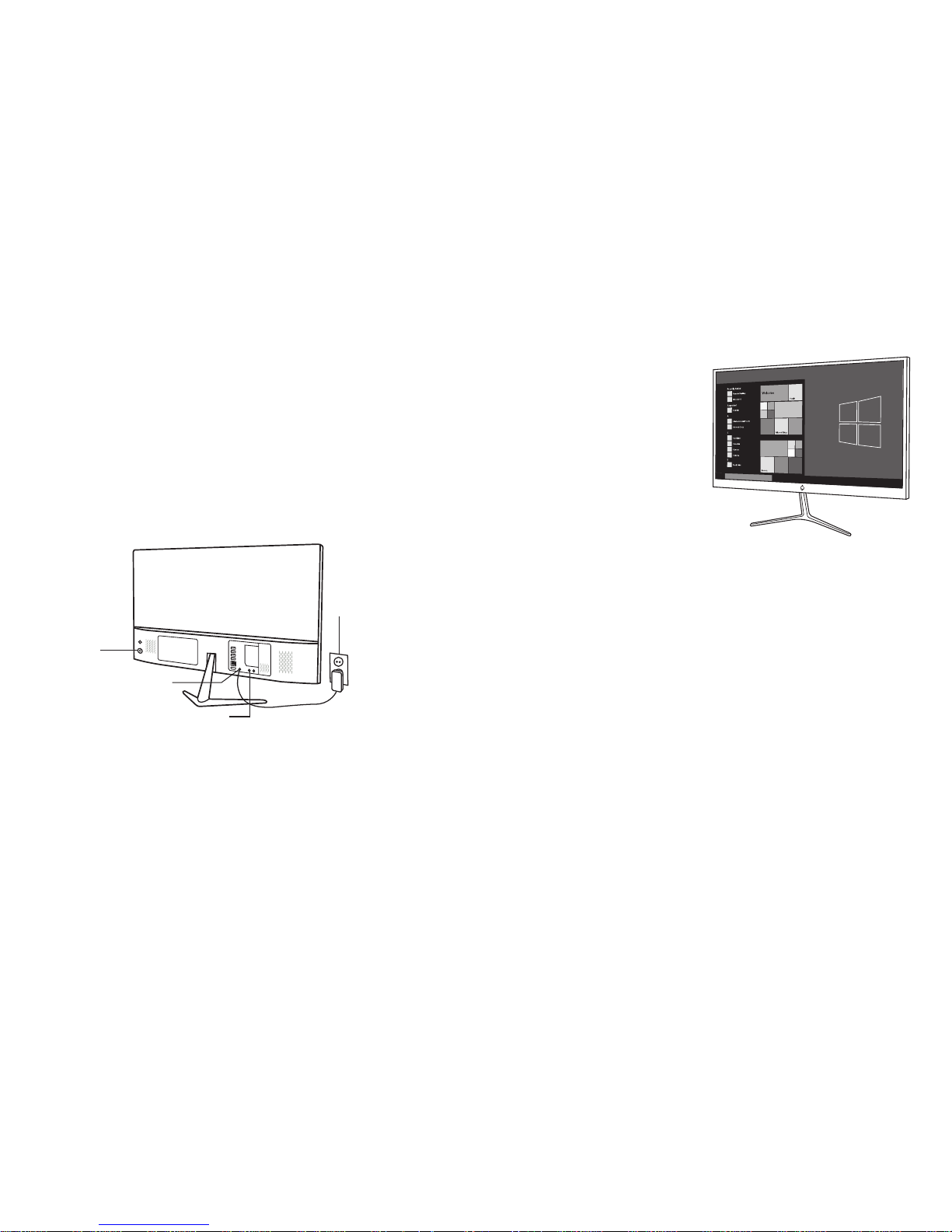
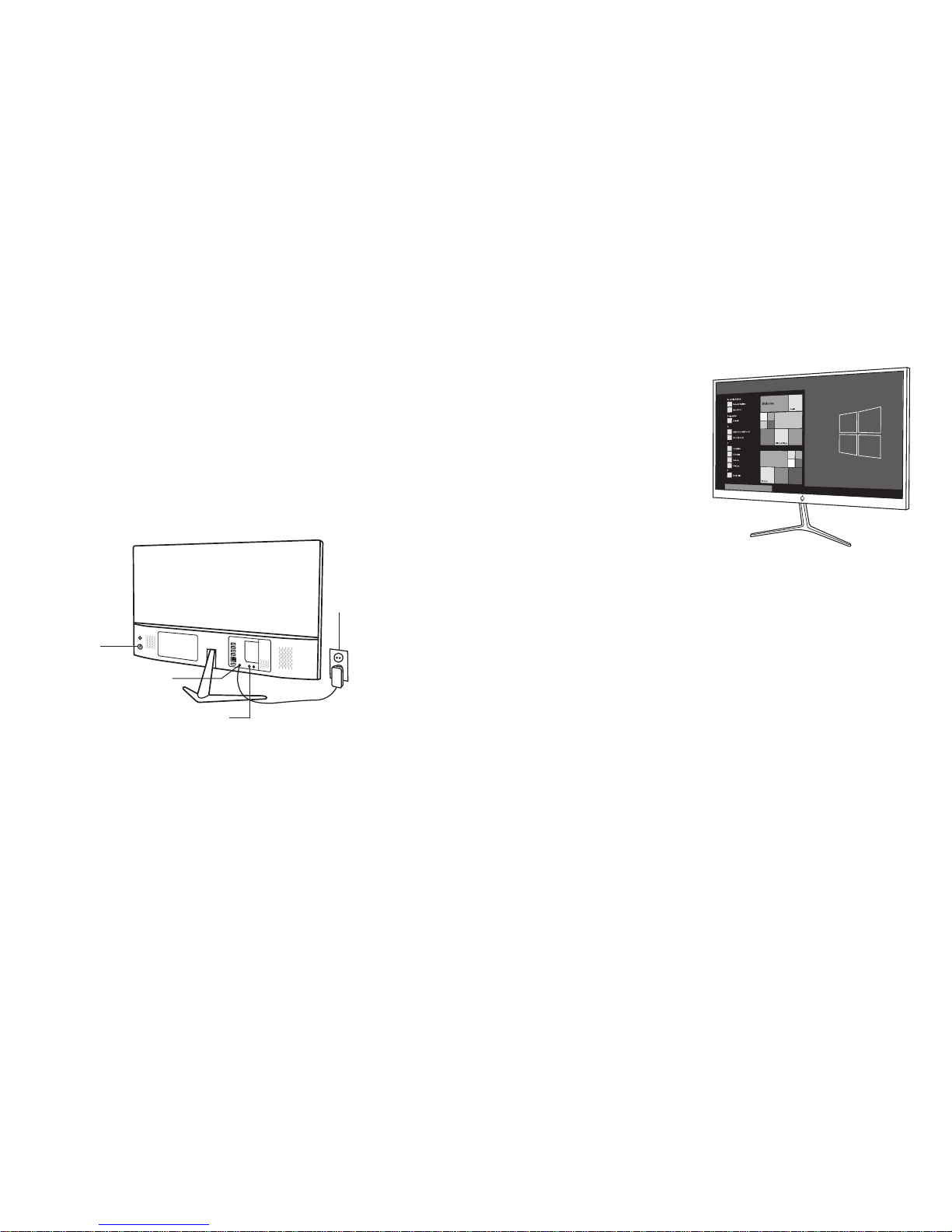
1. Connect power cable to DC-In port and
plug into your mains power supply;
2. Press and hold the Power button for
2 seconds to turn your iOTA BASE on.
The lock screen will appear;
3. The device is now ready for use.
Note:
If the login screen is not enabled in
Windows, you will be taken directly from
the lock screen to the start screen.
Turning off the device
You can turn off the device in two ways:
1. Press and hold the Power button for
a minimum of 4 seconds;
2. Click on the shutdown confirmation
screen to confirm turning the
device off.
Power On/
Off button
DC-In port
Plug power cable
into your mains
power supply.
Connect to Wi-Fi
Turning On/Off Wi-Fi:
1. Select the Wi-Fi icon in the notification
area, in the lower-right corner of the
screen, to view the available Wi-Fi
hotspots;
2. Select available Wi-Fi icon to establish
a connection.
Connecting to a network:
1. Select the Wi-Fi icon in the notification
area, in the lower-right corner of the
screen, to view the available Wi-Fi
hotspots;
2. Select an available network from the
list and select Connect;
3. Input the password, if necessary,
then select Connect to begin an
internet connection.
Audio socket
for headphones
Windows start screen
The Windows Start screen displays
a list of default and custom Live
Tiles which act as a shortcut to
Mail, Microsoft Edge, Weather app,
Calendar, Windows Store, and other
installed apps. Live Tiles on your
Start screen change and update in
real time to show news and sports
updates, weather updates and socialnetworking feeds.
The tile-based user interface gives
you direct access to your most
recently used apps, emails, photos,
music, videos, contacts, updates from
social-networking sites, and frequently
viewed websites. You can pin your
favourite apps as tiles to customise the
Start screen. You can also personalise
the Start screen by setting your favourite
picture as the wallpaper.
Note: Live Tiles can be added or removed
by using Pin to Taskbar, Pin to Start, or
Unpin from Start options.
Accessing the start screen
When your computer boots, the Start
screen appears by default. To access the
start screen from any other window or
app, use any of the following methods:
1. Press the Windows button on the
keyboard;
2. Select the Start button in the lower
left corner of the screen.
Note: The functionality of the Start icon is
the same as the Windows button.
Windows start menu
Select the Start icon to bring up the start
menu, from which you can find a list of
most frequently used apps. Among the
apps, Get Started is extremely useful for
new users of the latest Windows system.
Windows includes video clips introducing
the latest features of the new system.
Windows search bar
Next to Start button, in the lower-left
corner of the screen, is the Windows
search bar, where you can type in any
keywords to search the web and Windows.
Page 6

10 11
FREQUENTLY ASKED QUESTIONS
If your PC isn’t running well, resetting it
might help. This lets you choose to keep
your files or remove them, and reinstall
Windows.
To restore your device:
1. Select the Action Centre button in
notifications;
2. Select All Settings > Update and
Security > Recovery > Reset this PC;
3. Select Get Started to choose an
option from Keep My Files or Remove
Everything;
4. You can also find further options if you
select Advanced Startup.
Caution: Resetting your device erases
all data from your device, including your
account configuration, apps, music,
pictures, files, and so on. Ensure that you
externally back up all of the required data
before proceeding.
RESETTING YOUR DEVICE
Q: The device does not turn on. What
should I do?
A: Please check that the power cable
is connected and plugged in to your
mains electricity supply.
Q: The device does not turn off. What
should I do?
A: Press and hold the Power Button
for 10 seconds to perform a hard
shut down.
Note: User will need to wait for about 8
seconds before turning the device back
on again after it has shut down.
Q: Can blind or visually impaired people
use this iOTA BASE ?
A: Yes. This device supports a featured
function designed for blind or visually
impaired people. This is the Narrator
mode. Narrator is a screen reader
that vocalizes all elements on screen,
including text and buttons. To enable
Narrator mode, select Start > Settings
> Ease of Access > Narrator, then
toggle the slider to turn on Narrator.
Q: The system crashes, or the screen turns
blue, after startup. What can I do?
A: This may be because the device
system has been damaged to some
extent from improper shut-down
actions. Press the Reset Button to
repair the system. If the device enters
Recovery mode, the user will be
presented with the following options
from the menu before going on:
> Continue - Exit without doing anything
and continue to Windows system;
> Use a device - Refresh the system
by using a USB device network
connection, or Windows recovery DVD;
> Troubleshoot - Refresh or reset your
PC, or use advanced tools;
> Turn on your PC - Do nothing and turn
on the device.
Q: Unable to access the account due to a
lost password. What should I do?
A: When on the login page, click on
the Power symbol.
1. While holding down the Shift button,
click Restart.
2. Select “Troubleshooting - Refresh or
reset your PC”, or use advanced tools.
Q: There is no wireless connection; how
do I set this up?
A: Check if the wireless radio is on.
See Wi-Fi setting.
1. Try to get closer to the wireless
access point;
2. Reset the wireless router if using a
private network; open the browser
to view the landing page if using a
public network.
Page 7

12 13
SAFETY INFORMATION SAFETY INFORMATION
Your iOTA BASE should be treated with
care. The information below has been
provided for you in the interest of safety
and will help you to enjoy this product and
its benefits:
> Keep the product and all of its parts out
of the reach of children;
> This product is not intended for use
by persons (including children) with
reduced physical, sensory, psychological
conditions, or lack of experience and
knowledge, unless they have been given
supervision or instruction concerning
the use of the appliance by a person
responsible for their safety;
> Keep it dry. Avoid exposure to
precipitation, humidity and liquids
which could affect the product circuitry;
> DO NOT leave it in high temperatures
as electronic devices and plastic parts
may warp in heat;
> DO NOT leave it in low temperatures as
moisture can form inside the product,
which may damage the circuit board;
> DO NOT block or cover slots, holes or
openings on the product by placing
on soft furnishings such as carpets,
rugs or beds, as these are provided
for functionality and/or ventilation to
ensure safe operation of the product;
> DO NOT expose the device to direct
sunlight;
> Disconnect your device from the mains
power supply during thunderstorms;
> Avoid any heavy impacts caused by
collisions or dropping your device, as
this may damage the product;
> Only use the power supply provided
with the product. Using an unauthorised
power supply will invalidate your
warranty and may irrecoverably
damage the product;
> DO NOT store in dusty or dirty areas;
> DO NOT use harsh chemicals, cleaning
solvents, or detergents to clean the
product. Wipe with a soft dry cloth or
tissue paper to clean;
> DO NOT attempt to dismantle the
product. Unauthorised handling of the
iOTA BASE may damage it and will void
your warranty;
> Keep the iOTA BASE away from
magnets or magnetic fields;
> NEVER use the device near emergency/
intensive care medical equipment or if
you have a pacemaker fitted;
> NEVER use the device during an
electrical storm;
WARNINGS
> iOTA shall not bear any responsibility
for loss or deletion of material stored
on the machine, caused due to
abnormal software and hardware
operation.
> Please back up your important data to
avoid any loss.
> Please Note: The user guide can be
updated at any time. For the latest
version please visit
iotatablets.com/user-guides
EU – Declaration of Conformity
iOTA declares that iOTA BASE complies
with the essential requirements and other
relevant provisions of Directive 1999/5/EC.
A copy of the Declaration of Conformity is
available on request.
Tactus, Building 1, Olympic Park,
Olympic Way, Warrington WA2 0YL.
Disclaimer
Tactus Limited makes no representation
or warranties with respect to the content
of this document and specifically disclaims
any implied warranties of merchantability
or fitness for any particular purpose.
Furthermore, Tactus Limited reserves
the right to revise this, or any other
publication, and to occasionally make
changes to the contents without the
obligation of Tactus Limited to notify any
person or organisation of such revision
or changes. Trademarks iOTA, the iOTA
logo, Tactus, and the Tactus logo are
trademarks or registered trademarks of
Tactus Limited.
Recycling
Always return your used electronic
products, batteries, and packaging
materials to dedicated collection points.
This way you help to prevent uncontrolled
waste disposal and promote the recycling
of materials. All materials of the iOTA BASE
can be recovered as material and energy.
Disposal Of Waste Electrical & Electronic
Equipment (WEEE)
This symbol on the product or on its
packaging indicates that this product
should not be treated as household
waste. Instead, it should be handed
over to a suitable collection point for
the recycling of electrical and electronic
equipment. By ensuring this product
is disposed of correctly, you will help
prevent potential negative consequences
for the environment and human health,
which could otherwise be caused by
inappropriate waste handling of this
product. The recycling of materials will
help to conserve natural resources.
For more information about the recycling
of this product, please contact your local
council, your household waste disposal
service, or the reseller you purchased this
product from.
Digital rights management
When using this iOTA BASE, obey all laws and
respect local customs, privacy and legitimate
rights of others, including copyrights.
Copyright protection may prevent you from
copying, modifying, or transferring photos,
music, and other content.
Small children
Your iOTA BASE and its accessories
are not toys. They may contain small
parts. Keep them out of the reach of
small children.
Medical devices
Operation of radio transmitting equipment,
including wireless phones, may interfere
with inadequately shielded medical device
functions. Consult a physician or the
medical device manufacturer to determine
if it is adequately shielded from external
radio energy.
Implanted medical devices
To avoid potential interference,
manufacturers of implanted medical
devices recommend a minimum separation
of 6 inches (15.3 centimetres) between a
wireless device and the medical device.
Persons who have such devices should:
> Always keep the wireless device more
than 6 inches (15.3 centimetres) from
the medical device;
> Turn the wireless device on if there is
any reason to suspect that interference
is taking place;
Page 8

14 15
SAFETY INFORMATION WARRANTY
Tactus Limited warrants to the end
user that this product will be free from
defects in materials and workmanship,
in the course of normal use for a period
of 12 months (1 year) from the date
of purchase. This warranty covers
breakdowns due to manufacturing or
design faults. If a genuine manufacturing
fault is found, Tactus Limited will issue a
‘like for like’ replacement.
The warranty is subject to the following
provisions:
> The warranty does not cover accidental
damage, wear and tear, or negligence;
> It must be solely used for domestic
purposes;
> The warranty will be rendered invalid
if the product is re-sold or is damaged
through any adjustment, modification
or repair not authorised by us;
> Specifications are subject to change
without notice;
> The manufacturer disclaims
any liability for the incidental or
consequential damages;
> The warranty is in addition to and
does not diminish your statutory or
legal right. Should you have a problem
with your unit please contact your
supplier, or email us at:
Customer Support
Call us on:
+44 1925 854900
Email us at: [email protected]
Opening hours: 9.00am - 5.00pm GMT,
Monday - Friday
Warranty Supplier:
Tactus Limited, Building 1, Olympic Park,
Olympic Way, Warrington WA2 0YL.
Need more help?
Go to iotatablets.com/user-guides to
download the full user guide or visit
iotatablets.com/faqs to get all of the
latest information and answers you need.
> Follow the manufacturer directions for
the implanted medical device.
If you have any questions about using
your wireless device with an implanted
medical device, consult a healthcare
professional.
HEARING
Warning: When you use a headset or
earphones, your ability to hear outside
noise may be affected. Do not use a
headset where it can endanger your safety.
To prevent possible hearing damage, do
not listen to audio at high volume levels for
extended periods of time.
Page 9
16 17
INHALTSVERZEICHNIS
WIR KÖNNEN ES NICHT ERWARTEN ZU BEGINNEN 17
LAYOUT 18
FUNKTIONEN UND EIGENSCHAFTEN 5 19
MONTAGE DER IOTA BASIS 20-21
Was ist im Lieferumfang inbegriffen?
Montage der Halterung und des Ständers
Hinzufügen einer 2,5 “Festplatte
DIE ERSTEN VERWENDUNG IHRES IOTA BASE 22
ERSTE SCHRITTE MIT WINDOWS 23
ZURÜCKSETZEN IHRES GERÄTES 24
HÄUFIG GESTELLTE FRAGEN (FAQ) 24-25
WICHTIGE SICHERHEITSINFORMATIONEN 26-28
GARANTIE 29
WIR KÖNNEN ES NICHT ERWARTEN ZU BEGINNEN, ABER VORHER ...
SOLLTEN SIE IHR iOTA REGISTRIEREN
iotatablets.com/warranty-registration
Alle Bilder und Illustrationen in diesem Dokument dienen lediglich als Referenz und können vom Endprodukt abweichen.
LERNEN SIE IHR iOTA BASE KENNEN
Page 10
18 19
LAYOUT EIGENSCHAFTEN & FUNKTIONEN
1
2
3
4
5
6
7 12 13 1714 18 19 20
8 109 11
15
16
EIGENSCHAFTEN FUNKTIONALITÄT
1. Bildschirmanzeige Zeigt HD-Bilder auf einem 21,5-Zoll-Bildschirm an
2. Halterung Verbindet den Bildschirm mit der Basis
3. Basis Die 2-füßige-Stütze sorgt dafür, dass der Bildschirm gut
ausbalanziert ist.
4. Reset-Taste Setzt Ihr iOTA BASE zurück
5. Ein-/Ausschalten Halten Sie die Taste gedrückt, um das Gerät ein-/
auszuschalten
6. Lautsprecher Erzeugt Audio-Sound
7. HDD-Abdeckung
2,5" Festplattentreiber zum Erweitern des Speichers (optional)
8. USB-Anschluss 3.0 Schließen Sie USB 3.0-Geräte an
9. USB-Anschluss 3.0 Schließen Sie USB 3.0-Geräte an
10. USB-Anschluss 2.0 Schließen Sie USB 2.0-Geräte an
11. USB-Anschluss 2.0 Schließen Sie USB 2.0-Geräte an
12. LAN-Anschluss Ermöglicht eine kabelgebundene Internetverbindung
13. HDMI-Anschluss Verbinden Sie das HD-Display über ein HDMI-Kabel und
schalten Sie das Display auf einen größeren Bildschirm um
(nicht im Lieferumfang enthalten)
14. DC-Eingangsbuchse Verbindet das mitgelieferte Netzteil mit dem Stromnetz
15. USB-Anschluss 2.0 Schließen Sie USB 2.0-Geräte an
16. MicroSD-
Kartensteckplatz
Liest und schreibt Dateien, die auf einer MicroSD-Karte
gespeichert sind
17. Audioanschluss
(3,5 mm)
Schließen Sie Kopfhörer, ein Mikrofon oder andere AudioGeräte an, um Stereo-Sound zu hören, Ton aufnahmen
oder im Internet zu telefonieren
18. Mikrofon Hafen Schließen Sie das Mikrofon an das Gerät
19. Belüftungsöffnungen Ermöglicht den Durchgang von warmer und kühler Luft
durch die iOTA BASE
20. Lautsprecher Erzeugt Audio-Sound
Page 11
20 21
3mm (x4)
6mm (x2)
10mm (x1)
11mm (x2)
MONTAGE DER IOTA BASE
Was ist im Lieferumfang inbegriffen?
Ihr iOTA BASE wird geliefert mit
2.5” HDD-Halterung (optional)
iOTA BASE
Montage der Halterung und des Ständers
F Befolgen Sie diese einfachen Schritte,
um Ihr iOTA BASE zusammenzubauen
A B
Legen Sie das iOTA BASE auf eine ebene,
saubere, abriebfeste Oberfläche (z. B.
einen Schreibtisch). Entfernen Sie die
Abdeckung, wie oben dargestellt.
Platzieren Sie die Halterung über 2
Schraubenlöchern auf der Rückseite.
Ziehen Sie die Schrauben mit einem
Kreuzschlitzschraubenzieher an.
C D
Sobald sie fest angebracht ist, kann sie
in den Ständer geschoben werden.Die in
Abbildung A entfernte Abdeckung wieder
anbringen.Ihr iOTA BASE ist jetzt bereit
aufrecht auf Ihren Schreibtisch gestellt
zu werden.
Tastatur Maus
(x4)
(x4)
(x2)
(x4)
(x2)
Entfernen Sie die hintere Abdeckung des
Festplattenabschnitts. Schrauben Sie die
Halterung auf die 2,5 “Festplatte, bevor
Sie sie mit 4 Schrauben an Ihrem
iOTA BASE befestigen.
Verbinden Sie die Festplatte mit den
Anschlüssen und schrauben Sie sie wie
oben dargestellt an.
A B
C D
Sobald die Festplatte befestigt und mit
den Anschlüssen verbunden ist, haben
Sie es geschafft.
Bringen Sie die Abdeckung an, die Sie
in Abbildung A entfernt haben.
inzufügen einer 2,5 “Festplatte
Ihr iOTA BASE benötigt keinen zusätzlichen Speicherplatz
auf der Festplatte. Benutzer, die diese Option jedoch benötigen,
sollten die unten aufgeführten Schritte befolgen.
Wichtig Dies ist für den Einbau einer 2,5 “Standardfestplatte
mit SATA 3-Schnittstelle.
Page 12
22 23
DIE ERSTE VERWENDUNG DER iOTA BASE
Einschalten des Gerätes
Anmerkung:
Auf diesem iOTA BASE wurde Windows
vorinstalliert. Bevor das iOTA BASE
verwendet werden kann, muss eine
Ersteinrichtung durchgeführt werden.
1. Verbinden Sie das Netzkabel mit dem
DC-In-Anschluss und schließen Sie es
an das Stromnetz an.
2. Halten Sie den Netzschalter 2
Sekunden lang gedrückt, um das Gerät
einzuschalten. Der Sperrbildschirm
wird angezeigt werden.
3. Das Gerät ist nun betriebsbereit.
Anmerkung:
Ist die Benutzeranmeldung in Windows
nicht aktiviert, dann gelangen Sie
direkt aus dem Sperrbildschirm zum
Startbildschirm.
Ausschalten des Geräts
Sie können das Gerät auf zwei Arten
ausschalten:
1. Halten Sie die Ein-/Aus-Taste für
mindestens 4 Sekunden gedrückt;
2. Klicken Sie auf den
Bestätigungsbildschirm zum
Herunterfahren, um das Ausschalten
des Geräts zu bestätigen.
Drahtlose Netzwerkverbindung
Ein/Auschalten:
1. WählenSie das WLAN-Symbol im
Infobereich in der unteren rechten Ecke
des Bildschirms aus, um die verfügbaren
WLAN-Hotspots anzuzeigen;
2. Wählen Sie ein verfügbares Netzwerk
aus, um eine Verbindung herzustellen.
Verbindung zu einem Netzwerk:
1. WählenSie das WLAN-Symbol im
Infobereich in der unteren rechten
Ecke des Bildschirms aus, um
die verfügbaren WLAN-Hotspots
anzuzeigen;
2. Wählen Sie ein verfügbares Netzwerk
aus der Liste aus und klicken Sie auf
‘verbinden’;
3. Geben Sie ggf. das Passwort ein
und wählen Sie ‘verbinden’, um eine
Internetverbindung aufzubauen.
Ein-/AusSchalter
DC-In port
Verbinden Sie das
Netzkabel mit dem
Stromnetz.
DC-In Anschluss
ERSTE SCHRITTE MIT WINDOWS 10
Windows startbildschirm
Der Windows-Startbildschirm zeigt
eine Liste von standardmäßigen und
benutzerdefinierten Live-Kacheln an,
die als Verknüpfung zu E-Mail, Microsoft
Edge, der Wetter-App,
dem Kalender, dem Windows Store und
anderen installierten Apps dienen. Die
Live-Kacheln auf Ihrem Start-Bildschirm
ändern und aktualisieren sich in Echtzeit,
um Nachrichten und Sport-Updates,
Wetter-Updates und Social-NetworkingFeeds anzuzeigen.
Die Kachel-basierte Benutzeroberfläche
ermöglicht Ihnen den direkten Zugriff
auf Ihre zuletzt verwendeten Apps,
E-Mails, Fotos, Musik, Videos, Kontakte,
Updates auf sozialen Netzwerken und
häufig aufgerufene Webseiten. Um den
Startbildschirm anzupassen, können
Sie Ihre Lieblings-Apps als Kacheln
anheften. Sie können den Startbildschirm
außerdem personalisieren, indem Sie
Ihr Lieblingsbild als Hintergrundbild
festlegen.
Hinweis: Live-Kacheln können
hinzugefügt oder entfernt werden, indem
Sie sie an die Taskleiste oder an das
Startmenü an- oder davon abheften.
Zugriff auf den Startbildschirm
Startet Ihr Computer, dann wird
angezeigt. Verwenden Sie eine der
folgenden Möglichkeiten, um auf den
Startbildschirm von einem anderen
Fenster oder einer App zuzugreifen:
1. Drücken Sie die Windows-Taste auf
der Tastatur;
2. Wählen Sie die Schaltfläche Start
in der unteren linken Ecke des
Bildschirms aus.
Hinweis: Die Funktionalität des
Startsymbols ist die gleiche wie die der
Windows-Taste.
Windows Startmenü
Tippen Sie auf das Start Symbol, um das
Startmenü aufzurufen, in dem Sie eine
Liste der am häufigsten verwendeten
Apps finden können. Unter den Apps
ist “Get Started” für neue Benutzer des
neuesten Windows-Systems äußerst
nützlich. Windows zeigt hier Videoclips,
die die neuesten Funktionen des
Systems erklären.
Windows Suchleiste
Neben der Start-Schaltfläche in der
unteren linken Ecke des Bildschirms,
finden Sie die Windows-Suchleiste, in
der Sie beliebige Suchbegriffe eingeben
können, um das Web und Windows zu
durchsuchen.
Page 13

24 25
ZURÜCKSETZEN DES GERÄTS
Läuft Ihr PC nicht mehr gut, dann kann er
zurückgesetzt werden. Auf diese Weise
können Sie entscheiden, ob Sie Ihre
Dateien behalten oder entfernen wollen
und Windows neu installieren.
Zum Zurücksetzen Ihres Gerätes:
1. Wählen Sie die “Action
Center” Schaltfläche im
Benachrichtigungsmenü aus;
2. Wählen Sie Alle Einstellungen>
Updates und Sicherheit>
Wiederherstellungen> diesen PC
zurücksetzen;
3. Wählen Sie “Get Started, um
auszuwählen, ob Sie Ihre Dateien
behalten oder alles entfernen wollen;
4. Weitere Optionen finden Sie im
Erweitertem Start.
Achtung: Durch das Zurücksetzen Ihres
Geräts werden alle Daten von Ihrem
Gerät gelöscht; einschließlich Ihrer
Konto-Konfiguration, Apps, Musik,
Bilder, Dateien etc. Stellen Sie daher
vor dem Fortfahren sicher, dass Sie alle
erforderlichen Daten extern gesichert
haben.
F: Das Gerät lässt sich nicht
einschalten. Wie soll ich vorgehen?
A: Bitte prüfen Sie, ob das Netzkabel
eingesteckt und an Ihr Stromnetz
angeschlossen ist.
F: Das Gerät lässt sich nicht
ausschalten. Wie soll ich vorgehen?
A: Drücken und halten Sie die Power-
Taste für 10 Sekunden gedrückt,
um eine manuelle Abschaltung
durchzuführen.
Anmerkung: Bevor das Tablet nach dem
Herunterfahren wieder eingeschaltet
werden kann, muss der Benutzer ca. 8
Sekunden warten.
F: Können auch blinde oder
sehbehinderte Menschen die
iOTA BASE benutzen?
A: Ja. Das Tablet unterstützt eine
Hilfsfunktion für blinde oder
sehbehinderte Menschen. Hierbei
handelt es sich um den Erzähler-
Modus. Der Erzähler ist ein
Bildschirmleser, der alle Elemente auf
dem Bildschirm - einschließlich Text
und Schaltflächen - vorliest. Um den
Erzählermodus einzuschalten, müssen
Sie Start> Einstellungen
> Leichtigkeit des Zugangs>Erzähler
auswählen und anschließend den
Schieberegler einstellen, um den
Erzähler zu aktivieren.
HÄUFIG GESTELLTE FRAGEN (FAQ) HÄUFIG GESTELLTE FRAGEN (FAQ)
F: Das System stürzt ab oder der
Bildschirm wird nach dem Start blau.
Was kann ich tun?
A: Dies kann daran liegen, dass
das Tabletsystem bis zu einem
gewissen Grad durch unsachgemäße
Abschaltvorgänge beschädigt
wurde. Drücken Sie die Reset-Taste,
um das System zu reparieren.
Wechselt das Gerät in den
Wiederherstellungsmodus, so werden
dem Benutzer vor der Ausführung
folgende Optionen aus dem Menü
angezeigt:
> Weiter - Verlassen, ohne etwas zu tun
und Windows zu starten;
> Verwenden eines Gerätes -
Aktualisieren Sie das System mithilfe
einer USB-Gerätenetzwerkverbindung
oder eine WindowsWiederherstellungs-DVD;
> Fehlerbehebung - Aktualisieren
oder Zurücksetzen Ihres PCs oder
Verwendung von erweiterten
Werkzeugen;
> Schalten Sie Ihren PC ein - Tun Sie
nichts und schalten Sie das Gerät ein.
F: Ich kann aufgrund eines verlorenen
Passworts nicht auf das Konto
zugreifen. Wie soll ich vorgehen?
A: Klicken Sie auf der Loginseite auf das
Powersymbol.
1. Drücken Sie die Umschalttaste und
klicken Sie auf Neustart.
2. Wählen Sie “Fehlerbehebung Aktualisieren oder Zurücksetzen Ihres
PCs oder Verwenden von erweiterten
Werkzeugen,
F: Es ist keine drahtlose Verbindung
möglich. Wie kann ich sie aktivieren?
A: Prüfen Sie, ob das W-Lan
eingeschaltet ist. Prüfen Sie die
W-LAN-Einstellungen
1. Versuchen Sie näher an den Router
zu kommen.
2. Setzen Sie den drahtlosen Router
zurück, falls Sie ein privates
Netzwerk verwenden; Öffnen Sie
den Browser, um die Landing Page
anzuzeigen, falls Sie ein öffentliches
Netzwerk verwenden.
Page 14

26 27
Ihr iOTA BASE sollte mit Sorgfalt
behandelt werden. Die untenstehenden
Informationen wurden Ihnen im Interesse
der Sicherheit zur Verfügung gestellt
und helfen Ihnen, das Produkt und seine
Funktionen problemlos zu nutzen:
> Bewahren Sie das Produkt und alle
zugehörigen Teile außerhalb der
Reichweite von Kindern auf;
> Dieses Produkt ist nicht für die
Verwendung durch Personen
(einschließlich Kindern)
miteinschränkenden physischen,
sensorischen, psychologischen
Problemen oder mangelnder
Erfahrung und Wissen bestimmt - es
sei denn, sie werden von einer für ihre
Sicherheit verantwortlichen Person
beaufsichtigt oder bei Verwendung des
Geräts entsprechend angeleitet;
> Achten Sie darauf, dass das Gerät
trocken bleibt. Vermeiden Sie es,
das Gerät Regen, Feuchtigkeit und
Flüssigkeiten auszusetzen, die
die Schaltkreise des Produktes
beschädigen könnten;
> Setzen Sie das Gerät NICHT
hohen Temperaturen aus, da sich
elektronische Komponenten und
Kunststoffteile bei Hitzeeinwirkung
verformen können;
> Setzen Sie das Gerät NICHTniedrigen
Temperaturen aus, da sich im Inneren
des Gerätes Feuchtigkeit bilden kann,
die die Leiterplatte beschädigen
könnte;
> Schlitze, Löcher und Öffnungen des
Produktes dürfen NICHT blockiert
werden (z. B. indem das Gerät auf
Heimtextilien wie Teppiche, Läufer
oder Betten gestellt wird), da diese für
die Funktionalität und/oder Belüftung
und den sicheren Betrieb des
Produktes vorgesehen sind;
> Setzen Sie das Gerät NICHT direktem
Sonnenlicht aus;
> Trennen Sie das Gerät während eines
Gewitters von der Stromversorgung;
> Vermeiden Sie schwere Stöße und das
Herunterfallen des Gerätes, da das
Produkt dadurch beschädigt werden
kann;
> Verwenden Sie nur das mitgelieferte
Netzteil. Die Verwendung eines
nicht genehmigten Netzteils führt
zum Erlöschen der Garantie und
kann das Produkt unwiederbringlich
beschädigen;
> Bewahren Sie das Gerät NICHT in
staubigen oder schmutzigen
Bereichen auf;
> Reinigen Sie das Produkt NICHT mit
starken Chemikalien, Lösungs- oder
Reinigungsmitteln. Reinigen Sie
das Produkt, wenn notwendig, mit
einem weichen, trockenen Tuch oder
Taschentuch;
> Versuchen Sie NICHT das Produkt zu
öffnen oder zu zerlegen. Unerlaubtes
Öffnen des iOTA BASE oder
Änderungen am Gerät können es
beschädigen und führen zum Erlöschen
der Garantie;
> Halten Sie die iOTA BASE von Magneten
oder Magnetfeldern fern;
> Verwenden Sie das Gerät NIEMALS in
der Nähe von medizinischen Geräten
in Notfallversorgung / Intensivpflege
oder wenn Sie einen Herzschrittmacher
eingebaut haben.
> Verwenden Sie das Gerät NIEMALS
während eines Gewitters;
WICHTIGE SICHERHEITSHINWEISE
Warnungen
> iOTA übernimmt keinerlei
Verantwortung für den Verlust oder
das Löschen von auf dem Gerät
gespeicherten Daten aufgrund eines
anormalen Software- und HardwareBetriebs.
>
Bitte sichern Sie Ihre wichtigen Daten, um
Verluste zu vermeiden.
> Bitte beachten Sie, dass die
Bedienungsanleitung jederzeit
aktualisiert werden kann. Bitte rufen
Sie folgende Adresse für die neueste
Version auf:
iotatablets.com/user-guides
EG-Konformitätserklärung
iOTA erklärt, dass das iOTA BASE die
grundlegenden Anforderungen und
sonstigen einschlägigen Bestimmungen
nach Richtlinie 1999/5/EC erfüllt. Eine
Kopie der Konformitätserklärung ist auf
Anfrage erhältlich.
Tactus, Building 1, Olympic Park, Olympic
Way, Warrington WA2 0YL.
Haftungsausschluss
Tactus Limited übernimmt keinerlei
Verantwortung oder Garantien in Bezug
auf den Inhalt dieses Dokuments und
lehnt jegliche implizite Gewährleistung der
Marktgängigkeit oder Eignung für einen
bestimmten Zweck ausdrücklich ab.
Darüber hinaus behält sich Tactus Limited
das Recht vor, dieses oder jedes andere
veröffentlichte Dokument zu ändern und
gelegentlich Änderungen an den Inhalten
vorzunehmen, ohne, dass Tactus Limited
dazu verpflichtet ist, Personen oder
Organisationen über eine solche Revision
oder Änderung zu benachrichtigen. iOTA,
das iOTA Logo, Tactus und das Tactus
Logo sind Marken oder eingetragene
Warenzeichen von Tactus Limited.
Recycling
Bitte geben Sie gebrauchte
elektronische Produkte, Batterien und
Verpackungsmaterialien immer an die
zuständigen Sammelstellen zurück. Auf
diese Weise helfen Sie, unkontrollierte
Abfallentsorgung zu verhindern und das
Recycling von Materialien zu fördern. Alle
Materialien, die im iOTA BASE verwendet
wurden, können als Rohstoffe und Energie
zurückgewonnen werden.
Die entsorgung von elektrischen &
elektronischen abfallgeräten
(WEEE)
Dieses Symbol auf dem Produkt oder
seiner Verpackung weist darauf hin,
dass das Produkt nicht als normaler
Haushaltsabfall entsorgt werden kann.
Stattdessen sollte es an eine geeignete
Sammelstelle für das Recycling von
Elektro- und Elektronikgeräten übergeben
werden. Indem Sie sicherstellen, dass
dieses Produkt
ordnungsgemäß entsorgt wird,
helfen Sie potenzielle Umwelt- und
Gesundheitsschäden zu verhindern, die
andernfalls durch eine unsachgemäße
Entsorgung dieses Geräts verursacht
werden könnten. Die Wiederverwertung
von Materialien hilft natürliche Ressourcen
zu schonen.
Für weitere Informationen über das
Recycling dieses Produkts, kontaktieren
Sie bitte Ihre örtlich zuständige Behörde,
Ihr Müllabfuhrunternehmen oder das
Geschäft, in dem Sie das Produkt
erworben haben.
WICHTIGE SICHERHEITSHINWEISE
Page 15

28 29
WICHTIGE SICHERHEITSHINWEISE
Digitale Rechteverwaltung
Bei der Verwendung des IOTA BASE
müssen Sie alle Gesetze und die
regionalen Vorgaben, die Privatsphäre
und Rechte anderer, einschließlich der
Urheberrechte, beachten.
Der Urheberrechtsschutz kann Sie
daran hindern, Fotos, Musik und andere
Inhalte zu kopieren, zu ändern oder zu
übertragen.
Kleinkinder
Ihr iOTA BASE und das Zubehör sind
kein Spielzeug. Es können Kleinteile
enthalten sein. Bewahren Sie das Produkt
daher außerhalb der Reichweite von
Kleinkindern auf.
Medizinische Geräte
Der Betrieb von Funkübertragungsgeräten,
einschließlich drahtloser Telefone,
kann mit unzureichend abgeschirmten
medizinischen Geräten interferieren
und deren Funktionen einschränken.
Wenden Sie sich an einen Arzt oder den
Hersteller der medizinischen Geräte,
um festzustellen, ob sie ausreichend vor
externer Funkenergie abgeschirmt sind.
Implantierte medizinische geräte
Um potenzielle Störungen zu vermeiden,
empfehlen Hersteller von implantierten
Medizinprodukten einen minimalen
Abstand von 6 Zoll (15,3 Zentimetern)
zwischen einem drahtlosen Gerät und
dem medizinischen Gerät.
Personen mit solchen Geräten sollten:
> das drahtlose Gerät immer weiter
als 6 Zoll (15,3 Zentimeter) vom
medizinischen Gerät fernhalten;
> das drahtlose Gerät ausschalten, wenn
ein Grund für die Vermutung besteht,
dass es Störungen geben könnte;
> Die Anweisungen des Herstellers für
das implantierte medizinische Gerät
befolgen.
Sollten Sie Fragen zur Verwendung
des drahtlosen Geräts in Verbindung
mit einem implantierten medizinischen
Gerät haben, dann konsultieren Sie einen
Gesundheitsexperten.
Hörvermögen
Achtung: Verwenden Sie ein Headset
oder Kopfhörer, dann könnte
Ihre Fähigkeit Außengeräusche
wahrzunehmen eingeschränkt sein.
Verwenden Sie das Headset nicht, wenn
es Ihre Sicherheit gefährden könnte. Um
möglichen Hörschäden vorzubeugen,
sollten Sie sich den Ton nicht über längere
Zeit bei höherer Lautstärke anhören
Tactus Limited garantiert dem
Endverbraucher, dass dieses Produkt
für einen Zeitraum von 12 Monaten
(1 Jahr) ab dem Kaufdatum frei von
Materialdefekten und Herstellungsfehlern
sein wird.
“des Kaufs)” Diese Garantie erstreckt
sich auch auf Ausfälle aufgrund der
Herstellung oder von Designfehlern.
Sollte ein tatsächlicher Herstellungsfehler
gefunden werden, so wird Tactus Limited
gleichwertigen Ersatz liefern.
Die Garantie unterliegt den folgenden
Bestimmungen:
> Die Garantie erstreckt sich nicht auf
versehentliche Beschädigungen,
Verschleiß oder Fahrlässigkeit;
> Das Gerät muss ausschließlich für
häusliche Zwecke verwendet werden;
> Die Garantie wird ungültig, wenn das
Produkt weiterverkauft oder durch
eine nicht durch uns authorisierte
Anpassung, Modifizierung oder
Reparatur beschädigt wird;
> Technische Angaben können sich ohne
vorherige Ankündigung ändern;
> Der Hersteller haftet nicht für zufällige
oder Folgeschäden;
> Die Gewährleistung ergänzt Ihre
gesetzlich festgelegten Rechte und
beeinträchtigt diese nicht. Sollten
Sie ein Problem mit Ihrem Gerät
haben, wenden Sie sich bitte an Ihren
Lieferanten oder senden Sie uns eine
E-Mail an: [email protected]
Kundendienst
Rufen Sie uns an unter:
+44 1925 854900
Senden Sie uns eine E-Mail unter:
Öffnungszeiten: 9.00 - 17.00 Uhr GMT,
Montag - Freitag
Garantie Lieferant: :
Tactus Limited,
Building 1,
Olympic Park,
Olympic Way,
Warrington WA2 0YL.
Sie benötigen weitere hilfe?
Gehen Sie zu iotatablets.com/ userguides, um das vollständige
Benutzerhandbuch herunterzuladen
oder besuchen Sie Iotatablets.com/faqs
um alle aktuellen Informationen und
Antworten zu erhalten, die Sie benötigen.
GARANTIE
Page 16
30 31
CONTENTU
NOUS SOMMES IMPATIENT DE COMMENCER 31
PLAN 32
FUNCTIONS AND FEATURES 33
ASSEMBLAGE DE VOTRE IOTA BASE 34-35
Qu’y a-t-il dans la boite ?
Montage du support et du socle en
ajoutant un disque dur de 2,5“
UTILISER POUR LA PREMIÈRE FOIS VOTRE IOTA BASE 36
DÉMARRER AVEC WINDOWS 10 37
RÉINITIALISER VOTRE APPAREIL 38
QUESTIONS FRÉQUEMMENT POSÉES 39
RENSEIGNEMENTS IMPORTANTS EN MATIÈRE DE SÉCURITÉÉ 40-42
GARANTIE 43
NOUS SOMMES IMPATIENT DE COMMENCER,
MAIS AVANT QUE DE LE FAIRE …
ENREGISTRER VOTRE IOTA
iotatablets.com/warranty-registration
Toutes les images et illustrations contenues dans ce document sont
uniquement à titre de référence et peuvent différer du produit final.
Apprendre à connaître votre iOTA BASE
Page 17
32 33
PLAN CARACTÉRISTIQUES & FONCTIONS
1
2
3
4
5
6
7 12 13 1714 18 19 20
8 109 11
15
16
CARACTÉRISTIQUE FONCTIONNALITÉ
1. Écran d’affichage Affiche les images HD sur un écran de 21,5 pouces
2. Support Connecte l’écran au socle
3. Socle Le support à 2 pieds pour équilibrer l’affichage
4. Bouton de
réinitialisation
Réinitialise votre iOTA BASE
5. Touche marchearrêt (ON/OFF)
Appuyez et maintenez pour allumer/éteindre l’appareil
6. Enceinte Sons audio
7. Disque dur
Lecteur de disque dur 2.5” pour étendre le stockage (facultatif)
8. Port USB 3.0 Connecter des périphériques USB 3.0
9. Port USB 3.0 Connecter des périphériques USB 3.0
10. Port USB 2.0 Connecter des périphériques USB 2.0
11. Port USB 2.0 Connecter des périphériques USB 2.0
12. Port LAN Permet une connexion internet par câble
13. Port HDMI Connecte l’écran HD via un câble HDMI pour afficher un
écran plus large (non inclus)
14. dPrise DC-IN Connecte l’adaptateur électrique fourni à
l’alimentation secteur
15. Port USB 2.0 Connecter des périphériques USB 2.0
16. Emplacement pour
carte micro-SD
Lit et écrit des fichiers stockés sur une carte micro-SD
17. Port audio
(3.5mm)
Connecte un casque, des écouteurs, un microphone ou
tout autre équipement audio pour écouter un son stéréo,
enregistrer un son audio ou passer des appels via internet.
18. Port microphone Connecte le microphone à l’appareil
19. Bouches d’aération Bouches d’aération
20. Enceinte Sons audio
Page 18
34 35
3mm (x4)
6mm (x2)
10mm (x1)
11mm (x2)
ASSEMBLER VOTRE IOTA BASE
Qu’y a-t-il dans la boite ?
Votre iOTA BASE est livrée avec:
Support de disque
dur 2,5 “ (en option)
iOTA BASE
Montage du support et du socle
Suivez ces étapes pour assembler en toute simplicité votre iOTA BASE :
A B
Posez l’ iOTA BASE sur une surface plane,
propre et non abrasive (par exemple, un
bureau). Enlevez le couvercle, comme
indiqué ci-dessus.
Placez le support dans les 2 trous de
vis, à l’arrière. Serrez les vis avec un
tournevis cruciforme.
C D
Une fois solidement fixé,
glissez dans le support
Replacez le couvercle que vous avez
retiré dans l’illustration A. Votre iOTA
BASE est maintenant prêt à se poser sur
votre bureau.
Clavier Souris
(x4)
(x4)
(x2)
(x4)
(x2)
Enlever la couverture arrière de la section
du disque dur. Visser le support au disque
dur 2.5 “avant de fixer votre iOTA BASE à
l’aide de 4 vis.
Connectez le disque dur aux ports et
vissez-le comme indiqué ci-dessus.
A B
C D
Une fois que le disque dur est équipé et
connecté avec les ports, vous êtes prêt !
Replacez le couvercle que vous avez
retiré sur l’illustration A.
Ajouter ‘un disque dur de 2,5 “
Votre iOTA BASE ne nécessite aucun espace disque dur
supplémentaire pour fonctionner, cependant pour les utilisateurs
qui souhaite cette option, suivez les étapes ci-dessous :
IMPORTANT: Ceci est destiné à l’installation d’un disque dur
standard 2,5 “avec connecteur d’interface SATA 3.
Page 19
36 37
UTILISER POUR LA PREMIÈRE FOIS VOTRE IOTA BASE
Allumer l’appareil
Note : Cette iOTA BASE a été préinstallée
avec Windows. Vous devrez effectuer
une configuration initiale avant de pouvoir
utiliser iOTA BASE.
1. Connectez le câble d’alimentation au
port DC-IN et branchez-le à votre
alimentation secteur
2. Appuyez sur le bouton d’alimentation
et maintenez-le enfoncé pendant
2 secondes pour allumer votre
iOTA BASE. L’écran de verrouillage
apparaîtra;
3. L’appareil est maintenant prêt à
l’emploi.
Note : Si l’écran de connexion n’est pas
activé dans Windows, vous allez passer
directement de l’écran de verrouillage à
l’écran de démarrage
Éteindre l’appareil
Vous pouvez éteindre l’appareil de deux
façons:
1. Appuyez sur le bouton d’alimentation
et maintenez-le enfoncé pendant au
moins 4 secondes
2. Cliquez sur l’écran de confirmation
d’arrêt pour confirmer la mise hors
tension de l’appareil,
Bouton
marche / arrêt
Port DC-IN
Branchez le câble
d’alimentation dans
votre alimentation
secteur
Connectez-vous au Wi-Fi
Activer / désactiver le Wi-Fi:
1. Sélectionnez l’icône Wi-Fi dans la zone
de notification, dans le coin inférieur
droit de l’écran, pour afficher les
hotspots Wi-Fi disponibles.
2. Sélectionnez l’icône Wi-Fi disponible
pour établir une connexion.
Connexion à un réseau:
1. Sélectionnez l’icône Wi-Fi dans la zone
de notification, dans le coin inférieur
droit de l’écran, pour afficher les
hotspots Wi-Fi disponibles.
2. Sélectionnez un réseau disponible
dans la liste puis sélectionnez
‘se connecter’
3. Entrez le mot de passe, si nécessaire,
puis sélectionnez ‘se connecter’ pour
avoir une connexion internet.
Sortie audio
prise casque
DÉMARRER AVEC WINDOWS 10
Écran de démarrage Windows
L’écran de démarrage de Windows
affiche une liste de ‘Live Tiles’ par défaut
et personnalisés, qui agissent comme
un raccourci vers : Mail, Microsoft Edge,
application Météo, Calendrier, Windows
Store et autres applications installées.
Le ‘Live Tiles’ sur votre écran de
démarrage change et se met à jour en
temps réel pour afficher les actualités
générales et sportives, la météo et les
flux des réseaux sociaux.
La base d’interface des utilisateurs
vous donne un accès direct aux
applications, e-mails, photos, musiques,
vidéos, contacts, mises à jour des
réseaux sociaux et des sites internet
fréquemment consultés. Vous pouvez
épingler vos applications préférées en
mosaïque pour personnaliser l’écran
de démarrage. Vous pouvez également
personnaliser l’écran de démarrage en
définissant votre image préférée comme
fond d’écran.
Note : ‘Live Tiles’ peut-être ajoutées ou
supprimées en épinglant à la ‘barre des
tâches’, ‘démarrer’, ou bien ‘désactiver’
dans ‘options démarrer’.
Accéder à l’écran de démarrage
Lorsque votre ordinateur démarre, l’écran
‘démarrer’ apparaît par défaut. Pour
accéder à l’écran de démarrage à partir
de toute autre fenêtre ou application,
utilisez l’une des méthodes suivantes:
1. Appuyez sur la touche Windows du
clavier;
2. Sélectionnez le bouton ‘démarrer’ dans
le coin inférieur gauche de l’écran.
Note : ‘La fonctionnalité de l’icône
‘démarrer’ est la même que celle de la
touche Windows.
Menu de démarrage Windows
Sélectionnez l’icône ‘démarrer’ pour faire
apparaître le menu, à partir duquel vous
pouvez trouver la liste des applications
les plus fréquemment utilisées. Parmi
les applications, ‘Get Started’ est
extrêmement utile pour les nouveaux
utilisateurs du dernier système
Windows. Windows offre des clips vidéo
présentant les dernières fonctionnalités
du nouveau système.
Barre de recherche Windows
À côté du bouton ‘démarrer’, dans le
coin inférieur gauche de l’écran, se
trouve la barre de recherche Windows,
dans laquelle vous pouvez saisir des
mots-clés pour vos recherche sur
internet et Windows.
Page 20

38 39
FOIRE AUX QUESTIONS
Q: La dispositif ne s’allume pas. Que
dois-je faire?
A: c’est peut-être parce que la batterie
est complètement déchargée.
Chargez la dispositif pendant au moins
4 heures, puis maintenez le bouton
d’alimentation
Q: L’appareil ne coupe pas.
Que dois-je faire?
A: Maintenez le bouton d’alimentation
enfoncé pendant 10 secondes pour
effectuer un arrêt dur.
Remarque: l’utilisateur devra attendre
environ 8 secondes avant de remettre
l’appareil en marche après son arrêt.
Q: Est-ce que les personnes aveugles ou
malvoyantes utilisent ce iOTA BASE
A: Oui. Cette tablette prend en charge une
fonction en vedette conçue pour les
personnes aveugles ou malvoyantes.
C’est le mode narrateur. Narrateur est
un lecteur d’écran qui vocalise tous
les éléments à l’écran, y compris le
texte et les boutons. pour activer le
mode narrateur, touchez Démarrer
> Paramètres > facilité d’accès >
narrateur, puis basculer le curseur
pour activer le narrateur. en mode
narrateur, chaque fois que vous
touchez l’écran, vous entendrez une
voix qui vous dit le texte ou le bouton
que vous touchez.
Q: Le système se bloque, ou l’écran
devient bleu, après le démarrage.
Qu’est-ce que je peux faire?
A: cela peut être dû au fait que le système
de tablettes a été endommagé dans
une certaine mesure par des mesures
d’arrêt incorrectes. En mode d’arrêt,
appuyez et maintenez le bouton de
puissance et de volume ensemble
pour rebooter et entrer en modalité
de récupération, afin de réparer
ou réinitialiser le système. Après
avoir entré le mode de récupération,
l’utilisateur sera présenté avec les
options suivantes dans le menu avant
de passer:
> Continuer-sortir sans rien faire et
continuer vers le système Windows;
> Utilisez un iota m-rafraîchir le système
à l’aide d’un iota USB 1 m, connexion
réseau, ou Windows Recovery DVD;
> Dépannage-actualisez ou réinitialisez
votre PC, ou utilisez des outils avancés;
> Allumez votre PC-ne rien faire et
allumer l’appareil.
Q: Impossible d’accéder au compte en
raison d’un mot de passe perdu.
Que dois-je faire?
A: Lorsque sur la page de connexion,
cliquez sur le symbole Power.
1. Tout en maintenant le bouton Maj
enfoncé, cliquez sur Redémarrer.
2. Sélectionnez “Dépannage-actualiser
ou réinitialiser votre PC, ou utiliser des
outils avancés”.
Q: il n’y a pas de connexion sans fil;
Comment je vais mettre ça en place?
A: Vérifiez si la radio sans fil est allumée.
Voir réglage Wi-Fi.
1. Essayez de vous rapprocher du point
d’accès sans fil.
2. Réinitialisez le routeur sans fil si vous
utilisez un réseau privé; Ouvrez le navigateur pour afficher la page de destination
si vous utilisez un réseau public.
RÉINITIALISER VOTRE APPAREIL
Si votre PC ne fonctionne pas très bien, le
réinitialiser pourrait vous aider. Cela vous
permet conserver vos fichiers ou de les
supprimer, et de réinstaller Windows.
Pour restaurer votre appareil :
1. Sélectionnez le bouton ‘centre d’action’
dans les notifications.
2. Sélectionnez ‘tous les paramètres >
mise à jour et sécurité> récupération>
réinitialiser ce PC’;
3. Sélectionnez ‘démarrer’ pour choisir
une option entre ‘conserver mes
fichiers’ ou ‘supprimer tout’.
4. Vous pouvez également trouver
d’autres options si vous sélectionnez
le ‘démarrage avancé’.
Attention: La réinitialisation de votre
appareil efface toutes les données de
votre appareil, y compris la configuration
de votre compte, vos applications,
votre musique, vos photos, fichiers,
etc. Assurez-vous de sauvegarder de
l’extérieur toutes les données requises
avant de continuer.
Page 21

40 41
Avertissements:
> iOTA n’est pas responsable de la perte
ou de la suppression des matériaux
stockés sur la machine, causée par un
fonctionnement anormal du logiciel et
du matériel.
> Veuillez sauvegarder vos données
importantes pour éviter toute perte.
> Veuillez noter: le Guide de l’utilisateur
peut être mis à jour à tout moment.
Pour la dernière version s’il vous
plaît visitez
iotatablets.com/user-guides
UE – déclaration de conformité
Iota déclare que iOTA BASE est conforme
aux exigences essentielles et aux
autres dispositions pertinentes de la
directive 1999/5/ce. Une copie de la
déclaration de conformité est disponible
sur demande.
Tactus, Building 1, Olympic Park, Olympic
Way, Warrington WA2 0YL.
Avertissement
Tactus Limited ne fait aucune déclaration
ou garantie quant au contenu de ce
document et décline expressément
toute garantie implicite de qualité
marchande ou d’adaptation à un usage
particulier. De plus, Tactus Limited se
réserve le droit de réviser ce document,
ou toute autre publication, et d’apporter
occasionnellement des modifications
au contenu sans l’obligation de Tactus
Limited d’aviser toute personne ou
organisation de cette révision ou de ces
modifications.
Les marques de commerce iota, le logo
iota, Tactus et le logo Tactus sont des
marques de commerce ou des marques
déposées de Tactus Limited.
Recyclage
Retournez toujours vos produits
électroniques usagés, vos piles et vos
matériaux d’emballage à des points de
collecte dédiés. De cette façon, vous aidez
à prévenir l’élimination incontrôlée des
déchets et à promouvoir le recyclage des
matériaux. Tous les matériaux de l’iOTA
BASE peuvent être récupérés comme
matériel et énergie.
Elimination des déchets d’Équipements
Électriques et Électroniques (DEEE)
Ce symbole sur le produit ou sur son
emballage indique que ce produit ne
doit pas être traité comme des ordures
ménagères. Au lieu de cela, il devrait être
remis à un point de collecte approprié
pour le recyclage des équipements
électriques et électroniques. En
s’assurant que ce produit est éliminé
correctement, vous aiderez à prévenir
les conséquences négatives potentielles
pour l’environnement et la santé
humaine, qui pourraient autrement
être provoquées par la manipulation
inappropriée de rebut de ce produit. Le
recyclage des matériaux contribuera à la
conservation des ressources naturelles.
Pour plus d’informations sur le recyclage
de ce produit, veuillez contacter votre
Conseil local, votre service d’élimination
des ordures ménagères ou le revendeur
avec lequel vous avez acheté ce produit.
RENSEIGNEMENTS IMPORTANTS EN MATIÈRE DE SÉCURITÉRENSEIGNEMENTS IMPORTANTS EN MATIÈRE DE SÉCURITÉ
Votre iOTA BASE doit être traité avec
soin. L’information ci-dessous vous a
été fournie dans l’intérêt de la sécurité et
vous aidera à profiter de ce produit et de
ses avantages:
> Garder le produit et toutes ses parties
hors de la portée des enfants;
> Ce produit n’est pas destiné à
être utilisé par des personnes (y
compris des enfants) ayant des
conditions physiques, sensorielles,
psychologiques réduites, ou
un manque d’expérience et de
connaissances, à moins qu’elles
aient reçu une supervision ou une
instruction concernant l’utilisation
de l’appareil par une personne
responsable de leur sécurité;
> Gardez-le sec. Eviter l’exposition aux
précipitations, à l’humidité et aux
liquides qui pourraient affecter le
circuit des produits;
> Ne le laissez pas à haute température
car les appareils électroniques et
les pièces en plastique peuvent se
déformer en chaleur;
> Ne le laissez pas à basse température
car l’humidité peut se former à
l’intérieur du produit, ce qui peut
endommager la carte de circuit;
> Ne pas bloquer ou couvrir les fentes,
les trous ou les ouvertures sur le
produit en plaçant des meubles mous
tels que des tapis, des carpettes ou
des lits, car ceux-ci sont fournis pour la
fonctionnalité et/ou la ventilation pour
assurer le fonctionnement sûr
du produit;
> N’exposez pas l’appareil à la lumière
directe du soleil;
> Débranchez votre tablette de l’aliment-
ation secteur pendant les orages;
> Évitez tout impact lourd causé par
les collisions ou la chute de votre
tablette, car cela pourrait endommager
le produit;
> N’utilisez que l’alimentation
fournie avec le produit. L’utilisation
d’une alimentation non autorisée
invalidera votre garantie et pourra
irrémédiablement endommager
le produit;
> Lorsque la fiche d’alimentation
principale ou un coupleur d’appareils
est utilisé comme dispositif de
déconnexion, le dispositif de
déconnexion doit demeurer facilement
utilisable;
> Ne pas entreposer dans des endroits
poussiéreux ou sales;
> N’utilisez pas de produits chimiques
agressifs, de solvants nettoyants ou
de détergents pour nettoyer le produit.
Essuyer avec un chiffon doux sec ou
du papier de soie pour nettoyer;
> Ne tentez pas de démonter le produit.
Ce produit ne contient pas de pièces
d’entretien utilisateur. La manipulation
non autorisée du iOTA BASE peut
l’endommager et annule la garantie;
> Éloignez l’iOTA d’un mètre des aimants
ou des champs magnétiques;
> N’utilisez jamais l’appareil près d’un
équipement médical d’urgence ou de
soins intensifs ou si vous disposez d’un
stimulateur cardiaque.
> N’utilisez jamais l’appareil pendant une
tempête électrique.
Page 22

42
GARANTIE
Tactus Limited garantit à l’utilisateur
final que ce produit sera exempt de
défauts de matériaux et de fabrication,
dans le cadre d’une utilisation normale
pendant une période de 12 mois (1 an) à
partir de la date d’achat. Cette garantie
couvre les pannes dues à des défauts
de fabrication ou de conception. Si une
véritable faute de fabrication est trouvée,
Tactus Limited émettra un «like for like»
de remplacement.
La garantie est soumise aux dispositions
suivantes:
> •La garantie ne couvre pas les
dommages accidentels, l’usure ou la
négligence;
> Il doit être utilisé uniquement à des fins
domestiques;
> La garantie sera rendue invalide si le
produit est revendu ou endommagé
par tout ajustement, modification ou
réparation non autorisé par nous;
> Les spécifications sont sujettes à
changement sans préavis;
> Le fabricant décline toute
responsabilité pour les dommages
accidentels ou consécutifs;
> La garantie est en sus et ne diminue
pas votre droit statutaire ou légal.
Si vous avez un problème avec votre
appareil, veuillez contacter votre
fournisseur ou contacter le service
clientèle au: + 44 1925 854900,
ou envoyez-nous un courriel à:
Fournisseur de garantie:
Tactus Limited, Building 1,
Olympic Park,
Olympic Way,
Warrington,
Cheshire WA2 0YL.
Besoin d’aide?
Accédez à iotatablets.com/user-guides
pour télécharger le Guide d’utilisation
complet ou visitez iotatablets.com/
FAQs pour obtenir toutes les dernières
informations et réponses dont vous
avez besoin.
Gestion des droits numériques
En utilisant ce iOTA BASE, obéissez à
toutes les lois et respectez les coutumes
locales, la vie privée et les droits légitimes
des autres, y compris le droit d’auteur.
La protection du droit d’auteur peut
vous empêcher de copier, modifier ou
transférer des photos, de la musique et
d’autres contenus.
Petits enfants
Votre iOTA BASE et ses accessoires ne
sont pas des jouets. Ils peuvent contenir
de petites pièces. Gardez-les hors de
portée des petits enfants.
Dispositifs médicaux
Le fonctionnement de l’équipement
de transmission radio, y compris les
téléphones sans fil, peut gêner les
fonctions des dispositifs médicaux
insuffisamment blindés. Consultez un
médecin ou le fabricant de l’appareil
médical pour déterminer s’il est
suffisamment protégé de l’énergie
radio externe.
Dispositifs médicaux implantés
Pour éviter toute interférence potentielle,
les fabricants de dispositifs médicaux
implantés recommandent une séparation
minimale de 6 pouces (15,3 centimètres)
entre un dispositif sans fil et le dispositif
médical. Les personnes qui ont de tels
dispositifs devraient:
> Gardez toujours l’appareil sans fil à
plus de 6 pouces (15,3 centimètres)
du dispositif médical;
> allumer l’appareil sans fil s’il y a
des raisons de soupçonner que des
interférences ont lieu;
> Suivez les instructions du fabricant
pour le dispositif médical implanté.
Si vous avez des questions concernant
l’utilisation de votre appareil sans fil avec
un dispositif médical implanté, consultez
un professionnel de la santé.
Audience
Avertissement: lorsque vous utilisez un
casque ou des écouteurs, votre capacité
d’entendre un bruit extérieur peut être
affectée. Ne pas utiliser un casque
d’écoute où il peut mettre en danger
votre sécurité.
Pour éviter d’éventuels dommages
auditifs, n’écoutez pas l’audio à des
niveaux de volume élevés pendant de
longues périodes de temps.
RENSEIGNEMENTS IMPORTANTS EN MATIÈRE DE SÉCURITÉ
43
Page 23
Intel Inside, Intel Inside logo are trademarks of Intel Corporation in the U.S and/or other countries.
©Tactus 2018. All rights reserved.
©Microsoft Corporation. ‘iOTA’ & ‘iOTA Logos’ are registered trademarks of Tactus Limited.
Due to the company’s policy of constant improvement and refinement, the company reserves the right
to alter specification. All trademarks and copyrights are used for reference purposes only and are the
property of their respective owners.
iotatablets.com
 Loading...