

Page 1

G
G
P
P
S
S
T
Trraacckkingr
w
waattcchh
For Individual
<GPS+GSM+SMS/GPRS>S
User Manual
V1.2
Page 2

Ⅰ. Product Features ............................. 16
Ⅱ. Components & Accessories .......... 18
2.1 Components ............................. 18
2.2 Accessories .............................. 19
Ⅲ. SIM card Installation ..................... 20
Ⅳ. Use Watch ...................................... 20
4.1Power on/off ............................. 20
4.2Voice calls ................................ 22
4.3 GPS working mode ................. 23
4.4 Local track record.................... 24
4.5 Watch theme ............................ 24
Ⅴ. Inquiry position ............................... 24
5.1 Inquiry by SMS ....................... 24
5.2 Inquiry by call ......................... 24
5.3 Inquiry by platform ................. 25
Ⅵ. Service Platform ............................ 25
6.1 Register and login.................... 25
6.2 Inquiry by service platform ..... 25
Ⅶ.Common command ....................... 26
7.1 Set SOS administrator ............. 26
7.2 Watch address inquiry ............. 26
7.3 Listen command ...................... 27
Page 3

7.4 Set GPS mode ......................... 27
Ⅷ. Watch Alarm ................................. 28
8.1 Speed Alarm ............................ 28
8.2 Geo-fence Alarm ..................... 28
8.3 Low battery Alarm .................. 28
Ⅸ. Troubleshooting ............................ 29
9.1 Can not position ...................... 29
9.2 Offline status on the platform .. 29
9.3 Position drift ............................ 30
9.5 Command receiving abnormally30
Ⅹ.Warranty rules ................................. 30
10.1 Special statement ................... 30
10.2 Warranty period..................... 31
10.3 After sales .............................. 31
Warranty card/保修卡 ....................... 32
Page 4

Welcome to use our watch,please
read this manual carefully to install
and operate the watch exactly. This
user manual is for reference only. If
some contents and operation steps
are inconsistent with those for the
actual product, the latter will prevail.
Using the GPS tracker, we can
position,monitor the vehicle
including on the position server via
GPRS,GPS and Internet. It can help
customers to manage
transparently,reduce cost,maintain
security and raise efficiency. Now it
is widely used in business traffic,
logistics distribution,automobile
lease, intelligent transportation,
shipping market,army and
police,rescuing,Safety
Supervision,Intelligent city…
Page 5

16
Ⅰ. Product Features
■Supports quad bands,
i.e. 850/900/1800/1900MHz,
universal in the world.
■Two way communication, one key dial family
number
■One key for SOS help, remote monitor
■GPS precise positioning and uploaded by
GPRS regularly, Supports real-time tracking
and history track playback.
■Double Module,GPS & LBS positioning.
■Web browser platform, Smart phone app
platform and SMS query.
■GEO-Fence alarm .
■Removable battery, low battery alarm
■ Local record GPS tracks ,generate PLT file.
■GPS granting time, real-time latitude and
longitude ,altitude.
■Multiple protocol support, OTA upgrade
program.
Page 6

17
Basic Specifications
GPS positioning
accuracy
5-15m
(Depend GPS signal)
GSM positioning
accuracy
100-1000 m
(Depending on density of
base stations)
GPS Frequency
1575MHz
GSM Frequency
850/900/1800/1900MHz
Hot/warm/cold start
time
<3s,<15s,<60s
Battery capacity
550mAh
Dimensions (mm)
70(L)X48.5(W)X16.8(H)
Operating temperature
-20℃~70℃
Operating humidity
20%~80%RH
Net Weight
69 g
Page 7
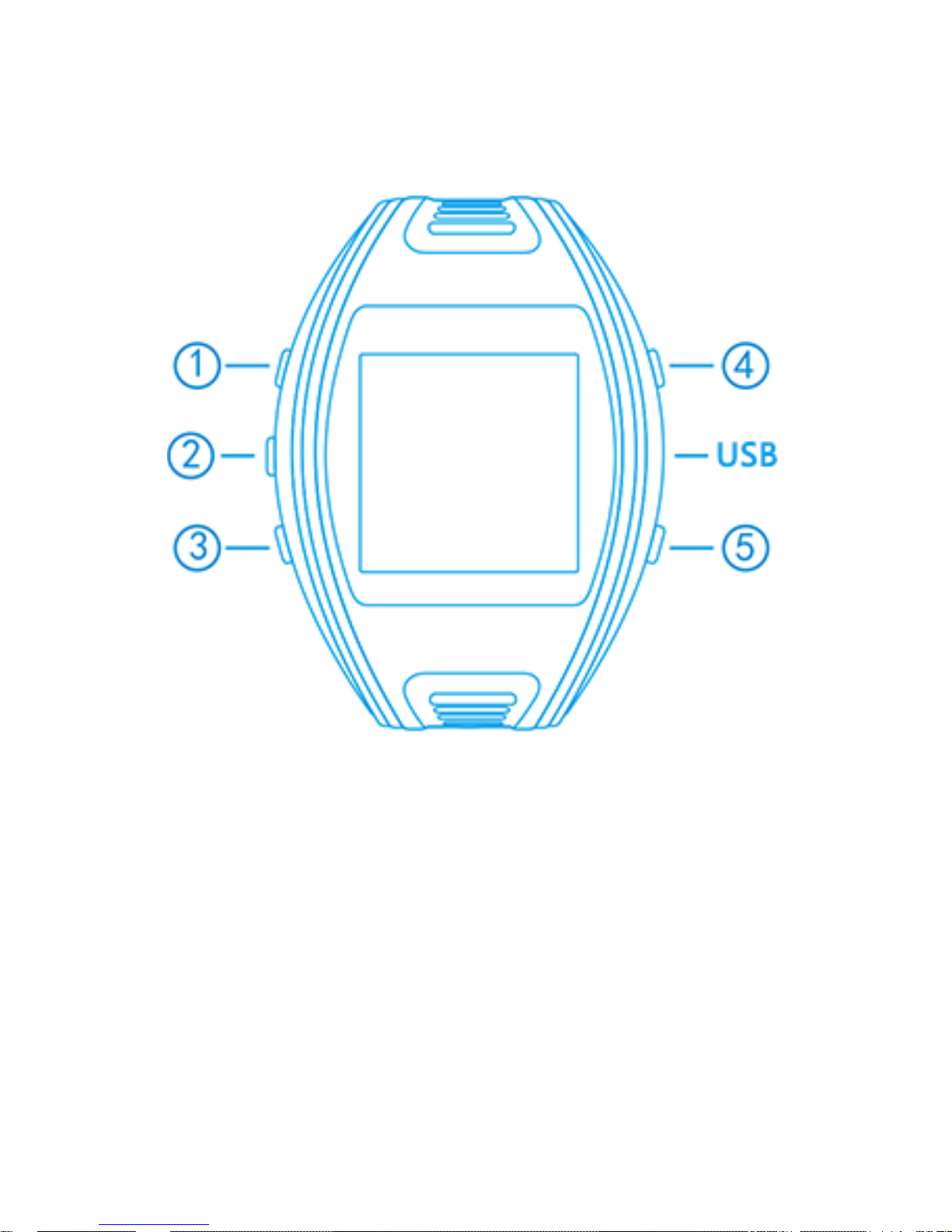
18
Ⅱ. Components & Accessories
2.1 Components
Key ①: Up key, GPS mode 1,plus call volume,
long press to call the 1st administrator number or
load current address.
Key ②: Down key, GPS mode 2,reduce call
volume, long press to call the 2nd administrator
number or load current address.
Key ③: Menu, answer, OK, long press to call the
3rd administrator number or load current address.
Page 8
19
Key ④: Power on/off, Screen on/off.
Key ⑤: SOS, reject, return, interface switching.
USB Interface: Charging, connect to PC in power
off state.
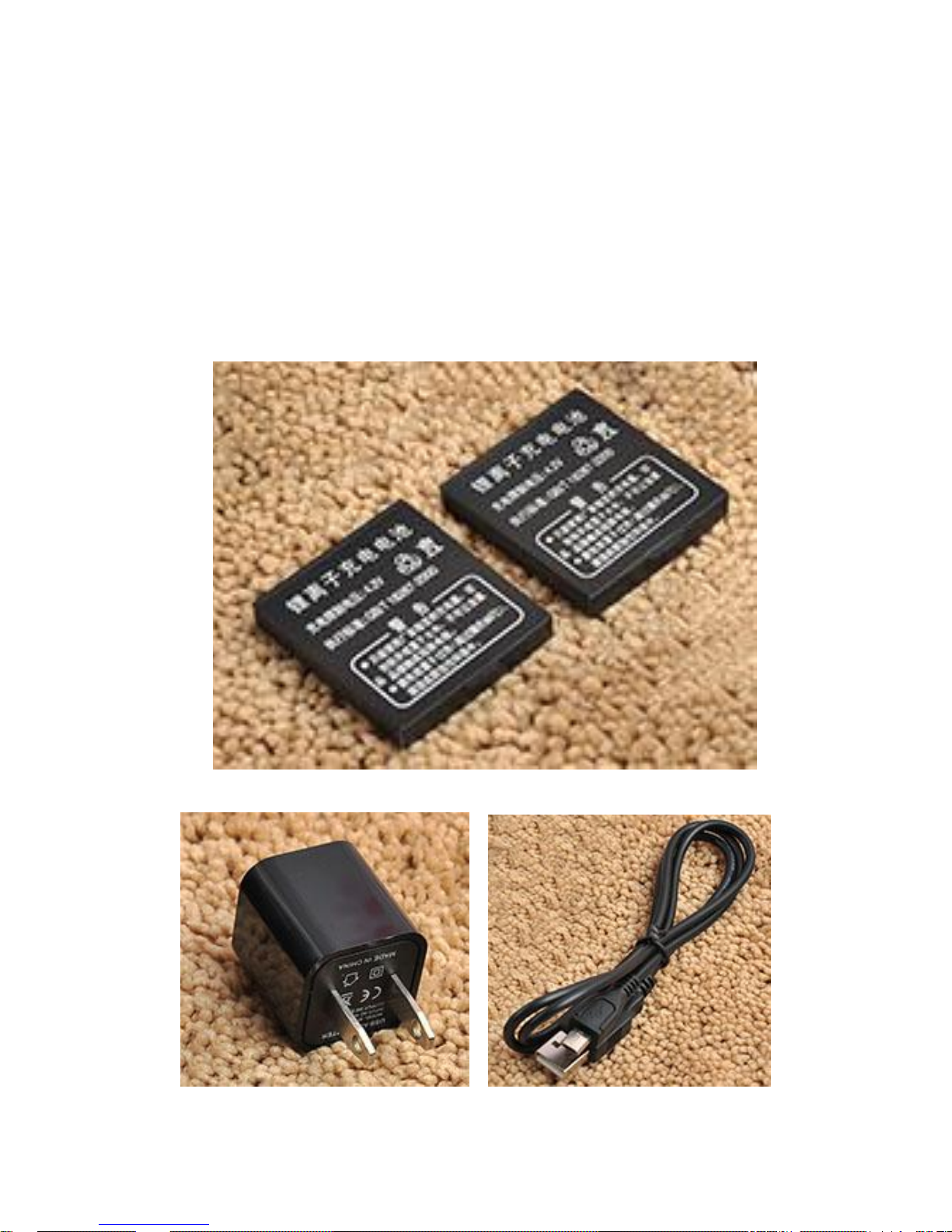
2.2 Accessories
(reference pictures)
2 Battery
charger USB
Page 9
20
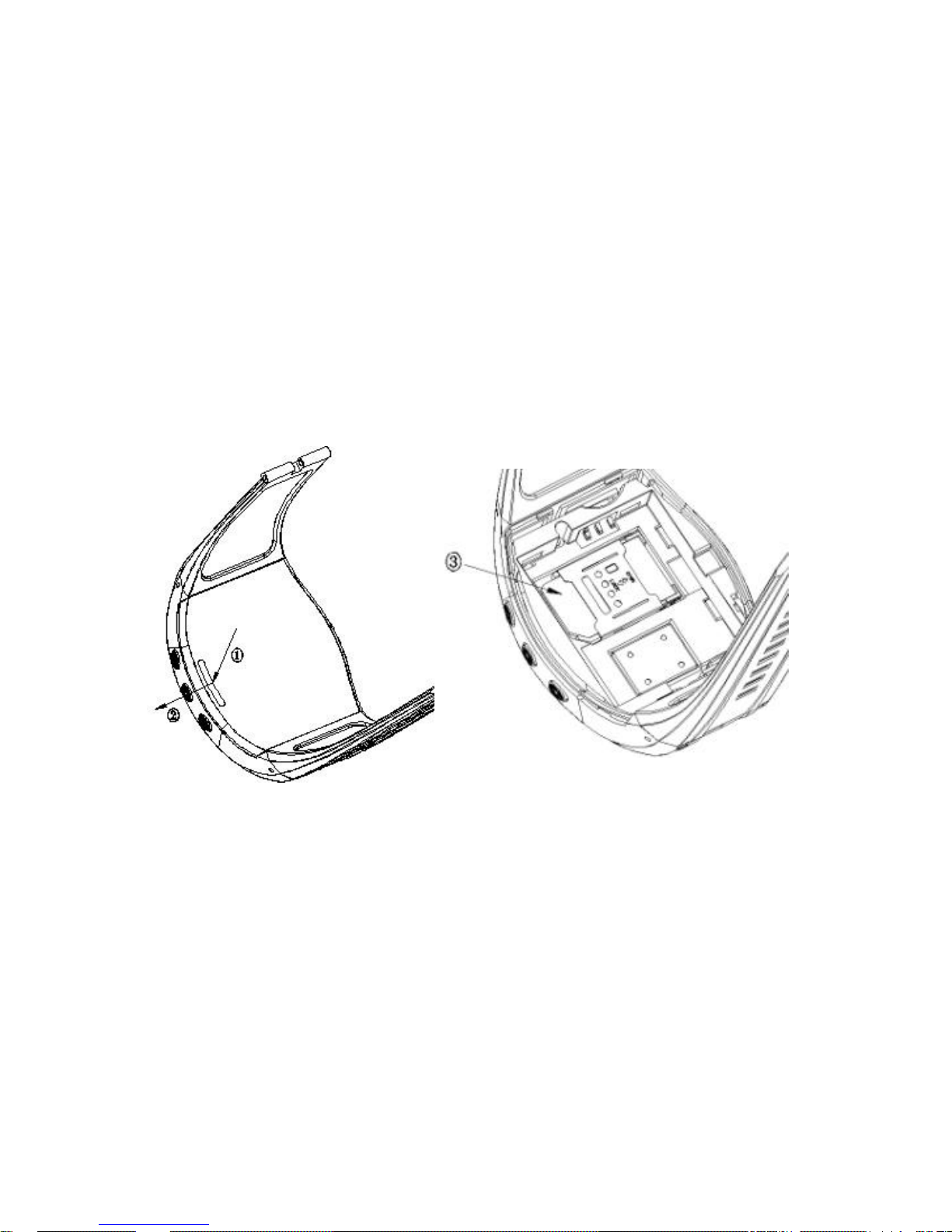
Ⅲ. SIM card Installation
Open the packing case, Check if the watch and the
accessories are intact, or please contact your
dealer;
A suitable SIM card is needed for using the watch,
please contact your dealer if you have any
question;
Ⅳ. Use Watch
4.1Power on/off
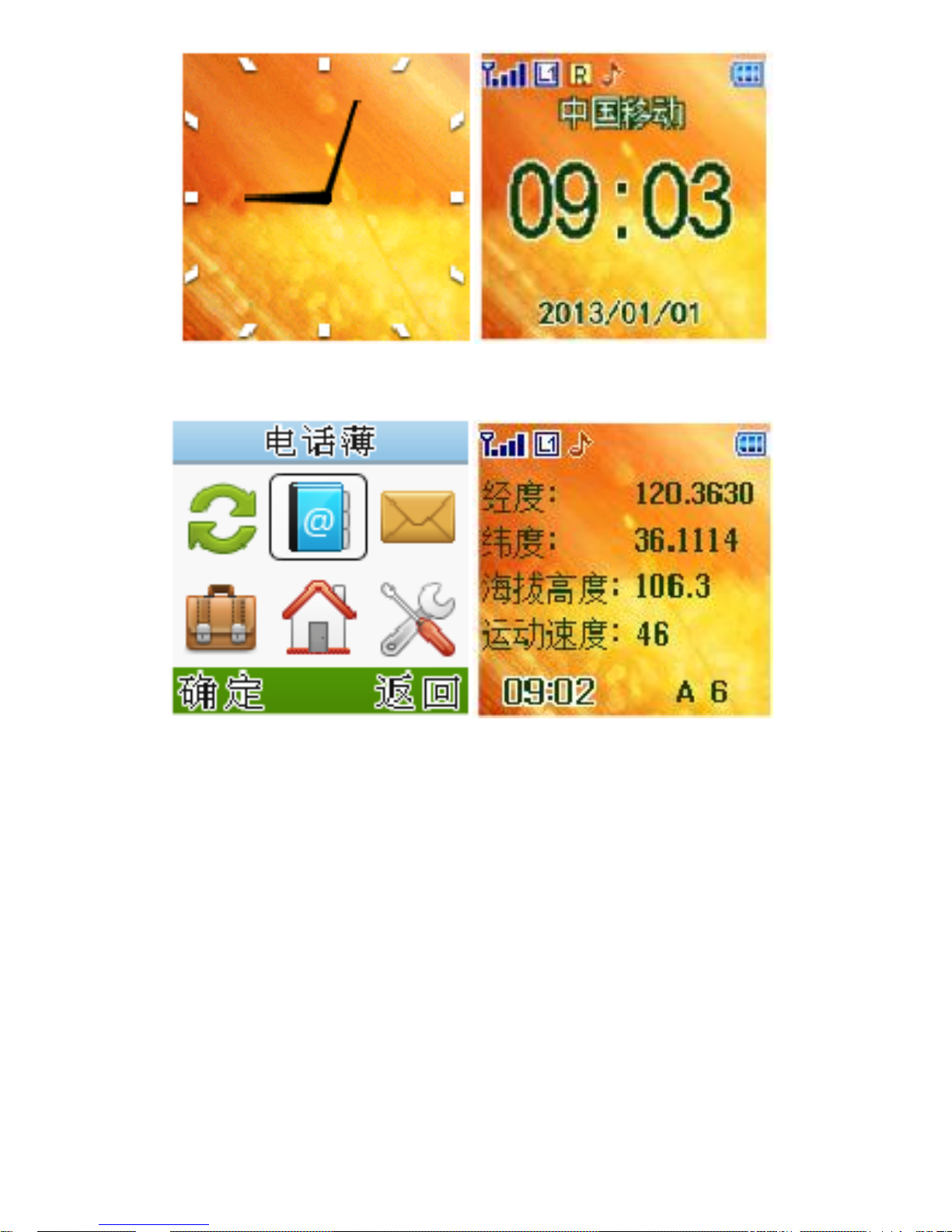
Long press key④ power on/off the watch, main
interface below
Page 10
21
Analog Clock Digital Clock
Menu GPS interface
Key ⑤ switch the interface.
4.1.1 Time update
After power on, the watch will update time through
GPS,but time will not update in GPS mode 3(GPS
module is closed in GPS mode3)
4.1.2 GPS Positioning
Press ⑤ to GPS interface,
When GPS module is working & GPS signal is good,
Page 11

22
screen will display the following information: current
longitude, latitude, speed, altitude, the number of
satellites, Positioning identification.
4.2Voice calls
4.2.1Call a stored phone of SIM card
Into the phonebook, up or down keys to move the
phone number and press ③ to call out, require
pre-exist the phonebook in sim card.
4.2.2 A key to call the administrator
If the administrator number has been setted, Long
press ① , ② or ③ to dial the corresponding
administrator number, administrators number
setting see 7.1
4.2.3 One key SOS
Long press ⑤,watch will dial all the administrator
three times or the call is connected,meanwhile send
SOS alarm SMS to all the administrator.
4.2.4 Administrator direct dial watch
Administrator call the watch, if watch user does not
answer the call, the call will be get through
automatically after 8 seconds.
NOTE: Requires SIM card display caller ID.
4.2.5 Answer the call
When ordinary calls, watch rings, press ③ to
answer, Press ⑤ to reject.
Page 12

23
During a call, Press ① to increase the volume,
press ② to decrease the volume.
4.3 GPS working mode
Press ① enter the working mode, there are 4
kinds of working modes.
Tracking Mode: GPS always open.
Saving Mode: GPS opens only when the watch is
moved.
Sleeping Mode: GPS opens only when the watch is
inquired the address.
Hibernation Mode: GPS never open.
Select the appropriate mode can save battery life to
get maximum power, mode can be remotely setted ,
see 7.4
Note: If don’t need real-time tracking, choose
saving mode or sleeping mode to save power; If
need real-time tracking,choose tracking mode, it
can greatly improve the watch endurance.
Note: In the saving mode, watch movement rely on
the base station to detect, open the GPS module or
not depend on watch switch base stations and base
stations’ density, if need continuous positioning
requirements, be caution in the use of this mode.
Note: Inquiry address of watch in sleeping mode
means send command 123 to watch, see 7.2
Page 13

24
4.4 Local track record
GPS track signals can be recorded in the watch
memory by PLT format file which can be read in
Google Earth.
In tracking mode or saving mode, press②enter
track record, track can be recorded in the watch
memory.
4.5 Watch theme
You can download a personalized theme of watch
from official website, currently offers four kinds of
style theme for you: Orange classic, blue theme,
pink theme, grass sky. After you download the
theme, connect the power off watch to computer
USB port, you will find a removable disk. Unzip the
file and replace five GIF files in the theme folder
under the root directory.
Ⅴ. Inquiry position
5.1 Inquiry by SMS
You can write a positioning SMS sending to the
watch to inquiry watch position, the watch will reply
position SMS or map link. The SMS commands
please refer to the <Operation Commands>.
5.2 Inquiry by call
Administrator dial the watch,if administrator hang off
Page 14

25
in 8 seconds,watch will send address SMS to
administrator. Effect is the same with 5.1
5.3 Inquiry by platform
please refer to the 6.2
Ⅵ. Service Platform
6.1 Register and login
Please register platform on the WEB browser.
1) Open service platform on web browser.
2) Click register, complete the account registration.
3) Give the registered account (E-mail) and watch’s
IMEI to customer service, customer service will add
the watch to your registered account.
6.2 Inquiry by service platform
6.2.1 Web Browser platform
You can login the service platform and enter your ID
and password to check the position of the watch.
Please ask your dealer for the WWW address of the
position service platform.
6.2.1 Smart phone applications platform
You can use a smart phone to check the watch’s
position.We have prepare for you the Android client
Page 15

26
(Android), Apple clients (IOS), please check with
your dealer to get installation package.
Ⅶ.Common command
In addition to using the platform, sending SMS
commands can also be used to manage and set the
watch.
7.1 Set SOS administrator
SOS,A,number1,number2,number3#
Example:
SOS,A,13800138000,13800138001,13800138002#
means to set 3 numbers at a time .
SOS,A,13800138000# means to set 1st number.
SOS,A,,13800138001# means to set 2nd number.
SOS,A,,,13800138002# means to set 3rd number.
If the setup is successful,watch will reply:
SET SOS OK
7.2 Watch address inquiry
123 or Position#
Send this command to watch, watch will reply
current address information. Such as:
Song Ping Shan Qi Min ROAD Nanshan District,
Shenzhen City, Guangdong Province, CHINA
Page 16

27
Postal Code: 518057
If get address content failed from server, watch
reply a Google Maps location link.
7.3 Listen command
Listen,Listener number#
Example::LISTEN,13800138000#
Send this command to watch,watch will
automatically dial the listener number for three
times until the call get through , listener answer the
call and listen watch around.
If the setup is successful, watch will reply:
LISTEN OK!
7.4 Set GPS mode
SAVING,0~3#
0,1,2,3 corresponding tracking mode, saving mode,
sleeping mode and hibernating mode.
Example:
SAVING,0# set tracking mode
SAVING,1# set saving mode
Note: All symbols are English half-width symbols,
no space between symbols, strict accordance with
setting format of commands, incorrect format or
symbols will lead the command set unsuccessfully.
Other commands refer to <operating instructions>
Page 17

28
Ⅷ. Watch Alarm
8.1 Speed Alarm
Conditions: When the watch over and below the set
speed.
Note: You need to set the low speed limit and high
speed limit.
8.2 Geo-fence Alarm
Conditions: when the watch entry / exit / across the
Geo-fence.
Note: You need to set the conditions of crossing
fence, fence types and so on.
8.3 Low battery Alarm
Conditions: When the watch‘s battery power falls
below a certain value .
Note: When above alarm occurs,the watch will send
alarm to service platform, meanwhile send a SMS
message to the watch administrator number if the
number is setted up.
Note: 8.1, 8.2 alarm parameters must be set before
work, Please refer to the <Operation Commands>
Page 18

29
Ⅸ. Troubleshooting
9.1 Can not position
Watch supports double mode GPS + LBS,priority
GPS positioning, if GPS can not positioning,please
check:
1) Watch’s working mode is tracking mode or not.
2) Watch in a place without GPS satellite signal,
such as a basement, room inside.
When the GPS unable to position,GPS will switch to
LBS for positioning. If LBS can not position,check
whether watch is in an area no base station signal.
9.2 Offline status on the platform
Watch is offline on the platform,please check:
1) Watch whether normal boot.
2) SIM card is installed correctly
3)Call the watch ,it can get through .
4) Whether the watch is no GSM signal place,
observe the watch interface GRPS connection.
5) The area GPRS mobile phones and other
devices can connect to the network or not.
6)Check if the SIM card has enough balance.
Page 19

30
7)If the watch becomes offline on the last day of
one month, please check if GPRS is close.
8)Check the parameters of watch via commands.
9.3 Position drift
Position drift will be found in places where GPS
signal is poor. Please go to the place with good
signals.
9.5 Command receiving abnormally
1)Check the Command format.
2)Check if the SIM card is properly installed.Check
if the watch is in the places where there is GSM
signal.
Ⅹ.Warranty rules
10.1 Special statement
1)Technology change, without notice.
2) If the color and appearance are inconsistent with
those for the actual product, the latter will prevail.
3)Warranty card is only valid for the watch with the
Page 20

31
following IMEI.
4)Please take care of the warranty card and show
it with the original purchase receipts when enjoying
the warranty service.
10.2 Warranty period
Since the date of purchase, passive waste
host has one year warranty.
10.3 After sales
Any of the following circumstances not covered by
the warranty, but may be appropriate to pay repair:
1)More than the warranty period.
2)Unauthorized removal or repair damaged.
3)Damage caused by improper installation, use,
maintenance, custody.
4)The IMEI label is torn or Obscure.
5)Warranty certificate and product models do not
match or warranty certificate be altered.
6)Damage caused by force majeure.
 Loading...