

Page 1
GETTING STARTED
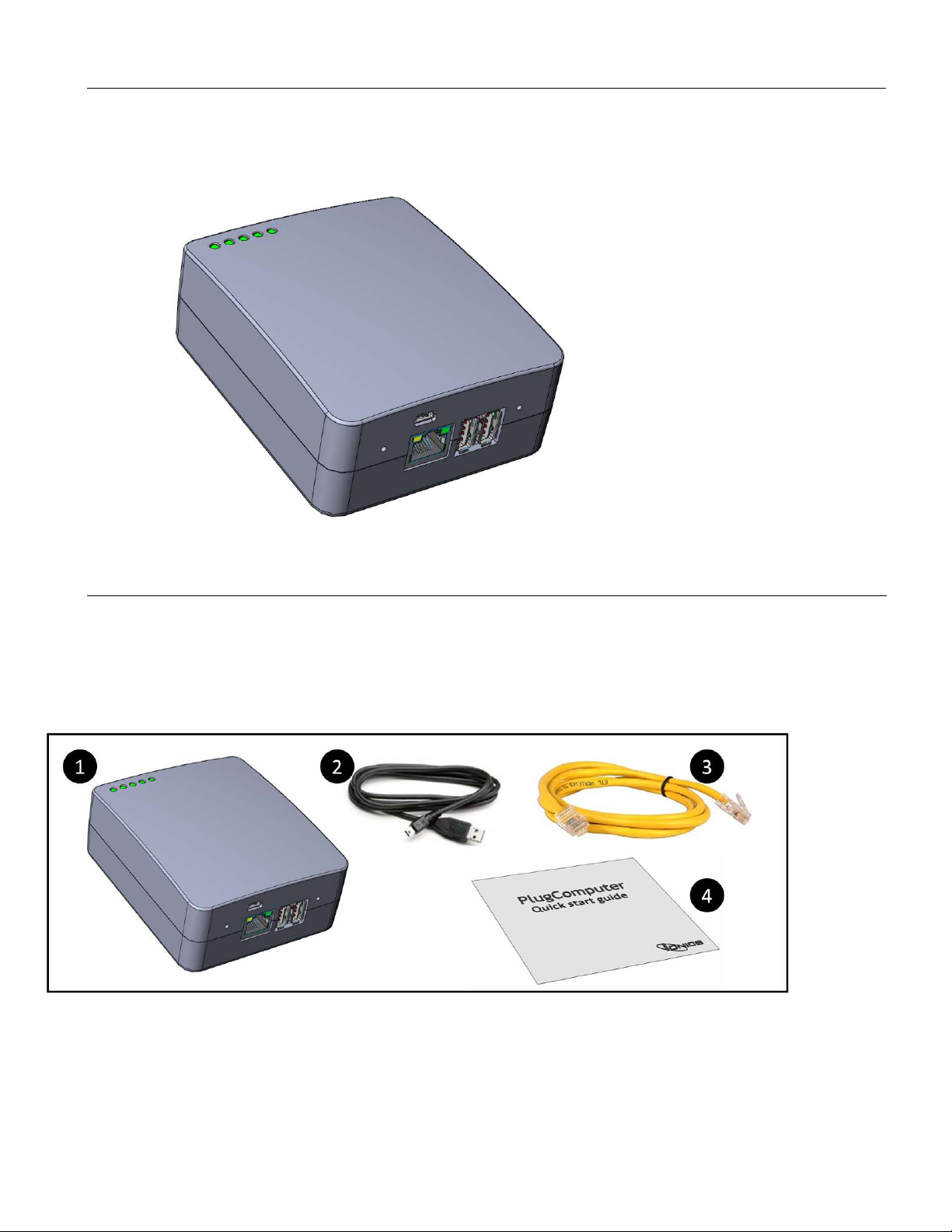
A Plug Computer is a small form factor server for use in the home or office. Compared to their PC-based
counterparts, plug computers are lower cost, consume less power, often do not have a video card, and are
intended to be powered up at all times. Although plug computers often has a built-in AC power adapter, the term
"plug" also refers to "plug and play" appliance-like devices which may be in any form factor.
CHECK THE PLUG COMPUTER BOX CONTENTS
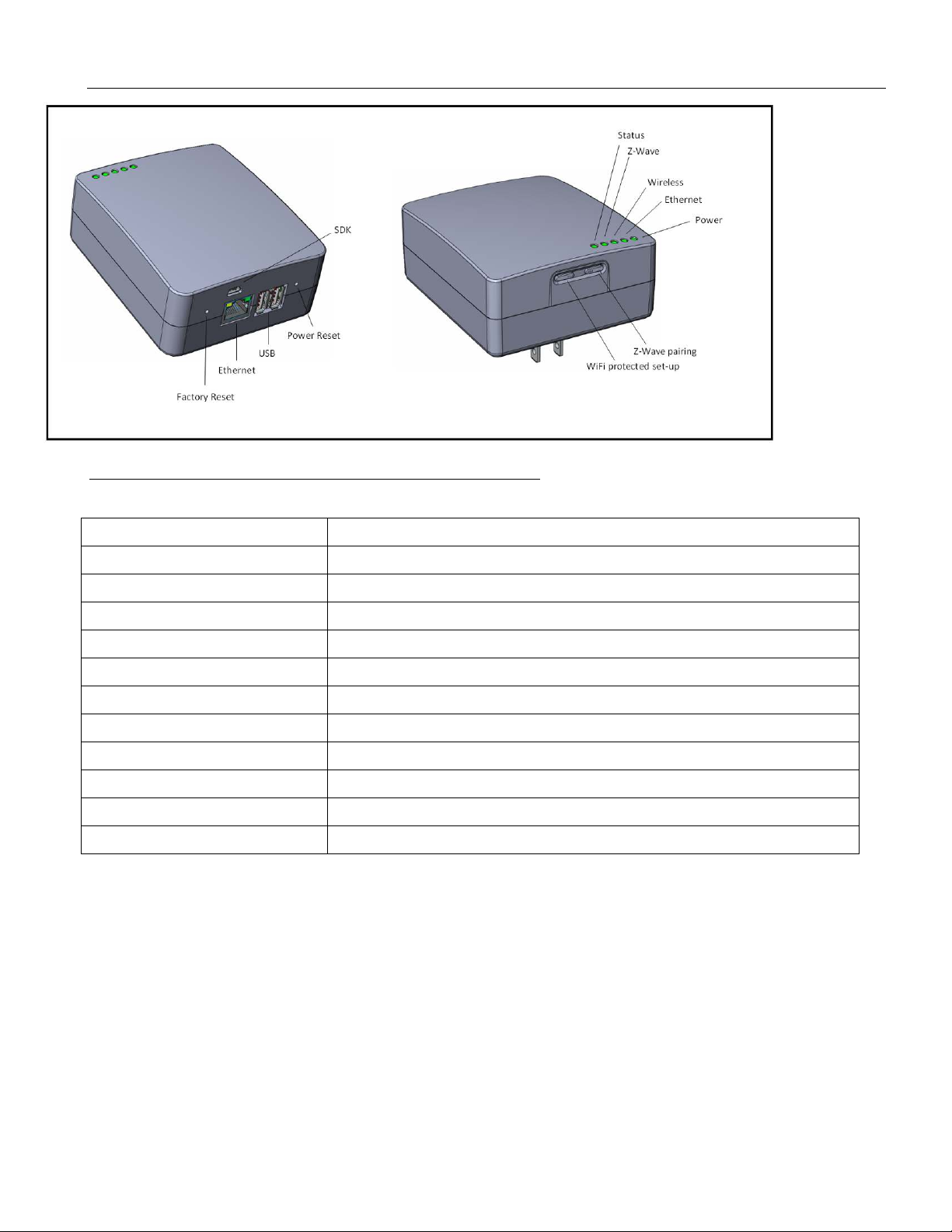
The Package includes:
1. Plug Computer device.
2. USB cable.
3. Ethernet cable.
4. User Manual and Quick Start Guide
Page 2
BUTTONS, CONNECTORS AND LEDS
Figure 1: Some Features may not be included in your Plug model
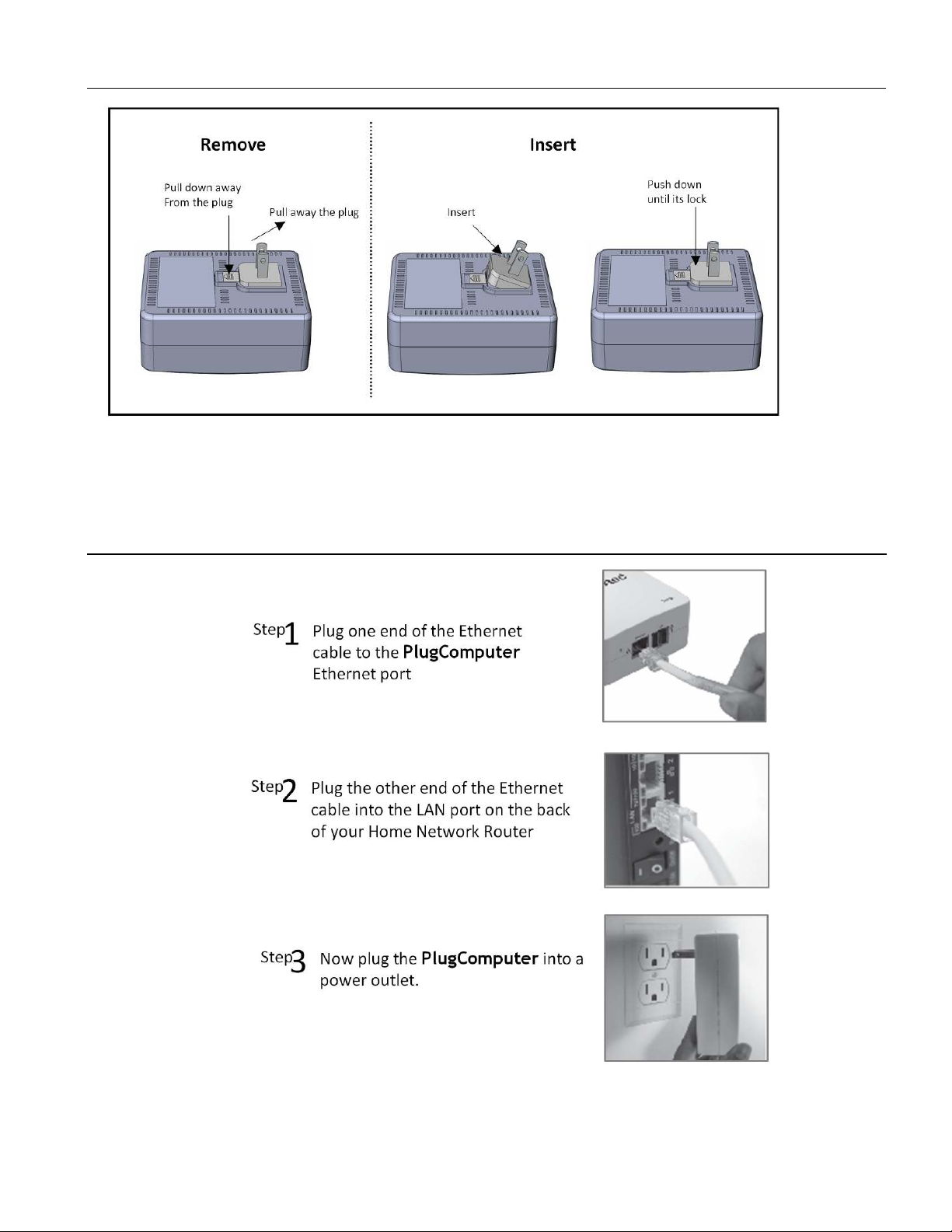
Ethernet port:
USB port:
SDK port:
Factory reset button:
Power reset button:
Wi-Fi Protected Setup button:
Z-Wave pairing button:
Power LED:
Ethernet LED:
Wireless LED:
Z-Wave LED:
Status LED:
For Ethernet LAN cable
For other USB 2.0 device
SDK Console port (Development Kit Version)
Full restore to its factory setting (if applicable to your model)
System reboot (if applicable to your model)
Push ‘n’ Connect Button for WPS
Pairing with Z-Wave device (or as assigned by Software Developer)
Illuminates RED on power up
Indicates operation state on LAN
Indicates operation state on WLAN
Indicates connection on Z-Wave
Indicates state of operation of Plug Computer
(FCC ID: V8MTS300ZW)
Page 3
PLUG
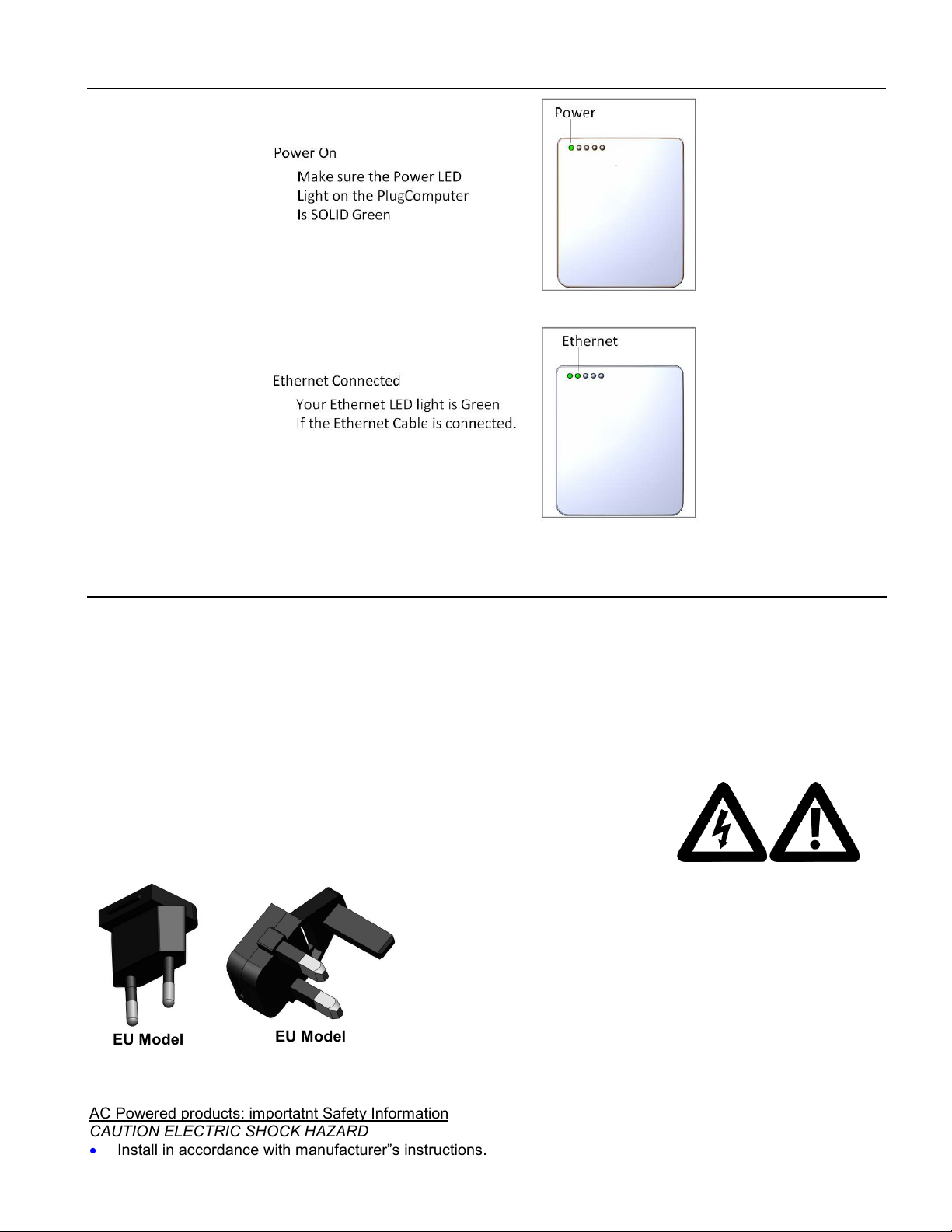
Plug Computer is provided with interchangeable plug connector to support country-specific electrical sockets (US,
EU and UK). Plug is factory-configured to its appropriate destination (e.g., in case of USA, the 2-pin connector).
Insert or remove it as shown above.
CONNECT TO THE DEVICE AND ROUTER
Page 4
INTERPRET LED ACTIVITY
However, there is no guarantee that interference will not
occur in a particular installation. If this equipment does cause harmful interference to radio or television reception,
which can be determined by turning the equipment off and on, the user is encouraged to try to correct the interference
by one or more of the following measures:
-Reorient or relocate the receiving antenna.
-Increase the separation between the equipment and receiver.
-Connect the equipment into an outlet on a circuit different from that to which the receiver is connected.
-Consult the dealer or an experienced radio/TV technician for help.
FCC WARNING
The equipment described in this guide has been tested and found compliant with the limits for a Class B digital device, pursuant to Part 15 of the FCC rules. These limits are designed to provide reasonable protection against
harmful interference when the equipment is operated in a commercial environment. This equipment generates, uses, and can radiate radio
frequency energy and if not installed and used in accordance with the instruction manual, may cause harmful interference to
radio communications.
EU Model
EU Model
AC Powered products: importatnt Safety Information
CAUTION ELECTRIC SHOCK HAZARD
• Install in accordance with manufacturer”s instructions.
Page 5

• Do not use this dvice near or in water.
You are cautioned that changes or modifications not expressly approved by the party responsible for compliance could void
your authority to operate the equipment.
This device complies with Part 15 of the FCC Rules. Operation is subject to the following two conditions:
(1) this device may not cause harmful interference and
(2) this device must accept any interference received, including interference that may cause undesired operation
• Maintain a minimum distance of at least 6 inches around device for sufficient ventilation.
• This device should be clear of items such as newspapers, table cloth, curtains, etc.
• No open flame sources, such nas lighted candles, should be place on or near the device
• Do not install near any heat sources such as radiators, heat registers, stoves, or other device that produce heat
• Protect the network cable from being worked on or pinched particularly at plugs, convinience receptacles, and
the point where they exit at the apparatus.
• Only use atttachment/accessories specified by the manufacturer.
• Refer all servicing to qualified service personnel. Servicing is required when the device has been damaged in
any way, such as network adapter or cabled is damaged, liquid has been spilled or objects has been into
device, the device has been exposed to rain or moisture, does not operate normelly, or has been dropped.
WARNING; TO REDUCE THE RISK OF FIRE OR ELECTRIC SHOCK, DO NOT EXPOSED THE DEVICE TO
RAIN OR MOISTURE.
UL Safety: your product has been UL tested. It should only be used with other UL listed devices.
• All safety and operating instructions should be read and understood before using the device, and should be
kept for future reference.
• Never open the device. There are no-serviceable parts inside the device. Do not try to service this product
yourself! Contact your device supplier each and every time your device need maintenance. There is a risk of
electric shock!
• Use the device in a dry location only.
• Always use the included network cable to connect the device.
• Do not insert any objects into the openings if the device.
• To disconnect the device from the power supply grid, pull the unit our of the electrical wall socket
• Do not keep the device in direct sunlight.
• Slots and openings on the case serve as ventilation. Never block or cover them.
• Never set up the device near a heater or radiator.
• The device should be located only where sufficient ventilation can be ensured.
• Never use the device with the power supply that does not meet the specifications provided on product label. If
you do not know what type of power supply at home, contact your dealer or energy supplier.
• In the event of damage, disconnect the device from the power supply grid and contact device supplier. This
applies, for example, if
- The Device’s metal prongs are damaged
- Liquid has been spilled on the device or objects have fallen into the device.
- The device has been exposed to rain or water.
- The device does not work, even though the operating instructions have been followed properly.
- The device’s case is damaged.
 Loading...