

Page 1

5-Button USB Laser Mouse, 1600DPI5-Button USB Laser Mouse, 1600DPI
5-Button USB Laser Mouse, 1600DPI5-Button USB Laser Mouse, 1600DPI
5-Button USB Laser Mouse, 1600DPI
User Manual (GME521)
®
Page 2

Thank you for purchasing IOGEAR’s® USB Laser Mouse. IOGEAR® only manufactures
high quality devices, so we are sure you will be satisfied with your purchase. IOGEAR
®
is dedicated to customer service and satisfaction, and wishes you the best with your new
USB Laser Mouse.
To better serve you, IOGEAR
®
offers an array of additional USB 2.0, USB, FireWire,
KVM, and other peripheral products. For more information, or to purchase additional
IOGEAR
®
products, visit us at www.IOGEAR.com.
We hope you enjoy using your new USB Laser Mouse – another first-rate connectivity
solution from IOGEAR
®
!
© 2005 IOGEAR®. All Rights Reserved. M0328
IOGEAR®, the IOGEAR® logo, ION™, are trademarks or registered trademarks of IOGEAR® Inc.
Microsoft® and Windows® are registered trademarks of Microsoft® Corporation. IBM is a registered
trademark of International Business Machines, Inc. MAC, Macintosh, and Apple are registered trademarks
of Apple Computer, Inc. All other brand and product names are trademarks or registered trademarks of their
respective holders. IOGEAR® makes no warranty of any kind with regards to the information presented in this
document. All information furnished here is for informational purposes only and is subject to change without
notice. IOGEAR® assumes no responsibility for any inaccuracies or errors that may appear in this document.
Reproduction in whole or part without permission is prohibited.
Page 3

Table of Contents
Package Contents ................................................................................
Overview ...............................................................................................
Features ................................................................................................
Requirements .......................................................................................
Additional IOGEAR products ...............................................................
Pictorial Introduction .............................................................................
Installation .............................................................................................
Operation ..............................................................................................
Technical Support .................................................................................
Radio & TV Interference Statement ......................................................
Limited Warranty ...................................................................................
02
03
04
05
06
07
08
10
20
21
22
Page 4

2
Package Contents
This package contains:
1 USB Laser Mouse
1 Installation CD
1 User Manual
1 Warranty/Registration Card
If any of the items are missing or
damaged, please contact your dealer
immediately.
Page 5

3
Overview
IOGEAR’s new 5-button USB Laser mouse (the vanguard product in the company’s new
Laser 1600 Series) is an excellent tool for graphic designers, gamers, and desktop
users.
This new IOGEAR mouse uses VCSEL (Vertical Cavity Surface Emitting Laser) as the
light source, which provides 30x more tracking power than regular mice using an optical
sensor. VCSEL allows the mouse to work on virtually any surface, even glass, and
provides an extremely high resolution of 1600dpi, substantially reducing the amount of
injury-producing hand and arm movement.
Take full control of your computer with IOGEAR’s 5-button laser mouse. Two
conveniently located side-buttons allow you to easily go back and forward in your
web browser. The Instant Access button quickly launches Microsoft Word, Excel,
PowerPoint, Outlook, and other programs with a simple mouse click. In addition,
the instant-access button allows you to perform common Microsoft® Office tasks
such as Open, Save, Copy, Paste, and Print.
Page 6

4
Features
• Advanced laser technology provides 30x more accurate tracking capability than optical mice
• Use this mouse on almost any surface, including glass
• Super high resolution of 1600dpi reduces hand movement
• Uses very little real estate on your - Needs only a few inches for accurate movement
• Ergonomically contoured design for comfortable use
• Plug-n-Play and Hot Pluggable
• Convenient back and forward side-buttons for web browsing
• Instant-access button allows you to quickly launch Microsoft® Word, Excel, Outlook,
PowerPoint and more
• Perform common Microsoft® Office tasks such as Open, Save, Copy, Paste, and Print
with the instant-access button
• Solid 3 Year Limited Warranty
Page 7

5
5
• Windows 98SE/ME/2000/XP
• Mac OS X 10.1.5 or later, works as a two-button mouse
• Mac 9.x or earlier, works as a one-button mouse
• Available USB port
System Requirements
Note: 5-button functionality supported
only under Windows with the provided
software in the installation CD
Page 8

6
Other IOGEAR Products
USB Travel Laser Mouse (GME226)
Bluetooth Mini-Mouse (GME225B)
Memory Mini-Mouse w/128MB (GME224M128)
Dual-display KVM Switch (GCS1742/1744)
DVI KVM Switch (GCS1762/1764)
6
Page 9
7
Pictorial Introduction
7
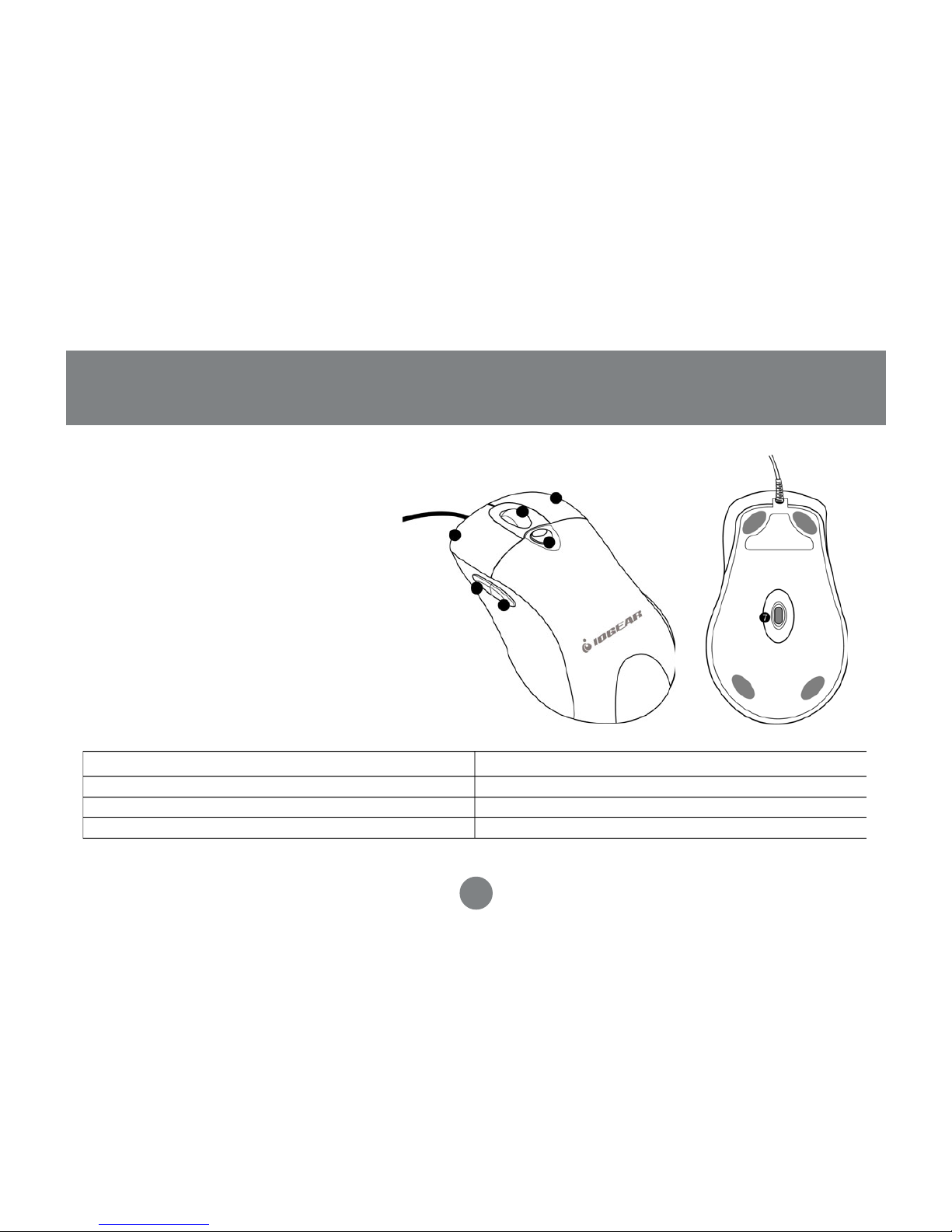
1. Scroll Wheel
2. Left click button
3. Right click button
4. Instant Access button
5. Forward button
6. Back button
7. Laser sensor (1600 dpi)
1
2
3
4
5
6
Button
Function
Instant Access Button
Fordward Button
Back Button
Quickly launch Microsoft® applications (see page 10)
Go forward in your web browser
Go back in your web browser
1
2
3
4
5
6
Page 10

8
8
Installation
DRIVER INSTALLATION – WINDOWS
1
Insert the installation CD to install the laser mouse software. If the CD doesn’t auto-start,
simply go to
My Computer
and double-click on the CD icon to launch driver installation.
Follow the on-screen instructions to install the software
2
Once software installation has completed, make sure to RESTART your computer.
(This is necessary to enable functionality of all the mouse buttons).
3
When restarting your computer, allow it to boot all the way into your operating system
4
Page 11

9
Installation
9
Plug the laser mouse into an available USB port on your computer. After a few seconds,
your system will detect the mouse and install any necessary drivers
Once driver installation is completed, you will be able to use the laser mouse
5
6
MAC
This mouse is Plug-n-Play for Macs. Simply plug it in and start using the USB Laser mouse!
Please note that the included software is only for Windows systems. Also note the following:
· For Mac OS X 10.1.5 or later, mouse works as a two-button mouse
· For Mac 9.x or earlier, mouse works as a one-button mouse
Page 12
Operation
10
Instant Access Button
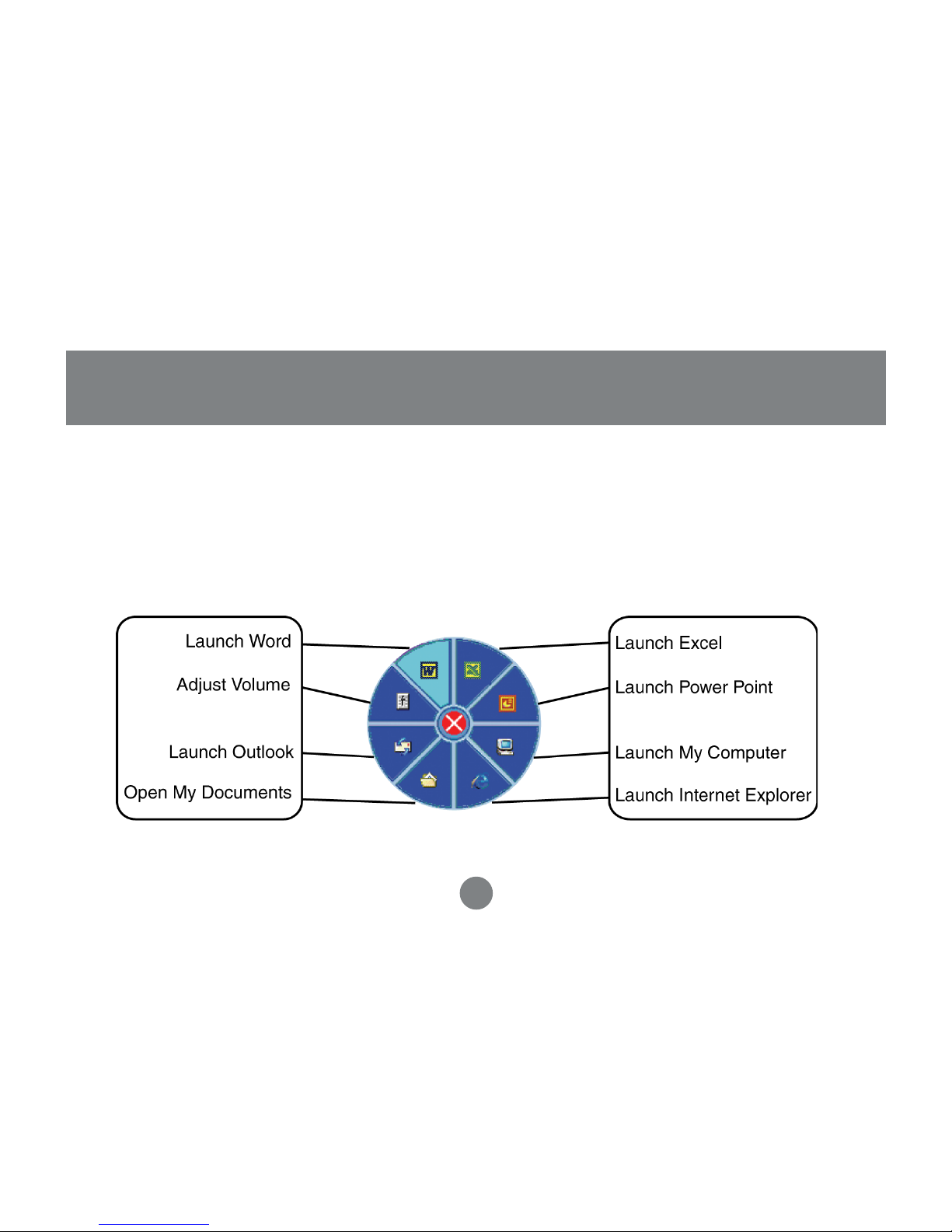
When pressing the instant-access button, a pop-up menu will come up where you can
select the application that you want to launch.
Page 13
11
Operation
11
Quick Task Panel
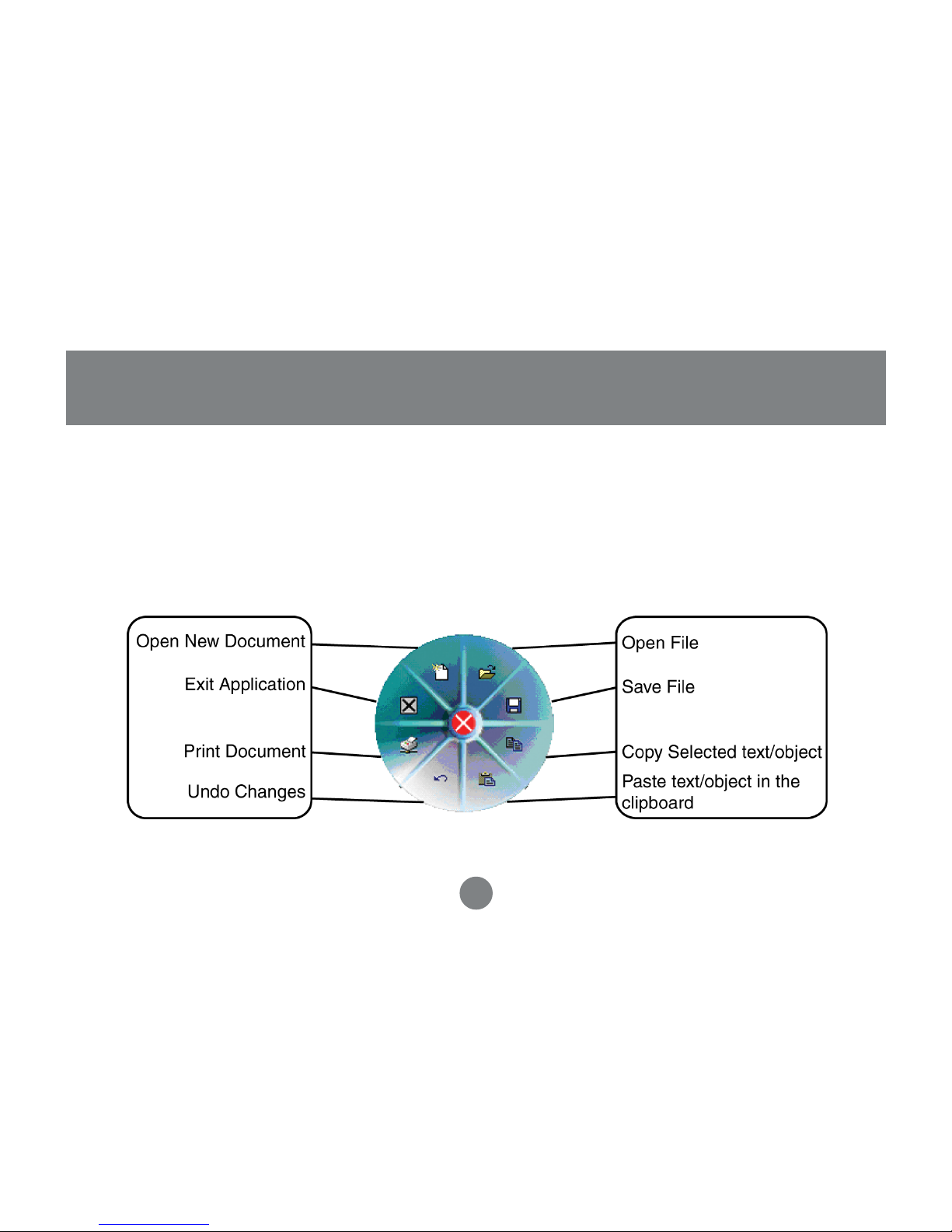
In addition to opening applications, the instant-access button also allows you to perform
common tasks when using Microsoft Word, Excel, and PowerPoint. The tasks you can
perform depend on the specific application you’re using. Each application has a pre-defined
set of tasks it can perform; however, you can customize these functions as described in the
following section.
Page 14
12
Change Mouse Settings
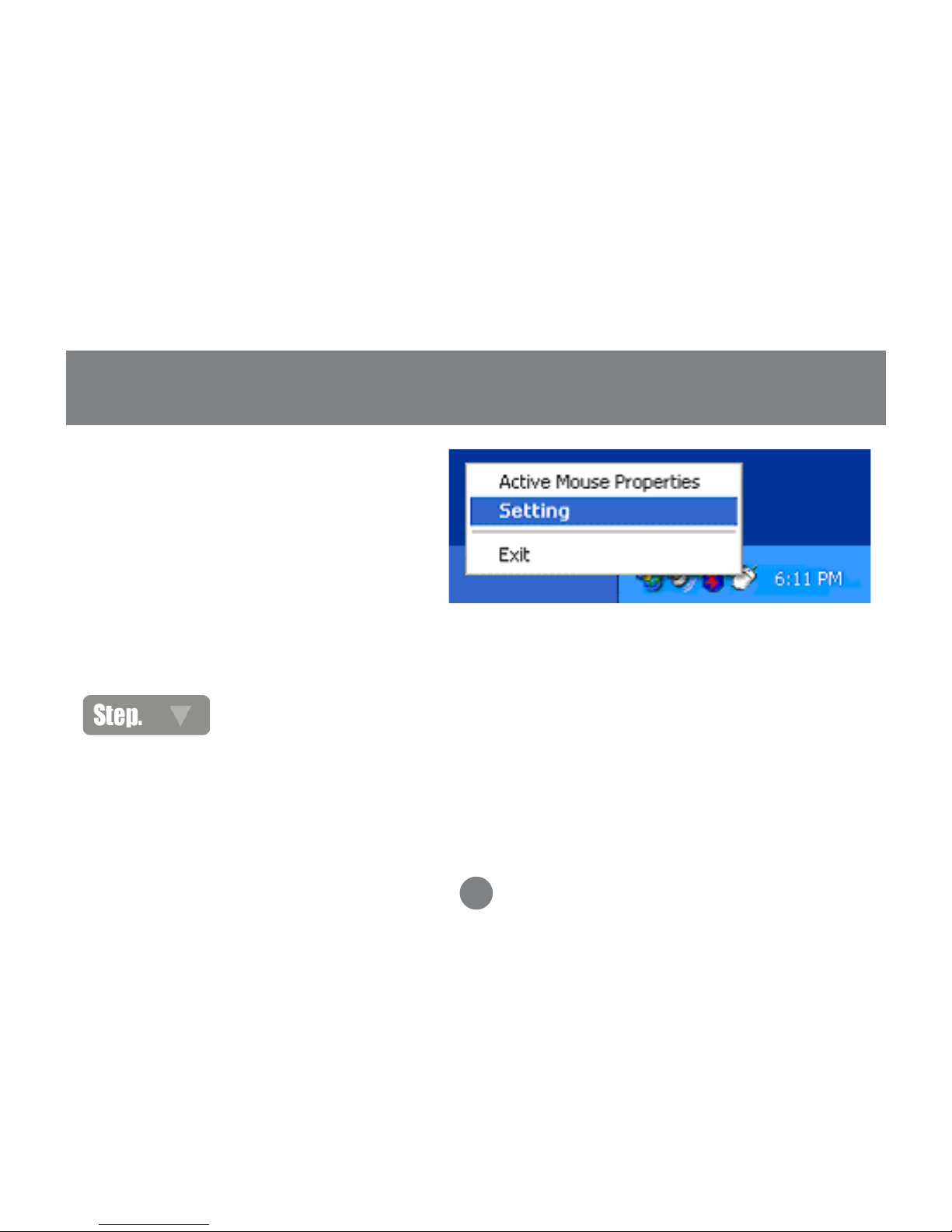
Once you have installed the mouse
software, you should see a mouse
icon on your traybar. You can customize
the functions assigned to the Instant
Access button when using Microsoft
Office applications.
Operation
12
Customize Quick Task Panel
1
To access the mouse settings, right-click
the mouse icon and select the
“Setting” option.
Page 15
13
Inst
Operation
13
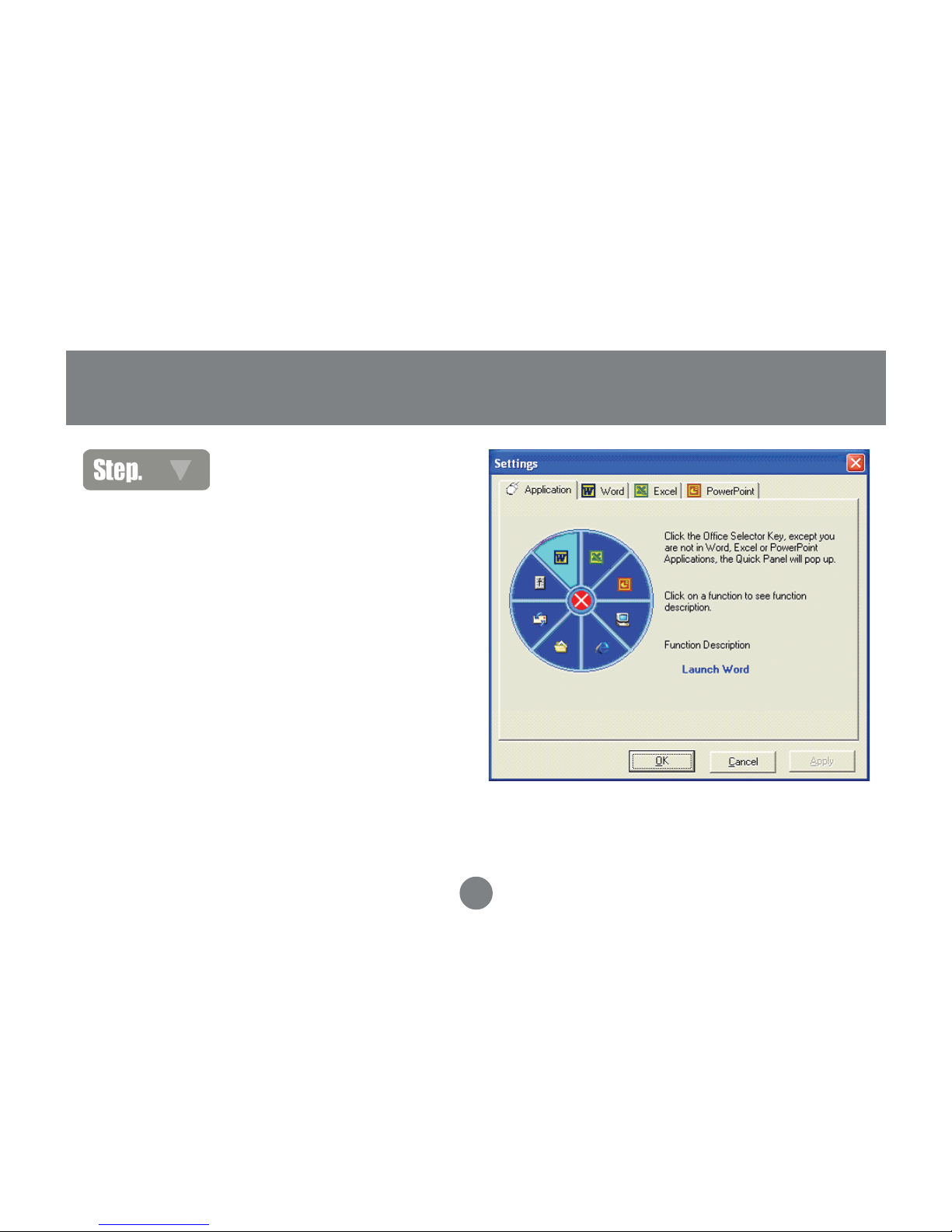
On the settings tab, the Application
tab explains the function of each
program icon.
2
Page 16
Operation
14
3
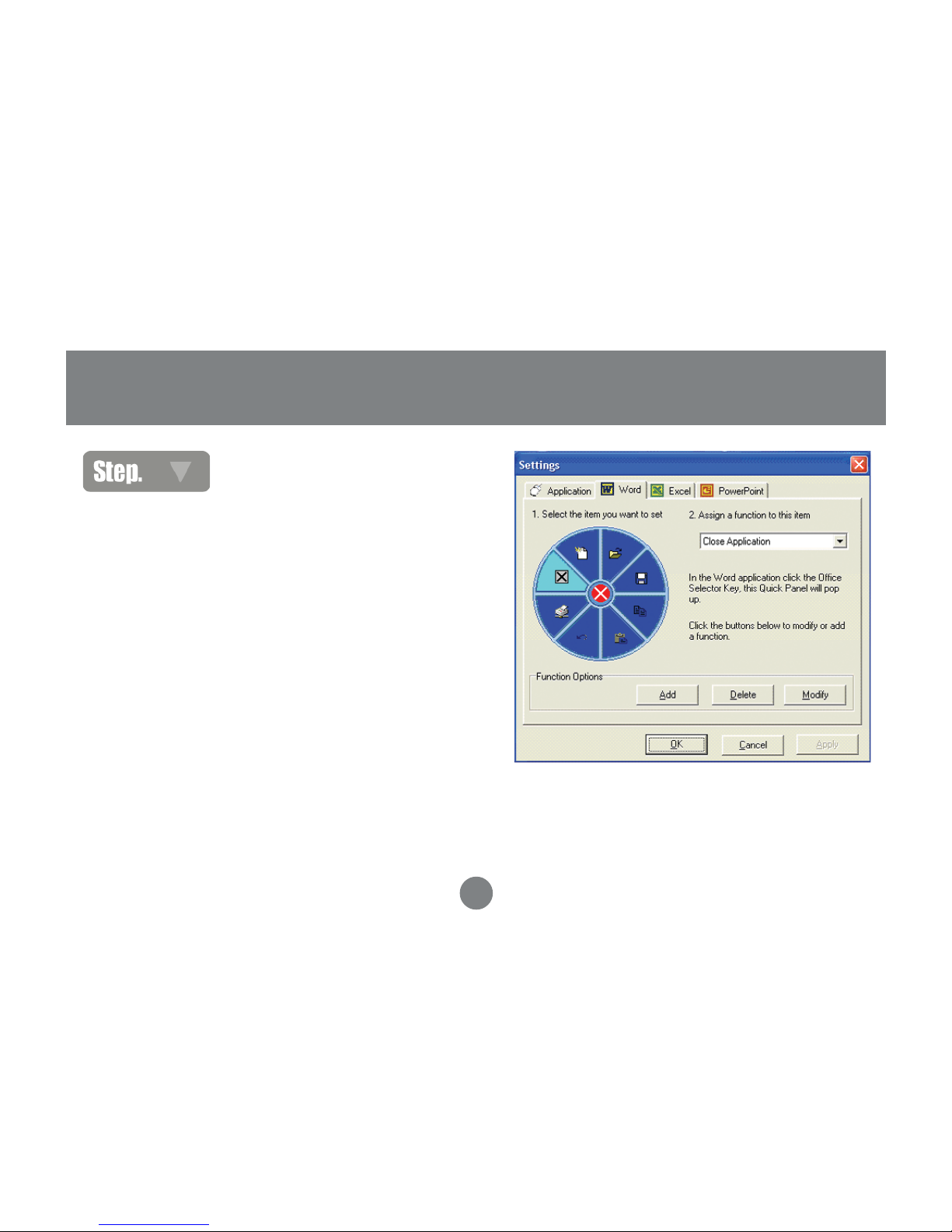
Now click on the “Word” tab to change
how the quick task panel behaves in
Microsoft Word. As an example, we
will change the “Close Application”
function to perform a different function.
As shown below, select the Close
Application icon and then click Add
Page 17
Operation
15
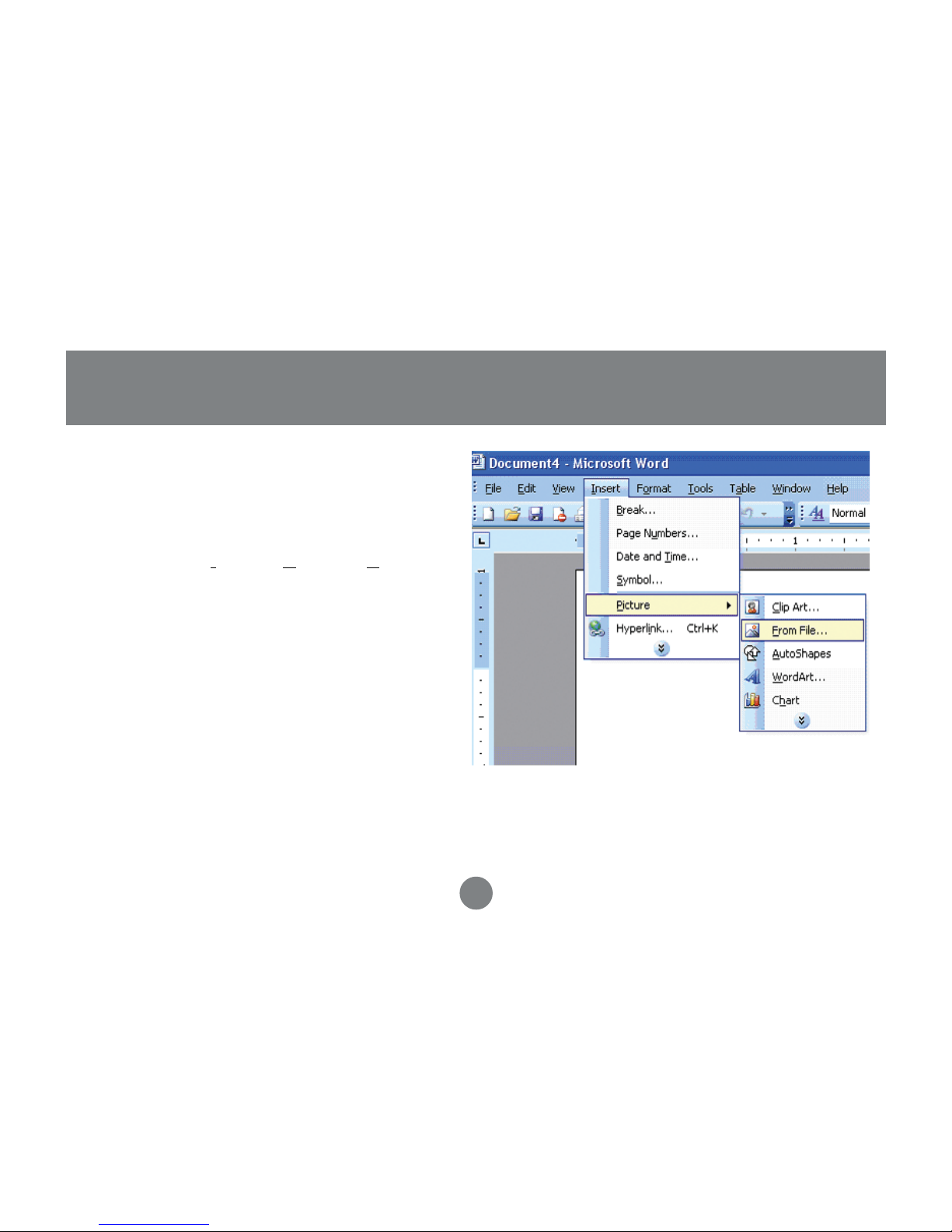
For our example, we will create a
function to insert a picture in Word.
Within Microsoft Word, you notice
that to do this through the menu, you
need to go to “Insert > Picture > From
File…” Simply make a note of the
underlined words; in our case, it will
be I, P, and F.
Page 18
16
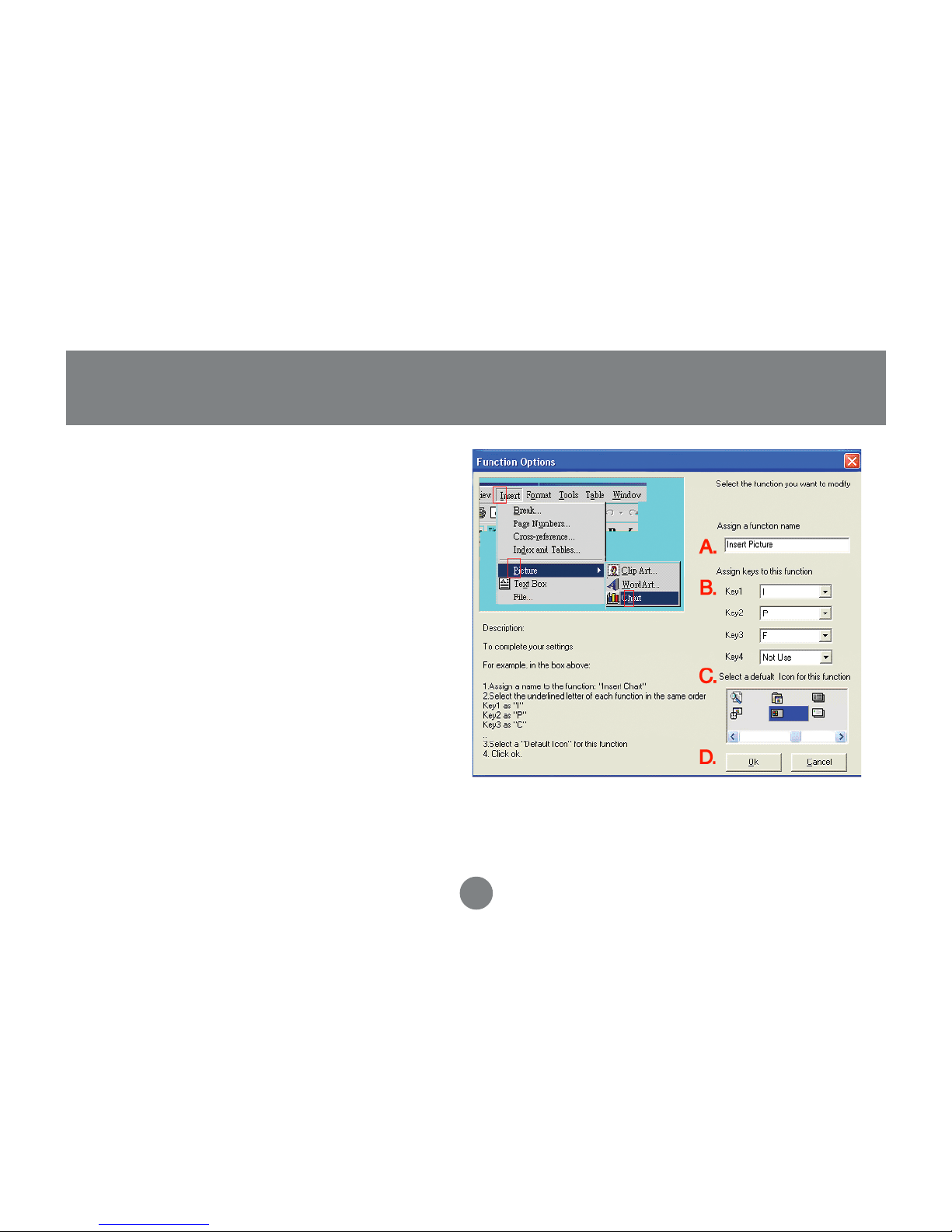
In the function options window, we
follow the following steps: A) we
assign the function name “Insert
Picture” to describe this new function;
B) assign the keys to perform this
option: I, P, and F; C) select a default
icon for this action; D) click OK to
make the changes.
Operation
Page 19
17
Operation
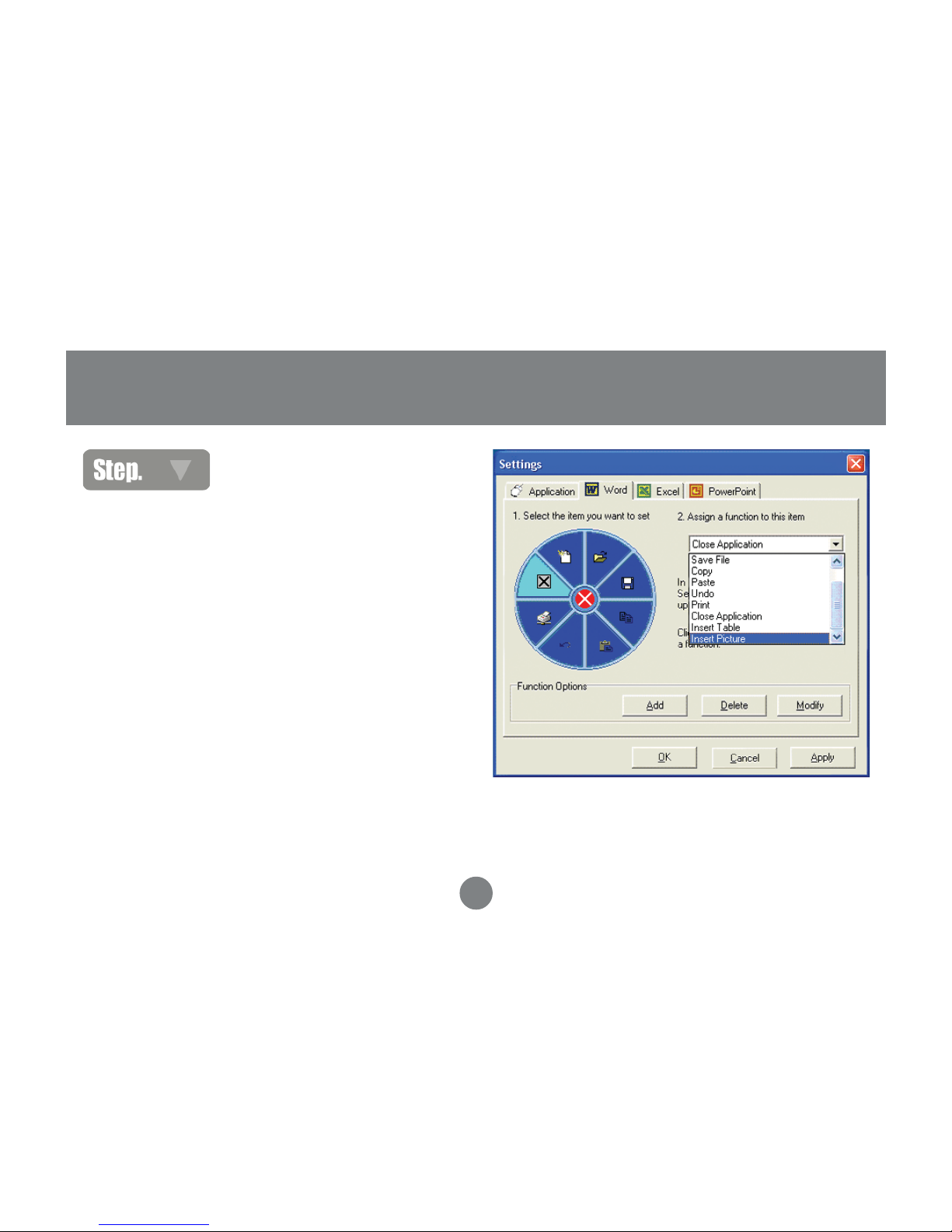
Back in the settings window, on the
drop-down menu, make sure to
select the newly created function
“Insert Picture”
4
Page 20
14
Operation
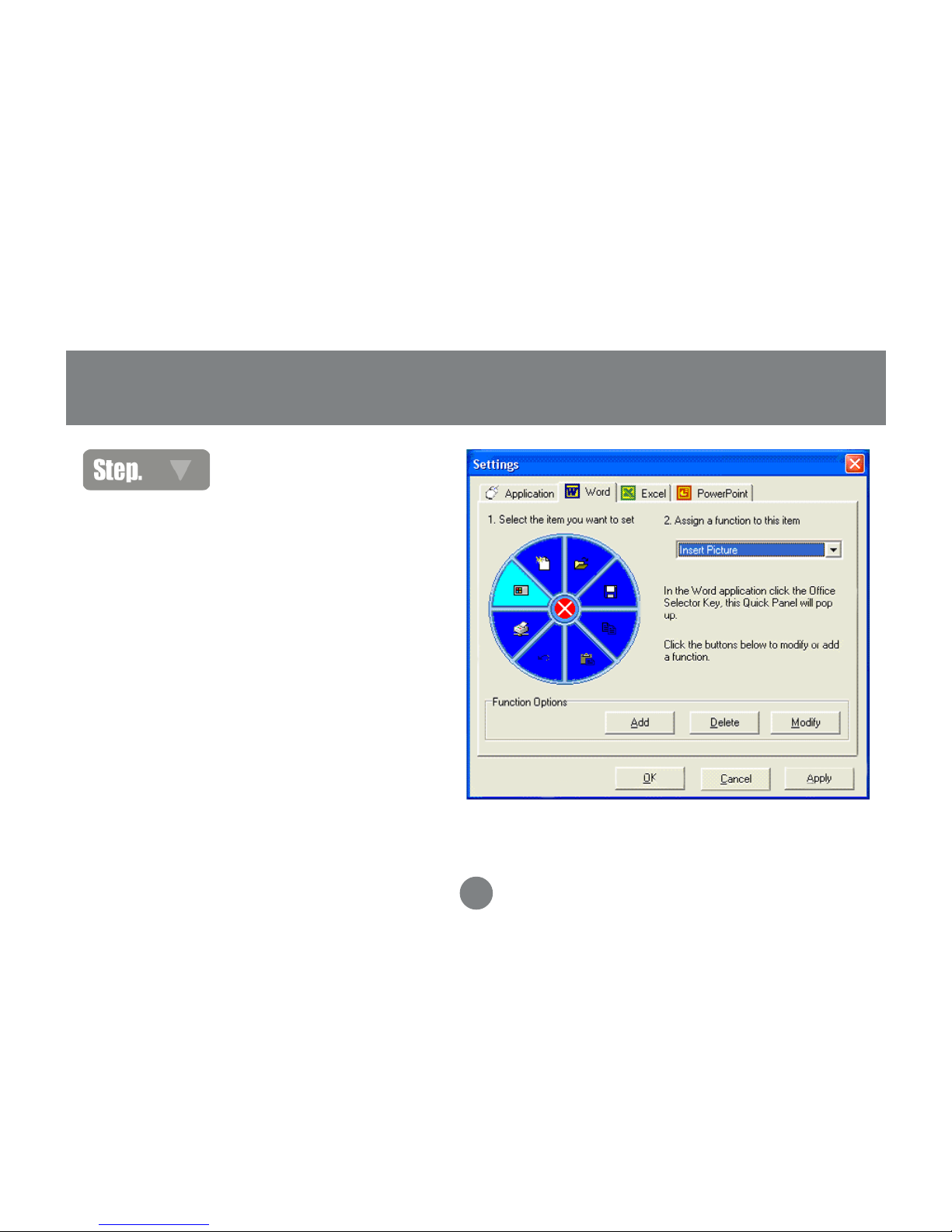
Finally, click Apply and then OK
18
5
Page 21
15
19
Operation
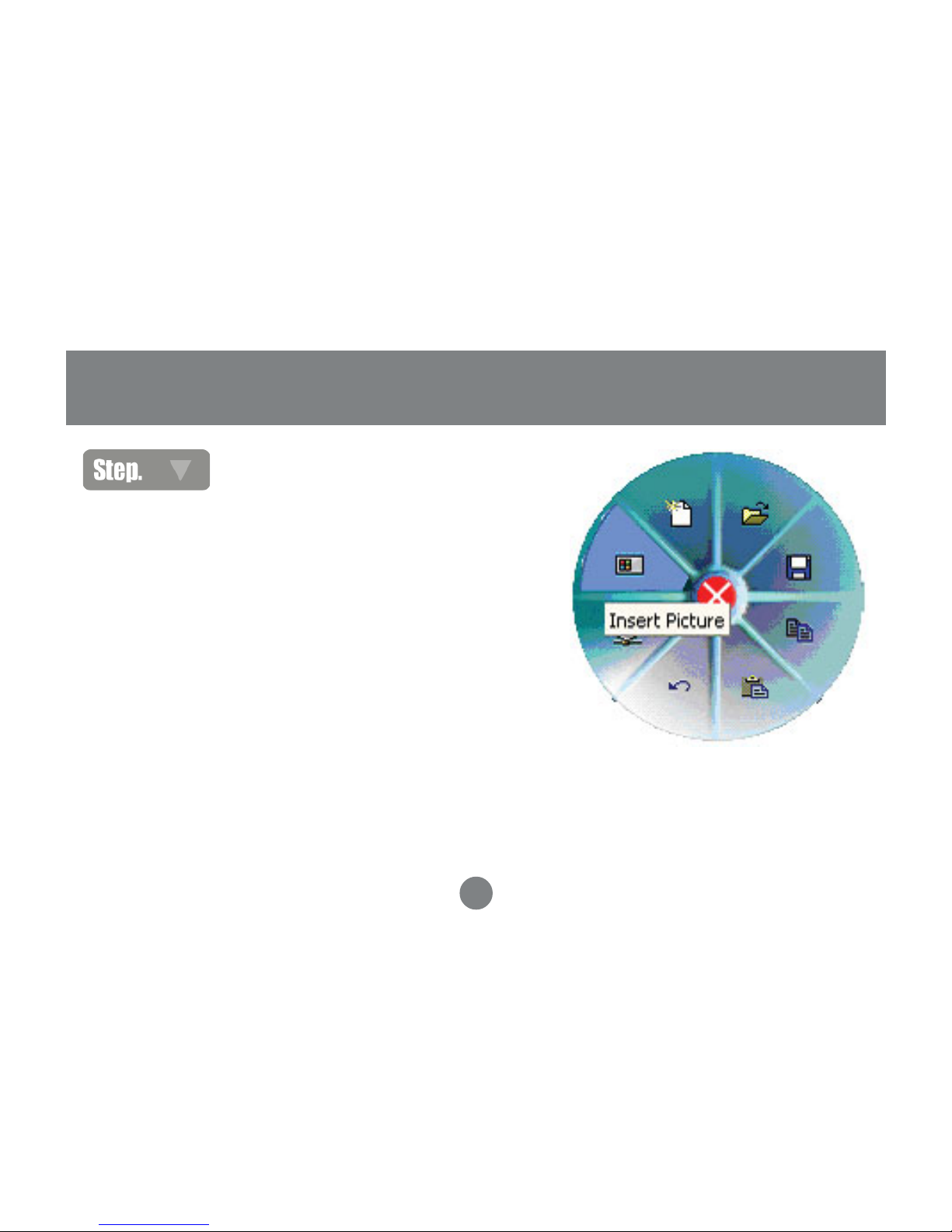
Now, when you’re inside Microsoft
Word and you click on the Instant
Access button, you will see your new
function
6
Page 22

20
Technical Support
If you need technical support, please check out our IOGEAR Tech Info Library (T.I.L.)
at www.iogear.com/support for the latest tips, tricks, and troubleshooting. The
IOGEAR T.I.L. was designed to provide you with the latest technical information about
our products. Most of the answers to your questions can be found here, so please try it
out before contacting technical support.
Technical support is available Monday through Friday from 7:30 am to 5:30 pm PST
and can be reached at (949) 453-8782 or by email [email protected]
Page 23

17
WARNING!!! This equipment generates, uses and can radiate radio
frequency energy and, if not installed and used in accordance with the
instruction manual, may cause interference to radio communications. This
equipment has been tested and found to comply with the limits for a Class
B computing device pursuant to Subpart J of Part 15 of FCC Rules, which
are designed to provide reasonable protection against such interference
when operated in a commercial environment. Operation of this equipment
in a residential area is likely to cause interference, in which case the user
at his own expense will be required to take whatever measures may be
required to correct the interference.
Radio & TV Interference Statement
21
Page 24

22
Limited Warranty
IN NO EVENT SHALL THE DIRECT VENDOR’S LIABILITY FOR DIRECT,
INDIRECT, SPECIAL, INCIDENTAL OR CONSEQUENTIAL DAMAGES
RESULTING FROM THE USE OF THE PRODUCT, DISK, OR ITS
DOCUMENTATION EXCEED THE PRICE PAID FOR THE PRODUCT.
The direct vendor makes no warranty or representation, expressed, implied,
or statutory with respect to the contents or use of this documentation, and
especially disclaims its quality, performance, merchantability, or fitness for
any particular purpose.
The direct vendor also reserves the right to revise or update the device or
documentation without obligation to notify any individual or entity of such
revisions, or updates. For further inquires please contact your direct vendor.
Page 25

Page 26

23 Hubble • Irvine, CA 92618 • (P) 949.453.8782 • (F) 949.453.8785 • www.iogear.com
Contact info.
®
 Loading...