

Page 1
1
This is a digital version of User Manual for Invis Strap. © Print only for private use.
User Manual
October 2017
Rev. 2
www.getInvis.com
https://twitter.com/getInvis
https://www.facebook.com/getInvis
https://www.instagram.com/getInvis
Page 2

2
This is a digital version of User Manual for Invis Strap. © Print only for private use.
Company Address
Invis Sp. z o. o.
Filtrowa 81 / 27
02-032 Warsaw
Poland
Copyright © 2017 Invis Sp. z o. o.
This manual is protected by international intellectual property laws. Any part of this
manual cannot be reproduced, distributed, translated or transmitted in any form or
using any electronic or mechanical means including copying, recording or storage in any
archival without the prior consent of Invis sp. z o. o.
Every effort has been made to ensure that the information in this manual is accurate.
Invis is not responsible for printing or clerical errors.
Intellectual property and trademarks
The only owner of Invis name and Invis logo is Invis Sp. z o. o.
Other company and product names mentioned herein may be trademarks of their
respective companies.
Page 3

3
This is a digital version of User Manual for Invis Strap. © Print only for private use.
Table of Contents
Getting started ............................................................................................................................................................... 6
Introduction ............................................................................................................................................................... 6
Content of the box ................................................................................................................................................. 6
Invis Basics ...................................................................................................................................................................... 7
How to Power On .................................................................................................................................................... 7
How to Power Off .................................................................................................................................................... 7
Installing Invis into watch case ........................................................................................................................... 8
Charging .......................................................................................................................................................................... 10
Charging Safety Information........................................................................................................................... 12
Set up your Invis ........................................................................................................................................................ 13
Installation ............................................................................................................................................................... 13
Opening for the first time ................................................................................................................................ 14
Enable Low Power Wireless Communication ........................................................................................ 15
Creating an account ............................................................................................................................................ 16
Onboarding .............................................................................................................................................................. 16
Connect with the Invis strap .............................................................................................................................. 20
Invis Communication ............................................................................................................................................... 21
Led ................................................................................................................................................................................. 21
Vibration .................................................................................................................................................................... 21
Tapping ....................................................................................................................................................................... 21
Status and notifications ......................................................................................................................................... 22
Notifications ............................................................................................................................................................ 22
System Information ............................................................................................................................................. 22
The Invis Application .............................................................................................................................................. 24
Main Screen ............................................................................................................................................................ 24
Activity Monitoring ...............................................................................................................................................25
Alarm........................................................................................................................................................................... 26
Notifications ............................................................................................................................................................ 27
Loss Prevention .................................................................................................................................................... 28
Page 4

4
This is a digital version of User Manual for Invis Strap. © Print only for private use.
NFC ............................................................................................................................................................................... 29
Settings ...................................................................................................................................................................... 30
Updating Device ..................................................................................................................................................... 31
Restore Device ........................................................................................................................................................ 31
Device information ..............................................................................................................................................32
Troubleshooting .........................................................................................................................................................33
FAQ .................................................................................................................................................................................... 36
Specifications .............................................................................................................................................................. 38
Safety Notices ............................................................................................................................................................. 39
Damage ................................................................................................................................................................. 39
Battery ................................................................................................................................................................... 39
Distraction Using Invis ................................................................................................................................. 39
Radio frequency exposure ......................................................................................................................... 39
Radio frequency interference .................................................................................................................. 40
Medical device interference ..................................................................................................................... 40
Not a medical device .................................................................................................................................... 40
Medical conditions ......................................................................................................................................... 40
Explosive atmospheres ................................................................................................................................ 40
High-consequence activities .................................................................................................................... 40
Choking hazard ................................................................................................................................................. 41
Skin sensitivities ............................................................................................................................................... 41
Exposure to liquid ........................................................................................................................................... 41
Cleaning and maintenance ........................................................................................................................ 41
Drying..................................................................................................................................................................... 42
Shock and Vibration ...................................................................................................................................... 42
Allergens .............................................................................................................................................................. 42
Utilization and Regulatory Notices ................................................................................................................. 43
Help .................................................................................................................................................................................. 43
Return policy and warranty ................................................................................................................................ 43
Security and Privacy Policy ................................................................................................................................. 44
Copyright Information ............................................................................................................................................ 44
Page 5
5
This is a digital version of User Manual for Invis Strap. © Print only for private use.
Page 6

6
This is a digital version of User Manual for Invis Strap. © Print only for private use.
Getting started
Introduction
Invis is a connected strap that lets you turn your classic watch into a smartwatch.
Electronics implemented into the strap and a mobile application cleverly connect
features you would expect from a smartwatch or fitness tracker with the watch case you
love. It informs you instantly about the most important notifications on your smartphone.
When Invis is not connected with your phone, it still tracks your activity using the NFC
tag located in the shorter part of a strap. The communication is based on a Low Energy
wireless protocol, vibration, multicolor LED and gesture recognition.
Content of the box
Invis box includes:
• Invis six o’clock strap
• Invis twelve o’clock strap
• Charger
• USB cable
• Tool for changing the strap
• User manual
Page 7
7
This is a digital version of User Manual for Invis Strap. © Print only for private use.
Invis Basics
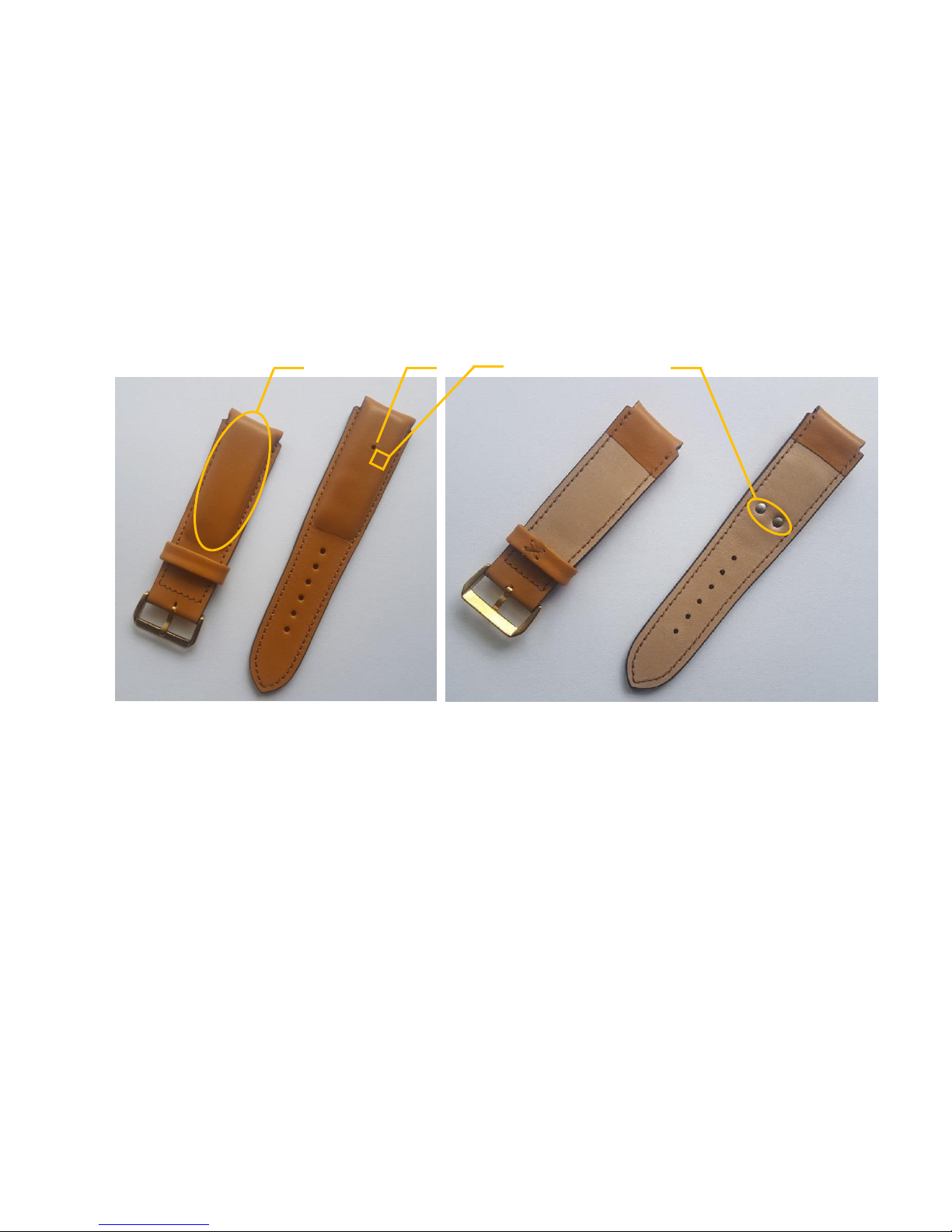
There are few important places on the strap:
1. LED.
2. Power On / Power Off button (hidden under the leather).
3. NFC detection area.
4. Electrodes for charging.
How to Power On
To turn on Invis push the button that is located on the right side of the LED (point 2). The
strap, via LED, will start to show the starting procedure. After 5 sec. it will begin to work.
To check the status of a strap, double tap the strap. If it blinks green two times it means
the strap is working properly.
How to Power Off
To turn off Invis, push and hold the button for approximately 3 sec. After that time, the
strap will blink red and turn off. To check the status of a strap, please double tap the
strap. If it blinks green two times it means the strap is still working.
1
2
4
3
Page 8
8
This is a digital version of User Manual for Invis Strap. © Print only for private use.
Installing Invis into watch case
To connect the Invis strap to your watch, please use the following steps.
1. Place the watch face down onto a soft, flat surface as not to scratch the glass.
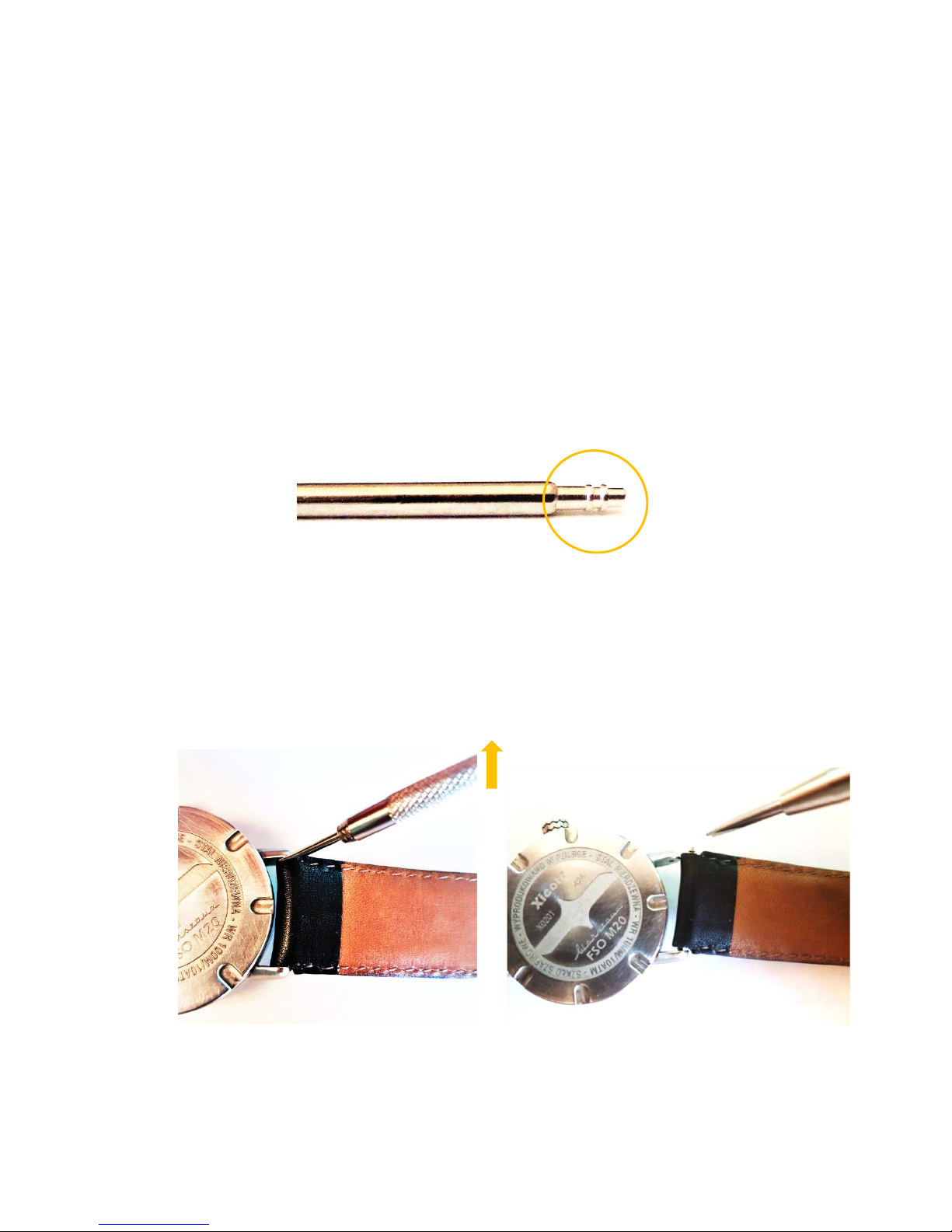
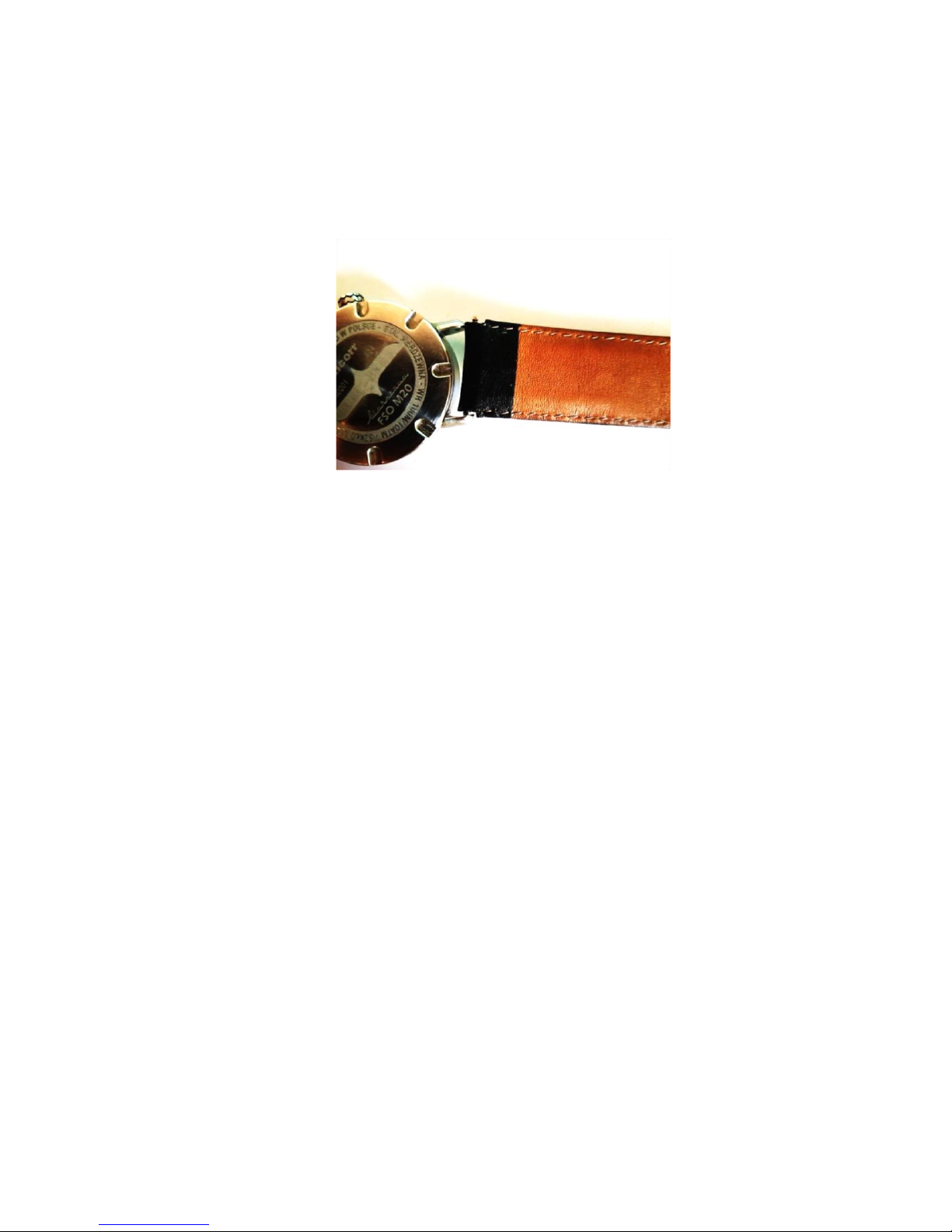
2. Find the spring bar. It is a small metal bar, shown on a picture below, that can be
depressed at each end. In the majority of watch straps, the spring bar passes
through a loop or hole in the band and fits into indents on the shoulders of the
watch.
3. To remove the band, insert the tool included in the box between the strap and
the spot where it connects with the watch shoulders. Press the bar in from either
end. Now, gently push the other end of the tool in the direction shown by the
arrow in the photo below. This should squeeze the spring bar and release the
strap.
4. Repeat the 3rd step for the second part of the strap.
Page 9
9
This is a digital version of User Manual for Invis Strap. © Print only for private use.
5. Because the smart strap has quick release pins installed for attaching Invis, you
will not need the tool anymore. Take the Invis smart strap, and carefully place the
bottom part of the spring bar into the indent in the shoulder, or case lug, of the
watch.
6. Using your nail squeeze the spring by pushing the lever. Slide the top part into
the opposite hole. Listen for a click. This indicates that the bar is installed
properly.
7. Repeat the step 4 and 5 for the second part of the strap.
8. Once both parts of the band are in, check they are securely positioned and your
band is not likely to fall off.
Be sure that the longer part of a strap is mounted on the 6 o’clock side of the watch
case.
If you have difficulty changing the strap or you feel unsteady, please visit your nearest
watchmaker.
Page 10
10
This is a digital version of User Manual for Invis Strap. © Print only for private use.
Charging
Before using Invis for the first time, please make sure that the strap has been charged
at least 15%. To easily check it, turn the device on and wait until the green light stops
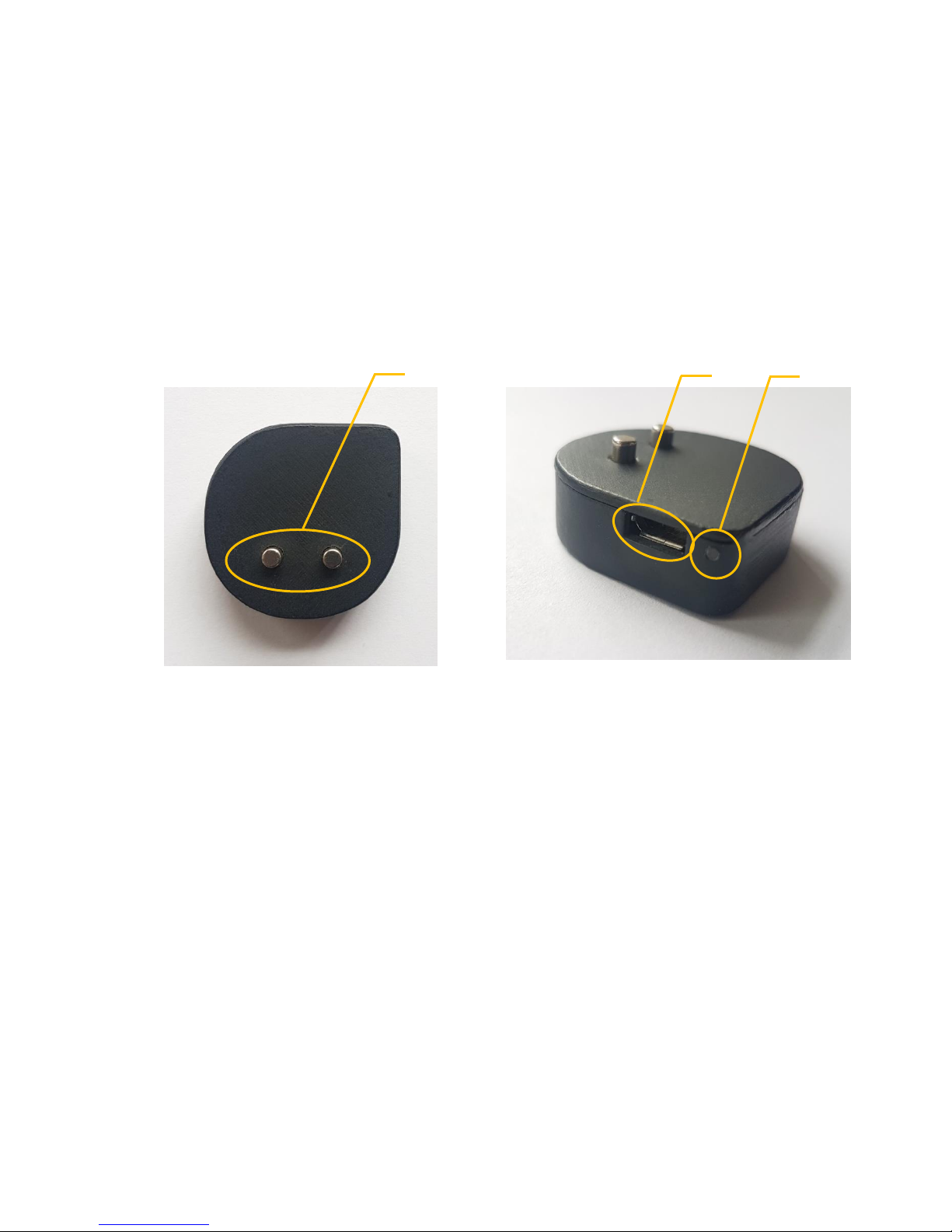
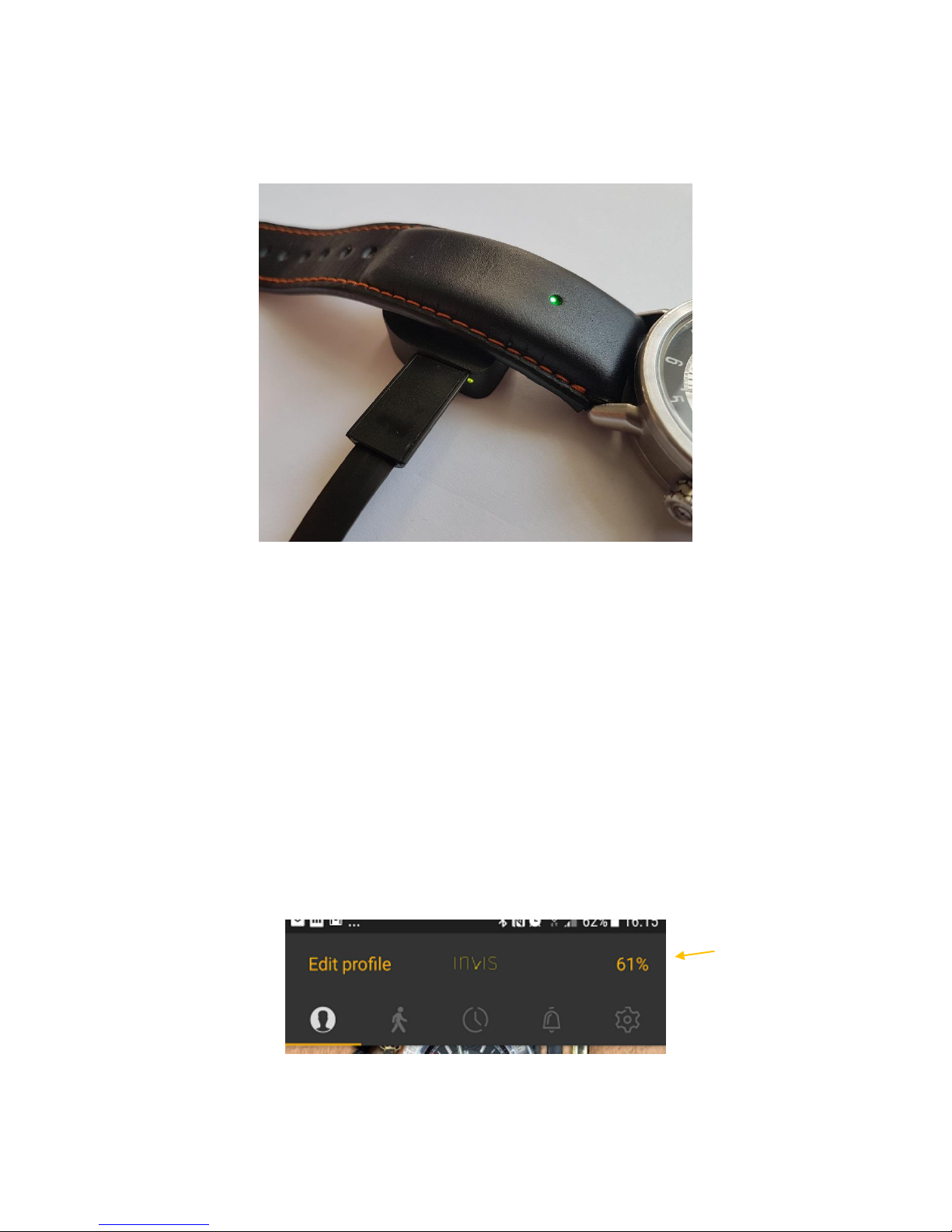
blinking. Plug it into the charger. It is recommended to do this as shown in the picture
below. If the LED pulses yellow or green, it means that the battery has over 15% charge.
It is recommended to use the original Invis charger and cable that is included.
1. Electrodes
2. Micro USB port
3. LED Indicator
Charge your Invis using the following steps:
1. Plug one end of the USB cable into the USB port of a computer.
2. Plug the other end of the cable into the Micro USB port of Invis charger
3. Put the watch on a shelf so the charger can reach it.
4. Placed the charger under the strap so that the cable will be seen on the right side.
Look at the picture below.
3 2 1
Page 11
11
This is a digital version of User Manual for Invis Strap. © Print only for private use.
5. The charger will attach by itself by magnetic force and indicate that it is charging
with a green light.
Charger connector stays in contact with metal pins on the strap’s back surface.
6. The pulsing LED on the strap indicates the level of charge by its color.
• red < 15% energy of the maximum charge
• yellow < 90% energy of the maximum charge
• green ≥ 90% energy of the maximum charge
Complete charging could take up to two hours. During daily product usage, the level of
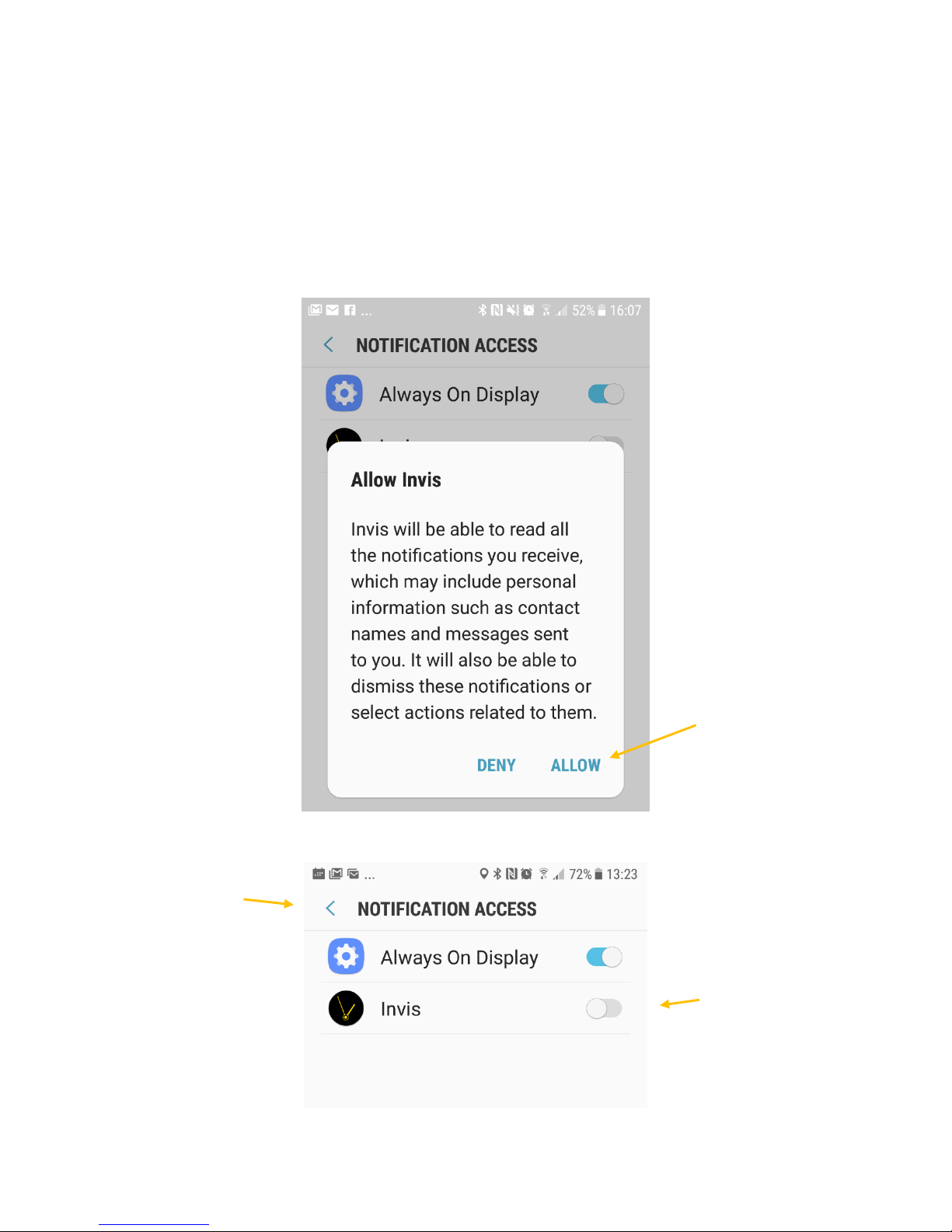
battery charge can be checked in the Invis application. When the battery is less than 5%
the LED will flash red.
If the strap battery is out of charge, it will not react to pressing the button. Please charge
the strap for 15 min and try to turn the device back on.
Battery
Status
Page 12

12
This is a digital version of User Manual for Invis Strap. © Print only for private use.
Charging Safety Information
Use only the Invis charger and USB cable to charge the Invis. It’s important to keep the
Invis and its charger in a well-ventilated area when charging. Using a damaged charger
or USB cable, or charging when moisture is present can cause fire, electric shock, injury,
or damage to the Invis or other property. Be sure the Invis and the Invis charger are dry
before charging. Make sure that the USB plug is fully inserted into the charger before
you plug the adapter into a power outlet. Avoid charging the Invis in direct sunlight. Don’t
wear the Invis while it is charging.
Invis and Invis charger comply with applicable surface temperature standards and limits.
However, even within these limits, sustained contact with warm surfaces for long periods
of time may cause discomfort or injury. The Invis and its charger will become warm when
plugged in to a power source. Use common sense to avoid situations where your skin is
in contact with the Invis and its charger for long periods of time when they are plugged
in. For example, while charging or the charger is plugged in to power source do not sleep
on them or place them under a blanket, pillow, or your body. Take special care if you
have a physical condition that affects your ability to detect heat against the body.
Remove the Invis if it becomes uncomfortably warm.
Page 13

13
This is a digital version of User Manual for Invis Strap. © Print only for private use.
Set up your Invis
Installation
To set up your Invis please download and install the Invis application to your
smartphone. You can do this using the following steps:
• Type “Invis” into the search bar in Google Play™ or the Apple Store™.
• Enter the website www.getinvis.com/app on your smartphone and click the button
that correlates with your operating system.
• If your phone has NFC, activate it and touch the smartphone to an NFC area.
• Scan the QR code located in the User Manual with one of the QR code readers.
Android Application iOS Application
1. Open Google Play
2. Search Invis
3. Install application
Page 14
14
This is a digital version of User Manual for Invis Strap. © Print only for private use.
Opening for the first time
When entering the application for the first time, you will be asked to grant the Invis
application access to notifications. Please tap “Allow” and activate the Invis by switching
on the button near the Invis application, otherwise some functions may not work.
2. Turn it on
3. Go back
1. Tap allow
Page 15
15
This is a digital version of User Manual for Invis Strap. © Print only for private use.
Enable Low Power Wireless Communication
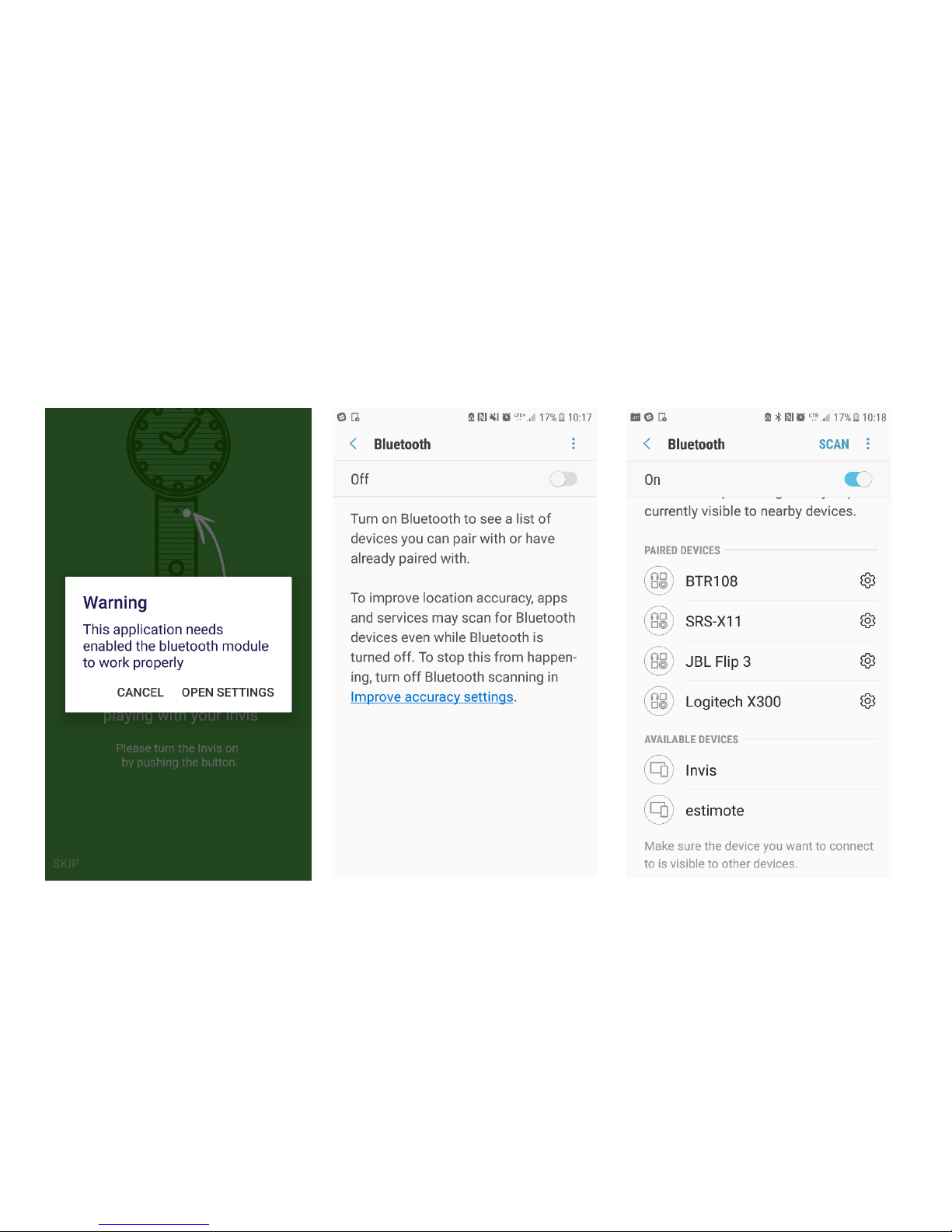
Make sure that wireless communication on your phone is enabled. To enable, please
open settings (1), activate Bluetooth® (2) and RETURN TO APPLICATION (3). Don’t pair
strap via operating system. Pair the Invis using the Invis application only.
1. Open Settings
2. Tap activate
3. Return to Invis application
Page 16
16
This is a digital version of User Manual for Invis Strap. © Print only for private use.
Creating an account
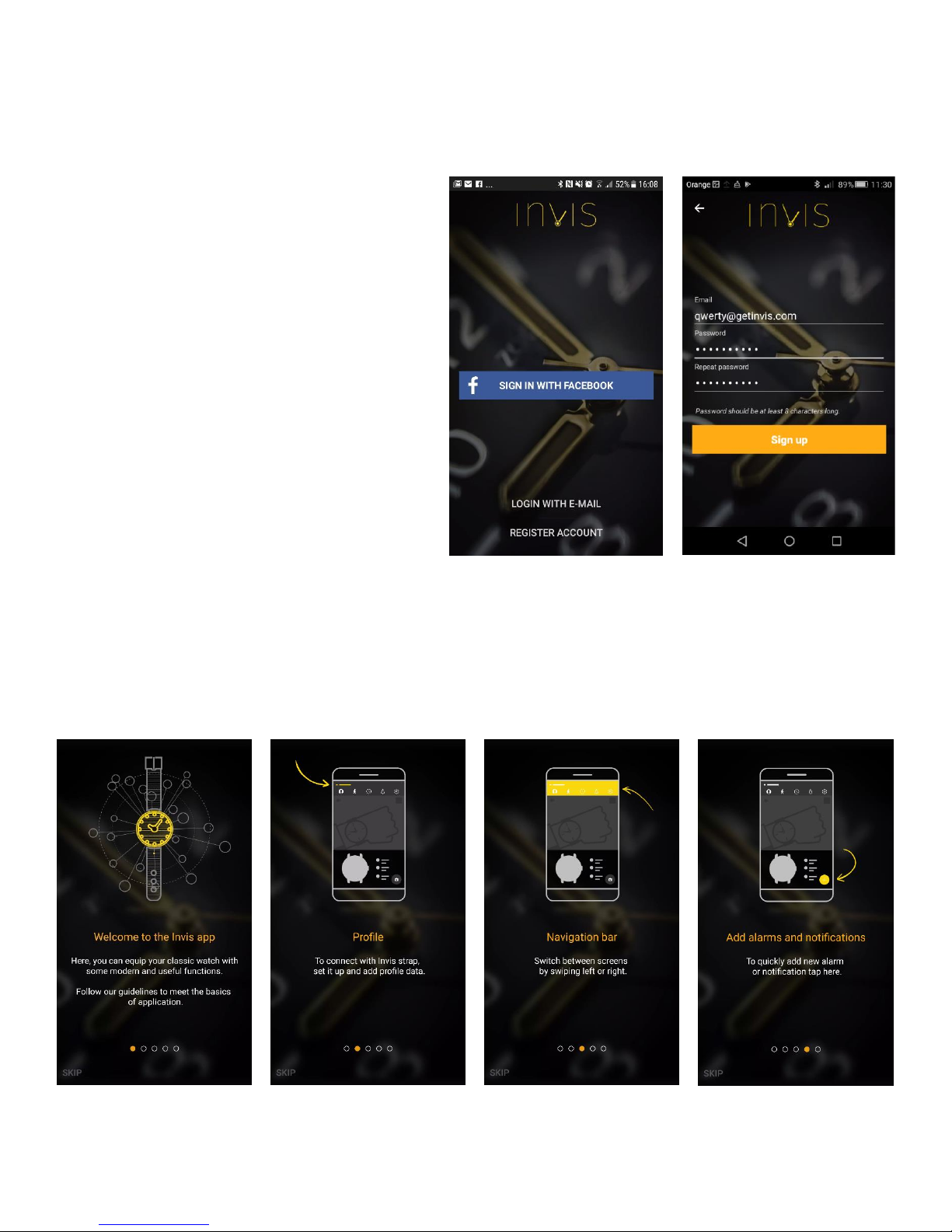
To create your account, please tap
button “Register Account” or “Sign in
with Facebook”.
Logging in by Facebook automatically
creates profile.
After selecting the Register Account
button, you may enter an email
address and password. Remember
that you need a minimum of eight
characters in your password.
Onboarding
On the next screens, the application will provide you a set of information on how it is
organized. Please read it carefully.
Page 17
17
This is a digital version of User Manual for Invis Strap. © Print only for private use.
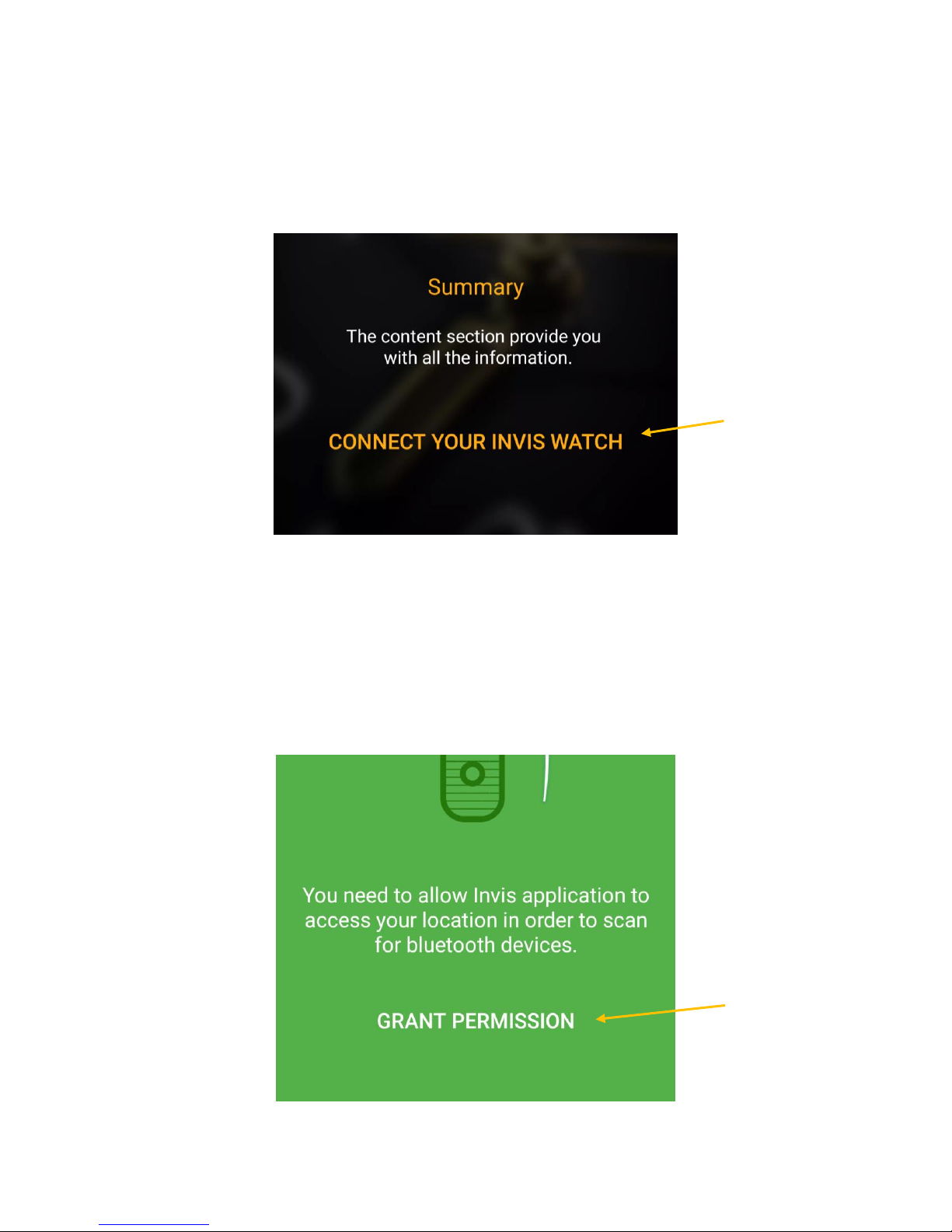
On the last screen, you will have information on how the application is organized. In
addition, the application will lead you through the strap pairing process. To pair your
device with the application, please click “Connect your Invis Watch”.
Check if the device is turned on. You can easily do it by double tapping the strap. If the
strap is turned off, please push the button to turn it on and wait until green light will
stop blinking. In the meantime, check if the Low Energy wireless protocol in the
smartphone is turned on.
To proceed, please allow the Invis application location accesses by clicking the “Grant
Permission” button.
Tap here
Tap here
Page 18
18
This is a digital version of User Manual for Invis Strap. © Print only for private use.
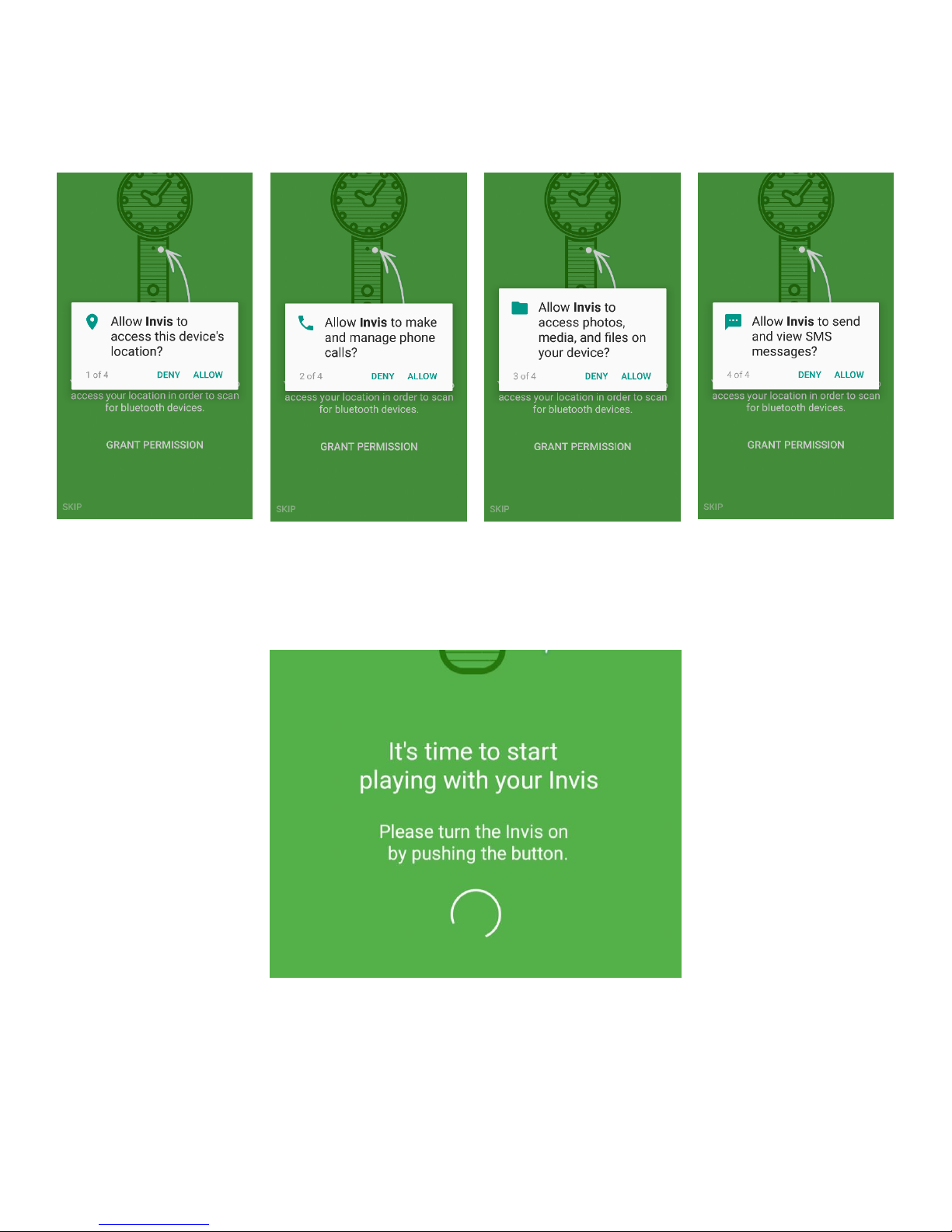
To ensure proper function of the application, please allow the Invis access to all
mentioned functions.
Wait for a moment after completing these steps. After a a few moments, you will see the
following screen with an action circle. This process can take up to 30 sec. Be patient.
Page 19
19
This is a digital version of User Manual for Invis Strap. © Print only for private use.
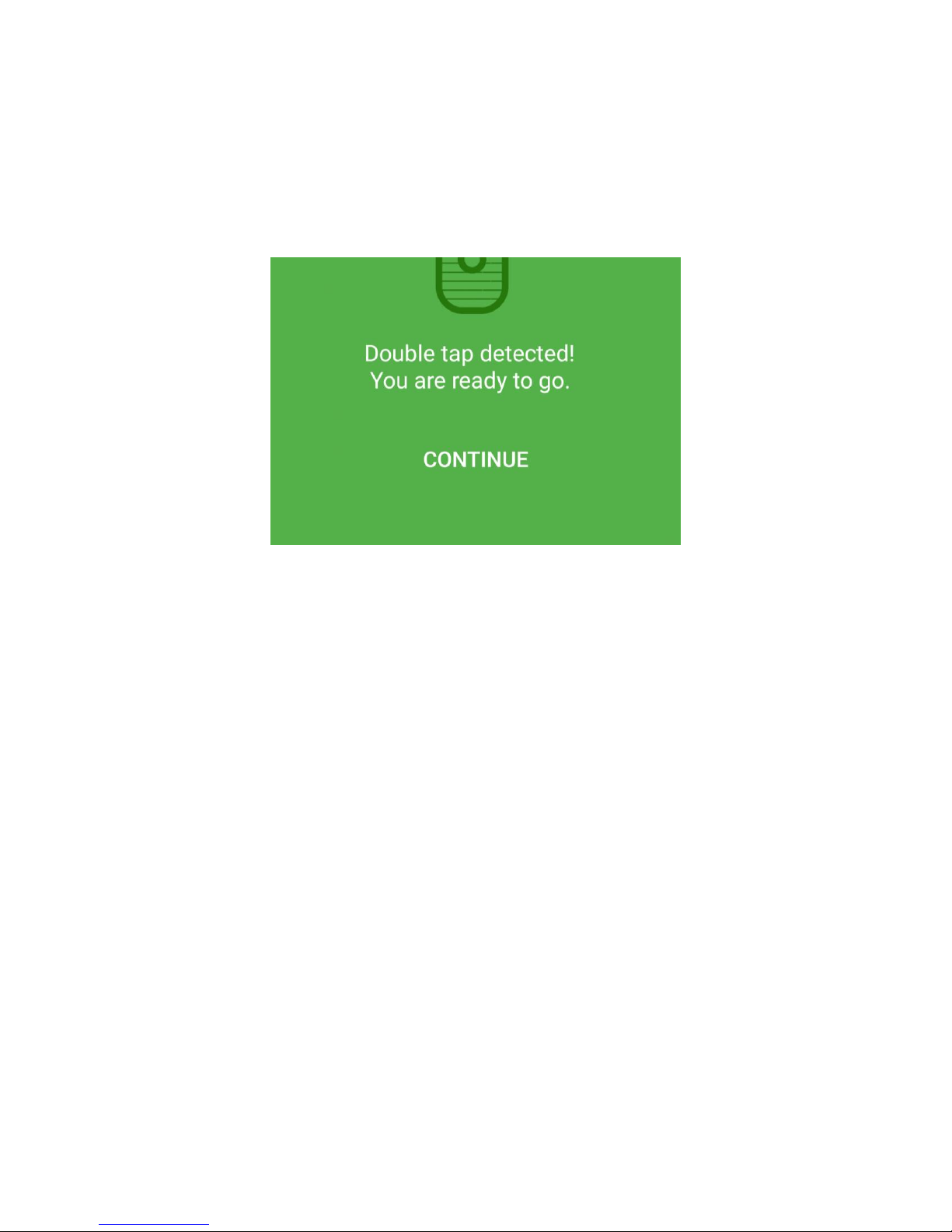
When the strap is correctly connected, the screen will change and the strap will react by
vibrating and flashing the LED light. To proceed, double tap the strap. When this is
correctly done, you will see the following screen. Select “Continue” to finish the
onboarding process.
Attention!
To correctly double tap, do it between the vibrations.
“Double tapping” means quickly knocking on the strap twice in ~0.5 sec.
Page 20
20
This is a digital version of User Manual for Invis Strap. © Print only for private use.
Connect with the Invis strap
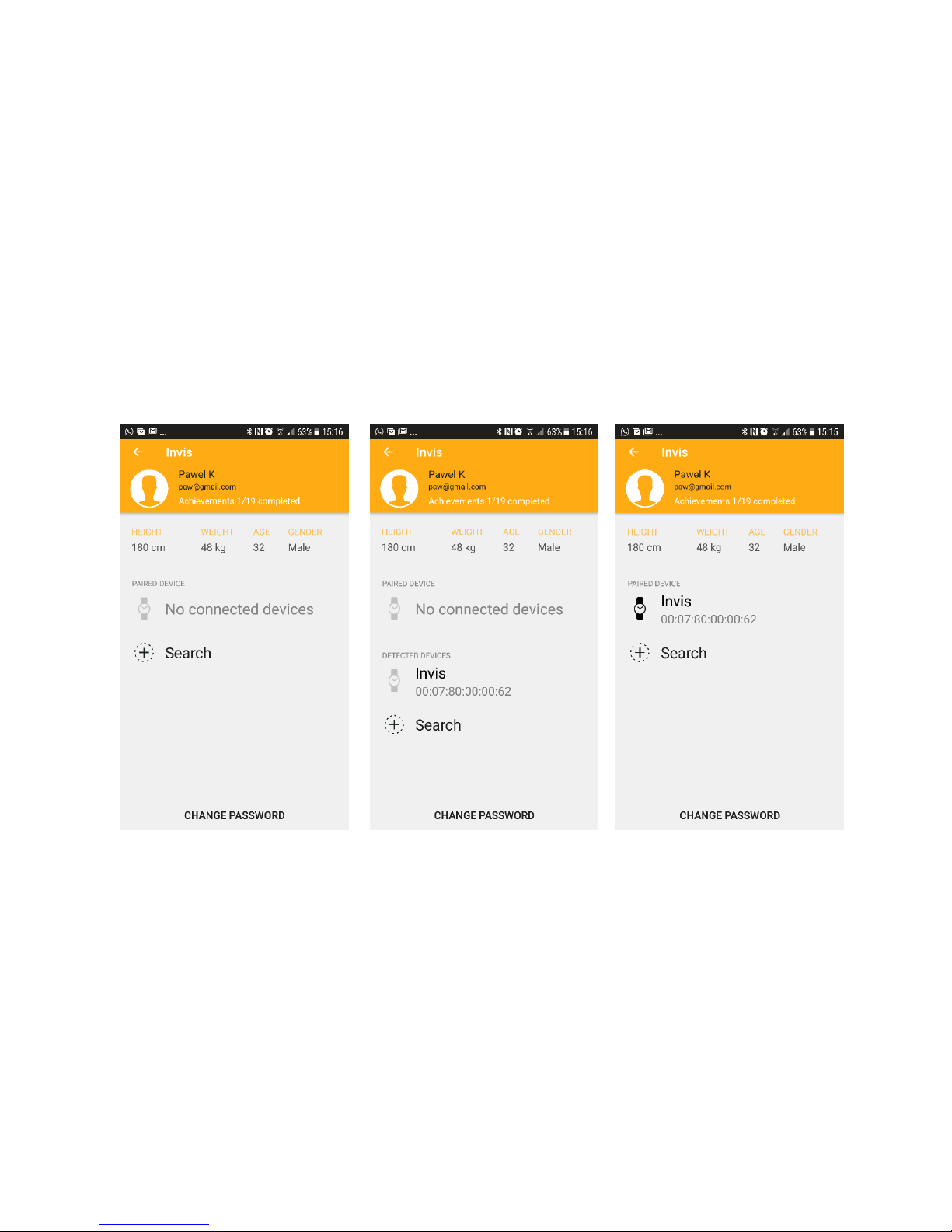
To check if the Invis is connected or to connect it with your phone, please select the Invis
application. Go to “Edit profile” button which is located on the top, left of the screen.
If you see the “Empty screen” please click “Search” and wait a moment. After a few
seconds you should be able to see “Detected devices” (see examples below). To connect,
please click on one of detected straps. When you are successfully connected, the device
will be seen under “Paired device” section.
1. Empty screen 2. Detected device 3. Paired device
To disconnect the device, change name, add model or photo please click on the device
while paired. The pop-up window will show up so that you may implement any changes.
Page 21
21
This is a digital version of User Manual for Invis Strap. © Print only for private use.
Invis Communication
The Invis was designed in a way as not to change your habits or the design of your watch.
This is why the communication between you and the strap is based on the following
actions:
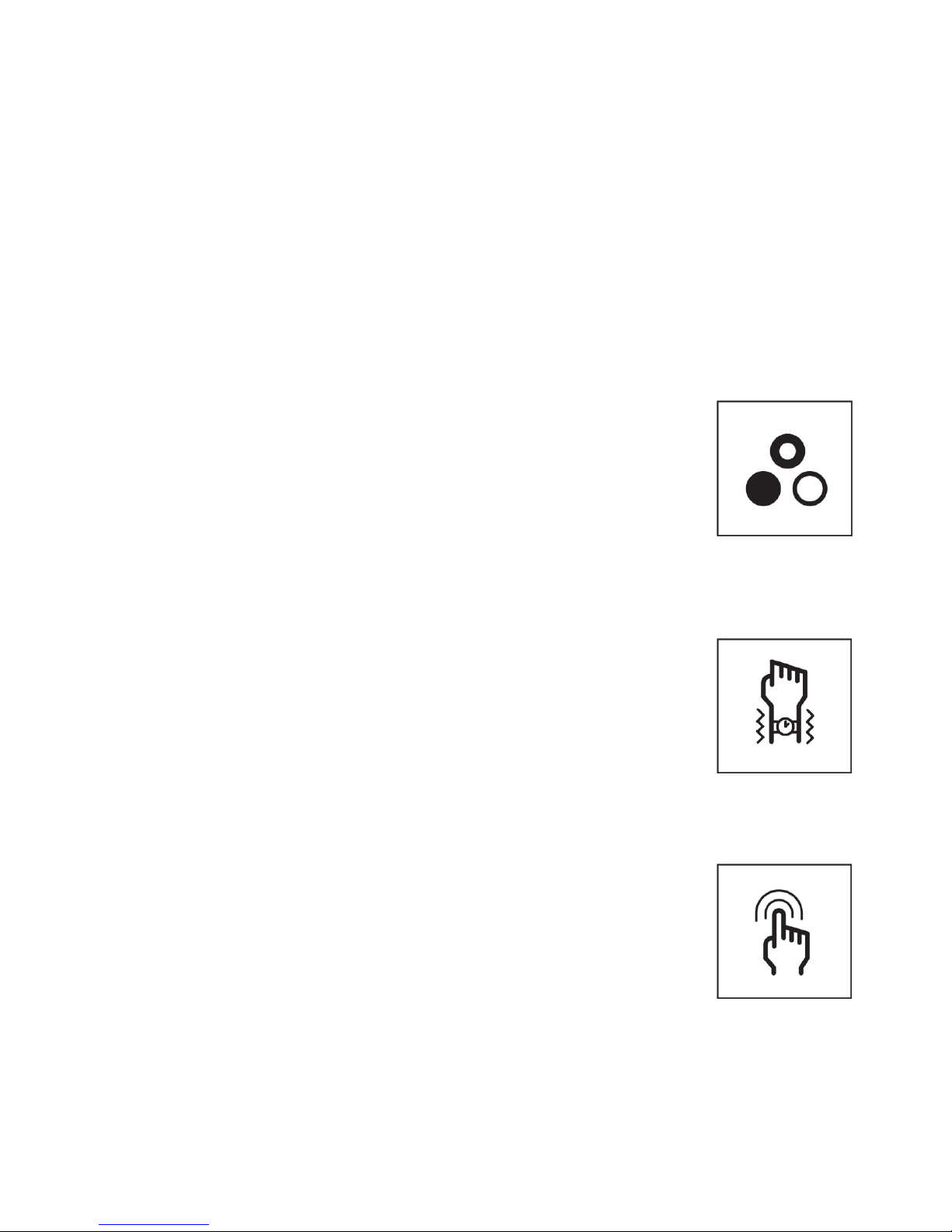
Led
Through multicolor LED Invis provides you an information about
notifications, alarms, phone calls, messages and many more.
Color communication may be divided into the following:
System information: Programmed status of the device
Customized information: Notification from the application,
which may be changed in terms of
color, shining, and pattern type.
Vibration
Invis has a built-in vibration motor which catches your attention
only in important situations. It can be globally customized in
terms of power of vibration and pattern type through the settings
screen.
Tapping
There are two types of gestures: double tap and triple tap. The
system was designed in way that double tap means confirmation.
When you got the information you can wait until it will go through
the pattern or cancel it by double tapping on the strap.
Attention!
Double Tap to mute the phone when someone is calling.
Triple Tap to reject the phone call and send a message to the caller. [Android only]
Page 22

22
This is a digital version of User Manual for Invis Strap. © Print only for private use.
Status and notifications
Notifications
The default system settings and recommended by Invis are as listed below. Please
remember that you can implement changes via the notification screen.
Application Name
Color
Pattern
Phone Calls White
Saw
SMS
Green
Pulse
E-mail
Red
Pulse
Calendar
Purple
Pulse
Socials
Blue
Pulse
System Information
The lights behave differently depending on the functions they represent.
Charging
While your Invis is charging, an indicator light will show the battery level by the specific
color. Each color shows the % of total charge. During charging, the color is changing
linearly from red to green showing progress.
• red < 15% energy of the maximum charge
• yellow < 90% energy of the maximum charge
• green ≥ 90% energy of the maximum charge
Starting procedure
Every time after the Invis is turned on, a starting sequence is activated. It consists of the
elements listed below. If the pattern on a device differs from mentioned below, go to
troubleshooting section for more information.
Starting Sequence = green blinking for ~5 sec. + 1 yellow blink + 2 green blinks.
...
Page 23

23
This is a digital version of User Manual for Invis Strap. © Print only for private use.
Working mode
When the strap is working properly it will react on the customized notification by
vibration and programmed color. In the working mode, when the strap is waiting for
notification, double-tapping the strap will cause a double blink on a green. This is the
easiest way of checking the Invis status.
Low Energy
When the Invis has less than 5% charge, it informs you by blinking on red.
Updating
While updating, the LED blinks blue. At that point, remember to keep your phone near
the strap and be sure that the strap has at least 25% battery charge. If an update fails to
complete, your Invis will not respond to taps and will not show any light notifications. At
that point, please restore the device.
Connection Lost
When the connection between the Invis and phone is lost, the strap shortly blinks red.
Turn off the device
Push and hold the button for approximately 3 seconds to turn off the device. It should
blink red for ~1 second to show it has powered off.
Loss Prevention + vibration
The strap informs you with long vibration and a red light when the loss prevention
feature has activated.
Alarm x (no color) + vibration
A vibrating alarm can be set to your selected time. Vibration can be customized in the
app. In iOS, it is also possible to set up an alarm based on location.
Page 24
24
This is a digital version of User Manual for Invis Strap. © Print only for private use.
The Invis Application
Main Screen
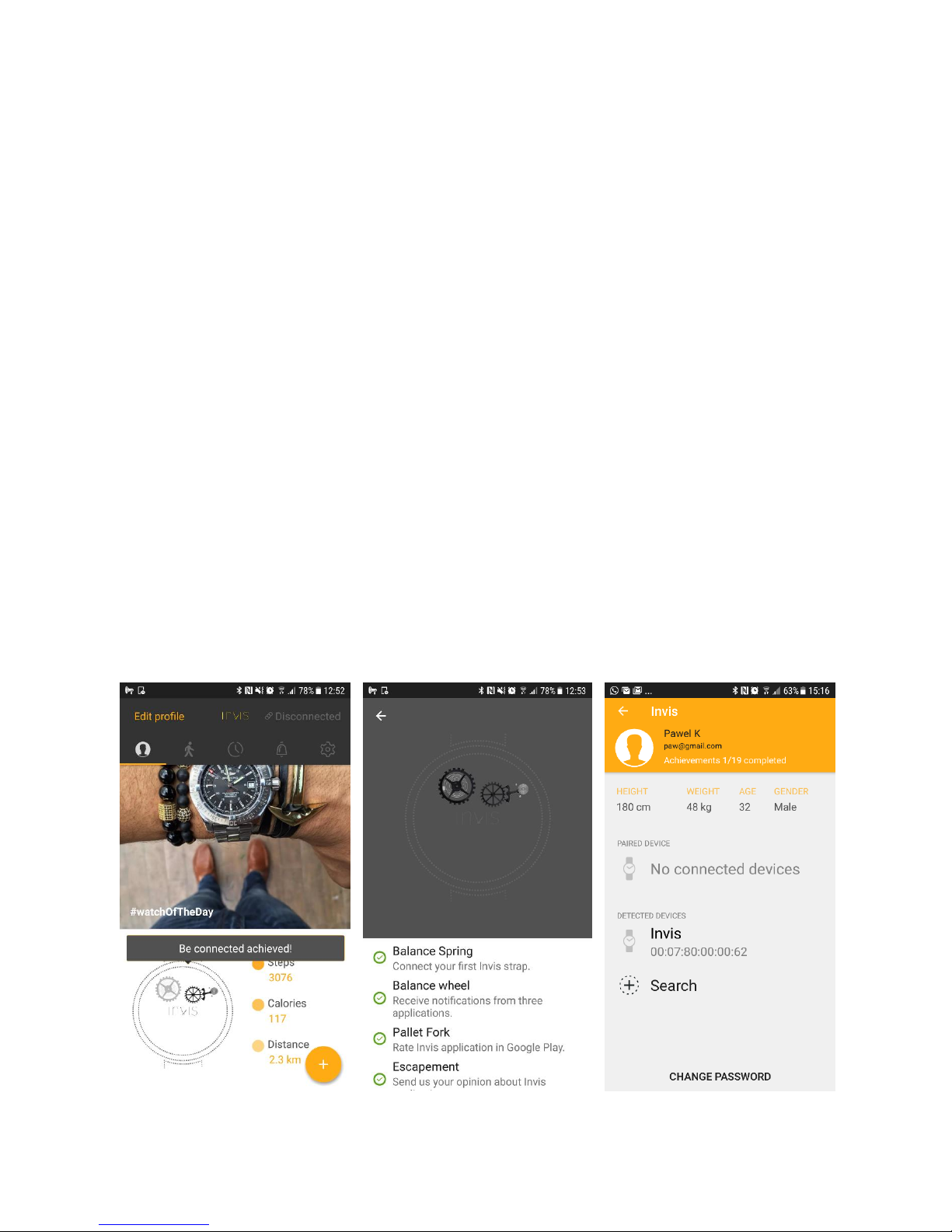
It is the first screen that you see after entering to the application. It consists of a few
basics sections:
Information section
It is the biggest section on the main screen that provides you fresh news from the
industry.
Activity Summary
Located on the bottom right side of the screen. It provides a summary about your
daily activity.
Achievements
This feature is located on the bottom left side of the screen. It was implemented
to reward your commitment to Invis. After performing specific actions, a new part
of the watch will be unlocked with interesting information about each part.
Edit profile
Under Edit profile section you can connect, disconnect Invis or set up your
personal data. Please fill it in so your activity will be properly calculated.
Page 25
25
This is a digital version of User Manual for Invis Strap. © Print only for private use.
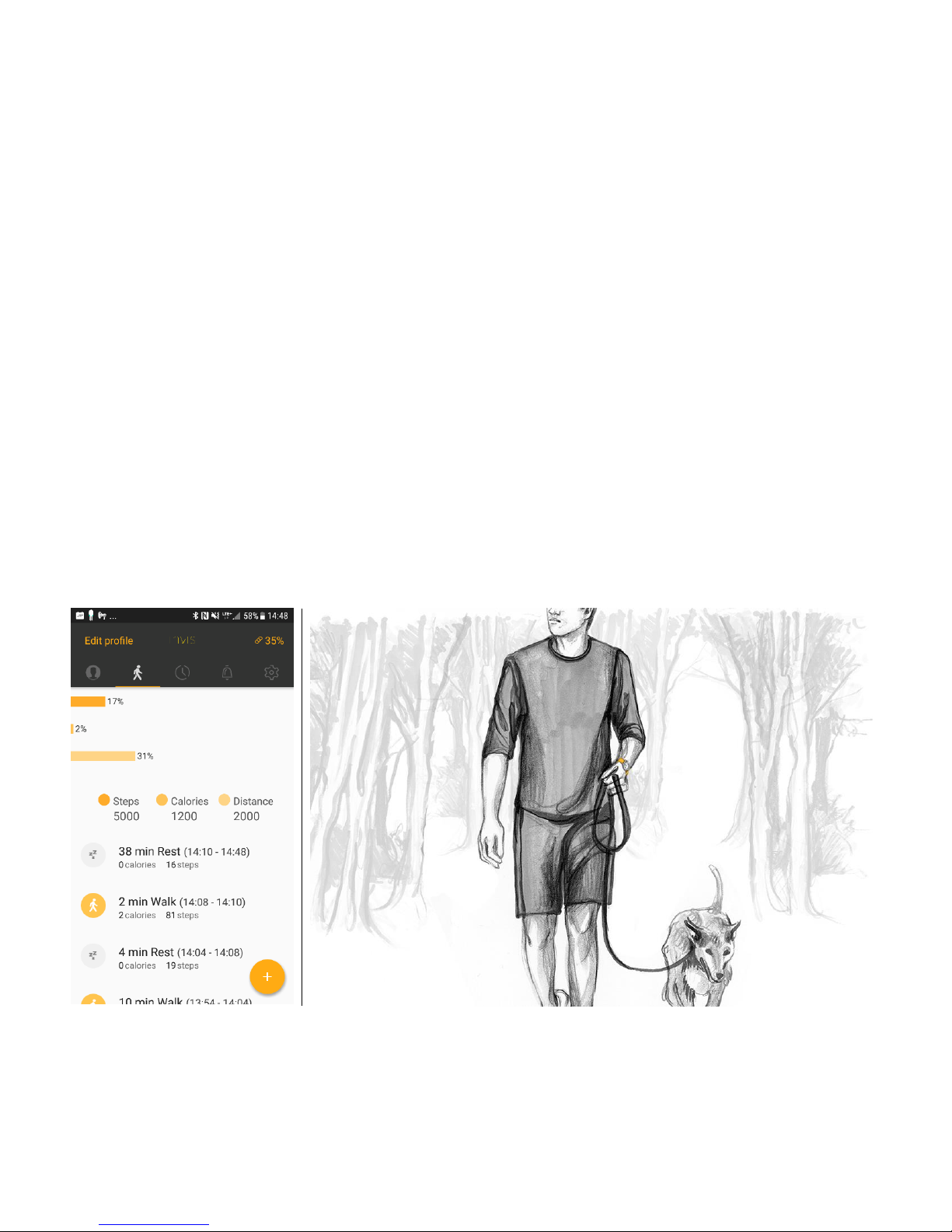
Activity Monitoring
Invis can measure steps, distance travelled, and calories burned. Based on your daily
activity, the system provides you information about every activity during the day. You can
analyse how long you have been walking, resting, or working. By setting daily goals, you
can monitor your progress and be motivated to keep fit. The Invis application provides
you statistics showing your progress and summary from the last week. To view data, click
the walking man icon or swipe right/left until you reach this screen.
Data are collected at all times when the Invis is turned on, and it synchronises the data
automatically with your phone.
It is really important to set your age, height, and weight. It allows the Invis to make more
precise measurements of your activity. In the Settings section you can choose metrical
as well as imperial units.
Page 26
26
This is a digital version of User Manual for Invis Strap. © Print only for private use.
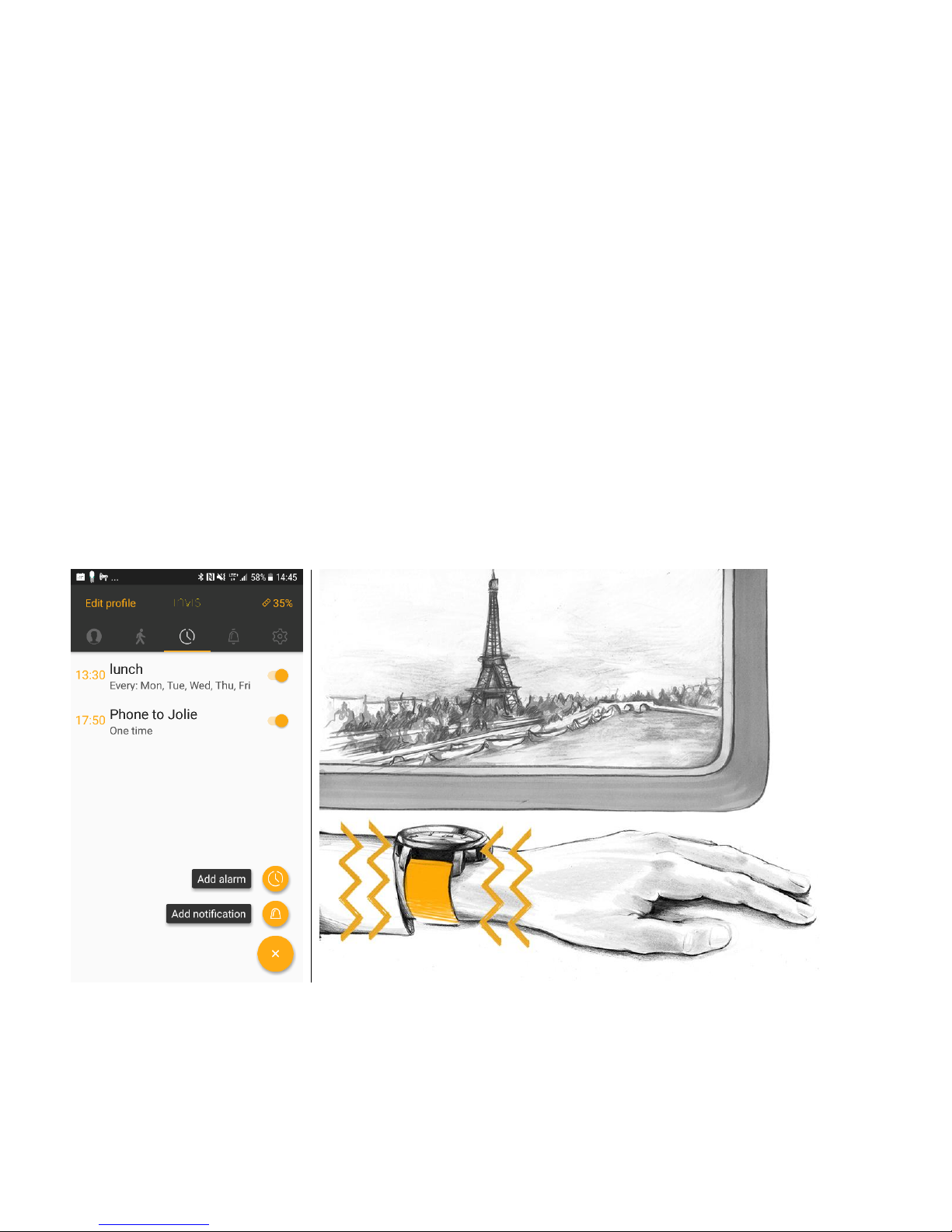
Alarm
To set an alarm on your device, choose the clock icon on the navigation bar or swipe
left/right until you find the screen. You can also add alarms by clicking the floating
button (plus symbol). From this screen, you can set up a discreet alarm which will launch
at a specified time. What is important is that you do not need to have your phone with
you because the alarm is stored on your strap.
Attention!
For iOS operating system users we have implemented an alarm by location. It will
activate when you enter a specified location. You need to have your phone with
you for this feature. This function will be uploaded in the future for Android.
Page 27
27
This is a digital version of User Manual for Invis Strap. © Print only for private use.
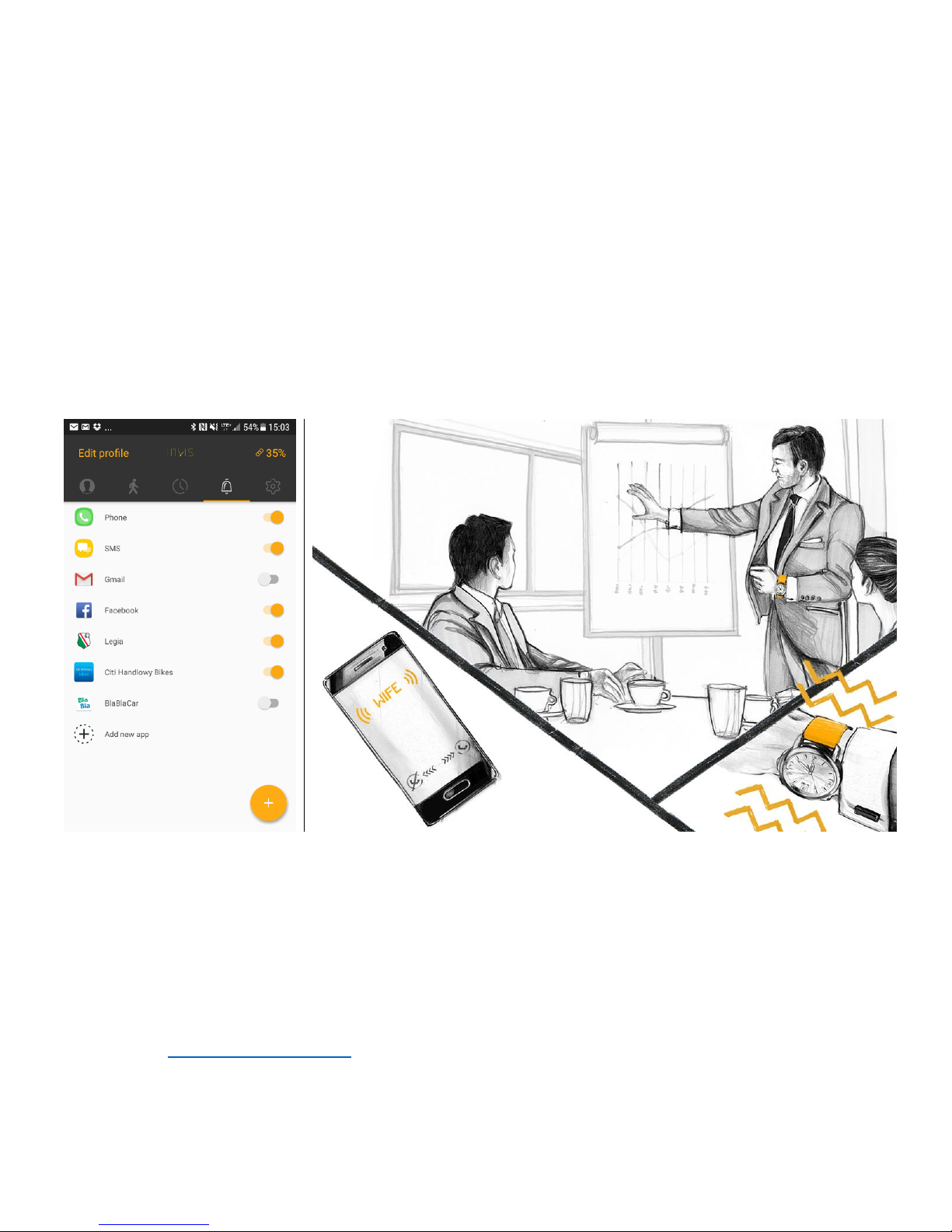
Notifications
Using vibration and multicolour LED, you can receive discreet notifications: phone calls,
text messages, or any other application without looking at your phone. It will prevent you
from being distracted. To set this feature, tap the bell icon or swipe right/left until you
will reach this screen.
To add any application, simply press the “Add new app” button (or click the “plus”
button). Select an application from the list and customize it. To test the colour and
vibration, click “Preview on device”, which is located at the bottom of the screen. When
the customisation will be finished, come back to notification screen. The data will save
automatically.
To activate or deactivate a notification on the strap, switch the toggle button which is
located on the right side of each application name. You can cancel a notification from
your wrist by double tapping the strap
Attention!
Notifications from all applications works on Android only. On iOS systems, every
kind of new application has to be additionally implemented. Please contact us on:
[email protected] with information what kind of application you would like
to have implemented. We will reply to you about the possibility.
Page 28
28
This is a digital version of User Manual for Invis Strap. © Print only for private use.
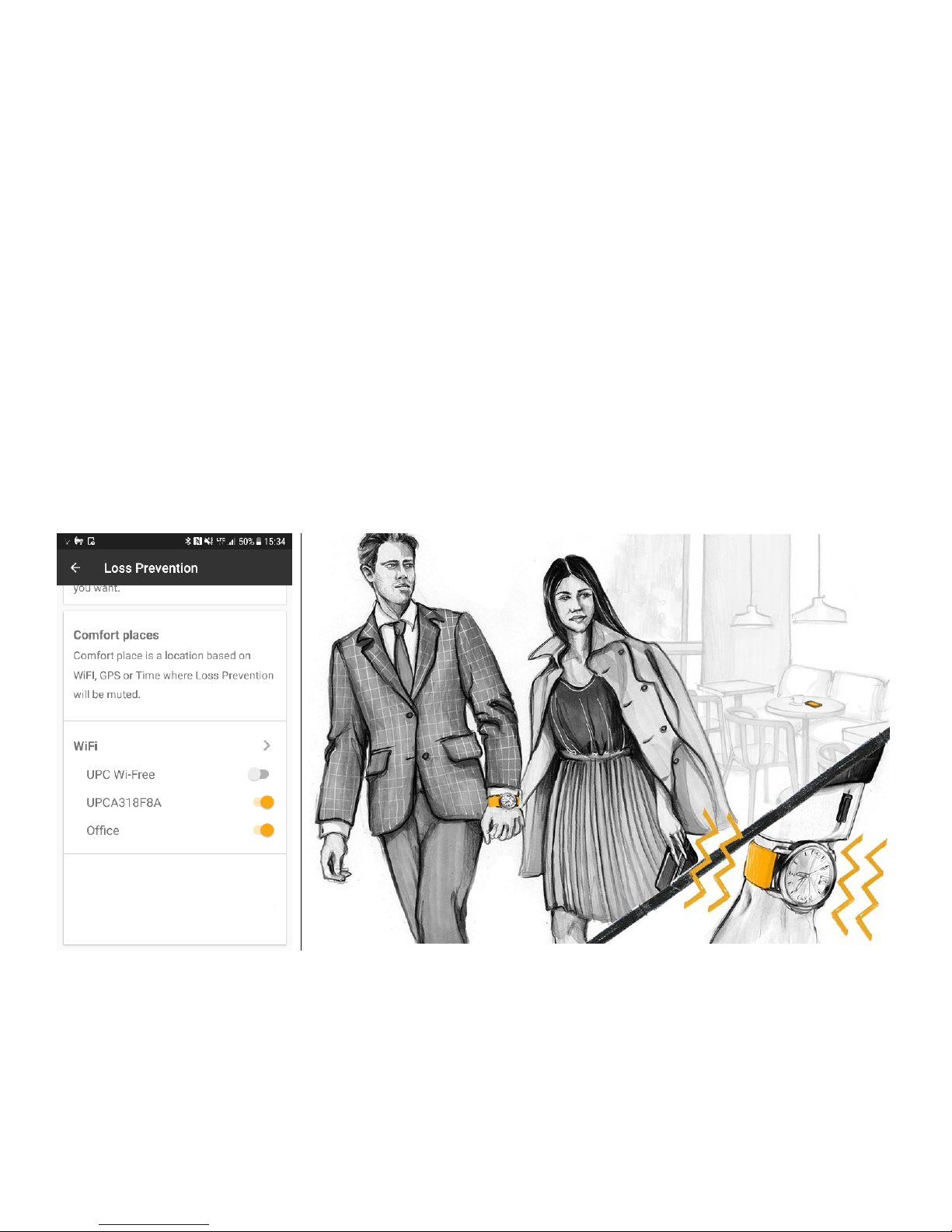
Loss Prevention
When you walk away from your phone, the Invis will vibrate to let you know. With this
function, the risk of leaving your phone or having it stolen decreases dramatically. The
feature is based on Low Energy wireless protocol range. The vibration starts about 30
seconds after loose Low Energy wireless protocol connection.
We know that sometimes you need more freedom from your phone. This is why we have
implemented “Comfort Places” where your phone, can be left without the notice for
longer period. To set it up please enter Settings - Loss Prevention – Comfort Places and
set up comfort zones by WIFI.
Page 29
29
This is a digital version of User Manual for Invis Strap. © Print only for private use.
NFC
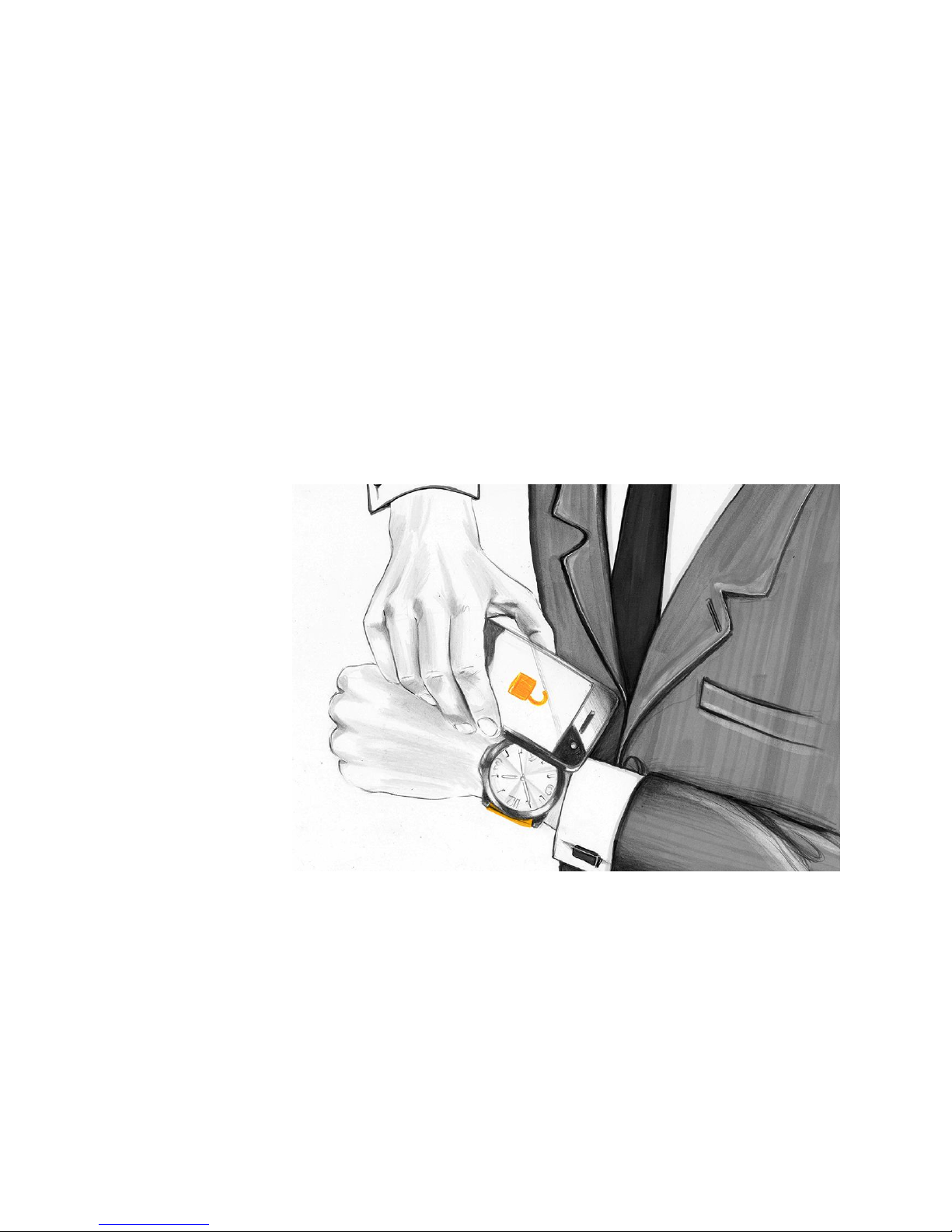
The 12 o’clock side strap (shorter part of the strap) has an NFC implant. It is a
programmable NXP NTAG213 chip that could be widely used for multiple purposes that
will help you make things faster. The examples of quick actions that could program on
your strap are the following:
• unlocking your smartphone,
• setting up an alarm,
• turn on/off energy saving mode,
• store your business card details,
• and many more…
To program NFC tag please go to Google Play™ or Apple Store™ and download any
application for programming NFC.
Attention!
This function will only work with smartphones that are equipped with NFC reader
and writer.
It is also possible to register strap as an access card to your office, gym, hotel or multiple
other places that use contactless access cards. However, due to the fact that some
systems have their own restrictions, contact your pass card provider first to ask for
permission and register your strap.
Page 30
30
This is a digital version of User Manual for Invis Strap. © Print only for private use.
Settings
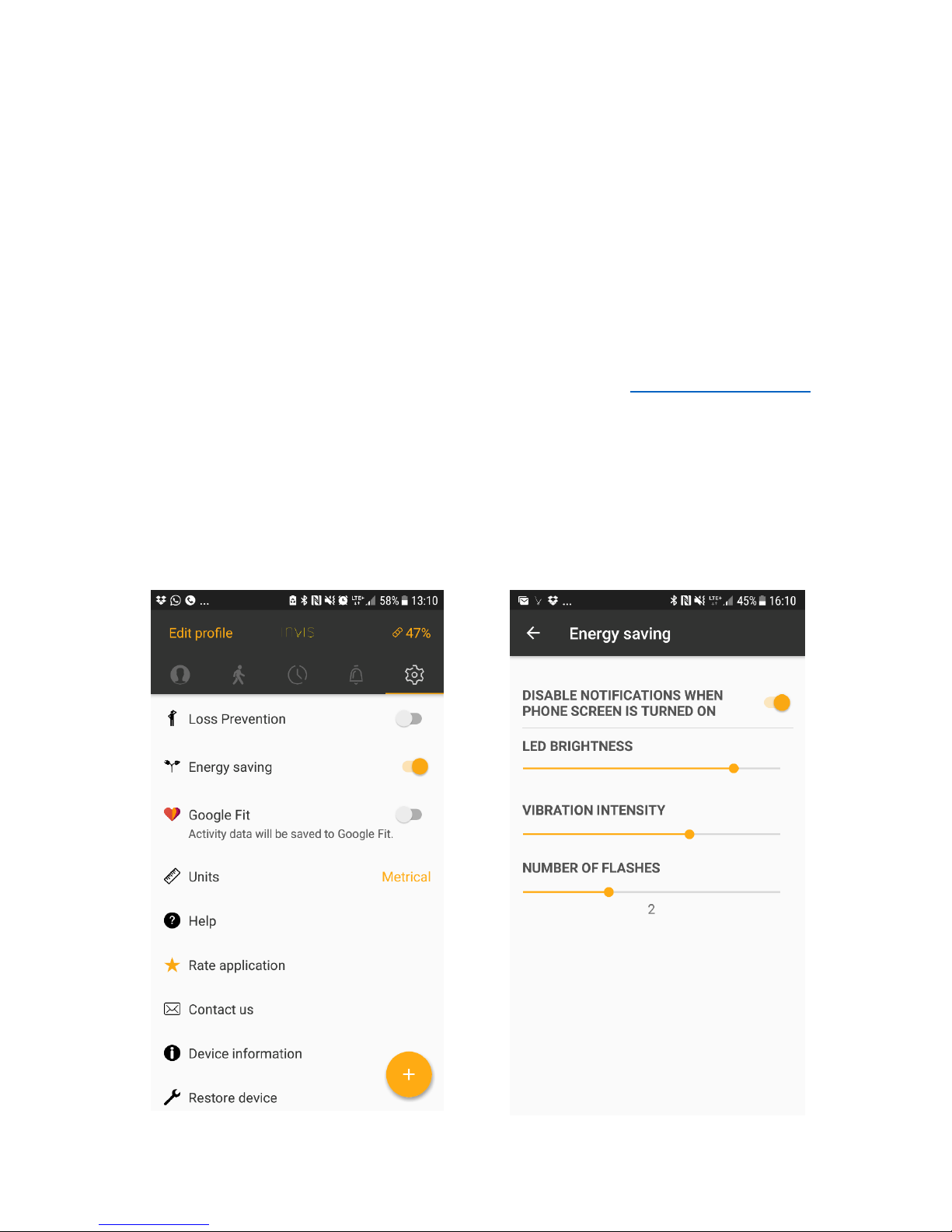
You can customize the work of the application and the strap under the “Settings” screen.
Energy Saving provides an ability to set up the brightness of the LED, the power of
vibration and number of pattern repetition (number of flashes). In one place you can set
up the whole device.
Google Fit / Apple Health synchronizes the activity date with Google Fit/Apple Health.
Units gives possibility to choose between metric and imperial units.
Help is a shortcut to the FAQ that are all the time updated on www.getinvis.com/faq
Rate the application if you appreciate our work. We would be glad if you could spend 2
minutes of your time to rate us on Google Play™ or Apple Store™.
Contact us if you would like to share your thoughts or comments. We would be happy
to hear your opinions. Because we are making this product for you, the more you will
share with us, the better product will be.
Device information and Restore device is described on the next page.
Page 31
31
This is a digital version of User Manual for Invis Strap. © Print only for private use.
Updating Device
Firmware update takes several minutes and is demanding for the battery. We
recommend that you charge your device before updating. Update could be done every
time when new firmware will be released. You will receive a pop-up information in the
application. You do not need to update the device immediately. However, it is highly
recommended to do it within 72 hours otherwise it will be done automatically.
To do update simply follow the next steps:
1. Take off your watch.
2. Please make sure that your Invis strap is charged to at least 50%
3. Enter the Invis app and click “Update Now” on popup.
Restore Device
Restore Device functionality is a way to bring your Invis to life again. Such a situation
can occur, for example, when connection is broken during an update.
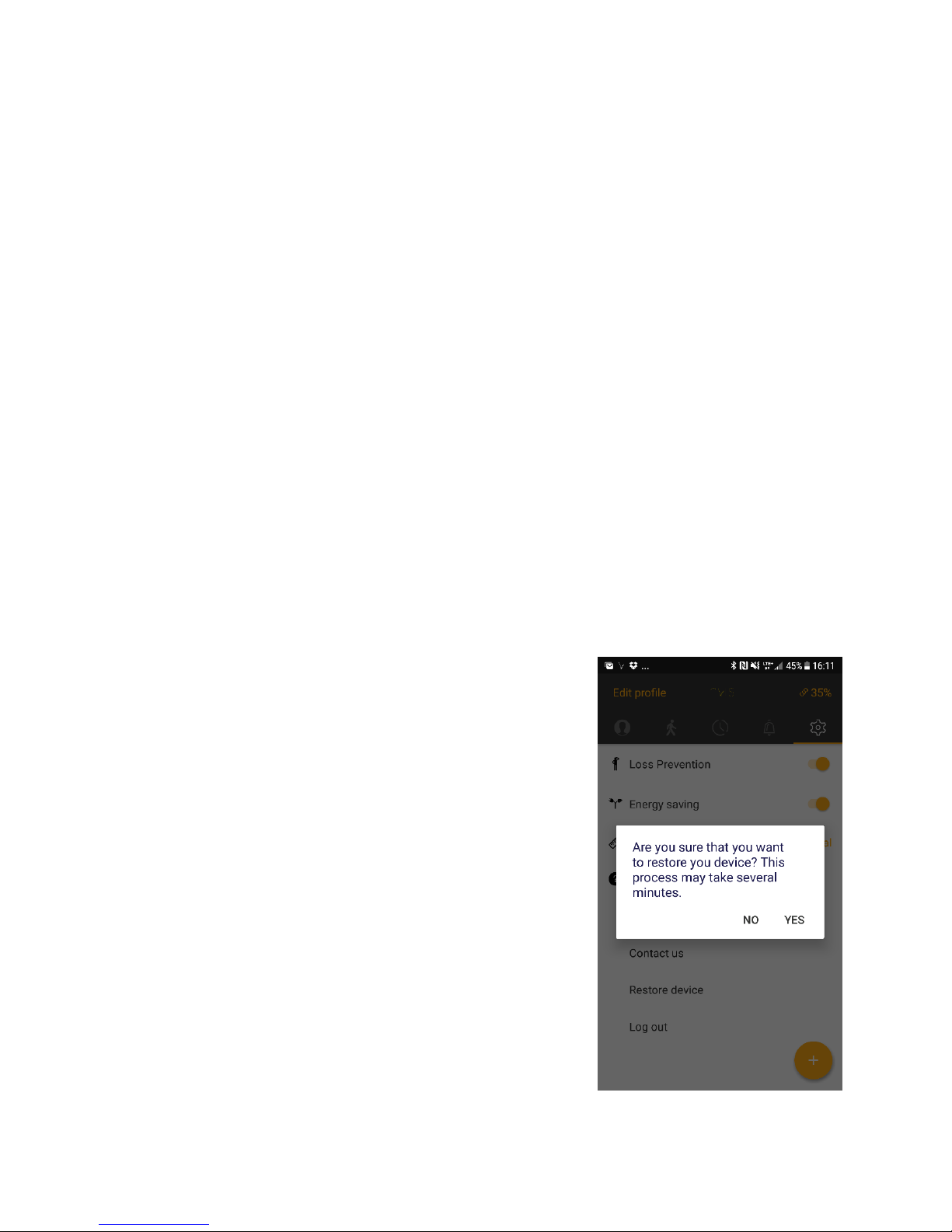
When the Invis is not working properly, follow the listed
steps:
1. Take off your Invis and turn it off.
2. Charge the Invis for at least 15 minutes. Please
make sure that Invis is charging.
3. Enter the application. Go to settings and tap on
“Restore Device” section
4. Turn on the Invis and press “Yes” at the pop-up
window in mentioned order (look at the photo on
the right).
5. The strap within few seconds should change
color from green to blue. If this does not occur
please repeat point 4.
6. Leave the strap and phone for around 20 min.
7. Your Invis is successfully restored.
Page 32
32
This is a digital version of User Manual for Invis Strap. © Print only for private use.
Device information
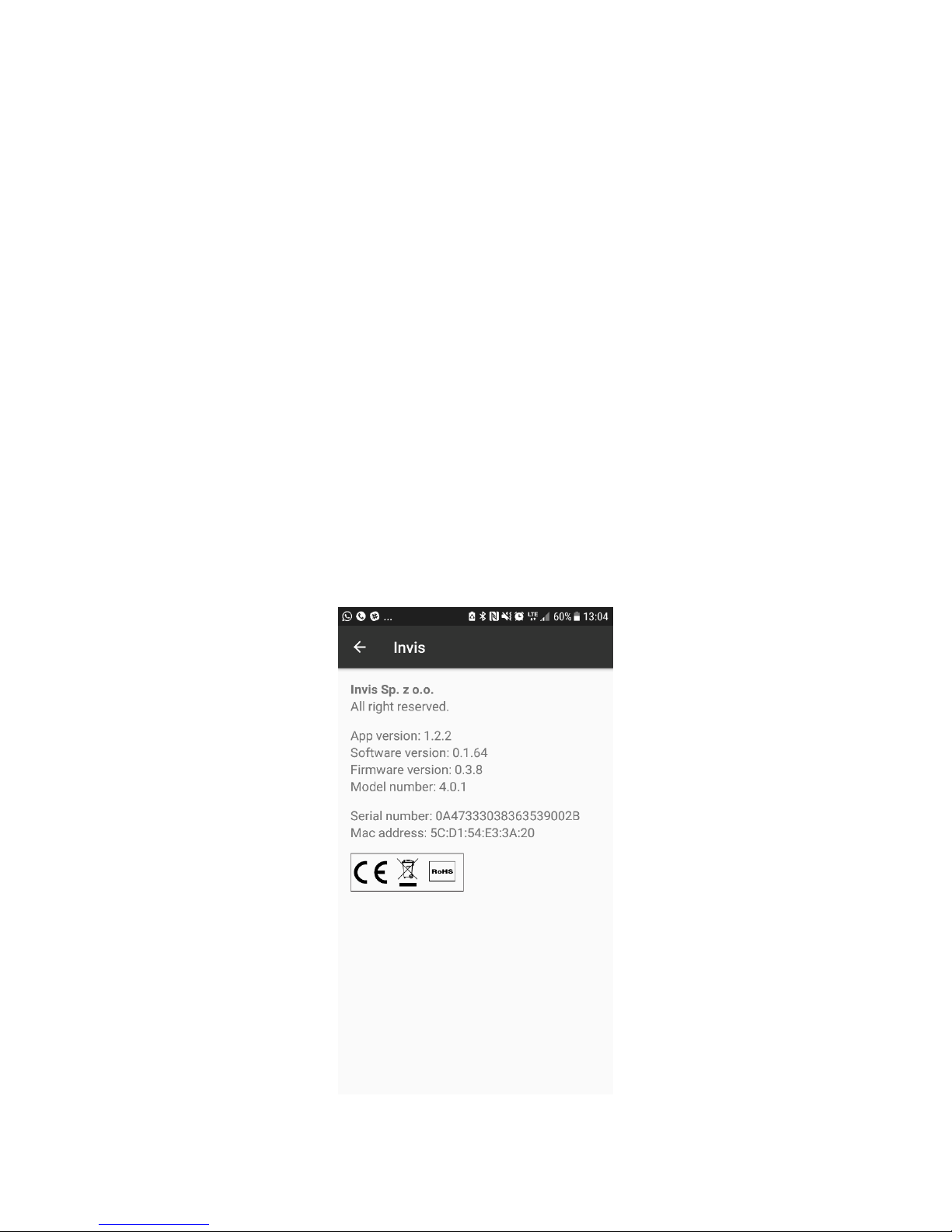
To get information about the device itself, open the Invis application, go to “Settings”
and enter the “Device information” section. You can find there:
• Name of the manufacturer,
• Legal Info,
• Version of Mobile Application,
• Version of Software on the Invis strap,
• Version of Firmware on the Invis strap,
• Invis strap model number,
• Invis strap serial number,
• Invis strap MAC address,
• Regulatory marks
In case you would like to contact with us according to the product, please enter that
information or MAC address at least into message. It will help us identify your device.
Page 33
33
This is a digital version of User Manual for Invis Strap. © Print only for private use.
Turn on
Invis and
look for
patterns
Charge your
Invis for at
least 15
minutes.
Go To
1
Go To
2
Go To
3
Go To
4
Troubleshooting
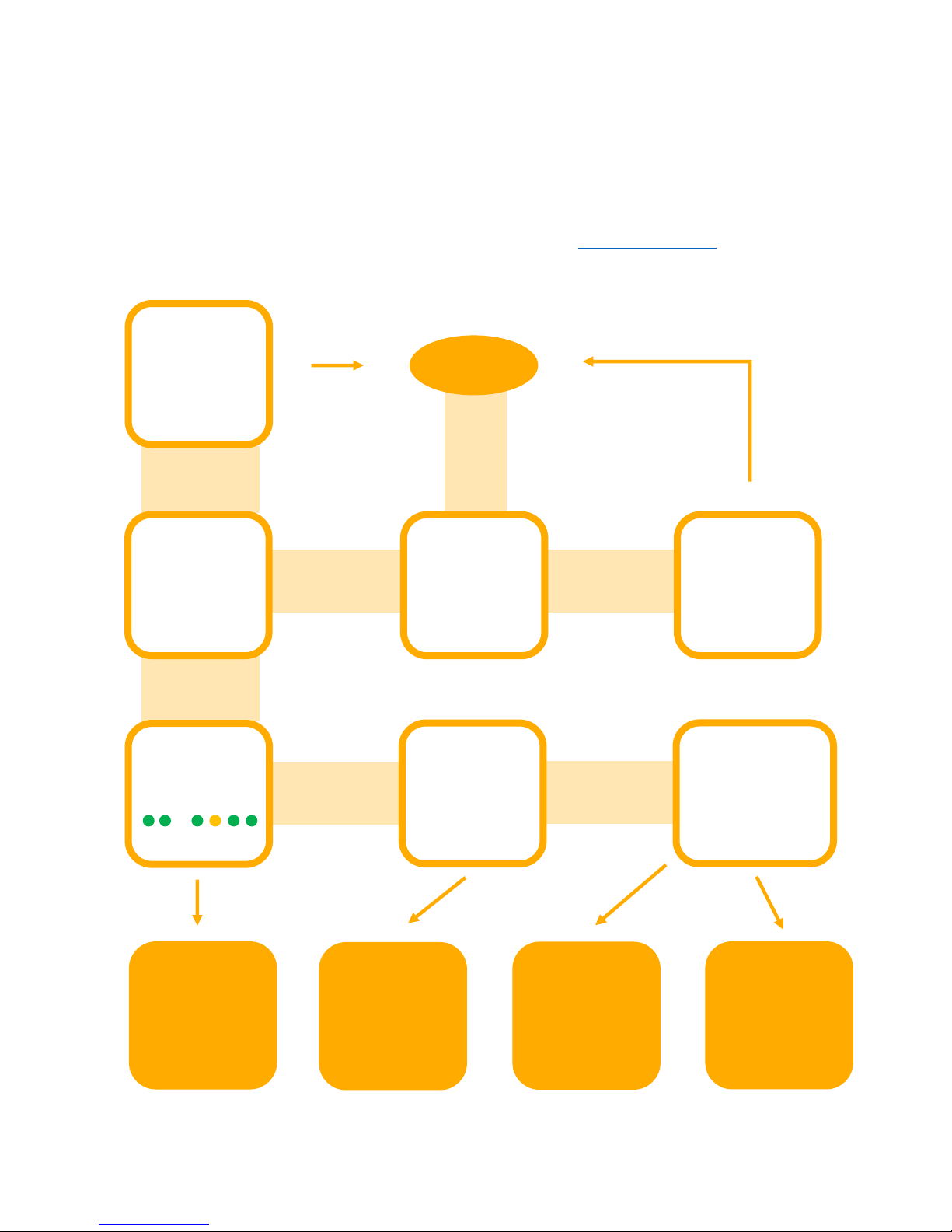
If you are reading this section it probably means that you have found a difficulty working
with Invis. Before contacting customer support please follow the steps mentioned below.
If you haven’t found the answer here please contact us: [email protected]
Starting
procedur
…
YES
Is your Invis
turned off?
Turn off
Invis and
start again
START
NO
YES
Invis doesn’t
turning on
Invis turned on
Double Tap
detected?
Does Application
detects and
connects with Invis?
(see Edit Profile
and tap Search)
YES
NO
NO
NO
YES
Page 34

34
This is a digital version of User Manual for Invis Strap. © Print only for private use.
1
If you are not able to see the proper starting procedure a list of situation could
happened. First, please make sure that the Invis is charged. To do so please put the strap
on a charger for at least 15 minutes. Go to the Charging section to get information about
proper charging.
If the problem still occurs please be sure that the strap is working in room conditions
(temperature and humidity). In addition, check if the Invis application and your operating
system Low Energy wireless protocol search (described further in section 3) detects the
Invis. Please attempt to restore and test the Invis one more time. If restoring does not
start or does not bring resolve the problem, please write an email to [email protected]
with information:
EMAIL SUBJECT: Troubleshooting - Section 1
1. What is the MAC address of your device? (You can find it under Settings/About)
2. Can you see a starting procedure?
3. What colors can you see during procedure?
4. Does your strap react to double tap?
5. Can you see Invis Strap in Invis Application, under Edit Profile section: YES/NO
6. Can your operating system see Invis Strap via Low Energy wireless protocol
search: YES/NO
2
If you are not able to do the proper double tap, please make sure that you correctly tap.
Double tap should take ~0.5 s. You may try to tap in different places (watch face, above
the LED, or near the LED on one side of the strap). If you do not notice any changes,
please restart the device and check again.
If the above mentioned solutions did not help, please Restore and test Invis one more
time. If this does not solve the problem, please write an email to [email protected] with
information:
EMAIL SUBJECT: Troubleshooting - Section 2
1. What is the MAC address of your device? (You can find it under Settings/About)
2. Can you see a starting procedure?
3. What colors can you see during procedure?
Page 35

35
This is a digital version of User Manual for Invis Strap. © Print only for private use.
3
If problem occurs while connecting the Invis, the first thing that has to be checked is the
Invis visibility by phone. First, please check again if the application has recognized the
Invis. To do this, go to “Edit Profile” and tap on the search button. Please repeat this for
~30 seconds. Sometimes, the mobile application needs more time to be able to detect
the Invis.
The next step is to go to the operating system Low Energy wireless protocol settings and
check if Invis could be seen under devices available to pair.
Before contacting us, Restore and test Invis one more time. If it does not solve the
problem please write an email to [email protected] with information:
EMAIL SUBJECT: Troubleshooting - Section 3
1. What is the MAC address of your device? (You can find it under Settings/About)
2. Can you see a starting procedure?
3. What colors can you see during procedure?
4. Does your strap react to double tap?
5. Can you see Invis Strap in Invis Application, under Edit Profile section: YES/NO
6. Can your operating system see Invis Strap via Low Energy wireless protocol
search: YES/NO
4
It seems like your device is working properly. Please describe in details the problem that
was spotted by you and write an email to [email protected] with information:
EMAIL SUBJECT: Troubleshooting - Section 4
1. What is the MAC address of your device? (You can find it under Settings/About)
2. Can you see a starting procedure?
3. What colors can you see during procedure?
4. Does your strap react to double tap?
5. Can you see Invis Strap in Invis Application, under Edit Profile section: YES/NO
6. Can your operating system see Invis Strap via Low Energy wireless protocol search:
YES/NO
7. What is wrong according to device?
Page 36

36
This is a digital version of User Manual for Invis Strap. © Print only for private use.
FAQ
Q: Invis is not turning on.
A: Please make sure that the strap is charged. Put the strap on a charger for at least
15 minutes. If this didn’t help go to troubleshooting.
----------------------------------------------------------------------Q: Invis is not charging.
A: Please make sure that the charger is properly attached. Please have a look at
charging section. If this didn’t help go to troubleshooting.
----------------------------------------------------------------------Q: How do I know that the charging is in progress?
A: You can find the information in two places. Firstly please look at a charger. Near
the USB connector if charging is in progress the led will be shining on green.
Additionally the strap should show it by pulsating led on red, yellow or green.
----------------------------------------------------------------------Q: Invis doesn’t synchronize the activity?
A: Sometimes the package of data is too big to be send in few seconds. Please wait
for a while and check the data again. Sometime closing the application help.
----------------------------------------------------------------------Q: How should I double tap.
A: Please double knock on the strap for ~0.5 s. Please tap in different places to see
which is the most suitable for you.
----------------------------------------------------------------------Q: Invis doesn’t show notification.
A: Make sure that the notifications are turned on as well as you provide all the
permissions to application. If you don’t see notification while the screen is on you
could also have activated energy saving settings. If this didn’t help go to
troubleshooting.
-----------------------------------------------------------------------
Page 37

37
This is a digital version of User Manual for Invis Strap. © Print only for private use.
Q: The update was unsuccessful.
A: Please do Restore Device.
----------------------------------------------------------------------Q: During restore, notification happened and the process is not going on.
A: Sometimes on few versions of Android operating systems, such a situation could
happen. Please make sure that the Restore took over 20 min. Turn the strap off
and turn on again. The update should be successful. In other case please repeat
Restore. If this didn’t help go to troubleshooting.
----------------------------------------------------------------------Q: Invis doesn’t show led while charging.
A: Please make sure that the strap is turned on. Sometimes there is not too much
energy that is why you need to wait for 15 min before turning it on. If this didn’t
help go to troubleshooting.
----------------------------------------------------------------------Q: Invis doesn’t want to start Restore.
A: Sometimes on few versions of Android operating systems, Invis strap could have
difficulty to connect with bootloader at the first time. Please repeat this process
till the time it will start. If this didn’t help go to troubleshooting.
-----------------------------------------------------------------------
Page 38

38
This is a digital version of User Manual for Invis Strap. © Print only for private use.
Specifications
Invis uses a 3-axis accelerometer for calculating activity and detect gestures.
Additionally, a vibration motor and multicolor LED inform you about the notifications. It
is powered by a rechargeable lithium-polymer battery.
Operating temperature is designed to work best in ambient temperatures between -5°
and 40° C (23° and 104° F). Wearing Invis in different environmental conditions than
mentioned or exposing to fast temperature or humidity changes can damaged the
battery which will affect the battery life time.
Size and weight
[mm]
Length
Width
Weight
Watch Strap 6 o’clock side
125
24/22 cutted to 22
14 ± 2 g
Watch Strap 12 o’clock side
75
24/22 cutted to 22
14 ± 2 g
Environmental Conditions
Certification
CE certified
Operating temperature
-5° and 40° C (23° and 104° F)
Non-Operating temperature
-10° and 45° C (14° and 113° F)
Water resistant
IP54
Operating attitude
4550 m (14 927 feet)
Bending Angles
Max 90° on the minimum length of 50 mm
Functional Specification
User Interface
Multicolor LED, Vibration, Gesture Recognition
Battery life
5 days
Memory
5 days of daily data
Sensor
Accelerometer
Sync method
Low Energy Wireless Communication (4.1)
Mobile Application
iOS 9.3 or higher
Android 5.0 or higher
Page 39

39
This is a digital version of User Manual for Invis Strap. © Print only for private use.
Safety Notices
Magnet
Please be aware that the charger has implemented neodymium magnet. It could be
harmful to electronic and precision mechanical devices due to strong magnetic field.
Please keep an appropriate distance from television, screens, speakers, external hard
drives, watch cases, payment cards etc.
Damage
Invis can be damaged if dropped, burned, punctured, or crushed because it contains
sensitive electronic components. Don’t use Invis if any sign of damage could be seen. In
that case contact Invis or Invis provider. Heavy exposure to dust, sand or water could
cause damage.
Repair
Don’t open or attempt to repair Invis by yourself. The strap could not be opened because
of the production process. Disassembling it may cause injury to you.
Flexibility
Invis is flexible but it is not recommended to extremely bend it. It is not recommended
to bend it more than it was originally bent. Do not bend the strap in the opposite
direction because it could be damaged. The device should be worn in accordance with
its intended purpose.
Battery
Do not attempt to replace the battery manually, which could cause overheating and
injury. The battery should be serviced only by Invis or an authorized service provider.
Batteries must be recycled or disposed of separately from household waste.
Distraction Using Invis
In some circumstances, the device can distracting and should not be used while
operating a vehicle. Observe rules that prohibit or restrict the use of mobile phones.
Radio frequency exposure
Invis uses low power radio signals to connect to smartphone via Low Energy wireless
protocol. For information about radio frequency (RF) energy resulting from radio signals
and steps you can take to minimize exposure please contact Invis or Invis service
provider.
Page 40

40
This is a digital version of User Manual for Invis Strap. © Print only for private use.
Radio frequency interference
Observe signs and notices that prohibit or restrict the use of electronic devices (for
example, in healthcare facilities or blasting areas). Although Invis and Invis Charger are
designed, tested, and manufactured to comply with regulations governing radio
frequency emissions, such emissions from Invis and Invis Charger can negatively affect
the operation of other electronic equipment, causing them to malfunction. Turn off the
Invis and the Invis Charger when use is prohibited, such as while traveling in aircraft, or
when asked to do so by authorities.
Medical device interference
The Invis contains components and radios that emit electromagnetic fields. The Invis
Charger contains magnets. These electromagnetic fields and magnets may interfere with
pacemakers, defibrillators, or other medical devices. Maintain a safe distance of
separation between your medical device and the Invis and the Invis Charger. Consult
your physician and medical device manufacturer for information specific to your medical
device. Stop using Invis and Invis Charger if you suspect they are interfering with your
pacemaker, defibrillator, or any other medical device.
Not a medical device
Invis is not a medical device. It is intended for fitness and lifestyle purposes only.
Medical conditions
Before starting or modifying any exercise program using the Invis, consult your physician.
Be careful and attentive while exercising. Stop exercising immediately if you feel pain, or
feel faint, dizzy, exhausted, or short of breath. By exercising, you assume all associated
inherent risks including any injury that may result from such activity. If you have any
medical condition that you believe could be affected by Invis (for example, seizures,
blackouts, eyestrain, or headaches), consult with your physician prior to using the Invis.
Explosive atmospheres
Charging or using the Invis and the Invis Charger in any area with a potentially explosive
atmosphere, such as in areas where the air contains high levels of flammable chemicals,
vapors, or particles (such as grain, dust, or metal powders), may be hazardous. Obey all
signs and instructions.
High-consequence activities
Invis is not intended for use where the failure of the device could lead to death, personal
injury, or severe environmental damage.
Page 41

41
This is a digital version of User Manual for Invis Strap. © Print only for private use.
Choking hazard
Some Invis and Invis Charger parts may present a choking hazard to small children. Keep
it away from small children.
Skin sensitivities
Some people may experience reactions to certain materials used in jewelry, watches,
and other wearable items that are in prolonged contact with their skin. This can be due
to allergies, environmental factors, extended exposure to irritants like soap, sweat, or
other causes. You may be more likely to experience irritation from any wearable device
if you have allergies or other sensitivities. If you have known skin sensitivities, please
take special care when wearing the Invis. You may be more likely to experience irritation
from the Invis if you wear it too tightly. Remove the Invis periodically to allow your skin
to breathe. Keeping Invis clean and dry will reduce the possibility of skin irritation. If you
experience redness, swelling, itchiness, or any other irritation or discomfort on your skin
around, or beneath, your Invis, please remove the Invis and consult your physician before
resuming wear. Continued use, even after symptoms subside, may result in renewed or
increased irritation.
Invis contain electronical connectors made of stainless steel and magnets that can
contain some nickel. Nickel exposure from these materials is unlikely, but customers
with known nickel allergies should be attentive when wearing them until they can
determine they are not experiencing an allergic reaction.
The materials used in Invis meet the standards set for jewelry by the U.S. Consumer
Product Safety Commission, applicable European regulations, and other international
standards.
Exposure to liquid
Invis is water resistant but not waterproof. You may, for example, wear and use Invis
during exercise, in the rain, and while washing your hands. Try to minimize exposing the
Invis to these substances because the material from which the band was made could be
damaged under longer exposition for liquids. Submerging the Invis is not recommended
because it could damage the electronic and the strap itself.
Cleaning and maintenance
Wearing leather on a daily basis exposes it to dirt and oils that dull the surface and
cause them to have bad odors. Caring for it on a daily basis ensures that the leather
looks and smells good for as long as possible. Users should allow the leather
watchband to breathe by removing it while sleeping and bathing. Protecting it from
water and moisture as much as possible also helps with odors.
Page 42

42
This is a digital version of User Manual for Invis Strap. © Print only for private use.
It is recommended on a weekly basis, use a damp cloth to wipe down the entire surface
paying close attention spots with dirt and gently scrub them away. Make sure that you
give ample time to air dry before wearing it again. To clean watch strap select
a microfiber cloth or other soft cloth that does not scratch or damage the surface of
the leather.
Over time, leather dries out and begins to crack when not cared for properly.
Conditioning the leather watch strap keeps it soft and prevents this from happening. It
Is recommended to follow the instructions on the leather conditioner package for best
results. Unfinished leather requires oil to maintain its soft and supple texture. Polish
the strap with a lint-free cloth to evenly distribute the oil and remove the excess.
Drying
In the situation the Invis will get wet, don’t try to make it dry in micro oven, over, dryer
or similar products. Put it in a warm and dry place in room temperature.
Extreame temperature
It is not recommended to use or keep the Invis in temperatures below – 10oC (14oF) or
above 60oC(140oF). Don’t charge Invis below 0oC (32oF) or above 45oC(113oF).
Shock and Vibration
Try not to drop and expose the Invis to severe shock because it could damage the device.
Third-party accessories
Using third party accessories for charging could impact the performance or even damage
Invis. It may create a risk of fire, explosion, leakage, and other threats. The warranty
provided by Invis does not include damage caused by the use of third-party accessories.
Allergens
Invis avoids the use of known allergens in their products. Some allergens traces may be
added during the manufacture of the device or system components, which for some
people it causes discomfort. The strap is made of various materials, including materials
of animal origin which is common for many types of products. We recommend
monitoring of all products that have prolonged contact with the skin and remove them
in case of skin irritation.
Page 43
43
This is a digital version of User Manual for Invis Strap. © Print only for private use.
Utilization and Regulatory Notices
European Union (EU) Declaration of Conformity with Regard to the EU Directive 1999/5/EC
Invis is authorized to apply the CE Mark on Invis, Model FB401, thereby declaring
conformity to the essential requirements and other relevant provisions of Directive
1999/5/EC. Compliant with the standard R&TTE 99/CE/05. Conforme à la norme R&TTE
99/CE/05.
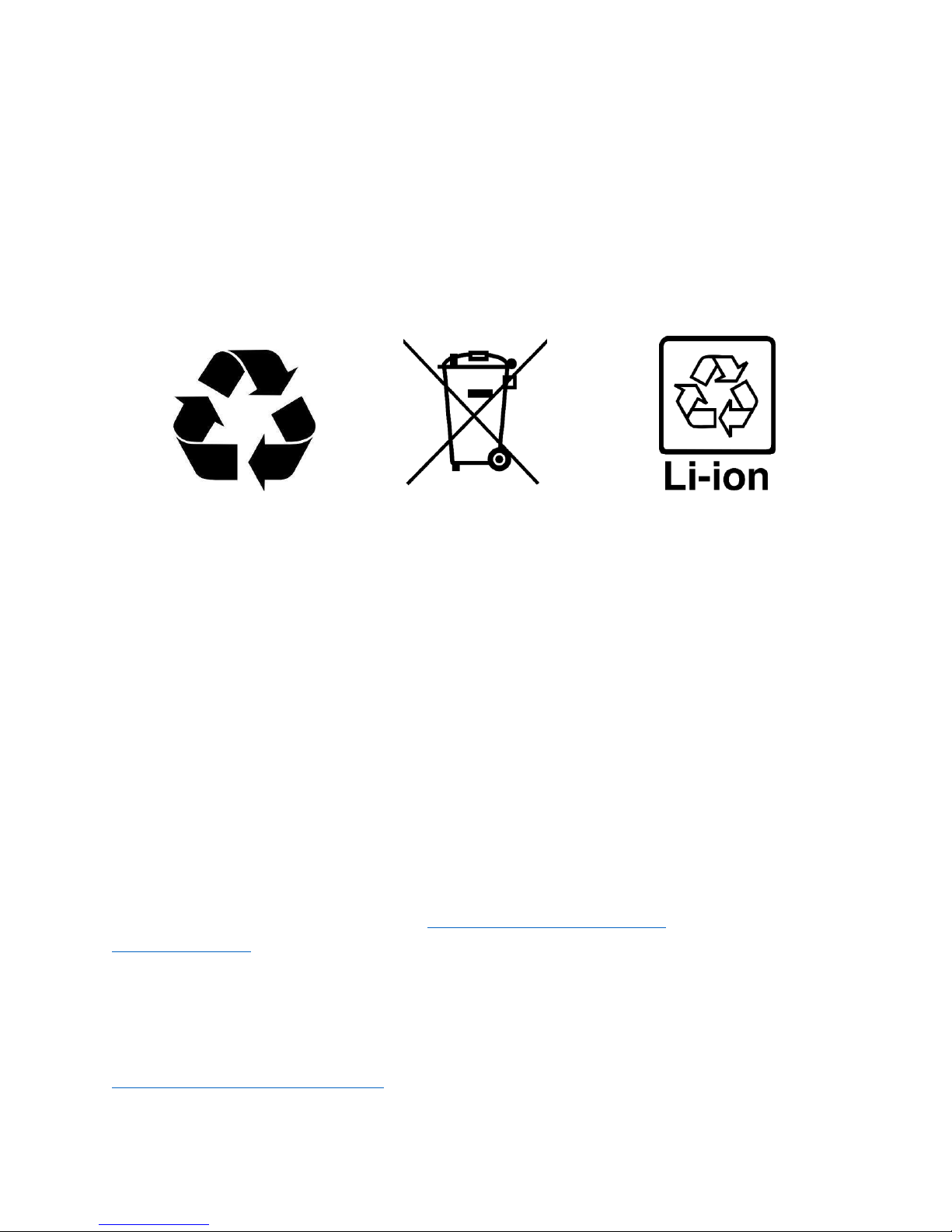
The symbol on the product or its packaging signifies that this product has to be disposed
separately from ordinary household wastes at its end of life. Please kindly be aware that
this is your responsibility to dispose electronic equipment at recycling centers so as to
help conserve natural resources. Each country in European Union should have its
collection centers for electrical and electronic equipment recycling. For information
about your recycling drop off point, please contact your local electrical and electronic
equipment waste management authority or the retailer where you bought the product.
• Do not dispose of the Invis with household waste
• Batteries are not to be disposed of in municipal waste stream and require
separate collection
• Disposal of the packaging and your Invis should be done in accordance with local
regulations.
Help
For any further help please visit http://www.getinvis.com/faq or contact us via
Return policy and warranty
Warranty information and return policy can be found online at:
http://www.getinvis.com/returns.
Page 44

44
This is a digital version of User Manual for Invis Strap. © Print only for private use.
Security and Privacy Policy
Some of the Invis functions can have influence on security and privacy. Invis follows the
highest security standard to keep them safe. This is why no personal data are stored on
the Invis strap. The data that could be seen as private are only saved in mobile
application. It is important that the following actions will be taken to have all of those
data properly secured.
Do not leave your smartphone unattended in public places. Do not allow unauthorized
users to use the device.
Upgrade software on Invis and Mobile Application as soon as it will be available. We will
be continuously improving the security and stability of the device this is why frequently
updating will improve your data security.
Delete data from your NFC before you dispose, return or discard your device.
For more information about privacy and data security please contact us via
Copyright Information
Invis Sp. z o. o. products may contain company software as well as third party software,
stored in semiconductor memory or other media. In each country, law reserves certain
exclusive rights to Invis or third parties software such as the exclusive right to sell or
reproduce copyrighted software. By the above the copyright law for software
implemented into Invis Sp. z o. o. products may not be modified, tampered, reengineered,
reproduced or copied in any form to the extent permitted by law. In addition, the
purchase of Invis Sp. z o. o. products may be considered as purchasing a license for Invis
software and software supplied by other vendors that the device consist of.
The copyrights or trademarks to product belongs to:
Invis Sp. z o. o. Filtrowa 81/27, 02-032 Warszawa, Poland
[email protected], NIP: 7010419885
Some service and application features are network and/or system dependent and may
not be available in certain areas or on certain devices where other terms and/or fees
Page 45

45
This is a digital version of User Manual for Invis Strap. © Print only for private use.
may apply. If something like this will occur, for more information please ask the operator
of such an network or device.
All descriptions, functions and other product specifications as well as the information
contained in this manual are based on the latest available information and assumes
that they are accurate at the time of printing.
Invis reserves the right to change or modify any information or data without prior notice.
Attention!
Pictures in this manual are only examples.
Invis and V stylized logos are trademarks or registered trademarks of Invis Sp. The
Android™, Google and other trademarks and logos are the property of Google Inc. and
the names and logos of iOS, Apple and other marks are the property of Apple Inc. They
are used under Creative Commons v3.0 with attribution license. Other product and
service names are the property of their respective owners.
© Invis Sp. z o. o. All rights reserved
Attention!
Invis company doesn’t take any responsibility for product that was
modified by customer.
 Loading...