

Page 1
PB42/PB42c Portable
Receipt Printer
User's Guide
Page 2
PB42/PB42c Portable
Receipt Printer
User's Guide
Page 3

Intermec Technologies Corporation
Worldwide Headquarters
6001 36th Ave. W.
Everett, WA 98203
U.S.A.
www.intermec.com
The information contained herein is provided solely for the purpose of allowing customers to
operate and service Intermec-manufactured equipment and is not to be released, reproduced, or
used for any other purpose without written permission of Intermec Technologies Corporation.
Information and specifications contained in this document are subject to change without prior
notice and do not represent a commitment on the part of Intermec Technologies Corporation.
©2005-2008 by Intermec Technologies Corporation. All rights reserved.
The word Intermec, the Intermec logo, Norand, ArciTech, Beverage Routebook, CrossBar,
dcBrowser, Duratherm, EasyADC, EasyCoder, EasySet, Fingerprint, INCA (under license), igistics, Intellitag, Intellitag Gen2, JANUS, LabelShop, MobileLAN, Picolink, Ready-to-Work,
RoutePower, Sabre, ScanPlus, ShopScan, Smart Mobile Computing, TE 2000, Trakker
Antares, and Vista Powered are either trademarks or registered trademarks of Intermec
Technologies Corporation.
Bluetooth is a trademark of Bluetooth SIG, Inc., U.S.A.
There are U.S. and foreign patents as well as U.S. and foreign patent applications pending.
ii PB42/PB42c Portable Receipt Printer User’s Guide
Page 4

Document Change Record
This page records changes to this document. The document was
originally released as version -001.
Version
Number Date
002 12/2005 Revised to support release 2 of the
003 3/2006 Revised to add more information on
004 10/2006 Revised guide to add information to the
005 9/2007 Revised guide to include information on
006 3/2008 Revised guide to mention the new
Description of Change
PB42/PB42c/PB42/PB42cc firmware.
Intermec Settings, downloading fonts
and graphics, and cold booting the
printer.
procedures for loading media, installing
the batteries, and cold booting the
PB42/PB42c.
after service locations for South Korea.
PB42c model.
PB42/PB42c Portable Receipt Printer User’s Guide iii
Page 5

iv PB42/PB42c Portable Receipt Printer User’s Guide
Page 6

Contents
Before You Begin......................................................................................................vii
Learning About the PB42/PB42c Portable Receipt Printers ......................................11
Using the Batteries....................................................................................................16
Loading Media .........................................................................................................20
Printing a Configuration Test Page...........................................................................23
Safety Icons................................................................................................vii
Global Services and Support.......................................................................vii
Warranty Information..................................................................vii
Web Support ...............................................................................vii
Telephone Support .....................................................................viii
Service Location Support ..............................................................ix
Who Should Read This Document? ............................................................ix
Related Documents.....................................................................................ix
Identifying the Parts of the Printer .............................................................11
What’s New?..............................................................................................12
Understanding the Control Panel...............................................................13
Understanding the Printer Sounds..............................................................15
Installing the Batteries ................................................................................16
Charging the Batteries................................................................................18
Extending Battery Life................................................................................20
Configuring the PB42/PB42c...................................................................................25
Establishing Communications With a Host..............................................................25
Setting Up Bluetooth Communications .....................................................26
Setting Up Serial Communications ............................................................26
Cancelling a Print Job...............................................................................................28
Downloading Fonts, Graphics, and Upgrades to the PB42/PB42c............................28
Upgrading the Printer Firmware...............................................................................29
Troubleshooting.......................................................................................................30
Calling Product Support ............................................................................31
Printer Problems and Possible Solutions.....................................................32
PB42/PB42c Portable Receipt Printer User’s Guide v
Page 7

Cold Booting the PB42/PB42c.................................................................................34
Cleaning the Printer .................................................................................................35
Specifications............................................................................................................37
Accessories for the PB42/PB42c ...............................................................................39
AC4 Quad Charger (Model AC4)................................................39
AC10 4-Bay Charger (Model AC10)............................................39
AV4 Vehicle Cradle (Model AV4) ...............................................39
Battery (Model 318-015-001)......................................................39
Belt Clip (P/N 074964) ...............................................................39
Cigarette Lighter Adapter (P/N 074866)......................................39
Handstrap (P/N 074789).............................................................39
Power Supply (Model 073573) ....................................................39
Serial Cable (P/N 075497)...........................................................40
Shoulder Strap (P/N 074788) ......................................................40
System Bag (P/N 825-170-001)...................................................40
PB42/PB42c DC Power Cable (P/N 852-909-001) .....................40
PB42/PB42c Vehicle Power Cable (P/N 236-065-001)................40
vi PB42/PB42c Portable Receipt Printer User’s Guide
Page 8
Before You Begin
This section provides you with safety information, technical
support information, and sources for additional product
information.
Safety Icons
This section explains how to identify and understand warnings,
cautions, and notes that you see in this document.
A warning alerts you of an operating procedure, practice,
condition, or statement that must be strictly observed to
avoid death or serious injury to the persons working on
the equipment.
A caution alerts you to an operating procedure, practice,
condition, or statement that must be strictly observed to
prevent equipment damage or destruction, or corruption
or loss of data.
Note: Notes either provide extra information about a topic or
contain special instructions for handling a particular condition
or set of circumstances.
Global Services and Support
Warranty Information
To understand the warranty for your Intermec product, visit the
Intermec web site at www.intermec.com
Returns and Repairs > Warranty.
Web Support
Visit the Intermec web site at www.intermec.com to download
our current documents (in PDF). To order printed versions of
the Intermec manuals, contact your local Intermec representative
or distributor.
Visit the Intermec support services knowledge base (Knowledge
Central) at www.intermec
Central to review technical information or to request technical
support for your Intermec product.
PB42/PB42c Portable Receipt Printer User’s Guide vii
and click Support >
.com and click Support > Knowledge
Page 9

Telephone Support
These services are available from Intermec Technologies
Corporation.
Service
Order
Intermec
products
Order
Intermec
media
Order spare
parts
Technical
Support
Service
Service
contracts
Description
• Place an order.
• Ask about an existing
order.
Order printer labels and
ribbons.
Order spare parts. 1 or 2 and then
Talk to technical support
about your Intermec
product.
• Get a return
authorization number
for authorized service
center repair.
• Request an on-site
repair technician.
• Ask about an existing
contract.
• Renew a contract.
• Inquire about repair
billing or other service
invoicing questions.
In the U.S.A. and
Canada call
1-800-755-5505
and choose this
option
1 and then choose 2
1 and then choose 1
choose 4
2 and then choose 2
2 and then choose 1
1 or 2 and then
choose 3
Outside the U.S.A. and Canada, contact your local Intermec
representative. To search for your local representative, from the
Intermec web site, click About Us > Contact Us.
viii PB42/PB42c Portable Receipt Printer User’s Guide
Page 10

Service Location Support
For the most current listing of service locations, click Support >
Returns and Repairs > Repair Locations.
For technical support in South Korea, use the after service
locations listed below:
AWOO Systems
102-1304 SK Ventium
522 Dangjung-dong
Gunpo-si, Gyeonggi-do Korea, South 435-776
Contact: Mr. Sinbum Kang
Telephone: +82-31-436-1191
Email: [email protected]
Sammi Information Systems Co Ltd
7-9FL, Seo Jo Building
103-15, Galwor-Dong
Seoul, Yong San-ku Korea, South 140-807
Contact: Kyung-Hee Koo
Telephone: +82-2-790-5508
Email: [email protected]
Who Should Read This Document?
The PB42/PB42c Portable Receipt Printer User’s Guide is written
for the person who is responsible for installing, configuring,
maintaining, and troubleshooting the printer.
Related Documents
For information on programming, see the PB42 Programmer’s
Reference Manual. You can download the programmer’s manual
and other Intermec documents from the Intermec web site.
To download documents
1 Visit the Intermec web site at www.intermec.com.
2 Click Support > Manuals.
3 In the Select a Product field, choose the product whose
documentation you want to download.
To order printed versions of the Intermec manuals, contact your
local Intermec representative or distributor.
PB42/PB42c Portable Receipt Printer User’s Guide ix
Page 11

10 PB42/PB42c Portable Receipt Printer User’s Guide
Page 12
Learning About the PB42/PB42c Portable Receipt
Printers
The PB42/PB42c are rugged receipt printers designed for use
with the CK60 series or 700 series mobile computer with a
Bluetooth™ radio. The PB42/PB42c provides:
• print resolution of 203 dpi.
• print speeds up to 5.1 cm (2 inches) per second (ips).
• serial or Bluetooth™ communication options.
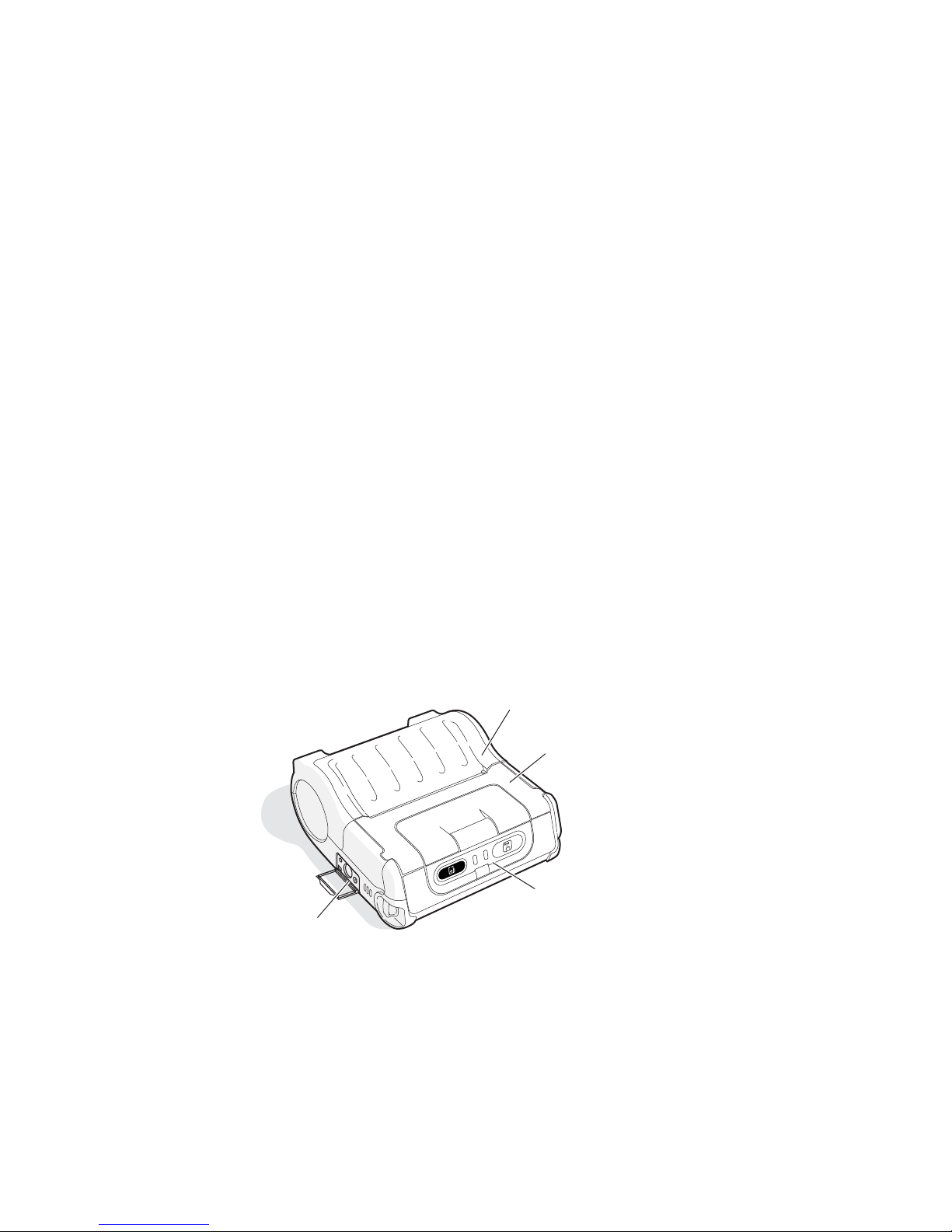
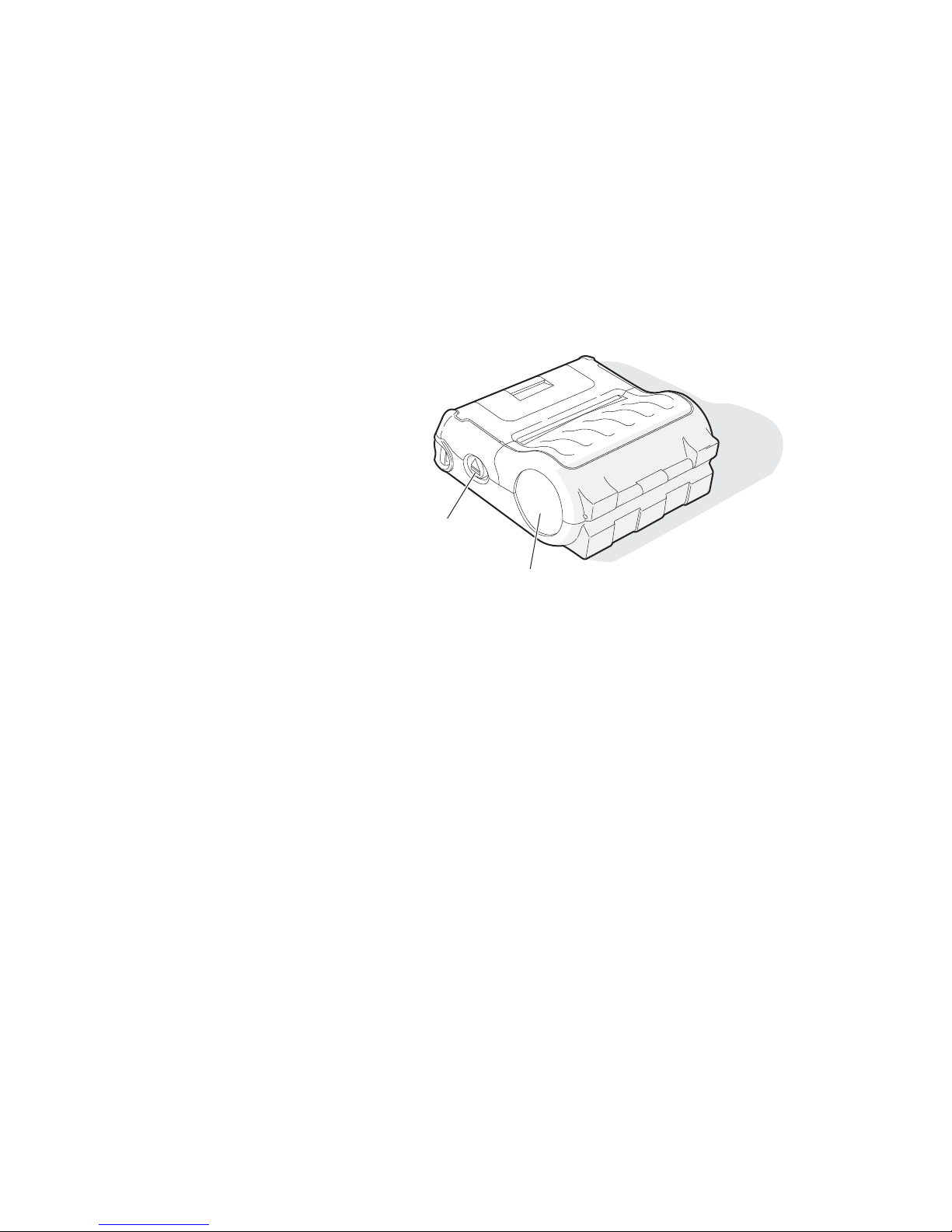
Identifying the Parts of the Printer
Use the next two illustrations to familiarize yourself with the
printer.
Media
cover
Battery
cover
Communications
PB42/PB42c Portable Receipt Printer User’s Guide 11
port
PB42/PB42c Front View: View of the front of the PB42/PB42c to show
important features. A weather-resistant flap protects the communications
port.
Control
panel
Page 13
What’s New?
Media cover
release button
Media
window
PB42/PB42c Back and Side View: View of the back and side of the
PB42/PB42c to show important features.
Updated guide to include information about the new PB42c
model.
12 PB42/PB42c Portable Receipt Printer User’s Guide
Page 14
Understanding the Control Panel
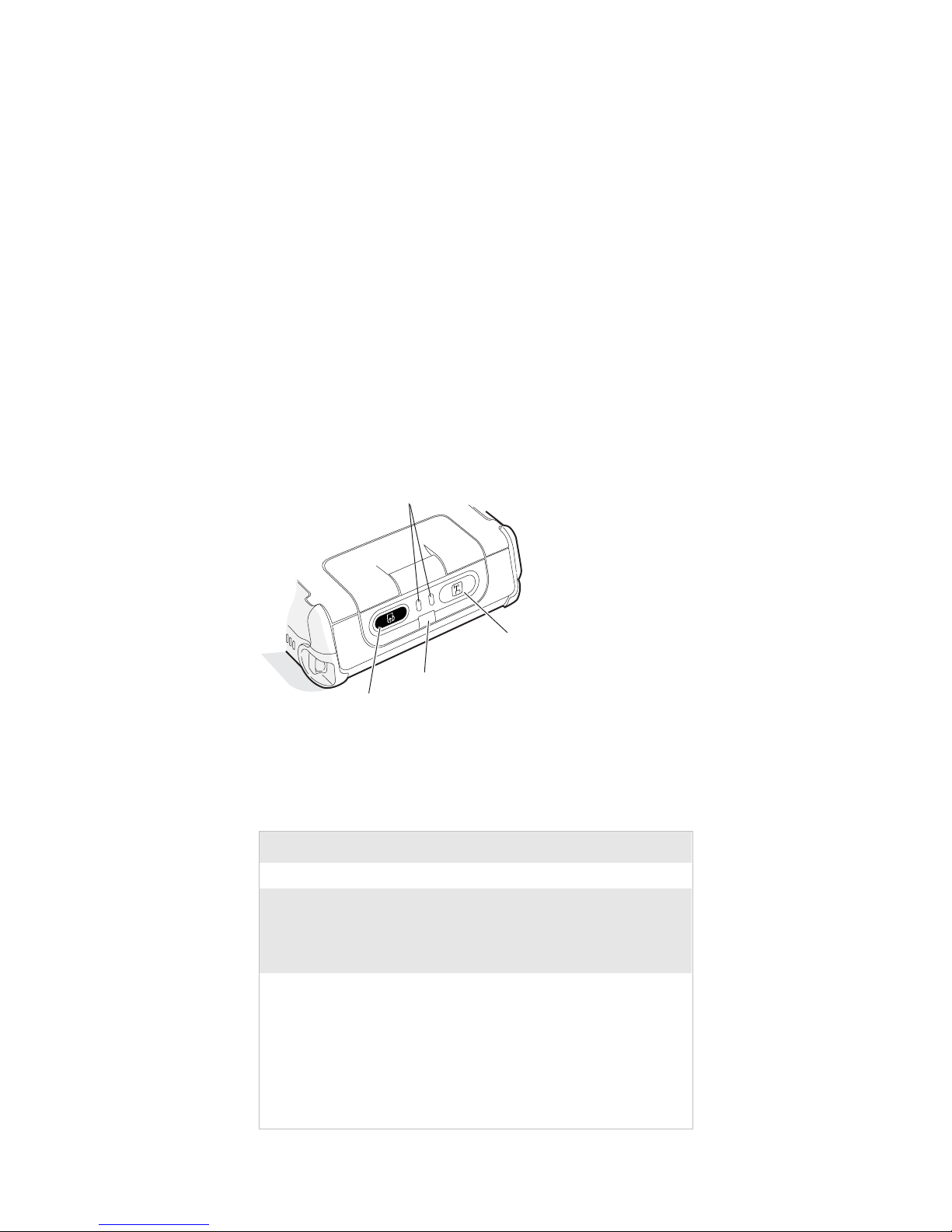
The PB42/PB42c control panel contains two buttons and four
lights. Use the buttons to work with the PB42/PB42c. Use the
lights to understand the state of the printer.
Feed
PB42/PB42c Control Panel: Use this illustration to familiarize yourself with
the buttons and lights on the PB42/PB42c.
Understanding How to Use the PB42/PB42c Buttons
button
Battery
lights
Radio button
and light
Ready-to-Work
indicator
Button Function
Radio button
Feed button
Radio and Feed
buttons
PB42/PB42c Portable Receipt Printer User’s Guide 13
Press to turn the radio on and off.
Press once to advance media by 7.5 mm (0.29
inch) or 63 dots.
Press and hold to advance media at 5.08 cm (2
inches) per seconds until you release the button.
Press and hold both buttons until the printer
beeps and prints out configuration test page.
For more information, see “Printing a
Configuration Test Page” on page 23.
While the printer is printing, pressing both
buttons causes the printer to cancel all print
jobs. For more information, see “Cancelling a
Print Job” on page 28.
Page 15

Understanding the PB42/PB42c Lights
Light State Description
Battery lights
(printer powered
externally)
Battery lights
(printer battery
powered)
Ready-toWork™
indicator
Off No batteries are installed.
Fast blinking
red
Solid red The batteries are charging.
Solid green The battery charging is
Off The batteries are in a charged
Blinking red The batteries are low.
Off
Solid blue The PB42/PB42c is connected
There is a charging error.
Verify that battery is good by
inserting it in a known good
charger.
complete.
state.
Recharge or replace your
batteries now.
The PB42/PB42c is not
connected to a host through
the Bluetooth radio or a serial
cable.
to a Bluetooth radio or the
serial port is enabled.
14 PB42/PB42c Portable Receipt Printer User’s Guide
Blinking blue A blinking blue light can
mean one of several
conditions:
• Printer is out of paper.
• Media cover is open.
• Printer hardware error. For
a list of possible problems,
see “Troubleshooting” on
page 30.
Page 16

Understanding the PB42/PB42c Lights (continued)
Light State Description
Understanding the Printer Sounds
The PB42/PB42c plays sounds in response to several actions that
you can do with the printer. See the following table to
understand when the sounds occur.
Understanding the Printer Sounds
Sound Occurs When:
Power
Hardware
Button
Error
• You insert a battery in the printer.
• The PB42/PB42c starts charging the batteries.
• You plug in an AC adapter.
• You close the media door.
• You press the Radio button.
• You press both the Feed and Radio buttons to
• The paper is not feeding out of the printer because
• A print job failed because the media door is open
Fast blinking
green
Slow
blinking
green
Off
print the configuration test page.
the media door is open or the printer is out of
paper.
or the printer is out of paper.
The radio is receiving data. Radio light
The Bluetooth radio is on.
The radio is off.
PB42/PB42c Portable Receipt Printer User’s Guide 15
Page 17
Using the Batteries
The PB42/PB42c uses lithium-ion 2400 mAh batteries
(Model 318-015-001) for power. You can operate the
PB42/PB42c with one or two batteries installed. You must fully
charge the batteries before you can use the PB42/PB42c. Fully
charged batteries can last for up to one week without needing to
be recharged.
Use Intermec battery pack model 318-015-001 only. Use of
another pack may present a risk of fire or explosion.
The battery pack used in this device may present a fire or
chemical burn hazard if mistreated. Do not disassemble, heat
above 100°C (212°F), or incinerate.
Dispose of used battery packs promptly. Keep away from
children.
Installing the Batteries
Make sure you fully charge the batteries before you use your
PB42/PB42c. You can charge the batteries before or after you
install them into the PB42/PB42c. You can use one battery to
power the PB42/PB42c, but you may experience reduced
performance.
16 PB42/PB42c Portable Receipt Printer User’s Guide
To install the batteries
1 Pull and hold the battery cover latch firmly toward the front
of the printer and lift up on the battery cover.
Page 18
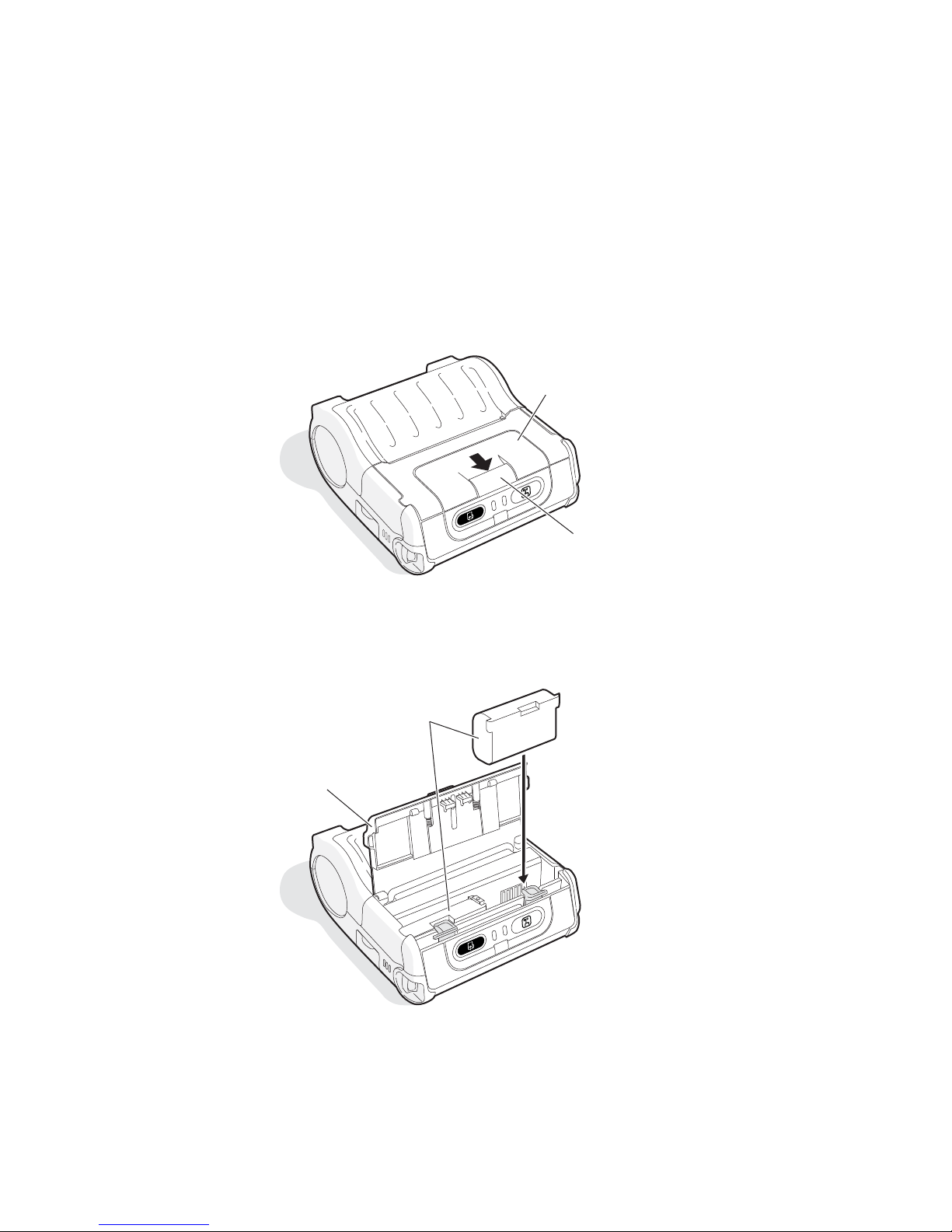
2 Insert batteries into the two battery slots until they lock in
place. The contact side of the battery faces the back of the
printer. The printer plays the Power sound when you insert
the battery completely.
Batteries
Battery
cover
Battery
cover
Battery
cover
latch
3 Close the battery cover by pulling the battery cover latch
toward the front of the printer and pushing down.
PB42/PB42c Portable Receipt Printer User’s Guide 17
Page 19

Charging the Batteries
There are several ways to charge the PB42/PB42c batteries:
• Connect AC power to the printer and charge the batteries
while they are inside the PB42/PB42c.
• Place the PB42/PB42c with batteries installed in the 4-bay
charger (Model AC10).
• Charge the batteries in the CK60/PB42 quad battery charger
(Model AC4).
For information on charging your batteries in the 4-bay charger,
see the PB42 4-Bay Charger Quick Start Guide (P/N 930-118XXX). For information on charging your batteries in the quad
battery charger, see the CK60/PB42 Quad Battery Charger Quick
Start Guide (P/N 962-000-044).
It takes about 4 hours to charge the batteries inside the
PB42/PB42c with the power cord attached. To charge the
batteries inside the PB42/PB42c, you need:
• an Intermec 12 VDC power supply (Model 073573).
• an AC power cord.
To charge the batteries inside the PB42/PB42c
18 PB42/PB42c Portable Receipt Printer User’s Guide
1 Install the batteries in the PB42/PB42c. For help, see the
previous section, “Installing the Batteries.”
2 Connect the power supply to the DC power connector on the
printer.
Page 20
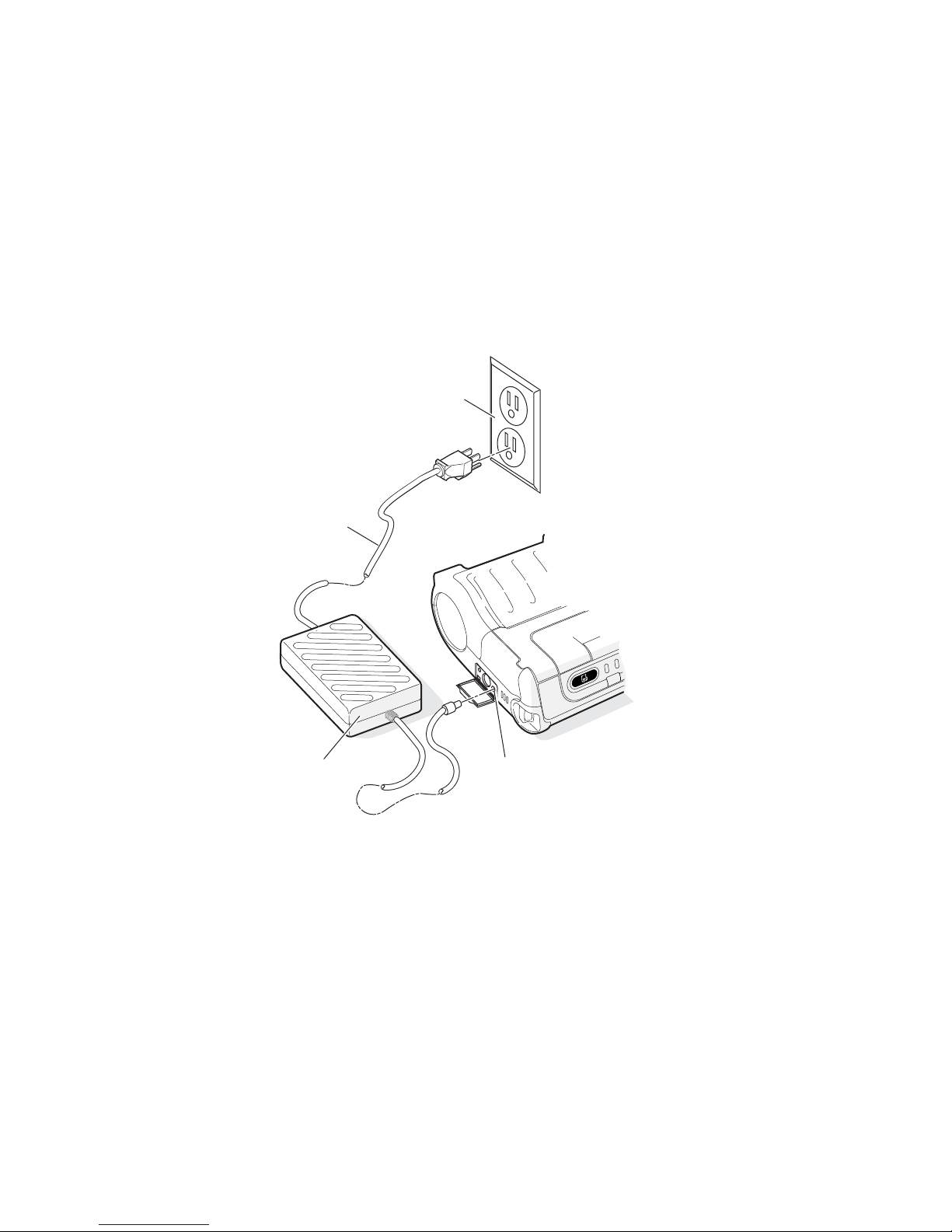
AC power
cord
AC outlet
Power
supply
DC power
connector
3 Connect one end of the power cord to the power supply and
then plug the other end into an AC outlet.
PB42/PB42c Portable Receipt Printer User’s Guide 19
Page 21

Extending Battery Life
Here are some tips for extending the overall life of your batteries:
• Never expose the batteries to direct sunlight or temperatures
over 40°C (104°F).
• Only charge the batteries inside the PB42/PB42c using a
power supply or a 4-bay charger (Model AC10) or in the
CK60/PB42 quad battery charger (Model AC4).
Here are some tips for extending the life of your battery between
charges:
• Turn off the radio when you are not using it.
• Remove the batteries from the printer if you will not be using
it for three days or more.
• Do not operate the PB42/PB42c in extremely cold
temperatures. Using the PB42/PB42c in temperatures below
freezing reduces overall battery life.
Remember that any rechargeable battery loses its ability to
maintain a charge over time. You can only recharge it a finite
number of times before you must replace it.
Loading Media
20 PB42/PB42c Portable Receipt Printer User’s Guide
You can use roll or fanfold receipt media with the PB42/PB42c.
The PB42/PB42c ships with one roll of media that you can use
the first time you unpack the shipping box and verify that the
printer is working correctly.
Media Specifications for the PB42/PB42c
Specification Dimensions
Receipt roll core (ID) 1.9 cm (0.75 inch)
Receipt roll maximum diameter 6.5 cm (2.55 inches)
Media maximum width 11.2 cm (4.40 inches)
Page 22
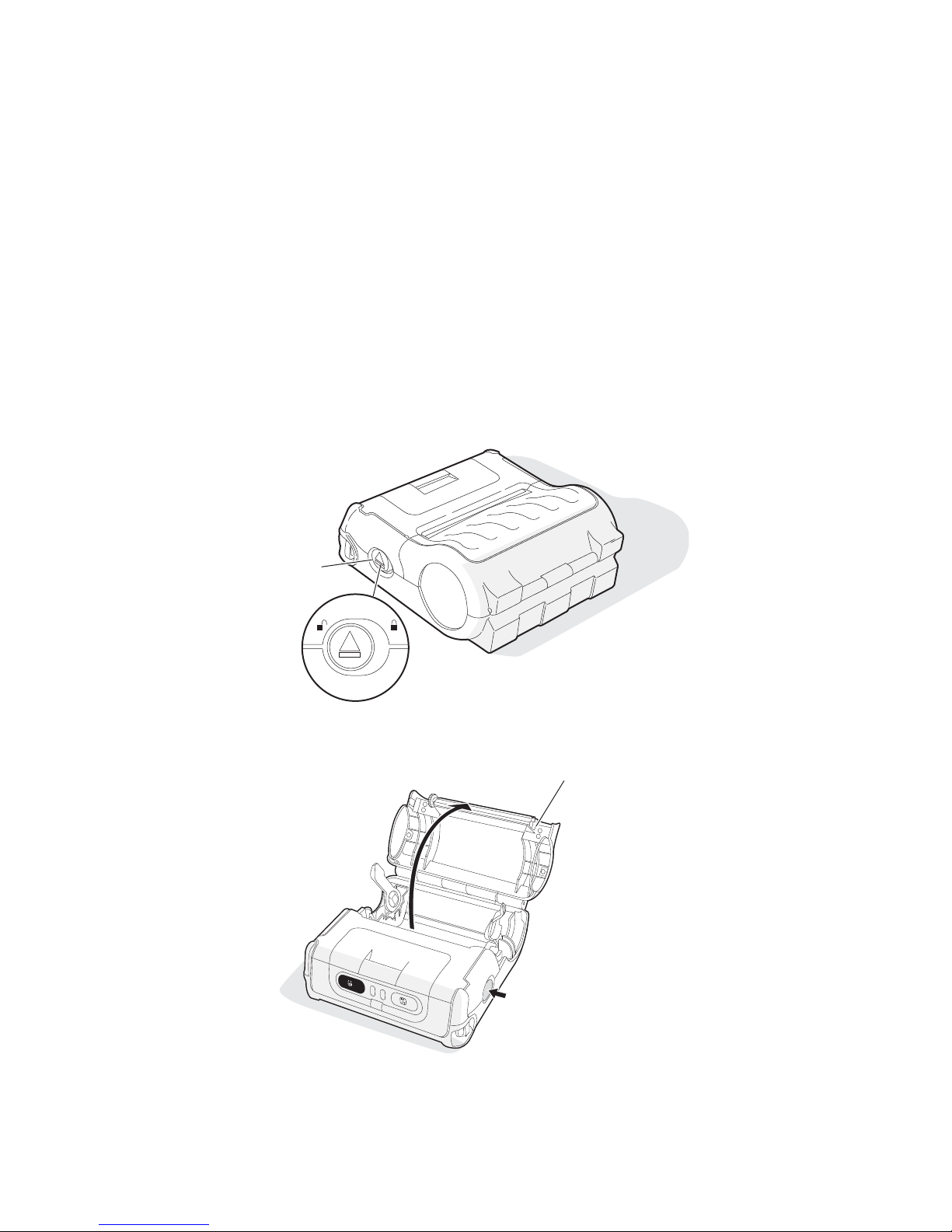
To load media
1 Slide the media cover release button to the unlocked (left)
position.
Media cover
release button
2 Press the media cover release button to open the media cover.
Media
cover
3 Insert the media roll between the two media supports until it
fits into place. Make sure you load the media clockwise so
that it pulls off the core from the bottom of the printer.
PB42/PB42c Portable Receipt Printer User’s Guide 21
Media cover
release button
Page 23
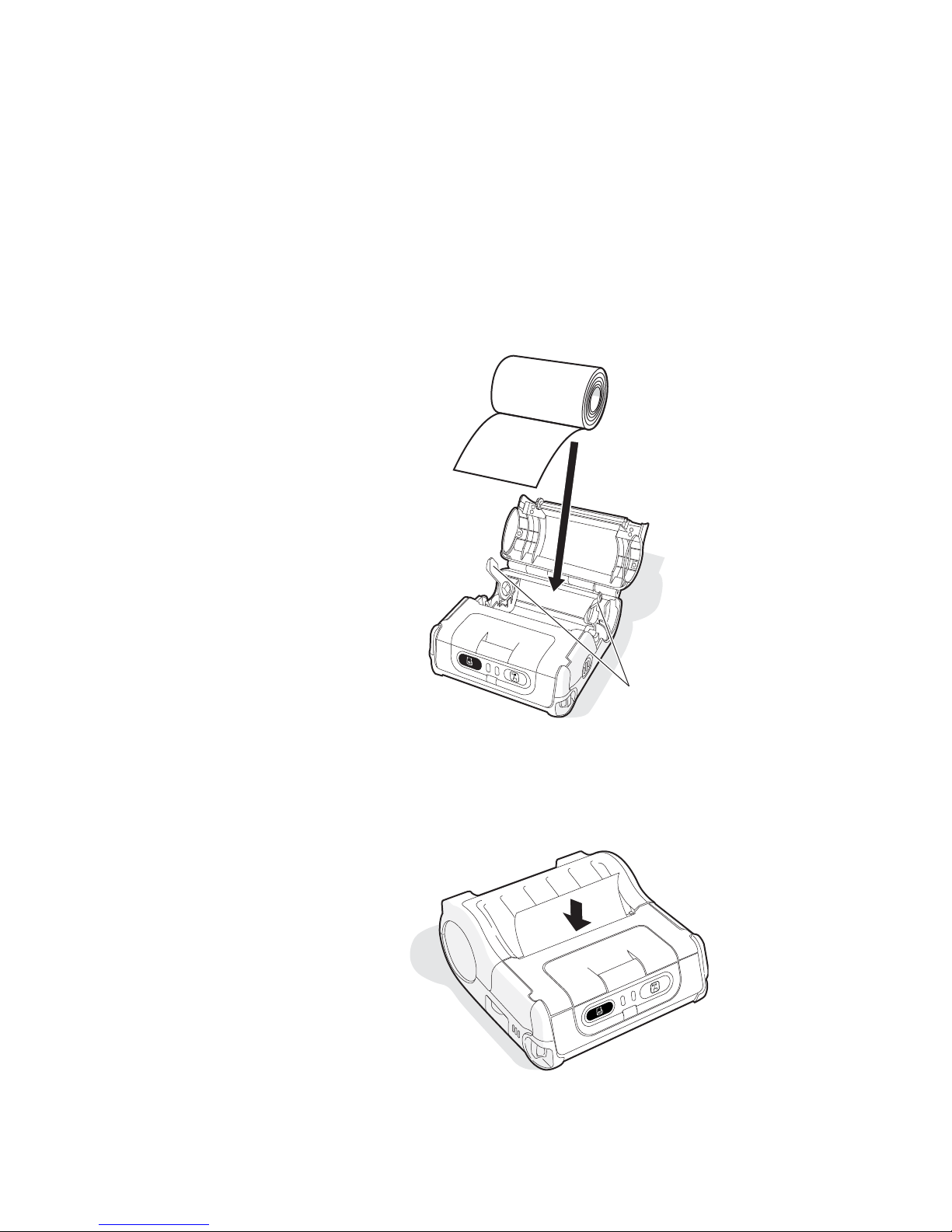
Media
supports
4 Pull out a few inches of the media.
5 Close the media cover by pressing in the middle of the lid (or
on both sides) until it latches. The printer emits the
Hardware sound to tell you that the media door closed
correctly.
6 Slide the media cover release button to the locked (right)
position.
7 Press the Feed button several times to advance the media.
22 PB42/PB42c Portable Receipt Printer User’s Guide
Page 24

Printing a Configuration Test Page
After you have loaded the media in the printer, you are ready to
print out the configuration test page. Use this information for
reference when installing your PB42/PB42c and to verify proper
printer operation. If you cannot get the configuration test page
to print, see “Troubleshooting” on page 30 for help.
To print the configuration test page
• Press and hold the Feed and Radio buttons until the printer
emits the Button sound and the page starts to print.
The printer prints out a configuration test page containing
information about the printer configuration, the wired
configuration, the wireless configuration and the fonts and
graphics available on the printer.
-Intermec PB42 Printer Configuration-
Serial Number : 12345678901
Firmware : PB42F3932_032806 (Ver 3.32)
Hardware : RevA-001, Flash 4MB, Ram 16MB
Batteries : #1 8.5V #2 8.5V
Low Battery Indicator: 6.6V
Dark Adjust : Level 4 (0%)
Emulation : PB42_REL2
Temperature : 34C
Allow Messages from Printer: Off
Wired (RS-232) Configuration:
Baud Rate : 115200
Parity : None
Data Bits : 8
Stop Bits : 1
Flow Control : Hardware
Example of Printer and Serial Port Configuration Settings
PB42/PB42c Portable Receipt Printer User’s Guide 23
Page 25

Wireless (Bluetooth) Configuration:
F/W Ver : 2.15 12/27/2004 (c) Roving Networks
Device Address :
00A0960AF16F
Device Name : "PB42-12345678910"
Service Name : "Wireless Printer"
Class of Device : 00040680
Mode : Discoverable, Connectable
Reserve Printer : Disabled
Security: Authentication Off, Encryption Off
Version: 3.20 12/27/2004 (c) Roving Networks
Fonts:
LOC CPI *---DESCRIPTION---* V *-DATE-* *--NAMES--*
R 20.3 Arabic CP1256 10x16 1 20/01/06 ARABS f(66H)
R 14.5 Arabic CP1256 14x24 1 08/02/06 ARABB F(46H)
R 20.3 Cyrillic 1251 10x16 1 10/10/05 CYRLS p(70H)
R 14.5 Cyrillic 1251 14x24 1 10/10/05 CYRLB P(50H)
R 20.3 Greek CP1253 10x16 1 08/02/06 GREKS i(69H)
R 14.5 Greek CP1253 14x24 1 10/10/05 GREKB I(49H)
R 20.3 Hebrew CP1255 10x16 1 14/02/06 HBRWS n(6EH)
R 14.5 Hebrew CP1255 14x24 1 14/02/06 GREKS N(4EH)
R 16.9 Intermec OCR-A BT 25 1 22/09/05 OCR-A ((28H)
R 8.8 Intermec OCR-B BT 39 1 22/09/05 OCR-B )(29H)
R 10.7 Monospac821 BOLD 26 1 28/11/05 PB107 +(2BH)
R 14.5 Monospac821 WGL4 24 1 04/10/05 PB145 m(6DH)
R 20.3 Monospac821 WGL4 16 1 04/10/05 PB203 ”(22H)
R 20.3 US Standard CP437/EU 1 01/02/96 PE203 !(21H)
R 33.8 Enhanced CNDS Font 4 09/03/99 PM05T B(42H)
R 10.7 Roman Bold 26 3 07/03/96 PM107 &(26H)
R 20.3 Thai CP874 10x16 1 10/10/05 THAIS j(6AH)
R 14.5 Thai CP874 14x24 1 10/10/05 THAIB J(4AH)
00A0960AF16F
24 PB42/PB42c Portable Receipt Printer User’s Guide
Graphics:
LOC *---DESCRIPTION----* V *-DATE-* *--NAMES---*
Example of Bluetooth Configuration Settings and Resident Fonts
Page 26

Configuring the PB42/PB42c
You can configure several settings on the PB42/PB42c by using
Intermec Settings from your CK60 series or 700 series mobile
computer. Here are some of the settings you can configure for
the PB42/PB42c from your mobile computer:
• Darkness adjust
• Set low battery indicator
• Bluetooth communications
• Restore factory defaults
Intermec Settings is available as part of the operating system
upgrade for your CK60 series or 700 series mobile computer.
You can download the files for your computer from the
Intermec web site at www.intermec.com.
You can also find all of the same settings you can configure in
Intermec Settings in the PB42 Programmer’s Reference Manual.
The reference manual explains each of the commands and lists
the options. You can download the reference manual from the
Intermec web site at www.intermec.com.
Establishing Communications With a Host
The PB42/PB42c must establish communications with a host
that will send the data for the printer to print. The PB42/PB42c
provides two ways to communicate with a host:
• Bluetooth communications
• Serial communications
Bluetooth communications is the default setting for the
PB42/PB42c.
PB42/PB42c Portable Receipt Printer User’s Guide 25
Page 27

Setting Up Bluetooth Communications
The PB42/PB42c contains a Bluetooth radio that allows wireless
communication with a remote device from distances up to 100
meters (approximately 328 feet) depending on the Bluetooth
range capabilities of the remote device, environmental
conditions, and obstructions. For the Bluetooth-enabled devices
to exchange data, both devices must establish a connection.
Bluetooth software is always running in the background, ready
to respond to connection requests.
One device (the CK60 or 700) must request a connection with
another device. The second device (the PB42/PB42c) then
accepts or rejects the connection. This miniature network is
sometimes referred to as a “piconet” and can consist of several
Bluetooth-enabled devices.
Each Bluetooth PB42/PB42c has a unique Bluetooth Device
Address (BDA) loaded into its module when manufactured. You
can find the BDA on the certification label located on the
bottom of the printer.
The PB42/PB42c cannot initiate a Bluetooth connection. You
must connect to the PB42/PB42c from a CK60 or 700. Use
Intermec Settings on either device to enable the Bluetooth
settings on the PB42/PB42c. For maximum security, you need
to configure a Bluetooth passcode for the PB42/PB42c. The
default passcode for the PB42/PB42c is “1234.”
Setting Up Serial Communications
26 PB42/PB42c Portable Receipt Printer User’s Guide
To set up Bluetooth communications
• Follow the procedure to discover and connect to Bluetooth
devices in your CK60 or 700 user’s manual.
You can use a serial cable (P/N 075497-001) to connect the
PB42/PB42c to a PC, a 700, or a CK60. For the CK60, you also
need a snap-on serial adapter (P/N 225-690-xxx).
Before you can establish a serial connection, you need to make
sure that the settings on the PC or CK60 match those of the
PB42/PB42c.
Page 28
Serial Port Settings on the PB42/PB42c
Parameter Default Setting
Baud rate 115200
Data bits 8
Parity None
Stop bits 1
Flow control Hardware
Note: The PB42/PB42c only supports CTS flow control.
You must disable DSR flow control in your printing
application while using serial communications with the
PB42/PB42c.
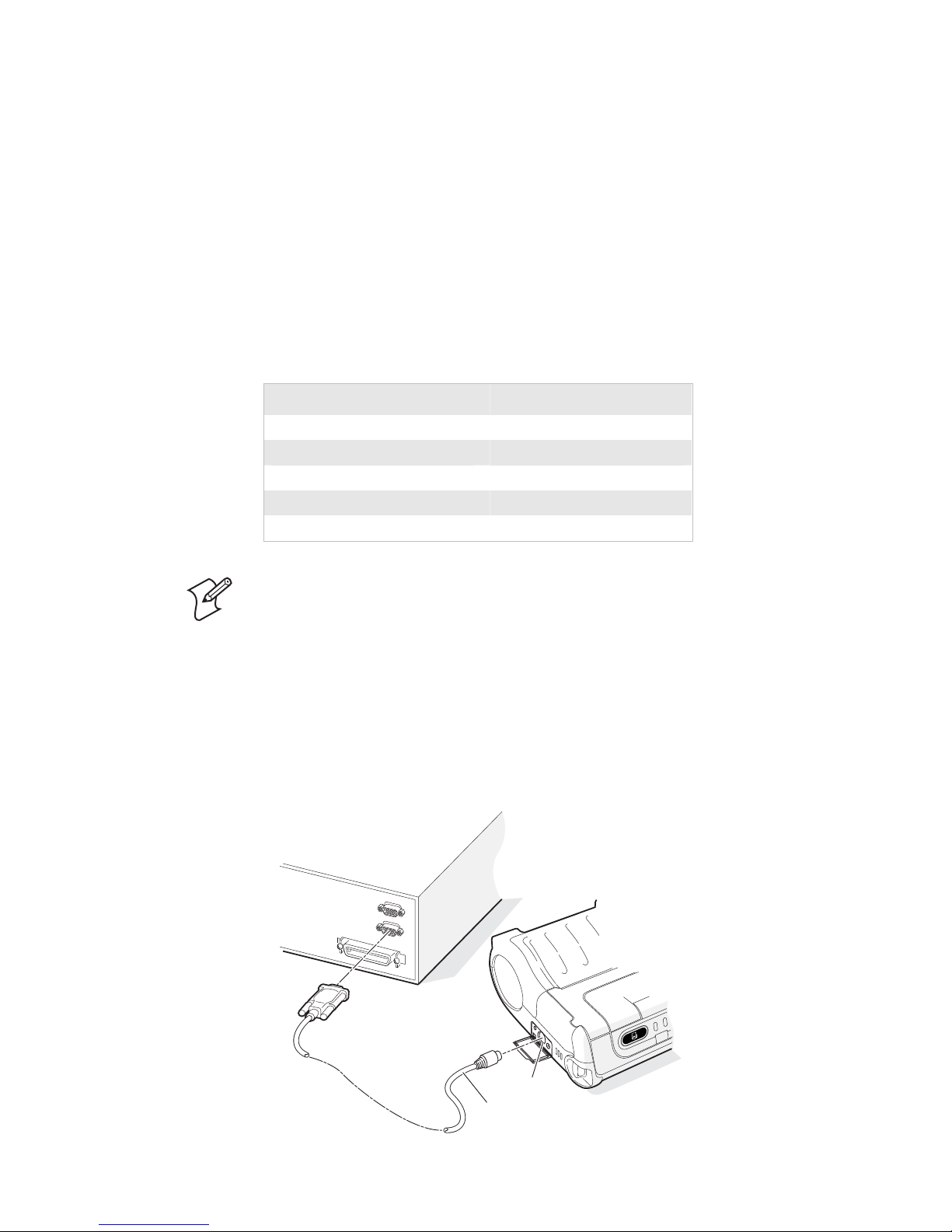
To connect the PB42/PB42c to a PC
1 Connect the 8-pin circular DIN connector to the serial port
on the PB42/PB42c.
2 Connect the other end of the serial cable to a serial port on
the back of your PC or to a serial adapter on your CK60.
PB42/PB42c Portable Receipt Printer User’s Guide 27
Serial
cable
Serial
port
Page 29

Connecting the PB42/PB42c to the Serial Port of a PC
Cancelling a Print Job
You can cancel or stop a print job at any time during the
printing process. You may find this feature helpful if you make a
mistake entering data or send incomplete information. This
procedure only works if you are in the process of sending a print
job or the printer is currently printing a print job. Otherwise,
pressing both buttons will print the configuration test page
information.
To cancel a print job
1 Press and hold the Feed and Radio buttons until the printer
beeps. The printer prints out the message “Print Job(s)
Cancelled by User” and asks you to wait a few seconds.
2 Cancel the print job from the CK60, 700, or host PC. The
PB42/PB42c clears the print job and warm boots or resets
itself.
3 Start sending print jobs to the PB42/PB42c again when you
see the message “Printer Online.”
Downloading Fonts, Graphics, and Upgrades to the
PB42/PB42c
28 PB42/PB42c Portable Receipt Printer User’s Guide
You can download fonts, graphics and firmware upgrades to the
PB42/PB42c from your handheld computer using files available
from the Intermec web site. There are two ways to download
files to your PB42/PB42c:
• You can download a self-extracting cabinet files (.cab) to copy
onto your handheld computer. When you double-click the
.cab file, the handheld computer sends the files down to the
PB42/PB42c.
• You can download a SmartSystems™ bundle (.exe) to your
PC and use SmartSystems Foundation to send the files down
to multiple PB42/PB42c printers. SmartSystems Foundation
is available from the Intermec web site at
www.intermec.com/smartsystems.
Page 30

To download fonts, graphics and upgrades using the .cab file
1 Download the PB42/PB42c font, graphics, or firmware
upgrade .zip file from the Intermec web site to your desktop
PC.
2 Unzip the file on your desktop PC.
3 Use an application such as ActiveSync™ to copy the .cab file
onto the root directory of your handheld computer.
4 Double-click the .cab file on your handheld computer.
To download fonts, graphics, and upgrades using SmartSystems
1 Download the PB42/PB42c fonts, graphics, or firmware
upgrade .exe file from the Intermec web site to your desktop
PC.
2 Double-click the .exe file on your desktop PC. The file
automatically extracts and installs the files in the Software
Vault section of the SmartSystems Console.
3 Drag and drop the files from the Software Vault onto the
handheld computers. The files will then be sent directly to the
PB42/PB42c from the handheld computer.
Upgrading the Printer Firmware
You can download firmware to your PB42/PB42c from the
CK60 or 700. To upgrade your firmware, you need to send a
.upg file to the PB42/PB42c that follows this format:
PB42cfxxxx_mmddyy.upg
where:
xxxx is the firmware version number.
mm is the month of the firmware release.
dd is the day of the firmware release.
yy is the last two digits of the year of the firmware release.
To load new firmware
1 On the CK60 or 700, go to My Device > Program Files >
Intermec and start FWUpgrade.
PB42/PB42c Portable Receipt Printer User’s Guide 29
Page 31

2 Select the Settings tab.
3 On the Settings tab, make sure you select the following
values for these settings:
Setting Select This Value
COM port COM6
Baud rate 115200
Handshaking Hardware
Use remote DCB Enabled
4 Select the Printer Flash Update tab.
5 Click Choose Update. A browser window opens.
6 Browse to your .upg file, select it, and click OK. The browser
window closes and you return to the Printer Flash Update
tab.
7 Select Send Update.
8 Wait for the “Firmware Upgrade Success” message on the
CK60. The PB42/PB42c beeps when it is done with the
upgrade.
9 Print the configuration test page to verify that your firmware
was upgraded correctly. For help printing the configuration
test page, see “Printing a Configuration Test Page” on page
23.
Troubleshooting
30 PB42/PB42c Portable Receipt Printer User’s Guide
10 Cold boot the printer. For help, see “Cold Booting the
PB42/PB42c” on page 34.
You may have printer operation, print quality, or printer
communication problems at some time during the life of the
printer. It is easy to fix most of the problems. If you cannot find
the answer to your problem in the “Printer Problems and
Possible Solutions” section, you may need to call Product
Support.
Page 32

Calling Product Support
To talk to an Intermec Product Support representative in North
America or Canada, call:
1-800-755-5505
Outside the U.S.A. and Canada, go to www.intermec.com and
click Contact to find your local Intermec representative.
Before you call Intermec Product Support, make sure you have
the following information ready:
• Serial number
• Firmware version
• Bluetooth or Serial port settings
You can find all of the information listed above on the
configuration test page. For help printing a test label, see
“Printing a Configuration Test Page” on page 23.
PB42/PB42c Portable Receipt Printer User’s Guide 31
Page 33

Printer Problems and Possible Solutions
Use the following tables to troubleshoot some common
problems you may encounter with the PB42/PB42c printer.
Printer Problems and Possible Solutions
Problem Possible Solution
The printer has no
power.
• Make sure the batteries are properly
• Recharge or replace the batteries as
installed. For help, see “Installing the
Batteries” on page 16.
necessary. For help, see “Charging the
Batteries” on page 18.
Media is not
feeding through the
printer.
The printer is not
printing with a
serial connection.
• Make sure the media cover is closed and
latched. For help, see “Loading Media” on
page 20.
• Make sure the media is not binding
anywhere in the printer.
• Make sure media is loaded and the media
cover is closed. For help, see “Loading
Media” on page 20.
• Replace or recharge the battery. For help,
see “Charging the Batteries” on page 18 or
“Installing the Batteries” on page 16.
• Check the cable to the PC. For help, see
“Setting Up Serial Communications” on
page 26.
• Print a configuration test page to make
sure that your serial port settings are
correct.
• Some printing and configuration
programs may leave the printer in a
different mode than printing mode. Please
cold boot your printer to make sure the
default printing mode is selected. For help,
see “Cold Booting the PB42/PB42c” on
page 34.
32 PB42/PB42c Portable Receipt Printer User’s Guide
Page 34

Printer Problems and Possible Solutions (continued)
Problem Possible Solution
The radio light is
not on.
• Press the radio button to turn the radio
on.
• Remove the batteries and connect a power
adapter. For help, see “Charging the
Batteries” on page 18.
The blue light is
blinking.
The printer is not
printing with a
Bluetooth
connection.
• Make sure media is loaded and the media
cover is closed. For help, see “Loading
Media” on page 20.
• Remove the batteries and connect a power
adapter. For help, see “Charging the
Batteries” on page 18.
• Make sure the radio light is blinking and
that the blue light is on solid.
• Re-establish a Bluetooth connection with
the handheld computer. For help, see your
CK60 or 700 user’s manual.
• Make sure the handheld computer can
print to a known good printer.
• Print a configuration test page to make
sure that the handheld computer
discovered your printer.
• Some printing and configuration
programs may leave the printer in a
different mode than printing mode. Please
cold boot your printer to make sure the
default printing mode is selected. For help,
see “Cold Booting the PB42/PB42c” on
page 34.
The printer is not
communicating
properly.
PB42/PB42c Portable Receipt Printer User’s Guide 33
• Make sure media is loaded and the media
cover is closed. For help, see “Loading
Media” on page 20.
• Make sure the radio is turned on.
• Check the baud rate.
Page 35

Printer Problems and Possible Solutions (continued)
Problem Possible Solution
The battery charge
is not lasting as
long as it should.
• Check the battery date. If the battery is a
few years old, the shortened life may be
due to normal aging.
• Replace the battery.
The configuration
test page does not
print.
Print quality is
poor.
Cold Booting the PB42/PB42c
You seldom need to cold boot the PB42/PB42c. You should
always cold boot the printer after a firmware upgrade. In the rare
instance that your printer locks up, you may also want to cold
boot the printer.
• Make sure that the blue light is not
blinking. If it is, make sure your printer
has media and that the media cover is
closed.
• Make sure that you can advance media by
pressing the Feed button.
• Try removing batteries, connecting a
power adapter, and printing the
configuration test page again.
• Clean the printhead. For help, see
“Cleaning the Printer” on page 35.
• Check the battery and recharge or replace
as necessary. For help, see “Charging the
Batteries” on page 18.
• Check the quality of the media. Use only
Intermec media to ensure superior print
quality and product performance.
34 PB42/PB42c Portable Receipt Printer User’s Guide
After you perform a cold boot on the PB42/PB42c, the printer
resumes using the default printing mode (Line Printer mode)
and returns to using the default font for printing.
Page 36
To cold boot the PB42/PB42c
1 Disconnect the PB42/PB42c from the power source if
externally powered.
2 Remove the batteries from the PB42/PB42c for at least one
second.
3 Insert the batteries back into the PB42/PB42c.
4 Reconnect external power if powered externally.
5 Press the Feed button several times.
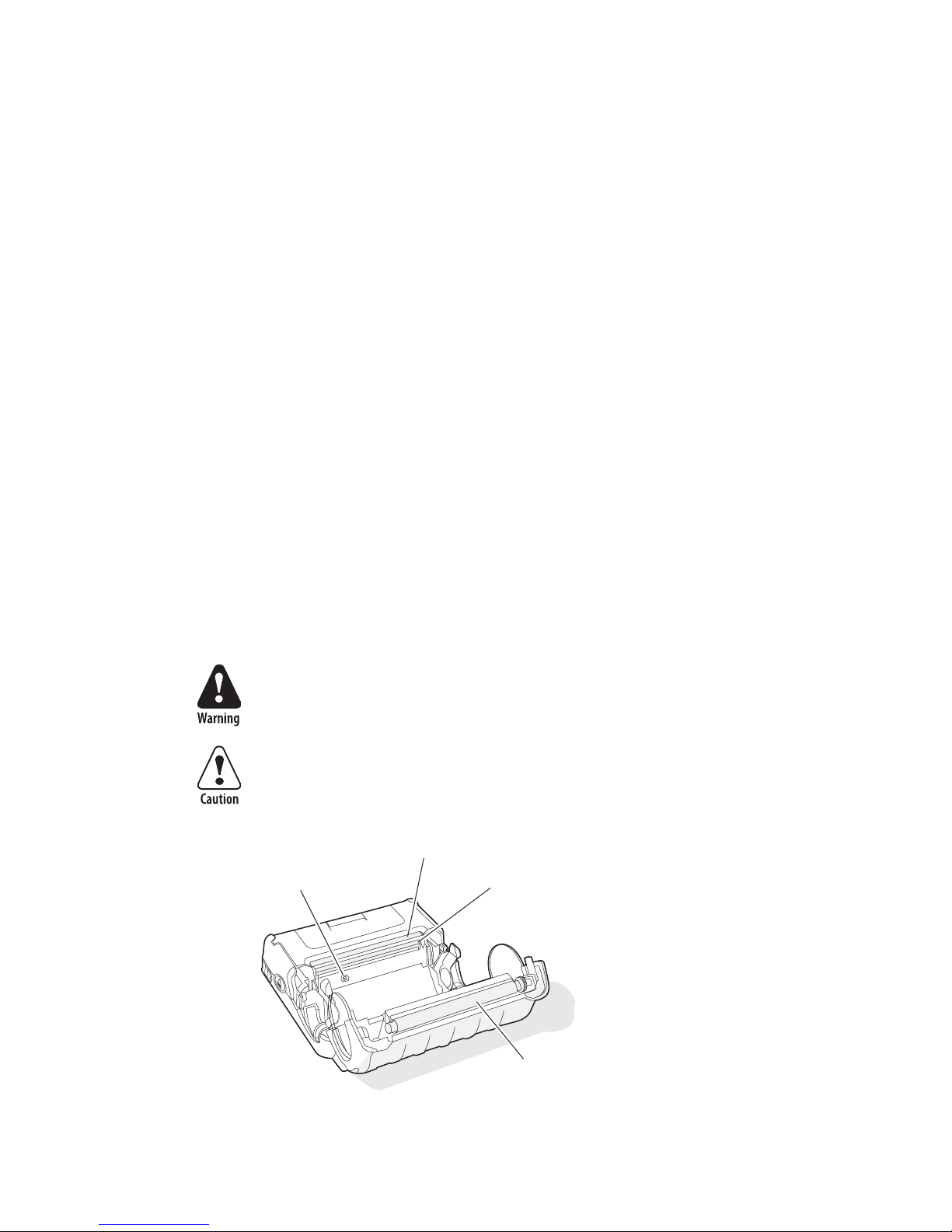
Cleaning the Printer
To properly maintain your PB42/PB42c, you should clean it at
the recommended intervals.
To avoid possible personal injury or damage to the printer,
never insert any pointed or sharp objects into the printer.
Use only cleaning agents specified next. Intermec is not
responsible for damage caused by any other cleaning
materials used on this printer. Clean the printer with a
cotton swab saturated with alcohol.
Paper
sensor
PB42/PB42c Portable Receipt Printer: Identifying the parts of the
PB42/PB42c to clean regularly.
PB42/PB42c Portable Receipt Printer User’s Guide 35
Tea r bar
Printhead
Platen
roller
Page 37

Cleaning the PB42/PB42c
Printer Part Cleaning Method Cleaning Interval
Printhead Use 70% isopropyl alcohol
on a cotton swab to clean the
print elements from end to
end.
Platen roller Rotate the platen roller and
clean it thoroughly with 70%
isopropyl alcohol on a cotton
swab.
Paper sensor Clean thoroughly with 70%
isopropyl alcohol and a
cotton swab.
Tear bar Clean thoroughly with 70%
isopropyl alcohol and a
cotton swab.
Exterior Clean with a water-
dampened cloth.
Interior Brush or air blow. Make sure
the paper sensor is free of
dust.
After every five rolls
of media or more
often if necessary.
After every five rolls
of media or more
often if necessary.
After every five rolls
of media or more
often if necessary.
As needed.
As needed.
After every five rolls
of media or more
often if necessary.
36 PB42/PB42c Portable Receipt Printer User’s Guide
Page 38

Specifications
Label and Printing Specifications
Print density 8 dots/mm (203 dots/inch)
Maximum media width 11.2 cm (4.4 inches)
Print width 10.4 cm (4.1 inches)
Print speed 5.1 cm (2 inches) per second
Receipt roll core (ID) 1.9 cm (0.75 inch)
Receipt roll maximum diameter 6.5 cm (2.55 inches)
Physical Dimensions
Depth 7.87 cm (3.1 inches)
Height 18.03 cm (7.1 inches)
Width 16.82 cm (6.62 inches)
Weight Less than 1.39 kg (49 ounces) with battery packs
and receipt paper.
Power Specifications
AC power adapter Input voltage 100-240V
Printer voltage 12 V
Operating Rechargeable 7.4 V 2400 mAh lithium-ion
Temperature and Humidity Specifications
Operating temperature -20°C to 50°C (-4°F to 122°F)
Non-operating temperature -30°C to 70°C (-22°F to 158°F)
Relative humidity 10% to 90% non-condensing
PB42/PB42c Portable Receipt Printer User’s Guide 37
Input current: 1A
batteries
Page 39

Factory Default Settings
Setting Default Value
Serial port
Baud rate 115200
Data bits 8
Parity None
Stop bits 1
Flow control Hardware
Bluetooth
Bluetooth authentication No
Discoverable Yes
Connectable Yes
Class of device 0x040680
Service name Wireless printer
Device name PB42/PB42c-xxxxxxxxxxx (where
x’s represent the serial number of
the printer)
Baud rate 115200
Data bits 8
Parity None
Handshake hardware
Low battery indicator 7.2 V
Allow messages from printer Off
Dark adjust 100
Media sensitivity 2 (moderate heat setting)
38 PB42/PB42c Portable Receipt Printer User’s Guide
Page 40

Accessories for the PB42/PB42c
You can use these accessories (sold and ordered separately) with
the PB42/PB42c. To order accessories, contact your local
Intermec sales representative.
AC4 Quad Charger (Model AC4)
Use the AC4 to charge up to four PB42/PB42c batteries at a
time. The battery charger is designed to sense when a battery is
fully charged and not overcharge it, ensuring long and consistent
battery life.
AC10 4-Bay Charger (Model AC10)
Use the AC10 to charge up to eight PB42/PB42c batteries
without having to remove them from the PB42/PB42c. You can
insert four PB42/PB42c printers with the batteries installed in
the charger to make it easy to remember to charge batteries.
AV4 Vehicle Cradle (Model AV4)
Use the vehicle cradle mounting kit to attach the PB42/PB42c
printer to a truck.
Battery (Model 318-015-001)
Use the lithium-ion 2400 mAh batteries to provide power to the
PB42/PB42c printer and the CK60 computer.
Belt Clip (P/N 074964)
Use the PB42/PB42c belt clip to attach the PB42/PB42c printer
to your belt.
Cigarette Lighter Adapter (P/N 074866)
Use the cigarette lighter adapter to power the PB42/PB42c from
your vehicle.
Handstrap (P/N 074789)
Use the PB42/PB42c handstrap to conveniently carry your
PB42/PB42c printer. With the handstrap attached, you can also
attach the shoulder strap.
Power Supply (Model 073573)
Provides power to the PB42/PB42c and the 4-bay charger
(Model AC10).
PB42/PB42c Portable Receipt Printer User’s Guide 39
Page 41

Serial Cable (P/N 075497)
The serial adapter is an 8-pin DIN to DB9 connector that
connects from the PB42/PB42c printer to your desktop PC.
Shoulder Strap (P/N 074788)
Use the shoulder strap in combination with the handstrap to
easily carry the PB42/PB42c printer. The wide padded strap
makes it comfortable to wear the PB42/PB42c for long periods
of time.
System Bag (P/N 825-170-001)
Use the system bag to carry your PB42/PB42c, a CK60 or 700,
media, and cables or other accessories in one bag.
PB42/PB42c DC Power Cable (P/N 852-909-001)
Provides power for the vehicle dock.
PB42/PB42c Vehicle Power Cable (P/N 236-065-001)
Provides power for the PB42/PB42c and CK60 vehicle docks.
40 PB42/PB42c Portable Receipt Printer User’s Guide
Page 42

PB42/PB42c Portable Receipt Printer User's Guide
*074573-006*
P/N 074573-006
Worldwide Headquarters
6001 36th Avenue West
Everett, Washington 98203
U.S.A.
tel 425.348.2600
fax 425.355.9551
www.intermec.com
 Loading...