

Page 1
Quick Start
Guide
700 Color
Mobile
Computer
With
Pocket
PC 2002
Page 2

Thank you for purchasing Intermec’s 700 Series
Color Mobile Computer. You will find the 700 Color
useful in a variety of applications. Its integrated peripherals and rugged design ensure reliable service for
years to come.
This guide provides information needed to get started
using your 700 Color. For more detailed information
consult the 700 Color Mobile Computer User’s
Manual. For details on application development and
software configuration of the 700 Color, consult the
700 Color Software Tools CD-ROM.
Note that the hardware configuration of your 700
Color may differ from the descriptions in this guide.
Depending on options selected, your unit might not
be equipped with a radio or scanner.
Note that the software operation descriptions are
based on factory defaults. Your 700 Color might be
shipped pre-programmed with application software
that causes your 700 Color to operate differently than
described in this document.
2 700 Color with Pock et PC 2002 Quick Start Guide
Page 3

Contents
700 Color Mobile Computer Description 5.....
700 Color Mobile Computer
Features 6.....................
Learning About the Keypad Functions 7.......
Gold Plane Keys 7.................
Alpha (Blue) Plane Keys 7...........
Ambient Light Sensor 8.............
Scanning/Keypad Shift and
Notification (chec kmark icon)
Light 8.......................
Battery Status Light 8..............
Setting up your 700 Color Mobile
Computer 9..........................
About Microsoft Pocket PC 2002 14..........
The Today Screen 14..............
Navigation Bar and Command Bar 15..
Pop-up Menus 16.................
Entering Information into Your 700
Color Mobile Computer 16.......
Synchronizing With Your Desktop
Computer 17.........................
Checking Your Scanning Options 17.........
Checking Your Network Options 20..........
Cleaning Your 700 Color Mobile Computer 21.
Case and Display 21...............
If Your Mobile Computer Gets
Wet 21.......................
Troubleshooting 21.......................
Cold Booting Your 700 Color 23.....
3700 Color with Pock et PC 2002 Quick Start Guide
Page 4

Warm Booting Your 700 Color 23....
Where to Find More Information 24..........
End User License Agreement 24.............
MICROSOFT WINDOWS FOR
POCKET PC 2002 24...........
Intermec Technologies Corporation End User
License Agreement 30...................
Radio Use Safety Precautions 30.............
Global Services and Support 33..............
Warranty Information 33...........
Web Support 33..................
Telephone Support 34.....................
Patent Information 35.....................
4 700 Color with Pock et PC 2002 Quick Start Guide
Page 5
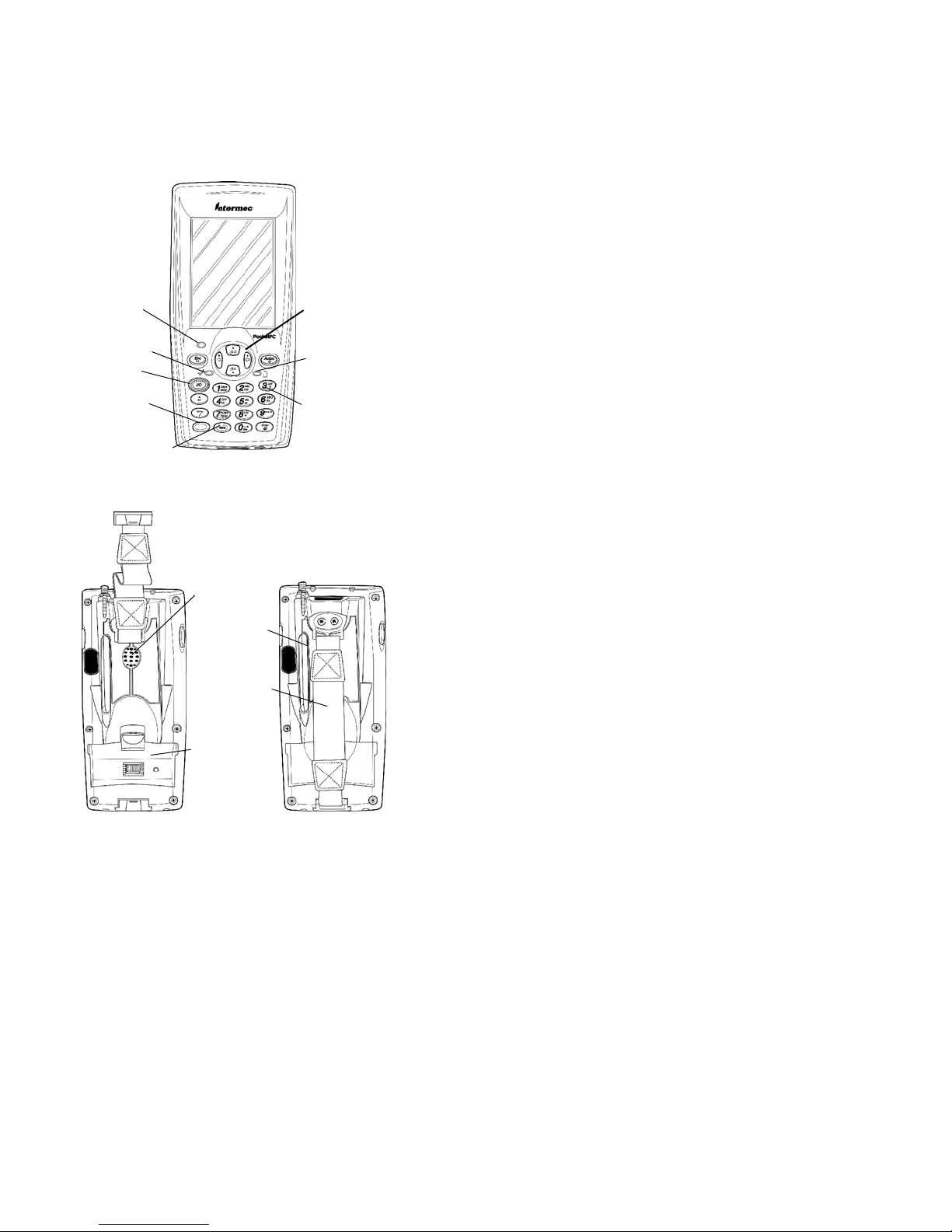
700 Color Mobile Computer
Description
Ambient light
sensor
Scanning/
Alpha LED
ON/OFF
Gold plane
key
Alpha (Blue)
plane key
Navigational
keys
Power status
Front light
(Gold + 3)
Front View
Speaker
Stylus
Hand strap
Battery
compartment
Back View
5700 Color with Pock et PC 2002 Quick Start Guide
Page 6
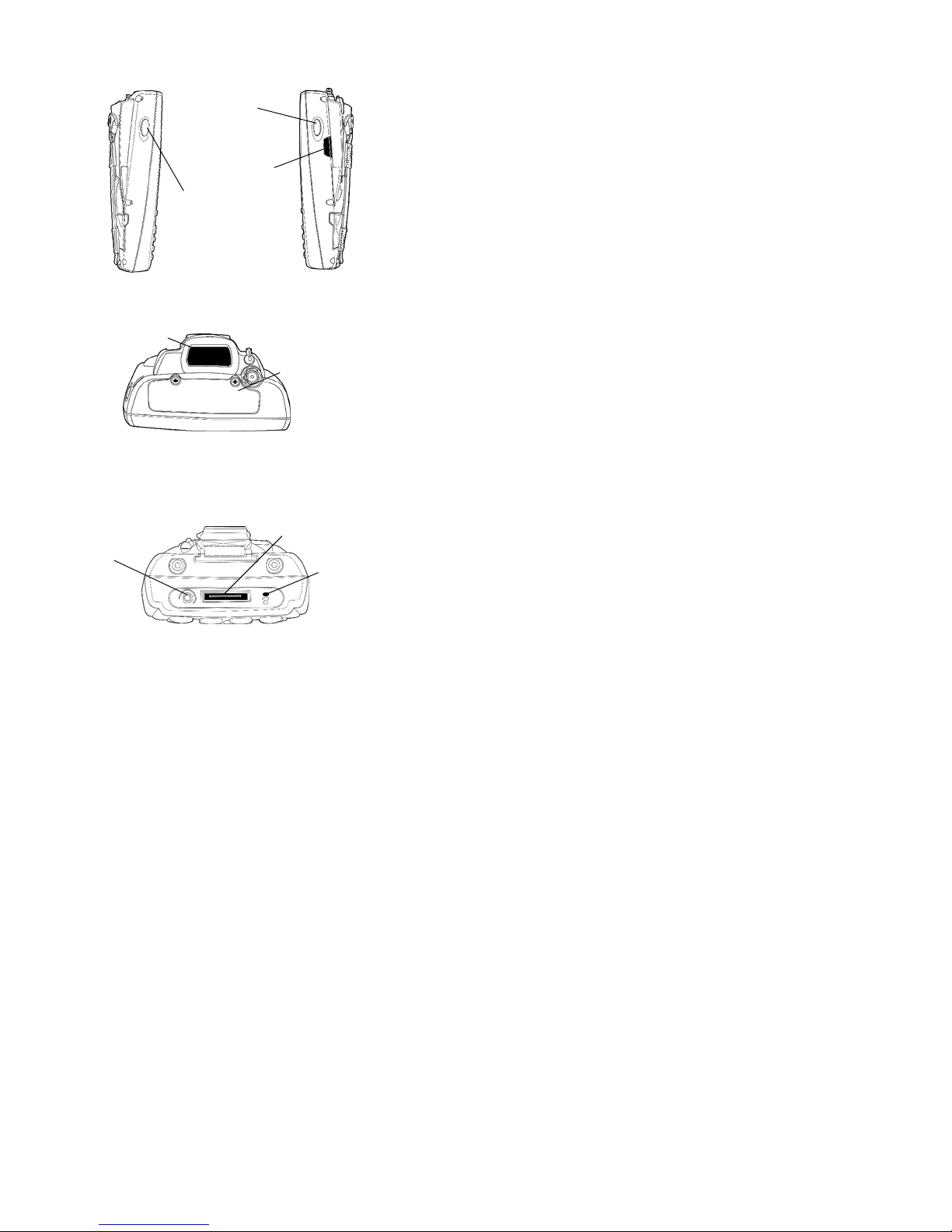
Scanner trigger
IrDA
Scanner trigger or
Recorder button
left side of unit
Left Side View
Scanner lens
Top V i e w
Headset
jack
Bottom View
Right Side View
CompactFlash
Secure Digital
SIM card
compartment
Charging/Docking
connector
Microphone
700 Color Mobile Computer Features
Herearesomeofthekeyfeaturesthatyouwillusea
lot throughout your daily operation.
S Action button: Press to open an item (similar to
pressing ENTER on the keypad).
S Up/Down controls: Press to scroll through a list
(similar to pressing the arrow keys on a keyboard).
6 700 Color with Pock et PC 2002 Quick Start Guide
Page 7

S Power to run your 700 Color is supplied by a pow-
erful Li-Ion battery pack designed to give you
approximately 6-10 hours of operation (depending
on application). In addition, your 700 Color contains backup capabilities to prevent loss of data
when the main battery is discharged or when
switching out battery packs. For maximum effectiveness it is important to leave the main battery
installed in your 700 Color even if it is discharged.
If the main battery is removed, it should be replaced within 10 minutes to avoid the possibility of
data loss.
Learning About the Keypad
Functions
Gold Plane Keys
The [Gold] plane keys provide you access to display controls, special characters, and Pocket PC options.
Press the Gold key for each gold plane key stroke you
wishtomake.Forexampletoturnonthefrontlight,
press and hold the Gold
To turn the front light off press the Gold and the ‘3’
key again.
key plus the ‘3’ key.
Alpha (Blue ) Plane Keys
The Alpha (Blue) plane keys work a bit differently than the Gold plane keys. When you press the Alpha key, the Scanning/Alpha LED lights ’red’ to indicate Alpha mode. The keypad stays in the Alpha mode
until you press it again.
For example, pressing the Alpha
key allows the next letter to be capitalized. Again
itstaysinthismodeuntilyoupresstheAlphakey
again.
Another example of how this works, if you want to
type a ‘c’ press the
times. If you need a letter that is on the same key as
key and the ‘2’ key three
key and the ‘1’
7700 Color with Pock et PC 2002 Quick Start Guide
Page 8

the last letter entered, wait two seconds after you
pressed the last key then you can enter the correct series of keystrokes to create the next letter.
Ambient Light Sensor
Ambient light sensor turns on the display lighting
when conditions warrant but automatically turn if off
again as surrounding light increases. This conserves
your 700 Color’s battery power. This is a feature
which can be set by you through the “Settings” options, accessed from the Start Menu (Settings>Backlight>Both Power).
Scanning/Keypad Shift and Notification
(checkmark icon) Light
The Scanning/Keypad Shift and Notification status
light (LED)
S Green, indicates a ’Good Scan’ and while the scan-
ner is initializing.
S Red, keypad is shifted to the ALPHA (Blue) plane
and the 700 Color is On.
S Blinking Red, radio is powered up when 700 Color
is in suspend mode.
turns red, green, or yellow.
S Yellow, ’Good Scan’ and keypad is shifted into the
ALPHA mode. Also when the Notification signal
blinks on periodically to indicate that some event
has occurred and you need to take some action.
Battery Status Light
The Battery status light (LED) turns red, green,
or yellow.
S Green, battery is more than 95% charged.
S Blinking Red, battery is low. The speed of the
blinkingincreasesasthebattery’spowergetsincreasingly lower.
S Red, main battery is low or if charging will remain
red until your 700 Color reaches 95% charge status.
8 700 Color with Pock et PC 2002 Quick Start Guide
Page 9
S Yellow, no battery pack in your 700 Color. Can
also mean that your 700 Color is out of charging
range 32 to 122°F(0to50°C). Once your 700
Color gets back in range, charging resumes.
S Alternating between red and yellow means the
battery pack needs replacing.
Setting up your 700 Color Mobile
Computer
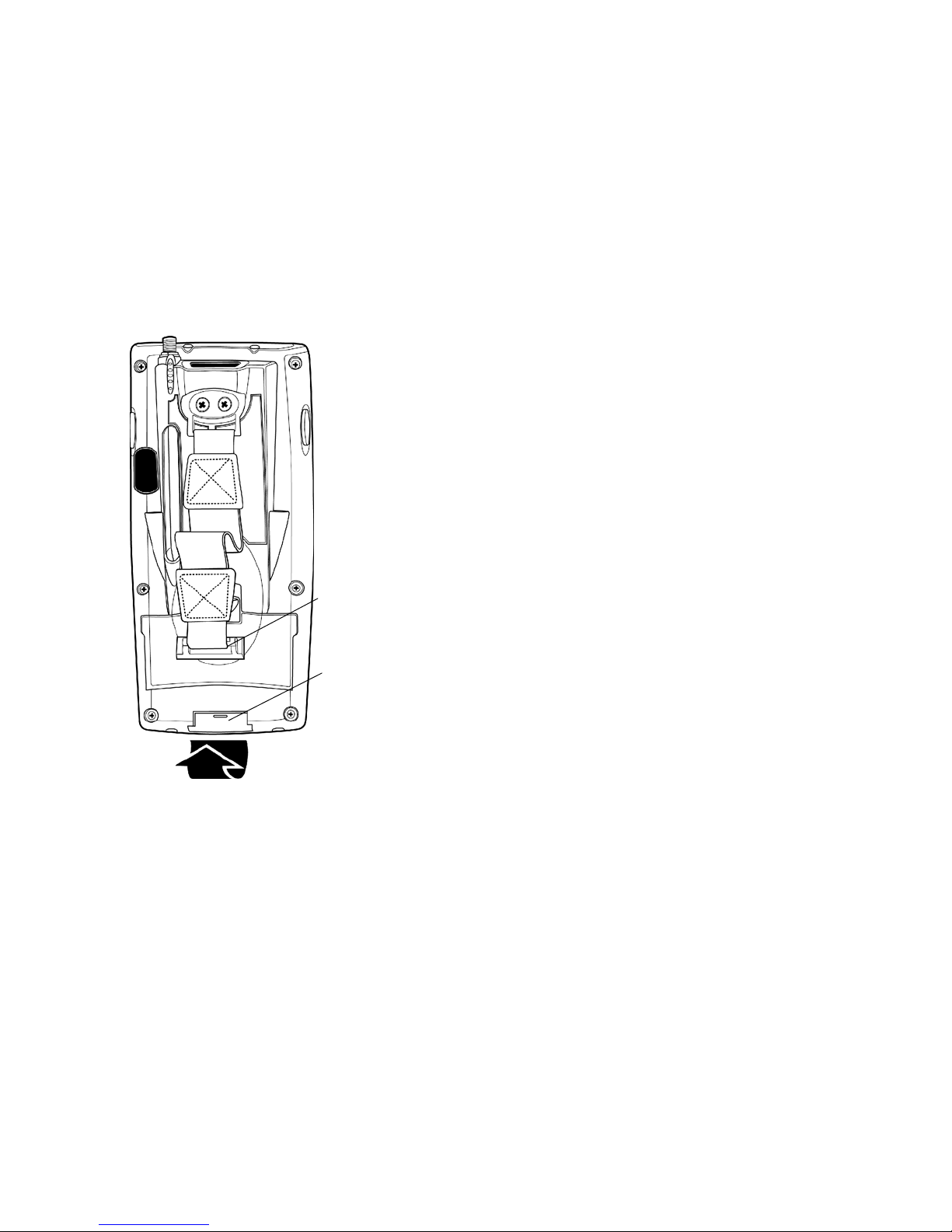
1 Remove 700 Color from packaging.
2 Release hand strap.
Slide bottom of
strap forward to
release
Strap retaining
slot
9700 Color with Pock et PC 2002 Quick Start Guide
Page 10
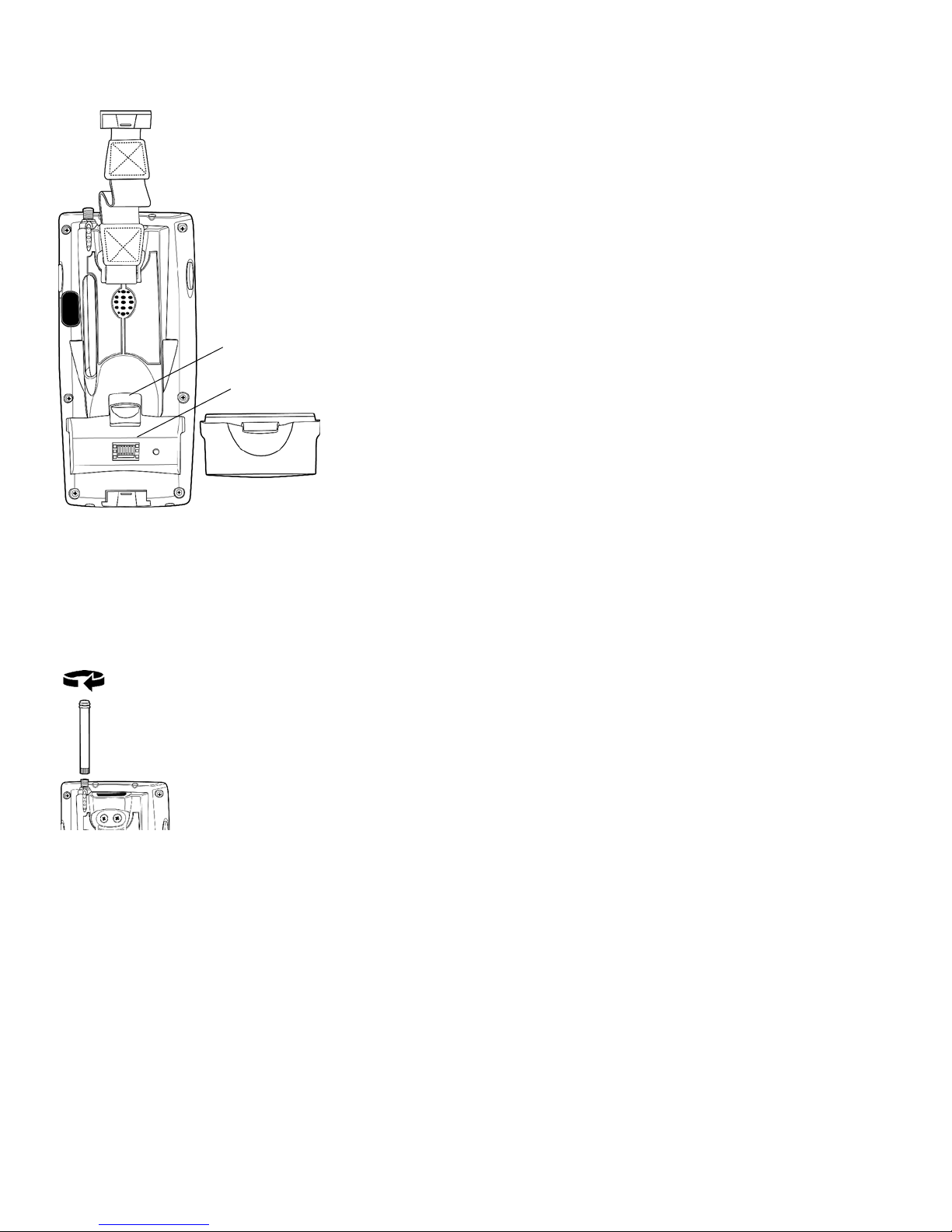
3 Install battery and reattach hand strap.
Tilt, insert, and place battery
into compartment.
Battery compartment latch
Battery compartment
Battery pack
Ensure battery compartment latch “clicks”
so battery is secure in compartment.
4 Install antenna (if applicable).
Remove the antenna from packaging
Install by turning in a clockwise motion
10 700 Color with Pock et PC 2002 Quick Start Guide
Page 11
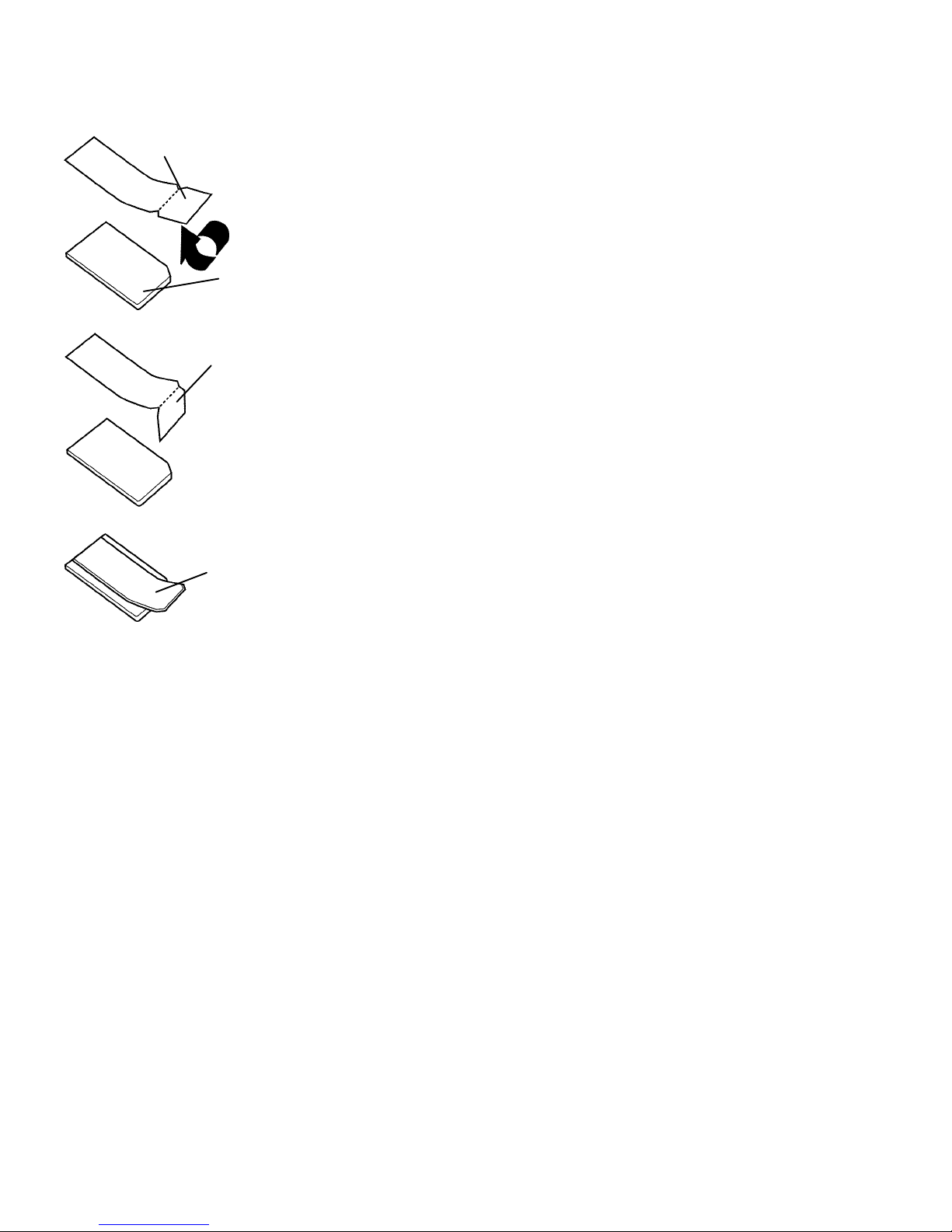
5 Install acrylic adhesive pull tabs on SD or SIM
cards.
Pull Tab p/n 806-918-001
Card
Split paper adhesive backing
Peel and stick to card
11700 Color with Pock et PC 2002 Quick Start Guide
Page 12
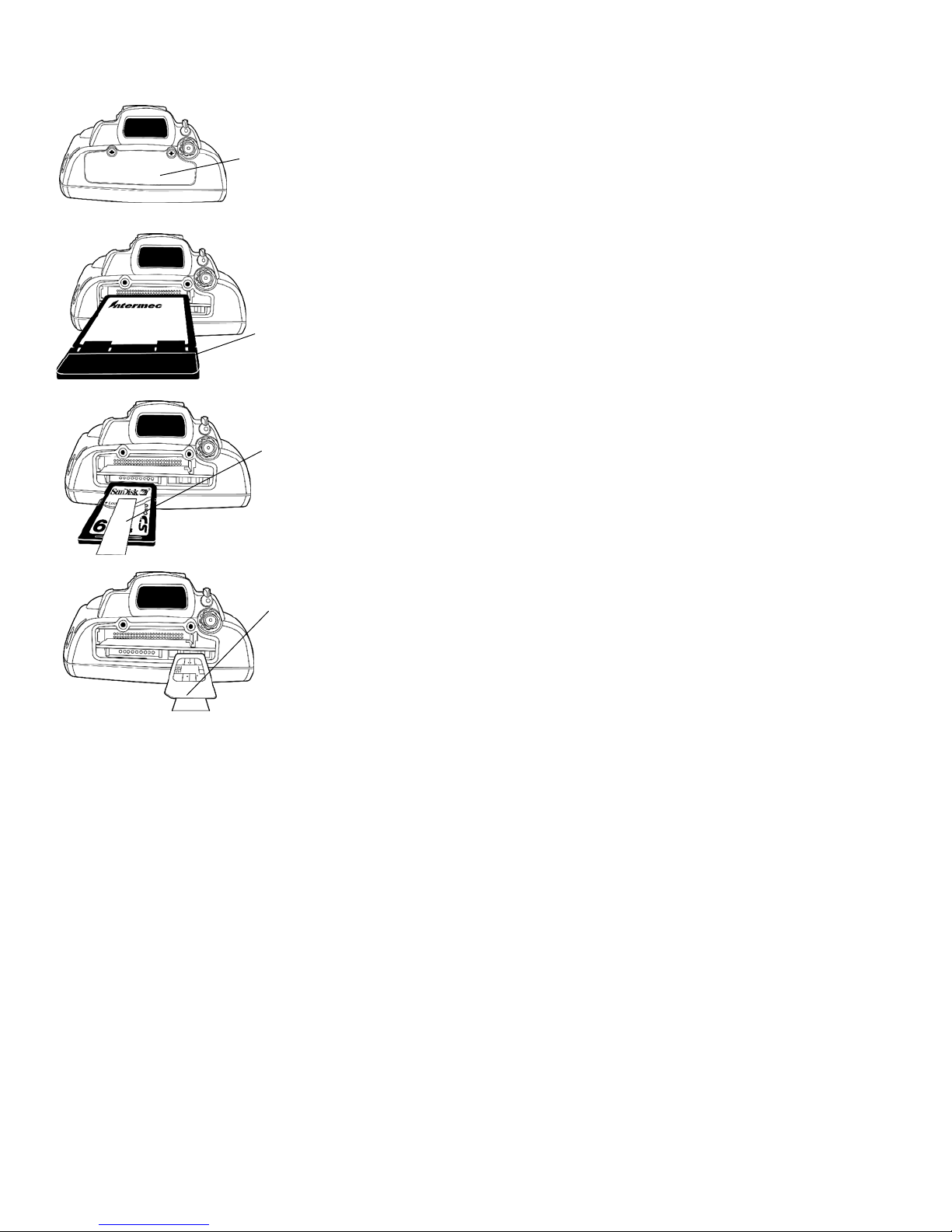
6 Insert CF, SD, or SIM cards.
Remove the two cover
screws and lift cover off
Slide card into appropriate
slot
CF card with extractor
and insertion orientation
SD Card, with
adhesive pull tab,
insert with contacts
toward keypad
SIM Card with adhesive pull tab, insert
with contacts toward
back of unit
Reinstall cover
12 700 Color with Pock et PC 2002 Quick Start Guide
Page 13

7 Connect to AC adapter or 700 Single Dock.
8 Charge battery pack (4 hours) before using.
9 Thefirsttimeyouturnonyour700Coloryouare
introduced to the Intermec 700 Color screen. After a
few seconds you proceed to the Welcome Pocket PC
screen. Tap your stylus to advance to the next
screen.
10 You are then prompted through the Align Screen
process. Read the display messages and follow the
instructions.
11 The Stylus screen prompts you through the two
ways to use your stylus.
12 The Pop-up Menu screen walks you through an ex-
ercise using pop-up menu screens. Follow the
prompts and press Next when done.
13 The Location screen allows you to select your time
zone. Enter your time zone then press Next and the
Complete screen appears.
14 Tap the screen to complete your initial set up.
13700 Color with Pock et PC 2002 Quick Start Guide
Page 14

About Microsoft Pocket PC 2002
Your 700 Color Mobile Computer comes with Microsoft Pocket PC 2002 preloaded. For more information
regarding:
S Programs on your device: The User’s Manual and
device Help on the Start Menu. To view Help, tap
or press [Gold]+[Win] and then tap Help.
S Additional programs that can be installed on the
device: The Pocket PC Companion CD.
S Connecting to and synchronizing with a desktop
computer: ActiveSync Help on your desktop computer. To view Help, click Help and then Micro-
soft ActiveSync Help.
S Last-minute updates and detailed technical infor-
mation: The Readme files, located in the Microsoft
ActiveSync folder on the desktop computer and on
the Pocket PC Companion CD.
S Up-to-date information on Pocket PC:
http://www.microsoft.com/mobile/pocketpc
The Today Screen
When you turn on your 700 Color Mobile Computer
for the first time each day you’ll see the Today screen.
You can also display it by tapping
[Gold]+[Win], then tapping Today. On the Today
screen, you can see at a glance the information you
need for the day.
14 700 Color with Pock et PC 2002 Quick Start Guide
or pressing
Page 15
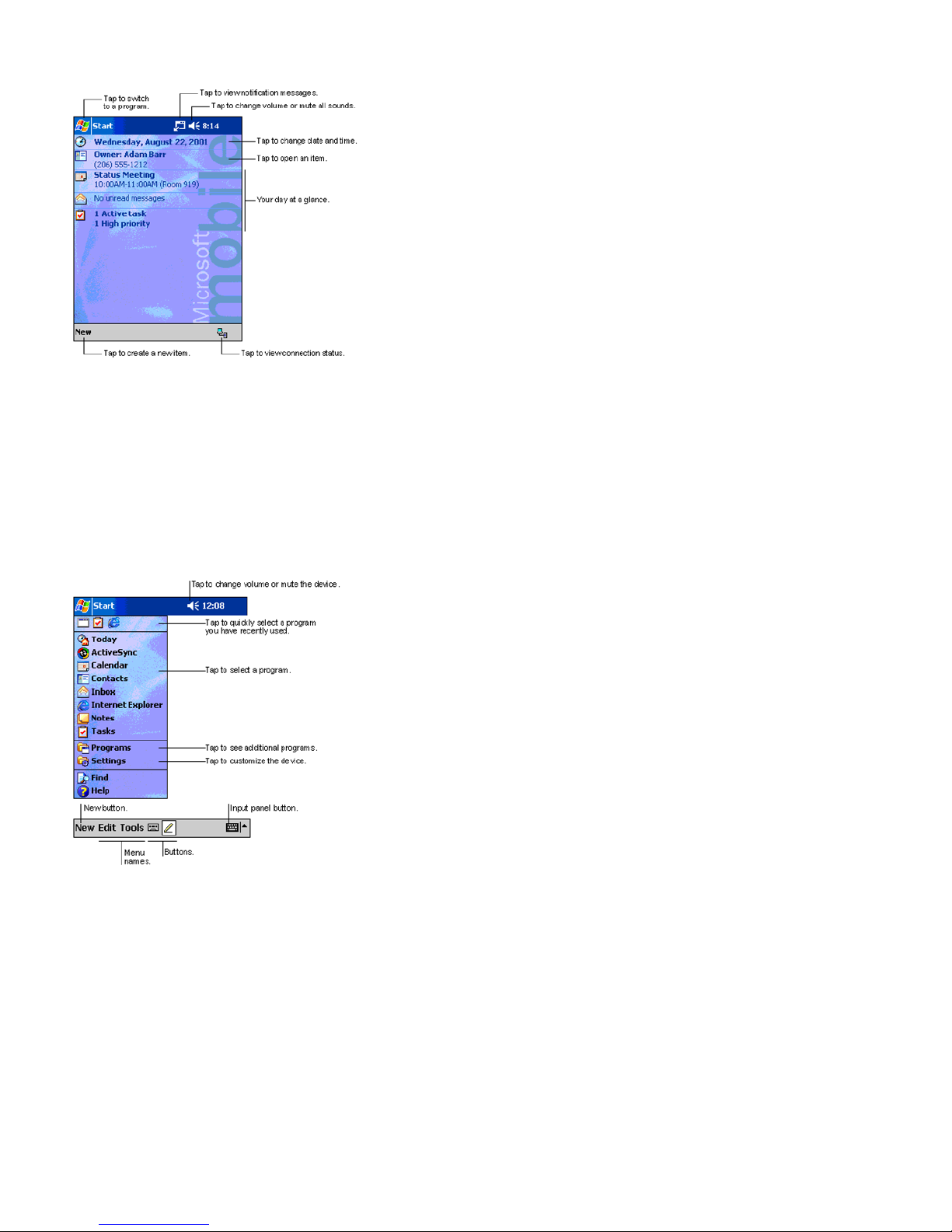
Navigation Bar and Command Bar
The Navigation Bar is located at the top of the screen.
It displays the active program and current time, and
allows you to switch to programs and close screens.
The Command Bar is displayed at the bottom of the
screen. Use the menus and buttons to perform tasks in
programs.
15700 Color with Pock et PC 2002 Quick Start Guide
Page 16
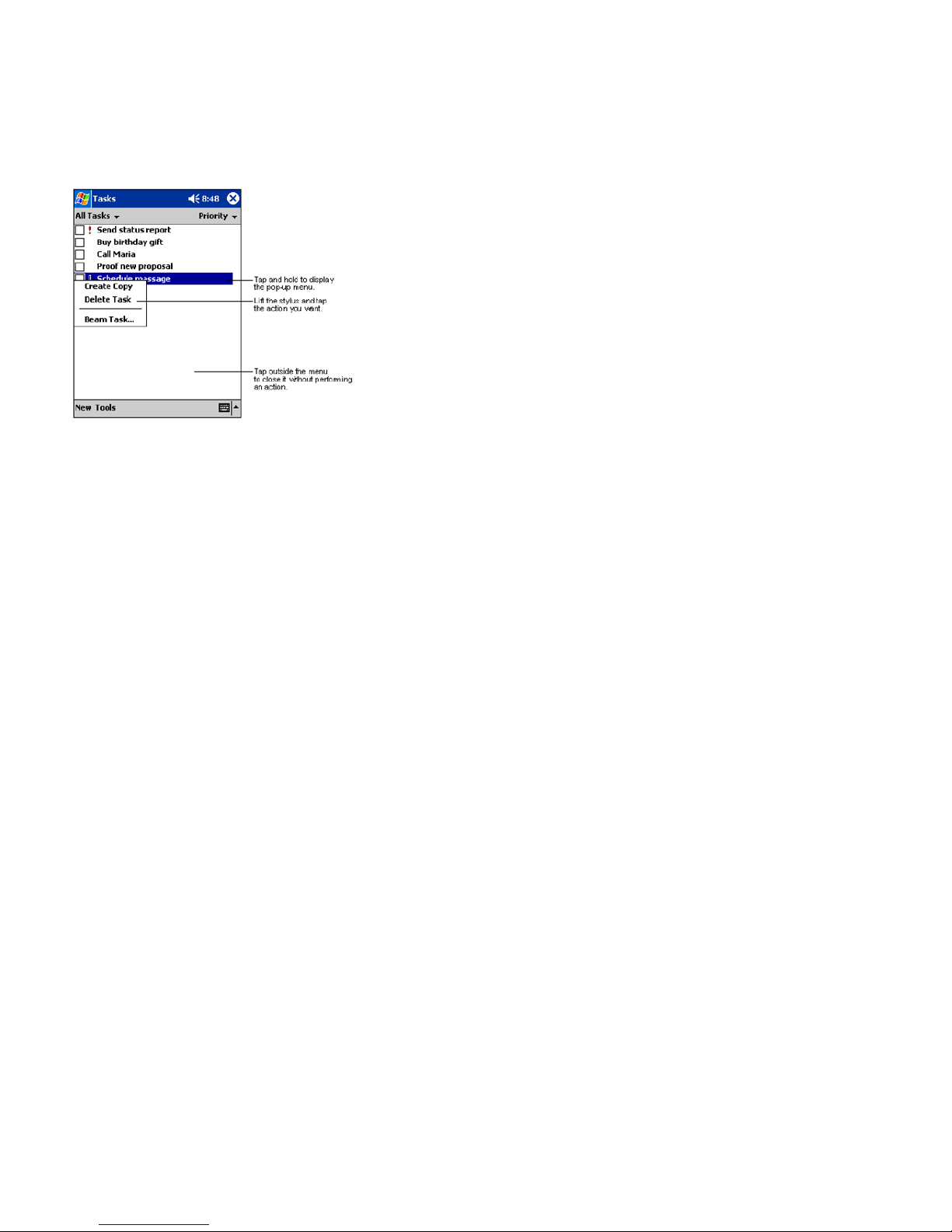
Pop-up Menus
With pop-up menus, you can quickly choose an action for an item.
Entering Information into Your 700 Color
Mobile Computer
You can enter information in any program on your
700 Color Mobile Computer by typing with the soft
keyboard, or writing using Block Recognizer.
The Block Recognizer input panel is divided into three
writing areas. Letters written in the left area (labeled
ABC) create uppercase letters, and letters written in
themiddlearea(labeledabc) create lowercase letters.
The right area (labeled 123) is for writing numbers,
symbols, special characters, and punctuation.
For more information on using Block Recognizer and
for demos of all characters, tap the question mark next
to the writing area on the Block Recognizer input panel.
16 700 Color with Pock et PC 2002 Quick Start Guide
Page 17

Synchronizing With Your Desktop
Computer
Using Microsoft ActiveSync, you can synchronize the
information on your desktop computer with the information on your 700 Color Mobile Computer. Synchronization compares the data on your mobile computer with your desktop computer and updates both
units with the most recent information.
Before you begin synchronization, install ActiveSync
on your desktop computer from the Pocket PC Companion CD. ActiveSync is already installed on your
mobile computer. To install ActiveSync:
S Insert the Pocket PC Companion CD into the CD-
ROM drive of your desktop computer. Follow the
directions on your screen.
If Setup doesn’t start when you insert the CD, start in
manually. Click Start and then Run.Typed:\setup,
where ’d’isyourCD-ROMdrive.
After installation is complete, the Setup Wizard tells
you to connect your mobile computer to your desktop
computer. Setup Wizard helps you to set up a partnership between devices, and steps you through your first
synchronization.
17700 Color with Pock et PC 2002 Quick Start Guide
Page 18
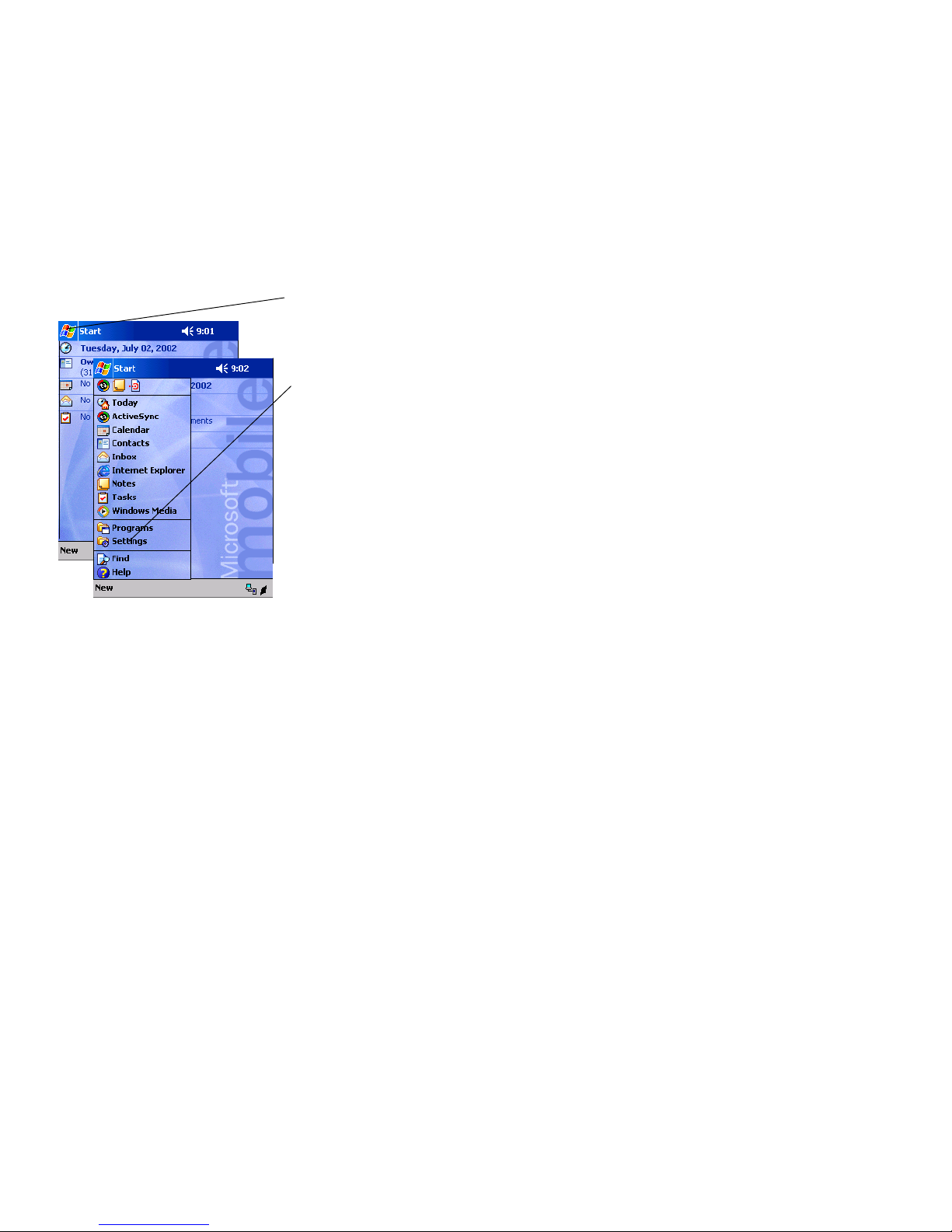
Checking Your Scanning Options
1 Your 700 Color Mobile Computer comes to you
with all scanner and bar code drivers loaded into
ROM. To check out what bar code options your
700 Mobile Computer reads follow these screens.
2 To change any default settings refer to the 700 Col-
or Software Tools CD-ROM or the 700 Color
User’s Manual.
Tap S ta rt
Tap Settings
18 700 Color with Pock et PC 2002 Quick Start Guide
Page 19
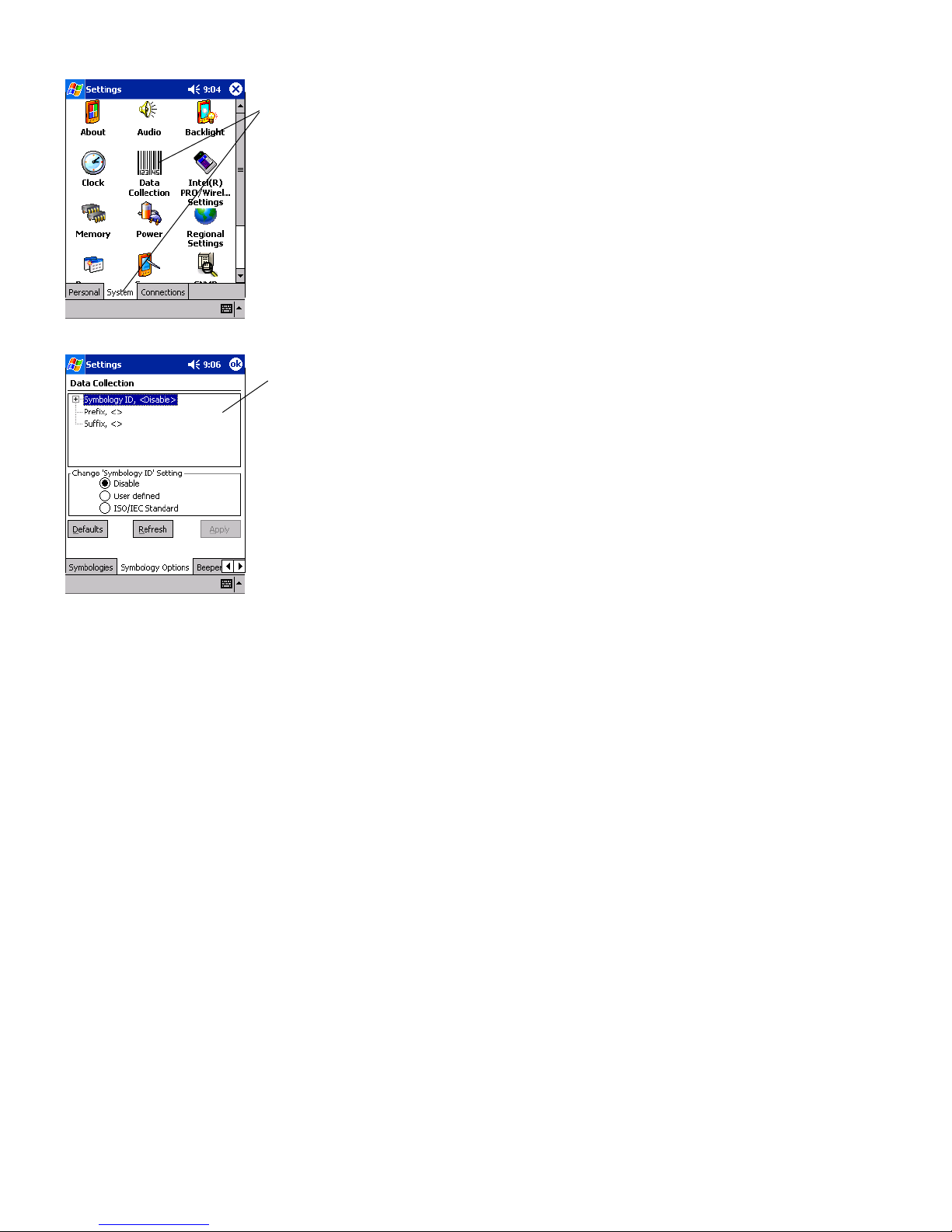
Select System folder
and Data Collection
applet
Default change screen
19700 Color with Pock et PC 2002 Quick Start Guide
Page 20
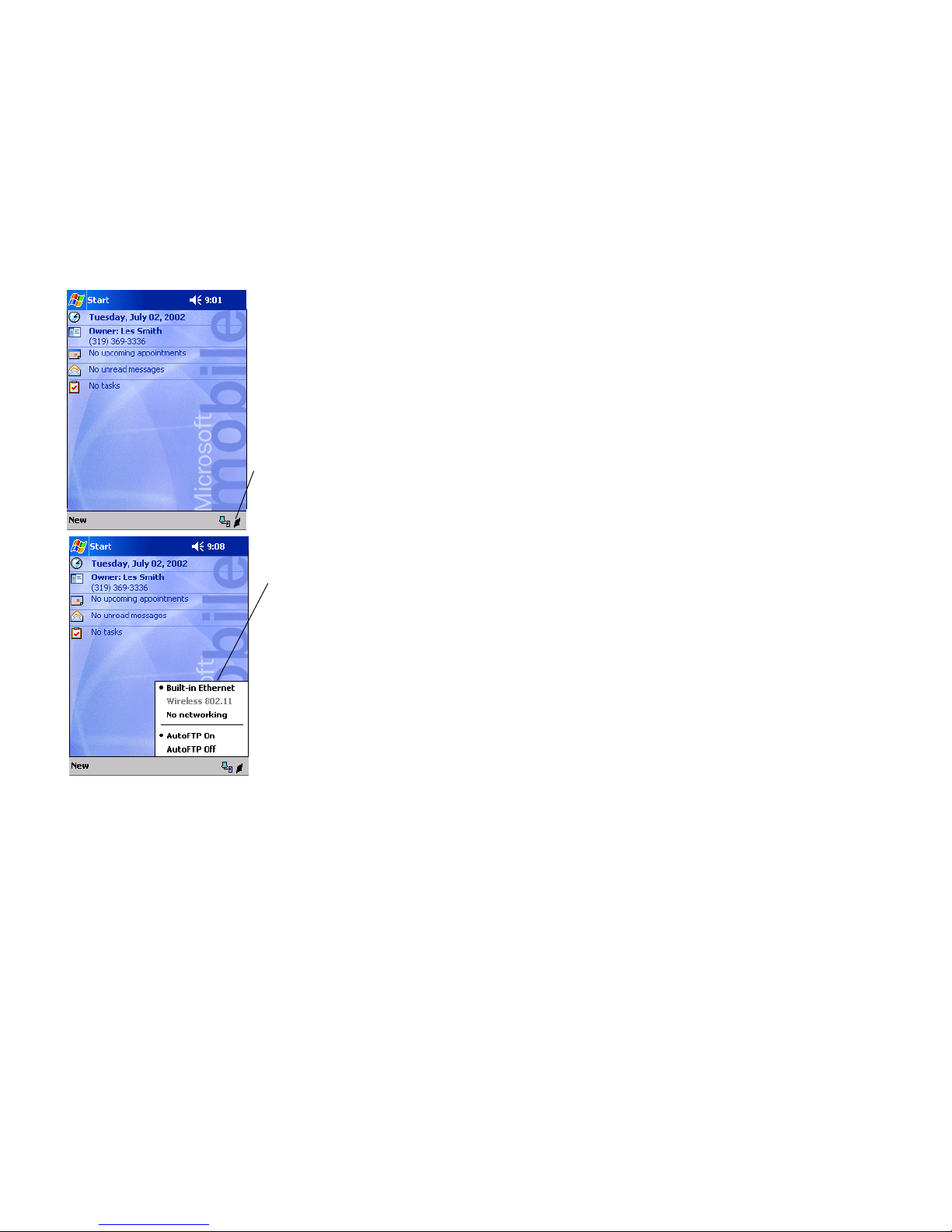
Checking Your Network Options
1 Your 700 Color Mobile Computer comes to you
with the radio drivers loaded into ROM. To check
what radio your 700 Mobile Computer is equipped
with, follow these screens.
2 To change any default settings refer to the 700 Col-
or Software Tools CD-ROM or the 700 Color
User’s Manual.
Double tap the ‘I’ icon,
this opens the Networking Driver Interface
Specification (NDIS)
Tray.
Default setting is
Built--in Ethernet
20 700 Color with Pock et PC 2002 Quick Start Guide
Page 21

Cleaning Your 700 Color Mobile
Computer
Periodic cleaning helps maintain the appearance and
reliability of your 700 Color. When cleaning your 700
Color, inspect the keyboard, covers, display, connectors, and peripheral products for obvious signs of damage or wear.
Do not use any abrasive cleaning compounds, ketonic
solvents (acetone or ketone) or aromatic solvents (toluene or xylene) to clean any part of your 700 Color.
These solutions will cause permanent damage.
Neverpourcleanersdirectlyonthedisplayorthecase.
Instead put the cleanser on a soft cloth and gently
wipe the case.
Case and Display
We recommend cleaning the exterior of your mobile
computer using a soft cloth dampened with MICROCLEAN II cleanser, made by Foresight International,
Inc. 4887 F Street, Omaha, NE 68127-0205 (phone:
1-800-637-1344).
If Your Mobile ComputerGets Wet
Remove the battery pack and dry off the battery and
wipe out the battery compartment. Dry off all connectors, keypad, and entire external case before using to
avoid component failure and contact problems with
docks, charger, and cables.
Troubleshooting
700 Color does not respond to applying power.
Check to ensure that your mobile computer is plugged
in and that it is making good contact.
700 Color will not turn on when the I/O
The battery may be low and need recharging.
The Power Status Light (LED) starts blinking.
The Power Status LED informs you of the status of
your battery pack when it is connected to a charging
device. The Power Status LED reads:
key is pressed.
21700 Color with Pock et PC 2002 Quick Start Guide
Page 22

S Off when it is in a normal operating mode or when
no external power is supplied.
S Blinking red when the battery is low.
S Continuous red when it is charging.
S Continuous green when it is done charging.
S Yellow occurs when there is not a battery pack in
your700Colororit’soutofchargingrange32to
122°F(0to50°C).
700 Color won’t power up, screen is blank.
1 Battery may be critically low.
2 Ensure that your computer has been on a charger
for at least five minutes, then remove from the dock
and perform the reset procedure. The display will
then be active.
3 Continue to charge your mobile computer for 4
hours to ensure that the battery is fully charged.
700 Color will not turn on when placed in a dock.
Ensure that the dock is plugged in and your computer
is securely seated in the dock.
700 Color shuts down during operation.
You may have a very low battery, try recharging the
battery.
700 Color does not turn off.
1 May not turn off when it is connected to a charging
device.
2 May not turn off when it is processing data.
If this condition continues for a long period of time
itwillrundownthebattery.
3 Intherareeventthatyourmobilecomputerlocks
up, do a Warm Reboot a nd if that doesn’t resolve
the problem then do a Cold Reboot. Before do ing a
Cold Reboot, ensure that your data is backed up
or you will lose it.
Contact support personnel at 1-800-755-5505 (US
and Canada) or 1-425-356-1700 elsewhere.
22 700 Color with Pock et PC 2002 Quick Start Guide
Page 23
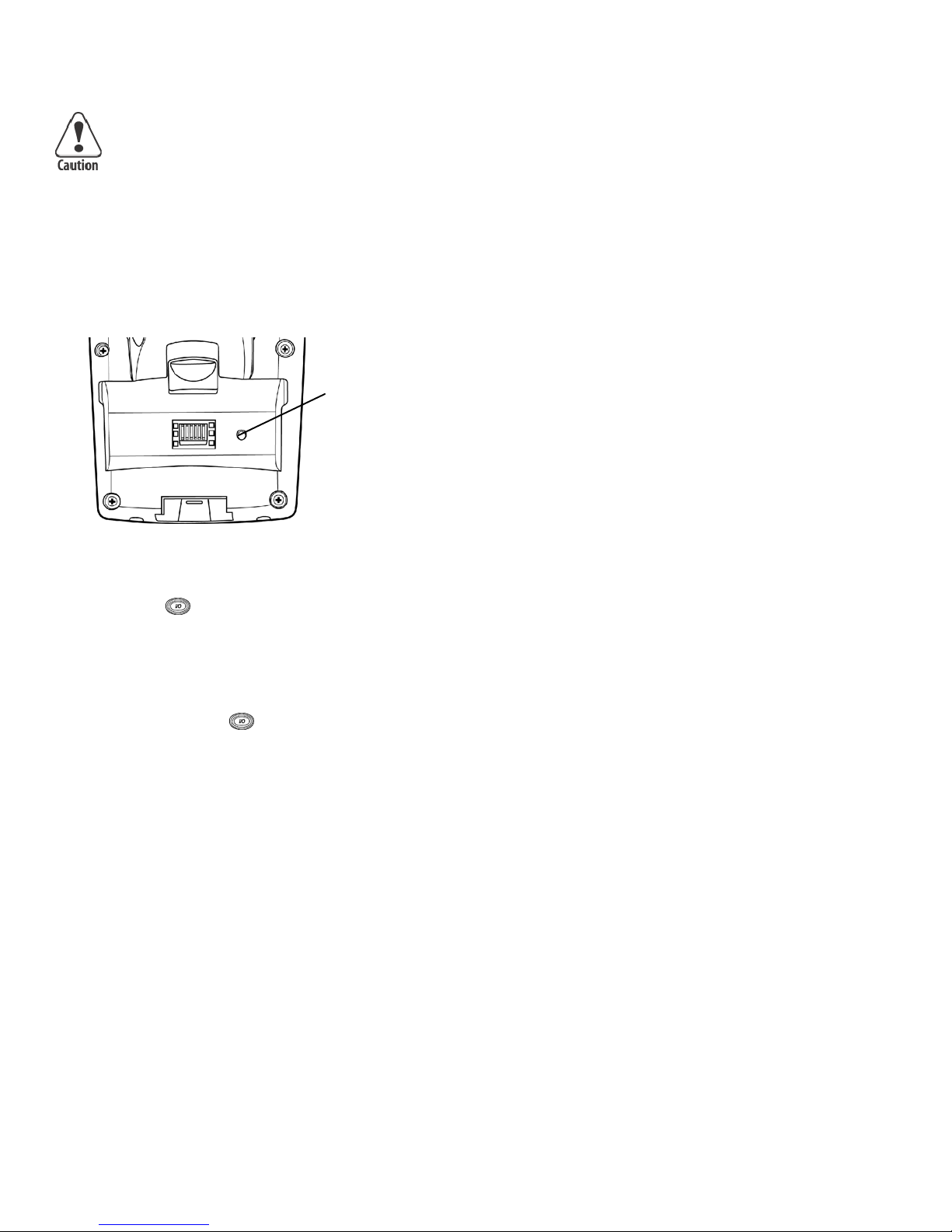
Cold Booting Your 700 Color
Cold booting deletes all programs and
data stored in RAM memory of the 700
Color. Ensure that data is backed up to
the Host PC or a Storage Card before
cold booting.
1 Remove the hand strap.
2 Remove the battery pack.
3 Press the Reset button.
Reset button
4 Reinstall the battery pack.
5 Press the I/O
key and step through the
prompted set up screens. This will be like you completed on your initial first time set up process.
Warm Booting Your 700 Color
S Press and hold the I/O key for about 10 sec-
onds.
700 Color takes a long time to boot up after a reset.
Normal time is between 30-45 seconds. If it takes longer than this, contact support personnel at
1-800-755-5505 (US and Canada) or
1-425-356-1700 elsewhere.
23700 Color with Pock et PC 2002 Quick Start Guide
Page 24

Where to Find More Information
S 700 Series Color Software Tools CD-ROM (p/n:
235-099-001) which contains the 700 software developer’s kit (SDK). The SDK is used by application developer’s to access features such as radios and
scanners. This CD also contains the utilities for
your unit. You would use the utilities to set up and
configure your mobile computer.
S Pocket PC Companion CD (p/n: 474-004-902)
used for setting up ActiveSync and also includes
some Pocket PC applications.
S 700 Series Color Mobile Computer User’s Manual
p/n 961-054-031.
S Intermec web site to download 700 mobile com-
puter documents in PDF format. Go to
http://www.intermec.com. This site also contains
theIntermectechnicalknowledge‘KnowledgeCentral’ and you can also request technical support.
End User License Agreement
MICROSOFT WINDOWS FOR POCKET PC 2002
DATA EX CHANGE COMPONENT: MICROSOFT ACTIVESYNC, VERSION 3.5
IMPORTANT -- READ CAREFULLY:Youhave
acquired a device (“DEVICE”) that includes software
licensed by Intermec Technologies Corporation
(”Manufacturer”) from Microsoft Licensing Inc. or its
affiliates (“MS”). Those installed software products of
MS origin, as well as associated media, printed materials, and “online” or electronic documentation
(“SOFTWARE”) are protected by international intellectual property laws and treaties. The SOFTWARE is
licensed, not sold. All rights reserved.
IFYOUDONOTAGREETOTHISENDUSER
LICENSE AGREEMENT (”EULA”), DO NO T
USE THE DEVICE OR COPY THE SOFTWARE.
INSTEAD, PROMPTLY CONTACT MANUFACTURER FOR INSTRUCTIONS ON RETURN OF
THE UNUSED DEVICE(S) FOR A REFUND.
24 700 Color with Pock et PC 2002 Quick Start Guide
Page 25

ANY USE OF THE SOFTWARE, INCLUDING
BUT NOT LIMITED TO USE ON THE DEVICE,
WILL CONSTITUTE YOUR AGREEMENT TO
THIS EULA (OR RATIFICATION OF ANY PREVIOUS CONSENT).
GRANT OF SOFTWARE LICENSE.SOFTWARE
includes software already installed on the DEVICE
(”DEVICE Software”) and MS software contained on
the CD-ROM disk (”Desktop Software”). This EULA
grants you the following license:
• SYSTEM Software.YoumayusetheDEVICE
Software as installed on the DEVICE.
• Desktop Software. Desktop Software is included
with your DEVICE, and you may install and use the
Microsoft® ActiveSync® 3.5 component on one (1)
or more computers to exchange information with one
(1) or more computing devices that contain a compatible version of the Microsoft Pocket PC 2002 operating system. For other software component(s) contained in the Desktop Software, you may install and
use such components only in accordance with the
terms of the printed or online end-user license agreement(s) provided with such component(s). In the absence of an end-user license agreement for particular
component(s) of the Desktop Software, you may
install and use only one (1) copy of such component(s) on the DEVICE or a single computer with
which you use the DEVICE.
• Back-up Copy. If Manufacturer has not included a
back-up copy of the DEVICE Software with the DEVICE, you may make a single back-up copy of the
DEVICE Software. You may use the back-up copy
solely for archival purposes.
• Microsoft Outlook 2002. If Microsoft Outlook
2002 is included with your Device, the following
terms apply to your use of Microsoft Outlook 2002:
(i) regardless of the information contained in “Software Installation and Use” section of the online EULA
you may install one (1) copy of the Microsoft Outlook
2002 on one (1) computer to use, exchange data,
share data, access, and interact with the DEVICE, and
25700 Color with Pock et PC 2002 Quick Start Guide
Page 26

(ii) the EULA for Microsoft Outlook 2002 is between
Manufacturer (as defined above) and the end user –
not between the PC Manufacturer and end user.
DESCRIPTION OF OTHER RIGHTS AND LIMITATIONS.
• Speech/Handwriting Recognition.IftheSOFT-
WARE includes speech and/or handwriting recognition component(s), you should understand that speech
and handwriting recognition are inherently statistical
processes; that recognition errors are inherent in the
processes; tha t it is your responsibility to provide for
handling such errors and to monitor the recognition
processes and correct any errors. Neither Manufacturer
nor its suppliers shall be liable for any damages arising
out of errors in the speech and handwriting recognition processes.
• Limitations on Reverse Engineering, Decompilation, and Disassembly. You may not reverse engi-
neer, decompile, or disassemble the SOFTWARE,
except and only to the extent that such activity is expressly permitted by applicable law notwithstanding
this limitation.
• Single DEVICE.TheDEVICESoftwareisli-
censed with the DEVICE as a single integrated product. The DEVICE Software installed in read-only
memory (“ROM”) of the DEVICE may only be used
as part of the DEVICE.
• Single EULA.ThepackagefortheDEVICEmay
containmultipleversionsofthisEULA,suchasmultiple translations and/or multiple media versions (e.g.,
in the user documentation and in the software). Even
if you receive multiple versions of the EULA, you are
licensed to use only one (1) copy of the DEVICE Software.
• Rental. You may not rent or lease the SOFT-
WARE.
• Software Transfer. You may permanently transfer
all of your rights under this EULA only as part of a
sale or transfer of the DEVICE, provided you retain
no copies, you transfer all of the SOFTWARE (in-
26 700 Color with Pock et PC 2002 Quick Start Guide
Page 27

cluding all component parts, the media and printed
materials, any upgrades or backup copies, this EULA
and, if applicable, the Certificate(s) of Au thenticity),
and the recipient agrees to the terms of this EULA. If
the SOFTWARE is an upgrade, any transfer must
include a ll prior versions of the SOFTWARE.
• Termination. Without prejudice to any other
rights, Manufacturer or MS may terminate this EULA
if you fail to comply with the terms and conditions of
thisEULA.Insuchevent,youmustdestroyallcopies
of the SOFTWARE and all of its component parts.
UPGRADES AND RECO VERY MEDIA.
• DEVICE Software.IftheDEVICESoftwareis
provided by Manufacturer separate from the DEVICE
on media such as a ROM chip, CD-ROM disc(s) or
via web download or other means, and is labeled “For
Upgrade Purposes Only” or “For Recovery Purposes
Only”, you may install one copy of such DEVICE
Software onto the DEVICE as a replacement copy for
theexistingDEVICESoftwareanduseitinaccordance with Section 1 of this EULA.
• Desktop Software. If any Desktop Software com-
ponent(s) is provided by Manufacturer separate from
the DEVICE on CD-ROM disc(s) or via web download or other means, and labeled “For Upgrade Purposes Only” or “For Recovery Purposes Only”, you
may (i) install and use one copy of such component(s)
on the computer(s) you use to exchange data with the
DEVICE as a replacement copy for the existing Desktop Software component(s).
COPYRIGHT. All title and intellectual property
rights in and to the SOFTWARE (including but not
limited to any images, photographs, animations, video,audio,music,text,and“applets”,incorporatedin
the SOFTWARE), the accompanying printed materials, and any copies of the SOFTWARE, are owned by
MS or its suppliers (including Microsoft Corporation).
You may not copy the printed materials accompanying
the SOFTWARE. All title and intellectual property
rights in and to the content which may be accessed
through use of the SOFTWARE is the property of the
27700 Color with Pock et PC 2002 Quick Start Guide
Page 28

respective content owner and may be protected by applicable copyright or other intellectual property laws
and treaties. This EULA grants you no rights to use
such content. All rights not specifically granted under
this EULA are reserved by MS and its suppliers (including Microsoft Corporation).
EXPORT RESTRICTIONS. You agree that you will
notexportorre-exporttheSOFTWAREtoanycountry, person, or entity subject to U.S. export restrictions. You specifically agree not to export or re-export
the SOFTWARE: (i) to any country to which the
U.S. has embargoed or restricted the export of goods
or services, which as of Ma y 1999 include, but are not
necessarilylimitedto,Cuba,Iran,Iraq,Libya,North
Korea, Sudan, Syria, and the Federal Republic of Yugoslavia (including Serbia, but not Montenegro), or to
any national of any such country, wherever located,
who intends to transmit or transport the products
back to such country; (ii) to any person or entity who
youknoworhavereasontoknowwillutilizethe
SOFTWARE or portion thereof in the design, development, or production of nuclear, chemical, or biological weapons; or (iii) to any person or entity who has
been prohibited from participating in U.S. export
transactions by any federal agency of the U.S. government.
NOTE ON JAVA SUPPORT.TheSOFTWARE
may contain support for programs written in Java.
Java technology is not fault tolerant and is not designed, manufactured, or intended for use or resale
on-line control equipment in hazardous environments
requiring fail-safe performance, such as in the operation of nuclear facilities, aircraft navigation or communication systems, air traffic control, direct life support machines, or weapons systems, in which the
failure of Java technology could lead directly to death,
personal injury, or severe physical or environmental
damage.
PRODUCT SUPPORT. Product support for the
SOFTWARE is not provided by MS, its parent corporation, Microsoft Corporation, or their affiliates or
subsidiaries. For product support, please refer to
28 700 Color with Pock et PC 2002 Quick Start Guide
Page 29

Manufacturer’s support number provided in the documentation for the DEVICE. Should you have any
questions concerning the EULA, or if you desire to
contact Manufacturer for any other reason, please refer
to the address provided in the documentation for the
DEVICE.
NO LIABILITY FOR CERTAIN DAMAGES.EXCEPT AS PROHIBITED BY LAW, MS SHALL
HAVE NO LIABILITY FOR ANY INDIRECT,
SPECIAL, CONSEQUENTIAL, OR INCIDENTAL
DAMAGES ARISING FROM OR IN CONNECTION WITH THE USE OR PERFORMANCE OF
THE SOFTWARE. THIS LIMITATION SHALL
APPLYEVENIFANYREMEDYFAILSOFITS
ESSENTIAL PURPOSE.
FOR APPLICABLE LIMITED WARRANTIES
AND SPECIAL PROVISIONS PERTAINING TO
YOUR PARTICULAR JURISDICTION, PLEASE
REFER TO YOUR WARRANTY BOOKLET INCLUDED WITH THIS PACKAGE OR PROVIDED WITH THE SOFTWARE PRINTED MATERIALS.
29700 Color with Pock et PC 2002 Quick Start Guide
Page 30

Intermec Technologies Corporation
End User License Agreement
1 This device contains intellectual property, i.e., soft-
ware programs that are licensed for the end user
customer’s use (hereinafter “End User”).
2 This is not a sale of such intellectual property.
3 The End User shall not copy, disassemble or reverse
compile the software program.
4 THE SOFTWARE PROGRAMS ARE PRO-
VIDEDTOTHEENDUSER“ASIS”WITHOUT WARRANTY OF ANY KIND, EITHER
EXPRESS OR IMPLIED, INCLUDING, BUT
NOT LIMITED TO, WARRANTIES OF MERCHANTABILITY AND FITNESS FOR A PARTICULAR PURPOSE. THE ENTIRE RISK OF
THE QUALITY AND PERFORMANCE OF
THE SOFTWARE PROGRAM IS WITH YOU.
5 COMPANY’S SUPPLIERS SHALL NOT BE
HELD TO ANY LIABILITY FOR ANY DAMAGES SUFFERED OR INCURRED BY THE
END USER (INCLUDING, BUT NOT LIMITED TO, GENERAL, SPECIFIC, CONSEQUENTIAL OR INCIDENTAL DAMAGES INCLUDING BUSINESS INFORMATION AND
THE LIKE), ARISING FROM OR IN CONNECTION WITH THE DELIVERY, USE OR
PERFORMANCE OF THE SOFTWARE PROGRAM.
30 700 Color with Pock et PC 2002 Quick Start Guide
Page 31

Radio Use Safety Precautions
The following safety precautions must be observed
during all phases of the operation, usage, service or
repair of any cellular terminal or mobile incorporating
a radio. Failure to comply with these precautions violates safety standards of design, manufacture and intended use of the product.
Intermec assumes no liability for customer failure to
comply with these precautions.
When in a hospital or other health care facility, observe the restrictions on the
use of mobile devices. Turn your cellular mobile computer off,ifinstructedtodosobytheguidelines
posted in sensitive areas. Medical equipment may be
sensitive to RF energy.
The operation of cardiac pacemakers, other implanted
medical equipment and hearing aids can be affected by
interference from cellular terminals or mobiles placed
close to the device. If in doubt about potential danger,
contact the physician or the manufacturer of the device to verify that the equipment is properly shielded.
Pacemaker patients are advised to keep their cellular
mobile computer away from the pacemaker, while it is
on.
Turn off the cellular mobile computer before boarding
an aircraft. Make sure it cannot be switched on inadvertently.
The operation of wireless appliances in an aircraft is
forbidden to prevent interference with communications systems. Failure to observe these instructions
may lead to the suspension or denial of cellular services
to the offender, legal action, or both.
Do not operate the cellular mobile computer in the
presence of flammable gases or fumes. Turn off the
cellular mobile computer when you are near petrol
stations, fuel depots, chemical plants or where blasting
operations are in
progress. Operation of any electrical equipment in
potentially explosive
atmospheres can constitute a safety hazard.
31700 Color with Pock et PC 2002 Quick Start Guide
Page 32

Your cellular mobile computer receives and transmits
radio frequency
energy while turned on. Remember that interference
can occur if it is u sed close to TV sets, radios, computers or inadequately shielded equipment.
Follow any special regulations and always turn off the
cellular mobile computer wherever forbidden, or when
you suspect that it may cause interference or danger.
Road safety comes first! Do not use a hand-held cellular mobile computer when driving a vehicle, unless it
is securely mounted in a holder for handsfree operation. Before making a call with a cellular hand-held
mobile computer, park the vehicle.
Handsfree devices must be installed by qualified personnel. Faulty installation or operation can constitute
a safety hazard.
32 700 Color with Pock et PC 2002 Quick Start Guide
Page 33

Global Services and Support
Warranty Information
To understand the warranty for your Intermec product, visit the Intermec web site at http://www.intermec.com and click Service & Support.TheIntermec
Global Sales & Service page appears. From the Service
& Support menu, move your pointer over Support,
and then click Warranty.
Disclaimerofwarranties:Thesamplecodeincludedin
this document is presented for reference only. The
code does not necessarily represent complete, tested
programs. The code is provided “as is with all faults.”
All warranties are expressly disclaimed, including the
implied warranties of merchantability and fitness for a
particular purpose.
Web Support
Visit the Intermec web site at http://www.intermec.com to download our current manuals in PDF
format. To order printed versions of the Intermec
manuals, contact your local Intermec representative or
distributor.
Visit the Intermec technical knowledge base (Knowledge Central) at http://intermec.custhelp.com to review technical information or to request technical supportforyourIntermecproduct.
33700 Color with Pock et PC 2002 Quick Start Guide
Page 34

Telephone Support
These services are available from Intermec Technologies Corporation.
In the U.S.A.
and Canada
call
1-800-755-5505
Service Description
Factory
Repair and
On-site
Repair
Technical
Support
Service
Contract
Status
Schedule
Site
Surveys or
Installatio
ns
Ordering
Products
Request a return authorization
number for authorized service
center repair, or request an
on-site repair technician.
Get technical support on your
Intermec product.
Inquire about an existing
contract, renew a contract, or
ask invoicing questions.
Schedule a site survey, or
requestaproductorsystem
installation.
Talk to sales administration,
place an order, or check the
status of your order.
and choose this
option
1
2
3
4
5
Outside the U.S.A. and Canada, contact your local
Intermec representative. To search for your local representative, from the Intermec web site, click Contact.
34 700 Color with Pock et PC 2002 Quick Start Guide
Page 35

Patent Information
This product is protected by one or more patents.
4,553,081 4,709,202 4,845,419 4,916,043
5,195,183 5,216,233 5,218,187 5,218,188
5,227,614 5,241,488 5,278,487 5,322,991
5,331,136 5,331,580 5,349,678 5,397,885
5,371,858 5,373,478 5,410,141 5,488,575
5,500,516 5,504,367 5,508,599 5,530,619
5,567,925 5,568,645 5,592,512 5,598,007
5,617,343 5,627,360 5,657,317 5,671,436
5,684,290 5,777,309 5,579,604 5,805,807
5,818,027 5,821,523 5,828,052 5,831,819
5,834,753 5,841,121 5,844,222 5,883,492
5,883,493 5,886,338 5,889,386 5,898,162
5,969,328 5,986,435 6,075,340 6,109,528
6,158,661 6,234,395 6,244,512 6,330,975
6,431,451 6,497,368 6,538,413 Des. 417,445
certified for interoperability with other 802.11b wireless LAN devices.
This product with an IEEE 802.11b radio installed is Wi-Fi
35700 Color with Pock et PC 2002 Quick Start Guide
Page 36
www.intermec.com
700 Color Mobile Computer with Pocket PC 2002 Quick Start Guide
February 2004
*962054053E*
P/N 962054053E
36 700 Color with Pock et PC 2002 Quick Start Guide
 Loading...