

Page 1
Quick Start Guide
6808CR
40-Column
Printers
Page 2
6808CR 40 - Column Printer Quick Start Guide
Packing List
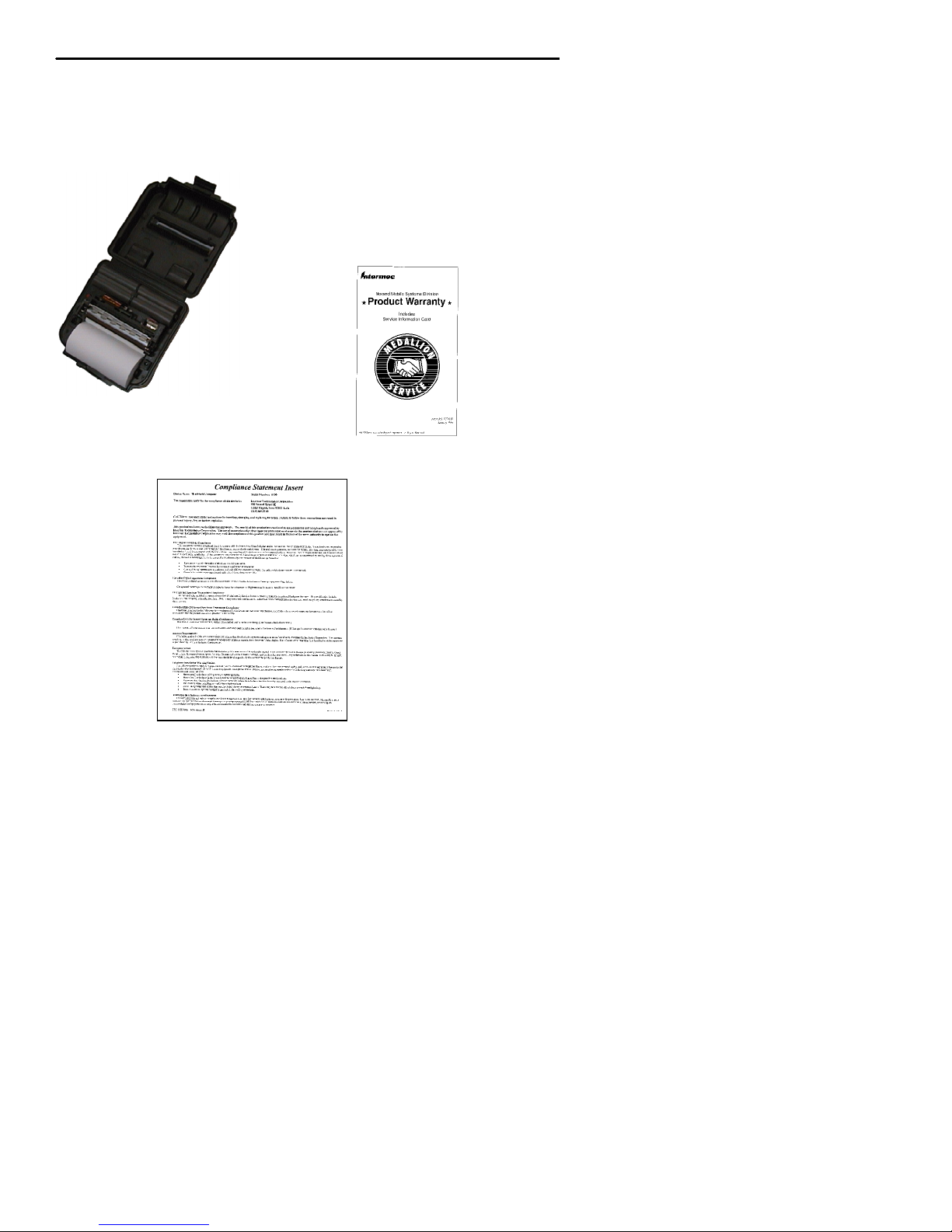
Check to ensure that you receive these items:
Intermec
p/n 320-081-007
RRRR
6808CR Printer
Product Warranty Card
Compliance Statement
2
Page 3
6808CR 40 - Column Printer Quick Start Guide
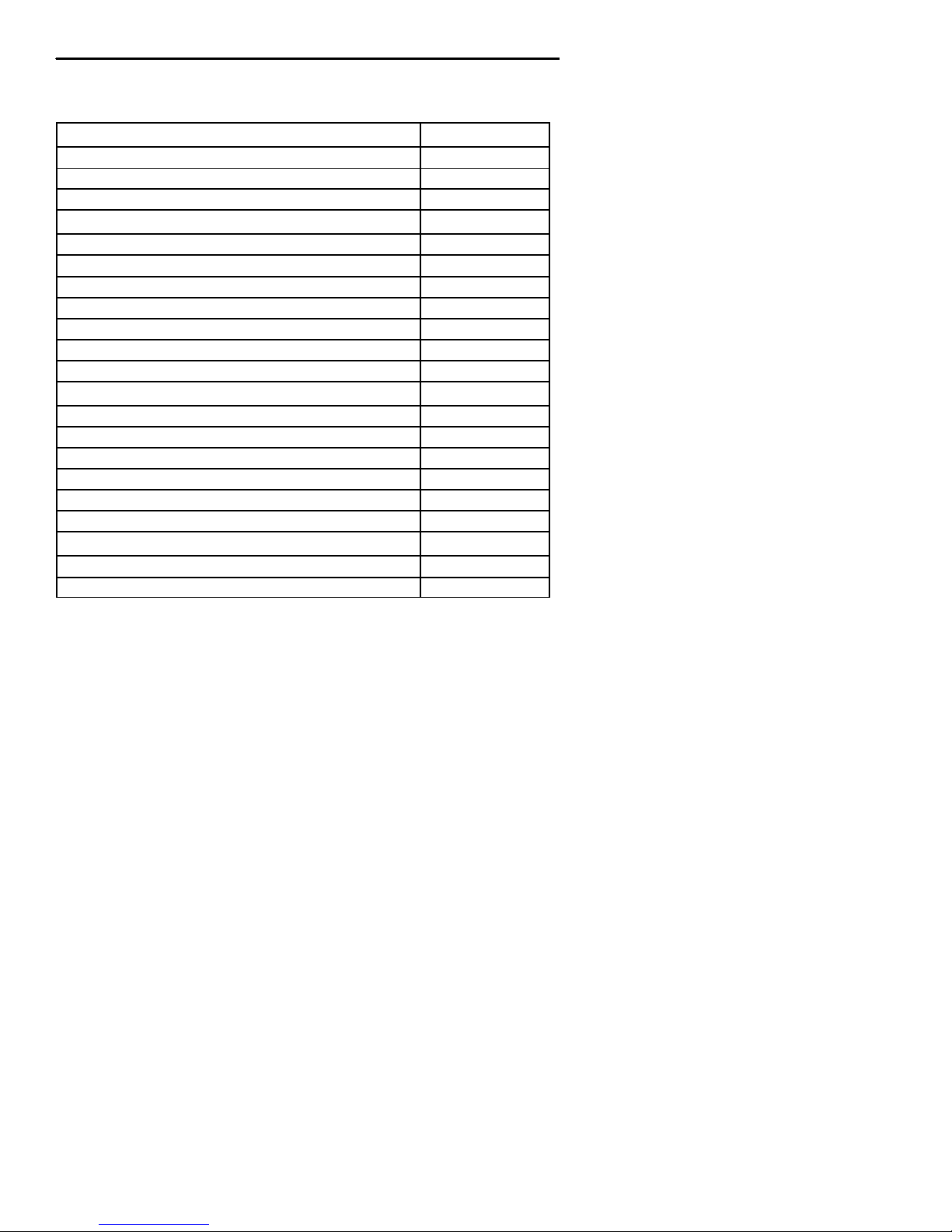
Common Accessories List
Printer Part Number
Swivel Belt Connector 320-081-022
Swivel Belt Connector Lock Male 320-081-023
Swivel Belt Connector Lock Female 320-081-024
Cables Part Number
Data Cable --RJ11F-- (RJ--11 R/A, coiled) 320-080-043
RJ--11F Adapter Cable – Right Angle 320-080-023
4000 Series and 6210 hand-held computer 226-044-001
6300 hand-held computer 216-996-001
RT1700 hand-held computer 216-994-001
Laptop download cable 320-066-032
70x/60x to 680x serial cable (RJ-11) 321-578-001
Power Adapters Part Number
AC Power Adapter (110 volt) 320-066-042
U.K. Power Supply 320-066-043
Europe Power Supply 320-066-044
Australian Power Supply 320-066-045
Cigarette Lighter Adapter, 5 Amp. 6 in. coiled 320-066-031
6808 Single Charger 852-051-001
Supplies Part Number
Replacement Li--Ion 1350mAhr Battery 320-081-021
Thermal Paper 130’/roll, 50/case 320-081-011
3
Page 4
6808CR 40 - Column Printer Quick Start Guide
Getting Started
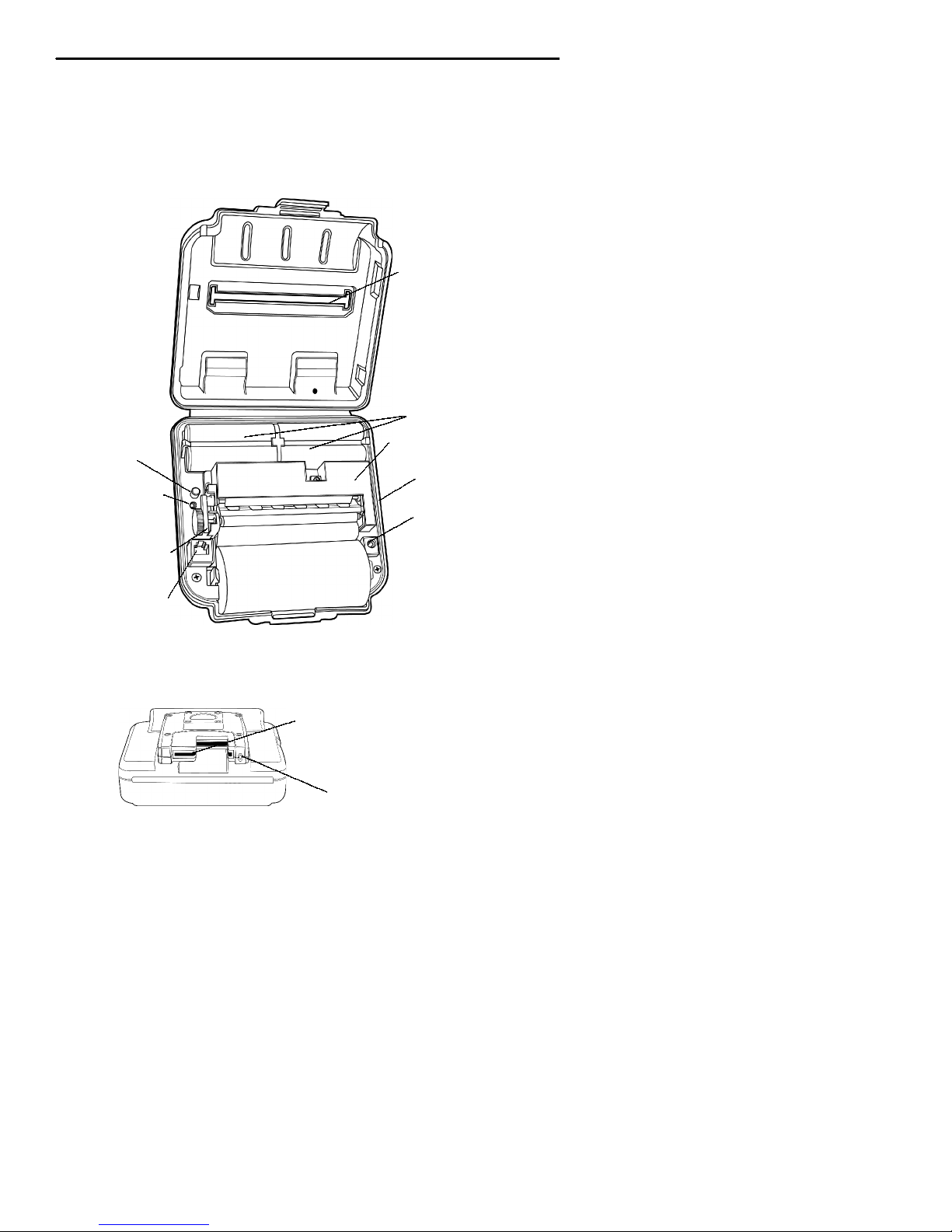
Here are the main components of the IntermecR6808CR printer.
Paper tear bar
Battery packs
Self-Test button
Charge indicator
Paper
release lever
RJ-11 port
Ribbon cartridge
IrDA window (side panel)
DC power jack
Card reader
Read LED
6808CR Printer Components
4
Page 5

6808CR 40 - Column Printer Quick Start Guide
Before Using Your Printer For The
First Time
Remove the protective tab strips underneath the batteries.
They are placed there to keep your printer from self-charging
during shipment.
1. Lift the battery up before pulling on the tabs. If you pull
on the protective tabs without lifting the battery, the plastic laminate covering on the tab strips could delaminate
and leave an almost invisible amount of polymer covering
on top of the battery contact pins. This prevents contact
with the battery and no charging occurs.
2. If your printer won’t charge after removing the protective
tabs, remove any residue in the battery pin area.
Printer Self Test
Push the red button and hold for about four seconds to print a
self test. Below is an explanation of the print--out.
Tab le 1-1
Print-out Explanations
Self Test
F/W Ver The internal software version (4.26 for print-
Timeout The seconds between printing and sleep
Baud Rate The speed at which the printer receives
Parity Odd, Even, or None
Data Bits Matches with computer sending data to
Handshake The way the printer handles flow control
Burn Adj Amount of heat used to print on the thermal
Description
er, 1.09 or greater for card reader)
mode.
data.
printer.
from host.
paper.
5
Page 6

6808CR 40 - Column Printer Quick Start Guide
Table 1-1(continued)
Print-out Explanations
Self Test Description
Paper 1or2ply
Beeper May be turned On or Off.
Batt Volt Current voltage of the battery pack.
Batt Temp Temperature of the battery.
Flash/RAM 1 Meg or 4 Meg Flash/ 1 Meg or 4 Meg RAM
Boot Ver-
Boot sector firmware.
sion
Prnhd
Tmp
Temperature of print head (between 0 and
50 degrees).
Infrared Set by the user to “Off”, “IrDA”, “ASK”,
“ASK/CRC”, “Direct”, “Direct CRC”,
“PULSE”, or “PULSE--CRC”
Device
Shows type of device (i.e. 6808CR)
Name
Device
Shows user name for printer.
Nickname
IrDA* Ver The 1.0 refers to the IrDA standard in use.
ThenexttwodigitsrefertoanyIRmodifications made to the configuration.
A vailable
Fonts
“LOC” shows whether a font is Resident (R)
or Downloaded (D). “CPI” shows characters
per inch. “DESCRIPTION” describes the
font. “NAMES” give the “Easy Print” name,
the Line Printer name, and the hexadecimal
equivalent of that name.
6
Page 7

Table 1-1(continued)
Print-out Explanations
Self Test Description
6808CR 40 - Column Printer Quick Start Guide
A vailable
Graphics
“LOC” shows whether a font is Resident (R)
or Downloaded (D). “CPI” shows characters
per inch. “DESCRIPTION” describes the
graphic. “NAMES” give the “Easy Print”
name, the Line Printer name, and the hexadecimal equivalent of that name.
A vailable
Bar Codes
All supported barcodes are displayed. “DESCRIPTION” describes the graphic.
“NAMES” give the “Easy Print” name, the
Line Printer name, and the hexadecimal
equivalent of that name.
Card Reader Option
Shows the current Card Reader configuration.
IrDA is a term that refers to the wireless standard of communication developed by the Infrared Data Association. Data is
transferred between devices using light; unseen infrared light.
To work properly, the IrDA ports on each device must be facing
each other and be no more than 36 inches away from each other. This allows the light signals to be properly sent and received. Intermec portable printers are IrDA compliant. Devices
which are IrDA compliant provide quick and reliable wireless
communication. Any IrDA compliant computer can communicate with any IrDA compliant printer, regardless of the other
features that each device offers.
Intermec printers come from the factory with the IrDA transmission speed rate set at 38.4 kbits and no wait. This is the
recommended setting and allows the printer to receive and
print data at the same time. Using the Intermec configurator
(available from the Intermec Technical Support
1-800-755-5505), you can change the rates, but 38.4 kbits and
no wait are highly recommended transfer rate standards. Other speeds/settings are not as reliable.
7
Page 8
6808CR 40 - Column Printer Quick Start Guide
Charging the Lithium Ion Batteries
The printer battery charges in about 3 hours.
"
The charger only charges the printer battery and does not
"
charge the mobile computer’s battery..
Tab le 1-2
LED Battery Indicators
LED
State of Charge Action
Solid Red In Progress Waiting for green LED
Green Complete Remove Charger
Tab le 1-3
Beep Indicators
Number of Beeps
Indicates
One Printer has come out of sleep mode
Two Printer is out of paper
Three Battery is low
One long beep No program in printer, only boot code
Determining Current Battery Power
To determine the current charge on the battery pack, print out
a self test by pressing and holding the red self--test button for
four seconds. If the battery is good, you will see the abbreviation for the word “GOOD” next to the Battery voltage print
out. The 6808CR uses one or two batteries (VBATT1 and
VBA TT2).
This printer has a built in low battery detector. When the
printer’s battery voltage is low, the printer beeps three times,
indicating a Low Battery Warning. This only happens if the
printer is awake.
Replacing the Battery
1. Open the cover and gently push the battery lock tabs
away while lifting the battery up.
8
Page 9

6808CR 40 - Column Printer Quick Start Guide
2. Insert the new battery b y putting the non contact area of
the battery in first towards the center.
3. Push down on the battery near the battery lock tabs.
4. Charge the new battery.
Paper Loading
OutofPaper
The 6808CR Printer sounds two quick beeps when it runs out
of paper. If the printer is out of paper, the printer suspends operation until paper is present and the lever is down. The printer continues to communicate with the mobile computer as long
as it does not “time out.” Once the printer restarts, it finishes
the rest of the print job from where it left off.
Removing Paper Core from your 6808 Printer
1. Unsnap the latch and lift up the cover.
2. Wrap your index finger around the empty paper core and
pull up. The paper rod will snap out.
3. Remove the empty paper core and discard.
Paper Loading
Standard Paper
If you are using standard paper, you can load the paper automatically or manually. Experiment to find out which method is
best for you.
Linerless Labels
If you are using linerless paper, it is best to use the manual paper loading method.
Automatic Paper Loading
1. With the loose, clean edge of the paper coming from the
bottom of the roll, insert the edge of the paper between
the roller and the platen.
2. Press the red self test button to wake the printer.
3. Push the button again while the printer is awake causes
the mechanism to feed about 1” of paper.
4. Insert the paper into the paper well with it resting on the
paper rod clips.
9
Page 10
6808CR 40 - Column Printer Quick Start Guide
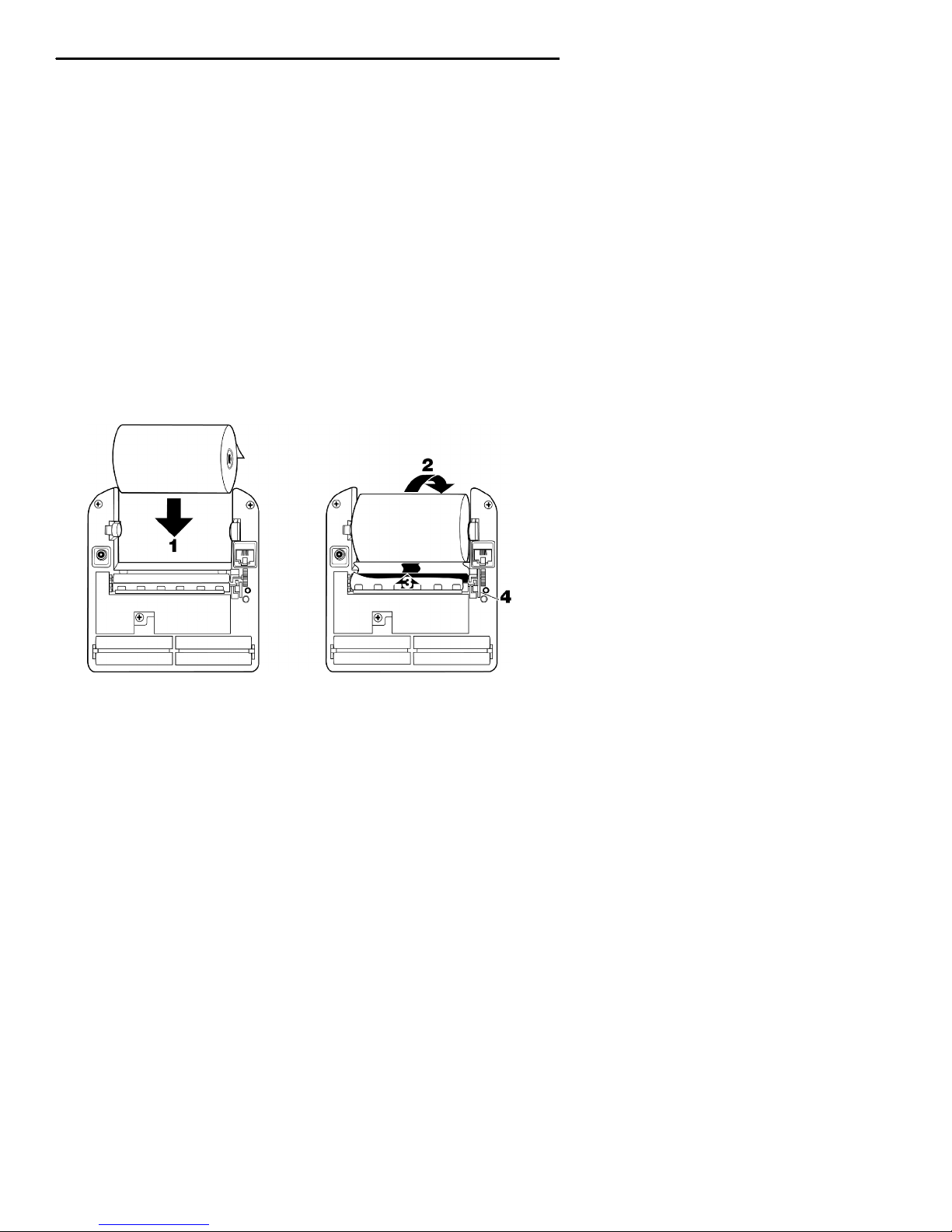
Manual Paper Loading
1. Lift up the paper release lever. This takes the pressure off
the platen. Make sure you have a clean edge on the new
paper roll.
2. Take the edge of the paper and fold it 45 degrees.
3. Insert the tip of the paper between the roller and the platen.
4. Push on the pa per until the tip is peeking out the other
side. (If it seems too tight to insert the tip, lift up the paper release lever and turn the gear to advance the paper).
5. Grab the tip and pull it through until the paper is
straight.
Paper Loading
6. Push down the paper release lever and insert the paper
into the paper well with it resting in the paper rod clips.
7. Press the red button while the printer is on and it will
feed paper. You will need about 2 inches of paper coming
out of the mechanism.
10
Page 11
6808CR 40 - Column Printer Quick Start Guide
8. Lower the cover while placing the extra paper though the
tear bar.
9. Latch Cover closed and tear off extra paper.
Using Your Printer
1. Attach the mobile computer to printer cable. RJ-11 cable
p/n 321-578-001
2. As you use the printer the power comes from the battery
in the printer. When the printer battery runs down the
printer will not operate until the battery is recharged.
.
Using the Card Reader
The magnetic card must meet the following ISO standards:
7810 (physical characteristics) 7811 (recording techniques) and
7816 (smart card standards).
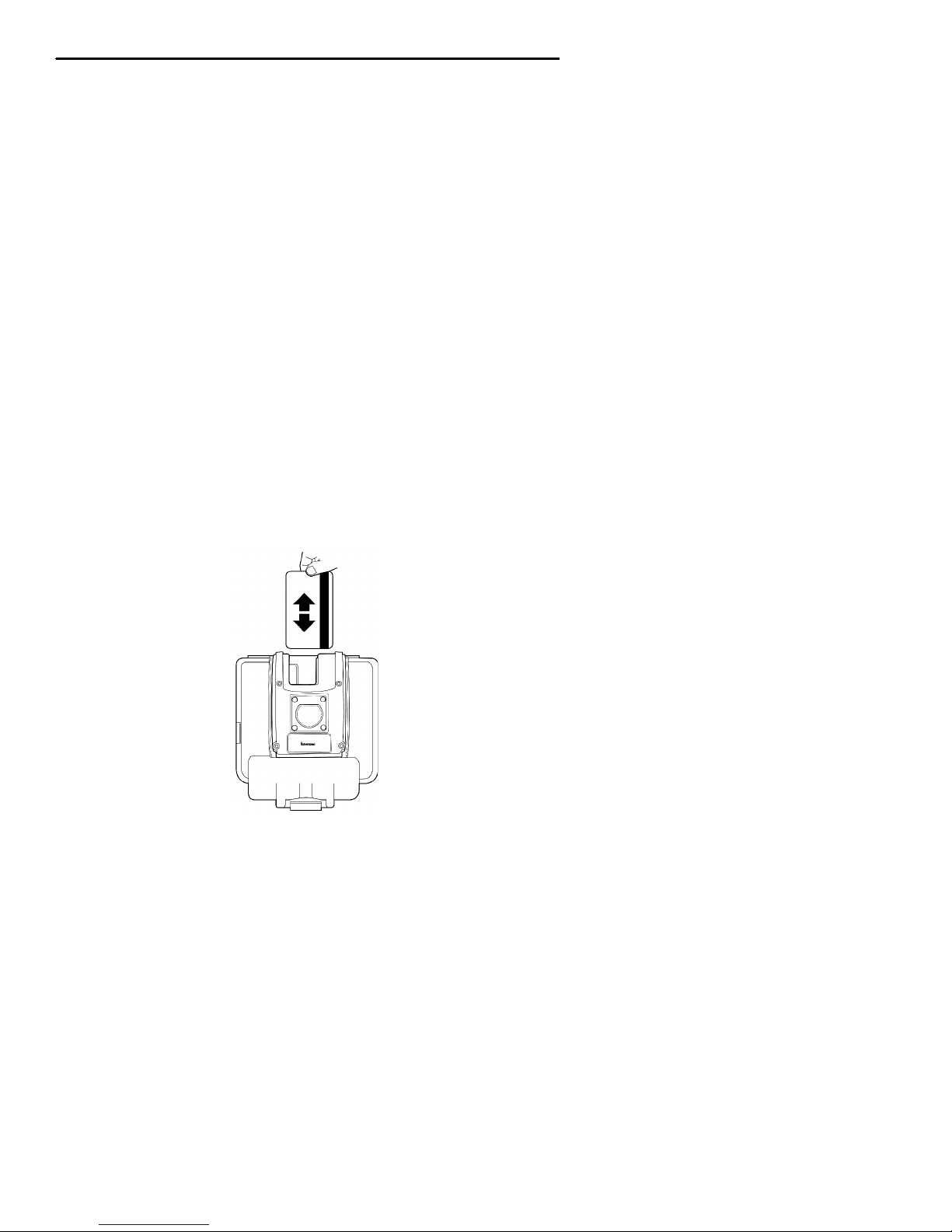
Slide the card down into the reader with the magnetic tape to
the right side. The following tables show the LED and audible
read alert descriptions.
Using the Card Reader
11
Page 12

6808CR 40 - Column Printer Quick Start Guide
Tab le 1-4
Card Reader LED Indicators
LED
Indicates
Green Good read
Red Read failed, try again, if it continues to
fail call Intermec Technical Support
(1-800-755-5505) for assistance
Tab le 1-5
Audible Card Reader Alerts
Sound
Short (pleasant)
Indicates
Good read
two beep chirp
Long (unpleas-
Bad read
ant)
tone
No sound No read, or the audible beep feature is
disabled in printer firmware
Maintenance and Troubleshooting
Cleaning the Interior
Dirt, adhesive and residue collect on the print head of the
printer and need to be removed. Clean your printer once a
month if you use it frequently, or once every three months if
used infrequently.
Cleaning the Exterior
When the outside of your portable printer needs cleaning, use a
soft cloth and mild cleanser if necessary. Do not use abrasive
cleanser, chemicals or scrubbing pads, as your printer’s finish
could become marked.
12
Page 13

6808CR 40 - Column Printer Quick Start Guide
Troubleshooting
Paper Loading Problems
If the paper feed mechanism does not feed correctly on the first
part of a new paper roll, remove two to three feet of paper from
the outside of the roll. The length of paper rolls can vary by as
much as five feet, making the roll too thick for the printer to
accommodate.
If the printer is out of paper (or the paper release lever is in the
up position) this condition interrupts a batch of receipts, and
the printer suspends operation until the condition is fixed. The
printer continues to communicate with the mobile computer as
long as it does not “time out.”
Once the printer is operational, the suspended print batch (if
any) continues to print, ensuring that all receipts are properly
printed.
Not Printing
1. Print a self test. If the self test will not print, check battery voltage by plugging the printer into a wall outlet using the AC adapter. Repeat the self test, and check the
Battery Voltage print out. Charge battery if necessary or
replace.
"
NOTE:
2. Check cable connections. Make sure the modular connector is inserted and clipped in.
3. Check to see if your cable has been damaged by excessive
pulling. A cable may also be damaged if it is bent at sharp
angles.
4. Make sure the paper is properly installed (with lever
closed).
5. Turn the print head knob to ensure that paper is not
jammed.
6. Use only the recommended battery pack for the printer.
7. Printer will not print on wrong side of paper. Re--load if
necessary.
If the battery is depleted, it may take 5--10 minutes
of charging before the printer can print a self test.
13
Page 14

6808CR 40 - Column Printer Quick Start Guide
Print Roller Appears Dirty
Clean Your Printer.
Linerless Labels
Linerless label printing can cause the print head to become
sticky.
Print is Too Light
If you are not getting satisfactory darkness, connect your printer to the personal computer containing your Configuration Program and click on the Paper Options button. Adjust the Darkness setting to a higher percentage until the print is dark and
crisp. Refer to the
ence Manual
Intermec Portable Printers Technical Refer-
(p/n: 978-018-001)
Section 4
for more details.
Charging Problems
UsinganACAdapter
If the printer does not respond when it is connected to an AC
adapter, there could be a problem with the adapter or with the
wall outlet.
"
NOTE:
If the battery is depleted, it may take 5--10 minutes
of charging before the printer can print a self test.
Using a Cigarette Lighter Adapter
If the printer does not respond when it is connected to a cigarette lighter adapter, it is possible that the fuse may be blown.
To check, remove the cigarette lighter adapter from all power
supplies and unscrew the cover over the pin. Pull out the fuse.
If the elements in the fuse appear broken, replace the fuse.
Programming Problems
Refer to the
Manual
the Intermec Technical Support 1-800-755-5505 for assistance.
Intermec Portable Printers Technical Reference
(p/n: 978-018-001)
Section 4
14
for more details OR call
Page 15

Specifications
Printer Specifications
6808CR 40 - Column Printer Quick Start Guide
Tab le 1-6
Specs
6808 CR
Dimension 6.56 x 6.81 x 3.34 in.
(172 x 167 x 85.5 mm)
Weight: 25.2 oz. (714 g)
Print Method: Direct thermal
Print Medium: Thermal paper, linerless
Paper Width: 4.40 in. (112 mm)
Print Width: 4.09 in. (104 mm), 832 dots
Print Speed: 1.64 in. per second depending on amount
of data being processed, running of self
test, and battery charge level or number
or battery packs installed (1 or 2).
Duration: More than 1,800 in. per charge using a
single battery. More than 4900 inches
with two batteries.
Operating Temp: +5 to +122q F(--15to+50q C)
Interface: RS-232C, Infrared, IrDA, ASK
Characters: Full IBM and international character
sets
Protocol: Easy Print Protocol for Bar Codes,
Stored Graphics, Rotated Fonts.
Power: Li Ion 1350 mAh ( 1 or 2 packs)
Battery Operat-
--4 to +122q F(--20to+50q C)
ing Temperature:
Recharging: Internal, intelligent, automatic
Flash Memory: 4 Meg
15
Page 16

6808CR 40 - Column Printer Quick Start Guide
Table 1-6 (continued)
Printer Specifications
Specs 6808 CR
Drop Test: Four feet to concrete
Warranty: One year, includes print head. Extended
warranty available.
Corporate Headquarters
6001 36th Avenue West
Everett,Washington 98203
tel 425.348.2600
fax 425.355.9551
www.intermec.com
6808 CR 40-Column Printer, Quick Start Guide-April, 2002
*962018017*
962018017 REV A
16
 Loading...