

Page 1

TruVision IP Camera
Installation Guide
P/N 1072668A-EN • REV 1.0 • ISS 24SEP13
Page 2

Copyright © 2013 UTC Fire & Security Americas Corporation,
Inc.
Interlogix is part of UTC Climate Controls & Security, a
unit of United Technologies Corporation. All rights
reserved.
Trademarks and
patents
The TruVision name and logo are trademarks of United
Technologies.
Other trade names used in this document may be
trademarks or registered trademarks of the
manufacturers or vendors of the respective products.
Manufacturer UTC Fire & Security Americas Corporation, Inc.
2955 Red Hill Avenue, Costa Mesa, CA 92626-5923,
USA
Authorized EU manufacturing representative:
UTC Fire & Security B.V.
Kelvinstraat 7, 6003 DH Weert, The Netherlands
Certification
N4131
FCC compliance Class A: This equipment has been tested and found to
comply with the limits for a Class A digital device,
pursuant to part 15 of the FCC Rules. These limits are
designed to provide reasonable protection against
harmful interference when the equipment is operated in
a commercial environment. This equipment generates,
uses, and can radiate radio frequency energy and, if not
installed and used in accordance with the instruction
manual, may cause harmful interference to radio
communications. Operation of this equipment in a
residential area is likely to cause harmful interference in
which case the user will be required to correct the
interference at his own expense.
ACMA compliance Notice! This is a Class A product. In a domestic
environment this product may cause radio interference
Page 3

in which case the user may be required to take
adequate measures.
Canada This Class A digital apparatus complies with Canadian
ICES-003.
Cet appareil numérique de la classe A est conforme à
la norme NMB-0330 du Canada.
European Union
directives
12004/108/EC (EMC directive): Hereby, UTC Fire &
Security declares that this device is in compliance with
the essential requirements and other relevant
provisions of Directive 2004/108/EC.
2002/96/EC (WEEE directive): Products marked with
this symbol cannot be disposed of as unsorted
municipal waste in the European Union. For proper
recycling, return this product to your local supplier upon
the purchase of equivalent new equipment, or dispose
of it at designated collection points. For more
information see: www.recyclethis.info.
Contact information For contact information, see www.interlogix.com or
www.utcfssecurityproducts.eu.
Page 4

Page 5

Installation Guide 5
Content
Introduction 6
Product overview 6
Installation 7
Installation environment 7
Package contents 8
Cable requirements 8
Camera description 9
Setting up the camera 12
Accessing the SD card 13
Mounting the bullet camera 13
Mounting the VF dome camera 15
Mounting the indoor mini dome camera 19
Mounting the wedge dome camera 21
Using the camera with an Interlogix NVR or Hybrid DVR or
another system 22
Using the camera with TruVision Navigator 22
Specifications 23
TruVision IP bullet cameras 23
TruVision IP indoor mini dome 23
TruVision IP wedge cameras 24
TruVision IP VF mini dome cameras 24
Pin definitions 25
Page 6

6 Installation Guide
Introduction
Product overview
This is the installation guide for TruVision IP camera models:
TVB-1101 (1.3MPX IP bullet camera, PAL)
TVB-3101 (1.3MPX IP bullet camera, NTSC)
TVB-1102 (3MPX IP bullet camera, PAL)
TVB-3102 (3MPX IP bullet camera, NTSC)
TVD-1103 (1.3MPX IP VF mini dome, PAL)
TVD-3103 (1.3MPX IP VF mini dome, NTSC)
TVD-1104 (3MPX IP VF mini dome, PAL)
TVD-3104 (3MPX IP VF mini dome, NTSC)
TVD-1101 (1.3MPX IP indoor mini dome, PAL)
TVD-3101 (1.3MPX IP indoor mini dome, NTSC)
TVD-1102 (3MPX IP indoor mini dome, PAL)
TVD-3102 (3MPX IP indoor mini dome, NTSC)
TVW-1101 (1.3MPX IP wedge dome, PAL)
TVW-3101 (1.3MPX IP wedge dome, NTSC)
TVW-1102 (3MPX IP wedge dome, PAL)
TVW-3102 (3MPX IP wedge dome, NTSC)
Page 7

Installation Guide 7
Installation
This section provides information on how to install the
cameras.
Installation environment
When installing your product, consider these factors:
• Electrical: Install electrical wiring carefully. It should be
done by qualified service personnel. Always use a proper
PoE switch or a 12 VDC UL listed Class 2 or CE certified
power supply to power the camera. Do not overload the
power cord or adapter.
• Ventilation: Ensure that the location planned for the
installation of the camera is well ventilated.
• Temperature: Do not operate the camera beyond the
specified temperature, humidity or power source ratings.
The operating temperature of the camera is between -30
to +60°C (-22 to 140°F). Humidity is below 90%.
• Moisture: Do not expose the camera to rain or moisture,
or try to operate it in wet areas. Turn the power off
immediately if the camera is wet and ask a qualified
service person for servicing. Moisture can damage the
camera and also create the danger of electric shock.
• Servicing: Do not attempt to service this camera
yourself. Any attempt to dismantle or remove the covers
from this product will invalidate the warranty and may
also result in serious injury. Refer all servicing to qualified
service personnel.
• Cleaning: Do not touch the sensor modules with fingers.
If cleaning is necessary, use a clean cloth with some
ethanol and wipe the camera gently. If the camera will not
Page 8

8 Installation Guide
be used for an extended period of time, put on the lens
cap to protect the sensors from dirt.
Package contents
Check the package and contents for visible damage. If any
components are damaged or missing, do not attempt to use
the unit; contact the supplier immediately. If the unit is
returned, it must be shipped back in its original packaging.
Package contents:
Camera
Hex wrench (for dome and mini dome cameras only)
Installation manual
CD with Configuration manual and TruVision Device
Finder
CAUTION: Use direct plug-in UL listed power supplies
marked Class 2/CE certified or LPS (limited power source) of
the required output rating as listed on the unit.
Cable requirements
For proper operation, adhere to the following cable and power
requirements for the cameras. Category 5 cabling or better is
recommended. All network cabling must be installed according
to applicable codes and regulations.
Table 1 on page 9 lists the requirements for the cables that
connect to the camera.
Page 9
Installation Guide 9
Table 1: Recommended power cable requirements
Bullet camera:
Mini dome:
Wedge camera:
12 VDC power jack or PoE (802.3af)
PoE (802.3af)
12 VDC power jack or PoE (802.3af)
VF dome camera: 12 VDC power jack or PoE (802.3af)
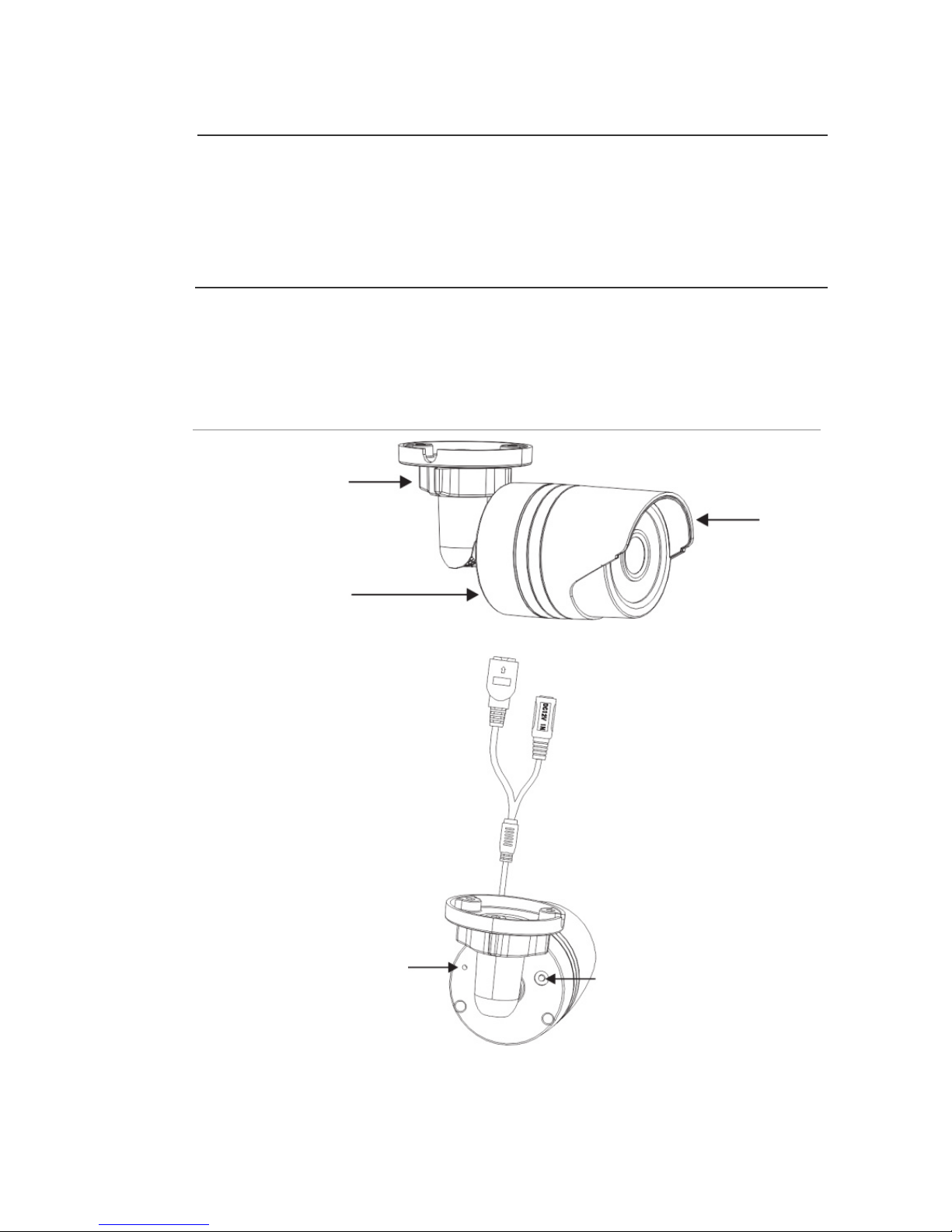
Camera description
Figure 1: IP bullet camera
Adjustable
bracket
Housing
Sun
shield
Grounding
screws
Reset button
Page 10

10 Installation Guide
Figure 2: IP indoor mini dome camera
1. Base
2. Lens
3. Dome liner
4. Housing
5. Ethernet RJ45 and BNC
cable
6. Safety cable
Page 11

Installation Guide 11
Figure 3: IP wedge camera
1. Cover
2. Lens
3. SD card
4. Ethernet RJ45 PoE port
5. Power supply
6. Base
7. Serial port
8. Reset button
9. Converter pan
9
2
1
6
8
7
3
5
4
Page 12

12 Installation Guide
Figure 4: IP VF dome camera
1. Dome liner
2. Housing
3. Ethernet RJ45 PoE port
4. Power supply
5. Audio and alarm cables
6. Lens
7. Mounting plate
8. Reset button
9. Analog video output
10. Serial port
11. SD card
Setting up the camera
Note: If the light source where the camera is installed
experiences rapid, wide- variations in lighting, the camera may
not operate as intended.
To quickly put the camera into operation:
1. Prepare the mounting surface.
2 Mount the camera on the ceiling using the appropriate
fasteners. See “Mounting the bullet camera” on page 13.
3. Set up the camera’s network and streaming parameters
so that the camera can be controlled over the network.
Page 13

Installation Guide 13
For further information, please refer to the “TruVision IP
Camera Configuration Manual”.
4. Program the camera to suit its location. For further
information, please refer to the “TruVision IP Camera
Configuration Manual”.
Accessing the SD card
Insert a Micro SD card with up to 64GB for local storage as a
backup in case, for example, the network fails (see Figure 1
on page 9). The card is not supplied with the camera.
For the IP VF dome camera, point the lens vertically upwards
to access the SD card slot.
Video and log files stored on the Micro SD card can only be
accessed via the web browser. You cannot access the card
using TruVision Navigator or a recording device.
Note: There is no Micro SD card slot in the bullet and indoor
mini dome cameras.
Mounting the bullet camera
Mount the camera on a ceiling or wall.
To mount the bullet camera:
1. Use the supplied template to mark out the mounting area.
Drill the screw holes on the ceiling or wall. If you need to
route the cables from the camera base, cut a cable hole
in the ceiling or wall.
Page 14

14 Installation Guide
2. Secure the mounting base to the ceiling or wall with the
supplied screws.
3. Loosen the adjustable nuts on the bracket, and adjust the
camera from P/R/T (pan/rotate/tilt) direction.
P Direction: 0 to 360°adjustable.
T Direction: 0 to 90°adjustable.
R Direction: 0 to 360°adjustable
Adjust the lens to the required surveillance angle. Tighten
the adjustable nuts to complete the installation.
Ceiling Mounting
Hole
Hole
Hole
Page 15

Installation Guide 15
Mounting the VF dome camera
To mount the VF dome camera on a ceiling or wall:
1. Loosen the three screws on the edge of the lower dome
with screw driver.
Screws
2. Open the lower dome and remove the black inner liner.
0°~360°
0°~ 90°
0°~360°
Page 16

16 Installation Guide
3. Drill the three screw holes on the ceiling with the supplied
drill template.
Cable hole
Screw holes
Page 17

Installation Guide 17
4. If you want to route the cables inside the ceiling, drill a
cable hole in the ceiling or wall using the drill template.
5. Attach the camera to the ceiling or wall by aligning the
housing holes with those in the ceiling. Secure the
camera with the supplied screws as shown below.
6. Route the cables through the cable hole.
Note: If required, you can route cables through the side
screw opening of the camera
7. Connect the video output connector to the monitor.
Connect the power connector to the power supply.
8. Adjust the image and focus.
1) Three-axis adjustment.
View the camera image using the monitor. Hold the
panning table and pull out slightly to adjust the
Page 18

18 Installation Guide
panning position of the camera. Rotate the tilting
axes to adjust the tilting position of the camera.
Rotate the lens table to adjust the azimuth angle of
the image.
2) Zoom and focus adjustment.
Loosen the zoom lever and move the lever between
T(Tele) and W(Wide) to obtain the appropriate angle
of view.
3) Tighten the zoom lever.
Loosen the focus lever and move the lever between
F(Far) and N(Near) to obtain the optimum focus.
Tighten the focus lever.
Tilting
Rotation
Rotation
Page 19

Installation Guide 19
Mounting the indoor mini dome camera
To mount the indoor mini dome camera on a ceiling:
1. Drill the screw holes on the ceiling with the supplied
drilling template. If you need to route the cables from the
bottom of the camera, cut a cable hole in the ceiling.
2. Using the supplied hex wrench, loosen the set screws to
remove the dome enclosure.
3. Fix the mounting base onto the ceiling with screws.
1
1
1
Page 20

20 Installation Guide
Note: If required, you can route cables through the side
opening of the mounting base.
4. Loosen the tilt lock screws, and adjust the tilting position
in a range of 65 degrees. Retighten the tilt lock screws.
Rotate the dome liner to adjust the panning position in a
range of 360 degrees to obtain the desired surveillance
angle.
Adjust
screw
Page 21

Installation Guide 21
5. Reinstall the lower dome and tighten the screws.
Mounting the wedge dome camera
To mount the wedge dome camera on a ceiling:
1. Drill the screw holes on the ceiling with the supplied
drilling template. To route the cables from the base of the
camera, cut a cable hole in the ceiling.
2. Fix the converter pan to the ceiling (optional).
Note: If required, you can remove the tabs (A) on the
side of the converter pan to pass the cables through.
3. Loosen the set screws with a hex wrench (supplied) to
remove the dome enclosure.
Page 22

22 Installation Guide
4. Fix the camera base to the converter pan or mounting
surface.
5. Re-attach the dome enclosure to the camera.
Using the camera with an Interlogix NVR
or Hybrid DVR or another system
Please refer to the NVR/DVR user manuals for instructions on
connecting and operating the camera with these systems.
Using the camera with TruVision
Navigator
A camera must be connected to an Interlogix NVR or hybrid
DVR in order to be operated by TruVision Navigator. Please
refer to the TruVision Navigator user manual for instructions
on operating the camera with the TruVision Navigator.
Page 23

Installation Guide 23
Specifications
TruVision IP bullet cameras
Electrical
Voltage input 12 VDC, PoE (IEEE 802.3af)
Power consumption Max. 5 W
Miscellaneous
Connectors DC jack flying lead, RJ45 flying lead
Operating temperature -30 to 60 °C (-22 to 140°F)
Dimensions Φ 60 × 153 mm (2.3” × 6.0”)
Weight 373 g (0.82 lbs)
Environmental rating IP66
TruVision IP indoor mini dome
Electrical
Voltage input PoE (IEEE 802.3af)
Power consumption Max. 5 W
Miscellaneous
Connectors RJ45 flying lead
Operating temperature -30 to +60 °C (-22 to +140 °F)
Dimensions (L × W × H) Φ 111 × 82 mm (4.4” × 3.2”)
Weight 370 g (0.81lbs)
Page 24

24 Installation Guide
TruVision IP wedge cameras
Electrical
Voltage input 12 VDC, PoE (IEEE 802.3af)
Power consumption Max. 5 W (Max. 7 W with IR on)
Miscellaneous
Connectors DC jack flying lead, RJ45 flying lead
Operating temperature -30 to +60°C (-22°F to +140°F)
Dimensions (L × W × H)
98 × 89 × 329 mm
(3.86 ×3.49 × 12.94 in.)
Weight 407 g (0.89 lb)
Environmental rating IP66
TruVision IP VF mini dome cameras
Electrical
Voltage input 12 VDC, PoE (IEEE 802.3af)
Power consumption Max. 5.5 W
Miscellaneous
Connectors
DC jack flying lead, RJ45
flying lead
Operating temperature -30 to +60°C (-22°F to 140°F)
Dimensions (L × W ×
H)
Φ 140 × 100 mm (Φ 5.51” ×
3.94”)
Weight 767 g (1.69 lb)
Environmental rating IP66
Page 25

Installation Guide 25
Pin definitions
There are eight wires on a standard UTP/STP cable and each
wire is color-coded. The following shows the pin allocation and
color of straight and crossover cable connection:
Figure 3: Straight-through cable
1 White/Orange White/Orange 1
2 Orange Orange 2
3 White-Green White-Green 3
4 Blue Blue 4
5 White/Blue White/Blue 5
6 Green Green 6
7 White/Brown White/Brown 7
8 Brown Brown 8
Figure 4: Cross-over cable
1 White/Orange
White/Orange 1
2 Orange Orange 2
3 White-Green White-Green 3
4 Blue Blue 4
5 White/Blue White/Blue 5
6 Green Green 6
7 White/Brown White/Brown 7
8 Brown Brown 8
Page 26

26 Installation Guide
Please make sure your connected cables have the same pin
assignment and color as above before deploying the cables in
your network.
Page 27

Page 28

 Loading...