

Page 1
USERS GUIDE
Users Guide
Version 1.1
100-foot range
360° navigation
Sleek and elegant
8 address pairs to eliminate interference
Compatible with the new RemotePoint RF
Page 2

Page 3

USERS GUIDE
1. Introduction .................................................... Page 1
2. Getting Started ............................................... Page 2
System Requirements
Installing the Keyboard Batteries
Connecting the Receiver
Selecting an Address
Positioning the Receiver
3. Using the Keyboard ....................................... Page 6
Function (Fn) Key
Numeric Keypad
Status Indicators
Keyboard Range
Battery Life
4. Using VersaPoint® Pressure
Pointing Technology ...................................... Page 9
Moving the Cursor
Click Buttons
5. Troubleshooting ........................................... Page 10
Appendix A General Specifications
Appendix B Technical Support
Appendix C Warranty
Appendix D FCC Certification
Canadian conformance
Table of Contents
Page 4

USERS GUIDE
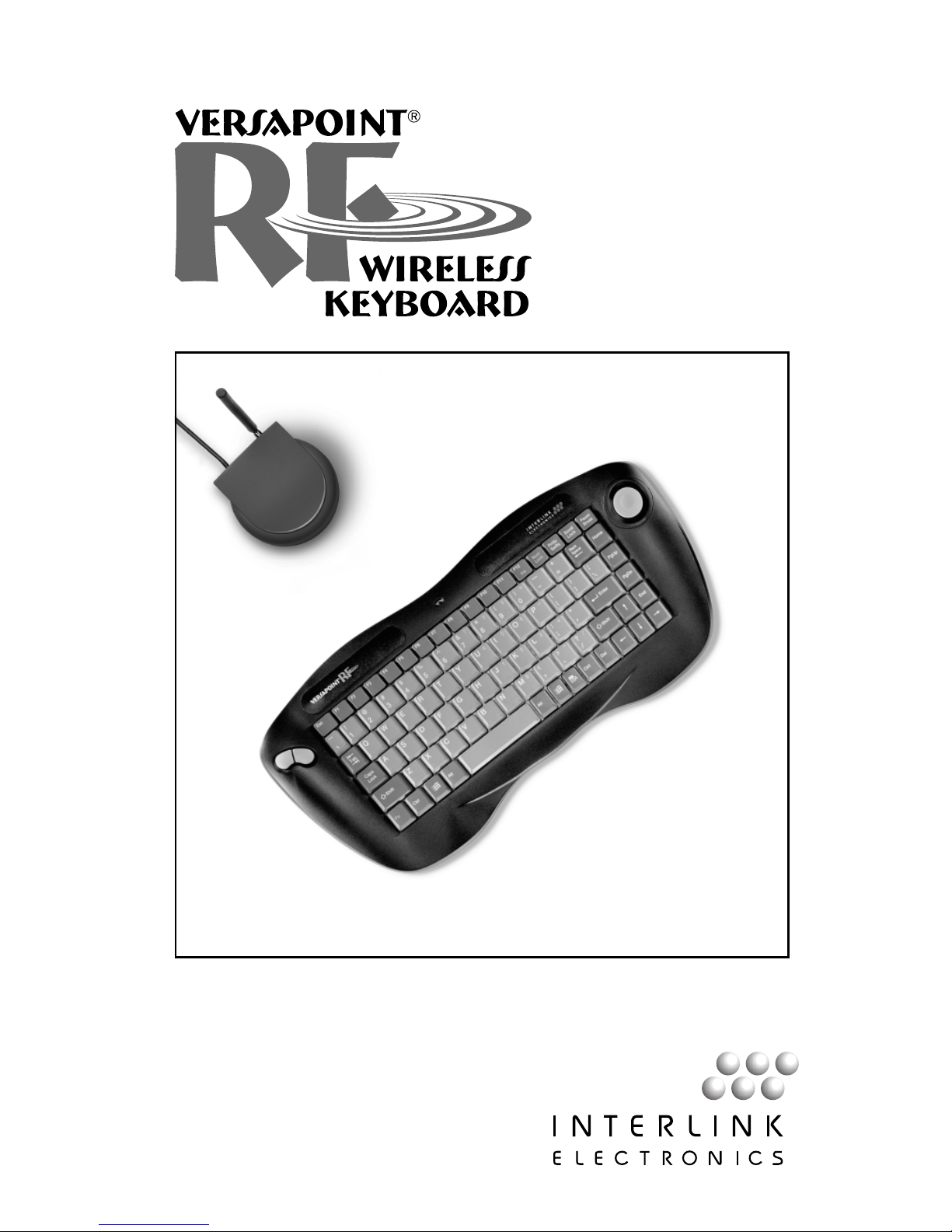
Your new VersaPointRF Wireless Keyboard
combines pointing mouse functionality with touch
typing, all in a convenient wireless package. Its
perfect for relaxed Internet browsing, video
conferencing, or everyday computing.
§ VersaPointRF Wireless Keyboard
§ VersaPointRF Wireless Keyboard receiver with
6 cable for USB connection
§ VersaPointRF Wireless Keyboard Users Guide*
with tear out Registration Card
§ 4 AA alkaline batteries
§ RemotePointRF
Interlinks cordless pointing device is the perfect
companion for your RF keyboard. If your system
does not include one, contact your dealer today.
*Note: If your package includes a CD ROM, the
Users Guide is located on the CD
About the
VersaPointRF
®
Wireless
Keyboard
Included in
the Box:
Optional
Equipment
1. Introduction
1
Page 5

Page 6
USERS GUIDE
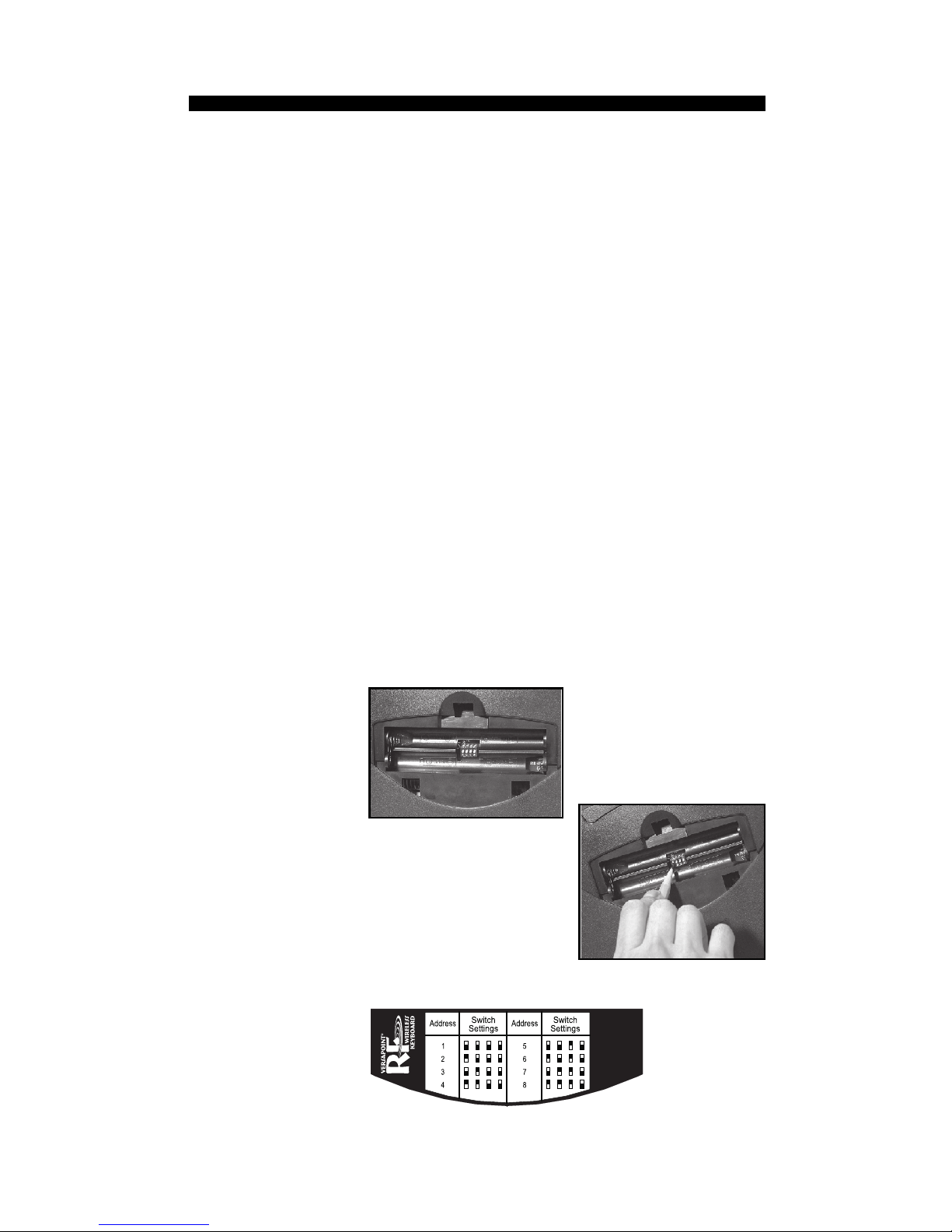
The address on which your keyboard and receiver
communicate is pre-set at the factory. The factory
setting is address 1. In most situations this will never
need adjustment. However, if you are operating
several RF devices in close proximity, or there are
interfering sources, you may need to change the
address from the factory setting. We recommend that
you first try the system out to be sure that you need to
change addresses. There are 8 possible addresses to
choose from. The 8 addresses are selected thru 4
switches. Both the keyboard and receiver must be set
to the same address.
1. Open the battery door on the backside of the key-
board and remove the batteries. (See Installing
the Keyboard Batteries section on the previous
page). Notice the
cutout hole in the center
of the battery compartment, visible once the
batteries are removed.
2. Use a small pointed tool
(such as a pencil) to set
the switches that are
located inside the cutout
hole. Address selection is
made per the chart below
(which is labeled inside the battery door cover).
Selecting an
Address
Changing
the
Keyboard
Address
3
Page 7

Page 8

USERS GUIDE
1. Point the keyboard in the general direction of the
receiver.
2. Move your finger around on the mouse button.
The cursor should move on the screen.
Your new VersaPointRF Wireless Keyboard is now
ready for use. No special software is required and it
can be used with your current installed drivers.
Testing the
Keyboard
5
Page 9

Page 10

USERS GUIDE
To indicate the status of the Num Lock, Caps Lock
and Scroll Lock keys, indicator LEDs are built into
the receiver.
Using conventional touchpads in battery powered
wireless keyboards, it has been an unrealized
challenge to get adequate range without excessive
battery consumption. By using Interlink Electronics
patented VersaPoint mouse technology combined
with advanced battery conservation methods and
sleep modes, the VersaPoint RF Wireless Keyboard
easily achieves excellent range and exceptional
battery life.
Indoors operating ranges will be up 100, and, under
ideal conditions, more than that. Naturally, individual results will vary depending on how you use
your keyboard.
Both the keyboard circuitry and the VersaPoint
mouse make use of the latest advances in low-power
integrated circuit technology. Both also employ what
is known as sleep mode. When nothing is being
typed on the keyboard, the radio circuitry and the
keyboard processor go to sleep, consuming a mere
fraction of their normal power requirements, while
waiting for the next key press.
Under normal usage, battery life of up to 6 months
will be typical. Again, your results will depend on
how you use your keyboard.
Status
Indicators
Keyboard
Range
Battery Life
7
Page 11

Page 12
USERS GUIDE
4. Using VersaPoint
®
Pressure Pointing
Technology
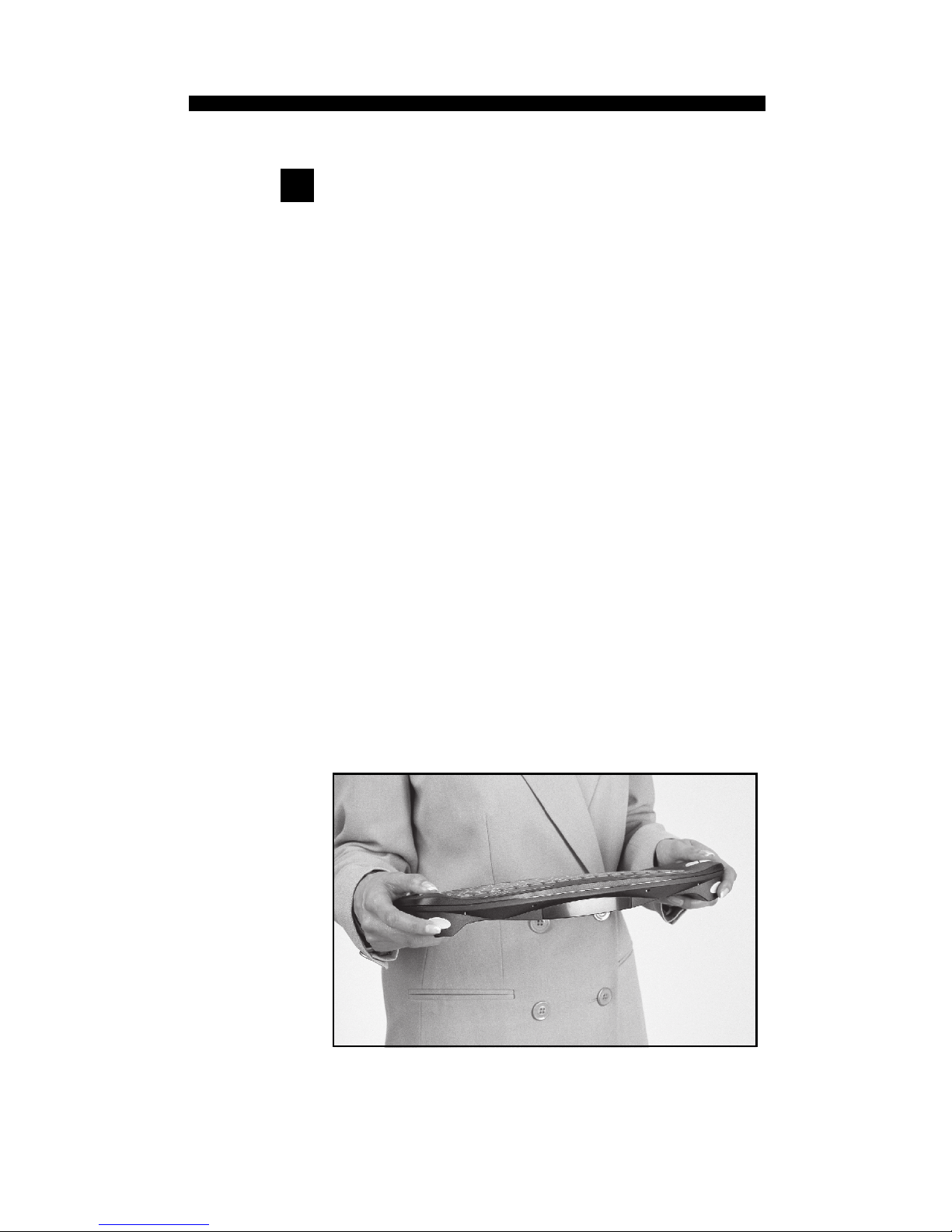
Total cursor control is available through the touch of
your thumb using the VersaPoint Pressure Pointing
Technology. Its intuitive and feels natural. Where
you place your thumb or finger on the soft button and
apply pressure dictates the direction of cursor movement. Pressing harder causes the cursor to move
more quickly. It is easy for many users to place their
thumb at the center of the button and rock it in the
direction desired for cursor movement.
Like a normal mouse, the VersaPoint RF Wireless
Keyboard has left and right click buttons. These are
located next to each other on the upper left side of
the keyboard unit. In addition, two extra left click
buttons can be found on the forward edge of the unit
to enable simple index finger actuation.
Moving the
Cursor
Click
Buttons
9
Page 13

Page 14

USERS GUIDE
Appendix A
Specifications
Model Number VP6210
Technology: Omnidirectional RF
Number of Keys: 88 (equal to 104 when
combined with the Fn Key)
Carrier Frequency: 916 MHz
Effective Operating Range: Up to 100 feet
(30 meters) typical
Battery Life: Up to 6 months typical
Power: 4 - AA alkaline batteries
6VDC (included)
Temperature: Operating: 32°F to 122°F
(0°C to 50°C)
Storage: -4°F to 158°F
(-20°C to 70°C)
Keyboard dimensions: 15.3 x 7.0 x 1.7
Keyboard weight: 1 lb., 8 oz.
Receiver dimensions: 3.0 x 3.5 x 1.0
Antenna: 3.9 articulating
Receiver connector: USB
11
Page 15

Page 16

USERS GUIDE
Appendix C
Warranty
1. What product is covered by this warranty? The following product (the Product) is
covered by this warranty: VersaPointRF Wireless Keyboard.
2. What does this warranty cover? Interlink Electronics, Inc. (Interlink) warrants to
the original end-user purchaser of the Product (you) that the Product will be free from
defects in materials or workmanship under normal use and service during the warranty
period described in Paragraphs 3 and 4.
3. When does your warranty begin? The warranty will begin on the day you purchase
the Product. Dated proof of purchase is necessary to accompany the Product returned for
warranty service consideration. Valid proof of purchase must identify the point of
purchase, date of purchase, and product model or trade name. Ordinarily, your sales
receipt or invoice will suffice.
4. How long does the coverage last? The warranty for the Product, excluding Batteries,
is as follows:
LIMITED ONE YEAR PARTS AND LABOR
5. What will Interlink do if the product becomes defective in materials or workmanship during the warranty period? If the Product covered under this warranty becomes
defective in materials or workmanship during the applicable warranty period,
INTERLINK will, at its option, either repair the defective Product without charge for
parts and labor, or provide a replacement in exchange for the defective Product.
INTERLINK reserves the right to provide, at no additional cost, a more current or
upgraded model for replacement, if available.
6. What is not covered by this warranty? (a) This warranty does not extend to: (i)
Products which have been subjected to misuse, accident, physical damage, improper
installation, abnormal operation or handling, neglect, inundation or fire, or; (ii) Products
which have been damaged due to repair, alteration or modifica-tion by anyone other than
an authorized representative of INTERLINK, or; (iii) Defects caused by components,
parts, or accessories not compatible with the warranted Product, or; (iv) Products
whose warranty/quality stickers, product serial number plates or electronic serial
numbers have been removed, altered or rendered illegible, or; (v) Accessory items. (b)
ANY OTHER WARRANTIES, INCLUDING BUT NOT LIMITED TO THE IMPLIED
WARRANTIES OF MERCHANTABILITY AND FITNESS FOR PARTICULAR
PURPOSE, SHALL BE LIMITED IN DURATION TO THE DURATION OF THIS
WARRANTY. SOME STATES DO NOT ALLOW LIMITATIONS ON HOW LONG AN
IMPLIED WARRANTY LASTS, SO THE ABOVE LIMITATION MAY NOT APPLY
TO YOU. (c) INTERLINKS TOTAL LIABILITY FOR DAMAGES FOR ANY
CAUSE RELATED TO, OR ARISING OUT OF, THE USE OR INABILITY TO USE
THE PRODUCT, WHETHER IN CONTRACT, NEGLIGENCE, STRICT TORT OR
BASED ON ANY OTHER LEGAL THEORY, SHALL NOT EXCEED THE ORIGINAL
PRICE PAID FOR THE PRODUCT. (d) IN NO CASE SHALL INTERLINK BE
LIABLE FOR ANY INDIRECT SPECIAL, INCIDENTAL, OR CONSEQUENTIAL
DAMAGES BASED UPON BREACH OF WARRANTY, BREACH OF CONTRACT,
13
Page 17

Page 18

USERS GUIDE
This device complies with Part 15 of the FCC Rules. Operation
is subject to the following two conditions: (1) This device may
not cause harmful interference, and (2) This device must accept
any interference received, including interference that may cause
undesired operation. This equipment has been tested and found
to comply with the limits for a CLASS B digital device, pursuant
to Part 15 of FCC Rules. These limits are designed to provide
reasonable protection against harmful interference when the
equipment is operated in a residential installation. This
equipment generates, uses, and can radiate radio frequency
energy and if not installed and used in accordance with the
instruction guide, may cause harmful interference to radio
communications. However, there is no guarantee that this radio
interference will not occur in a particular installation. If this
equipment does cause harmful interference to radio or television
reception, which can be determined by turning the equipment on
and off, the user is encouraged to try to correct the interference
by one or more of the following measures:
· Re-orient or relocate the receiving antenna.
· Increase the separation between the equipment and receiver.
· Connect the equipment into an outlet on a circuit different
from that to which the receiver is connected.
· Consult the dealer or an experienced radio-TV technician for
help.
Any changes or modifications not expressly approved by the
party responsible for compliance could void the users authority
to operate the equipment. This product is equipped with shielded
cable. Extension cables, if used, must be shielded in order to
comply with the emission limits.
This Class B digital apparatus meets all requirements of the
Canadian Interference-Causing Equipment Regulations.
Notice:
Canadian
conformance
15
Appendix D
FCC Certification
Page 19

 Loading...