

Page 1
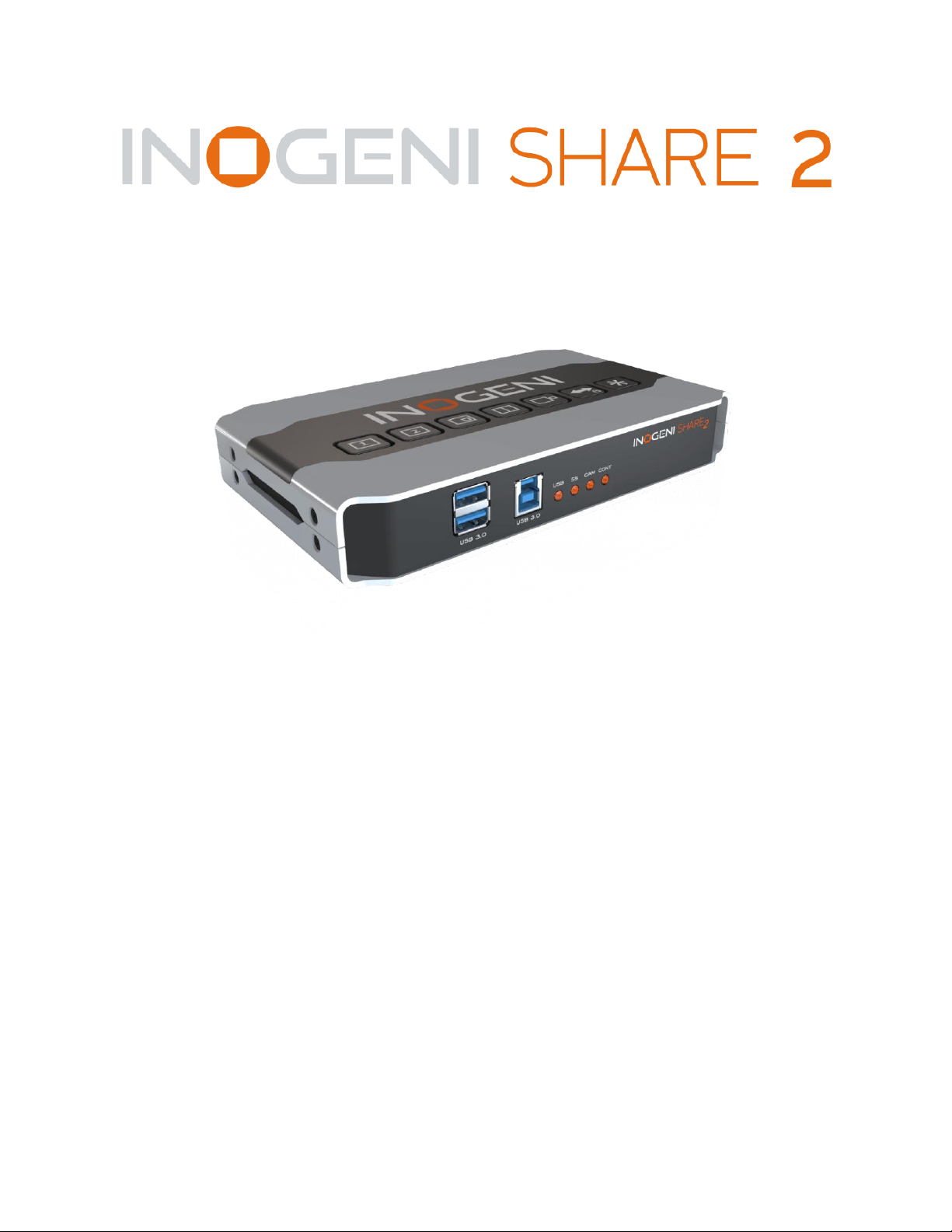
Dual Video Mixer to USB 3.0 Converter
User Guide
Thank you!
You have just acquired the finest and easiest to use tool for simultaneous capture of two
streams of uncompressed video with audio for your computer.
Easy, No Drivers, No Setup !
Versatile !
Compatible with all Apps !
Page 2

INOGENI SHARE2 User Guide
Version 1.1
7/22/16
2
SHARE2 CONVERTER
P/N SHARE2
PRODUCT HIGHLIGHTS
EASY ! No drivers required.
Dual Uncompressed 1080p Video & Audio Capture
Predefined Picture in Picture (PIP) views.
Ideal for Video streaming and Videoconferencing
Compatible to all motherboards and chipsets
Up to 1080p at 60 fps
Powered via external power supply.
Scaler and Colorspace Conversion
Supports Windows, OSX and Linux.
DirectShow, AVFoundation and V4L2 Compatible
Professional grade full-metal enclosure
OVERVIEW
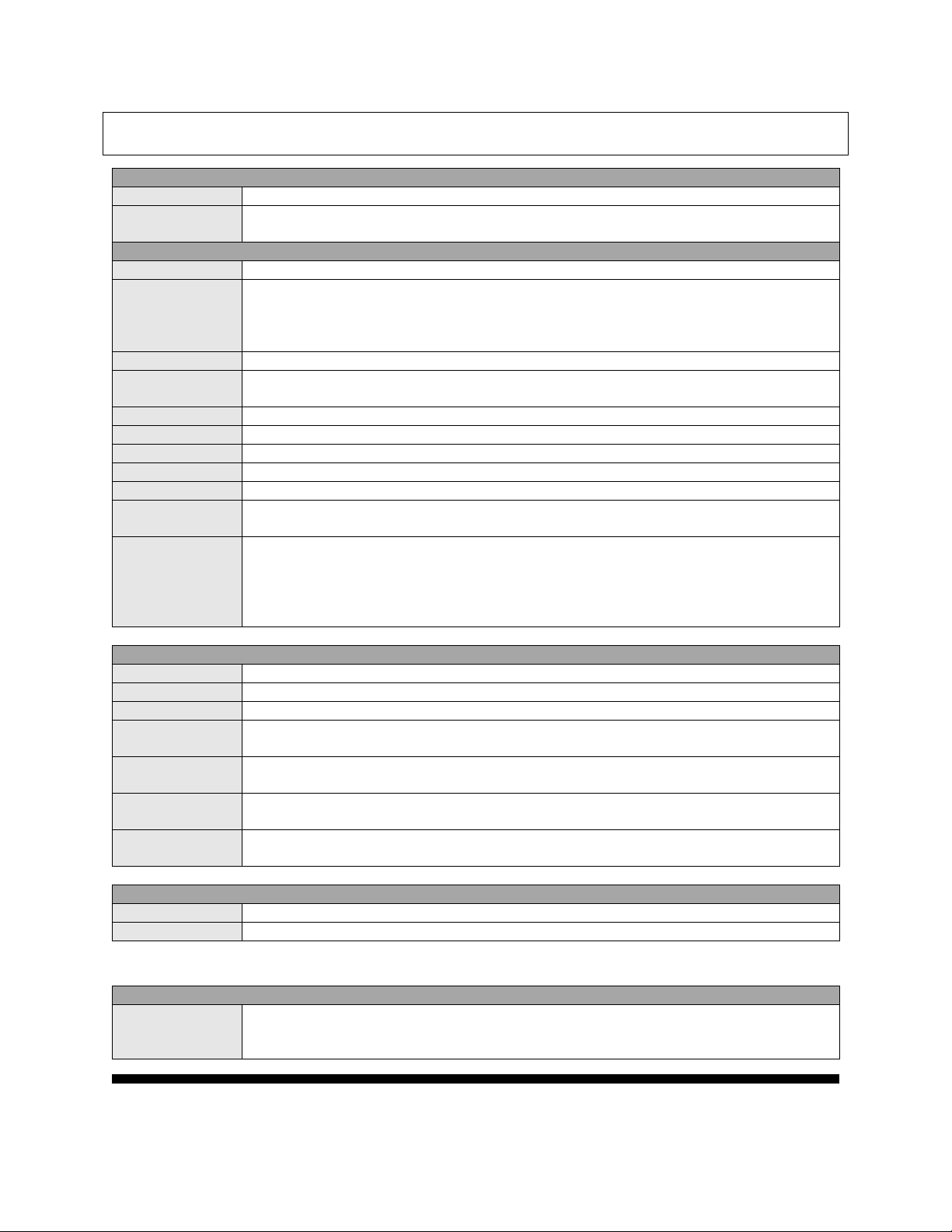
The INOGENI SHARE2 Converter is the most easy and reliable tool for simultaneous capture of two
streams of uncompressed video into one single USB stream with audio from your HDMI/DVI/VGA or
CVBS sources for your PC for recording, videoconferencing, lecture capture and streaming
applications. No driver installation is necessary and it will work on all motherboards and USB 3.0
chipsets. It features an HDMI, DVI and a NTSC/PAL input, a line level stereo analog input, a line level
stereo analog output, an internal USB 3.0 hub with 2x USB 3.0 ports for expansion purposes and USB
3.0 connector for the host. It supports SD and HDTV video formats, up to 1080p60, and most computer
graphic formats. Compact in size and rugged, the converter is a practical and an easy-to-use USB 3.0
capture solution. It is compatible with Windows, OSX and Linux operating systems, and is UVCcompliant, so it will work with all DirectShow/V4L2 and AVFoundation compatible software.
The converter supports 1080p resolutions up to 60 fps. All SD and HD resolution signals are converted
to 4:2:2 8-bit color space over USB 3.0. The line level stereo analog audio input and output are twochannel LPCM.
SHARE comes with a USB 3.0 cable, a DVI to VGA and DVI to HDMI adapters.
Line level stereo audio support
Predefined Picture in Picture (PIP) views.
Digital Fluid technology - Internal frame buffers maximize frame rate with any PC
Hardware-based color space and sampling conversion
Automatic scaling and frame rate conversion
Customizable video processing functions
Image controls: Brightness, contrast, saturation and hue settings
Supports multiple devices on the same PC.
Compatible with Windows, Mac OSX, and Linux.
Page 3
INOGENI SHARE2 User Guide
Version 1.1
7/22/16
3
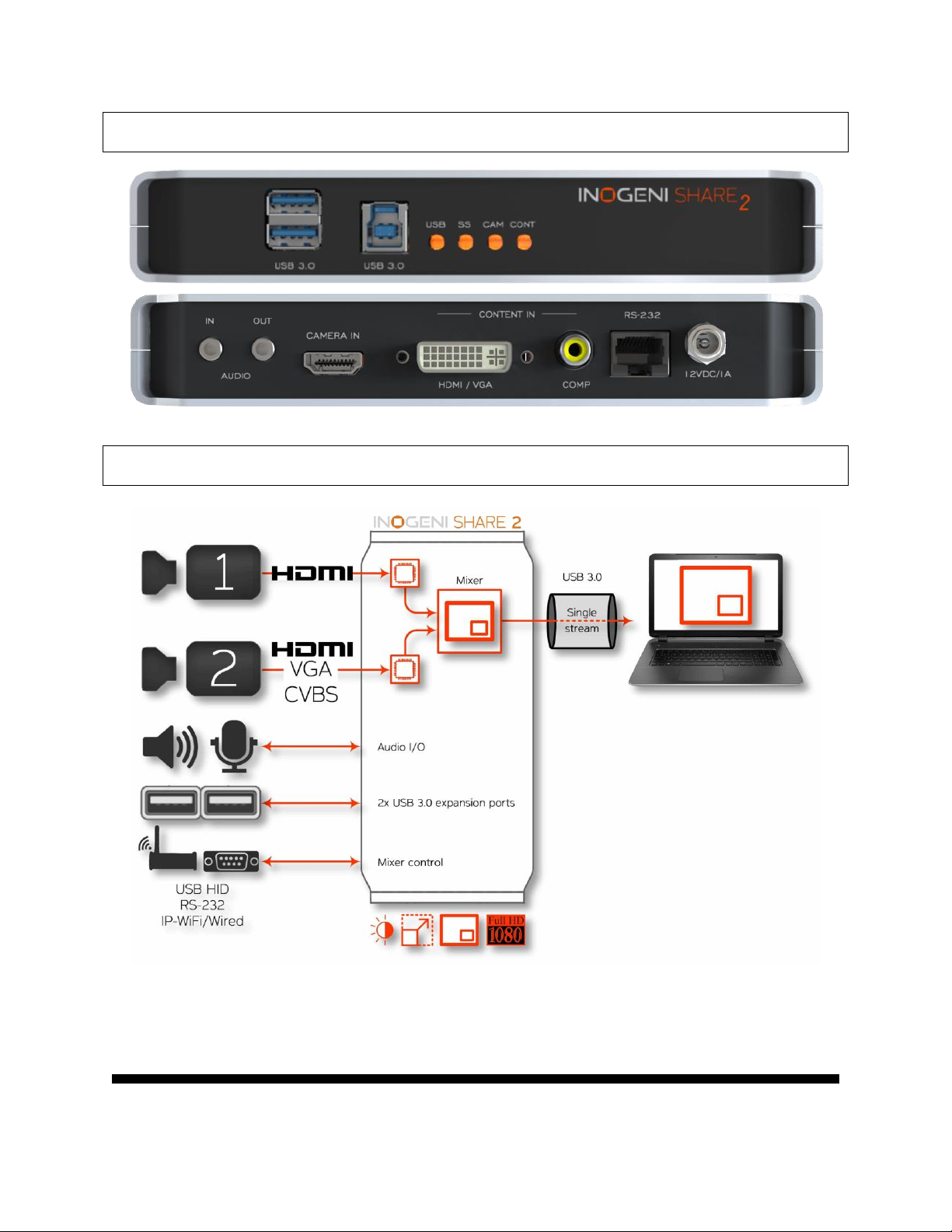
DEVICE CONNECTORS
CONNECTION DIAGRAM
Page 4
INOGENI SHARE2 User Guide
Version 1.1
7/22/16
4
SPECIFICATIONS
Video Input 1
Connector
1 x HDMI
Video
Resolutions
1080p, 720p, 1080i, 480p, 576p, 1920x1200, 1280x1024, 1280x960, 1024x768,
800x600, 640x480
Video Input 2
Connector
1 x DVI-I – Digital & Analog
Video
Resolutions
DVI: 1080p, 720p, 1080i, 480p, 576p, 1920x1200, 1280x1024, 1280x960,
1024x768, 800x600, 640x480
VGA: 1080p, 720p, 480p, 576p, 1920x1200, 1680x1050, 1400x1050, 1600x1200,
1280x1024, 1360x768, 1280x768, 1280x800, 1024x768, 800x600, 640x480
Connector
1 x CVBS
Video
Resolutions
480i, 576i
Frame Rates
Up to 60 Hz, all formats
Color Space
RGB, YCbCr 4:4:4 and 4:2:2
Sampling Rate
165 MHz
Analog input
Analog stereo, line level, 3.5mm jack.
Analog output
Analog stereo, line level, 3.5mm jack.
HDCP Copy
protection
The device will not decrypt BD/DVD movies, satellite/cable receivers or other
encrypted sources.
Mixer Control
The Multi-View feature can be controlled by the following interfaces:
HID
RS-232
Keypad
INOGENI REMOTE
Output
Connector
1 x USB 3.0 to host
Color Space
YCbCr (YUY2) 4:2:2 8-bit
Video Scaler
Automatic hardware based
Color Space
Conversion
Automatic hardware based
Sampling
Conversion
Automatic hardware based
Frame Rate
Conversion
Automatic hardware based
USB
expansion
2 x USB 3.0 ports for expansion purposes. The devices connected will appear to the
host.
Audio
Audio input
2-channel LPCM 48kHz audio from Line input or embedded in HDMI
Audio output
2-channel LPCM 48kHz audio Line level
Compatibility
Operating
System
NO driver installation necessary.
Windows 7 and above (32/64-bit)
OSX 10.10 and above
Page 5
INOGENI SHARE2 User Guide
Version 1.1
7/22/16
5
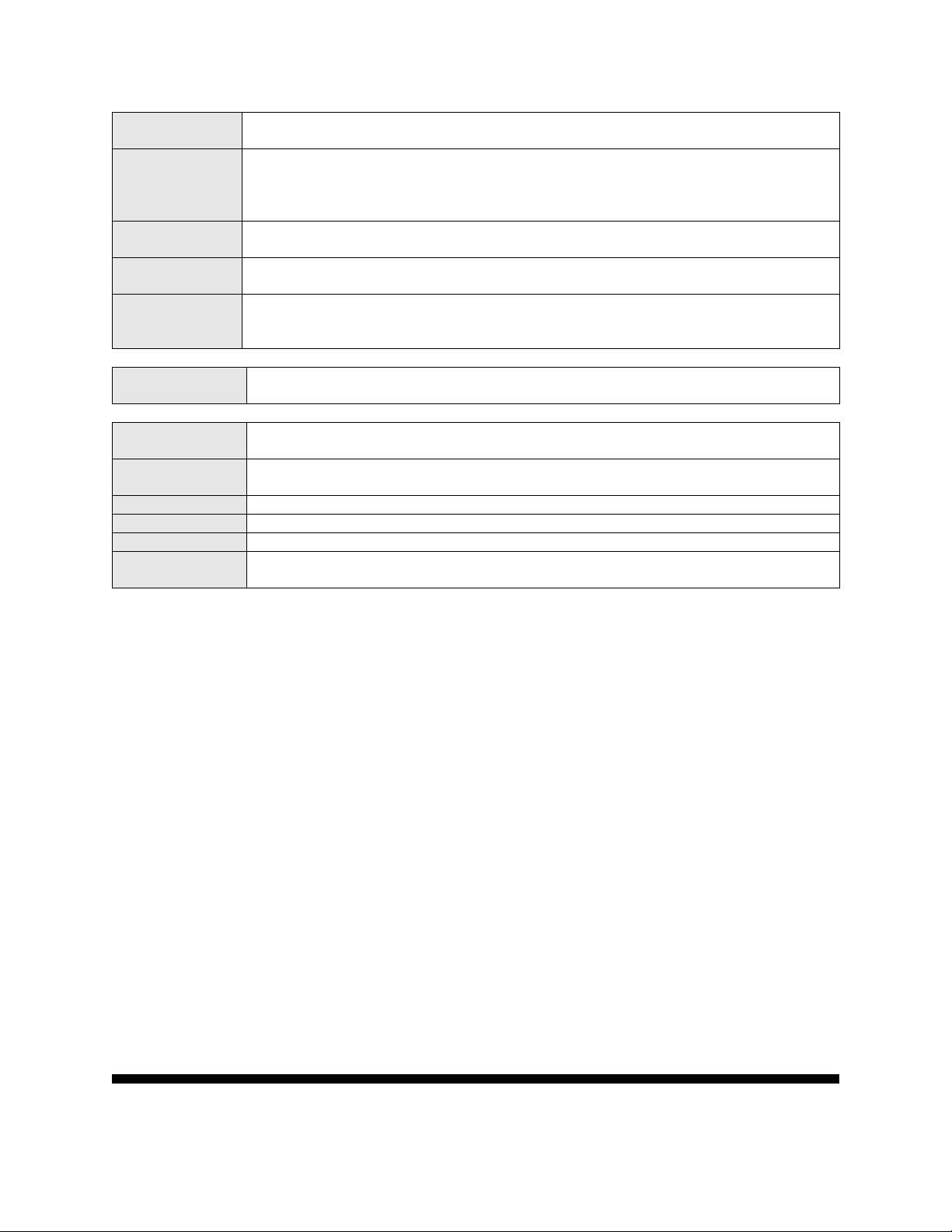
Linux (kernel v2.6.38 and above)
Android
Host
Requirements
USB 3.0 port
Minimum 4GB RAM
Intel Core i5
Graphic card with its own memory for on-screen rendering applications.
Motherboard
Compatible with all motherboards
Intel, Renesas, ASMedia, and Fresco Logic
Cameras
Supported
Cameras and camcorders with an HDMI/DVI, VGA or CVBS output
Software
Compatibility
UVC-compliant
Runs with all software compatible to DirectShow, V4L2, QuickTime and
AVFoundation.
Adapters
included
DVI to VGA and DVI to HDMI adapters
Dimensions
[W x L x H, cm]
18.5 x 11 x 3
Weight
[g]
466
Power
12V, 500mA (adapter included)
UPC Code
040232355523
Origin
Canada
Harmonized
Code
8517.62.000.900
Page 6
INOGENI SHARE2 User Guide
Version 1.1
7/22/16
6
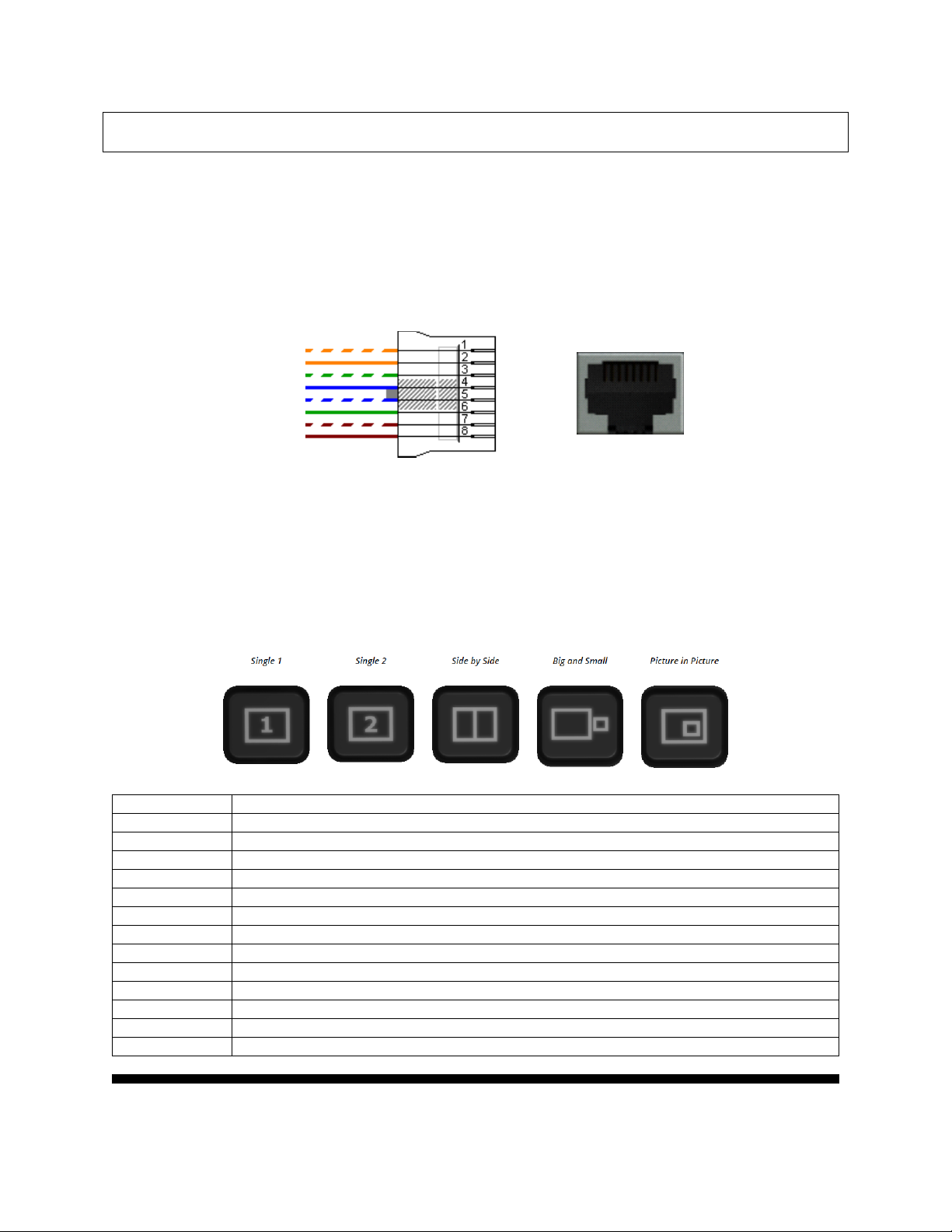
SERIAL COMMUNICATION PROTOCOL
COMMAND
Command description
<S1>
Source 1
<S2>
Source 2
<SS>
Side by Side View
<BS>
Big and Small View
<PPTR>
Picture in Picture at top right corner
<PPTL>
Picture in Picture at top left corner
<PPBR>
Picture in Picture at bottom right corner
<PPBL>
Picture in Picture at bottom left corner
<SW>
Swap View
<SS1>
Side by Side View where Input 1 is at the left side
<SS2>
Side by Side View where Input 2 is at the left side
<BS1>
Big and Small View where Input 1 is at the left side
<BS2>
Big and Small View where Input 2 is at the left side
RX
TX
GND
+5V
NC
NC
NC
NC
1
The device supports multiple baud rates. These can be programmed using the HID
interface.
9600 baud [default]
19200 baud
38400 baud
RJ45 cable pinout
Commands
Commands sent to the serial interface must have the ‘<’ character at the beginning and
‘>’ character at the end. If the commands are recognized and executed properly, the
“ACK” string will be sent.
Input 1 is the HDMI stream.
Input 2 is the DVI or composite stream.
Page 7

INOGENI SHARE2 User Guide
Version 1.1
7/22/16
7
<PPTR1>
Picture in Picture at top right corner where Input 1 is the background
<PPTR2>
Picture in Picture at top right corner where Input 2 is the background
<PPTL1>
Picture in Picture at top left corner where Input 1 is the background
<PPTL2>
Picture in Picture at top left corner where Input 2 is the background
<PPBR1>
Picture in Picture at bottom right corner where Input 1 is the background
<PPBR2>
Picture in Picture at bottom right corner where Input 2 is the background
<PPBL1>
Picture in Picture at bottom left corner where Input 1 is the background
<PPBL2>
Picture in Picture at bottom left corner where Input 2 is the background
<SAVE>
Save the current configuration onboard for future use
<RSTR>
Erase the current configuration onboard and return to default values
<BLK>
Black video
<SHW>
Show video
<RST>
Reset the device
<GET>
Return the firmware versions and video resolutions of CAM and CONT inputs. Here is
an example.
>> <GET>
FX3 => 1.8
FPGA => 1.9
EDID => 1
CAM => 1920x1080@60fps
CONT => Not locked
Page 8
INOGENI SHARE2 User Guide
Version 1.1
7/22/16
8
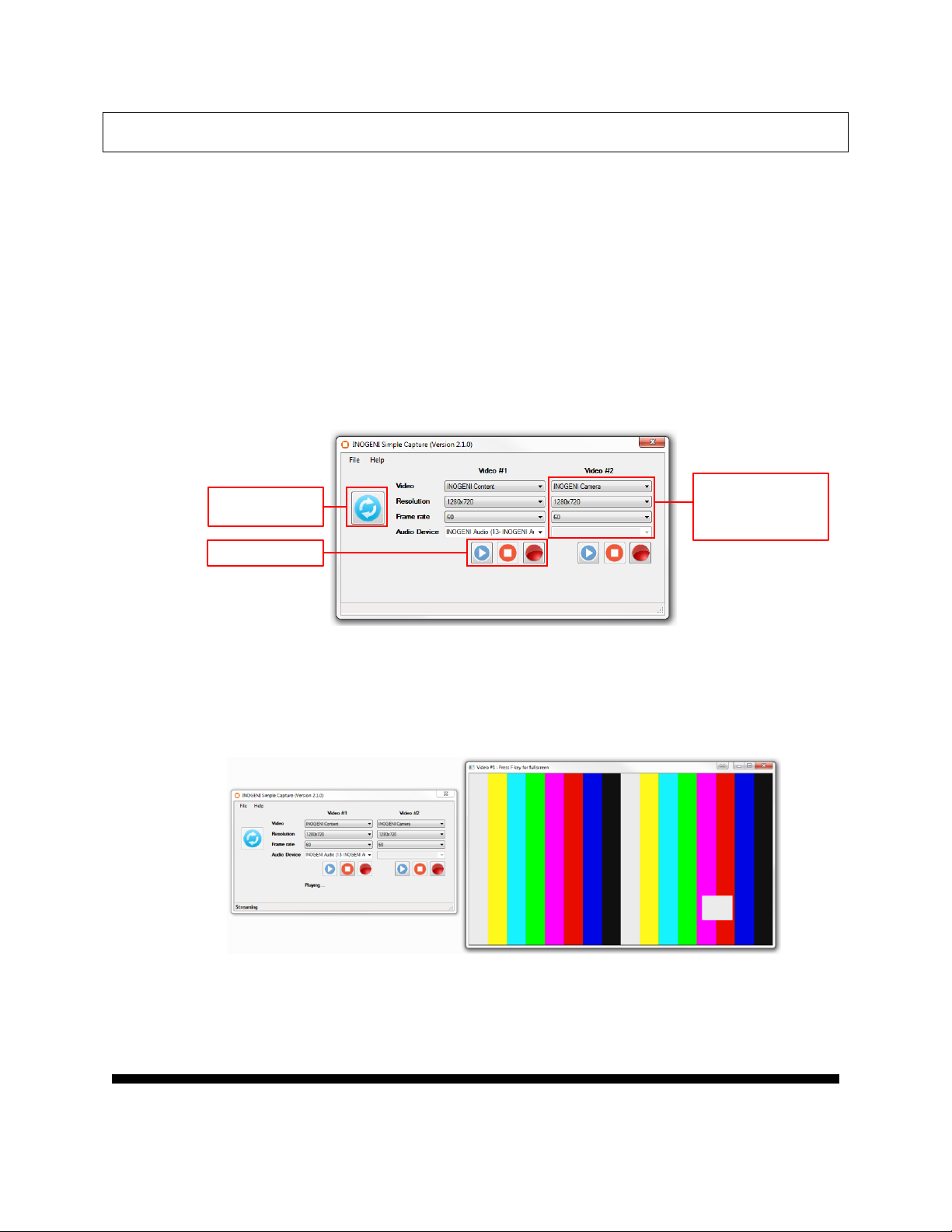
INOGENI SOFTWARE SUITE
Refresh the list of
detected devices
Play/Stop/Record
Selected video device
Selected resolution
Selected frame rate
Selected audio device
Eager to try it now? Simple as 1-2-3!
1- Connect the USB 3.0 cable to your computer
2- Connect any type of video source
3- Run your App or Download INOGENI Software Suite
You can use our INOGENI Software Suite in order to preview and record your video
sources.
1. You can open the INOGENI Simple Capture application.
You will then have to use which video device, the resolution and the frame rate to
use for the preview/capture. Optional audio source can be selected.
2. To preview, you can click on the Play button and a window will appear with the
video content.
You can click the Stop button to quit the preview mode or close the preview
window.
Page 9
INOGENI SHARE2 User Guide
Version 1.1
7/22/16
9
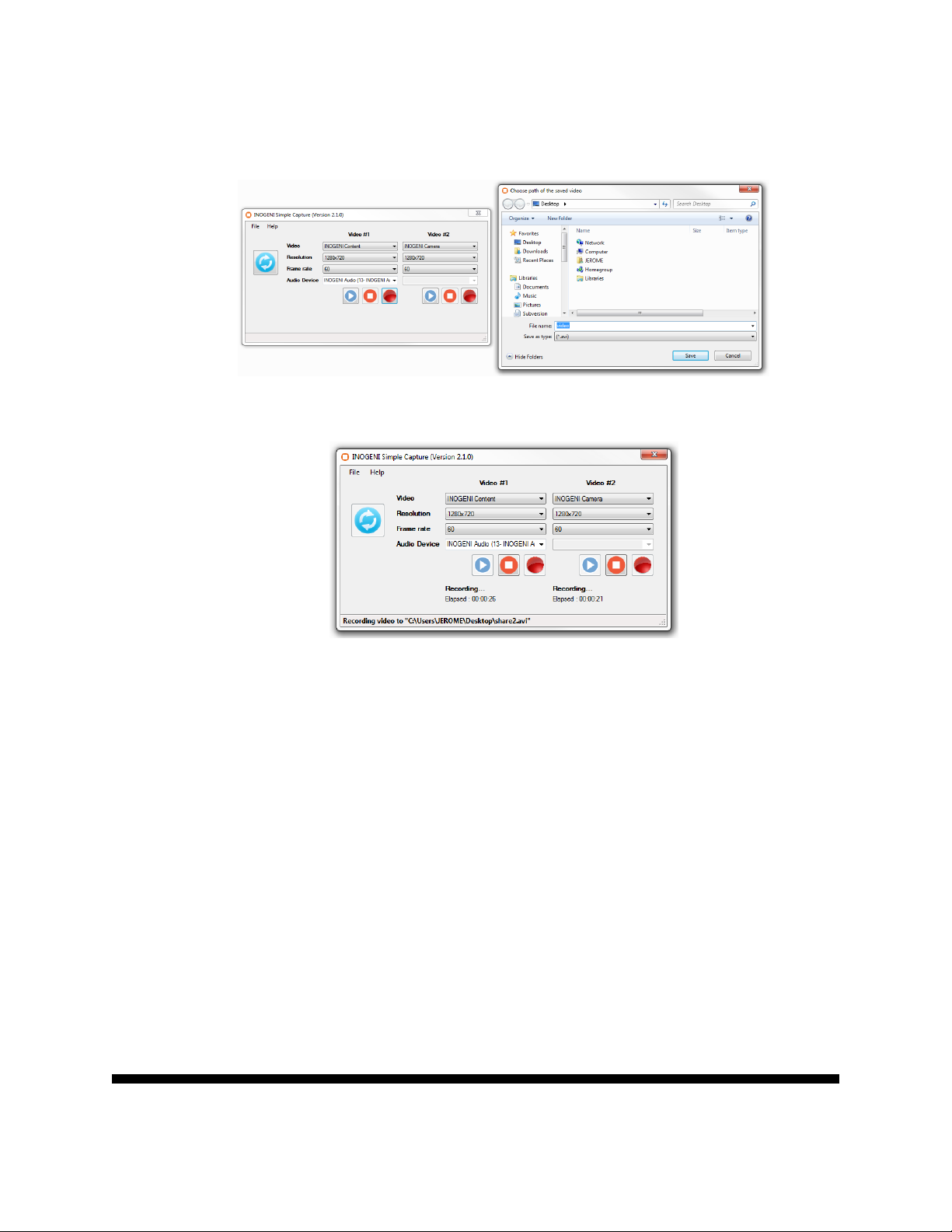
3. If you want to capture to a file, you can click on the Record button and the
application will ask you where to save the file to.
4. The application will then record your video sources.
The length of the recording will also be available in the application.
You can also use our INOGENI Simple Viewer which only offers a single preview of a
video and audio sources.
Or you can use your favorite application with the INOGENI.
Page 10

INOGENI SHARE2 User Guide
Version 1.1
7/22/16
10
SUPPORT
Engineered by video professionals, for video professionals, it is your most compatible
USB 3.0 device. INOGENI expertise at your fingertips:
if you have any technical question about our products.
INOGENI Software Suite to start capturing quickly with your INOGENI device.
Please visit www.inogeni.com/support for more details.
Extensive Knowledge Base to learn from other customers experiences.
© Copyright 2016 by INOGENI Inc. All Rights Reserved.
INOGENI name and logo are trademarks or registered trademark of INOGENI. Use of
this product is subject to the terms and conditions of the license and limited warranty in
effect at the time of purchase. Product specifications can change without notice.
INOGENI Inc.
104-3175 Chemin des Quatre-Bourgeois,
QC G1W 2K7,
Canada
 Loading...