

Page 1
ZEN / ZEN
ith
Quick Start Guide
Page 2

1
INDEX
Box Contents �������������������������������������������� 2
1 Connect your system to mains power ������������������������ 3
2 Connect your system to your home network ����������������� 4
3 Turn on your system �������������������������������������� 7
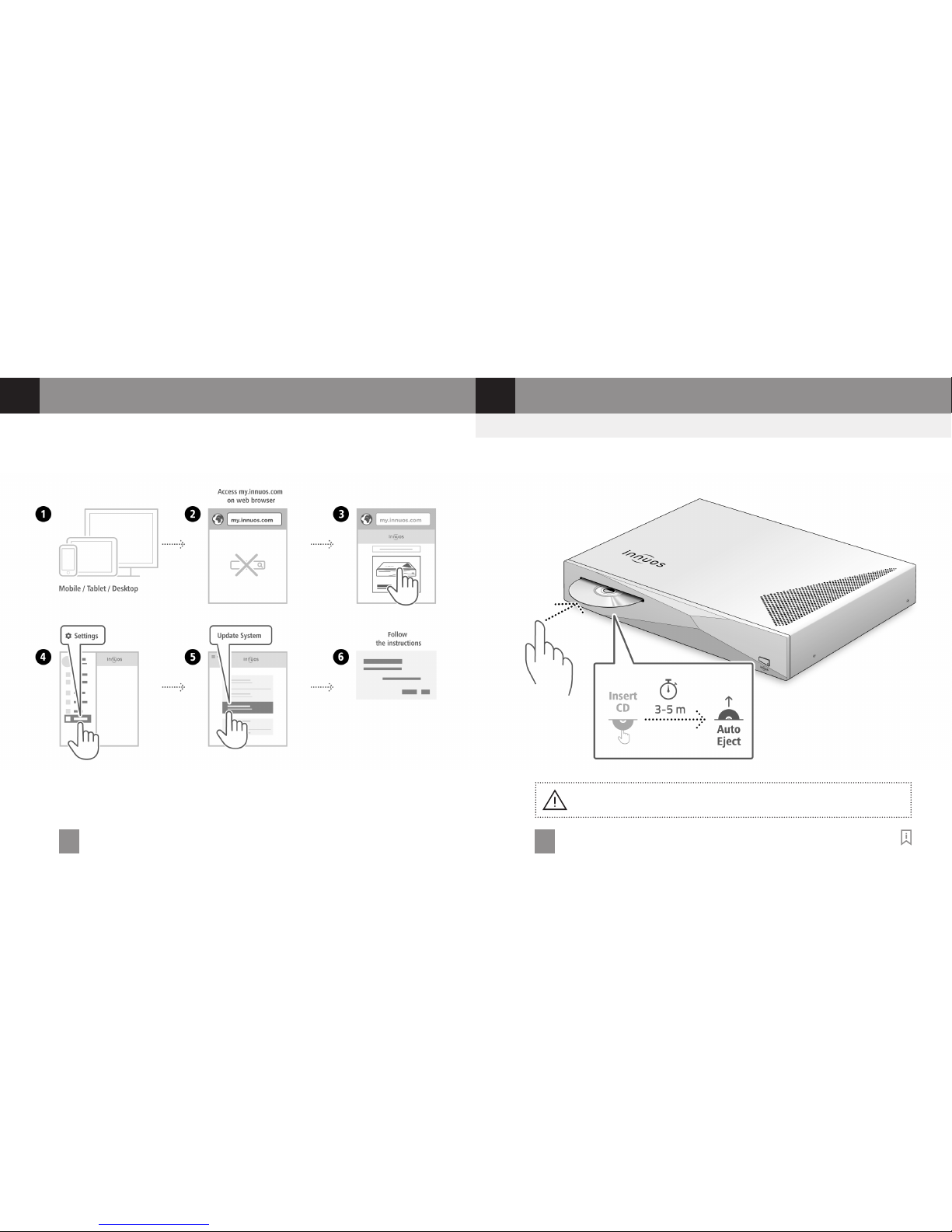
4 Update innuOS software to the latest version ����������������� 8
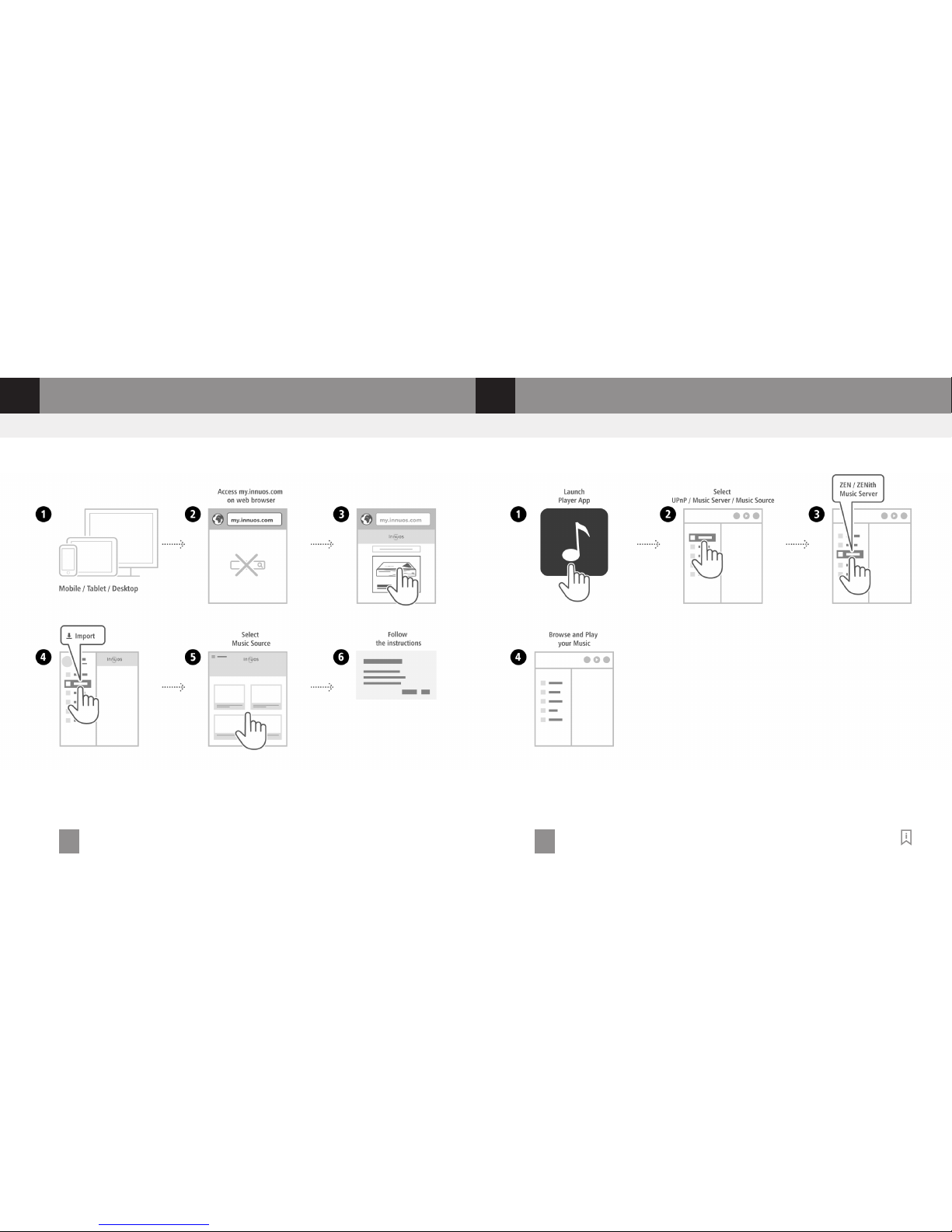
5 Load your music into your system ��������������������������� 9
6 Connecting to a UPnP / DLNA system ���������������������� 11
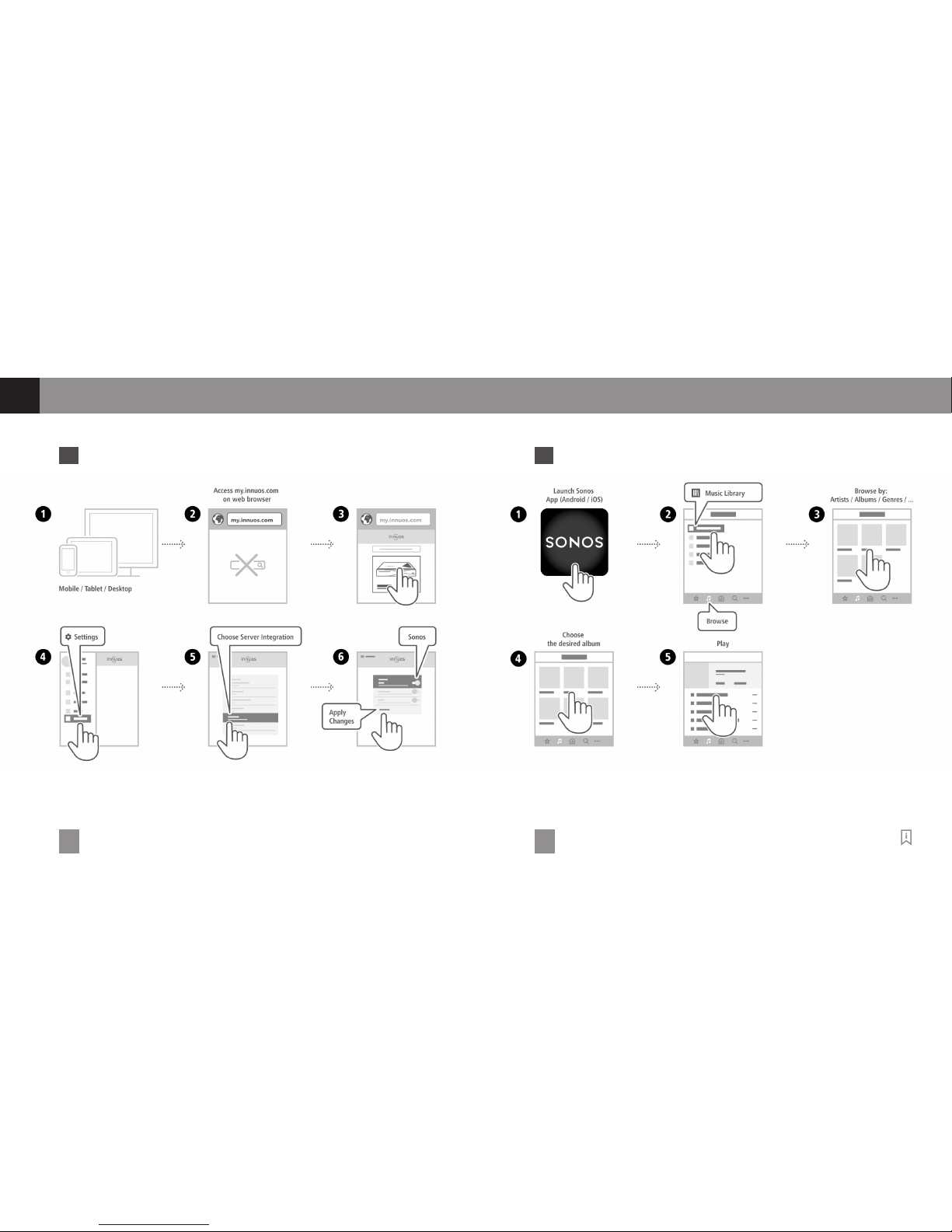
7 Connecting to a Sonos system ����������������������������� 12
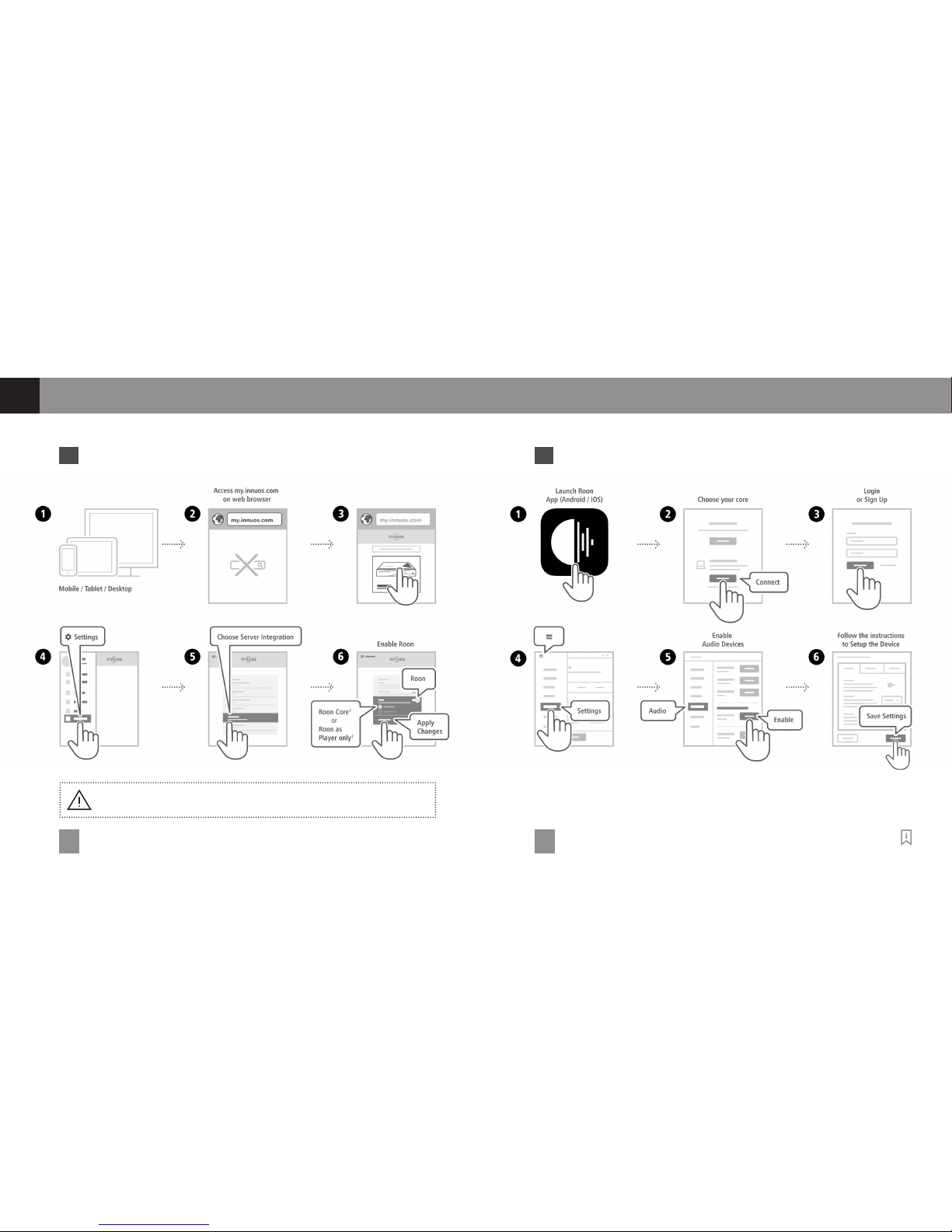
8 Using your system with Roon ������������������������������ 14
9 Using your system as a Player ������������������������������ 16
10 Turn off your system ������������������������������������� 19
Thank you for buying our Music Server.
This quick start guide will show you how to get started with your new
Music Server.
For more detailed information please read our innuOS manual
innuos.com/zenmk2guides
Should you have problems please contact [email protected] and
we’ll be happy to assist you.
Innuos ZEN / ZENith MkII Quick Start Guide (English)
Document ver sion 3.0
Page 3
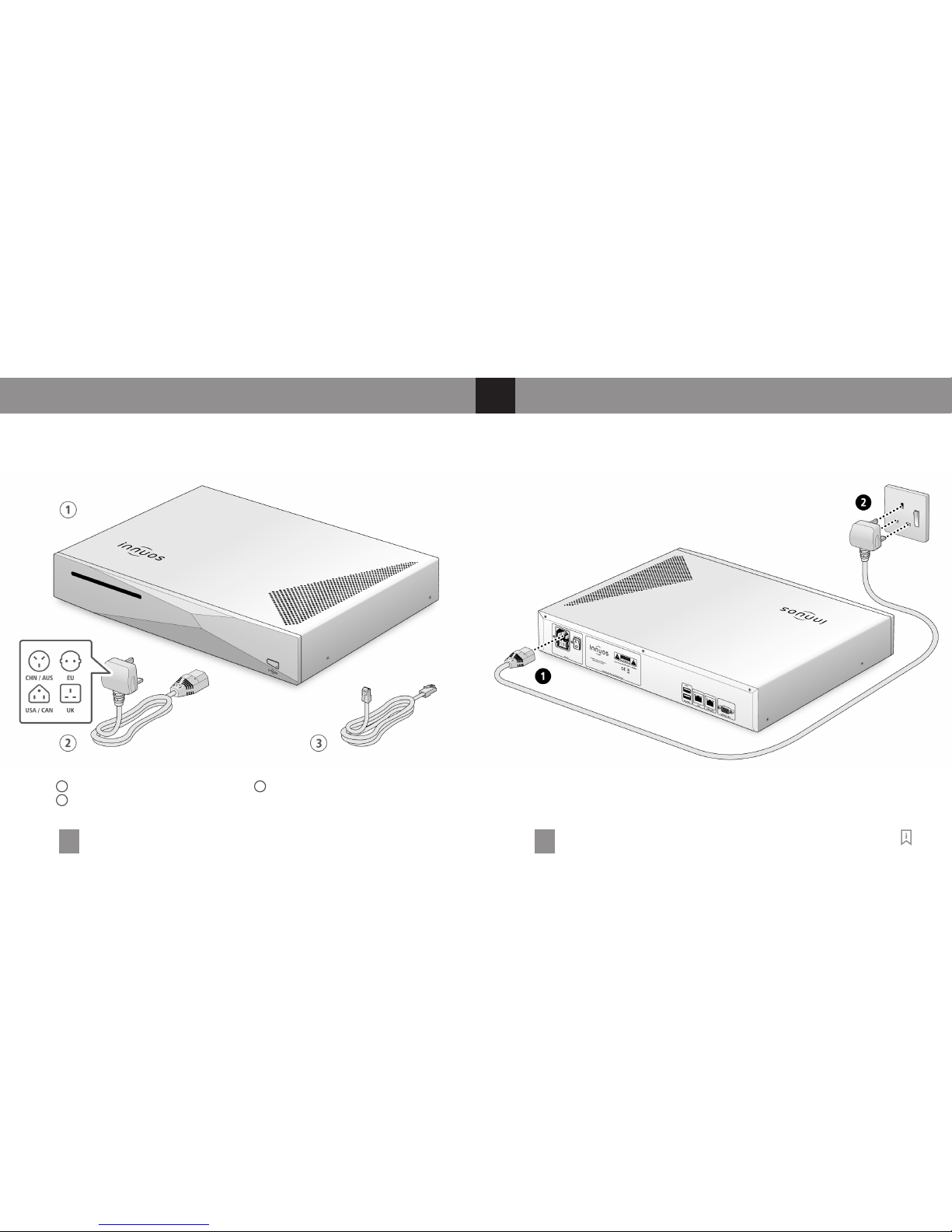
2 3
1 Innuos ZEN / ZENi th Mk.II Music Server
2 Mains Cable
3 2m Ethernet Cable
1
Connect your system to mains power
Box Contents
Page 4
4 5
2
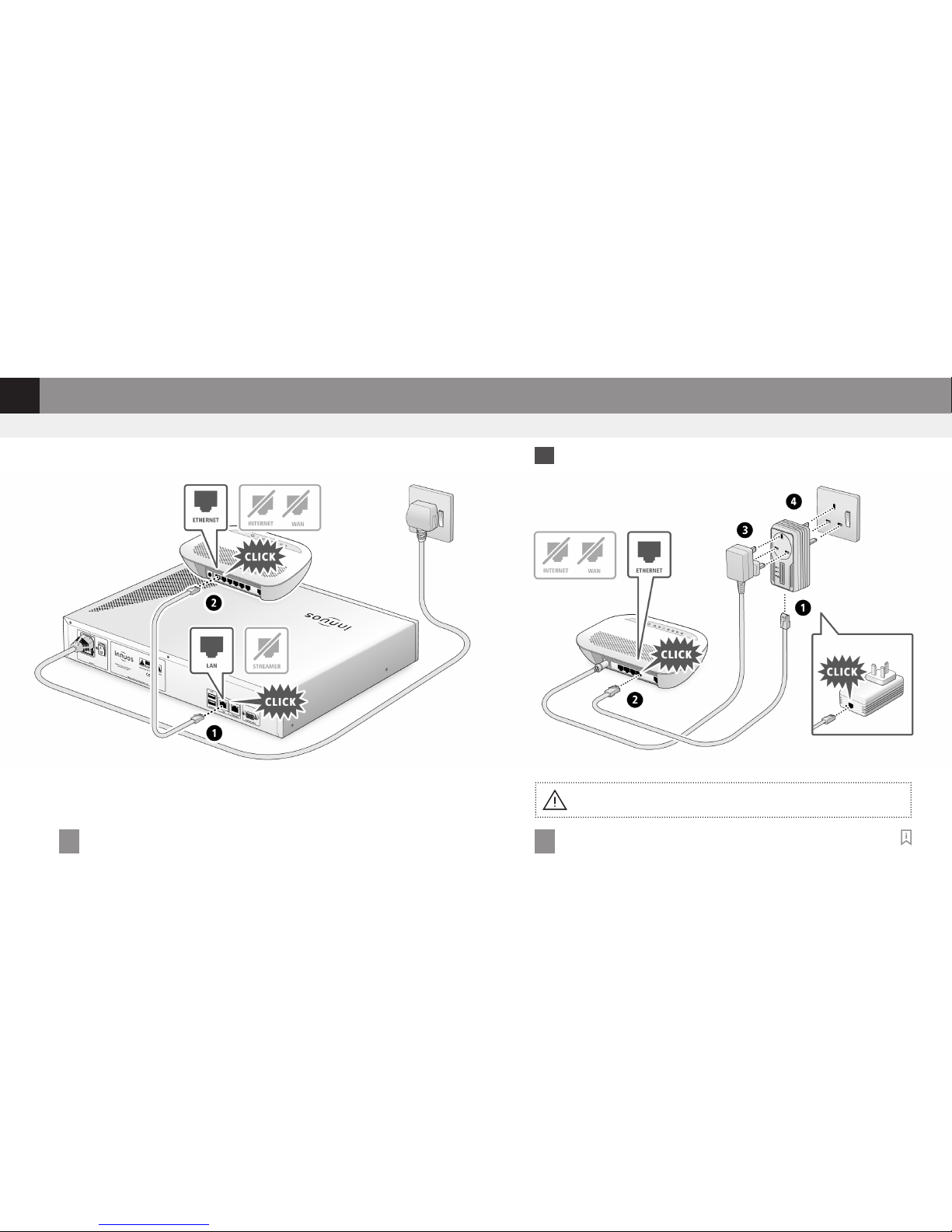
Connect your system to your home network
1 Connect Homeplug to Router ������������������������������������������������������������������������
option b Wired via powerline homeplugsoption a Wired to the Internet Router
Do not connec t powerline homeplugs to sur ge-protec ted mains ex tensions as this may
prevent the power line homeplugs from working correct ly.
Page 5
6 7
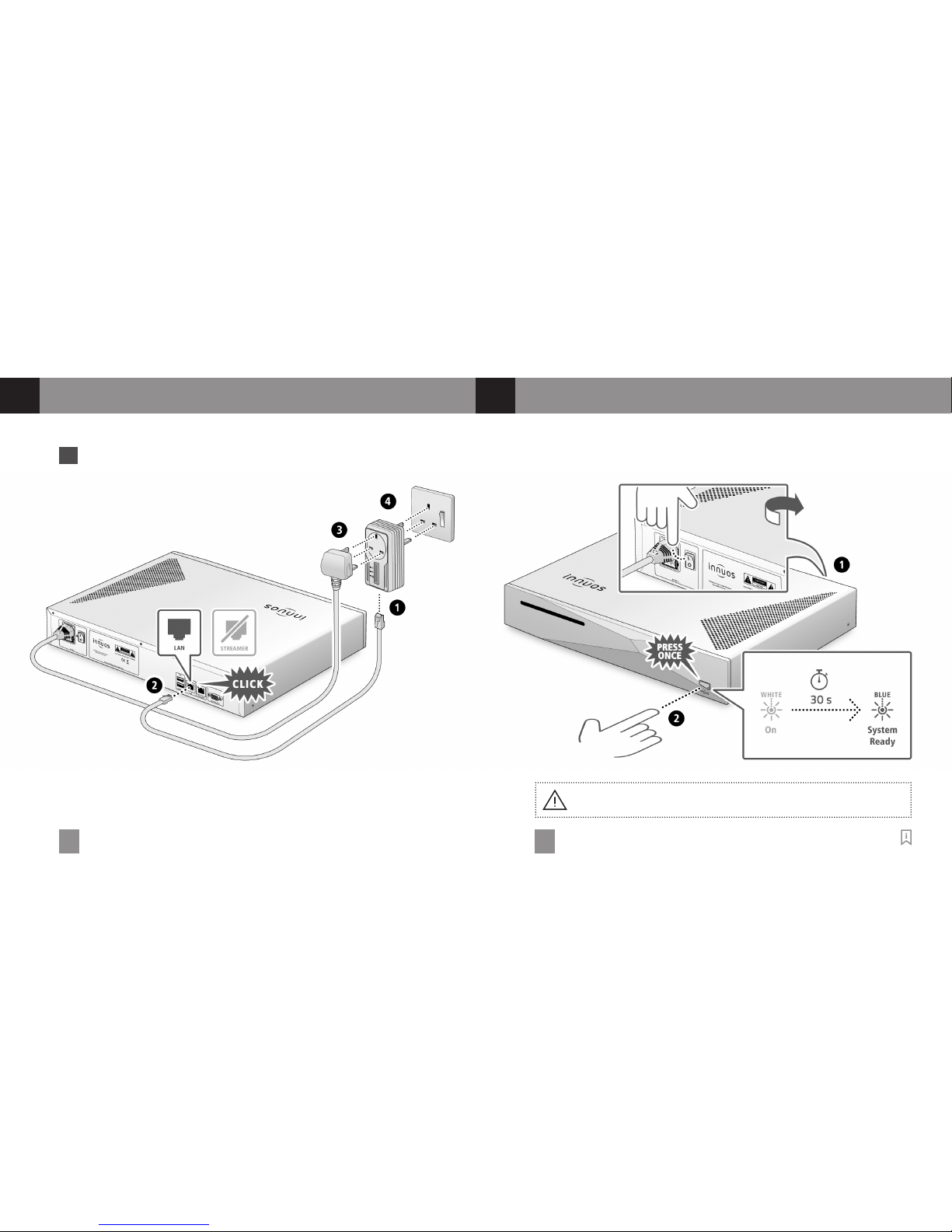
················ 2 Connect your system to Homeplug
3
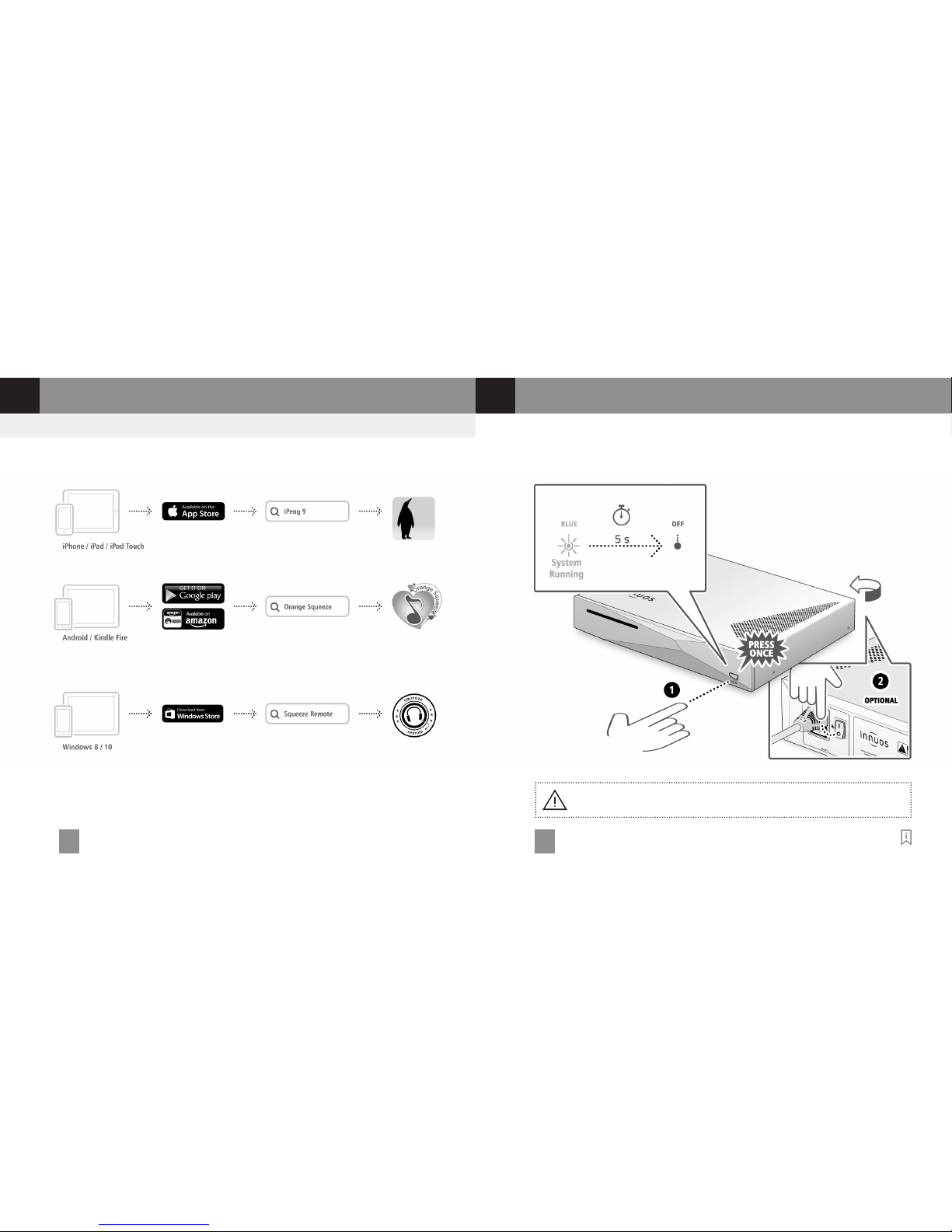
Turn on your system
2
Connect your system to your home network
Please click an d release. Don’t hold but ton down.
Page 6
8 9
5
Load your music into your system
4
Update innuOS software to the latest version
option a Store CDs
Do not push the C D while it is being drawn in as this may cause it to jam or damage the
optical drive.
Page 7
10 11
5
Load your music into your system
option b Import Digital Music Devialet Phantom / B&O / Naim / Linn / Moon Mind / ...
6
Connecting to a UPnP / DLNA system
Page 8
12 13
1 Setup ��������������������������������������������������������������������������������������������������������������
7
Connecting to a Sonos system
················ 2 Play
Page 9
14 15
8
Using your system with Roon
1
Roon Core: Select if you want to use this ser ver as Roon Server and Player.
2
Roon as Player only: Select if you are running Roon Core on another system.
1 Enable Roon on innuOS ����������������������������������������������������������������������������������················ 2 Setup Roon Core
Page 10
16 17
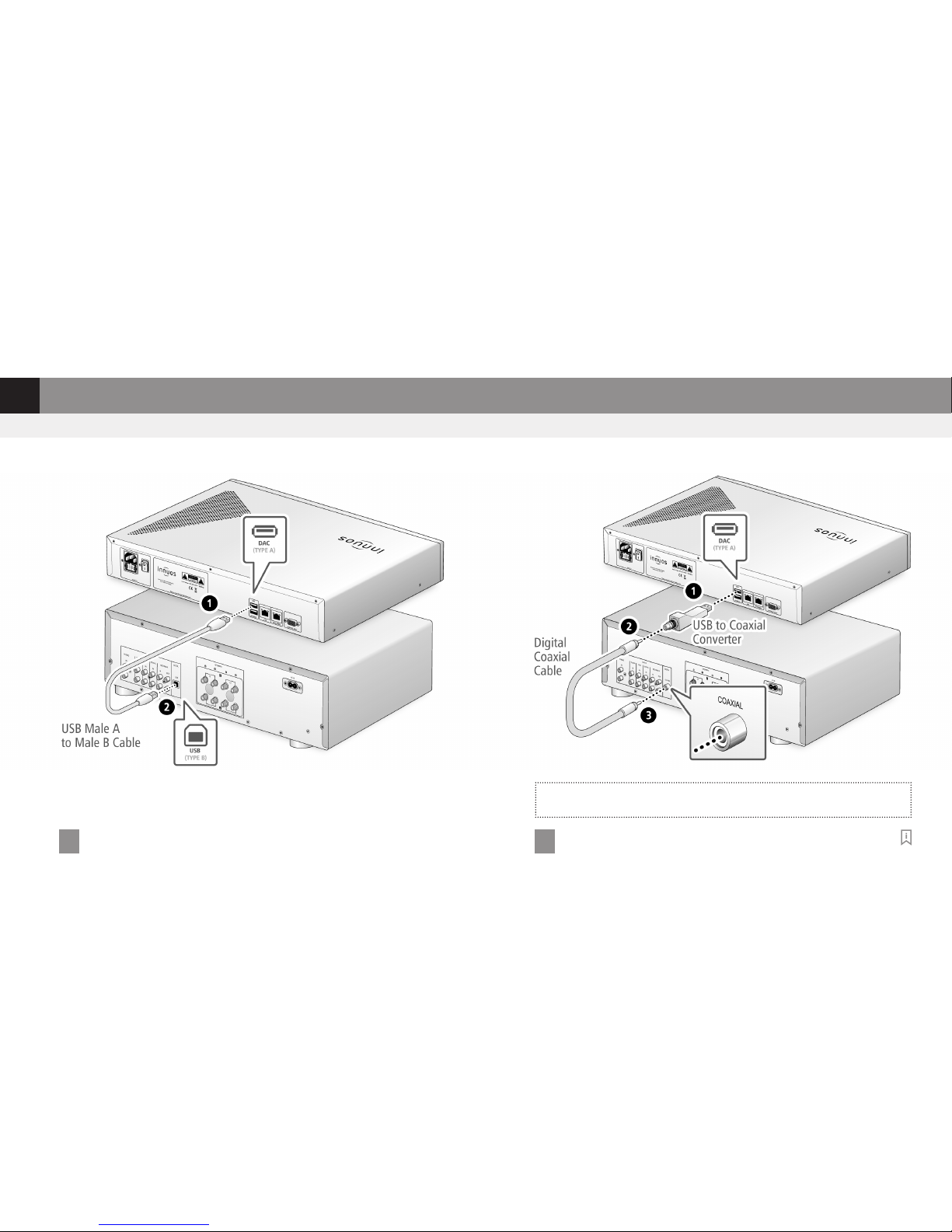
9
Using your system as a Player
setup a Connect to a DAC/Amplier via USB setup b Connect to Amplier via USB to Coaxial Converter
Note: �USBtoCoaxialConverternotin cluded
�Ampli ermusthaveinternalDAC
Page 11
18 19
1 0
Turn off your system
9
Using your system as a Player
Recommended Remote Control App
Please click an d release. Don’t hold but ton down.
Page 12
20
For more information and for the latest ver sion of this qu ick star t guide please visit:
innuos.com/zenmk2guides
Page 13

 Loading...